📝 Key Takeaways:
Siemens NX Cavity Milling 3D Rest Roughing: Master Wang’s Practical Secrets
Hello everyone, I’m Master Wang….
Hello everyone, I’m Master Wang. Today, let’s talk about a crucial topic in Siemens NX Cavity Milling – 3D Rest Roughing. The textbooks might leave you scratching your head with this stuff, but in our shop, mastering it can genuinely boost efficiency, save on tooling, and deliver quality parts. Listen up, today I’m going to break down the ins and outs of “Use 3D” versus “Reference Tool,” especially focusing on the Workpiece – that’s the core of it all!
3D Rest Roughing: The Core Secret of Workpiece
Back when we first started roughing, we typically used the “Reference Tool” approach. Now, with the “Use 3D” option available, many folks don’t know how to use it, or their results aren’t great. The reason is simple: you haven’t fully grasped its underlying principles.

Why is Workpiece Essential?
In Siemens NX, when you’re doing rest roughing in Cavity Milling, besides the “Reference Tool” option, there’s another called “Use 3D” (or a custom name you might have, like my A-20 here, just for differentiation, but it’s the same core function). This “Use 3D” feature has a strict prerequisite: you must first create a Workpiece object. Mark my words, this is mandatory!
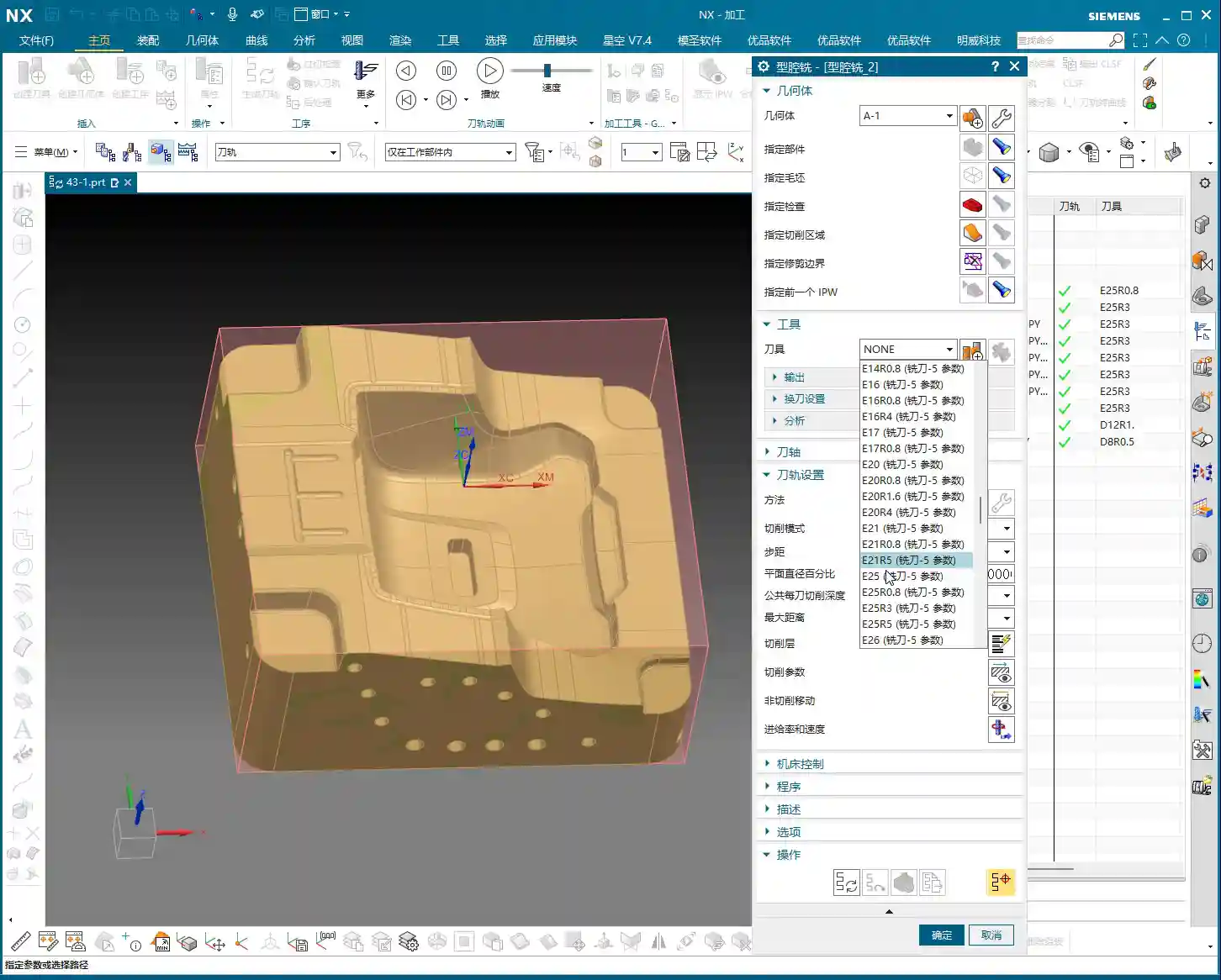
Before, we didn’t really delve into the meaning of the Workpiece, but now, when it comes to Cavity Milling, it becomes absolutely critical. If you want to use “Use 3D” for machining but haven’t set up the Workpiece beforehand, you simply won’t be able to proceed.
Workpiece Setup and Benefits
Open the Workpiece object, and you’ll find two key options: one is Part, and the other is Blank. We often set these in operations before, right? But now, you’re “fixing” them directly within the Workpiece object in advance.
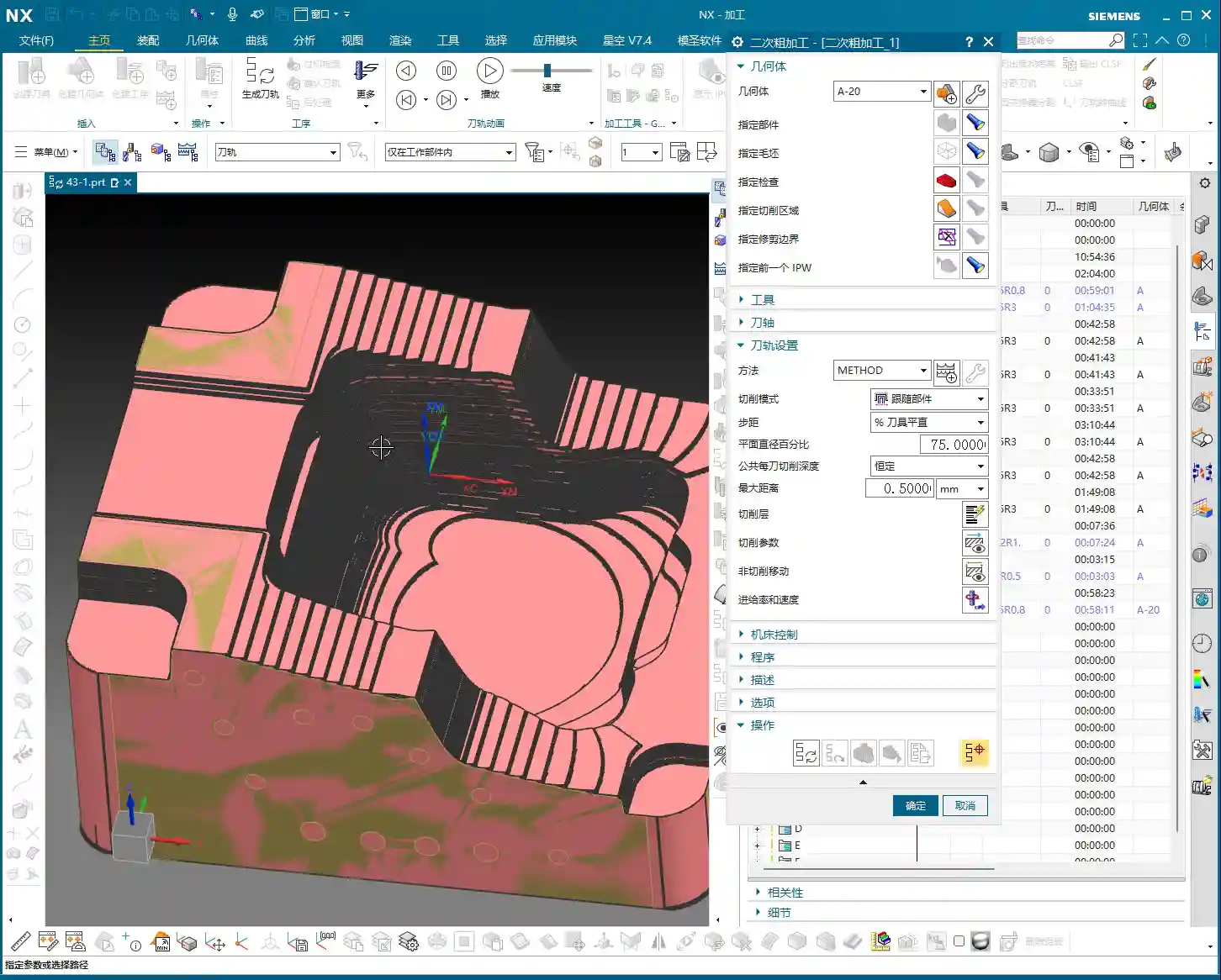
What’s the benefit? Once you specify the Part and Blank within this Workpiece, when you choose to machine using the “Use 3D” method, for example, operations like A-1 or A-20 as we’re discussing here, it will automatically inherit and recognize the pre-defined Part and Blank from the Workpiece. This saves you the hassle of manually specifying them every time you create an operation, significantly improving programming efficiency, especially for complex parts and multiple operations. Simply put, you do the foundational work upfront, and the rest flows smoothly.

Two Strategies Head-to-Head: Traditional vs. 3D
Since we’ve brought up two main approaches, we need to understand their individual characteristics and uses.

Traditional Reference Tool Machining
This method is what we’ve used more often – it’s straightforward. When you select “Reference Tool” for roughing, every time you create a new operation, you need to manually specify the Part and Blank. It doesn’t automatically inherit them like “Use 3D.” This approach works fine for simple parts or single operations, but if you have many operations, continually selecting them gets tedious and prone to errors. Furthermore, its precision in handling residual stock is inferior compared to “Use 3D.”
Advantages of 3D Rest Roughing: Automatic Residual Stock Identification
Here’s the key! When we use “Use 3D” for rest roughing, the most significant advantage is its ability to automatically identify and calculate the residual stock left from the previous operation. You see, when I highlight the blank, it’s no longer a uniform block; it’s the actual shape remaining after the previous roughing pass.
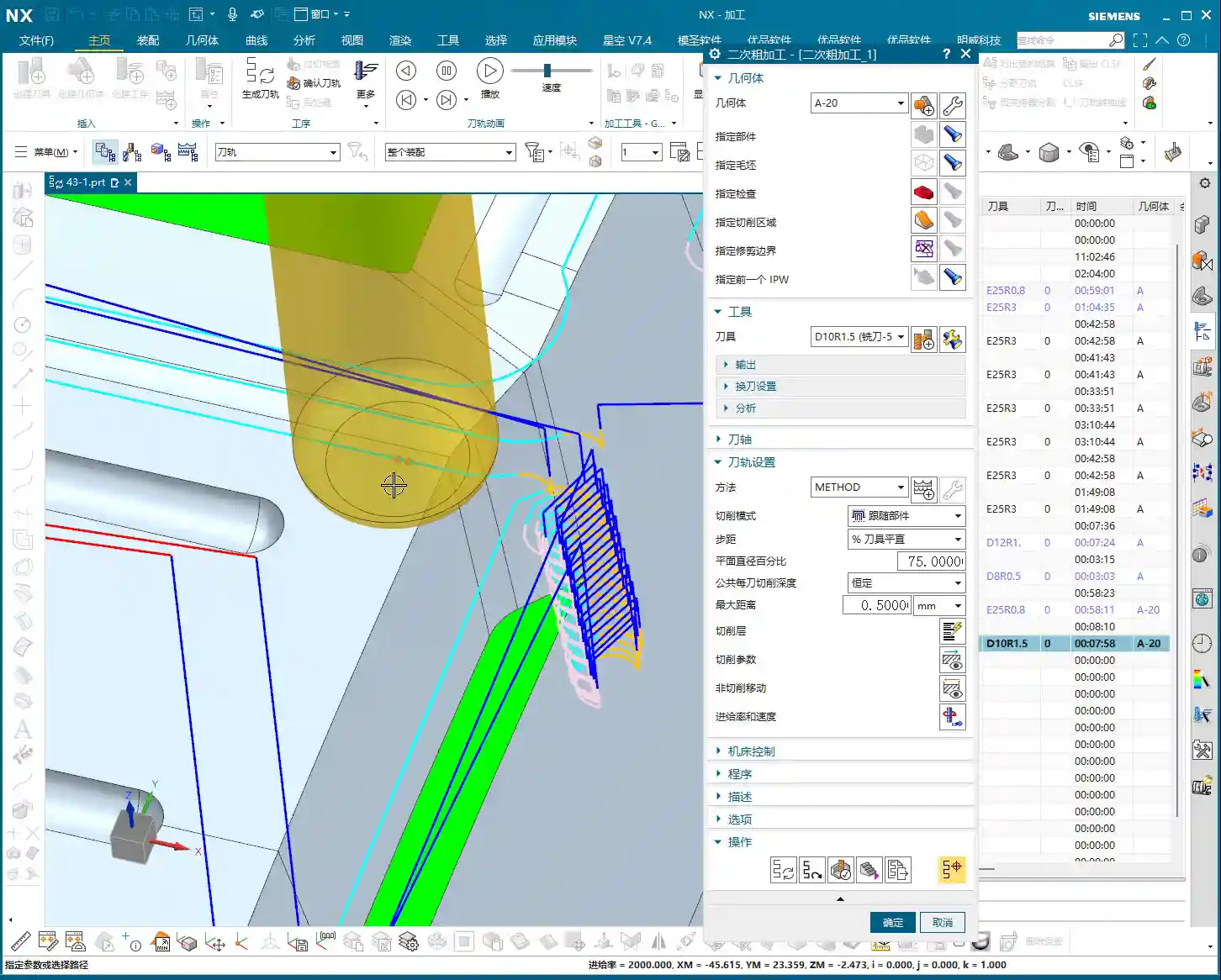
This is where NX gets smart. It uses the Part and Blank defined in the Workpiece, combined with the machining results from your previous operation, to precisely know where material still remains and where it has already been cleared. This way, you don’t need to manually set the reference tool diameter to simulate the previous machining effect; instead, you rely entirely on the system’s automatic judgment. This is especially effective when machining complex surfaces or deep cavities.

Refining Toolpaths: Precision and Efficiency in 3D Machining
“Use 3D” isn’t just about convenience; it also offers unique advantages in toolpath generation and machining quality.
Precise Handling of Residual Stock
Traditional machining methods, especially on slopes, small fillet radii, or at the bottom of deep cavities, often leave behind “small triangular areas” or irregular residual stock – places the tool couldn’t completely clear. These areas often pose risks for subsequent operations, potentially increasing the burden of finishing, or worse, leading to gouging, tool chipping, or even scrapping the part.
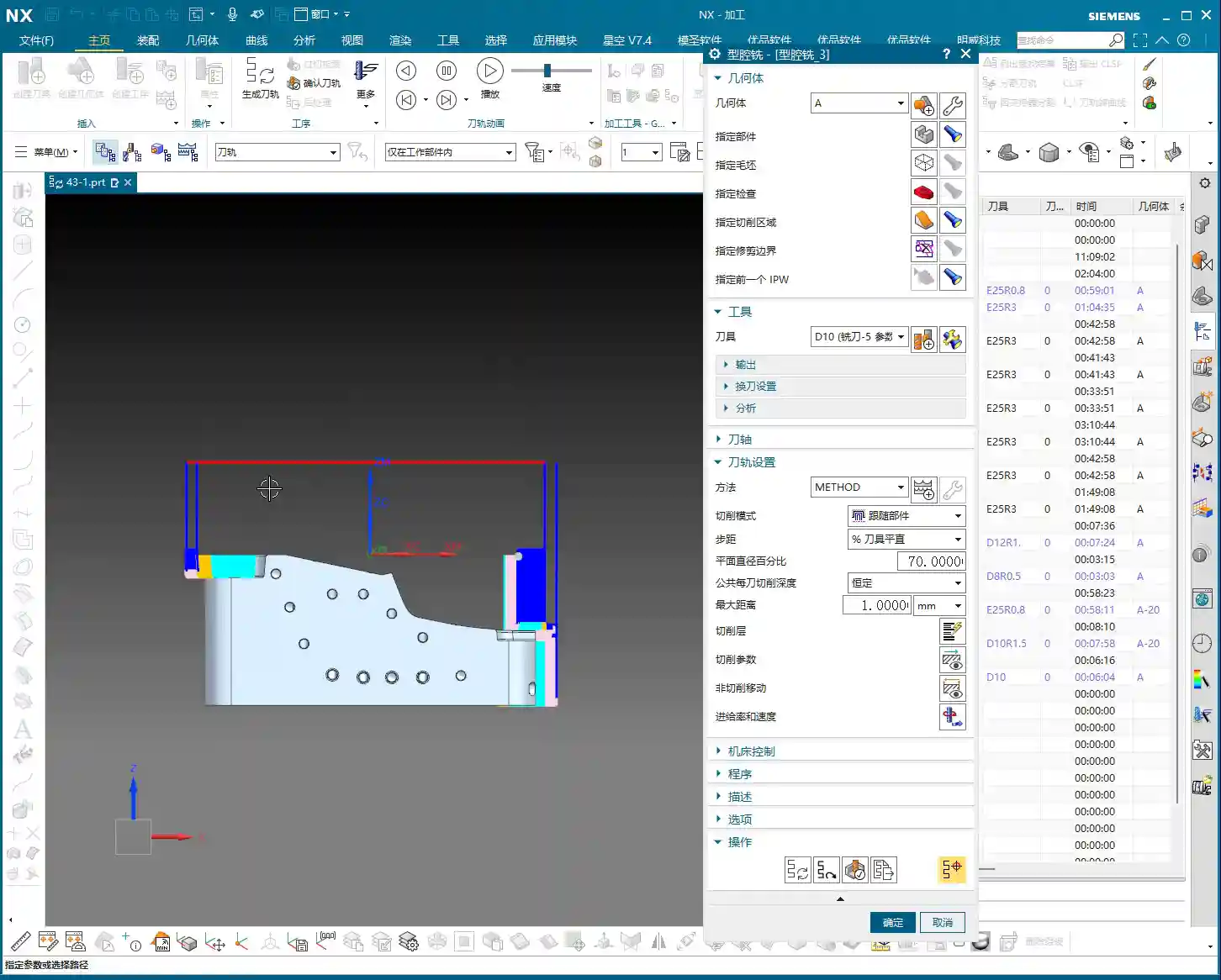
However, “Use 3D” machining, precisely because it calculates the residual stock, will specifically generate additional cuts for these irregular, unmachined regions when creating toolpaths. For instance, steep slopes that traditional methods might skip over will get an extra pass with 3D roughing to clear that material as well. This results in more uniform residual stock on the part surface, laying a better foundation for subsequent finishing passes. The toolpath might look denser, but it’s genuinely clearing material.
Optimization Strategies and Computational Considerations
While “Use 3D” can handle residual stock more precisely, don’t forget it’s computationally more intensive, so program generation time might be longer. But it’s absolutely worth it! To further optimize, we can adjust the parameters.
For example, for the Depth of Cut (DOC) or Stepover, you can adjust them according to the actual situation. I usually set the stepdown for rest roughing to half of the initial roughing, or slightly smaller based on material hardness and tool wear, such as 0.4mm. This way, while ensuring effective material removal, you can also optimize toolpath density and reduce unnecessary air cuts, improving overall efficiency. Don’t just rely on software simulations; look at the cutting sparks, listen to the machine’s sound – that’s the real validation!
Summary: Pitfalls to Avoid
- Workpiece is Fundamental: Listen up, if you want to use the “Use 3D” function, the first step is always to define your Workpiece, including the Part and Blank. If it’s not set up correctly, everything else is pointless.
- Understand Both Methods: “Reference Tool” is suitable for simple parts or beginners, requiring manual selection every time. “Use 3D” is advanced; it automatically inherits and identifies residual stock, significantly improving efficiency and machining quality.
- Refined Toolpaths: 3D rest roughing helps clear those “small triangular areas” and irregular remnants, preventing gouging during finishing. But remember, calculation time will be slightly longer; this is normal.
- Parameter Flexibility: Don’t rigidly apply default parameters. Stepdown, feed rates, etc., should be adjusted flexibly based on the material, tooling, and conditions of the previous operation. For example, setting the stepdown for rest roughing to half of the initial roughing can effectively optimize toolpaths and reduce air cuts.
- Experience is Key: Don’t just stare at the screen watching simulations; go to the machine and observe the actual cutting performance. Are the sparks consistent? Is the machine experiencing unusual vibration? These are the ultimate criteria for judging a good toolpath!
- Tool Limitations: Finally, even with 3D rest roughing, if the tool diameter is too large, it still can’t access some narrow areas. Remember, tools are not universal; select them appropriately based on the geometry.
👤 About the Author:
The author is a veteran CNC machining professional with 15 years of industry experience, specializing in UG NX programming. This article is an original work representing personal practical insights.
⚠️ Copyright Notice: Unauthorized reproduction or distribution without prior communication is strictly prohibited.