Blog

  • Master Wang Unveils Siemens NX Programming for Disc Parts: From Blank Analysis to Surface Patching,

    📝 Key Takeaways:

    Siemens NX in Practice: Pre-Programming Analysis and Surface Patching for Disc Parts

    Alright, listen closely, folks. Today, Master Wang w…

    [VIDEO_HERE]

    Alright, listen closely, folks. Today, Master Wang will walk you through the ins and outs of machining these disc-type parts. Don’t think it’s simple just by looking at it; an inexperienced machinist will stumble right into the pitfalls here. We’re not going to waste time on abstract theories. Let’s dive right in and talk about how to machine this thing quickly, accurately, and cost-effectively.

    Step One: Blank and Fixturing – A Solid Foundation is Key

    Once you get the drawing, don’t rush to open the software. First, review it in your head. This part, by visual inspection, appears to be a cylindrical blank. Remember this: if the blank is defined incorrectly, everything that follows is pointless.

    Layer Management for Blanks and Parts

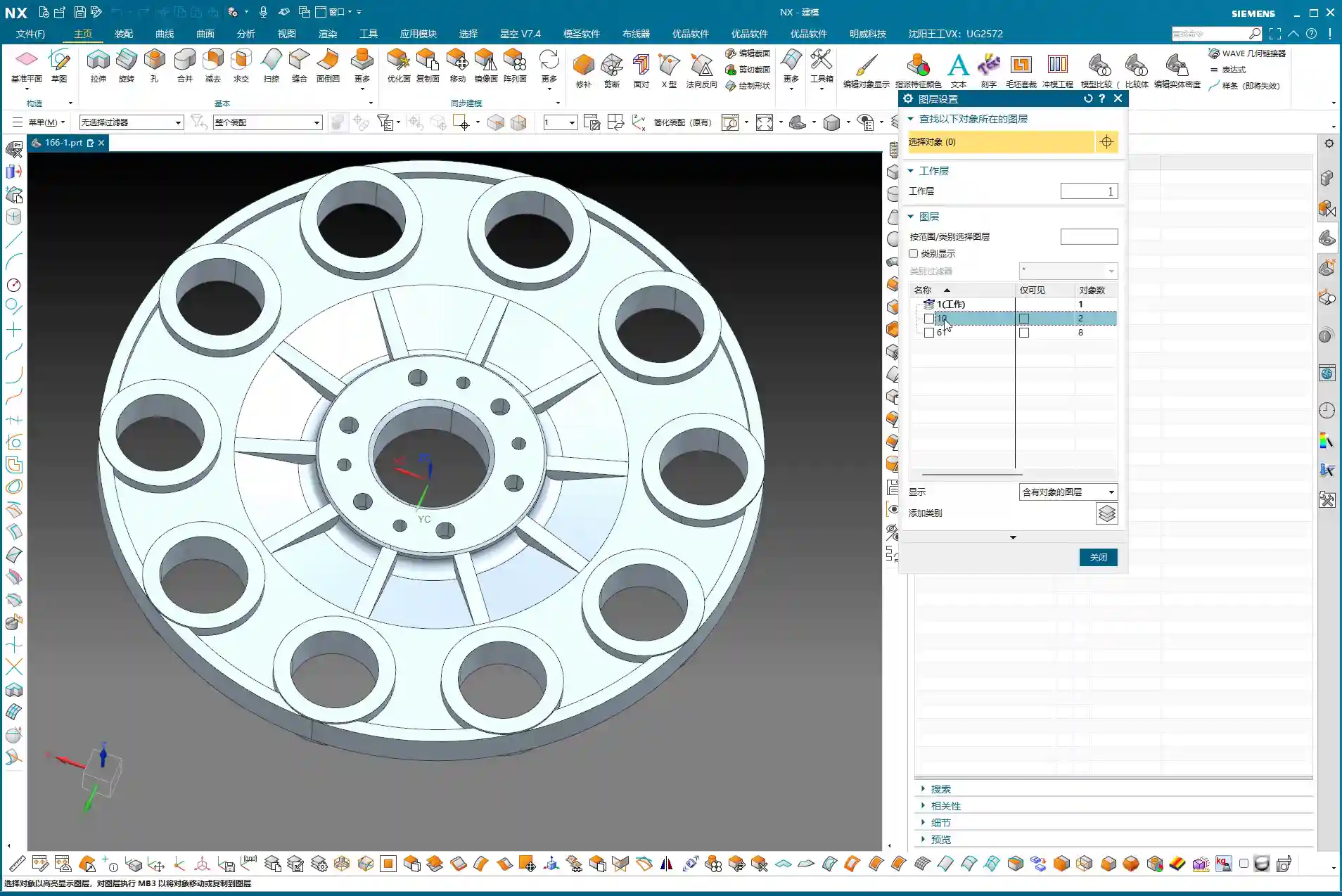
    I habitually separate the blank and the finished part. This keeps things clear and prevents confusion. For example, put the blank on Layer 10 and the part on Layer 100. Just activate the layer you need; it’s clean and efficient! While this is a software operation, it’s also a logical extension of managing drawings in the workshop. Don’t underestimate these details.
    Fixturing Strategy: Flip-Machining is Standard

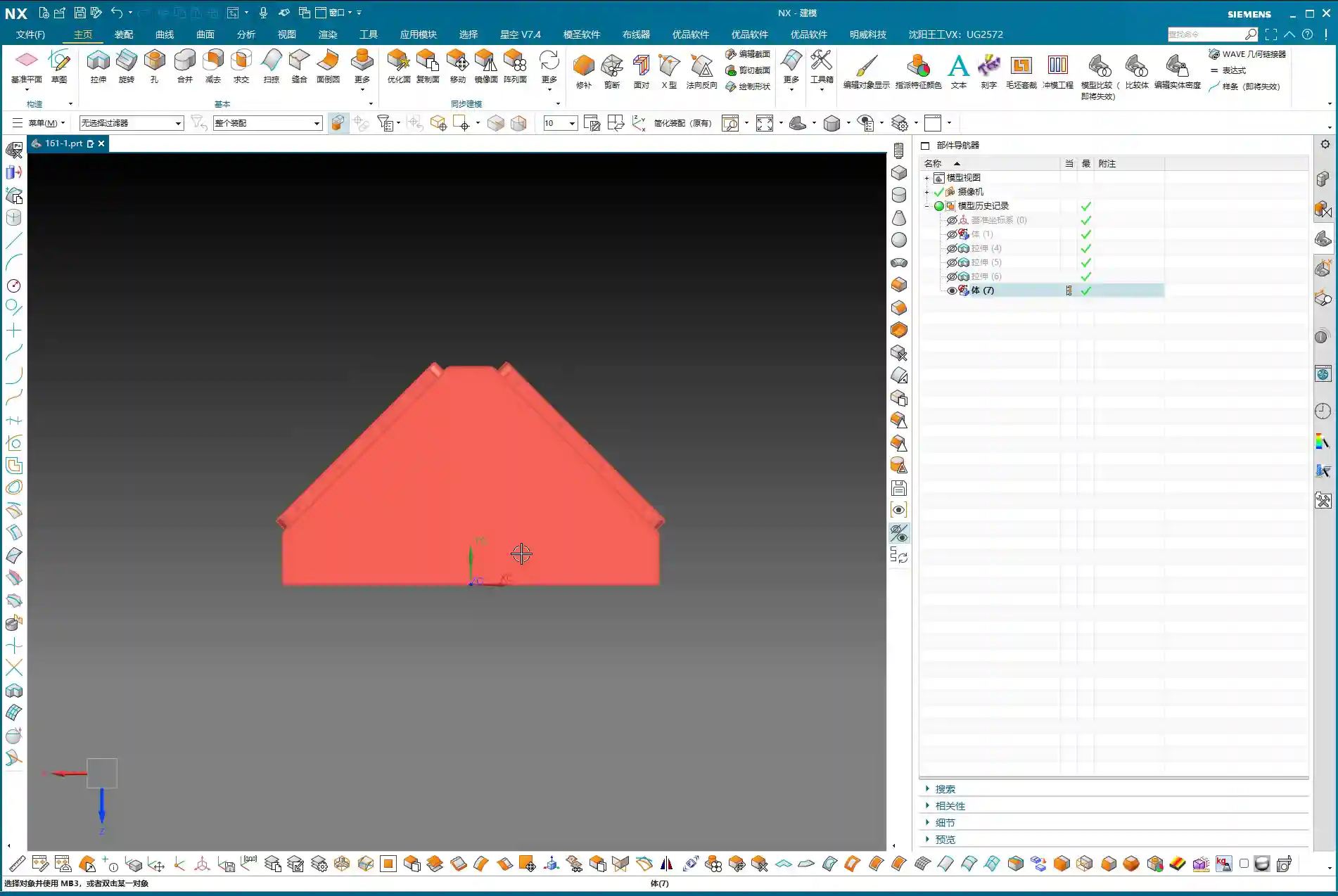
    For these disc parts, both sides need to be machined, so the most common approach is flip-machining. Machine the backside first, then flip it over to machine the front. For fixturing, let’s start with the most conventional method. As for the specific fixture, that depends on your actual machine and workpiece situation; you need to be flexible. But the core idea is: ensure rigidity, minimize deformation, and facilitate flipping. When machining the first side, the Work Coordinate System (WCS) can initially be set to the bottom surface. Then, upon measurement, you find it’s offset by 1 mm in the Z-direction. That’s easy to fix: dynamically adjust the WCS, raising the Z-axis by 1 mm. This ensures it perfectly aligns with the machining surface, leading to stable and accurate tool paths.

    Step Two: Surface Analysis – Discerning the Part’s Geometry

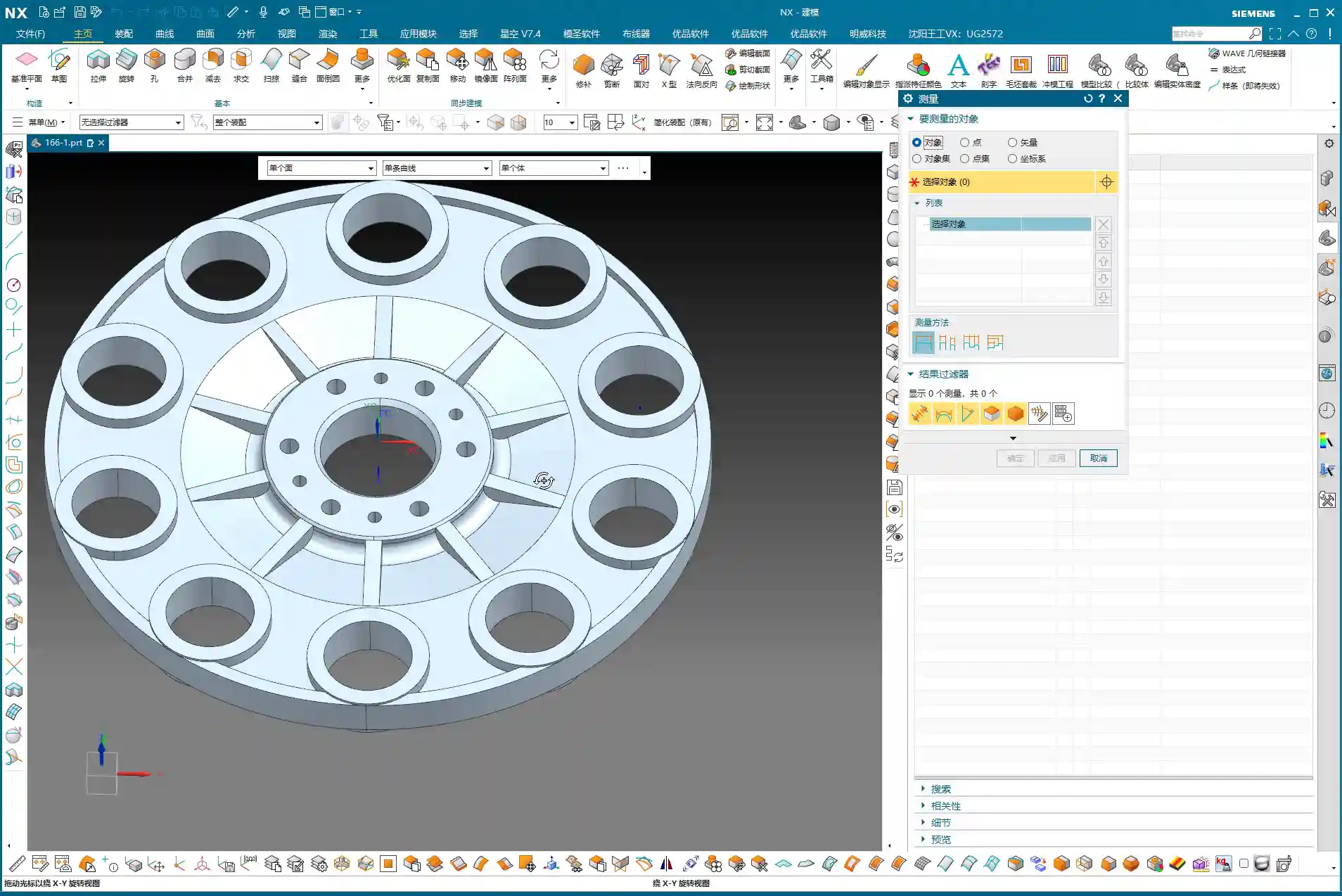
    After setting up the WCS, the next step is to analyze the part’s geometry. Just looking at it isn’t enough; Siemens NX has tools, and you need to learn how to use them. I typically use Slope Analysis. This tool allows you to instantly see the part’s underlying structure.

    Planar, Inclined, and Curved Surfaces: Tailoring Tool Selection

    Looking from the top down, most areas are flat, which is straightforward. But when you view it from the side, you’ll notice the part not only has inclined surfaces but also distinct curved surfaces. Especially some root areas are not simple lines or planes. These are the spots prone to challenging tool engagement or difficult-to-machine corners. You must pay close attention to these areas during programming.
    Material Properties: Machining Considerations for Aluminum

    Let’s assume we’re machining an aluminum alloy part this time. Aluminum is relatively soft, which means longer tool life during machining. Cutting parameters can be set higher. However, you still need to pay attention to chip evacuation and avoiding burrs. If it were titanium alloy or high-temperature nickel-based alloy, it would be an entirely different ballgame. Tools, spindle speed, and feed rates would all need to be redesigned.

    Step Three: Tool Selection and Tool Path Planning – The Cost-Efficiency Trade-off

    Tool selection directly determines machining efficiency and final accuracy. It’s like a martial arts master choosing a weapon; whether it’s a good fit makes a world of difference in its power. Don’t just focus on buying cheap; calculate the total cost.

    Roughing: Aggressively Removing Excess Material

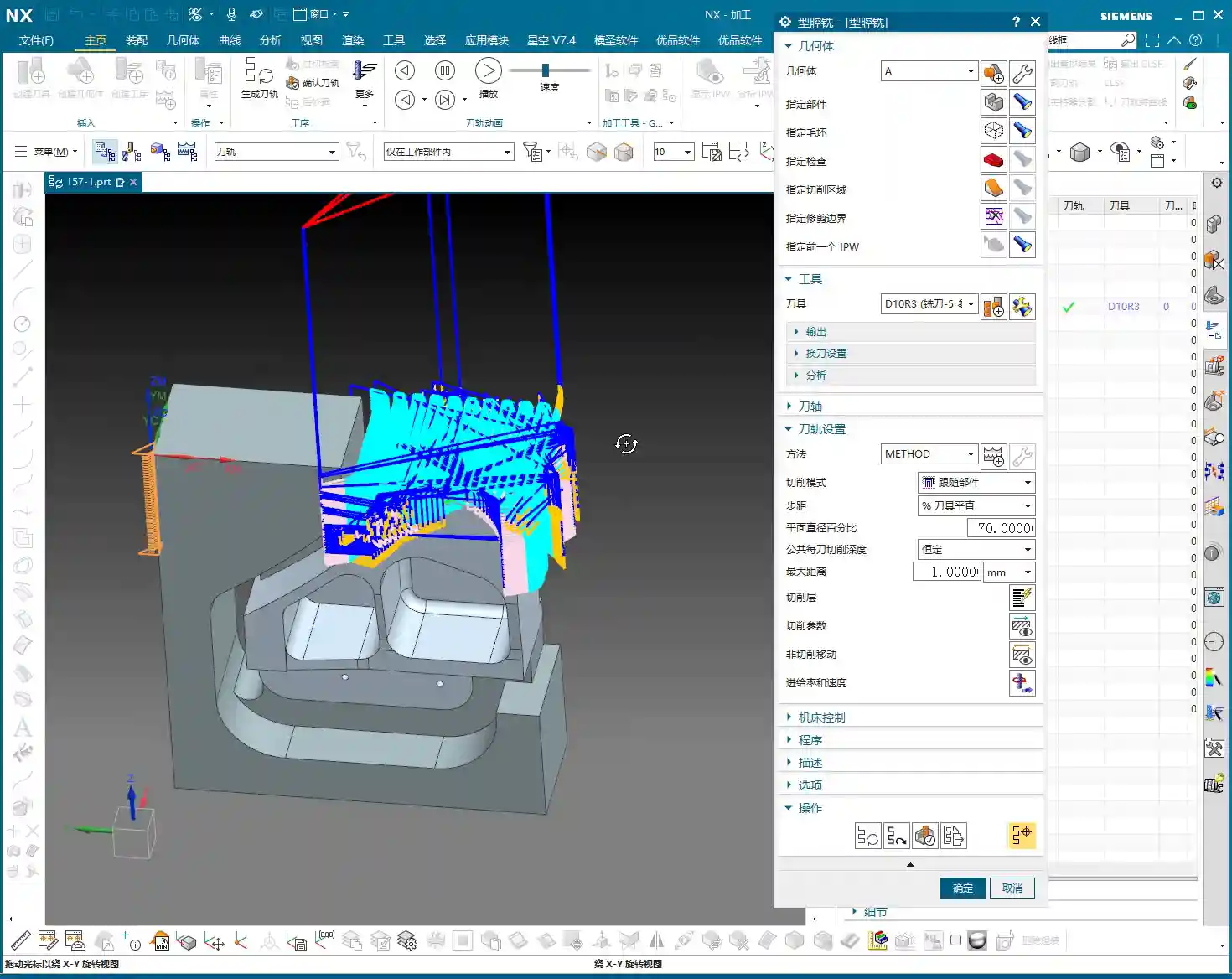
    First, let’s look at the roughing pass. Measure the widest machining area, which is about 40 mm. Alright, then, using a 20 mm diameter flat end mill (D20) for Roughing will be most efficient. If the D20 fits without issues, that’s the one. This is what I call “acting first, reporting later”: aggressively remove most of the material, saving time and effort.
    Semi-Roughing and Corner Cleanup: A Step-by-Step Approach for Accuracy

    After Roughing, there are some areas where the D20 won’t fit, or the remaining material is not ideal. This is when semi-roughing comes in. Measure those smaller areas, for example, a spot about 10 mm wide, and use a D10 flat end mill. Looking at the backside, there’s a spot only 6 mm wide, so use a D6 flat end mill. By performing Corner Cleanup step by step, you clear out the material left by the larger tool, laying a solid foundation for finishing passes.

    Contour Milling: Achieving a Fine Surface Finish

    For those curved and inclined surfaces, a flat end mill alone won’t get the job done. As mentioned earlier, some areas of this part require an R3 fillet. So, directly use a D6R3 ball end mill (meaning a tool with a 3 mm ball nose radius and a total diameter of 6 mm). Use it for Contour Milling these curved surfaces, which will ensure the required surface finish and fillet shape. As for small holes and chamfers, they’re too simple; just use a chamfer tool and a drill, we won’t go into detail about those today.

    Step Four: Surface Patching and Model Modification – Practical Tips Not Found in Textbooks

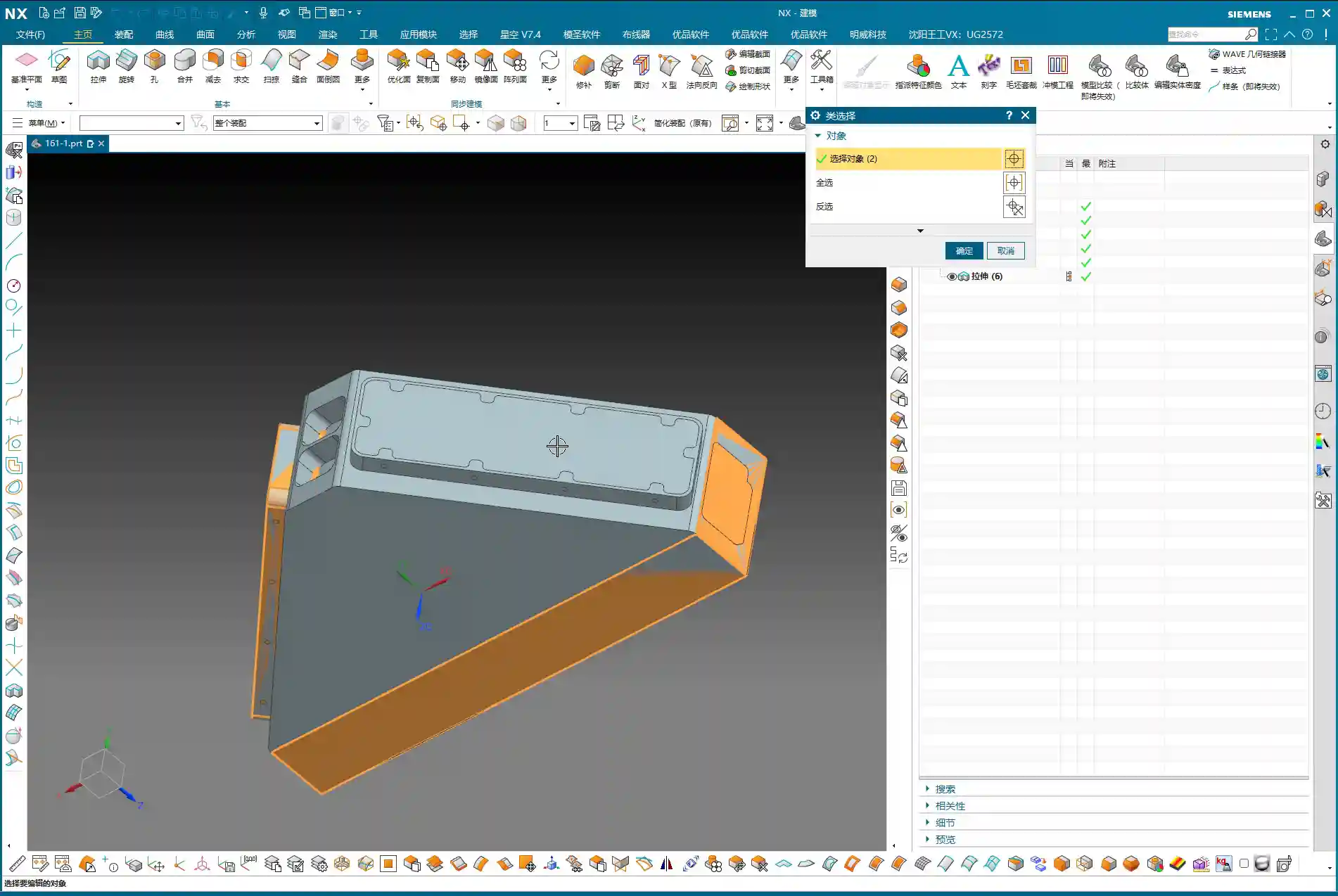
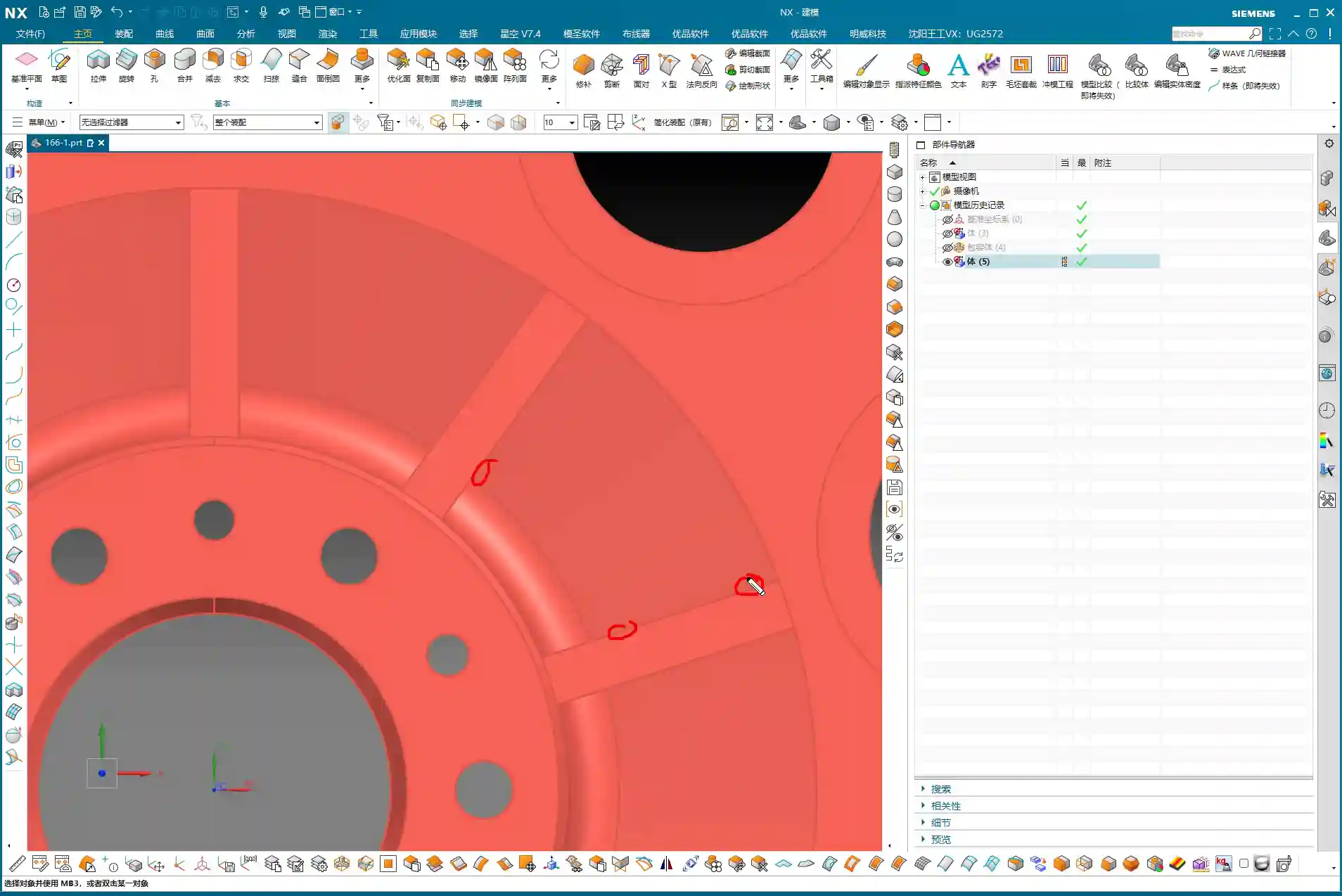
    Before programming, a very important step is surface patching. Especially for cast parts or those designed simply, the model often has openings or discontinuous regions. If these areas are not addressed, the software will easily generate errors when calculating tool paths. Use Siemens NX’s “Patch Opening” function to seal up all these areas. Especially for some planar regions, patch them one by one to ensure the model’s integrity.
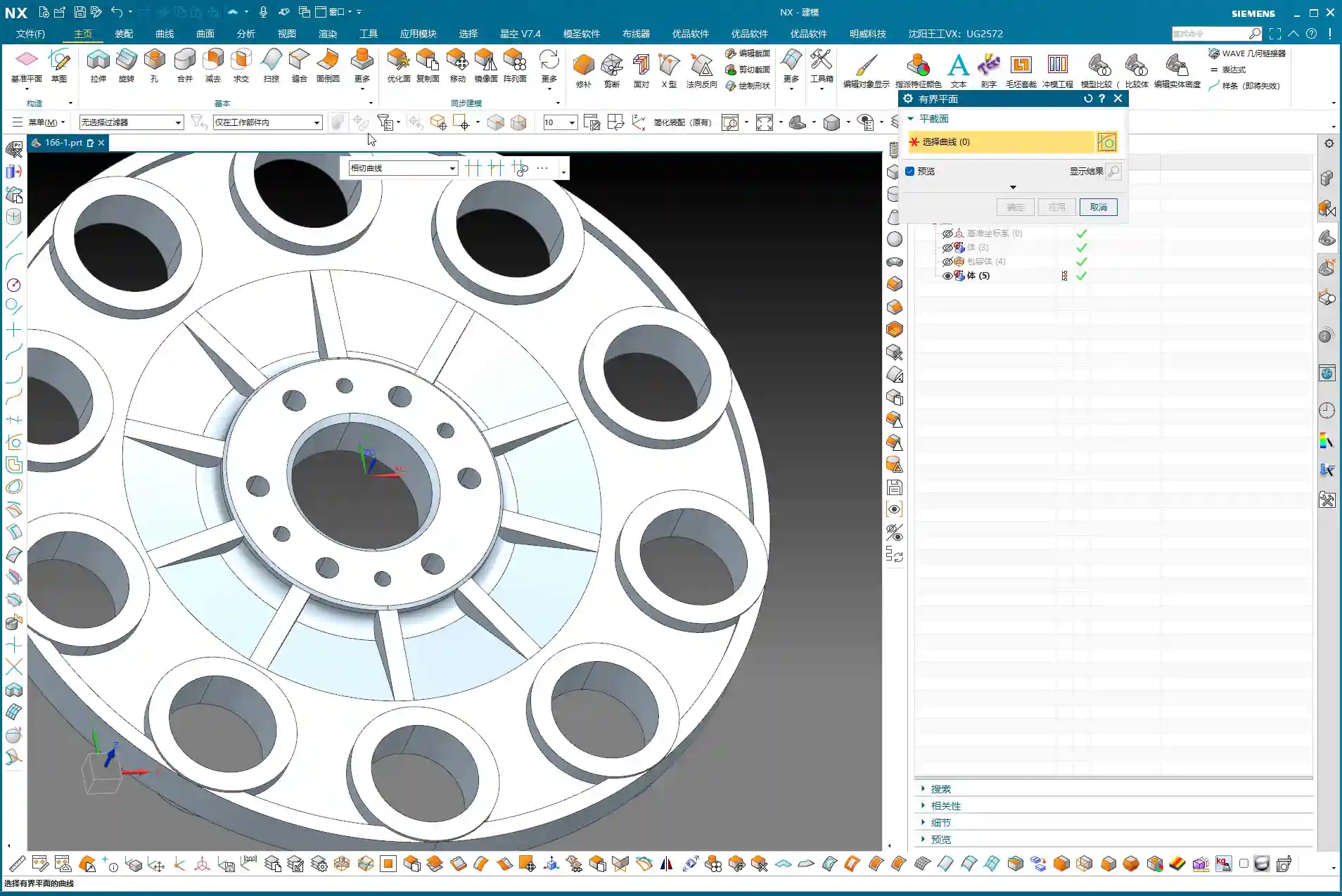
    Why Modify the Model? In-Depth Considerations for Fillet (R-corner) Treatment

    Here’s something critically important, listen up! There’s one area: if you directly use a D10 tool for semi-roughing and then a D6R3 ball end mill for Contour Milling, you’ll find that the resulting machined surface is not ideal. You’ll see “marks” or “overcuts”. This is because the internal corner left after the D10 tool’s Corner Cleanup is not a standard R3. When the R3 ball end mill then runs, the tool path might conflict. Therefore, you must manually change this area to an R3 fillet within Siemens NX!

    If you don’t modify the model, after the D10 passes, that corner will be sharp or irregular. And you expect the D6R3 to “correct” it? Dream on! It will only follow the R3 dictated by the model, resulting in incomplete machining or noticeable tool marks. This kind of “model modification” experience is something gained from countless night shifts, meticulously observing cutting sparks and part burrs, figuring it out bit by bit. Textbooks certainly won’t teach you this!

    Residual Material and EDM: An Unavoidable Strategy

    Even if your tool selection is meticulous and your tool paths are perfect, some areas, like very deep and narrow root sections, a conventional end mill simply won’t fit, and will inevitably leave triangular residual material. This is normal, don’t get hung up on it. If the customer has extremely high Corner Cleanup requirements for these tight spots, the only solution is to use Electrical Discharge Machining (EDM). Therefore, assessing machining capabilities in advance and communicating effectively with the client is also our responsibility as skilled machinists. Don’t scratch your head in frustration only after the part is scrapped.

    Summary: A Guide to Avoiding Pitfalls

    Pre-Programming Analysis:

    • Blank definition must be accurate: cylindrical, rectangular stock, dimensions, whether to leave material allowance – no step can be wrong.
    • Geometric model must be thoroughly analyzed: Utilize Slope Analysis to identify planar, inclined, and curved surfaces, and pinpoint potential machining difficulties and tight corners.
    • Fixturing strategy must be clear: Consider rigidity, stability, and ease of flipping to avoid secondary clamping errors.

    Siemens NX Operations and Process Key Points:

    • Standardize layer management: Blank, part, and fixture each in their designated layers to avoid confusion.
    • WCS positioning must be precise: Especially for multi-sided machining, every WCS adjustment must ensure accuracy; this is one source of ±0.005mm level errors.
    • Surface patching is a prerequisite before programming: Close up “holes” in the model to provide a clean model for tool path calculation, reducing errors and incorrect tool paths.
    • Tool selection should be phased: Large tools for Roughing, medium/small tools for semi-roughing and Corner Cleanup, ball end mills for Contour Milling and Finishing pass. The D20 -> D10/D6 -> D6R3 logic must be clear.

    Practical Model Modification and Handling Difficult Areas:

    • Model modification is standard practice, especially for fillets (R-corners): If the design doesn’t provide them, but machining requires them, you must decisively “modify the model” to add the fillets. Otherwise, due to tool transition issues between semi-roughing and Finishing pass, tool marks or impressions will be left. This is a critical point in practical machining that is easily overlooked but significantly impacts finished part quality.
    • For unmachinable areas, face them head-on: Traditional milling has its limits. For extremely small, deep, or specially shaped tight corners, if high precision is required, directly consider Electrical Discharge Machining (EDM). Don’t force it; that will only damage tools and waste time.
    • Don’t just rely on software simulations; observe the cutting sparks: No matter how realistic software simulations are, they cannot replace actual conditions on the machine. Pay close attention to cutting sounds, sparks, and chip evacuation; the machine is “talking” to you, indicating whether your process is reasonable.

    Alright, lads, that’s it for this session. This is all experience Master Wang has accumulated over 15 years on the front lines, navigating countless pitfalls. Next time, we’ll get hands-on and program the tool paths for this part step-by-step. Remember, when learning technical skills, you need to use your brain, but more importantly, have eyes that can spot problems and a heart dedicated to solving them!

    👤 About the Author:
    The author is a veteran CNC machining professional with 15 years of industry experience, specializing in UG NX programming. This article is an original work representing personal practical insights.

    ⚠️ Copyright Notice: Unauthorized reproduction or distribution without prior communication is strictly prohibited.

  • Master Wang Reveals: Full-Process Programming for Multi-sided Parts with Angle Heads in Siemens NX –

    📝 Key Takeaways: Master Wang provides a practical walkthrough of full-process programming for multi-sided parts using angle heads. From roughing to finishing, he covers using a D10 tool for finishing passes on bottom faces and side walls. The core focus is on analyzing how to address common challenges like unmachined areas and toolpath deviations by “patching” regions, adjusting toolpath strategies (bounding box/contour), and precisely controlling stock allowance and cutting layers, thereby enhancing machining accuracy and efficiency.

    [VIDEO_HERE]

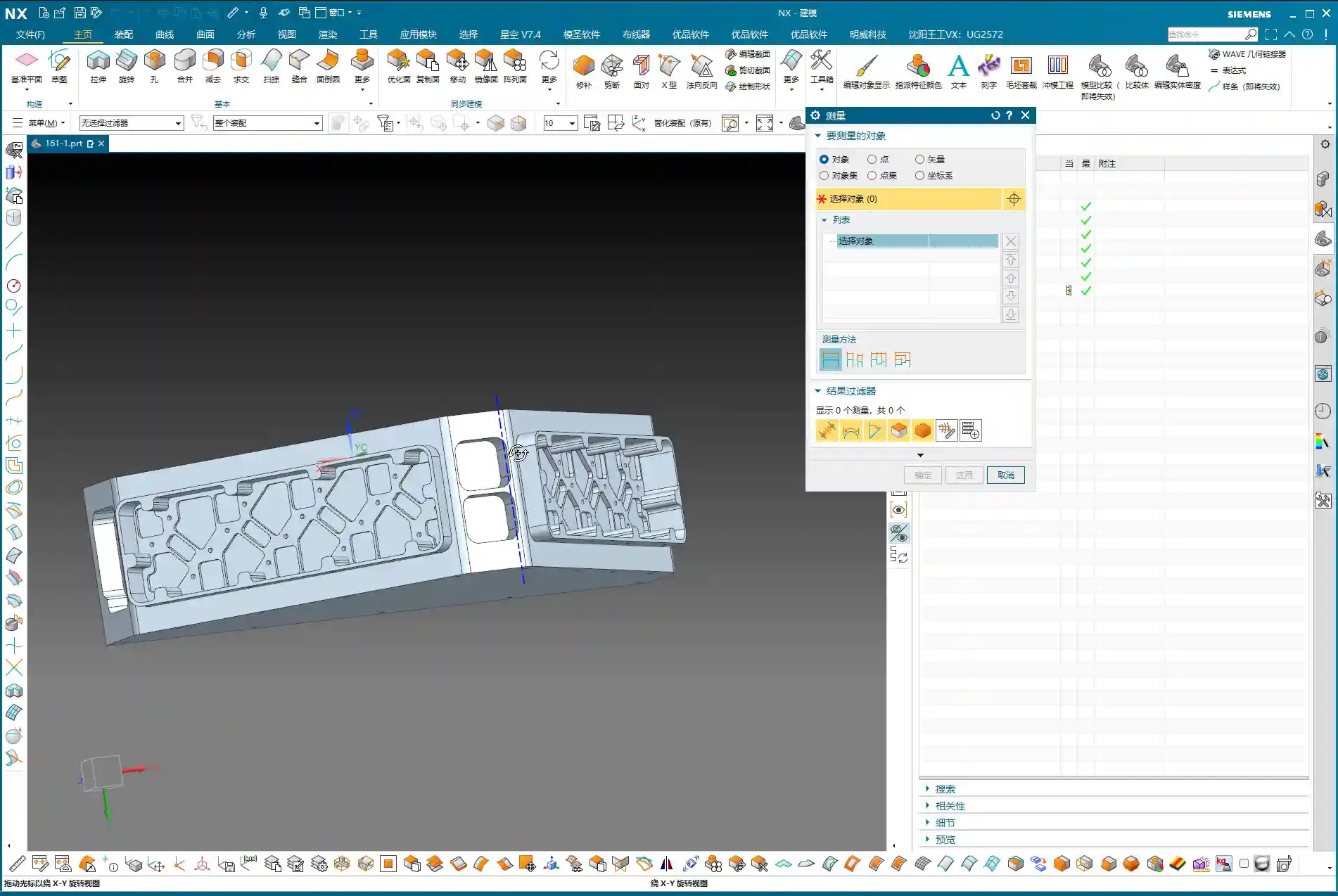
    Listen up, folks! It’s me, Old Wang, Master Wang. Today, we’re cutting the fluff and diving straight into full-process programming for multi-sided parts using angle heads. You can read all the books you want, but without a decade or more spent by the machine, you’ll never navigate the real-world pitfalls. Angle heads are phenomenal for multi-sided machining; they can circumvent many fixturing challenges, allowing you to machine multiple faces in a single clamping setup, which significantly boosts efficiency. Today, we’ll go from roughing to finishing, dissecting the ins and outs of every step.

    Strategy Planning: Programming Logic for Multi-Sided Parts with Angle Heads

    Why Angle Heads Are Crucial

    Angle heads, especially those used in 5-axis simultaneous machining, offer the primary advantage of extending tool reach. Think about it: for a complex part, how many times would you have to refixture it on a 3-axis machine to machine multiple faces? Each clamping operation introduces cumulative errors, making high part accuracy almost impossible. An angle head allows you to tackle side faces, angled surfaces, and even undercuts that would typically require multiple fixturing setups, all within a single clamping operation. This not only saves time but, more importantly, significantly improves machining accuracy and surface finish. Don’t just look at the tool cost; when you factor in the total cost, it’s absolutely worth it!

    Overall Machining Process Breakdown

    There’s a method to the madness, and programming is no different. For these multi-sided parts, we can generally break it down into these steps:

    1. Roughing: Quickly remove the majority of stock allowance with a large tool.
    2. Semi-Roughing: Refine the shape after roughing, preparing for the finishing pass, especially for corner cleanup.
    3. Corner Cleanup / Rest Milling: Clean up the remaining stock in corners and radii after semi-roughing.
    4. Finishing Pass on Faces: Perform finish cuts on all flat surfaces.
    5. Finishing Pass on Side Walls: Perform finish cuts on all side walls.
    6. Finishing Pass on Bottom Face: Perform finish cuts on the bottom face.

    Our focus today is on the application of angle heads, so many operations will revolve around this, particularly the use of the D10 tool, which is our primary tool for subsequent finishing passes.

    Practical Exercises: Progressive Toolpath Refinement

    Step One: Roughing and Finishing Pass for Bottom Face and Side Walls

    Alright, let’s start with an existing program. Once these two programs are run, we’ll definitely need our D10 tool for semi-roughing or the finishing pass. Bottom face and side walls – should we tackle the top or bottom first? Either works, not much difference. However, my preference is to use the D10 tool to finish the bottom face and side walls together. This approach allows us to smoothly machine the large surfaces in one go, laying a good foundation for subsequent finishing passes.

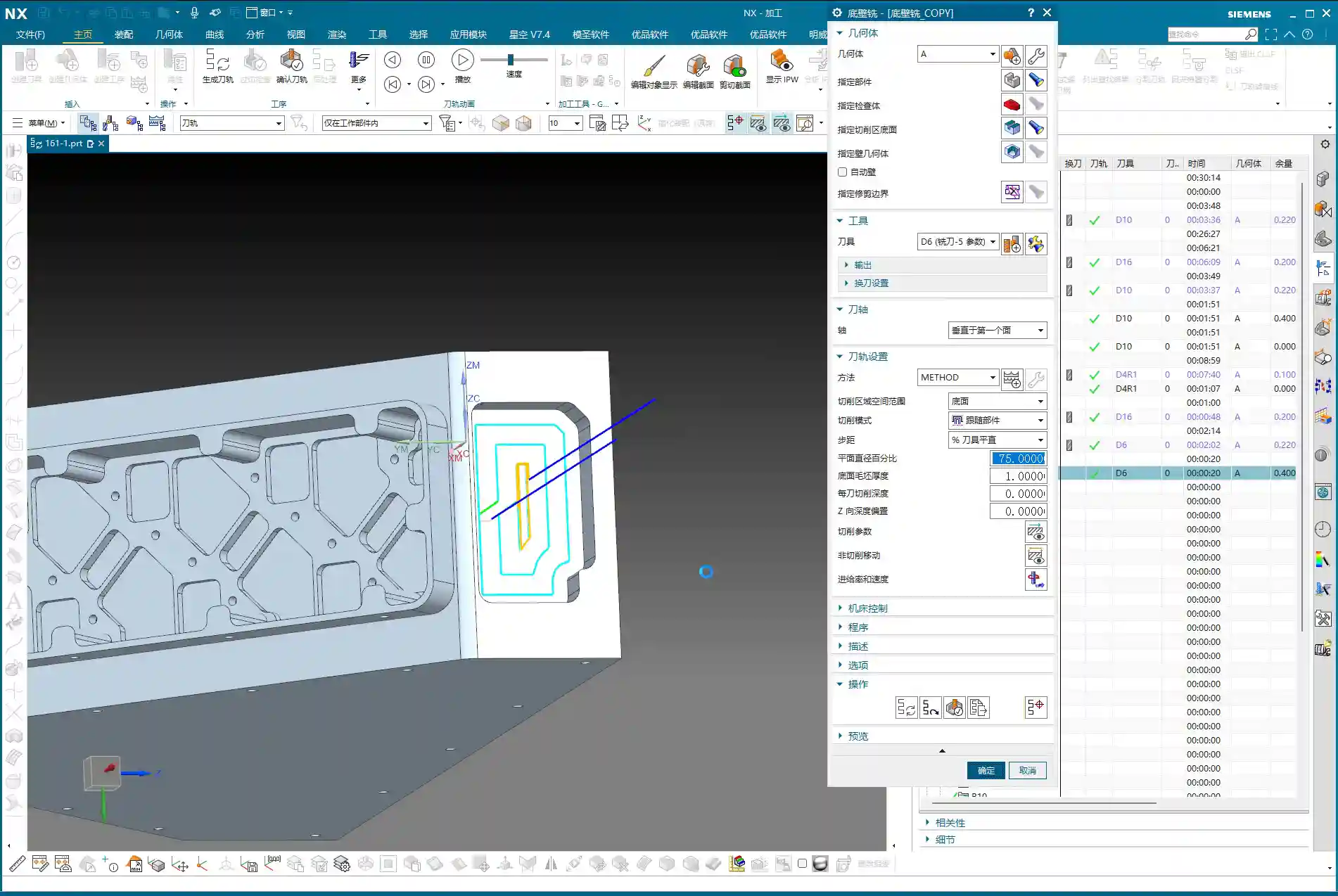
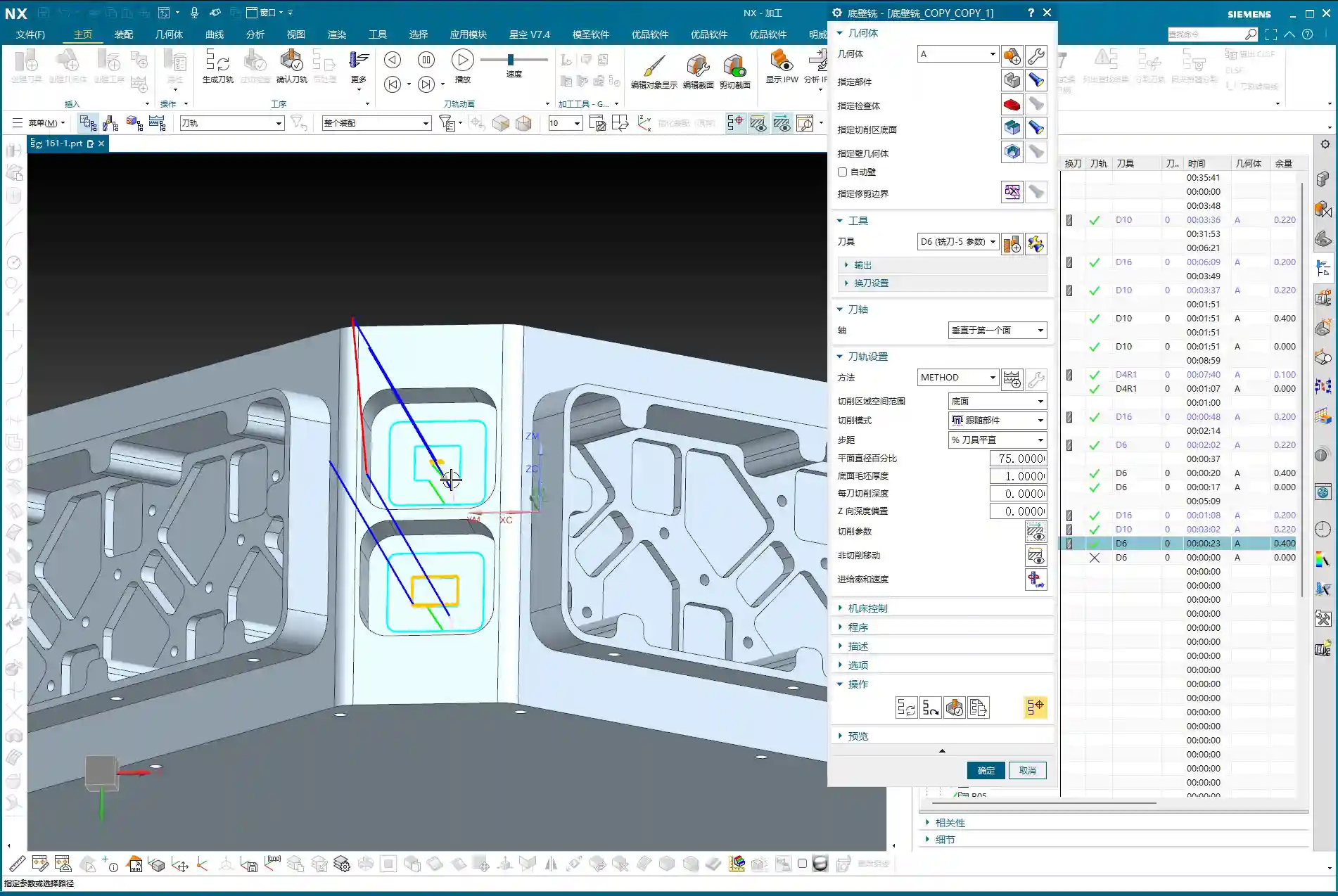
    Simply copy an existing program, open the parameters, and change the machining face to the bottom face we want to finish. Pay attention: if you encounter a hole position, temporarily ignore it; do not machine it. Generate the program, and you’ll see the bottom face and side walls are done in one go.

    Pitfall: Addressing Unconnected Regions (Dead Spots)

    Sometimes, after running the program, you’ll find some residual material in the corners that hasn’t been cleaned up, appearing as if it’s disconnected. These areas are prone to chatter and also affect subsequent accuracy.

    • If you encounter such “disconnected” areas, first check your spatial range settings.
    • Try reducing the size of the “Bounding Box” or adjusting its calculation method.
    • If that still doesn’t work, you need to look at the cutting direction. It might originally be set to “Outside-In”, causing some areas to be missed. In that case, change it to “Inside-Out”. With this change, the tool will clean from the inside outwards, typically clearing those dead spots. Don’t just rely on software simulation; observe the cutting sparks and actual chips – those are the real indicators!

    Step Two: Refined Semi-Roughing and Corner Cleanup

    After the D10 tool has run its course, most surfaces will be finished, but there are definitely still some areas on top that haven’t been machined properly, which are quite noticeable. At this point, we need to perform semi-roughing and corner cleanup. If we just run a semi-roughing pass, these areas will get machined, but I feel some faces aren’t handled particularly well, and the toolpaths might not be ideal.

    Key Technique: Preventing Unnecessary Machining by ‘Patching’ Specific Faces

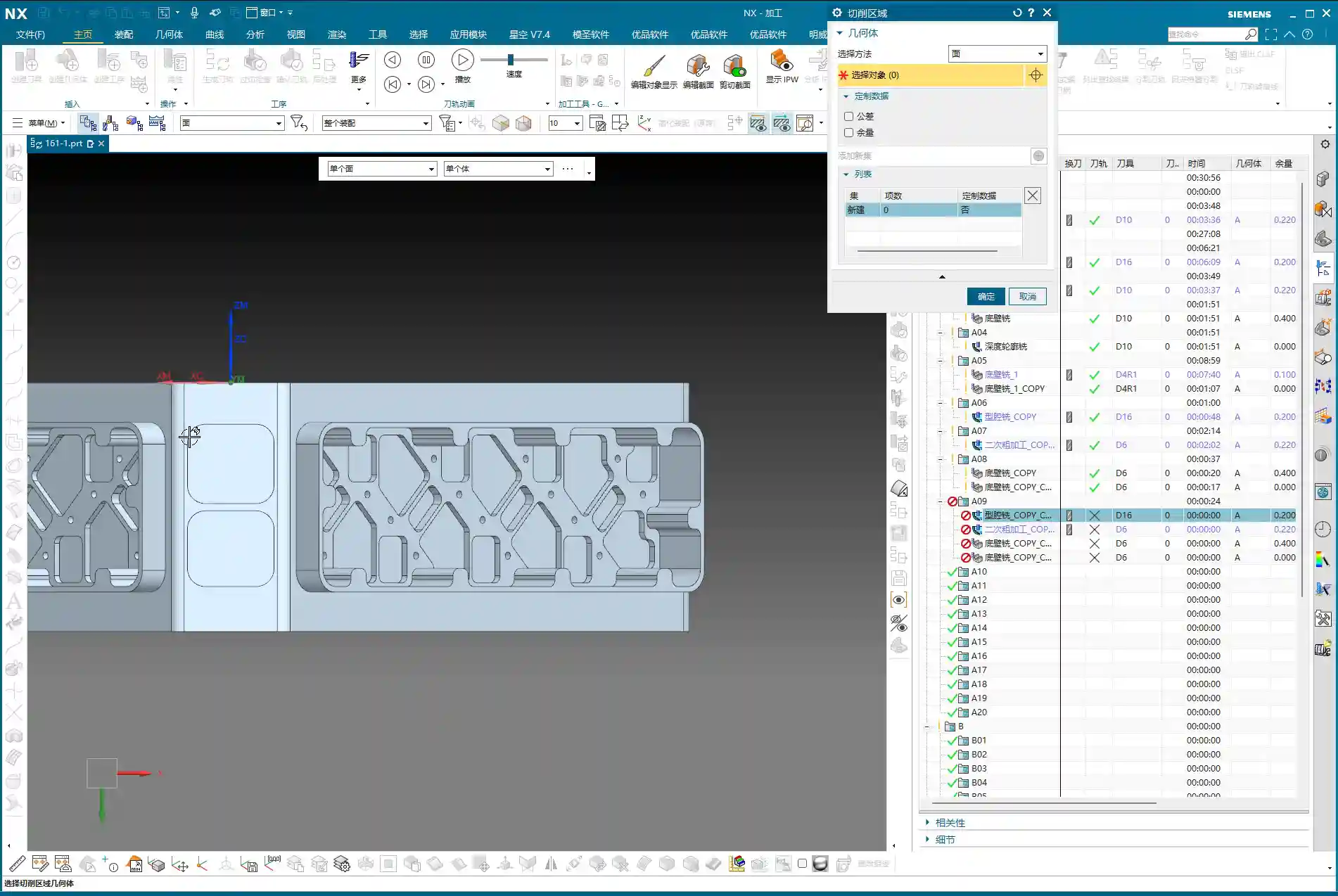
    When this happens, my approach is to: first ‘patch’ the faces you temporarily don’t want to machine. In Siemens NX, you can use the patching function to ‘cover’ these faces, making the software directly ignore them during toolpath calculation. This way, the tool will only perform semi-roughing on the areas that require corner cleanup, significantly boosting programming efficiency and machining safety.

    • Why do this? Because our semi-roughing operations typically follow “Follow Part”, which traces the part’s outer shape. If run directly, faces you don’t intend to machine will also be included.
    • If you change it to “Follow Periphery”, it might make an inward cut before performing corner cleanup, and the result may not be ideal. Therefore, the best method is to control the machining area by ‘patching’.

    For the specific operation, select the faces that need to be patched, click ‘Patch’, and they will no longer be included in toolpath calculations. This way, our semi-roughing program can focus solely on cleaning up those unmachined corners.

    Program Parameter Adjustments:

    • Tool: Continue using the D10 tool (which is our fourth tool).
    • Depth of Cut (DOC): Control it at the bottom face, for instance, from 0 to -2mm. This ensures sufficient depth for cleanup.
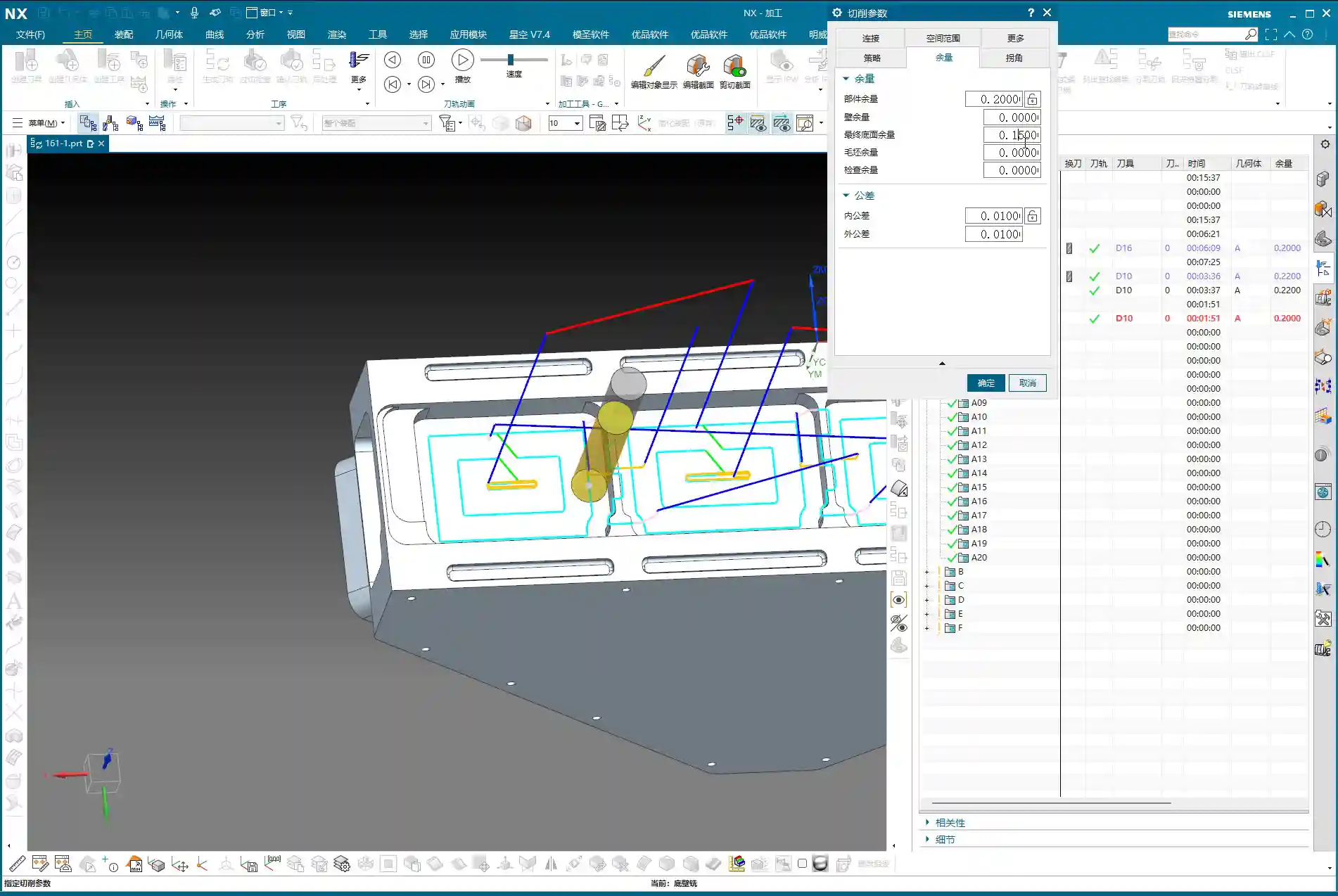
    • Stock Allowance: Leave a small allowance first, for example, 1mm. This will be addressed during the subsequent finishing pass.
    • Spatial Range: Also update to the applicable range for the D10 tool.

    Once the program is generated, those corners and unmachined areas should be mostly cleaned up.

    Step Three: Top Face Finishing Pass

    Semi-roughing and corner cleanup are done; next is the top face finishing pass. This step is relatively straightforward; we can simply copy a previous program and make minor parameter adjustments.

    • Cutting Layers: This time, the cutting layers must be confined to the top face, which is the final machining surface.
    • Stock Allowance: Set all to 0. If you want to play it safe, you can leave a tiny allowance of 0.01mm on the bottom face and side walls to prevent overcutting, but finishing passes usually cut directly to zero.

    Once the program is generated, the top face finishing pass is complete. Now, when you look at it, the entire upper section will be perfectly clean.

    Step Four: Bottom Wall Finishing Pass (Rest Machining Corners)

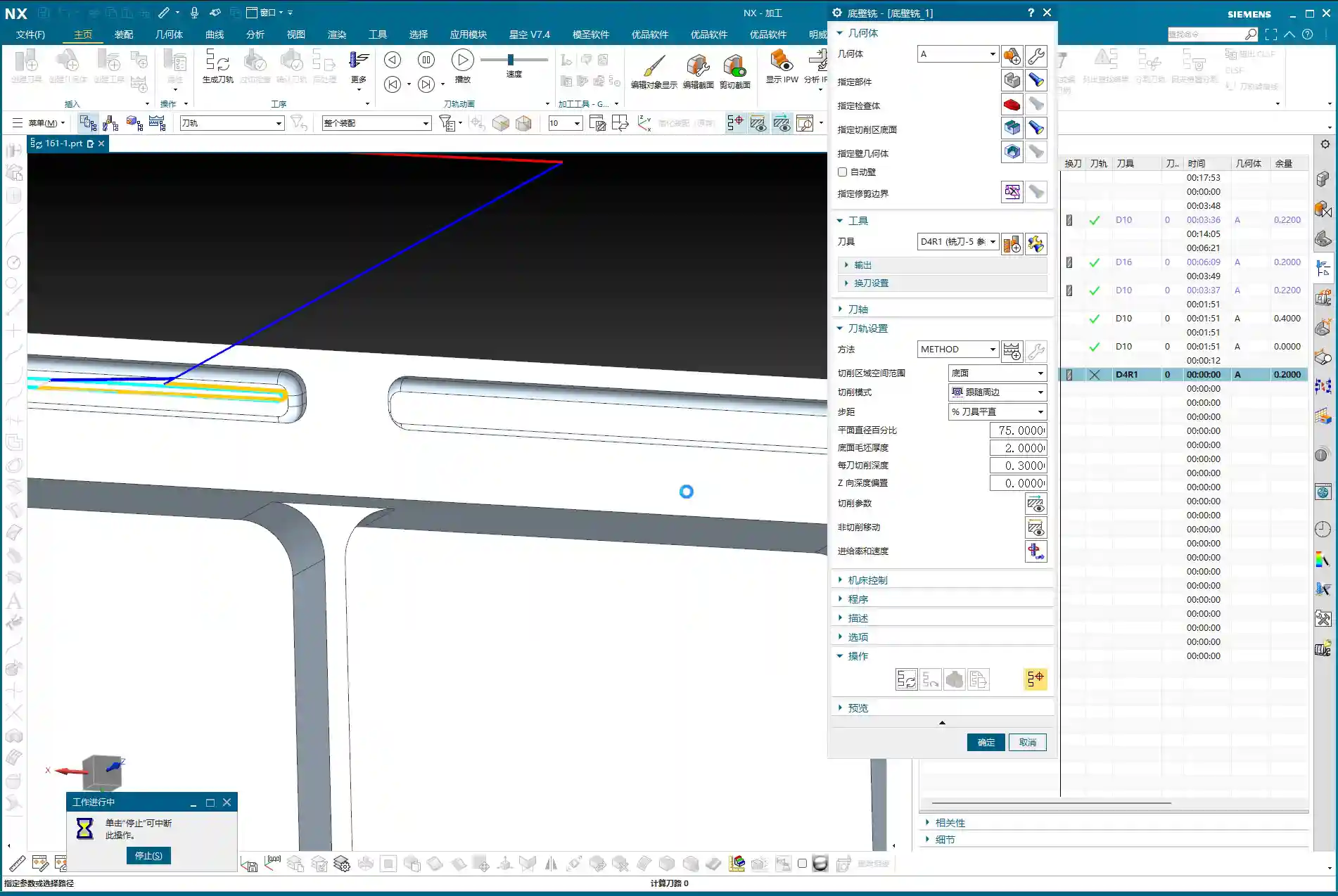
    With the top face done, it’s time to tackle the bottom. We’ll use Bottom Wall Milling to clean up the residual material in these areas, especially the corners and radii – what we commonly refer to as ‘rest machining corners’.

    Copy a Bottom Wall Milling program, then:

    • The Sheet Bodies that were ‘patched’ for semi-roughing must now be removed, allowing them to participate in calculations again.
    • Re-select the lower area we intend to machine.
    • Depth of Cut (DOC): For example, set a DOC of 2mm, from 0 to -0.3mm (this is an example; specific values depend on the actual situation, such as wanting the last few passes to be light finishing cuts).
    • Stock Allowance: Leave 0.1mm initially, as there’s still a finishing pass for the side walls later.
    • Toolpath Strategy: For instance, an 85% stepover percentage to ensure efficiency and surface quality.

    Pitfall: Toolpath Deviating? Bounding Box vs. Contour Selection is Critical!

    Here’s a major pitfall! As soon as you generate the program, the toolpath might very well run off to the side, completely outside your intended machining area. Why does this happen? Most likely because your boundary definition is flawed.

    • By default, the software might use a “Bounding Box” to define the machining area, encompassing all selected faces with a rectangular boundary. If your machining area is irregular, this bounding box will be excessively large, causing the toolpath to extend outside the desired region.
    • The correct approach is to change the “Bounding Box” to “Contour”. “Contour” precisely defines the machining range along the boundaries of your selected faces, preventing the toolpath from straying.

    Change this parameter, regenerate the program, and you’ll see — the toolpath now stays obediently within its designated machining area, doesn’t it? That’s the result we’re aiming for!

    Step Five: Side Wall Finishing Pass

    The final step is the side wall finishing pass. The bottom face is mostly done, so next we’ll machine all the side surfaces. Is there a faster way? Absolutely. Copying an existing Side Wall Machining program is the quickest approach.

    After copying, continue using our D10 tool:

    • Toolpath Strategy: Select “Follow Periphery”.
    • Depth of Cut (DOC): Machine from top to bottom in a single pass. This ensures overall surface finish and accuracy for the side walls.
    • Stock Allowance: Set all to 0 for the final finishing pass.

    Pitfall: Stock Control and Cutting Layer Setting Issues

    Problems can easily arise here too. If you generate the program directly, you might find the tool’s cutting start point is suboptimal, or even outside the blank, or the cutting layers are set too high, leading to repeated air cuts.

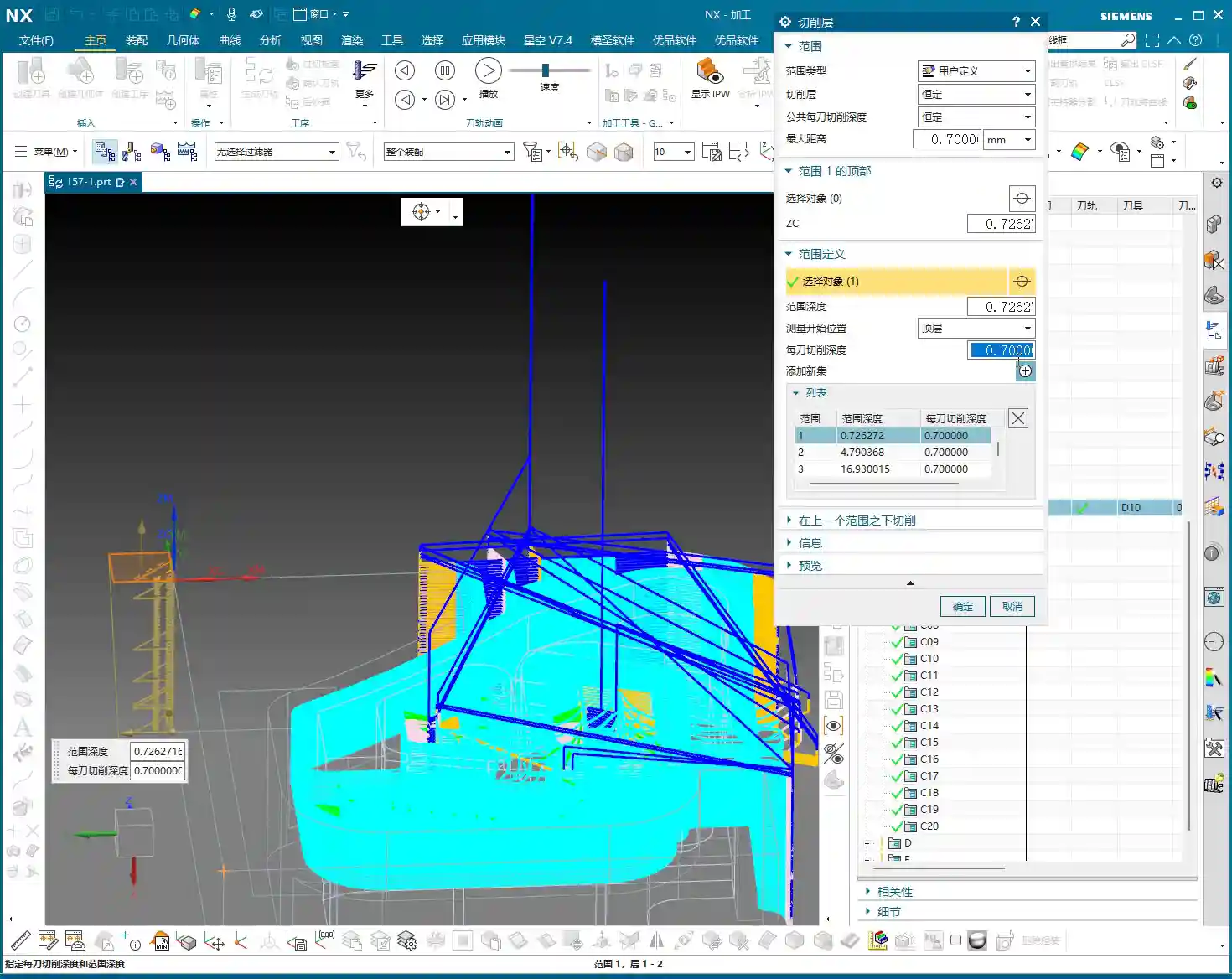
    • We need to readjust the height control for the cutting layers. For example, you can set the cutting layer start height to half the part’s top, or specify a more precise starting plane.
    • The goal is to ensure the tool begins its cut from a reasonable height, guaranteeing stable engagement with the workpiece without excessive air cutting. For instance, slightly lower the yellow toolpath line to ensure the tool starts cutting from the solid workpiece, not from the air.

    After these adjustments, the full-process programming for the multi-sided part with an angle head is largely complete. From roughing to finishing, from bottom to top, every step needs close attention to achieve quality results.

    Master Wang’s Mini-Lesson: Toolpath Optimization and Accuracy Control

    Apply What You Learn: Programs Aren’t Set in Stone

    Listen, folks, when it comes to programming, the software is just a tool; your brain is the core. Don’t think that once a program is generated, everything’s perfect – that’s an ideal scenario. On a real machine, there are too many variables. The steps I’ve emphasized aren’t for rote memorization, but for understanding the logic behind them: Why finish corners before flat surfaces? Why ‘patch’ this area? All of this is done to improve efficiency, guarantee accuracy, and extend tool life. Only by applying what you learn can you become a true master craftsman.

    Tolerance Control: The Secret to ±0.005mm

    You might think a tolerance of ±0.005mm is some mystical feat, but in our trade, it’s routine. Achieving such accuracy requires not only an inherently precise machine but also meticulous process compensation and repeated validation. What I’ve discovered in my 15 years is that relying solely on ideal software toolpaths isn’t enough.

    • Material Properties: Different materials exhibit different deformation during machining. Aluminum is easy to cut, but tough materials like titanium alloys and high-temperature nickel-based alloys require careful handling; they can deform if you’re not meticulous. You must account for dimensional changes after heat treatment and leave appropriate allowances in advance.
    • Fixturing Solutions: A well-designed fixture, ensuring uniform clamping force, is crucial to minimize machining deformation. I’ve ground countless custom tools specifically to accommodate unique fixturing and complex geometries.
    • Stock Allowance Fine-Tuning and Cutting Layer Control: For the final few finishing passes, control the stock allowance to 0.01mm or even less. Tool wear and thermal deformation of the machine can impact these minute accuracies. Sometimes, you need to fine-tune the cutting layer depth or radial stepover to compensate for those infinitesimal errors. Don’t just rely on software simulation; observe the cutting sparks, listen to the cutting sound, and examine chip formation – these are experiential insights not found in books.
    • Machine Accuracy Error Analysis: Even top-tier machines have errors. We must learn to analyze the machine’s geometric and kinematic errors, then compensate through G-code adjustments, post-processor parameters, or even by incorporating minute compensation values directly into the program to keep final dimensions within ±0.005mm. These are all hard-won lessons from practical experience.

    Summary: Pitfall Avoidance Guide

    Finally, here’s a summary of pitfall avoidance guidelines for multi-sided part programming with angle heads, all born from hard-earned lessons:

    • Tool Selection and Management: Distinguish clearly between roughing and finishing, and cleverly utilize the D10 tool. Roughing requires aggressive depths of cut, while finishing demands lighter cuts. Simultaneously, monitor tool wear and replace or regrind tools promptly.
    • Precise Machining Area Definition: Learn to “patch” and “exclude”. For complex parts, don’t attempt a single-pass solution. By patching non-machining areas, you can effectively simplify toolpaths and prevent unnecessary overcutting or air cutting.
    • Toolpath Strategy Selection: The choice between “Bounding Box” and “Contour” is critical. Remember, when the toolpath strays to unintended areas, check the boundary definition; a “Bounding Box” is usually the culprit. Changing it to “Contour” can resolve 90% of such issues.
    • Precise Control of Cutting Parameters: Meticulous control of stock allowance and cutting layer height (stepdown). Especially during finishing passes, it’s better to leave a slightly larger allowance and gradually machine it down than to clear it all at once and cause overcutting. The cutting layer (stepdown) should be determined based on the tool, material, and workpiece rigidity; too deep can lead to tool breakage, too shallow results in low efficiency.
    • Necessity of Real-World Verification: Don’t just rely on simulation; observe cutting sparks and chips. No matter how realistic software simulation is, it cannot replace real feedback from the machine. Spark color, chip formation, and tool sound are all crucial indicators for assessing machining status.
    • Handling Drawing Defects: If you find issues, communicate immediately; do not machine blindly. If the drawing itself has problems (e.g., certain radii are missing), notify design immediately. Never assume and try to fix it yourself, or you’ll be held responsible if something goes wrong.

    Alright, that’s all for today. Remember, machining is both a craft and a technical skill. You need to observe, ask questions, and get hands-on to truly master it!

    👤 About the Author:
    The author is a veteran CNC machining professional with 15 years of industry experience, specializing in UG NX programming. This article is an original work representing personal practical insights.

    ⚠️ Copyright Notice: Unauthorized reproduction or distribution without prior communication is strictly prohibited.
  • Siemens NX Programming for Side Milling Head Components: Master Wang’s Hands-On Guide to Solving Ove

    📝 Key Takeaways:

    Practical Siemens NX Roughing Optimization for Side Milling Heads

    Listen up, fellas! It’s Old Wang, Master Wang here. Today, we’re diving…

    [VIDEO_HERE]

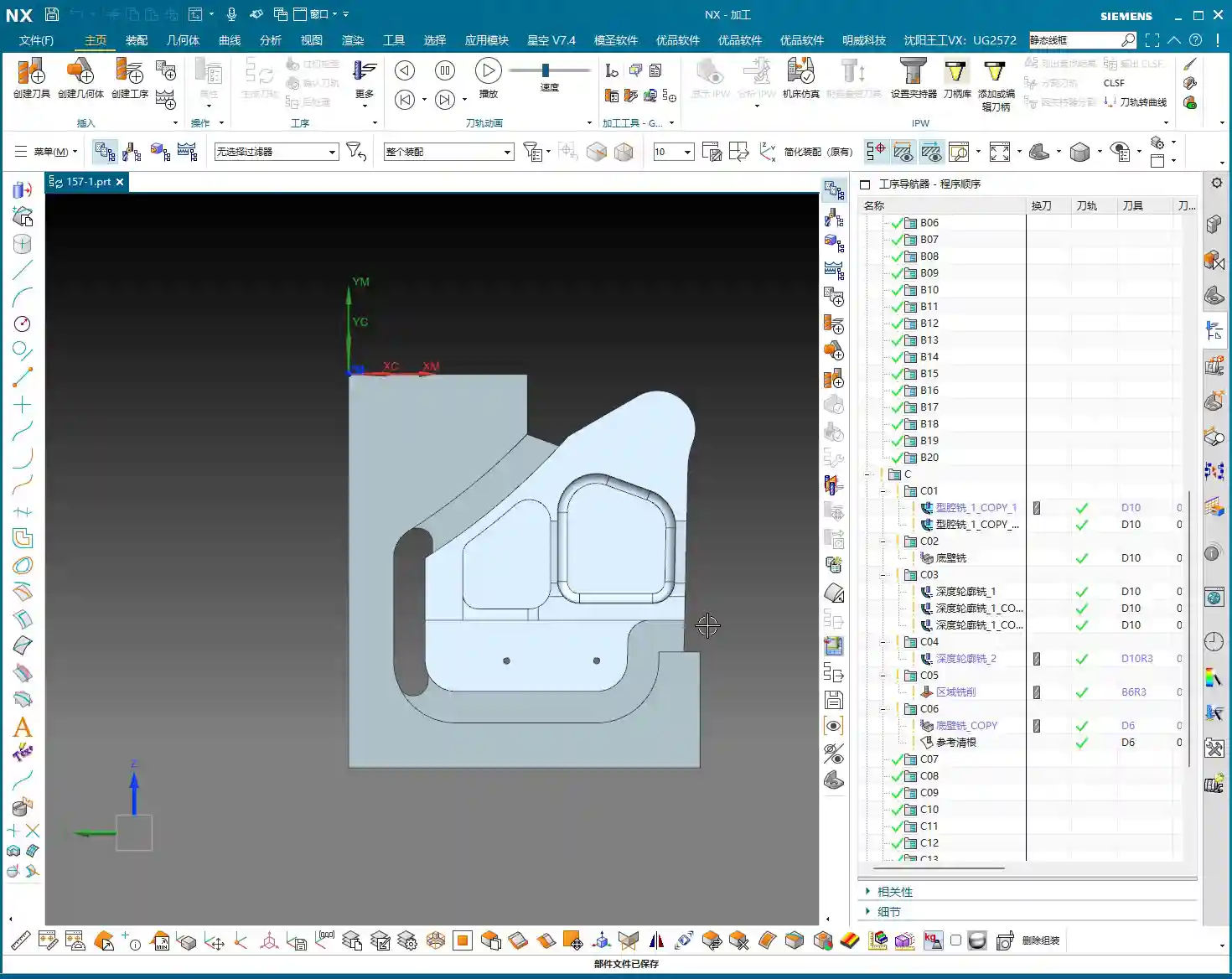
    Listen up, fellas! It’s Old Wang, Master Wang here. Today, we’re diving back into some “unwritten rules” of Siemens NX programming – the hardcore, practical stuff you won’t find in textbooks. Where did we leave off last time? Ah, right, programming side milling head components. This stuff, it’s not overly complex, but it’s not exactly simple either, especially when dealing with those tricky corners and tight spots. One slip-up, and you’ll run into trouble. Today, we’re going to start with program duplication and systematically uncover and resolve all those potential pitfalls for you!

    I. Program Duplication and Roughing Area Selection: Saves Effort, Not Vigilance

    Picking up where we left off, when roughing these side milling heads, we’re all about efficiency. If you have an existing program template, just copy it. It saves you from starting from scratch – that’s experience talking. But saving effort doesn’t mean you can let your guard down!

    1. Initial Roughing Range Selection

    For the areas we need to **roughing**, just copy the previous program, double-click to open it, and start modifying. This operation, practice makes perfect.

    2. Defining the Blank and Cutting Faces

    The **Blank** – you absolutely *must* define this first! Otherwise, you’ll have no idea where the tool is cutting, or where it’s supposed to cut. Then, select the first face you want to rough. Pay attention here: sometimes, when you directly click on the **Workpiece/Part Stock**, it might not select. Don’t panic. Just click on the face itself, or select the boundary line above it. Siemens NX will automatically help you define the depth.

    Master Wang’s Insight: Siemens NX can be a bit quirky sometimes. If you can’t click it, try clicking from a different angle or selecting a different geometric element. The goal is always the same: ensure the system clearly understands your machining range. Don’t get stuck on one point; be flexible!

    II. Programming Taboo: Random Clicks Ruin Everything

    Lads, remember this point; it’s a lesson learned the hard way!

    1. Once Programmed, Do Not Touch

    You’ve painstakingly programmed it, the toolpaths are calculated, and you’re just waiting to generate the G-code for the machine. At this point, control your hands! Absolutely do not click around other parts of the Siemens NX interface before the program is generated or saved!

    2. The Painful Lesson of Lost ‘Part Stock’

    I’ve seen it happen: you’re programming, accidentally click another area, and when you come back, boom! Your previously selected **Workpiece/Part Stock** is gone! Or it’s been changed to a different face. At that point, your toolpath could be completely wrong. At best, it undercuts; at worst, it causes an **overcut**, rendering your workpiece scrap!

    Master Wang’s Warning: After programming, generate the toolpath first, check it thoroughly, then save. It’s like drawing blueprints and sending them to production without approval – if something goes wrong, who’s responsible?

    III. Secondary Roughing (Re-roughing): Cleaning Up Dead Zones, Leaving No Remnants

    The first roughing pass often just removes the bulk of the material with a larger tool. But there are always small features, deep cavities, and sharp corners on the workpiece that a large tool can’t reach. That’s when **Re-roughing** becomes especially critical.

    1. Remnant Material Detection and Tool Selection

    Upon careful analysis, you’ll find that for complex structures and internal cavities like those in a side milling head, many corners and grooves still have significant remnant material. At this point, you’ll need to switch to a smaller tool for cleanup. If you used a D10 (10mm diameter) tool for the first pass, for re-roughing, consider a D8 (8mm diameter) or even a D6 (6mm diameter). Of course, the specific tool selection depends on your remaining stock and the workpiece geometry. In my experience, sometimes a D8 works better than both a D10 and D6 – it’s a good compromise.

    2. Controlling Remnant Material and Depth of Cut

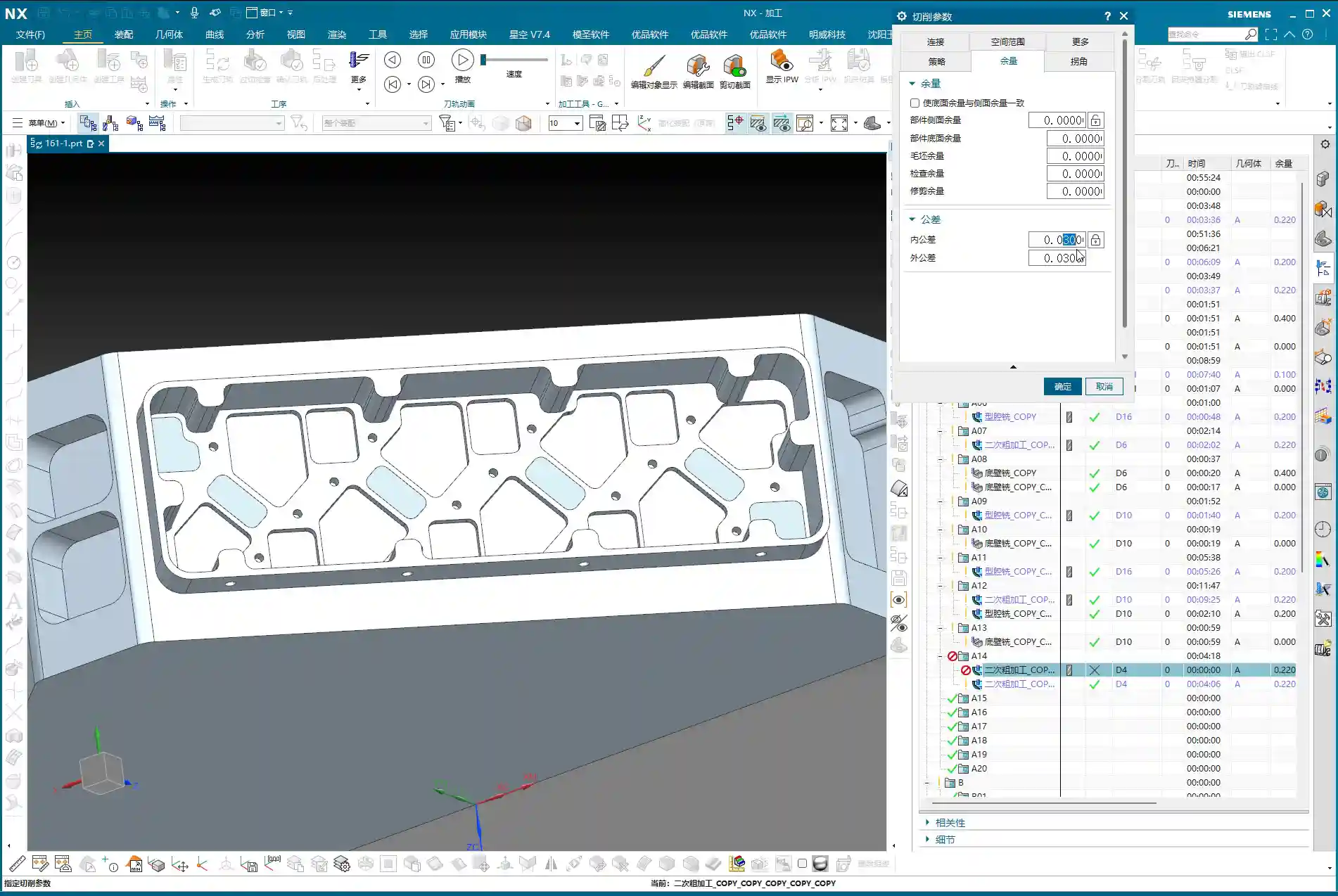
    During re-roughing, the **stock** will definitely be smaller than the initial roughing. For instance, if you left 0.8-1mm (approx. 0.03-0.04 inch) the first time, for re-roughing, you might leave 0.2-0.5mm (approx. 0.008-0.02 inch). The **depth of cut** also needs precise control; sometimes, you only need to clean up a specific face. You need to clarify your objective, select the specific **Bottom Face** you intend to re-rough, and ensure the tool only works in that designated area.

    IV. Fine-Tuning Siemens NX Parameters: The Secret to Resolving Undercuts and Overcuts

    Siemens NX is a great software, but it still needs to follow your commands. Some parameters, if not set correctly, can easily lead to problems.

    1. Minimum Cut Length: Small Parameter, Big Impact

    Have you ever encountered a situation where there’s clearly material remaining, but the tool just doesn’t cut it? Or the cutting path is discontinuous? It’s highly likely that the Minimum Cut Length parameter is to blame. As mentioned in the audio, the default 45% might be too large, causing many small areas to be completely ignored. We need to change it to 10% or even smaller; only then can those corner and cavity remnants be cleaned up.

    Master Wang’s Tip: This parameter prevents the generation of excessively short, meaningless toolpaths, but too much of a good thing can be bad. Adjust it flexibly based on the dimensions of the workpiece features; don’t let the tool ‘miss’ those small remnants.

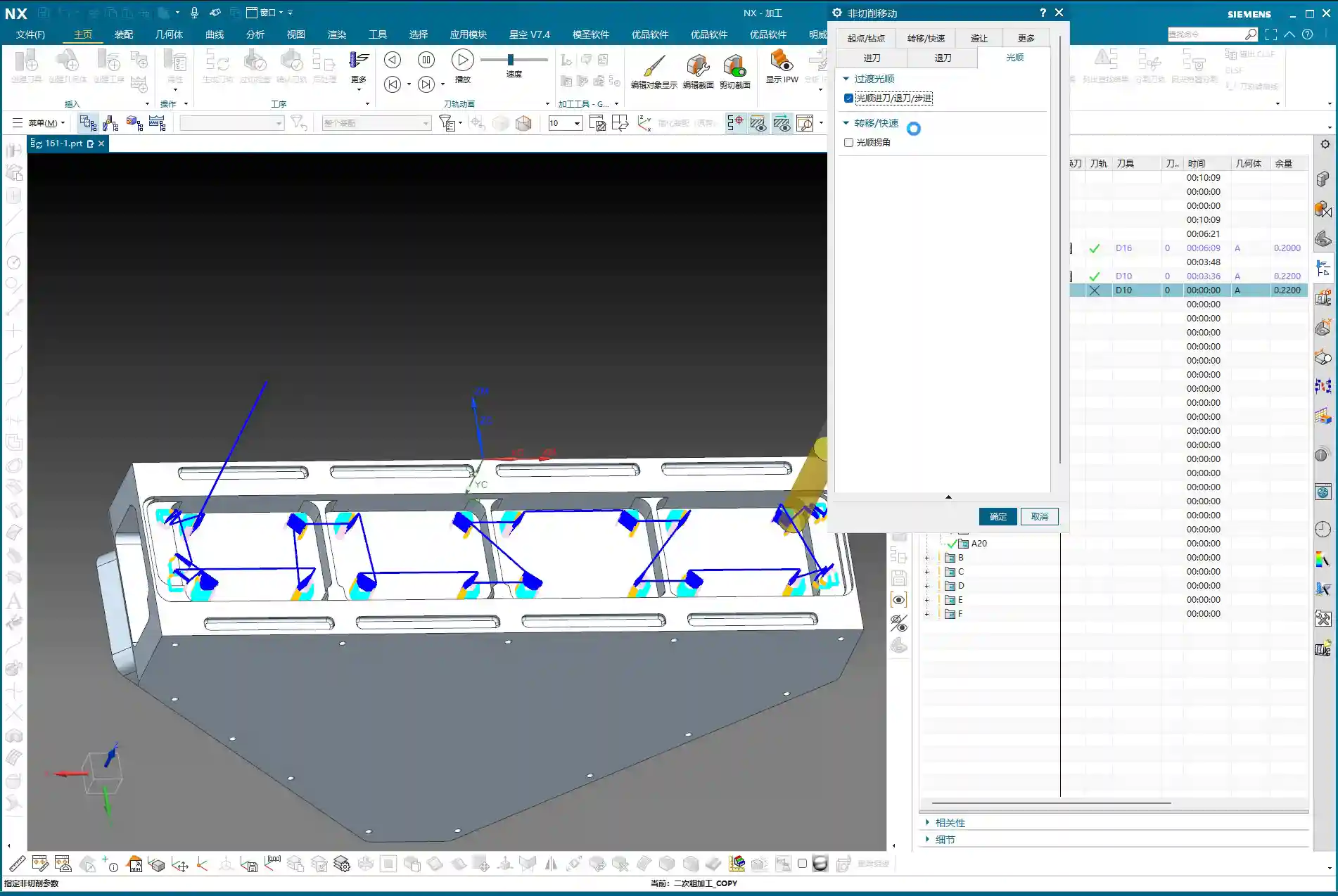
    2. Boundary Selection: Small Errors Lead to Major Overcuts

    Sometimes, you change a parameter, and the toolpath shifts, even resulting in an overcut. This is likely because your previously selected boundaries or hierarchical relationships were re-evaluated by the system after the parameter adjustment, leading to errors. When this happens, don’t be afraid of the hassle. Re-select the boundaries and levels of the cutting area, and clearly re-specify the top and bottom faces. This will be much faster than spending ages trying to figure it out!

    V. Retraction Optimization Secrets: Applying Automatic and Relative Planes

    **Retraction** refers to the path the tool takes when lifting from one cutting area to another. Lifting too high wastes time, while lifting too low risks tool collisions or marking the workpiece. This is a critical factor directly impacting machining efficiency and safety!

    1. Avoiding Excessive ‘Automatic Plane’ Retraction Heights

    Have you noticed that sometimes Siemens NX generates ridiculously high retractions? As mentioned in the audio, the default value for the Automatic Plane is set to 100 – this definitely won’t do! How much time is wasted if the tool lifts up to 100mm (approx. 3.9 inches) every time before cutting down again?

    2. Relative to Plane and Precise Control

    To resolve the issue of excessive retraction heights, you can try the following methods:

    • Reduce the value of the Automatic Plane, for example, to 20mm (approx. 0.8 inches).
    • For more advanced control, use the Relative to Plane method. Designate an appropriate reference plane, then set the tool’s lift-off distance relative to this plane, for example, 50mm (approx. 2 inches).
    • For certain critical areas, you can even directly **specify a face** as the retraction start/end point, then manually input the lift height, such as 10mm (approx. 0.4 inches). This allows the tool to retract shorter distances, stay closer to the workpiece, and save time.

    Master Wang’s Experience: Retraction optimization is one of the core essentials in Siemens NX programming. Don’t underestimate these few millimeters of distance; they accumulate to significantly reduce your machining cycle time and boost economic efficiency.

    VI. Conquering Stubborn ‘Overcuts’: Specifying Top/Bottom Faces and the ‘Add Thickness’ Method

    The most frustrating issue is those inexplicable overcuts. It looks fine, but as soon as you generate the toolpath, it takes an extra cut, and the workpiece is ruined!

    1. Reconfirming Top/Bottom Faces and Cutting Layers

    When encountering an overcut, don’t rush; troubleshoot it step by step. First, recheck your defined **Top Face**, **Bottom Face**, and **Cutting Layers**. Was a particular layer selected incorrectly? Or was a certain layer completely useless but mistakenly used by the system? As mentioned in the audio, some layers are redundant; just delete them. Ensure your cutting range is precise and accurate.

    2. Peculiar Overcuts and the Ultimate ‘Add Thickness’ Trick

    Sometimes, you’ll encounter some very strange overcut phenomena, especially on small-sized features. The tool clearly shouldn’t go there, yet it takes a cut anyway, and this cut is completely meaningless, a pure waste of time. In such cases, you might not even be able to eliminate it through conventional methods. As also mentioned in the audio, this is truly unimaginable software behavior!

    At this point, Old Wang will teach you a killer move – **Add Thickness. This isn’t about adding stock; it’s about assigning an additional thickness in the Z-axis direction to your machining area or feature within Siemens NX. For instance, in the ‘Workpiece/Part Stock’ settings or the cutting parameters, provide a small positive value, like 1mm (approx. 0.04 inch). It’s like giving that area a layer of ‘armor.’ When Siemens NX calculates the toolpath, it will avoid that ‘armor’ layer, thereby preventing overcuts. While this trick might seem a bit ‘brute force,’ it consistently works for certain stubborn overcuts!

    Master Wang’s Advice: This ‘Add Thickness’ isn’t a magic bullet. It’s a temporary solution to potential calculation bugs or illogical toolpaths that Siemens NX might generate under specific geometric conditions. Before using it, make sure to understand its principle and verify it repeatedly in simulation!

    Summary: Pitfall Avoidance Guide

    Alright, fellas, today we’ve thoroughly covered several major pitfalls commonly encountered in side milling head roughing. Remember the following points to ensure stable machining:

    1. Do Not Click Randomly After Programming: Especially concerning the selection of blank and boundaries. Once defined, don’t mess with them to prevent ‘Workpiece/Part Stock’ loss or misalignment.
    2. Make Good Use of Secondary Roughing to Clean Remnant Corners: After a large tool roughs out material, there are always small areas that aren’t clean. Switching to a smaller tool for secondary roughing is standard practice to ensure part accuracy and surface quality.
    3. Be Flexible with the Minimum Cut Length Parameter: Setting this too large can lead to small areas being undercut; setting it too small might result in excessively fragmented toolpaths. Determine it based on the workpiece feature dimensions.
    4. ‘Automatic Plane’ Retraction Too High?: Change to Relative to Plane or manually set the retraction height. The goal is to reduce air cutting time and improve efficiency, but also ensure a safe clearance distance.
    5. Conquering Stubborn Overcuts: First, carefully check the top/bottom faces, cutting layers, and boundary definitions. If it still persists, for those peculiar, meaningless overcuts, try to **add thickness in the Z-axis direction** to the feature. This is often an effective solution for such ‘software logic issues’.
    6. Don’t Just Rely on Simulation, Watch the Cutting Sparks: No matter how realistic software simulation is, it can’t compare to the sparks, sounds, and vibrations during actual machining on the machine. Observe more, think more – that’s real skill.

    Alright, that’s it for today’s lesson. Go back, ponder on it, and next time, we’ll discuss other topics!

    👤 About the Author:
    The author is a veteran CNC machining professional with 15 years of industry experience, specializing in UG NX programming. This article is an original work representing personal practical insights.

    ⚠️ Copyright Notice: Unauthorized reproduction or distribution without prior communication is strictly prohibited.
  • Siemens NX Angle Head High-Efficiency Roughing and Semi-Finishing Programming in Practice: Master Wa

    📝 Key Takeaways: ** Master Wang shares his practical expertise in Siemens NX Angle Head Roughing and Semi-Finishing programming. From clever use of program replication and tool axis definition, to the versatile application of 16mm, 6mm, and 10mm milling cutters, he meticulously explains high-efficiency machining strategies for side walls and bottom surfaces. The importance of optimizing non-cutting moves and precise stock definition is emphasized, and he shares how to address accuracy challenges and boost machining efficiency by adjusting parameters, avoiding real-world pitfalls not found in textbooks. **

    [VIDEO_HERE]

    Master Wang Speaks: The Practical Essence of Angle Head Programming

    Listen up, youngsters. Today, Master Wang here is going to give you the real lowdown on **Siemens NX Angle Head Roughing and Semi-Finishing** programming. Don’t think it’s just a matter of clicking a mouse in the software. There’s a lot more to it, all based on hard-earned, practical experience.

    Last time, we nailed down the face milling (planar) programs. Now, we’re moving on to side milling. To be frank, side milling has many similarities with face milling programming. Especially for these areas, the principles are much the same. Learn one, and you can apply it to others with minor parameter adjustments. But don’t underestimate those “minor adjustments”; there’s a world of knowledge in them.

    Smart Use of Replication: Batch High-Efficiency Programming

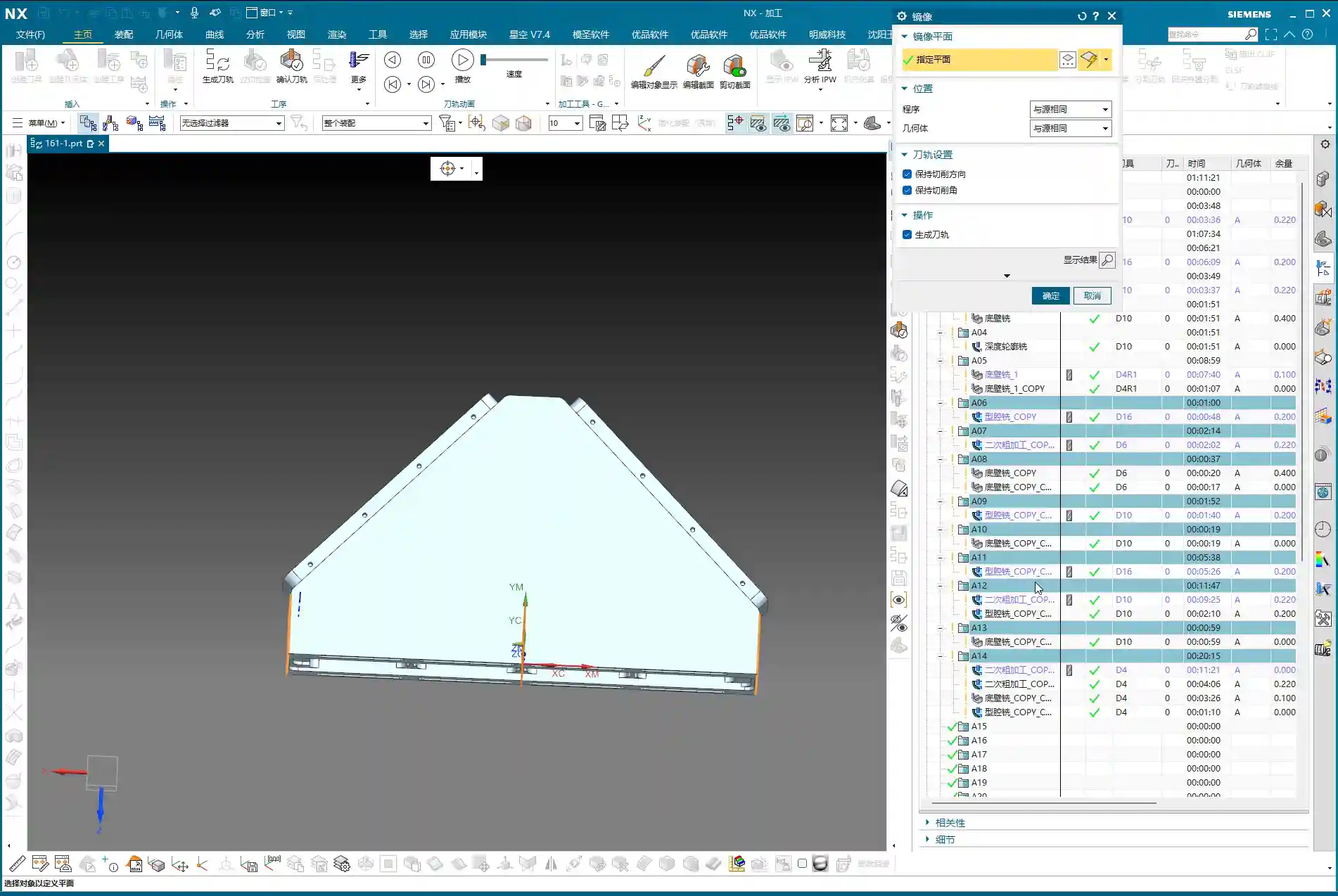
    For us programmers, efficiency comes first. For the same batch of parts, especially for symmetrical or structurally similar areas, the best method is to **replicate an existing program and then modify the key parameters**. This saves time and effort, and reduces the chance of errors. Then, with a transformation function, *whoosh*, the program is replicated to the other side. How convenient!

    Let’s start with one of the side surfaces. This program might seem simple on the surface, but to do it properly, you need to pay attention to the details. First, make a copy of our previous face milling roughing program, or directly copy it into a new operation set. Program by region to keep things organized.

    Angle Head Roughing: 16mm End Mill Leads the Charge

    For roughing this area, listen up. When we’re using a **HMC (Horizontal Machining Center)**, many programs are actually executed in a single setup. For instance, use a **16mm diameter end mill** to clear out the bulk of the material first.

    Open the replicated program; don’t worry about other settings for now. The most critical step is to correctly specify the tool axis direction. For an angle head, the tool axis must be horizontal. Click on the surface you intend to machine, letting the software automatically determine the tool axis, or manually adjust it to the desired direction. Then, generate the toolpath directly and observe the result.

    This first step is about clearing the majority of the stock. Don’t expect to achieve a finished surface in one pass; that’s unrealistic and prone to chipping or breaking the tool. Roughing prioritizes efficiency and safety, leaving sufficient material for subsequent finishing passes.

    Angle Head Semi-Finishing and Bottom Surface Corner Cleanup: 6mm End Mill for Finer Work

    After the 16mm tool has cleared the main surfaces, there will always be areas it can’t reach, especially small radii or narrow gaps. At this point, you’ll need to switch to a smaller tool for semi-finishing or corner cleanup. We usually follow up with a **6mm diameter end mill**.

    Similarly, replicate the previous program again. Change the tool axis and the tool. Remember, switch to a **6mm tool**, and keep the tool axis direction consistent. Directly select the side or bottom surface you want to machine, and let it clear out the remaining stock in those areas. This program is very simple; as long as the tool axis and tool are correct, it should generate without issues.

    Next is the bottom surface. The 6mm tool just used can also be employed to clean up the bottom surface, bringing it to a semi-finished state. This ensures the flatness and accuracy of the bottom surface, preparing it for the subsequent finishing pass.

    Side Wall Corner Cleanup and Contour Finishing: Multi-Pass Machining and Non-Cutting Move Optimization

    Just having a clean bottom surface isn’t enough; side wall corner cleanup is also critical. If you want to go full depth in one pass and include the side walls with the bottom surface finishing program, that’s fine. However, if high accuracy is required or the cutting depth is significant, **multi-pass machining** is recommended.

    At this point, we can use the “Contour Milling” or “Cavity Milling” functions. First, measure the depth of this side wall, say it’s **10mm**. Then we can choose to machine in two layers, with a Depth of Cut (DOC) of **5mm** per layer. This ensures both cutting stability and effective corner cleanup.

    Here’s a little trick, especially when machining areas with open boundaries: the settings for non-cutting moves (retracts and approaches) are crucial. Change the closed type in non-cutting moves to **“Same as Open Area”**, and then set the arc radius for open areas to **1 or 2mm**. This way, the tool will follow an arc when entering and exiting cuts, avoiding direct retraction into walls. This protects the tool, ensures machining quality, and reduces the risk of scratching.

    Corner Cleanup for Complex Areas: 10mm End Mill Returns

    After the 6mm tool has semi-finished most of the side walls and bottom surfaces, some larger radii or deep hole edges might still require a slightly larger tool for further corner cleanup, to prevent steps or remaining stock. This is where a **10mm diameter end mill** comes into play.

    The procedure is the same as before: replicate the program, change the tool to 10mm, and re-select the machining area. While it’s all about corner cleanup, selecting the appropriate tool based on different geometries and tool radii is crucial. Use a larger tool for larger radii for higher efficiency; only use a smaller tool for smaller radii to avoid unproductive air cutting.

    Master Wang’s Expertise: Proper Stock Allowance and Toolpath Adjustment

    When performing corner cleanup and finishing passes on side walls, stock allowance (how much material to leave for the next tool or next pass) is a delicate matter. Sometimes, you’ll find that once a program is generated, the toolpath doesn’t look quite right, or certain areas aren’t cleanly machined. This is likely due to an improperly defined stock (or remaining stock from the previous operation), or toolpath parameters that haven’t been adequately tuned.

    For instance, sometimes to allow the tool to cut into corners more effectively, we need to adjust the tool tilt angle or the toolpath offset. I once encountered an area where I experimented with **78 degrees, 90 degrees, and even 85 degrees**, iterating until I found the optimal cutting angle that both cleaned the corner thoroughly and didn’t overstress the tool. These are all insights gained from experience. Don’t just rely on software simulations; observe the cutting sparks and listen to the machine’s sound!

    If one tool can complete the finishing pass for both the bottom surface and side walls simultaneously, that’s ideal. This reduces tool change time and improves efficiency. However, the prerequisite is that the tool geometry must match the part geometry. Don’t sacrifice accuracy for convenience.

    Summary: Pitfall Avoidance Guide

    1. **Tool axis direction is the lifeline of angle head programming**: Always ensure the tool axis is parallel to the side surface; otherwise, you’re wasting tools and material.
    2. **Proceed in stages, don’t rush**: First, use a large tool for roughing, then smaller to medium tools for semi-finishing and corner cleanup. Progress step-by-step to ensure safety and accuracy.
    3. **Clever use of replication and transformation**: For similar areas, directly replicate the program, modify parameters, and then use the transformation function for rapid generation, boosting efficiency.
    4. **Non-cutting moves are key for optimization**: Arc-shaped entry and exit moves in open areas effectively protect the tool and prevent workpiece scratches.
    5. **Stock definition must be accurate**: A clear stock definition is the foundation for generating appropriate toolpaths.
    6. **Observe, reflect, and don’t blindly follow software**: Software simulations are static; shop floor conditions are dynamic. Frequently observe cutting conditions and adjust parameters promptly. Sometimes you might feel a 16mm tool is too large, and a 10mm tool might be more suitable for roughing; this is called “adaptive application.”

    👤 About the Author:
    The author is a veteran CNC machining professional with 15 years of industry experience, specializing in UG NX programming. This article is an original work representing personal practical insights.

    ⚠️ Copyright Notice: Unauthorized reproduction or distribution without prior communication is strictly prohibited.

  • Siemens NX Multi-Sided Angle Head First Operation Programming: Master Wang Teaches How to Optimize T

    📝 Key Takeaways: For the first operation programming of multi-sided angle heads, Master Wang emphasizes the flexibility of tool axis settings in NX programming, especially in 4-axis horizontal machining scenarios. The core lies in judiciously choosing Linear interpolation (G01) instead of Rapid move (G00) for tool path output to prevent tool collisions and maintain accuracy. Through roughing, secondary roughing (rest milling), and finishing passes for the bottom and side walls, he elaborates on optimizing retraction strategies and controlling stock allowance to ensure machining efficiency and part accuracy.

    [VIDEO_HERE]

    Listen up, lads. Today, Master Wang is going to walk you through a tough nut to crack – programming the first operation for a multi-sided angle head. Don’t let the name intimidate you; once you grasp the underlying principles, operating it in NX isn’t all that complex. I’ve been doing this for years, seen and heard countless machine issues. What I’m sharing are hard-earned practical experiences, not something you’ll pick up from a textbook.

    Overview: Multi-Sided Machining Strategies and Tool Axis Definition

    Commonalities Between 4-Axis Horizontal Machining and Angle Heads

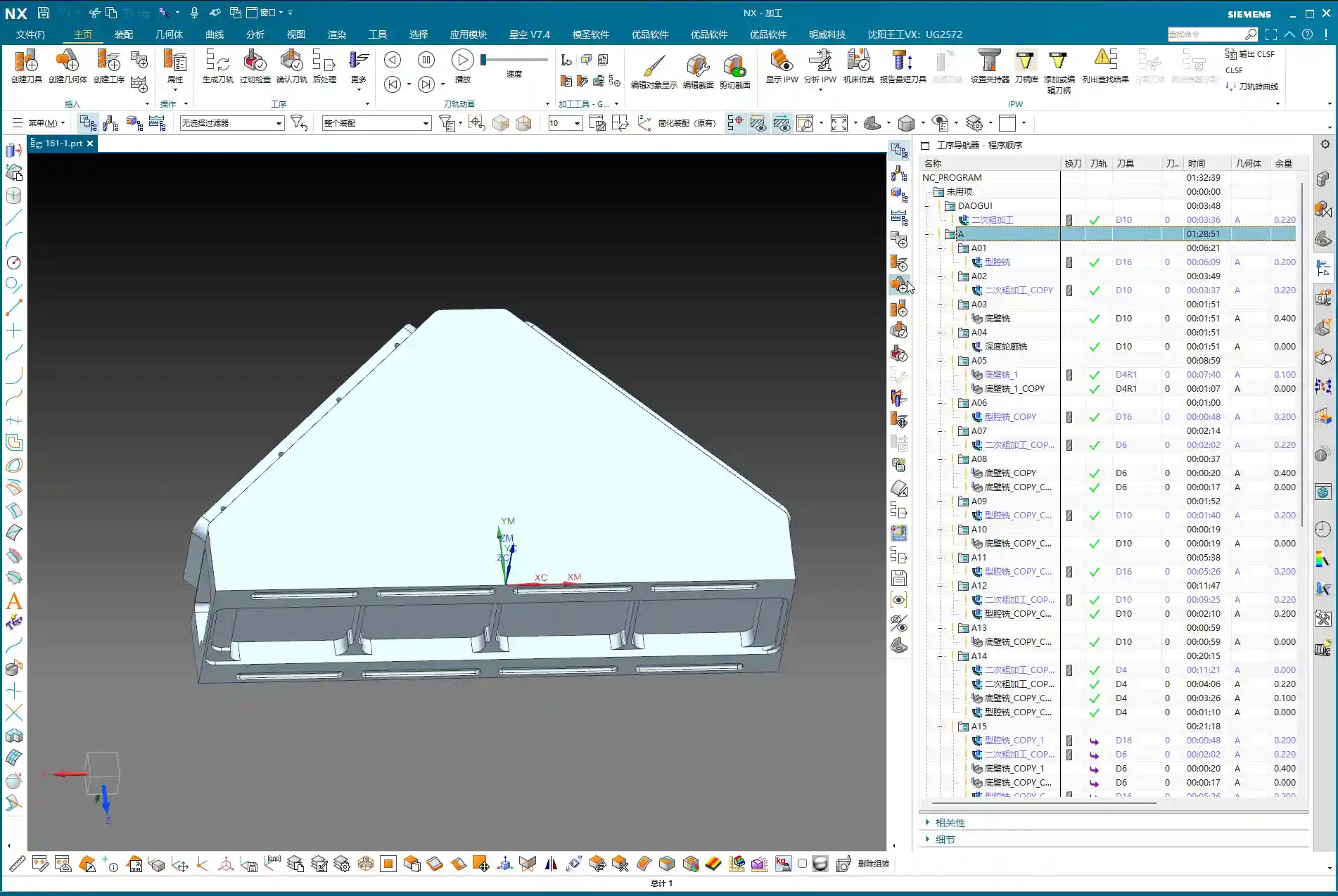
    Typically, once we get a part and complete the process analysis, we can jump straight into programming. Machining with an angle head is quite similar in principle to 4-axis horizontal machining. It’s essentially about reorienting the tool axis. With a 4-axis horizontal machine, you can rotate the part to the desired angle for machining, which is very convenient. An angle head works on the same principle; it rotates the tool axis, allowing you to cut from the side. So, whether you’re dealing with an angle head or a 4-axis horizontal setup, the programming approach is the same. Don’t overcomplicate it; the core concept is tool axis transformation.

    Remember this: any method that allows the tool to contact the workpiece in the right position and orientation is a good method. Don’t just stare at all the fancy features in the software; focus on how to get the job done efficiently and accurately on the machine.

    Flexible Specification of Tool Axis Direction

    Specifying the tool axis direction here is crucial. In NX, when selecting the tool axis, you can let it automatically determine the direction, or more reliably, directly select the face you need to machine. For instance, if you’re machining a side face, just click that face, and NX will automatically adjust the tool axis to be perpendicular to it. This is the most direct and least error-prone method. It will orient the tool axis outwards, allowing us to cut along that face.

    Don’t underestimate the tool axis direction; it directly impacts your tool’s cutting force direction, chip evacuation, and even determines whether you can successfully engage the cut. Especially when machining deep cavities or complex surfaces, precise control of the tool axis becomes exceptionally important.

    G-code Output Core Points: Linear Interpolation (G01) and Safe Movement

    Eliminating the Rapid Move (G00) Trap: Enforcing Linear Interpolation (G01)

    Listen up! This is what Master Wang wants to emphasize, and textbooks might not tell you this in such detail. In NX programming, especially concerning rapid moves, it’s best, and in fact, essential, to output them using Linear interpolation (G01), not Rapid move (G00)! Why?

    Because some machine tools, especially older ones, don’t necessarily move in a straight line during a Rapid move (G00). It might move X first, then Y, or Z first, then XY. This can result in a path that looks like “steps” or even takes a wide detour. Your software simulation might look perfect, but once it’s on the machine, you might end up with a hard collision – a tool crash! Even if it doesn’t crash, those sudden changes in speed and travel patterns can easily affect machining accuracy and surface finish. So, for safety and to ensure accuracy, we’ll universally output with Linear interpolation (G01). While it might be slightly slower, the significant increase in safety and stability makes it well worth it!

    Post-Processor and G-code Behavior

    I just mentioned that a Rapid move (G00) might take “steps,” and that’s actually related to your post-processor. Some post-processors, even if you set up rapid movements in NX, will still output Linear interpolation (G01) straight-line movements, which is perfectly fine. However, if your post-processor defaults to outputting Rapid move (G00), and your machine doesn’t execute Rapid move (G00) as a straight line, then you need to be careful. Therefore, always check your post-processor settings to ensure that all rapid movements (such as tool entry/retraction and air moves) are executed as Linear interpolation (G01) or at least as safe, straight-line Rapid move (G00). Don’t just rely on software simulations; you need to see how the actual G-code runs – that’s the real test.

    First Operation Roughing and Retraction Strategies

    Optimizing Retraction Paths: Avoiding Unnecessary Movements

    When we’re programming, there’s one area that often gets overlooked: tool retraction. I see a lot of younger guys setting up retraction paths that are far too long and straight; that’s just a waste of machine time! For example, if a retraction path is too long, we can shorten it or change it to an arc retraction. Say, in your entry/retraction moves, set the retraction to an arc with a radius of 1mm. This makes the tool exit more flexibly and effectively reduces air-cutting time. Don’t underestimate a few seconds here and there; over time, that adds up to significant savings for a machine in a year! So, make it as short as possible, use an arc if you can, be flexible, don’t be rigid.

    Aluminum Roughing Parameter Settings

    Let’s assume we’re machining aluminum this time; aluminum is relatively soft and easy to machine. When roughing, tool selection is also critical. We’ll typically choose a larger tool, such as a D16 (16mm diameter) end mill, to quickly remove most of the material. The tool axis direction must be correctly specified, ensuring it’s perpendicular to the side face being machined. Feed rates and spindle speeds should be determined based on the tool, material, and machine capabilities; don’t blindly chase speed. Ensure smooth chip evacuation to prevent chip buildup. The stock allowance should also be set according to the actual blank dimensions; don’t let the tool take too heavy a Depth of Cut (DOC) right at the start, as this can easily cause chipping.

    Secondary Roughing and Finishing Strategies: Smoothing and Accuracy

    The Necessity of Secondary Roughing (Corner Cleanup)

    After roughing, don’t assume everything’s done. When roughing with a large cutter, material will inevitably be left in small corners and fillets. At this point, you need to perform a “secondary roughing” operation, which is essentially Corner Cleanup or Rest Milling. Select a tool one size smaller than your roughing cutter, for instance, a D10 (10mm diameter) or even a D8 (8mm diameter) end mill, to clean out the remaining material in these corners. This is done to reduce the burden on the finishing pass tool, preventing it from taking too heavy a Depth of Cut (DOC), which can affect tool life, cause chipping, or lead to workpiece surface quality issues. All corners that require machining must undergo Corner Cleanup to ensure smooth subsequent finishing passes. This step cannot be skipped; it’s the unsung hero that guarantees final part accuracy and surface quality.

    Smoothing Operations and Maximum Distance Deviation

    After secondary roughing, sometimes we use a “smoothing” function to achieve smoother tool paths and better surface finish. There’s a parameter here called Maximum Distance Deviation; don’t always stick to the default value. This value controls tool path accuracy, but if you want the tool path to be smoother, especially in less critical or transition areas, you can increase it appropriately. For instance, set it to 400%. This results in a cleaner tool path, reduces calculation time, and in actual machining, the impact on the final surface quality might be minimal, or even better. Of course, you must check the machining results; don’t adjust it blindly. A smoother tool path reduces frequent acceleration and deceleration of the machine, which also benefits machine wear.

    Bottom Surface Finishing Pass (Bottom Wall Milling)

    For the bottom surface finishing pass, we’ll use the “Bottom Wall Milling” operation. Select all bottom faces that require a finishing pass. Remember, for bottom surface finishing, you don’t need to adjust the tool axis direction; it defaults to being perpendicular to the bottom face, which perfectly suits our requirements. For tooling, you can continue using a D10 or D8 cutter to ensure accuracy and surface finish for the finishing pass. Crucially, the stock allowance for the bottom face must be set to 0. That’s what a finishing pass is all about – aiming for a mirror-like finish. Don’t underestimate a single bottom face; its flatness directly impacts the part’s assembly accuracy.

    Side Wall Finishing Pass (Side Wall Milling)

    For the side wall finishing pass, similarly select the “Side Wall Milling” operation. Choose all side faces that require a finishing pass. At this point, the tool axis direction must be set to “upwards,” meaning along the normal vector of the side wall. When finishing side walls, there’s a crucial principle: if conditions allow and the tool length is sufficient, aim for a single-pass finish. This means the Depth of Cut (DOC) for each pass should be set to 0, allowing the tool to complete the cut from top to bottom in one go. This avoids tool marks and blend lines caused by layered cutting, ensuring the side wall’s surface finish and perpendicularity. The side wall stock allowance should also be set to 0. For corners, to ensure final accuracy, you might consider leaving a tiny allowance, such as 0.005mm, to be addressed in the final operation with a more precise tool or polishing. However, typically, for finishing passes, you’d set it directly to 0. This kind of single-pass, clean cut delivers both high efficiency and quality.

    Summary: Pitfall Avoidance Guide

    What I’ve covered today are hard-won lessons from my 15 years in the trenches, Master Wang’s blood, sweat, and tears. Listen up, there are a few critical points you absolutely must remember:

    1. Tool Axis Setting: For angle heads or 4-axis horizontal machining, the core is flexible tool axis transformation. If you can specify by selecting a face, do it – don’t shy away from the extra step.
    2. Rapid Move (G00) Trap: If a rapid move can be output using Linear interpolation (G01), absolutely do NOT use Rapid move (G00)! Unless you have 100% confidence in your machine and post-processor. Better to be a bit slower than unsafe.
    3. Retraction Optimization: Retraction paths should be short and flexible; use an arc if possible. Time is money, don’t waste it on air moves.
    4. Secondary Roughing / Corner Cleanup: This operation cannot be skipped; it’s a guarantee for your finishing pass. Clean up the remaining material, and the finishing pass will be much easier.
    5. Smoothing Strategy: Judiciously adjust the Maximum Distance Deviation to achieve smoother tool paths and improve efficiency.
    6. Finishing Pass Stock Allowance: For the bottom and side wall finishing passes, the final stock allowance should be set to 0 – this is a requirement for accuracy. For side walls, if conditions allow, aim for a single-pass finish.

    Don’t just get carried away by fancy software simulations; whether the final part is acceptable ultimately depends on the sparks flying from the machine and the feel of the finished surface. Think one step further, observe one step more, avoid detours, and save money – that’s what true skill is all about!

    👤 About the Author:
    The author is a veteran CNC machining professional with 15 years of industry experience, specializing in UG NX programming. This article is an original work representing personal practical insights.

    ⚠️ Copyright Notice: Unauthorized reproduction or distribution without prior communication is strictly prohibited.
  • ** Multi-Surface Machining with an Angle Head: Siemens NX Programming Best Practices, Tool Path Opti

    📝 Key Takeaways:

    [VIDEO_HERE]

    👤 About the Author:
    The author is a veteran CNC machining professional with 15 years of industry experience, specializing in UG NX programming. This article is an original work representing personal practical insights.

    ⚠️ Copyright Notice: Unauthorized reproduction or distribution without prior communication is strictly prohibited.

  • NX Guide: 连接筋零部件全序编程讲解

    📝 Key Takeaways:

    [VIDEO_HERE]

    👤 About the Author:
    The author is a veteran CNC machining professional with 15 years of industry experience, specializing in UG NX programming. This article is an original work representing personal practical insights.

    ⚠️ Copyright Notice: Unauthorized reproduction or distribution without prior communication is strictly prohibited.
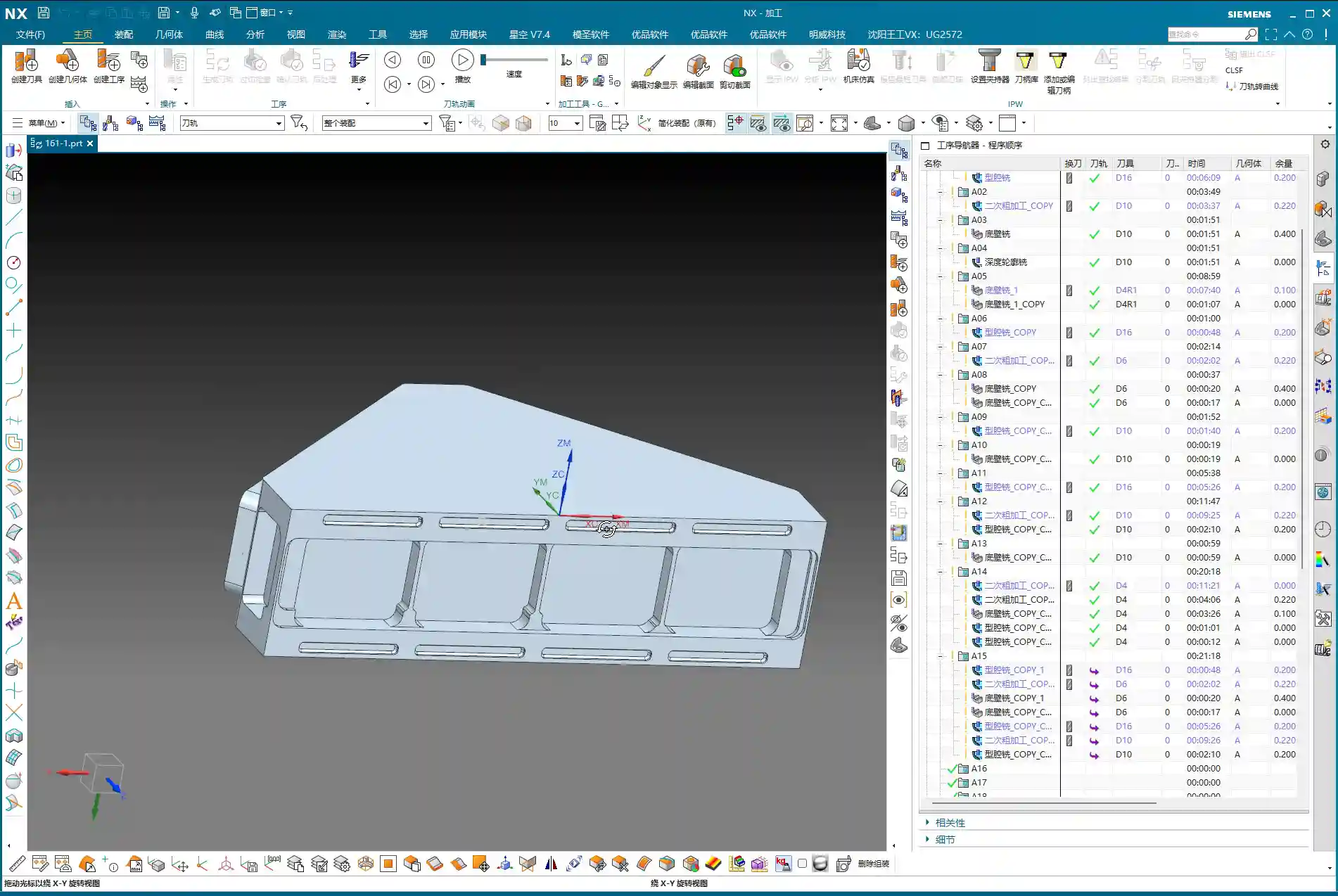
  • Siemens NX Practical Application: Roughing Toolpath Optimization – Resolving Excessive Retracts and

    📝 Key Takeaways: **

    Siemens NX Roughing Optimization: Say Goodbye to Excessive Retracts

    Hello everyone, I’m Master Wang. Today, let’s continue our chat about…

    [VIDEO_HERE]

    Hello everyone, I’m Master Wang. Today, let’s continue our chat about machining, especially **roughing**. It might look straightforward, but there are plenty of hidden tricks, particularly those “details you won’t learn from textbooks” that significantly impact efficiency and cost.

    Mastering Key Roughing Challenges

    No Allowance? Beware the First Cut!

    Listen up. When setting up a **roughing** program in NX, some tend to think “good enough.” Especially when specifying the part and blank, a common mistake is to leave too little stock allowance, or none at all. For today’s part, when designating components, don’t treat every face as the final finished surface. For load-bearing areas like the bottom face, don’t leave too much allowance—0.01mm (approx. 0.0004 inch) is plenty, just enough for a single cutting pass. Why? Because if you leave no allowance, or the wrong amount, the machine will struggle on the first **Depth of Cut (DOC)** due to insufficient cutting space, or it might crash directly into the bottom. That’s a serious problem! Don’t just trust the software simulation; the sparks from the actual machine cutting will tell you the truth.

    Small Areas “Overcut”? Cleverly “Avoid” Them with Sheet Bodies

    When machining complex parts, there are always some small, tricky areas that are hardly worth machining; they just waste tool life and time. Take this part, for instance: once the program runs, you’ll see some of these small areas are machined unnecessarily. Why bother? In reality, these spots can be entirely skipped.

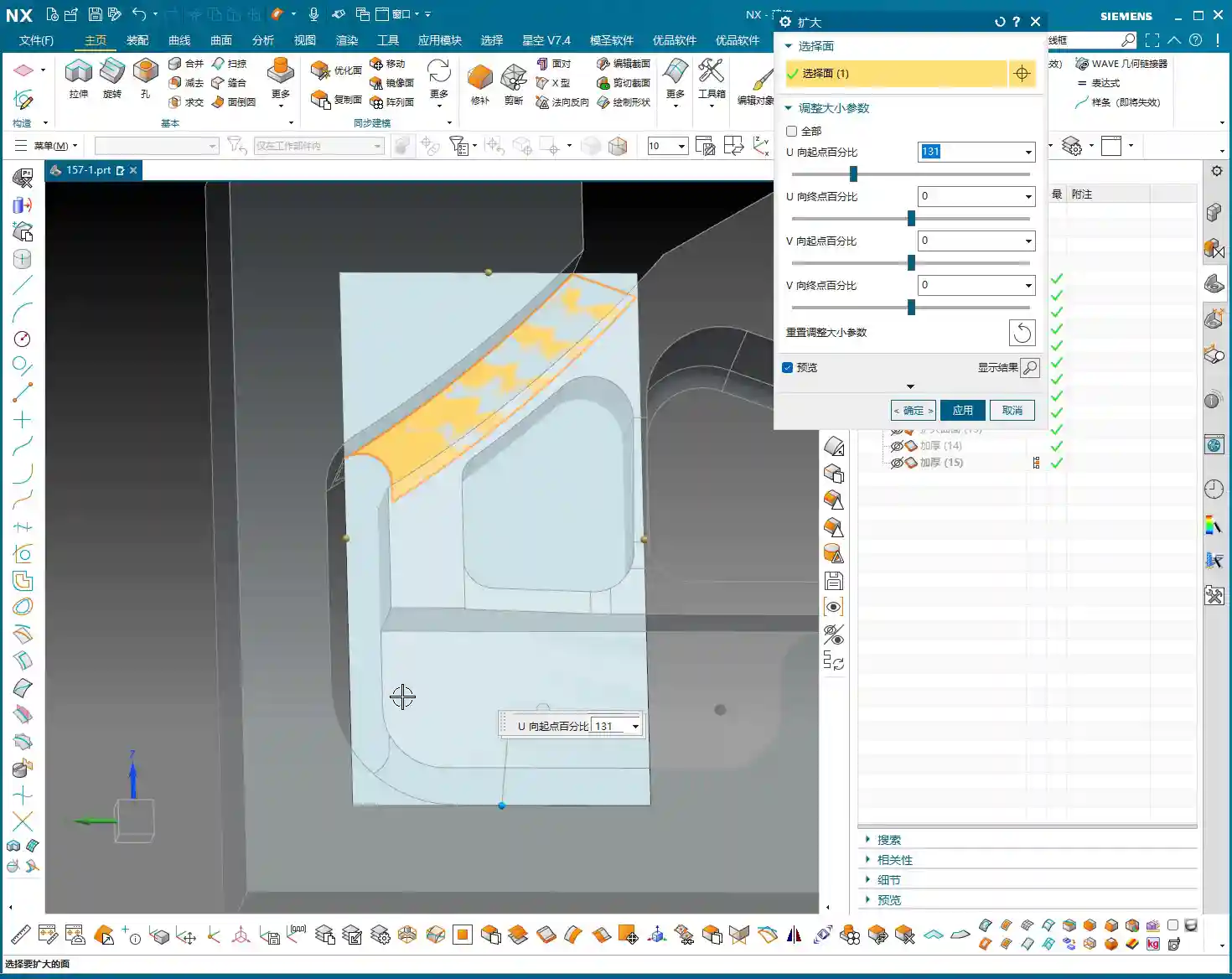
    My trick is: find a Sheet Body and “block” it off. For example, using Siemens NX’s “Extend Face” command, you can stretch a face outwards to create a “virtual barrier.” Then, during programming, include this “virtual barrier” in your selection and tell the software: “Don’t machine this area; go around it!” This way, the toolpath will automatically avoid these unnecessary regions, saving a good amount of machining time. Don’t underestimate a few minutes; in mass production, that adds up to serious money!

    Optimizing Retracts: Two Practical Strategies

    We just generated a program. Now, take a closer look at the toolpath. Do you notice the tool “jumping” too high between different areas? When retracts are high, there’s more air-cutting, and all that time is wasted on tool lifting. We need to figure out how to control these retracts. Here are two practical strategies I’ll teach you.

    Strategy One: Layered Control, Clever Use of Empty Layers

    In Siemens NX’s “Cut Levels” settings, many simply use automatic or define a few basic levels. But to finely control retracts, we need to get a bit more creative.

    1. **Add an “Empty Layer” as a Buffer:** First, create an “Empty/Clearance Layer” at the top. This layer doesn’t participate in actual cutting, but it defines the tool’s initial retract height. Slightly raise the height of this empty layer, for example, to about 0.7mm (approx. 0.027 inch) above the workpiece surface. This 0.7mm isn’t arbitrary; it must ensure the tool can move smoothly after retracting without lifting too high and wasting time. If you set it to 0, the tool might move directly along the surface, risking rubbing or even a crash!
    2. **Define Cutting Regions:** Next, add another layer, defining it to the top surface of the workpiece as the actual cutting start point. Then, define the bottom surface as the cutting endpoint. This way, when the tool moves between each **Cut Level**, it won’t always retract to a high **Clearance Plane**; instead, it will rapidly transfer at the height set by this “Empty Layer,” significantly reducing air-cutting time.

    This method can be a bit tedious and requires repeated trial and error, but once set correctly, the results are immediate.

    Strategy Two: Rapid Transfer with a Clearance Plane

    If controlling retracts via **Cut Levels** feels too intricate and easy to get bogged down in, then the second method is much simpler and more direct, yet equally effective—sometimes even more practical.

    Instead of using complex **Cut Levels**, simply duplicate your **roughing** program and then locate the “Transfer Rapid” option. Here, you can set a “Relative Plane.”

    For example, directly set a **Clearance Plane** at 100mm (approx. 3.94 inch) high. This means that after each cutting operation, the tool will rapidly retract to this relative plane, then perform rapid moves along that plane before descending to the next cutting position. While the retract height is fixed each time, as long as this height is set appropriately and doesn’t interfere with the **fixturing**, it can still effectively reduce air-cutting and ensure safety.

    Both methods have their pros and cons, but they both achieve the same goal: making the tool “retract less and move faster.” In practice, you can choose based on the workpiece complexity and your personal preference.

    Master Wang’s Machining Philosophy

    Don’t Just Look at Parameters, Consider the Fixturing!

    When we input parameters and set planes in NX, there’s a crucial prerequisite: you must have the workpiece’s actual clamping setup in mind! Just like when we set that 3mm (approx. 0.118 inch) plane, or the 100mm (approx. 3.94 inch) **Clearance Plane**, you need to ask yourself: “If the tool retracts this high, will it collide with the **fixturing**?” Especially clamping plates (Clamping Interference) – that’s a very real risk. Don’t just focus on how beautiful the toolpath looks; safety in production is paramount. In the factory, a wrong parameter might scrap a part, but a tool crash can cause a major accident!

    Roughing Done, Straight to Finishing Pass

    Today’s **roughing** operation might have taken some effort, but the final result is good. See, the toolpath is smooth, retracts are optimized, and it’s basically where it needs to be. So, in situations like this, we can skip the semi-**roughing** and go straight to a finishing pass. Choose a suitable D10 tool (10mm diameter end mill). For the machining direction, you can select “Outward” milling; this ensures better chip evacuation and a more guaranteed surface finish. Of course, sometimes “Inward” milling is also an option; this all depends on the specific part geometry and cutting conditions. Practice more, observe the cutting sparks and sounds, and you’ll understand.

    Summary: Pitfall Avoidance Guide

    * **Ensure Ample Stock Allowance, Secure the First Cut**: For initial cuts or critical surfaces, leave an allowance of about 0.01mm (approx. 0.0004 inch) to ensure a smooth engagement.
    * **Cleverly Use Sheet Bodies to “Block” Areas**: For non-critical, small regions, use commands like “Extend Face” to create virtual sheet bodies to “obstruct” them, reducing unnecessary cutting.
    * **Optimizing Retracts is Key**:
    * **Layered Strategy**: In **Cut Levels**, set an “Empty Layer” as a low **Clearance Plane** height (e.g., 0.7mm (approx. 0.027 inch)) to control rapid tool transfers.
    * **Plane Strategy**: Use “Transfer Rapid” to set a “Relative Plane” (e.g., 100mm (approx. 3.94 inch)) as a unified tool retract and movement plane.
    * **Always Consider Fixturing**: Any Z-axis setting must account for **fixturing** interference to ensure machining safety.
    * **Flexible Toolpath Decision-Making**: When **roughing** is optimized, skip semi-**roughing** and choose either inward or outward **finishing pass** methods based on the situation.

    Alright, that’s all for today. These are insights I’ve meticulously developed over 15 years on the shop floor. I hope you’ll take them to heart, practice more, think more, and don’t just stare at the NX interface—look up and observe the actual machine and parts. That’s where the real skill lies!

    👤 About the Author:
    The author is a veteran CNC machining professional with 15 years of industry experience, specializing in UG NX programming. This article is an original work representing personal practical insights.

    ⚠️ Copyright Notice: Unauthorized reproduction or distribution without prior communication is strictly prohibited.

  • Master Wang’s Real-World Guide: Backside Machining for Multi-Operation Parts – Siemens NX Programmin

    📝 Key Takeaways:

    Backside Programming for Multi-Operation Parts: Master Wang’s Practical Playbook

    I. Finishing the “Front Side”: Toolpath Optimization & Real-World Fine-Tuning

    Listen up, lads. We’ve finished the roughing; now it’s time for finishing. Don’t think finishing is just clicking around – there’s a lot to it, and you need to pay close attention to toolpaths and allowances.

    1. Initial Finishing Strategy & Tool Reuse

    For finishing, first off, you need to select the correct machining area, which is our “Specify Part” feature. This operation isn’t difficult, but many subsequent optimizations depend on the range you’ve selected. As for the tool, if your previous semi-finishing tool can handle it and the size is right, just reuse it. Saves tool change time, which boosts efficiency. Remember: economize wherever possible, but never at the expense of quality and safety.

    2. Stepover Adjustment: “Deep Cuts, Shallow Steps” for Aluminum Finishing

    When you first generate the toolpath, doesn’t the Stepover seem a bit large? Especially with aluminum parts – they’re soft, and chips tend to pile up during cutting. For finishing aluminum, we often ‘go deeper,’ meaning we can afford a slightly larger cutting depth, but each lateral step (Stepover) needs careful control.

    Looking at this first layer of toolpaths, the Stepover feels a bit too large. We can adjust it. For example, if the system default is 14.something millimeters, let’s manually change it to 13 mm. This makes the toolpath denser, which is crucial for achieving a better surface finish. For less critical areas at the top, the Stepover can be a bit more relaxed, say 2 mm; but for areas requiring a high-quality finish, set the Stepover to 0.15 mm – gotta strive for perfection, right?

    3. Unnecessary Retracts & Practical Trade-offs

    After generating the toolpath, keen eyes might spot some “unnecessary retracts” – that’s when the tool makes excessive lifts and engagements in the air. This impacts efficiency and can even leave surface marks. In theory, we want to avoid these as much as possible, but my years of experience tell me that if there aren’t many, and they don’t significantly affect overall machining time or surface quality, we can “prioritize the bigger issues” and leave them for now.

    If these unnecessary retracts are indeed problematic, then we have to change things. For instance, try changing the cutting method to “Climb Milling”. Sometimes, this can effectively reduce those unwanted lifts and make the toolpath smoother. Don’t just rely on software simulations; look at the cutting sparks and the actual cutting sound – those are your most reliable indicators.

    4. IPW Verification: Machining Allowance & Cutting Effect

    Every time you make an adjustment, remember to check it using IPW (In-Process Workpiece). This feature shows you the actual effect of the tool after cutting and the remaining material allowance. With IPW, we can confirm that this area has indeed been milled out, and no corners or edges were missed. Don’t wait until the part is off the machine to find problems; by then, it’ll be too late to cry about it.

    5. Toolpath Optimization: Overcutting and Pragmatism

    In some non-critical areas, like corner transitions, the toolpath might show slight “overcutting”. As long as it’s not excessive and doesn’t affect assembly or performance, we can accept it. After all, striving for 100% perfection can sometimes sacrifice efficiency. In the workshop, we aim for “functional and sufficient”, not theoretical optimality from a textbook.

    For finishing pass toolpaths, besides Climb Milling, you can also try adjusting the parameters for “Smoothing” and “Area Linking”. This makes the tool engagement and retraction smoother, reducing tool marks. Think of it like driving: you want smooth acceleration and turns, not sudden braking and stops.

    II. Backside Machining: Coordinate System Switching, Roughing and Finishing

    Front side’s done. Next, flip the part over and machine the backside. Backside machining isn’t just copy-pasting; the coordinate system, toolpaths, and allowances all need a fresh review.

    1. The Critical WCS (Work Coordinate System) Switch

    For backside machining, the first and most crucial step is to switch the Work Coordinate System (WCS). You need to move the machine’s “eyes” to the backside of the part, otherwise, the tool will just be cutting air. Set the WCS on a critical plane on the backside, ensuring the Z-axis direction is correct. This is fundamental, but also the easiest place to make a mistake; once the WCS is wrong, the entire program is junk.

    2. Backside Roughing: Face Milling Strategy and Cut Level Control

    For the backside, we usually start with roughing. We can use “Cavity Milling” or Face Milling to quickly remove material. For example, using a 10 mm end mill, the single Depth of Cut (DOC) can be set to 0.7 mm. Here’s the key: how do you control the milling depth? You need to specify the “final cut level” on the machining plane, ensuring the tool mills precisely to your target surface. This effectively prevents overcutting or undercutting.

    The toolpaths for backside roughing might also be a bit “meandering.” As long as it doesn’t affect machining quality and part strength, a slightly irregular toolpath is fine. The machining allowance should be appropriate; don’t leave too much, or your finishing operations will be overly burdened.

    3. Backside Finishing Pass: Finishing the Bottom Surface & Toolpath Trimming

    After roughing, it’s time for the backside bottom surface finishing operation. Here, our goal is to mill the bottom surface clean, so set the Depth of Cut (DOC) to 0, and the floor stock to 0, ensuring the tool follows the plane tightly.

    But here’s a pitfall: the system-generated toolpath might “cut into” some areas inside the part that shouldn’t be touched. This won’t do! We need to use the “Trim” function to manually remove those unnecessary toolpaths. By selecting points, lines, or faces, you tell the software where the tool should stop. Remember, the toolpath must “stay within” but not run outside or enter forbidden areas. That’s how you ensure part integrity and accuracy.

    III. Backside Drilling: Efficient Layout and Depth Control

    The final step in backside machining is usually drilling. This looks simple, but it’s a job that demands both efficiency and accuracy.

    1. Drilling Strategy: To Spot Drill or Not To Spot Drill

    For small holes like 2.1 mm, we can consider whether to use “Spot Drilling”. Theoretically, spot drilling prevents the drill from walking at the start, improving accuracy. But in practice, if the hole diameter isn’t large, the material is relatively soft, and the drill has good rigidity, we can “drill directly”, skipping the spot drilling step to boost efficiency. However, for critical hole locations or large-diameter drilling, spot drilling is essential.

    2. Drilling Tools and Depth Control

    Select a 2.1 mm carbide drill to ensure cutting performance. Drilling depth is also crucial; if hole tolerances are tight, you need precise control. For example, if the target depth is 20 mm, we might actually drill a bit deeper, setting it to 23 to 25 mm, to ensure the drill tip fully penetrates. Of course, the specific value must be determined by the drawing and actual conditions – don’t blindly overdrill.

    When spot drilling, if the depth isn’t deep, a single pass is sufficient to avoid multiple engagements and retracts. At the same time, pay attention to the angle of the spot drill; this directly affects the hole’s chamfer. Don’t let the chamfer get too large and impact subsequent assembly.

    Summary: Pitfall Avoidance Guide

    1. The Core of Siemens NX Programming: Combining Theory with Practice

    Textbook theory is important, but workshop experience is even more valuable. Siemens NX programming isn’t about rigid formulas; it requires you to flexibly adjust based on actual material, machine condition, and part requirements. Don’t just look at parameters; visualize how the tool moves on the workpiece. The cutting sound, sparks, and chips are all indicators for judging toolpath quality.

    2. Master Your Tools, Don’t Be Mastered by Them

    Software like Siemens NX is powerful, but it’s just a tool. A true programming expert masters the tools, rather than being led by them. Check IPW and toolpath simulations, but ultimately, rely on the physical part. When you encounter issues, don’t be afraid to modify; persistent trial-and-error is how you find the most suitable solution.

    3. Strive for Perfection, But Prioritize Efficiency and Cost

    Over-optimization wastes time, especially in teaching and beginner stages. In actual production, we need to maximize efficiency and reduce costs while ensuring quality. Some minor unnecessary retracts or non-excessive overcutting can be acceptable in certain situations. Learning to strike that balance – that’s the mark of a seasoned veteran.

    Alright, that’s it for today’s lesson. Go practice yourselves; with Siemens NX, mastery comes with practice!

    👤 About the Author:
    The author is a veteran CNC machining professional with 15 years of industry experience, specializing in UG NX programming. This article is an original work representing personal practical insights.

    ⚠️ Copyright Notice: Unauthorized reproduction or distribution without prior communication is strictly prohibited.
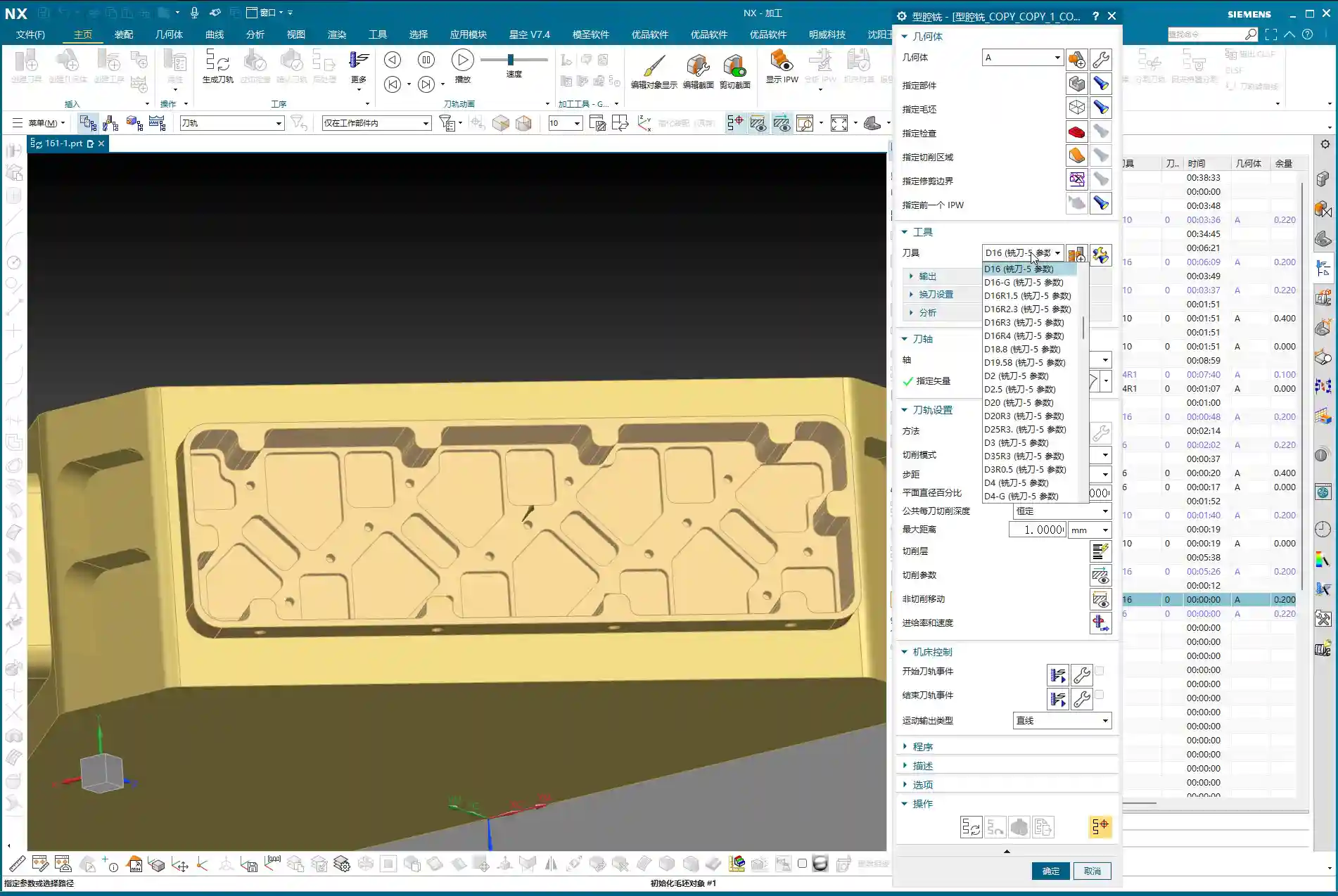
  • Master Wang’s Practical Guide: Optimizing First Operation Roughing Programming for Multi-Operation P

    📝 Key Takeaways:

    Optimizing Multi-Operation Roughing in NX

    M…

    [VIDEO_HERE]

    Master’s Insight: Part Overview and Machining Strategy

    Hello everyone, I’m Master Wang. Today, let’s talk about a typical multi-operation part, specifically the first operation’s roughing. There’s a lot to it – things you won’t learn from textbooks. Many young programmers using NX often end up with disorganized toolpaths, excessive air cuts, and low machining efficiency. That’s simply unacceptable! Today, I’ll teach you how to optimize these roughing toolpaths in NX to be precise and efficient, saving both tool wear and time.

    Initial Part Analysis and Machining Sequence

    Listen up, for this part, we need to perform three-sided machining. First, we’ll machine one side, then its back face, and finally address the front face. Of course, you could also machine the back face first, then the front face; either approach is fine. The key is to clearly understand the machining sequence and the characteristics of each face.

    The top and bottom surfaces of this part are parallel, and most of its side faces are straight. Its Z-axis width is approximately 130 to 140 mm (approx. 5.1 to 5.5 inches), and the raw material thickness is 36 mm (approx. 1.4 inches). Keep these basic dimensions in mind. We’ll first define a machining datum. Typically, we select the back face and Face Mill it flat to serve as the primary datum surface.

    Machining Datum and Stock Definition

    When programming in NX, the first step is to establish the Work Coordinate System (WCS). For this part, clamped in a vise, let the Z-axis point downwards, and ensure the part is properly oriented. Stable positioning and secure clamping are absolutely fundamental. Without them, even the best program is useless.

    In NX, remember to organize the part, stock, and external contours into separate layers for easy management.
    * Place the Part on Layer 10
    * Place the Stock on Layer 100
    * Place the External Contour on Layer 200
    This way, your operations will be clean, clear, and easy to follow.

    Tool Selection: Experience and Dimension Matching

    Selecting a tool isn’t just grabbing any random one; you need to consider part features, efficiency, and tool life. This is a hands-on skill based on real experience, something you can’t fully learn just from a tool catalog.

    Main Roughing Tool: D10 Flat End Mill

    After reviewing the part, most areas have generous radii, and some sections are quite wide. Therefore, a D10 flat end mill is the most suitable choice as our primary roughing tool.
    * The internal corners have R7 and R5 radii, which the D10 end mill can easily navigate without excessive cutting forces.
    * For some narrow areas with an edge clearance of 10.5 mm (approx. 0.41 inches), the D10 can still access and perform roughing.
    * It’s versatile for contouring and slotting, providing high efficiency.

    Finishing and Semi-Finishing Tool: D12R3 Ball Nose End Mill / Torus End Mill

    Don’t forget, the part also has areas with R3 radii, as well as some sections with a width of 15 mm (approx. 0.59 inches). Use a D12R3 ball nose end mill (or a torus end mill) to handle these areas, serving both for semi-finishing after roughing and preparing for the finish cut. This D12R3 tool offers good rigidity and can also handle some R5 areas, killing two birds with one stone.

    Small Contours and Corner Cleanup: D6 Flat End Mill / Ball Nose End Mill

    When encountering small contours, deep cavities, or corners that the D10 or D12R3 can’t reach, you’ll need to use a D6 flat end mill or a D6 ball nose end mill. This is an excellent tool for corner cleanup, but it’s primarily used for finishing or as an aid in secondary roughing. Try to avoid using it for heavy-duty roughing.

    NX Programming in Practice: Roughing Strategies and Toolpath Optimization

    Alright, with the tools selected, now let’s see how to master them in NX. Remember, don’t just rely on software simulations; pay attention to the cutting sparks! That’s the real machining state.

    Initial Face Milling (Back Face)

    First up is Face Milling the back face; this is straightforward. Use the D10 flat end mill for a Face Milling operation, directly machining down to the final stock thickness. Since this face typically doesn’t have strict tolerance requirements, the main goal is to create a flat datum surface. In a word: speed!

    Part Draft Angle Analysis and Machining

    Our part isn’t entirely flat; it definitely has draft angles. In NX, use Draft Analysis to see: green areas are flat, while yellow and red areas indicate draft or sloped surfaces. For these sloped surfaces, especially small contours, improper toolpath selection during roughing can lead to incomplete machining or overcutting. You need to clearly understand which faces are flat and which are sloped to select the appropriate cutting method.

    Avoiding Air Cuts and Inefficient Machining: The Clever Use of Auxiliary Surfaces

    This is the crucial point for today’s discussion! Many young programmers in NX, as soon as they start, have the tool wandering everywhere, resulting in a multitude of air cuts and poor efficiency. Why? Because you haven’t told it which areas *not* to cut!

    When we perform roughing, especially contour roughing on the front face, the target area is specific. However, NX’s default roughing algorithms will try to machine all available areas. What to do? Use auxiliary surfaces! This is a tried-and-true trick in practical machining.

    **Master Wang’s Auxiliary Surface Techniques:**
    1. **Limit Machining Area:** For areas you don’t want to machine, such as the exterior of the part or other irrelevant faces, use NX’s ‘Extend Sheet’ command to slightly extend them outwards, or use the ‘Thicken’ command to add a layer, or even directly use ‘Extrude’ or ‘Revolve’ to create a simple blocking surface.
    2. **Define Restricted Zones:** These auxiliary surfaces essentially create “no-go zones” for the tool, letting the toolpath know where it shouldn’t go and where it can machine.
    * For example, if you only want to machine the part’s internal contour, cover the external areas with auxiliary surfaces, ensuring the tool only travels within them.
    * Conversely, if you want to clean up the external contour, use auxiliary surfaces to “block off” the internal areas.
    3. **Reduce Air Cuts:** This way, the tool will obediently work only in the areas you intend to rough, significantly reducing air cutting time and boosting machining efficiency. Don’t foolishly let the tool wander aimlessly across the entire stock.
    4. **Precision Requirements:** Remember, auxiliary surfaces don’t need perfect precision; they just need to effectively block the toolpath, saving time and effort. The purpose is to make the toolpath smarter, not to draw more precise models.

    Contouring and Depth of Cut Control

    For contour areas, we’ll use NX’s ‘Contour Milling’ or ‘Cavity Milling’ operations. The Depth of Cut must be determined based on material hardness and tool strength. For aluminum, you can go deeper. For titanium alloys and high-temperature nickel-based alloys, you need to be more conservative, with depths of 0.5 mm (approx. 0.02 inches) or even 0.2 mm (approx. 0.008 inches) possibly being necessary. Don’t just rely on software parameters; observe the cutting sparks and chip condition – those are the most authentic feedback.

    Be sure to utilize NX’s ‘Reference Tool’ function to prevent the tool from re-cutting previously machined areas during secondary roughing, and to effectively avoid overcutting. For instance, if you’ve roughed with a D10, when performing semi-finishing with a D12R3, set the reference tool to D10. The D12R3 will then only machine areas that the D10 couldn’t reach.

    Summary: Pitfall Avoidance Guide

    * **Pitfall One:** Blind programming without analyzing part geometry, leading to excessive air cuts and low efficiency.
    * **Master Wang’s Tip:** Before programming, use NX’s analysis tools (such as Draft Analysis, distance measurement) to thoroughly understand the part’s “personality” before taking action. Don’t just look at drawings; combine them with the 3D model for intuitive assessment.
    * **Pitfall Two:** Not effectively using auxiliary surfaces, causing the tool to make unnecessary passes in irrelevant areas or engage where it shouldn’t.
    * **Master Wang’s Tip:** Flexibly utilize functions like ‘Extend Sheet,’ ‘Thicken,’ and ‘Extrude Body’ to create auxiliary surfaces that limit the tool’s machining range, achieving precise roughing and ensuring toolpaths are perfectly controlled.
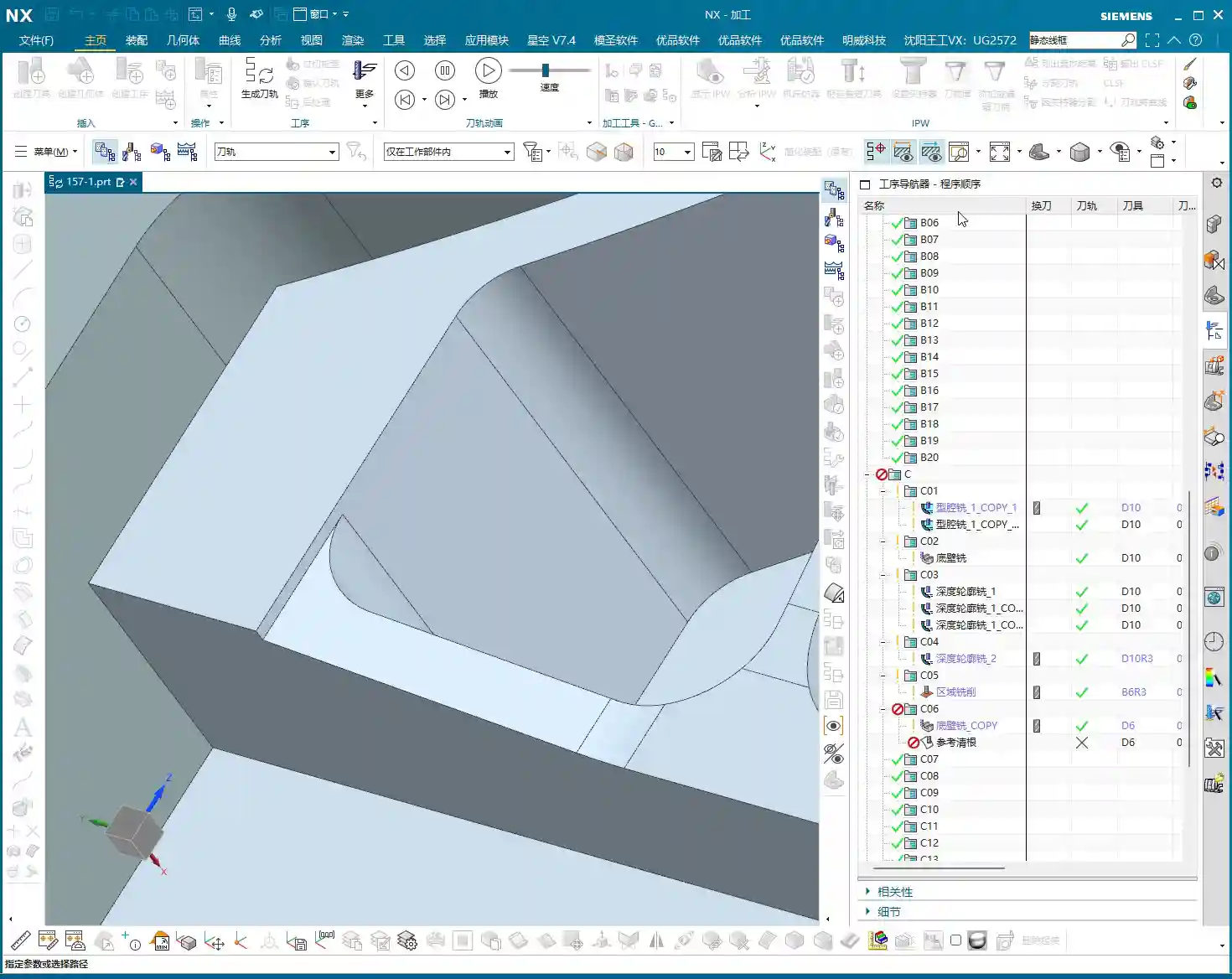
    * **Pitfall Three:** Improper tool selection—using a tool that’s too large or too small, or one that doesn’t match the radii.
    * **Master Wang’s Tip:** Select tools based on the part’s smallest radius and the width of the machining area, ensuring both cutting efficiency and quality are met. When necessary, grinding custom tools yourself is a skill only seasoned machinists possess.
    * **Pitfall Four:** Ignoring material characteristics and using a “one-size-fits-all” approach for cutting parameters.
    * **Master Wang’s Tip:** For different materials, feed rate, spindle speed, and Depth of Cut all require adjustment. Aluminum alloys can be machined aggressively, while high-temperature alloys demand slower, steadier parameters. Don’t just follow the manual; observe the cutting sparks, chip color, and shape – the machine is “talking” to you.
    * **Pitfall Five:** Over-reliance on software simulations without considering actual machine conditions.
    * **Master Wang’s Tip:** Software is merely a reference. Machine accuracy, fixture rigidity, coolant supply, and workpiece clamping deformation are all critical factors affecting machining. For the first part, always perform a low-speed, small-feed trial cut, and only increase speed once confirmed everything is correct. Experience is paramount!

    👤 About the Author:
    The author is a veteran CNC machining professional with 15 years of industry experience, specializing in UG NX programming. This article is an original work representing personal practical insights.

    ⚠️ Copyright Notice: Unauthorized reproduction or distribution without prior communication is strictly prohibited.