📝 Key Takeaways: ** Master Wang provides a practical explanation of Siemens NX bulk post-processing, addressing the pain points of single-file processing. Using the “Youpin” module, you can select the appropriate post-processor definition for your machine, generate NC code for multiple workpieces with a single click, and analyze common G/M codes. He emphasizes the importance of output format compatibility with the machine control system and offers a guide to common pitfalls, helping you significantly boost machining efficiency. **
Master Wang Begins: Bulk Post-Processing, The Era of Ditching Manual NC Generation!
Hello everyone, I’m Master Wang. Last time, we discussed how to generate setup sheets. This time, we need to talk in detail about post-processing. Listen up, this is a critical step that directly impacts our machining efficiency and finished product quality.
Back when I used NX 12, post-processing and setup sheets could sometimes be generated together, integrated with the controller system, which was convenient. But after system upgrades, for example, to NX 18.0 or 1980, many old practices changed. Especially when used with the controller system, simultaneously generating setup sheets and post-processed files became impossible. While downgrading the post-processor to version 8.0 could work as a temporary fix, it’s certainly not a long-term solution.

Now, the core pain point we need to address is: if we can’t complete both post-processing and setup sheet generation in one go, or if we need to generate NC code for multiple workpieces in bulk, clicking them one by one, that would take forever! This kind of efficiency bottleneck, which you “won’t learn from textbooks,” must be solved with practical tips. Today, Master Wang will introduce you to aSiemens NX OP module, which is what we commonly refer to as the “Youpin” module, that we frequently use in our workshop. It will help you ditch manual NC generation and achieve bulk post-processing!

Traditional Single-File Post-Processing: Where are the Efficiency Bottlenecks?
Before discussing bulk processing, let’s quickly review conventional single-file post-processing and see where the problems lie.
Hands-On Demonstration: Steps and Pain Points of Single-File Post-Processing
Typically, you’d operate as follows:
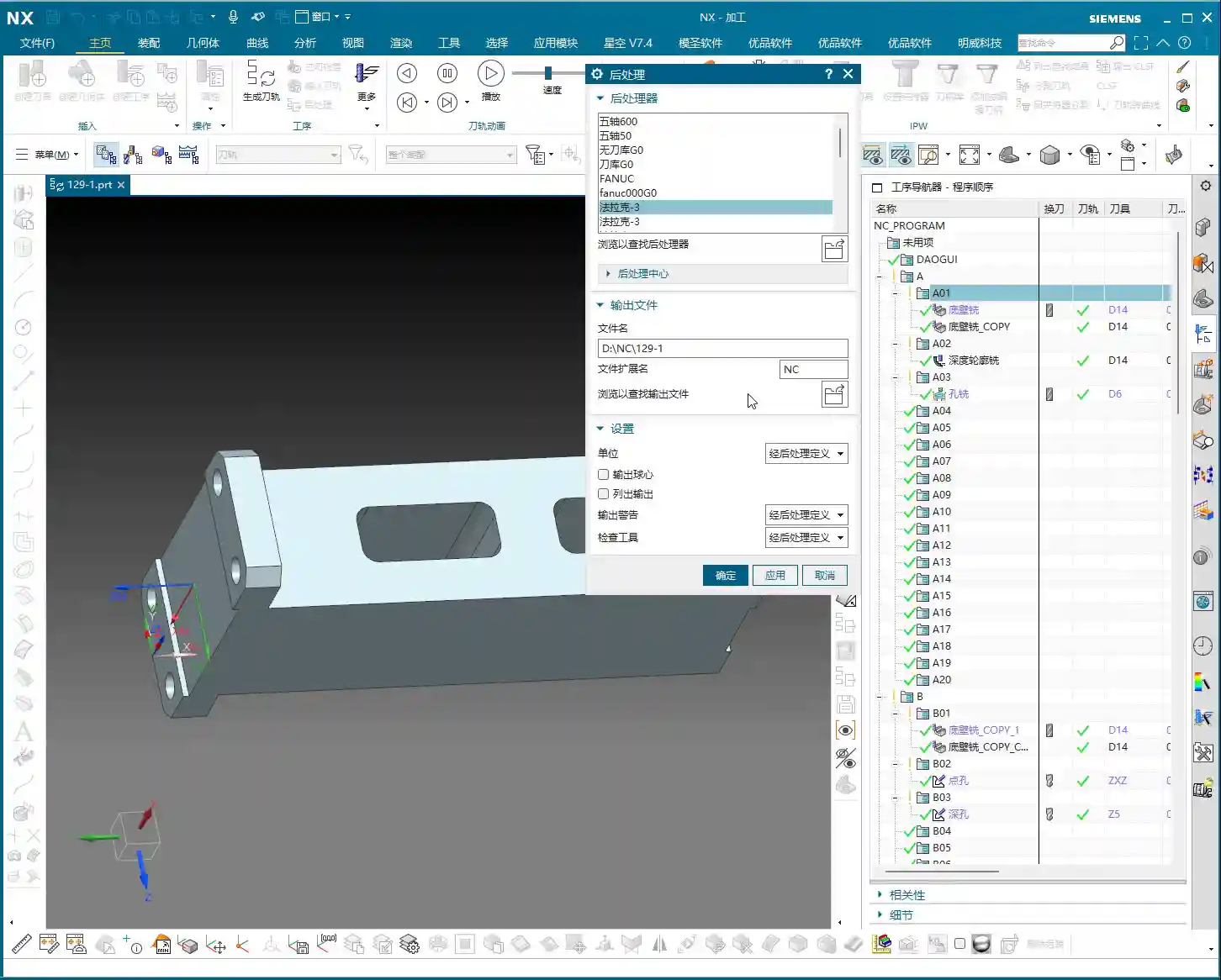
- In Siemens NX, select a program (e.g., “A01”).
- Click the “Post-Process” button.
- The system will pop up a window asking you to choose the output path for the post-processed file. At this point, you’ll have to manually navigate to your desired folder, such as the “NC” folder on our desktop.
- Then click “OK” to complete.
This seems straightforward, but what if you have ten, twenty, or even more workpiece programs to generate NC code for? You’d have to repeat the steps above ten, twenty, or even more times. This not only wastes time but also increases the likelihood of errors when selecting paths or naming files. Especially when deadlines are tight, such inefficient operation is practically a “fatal flaw.” Furthermore, the software’s built-in post-processors sometimes lack optimal compatibility, potentially requiring manual adjustments or specialized customization, all of which incur additional time costs.
Just like I demonstrated earlier, sometimes if the path isn’t selected correctly, the NC file ends up in another folder, making it a hassle to find later. This one-by-one post-processing method is simply too inefficient; we can’t operate this way in our workshop!

The Siemens NX OP Module: The Practical Essence of Bulk Post-Processing
Now for the main event! We’ll use thebulk post-processing function within the “Youpin” module. This tool is incredibly convenient to use and will double your efficiency!
The operation is simple, listen carefully:
- Select Workpiece Programs: In the Siemens NX Operation Navigator, locate all your workpiece programs, such as A01, A02, A03, or even B01, B02, B03, etc. You can directly select an entire folder, or use the Ctrl key for multiple selections.
- Launch Bulk Post-Processing: After selecting, simply click our “Bulk Post-Process” button.
See that? It automatically navigates to our preset output path. For instance, mine defaults to the NC folder on the D drive, saving you the trouble of manually selecting the path. This significantly boosts efficiency and prevents basic errors like incorrect paths.
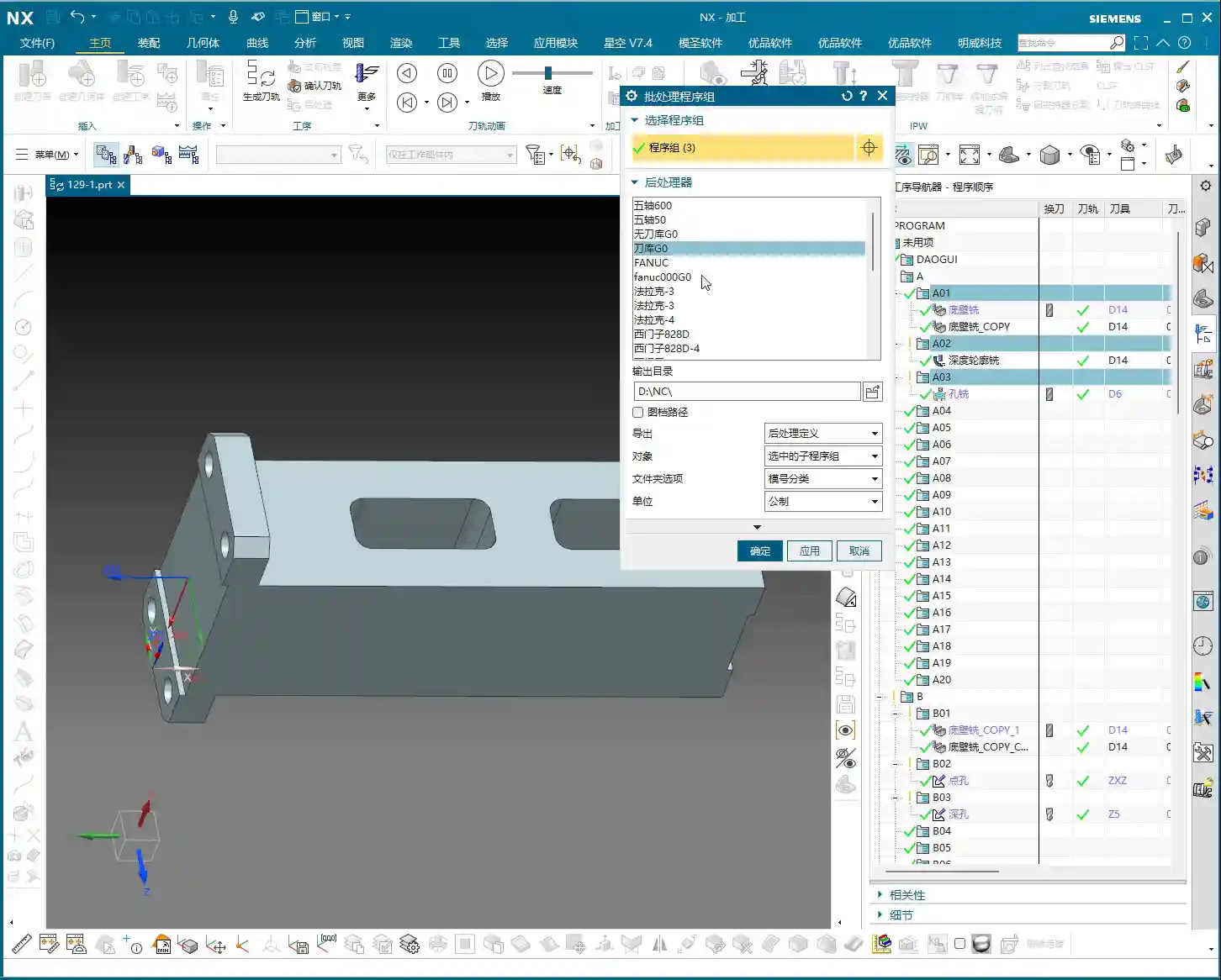

Core Settings: Post-Processor Definition and Machine Compatibility
Here are a few crucial settings you must understand clearly to ensure your NC code runs smoothly:
- Output Format: Should your NC file be output as .NC format? Or .MPF (commonly used by Siemens)? Or .TXT? This depends on your machine’s control system requirements.
- Post-Processor Definition: This is the most critical part! The post-processor you select here must perfectly match your machine’s control system, number of axes (3-axis, 4-axis, 5-axis), tool magazine type, etc. For example, if your machine has a Fanuc control, you cannot select a Siemens post-processor; if it’s a 5-axis machine, you cannot use a 3-axis post-processor. We previously covered a course with four dedicated lessons on how to place post-processor files into the Siemens NX template and enable the software to recognize and read them. If any of you junior engineers are unclear, go back and review those lessons thoroughly! Only with the correct post-processor definition will the machine “understand” the code you generate.
Siemens NX has a vast array of built-in post-processors for Fanuc, Siemens, Haas, Sodick, Mazak, covering 3-axis, 4-axis, 5-axis, with or without tool magazines – all sorts of variations. For instance:
- There are those specifically for 5-axis machines, such as my own named “5-axis 600” and “5-axis 50”.
- There’s “5-Tool Magazine G0”, specifically adapted for 5-axis machines with a tool magazine.
- Fanuc systems have many options, including “Fanuc System”, “9-Tool Magazine”, and “3-Tool Magazine”.
- Siemens also has quite a few, like “Siemens 880D 4-Axis”, and some that are modified Siemens systems in Fanuc format, such as “291”.
- Others include “Haas”, “Okuma”, “Makino”, and so on.
These post-processors are all customized for different machines and control systems. When selecting, you must always choose based on your actual machine. For the purpose of this course, we mostly use 3-axis machining, so I typically select a 3-axis post-processor with a tool magazine. Once confirmed, simply click “OK.”
NC File Analysis: Understanding the Process from the Code
Once post-processing is complete, the generated NC files will be uniformly placed in your specified folder. For example, the A01, A02, and A03 files I just bulk post-processed are now neatly located in the “129-1” subfolder within the NC folder on the D drive.
Open one of the NC files using Notepad. Don’t just rely on software simulations; observe the cutting sparks, but more importantly, scrutinize this “royal decree”:
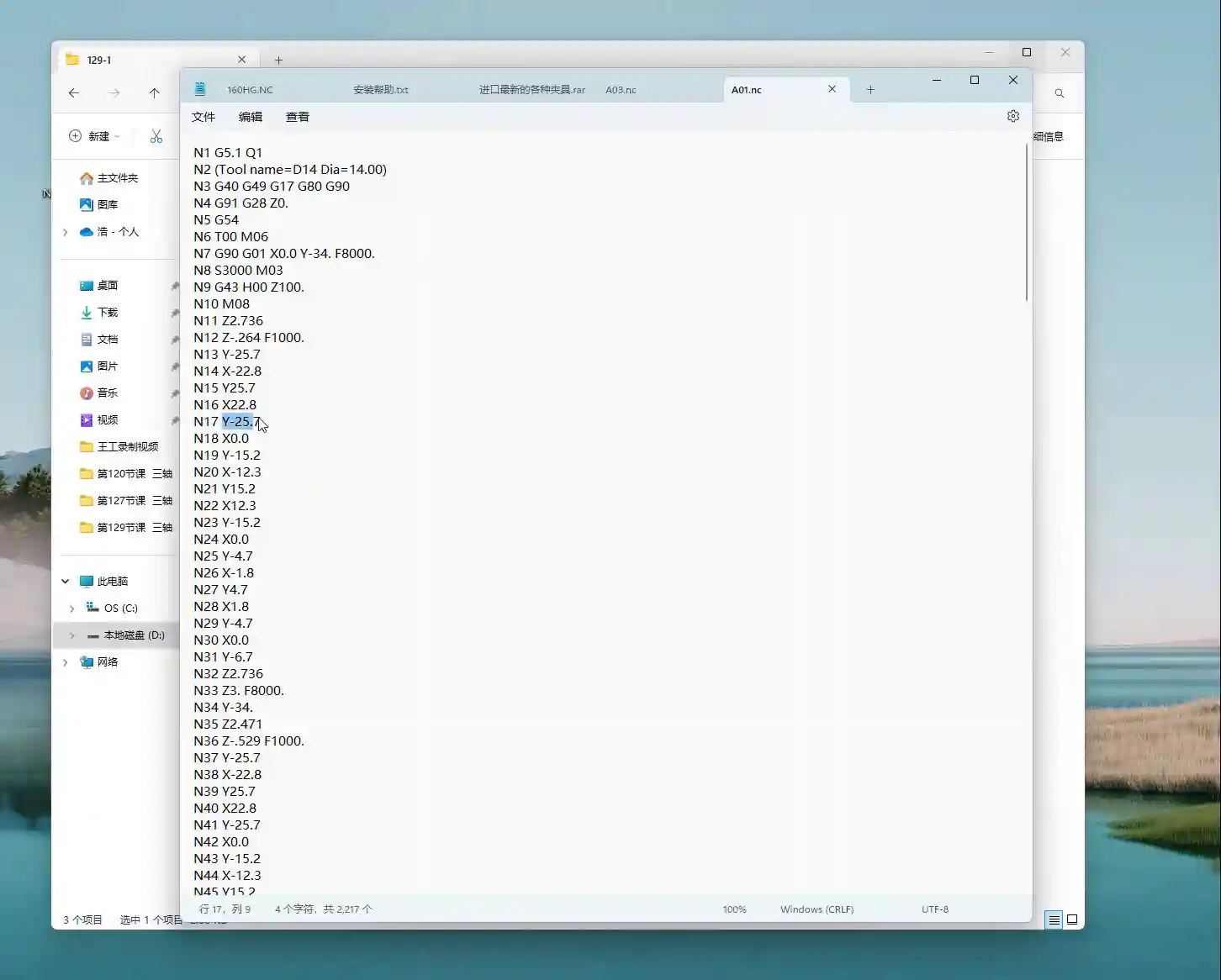
- The beginning of the file will contain some basic program information.
- Followed by common G-codes and M-codes, such as:
- G5.1 Q1: High-speed, high-precision control command.
- G54: Work Coordinate System selection.
- G90: Absolute programming.
- M03 S1000: Spindle forward rotation, 1000 RPM.
- G43 H01 M08: Tool length compensation H01 active, M08 is for coolant on.
- G0 Z100.0: Rapid move of the tool to Z-axis 100 mm.
- G0 X50.0 Y50.0: Rapid move to specified XY coordinates.
- F8000: Rapid feed rate (the value after F).
- F1000: Cutting feed rate.
These are our machine’s “language”; each command corresponds to a tool motion. If you’re using a 5-axis post-processor, it will definitely contain C-axis and A-axis rotation commands, such as A0 B0 C0, all of which will be present. If it’s a Siemens system, the program name might be in .MPF format. After opening, you might see Siemens-specific commands like J0, Z0. All of this indicates that the post-processor is correct.
Bulk Post-Processing: Multiple Workpieces Handled in One Go
See? I just quickly bulk post-processed these three programs, A01, A02, A03, in a flash – super fast! Let’s do it again; for example, I want to process these three workpieces: B01, B02, B03.
The operation is still the same:
- Select the folder containing B01, B02, B03.
- Click “Bulk Post-Process.”
- Select the post-processor definition you need (e.g., a 3-axis with a tool magazine).
- Click “OK.”
Once it’s finished, go check the NC folder, and you’ll find the NC files for B01, B02, and B03 neatly placed there. Isn’t this efficiency significantly higher than clicking them one by one manually?
Summary: Pitfall Avoidance Guide
Listen up, junior engineers, while bulk post-processing is simple, there are still some pitfalls to watch out for:
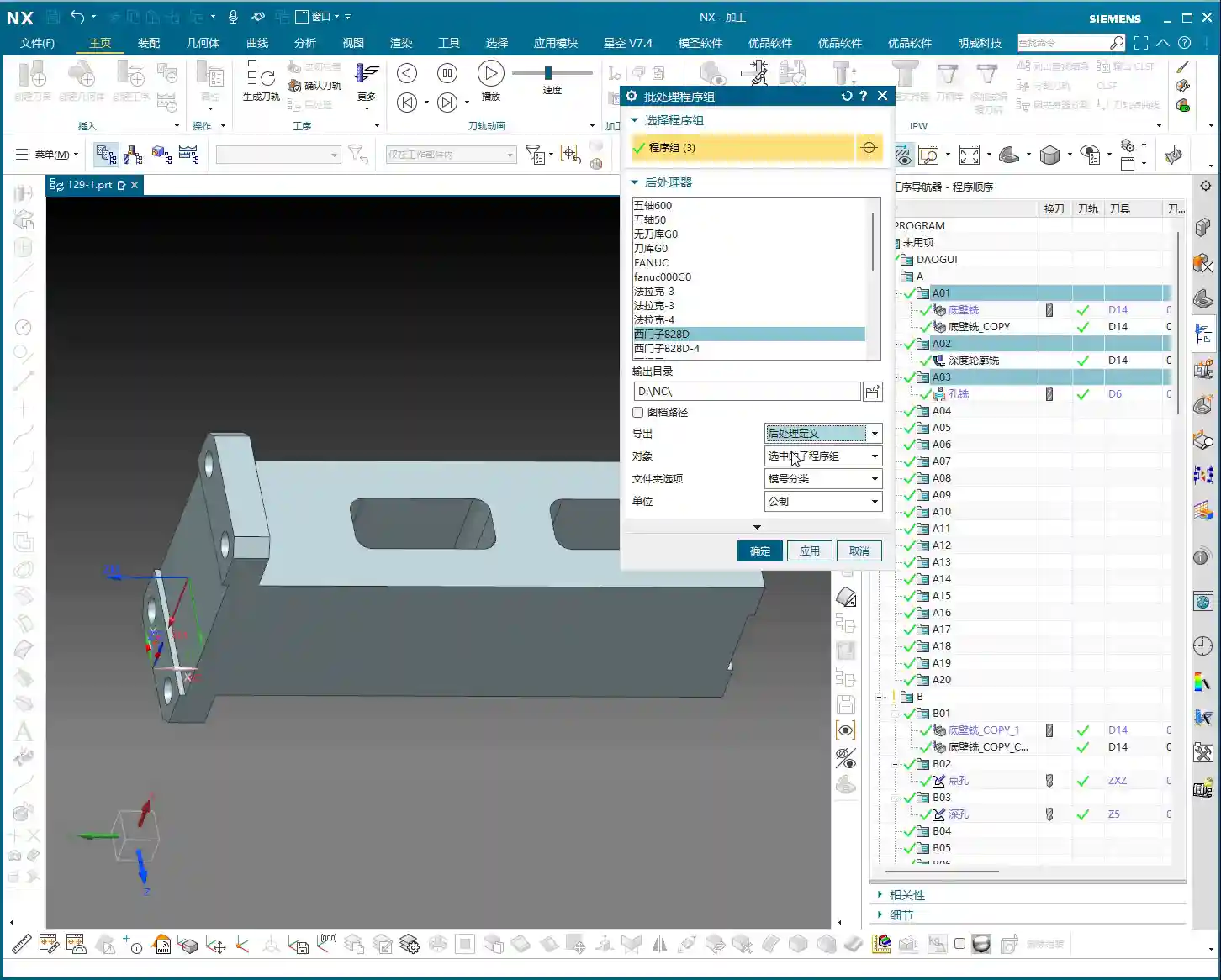
- Post-Processor Definition Must Match: This is paramount! Whatever machine you’re using, you must select the corresponding post-processor definition. A Fanuc machine cannot use a Siemens post-processor, and a 3-axis machine should not use a 5-axis post-processor. Otherwise, at best, you’ll get an alarm and the machine will stop; at worst, it could lead to tool deflection and a machine crash, resulting in significant losses.
- Output Format Must Be Correct: Understand whether your machine requires .NC, .MPF, or other formats; don’t just pick one arbitrarily. Generally, selecting the “Post-Processor Definition” will automatically handle the format issue, but you should still be aware.
- Path Check: Although bulk post-processing automatically selects a default path, when using it for the first time or if you’re unsure, manually confirm the path to ensure your NC files don’t get misplaced.
- Preliminary NC Code Check: After bulk processing, randomly pick one or two NC files, open them with Notepad, and quickly check critical parameters like spindle speed, feed rate, and tool compensation at the beginning to ensure everything is correct. This is especially important for new machines or new post-processors, requiring meticulous verification.
- Version Compatibility: As I mentioned earlier, Siemens NX software version upgrades can sometimes lead to changes in post-processing functionality, and even some plugins (like the Youpin module) might require updates. So, don’t panic if you encounter issues; first check for compatibility.
Bulk post-processing is actually quite simple in principle and intuitive to operate. As long as you’ve established a solid foundation in post-processing, knowing how to properly configure post-processors and understanding the basic logic of NC code, then this function will be easy to master. It will save you a lot of time and boost our workshop’s overall efficiency – that’s the ultimate goal!
Alright, that concludes today’s discussion on bulk post-processing. The next time I update course content, I’ll notify everyone promptly on platforms like Douyin, so remember to follow!
Thank you for watching, and see you next time!
👤 About the Author:
The author is a veteran CNC machining professional with 15 years of industry experience, specializing in UG NX programming. This article is an original work representing personal practical insights.
⚠️ Copyright Notice: Unauthorized reproduction or distribution without prior communication is strictly prohibited.