Tag: Fixed Contour Milling

  • Siemens NX Fixed Contour Milling Cutting Area Deep Dive: An Experienced Pro’s Practical Secrets and

    📝 Key Takeaways: Master Wang explains the Cutting Area function in Siemens NX Fixed Contour Milling. He focuses on the practical application of toolpath “splitting” and “merging,” emphasizing the importance of upfront CAD modeling to avoid blind CAM operations. He shares real-world experience not found in textbooks, helping the next generation improve machining efficiency and precision.

    Introduction: Straight Talk from the Shop Floor

    Hello everyone, I’m Old Wang. Starting today, we’re diving deep into a crucial module in Siemens NX: Fixed Contour Milling. This feature is used extensively in real-world machining, especially for complex surfaces – you can’t get away from it. Today, we’ll begin with one of its fundamental and core commands: Cutting Area. Listen up, lads, this isn’t something you’ll truly grasp just from reading books. You need to run it on an actual machine, watch the cutting sparks fly, to truly understand it!

    Let me clarify the learning order: first, we’ll master the “Cutting Area,” then gradually move on to others. We’ll set aside those relatively complex and harder-to-understand commands for now. Once we’ve built a solid foundation, we’ll tackle the tough stuff. But don’t underestimate these basic commands; they’re more than sufficient for everyday 3-axis machining. For those special commands, we’ll discuss their “unique tricks” when we get to them.

    Cutting Area: First Look – From Toolpath Generation to Problem Identification

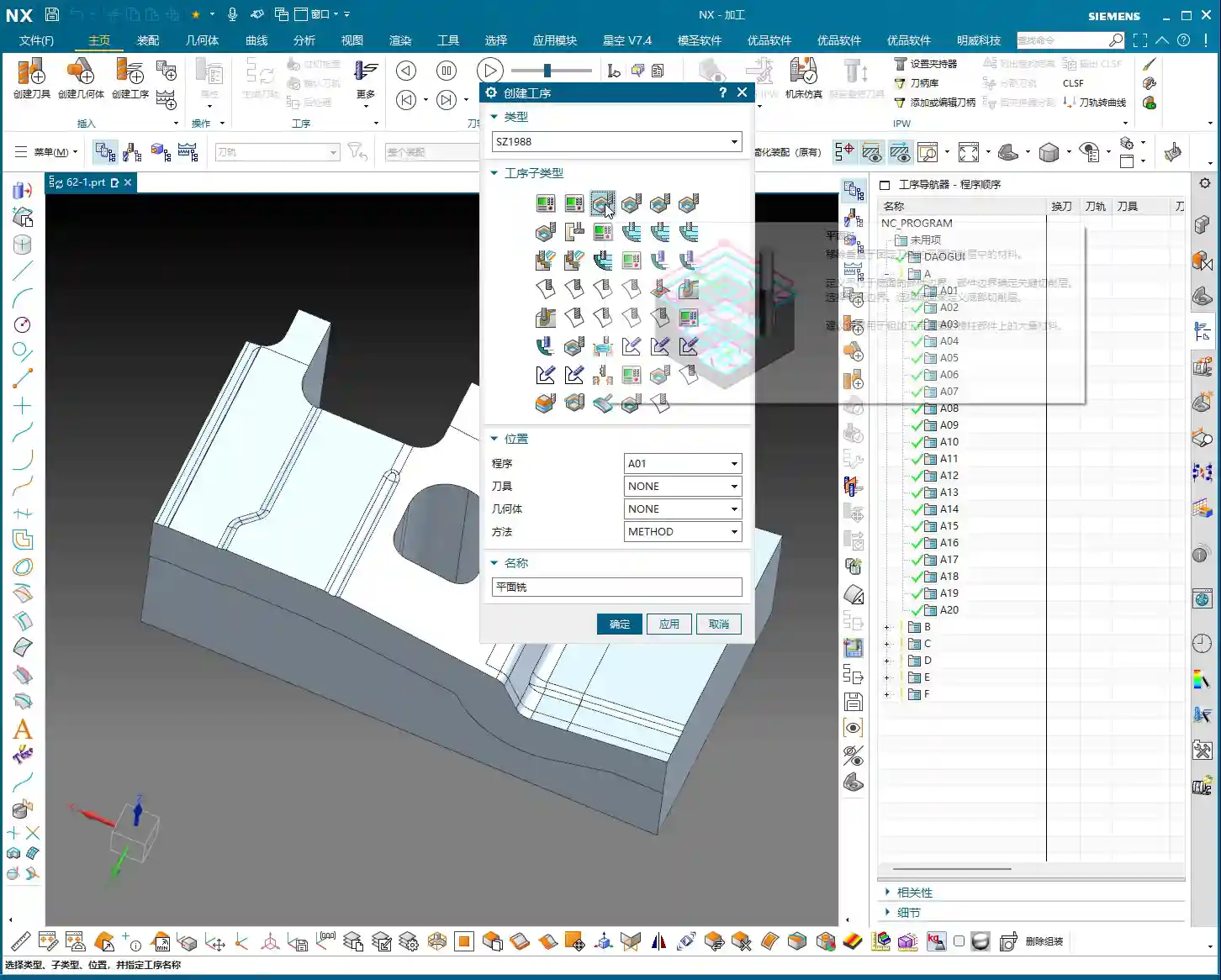
    Let’s get straight to it. In NX, select the “Fixed Contour Milling” operation, then click “Cutting Area.” When the interface opens, it might look familiar, as many parts are similar to the machining operations we’ve covered before. But there are new features too, such as “Drive Method” and the direct “Specify Cutting Area” option. Previously, we mostly used “Specify Part” (or “Specify Body”), but now we can define the machining area with much greater precision.

    Step One: Select Part, Define Area, Select Tool

    First, Step One, as per usual, select the part you intend to machine. If you don’t select the part, you can’t do anything – that’s fundamental!
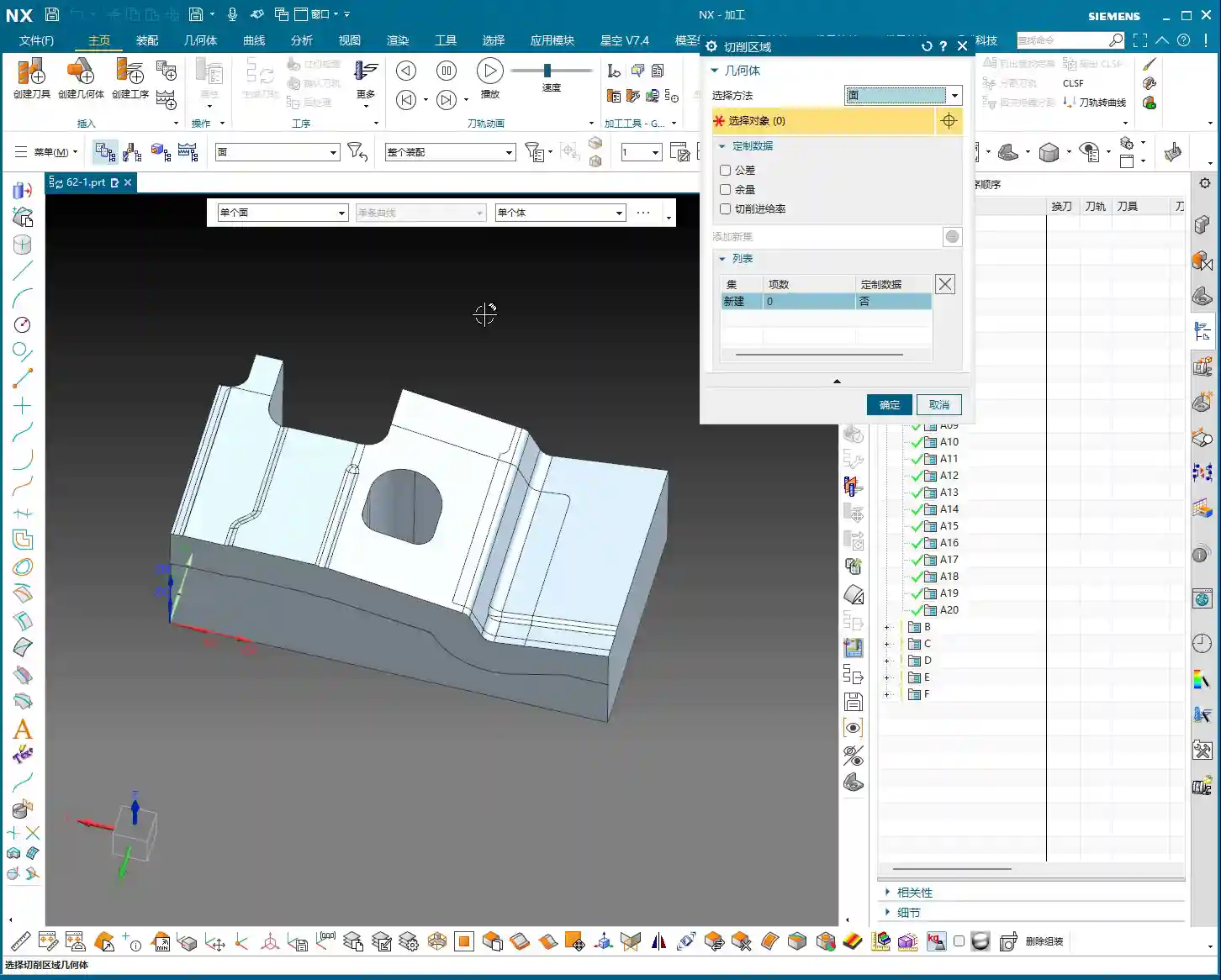
    Next, Step Two, which is today’s main focus – Specify Cutting Area. The meaning is simple: you’re telling the software: “Of this entire part, which specific section do I want to machine? Don’t get it wrong!” Just click on any face you want to machine; for example, if I click this face, it will define that face as the Cutting Area.

    Then, Step Three, select the tool. For “Fixed Contour Milling,” especially for Contour Milling operations like this, we typically use a ball end mill. For example, a B4R5 tool (4mm diameter, 5mm ball radius) is one we commonly use. Once the tool is selected, let’s generate the program!

    Initial Toolpath Evaluation: Limitations of Default Settings

    Once the program is generated, play it back and see if it’s machining along the selected face using a Contour Milling approach. You’ll see it plunges from one side and then contours its way across to machine the other. Clearly, this is a Contour Milling program. The default toolpath might look fine and capable of machining, but everything needs optimization. For instance, consider the entry point. Wouldn’t it be much more sensible to start the cut from the edge of the workpiece rather than plunging directly onto the surface? This reduces impact and extends tool life. Don’t just rely on software simulations; you need to observe the cutting sparks and the actual machining conditions!

    Advanced Cutting Area: The “Secrets” of Splitting and Merging

    Alright, now we’re going to delve into the “Cutting Area” parameters. Open up the operation parameters; the “Specify Part” stuff, you already know that. Let’s jump straight into how this Cutting Area really works.
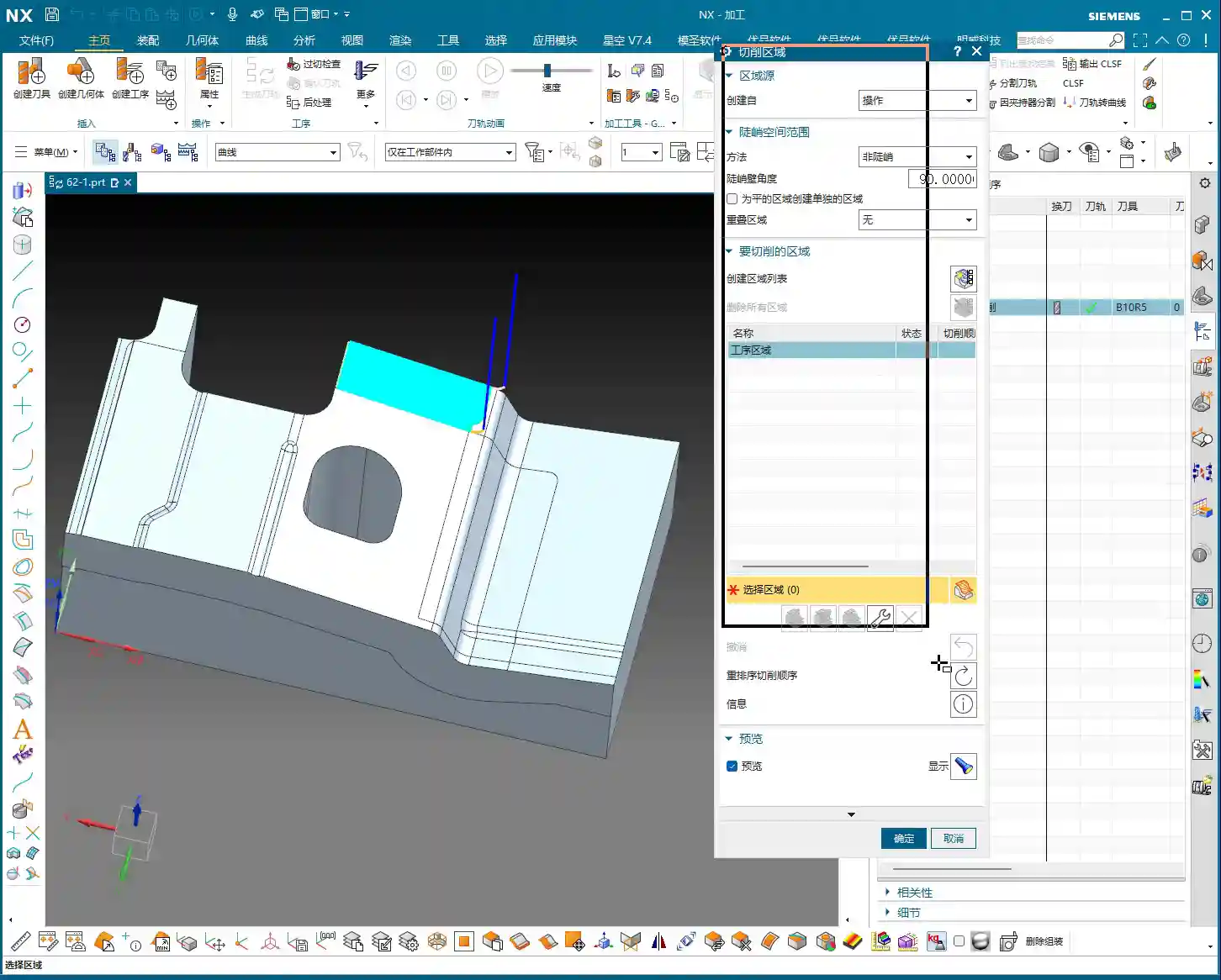
    Click inside, and you’ll see a bunch of options, like “Tool Path Direction Range” and so on. Don’t worry about those for now; some of them are adjusted elsewhere. But the most crucial part is the “Create Region List” at the bottom. What’s this list for? Simply put, it allows you to perform fine-tuned adjustments, or even “surgical operations”, on your currently generated toolpath.

    Toolpath “Splitting”: It’s Not as Simple as You Think

    Once you’ve created the region list, you’ll see several new functions: “Split,” “Merge,” “Edit,” and “Delete.” Let’s talk about “Split” first.

    Click “Split,” and it will prompt you to define a cutting line or plane. For example, if I just drag a plane, once confirmed, you’ll see that what was originally a single, complete machining area has been distinctly divided into two sections. Generate the toolpath again, and it will machine one section first, then perform a retract, and then jump to machine the other. Seems like a powerful feature, right? But listen closely, here’s a practical tip that textbooks won’t tell you:

    • In actual practice, we rarely use this “Split” function directly within the CAM environment. Why? Because splitting toolpaths directly in CAM is less effective than clearly defining the distinct areas during the CAD modeling stage.
    • My experience tells me that if you truly want to divide a large surface into several smaller areas for machining, the best approach is to pre-process it in your CAD software. Use functions like “Curve on Surface” or “Divide Face” to split the original geometry. For instance, you could draw an auxiliary line on the surface, then use that line to divide the face into two. This way, when you select the “Cutting Area” in CAM, you can directly choose your pre-divided sub-faces instead of trying to split the toolpath.
    • The advantage of this front-loaded processing is: clearer logic, more precise control, and fewer errors. When you’re modeling, you can clearly define the boundaries of each machining area, avoiding unexpected issues caused by on-the-fly splitting in CAM, such as poor toolpath transitions or unnecessary retracts. Taking this extra step upfront can save you ten steps of rework later!

    Toolpath “Merging”: The Reverse of Splitting

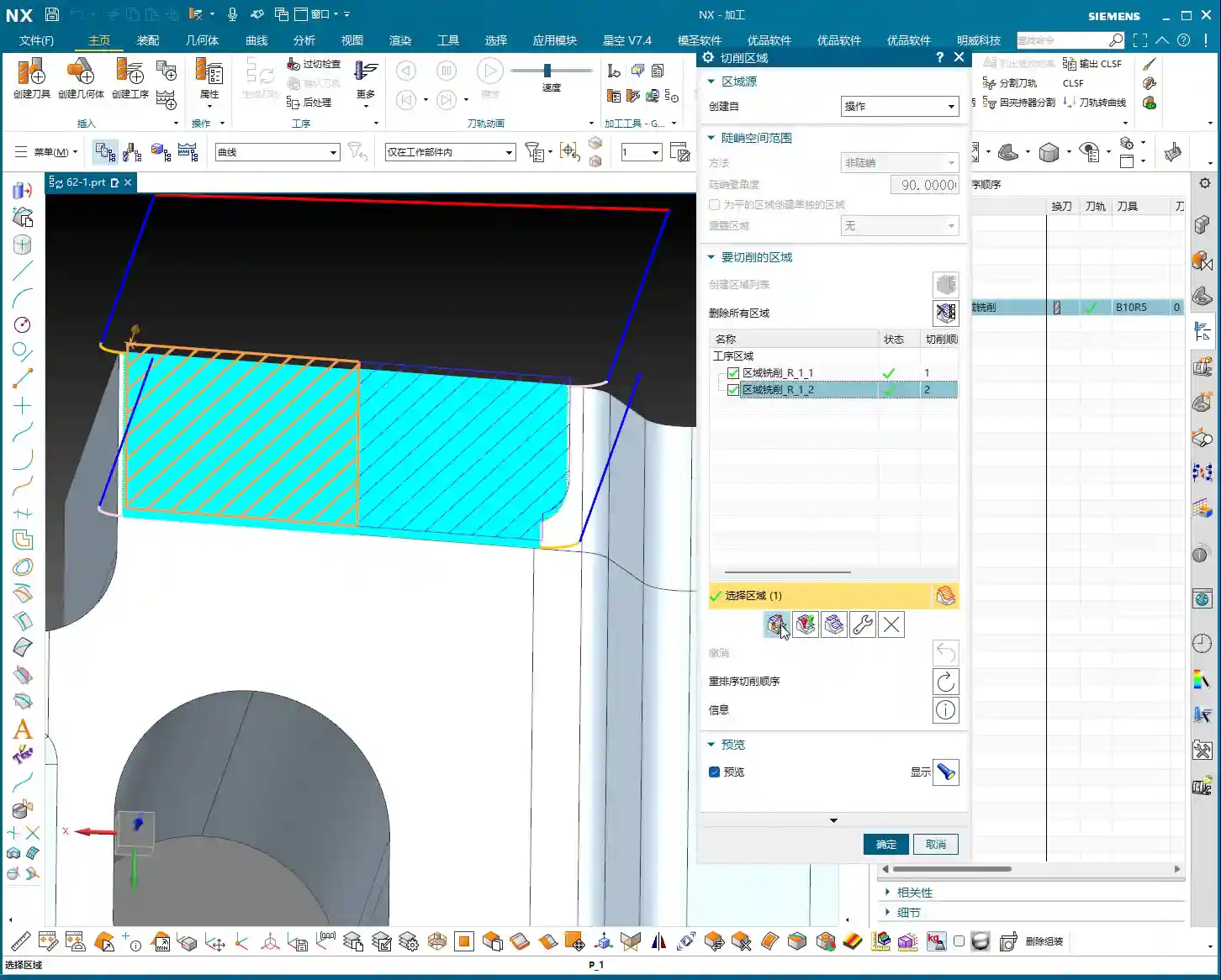
    Once you understand “Split,” then “Merge” is straightforward; it’s simply the reverse operation of “Split.” If you’ve separated an area and want to restore it as a single entity, use “Merge.” Click “Merge,” and it will prompt you to select a target region, and then select the region to merge. Once confirmed, these two regions will reconnect into one. The toolpath will also regenerate accordingly, reverting to its state before you performed the split.
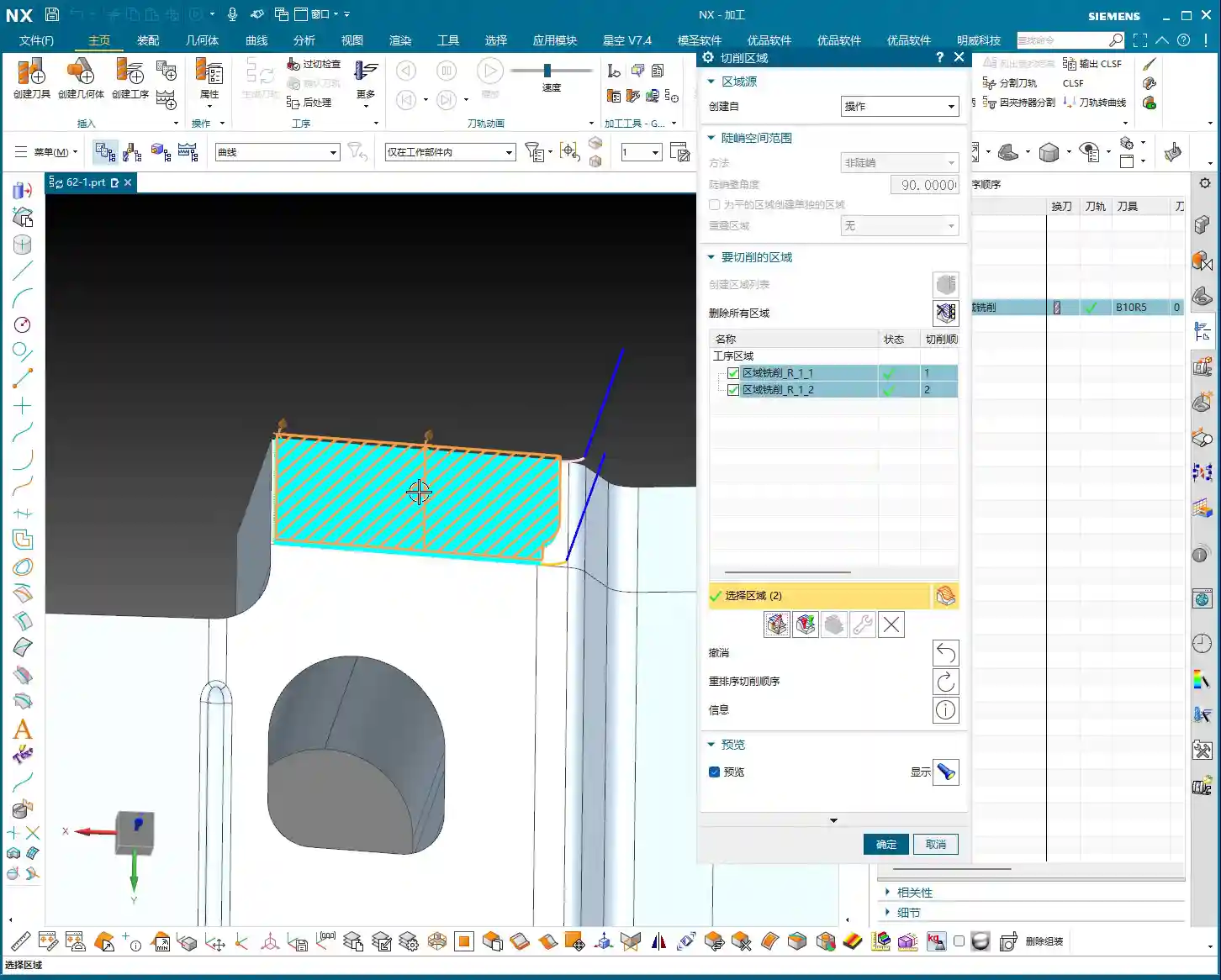
    So, “Split” and “Merge” essentially let you either break down a generated toolpath for individual processing or combine separated ones back together. The functions themselves are direct, but knowing where and how to use them effectively requires careful consideration.

    Application in Special Cases: Emergency and Fine-Tuning

    Of course, that’s not to say these in-CAM “Split” and “Merge” functions are entirely useless. In certain special circumstances, such as when you only want to fine-tune a very small local area, or in emergencies where quick segmentation is needed and you don’t want to go back and modify the model, they can certainly be helpful. However, generally speaking, they are emergency measures, not standard operating procedure.

    Summary: Pitfall Avoidance Guide

    Alright, you should now understand the purpose of the “Split” and “Merge” functions within the “Cutting Area” that we discussed today. But remember what I, Old Wang, always say:

    1. Prioritize Processing in the CAD Environment: Unless absolutely necessary, do not perform complex toolpath splitting directly within the CAM operation. Your model geometry is the foundation; properly defining areas within the model is the correct approach. This ensures toolpath quality, reduces retracts, and improves efficiency.
    2. Proficiency in CAD Modeling is the Foundation for CAM: Whether it’s turning, milling, planing, grinding, or NX programming, everything is ultimately based on geometry. Solidify your fundamental CAD modeling skills, and you’ll find many advanced CAM functions intuitive to use, even allowing you to bypass a lot of unnecessary hassle.
    3. Focus on Actual Cutting Performance: No matter how perfect a software simulation is, it cannot replace the cutting sparks and real-world results on the machine. When making any adjustments in CAM, always visualize the tool’s actual cutting state, consider material properties, and machine accuracy – that’s the mark of a true master machinist!

    There are many methods; choose the one that best suits your current working conditions and cost efficiency. Personally, most of the time, I handle it by drawing lines and splitting faces, because it gives me greater control and is less prone to errors.
    Alright, that’s all for today. In the next lesson, we’ll continue with other topics. Thanks for watching, and see you next time!

    👤 About the Author:
    The author is a veteran CNC machining professional with 15 years of industry experience, specializing in UG NX programming. This article is an original work representing personal practical insights.

    ⚠️ Copyright Notice: Unauthorized reproduction or distribution without prior communication is strictly prohibited.
  • Siemens NX Fixed Contour Milling: In-depth Analysis – Master Wang’s 15 Years of Practical Experience

    📝 Key Takeaways: ** Fixed Contour Milling: The Core of Finishing

    Master Wang Explains: What is Fixed Contour Milling?

    Alright, listen close, lads! Today, Master Wang is going to talk to you about a crucial feature in Siemens NX (UG) – Fixed Contour Milling. Don’t let its unassuming name fool you; this is our go-to method, our bread and butter, for achieving high-precision parts and finishing complex surfaces!

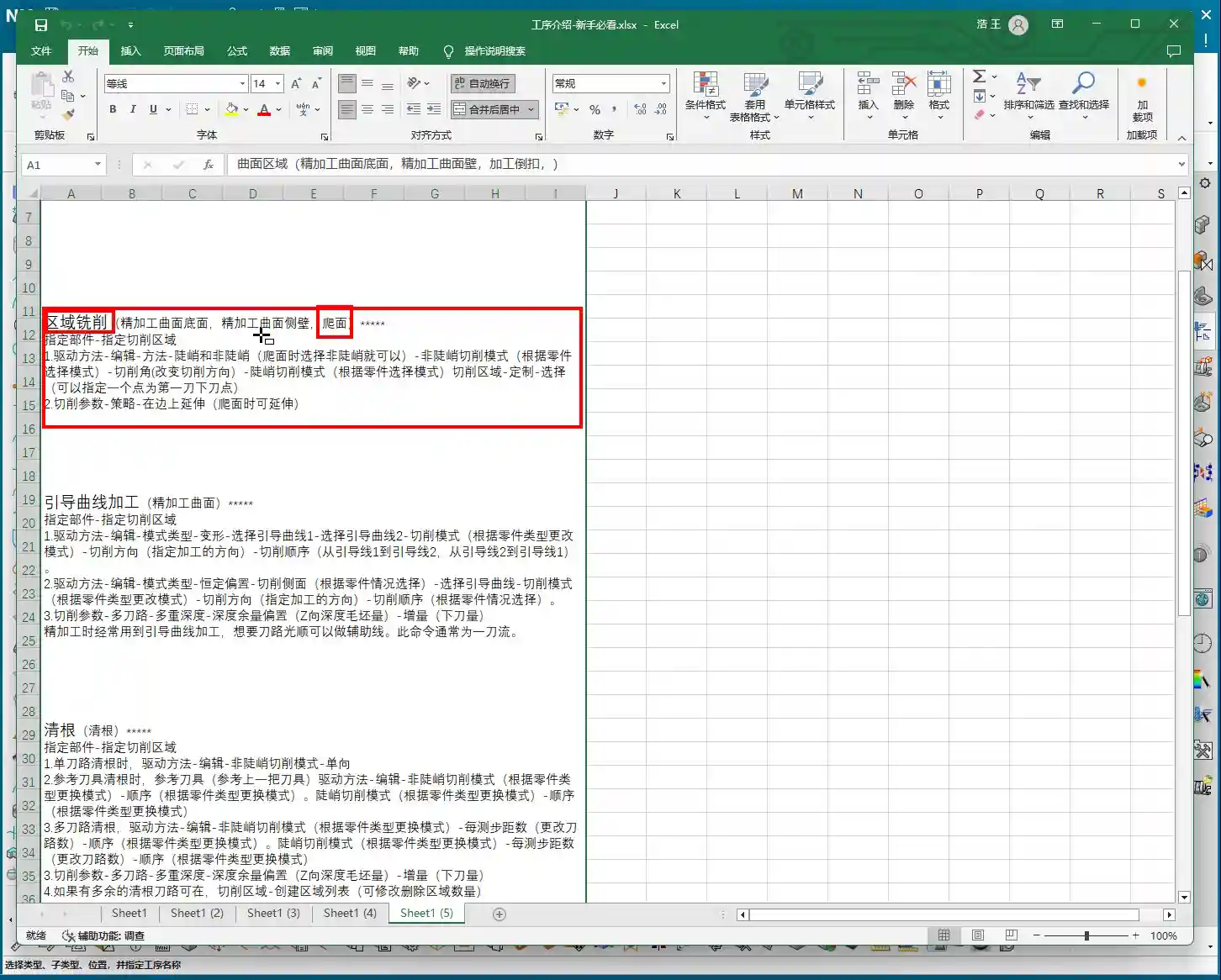
    You might have noticed several machining operations in the Siemens NX interface that look similar, with ‘Fixed Contour’ in their names. Today, Master Wang is going to clear things up for you: Fixed Contour Milling isn’t a single, specific machining method; it’s a general term, a whole family of operations! Just like when we discussed Face Milling and Cavity Milling, it has many sub-categories. It differs from typical operations like Face Milling, which handles planar surfaces, and Cavity Milling, which focuses on pocketing. But Fixed Contour Milling is specifically designed for surface features, especially complex, irregular freeform surfaces. If you need precision and surface finish, this is the one! Got it?

    The Core Function of Fixed Contour Milling: A Finishing Powerhouse

    Since it’s called “Fixed Contour Milling,” its primary strength is Finishing Pass. Mark my words, it’s almost never used for Roughing. The efficiency is too low; that’s simply not its job! Its forte is the final smoothing of surfaces, top faces, and sidewalls, ensuring the part’s dimensional accuracy and surface finish meet specifications. Think about it: aerospace blades, automotive mold cavities – how could they be produced without this technique? We typically pair it with a ball-nose end mill, meticulously ‘sculpting’ the surface, striving for that ±0.005mm (approx. 0.0002 inch) or even higher precision.

    The ‘Family Members’ of Fixed Contour Milling in Siemens NX (UG)

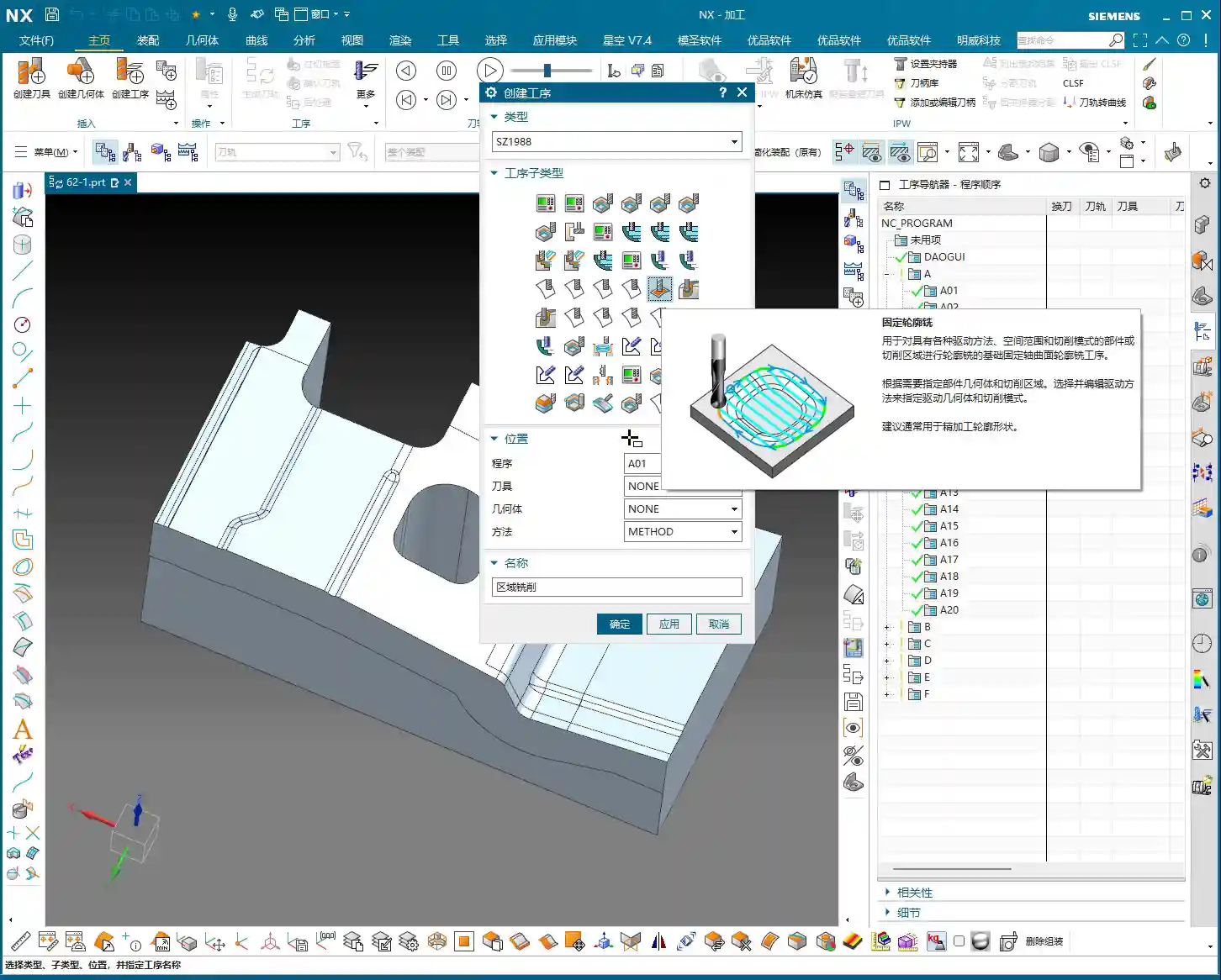
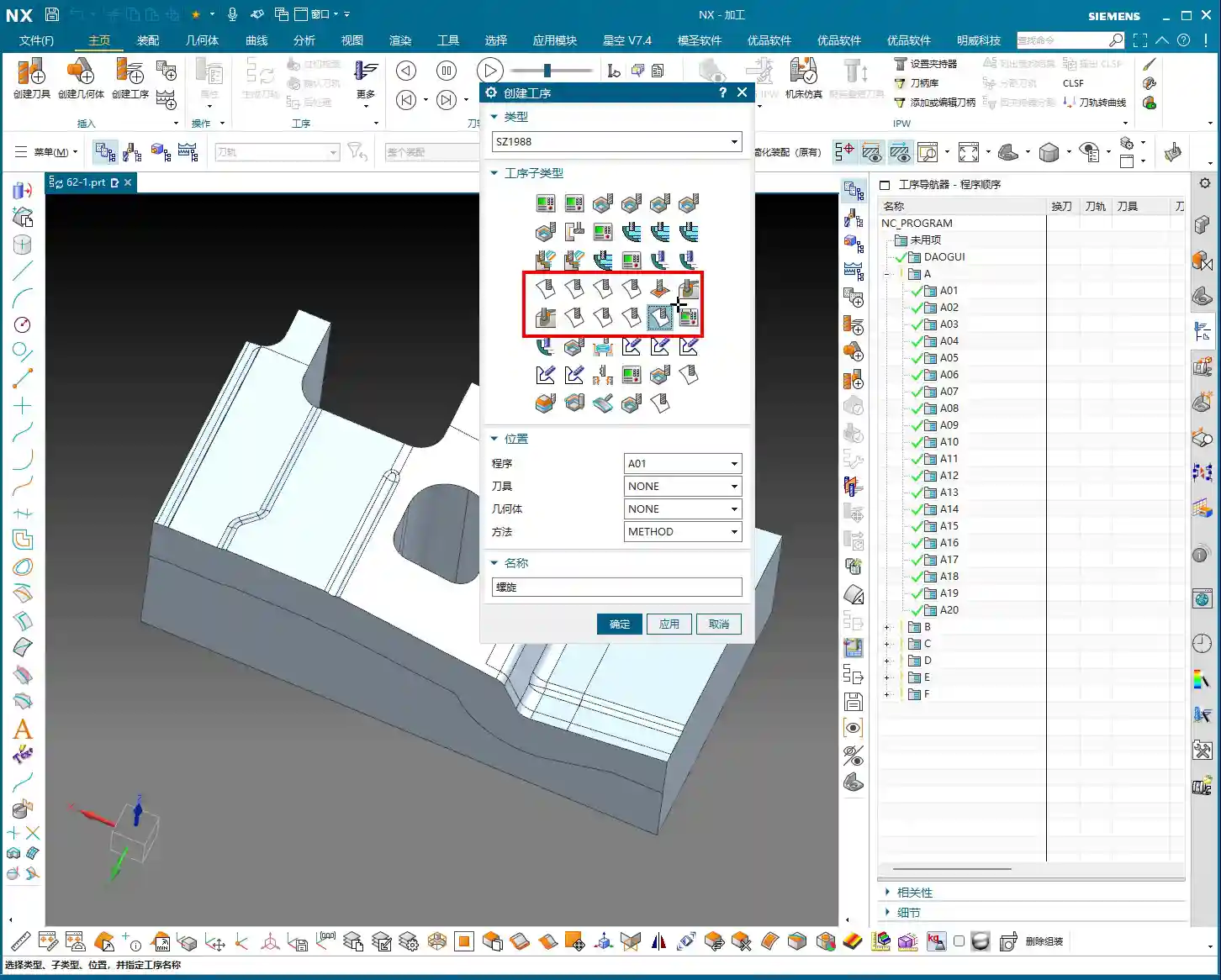
    Since it’s a large family, there are naturally different “members” for different tasks. While they all fall under “Fixed Contour Milling,” each branch excels in specific areas. The commands you see in Siemens NX under this category are essentially its “branches.” Today, we’ll start with an overview, and later, Master Wang will break them down one by one and teach you how to use them. The ones you see here are branches of Fixed Contour Milling; though their names may vary, at their core, they are all designed for high-precision Surface Milling:

    • Fixed Contour – Curve/Point: This is the most straightforward; it generates toolpaths along the curves or points you specify. Ideal for situations requiring precise trajectory control.
    • Fixed Contour – Boundary: Primarily used to restrict the machining area. Sometimes, when we only need to machine a specific section of a surface, this allows us to confine the tool’s movement precisely.
    • Fixed Contour – Flow Line: This is excellent for managing surface texture and direction. It allows the toolpath to follow the natural contours of the surface, resulting in exceptional surface quality and often eliminating the need for subsequent polishing or grinding.
    • Fixed Contour – Surface Area: One of the most commonly used. You directly select the surface or surface area to be machined, and Siemens NX will automatically generate the toolpath based on the geometry. This is the most fundamental and versatile Finishing Pass method.
    • Fixed Contour – Single Pass Corner Cleanup: A sharp tool for tackling small radii and tight corners. Using a smaller tool for a single pass to clear areas that larger tools couldn’t reach.
    • Fixed Contour – Multi Pass Corner Cleanup: More refined than a single pass, typically used for more complex or deeper material removal in residual areas, ensuring every corner is pristine.
    • Fixed Contour – Reference Tool Corner Cleanup: This intelligent method tracks which tools you’ve used previously and where residual material was left, then automatically plans the cleanup paths for smaller tools based on this information.
    • Fixed Contour – Helical Machining: While used less frequently, in specific cases like concentric cylindrical surfaces or structures with helical features, employing a helical approach for Depth of Cut (DOC) can result in more stable machining and a more uniform surface.

    These are all Finishing Pass operations. Siemens NX also features Variable Contour Milling, which is used for 5-axis machining. It’s very similar to the Fixed Contour Milling family members, but it adds one or two rotational axes of motion freedom. Today, we’re focusing on Fixed Contour Milling, which is primarily for 3-axis or 3+2-axis applications.

    Veteran’s Practical Wisdom: Siemens NX Operations and Optimization

    Theory alone won’t get you anywhere. No matter how pretty the Siemens NX simulation looks, the real test is the actual outcome on the machine. Master Wang has a few hard-earned practical tips here, so you boys better take notes:

    • Toolpath Optimization: Don’t always rely on the software to do all the thinking; put effort into adjusting feed rates, Depth of Cut (DOC), and Stepover. Especially in areas with high curvature changes, use a smaller Stepover and a slower feed rate, and you’ll get a smoother surface. Optimize toolpaths to be as continuous, smooth, and minimize tool lifts as much as possible. More air cuts mean longer cycle times and higher costs.
    • Material Properties: Machining different materials requires adjusting parameters accordingly. Aluminum can handle fast feed rates and deep cuts, but tough materials like titanium alloys and high-temperature nickel-based alloys require small Stepdowns, slow feed rates, and careful attention to cooling. These materials are prone to heavy cutting forces, leading to rapid tool wear, or even worse, tool chipping and scrapped parts.
    • Clamping Strategy: Finishing passes are most susceptible to deformation. For complex surface parts, Clamping must be secure but not overtightened, to avoid stress-induced deformation from the fixture. Sometimes, it’s necessary to design custom support fixtures or employ a strategy of multiple clamping setups with progressive machining.
    • Tool Selection and Grinding: For ball-nose end mills used in Finishing Pass, the tool radius and flute length are crucial. For some special radii, you might not find suitable tools on the market, so grinding custom tools ourselves is a common occurrence. A skilled tool grinder directly influences machining quality and efficiency.
    • Error Compensation: Machines accumulate accuracy errors over time, or due to environmental temperature changes. The Siemens NX program output is a theoretical value; during actual machining, you must learn to observe sparks, listen to cutting sounds, and measure actual dimensions. If you encounter accuracy issues of ±0.005mm (approx. 0.0002 inch), don’t panic. You can fine-tune by adjusting tool radius compensation (G41/G42), machine geometric error compensation, or modifying the stock allowance in the program. Don’t make impulsive changes; proceed incrementally.

    Summary: Pitfall Avoidance Guide

    Master Wang has a few final words of advice; these are lessons learned through hard-earned money and countless scrapped parts:

    1. Never use Fixed Contour Milling for Roughing! It’s meant for Finishing Pass work. Forcing it to tackle large stock amounts will be inefficient and likely lead to worn or burnt tools.
    2. Thoroughly understand the characteristics of each branch! Even though they’re all called ‘Fixed Contour Milling,’ each branch has its most suitable application scenario. Blindly choosing will only lead to wasted effort and suboptimal results.
    3. Don’t just trust software simulations; watch the cutting sparks! What looks perfect in the software might result in chatter or surface marring during actual machining. On-site observation and timely adjustments to feed rates and spindle speeds are paramount.
    4. Pay close attention to post-processing and machine characteristics! Especially for 5-axis simultaneous machining, modifications to the post-processor file are critical, as they directly impact toolpath execution. Every machine has its own ‘personality’; you need to understand it inside and out.
    5. For high-precision parts, cost-efficiency is always paramount. Before each machining operation, consider various factors—tools, process, fixturing—to achieve the highest precision with the lowest cost and shortest time.

    Fixed Contour Milling is a hardcore skill. Master it, and you’ll have solid confidence on the shop floor. In upcoming lessons, Master Wang will guide you through each of these branches until you’ve thoroughly mastered them. Then you’ll really get it.

    👤 About the Author:
    The author is a veteran CNC machining professional with 15 years of industry experience, specializing in UG NX programming. This article is an original work representing personal practical insights.

    ⚠️ Copyright Notice: Unauthorized reproduction or distribution without prior communication is strictly prohibited.