📝 Key Takeaways: Master Wang walks you through Siemens NX planar profile chamfering. From parameter settings to tool selection, this guide provides an in-depth analysis of the practical secrets behind “Allowance” and “Final Bottom Allowance,” teaching you how to precisely control chamfer size and tool cutting point to prevent tool chipping and improve machining efficiency.
Hello everyone, Master Wang here. Today we’re continuing our discussion on NX machining, focusing on the chamfering function within Planar Profile Milling. This might seem straightforward, but there are a lot of hidden intricacies, especially with the parameter settings. One wrong step, and you’ll scrap your tool and ruin the job. Listen up – today, I’m going to share all the practical tricks you won’t find in textbooks.
I. Core Chamfering Operation Workflow
When doing any machining operation in NX, we generally follow a “three-step” strategy: Select Geometry, Select Tool, Generate Toolpath. Chamfering is no different, but success lies in the details.
1.1 Geometry Selection: The Mystery of Top and Bottom Faces
Let’s open the “Profile Chamfer” function. First, you need to tell the software which edge to chamfer. Typically, we select the edge or curve that requires chamfering.
There’s a common, oft-repeated question here, but it’s especially crucial for chamfering: the software will ask you to select “Top Face” and “Bottom Face”. Listen up: when performing planar profile chamfering, “Top Face” and “Bottom Face” actually refer to the same face – the plane where your chamfer feature is located. For instance, if you’re chamfering a hole on a flat plate, just select the top face of the plate for both the top and bottom faces. Don’t overthink it; unlike deep cavity milling which requires an actual bottom face, chamfering is primarily based on a single edge.
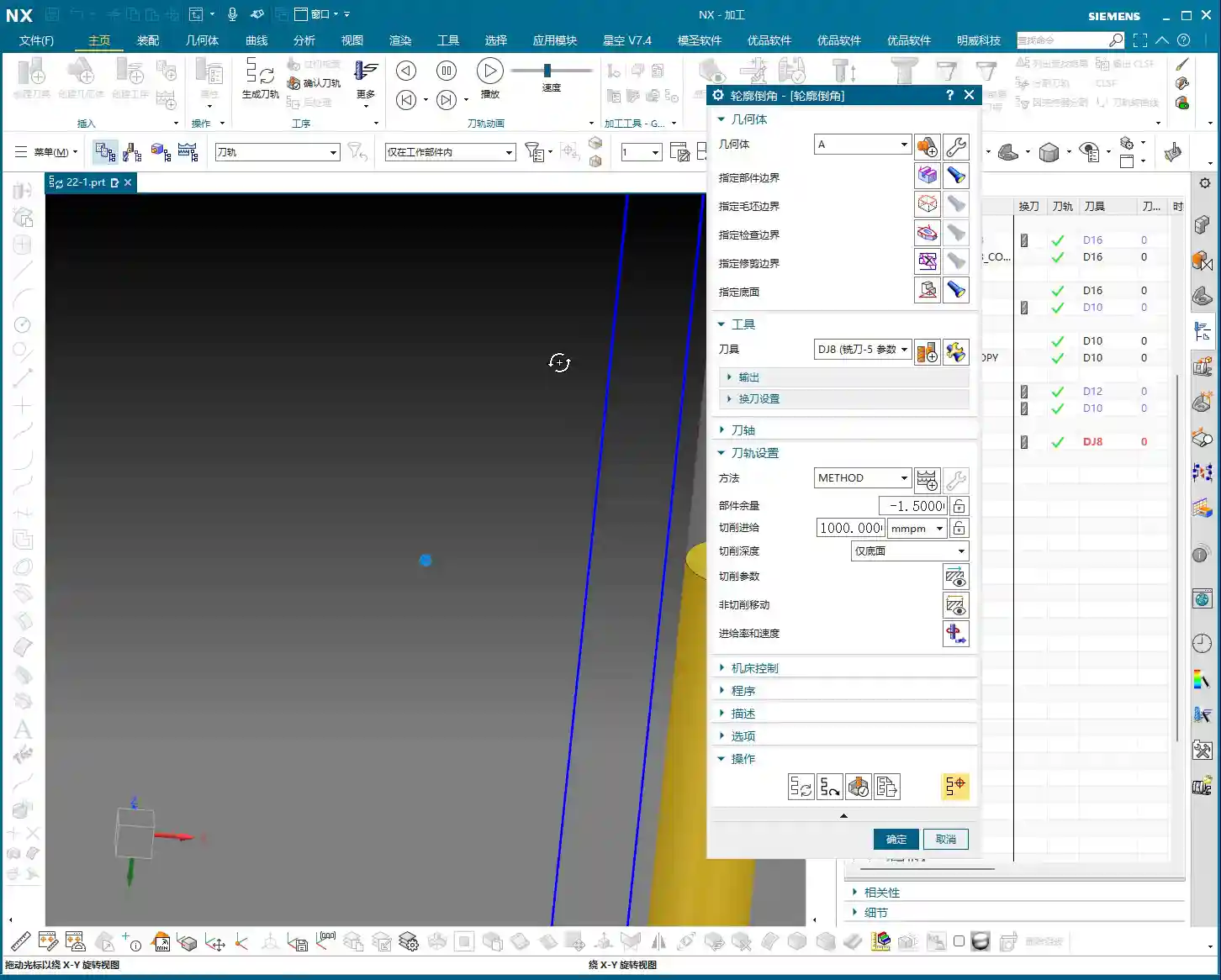
- Select Edge: For example, the edge of a round hole, or the outer boundary of a planar profile.
- Specify Plane: Select the plane containing the edge you want to chamfer. For profile chamfering, both the upper and lower planes can typically be the same.

1.2 Chamfer Tool Selection and Custom Creation
Naturally, you’ll need to select a Chamfer Mill. The NX tool library usually includes common chamfer mill sizes like D6, D8, D10, D12 (all in mm). Choose the appropriate tool based on your workpiece size, chamfer dimension, and machine spindle taper.
If your tool library doesn’t have the specific size you need—for example, if you want a D14 (mm) chamfer mill, or if the tip radius or angle doesn’t meet your requirements—then create one yourself! Don’t be afraid of the hassle; doing it yourself ensures you have what you need and deepens your understanding of tool geometry. When creating it, pay attention to these parameters: tool diameter, tip radius, chamfer angle, flute length, and overall length. Not a single one of these parameters can be wrong, or your generated toolpath will be useless.
II. Key Parameter Analysis: Controlling Chamfer Depth and Position
Parameter settings are the soul of chamfering. Other parameters like Depth of Cut (DOC) and Stepover have been discussed extensively before, so I won’t repeat them here. Today, we’ll focus on two critical parameters that determine chamfer quality: Allowance and Final Bottom Allowance.

2.1 Allowance: The Determinant of Chamfer Size
Within the “Cut Parameters,” there’s a setting called Allowance. Listen up: this is the key to controlling the final chamfer size!
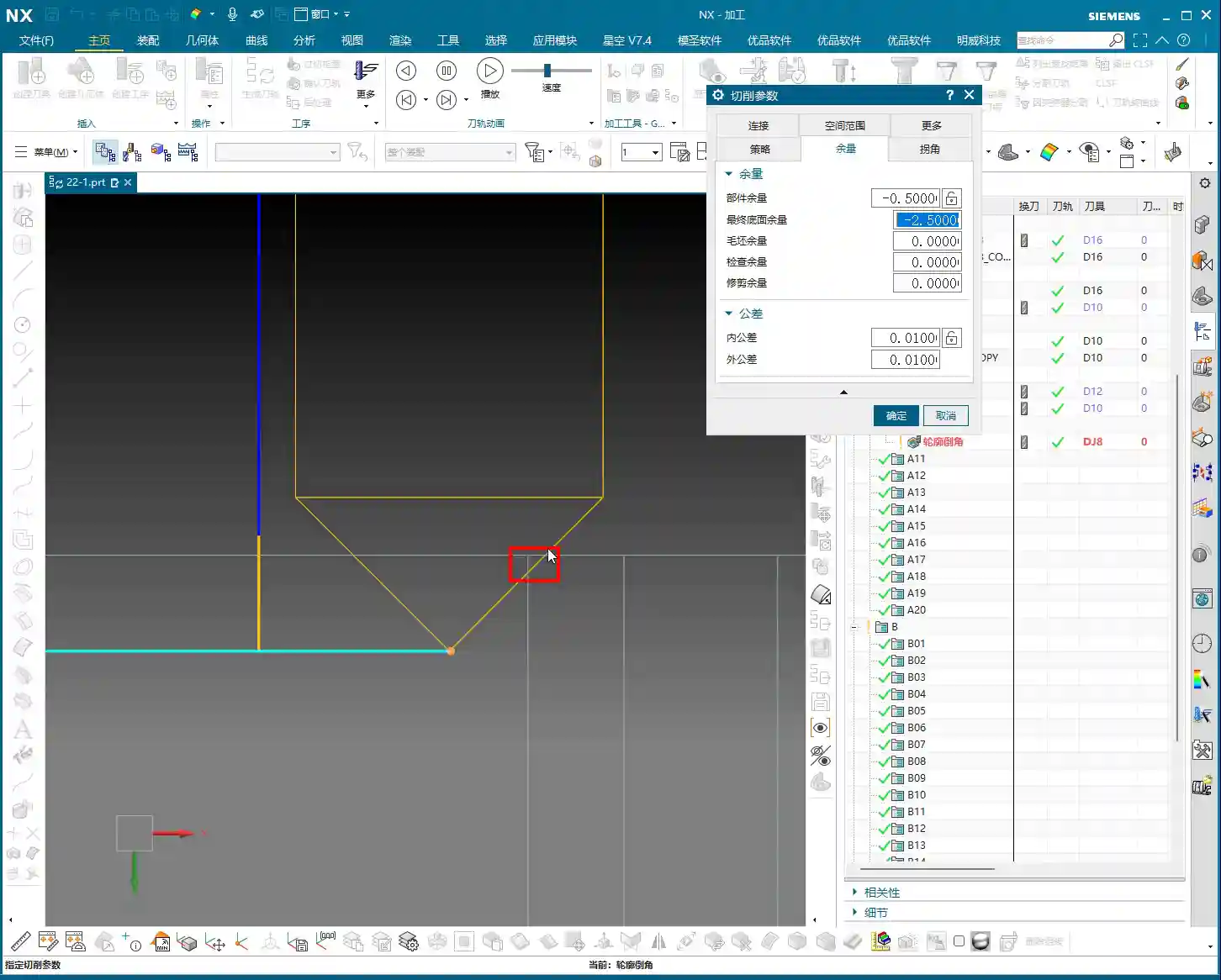
- Core Rule: To get a chamfer of a certain size, enter that value as a negative number!
- Must be a negative value: For example, if you want a 0.5mm chamfer, set the Allowance to -0.5mm. If you want a very small chamfer just for deburring, say 0.1mm, then set it to -0.1mm.
The meaning of this “negative value” can be understood as the offset of the tool’s centerline relative to the profile edge. A negative value means the tool will cut into the material. Therefore, this Allowance value directly determines the size of your chamfer. For instance, if you input -0.1mm, you’ll get a small chamfer, mainly for deburring; input -2.5mm, and the chamfer will be significantly larger.
Master Wang’s Tip: Often, especially when machining high-volume parts, you only need to deburr slightly to save time and reduce costs. In such cases, setting the Allowance to -0.1mm or -0.2mm is perfectly suitable. Chamfer all holes and edges with this value to both ensure surface quality and boost efficiency.
2.2 Final Bottom Allowance: The Secret to Tool Cutting Point Position
This parameter is found under “Adjust Parameters.” It determines which part of the chamfer tool’s cutting edge will engage the material. This is a critical “pitfall” to avoid!
As we all know, the tip of a chamfer tool is typically quite fragile. If it directly engages in heavy cutting, it’s very prone to chipping, which impacts tool life and machining quality. Therefore, we generally want the chamfer tool to cut with its side edge or a more robust part of the tool.
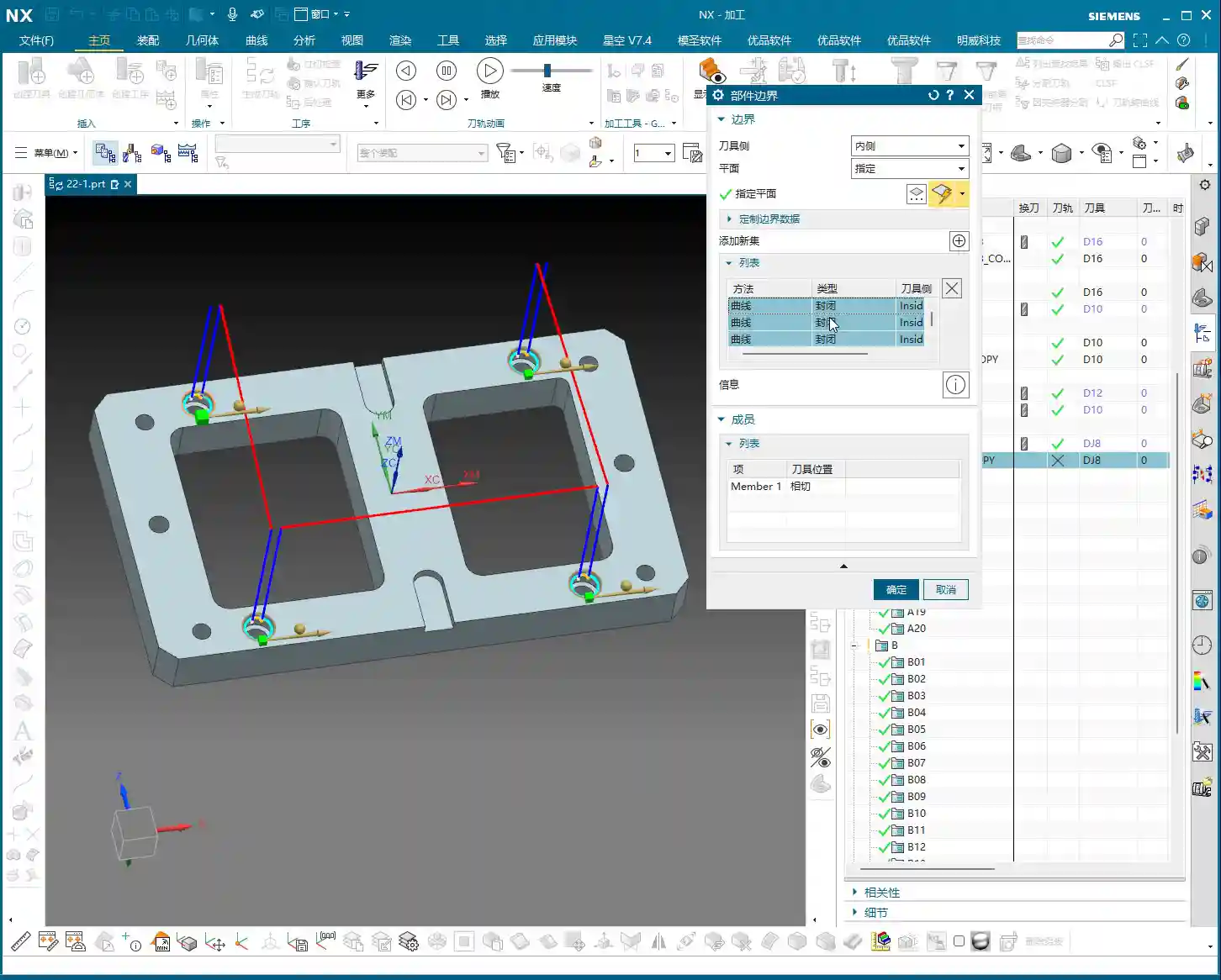
- Parameter Meaning: Setting it to a negative value indicates the depth of the chamfer tool’s tip relative to the machined edge.
- For example:
- Assume you’re using a D8 (mm) 45-degree chamfer mill with a tip radius of 0. Theoretically, its cutting edge from the tip to the outer diameter is 4mm.
- If you set the Final Bottom Allowance to -2.5mm (this is a common default value in my templates), it means the tool tip will be 2.5mm below the edge being chamfered. This allows the tool to cut with its side edge, significantly reducing the risk of tip chipping and leading to more stable machining.
- If you set it to -1mm, the tool tip is closer, and the cutting point is nearer to the tip, which can cause problems.
- If you want the chamfer to engage the “middle” of the tool’s cutting edge, for example, to create a 0.5mm chamfer, you might need to set it to -2.25mm. This value requires fine-tuning based on the actual geometry of your chamfer tool (e.g., effective cutting length).
Master Wang’s Tip: The more negative this parameter is set (e.g., from -2.5mm to -3.5mm), the further the cutting point moves towards the more “robust” part of the tool, away from the tip. Conversely, the less negative (e.g., from -2.5mm to -1mm), the closer it gets to the tool tip. Unless you have specific requirements, it’s generally recommended to set a relatively deep negative value (such as -2.5mm or -3.5mm). This keeps the tool tip “out of the way,” allowing the tool’s side edge to perform the chamfering, which results in more stable machining and longer tool life. Don’t just rely on software simulations; observe the cutting sparks and listen to the cutting sound. Those are the real-world feedbacks!
III. Practical Tips and Pitfall Guidance

3.1 Handling Discontinuous or Multi-Segment Chamfers
If the profile you’re chamfering consists of multiple discontinuous segments, or if you only want to chamfer specific segments, you’ll need to use the “Add New Set” function. When selecting geometry, after selecting each curve that needs chamfering, click Add New Set, and then select the next curve. This way, the software can combine these independent curves to generate a unified chamfer toolpath.
3.2 Pitfalls of Chamfering Small Holes
Chamfering small holes is particularly prone to problems. The core issue is matching the tool size to the hole diameter. If your chamfer tool is too large, or if the chamfer dimension is set too large, the tool might not be able to enter the hole, or it might collide inside the hole. A simple rule: the chamfer tool’s radius (R_tool) plus the chamfer dimension (C) must be less than or equal to the hole’s radius (R_hole), i.e., R_hole ≥ R_tool + C. Otherwise, you’ll either fail to create the chamfer, make the hole too large, or even cause a tool crash! In such cases, you either need to switch to a smaller chamfer tool or reduce the chamfer dimension.
3.3 Minor Display Bugs in NX Interface
Many beginners encounter this situation: you’ve copied a chamfer operation, modified the geometry, and generated a toolpath, but the screen still shows the toolpath from the original operation. You might think the change didn’t take effect, but it actually did; the software’s display is just a bit “sluggish.”
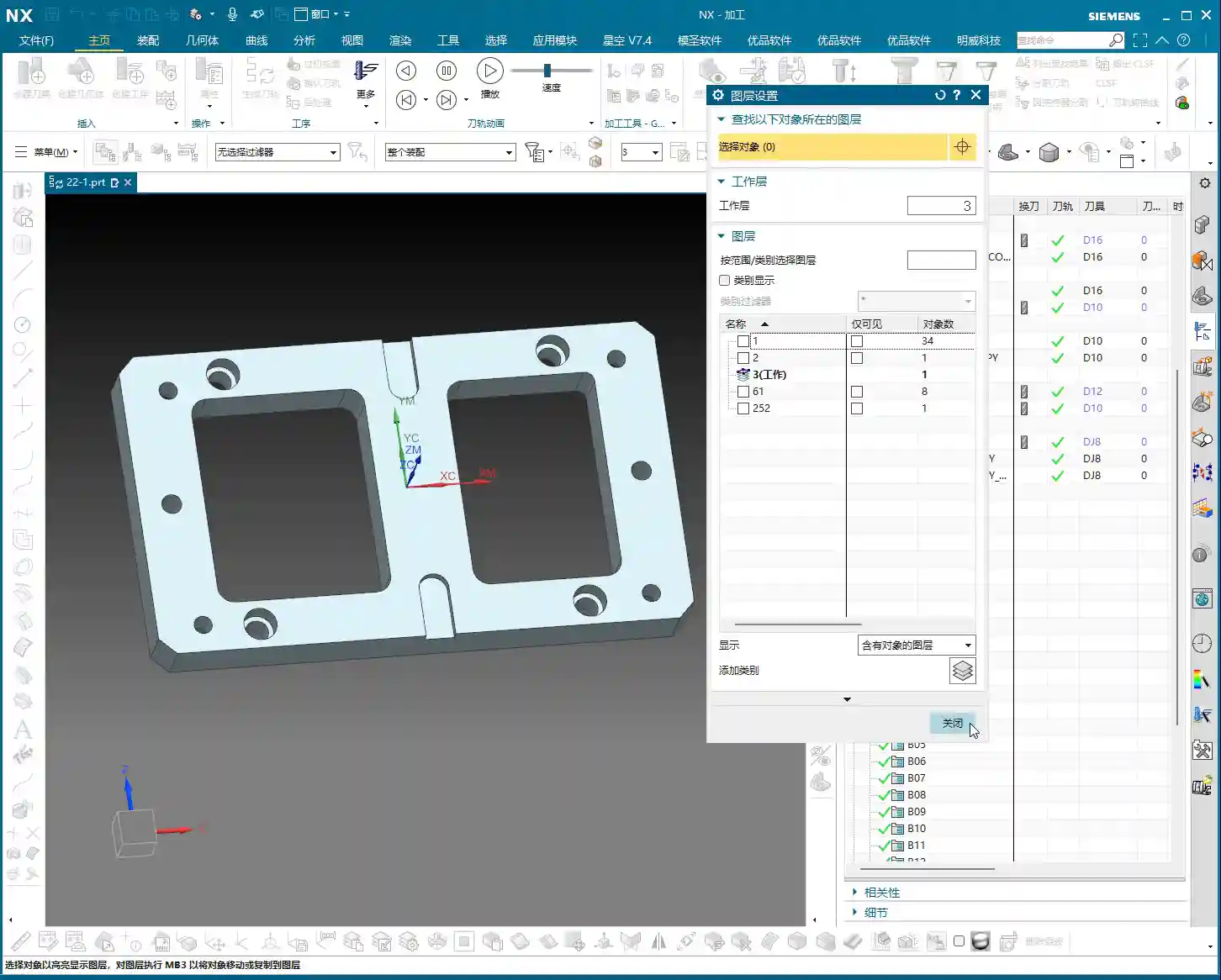
The solution is simple: simply click the mouse anywhere in an empty space within the NX graphics window, or switch to another view and then switch back. The old “ghost” toolpath will disappear, and the new one will display correctly. These are just minor quirks of the software; get used to them, and don’t let them make you tear your hair out.

3.4 Impact of Material Properties on Chamfering
Different materials present different chamfering effects and difficulties:
- Aluminum: Easy to cut, but prone to burr formation. Cutting parameters must be optimized to avoid excessive material removal leading to burrs.
- Stainless Steel, Titanium Alloys, High-Temperature Nickel-Based Alloys: These materials have high hardness and toughness, generating significant cutting forces, which can lead to accelerated tool wear. When chamfering, use a high-rigidity machine, reduce cutting speed, appropriately increase feed rate, select coated carbide chamfer mills, and ensure ample coolant. Don’t force it; tools cost money!
Summary: Pitfall Guide
- Geometry Selection: The top and bottom faces are usually the same plane—the one containing the edge you’re chamfering. Don’t overcomplicate it.
- Chamfer Size Control: The “Allowance” parameter must be a negative value; its absolute value is the chamfer dimension. For example, -0.5mm means a 0.5mm chamfer.
- Tool Cutting Point: “Final Bottom Allowance” controls the tool’s cutting position on its edge. Aim for a deeper negative value (e.g., -2.5mm, -3.5mm) to prevent the tool tip from direct cutting, thus protecting the tool.
- Small Hole Chamfering: The tool must “fit” into the hole! Ensure Hole Radius ≥ Chamfer Tool Radius + Chamfer Dimension. Otherwise, change the tool or adjust the chamfer size.
- NX Display Bug: Toolpath not refreshing? Just click the mouse in an empty space to refresh the interface.
- Practical Experience is King: Don’t just rely on theory. In actual machining, observe cutting sparks and listen to cutting sounds. Adjust parameters based on real-world conditions. Machining parameters are dynamic, not static!
Alright, that’s all for today’s planar profile chamfering discussion. These are all insights gained from my fifteen years in the trenches, and I hope they prove useful to you. Work diligently, think critically, and you’ll avoid many detours!
👤 About the Author:
The author is a veteran CNC machining professional with 15 years of industry experience, specializing in UG NX programming. This article is an original work representing personal practical insights.
⚠️ Copyright Notice: Unauthorized reproduction or distribution without prior communication is strictly prohibited.