📝 Key Takeaways:
Practical Guide to Multi-Operation NC Program Sheet Output in NX
Master Wang Explains: The Pitfalls of NC Program Sheet Output
Hello everyone, I’m Old Wang. Today, let’s discuss a persistent issue with generating NC program sheets in NX, especially for multi-operation setups. While this might seem like a simple software task, carelessness can lead to major headaches on the machine, from incorrect coordinate systems to scrapped parts. This is no laughing matter.
Pitfall One: NC Program Sheets ‘Mysteriously’ Overwritten or Incorrect Coordinates

Listen up. This is a common mistake made by many beginners, and even some experienced programmers. Let’s say last time you generated an NC program sheet for Operation A, and everything was fine. Then you proceed to generate an NC program sheet for Operation B, only to find Operation A’s sheet is gone, or when you open Operation A’s file, the coordinate commands point to Operation B’s location—a complete mess. Why does this happen?
I’ll tell you why: You haven’t explicitly told NX which operation you intend to process!
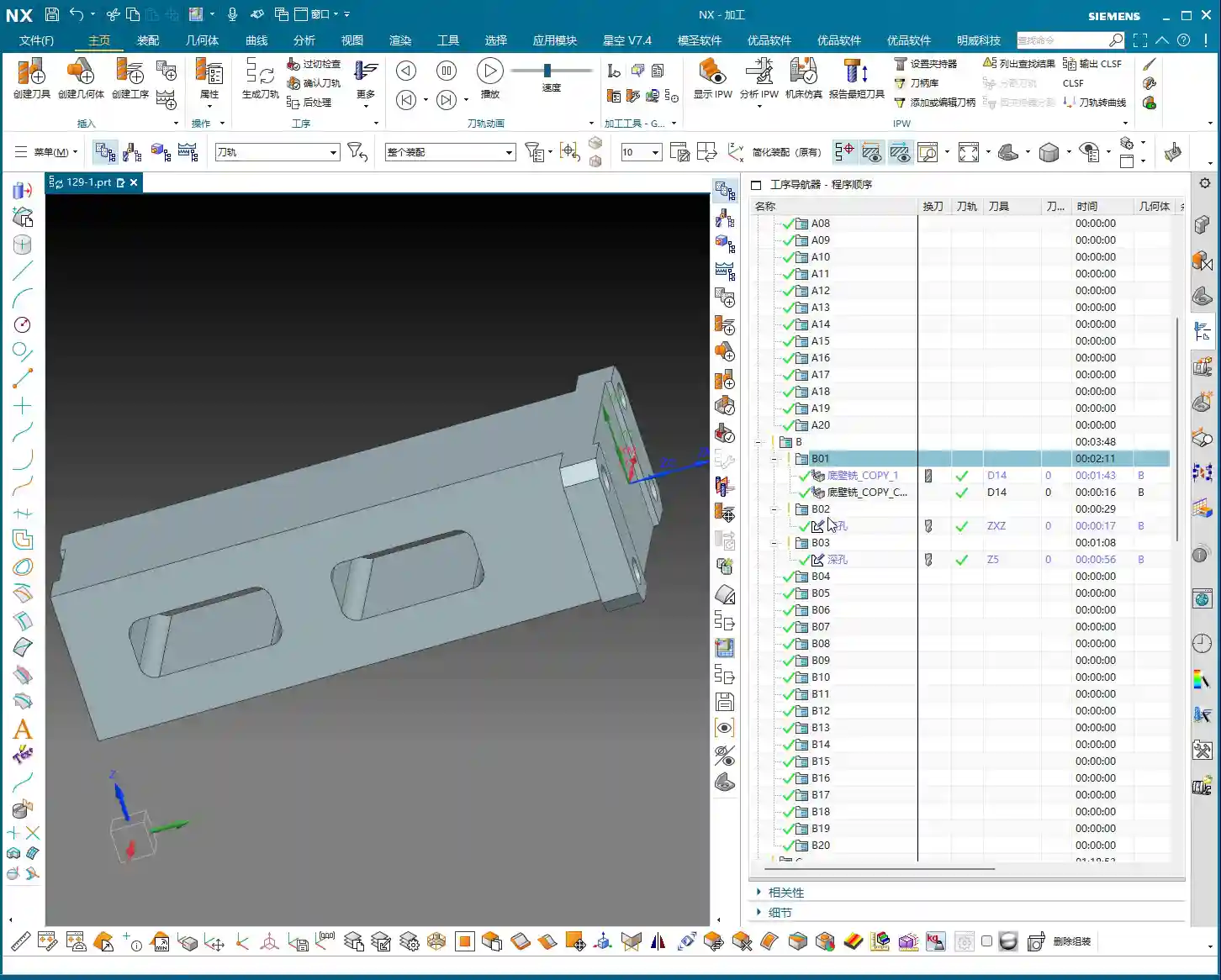
Take our example: you generated the NC program sheet for Operation A (e.g., file named 129-1), no problem. Then you directly hit ‘post-process’ to generate the NC program sheet for Operation B, but you didn’t select any operation under Operation B or Operation B’s folder itself. NX gets confused; it doesn’t know what you’re trying to do. It might default to processing Operation A again, or simply overwrite your previous output. The result is that Operation A’s NC program sheet gets replaced with Operation B’s content, or the coordinate system points in the wrong direction, with the X and Y axes pointing to arbitrary locations.
Master Wang’s Secret: The ‘Killer Move’ for NC Program Sheet Output

To avoid the pitfalls mentioned above, there’s one golden rule:
- Explicit Activation: Before every post-process, you must first click any operation under the specific setup (e.g., Operation A) you want to output, or directly click the parent folder of that setup itself. For instance, if you want to generate the NC program sheet for Operation A, click any toolpath within A, or click the Operation A folder.
- Immediate Naming: Once the NC program sheet is post-processed, immediately rename it with a clear, identifiable name. For example, for Operation A, name it A_Op.NC, and for Operation B, B_Op.NC. Don’t be lazy; otherwise, next time you won’t know which is which, and you might accidentally overwrite a file.
Why emphasize this? Because when NX post-processes, it needs to know which machining environment is currently active, and which Work Coordinate System (WCS) and Machine Coordinate System (MCS) are in effect. If you select it, NX understands; if you don’t, it relies on ‘intuition,’ and that intuition is often wrong. It’s like in the shop: when you give a task to an apprentice, you have to clearly state which part and which face to machine, not just hand them a raw blank and expect them to figure it out, right?
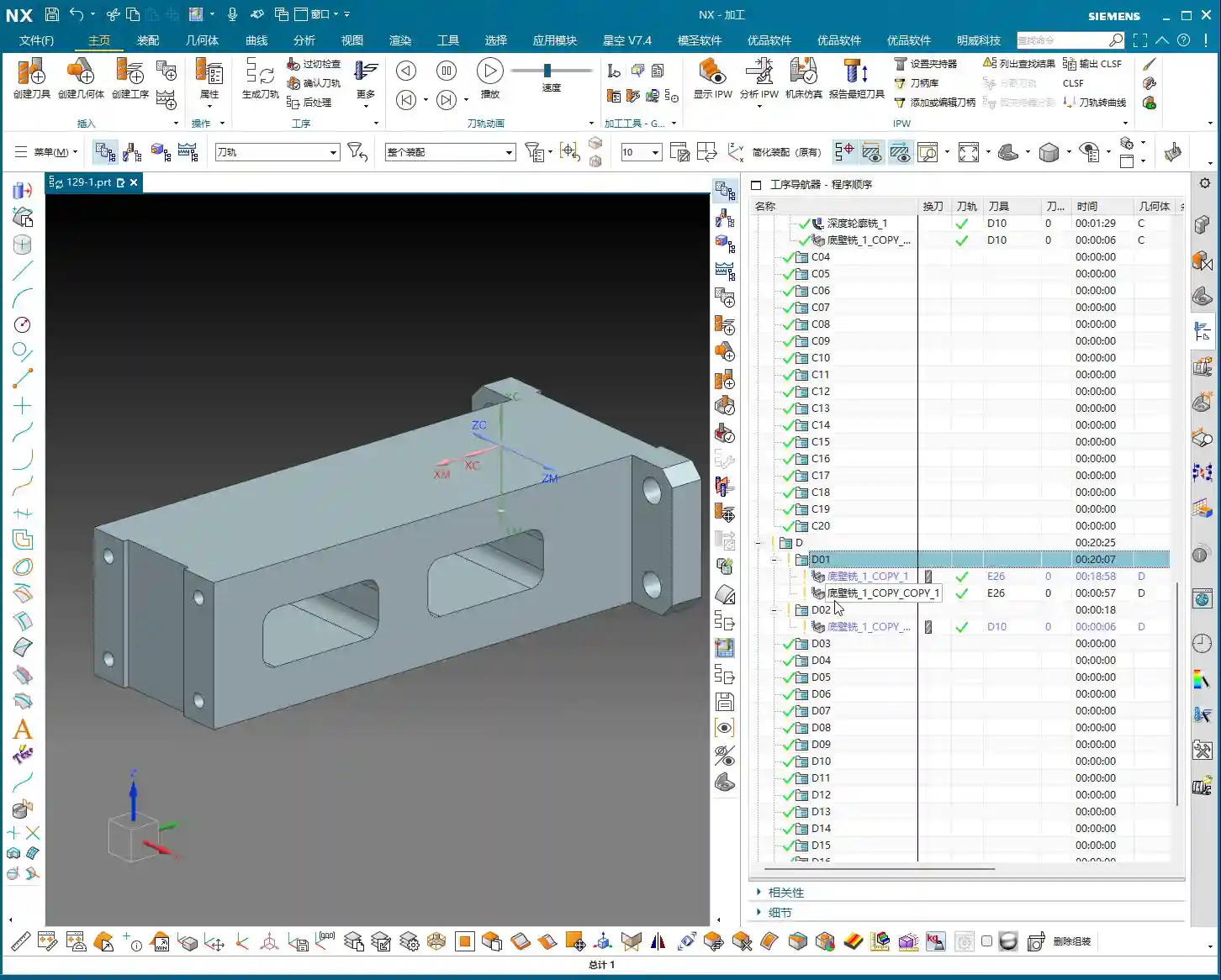
Remember this: always follow this procedure, whether it’s for A, B, C, D, or E, F, G. This workflow is a strict rule, and it guarantees efficiency and safety.
Large Parts, Multi-Operation Setups: The Art of Paginated NC Program Sheet Output

Selecting the Folder: The First Step to Saving Time and Effort
Some colleagues have asked, ‘Master Wang, I have dozens, sometimes hundreds, of toolpath operations under a single setup. A single post-processed NC program sheet can’t contain them all, and the file becomes too long. What should I do? You can’t expect me to select them one by one, can you?’

NC Program Sheet Too Long? Split Output is the Way to Go!
If your setup (e.g., Operation D) contains many sub-programs (D01, D02, D03…), you don’t need to click and select each sub-program individually. You can directly select the parent folder of Operation D. The prerequisite is that you first click this Operation D folder to activate it, and then proceed with post-processing.
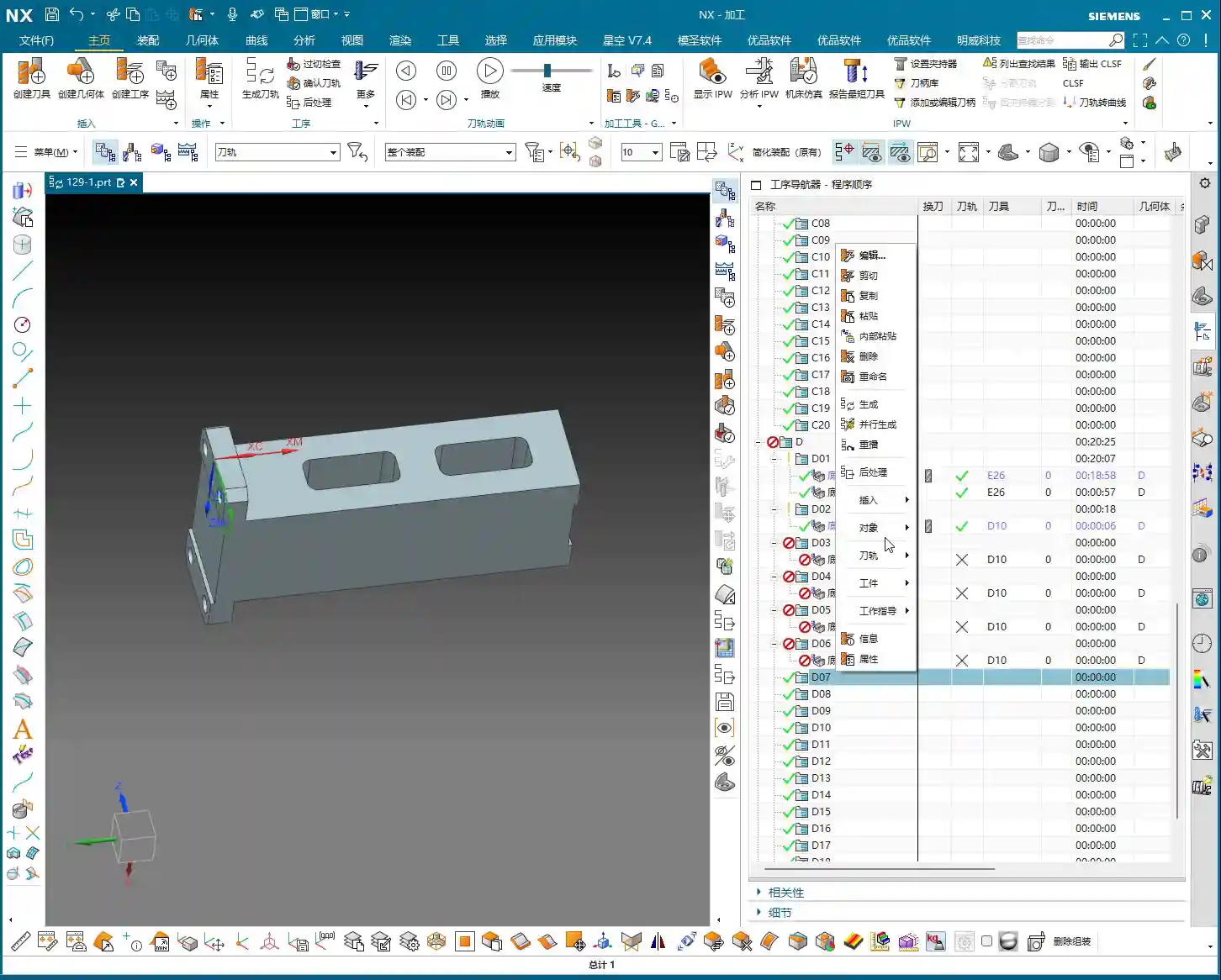
This way, NX will include all toolpaths under the D folder and generate the NC program sheet for you in one go. This is much more convenient than selecting each one individually, especially when dealing with numerous programs, saving you a lot of effort.
Alright, now we face a truly tricky problem. You selected the entire Operation D folder, post-processed it, and found that the generated NC program sheet only includes operations D01 to D18 – everything from D19 onwards is missing! This happens when the NC program sheet is too long, exceeding the software’s default output limit.
In such a scenario, don’t panic. The solution is quite simple: paginated output.
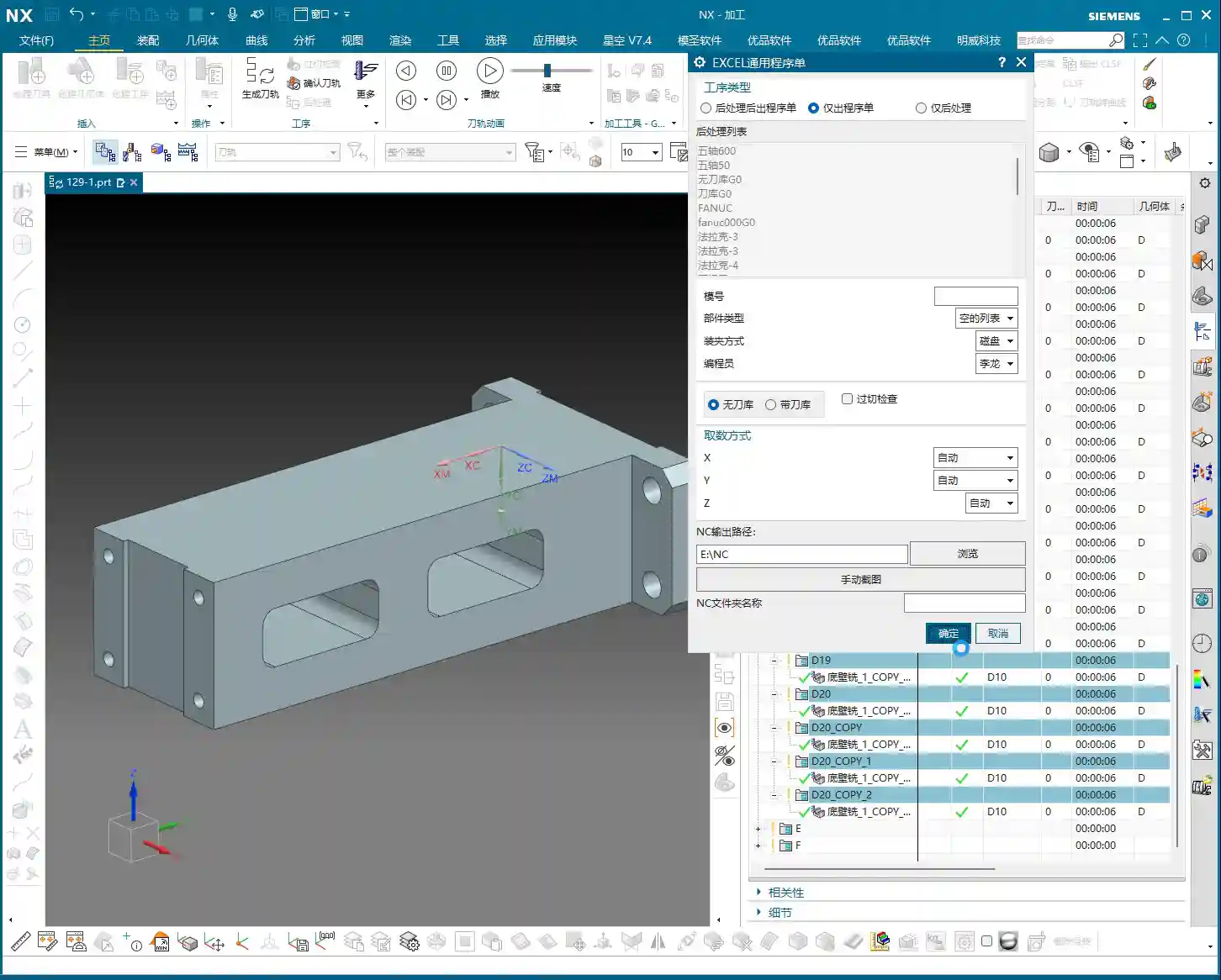
- First Page NC Program Sheet: The first time you post-process, it might only output D01 to D18. Save this file and name it D_Op_P1.NC (Operation D, Page 1).
- Second Page NC Program Sheet: Then return to NX, find Operation D19, and select D19 or its next-level subfolder. Post-process again. This time, the outputted NC program sheet will start from D19. Save this file and name it D_Op_P2.NC (Operation D, Page 2).
- And so on: If there are more operations yet to be outputted, continue splitting them using this method.
You might ask, ‘Won’t the machine operator get confused with separate files?’ No, they won’t. You just need to clearly mark at the beginning of the program or on the process sheet: this setup is divided into several pages, for example, ‘Operation D: P1 (D01-D18), P2 (D19-D35).’ When the operator receives these NC program sheets, they’ll know these are continuous parts of the same setup and can execute them in sequence. I once programmed a five-axis part with front, back, left, and right faces; a single part had eight or nine pages of NC program sheets, and it was machined perfectly fine.
Master Wang’s Advice: Details Determine Success
These ‘unwritten rules’ are tips I’ve gathered from over a decade of hands-on experience in the workshop, encountering countless pitfalls. Though they might seem like minor procedural steps, they significantly impact actual machining efficiency and product quality. Especially in today’s era, those of us in manufacturing not only need to produce quality goods but also know how to promote our expertise. If you can concisely summarize these practical experiences, along with illustrated tutorials, and share them online, it will become your ‘gold standard’ in the industry, drawing more peers to find and trust you.
Summary: Pitfall Avoidance Guide
- Mandatory Activation: Before every post-process, always click and activate the program or its parent folder that you intend to output.
- Immediate Renaming: After the NC program sheet is outputted, immediately rename it to prevent overwriting or confusion.
- Segmented Processing: When programs are excessively long, output them in segments (paginated), and clearly mark page numbers and ranges on the process sheet or in the program header.
- Verify Coordinates: After output, quickly check if the coordinate system in the NC file is correct to prevent Work Coordinate System (WCS) / Machine Coordinate System (MCS) misalignment.
- Xingkong Video: For instructions on how to set up and install the Xingkong post-processor, refer to the relevant video tutorials, which provide more detailed steps.
Alright, that concludes today’s lesson. Practice frequently, observe keenly, and always connect theory with practical application – that’s where true skill lies!
👤 About the Author:
The author is a veteran CNC machining professional with 15 years of industry experience, specializing in UG NX programming. This article is an original work representing personal practical insights.
⚠️ Copyright Notice: Unauthorized reproduction or distribution without prior communication is strictly prohibited.