📝 Key Takeaways: Master Wang reveals the essence of Siemens NX dynamic roughing, using efficient side milling, detailing key parameters like blank definition, stepover, and minimum depth of cut. Through practical examples, he shares hands-on techniques for single-pass cutting and smooth tool paths to boost your machining efficiency, avoid common errors, and achieve ±0.005mm accuracy.
Hello everyone, I’m Master Wang. Today, we’re going to break down Dynamic Roughing in Siemens NX. This is a powerful technique; master it, and you’ll significantly boost your efficiency. I’ve got a good part here, so let’s use it as an example and walk through the whole process from start to finish.
Dynamic Milling Basics: Efficient Side Milling
Listen up. Dynamic milling, simply put, fully utilizes the tool’s side cutting edge for machining. Compared to traditional bottom-cutting, the side cutting edge experiences more uniform force, leading to higher cutting efficiency and less tool wear. So, don’t just focus on the tip of the tool; the side edge is your powerhouse for roughing.
NX Module and Process Selection
In NX, we directly open the 3-axis module, scroll down, and find Cavity Mill Secondary Roughing. You’re definitely familiar with this one. As for Rest Milling next to it, while the name is different, it’s essentially the same concept as Cavity Mill Secondary Roughing – both are for re-machining material remaining from a previous operation. NX simply assigned its own template name; no need to overthink it. So, if secondary roughing can handle the job, you can skip rest milling; there’s no need for an extra step.
Today, we’re primarily focusing on Dynamic Roughing, which you’ll find further down in the module.
Blank and Part Definition: The Foundation of Accuracy

Defining the part and blank is the first, and most crucial, step in machining. Get this wrong, and no matter how fancy your tool path, it’s all for nothing.
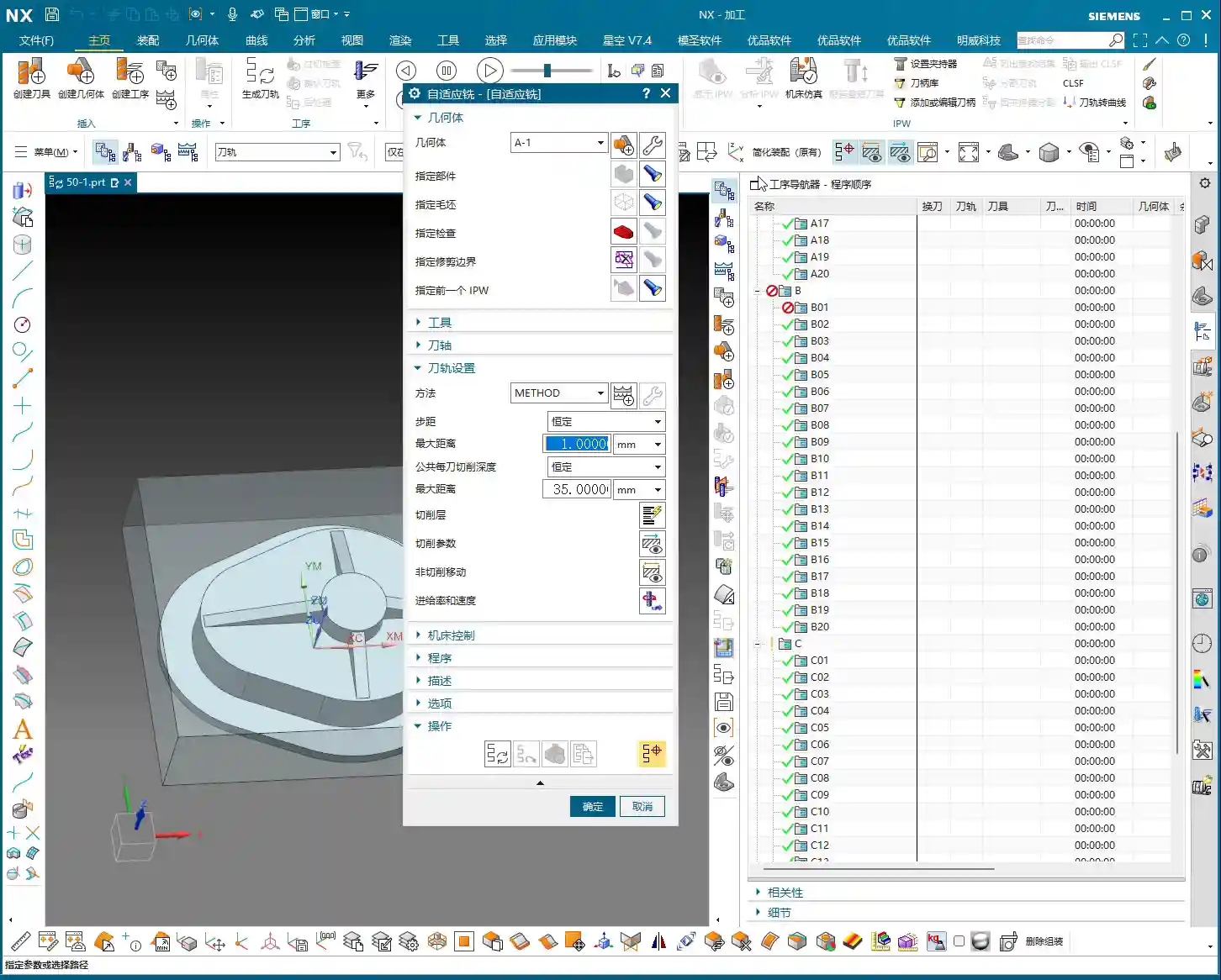
Selecting Part and Blank: Avoiding Detours
Didn’t I already create the blank? Then just use it directly. Dynamic milling primarily relies on side milling, so often you don’t need to select an additional 3D model for secondary definition. Just use the current blank; it saves you time and effort.
To select the Part, you’re choosing the final shape of the component you want to machine; to select the Blank, you’re specifying the raw material before any machining. This is basic stuff; anyone who’s operated a machine understands it.
Blank Dimensions: Flexible Control is Key
How do you define blank dimensions? The most common method is to control it with a Bounding Body. The size of your bounding body dictates the blank size. If you need more precise adjustments, after creating the bounding body, you can modify the blank’s volume using Offset or Replace. This offers greater flexibility and adapts to blanks of various irregular shapes.
ABW and Program Association: The Crux of the Matter
This ABW refers to program association. Initially, we might be tempted to select options like A-1, which means it will inherit the machining status from the previous program. But here’s where you can get into trouble, so listen carefully:
If the part has already been roughed using Workpiece in a previous operation, and you then select A-1, the system will assume that material has already been removed. The result? You’ll mill nothing! The tool will just air cut or crash into existing material. This is a very common mistake for beginners, and even experienced operators can overlook it sometimes.
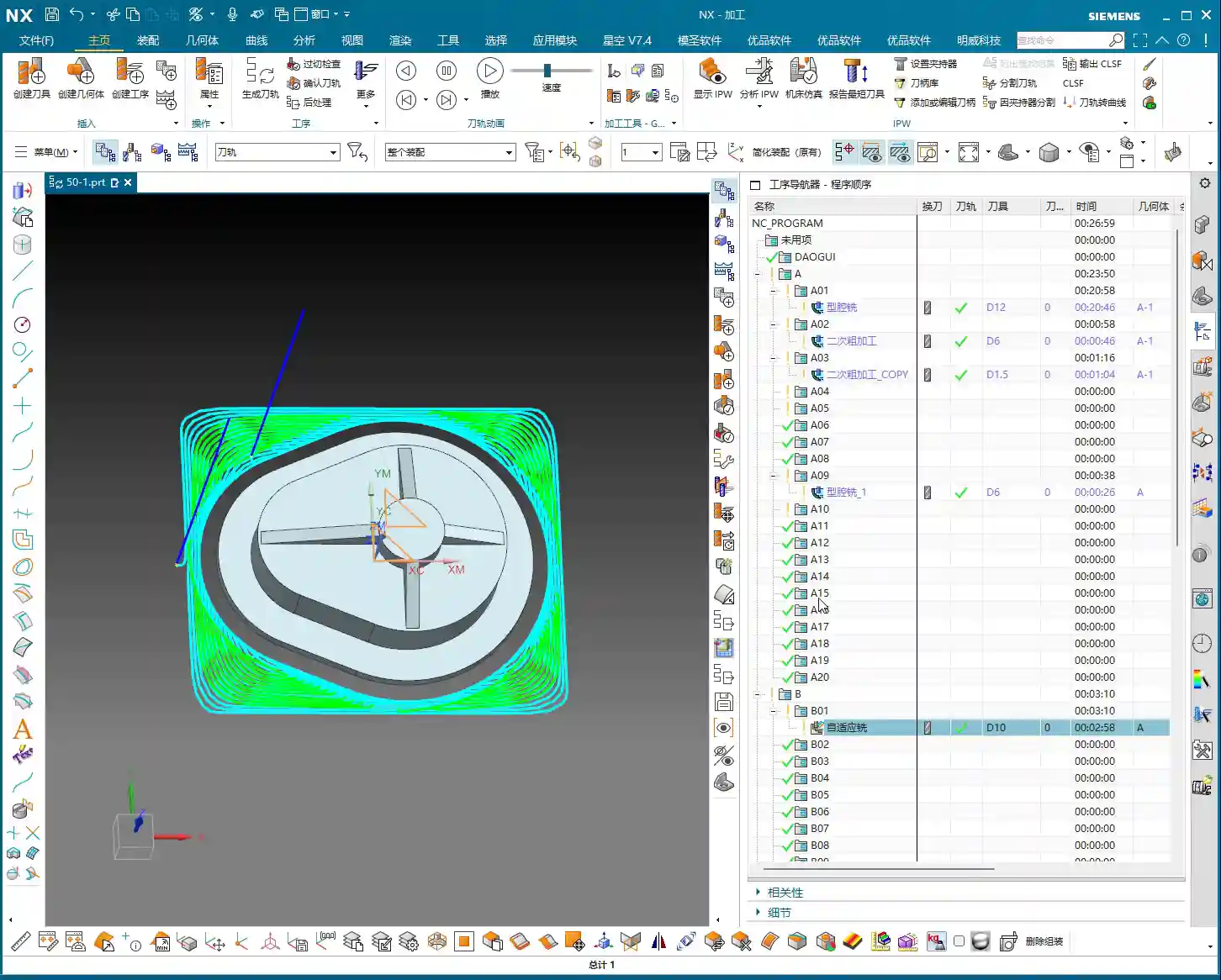
Therefore, we must directly select A to make it independent, so it only recognizes the current blank and isn’t linked to the previous program. That’s how you play it safe! Remember, independence is critical; it effectively prevents machining errors caused by program association, especially during continuous multi-operation machining.

Tool Path Parameter Fine-Tuning: Balancing Efficiency and Quality
Setting dynamic milling parameters is key to determining machining efficiency and surface quality. Each parameter has its quirks; you need to understand them thoroughly.
Stepover: The Golden Ratio for Side Milling
This stepover is the lateral feed distance for each pass during side milling. For dynamic milling, an experienced value is typically set around 1 mm. Too large, and the tool experiences uneven forces, leading to chatter; too small, and you get too much air cutting, reducing efficiency. Adjust it slightly based on tool diameter and material hardness to find that sweet spot.
With this machining method, it’s often a single-pass cut, so you can set the depth of cut quite high, even exceeding the total part height directly.
Max Depth Per Cut: The Secret to Single-Pass Cutting
My part’s total height is 28 mm. Here, I’ve set the Max Depth Per Cut to 35 mm. See, it only mills down to 28 mm in practice. Why? It’s simple: as long as the depth you set is greater than the total height of the part, it will make a single-pass cut without layered steps. This is a trick for boosting efficiency, eliminating frequent tool retracts. But this only works if your machine rigidity, tool strength, and cutting parameters can handle it; don’t force it.
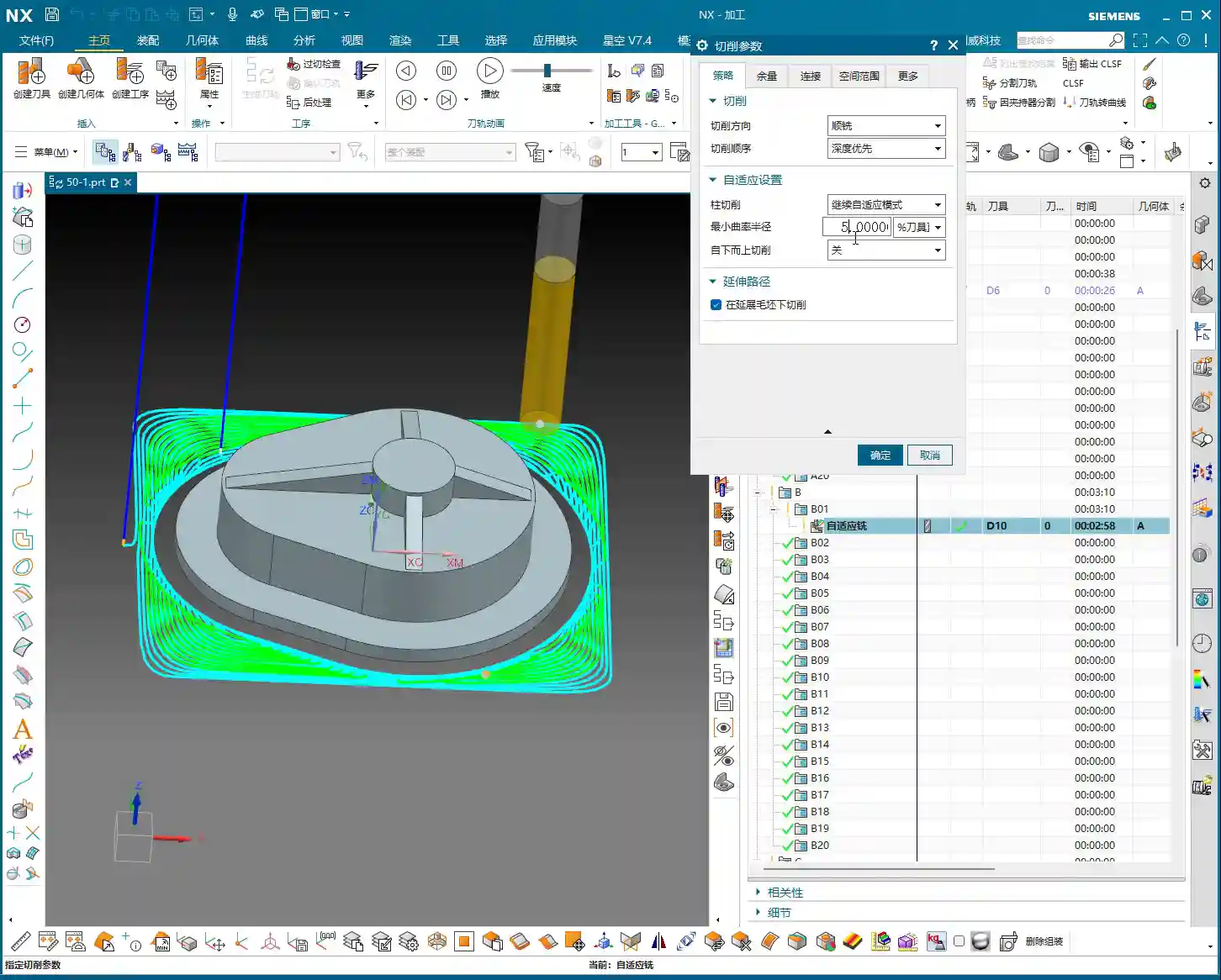

Cut Levels and Range: The Essence of Single-Layer Cutting
You’ll notice that the Cut Levels here are empty, with no layers. That’s because we’ve set the Range to Single. The characteristic of dynamic milling is that by using the side cutting edge, you can achieve a very large depth of cut in one go. So, typically, setting it to a single cut level is sufficient; there’s no need for the layered progression seen in traditional milling. It’s simple and effective – that’s the principle.
Minimum Curvature Radius: The Secret to Smooth Tool Paths
Here, we have the Minimum Curvature Radius, which defaults to 5%. What’s this thing for? It allows your tool path to automatically generate arc transitions at corners. Don’t underestimate these few points; they make the tool path smoother, prevent impact during right-angle cutting, reduce tool wear, and extend tool life. The machined surface will also be cleaner, especially noticeable in high-speed machining. Generally, keeping the default is fine, unless you have specific requirements.
Cut from Bottom to Top: Crucial for Sloped Surface Machining
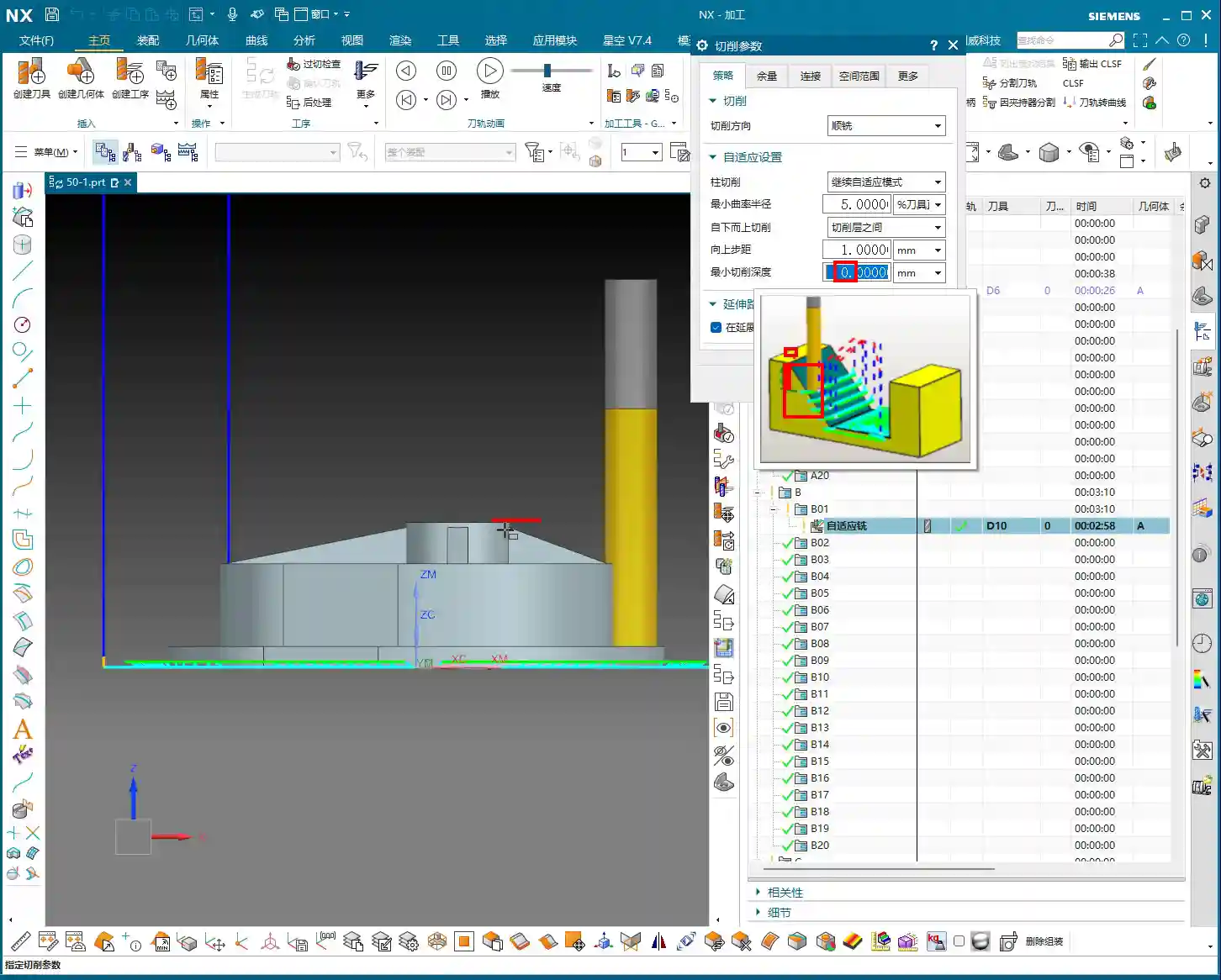
Why do some sloped surfaces only get machined at the bottom, leaving the top untouched? It’s because you haven’t selected Cut from Bottom to Top. By checking this option, the tool will start from the bottom and mill upwards along the slope, layer by layer. This is essential for complex sloped surfaces. Remember to also set the Upward Stepover, usually keeping it consistent with the horizontal stepover, for example, 1 mm. This ensures uniform tool paths and prevents overcutting or undercutting.
Minimum Cut Depth: The Mystery of Stock Control
This Minimum Cut Depth is an extremely critical parameter, so don’t get it wrong!
- If you set it to 0: This means the tool tip will machine directly to your defined part surface, removing all material. During roughing, we typically set this to 0 to ensure maximum material removal.
- If you set it to a positive value (e.g., 5 mm): The tool will then stop cutting 5 mm above the lowest point of the workpiece, leaving you with 5 mm of stock. For instance, if the workpiece’s lowest point is Z0, and you set it to 5, it will only cut up to Z5, leaving anything above Z5 untouched. This is useful when you need to leave uniform stock before finishing, but be careful when roughing, as it can easily leave excessive material.
Understand what I mean? Don’t underestimate this single parameter; if you don’t grasp it, you might end up with incorrect stock, or worse, a tool crash and a scrapped part!

Blank Distance: Considerations for Tool Path Integration
Blank Distance – I’ve brought this up many times in previous lessons. The gap you set here is what the system uses to determine where there’s material to cut. If you set it too high, and the actual blank is still some distance from the tool, the system will assume there’s no material there and won’t cut, resulting in undercutting. Conversely, if set too small, it could lead to overcutting. So, you must set it according to the actual blank conditions and your cutting strategy; don’t just guess.
Tool Path Generation and Simulation: Seeing is Believing
Once all parameters are set, we can generate the tool path and then proceed with simulation for verification. Practice is the sole criterion for truth!
Generating Tool Paths: The 1-2-3 Method for Quick Program Output
Remember my 1-2-3 rule: Select tool, select geometry, select method. After setting the parameters, just click OK, and the program is immediately generated. This efficient workflow will save you a lot of time.
3D Simulation: Gaining Insight into the Machining Process
Once the tool path is generated, don’t rush to the machine. First, simulate it on the computer. Directly select the blank and use 3D simulation. A key feature of dynamic milling is that it starts cutting directly from the blank, unlike some programs where you first have to face off a bottom surface. Through simulation, you can clearly observe the tool’s movements, cutting trajectory, and the material removal process. See how the side cutting edge removes material layer by layer, and how slopes are machined from bottom to top, ensuring no overcutting, undercutting, or air cuts.
See how clear this tool path is! That’s the entire dynamic roughing process – efficient and precise.
Summary: Pitfall Avoidance Guide
- Avoid Program Association Traps: When selecting the part/blank, if there are previous machining programs, always choose the independent A option, not inherited options like A-1. This prevents the system from misinterpreting already removed material and causing air cuts.
- Stepover and Depth: For dynamic side milling, the stepover is typically 1 mm. The maximum depth per cut can be set greater than the total part height to achieve a single-pass cut, provided the machine and tool rigidity are sufficient, and cutting parameters are matched.
- Minimum Cut Depth: During roughing, it must be set to 0 to ensure the tool cuts to the part surface and completely removes all stock. If you need to leave stock, understand its physical meaning relative to the lowest point.
- Cut from Bottom to Top: For sloped surfaces, enable ‘Cut from Bottom to Top’ and set the upward stepover to ensure complete material removal and prevent undercutting.
- Simulation Verification: After generating the tool path, always perform 3D simulation verification. Carefully observe the tool path to ensure there are no collisions, overcuts, undercuts, or air cuts. This is your last line of defense before going to the machine.
Alright, that’s it for this lesson. These are all practical experiences I’ve gained over 15 years in the trenches; you won’t learn this from textbooks. Go back and really think about it. Next lesson, we’ll continue our discussion. Don’t fall behind!
👤 About the Author:
The author is a veteran CNC machining professional with 15 years of industry experience, specializing in UG NX programming. This article is an original work representing personal practical insights.
⚠️ Copyright Notice: Unauthorized reproduction or distribution without prior communication is strictly prohibited.