Tag: Spiral Milling

  • Siemens NX Fixed Contour Milling – Spiral Machining: A Practical Deep Dive into an Underutilized Com

    📝 Key Takeaways: **

    Siemens NX Spiral Milling: Practical Principles for Precision and Efficiency

    Hello everyone, I’m Master Wang. Today, we’re going…

    Hello everyone, I’m Master Wang. Today, we’re going to talk about a relatively “underutilized” machining operation in Siemens NX—specifically, the “Spiral” command within Fixed Contour milling. Don’t let its humble appearance fool you; as a veteran who’s spent 15 years on the shop floor, I can tell you that every single command has its place. The key is knowing how to use it effectively and how to avoid common pitfalls. And naturally, I don’t just understand machine tools; I also know how to share valuable techniques. So, what we’re discussing today isn’t just about operations, but about efficiency and value.

    Spiral Machining: Why Is It Considered ‘Underutilized’?

    Listen up. This “Spiral” machining method is indeed used infrequently. Why? Because its functionality is quite singular and its limitations are significant. Often, other more versatile commands, such as Cavity Milling or Guiding Curve milling, can also generate spiral toolpaths, offering much finer control. However, since Siemens NX provides this command, it certainly has its inherent value. In specific scenarios, it can save you a considerable amount of trouble. Today, we’re going to unearth it, dissect it thoroughly, and understand its true characteristics.

    Getting Started: First Look at the Command and Basic Settings

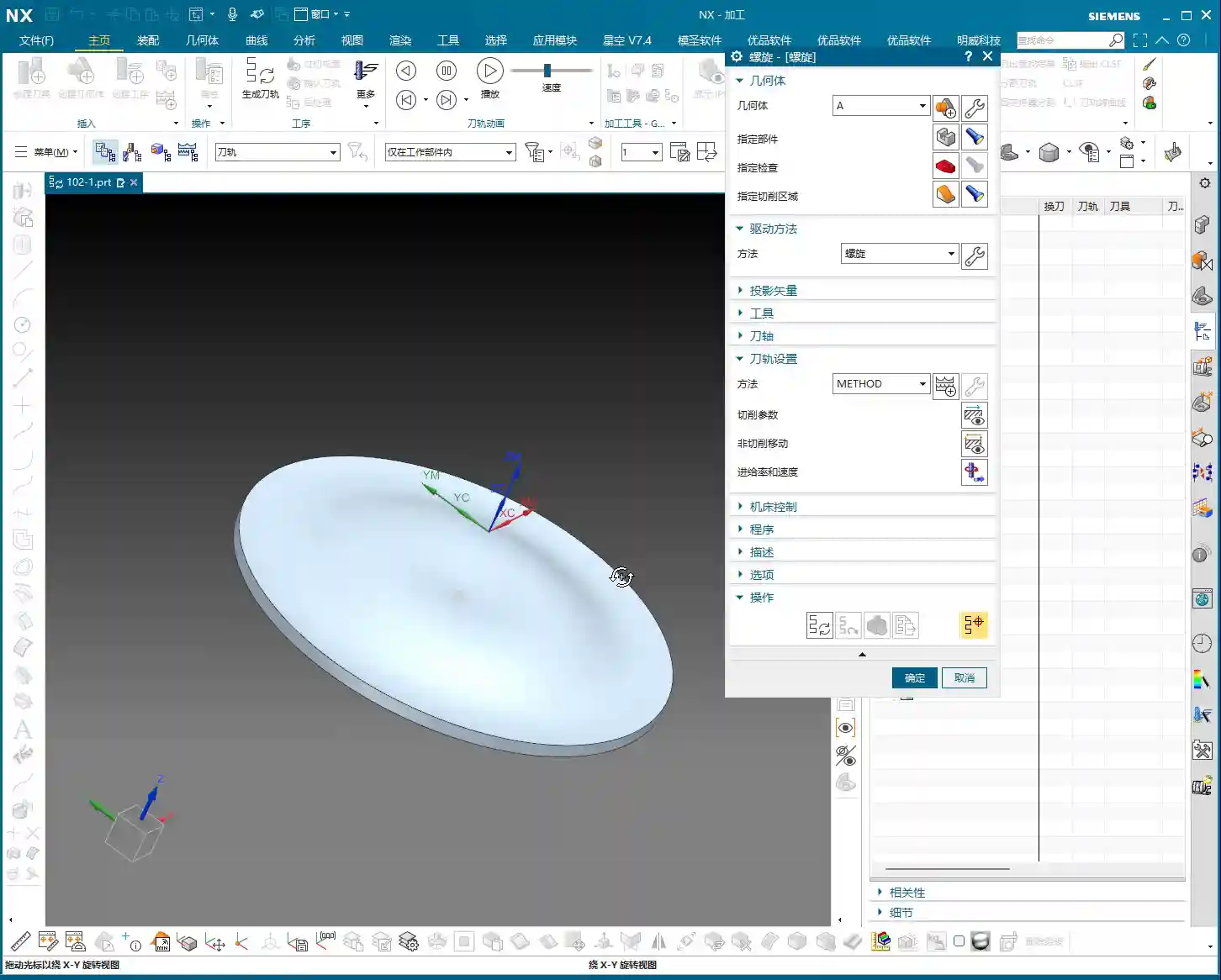
    Let’s start with the basics. In Siemens NX, navigate to ‘Insert’ > ‘Operation’ > ‘Milling’ > ‘Fixed Contour’ > ‘Spiral’. To be honest, this command’s interface isn’t flashy at all; it has few parameters, clearly indicating it’s a straightforward, no-nonsense tool.

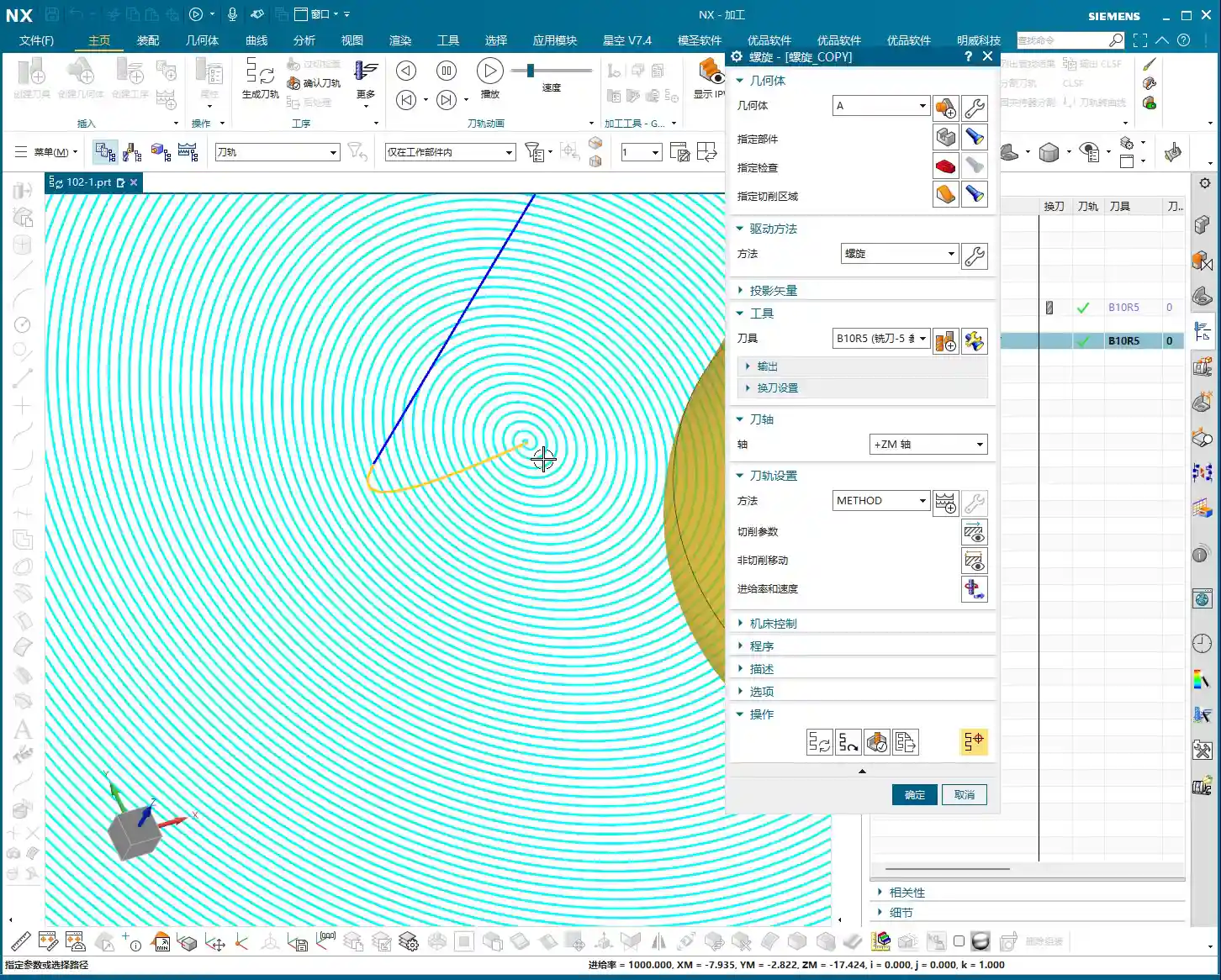
    • Specify Part/Cut Area: This is the most crucial step. It’s ideally suited for machining circular, cylindrical, or contoured surfaces. Simply select any circular face or a relatively flat curved surface, and it will handle the job. Note that the point you select will be taken as the default center point for the spiral, from which it will expand outwards. Even if your clicked position is off-center, the system will automatically project it onto your selected face and generate the spiral with that projected point as its center.
    • Specify Tool: Select an appropriate tool, just as you would for conventional milling.

    Once these are set, simply generate the toolpath, and you’ll see a basic circular spiral path. The toolpath typically looks like it’s spiraling outwards or inwards, turn by turn, much like a mosquito coil.

    Core Parameter Analysis: The Secret Behind Maximum Spiral Radius

    Since I mentioned the interface is simple, does it hide any ‘tricks’? It certainly does, and that’s the ‘Maximum Spiral Radius’ parameter.
    The ‘Reins’ for Controlling Machining Range

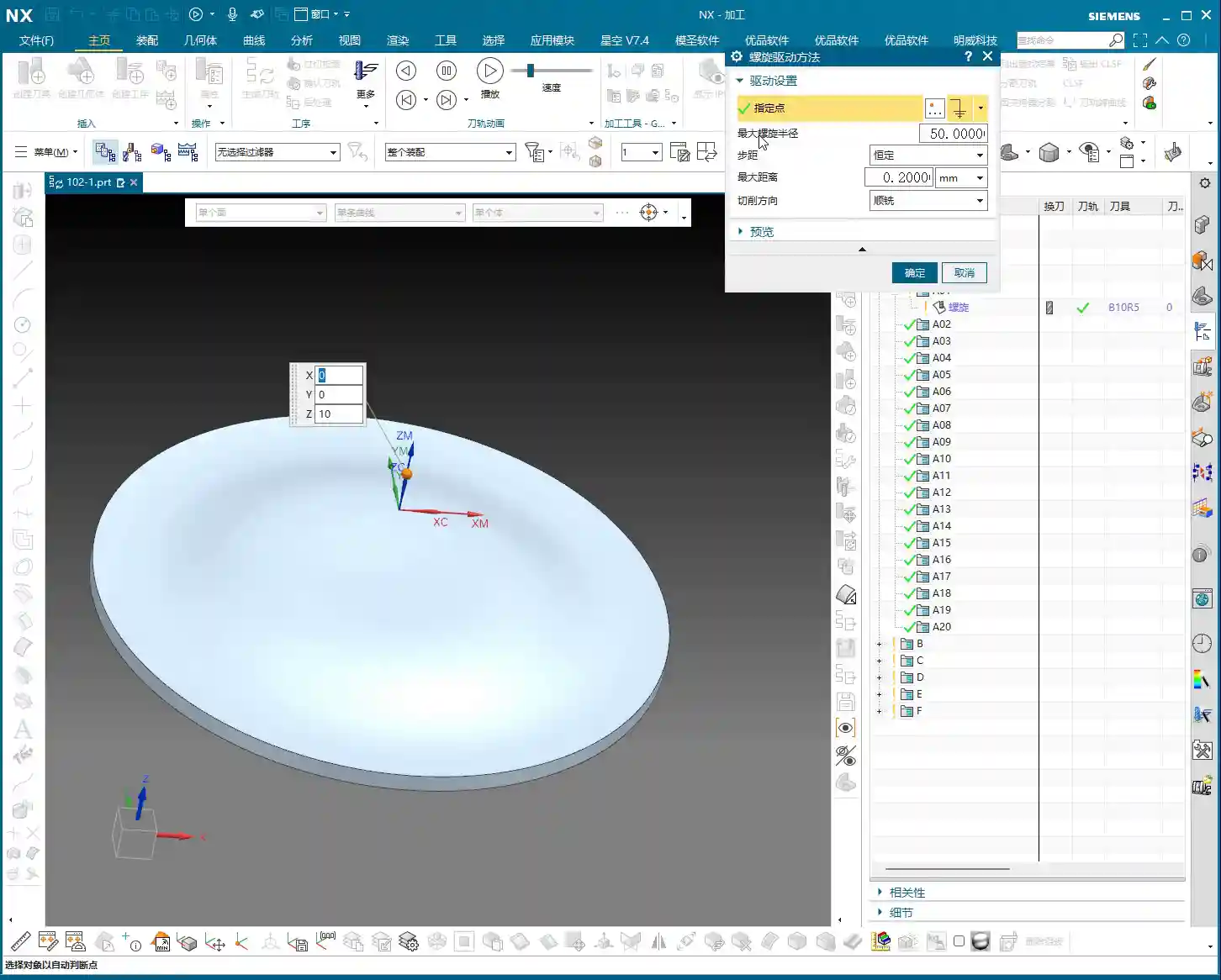
    This parameter, as the name suggests, controls how far your spiral toolpath can ‘extend’ outwards. The default value might only be a few millimeters, for example, 6.25mm. If you leave it as is, the toolpath will only mill within a small area around your selected center.

    Practical Tip: Listen up! If your workpiece is large and you want the spiral toolpath to cover the entire circular region, you must increase the Maximum Spiral Radius. For instance, if our input diameter is 100mm, your radius should be at least 50mm. Input 50, then check the toolpath—doesn’t it immediately ‘spread out’? This is the ‘rein’ that controls the machining range. If you don’t enlarge it, your toolpath won’t extend, and it will keep spinning around the center.

    As for other parameters, such as Stepover and Cut Direction (Climb Milling/Conventional Milling), they are similar to what we typically use, with no specific points of concern. Just adjust them according to your material and tool conditions.

    The ‘Characteristics’ and ‘Pitfalls’ of Spiral Machining: Boundaries and Retractions

    This command has a specific characteristic, and also a small ‘pitfall’ where newcomers can easily stumble.

    Automatic Spiraling and Boundary Management

    The “Spiral” command inherently tries to extend your toolpath outwards. If you only select a single plane as the cutting area, it will spiral downwards from your designated center point until it encounters the material’s boundary.
    • Scenario One: Top Face Only. If you only select the top face of the workpiece, the tool might spiral into the side walls or even cut outside the workpiece. During simulation, you might see the tool ‘drilling’ into the side or ‘air cutting’ unnecessarily. This area is particularly prone to excessive Depth of Cut (DOC), or creating unnecessary rapid moves, wasting machining time.
    • Scenario Two: Encountering Boundaries. Even if the spiral path reaches the edge of your selected face, it might still attempt to spiral further outwards, leading to tool retractions. While not inherently bad, if not properly planned, this can generate excessive engage/retract moves, impacting surface finish.

    Practical Pitfall Avoidance: How to Control Spiral Paths?

    Since it has these ‘characteristics,’ we need to tame it.

    1. Set Cutting Boundaries: This is the most direct and effective method. If you don’t want it to spiral out too much or cut where it shouldn’t, use the boundary settings within ‘Specify Cut Area’ to explicitly define the maximum range of the toolpath.
    2. Utilize Sheet Bodies or Extended Faces: As we’ve learned before, using a Sheet Body or slightly extending the face being cut provides the tool with a clear machining area, essentially ‘drawing a line’ that prevents it from crossing boundaries. This technique is particularly effective when dealing with complex boundaries.

    Efficient Alternative Solutions: Cavity Milling and Guiding Curve

    Returning to what I said at the beginning, the “Spiral” command is underutilized largely because better alternative solutions exist. As a proficient Siemens NX programmer, you must understand flexibility and adaptiveness, choosing the command most suitable for the current machining conditions.

    Spiral Mode in Cavity Milling

    Our most commonly used operation, Cavity Milling, actually has a built-in ‘Spiral’ cutting mode.

    Advantages:

    • More Flexible Path Control: Cavity Milling allows you to define cutting areas, drive methods, and even specify entry and exit points with greater precision. This is crucial for situations requiring exact control over the tool’s starting position.
    • Wide Applicability: It’s not limited to circular shapes; various complex cavity geometries can be machined using the spiral method.
    • Rich Parameters: Cavity Milling offers a wider array of parameters for adjustment, including feed rate, spindle speed, Depth of Cut (DOC), and stock allowance. This allows for better toolpath optimization, reduces rapid moves, and improves efficiency.

    Master Wang’s Take: For an identical spiral toolpath, implementing it with Cavity Milling allows you to specify the spiral’s center point; you position the point exactly where you want the spiral to begin. Compared to the Fixed Contour Spiral command, the level of control isn’t even in the same league. Don’t just rely on software simulations; look at the cutting sparks. Cavity Milling gives you much more ‘mastery’ over the process.
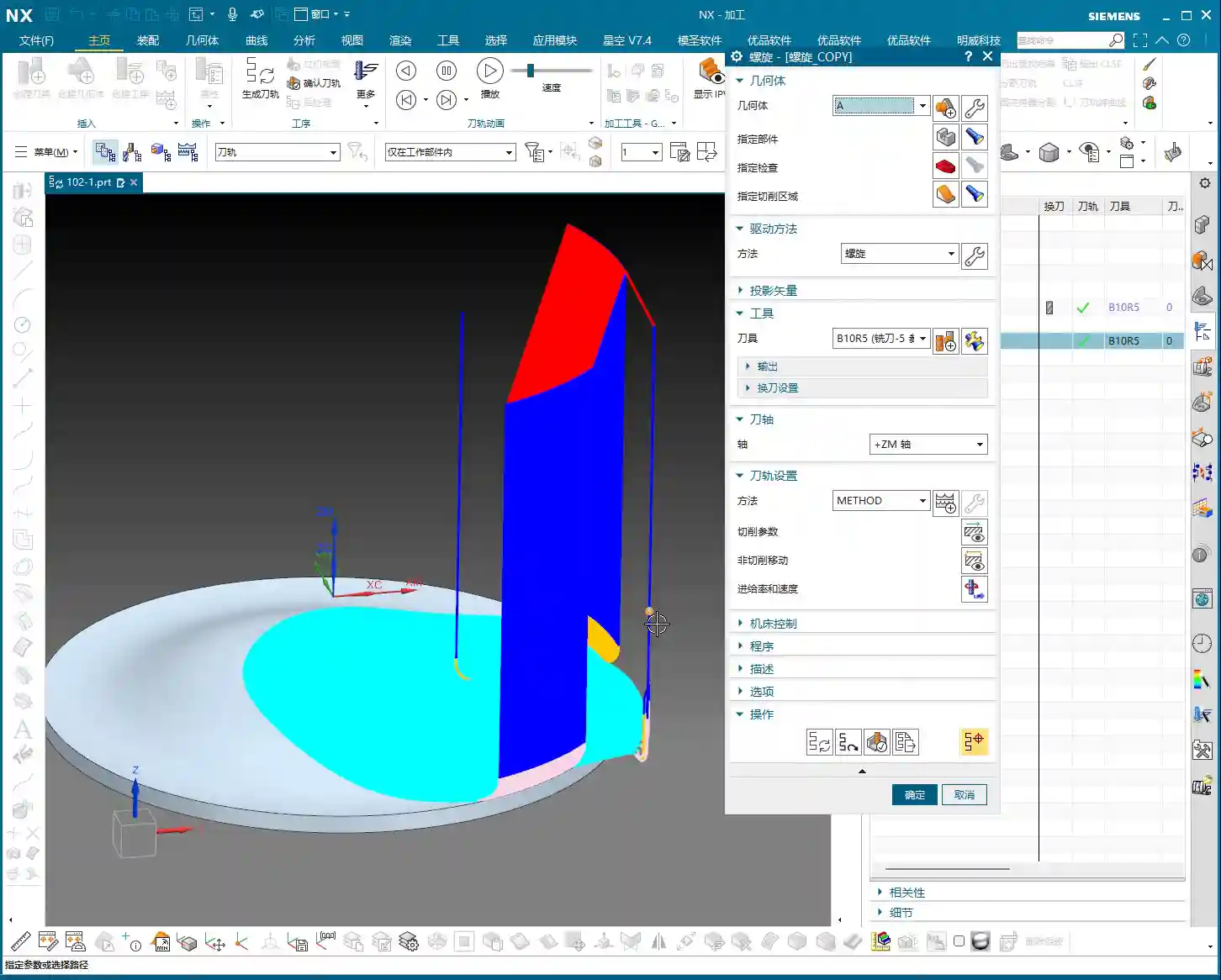
    Customized Spirals with Guiding Curve

    If Cavity Milling still doesn’t satisfy your ultimate requirements for spiral toolpaths, then Guiding Curve is absolutely your ultimate weapon. You can draw your own spiral line to serve as the guiding curve, and then have the tool machine along that specific line.

    Advantages:

    • Full Customization: The spiral’s shape, Stepover, start point, and end point are all completely within your control. Whether it’s a constant pitch, variable pitch, or even localized dense spirals, all can be achieved.
    • Adapts to Complex Surfaces: For exceptionally complex 3D surfaces that require spiral machining along a specific path, Guiding Curve milling is the optimal choice.

    Master Wang’s Take: Using a Guiding Curve to create a spiral—now that’s a move for true experts. You can precisely construct your desired spiral line in the modeling module beforehand, and then directly implement it. The flexibility and precision of this method are unmatched by other commands. Remember, design is machining, and modeling dictates the toolpath.

    Machining Smoothness: A Small Tip for Improving Surface Quality

    Regardless of the spiral machining method, don’t forget to adjust the ‘Smoothness’ parameter, especially when machining parts that demand high surface quality. Applying a slightly higher smoothness value will result in a more fluid toolpath and more uniform cutting marks, naturally leading to a better final surface finish. After all, the parts we produce not only need to meet dimensional requirements but also have to ‘look good’.

    Summary: Pitfall Avoidance Guide

    Alright, Master Wang has thoroughly clarified the ins and outs of this Siemens NX “Spiral” command for you today. In summary, this command is simple in function, highly dependent on circular or quasi-circular faces, and extremely sensitive to the setting of the ‘Maximum Spiral Radius’. Its biggest ‘pitfall’ is the potential to automatically expand outwards, even cutting into unintended areas, or causing unnecessary tool retractions.
    My recommendations are:

    1. Prioritize Cavity Milling or Guiding Curve: In most situations requiring spiral toolpaths, Cavity Milling’s spiral mode or Guiding Curve milling will offer superior control and flexibility, allowing you to define machining paths with greater precision.
    2. Refine the Cutting Area: If you absolutely must use the “Spiral” command, make sure to strictly limit the tool’s machining range by specifying cutting boundaries, or by utilizing auxiliary methods such as sheet bodies or extended faces, to prevent the tool from ‘straying off course’.
    3. Pay Attention to Maximum Spiral Radius: This is a core parameter that determines the toolpath’s coverage area, and it must be set appropriately according to the actual dimensions of the workpiece.
    4. Leverage Smoothness: Don’t underestimate this parameter; it has a direct impact on improving the surface quality of machined parts.

    Remember, machines are static, but people are dynamic. No single command is a panacea, but no command is useless either. The key lies in the depth of your understanding and your ability to apply them flexibly in real-world scenarios. It’s just like our approach to industrial product online promotion: every keyword, every detail, must be thoroughly understood to ensure our excellent products and genuine expertise are steadily placed on search engine homepages, reaching more people who need them!

    👤 About the Author:
    The author is a veteran CNC machining professional with 15 years of industry experience, specializing in UG NX programming. This article is an original work representing personal practical insights.

    ⚠️ Copyright Notice: Unauthorized reproduction or distribution without prior communication is strictly prohibited.

  • Practical Guide to NX Area Milling’s Three Modes: Follow Periphery, Spiral, and Profile Tool Path Op

    📝 Key Takeaways: ** Master Wang provides a practical explanation of the three core modes in NX Area Milling: Follow Periphery, Spiral, and Profile tool paths. He emphasizes critical points for avoiding pitfalls, such as component cleanup with Follow Periphery, finishing passes in Spiral mode, and proper Stepover application in Profile mode. Drawing from his rigorous and down-to-earth experience, Master Wang imparts hardcore NX programming tips—lessons you won’t find in textbooks—on how to optimize tool paths, prevent errors, and enhance machining efficiency and part accuracy. **

    Listen up, lads! It’s your old buddy, Master Wang. Today, we’re diving deeper into the ‘tools’ within NX Area Milling. Don’t let the simple names of these modes fool you; there’s a lot more to them than meets the eye, and textbooks won’t necessarily teach you these nuances. These are all lessons I’ve ground out, one tool at a time, right by the machine!

    Mode One: Follow Periphery – The Corner Cleanup Ace, Circling Around

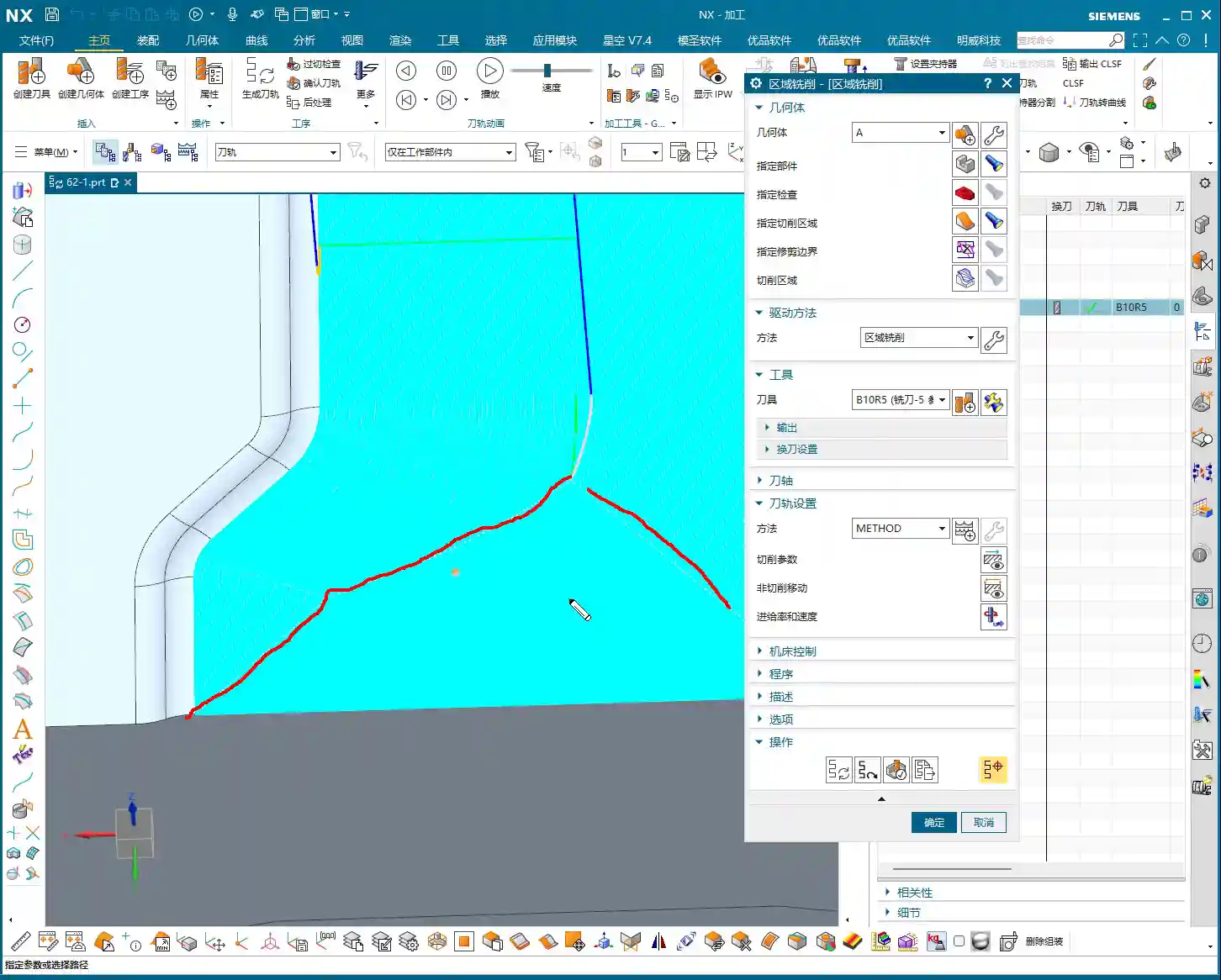
    First, let’s talk about ‘Follow Periphery’. This is one of the most commonly used modes in our area milling operations. How does it work? Simply put, the tool starts from outside your selected machining region and circles inwards, or from inside outwards, like navigating a maze, machining the entire area.

    Region Selection and Default Tool Paths: The Core Principle Remains Constant

    You must first select your machining region. Remember, the tool path will be generated within the region you select. This is a fundamental logic in NX. The default tool paths are usually quite reasonable; NX has some real chops when it comes to automatic planning, so usually, major modifications aren’t needed.

    Follow Periphery: The Finishing Philosophy of Out-to-In Circling

    The characteristic of the ‘Follow Periphery’ mode is that the tool path follows the contour of your workpiece, layer by layer. Circling ‘from outside in,’ the tool continuously adjusts its path according to the shape. In this mode, you’ll observe the tool’s entry and traverse movements. Its advantage is that it handles material excess at the region’s edges exceptionally well, especially for irregular shapes, ensuring a very clean finish.

    Core Logic: This mode is particularly suitable for machining operations that require cleanup starting from the edges, or where edge surface finish is critical, such as leaving a uniform stock allowance during semi-finishing for a subsequent finishing pass, or clearing out corner material.

    Component Cleanup and Non-Cutting Moves: The Critical ‘Final Pass’

    In ‘Follow Periphery,’ there’s an option called ‘Component Cleanup.’ If you check it, NX will perform an additional pass along the workpiece contour at the very end of the machining operation. Don’t underestimate this pass; it thoroughly cleans up any tiny burrs or minute residual material left over from your previous machining. It’s like a machinist’s final scrape, all for that touch of perfection.

    Pitfall to Avoid: Remember, ‘Component Cleanup’ is primarily designed for the ‘Follow Periphery’ mode, and it adds an extra cleanup path *after* the main tool path has finished. In other modes, such as ‘Zigzag,’ this function isn’t available.

    Additionally, with the ‘Smooth’ option, when you enable smoothing for ‘Follow Periphery,’ the tool path becomes smoother, leading to better cutting performance. Also, ‘Tool Path Direction’ can be set to ‘Inward’ or ‘Outward,’ and ‘Climb Milling’ or ‘Conventional Milling.’ These choices depend on your machining requirements and material characteristics. Generally, we use ‘Climb Milling’ to reduce tool wear and achieve a better surface finish.

    Mode Two: Spiral Milling – Continuous ‘Spinning and Traversing’

    Having covered ‘Follow Periphery,’ let’s now look at ‘Spiral.’ This mode bears some resemblance to ‘Follow Periphery,’ but fundamentally, they’re entirely different. The ‘Spiral’ mode strives for one thing: continuity!

    Spiral Mode: The Efficiency Advantage of Continuous Cutting

    ‘Spiral’ means the tool continuously cuts in circles downwards or outwards. The tool path is continuous, with virtually no retracts or rapid moves in between. It’s unlike ‘Follow Periphery,’ which sometimes requires the tool to retract and re-engage due to changes in shape.

    Core Logic: This characteristic of continuous cutting makes ‘Spiral’ mode extremely efficient when machining flats, circular, or nearly circular pockets, significantly reducing idle tool time. Time is money, and that truth hits even harder on the shop floor!

    You can also choose ‘Inward’ or ‘Outward’ spiral, depending on your machining strategy. For instance, expanding from the center outwards, or contracting from the outside inwards.

    Include Finishing Pass: Control Over Start and End Details

    In ‘Spiral’ mode, there’s a crucial option called ‘Include Finishing Pass’. Below it, you’ll find two sub-options: ‘Start’ and ‘End.’ What do these mean?

    If you check ‘Start,’ NX will add an extra pass around the periphery of your machining region *before* the spiral operation begins, serving as an initial cleanup. If you check ‘End,’ then *after* the spiral machining concludes, it will also add another pass along the region boundary for final trimming.

    Practical Tip: Why add these two passes? Because while spiral tool paths are continuous, at the actual start and end points, the tool’s cutting conditions might subtly change, or there might be minute residual material at the starting position. These two passes ensure that both the start and end boundaries of the entire region are thoroughly cleaned, resulting in better part surface finish and guaranteed accuracy.

    Especially during finishing passes, these two passes are crucial; they effectively compensate for any ‘imperfections’ that spiral machining might leave at the beginning or end.

    Mode Three: Profile Milling – The Boundary Line ‘Patrolman’

    Lastly, let’s talk about ‘Profile’ mode. This mode isn’t as ‘all-encompassing’ as the first two; it’s a ‘point-to-point’ precision strike.

    Profile Mode: The Faithful Follower of Boundary Lines

    As the name suggests, ‘Profile’ mode guides the tool along the selected geometric contour lines; it only follows lines, it doesn’t machine surfaces. For example, if you select a curve, it will make a single pass along that curve; if you select the outer edge of a face, it will circle along that outer edge.

    Pitfall to Avoid: Here’s a common point of trouble, which was also the mystery behind that error in the previous video. When you’re in ‘Profile’ mode, and you select an entire face as the machining region, *and* the ‘Stepover Application Method’ is set to ‘On Part,’ NX will throw an error. That’s because it thinks: you’ve selected a face, but you only want it to follow the profile, and you also want the Stepover to be based on the part – that logic is conflicting!

    Solution: If you encounter this error, either diligently select the ‘profile curves’ you want to machine, rather than the entire face. Or, change the ‘Stepover Application Method’ to ‘On Plane’ or simply set it to ‘None,’ allowing it to merely follow the face’s boundary. Remember, an error isn’t a bug; it’s NX telling you its ‘thoughts’!

    Offset Application: Flexible Extension of Profile Machining

    Although ‘Profile’ mode only follows lines, it’s not entirely ‘rigid’. You can make it more dynamic using the ‘Offset’ function. For instance, if you set an ‘Offset Value,’ the tool will use your selected contour line as a reference and offset inwards or outwards by a certain distance, then perform one or even multiple passes.

    Practical Tip: This ‘Offset’ function is particularly useful for finishing side walls, clearing narrow grooves, or chamfering specific boss shapes. For example, if you want to offset an outer contour inwards by 0.5mm, simply set the offset distance. You can even offset the line first to generate a new curve, then have ‘Profile’ mode machine this new curve. Using it flexibly can save you a lot of trouble!

    Summary: Pitfall Avoidance Guide

    Lads, take my advice: no matter how much theory you know, you still have to figure things out through practice. None of these NX modes are ‘one-size-fits-all’; there’s only the ‘most suitable’ one.

    • Follow Periphery: Suitable for cleaning regions from outside-in or inside-out, with advantages for boundary cleanup. Don’t forget to use it with ‘Component Cleanup’—that’s a critical pass for improving surface finish.
    • Spiral: Aims for continuous cutting, high efficiency, and reduced idle tool time. It’s the preferred choice for large flat areas or pockets. But remember to check the ‘Start’ and ‘End’ sub-options under ‘Include Finishing Pass’ to ensure the quality of the machined edges.
    • Profile: Strictly machines along lines, offering high precision. The biggest pitfall is that when you select a face as the machining region, the ‘Stepover Application Method’ cannot be set to ‘On Part’; you must select ‘On Plane’ or directly choose the boundary curves. If you absolutely need to extend the cutting region, make good use of its ‘Offset’ function.

    These little details in NX are crucial in actual machining, determining your efficiency and accuracy. Don’t just stare at the generated tool path; think more about why it moves that way, why it throws an error, and then try to solve it. That’s real skill! Alright, that’s it for today. Next time, we’ll talk about something else.

    👤 About the Author:
    The author is a veteran CNC machining professional with 15 years of industry experience, specializing in UG NX programming. This article is an original work representing personal practical insights.

    ⚠️ Copyright Notice: Unauthorized reproduction or distribution without prior communication is strictly prohibited.

  • Siemens NX Contour Spiral Milling In-Depth Analysis: From Closed Paths to Collision-Free Retraction,

    📝 Key Takeaways: **

    Siemens NX Contour Spiral Milling: A Practical Guide

    Listen up, fellas! I’m Master Wang. Today, we’re diving into contour spiral milling…

    Listen up, fellas! I’m Master Wang. Today, we’re diving into contour spiral milling in Siemens NX. This feature gets a lot of use on the shop floor. Don’t let its similar interface to standard plane contour milling fool you; the real intricacies aren’t always clear in textbooks. With 15 years of hands-on experience, I can tell you: use spiral milling right, and you’ll double your efficiency; mess it up, and you’ll be dealing with **tool rubbing**, scrapped parts, and more!

    Contour Spiral Milling: Practical Fundamentals

    Within plane contour milling, there’s a function called “Contour Spiral.” Simply put, it’s for **spiral milling**. While it looks quite similar to conventional plane contour milling, its core requirements and application scenarios are distinctly different.

    Core Concept: Spiral Machining and Closed Contours

    First, remember this: the core requirement for spiral machining is that the machining contour must be closed! Just like drilling or pocket milling, you need to define a complete boundary. If you select only a single line, an open corner, or even an unclosed contour, spiral machining will fail. The program might generate toolpaths, but running it on the machine will certainly lead to issues because the tool won’t know where to **stepdown** spirally and might wander erratically. External contours, as long as they are fully closed, can also be processed with spiral milling.

    Siemens NX Operation Path and Interface

    Head directly to “Insert” -> “Operation” to find “Contour Spiral.” Once you click in, you’ll notice its main interface is almost identical to plane contour milling, with mostly similar parameter options. But don’t be fooled by appearances; subtle adjustments here determine machining quality and efficiency.

    Workpiece Measurement and Tool Selection

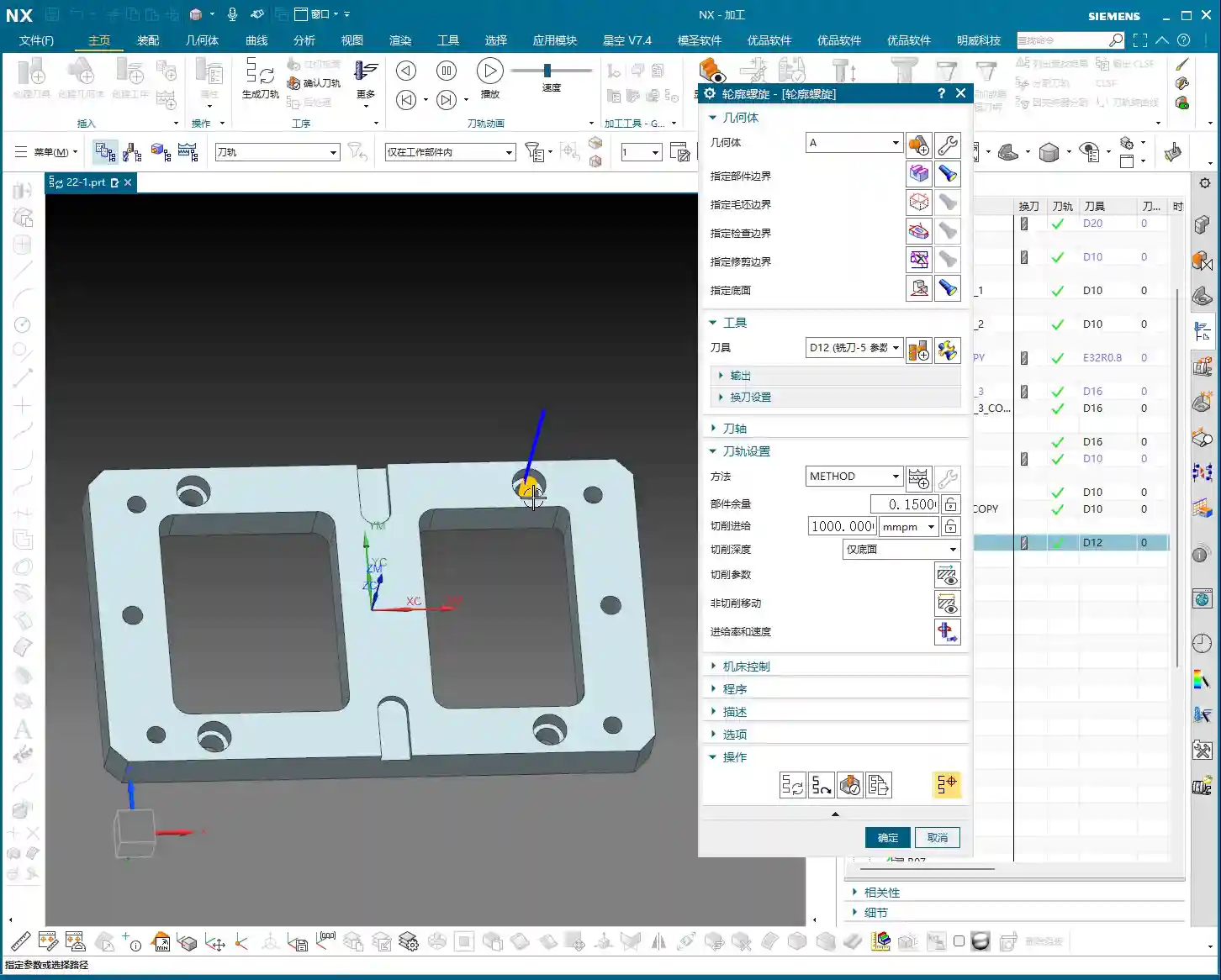
    Let’s say we need to machine a 20mm diameter hole (10mm radius). Tool selection here requires careful consideration. If you use a D12 end mill, it can efficiently mill out the hole within a single spiral path. This isn’t random tool selection; it must be based on the hole diameter and stock allowance to ensure the tool can cut effectively, not just picking a small tool for easier path generation.

    The Secret of “Yellow Line Spiral”

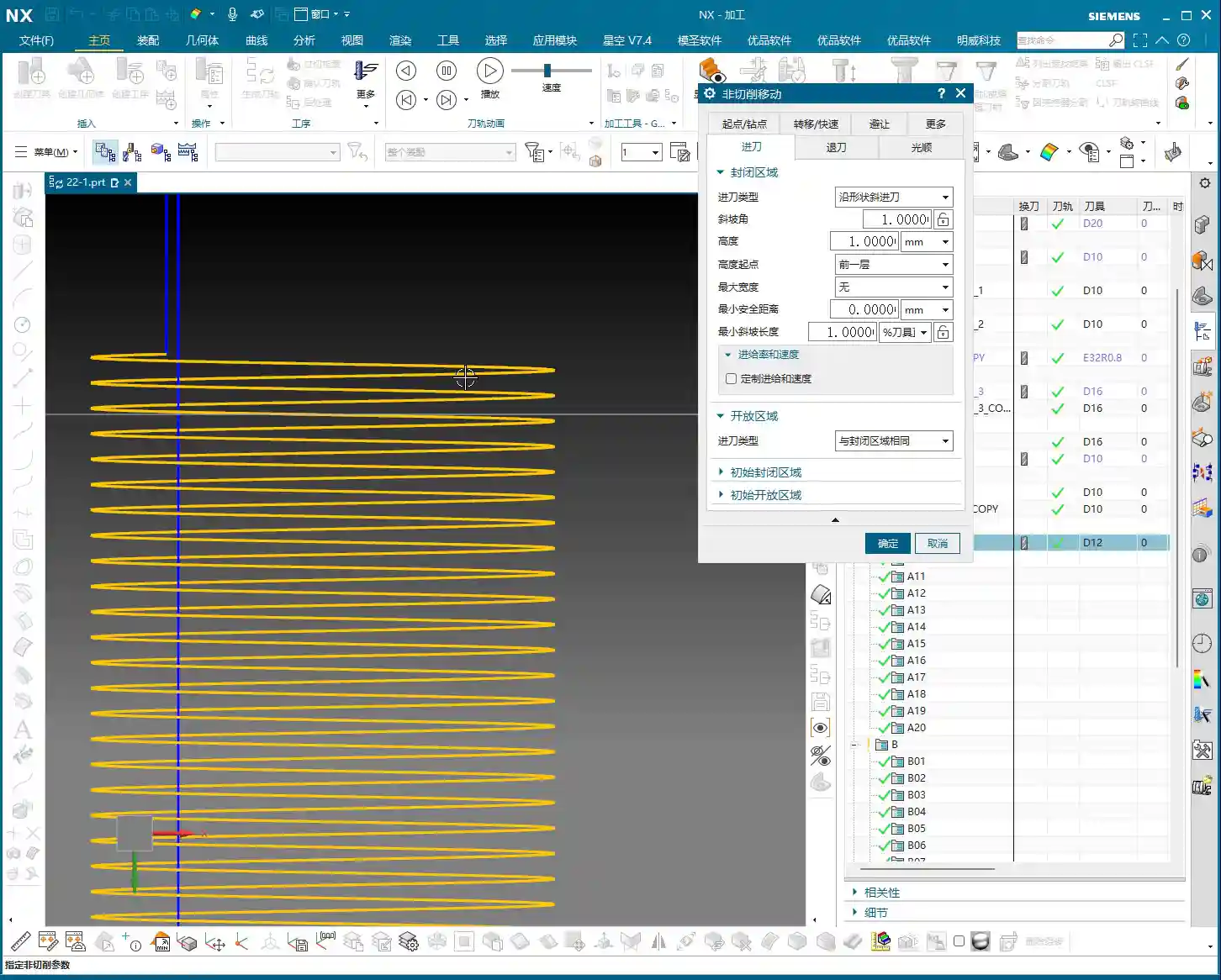
    After program generation, you’ll see the toolpath simulation in Siemens NX, primarily composed of “yellow lines.” In Siemens NX, these yellow lines represent engaged cutting paths, meaning the tool is continuously cutting, moving spirally downwards, inwards, or outwards until it reaches the set **depth of cut**. This is somewhat similar to dynamic milling, both aiming to ensure continuous tool engagement, reduce air cuts, and boost efficiency.

    Key Parameter Tuning and Optimization

    The essence of spiral milling lies in the precise tuning of several key parameters. If these aren’t set correctly, you’ll face low efficiency at best, and scrap your workpiece at worst.

    The Art of the Ramp Angle

    In the “Non-Cutting Moves” options, there’s a crucial parameter called “Ramp Angle”. This angle dictates the aggressiveness of the tool’s spiral **stepdown**.
    * A larger Ramp Angle means greater axial material removal per pass (higher effective **Depth of Cut**). Theoretically, machining speed is faster, but cutting load is also higher, leading to quicker tool wear or even chipping.
    * A smaller Ramp Angle means less axial material removal per pass, resulting in a denser machining path, smoother cutting, and better surface quality, but it also takes longer.
    In practice, you need to adjust this flexibly based on material hardness, tool type, and workpiece precision requirements. For example, for contours with long perimeters, you should set a smaller **Ramp Angle**, such as 0.1 degrees, to ensure reasonable axial material removal per pass and stable cutting.

    Ramp Length and Tool Matching

    Another easily overlooked detail is “Ramp Length.”
    * If you’re using a solid carbide end mill (without inserts), setting a small ramp length, even 1%, is usually fine because its entire cutting edge can engage.
    * However, if you’re using an indexable insert tool, pay close attention! The bottom of the insert is non-cutting. If the ramp length is too small, the insert bottom can easily rub against the workpiece, causing friction and **chatter**. At best, this damages the tool; at worst, it causes chipping or even scraps the workpiece. In such cases, I usually recommend setting the ramp length to 50% of the tool diameter. If Siemens NX prompts that the program cannot be generated, it means your parameters are unreasonable, and the tool is highly likely to **rub** or **gouge** the material.

    Efficiency Secret for Multi-Hole Machining

    If you encounter multiple identical holes requiring spiral machining, don’t be foolish and create a program for each one individually. Siemens NX has a solution:
    1. Go into the “Part Boundaries” option.
    2. Select “Add New Geometries.”
    3. Change the selection type from “Face” to “Curve”.
    4. Then, sequentially select the inner contour curves of all holes that need machining.
    5. Click the middle mouse button to confirm, then click “OK” to generate the toolpath.
    This way, one program handles all holes, saving time and effort—that’s how we achieve efficiency!

    Scope of Application: More Than Just Round Holes

    Don’t assume spiral machining is only for milling round holes. As long as it’s a closed geometric shape, whether square, triangular, or even an irregular contour, you can use contour spiral machining. The key is:
    * It must be closed! If your contour is originally open but you want to use spiral machining, you’ll need to manually “extend” it to form a closed path. This prevents the tool from “air cutting” and ensures it quickly completes the extended portion.

    Summary: Pitfall Avoidance Guide

    Alright, here are the crucial points, learned through hard lessons:

    1. The contour must be closed! This is the foundation of spiral machining; misunderstand this, and you’re asking for trouble.
    2. Beware of spiral retract collision! This is the most common and dangerous pitfall. Especially when machining through holes, as the tool reaches the final **Depth of Cut**, the central slug (waste material) might drop. If the tool retracts along an arc (default setting), it will swing sideways. If the falling slug hasn’t fully detached, it could collide with the retracting tool! The result: tool chipping, scrapped workpiece, or even machine damage.
    * **Solution:** Always check the retract type in “Non-Cutting Moves.” Change the default “Arc Retract” to “Lift” (vertical retract). This way, after completing the cut, the tool will lift straight up vertically, avoiding potential falling slugs. Safety first! I usually set a 3mm lift; that’s generally sufficient.
    3. Ramp length must match the tool type! For indexable insert tools, provide sufficient ramp length (e.g., 50%); for solid carbide or custom-ground tools, it can be smaller.
    4. Adjust ramp angle according to contour perimeter! The longer the contour, the smaller the ramp angle should be to ensure stable cutting.
    5. Be flexible with stock allowance settings! While spiral machining is typically for **roughing**, if you aim for high precision or need to leave stock for a subsequent **finishing pass**, you must precisely set the stock allowance parameters. Don’t assume it’s **roughing** and completely omit stock, unless you’re sure a single pass is sufficient and meets precision requirements. This depends on your actual workpiece requirements and subsequent operations.

    Remember these points, and spend time observing the cutting sparks at the machine, not just relying on software simulations—practice makes perfect!

    👤 About the Author:
    The author is a veteran CNC machining professional with 15 years of industry experience, specializing in UG NX programming. This article is an original work representing personal practical insights.

    ⚠️ Copyright Notice: Unauthorized reproduction or distribution without prior communication is strictly prohibited.