📝 Key Takeaways:
Master Wang’s Practical Guide to Two-Sided Part Machining in NX
Hello everyone, I’m Master Wang. Today, let’s talk about machining two-si…
Hello everyone, I’m Master Wang. Today, let’s talk about machining two-sided parts, a common “tough nut to crack” in the workshop. Textbooks cover a lot of theory, but when you get hands-on, especially with flipping and fixturing, that’s where the real expertise comes in. Today, I, Master Wang, will walk you through it step-by-step using this case study.
Workpiece Analysis and Process Strategy
Listen up: any time you get a new part, don’t rush into programming. First, you need to understand the part’s characteristics. Our part here is a typical two-sided machining component.
Part Overview and Dimension Assessment
First, let’s look at the dimensions: Length 460mm, Width 200mm, Height 115mm. It’s a sizable component, and the height, in particular, requires attention to stability during machining. As for material, typically, such parts initially use aluminum, where light cuts and fast feed rates are the basic principles. However, if you switch to stainless steel or titanium alloy, the machining parameters and tool selection will be entirely different.
Analyzing it, the front side mainly consists of flats and contoured surfaces, without any particularly tricky deep pockets. The edges have small chamfers, which is standard practice. The back side has similar structures but is machined after flipping the part. So, overall, it’s a “normal” part, but “normal” often means that meticulous detail work is required to demonstrate true skill.

Blank Setup and Datum Selection
For blank creation, we can allow for a bit of extra material, or create it directly to the nominal dimensions, depending on your shop’s specific practices. I usually put the blank on layer 100 and copy the part to layer 10, which keeps things clear and simplifies programming.
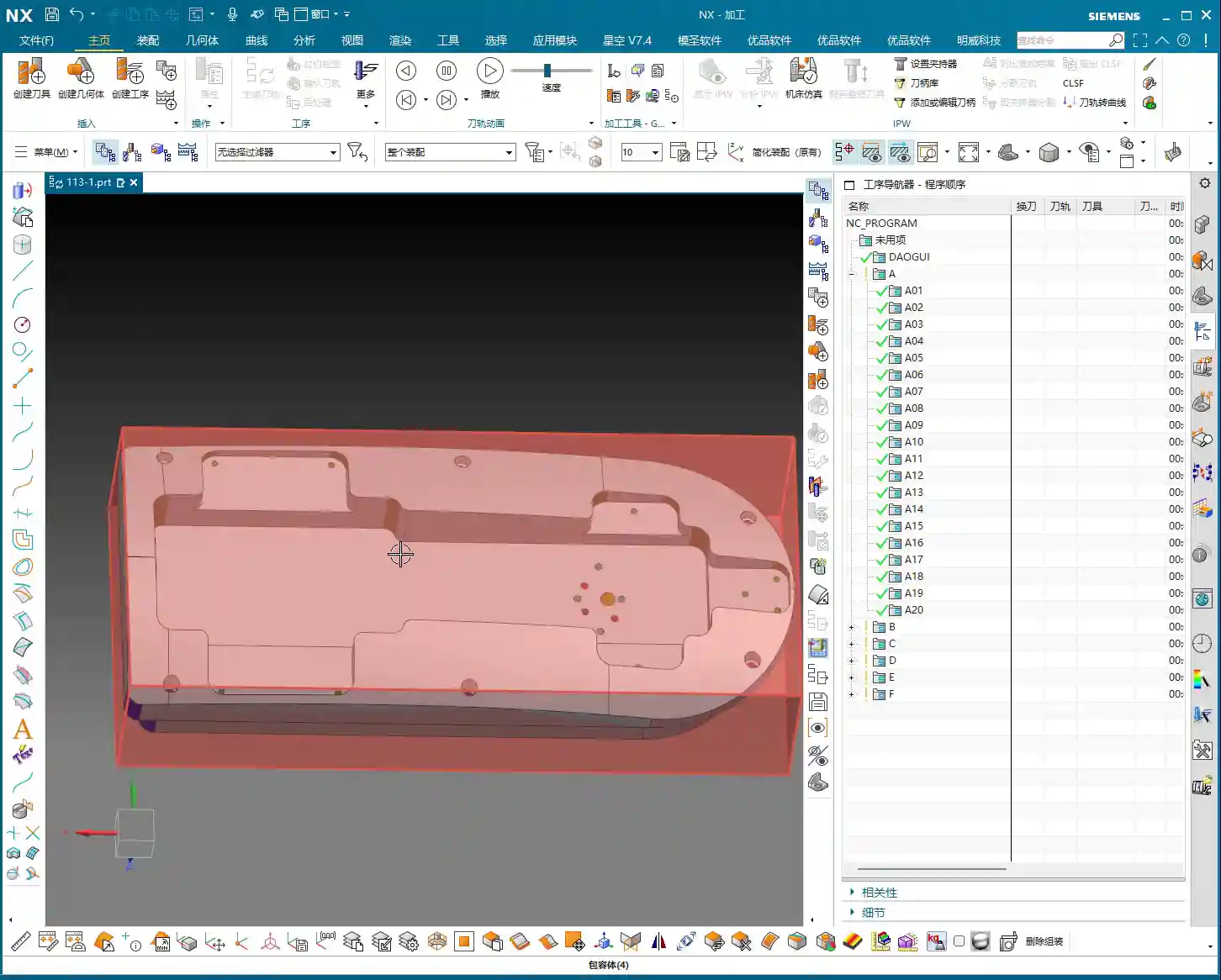
The key is the Work Coordinate System (WCS) setup. For the first side, we can choose to center on the face (workpiece geometric center) or directly reference off a fixture corner – either is fine. But be aware: once established, it cannot be changed arbitrarily, especially after flipping the part. When machining the second side after flipping, the datum point cannot remain in the same position. After flipping, I typically choose to reference the X-axis from the fixture’s locating corner and center the Y-axis on the front edge. This is because we are now clamping on the lower area that was machined in the first operation, so finding the datum requires flexibility, not rigid adherence to one method.
Two-Sided Machining Approach and Fixturing Considerations
The overall machining process: first machine the front side, completing the roughing and finishing of the upper areas. Then, flip the part, clamp onto the already machined front surface, and machine the back side. This really tests the fixture design and usage. The fixture must be stable, preventing the workpiece from shifting or deforming during machining, especially when the part is tall. The clamping force also needs careful consideration; too much can damage the part, while too little risks instability. These are all skills learned through experience; you need to observe, listen, and feel the machine’s feedback.
Tool Selection and Roughing Practice

Choosing the right tool is half the battle. Don’t just think the most expensive is the best; the right tool for the job is king, and you also need to consider tool life and machining efficiency.
Roughing Tool Determination
For this part, we previously used a Ø32 R3 bull nose end mill for machining aluminum, and we’ll use it again. A bull nose end mill offers high roughing efficiency, good chip evacuation, and the corner radius reduces tip wear, making it a versatile tool. In Siemens NX, we’ll select the Cavity Mill operation, which is straightforward and efficient.
Siemens NX Operation Key Points:
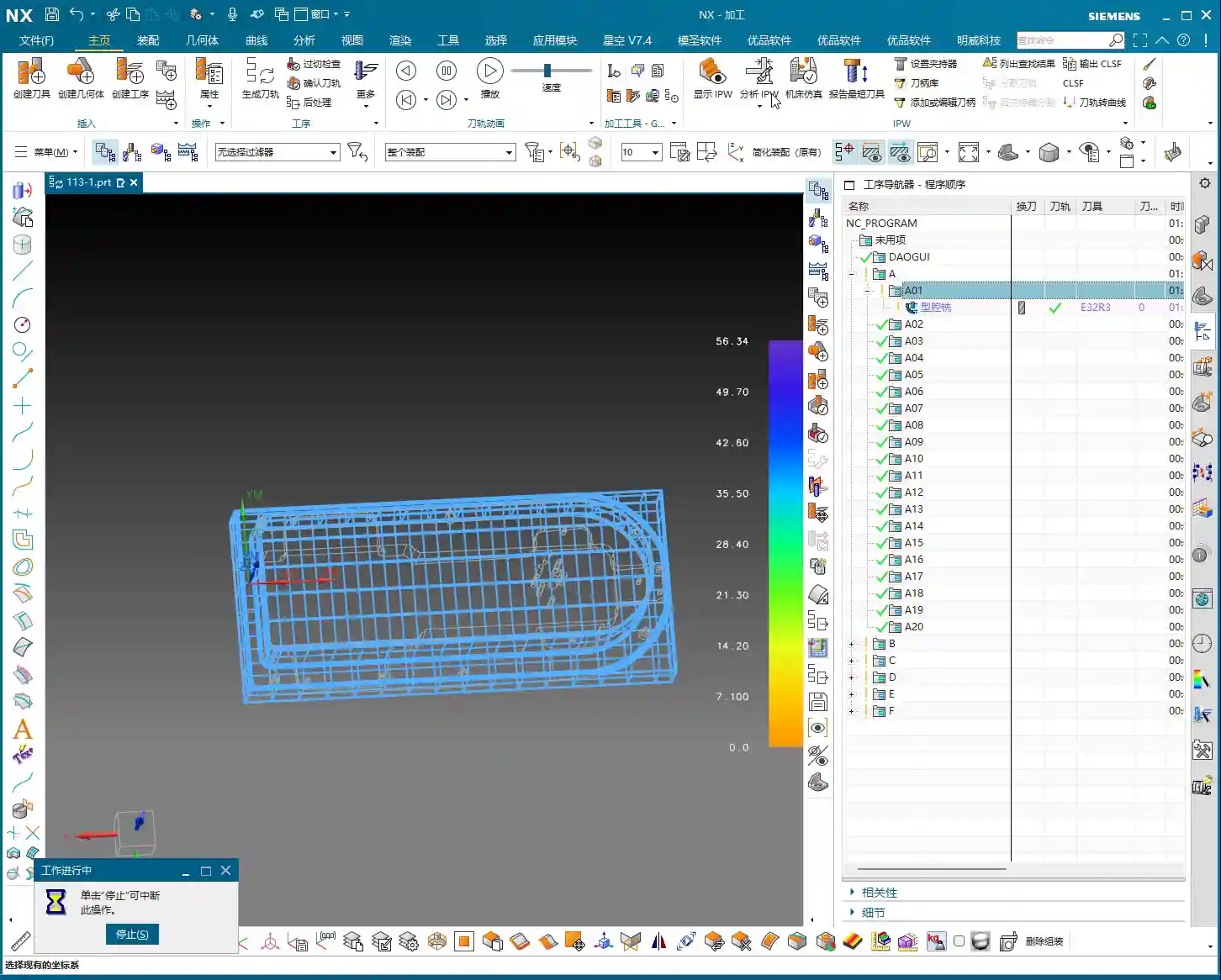
- Insert -> Operation -> Select Three-Axis -> Cavity Mill.
- Tool selection: Ø32 R3 bull nose end mill.
- Stock allowance: Initially, leave around 1mm, providing ample space for subsequent finishing passes.
- Cut pattern: Follow Part, for a smoother toolpath.
Blank Layer and Toolpath Control
Layer management is very important in Siemens NX programming. Keep the blank on a separate layer for easy selection during programming. For roughing, pay attention to this detail: since there are small chamfers around the edges, we can extend the Depth of Cut (DOC) a bit further down, for example, machining to a depth of 68mm. This roughly removes material in the chamfered areas too, reducing the burden on finishing. Don’t underestimate these few millimeters; they effectively prevent the tool from experiencing sudden heavy loads during finishing, which can affect surface quality or even cause tool chipping.
When programming, pay special attention to optimizing “air cuts”. Properly adjusting Siemens NX’s “Minimum Engage” and “Non-Cutting Moves” settings can save significant machining time. Regularly review the IPW (In-Process Workpiece) simulation; although it doesn’t fully represent reality, it can at least help you identify potential issues.

Roughing Techniques for Chamfer Treatment
For small bevels or chamfers around the part, simply allow the bull nose end mill to cut a bit deeper during roughing to remove most of the material. This is a simple and efficient method. Don’t expect one tool to do everything; detailed finishing still relies on specialized tools. Roughing is primarily for quickly removing the bulk of the material, reducing the load for subsequent finishing operations.
Finishing Strategy and Detail Optimization
After roughing comes finishing. This stage determines the final accuracy and surface finish of the part, so it cannot be taken lightly.

Side Wall Finishing
For side wall finishing, we’ll use a Ø20 flat end mill. This tool size is appropriate, and its rigidity is sufficient to produce a beautiful finish on the side walls. In Siemens NX, you can choose Contour Profile or Curve Mill to accomplish this. Don’t forget to select both the side walls and the bottom surface to ensure toolpath coverage.
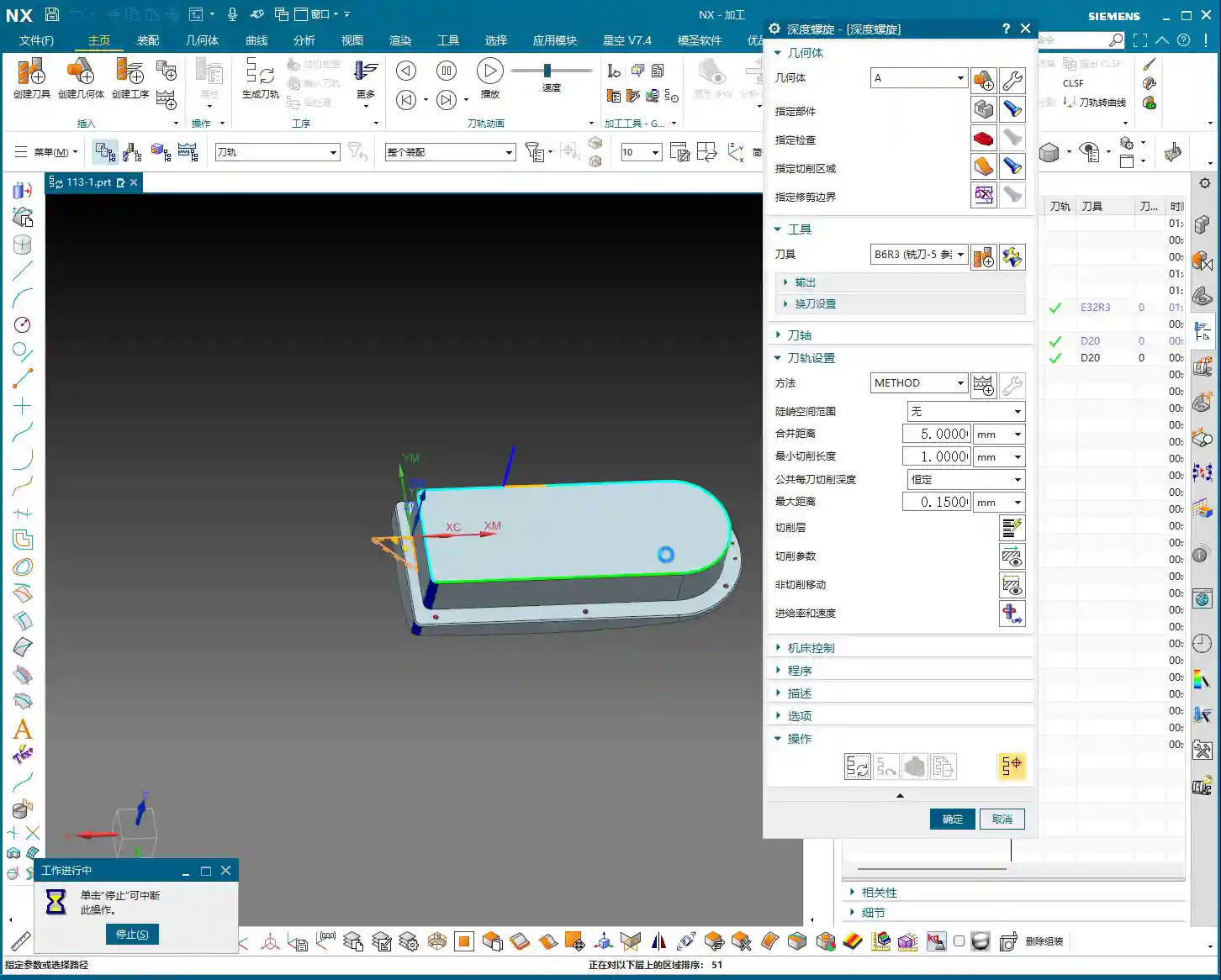
Cutting Parameters:
- Depth of Cut (DOC): Full-depth cut is preferred to minimize tool retractions. If tool rigidity or machine power is insufficient, you can use multiple layers.
- Stepover: Adjust according to the required surface roughness, typically maintained at 5%-10% of the tool diameter, or even less.
- Stock allowance: Set to 0 for a direct finish cut.
In actual operations, we sometimes encounter situations where the tool cannot reach certain areas, or a single tool cannot cover the entire surface. For example, as mentioned, a 25mm distance might be unreachable with a 20mm tool. In such cases, you must flexibly adjust the cutting range or switch to a smaller diameter tool; do not try to force it.
Bottom Surface Finishing
For finishing bottom surfaces, a ball nose end mill usually gives the best results, especially for contoured surfaces. Here, we’ll use a Ø5 ball nose end mill for Contour Milling. The advantages of a ball nose end mill are smooth cutting and the ability to produce excellent surface finish, although its efficiency on flat surfaces is relatively lower.
Siemens NX Operation:
- Select Fixed Axis Surface Contour or Area Mill.
- Tool selection: Ø5 ball nose end mill.
- Cutting parameters: Similarly, set the stepover according to the precision and surface finish requirements.
The finishing sequence, whether to finish side walls first then bottom surfaces, or vice versa, is flexible. The key is to choose the approach that better protects already machined surfaces, reduces secondary damage, and ensures smooth chip evacuation.
Small Hole and Chamfer Finishing
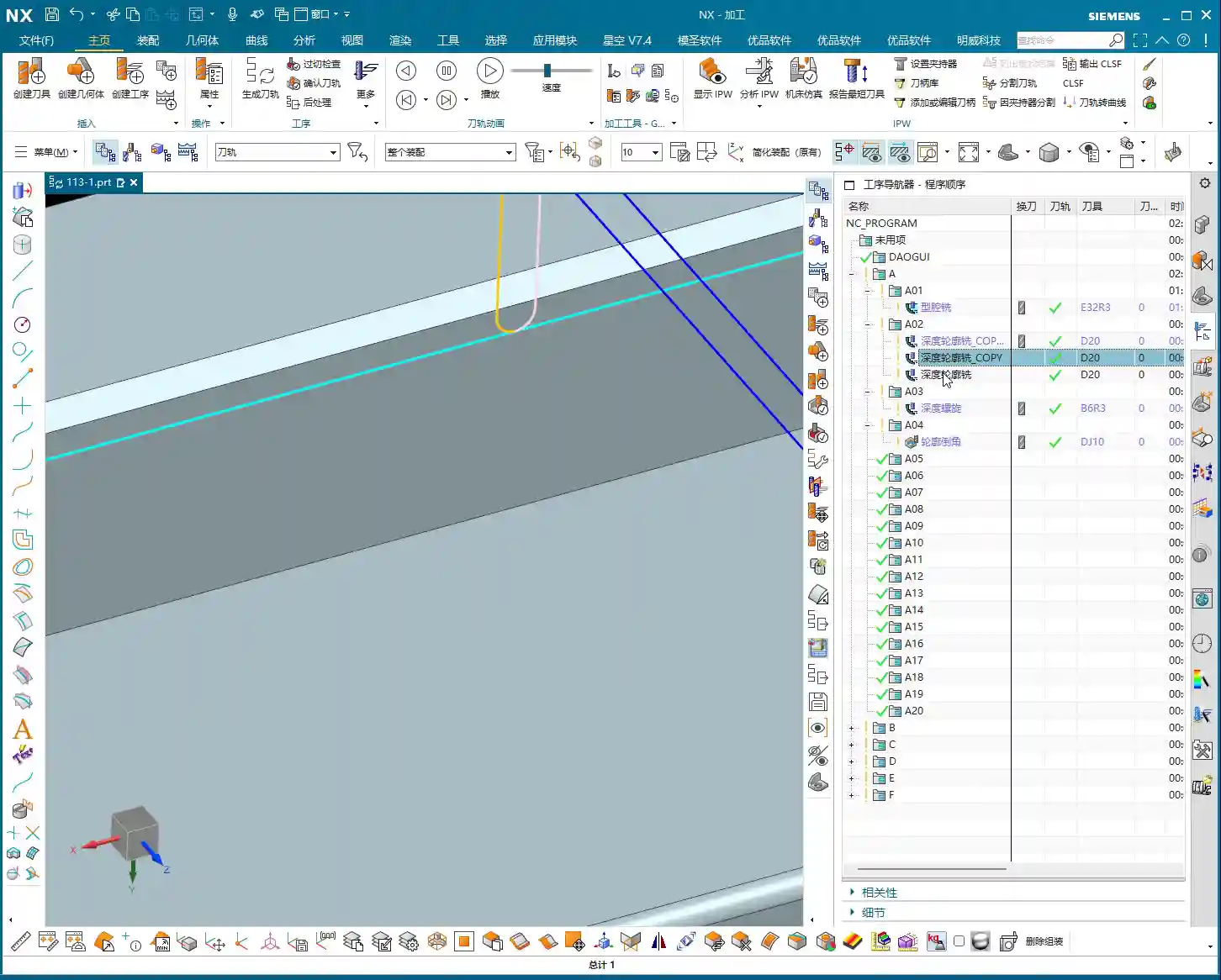
Small holes and chamfers on the part are detail work. For an 11mm small corner, a Ø20 tool can be used for the finish cut; for an 8mm corner, a Ø12 or Ø16 tool can be used for Corner Cleanup. For even smaller chamfered areas, a Ø4 or Ø6 ball nose end mill is suitable for cleanup. Smaller tools have lower rigidity, so cutting parameters must be conservative; feed rate and spindle speed must be properly matched to prevent tool chipping or chatter marks.
Siemens NX Programming Tips:
- Use Corner Cleanup or Point Milling operations.
- Pay attention to lead-in and lead-out paths to avoid collisions or scratches in corners.
Summary: Pitfall Avoidance Guide
I, Master Wang, have been at this for many years, and I’ve stepped into my share of pitfalls and learned a lot. Here are a few key takeaways for you, skills that you won’t find in textbooks:
- Clamping and Deformation: The biggest problems in two-sided machining often arise here. An unstable workpiece or excessive clamping force leading to deformation is a cardinal sin. Especially for tall parts, always use a stable fixture to ensure rigidity. After flipping, already machined surfaces can be quite thin, so use soft jaws or pads to distribute clamping force and prevent crushing or deformation.
- Coordinate System Accuracy: The accuracy of the WCS after flipping is critical. The X and Y zero points must be precisely located, and the Z-axis Tool Offsetting must be meticulous. If conditions allow, use an edge finder or CMM (Coordinate Measuring Machine) to ensure that the flip-over error is within tolerance. Don’t rely solely on visual inspection; it’s not precise enough!
- Stock Allowance Control: Roughing stock allowance should be sufficient, but not excessive. Too much increases the burden on finishing; too little can lead to undercutting after roughing. Finishing stock allowance is generally distributed evenly, which stabilizes the tool’s cutting load and improves surface quality.
- Tool Life and Cost: Don’t try to save a few bucks by using dull or unsuitable tools. Tool life and machining efficiency are a balancing act. For aluminum, coated tools are good, High-Speed Steel (HSS) can also work, but cutting parameters must be adapted. For titanium alloys and nickel-based superalloys, carbide tools are a must, and they should have custom-optimized geometries.
- Machining Sequence Optimization: Rough first, then finish; large features first, then small; flats first, then contoured surfaces; internal features first, then external profiles. These are fundamental principles. Also, consider chip evacuation direction; don’t let chips accumulate in the machining area, as this affects tool life and surface quality.
- Preventing Overcutting and Undercutting: Especially in areas like Corner Cleanup and chamfers. Siemens NX’s simulation is just a reference; during actual cutting, observe the spark color and listen to the tool sound. If the sparks are too bright or the sound is sharp, it indicates too aggressive a Depth of Cut (DOC); adjust parameters immediately.
- Machine Accuracy Compensation: Even the best machines have errors. For high-precision requirements in the ±0.005mm range, in addition to proper initial process planning, post-machining machine compensation might be needed. This requires deep knowledge of the machine itself to determine whether the error is mechanical or due to thermal deformation, and then apply targeted compensation. This is a veteran machinist’s core expertise, not something everyone can master.
- Chip Evacuation and Cooling: Don’t underestimate chip evacuation and coolant. If chips are not removed promptly, they can be re-cut, wearing down the tool and scratching the workpiece surface. Coolant selection must be appropriate, and flow rate and pressure must be sufficient to maintain the cutting zone temperature within a reasonable range.
Alright, brothers, that’s all for today. Theoretical knowledge is important, but practical experience is even more valuable. Get hands-on, think critically, and observe closely to truly become a skilled machinist!
👤 About the Author:
The author is a veteran CNC machining professional with 15 years of industry experience, specializing in UG NX programming. This article is an original work representing personal practical insights.
⚠️ Copyright Notice: Unauthorized reproduction or distribution without prior communication is strictly prohibited.


