📝 Key Takeaways: Master Wang will guide you step-by-step through programming complex sloped parts in Siemens NX. From part geometry analysis, WORKPIECE setup, and precise tool selection to Roughing, Rest Machining, and Finishing pass toolpath optimization, we’ll reveal practical techniques not found in textbooks. Focus on tackling R-radius rest material challenges on sloped surfaces, meticulously explaining lead-in/lead-out strategies to boost your machining efficiency, cut costs, and move beyond arbitrary programming!
Initial Part Exploration and Strategy Formulation: Avoiding the “Academic” Approach
Part Geometry and Material Characteristics
Alright, folks, listen up! When you get a new part, you can’t just glance at it and start working. First, you need to examine it thoroughly, inside and out, top to bottom, just like I do. This particular part is small, roughly 75x45mm, with a thickness of only 10 to 17mm. It’s a small component, so it requires extra care during machining.
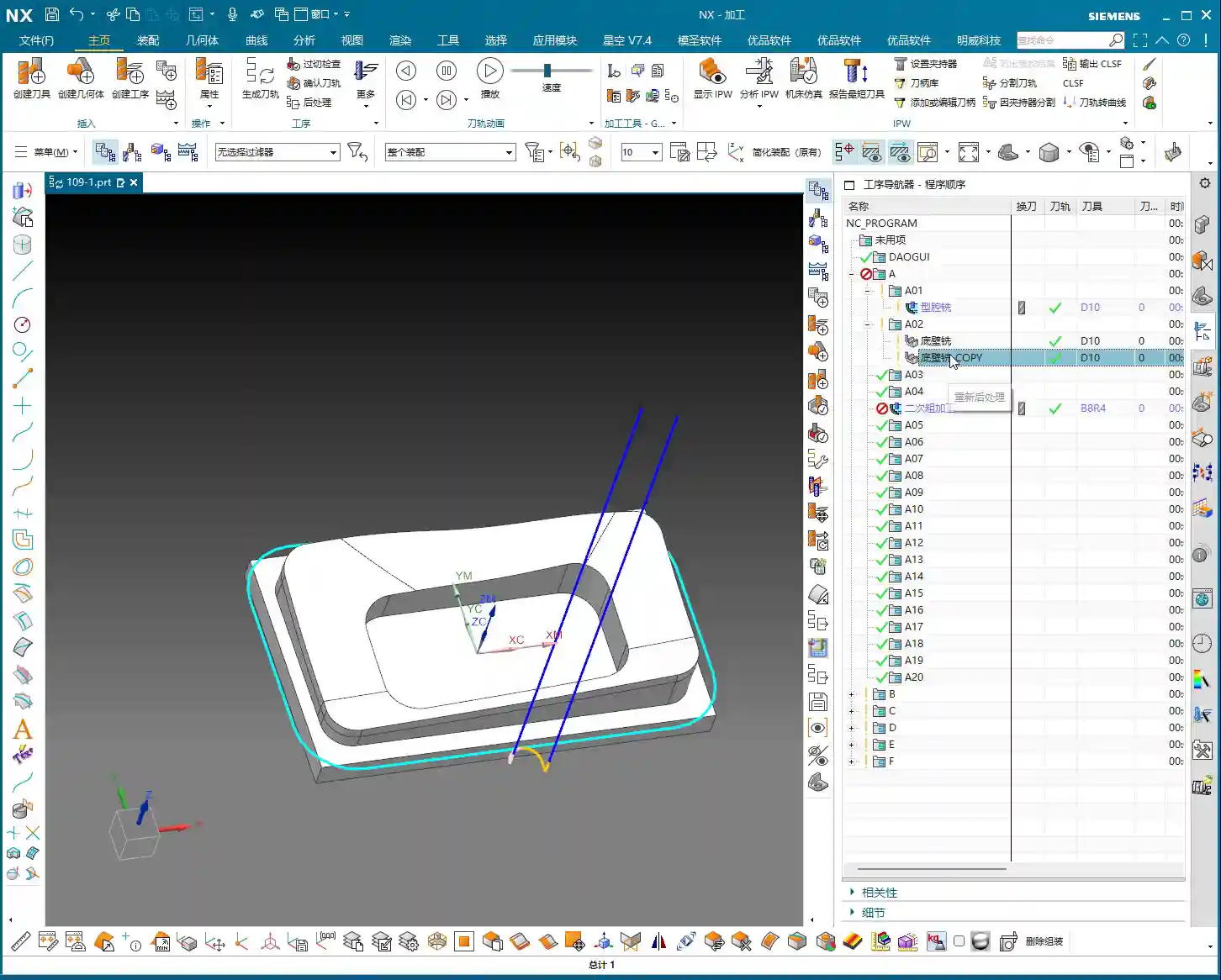
Let’s start by taking a look using Siemens NX’s Slope Analysis function. This feature is truly invaluable; it can pinpoint those sloped surfaces that might look like simple chamfers to the naked eye but are actually much more complex. See, looking from above, these blue faces are clearly sloped, not just simple chamfers! The bottom, however, is a flat green surface. If you treat these sloped faces as ordinary chamfers, you’re setting yourself up for trouble.
Also, the R-radius on the part is an obvious R6 fillet. Such small R-radii are a key focus for subsequent Finishing passes; mishandling them will result in rest material.
As for the material, although it’s not explicitly stated in the video, we need to consider it. If it were a difficult-to-machine material like titanium alloy or high-temperature nickel-based alloy, then cutting parameters, tool coatings, and cooling methods would all need to be re-evaluated. But for today, let’s assume it’s standard aluminum or common steel, ensuring our process flow is sound first.
Roughing Process Route and Initial Tool Selection
For a small part like this, with sloped surfaces and R-radii, our approach needs to be clear:
1. **Roughing:** Prioritize using a flat end mill to remove the bulk of the material. The tool size must match the part’s dimensions; tools that are too large won’t fit into small areas, and small tools will be inefficient.
2. **Rest Machining:** For the rest material left after Roughing, especially in R-radius and sloped areas, we need to use a ball end mill or a corner radius end mill for Corner Cleanup.
3. **Finishing Pass:** Use a ball end mill or a suitable finishing end mill again, with a smaller Stepover and finer parameters, to achieve the required surface finish and accuracy.
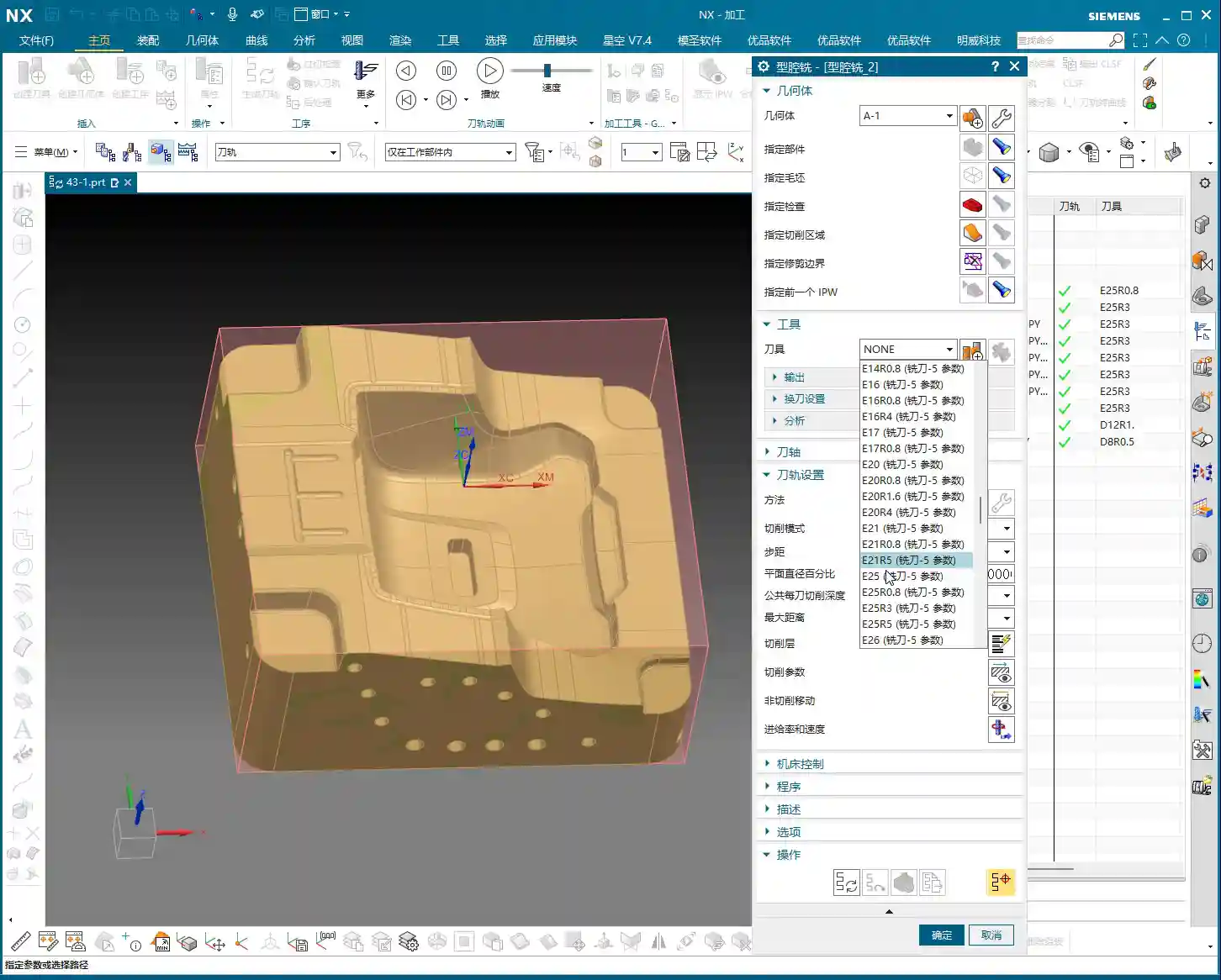
For initial tool selection, with an R6 fillet, some might initially think of using a Φ12 tool, but that won’t fit into an R6. We need to choose an appropriate size. A Φ10 flat end mill is fine for Roughing, but pay attention to the potential rest material left on sloped areas. Subsequent Rest Machining and Finishing will require switching to a ball end mill or a tool with a corner radius.

Siemens NX WORKPIECE Module in Practice: A Weak Foundation Will Bring Down the Whole Structure!
Blank and Part Definition: The Foundation of Your Program
In Siemens NX, the WORKPIECE module is the first and most crucial step in programming. It defines the part’s final shape (Part), the initial raw material (Blank), and any fixtures (Check). If these three aren’t set up correctly, even the most beautiful program afterward is useless.
1. **Part Definition:** Simply select your 3D model.
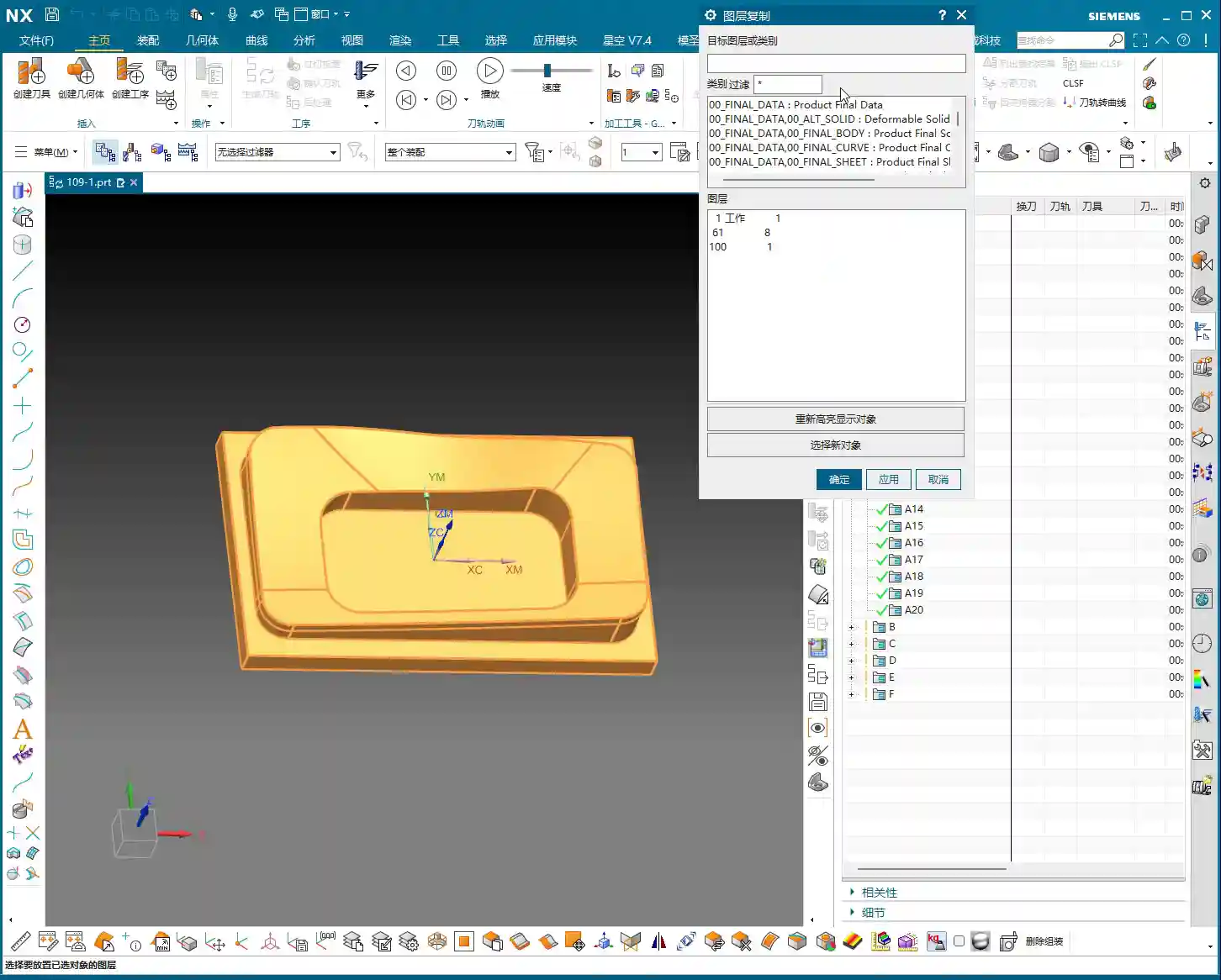
2. **Blank Definition:** Here, we’ll choose “3D Model” to define the blank. For easier management, I personally prefer to put the blank on a separate layer, such as Layer 100. This way, when you need to hide or show the blank, you just operate the layer, without affecting the display of the part itself.
As for the blank’s stock allowance, for this small part, some might initially consider leaving 2mm, but that’s excessive! For small parts, leaving 1mm of stock is sufficient. Too much will only increase Roughing time and could even lead to deformation or tool wear due to excessive cutting forces.
Coordinate System Setup and Layer Management: Order and Precision
The coordinate system is our “linchpin” for machining. Set it up wrong, and the entire part is scrapped.
We need to set the Machine Coordinate System (MCS) at the bottom center of the part and ensure the Z-axis is set to 0. This way, all toolpaths reference this datum, ensuring accuracy.
Additionally, Siemens NX’s layer management function is often overlooked by novices but mastered by experienced users. For example, place the part model on Layer 10 and the blank on Layer 100. This allows you to easily switch layers to view different models at various stages, improving efficiency and reducing errors.

Roughing and Rest Machining (Stock Removal) Strategies: Aggressive, Precise, and No Lingering Issues
Roughing Tool Selection and Feed Parameters
The goal of Roughing is to quickly remove the majority of the material, leaving a uniform stock allowance for subsequent finishing.
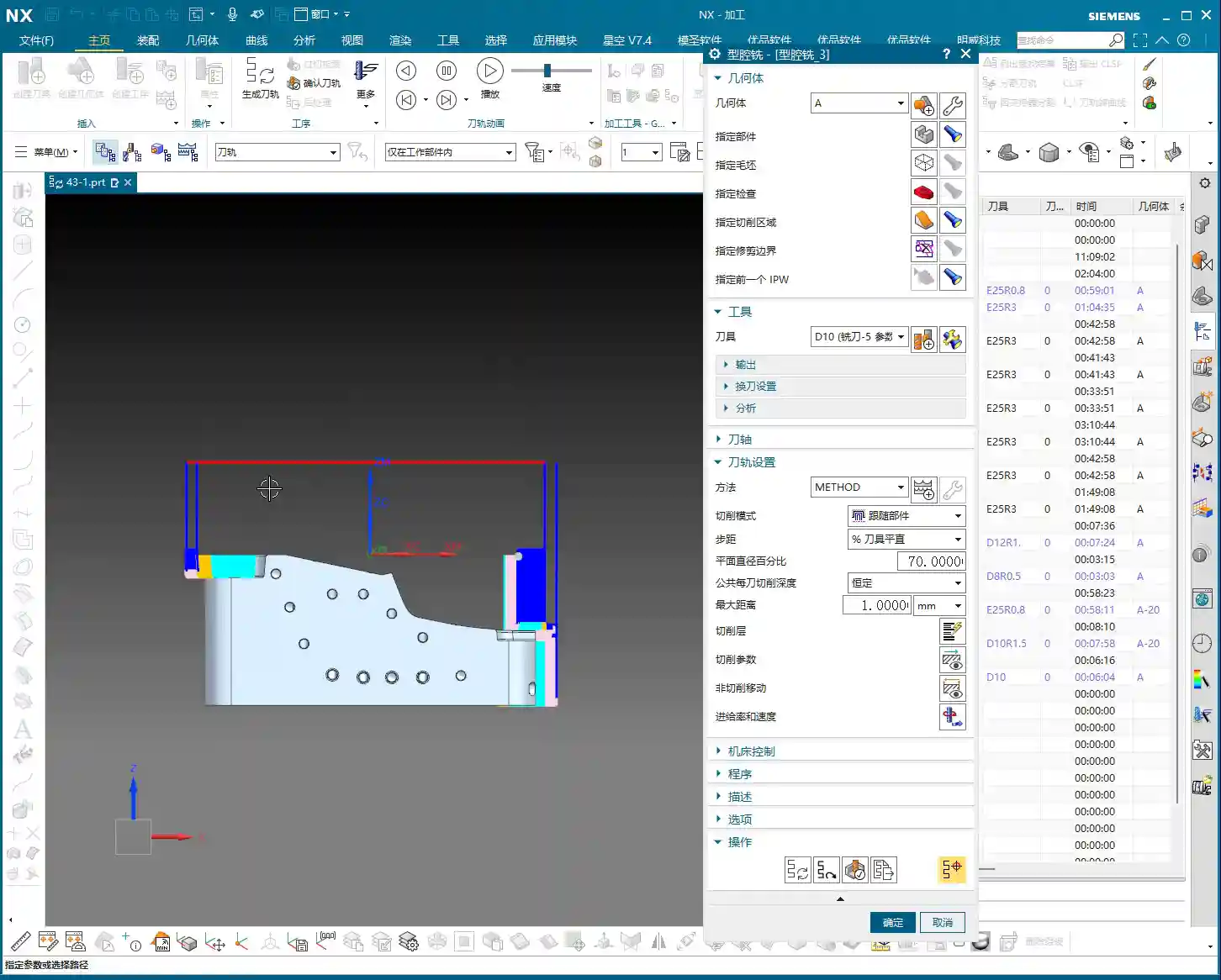
We’ll start by using a Φ10 flat end mill for Roughing. Cutting parameters must be determined by the material. Spindle speed (S), feed rate (F), along with Depth of Cut (Stepdown) and Stepover, are all critical. The Stepover shouldn’t be too large, or the tool will experience uneven forces, leading to chatter or even chipping.
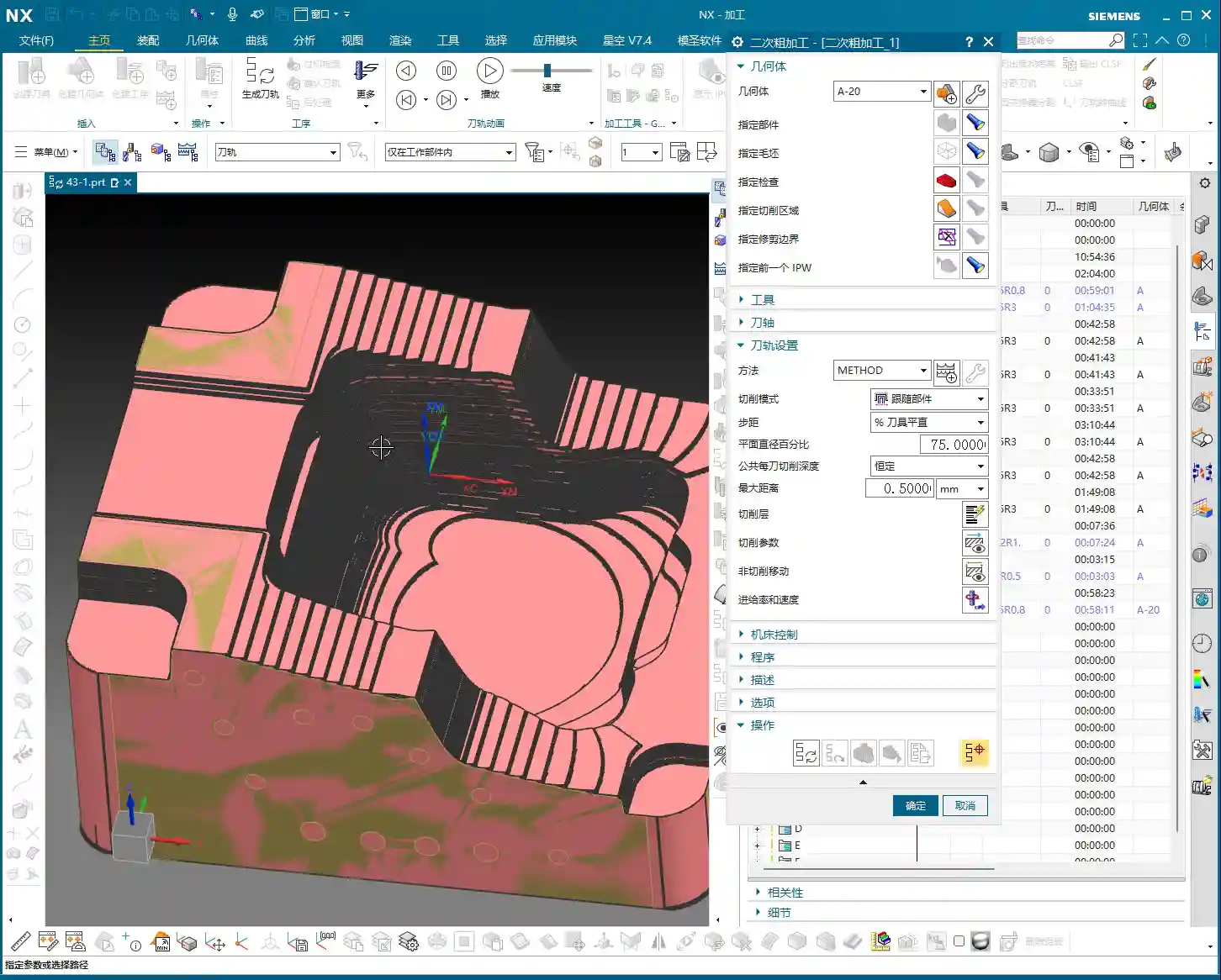
After generating the program, remember to thoroughly inspect it using the IPW (In-Process Workpiece) function. Check which areas of the part still have a lot of rest material after Roughing, especially those sloped and R-radius regions. Is the remaining stock uneven? If too much material is left, Rest Machining will require significant effort, and the program might even fail to calculate the toolpath.
Challenges and Solutions for Sloped Surface Stock Removal
The sloped surfaces on this part are one of the machining difficulties. If you only use a flat end mill for Roughing, because the tool’s bottom is flat, it’s very difficult for it to cut perfectly along the slope. This results in a large amount of rest material left above the sloped surface, forming “steps.”
When you finish Roughing with a Φ10 flat end mill, and check the IPW, you’ll see “lumps” all over the sloped surfaces – that’s unacceptable. Especially when you try to use the Rest Machining function to clear this rest material, you might find that the program simply cannot calculate the toolpath! This is because the stock left by the previous operation is too complex and too large, exceeding the current tool’s cutting capability or the algorithm’s limits.
**Master Wang’s Tip:** When you encounter this situation, don’t force it. Instead, either perform a separate Roughing operation specifically for the sloped surfaces, using a smaller ball end mill or corner radius end mill, or an angle milling cutter, with a smaller Stepover for rough cutting along the slope. Alternatively, during Rest Machining, select a smaller diameter ball end mill and adjust the Stepover and Depth of Cut, allowing it to “climb” these slopes and gradually clean up the rest material.

Rest Machining Toolpath Optimization and Rest Material Management
Any rest material not properly handled during Roughing must be remedied by Rest Machining.
We’ll use a Φ8 ball end mill (or a corner radius end mill, like a Φ12.5R corner radius tool) for Rest Machining. Cutting parameters should be finer than for Roughing.
* **Depth Per Cut (Stepdown):** Recommended setting is 0.2mm.
* **Stock:** Leave 0.15mm of stock for the Finishing pass.
* **Stepover:** This is critical! Compared to the previous Roughing Stepover, the Rest Machining Stepover is typically half or even smaller. For instance, if Roughing used 0.5mm, set Rest Machining to 0.25mm. This ensures effective rest material cleanup, laying a solid foundation for the Finishing pass.
**Master Wang’s Tip:** Before running the program, always use the simulation function to carefully check the toolpath. Pay close attention to the tool motion in the R-radius and sloped areas, looking for any unmachined sections, overcutting, or collisions. Don’t just rely on the software simulation; visualize the cutting sparks! While you can’t see sparks on the screen, you need to have that concept in mind. In actual machining, cutting sparks are an important indicator of the cutting state.
Finishing Pass and Toolpath Optimization: The Final Touch for Ultimate Precision
Finishing Tool Selection and Smoothness Processing
The Finishing pass is where your skill is truly tested. The goal is to achieve the dimensional accuracy and surface finish required by the part drawing.
For this part, especially the sloped surfaces and R-radii, we still need to use a ball end mill. For example, a Φ8 ball end mill can effectively balance accuracy and efficiency.
* **Stepover:** Must be set small enough, such as 0.15mm to 0.2mm, to ensure surface finish. A larger Stepover will result in more noticeable “tool marks.”
* **Smoothness:** Increasing this parameter will make the toolpath smoother, reduce tool impact, and improve surface quality. You can try adjusting the smoothness to 400% and observe the effect.

Lead-in/Lead-out Strategy Adjustment: Details Determine Success
Lead-in and lead-out, seemingly minor details, have a huge impact. Unreasonable lead-in/lead-out can leave tool marks at best, or cause tool wear and even chipping at worst.
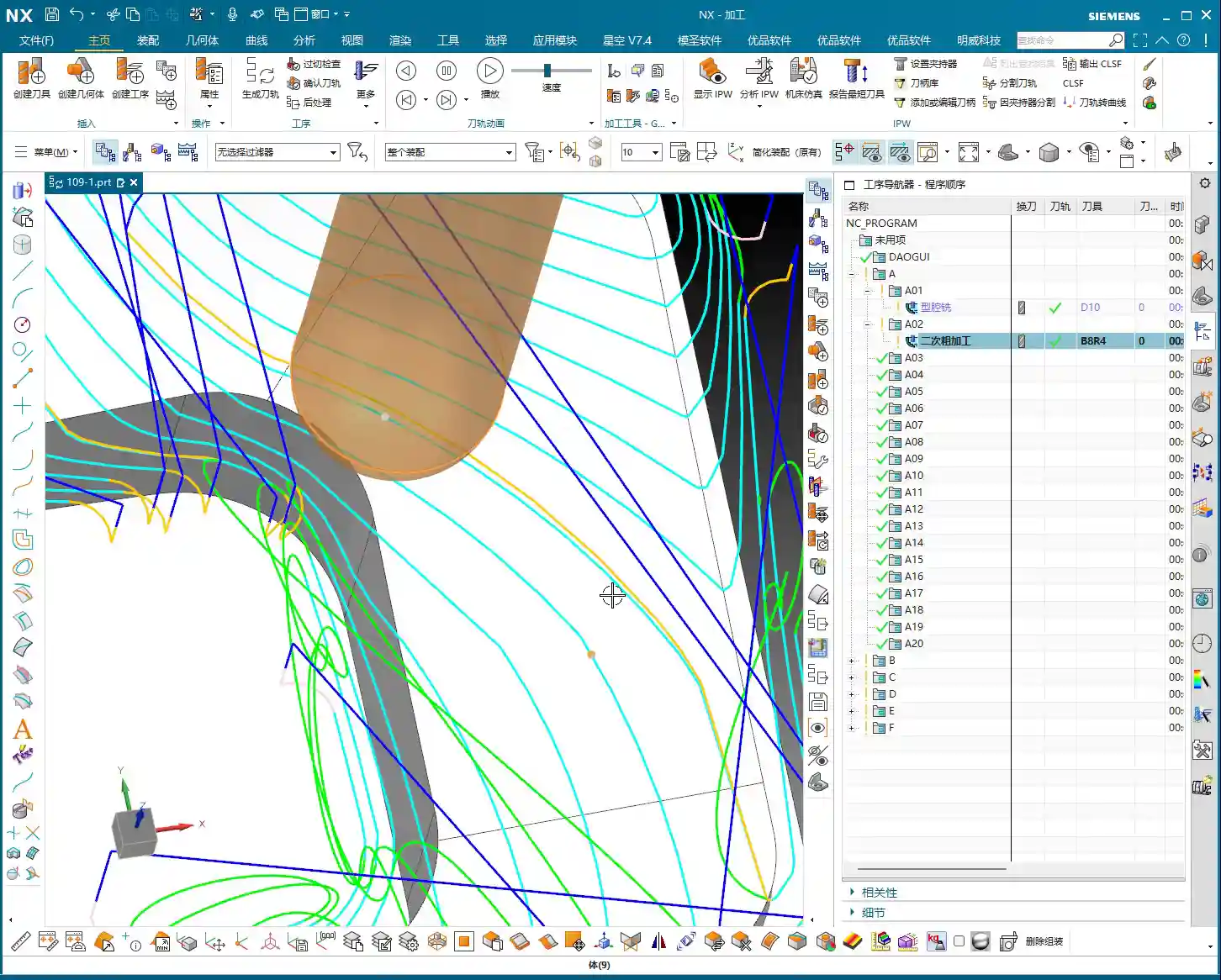
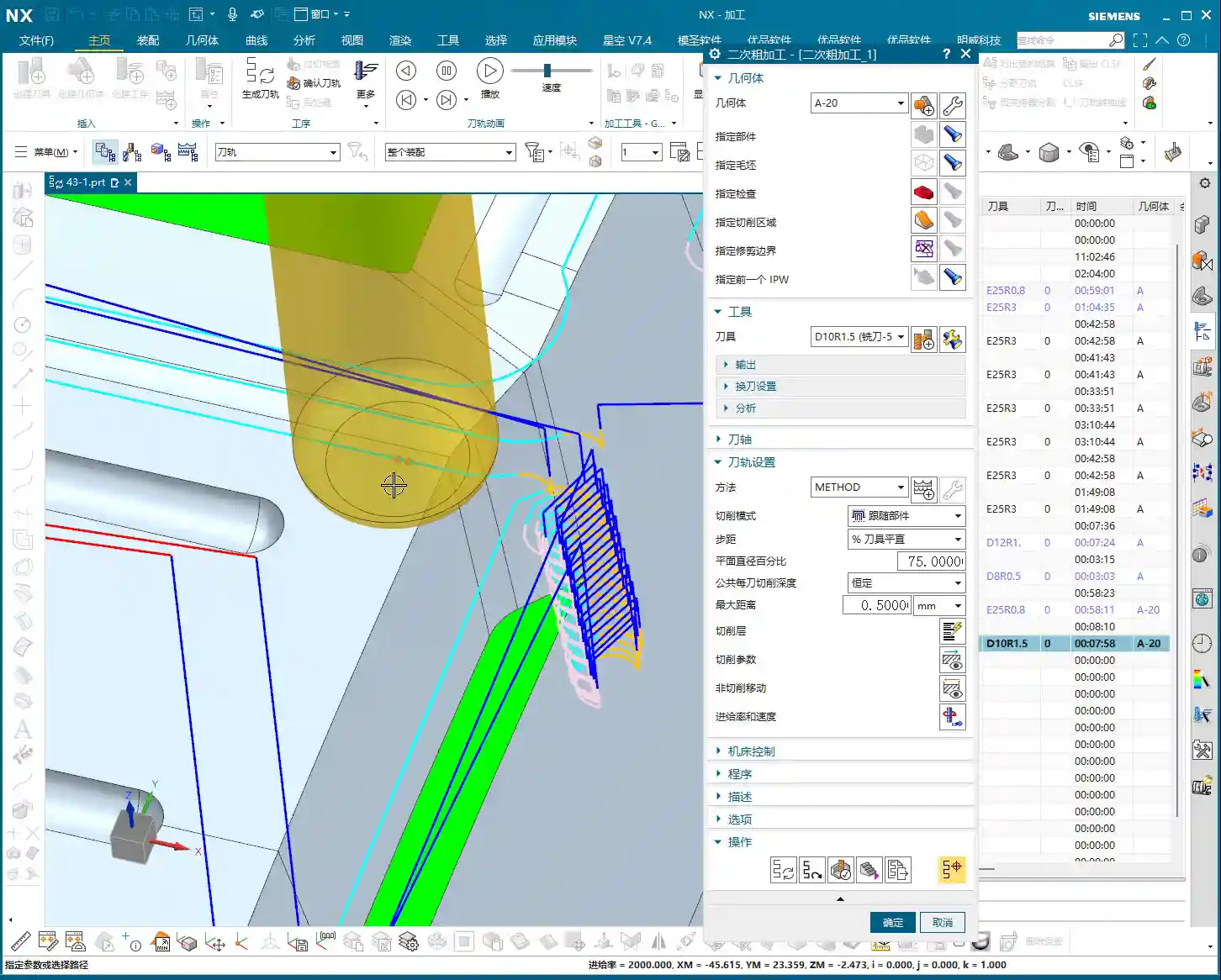
As you can see, the initial toolpath might have an abrupt lead-in, moving straight in like the yellow line. This direct entry/exit method can easily leave “tool marks” on the part surface.
**Master Wang’s Tip:** We need to change the lead-in method to “Arc Lead-in”. By smoothly cutting into the material with an arc, you can significantly reduce tool marks and improve surface quality. The same applies to lead-out; try to use an arc or a diagonal line for lead-out.
Remember, every time you modify the toolpath, you must regenerate it and then carefully check with simulation.
Summary: Pitfall Avoidance Guide
- **Don’t blindly trust your eyes:** For complex geometric features, especially sloped surfaces that look like chamfers, be sure to use professional tools like Slope Analysis for confirmation to avoid misjudgment and subsequent machining problems.
- **WORKPIECE setup is foundational:** Ensure that the Part, Blank, and Check definitions are accurate, and that the blank’s stock allowance is reasonably set according to the part’s size and material characteristics. For small parts, don’t leave too much stock.
- **Coordinate system and layer management:** Correctly set the Work Coordinate System (MCS) and effectively use layer functions to manage models, improving work efficiency and accuracy.
- **Roughing must consider subsequent operations:** During Roughing, aim to leave uniform stock, especially in sloped and R-radius areas. If a flat end mill cannot effectively clear the material, consider using a smaller diameter ball end mill or angle milling cutter for localized Roughing to avoid the embarrassment of the “program failing to calculate” during Rest Machining.
- **Rest Machining is the cleanup crew:** Select appropriate ball end mills or corner radius end mills, and set a reasonable Stepover (typically half or even smaller than Roughing’s) to ensure all rest material is cleaned, establishing a good foundation for Finishing.
- **Finishing demands attention to detail:** The Finishing pass’s Stepover must be small enough, and lead-in/lead-out methods should be smooth (Arc Lead-in recommended) to achieve the best surface quality and accuracy.
- **Simulation check is paramount:** After every program generation or modification, toolpath simulation must be performed to check for overcutting, undercutting, collisions, and other issues. This is far less costly than rework afterward!
- **Balance cost and efficiency:** All process choices and parameter settings must ultimately return to cost and efficiency. Appropriate tools and reasonable toolpaths must ensure quality while also considering machining time.
Alright, that’s all for today. Remember, these are experiences we’ve gained from grinding it out in the shop, paid for with real money. Learn and practice more, and you’ll truly make these techniques your own!
👤 About the Author:
The author is a veteran CNC machining professional with 15 years of industry experience, specializing in UG NX programming. This article is an original work representing personal practical insights.
⚠️ Copyright Notice: Unauthorized reproduction or distribution without prior communication is strictly prohibited.