📝 Key Takeaways:
Practical Siemens NX Streamline Toolpaths: The Secrets of Cutting and Extension
Hello everyone, I’m Master Wang. Today, let’s continue di…
Hello everyone, I’m Master Wang. Today, let’s continue discussing the core technologies in Siemens NX, especially some critical settings for Streamline toolpaths. Listen closely: if you don’t grasp these points, simply failing to generate a program is minor. On the machine, you could face significant issues!
I. Cutting Direction: The Soul of the Toolpath
As we’ve mentioned before, the Cutting Direction parameter is critically important! It determines how the tool engages with the workpiece, directly impacting cutting forces, surface quality, and tool life. In Siemens NX, when you double-click to open a program and enter the method editing interface, this is the first thing you must pay attention to.
1. Material Side vs. Tool Side: Mastering Internal and External
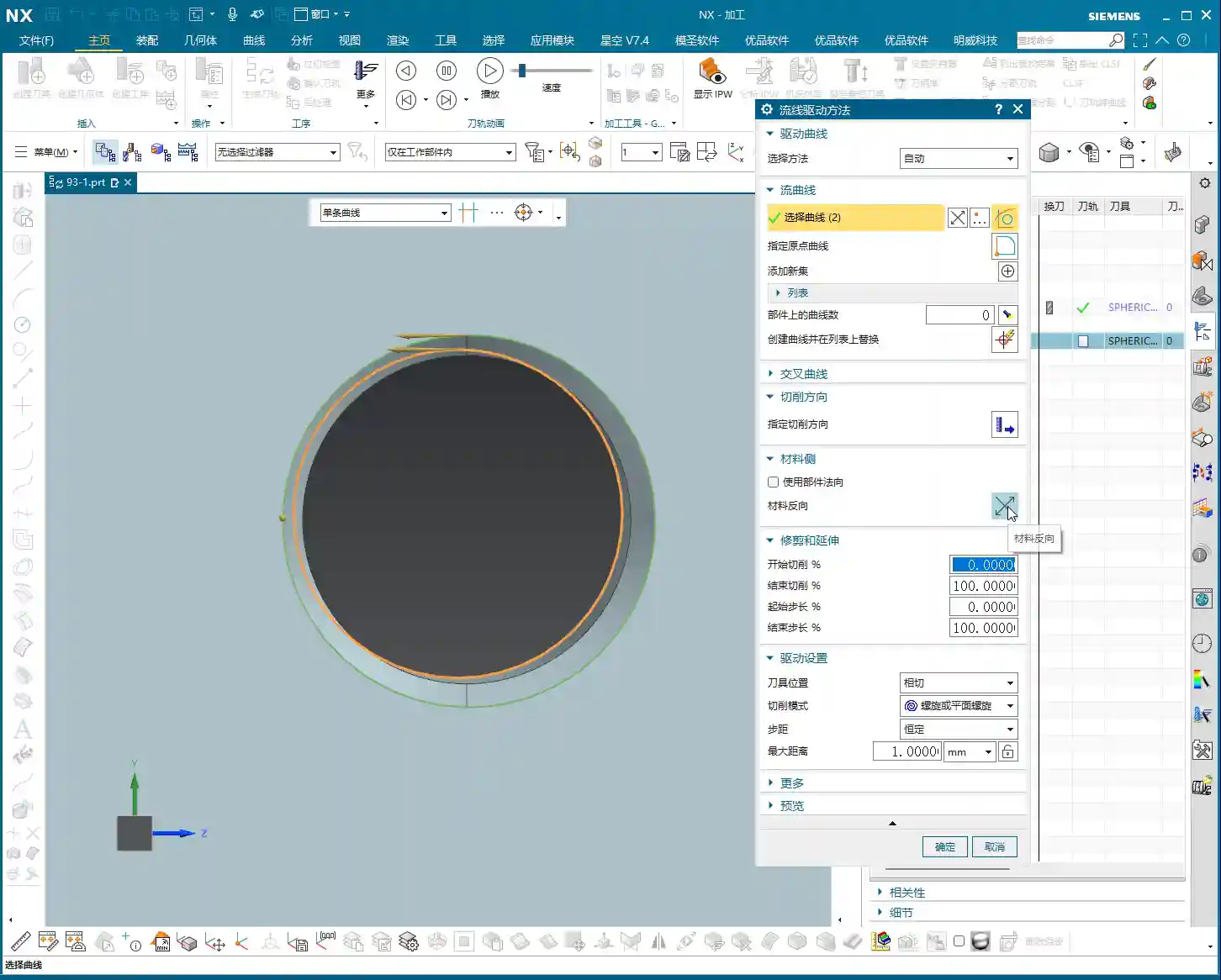
What is the “Material Side”? Simply put, it determines which **Tool Side** you intend to machine. In Siemens NX, there’s a small arrow; clicking “Reverse Material” will toggle it. If the arrow points outwards, your tool will machine the outer side of the part. Conversely, if the arrow points inwards, the tool machines the inner side, which is what we commonly refer to as “machining an internal cavity.”
Master Wang’s Tip: Don’t underestimate this arrow; it’s your tool’s eye! For external features, the arrow points outwards; for internal cavities, it points inwards. Especially when performing Streamline machining in **enclosed regions**, always confirm the arrow’s direction. If the direction is incorrect, your entire toolpath will be unusable and simply won’t generate.

2. The Culprit Behind Toolpath Calculation Errors
Many new users encounter issues where the program fails to generate or produces “empty toolpaths” or “air cuts,” often due to an incorrect **Cutting Direction setting**. If the tool is supposed to machine inside the part but you’ve directed it outwards, the system will naturally give you a “blank canvas”—because there’s simply no material to cut! So, when a toolpath fails to generate, your first reaction should be to check this arrow. See if “Reverse Material” needs to be clicked; often, the program will then appear.
II. Streamline Toolpath Trimming and Extension: Precision Refinement
One of the most flexible aspects of Streamline toolpaths is their **Start Extension** and **End Extension** capabilities. These settings allow you to precisely define where your toolpath begins and ends, avoiding entry/exit marks in critical areas and improving surface quality.

1. The Mystery of 0-100%: Baseline Length
In Siemens NX, the length of each drive curve used to generate a Streamline toolpath is defaulted by the system to **100%**. Once you understand this baseline, you can master trimming and extension.
- Start Extension:
- Entering a **positive value (e.g., 10)**: Trims 10% of the length “inward” from the drive curve’s start point. The tool will engage later, avoiding marks at the start position.
- Entering a **negative value (e.g., -10)**: Extends 10% of the length “outward” from the drive curve’s start point. The tool will engage earlier, entering the cut outside the part to ensure stable cutting and prevent gouging.
- End Extension:
- Entering a **value less than 100% (e.g., 50)**: Trims 50% of the length “inward” from the drive curve’s end point. The tool will retract earlier, preventing overcutting or marring at the end position.
- Entering a **value greater than 100% (e.g., 150)**: Extends 50% of the length “outward” from the drive curve’s end point (total length reaching 150%). The tool will retract later, exiting the cut outside the part to also ensure stable cutting.
Master Wang’s Tip: Remember this logic: for the start point, a negative value extends, a positive value trims; for the end point, a value greater than 100% extends, and a value less than 100% trims. This is crucial when machining mold surfaces, especially at the transition between steep and shallow areas, or during finishing passes, as it effectively controls the tool’s entry and exit points, preventing witness marks and blend lines.
III. Cutting Strategy: Tangent or Trace?
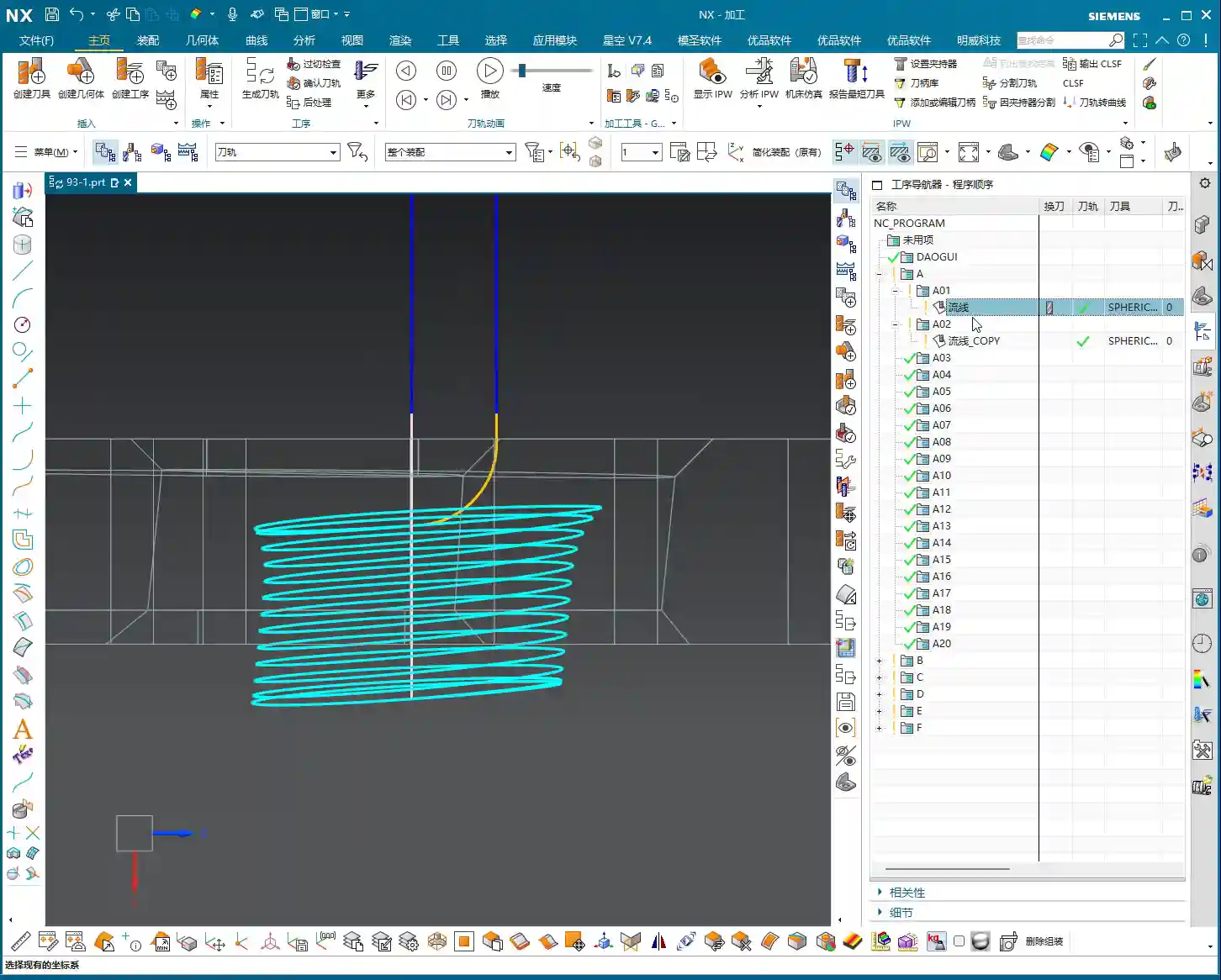
In Streamline toolpaths, there are two important cutting strategies: **Tangent** and **Trace**. Their difference lies in the relationship between the tool and your selected surface.

1. Tangent: The General Choice
In “Tangent” mode, the tool’s **centerline** will follow your selected drive curve or surface edge. This typically means the tool’s radius will extend beyond the selected face. However, if “Part Protection” is enabled, the tool will not overcut. This is our most commonly used and safest strategy, suitable for most situations.
2. Trace: Precise Control
“Trace” mode is more intricate; it forces the tool’s **Tool Contact Point** (e.g., the center of a ball nose, or the intersection of a flat end mill’s edge with the face) to follow your selected drive curve or surface. In this scenario, if you directly select the original face, the tool’s centerline will run outside the face, causing overcutting!
Master Wang’s Tip: To effectively use “Trace,” you need to learn to “cheat”! The best method is to first create a **Tool Radius Offset Body**. For example, offset the surface you want to machine outwards by the tool’s radius to create a new auxiliary surface. Then, in “Trace” mode, select this offset body. This way, while the tool’s contact point is on the offset body, its centerline will align perfectly with your actual machining surface, achieving precise cutting without overcutting. This technique is particularly effective when machining **special structures or thin-walled parts**, as it significantly reduces unnecessary retracts and improves machining stability.
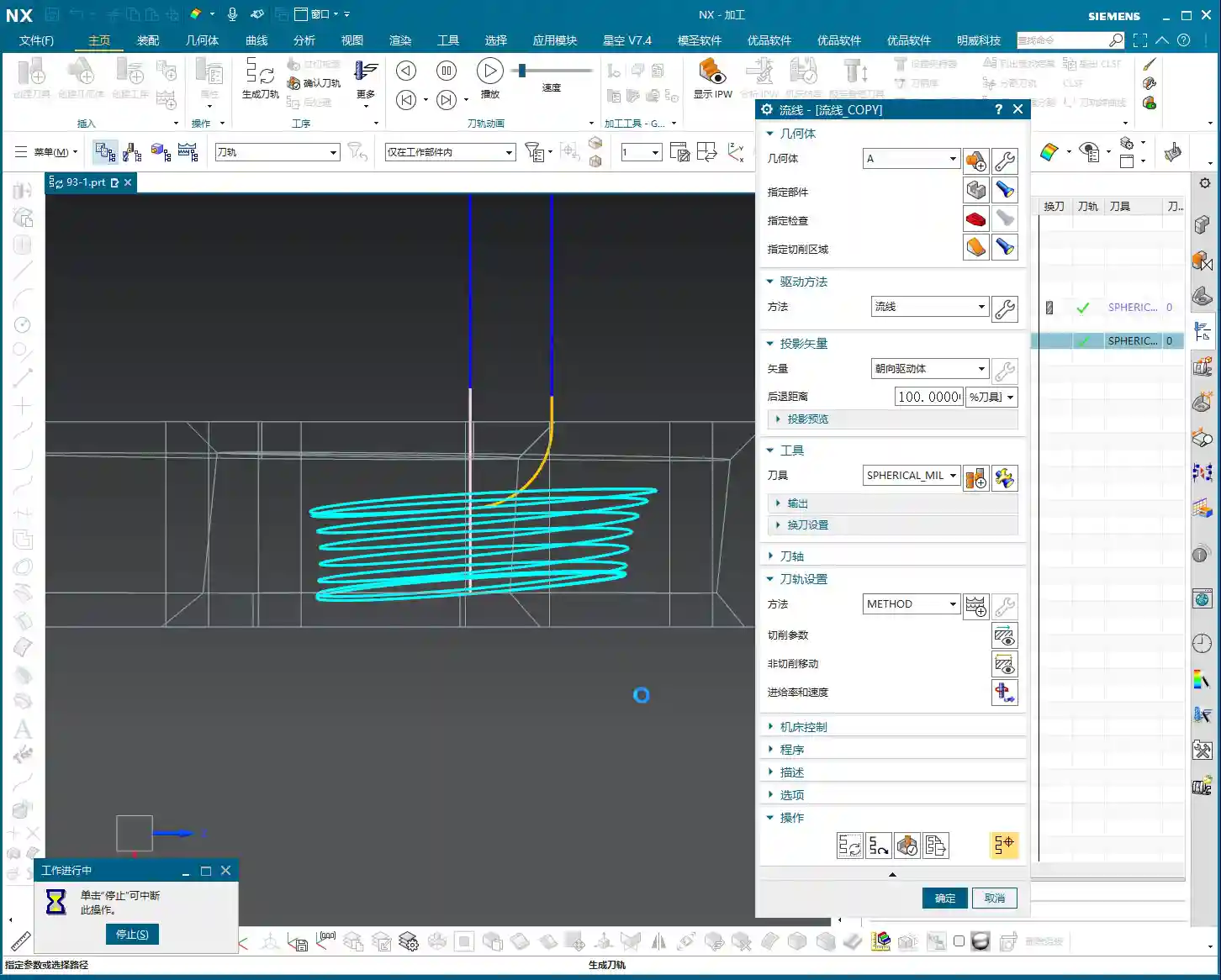
Additionally, when you find unnecessary **Retracts** in the toolpath, besides checking the “Through Material” settings, you can sometimes consider creating a **Dummy Body** to block it off. This keeps the tool machining within the specified region, avoiding unnecessary lifts and air moves.
IV. Tolerance and Other Settings: Details Determine Success

As for **Tolerance**, I’ve covered it many times in previous tutorials. Generally, Siemens NX’s default tolerance is sufficient. When we create templates, we typically adjust these common parameters to their optimal settings. Unless there are specific precision requirements, do not easily alter it, as this directly affects toolpath calculation time and final surface accuracy.
Cutting patterns such as Helical, Zig, One-Way, and Zig-Zag are fundamental, and I won’t elaborate on them here. What we need to learn is how to integrate these concepts and flexibly select the optimal cutting method for different workpieces, materials, and precision requirements.
Summary: Pitfall Avoidance Guide
Master Wang is highlighting the key takeaways for today:
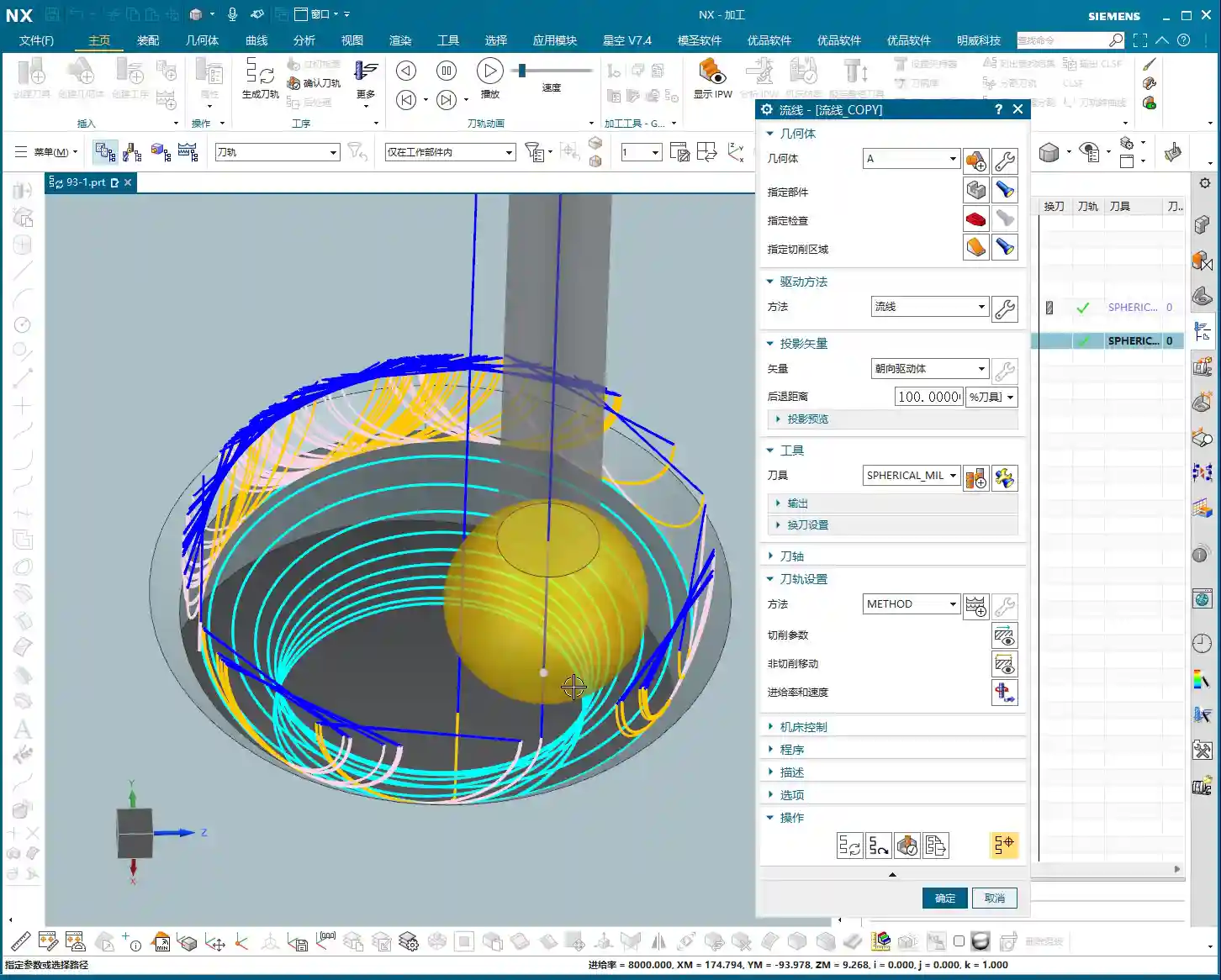
- Cutting Direction is key to toolpath generation: If you encounter “empty toolpaths,” first check the “Reverse Material” arrow to ensure it points to the area you want to machine. Inwards for internal features, outwards for external.
- Master the Trimming and Extension percentages: Remember the baseline is 100%. For the start point, a negative value extends, a positive value trims; for the end point, a value greater than 100% extends, and a value less than 100% trims. Flexible application significantly improves part surface quality and machining efficiency.
- Choose Tangent or Trace as needed: Use “Tangent” for most situations. When the tool’s contact point needs to precisely trace a surface, use “Trace,” but remember to create a **Tool Radius Offset Body** to complement it and avoid overcutting. If necessary, use a Dummy Body to control the tool’s machining range and reduce unnecessary air cuts.
- Default tolerance is usually fine: Unless there are specific requirements, maintain Siemens NX’s default tolerance settings.
Remember these points, simulate frequently in the software, and even more importantly, observe the cutting sparks and listen to the cutting sounds on the machine. Only then can you truly grow from an NX operator into a qualified, process-savvy machinist! Alright, that’s all for today. We’ll pick this up next time.
👤 About the Author:
The author is a veteran CNC machining professional with 15 years of industry experience, specializing in UG NX programming. This article is an original work representing personal practical insights.
⚠️ Copyright Notice: Unauthorized reproduction or distribution without prior communication is strictly prohibited.
Leave a Reply