Tag: Area Milling

  • Master Wang Guides You Through NX Area Milling: Cutting Parameters, Boundary Extension, and Check Ge

    📝 Key Takeaways: Master Wang provides a hands-on guide to the core parameter settings for NX Area Milling. From cutting strategies for steep/non-steep regions, to boundary extension techniques for improved surface quality, and check geometry settings to prevent machine collisions – these are the distilled insights from 15 years of a veteran engineer’s practical experience. Mastering these will revolutionize your machining efficiency and part accuracy, allowing you to easily avoid machining pitfalls.

    Hello everyone, I’m Master Wang. Today, let’s continue our discussion on NX machining, especially focusing on critical points rarely detailed in textbooks, but which significantly impact efficiency and accuracy on the shop floor. Listen up, this is practical knowledge gained from my 15 years of hands-on experience and countless lessons learned the hard way!

    Area Milling Cutting Parameters: The Secrets of Steep vs. Non-Steep Regions

    When it comes to Area Milling, especially for complex surface machining, the cutting strategies for “steep areas” and “non-steep areas” in NX are crucial. Grasping these concepts will ensure your toolpaths are both fast and stable.

    What are Steep and Non-Steep Regions?

    Simply put, steep regions are areas with a significant incline, where a more vertical tool approach provides greater cutting stability. Conversely, non-steep regions are flatter areas, where horizontal toolpaths offer higher efficiency and better surface finish control.

    In NX, this distinction is based on an angle parameter. The system automatically determines which areas are steep and which are non-steep based on your set angle, and then applies the corresponding toolpath strategy. What’s this called? It’s like “teaching according to aptitude”—using the most suitable method to tackle different regions.
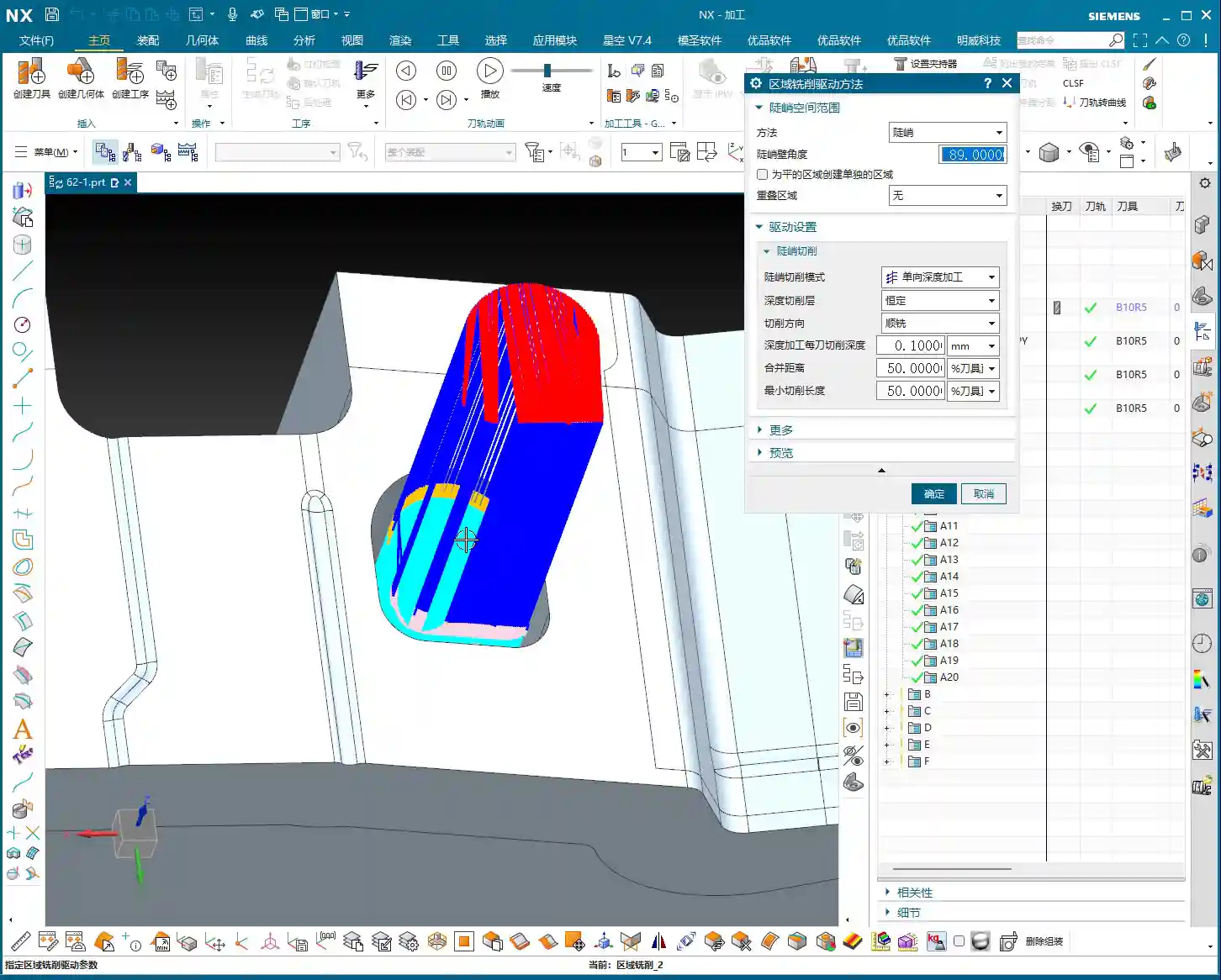
    Angle Setting and Practical Application

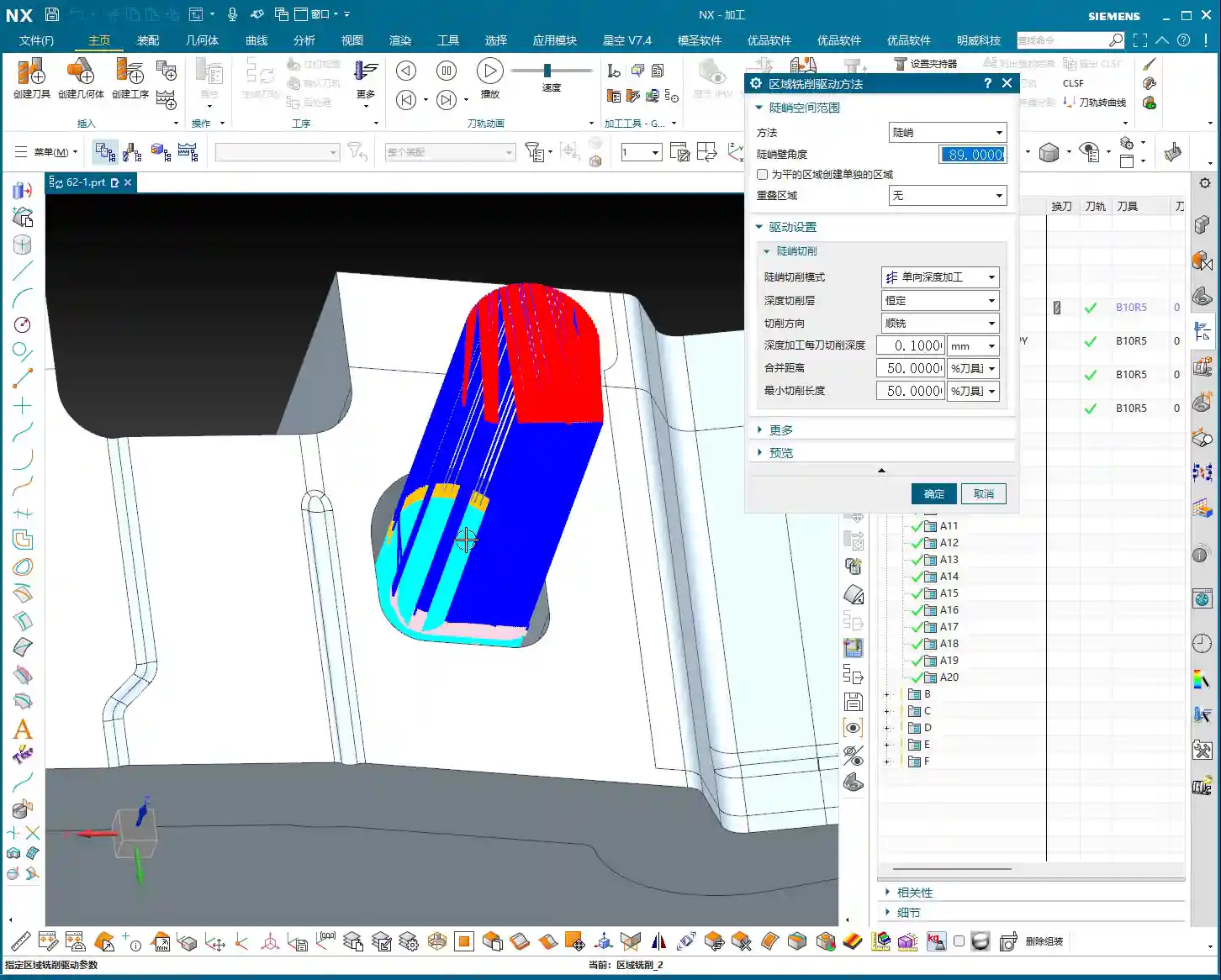
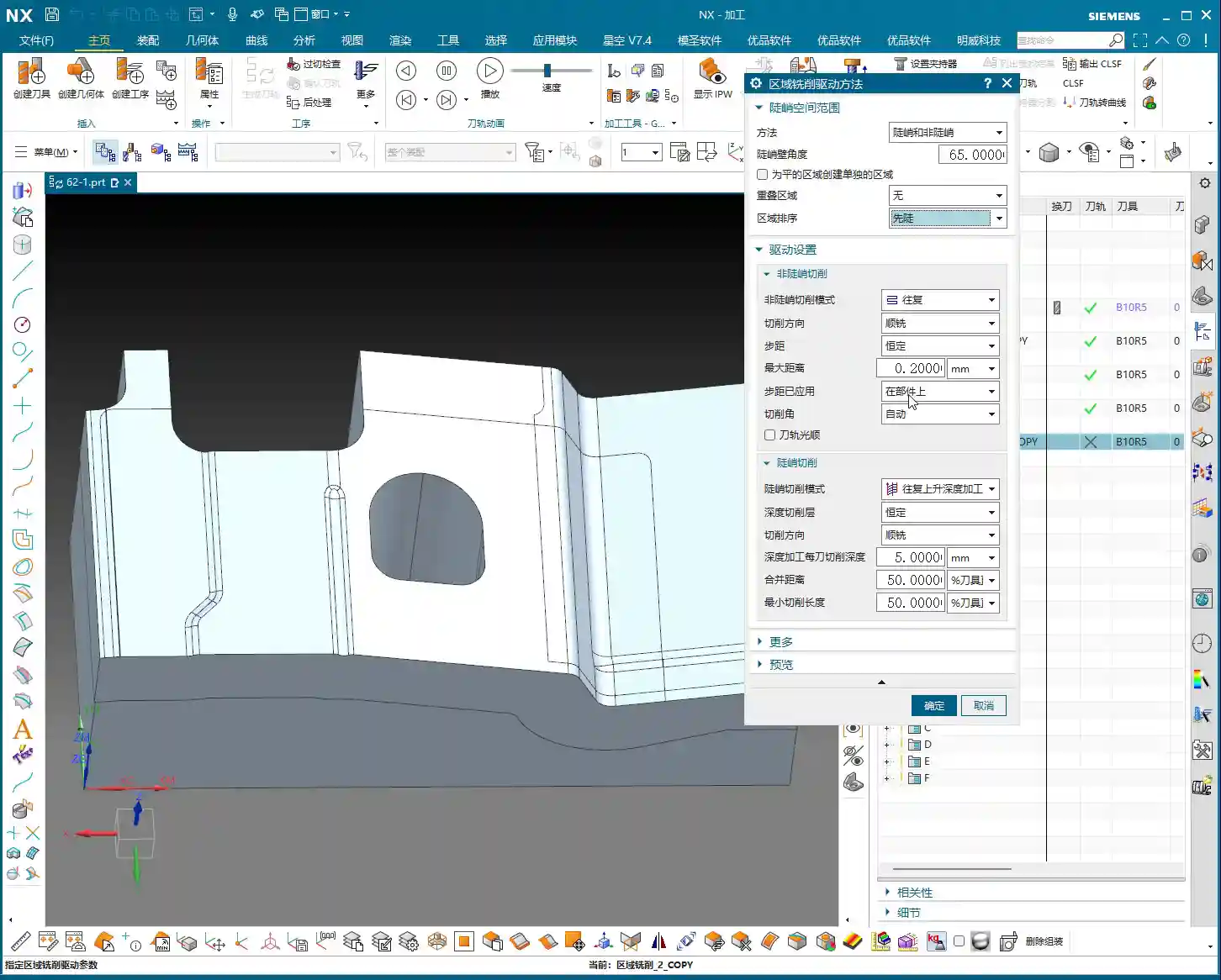
    In NX, the default angle for distinguishing steep/non-steep regions is typically 65 degrees. Most of the time, just use this default value; don’t change it arbitrarily. Why? It’s an empirically proven value, verified through extensive practical application, that suits most materials and workpiece conditions.

    • Above 65 degrees: Toolpaths typically employ the “steep” strategy, with tool motion oriented more vertically, suitable for machining deep cavities, side walls, etc.
    • Below 65 degrees: Toolpaths typically employ the “non-steep” strategy, with tool motion oriented more horizontally, suitable for machining flat or slightly inclined surfaces.

    Of course, in some special cases, for instance, if your workpiece sidewall has a slight angle but isn’t steep enough (e.g., a small incline like 5 degrees), theoretically, you could still use the steep region strategy. But let me be frank, don’t overcomplicate things in such situations. Changing too many parameters might not even give you the desired toolpath. For such small angles, if you want a better finish, using “Depth Contour Milling” to skim the surface might be better, even if it’s a bit more involved to set up. In most cases, simply using non-steep area milling (planar machining) works just fine, and it will cover the adjacent surfaces.

    So, in daily operations, when you encounter such areas, simply enable both “steep” and “non-steep” strategies simultaneously, letting the system automatically determine and switch, which is the most hassle-free and reliable approach.

    The Importance of Ordering

    When selecting both steep and non-steep area milling strategies, NX will also prompt you to choose a machining order. Should steep regions be machined first, or non-steep regions? Or from top-down, or bottom-up?
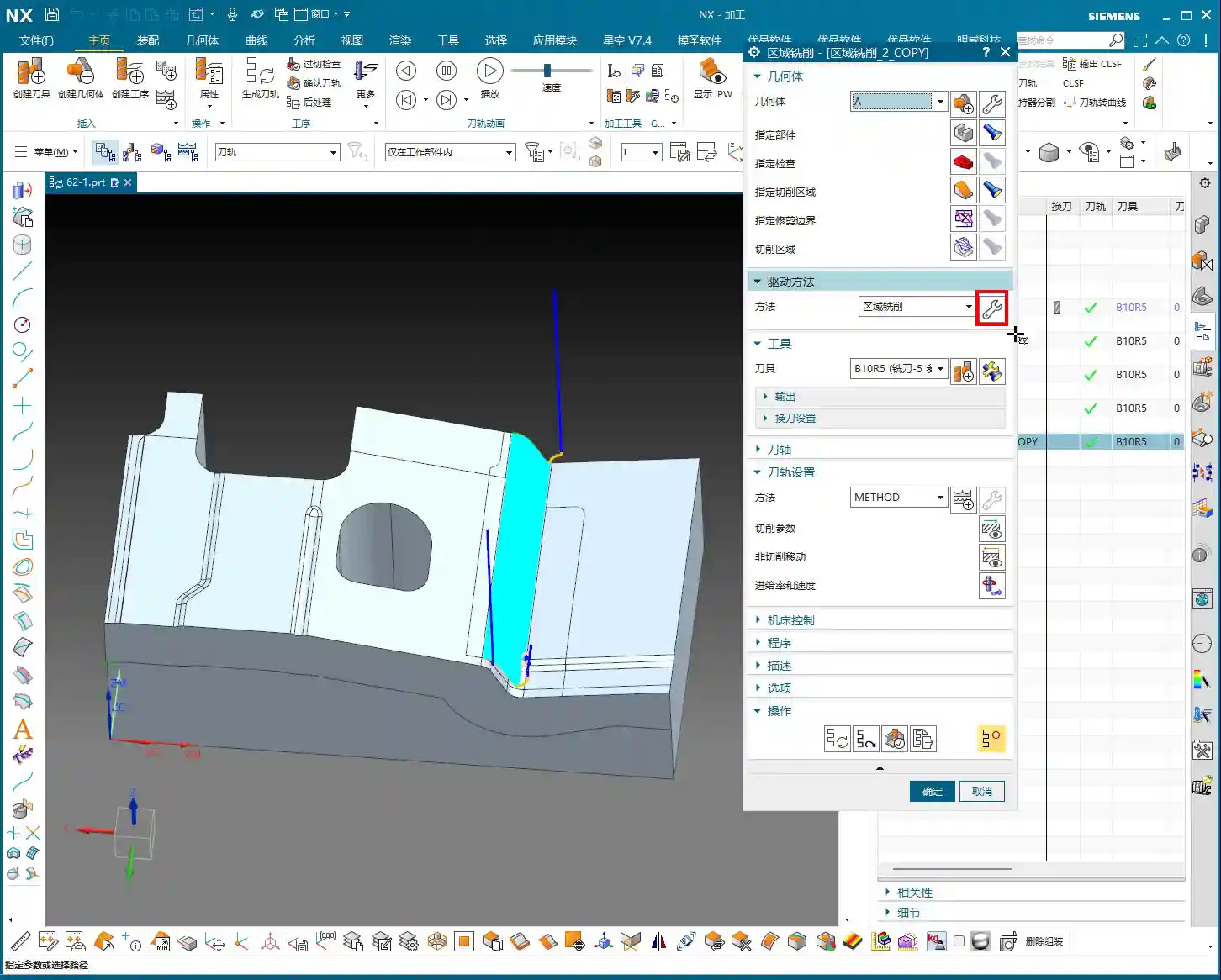
    In my experience, I generally opt to machine steep regions first. Why? Steep regions often involve deep cavities and side walls of the workpiece. By addressing them first, you leave a clear machining space for the subsequent non-steep (flat) areas. Of course, this isn’t an absolute rule; it depends on your workpiece geometry and machining requirements. But defaulting to steep regions first is a good choice.

    Toolpath Optimization Tool: Extend at Boundary

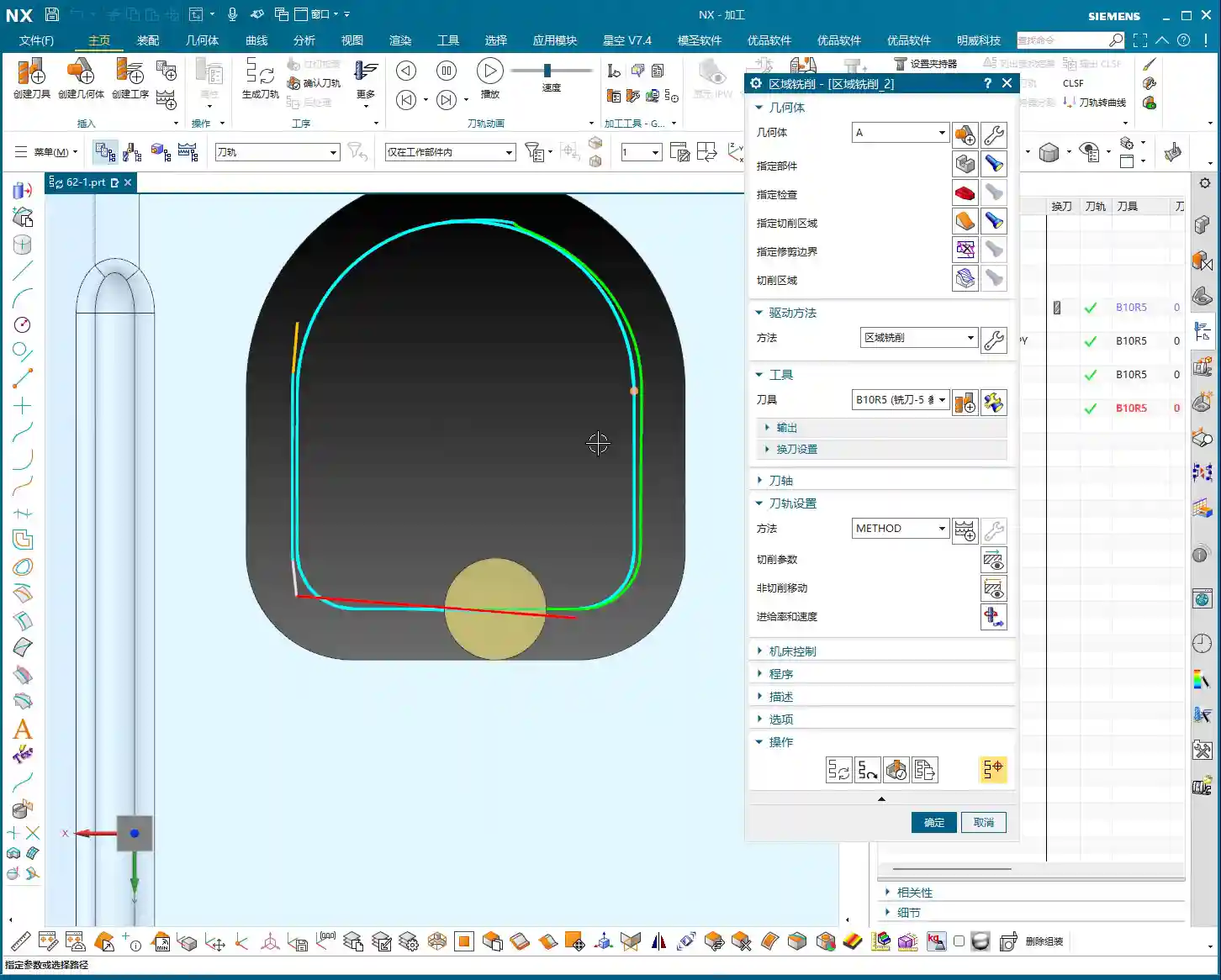
    “Extend at Boundary” might seem insignificant, but it’s critically important, especially when striving for high surface finish in a Finishing pass. It helps you thoroughly eliminate “tool marks” at the cutting boundaries.

    Why Extend?

    Have you ever encountered a situation where: the tool path looked perfect in the software simulation when cutting to the workpiece edge, but the actual machined edge always had a faint mark or some burrs? This is because the tool didn’t “fully exit the cut.”

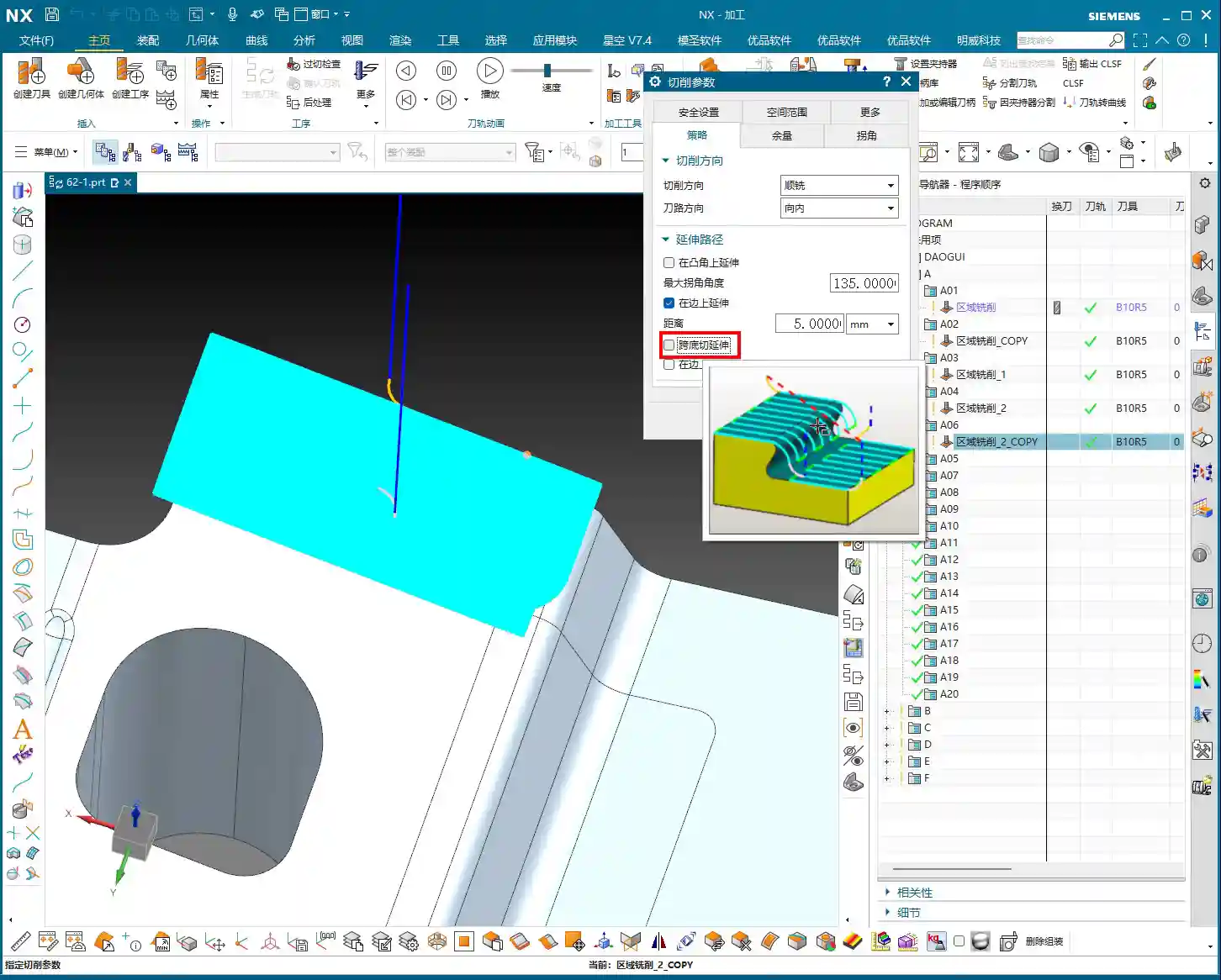
    When you enable and set “Extend at Boundary,” the toolpath won’t stop exactly at the model’s edge; instead, it will extend a small distance beyond. This allows the tool to completely exit the workpiece, leaving the edge cleanly machined, preventing the tool from “compressing” or “dragging” material at the boundary. It’s like cutting paper with scissors – you always cut a little beyond the line to ensure a clean edge.
    What is the Appropriate Extension Amount?

    The extension distance is generally recommended to be set between 0.5 to 2 mm (approx. 0.02-0.08 inch). The specific value depends on your tool diameter and material. For small diameter tools, such as a Φ6 mm (approx. 0.236 inch) ball end mill, an extension of 0.5-1 mm (approx. 0.02-0.04 inch) is usually sufficient. For larger tools or stickier materials, 1-2 mm (approx. 0.04-0.08 inch) extension will be more reliable. When I adjust this parameter to 1 mm or 2 mm, you can clearly see the toolpath extend, and the surface quality immediately improves. Unlike the four-sided extension in “Depth Contour Milling”, this “Extend at Boundary” is primarily for managing tool entry and exit at workpiece boundaries, aiming for perfect edges. Remember, sometimes details determine success. Get these small things right, and your customer will be satisfied.

    Avoiding Obstacles, Efficient Machining: Check Geometry (Skip and Retract)

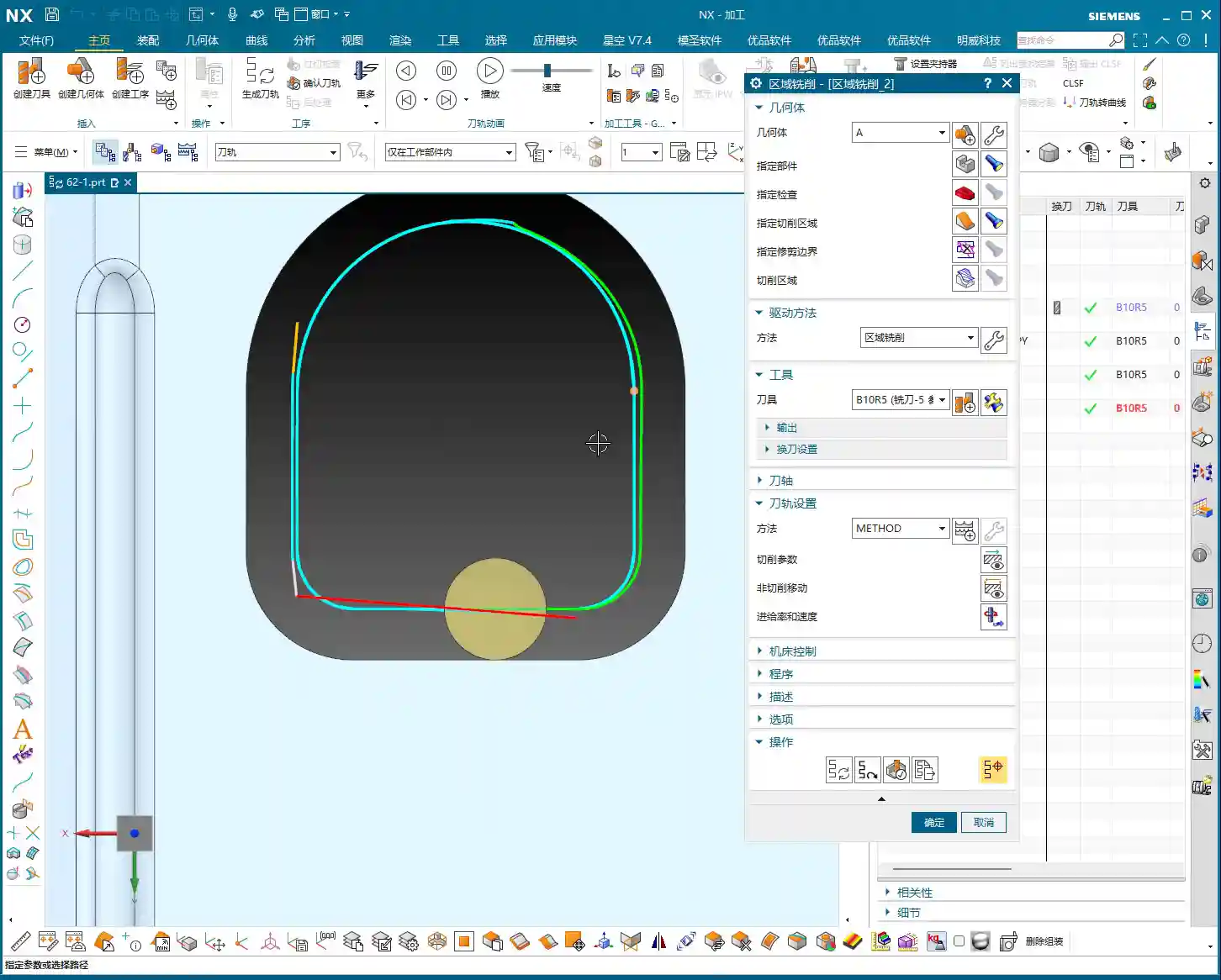
    This section is of paramount importance! In actual machining, the biggest fear is the tool colliding with fixtures, clamps, or protrusions on the workpiece. NX’s “Check Geometry” function, particularly the “Skip” and “Retract” options, directly impacts your machine and tool safety, as well as machining efficiency.

    What to do when a clamp appears? Retract vs. Skip

    Imagine your tool happily cutting, then suddenly a clamping plate blocks its path. How should the system handle this?

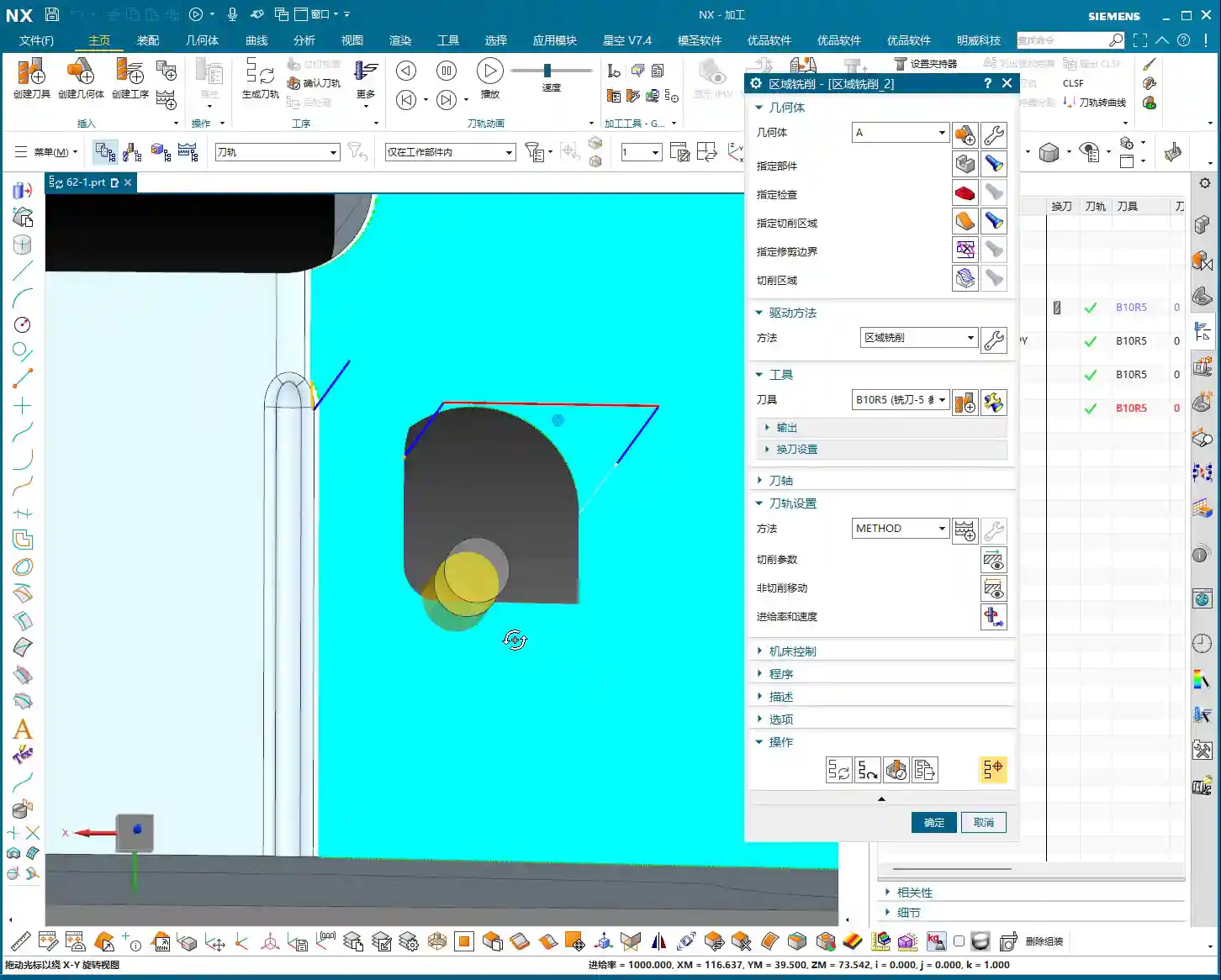
    • Retract: This is NX’s default setting and the safest strategy. When the tool encounters an obstacle, it will automatically lift, bypass the obstacle, and then re-engage to continue machining. The entire process is: Lift → Traverse → Re-engage. While safe, the drawback is increased retraction cycles, extending machining time, and potentially leaving slight marks where the tool lifts and re-engages, though often not prominent.
    • Skip: If you select “Skip,” the system assumes the obstacle poses no threat (e.g., it’s very low, or the tool can pass over it without issue). The tool will directly traverse over the obstacle without retracting. The entire process is: Traverse. This method is highly efficient, saving retraction and re-engagement time, and resulting in a smoother toolpath.

    Here’s the key point: NX’s “Skip” function typically has a “safety distance” or “skip clearance,” for example, a default of 3 mm (approx. 0.118 inch). This means if the obstacle’s height is within 3 mm above the tool’s current position, it will opt to skip. Beyond this range, it will default back to retract. Of course, this value can be adjusted.
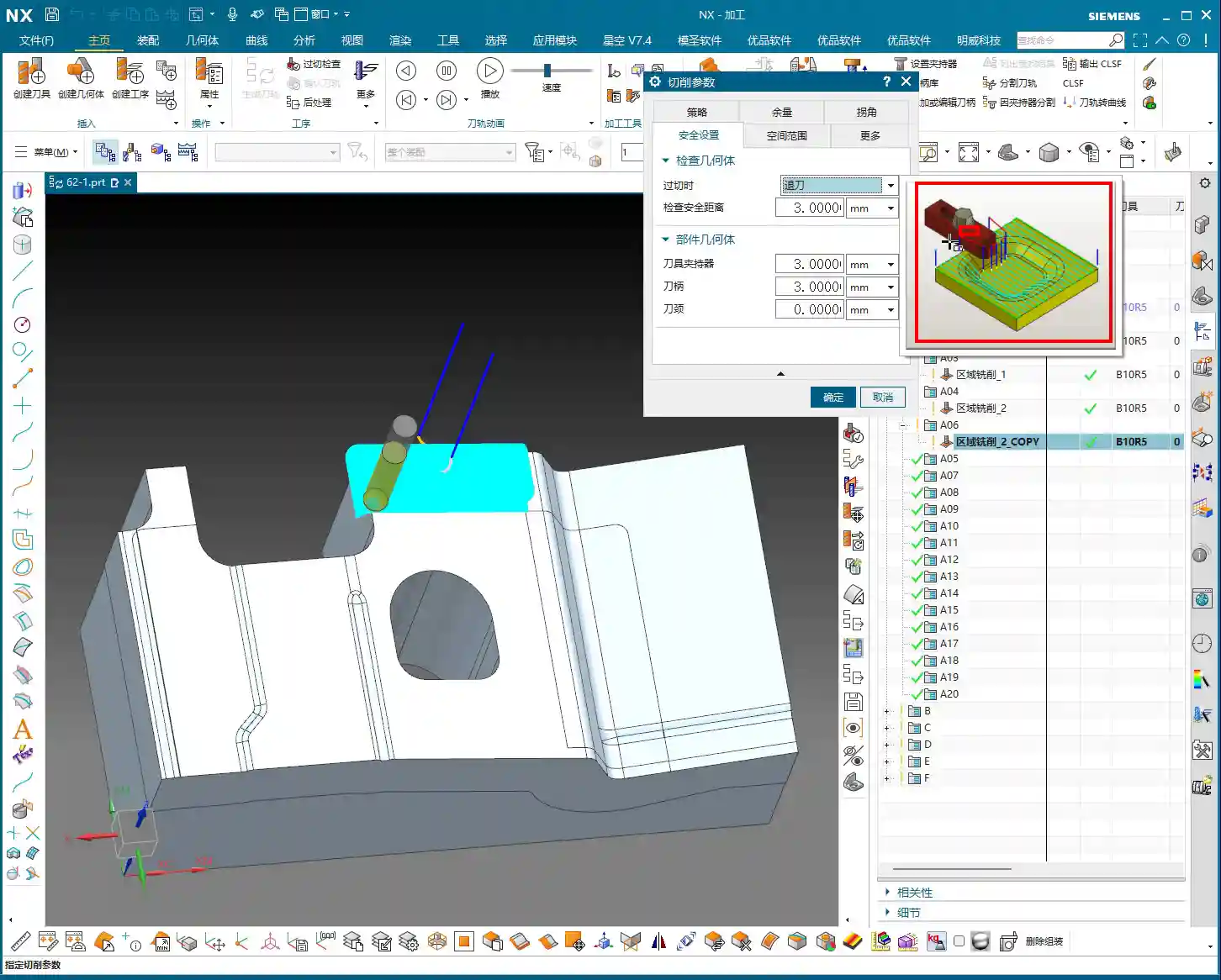
    Master Wang’s Advice: The default “Retract” strategy is the safest. Especially for beginners, absolutely do not change it arbitrarily. Only consider using “Skip” to improve efficiency when you are 100% certain that the clamp or obstacle is low enough and the tool will absolutely not make contact. Don’t just rely on software simulations; no matter how good they look, a tool crash on the actual machine is no joke – it can range from scrapping the workpiece to damaging the machine. I often say, “Don’t just look at the software simulation; look at the cutting sparks,” and that’s exactly what I mean. Practical operational experience and thorough inspection are paramount.

    Risks and Benefits of Skipping

    Risks: If you misjudge the obstacle’s height, or if the fixture isn’t precisely modeled, the tool will collide when “skipping,” leading to tool breakage or even machine damage. Such losses far outweigh the small amount of machining time you might save.

    Benefits: In certain specific situations, such as using very short tools, or when obstacles (like a pre-machined boss on the workpiece) are genuinely low, or if you’re using a 5-axis machine that can cleverly avoid obstacles, then “Skip” can significantly boost machining efficiency and reduce air cutting time. Especially in high-volume production, these small efficiency gains accumulate into a substantial cost advantage. Therefore, understanding when to use “Skip” and when to use “Retract” is a crucial skill for any qualified NX programmer.

    Roll Tool on Boundary? Mostly Unnecessary

    Additionally, NX has an option called “Roll Tool on Boundary.” In essence, this function makes the tool “roll” an extra pass when it encounters an edge. But in my experience, this feature is largely useless. It just causes your tool to make an extra cut, increasing unnecessary machining time with minimal improvement to surface quality. Therefore, I recommend you keep it unchecked by default, unless you have a very specific requirement.

    Summary: Pitfall Avoidance Guide

    1. Steep/Non-Steep Region Division: Most of the time, the default 65-degree division angle is sufficient. It’s best to enable both strategies simultaneously, allowing the system to switch automatically.
    2. Toolpath Ordering: Prioritize machining steep regions first, then process flatter surfaces to maintain a smooth machining flow.
    3. Extend at Boundary: This is a powerful tool for improving surface finish. Always enable it and set a reasonable extension amount (0.5-2 mm). It effectively prevents edge marks and burrs.
    4. Check Geometry (Skip/Retract): The default “Retract” is the safest. Only consider using “Skip” to increase efficiency when you are 100% certain of safety (e.g., obstacles are very low and have been cleared). Otherwise, it’s better to go slower and ensure foolproof operation. Remember, safety first, efficiency second.
    5. Other Infrequently Used Functions: For instance, “Roll Tool on Boundary” should generally be left unchecked by default, unless there’s a special circumstance.

    Practice and review these parameters frequently. Especially after generating toolpaths, always simulate extensively and critically analyze. Behind every parameter lies a connection to the actual cutting process and potential issues. By constantly asking “why,” you can truly grow from a programmer into a skilled “Machining Master”!

    👤 About the Author:
    The author is a veteran CNC machining professional with 15 years of industry experience, specializing in UG NX programming. This article is an original work representing personal practical insights.

    ⚠️ Copyright Notice: Unauthorized reproduction or distribution without prior communication is strictly prohibited.
  • Siemens NX Area Milling: In-depth Analysis of Non-Steep and Steep Machining Strategies – Master Wang

    📝 Key Takeaways:

    Siemens NX Area Milling: Practical Deep Dive into Non-Steep and Steep Machining

    Hello everyone, I’m Master Wang. Today, we’ll pick up whe…

    Hello everyone, I’m Master Wang. Today, we’ll pick up where we left off with area milling, focusing on machining strategies for “non-steep” and “steep” areas. The textbooks make this sound complicated, but in actual practice, there are plenty of pitfalls!

    I. Review of Machining Modes: One-Way and Zig-zag

    Last time, we touched on one-way machining. Let’s quickly review it again today. One-way machining, as the name suggests, means the tool only cuts in one direction. After each pass, the tool lifts, rapids back, and then re-engages to cut again. If you think about it, how efficient can that really be?

    One-Way Machining: Low Efficiency, Best Used Sparingly

    “Listen up. This kind of one-way machining might occasionally be used in our shop for certain linear, narrow areas with specific surface finish requirements. But for general sidewall milling, I’m telling you, the time it spends lifting and retracting is longer than its actual cutting time. You’re wasting machine time, and that’s real money! So, unless it’s a special case, use it sparingly, or even avoid it entirely.”

    Zig-zag Machining: The Foundation of Area Milling

    In contrast, “Zig-zag” machining is the workhorse of area milling. The tool sweeps back and forth like a broom, progressively stepping down in the Z-axis while cutting back and forth in the X or Y direction. It’s highly efficient and versatile. It’s the default in Siemens NX. As we’ve covered before, the parameter settings here are the same, so I won’t elaborate further.

    II. Zig-zag with Ascent: A Small Trick to Improve Surface Quality

    “Within ‘Zig-zag machining,’ there’s a less commonly used option called ‘Zig-zag with Ascent.’ At first glance, you might think this feature is redundant—just a simple tool lift, right? But when used correctly, it’s a ‘hidden helper’ for improving surface quality!”

    What is Zig-zag with Ascent?

    In zig-zag machining, when the tool reaches the end of a path and needs to turn to machine the next line, it doesn’t just move horizontally. Instead, it will first perform a slight upward Rapid move, then move horizontally, and finally Linear interpolation to cut. It’s like a person lifting their leg to change direction instead of dragging their feet.

    Master Wang’s Practical Tip: Combine with ‘Smoothing’ for Enhanced Finishing Pass Quality

    “This ‘Zig-zag with Ascent’ feature, especially during a finishing pass, delivers exceptional results when combined with the ‘Smoothing’ parameter. I used to have some junior guys constantly complain about ‘drag marks’ or ‘rubbing’ on finished surfaces, and premature tool wear. One look at their toolpaths, and it was just standard zig-zag, with messy, dragging movements in the corners.

    At that point, you’d enable the ‘Smoothing’ function within ‘Non-cutting Moves,’ and adjust parameters like ‘Maximum Stepover’ for smoothing (e.g., I’m setting it to 5000 here – this is just a demo value; adjust based on actual conditions). You’ll notice the tool performs a subtle lift when transitioning between toolpaths. This lift isn’t about how high the tool jumps; it’s about momentarily disengaging the cutting edge from the material before retracting, preventing secondary friction and drag marks during the return traverse. For mirror finishes or parts with extremely high surface quality demands, this small adjustment can save you a lot of polishing and buffing work, elevating the product’s quality!”

    III. Core Distinction: Machining Logic for Non-Steep vs. Steep Areas

    Now, let’s talk about today’s main event – “Steep” and “Non-Steep” areas. These two concepts are the most easily confused and problematic aspects of area milling.

    ‘Non-Steep’ Areas: The Preferred Choice for Shallow Slopes

    “Non-Steep” area machining, as the name implies, is used for machining areas with relatively shallow slopes. Its toolpaths typically run along the part’s contours or parallel to the XY plane, progressively stepping down. This is the first choice for most flat surface milling and shallow pocket milling. The logic here is: the tool’s bottom cutting edge is primarily engaged, with the side cutting edge playing a secondary role.

    ‘Steep’ Areas: The Go-To for Sidewalls and Deep Cavities

    Conversely, “Steep” area machining is specifically designed for tackling very steep slopes, near-vertical sidewalls, or deep cavities. Its toolpaths typically run along the steep surface parallel to the Z-axis, or step down perpendicular to the tool axis. In this scenario, the tool’s side cutting edge is primarily engaged, with the bottom cutting edge playing a secondary role. This method better utilizes the cutting efficiency of the tool’s side edge, ensuring sidewall perpendicularity and surface quality.

    Master Wang’s Hard-Learned Lesson: The ‘Angle Limit’ Pitfall!

    “Listen up, the most common problem area is the ‘Angle Limit’! In Siemens NX, whether for ‘Non-Steep’ or ‘Steep,’ there’s an angle range setting. For example, you set a threshold angle of, say, 65 degrees.

    • If you select ‘Non-Steep Area’ machining, it will only machine areas with a slope less than 65 degrees.
    • If you select ‘Steep Area’ machining, it will only machine areas with a slope greater than 65 degrees.

    The angle value might be the same, but the machining range they represent is completely opposite! I’ve seen countless newcomers try to machine a near-90-degree vertical wall using ‘Non-Steep’ and then set the angle limit to 89 degrees. The software sees, ‘only angles below 89 degrees are considered non-steep,’ so your 90-degree face won’t be machined. What’s worse, even if you loosen the limits and force it to machine, what kind of machining is it to use the bottom of a flat end mill to scrape a vertical wall? That’s destroying tools and ruining parts! High chatter, poor surface quality, short tool life – your costs will skyrocket!

    IV. Practical Drill: How to Select and Set Up Correctly

    Let’s dive straight into practical operation.

    Pitfalls of Non-Steep Area Machining

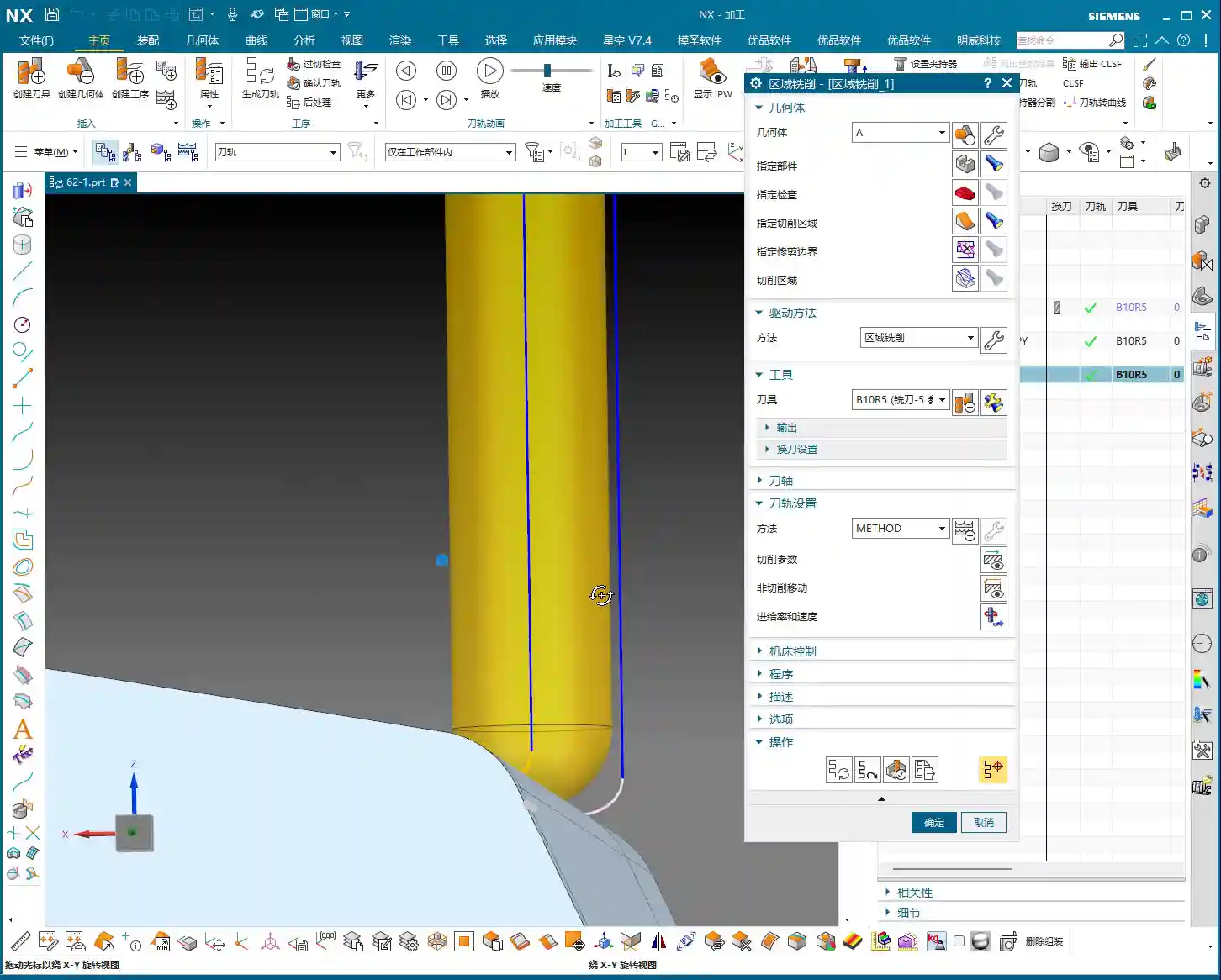
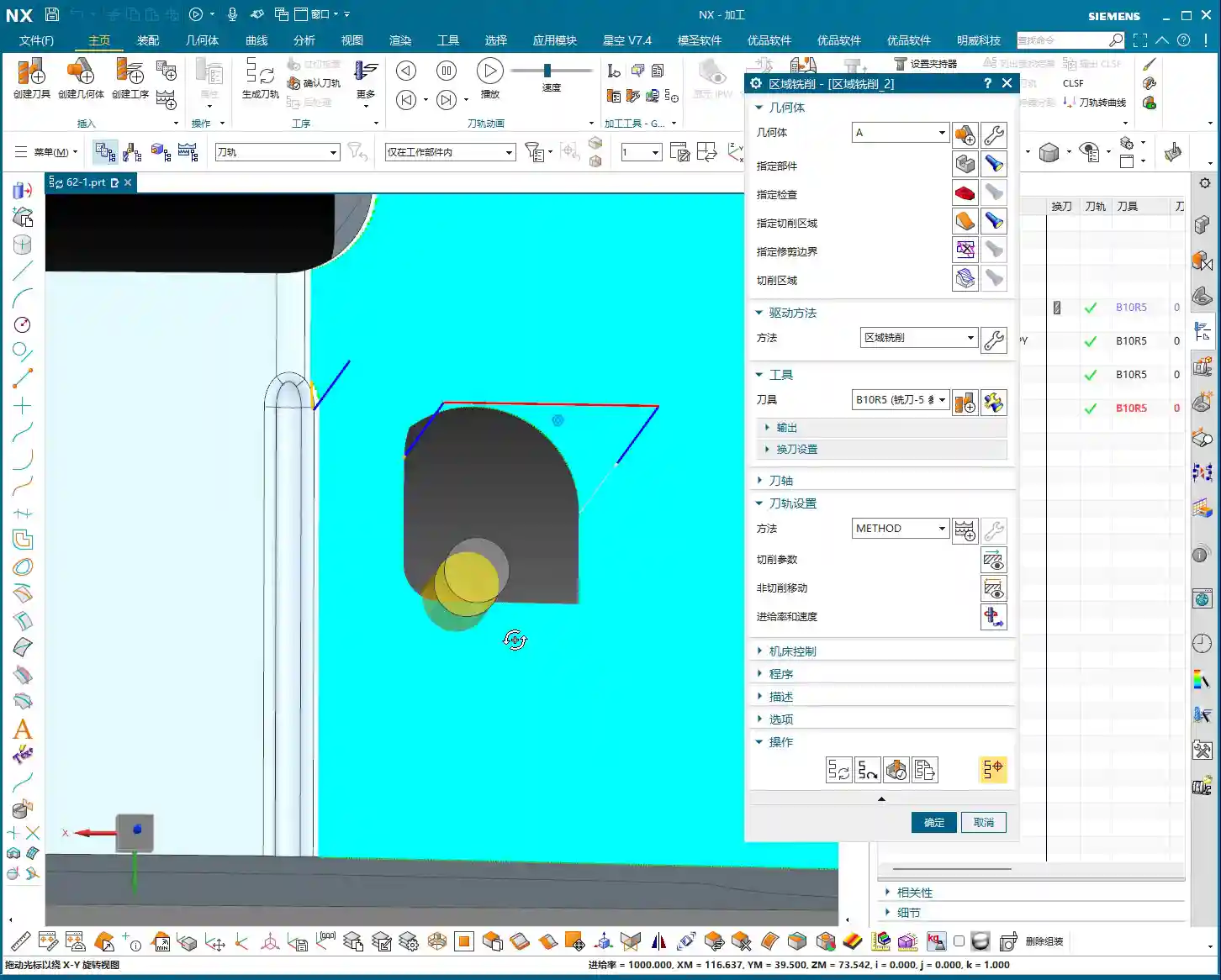
    “As you just saw, I selected a cavity that looked quite steep, but the software defaulted to ‘Non-Steep’ machining. The resulting toolpath looked like ‘climbing a ladder’ on a vertical surface, going down and up, using the tool’s bottom edge to rub against the sidewall. I’m telling you, this kind of toolpath is absolutely unacceptable in production! Especially on complex surfaces, the tool often floats in the air or only uses its tip to cut. Not only is efficiency low, but the surface can also be scarred.

    So, when you encounter such steep areas, you can’t just stubbornly force a non-steep approach. In these situations, we typically use helical milling (cutting down gradually with the side edge), or even more advanced smooth contour milling, paired with specialized tooling, to achieve high efficiency and quality.”

    The Correct Approach for Steep Area Machining

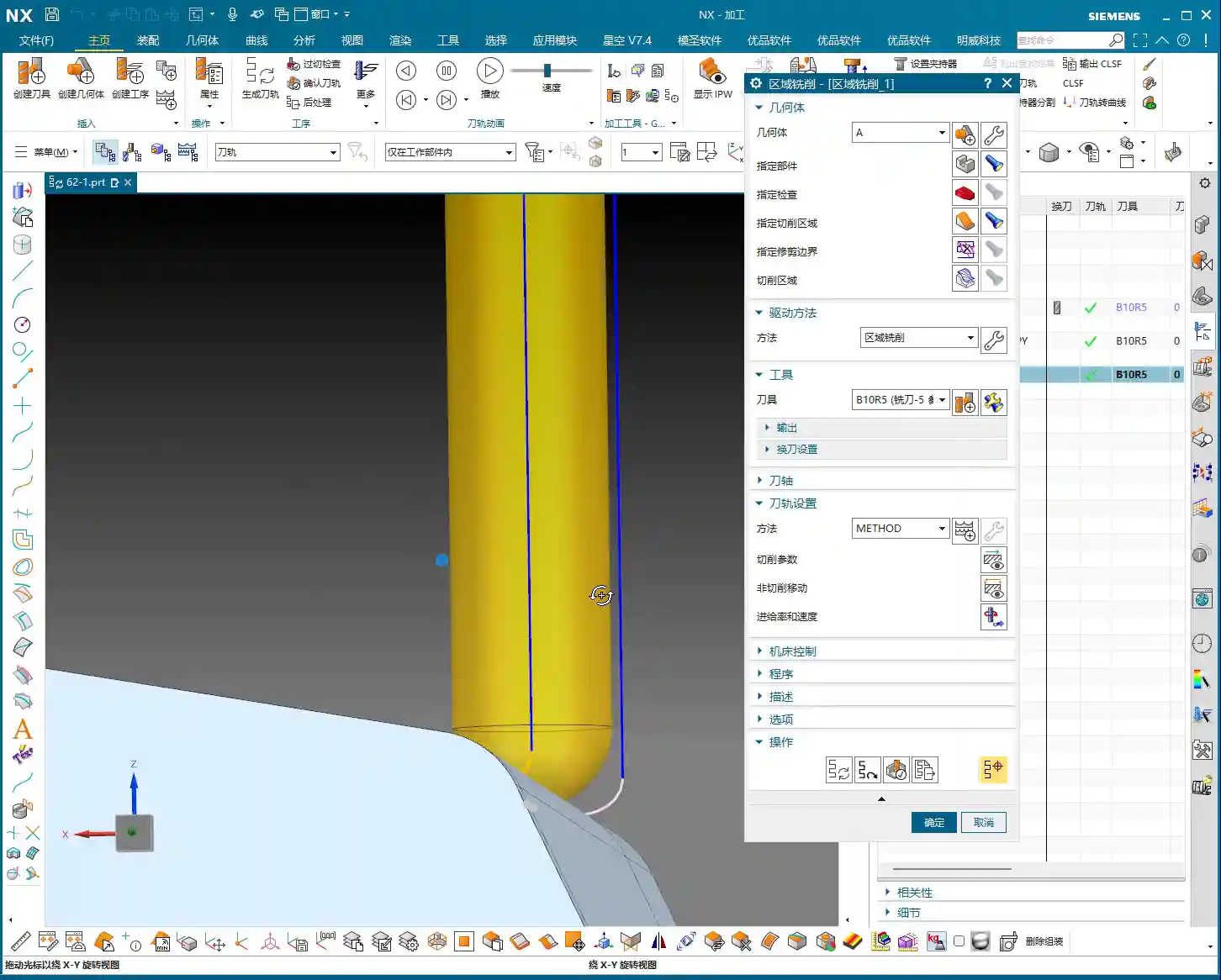
    “When you switch the machining method to ‘Steep Area,’ you’ll immediately see the toolpath change. It will obediently follow the steep wall, gradually stepping down with a small ‘Depth of Cut (DOC)’ per pass. For instance, we set the ‘Depth of Cut (DOC)’ here to 0.1mm or 1mm (actual value depends on material and accuracy requirements) – this is the golden rule for machining sidewalls.

    In this mode, the tool’s side edge is fully utilized, cutting forces are even, machining is stable, and both surface quality and tool life are ensured. Remember, for steep areas, you must use a steep strategy! Don’t try to find a ’roundabout solution’; you’ll only be digging yourself a hole.”

    Non-Cutting Moves: Optimizing Entry and Exit for Open Areas

    In the “Non-cutting Moves” settings, in addition to the “Smoothing” we discussed earlier, there are also entry methods for “Open Areas.” Here are a couple of options:

    • Parallel to Tool Axis: The tool enters or exits the cut with a smooth arc or line, parallel to the tool axis. This method provides stable trajectories, is suitable for finishing passes, and reduces impact.
    • Perpendicular to Tool Axis: The tool enters or exits the cut perpendicular to the tool axis, usually appearing as a straight upward and downward lift (i.e., “ascent” behavior). This is particularly effective in situations requiring rapid disengagement from the cutting zone or to avoid sidewall friction.

    “These two, ‘Parallel to Tool Axis’ and ‘Perpendicular to Tool Axis,’ are the most commonly used entry methods when dealing with open areas. Switching flexibly based on part geometry, material, and surface requirements can significantly boost machining efficiency and surface quality. Don’t underestimate these details; this is what separates you from those ‘programmers’ who just click buttons!

    Prioritizing Machining Modes

    To summarize, there are four most commonly used machining modes in area milling:

    1. Zig-zag: Most common, highly efficient, suitable for roughing and semi-finishing of most non-steep areas.
    2. Follow Periphery: Suitable for specific contours, where the toolpath follows the boundary.
    3. Helical: Often used for deep cavity machining; smooth entry, less chip accumulation.
    4. Zig-zag with Ascent: Suitable for finishing passes, reduces drag marks, and improves surface quality.

    “Among these four, ‘Zig-zag’ is used the most and is practically the default option for area milling. ‘Zig-zag with Ascent,’ as I mentioned, is a great aid for finishing passes. As for other modes like one-way, they can largely be shelved; production efficiency dictates everything!”

    Summary: Pitfall Avoidance Guide

    1. Steep vs. Non-Steep: The core lies in angle range and cutting edge engagement. Non-steep machining uses the tool’s bottom edge for flat surfaces; steep machining uses the tool’s side edge for sidewalls. The logic for their angle limits is opposite, so be sure to distinguish them!
    2. Don’t try to force a “Non-Steep” strategy on “Steep” areas. Attempting to machine steep regions by loosening non-steep angle limits typically leads to uneven tool loading, poor surface quality, and drastically reduced tool life. When a “Steep Area” strategy is required, use it diligently.
    3. “Zig-zag with Ascent” is a powerful tool for finishing passes. Combined with the “Smoothing” function, it effectively reduces drag marks and improves the finishing quality of complex surfaces.
    4. Understand the logic of non-cutting moves. “Parallel to Tool Axis” is primarily for smooth tool entry, while “Perpendicular to Tool Axis” is for rapid lift-off and disengagement in specific scenarios. Flexible selection based on actual conditions optimizes toolpaths and reduces risks.
    5. Combine theory with practice. No matter how good a software simulation looks, ultimately you need to observe the cutting sparks on the machine, listen to the cutting sound, and examine the actual part’s results. More contemplation and hands-on experience are what truly make you skilled!

    👤 About the Author:
    The author is a veteran CNC machining professional with 15 years of industry experience, specializing in UG NX programming. This article is an original work representing personal practical insights.

    ⚠️ Copyright Notice: Unauthorized reproduction or distribution without prior communication is strictly prohibited.