Tag: Operation Sheet

  • Siemens NX (UG) Operation Sheet for Setup A: A Practical Deep Dive – Master Wang Teaches You How to

    📝 Key Takeaways:

    Siemens NX (UG) Operation Sheet for Setup A: Practical Deep Dive

    [VIDEO_HERE]

    Overview: The Importance and Core Function of the Operation Sheet

    Listen up, folks! In mechanical machining, no matter how perfectly you program toolpaths in Siemens NX, if you can’t clearly convey that information to the shop floor operators, it’s all for nothing. The operation sheet, simply put, is the ‘interpreter’ and ‘guidebook’ connecting us programmers with the machine operators. It absolutely must clearly detail how to fixture the part, which face is up, what areas to machine in each step, what tools to use, and what precautions to take. Today, we’re going to start with the most fundamental and critical Setup A operation sheet, and I’ll walk you through how to generate it, and more importantly, how to interpret and effectively utilize it!

    Siemens NX (UG) Operation Sheet Generation: Practical Steps

    Step One: Select Programs for Output and Initial Verification

    In Siemens NX, first, select all the toolpath programs you want to output an operation sheet for (e.g., A01, A02, A03 for Setup A). Once selected, here’s a good habit: always simulate the toolpaths first to ensure there are no issues and that the fixturing is appropriate.

    For a part like this one, Setup A involves machining a single face. So, when clamping, you need to secure the part in a vise, exposing the face to be machined. Simulating it gives you a clear understanding. It also provides the operator with a visual machining preview, building confidence and reducing the chance of errors.
    Step Two: Select the ‘Generic Operation Sheet’ Function

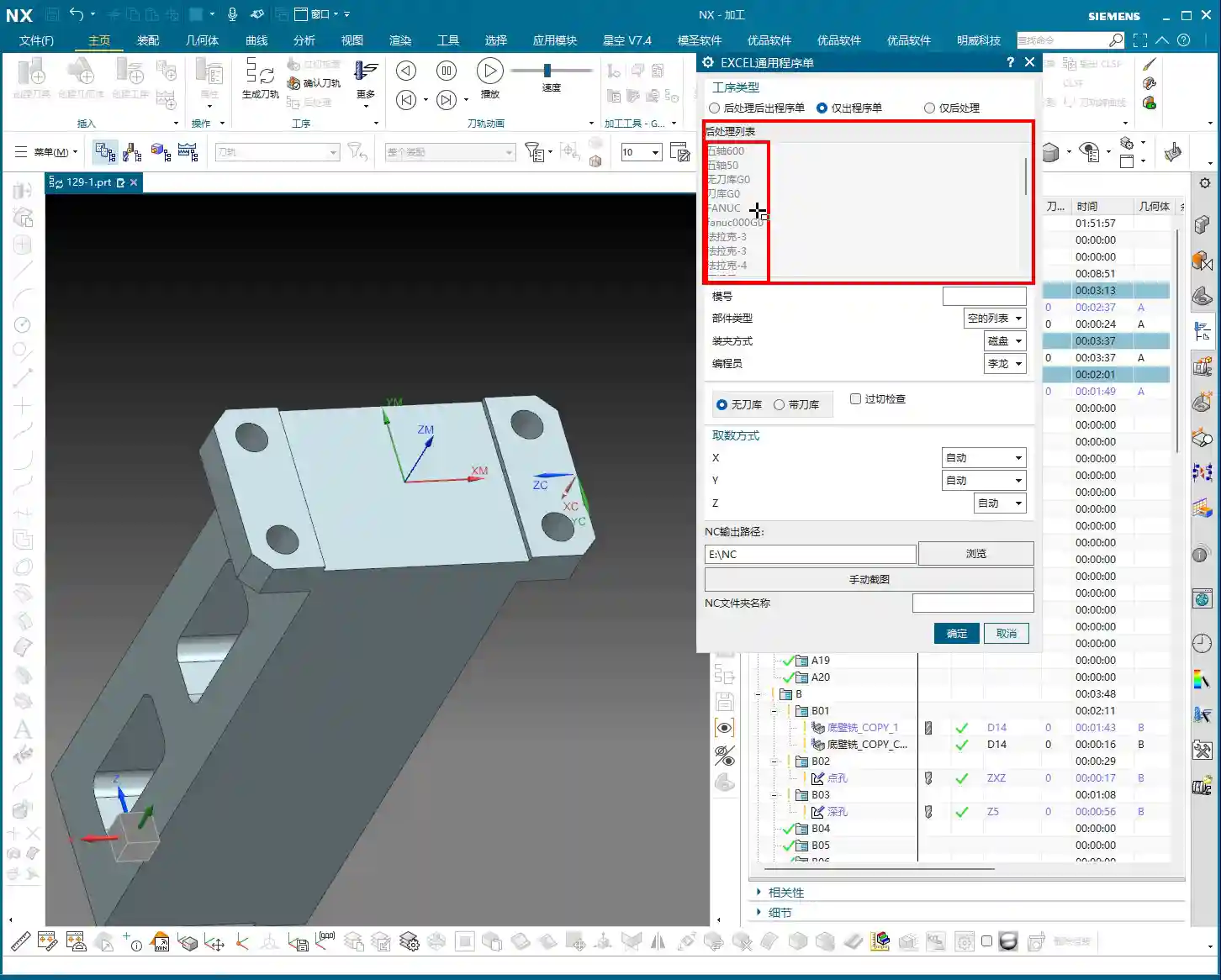
    Toolpaths are good, programs are selected. Next, it’s time for the crucial step of outputting the operation sheet. In the Siemens NX menu, find the ‘Generic Operation Sheet’ option. For us, this is usually achieved through the ‘Starry Sky’ plugin. Just click it.

    Step Three: Understand Output Options and Path Settings

    Once open, you’ll see several output types:

    • ‘Post-Process and Output Operation Sheet’: This means outputting both the G-code (post-processed file) and the operation sheet simultaneously.
    • ‘Output Operation Sheet Only’: This outputs only the operation sheet; we can handle the G-code separately later.
    • ‘Output Post-Process Only’: This outputs only the G-code.

    Since we’re focusing on operation sheets today, select ‘Output Operation Sheet Only’. When you do, you’ll notice the ‘Post-Process List’ section is empty. That’s perfectly normal, just ignore it. As for the ‘Tables’ and other options below, those are more detailed settings we’ll cover later; you can safely disregard them for now.
    Regarding the output path, many people just stick with the default. But listen up, I, Master Wang, have a personal habit: I typically create a dedicated ‘NC’ folder on my D: drive or another non-system drive, and I put all post-processed files and operation sheets in there. This makes management easier, finding files quicker, and prevents clutter. You might want to adopt this practice.

    Step Four: Confirm and Generate the Operation Sheet

    Once all previous settings are configured, just click ‘OK’. No need to mess with any other parameters; the operation sheet will be automatically generated and saved to your specified path.

    In-Depth Interpretation of Key Information in the Setup A Operation Sheet

    Part Basic Information and Datum Reference

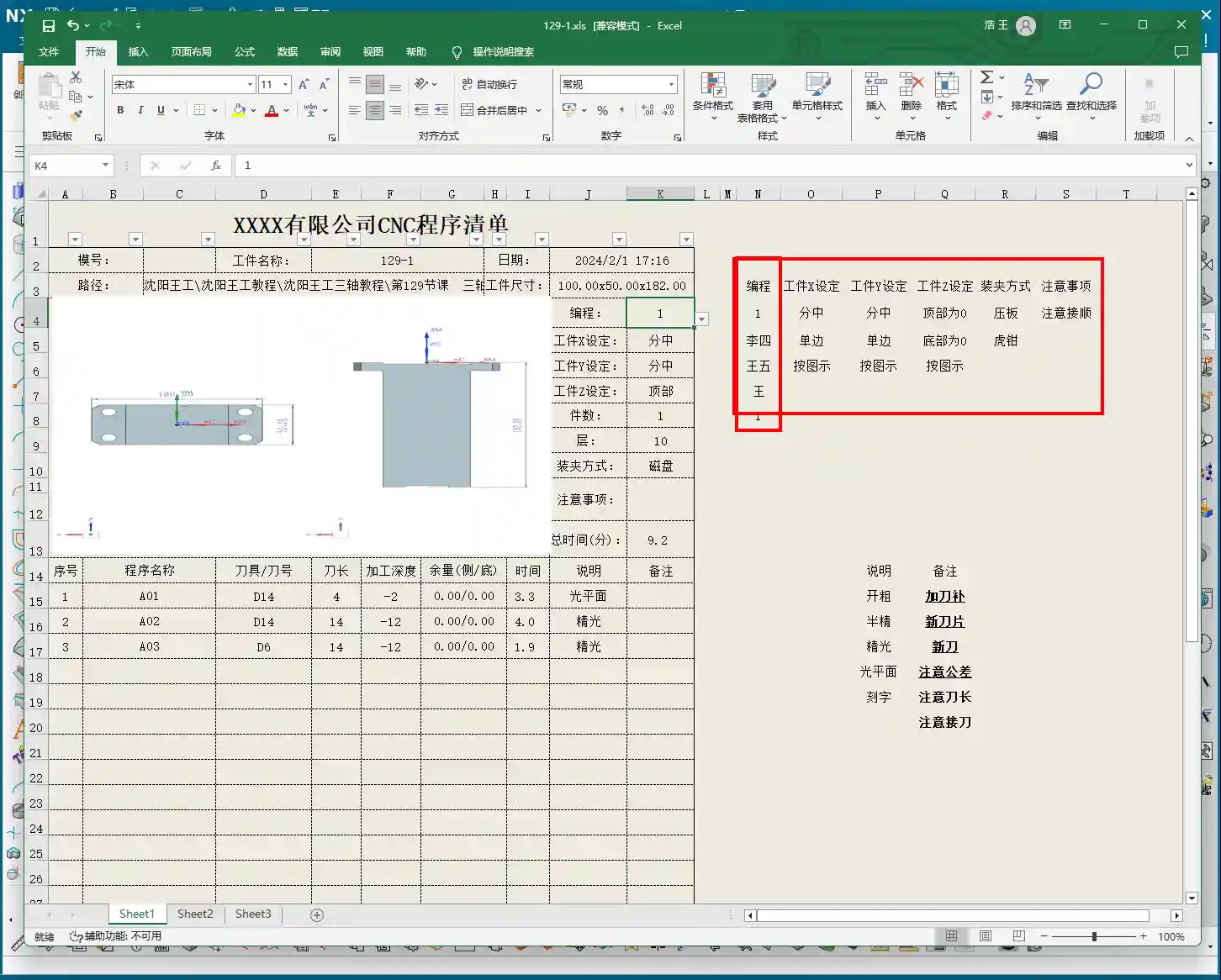
    • Dimensions: The operation sheet will clearly specify the part’s length, width, and height. For example, our part here is 100mm long, 50mm wide, and 182mm high. These are the final finish cut dimensions, so the operator knows the part’s size at a glance.
    • Locating Datum: This is critically important! The operation sheet will clearly state the tool offsetting method. For example, here it’s ‘Center X & Y, Top Face Zero’. This tells the operator exactly where the tool offsetting origin is for the X, Y, and Z axes – absolutely no room for error.
    • Views: The automatically generated XY and XZ views from Siemens NX provide a clear visual of the part’s machining faces and tool offsetting points. When operators see these diagrams, they’ll have a crystal-clear understanding of the features to be machined and the datum locations. Don’t just rely on software simulations; look for the cutting sparks! Drawings are merely aids; the shop floor is where reality happens.

    Company and Workpiece Information

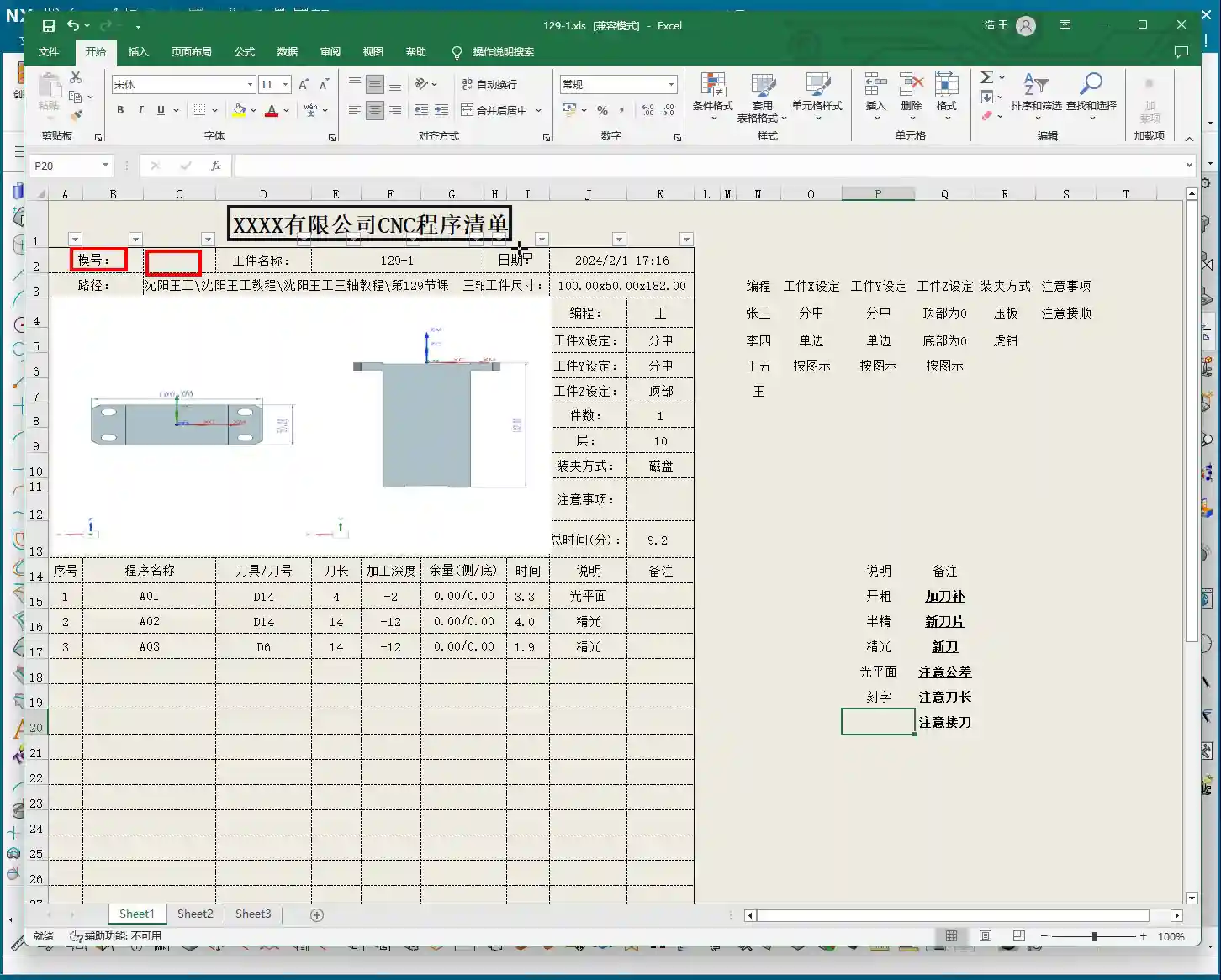
    • Mold/Job Number: This section can be filled according to your company’s specific requirements. If you want it to display the company name or a particular mold number, you can preset it in the operation sheet template. How do you modify the template? I’ve covered that in detail in my previous video tutorials; go check them out yourself – it’s fundamental!
    • Workpiece Name: For example, Programmer and Date

      • Prepared By: Here, I’ve put ‘Wang’. You can enter your own name or employee ID. This is also something you modify in the template; set it once, and it will auto-populate thereafter.
      • Date: The specific date and time the operation sheet was generated, such as

    File Path and Dimension Verification

    • Path: The file path where the operation sheet is stored. While it might be long, the operator only needs to know which lesson’s folder (e.g., ‘Lesson 129’) it’s in to find the corresponding NC file. This helps our shop floor colleagues locate the correct file and prevents loading the wrong program.
    • Actual Dimensions: Emphasizing again: 100mm long, 50mm wide, and 182mm high. These are the final finish cut dimensions of the part.

    Clamping Method and Precautions

    • Clamping Method: For example, we’re using a ‘strap clamps’, ‘three-jaw chuck’, Precautions: For instance, Total Machining Time and Sequence Details

      • Total Time: The combined total machining time for all Setup A programs (A01, A02, A03), for example, Sequence Details: The operation sheet will list each specific program segment:

        • Program Name: For example, Tool: For instance, Tool Length: Pay close attention here! This refers to the ‘clamped four units’ (e.g., 40mm). It is NOT the overall tool length! This is a common area for Machining Depth: For example, single depth of cut or the depth of a specific feature, not the final machining depth of the entire part. Understand this in conjunction with the actual toolpath.
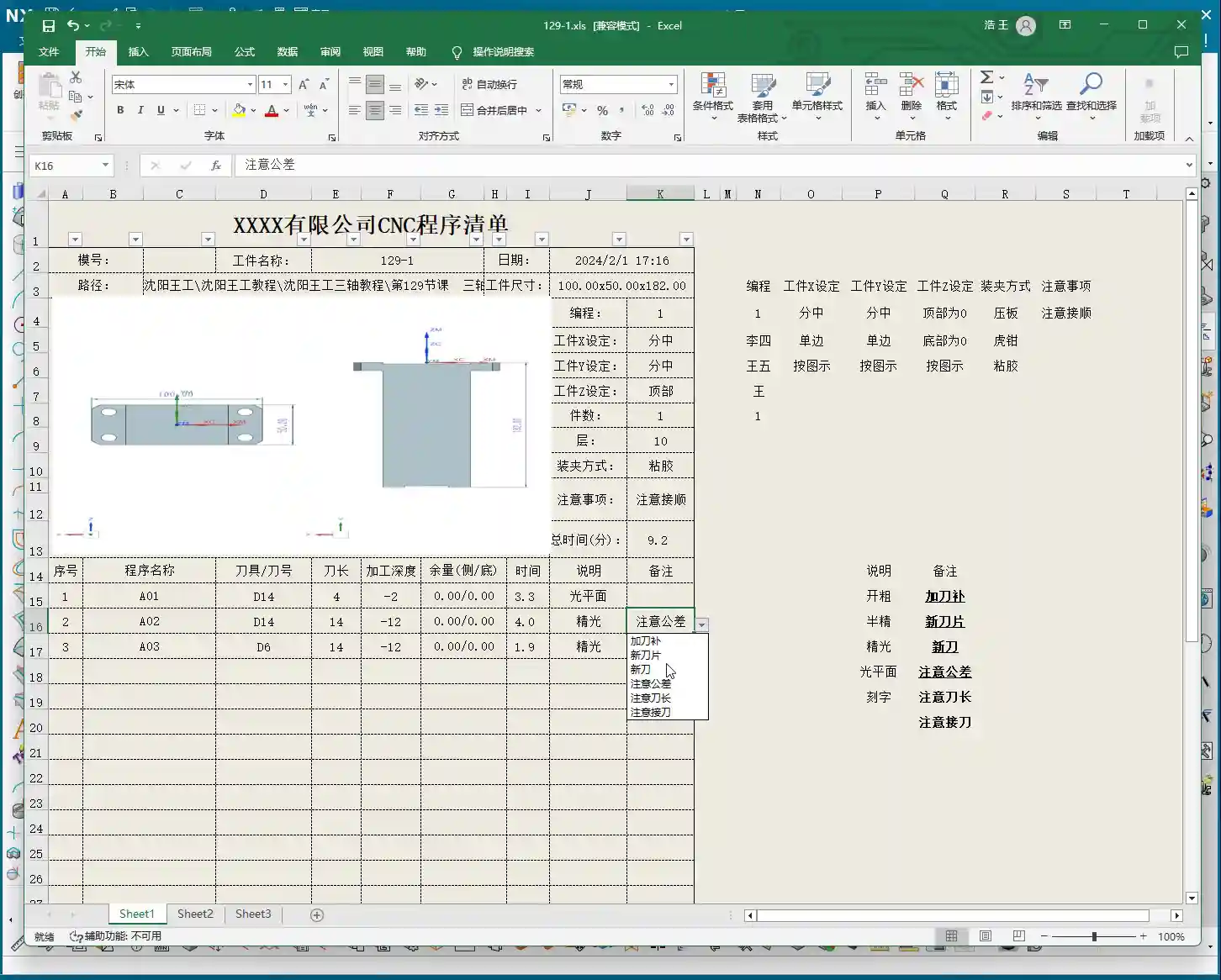
        • Description: Such as Remarks: This is a treasure trove! Here, you can jot down all sorts of ‘Pay attention to tolerance’, ‘Change to a new tool’, ‘Mind tool blending’, and so on. These are crucial reminders for the operator to ensure machining quality and efficiency. This section can also be customized in the template; add all your frequently used precautions.

      Master Wang’s Wisdom: Practical Tricks for Operation Sheets

      Just knowing how to generate an operation sheet isn’t enough; the key is knowing how to use it, how to make it ‘come alive’.

      • Division of Labor: Post-Processing vs. Operation Sheet: We choose ‘Output Operation Sheet Only’ because post-processing (G-code) requires separate review and verification, while the operation sheet serves as direct instructions for the operator. Keeping them separate clarifies responsibilities and improves efficiency.
      • The True Meaning of ‘Tool Length’: Remember, the tool length on the operation sheet refers to the fixturing. It’s better to clamp it a bit shorter for more stability than to risk clamping it too long.
      • Applying ‘Machining Depth’ Flexibly: Don’t mistake the ‘machining depth’ in each program segment as the final depth. It could be the single The Value of the ‘Remarks’ Section: This is where your experience truly shines! Here, you can jot down any ‘frequent air blasts’; if a feature has tight tolerances and requires ‘this tool needs to be replaced halfway through machining’. These are all critical for improving machining quality and reducing scrap.
      • Path Standardization: My habit of using a dedicated NC folder on the D: drive is all about Template Customization: This is also a big deal! Integrate your company’s commonly used information, standard operation sheet template. This will save a lot of effort every time you generate one and ensure the Master Wang’s Perspective: The ‘Siemens NX + SEO’ One-Two Punch for Industrial Product Promotion

        Folks, don’t think I, Master Wang, only know how to write code and sharpen tools. In this day and age, even great products need a good shout-out. Our work on operation sheets isn’t just for production; it’s also excellent material for industrial product promotion.

        See, all these detailed processes – Siemens NX modeling, 5-axis simultaneous programming, toolpath optimization, and then today’s topic, operation sheet creation – each step embodies our core technology. Share these practical experiences and technical details through articles, tutorials, and case studies on our official website, industry blogs, or even platforms like Zhihu and Bilibili, accompanied by high-definition Siemens NX screenshots and machining videos. The impact will be completely different!

        For example, you could break down the Setup A machining process for a complex part, from modeling to the operation sheet, explaining it step-by-step. Tag it with ‘Siemens NX 5-Axis Programming’, ‘Complex Surface Milling’, ‘Titanium Alloy Machining Process’, ‘Precision Fixture Design’. When potential customers search for these technical solutions online, they’ll find us. Doesn’t that mean we’re directly showcasing our ‘content marketing’, combined with

    Summary: Pitfall Avoidance Guide

    • Operation Sheet ≠ Post-Processed G-code: They have different functions and different purposes; do not confuse them.
    • Don’t Blindly Trust Times: The machining time on the operation sheet is for reference only; actual conditions may vary due to machine status, operator habits, and other factors.
    • Utilize the Remarks Section: Don’t underestimate the remarks! It’s the most direct and effective Template Standardization: Customize your operation sheet templates in advance. This will not only improve work efficiency but also ensure information accuracy and consistency, reducing human error.
    • 👤 About the Author:
      The author is a veteran CNC machining professional with 15 years of industry experience, specializing in UG NX programming. This article is an original work representing personal practical insights.

      ⚠️ Copyright Notice: Unauthorized reproduction or distribution without prior communication is strictly prohibited.