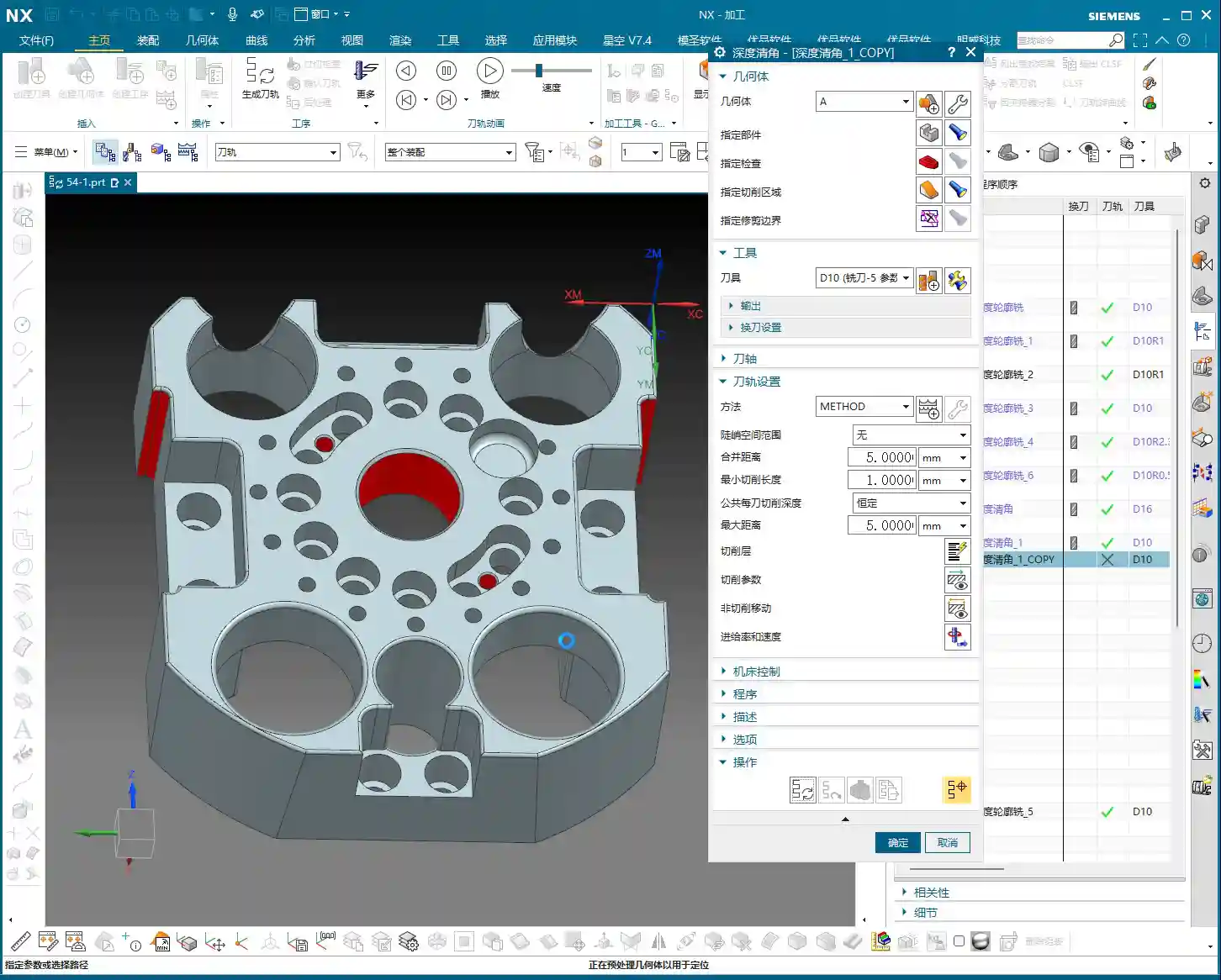
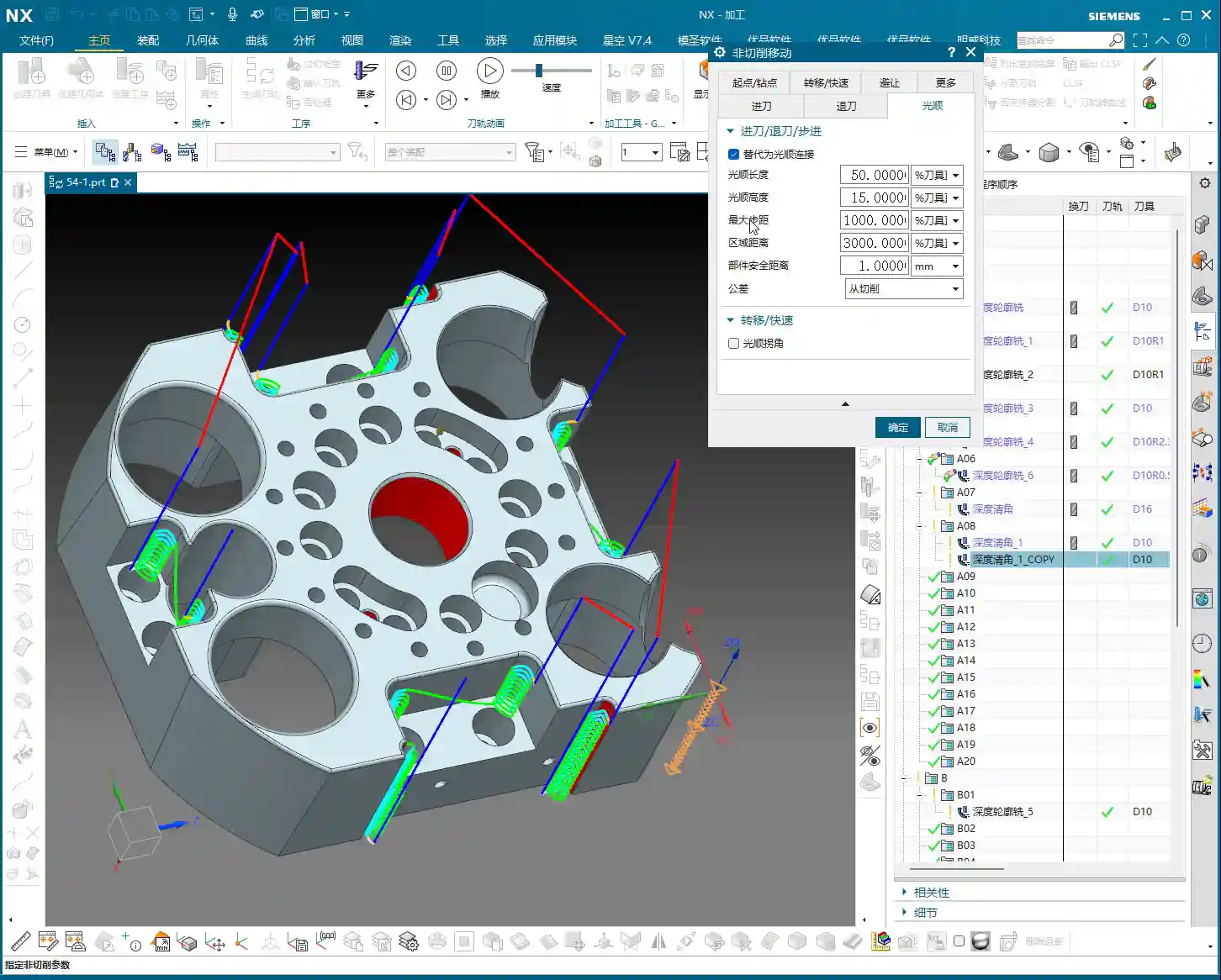
Tag: Rest Milling

  • Siemens NX Full Sequence Programming for Small Mold Parts: Master Wang’s 15 Years of Practical Exper

    📝 Key Takeaways: Master Wang shares practical insights on full sequence Siemens NX programming for small mold parts: covering everything from rest milling to finishing passes. The focus is on effectively addressing corner remnants, optimizing toolpaths with Siemens NX, and boosting machining efficiency. He emphasizes the practical application of surface selection, Depth of Cut control, and helical entry to bridge the gap between theory and real-world machining.

    I. Rest Milling: Don’t Let Small Remnants Spoil Your Finish Pass

    Listen up, apprentices. Today, let’s talk about full sequence programming for small mold parts—it’s not just about clicking a mouse. Especially after roughing and before moving to finishing, there’s a critical step: **rest material cleanup**. It might seem trivial, but it’s key. As I’ve said before, once the program runs, a dynamic simulation often reveals those tiny remnants in certain areas, particularly in **corners and deep slots**.

    1. Initial Rest Material Handling and Simulation Verification

    After the last program ran, you might think it’s good enough. But run a simulation, and see? In this area (pointing to a specific region on the model), isn’t there still a bit of **rest material**? Don’t underestimate that “little bit”; it’s a **hidden danger** for your subsequent finishing passes. So, we need to add another operation specifically to clear it out. Remember, NX dynamic simulation isn’t just for show; use it extensively, examine it closely, especially when simulating cutting sparks and material buildup – that’s where the real skill lies.

    We can copy the previous operation and then, for this specific rest material area, select only that small fillet for cleanup. For the Depth of Cut, let it go a bit **deeper** and extend the toolpath a bit further. Even if it seems “excessive,” ensuring the material is fully machined is always better than under-machining. It’s like in life, always leave a little leeway.

    2. Depth Control and Surface Selection Techniques

    A common mistake here is when the program doesn’t generate. Why? Nine times out of ten, it’s because the surfaces weren’t selected correctly or the cutting parameters are unreasonable. In NX, after you set the machining area, if the toolpath doesn’t generate, first check your selected machining surfaces and boundaries. Sometimes, missing just one small surface can cause the entire program to “strike.”
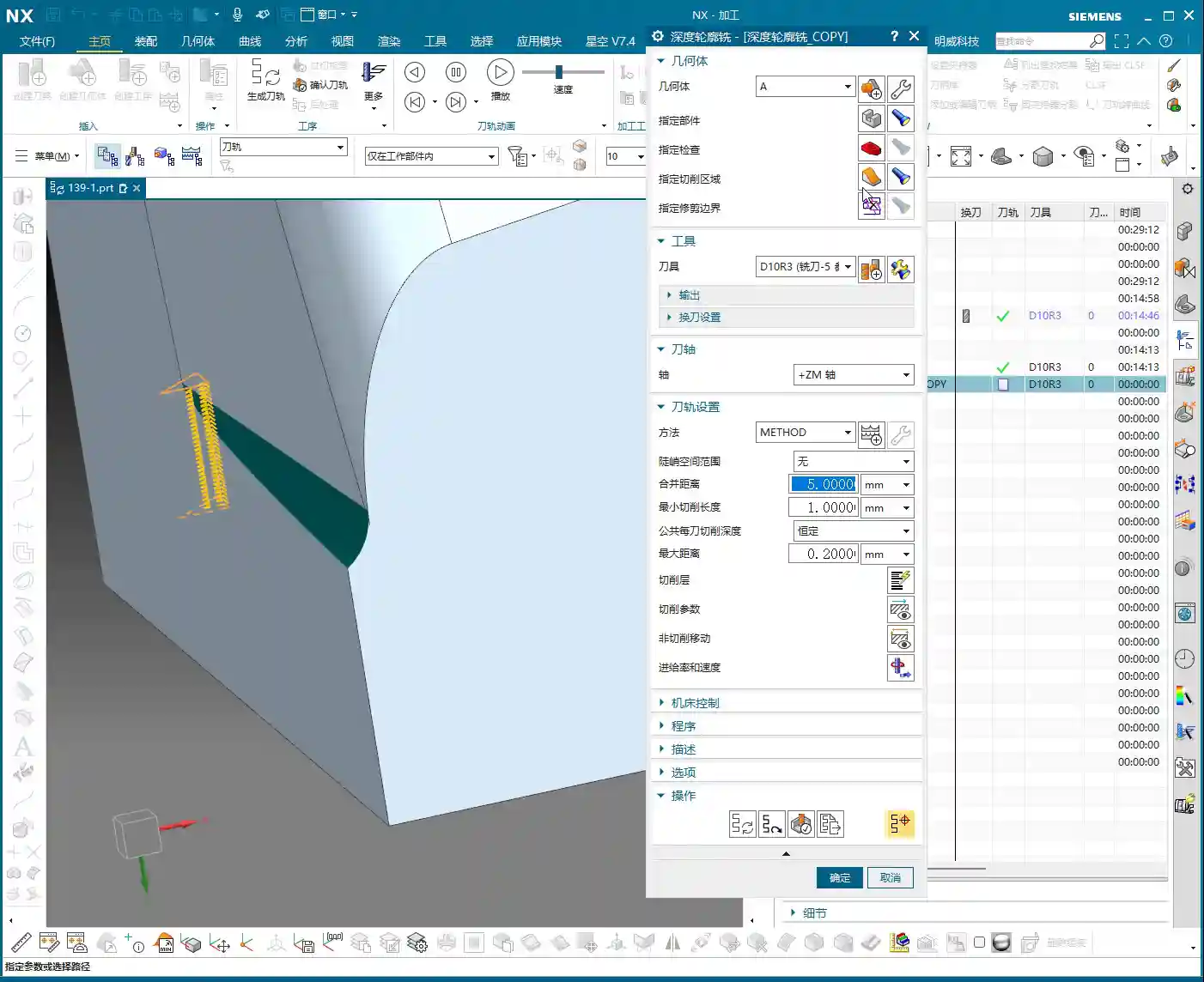
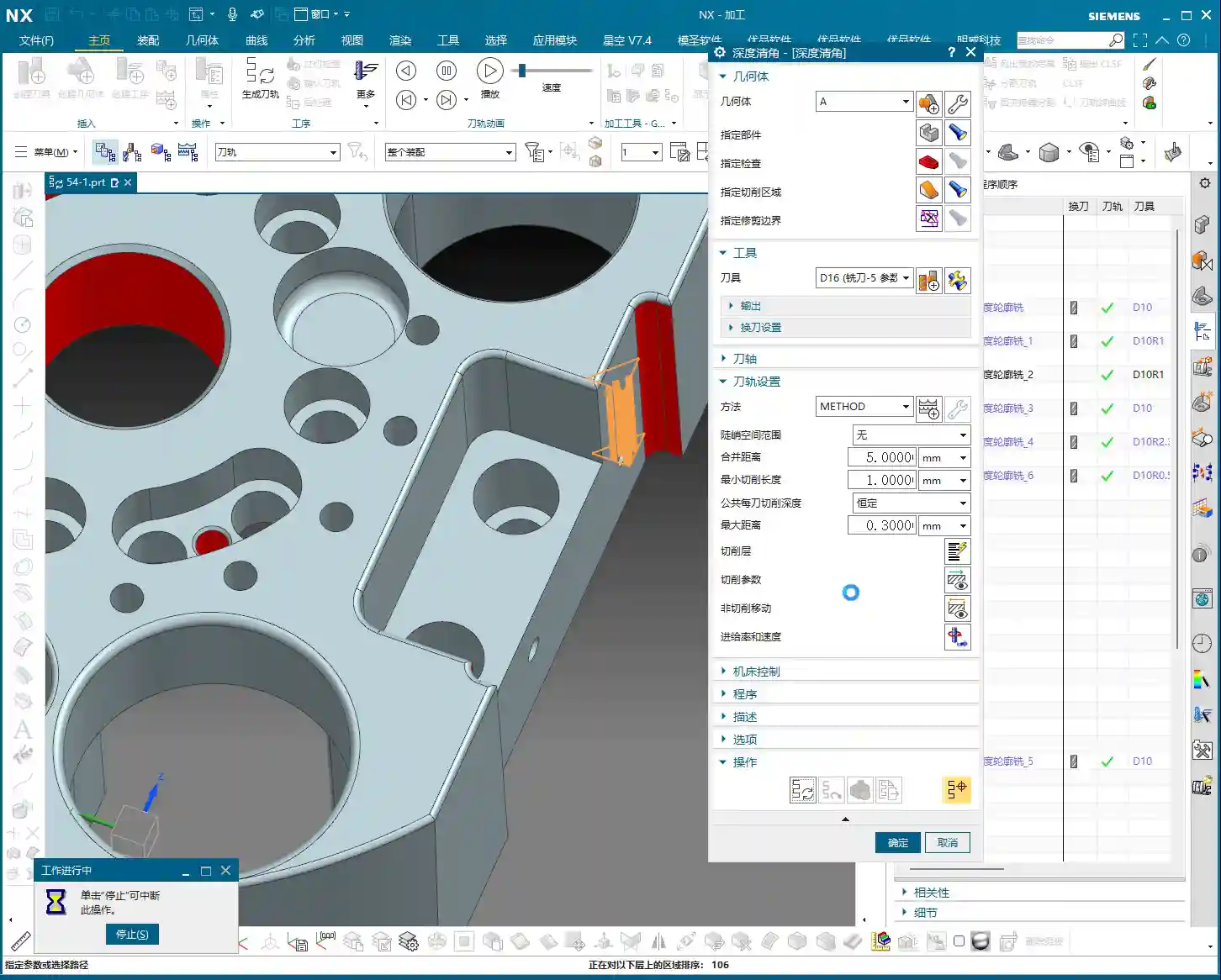
    Also, learn to control your cut layers. For example, if we want to start machining from a specific surface, NX has the “Starting Cut Level” option. Directly specify which surface to start from and move downwards, rather than from the highest point of the model. This effectively avoids air cutting and allows for more precise control over the Depth of Cut.

    I just demonstrated and noticed the toolpath was still a tad short. What do you do then? You don’t change the tool; instead, adjust the “Cut Layer” **”Extension Amount”** to extend it downwards by 0.5 mm. That’s enough. Don’t underestimate that 0.5 mm; it’s the secret weapon for ensuring no rest material is left in the corners.

    II. Machining Strategies for Corner Regions: Detailed Processing

    Next, let’s focus on those corners prone to accumulating “dirt.” Small molds are all about precision and surface quality; if the corners aren’t clean, the whole part is useless.

    1. Selecting the Correct Machining Area and Tool

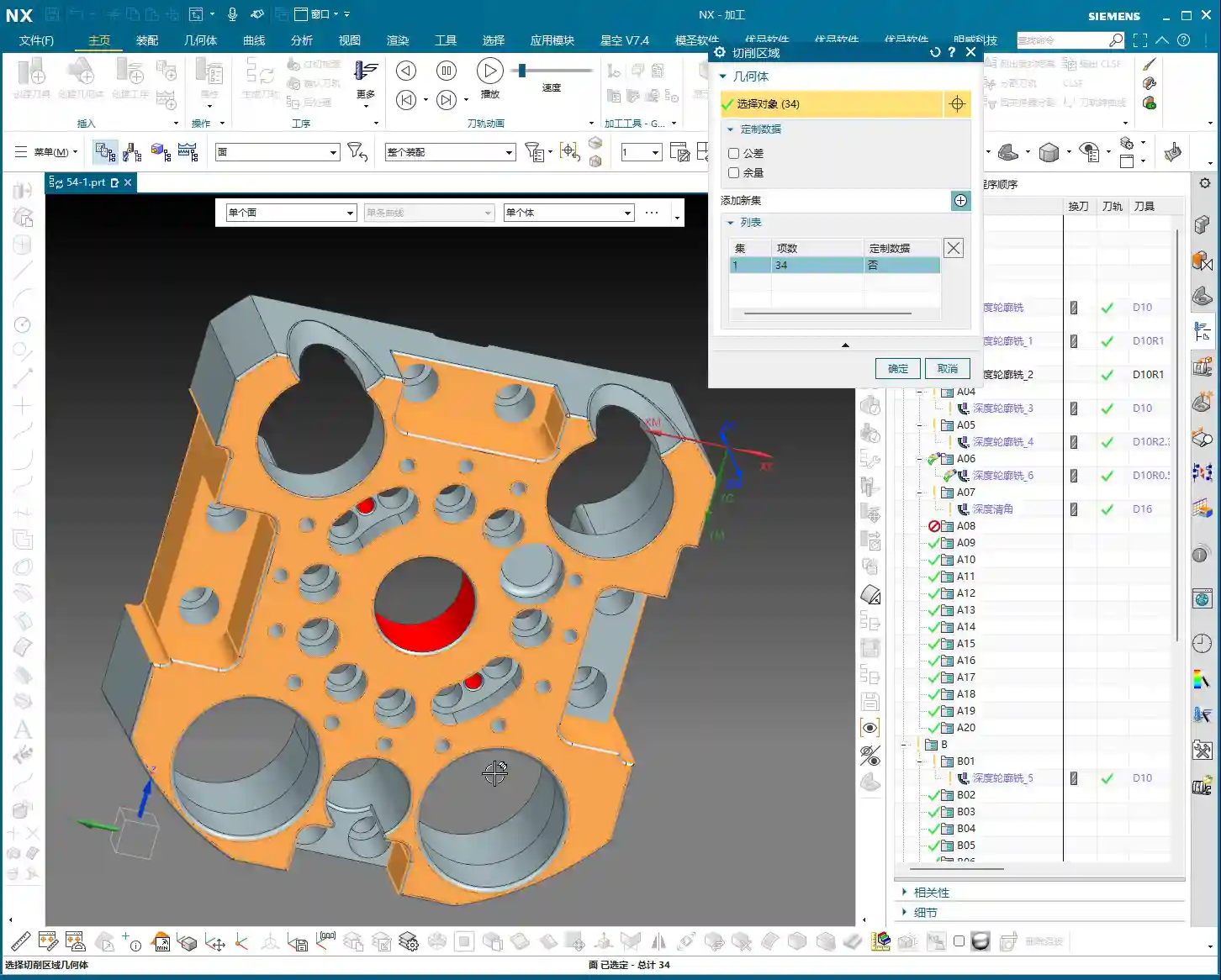
    We insert a “Rest Machining” or “Area Milling” operation. Select the part, then the cutting region. In this area, I generally recommend selecting all relevant surfaces to ensure complete coverage. However, for certain special areas, like narrow slots in deep cavities, you can initially skip them and address them later with a finer tool or specialized toolpath.
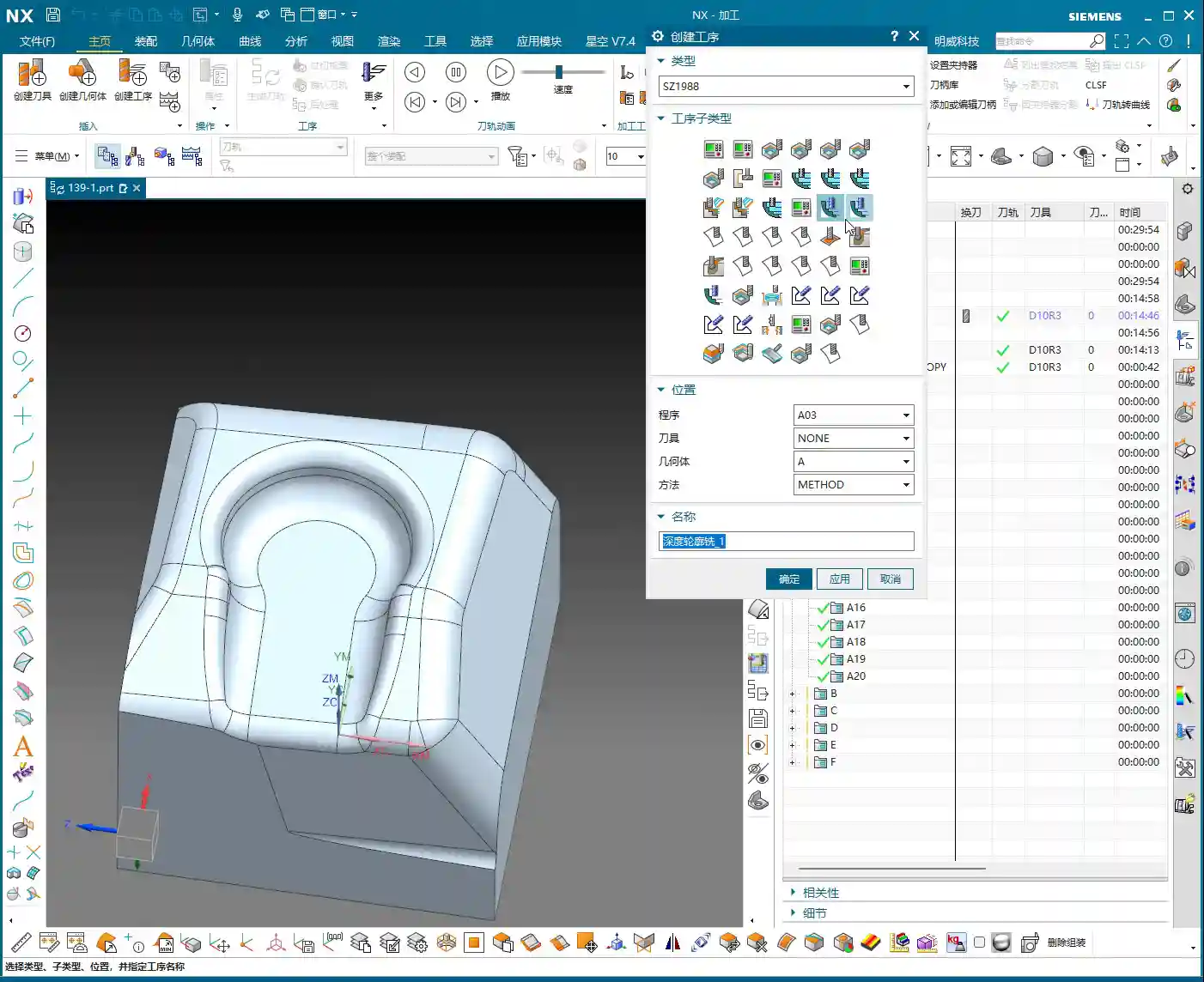
    Regarding tool selection, as I said earlier, we’re using a D8 ball end mill. For finishing small molds, ball end mills are your workhorse. When choosing a tool, don’t just look at the diameter; also consider the tool’s flute length, shank diameter, and tool holder length to ensure no interference and smooth machining to the deepest points. Especially when performing collision detection in NX, that’s not something to take lightly; one collision could scrap a machine worth hundreds of thousands.

    2. The Art of Climb Milling Direction and Toolpath Strategy

    In NX, the cutting direction also matters. For instance, in this area, letting the tool run with climb milling yields better surface quality and longer tool life. Especially when machining challenging materials like titanium alloys or superalloys, climb milling effectively reduces built-up edge and enhances cutting stability. This requires adjusting the “Machining Strategy” within the “Cutting Parameters” in NX.

    Furthermore, the toolpath strategy is crucial. For mold cavities, especially those with slight tapers, Spiral Inward plunge is often more efficient than parallel passes, and the toolpath is smoother. It ensures the tool is continuously cutting, reduces air moves, and avoids sudden tool loading in corners, extending tool life. You can select “Spiral” or “Spiral Inward” path types in “Cutting Method”; try them out to see which works best.

    III. Tool Selection and Entry Methods: Optimizing Machining Efficiency

    The tool is the “tooth” of CNC machining; if you choose it incorrectly or use it poorly, even the best machine is useless.
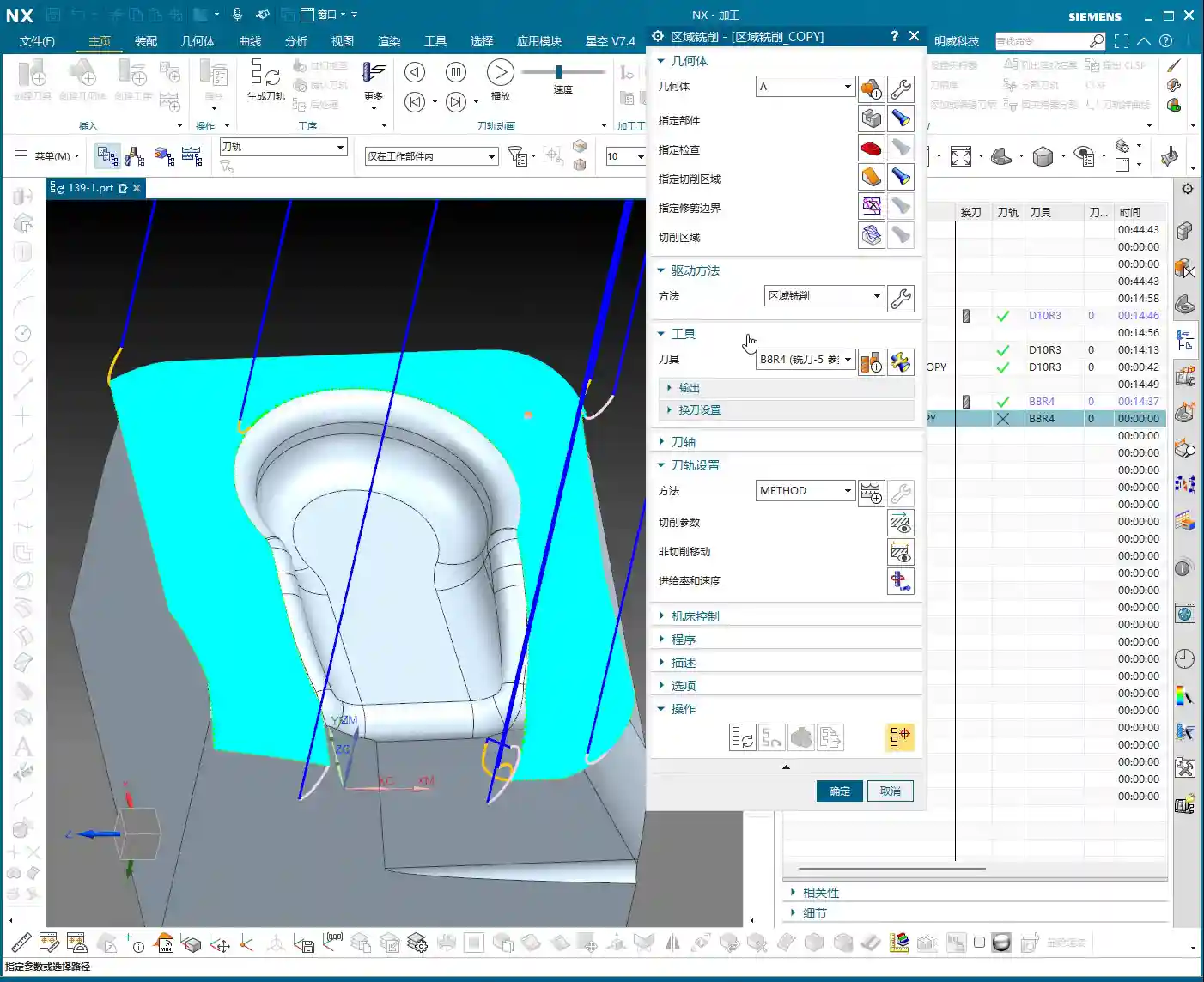
    1. Flexible Switching Between Large and Small Tools

    Earlier, we used a D8 ball end mill for cleanup, but sometimes you’ll find an R3 tool might be too large, unable to fully clear certain areas, or simply inefficient. At this point, you need to consider a **”tool change”** strategy.

    For instance, during the roughing stage, you can boldly use a larger tool, like an R1 tool (an R1 tool is a ball end mill or bull nose end mill with a 1mm corner radius). This boosts efficiency. However, for finishing small molds, especially intricate features, you’ll need to switch to a smaller tool, or even a small carbide end mill. Remember, matching tool size with feature geometry is the prerequisite for achieving high precision.

    Of course, tool changes aren’t random. You need to consider tool change time costs and tool magazine capacity. When programming in NX, you can plan your tool sequence in advance to minimize unnecessary tool changes.

    2. Layered Machining and Safe Tool Entry

    For areas with significant depth or complex cavity shapes, “layered machining” is often the most effective approach. Cutting down layer by layer, from top to bottom, can significantly reduce tool load and prevent chipping. This can be achieved in NX by setting the “Depth of Cut” and “Depth per Cut” (Stepdown).
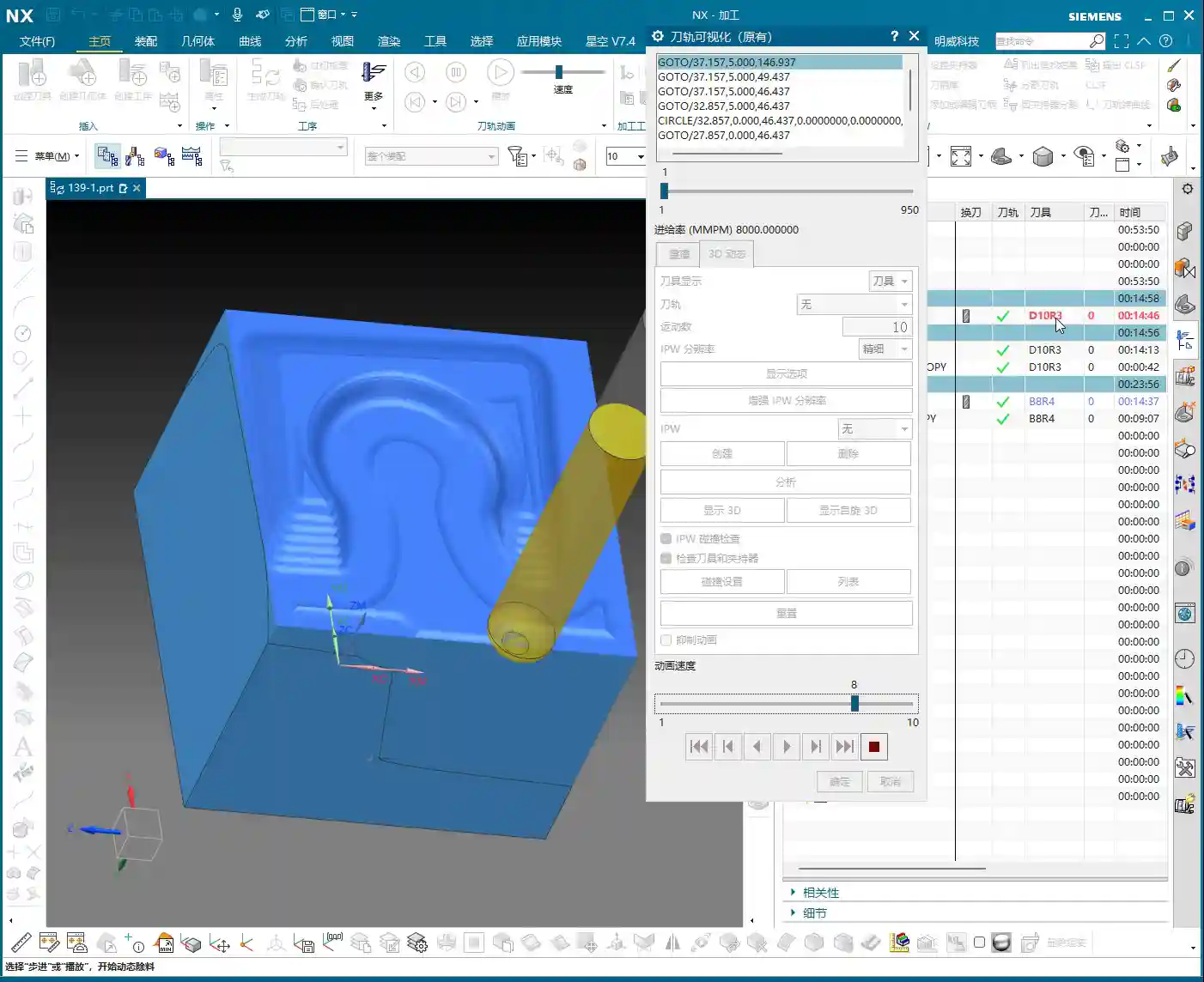
    Tool entry methods are also paramount. Besides the helical entry mentioned earlier, NX offers various entry methods, such as “Ramp entry” and “Plunge entry”. Choosing the right entry method effectively protects the tool, reduces impact, and extends tool life. Don’t underestimate these details; this is where you learn the “machine’s temperament” that isn’t found in textbooks.

    Finally, make extensive use of the “Clearance” function. NX’s “Non-Cutting Moves” has many options; properly setting retract height and approach/retract safety distances ensures the tool doesn’t collide with the workpiece or fixturing during non-cutting movements – this is the baseline for safe production.

    Summary: Pitfall Avoidance Guide

    • Dynamic Simulation is essential: Don’t rely solely on experience and guesswork; use NX’s simulation functions repeatedly, paying close attention to rest material and collisions.
    • Precision in Surface Selection: When selecting machining areas, even a small missed surface can lead to program errors or incomplete machining. It’s better to over-select than to under-select.
    • Cut Layers and Extension: Flexibly use “Starting Cut Level” and “Extension Amount” to precisely control the Depth of Cut, especially for corner cleanup.
    • Experiment with Toolpath Strategies: Helical entry, layered machining, and others – choose the most suitable one based on part characteristics; don’t use a one-size-fits-all approach.
    • Tool Matching Principle: Small features require small tools, deep cavities require long tools. Roughing uses large tools, finishing uses small tools. It’s not about the most expensive, but the most suitable.
    • Pay Attention to Detail Parameters: Climb milling and conventional milling each have their applicable scenarios; don’t mix them up, as it affects surface quality and tool life.

    Alright, that’s it for today’s practical takeaways. Practice more, ponder more; NX programming is a skill that comes with practice, but within that mastery, you need these real-world insights. We’ll pick up next time. If you have any questions, feel free to ask anytime.

    👤 About the Author:
    The author is a veteran CNC machining professional with 15 years of industry experience, specializing in UG NX programming. This article is an original work representing personal practical insights.

    ⚠️ Copyright Notice: Unauthorized reproduction or distribution without prior communication is strictly prohibited.
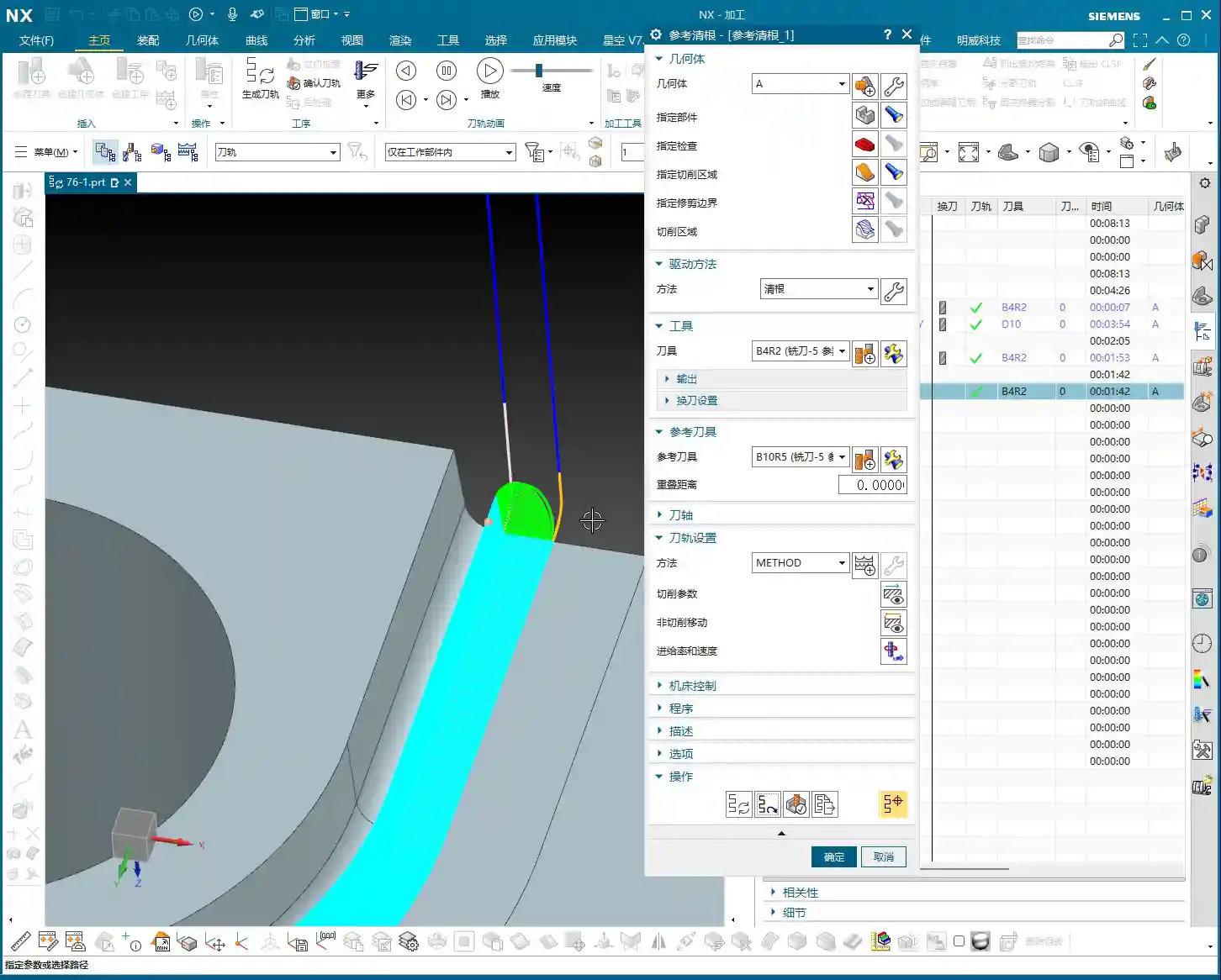
  • Siemens NX Corner Cleanup (Rest Milling): Master Wang’s 15 Years of Experience – Avoid Pitfalls, Dou

    📝 Key Takeaways: Master Wang provides practical guidance on Siemens NX Corner Cleanup (Rest Milling) modes. He highlights “Zig-zag Up + Outside-in Alternating + Smooth” as the most practical and efficient combination, capable of reducing air cuts and protecting tools. He thoroughly explains the advantages, disadvantages, and application scenarios for One-way/Zig-zag Horizontal, Depth Machining, and Follow Periphery modes. Furthermore, Master Wang discusses the strategic choice between “Plunge Milling” and “Area Milling” operations and concludes with a pitfall avoidance guide, emphasizing real-world experience and cost-efficiency.

    Hello everyone, I’m Master Wang. Today, let’s talk about choosing the right Corner Cleanup (Rest Milling) modes in Siemens NX. Don’t underestimate these modes; pick the right one, and your efficiency will skyrocket, and tool life will be extended. Choose incorrectly, and you’ll either have excessive air cuts, premature tool wear, or even scrap the part entirely! Listen up, because this is practical experience I’ve gathered over 15 years, getting my hands dirty on the shop floor – you won’t find this in any textbook.

    Master Wang’s Insights: The Essence of Corner Cleanup Modes

    Apprentices, you must understand that for Corner Cleanup (Rest Milling), especially in complex cavities and surfaces, the machining sequence and toolpath direction are paramount. I’ve personally put together a highly effective and efficient combination strategy that I use most often – it’s one of my core specialties.

    The Ultimate Combination: Zig-zag Up + Outside-in Alternating + Smooth

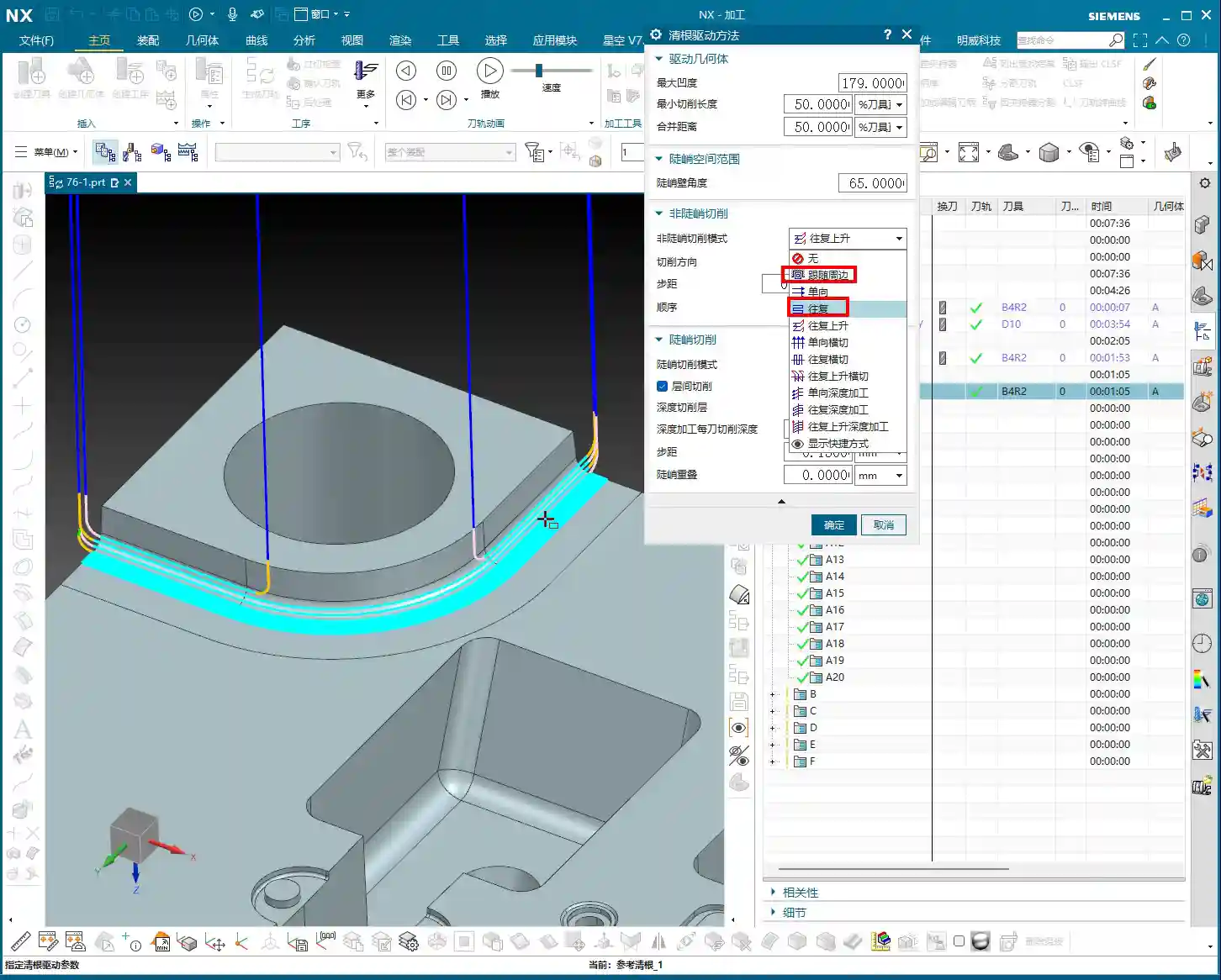
    The most effective toolpath pattern I use, and one that consistently delivers the best results, is “Zig-zag Up,” paired with an “Outside-in Alternating” cutting sequence. Crucially, always remember to enable the “Smooth” option. Why do I emphasize this?

    • Zig-zag Up: In this mode, the tool travels up from the bottom, then down from the top, in a reciprocating motion. Unlike simple one-way cutting, which requires the tool to retract and return after each pass, Zig-zag Up effectively reduces retractions and maintains continuous cutting, making it particularly suitable for cavities with a certain draft angle.
    • Outside-in Alternating: This cutting direction is the core principle! It ensures the tool starts from the periphery of the Corner Cleanup area and gradually moves inward. This guarantees sufficient space for engagement, preventing the tool from making a full-width cut at the beginning. It significantly reduces the risk of excessive Depth of Cut (DOC) and chipping. Especially for harder materials like titanium alloys and high-temperature nickel-based superalloys, this cutting method effectively protects the tool and extends its life.
    • Smooth: This option is extremely important, yet often overlooked. Enabling “Smooth” makes the toolpath very fluid, eliminating sharp turns and acute angles, which reduces machine shock and vibration. Sometimes, if you notice the tool “jumping” (the tool suddenly lifts and drops, which is very damaging), it’s likely because your Stepover setting for “Smooth” is too small. A smaller Stepover can be counterproductive due to frequent tool retractions. I typically adjust the Stepover based on tool diameter and material; for example, when performing corner cleanup with a ball end mill, a Stepover of 5%-10% of the tool diameter is usually sufficient, but always observe the cutting sparks and sound in real-time.

    This combination strategy ensures the tool maintains a relatively stable cutting load during Corner Cleanup (Rest Milling), resulting in smooth toolpaths, high machining efficiency, and improved part surface quality. Don’t just rely on software simulations; during actual cutting, you need to observe the sparks at the cutting edge and listen to the cutting sound – that’s where true skill lies.

    Detailed Explanation of Common Corner Cleanup Modes

    One-way Horizontal

    As the name suggests, this mode involves unidirectional, horizontal tool movement. After completing a pass, the tool retracts to the start point before beginning the next. This method might be suitable for simple flat areas or shallow groove Corner Cleanup, but it’s generally inefficient due to excessive time spent on air cuts and retractions. If you use this in complex cavities, your machining time will be simply wasted on tool retractions.

    Of course, if you enable the “Smooth” option, the toolpath can become spiral-like, cutting downwards in circles, which looks much cleaner and can achieve some Corner Cleanup effect. However, overall, it’s less efficient and flexible than the “Zig-zag Up” mode.

    Zig-zag Horizontal

    This is an upgraded version of One-way Horizontal, where the tool cuts back and forth with no tool retraction in the Z-axis direction, reducing idle travel. It steps down one layer, then cuts horizontally in a reciprocating motion. This can be considered for cleaning the root areas of square or rectangular features. However, for complex Corner Cleanup regions or those with draft angles, this mode is less adaptable than “Zig-zag Up.”

    Zig-zag Up Horizontal

    This mode is quite similar to “Zig-zag Up,” but it emphasizes horizontal reciprocating cuts followed by a Z-axis ascent. Compared to my “Zig-zag Up + Smooth” combination strategy, if “Smooth” is not enabled, it might produce a more noticeable stepped appearance in the Z-axis direction, and toolpath transitions won’t be as smooth. Therefore, even when using this mode, I usually enable “Smooth” to ensure more fluid tool movement.

    Considerations for Depth Machining Modes

    In Siemens NX, some modes have “Depth” in their names, which sounds impressive-sounding, but their practical application depends on your workpiece characteristics and machining requirements.

    One-way Depth Machining

    This mode involves unidirectional vertical plunging, with the tool retracting and returning after each cut. If you want to perform stepped deep cuts at a specific point or area, this could be considered. However, it’s rarely used alone for general Corner Cleanup due to its inefficiency. Personally, if I were to do something like this, I’d opt for helical plunge milling instead, which is more direct and ensures more uniform tool engagement.

    Zig-zag Depth Machining

    Similar to One-way Depth Machining, except the tool can perform reciprocating plunging. Again, these depth machining modes are typically not the first choice for Corner Cleanup, unless you are specifically cleaning the bottom of blind holes or deep, narrow slots. In most complex cavity Corner Cleanup scenarios, their efficiency and tool life protection are not ideal.

    Special Mode: Follow Periphery

    Follow Periphery

    This mode is also very useful. It enables the tool to follow the contour of the Corner Cleanup area, progressing inward or outward layer by layer. For regularly shaped Corner Cleanup regions, especially those with well-defined boundaries, it can generate very clean toolpaths. However, there’s a point to note: how does it determine “inward” versus “outward” cutting? This requires you to have a clear understanding of the model boundaries and desired toolpath. If it feels awkward to use, or you’re unsure if its cutting direction is what you want, then just stick to Zig-zag Up – it’s generally more reliable.

    The Philosophy of Mode Selection: “Plunge Milling” vs. “Area Milling”

    In Siemens NX, you might sometimes notice that the cutting mode options within “Area Mill/Contour Area” and “Plunge Mill/Contour Profile” operation types look similar. However, you must understand that their application scenarios are different.

    • “Area Mill/Contour Area”: This is typically used for machining an overall area or surface. It’s based on a plane or region, where the tool cuts horizontally and then steps down layer by layer. The modes we discussed earlier, such as Zig-zag Up, Zig-zag Horizontal, and Follow Periphery, are most commonly used here, primarily to cover the entire Corner Cleanup region.
    • “Plunge Mill/Contour Profile”: The name itself implies a focus on depth-oriented machining. For instance, if you need to mill a deep hole or clean the bottom of a deep, narrow slot, you would likely use modes within the “Plunge Mill” operation type, as it emphasizes the tool’s plunging strategy in the Z-axis direction.

    Therefore, when selecting a mode, you must first determine your primary objective: do you want to efficiently clear an area (select the appropriate mode under “Area Mill” operations), or do you want to more effectively handle depth-oriented cutting (select the appropriate mode under “Plunge Mill” operations)? Generally speaking, for Corner Cleanup, most of the time, we’re selecting within “Area Mill.” Remember what I said: Zig-zag Up, Outside-in Alternating, and with Smooth enabled – these three are your powerful tools within “Area Mill.”

    Summary: Pitfall Avoidance Guide

    1. Mode selection must align with the workpiece: There’s no one-size-fits-all mode. The shape, depth, and material hardness of the Corner Cleanup region all influence your choice. Don’t just blindly apply them.
    2. Effectively utilize the “Smooth” function: It makes toolpaths smoother, reduces machine shock, protects the tool, and improves surface quality. However, the Stepover setting must be reasonable; too small will lead to frequent retractions.
    3. Beware of “Tool Jump”: When the tool suddenly lifts and drops during machining, it’s often caused by unreasonable toolpath settings, too small a Stepover, or sudden changes in cutting angle. This can cause chipping and even damage the workpiece.
    4. Machining sequence is crucial: Outside-in cutting is generally safer and effectively prevents “excessive Depth of Cut (DOC).”
    5. Don’t solely trust software simulations: Simulations are just theoretical. In actual machining, tool wear, machine accuracy, and fixture rigidity all influence the outcome. Observe cutting sparks and listen to the sound – that’s the machine “talking” to you.
    6. Prioritize cost efficiency: Every programming task must consider tool costs and machining time. Avoiding unnecessary idle travel and optimizing toolpaths are fundamental skills for every good engineer.

    Alright, that’s all for today. Go back, practice more, think more, and next time we’ll discuss other practical tips. See you!

    [EXCERPT]
    Master Wang provides practical guidance on Siemens NX Corner Cleanup (Rest Milling) modes. He highlights “Zig-zag Up + Outside-in Alternating + Smooth” as the most practical and efficient combination, capable of reducing air cuts and protecting tools. He thoroughly explains the advantages, disadvantages, and application scenarios for One-way/Zig-zag Horizontal, Depth Machining, and Follow Periphery modes. Furthermore, Master Wang discusses the strategic choice between “Plunge Milling” and “Area Milling” operations and concludes with a pitfall avoidance guide, emphasizing real-world experience and cost-efficiency.

    👤 About the Author:
    The author is a veteran CNC machining professional with 15 years of industry experience, specializing in UG NX programming. This article is an original work representing personal practical insights.

    ⚠️ Copyright Notice: Unauthorized reproduction or distribution without prior communication is strictly prohibited.
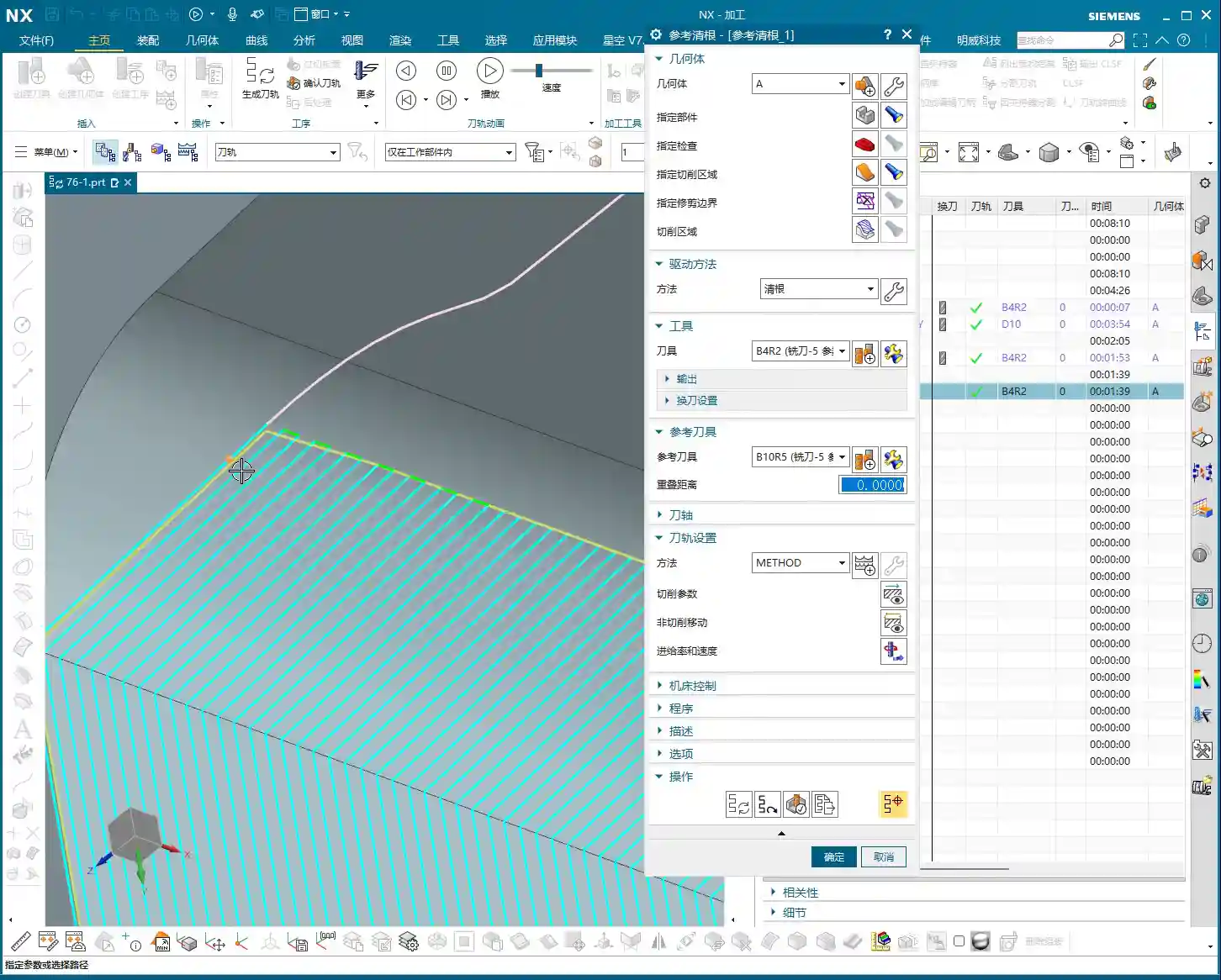
  • Siemens NX Deep Contour Rest Milling, Spatial Range, and Smoothing Techniques: Master Wang’s Hands-o

    📝 Key Takeaways:

    NX Deep Contour Rest Milling in Practice

    Co…

    Core Essentials of Deep Contour Rest Milling

    The Essence of Rest Milling and Roughing Strategies

    Alright, listen up everyone. Today we’re going to talk about a “specialty” within NX Deep Contour Milling – Rest Milling. Simply put, this technique is for ensuring your finishing pass leaves no unmachined areas. Don’t let the name “Rest Milling” fool you; its real purpose is to thoroughly clean up those areas where larger tools couldn’t reach during roughing, leaving residual material.

    Typically, we start roughing our workpieces with a large tool. For instance, if you have an internal corner radius of R10, using a small tool directly to mill it would be incredibly inefficient. So, you’d usually begin by roughing with a larger tool, say a Ø32mm (approx. 1.26 inch) end mill. After roughing, those tight corners, like the R10 radius, will inevitably have a larger radius than R10, or rather, more residual material. This is where our Rest Milling program steps in.

    What tool should you use for Rest Milling? That depends on the size of the residual radius and your finishing requirements. For an R10 corner, you might opt for a Ø16mm (approx. 0.63 inch) end mill. Why? Because a Ø16mm tool can access an R8 corner, making it more than capable for an R10 corner, while also maintaining decent efficiency. Remember, tool selection is always a balance between efficiency and accuracy.

    NX Rest Milling Programming: Step One – Geometry and Tool Selection

    In NX, find the “Deep Contour Rest Milling” function. Once you’re in, the first step is to select the geometry.

    Pay attention here; this is a major pitfall that textbooks might not cover in detail! When selecting the rest milling region, NEVER select ONLY the fillet face! You must select all faces around the fillet that need to be machined, including the bottom face. Why? Think about it: the tool is smart, but it’s not psychic. If you only give it an isolated fillet face, how will it know what size tool you used for roughing previously? How will it know the exact distribution of residual material? It can’t reference previous toolpaths, so it won’t be able to generate a rational, complete rest milling path. The result will be incomplete cleaning, messy toolpaths, or even a collision.

    Therefore, when selecting geometry, you need to provide the tool with “complete environmental information” so it can accurately determine where residual material exists and where rest milling is needed. Don’t be lazy; every face that needs to be selected must be included!

    Regarding tool selection, as we discussed, if you used a Ø32mm (approx. 1.26 inch) tool for roughing, you’ll need a smaller one for rest milling, such as a Ø16mm (approx. 0.63 inch) end mill. The principle is simple: smaller tools can access areas larger tools couldn’t reach.

    Spatial Range: The Art of the Reference Tool

    The Core Secret of Rest Milling: The Reference Tool

    Alright, everyone, the core of Rest Milling, and its sole critical difference from standard Deep Contour Milling, lies in the “Reference Tool” setting within “Spatial Range.” This is knowledge I, Master Wang, have refined over years, and you must grasp it thoroughly.

    You need to tell NX which tool you used for roughing previously. For example, in “Spatial Range,” enable the “Reference Tool” option, then select the Ø32mm (approx. 1.26 inch) tool you used for roughing. NX will automatically calculate the areas that tool couldn’t mill based on its profile – these are the residual material areas your current smaller tool needs to clear. Without this “reference,” Rest Milling is a meaningless term; it won’t know where to clean.

    Further down, there’s also “Cut Extension Distance” (or “Extension Distance”). This parameter allows your rest milling toolpath to extend slightly beyond the reference tool’s path. Why the need for extension? Because you might want the tool to cut a bit more to ensure all residual material is completely removed, preventing even the slightest “unmachined spots.” I usually set it to around 2mm (approx. 0.08 inch), but the exact value depends on the actual situation and material. You can also think of it as adding this distance to the reference tool’s diameter, simulating a slightly larger virtual tool (e.g., Ø34mm / approx. 1.34 inch), to calculate the range that needs to be cleared.

    Avoiding Pitfalls: Extended Application of Cutting Levels

    Many beginners ask why their rest milling program always starts cutting from the middle. Shouldn’t it start from the top? This happens when the “Extension Distance” in “Cutting Levels” isn’t set correctly.

    If your rest milling depth is 2mm (approx. 0.08 inch), and you want the tool to start with a helical ramp down from the top, you need to set the “Extension Distance” to 1mm (approx. 0.04 inch) in the “Cutting Levels” settings. This way, the tool will start milling from the top of the workpiece, not the middle of the fillet, ensuring the completeness of the entire rest milling process. Don’t underestimate this 1mm; sometimes it can determine whether you’ll have a collision or the quality of your surface finish.

    One more thing, practical experience tells me that Deep Contour Rest Milling programs can be quite slow to calculate. If you set the Stepover too small, you’ll be waiting a while – enough time to grab a cup of tea, or even catch up on the neighborhood gossip. So, the Stepover setting must also balance efficiency; don’t just blindly aim for the smallest value.

    Smoothing Strategy: Enhancing Machining Quality

    Understanding “Smoothing”: More Than Just Fillets

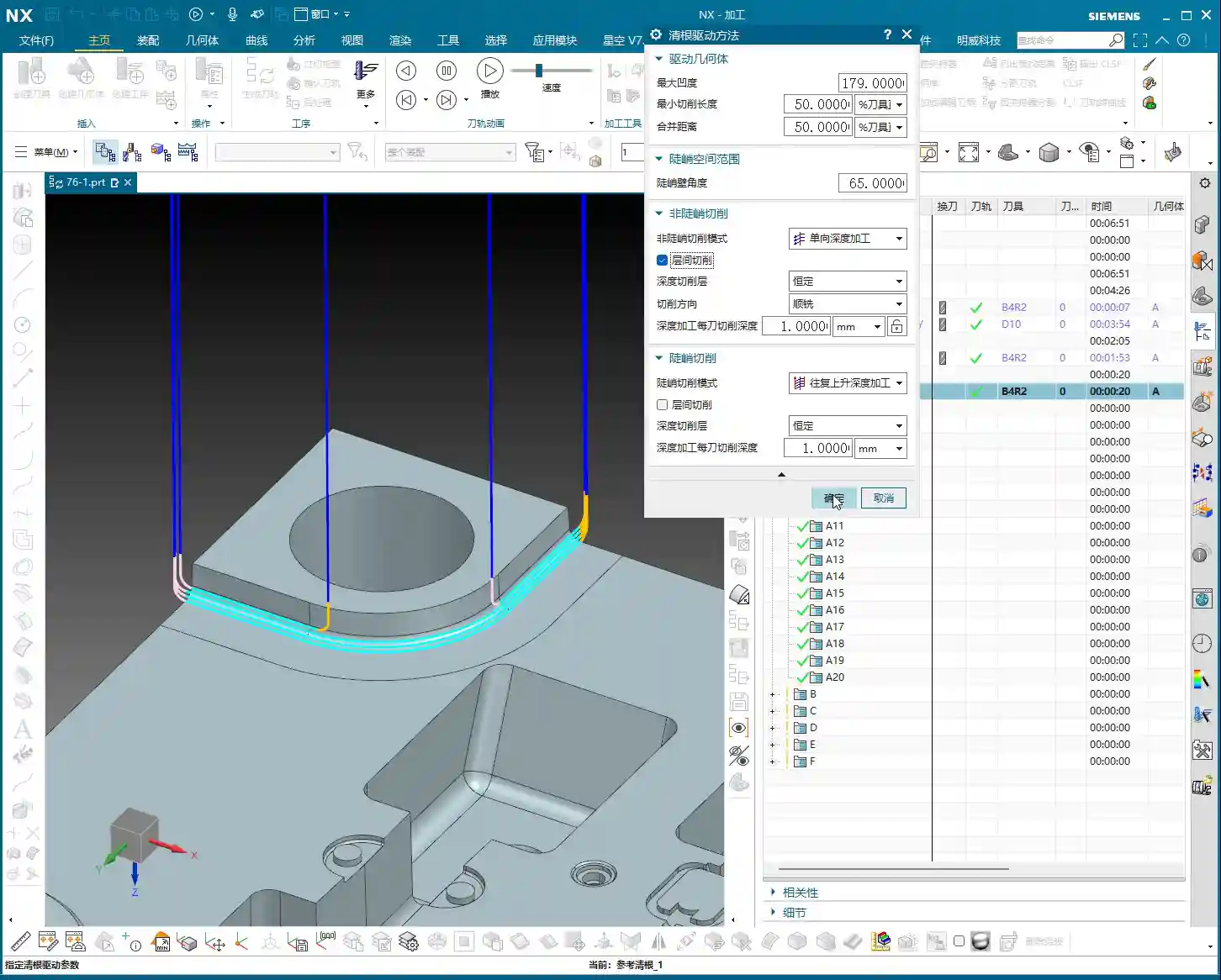
    In NX, this concept of “Smoothing” is a vast topic. It’s not a single idea. What we’re discussing today is “Smoothing” within “Non-Cutting Moves.” This “Smoothing” isn’t about the smoothness of a fillet or radius on your workpiece; it controls the stability of the tool during path connections, lead-in, lead-out, and the overall movement process.

    Think about it: if the tool suddenly accelerates, makes sharp turns, or has jerky lead-in/out moves during machining, it will leave tool marks on the workpiece surface, potentially cause machine chatter, and reduce tool life. Therefore, “Smoothing” in “Non-Cutting Moves” is designed to ensure the overall fluency of the toolpath, making the tool move as smoothly as silk, avoiding any “hesitation” or “jerking” feeling.

    Typically, I set this smoothing value to around 5mm (approx. 0.2 inch). This value both ensures a smooth toolpath and prevents the program from calculating too slowly. If this value is set too small, you’ll find that during simulation, the tool moves sluggishly, like a snail, and the tool motion will appear stiff and unnatural.

    Smoothing Parameters: The Secrets of Length and Height

    Within the smoothing parameters, there are two key components you need to understand:

    1. Smoothness Length: This refers to the horizontal extension distance of the tool from its current position to the next cutting point. It determines the degree of smoothness during transitions in the planar direction. In simple terms, it ensures that when the tool changes direction, it doesn’t turn abruptly but instead carves a smooth arc.
    2. Smoothness Height: This refers to the vertical transition height of the tool in the Z-axis direction. It ensures that when the tool performs Z-axis feed or retraction, there are no sudden axial changes, but rather a gentle transition.

    These two parameters are usually already optimized by experienced engineers in NX machining templates. For most situations, you can simply use the default template values; there’s no need to blindly modify them yourself. But as a qualified machinist, you must understand what each of them does. When issues arise, you’ll know where to start making adjustments.

    Summary: Your Pitfall Avoidance Guide

    As Master Wang, I’ve summarized these hard-hitting practical insights for you today. Every point is based on real-world experience, so commit them to memory!

    • Major Pitfall in Geometry Selection: When performing Deep Contour Rest Milling, CRITICAL: NEVER select ONLY the fillet face! You must select all machining faces around the fillet that need to be cleared, as well as the bottom face. This is to provide NX with “complete environmental information,” allowing it to understand where residual material is and what the previous tool’s machining range was. Otherwise, your rest milling toolpath will be messy, won’t clean properly, and may even cause a collision. Don’t be lazy; this is crucial!
    • Spatial Range Must Be Enabled: The core essence of the rest milling program lies in the “Reference Tool” setting within “Spatial Range.” This tells NX which tool you used for roughing previously, allowing it to intelligently calculate “uncut regions” that require rest milling. If this function isn’t enabled, rest milling is a meaningless term.
    • Fine-tuning Cut Extension Distance: The “Cut Extension Distance” parameter should be flexibly set based on the actual residual material left after roughing and the size of your rest milling tool. Experience dictates that it’s better to extend slightly more than necessary than to leave unmachined areas. However, don’t set it too large, or you’ll end up with air cuts.
    • Smoothing Settings Require Attention: “Smoothing” in “Non-Cutting Moves” is key to ensuring toolpath fluency and improving surface quality. It’s generally recommended to set it to around 5mm (approx. 0.2 inch). If set too small, you’ll find the program calculates like a snail, and simulations will be sluggish and choppy, affecting your ability to evaluate the toolpath.
    • Simplify Complexity: For fillets or holes of different sizes and depths on a workpiece, it’s best to create multiple separate rest milling programs. One program should only clear regions with similar features (e.g., one program for all R5 corners, another for all R10 corners). The advantage of this approach is easier management, more efficient optimization, and simpler localization and debugging of issues. Don’t try to use one program for everything; that often leads to errors and wastes time.
    • Prioritize Templates, Understand the Principles: Most smoothing parameters and other settings in NX machining templates have already been optimized by experienced engineers. If there are no special requirements, using templates directly can save a lot of trouble. However, as an excellent machinist, you must understand the principles behind these parameters; this is your fundamental skill and your confidence to solve complex problems.

    👤 About the Author:
    The author is a veteran CNC machining professional with 15 years of industry experience, specializing in UG NX programming. This article is an original work representing personal practical insights.

    ⚠️ Copyright Notice: Unauthorized reproduction or distribution without prior communication is strictly prohibited.