Tag: Siemens NX 1980

  • Siemens NX 1980 Feed Rate & Spindle Speed Real-World Setup: Master Wang’s Practical Guide to Optimal

    πŸ“ Key Takeaways: Master Wang shares hands-on techniques for setting Feed Rate and Spindle Speed in Siemens NX 1980. This tutorial moves beyond theory, diving straight into practical insights: understanding S and F values, avoiding air cuts, and applying experienced parameters for various materials like steel, aluminum, and stainless steel.

    Master Wang’s Lesson: Core Settings for Feed Rate and Spindle Speed

    Listen up, apprentices! Today, we’re going to talk about the core elements that make the machine run in Siemens NX 1980: Feed Rate (F) and Spindle Speed (S). Setting these two parameters incorrectly can lead to minor issues like tool breakage, or major problems like scrapping the workpiece. So, you must get this right!

    In the last lesson, we covered blank stock thickness and depth of cut. This lesson jumps straight to the more critical parts.

    1. S Value: Spindle Speed

    In the parameter settings, find Spindle Speed. The S value is your spindle’s rotation speed, measured in revolutions per minute (RPM).
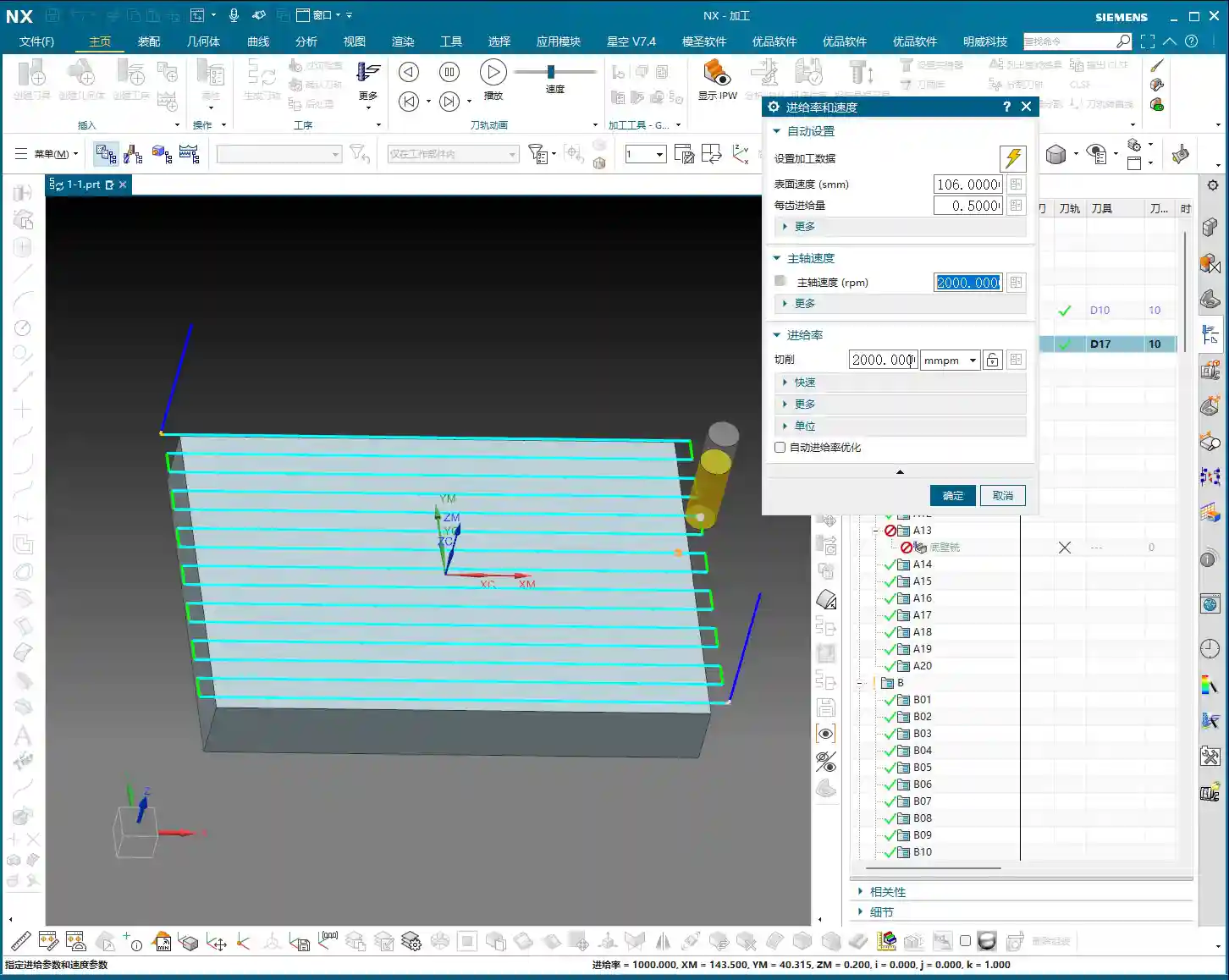
    • How to Set: For example, if the default is S3000, meaning 3000 RPM. If you want to change it to 2000, simply input “2000”.
    • Key Reminder: After every modification to the S value, you must click the calculator icon next to it. If you don’t click it, the software might not update, or it might not update completely. As the old saying goes, “Practice without doing is useless, changing without clicking is pointless!”

    2. F Value: Feed Rate

    Once you’ve handled the S value, next up is the F value, which is the Feed Rate, usually in millimeters per minute (mm/min).

    • How to Set: Similar to the S value, directly input your desired number. For example, I’ll set F2000 here. After changing, you still need to click the calculator icon.
    • Modification Tip: Listen carefully! Sometimes if you only change S or F and then click the calculator, the other value might change along with it. The safest approach is to set both S and F values, then click the calculator together. This ensures they both take effect as you intended.

    3. G-code and Feed Rate for Rapid Moves

    In the G-code generated by Siemens NX post-processing, G00 stands for Rapid Move, and G01 stands for Linear Interpolation, which is cutting feed.

    • Master Wang’s Template: In my personal template, to avoid the potential impact and uncertainty of G00, I often use G01 for all rapid moves as well, but with a very high Feed Rate, such as F8000. This ensures both speed and smoother movement.
    • Your Choice: You can also set G00 as rapid mode, which doesn’t require an F value input; it will run at the machine’s maximum rapid traverse speed. But remember, G01 is the main cutting command, and its F value is what truly needs to be considered based on material and tool.

    Practical Experience: Spindle Speed References for Different Materials and Tools

    During the programming learning phase, we might start with the software’s default values. For example, my template’s default cutting parameters are roughly S3000, F1000.
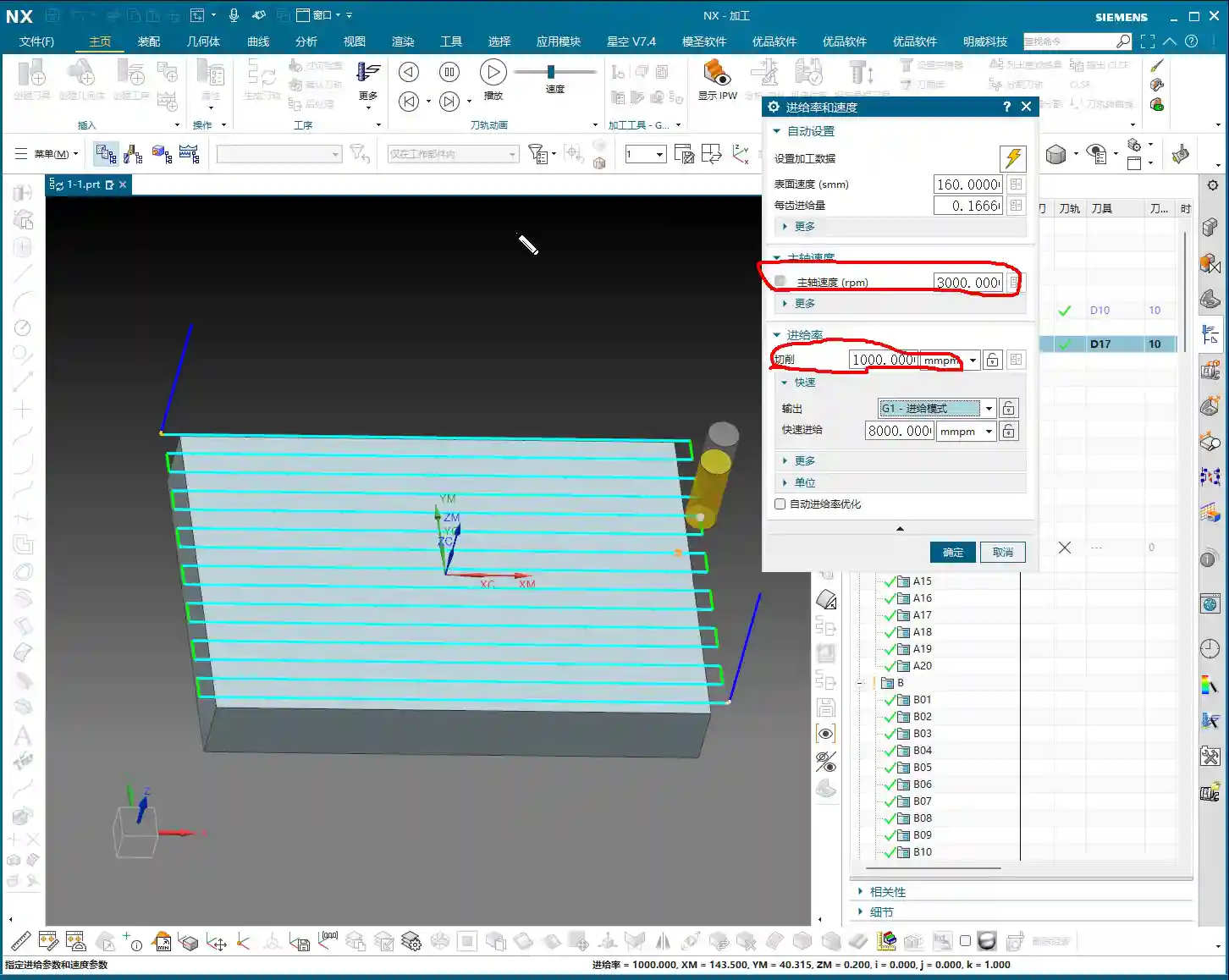
    However, during actual machining, you must adjust flexibly based on material properties and tool type. Don’t just rely on software simulations; observe the cutting sparks, listen to the cutting sound, and feel the workpiece temperature!

    1. Master Wang’s “Tool Spindle Speed” Reference Table

    If you’re completely unsure, you can refer to the empirical data I’ve collected in the “Tools” module. In the Siemens NX menu bar, find “Tools” -> “Tool Spindle Speed”. It’s categorized by Steel, Stainless Steel, Copper, etc.

    I’ll list some common tool spindle speed references for you (for reference only; please adjust according to specific conditions in actual machining):
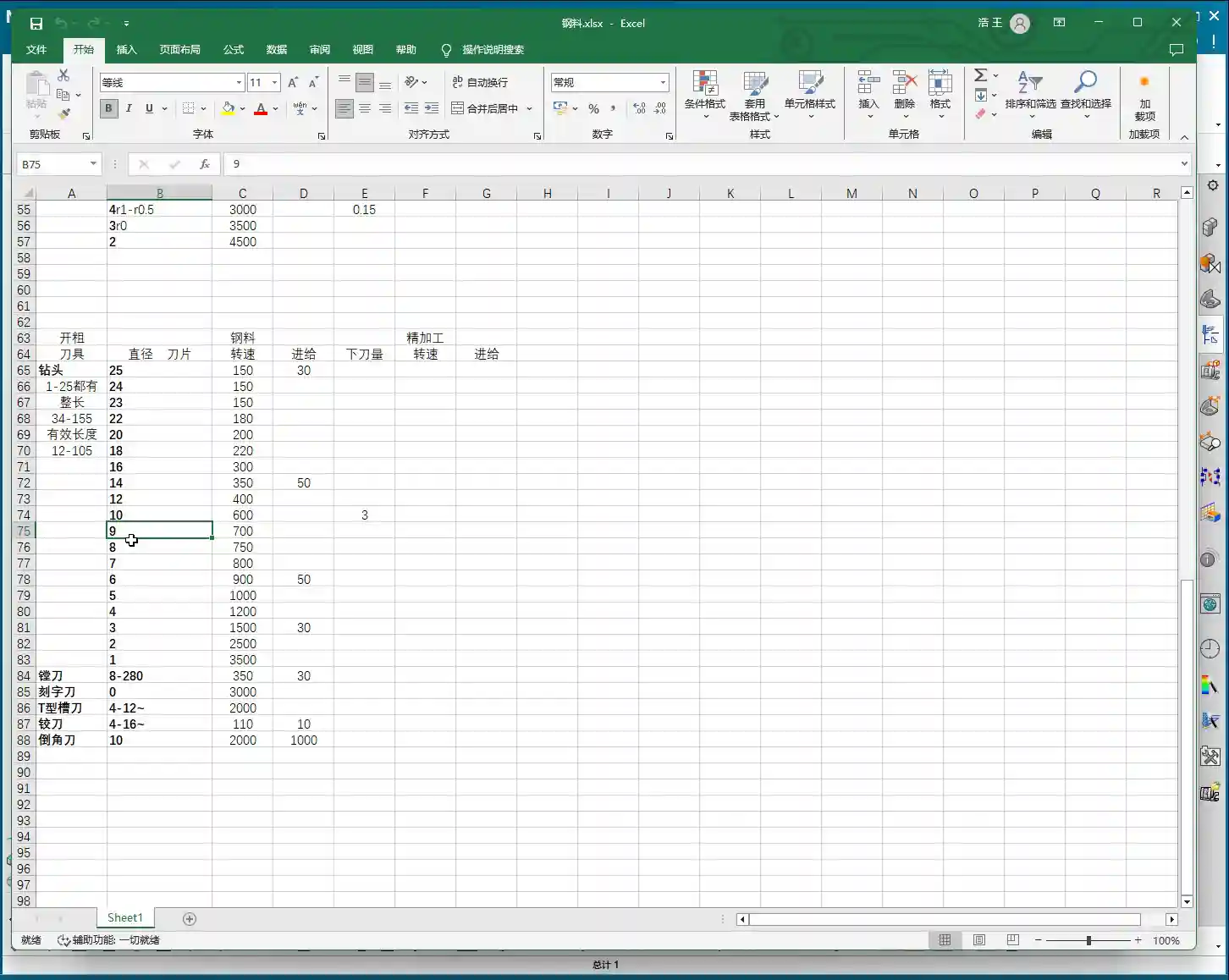
    • Ball End Mill: Varies by size.
    • End Mill:

      • βˆ…20mm: Approx. S2000 RPM
      • βˆ…6mm: Approx. S2600 RPM
      • Radius End Mill (e.g., 1R series): Approx. S2500 RPM

    • Drill Bit:

      • βˆ…9mm: Approx. S700 RPM
      • βˆ…3mm: Approx. S1500 RPM
      • βˆ…22mm: Approx. S180 RPM

    2. The “Close Enough” Principle in Practice

    These parameters aren’t rigid rules; they’re merely starting points. For example, if the optimal speed for your tool is actually 2500 RPM, setting it to 2600 RPM is usually fine. As long as it’s “not far off”, the machine and tool have a certain tolerance.

    But remember, the final judgment must come from your experience. Observe carefully and think critically once you’re on the machine!

    Other Siemens NX Interface Parameters Explained

    Many parameters and options in Siemens NX are not necessary to delve into for beginners in programming and daily use.
    1. Parameters to Ignore for Now

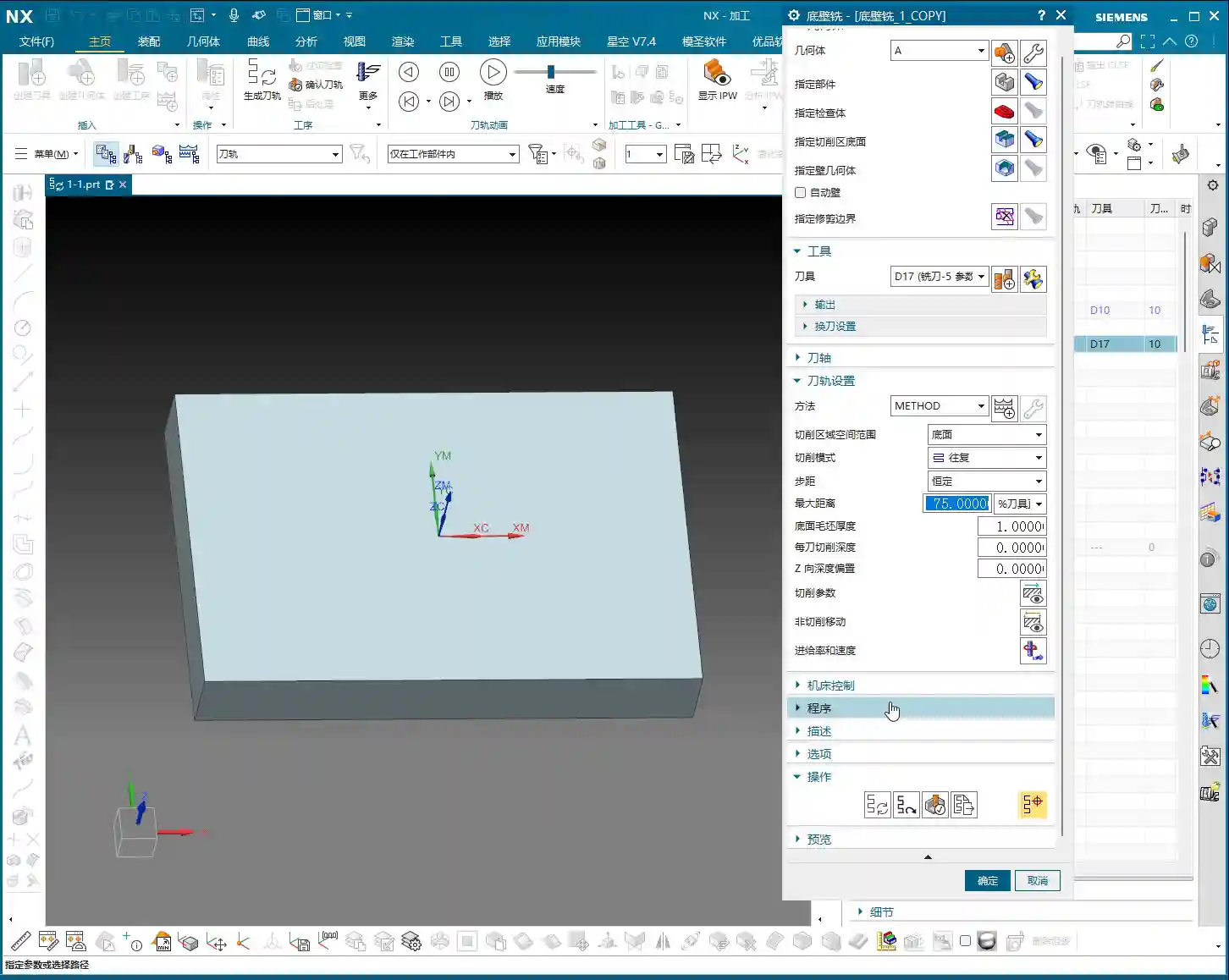
    Things like “Program,” “Description,” “Options,” and some “Links” are not something we need to worry about at the moment. These aren’t very useful for our current programming studies. Once you become an expert, mastering the software, then you can come back and briefly understand what they do.

    2. Parameters for Future Use

    Parameters related to “Machine Control” might not be used now, but they will become relevant when we learn about tool compensation in the future. We’ll explain them in detail then.

    3. The Essential “Generate”

    The “Generate” command under “Operation” must be clicked after every tool path modification; otherwise, your changes won’t take effect. It’s like an “Execute” button; only after clicking it will the software calculate and update the tool path. You must remember this!

    4. Preview: Just to See the Tool Path Shape

    The “Preview” function is mainly for you to see what the generated tool path looks like. It’s the same visual effect you see on the interface after clicking “Generate.” So, usually, there’s no need to specifically click it.

    Summary: Pitfall Avoidance Guide

    • Core Parameters: S value (Spindle Speed) and F value (Feed Rate) are of utmost importance. Understand and set them correctly.
    • Setting Technique: After modifying S and F values, be sure to click the calculator icon. It’s best to modify both S and F, then click it once.
    • Practice is King: During programming practice, you can use default or reference values. But in actual machining, you must adjust flexibly based on material, tool, machine, and on-site feedback. Don’t be rigid. Master Wang’s experience table is just a reference, not gospel!
    • Don’t Over-Analyze: For parameters not currently needed (e.g., program, description, options, links), just understand their general meaning. No need to waste time delving deep.
    • Key Operation: After every tool path modification, always click “Generate” to update the tool path.

  • Master Wang Unlocks UG NX 1980 Machine View Tooling Secrets: Practical Skills & Pitfall Avoidance Guide

    πŸ“ Key Takeaways: Master Wang provides a hands-on guide to leveraging Siemens NX 1980’s Machine View function for precise viewing and management of various tools (face mills, end mills). Learn essential tool parameter settings, quick creation and modification techniques, and how to avoid common programming pitfalls in this practical tutorial.

    Introduction: Tooling Basics Before Programming

    Hello everyone, I’m Master Wang. In our last lesson, we discussed the Program Order View. We’ve already covered those topics, like this specific area here. You don’t need to memorize every single detail of what each function does, but it’s crucial to understand their literal meaning.

    As we delve into programming, you’ll gradually become more familiar with all these various elements, little by little. Eventually, you won’t even need to think about their exact purpose. So, for now, a general understanding is sufficient.

    Core Function: Machine View and Tool Visualization

    Enabling and Understanding Machine View

    This was mentioned before. Let’s look at the option below it, called Machine View. We can simply click on it.

    The main point is that you can see what it means: it displays the Machine View in the Operation Navigator. In essence, it allows you to show the machine and observe how it moves and how the tool operates to machine your part. You can see all the toolpaths and movements.

    However, for our initial learning phase, we haven’t even created a program yet, so this feature isn’t immediately useful. If you want to use it, you would go to Edit, then ‘Load Machine from Library’ to find many different machines. But we won’t go into that for now.

    Understanding the Tool List: Templates and Customization

    What we need to discuss are the items below. You can scroll down; these can be dragged down further. What do all these items mean at the bottom? I believe many of you might already have some understanding and will grasp it quickly.

    This entire section contains all of our tools. Where are our tools located? They are all placed here on the side.

    Why are these tools here? It’s because of the template I created at the very beginning, remember? That template.

    If you wish to add or delete these tools yourself, you need to go into that template to perform the addition or deletion.

    How do you do it? Please refer to my ‘Master Wang’s Template’ tutorial; there’s a ‘Programming Template’ section within it. Go there to see how it’s created.

    In-Depth Analysis of Tool Parameters

    Face Mill E100 Example: Diameter, Length, and Effective Length

    Let’s take a look. The creation method is quite simple.

    Let’s examine what this means. For example, the first one is E100. The meaning of E100, frankly, refers to its diameter.

    Look, if sometimes it doesn’t display, you can click somewhere else, then click on this E100 again, and the tool will reappear.

    The diameter is 100, meaning the entire diameter of this tool is 100 mm.

    At this point, we can double-click to open it, or right-click and ‘Edit’, both work. I’m used to double-clicking to open it.

    Double-click to open. After opening, let’s look at this area.

    The diameter is 100. Clearly, this tool’s diameter is 100 mm. The bottom diameter is 0. These others are also 0; we can ignore them.

    The length is 75 mm. Simply put, the total length of this tool is 75 mm. And the effective length is 50 mm, which means the distance from this point to this point is 50 mm.

    Of course, as you all know, what E100 means is that it’s a face mill, a face mill with a 100 mm diameter.

    Its bottom radius is 0, which means it should typically be E100 R0.8. Usually, the inserts for these tools have a small corner radius of R0.8. So, it’s a tool like E100 R0.8. Why did I set the bottom corner radius to 0? We’ll discuss that later when we get to programming. For now, just understand what this tool represents.

    This face mill has a total length of 75 mm and an effective length of 50 mm.

    You might ask, how can the effective length be 50 mm? Because for insert tools, the insert itself isn’t 50 mm long. The point here is that we can give it an approximate value. You don’t need to create it to be exactly identical to the physical tool. We only need to create the approximate size of the tool, and that’s sufficient.

    Tool Positioning and Machining Simulation

    Now, by default, whenever we open the tool, it will appear in this position. We can click and hold the left mouse button to drag it, or simply click on a specific spot on the screen to place the tool there.

    What is this actually for? Simply put, we can place it, for example, approximately here. Then we can check if a single pass of this tool can cover the entire area. This is the edge, and this is the edge. If it starts cutting from here, moves along, and then comes over, can one pass cover it? Clearly, it can. A 100 mm tool can cover this area.

    Okay, when we reach this position, there’s a significant amount of material here. You also know what this means. It means our tool is too large to machine this corner radius. In such a situation, we would definitely need another type of tool to perform corner cleanup. Just understand this concept.

    We can’t machine all the way to this point, right? If we did, we’d be overcutting this area.

    The purpose of this is simply for reference. It allows us to check if the tool is large enough, or if it’s suitable, if we can use this tool. Just take a look, a rough look. But for the final selection, you also need to check what tools you actually have available.

    You can click anywhere; clicking here or on that corner, both are fine.

    Alright, so this is about how to change or view our tools. Roughly, there’s also the length and effective length. That’s good. Let’s move on.

    Quick Tool Creation and Modification (Critical Pitfalls)

    E-Series Face Mills: Copying, Renaming, and Parameter Modification

    For example, now we have E59, E90, E80, E63, E40. All of these are insert tools (face mills with removable inserts). Any tool starting with ‘E’ is typically an insert-type tool. E25, E21, E20, E17, E16.

    For instance, let’s say we want to create an E15 tool. How do we create it?

    Right-click, Copy. Then directly click Paste. Good.

    Now, this tool and the original one are actually identical. It’s just like copying and pasting any other item, like a folder or anything else. The copied and pasted items will definitely be identical.

    We need to modify the pasted tool. Right-click. Why is there English at the end? Because their names cannot be duplicates.

    For example, for E17, just change the ‘6’ to ‘7’, and press Enter. See, now you have an E17 tool, right?

    Oh, for E15. Right-click, Rename. We’ll take this position, you can drag it a bit, and change it to ‘5’. Okay.

    Can it be used now? We copied it and changed its name to E15. Is this correct? Absolutely not!

    Although its name has been changed to E15, this tool is still a 16 mm tool. Everyone, please, please, please remember this: just renaming the tool’s display name to E15 does not make it an E15 tool. That’s impossible. You must double-click to open it, then go to the Diameter field and enter 15. Good, then press Enter. That’s all. Of course, there are other parameters like tool holder, etc., but for now, we don’t need to worry about them. We just need to make sure the diameter is correctly set. The length and effective length have already been discussed.

    Right-click, OK. Only now is this tool truly an E15 tool. Double-click to open and check again. 15, correct. OK.

    R-Corner Radius Tools: Distinguishing E90R0.8 and E63R6

    Let’s look at the E90 R0.8 below. Actually, this one and the E90 are quite similar. But the R0.8 indicates that at this position, there is a small corner radius. This position has an R0.8.

    Why are these two types of tools so similar? It’s simply my personal habit for future programming; I might need both. We’ll discuss that later. For now, there’s no need to explain it so thoroughly; we just need to understand what these tools mean.

    We also have E63 R6. Everyone knows this type of tool, right? It’s an E63 face mill with an R6 insert. This is an R6 insert, quite large, a round type of insert.

    E63 R0.8 is a square-ish insert.

    These are all self-explanatory, and the differences are quite clear.

    D-Series End Mills: Similarities and Differences with E-Series

    For example, for an E25 R5 tool, we copy it, and then paste it.

    Suppose we want to create an E26 R5. Just create a random one.

    Rename. The first step is to rename it. E26 R5. Delete all the English characters at the end, then press Enter.

    At this point, we double-click to open it. E26 R5. We don’t need to change the ‘R’ value.

    Let’s say, for example, you don’t want to confirm directly now. Suppose you realize you made a mistake with this tool in your work. You can double-click to open it. For example, if you want to create an R4 tool. You change it to 4. You must press Enter. If you change it to 5, you have to press Enter. When you preview this ‘R’ value, for example, if you input 1, press Enter. Okay, now this position is 1. You must press Enter; it’s a habit. Enter. Okay, Enter, Enter.

    R4, Enter.

    Don’t worry about the effective length or anything else; just click OK. But you must rename it from ‘5’ to ‘4’, because you’ve already changed the internal parameters to E26 R4, so the external name also needs to be updated. OK.

    This is a quick way to create a tool. This method of creating tools, I think, is quite convenient; you just copy and paste.

    All tools starting with E are typically insert tools (face mills).

    Now, what about tools starting with D? These are actually end mills. They are not insert tools, meaning they can machine with their side cutting edge as well. I believe everyone has seen this type of tool in the machine shop. You’ve definitely seen them.

    D35 R3 means a 35 mm end mill with an R3 corner radius, very clear. D14 R1.5 means a 14 mm end mill with an R1.5 corner radius.

    For example, how do you create this? The creation method is exactly the same as what we just did.

    Summary: Pitfall Avoidance Guide

    Listen up, Master Wang emphasizes again:

    1. Name vs. Parameters: In Siemens NX, renaming a tool’s display name (label) does not automatically change its actual machining parameters! You must double-click to open the tool properties, manually modify core parameters like diameter, length, and corner radius, then press Enter to confirm, and finally click OK for the changes to take effect. This is the most common pitfall for beginners.
    2. The ‘Approximate’ Rule for Effective Length: For a tool’s ‘effective length’ (or cutting length), especially for non-standard tools or face mills, providing an approximate value that meets machining requirements is sufficient in the model. There’s no need to demand 100% exact match with the physical tool. The software model is mainly for visual simulation and toolpath calculation.
    3. Machine View for Visual Verification: Use the Machine View to visually check if the tool’s size is appropriate, if it can cover the machining area, and if there’s any risk of overcutting. Don’t just rely on software simulation; you need to envision the cutting sparks! While this is virtual, this way of thinking is fundamental to practical machining.
    4. Significance of Corner Radius (R-Value): Understand the meaning of the R-value in tool names (e.g., R0.8, R6). It represents the corner radius of the tool’s cutting edge. Different R-values correspond to different insert shapes and machining characteristics (sharp corner, rounded corner), which are crucial for corner cleanup and contour milling.
    5. E-Series vs. D-Series: Familiarize yourself with common tool prefix conventions in Siemens NX. Typically, ‘E’ series often refers to face mills / indexable face mills (Face Mill) with replaceable inserts, suitable for roughing flat surfaces. ‘D’ series often refers to end mills / ball nose end mills (End Mill/Ball Nose), commonly used for side milling or finish contour milling.
    6. Importance of Templates: Your tool library should be built upon standard templates. The initial tool list comes from your programming template. Learning to manage and customize templates can greatly improve efficiency.