📝 Key Takeaways: Master Wang shares hands-on techniques for setting Feed Rate and Spindle Speed in Siemens NX 1980. This tutorial moves beyond theory, diving straight into practical insights: understanding S and F values, avoiding air cuts, and applying experienced parameters for various materials like steel, aluminum, and stainless steel.
Master Wang’s Lesson: Core Settings for Feed Rate and Spindle Speed
Listen up, apprentices! Today, we’re going to talk about the core elements that make the machine run in Siemens NX 1980: Feed Rate (F) and Spindle Speed (S). Setting these two parameters incorrectly can lead to minor issues like tool breakage, or major problems like scrapping the workpiece. So, you must get this right!
In the last lesson, we covered blank stock thickness and depth of cut. This lesson jumps straight to the more critical parts.
1. S Value: Spindle Speed
In the parameter settings, find Spindle Speed. The S value is your spindle’s rotation speed, measured in revolutions per minute (RPM).
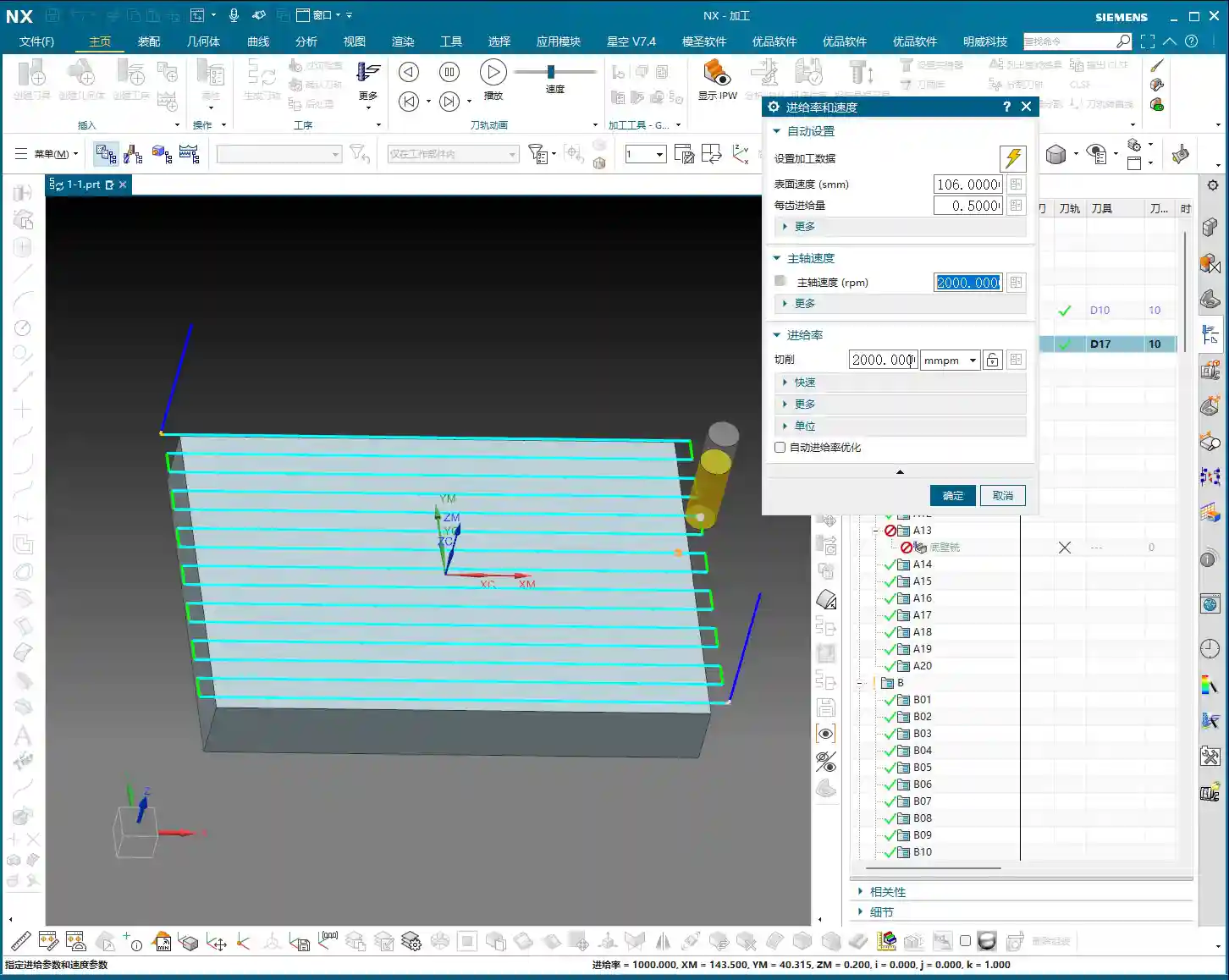
- How to Set: For example, if the default is S3000, meaning 3000 RPM. If you want to change it to 2000, simply input “2000”.
- Key Reminder: After every modification to the S value, you must click the calculator icon next to it. If you don’t click it, the software might not update, or it might not update completely. As the old saying goes, “Practice without doing is useless, changing without clicking is pointless!”
2. F Value: Feed Rate
Once you’ve handled the S value, next up is the F value, which is the Feed Rate, usually in millimeters per minute (mm/min).
- How to Set: Similar to the S value, directly input your desired number. For example, I’ll set F2000 here. After changing, you still need to click the calculator icon.
- Modification Tip: Listen carefully! Sometimes if you only change S or F and then click the calculator, the other value might change along with it. The safest approach is to set both S and F values, then click the calculator together. This ensures they both take effect as you intended.
3. G-code and Feed Rate for Rapid Moves
In the G-code generated by Siemens NX post-processing, G00 stands for Rapid Move, and G01 stands for Linear Interpolation, which is cutting feed.
- Master Wang’s Template: In my personal template, to avoid the potential impact and uncertainty of G00, I often use G01 for all rapid moves as well, but with a very high Feed Rate, such as F8000. This ensures both speed and smoother movement.
- Your Choice: You can also set G00 as rapid mode, which doesn’t require an F value input; it will run at the machine’s maximum rapid traverse speed. But remember, G01 is the main cutting command, and its F value is what truly needs to be considered based on material and tool.
Practical Experience: Spindle Speed References for Different Materials and Tools
During the programming learning phase, we might start with the software’s default values. For example, my template’s default cutting parameters are roughly S3000, F1000.
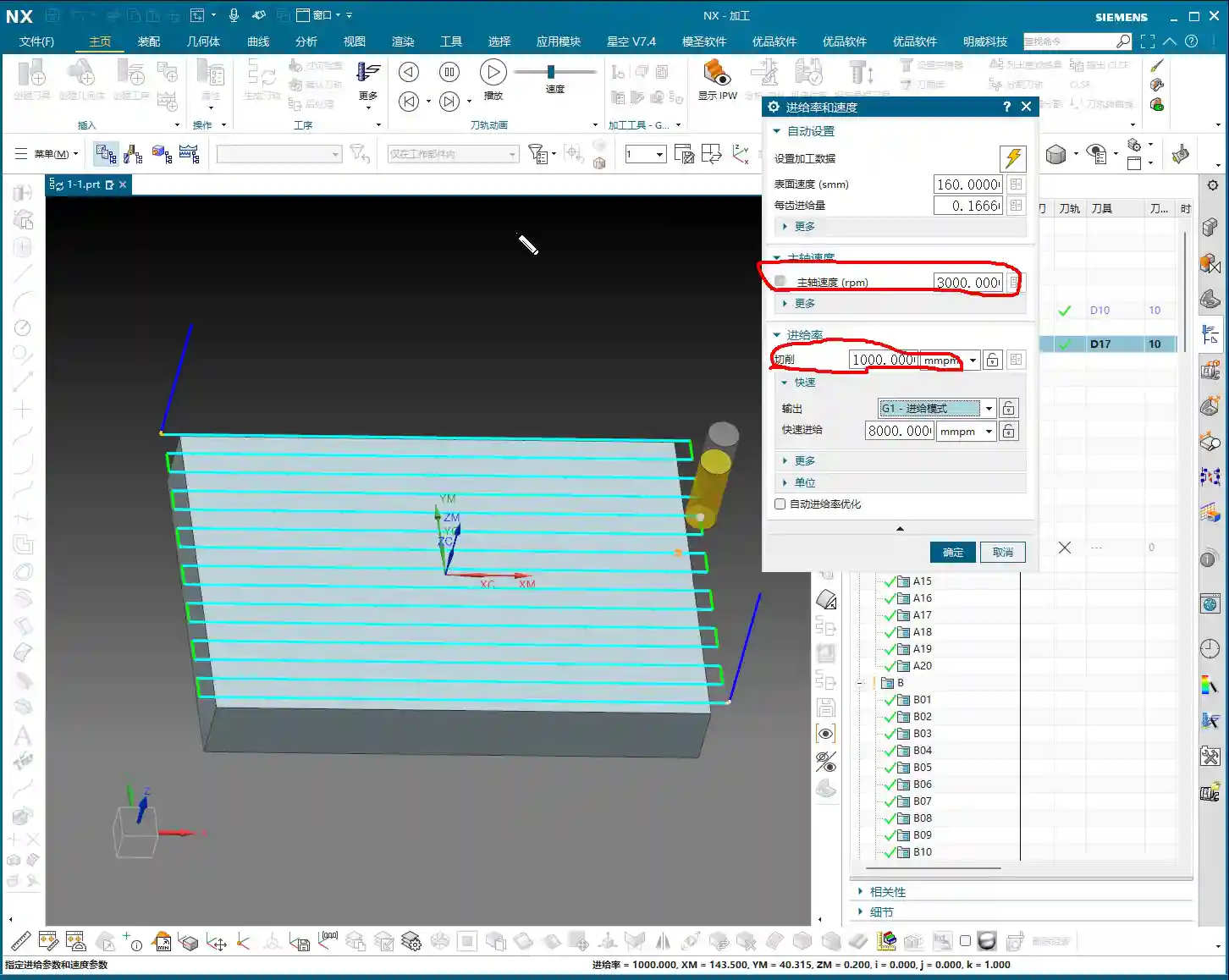
However, during actual machining, you must adjust flexibly based on material properties and tool type. Don’t just rely on software simulations; observe the cutting sparks, listen to the cutting sound, and feel the workpiece temperature!
1. Master Wang’s “Tool Spindle Speed” Reference Table
If you’re completely unsure, you can refer to the empirical data I’ve collected in the “Tools” module. In the Siemens NX menu bar, find “Tools” -> “Tool Spindle Speed”. It’s categorized by Steel, Stainless Steel, Copper, etc.
I’ll list some common tool spindle speed references for you (for reference only; please adjust according to specific conditions in actual machining):
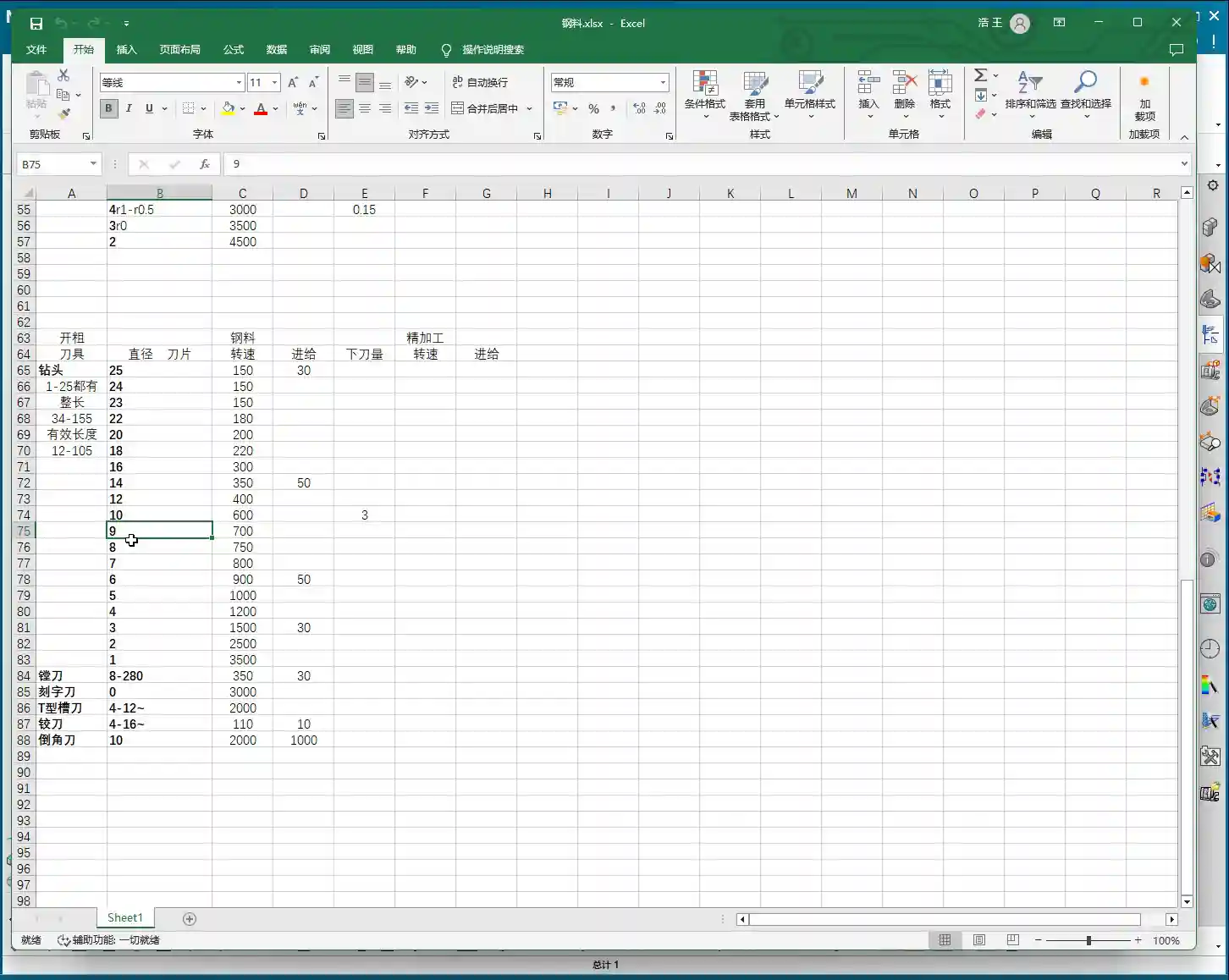
- Ball End Mill: Varies by size.
- End Mill:
- ∅20mm: Approx. S2000 RPM
- ∅6mm: Approx. S2600 RPM
- Radius End Mill (e.g., 1R series): Approx. S2500 RPM
- Drill Bit:
- ∅9mm: Approx. S700 RPM
- ∅3mm: Approx. S1500 RPM
- ∅22mm: Approx. S180 RPM
2. The “Close Enough” Principle in Practice
These parameters aren’t rigid rules; they’re merely starting points. For example, if the optimal speed for your tool is actually 2500 RPM, setting it to 2600 RPM is usually fine. As long as it’s “not far off”, the machine and tool have a certain tolerance.
But remember, the final judgment must come from your experience. Observe carefully and think critically once you’re on the machine!
Other Siemens NX Interface Parameters Explained
Many parameters and options in Siemens NX are not necessary to delve into for beginners in programming and daily use.
1. Parameters to Ignore for Now
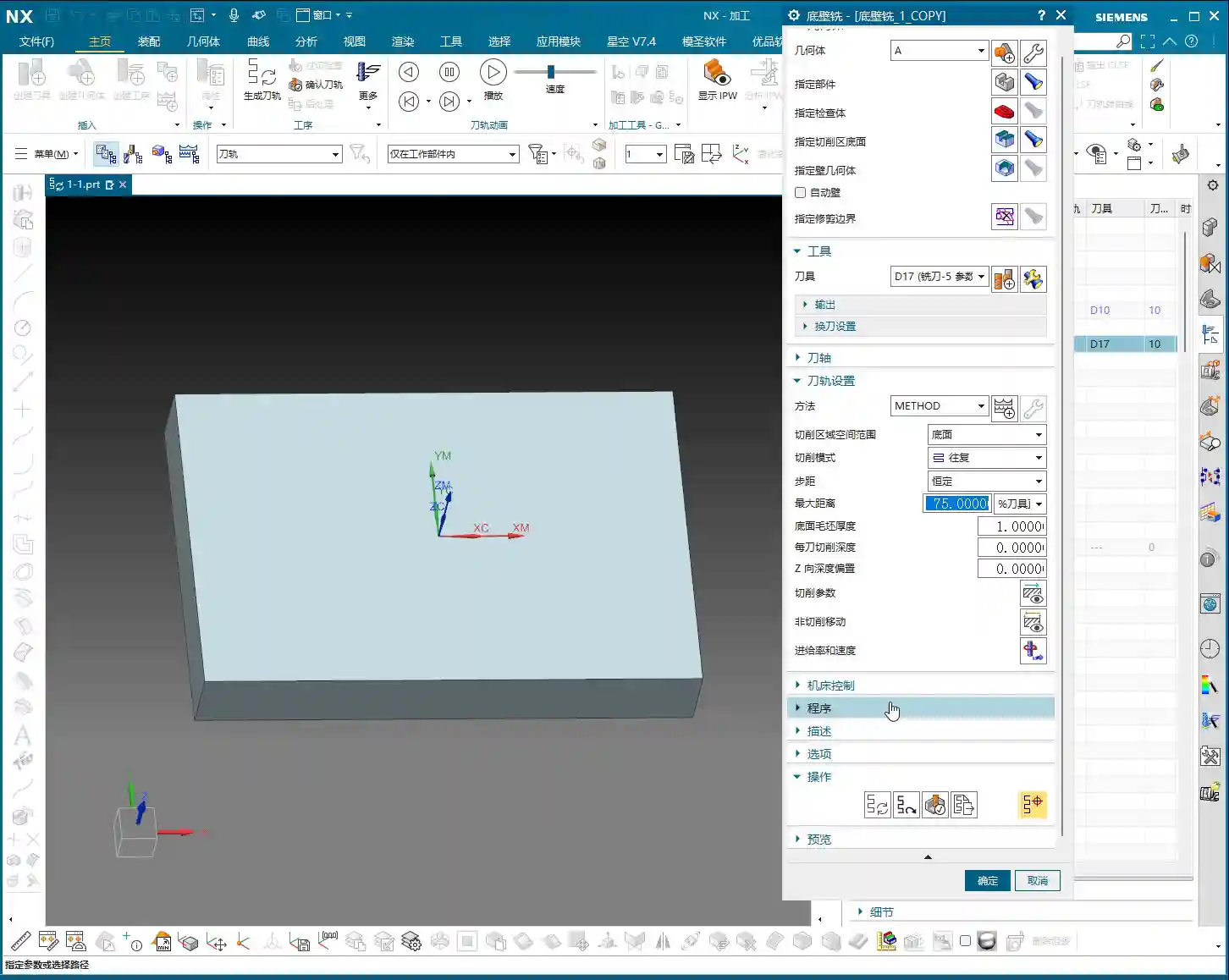
Things like “Program,” “Description,” “Options,” and some “Links” are not something we need to worry about at the moment. These aren’t very useful for our current programming studies. Once you become an expert, mastering the software, then you can come back and briefly understand what they do.
2. Parameters for Future Use
Parameters related to “Machine Control” might not be used now, but they will become relevant when we learn about tool compensation in the future. We’ll explain them in detail then.
3. The Essential “Generate”
The “Generate” command under “Operation” must be clicked after every tool path modification; otherwise, your changes won’t take effect. It’s like an “Execute” button; only after clicking it will the software calculate and update the tool path. You must remember this!
4. Preview: Just to See the Tool Path Shape
The “Preview” function is mainly for you to see what the generated tool path looks like. It’s the same visual effect you see on the interface after clicking “Generate.” So, usually, there’s no need to specifically click it.
Summary: Pitfall Avoidance Guide
- Core Parameters: S value (Spindle Speed) and F value (Feed Rate) are of utmost importance. Understand and set them correctly.
- Setting Technique: After modifying S and F values, be sure to click the calculator icon. It’s best to modify both S and F, then click it once.
- Practice is King: During programming practice, you can use default or reference values. But in actual machining, you must adjust flexibly based on material, tool, machine, and on-site feedback. Don’t be rigid. Master Wang’s experience table is just a reference, not gospel!
- Don’t Over-Analyze: For parameters not currently needed (e.g., program, description, options, links), just understand their general meaning. No need to waste time delving deep.
- Key Operation: After every tool path modification, always click “Generate” to update the tool path.
Leave a Reply