📝 Key Takeaways: ** This time, Master Wang will personally guide you through practical Siemens NX spot drilling techniques. Key analysis on how to “Specify Top Surface” to control the machining start point, preventing misaligned drilling; how to accurately set “Spot Drill Depth” and “Minimum Clearance Distance” to ensure machining efficiency and safety; and emphasizes the empirical rules for adjusting cutting parameters reasonably based on the material. Don’t just rely on software simulations, observe the cutting sparks! **
Listen up, this is what real spot drilling looks like!
Hello everyone, I’m Master Wang. We’ve pretty much covered all the selection methods for “Specify Hole” in previous sessions. Today, we’ll continue by discussing several critical parameters within the “Spot Drilling” operation, especially the “Top Surface” and “Depth” – topics rarely covered in textbooks but indispensable in real-world machining.
Listen closely, spot drilling might seem simple, but there’s a lot to it. If this operation isn’t done correctly, it can range from impacting surface quality to scrapping the entire workpiece, which translates to tangible costs.
Specify Top Surface: Determining Where Your Tool Engages the Work
What does “Specify Top Surface” mean? Simply put, it tells NX from which plane your drill will start drilling downwards. Don’t underestimate this small setting; it’s crucial for determining the starting point of your toolpath. Otherwise, for the selected hole feature, the software might default to starting the drill from its Z-axis position, which can easily lead to excessive Depth of Cut (DOC).
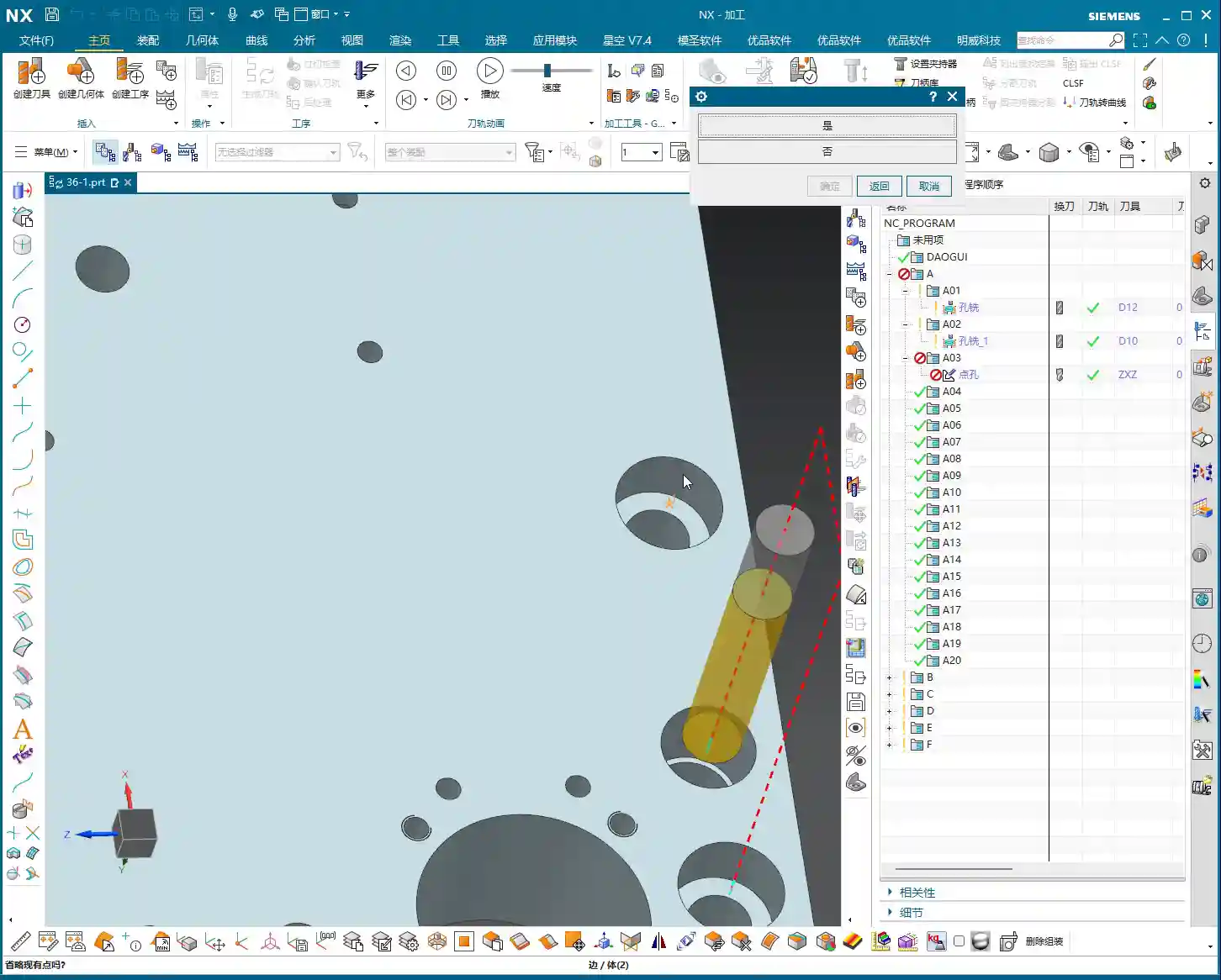
Let me give you an example. For instance, if you have a part with a counterbore (or spot face), you first need to machine the counterbore, then spot drill and drill at its bottom. If you don’t “Specify Top Surface” and directly select that hole, NX might default to using the bottom surface of the counterbore as your starting Z-zero for the operation. This is where trouble starts: when your tool reaches the bottom of the counterbore, it might plunge directly at the programmed feed rate, instead of rapid positioning to the counterbore bottom first and then engaging with a normal feed rate. If this happens by accident, it can lead to chatter or, worse, tool breakage, and potentially damage the counterbore bottom surface.
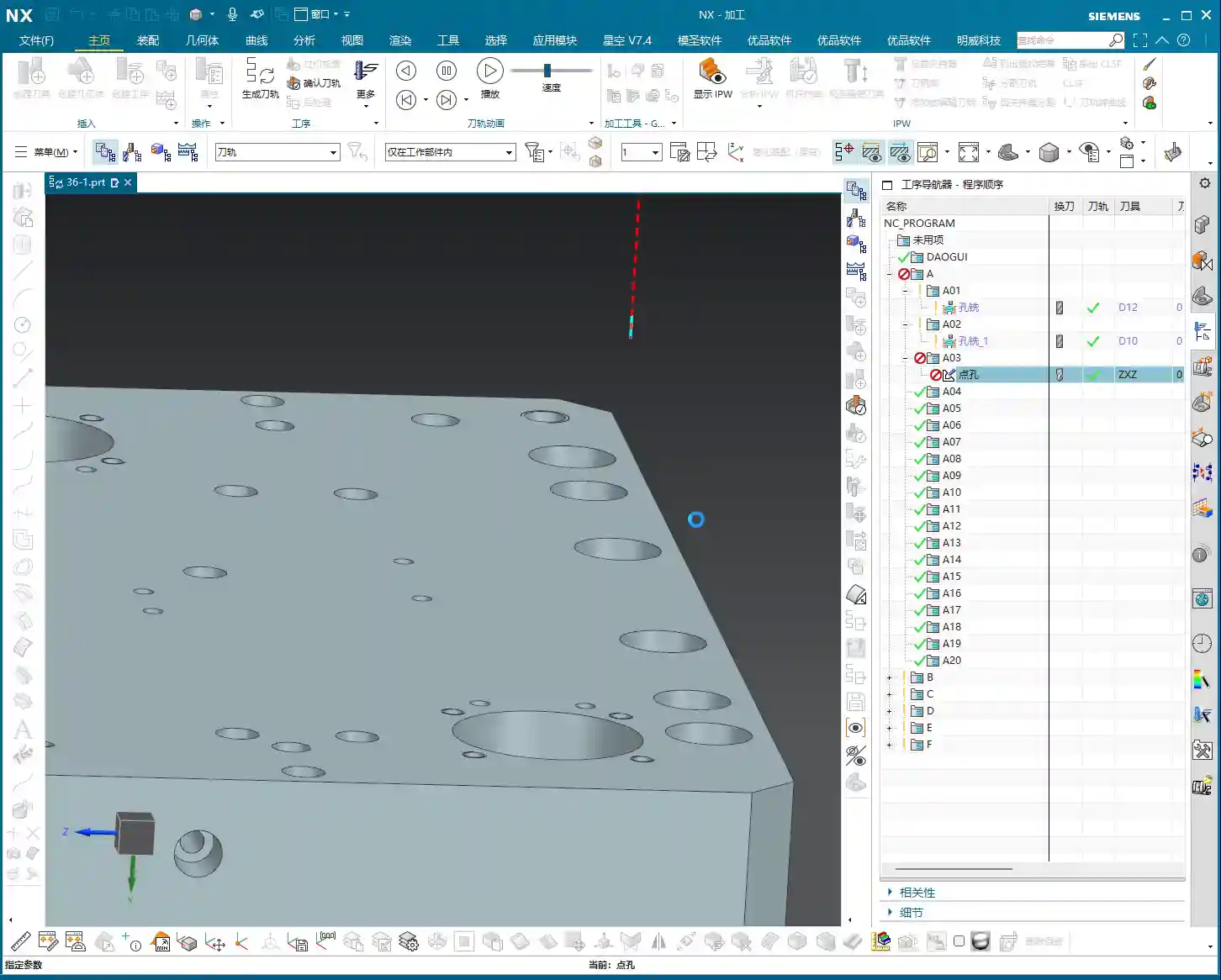
Therefore, when selecting a hole for a spot drilling operation, if there are other features above the hole, or if your machining start point is not the very top surface of the model, you absolutely must “Specify Top Surface.” Once you’ve accurately selected this face, the software will use it as your reference plane for tool entry. The tool will first rapid position above this plane, and then slowly feed downwards, which is much safer.
In NX, “Specify Top Surface” has a “None” option. Selecting “None” means you’re leaving the decision entirely to the software; it will use the Z-coordinate of the geometric point you clicked as the machining zero point. In most cases, this is fine, but in complex scenarios like those I just described, or when you need to machine the lower section of a stepped hole, you absolutely must manually specify it – no cutting corners! This is the kind of practical knowledge you won’t find in textbooks.

Spot Drill Depth: Not Just Any Arbitrary Number Will Do
Spot drill depth, as the name suggests, is how deep your drill will penetrate. Many new programmers think spot drilling is just making a mark, so they casually set the depth to 2mm. It’s not that simple! This depth isn’t a fixed rule; it depends on the situation.
In NX, there are generally two common types of depth settings for spot drilling: “Tip Depth” and “Model Depth”. For spot drilling, we typically use “Tip Depth”. This Tip Depth refers to the distance the drill tip penetrates downwards. For example, if you set a 10mm Tip Depth, the drill tip will go to the -10mm position from the specified top surface.
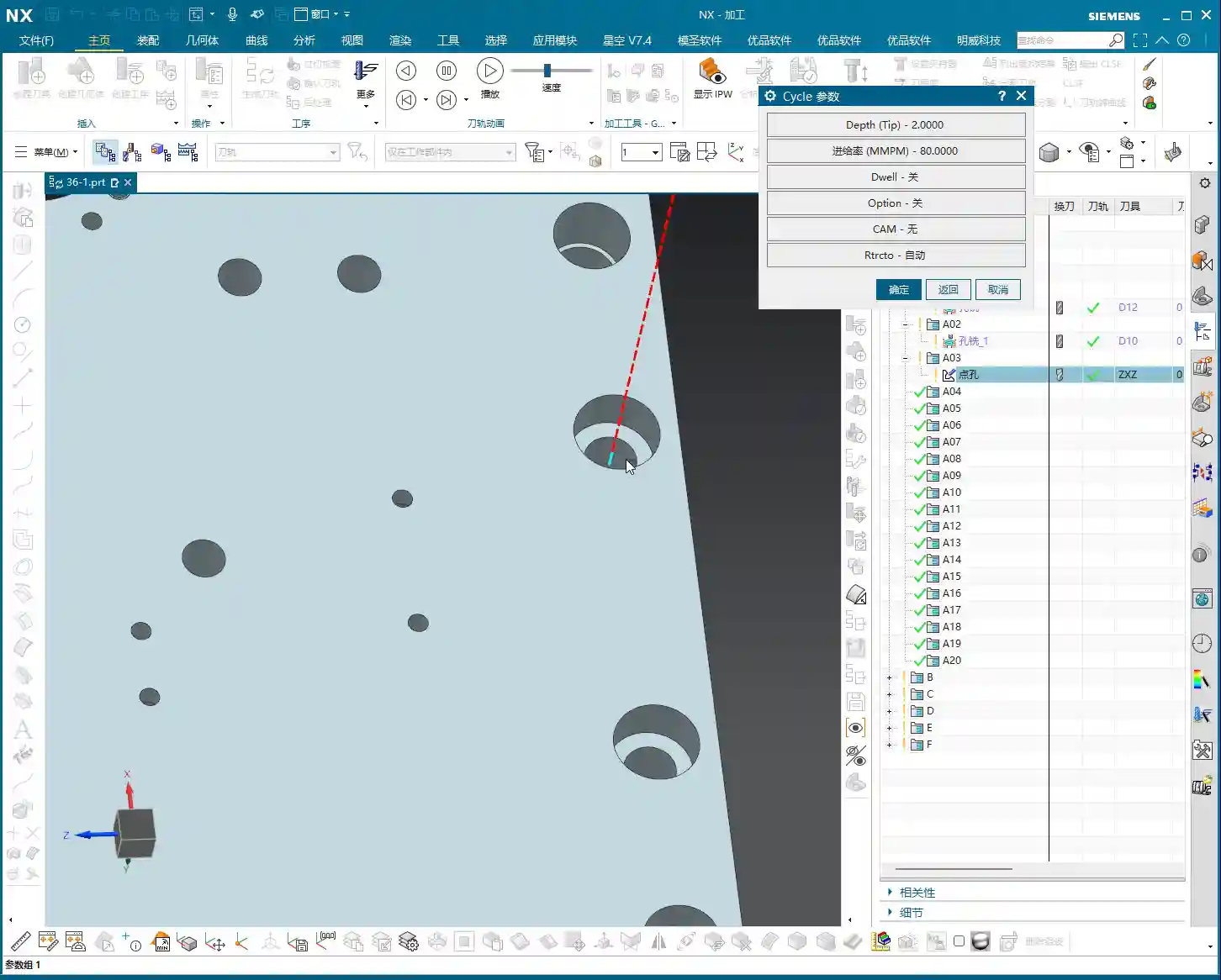
So, you might ask, what’s the appropriate depth to set? This needs to be determined based on the actual situation. The purpose of spot drilling is usually to provide guidance for subsequent drilling, preventing the drill from drifting, and also to ensure sufficient bearing surface for countersunk screws or rivets. Generally, 1mm (approx. 0.04 inch), 2mm (approx. 0.08 inch), 3mm (approx. 0.12 inch), 4mm (approx. 0.16 inch) are common spot drill depth values.
- If you just need to establish a pilot point for subsequent drilling, and the hole diameter isn’t large, a Tip Depth of 1-2mm (approx. 0.04-0.08 inch) should be sufficient.
- If the hole diameter is larger, or if the subsequent hole requires high precision, you might need to use 3-4mm (approx. 0.12-0.16 inch) to provide a more stable guide for the drill.
- Don’t just rely on software simulations; observe the cutting sparks! During actual machining, you need to observe chip formation and tool wear to determine if the depth is appropriate. If the depth is too shallow, the subsequent drill can wander; if it’s too deep, it’s just wasted effort and unnecessary.
This depth also relates to the type of “cycle” you choose. For spot drilling, we generally use the G81 standard drilling cycle. If you need to drill deep holes later, that would be the G83 deep hole drilling cycle, where depth settings and retraction strategies become much more complex.

Minimum Clearance Distance: The “Safety Line” for Tool Entry and Retraction
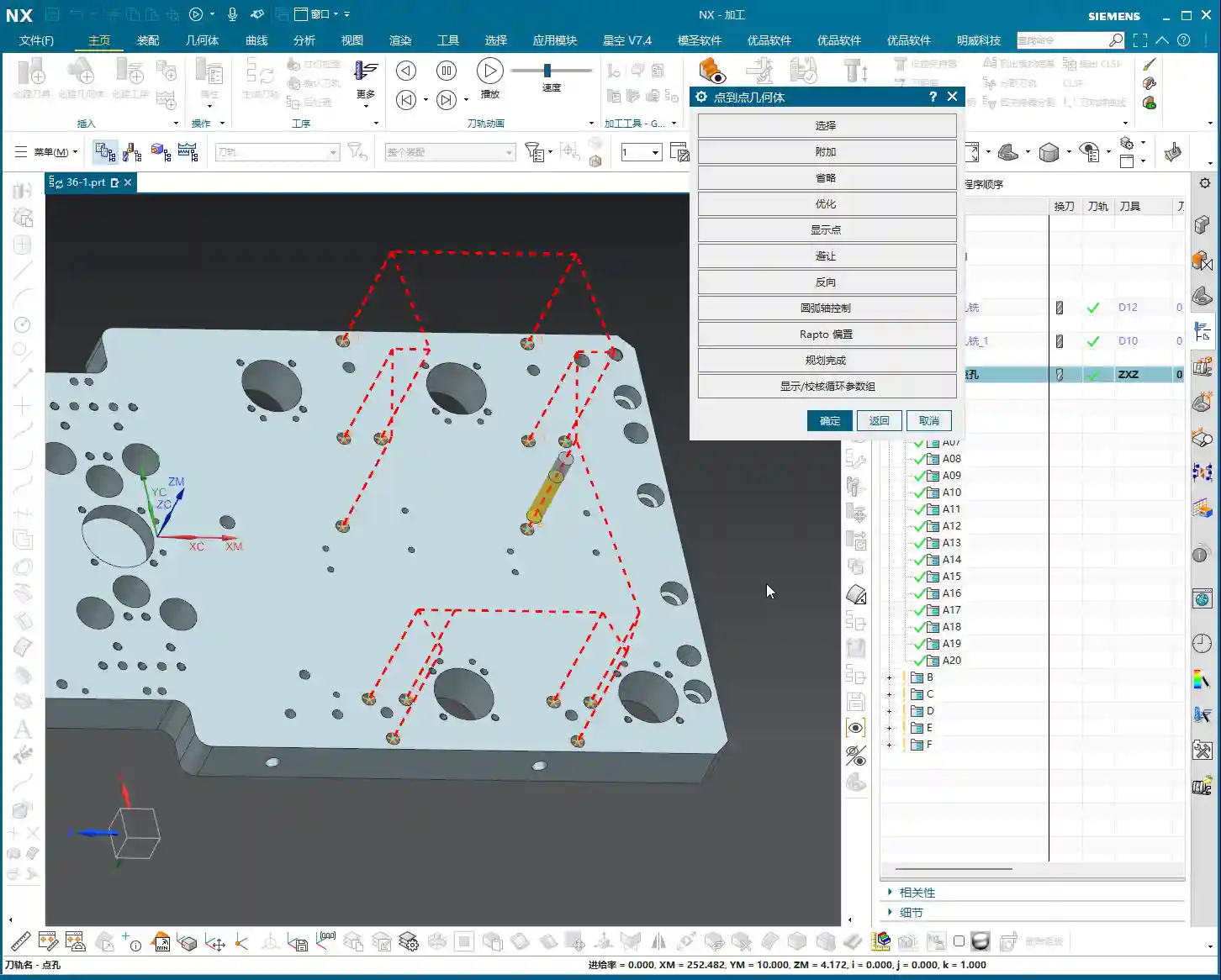
In NX, there’s a parameter called “Minimum Clearance Distance,” and it’s also crucial. It refers to the distance the tool will rapid move (G00) from above the retract plane (or specified top surface) down to this safe clearance, and then from there, it will start cutting downwards at a normal feed rate (G01). For example, if you set it to 3mm (approx. 0.12 inch), the tool will first rapid down to 3mm above the top surface, and then slowly feed in.
In G-code, this “Minimum Clearance Distance” typically corresponds to the R-value. For example, in G81 X… Y… Z-10.0 R3.0 F…, the R3.0 means the tool will rapid down to 3mm above the machining top surface, and then begin cutting at feed rate F. The significance of this parameter lies in improving both efficiency and safety.
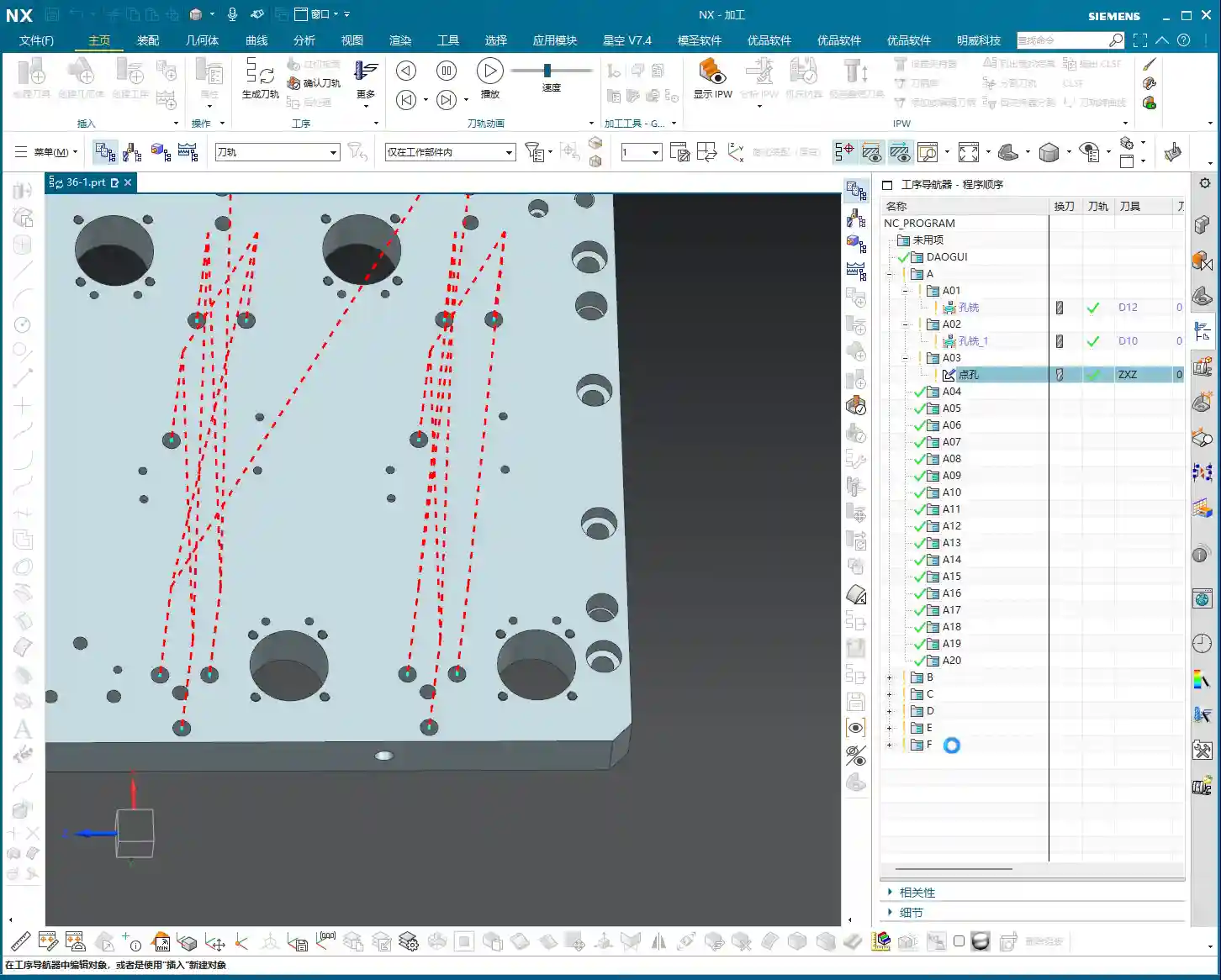
- If your workpiece surface is flat and the fixturing is stable, this clearance distance can be set smaller, for example, 1mm (approx. 0.04 inch), to reduce air cuts and improve efficiency.
- However, if the workpiece surface is uneven, or if there’s raw casting or forged stock allowance, then this clearance distance should be appropriately increased, for example, to 3mm (approx. 0.12 inch) or even 5mm (approx. 0.20 inch), to prevent the tool from colliding with the workpiece during rapid moves and causing accidents.
Setting these parameters isn’t about rote memorization; it requires comprehensive consideration of your actual workpiece, material, machine tool performance, and even tool condition. This is the kind of insight a master passes on to an apprentice, the “tricks you won’t learn from a textbook.”

The “Art of Compromise” in Drilling Cycles and Parameters
NX offers many “cycle” options, such as “Standard Drill,” “Deep Hole Drill,” “Chip Break Drill,” etc. These correspond to different G-code commands; for instance, G81 is for standard drilling, and G83 is for deep hole drilling. For spot drilling, we generally use the simplest “Standard Drill.” Don’t be overwhelmed by the multitude of parameters; most of them you can leave at their default settings.
The essence of spot drilling is tool entry, making a spot, and tool retraction. Therefore, besides “Specify Top Surface” and “Spot Drill Depth” which we’ve discussed, other parameters like “Feed Rate” and “Spindle Speed” must be determined based on the material. Aluminum can be cut faster, while tough materials like stainless steel and titanium alloys require a more cautious approach. Too fast, and you risk excessive tool wear; too slow, and it’s simply a waste of time and uneconomical.
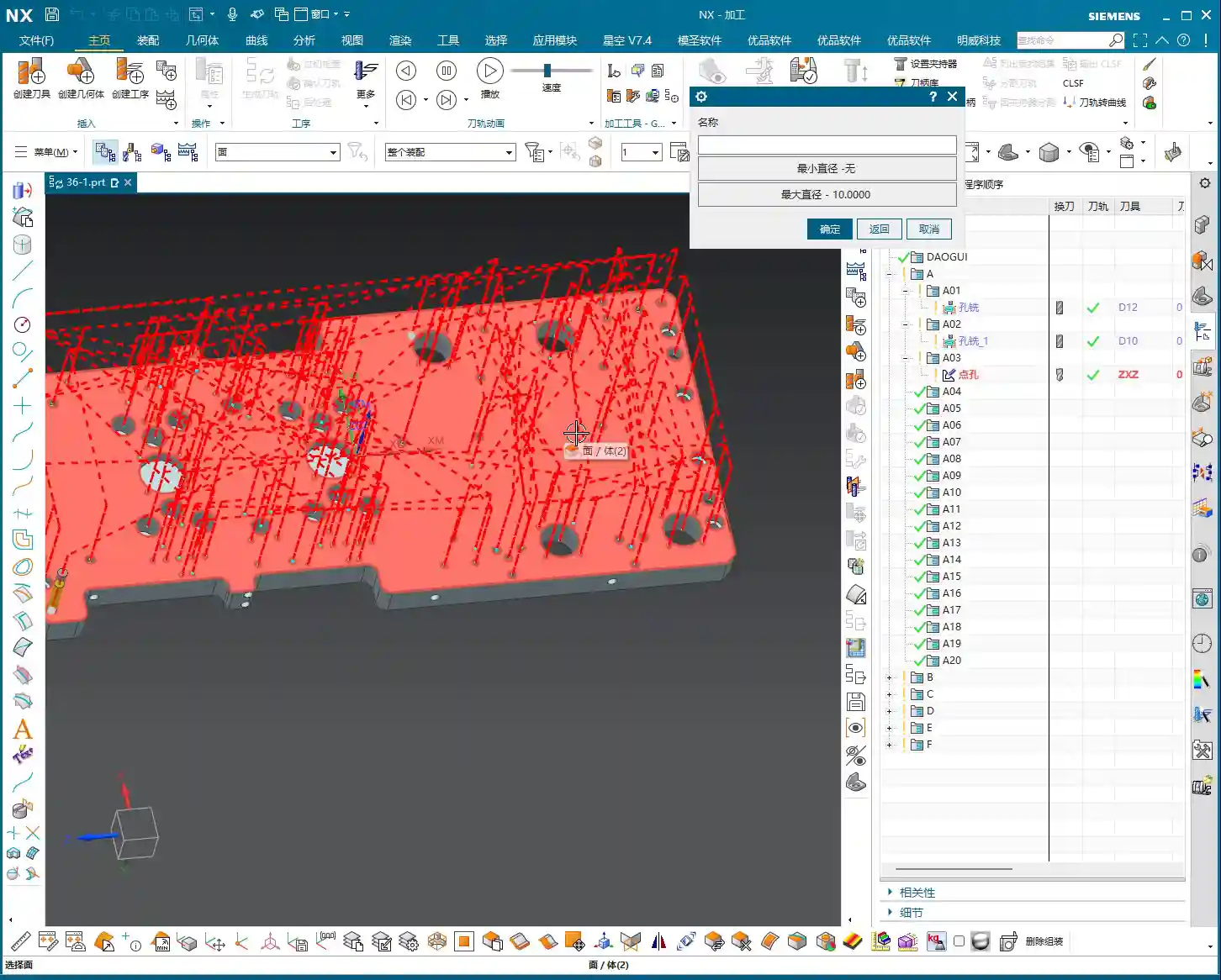
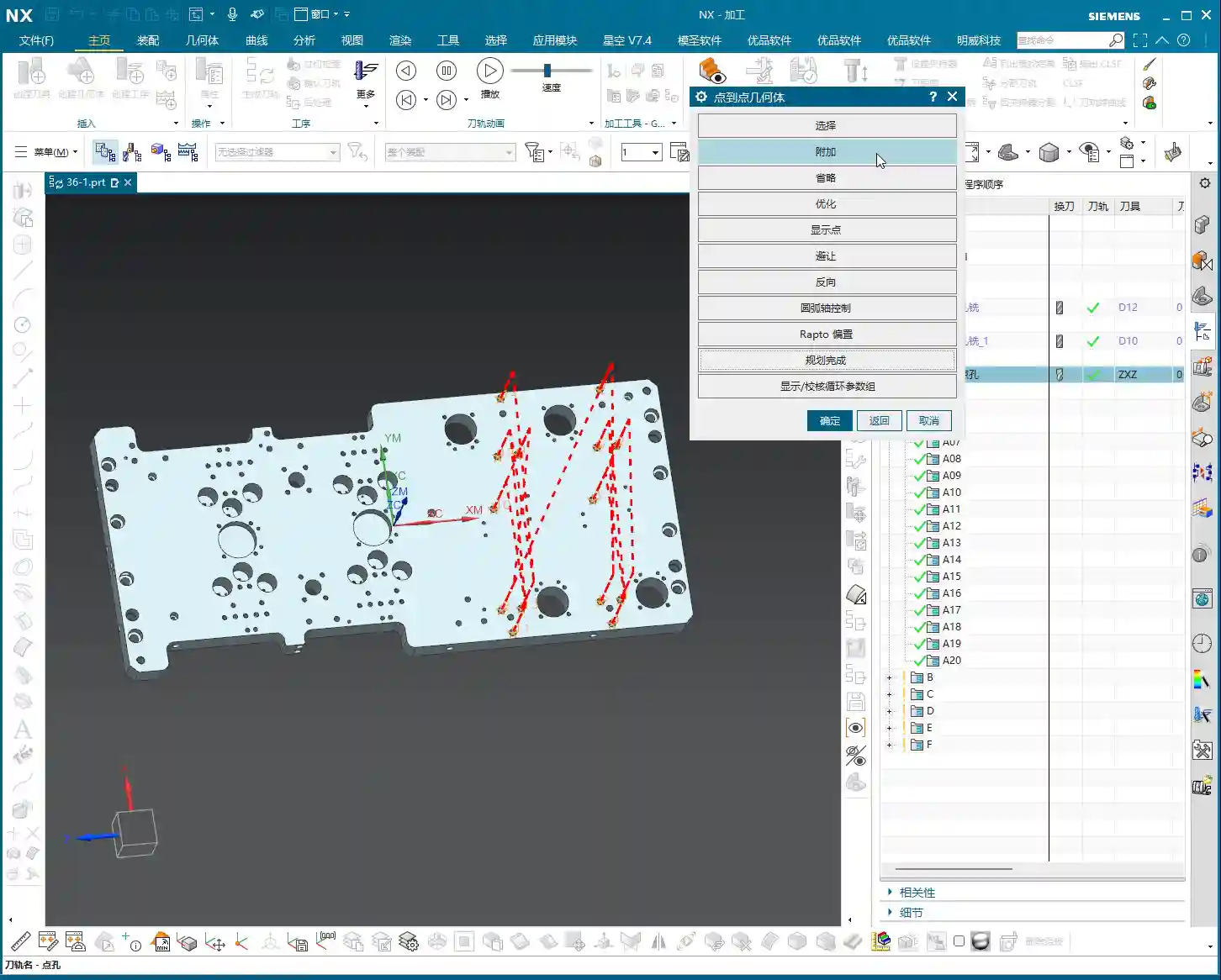
Here’s a quick tip: when you select multiple holes for spot drilling, NX will, by default, machine all of them. However, sometimes we might not need to spot drill certain small holes or holes in specific locations. In such cases, within the graphical interface, you can roughly position your mouse over the holes you don’t need to machine and click once; they will be deselected. No need for pinpoint accuracy, a general location is fine. This allows for flexible control over which holes are spot drilled and which are not, avoiding unnecessary machining.
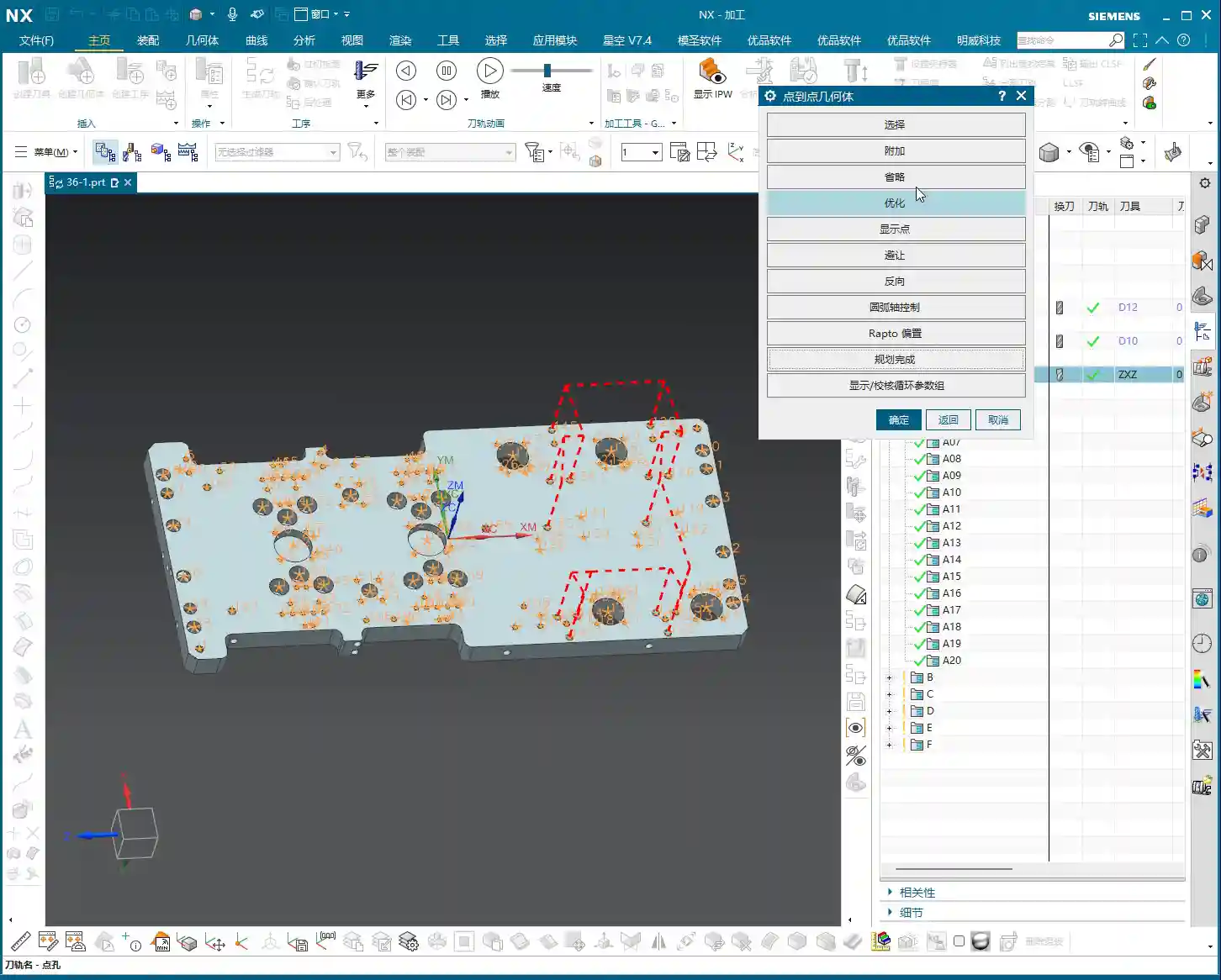
Remember, the fundamentals remain constant. Spot drilling is a relatively simple operation, but you must thoroughly understand these three points: Top Surface, Depth, and Clearance Distance, to ensure your spot drilling is executed cleanly and provides a solid foundation for subsequent drilling.

Summary: Pitfall Avoidance Guide
- Don’t Blindly Trust Default Values: Especially for “Specify Top Surface,” in situations involving stepped holes or secondary operations, always specify it manually. Otherwise, the tool might start cutting from an unexpected position, leading to collisions or scrap parts.
- Be Flexible with Depth: “Spot Drill Depth” is not fixed; set the “Tip Depth” according to hole diameter, material, and subsequent machining requirements. Generally, 1-4mm (approx. 0.04-0.16 inch) is the common range. Too deep wastes time, too shallow won’t provide adequate guidance.
- Minimum Clearance Distance is Essential: The “Minimum Clearance Distance” relates to the efficiency and safety of tool entry and retraction. For raw stock or workpieces with uneven surfaces, appropriately increase the clearance distance (G-code R-value) to prevent tool collision during rapid traverse.
- Cutting Parameters Must Be Rational: Spindle Speed (S) and Feed Rate (F) are determined by material characteristics, tool material, and diameter; they shouldn’t be too fast or too slow. This requires accumulated experience, so observe cutting sparks and chip formation.
- Spot Drilling is Minor, But Details Determine Success: Mastering these practical tips will steadily improve your machining efficiency and product quality.
👤 About the Author:
The author is a veteran CNC machining professional with 15 years of industry experience, specializing in UG NX programming. This article is an original work representing personal practical insights.
⚠️ Copyright Notice: Unauthorized reproduction or distribution without prior communication is strictly prohibited.