Tag: Cavity Milling

  • Siemens NX Cavity Milling 3D Rest Roughing in Practice: Master Wang’s Guide to Precise Corner Cleanu

    📝 Key Takeaways:

    Siemens NX Cavity Milling 3D Rest Roughing: Master Wang’s Practical Secrets

    Hello everyone, I’m Master Wang….

    Hello everyone, I’m Master Wang. Today, let’s talk about a crucial topic in Siemens NX Cavity Milling – 3D Rest Roughing. The textbooks might leave you scratching your head with this stuff, but in our shop, mastering it can genuinely boost efficiency, save on tooling, and deliver quality parts. Listen up, today I’m going to break down the ins and outs of “Use 3D” versus “Reference Tool,” especially focusing on the Workpiece – that’s the core of it all!

    3D Rest Roughing: The Core Secret of Workpiece

    Back when we first started roughing, we typically used the “Reference Tool” approach. Now, with the “Use 3D” option available, many folks don’t know how to use it, or their results aren’t great. The reason is simple: you haven’t fully grasped its underlying principles.

    Why is Workpiece Essential?

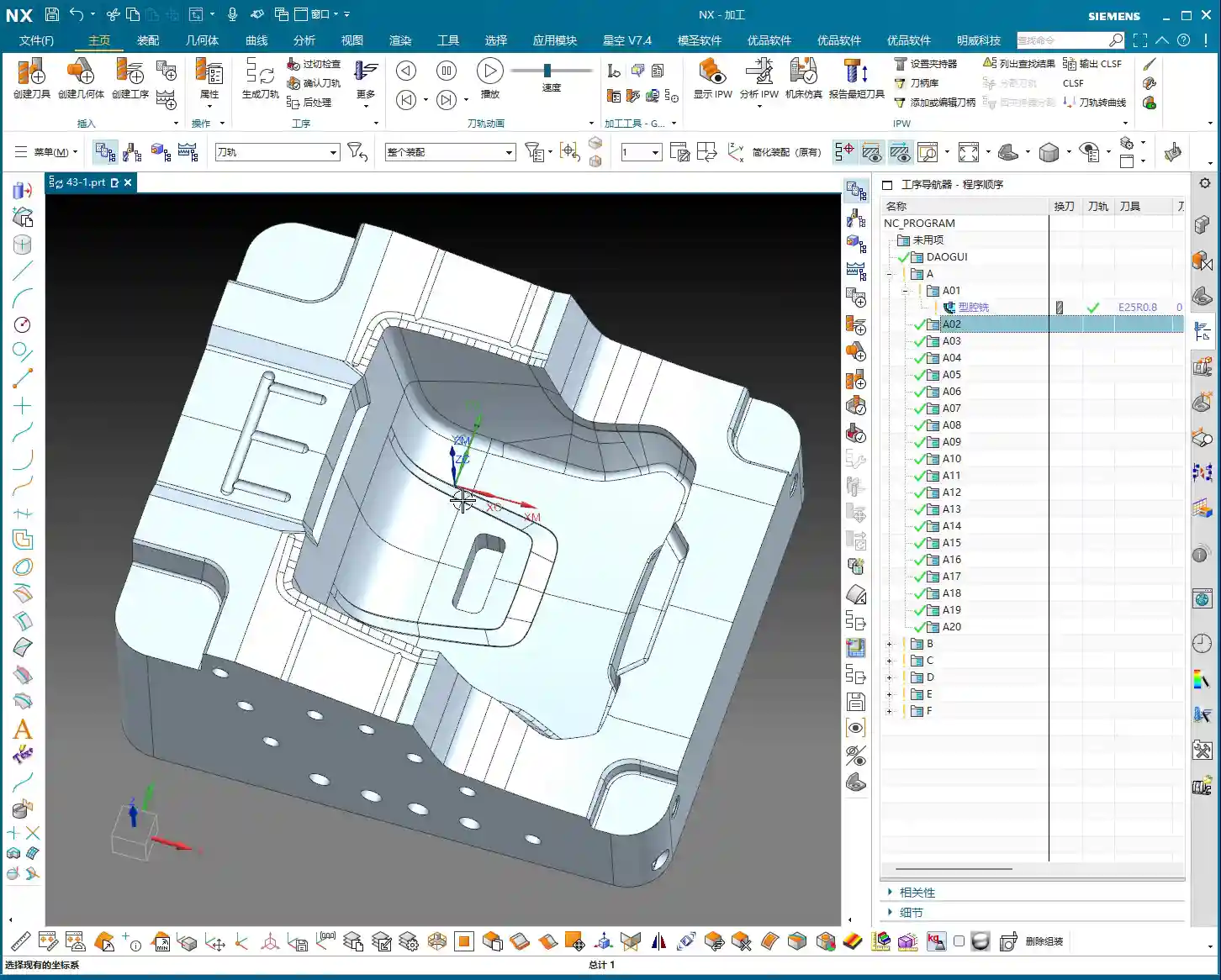
    In Siemens NX, when you’re doing rest roughing in Cavity Milling, besides the “Reference Tool” option, there’s another called “Use 3D” (or a custom name you might have, like my A-20 here, just for differentiation, but it’s the same core function). This “Use 3D” feature has a strict prerequisite: you must first create a Workpiece object. Mark my words, this is mandatory!
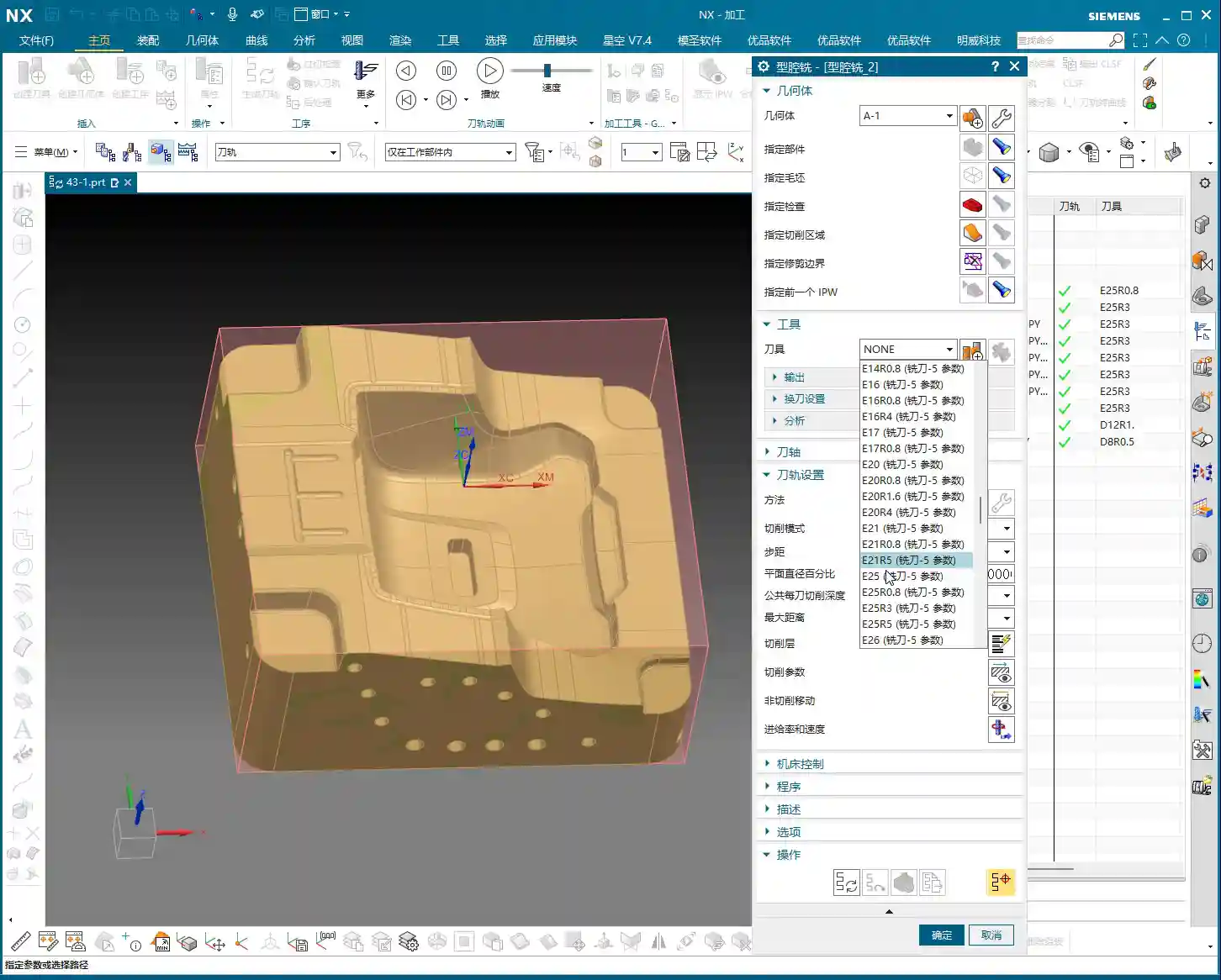
    Before, we didn’t really delve into the meaning of the Workpiece, but now, when it comes to Cavity Milling, it becomes absolutely critical. If you want to use “Use 3D” for machining but haven’t set up the Workpiece beforehand, you simply won’t be able to proceed.

    Workpiece Setup and Benefits

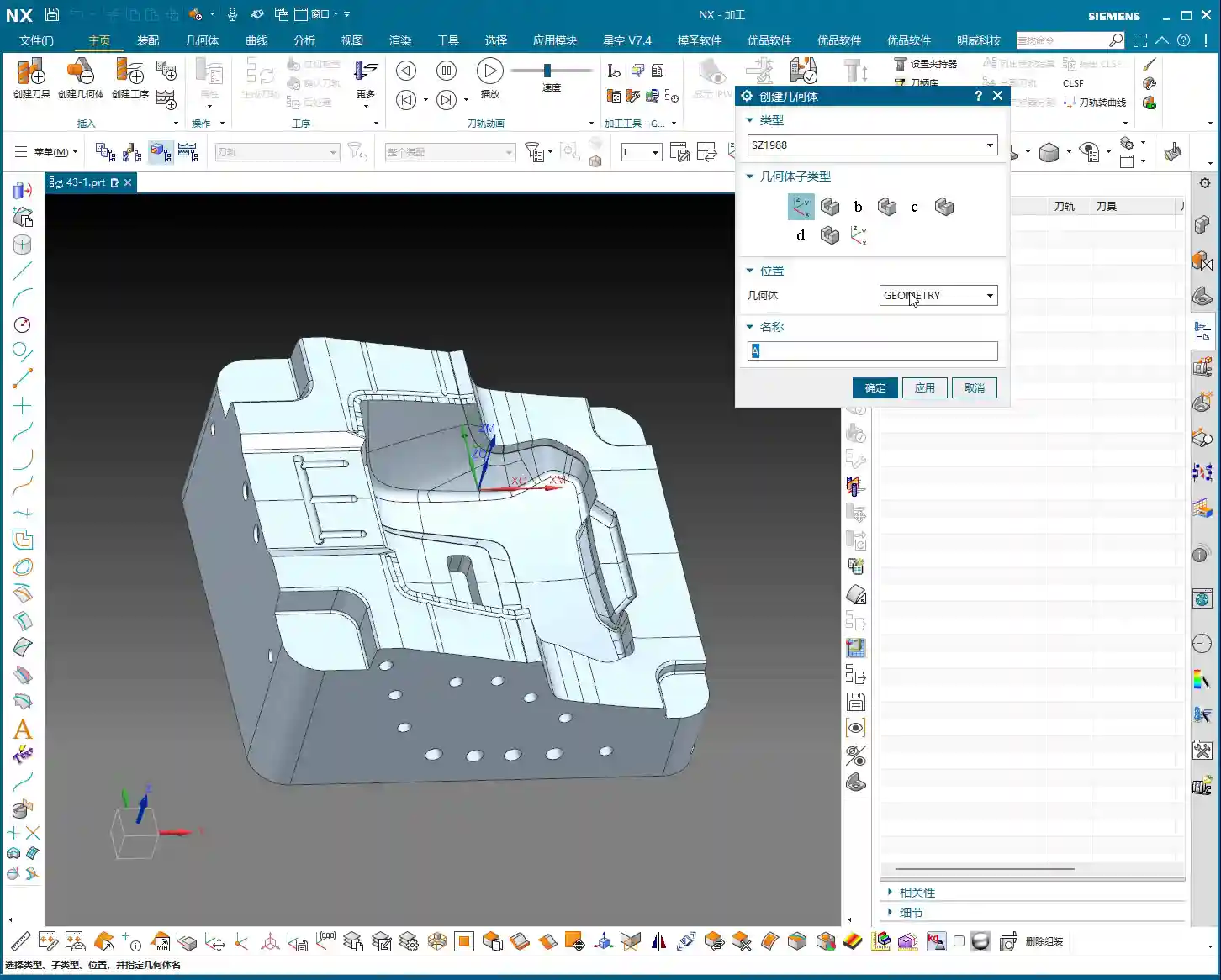
    Open the Workpiece object, and you’ll find two key options: one is Part, and the other is Blank. We often set these in operations before, right? But now, you’re “fixing” them directly within the Workpiece object in advance.

    What’s the benefit? Once you specify the Part and Blank within this Workpiece, when you choose to machine using the “Use 3D” method, for example, operations like A-1 or A-20 as we’re discussing here, it will automatically inherit and recognize the pre-defined Part and Blank from the Workpiece. This saves you the hassle of manually specifying them every time you create an operation, significantly improving programming efficiency, especially for complex parts and multiple operations. Simply put, you do the foundational work upfront, and the rest flows smoothly.
    Two Strategies Head-to-Head: Traditional vs. 3D

    Since we’ve brought up two main approaches, we need to understand their individual characteristics and uses.

    Traditional Reference Tool Machining

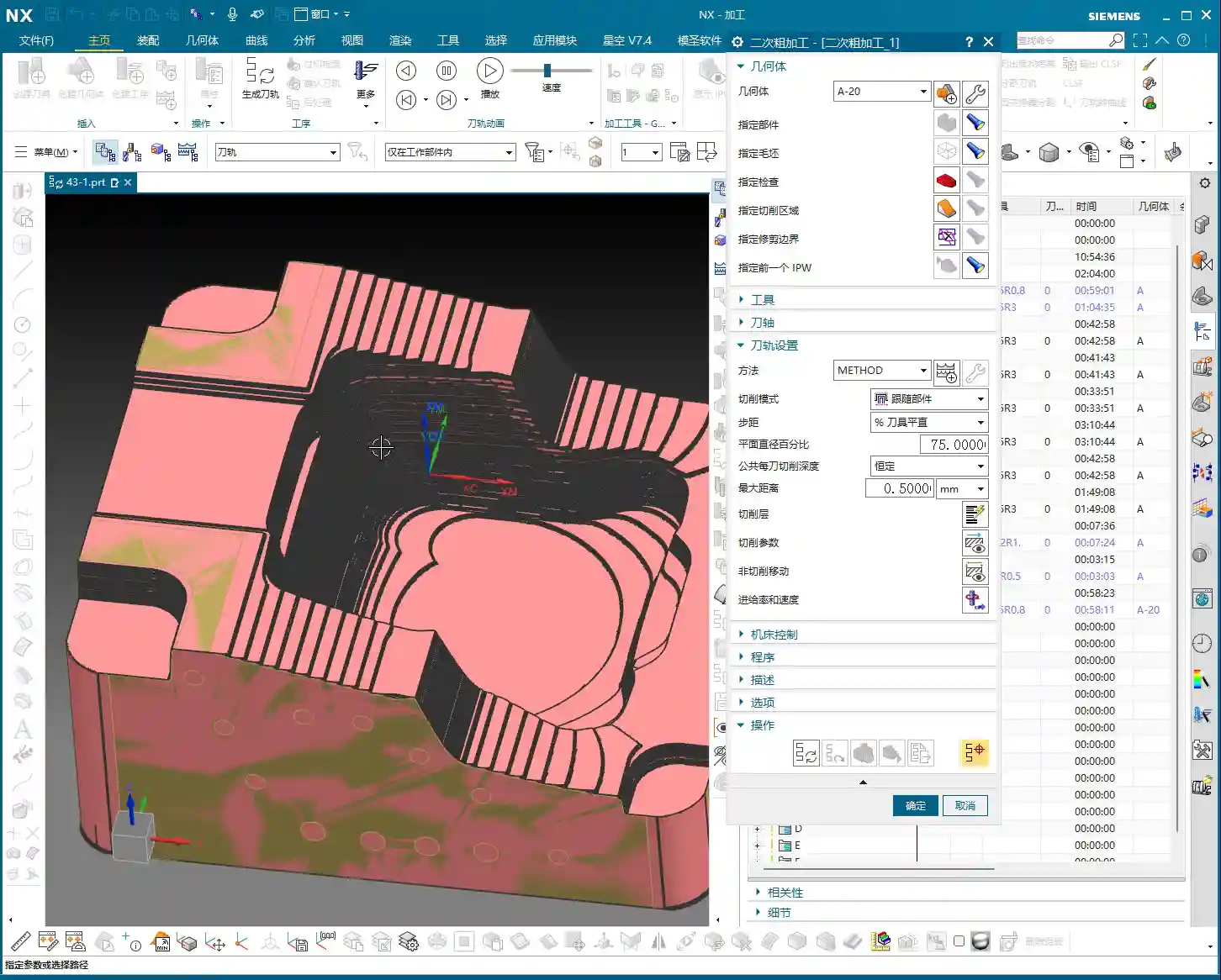
    This method is what we’ve used more often – it’s straightforward. When you select “Reference Tool” for roughing, every time you create a new operation, you need to manually specify the Part and Blank. It doesn’t automatically inherit them like “Use 3D.” This approach works fine for simple parts or single operations, but if you have many operations, continually selecting them gets tedious and prone to errors. Furthermore, its precision in handling residual stock is inferior compared to “Use 3D.”

    Advantages of 3D Rest Roughing: Automatic Residual Stock Identification

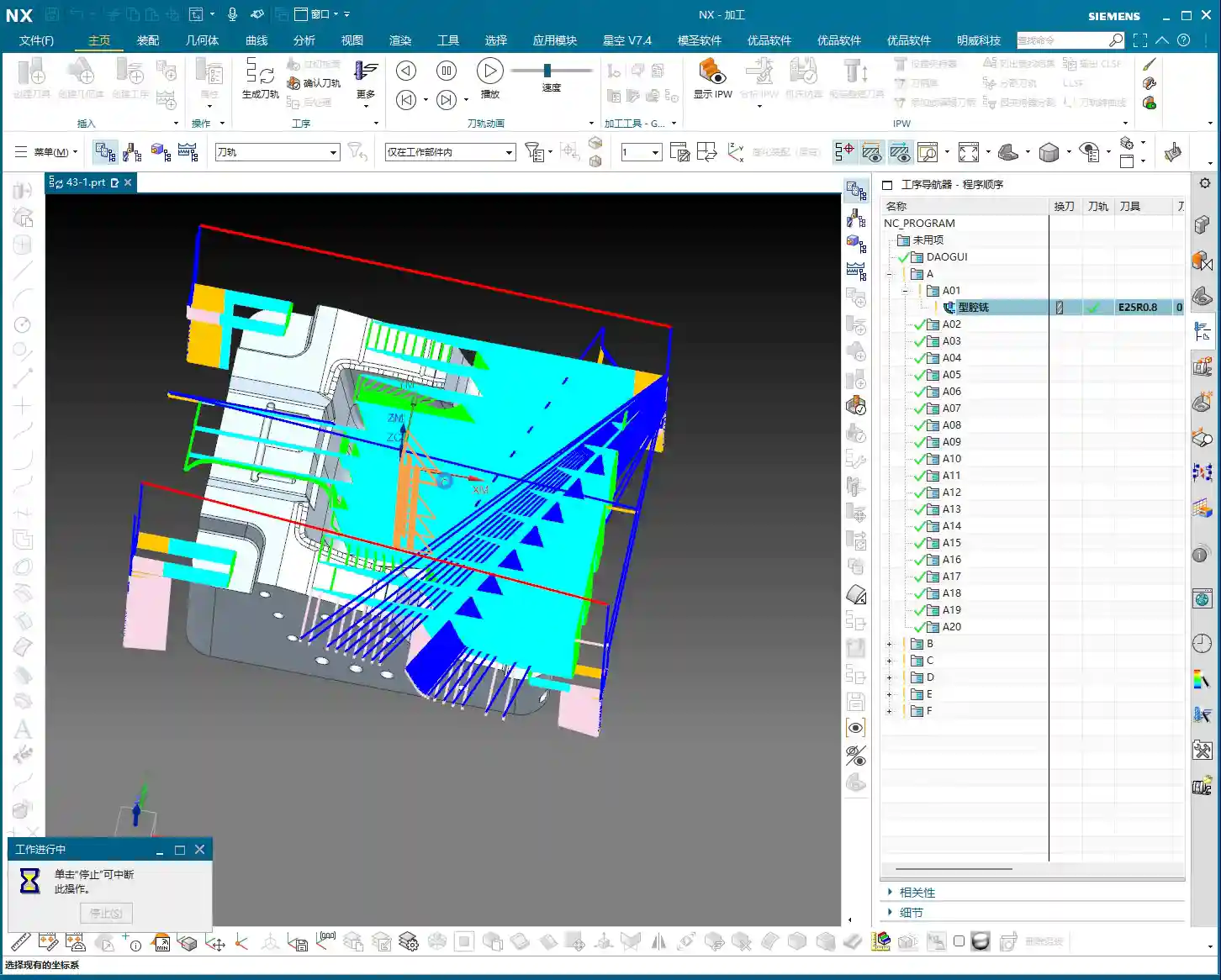
    Here’s the key! When we use “Use 3D” for rest roughing, the most significant advantage is its ability to automatically identify and calculate the residual stock left from the previous operation. You see, when I highlight the blank, it’s no longer a uniform block; it’s the actual shape remaining after the previous roughing pass.
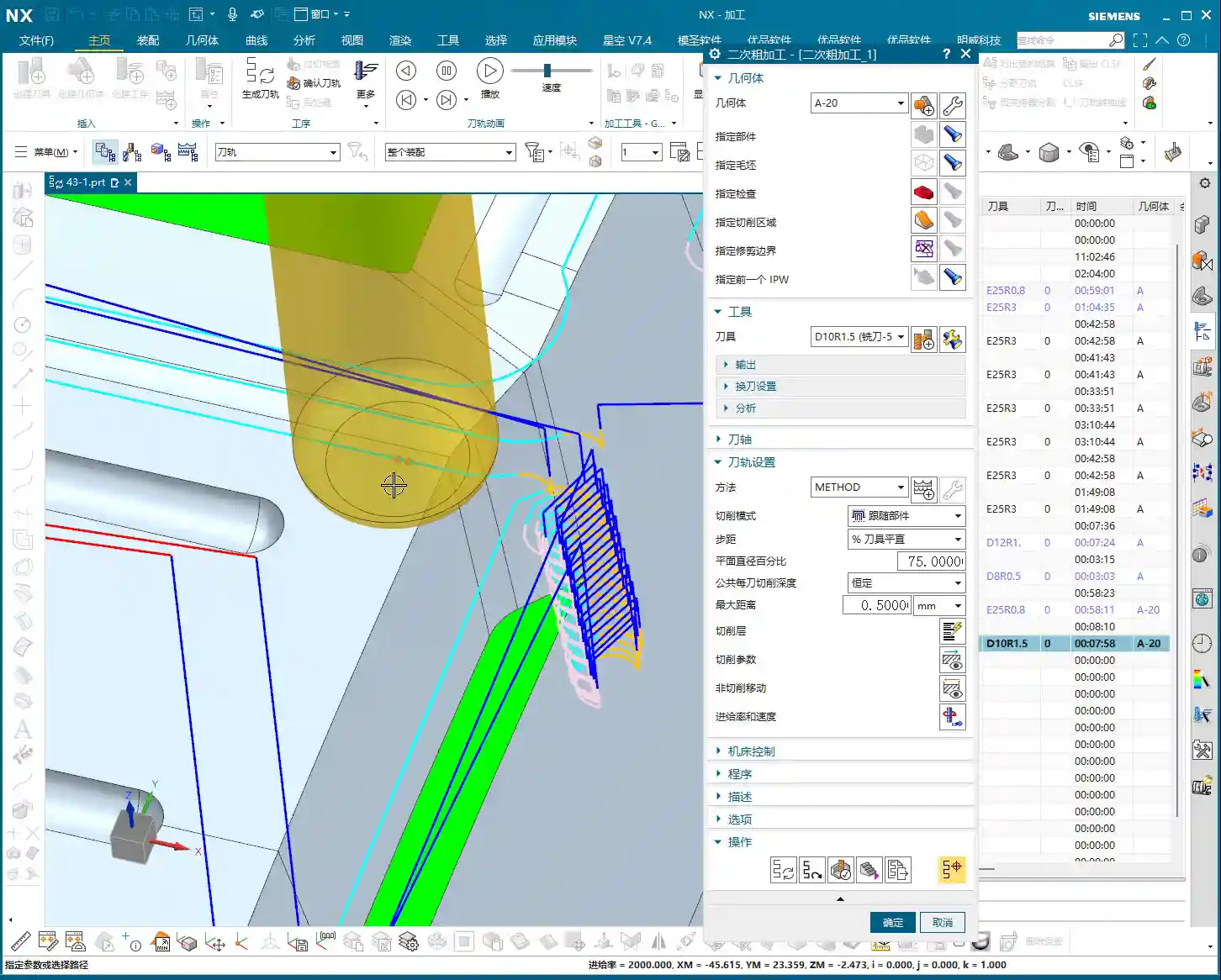
    This is where NX gets smart. It uses the Part and Blank defined in the Workpiece, combined with the machining results from your previous operation, to precisely know where material still remains and where it has already been cleared. This way, you don’t need to manually set the reference tool diameter to simulate the previous machining effect; instead, you rely entirely on the system’s automatic judgment. This is especially effective when machining complex surfaces or deep cavities.

    Refining Toolpaths: Precision and Efficiency in 3D Machining

    “Use 3D” isn’t just about convenience; it also offers unique advantages in toolpath generation and machining quality.

    Precise Handling of Residual Stock

    Traditional machining methods, especially on slopes, small fillet radii, or at the bottom of deep cavities, often leave behind “small triangular areas” or irregular residual stock – places the tool couldn’t completely clear. These areas often pose risks for subsequent operations, potentially increasing the burden of finishing, or worse, leading to gouging, tool chipping, or even scrapping the part.
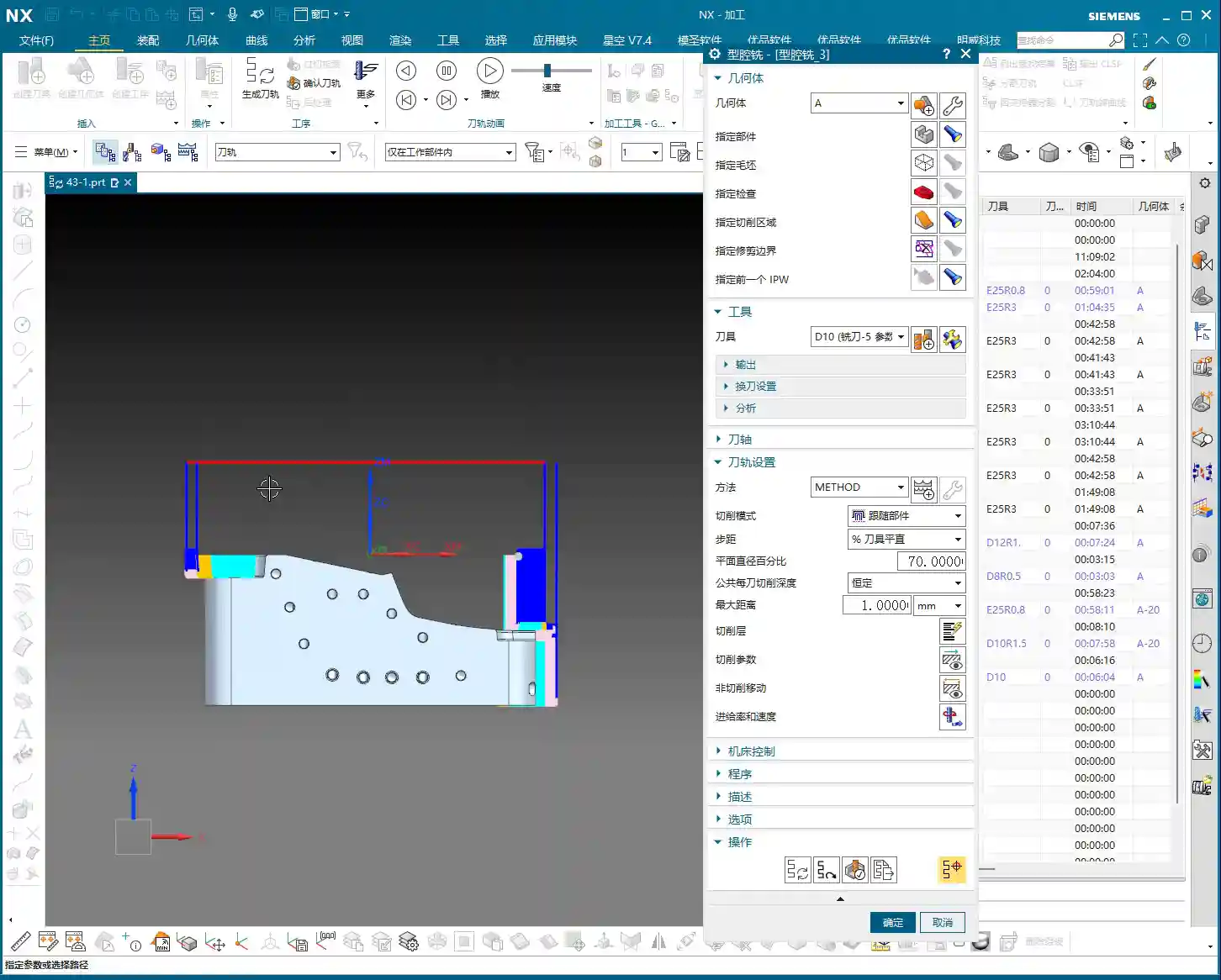
    However, “Use 3D” machining, precisely because it calculates the residual stock, will specifically generate additional cuts for these irregular, unmachined regions when creating toolpaths. For instance, steep slopes that traditional methods might skip over will get an extra pass with 3D roughing to clear that material as well. This results in more uniform residual stock on the part surface, laying a better foundation for subsequent finishing passes. The toolpath might look denser, but it’s genuinely clearing material.

    Optimization Strategies and Computational Considerations

    While “Use 3D” can handle residual stock more precisely, don’t forget it’s computationally more intensive, so program generation time might be longer. But it’s absolutely worth it! To further optimize, we can adjust the parameters.

    For example, for the Depth of Cut (DOC) or Stepover, you can adjust them according to the actual situation. I usually set the stepdown for rest roughing to half of the initial roughing, or slightly smaller based on material hardness and tool wear, such as 0.4mm. This way, while ensuring effective material removal, you can also optimize toolpath density and reduce unnecessary air cuts, improving overall efficiency. Don’t just rely on software simulations; look at the cutting sparks, listen to the machine’s sound – that’s the real validation!

    Summary: Pitfalls to Avoid

    1. Workpiece is Fundamental: Listen up, if you want to use the “Use 3D” function, the first step is always to define your Workpiece, including the Part and Blank. If it’s not set up correctly, everything else is pointless.
    2. Understand Both Methods: “Reference Tool” is suitable for simple parts or beginners, requiring manual selection every time. “Use 3D” is advanced; it automatically inherits and identifies residual stock, significantly improving efficiency and machining quality.
    3. Refined Toolpaths: 3D rest roughing helps clear those “small triangular areas” and irregular remnants, preventing gouging during finishing. But remember, calculation time will be slightly longer; this is normal.
    4. Parameter Flexibility: Don’t rigidly apply default parameters. Stepdown, feed rates, etc., should be adjusted flexibly based on the material, tooling, and conditions of the previous operation. For example, setting the stepdown for rest roughing to half of the initial roughing can effectively optimize toolpaths and reduce air cuts.
    5. Experience is Key: Don’t just stare at the screen watching simulations; go to the machine and observe the actual cutting performance. Are the sparks consistent? Is the machine experiencing unusual vibration? These are the ultimate criteria for judging a good toolpath!
    6. Tool Limitations: Finally, even with 3D rest roughing, if the tool diameter is too large, it still can’t access some narrow areas. Remember, tools are not universal; select them appropriately based on the geometry.

    👤 About the Author:
    The author is a veteran CNC machining professional with 15 years of industry experience, specializing in UG NX programming. This article is an original work representing personal practical insights.

    ⚠️ Copyright Notice: Unauthorized reproduction or distribution without prior communication is strictly prohibited.

  • Siemens NX Cavity Milling Rest Roughing Practice Guide: Master Wang Teaches You Clever Use of Refere

    📝 Key Takeaways: Master Wang personally guides you through practical techniques for Siemens NX cavity milling rest roughing, from correctly selecting commands and setting up stock, to a core explanation of “In-Process Workpiece” and “Reference Tool.” He reveals the “Minimum Residual Material” parameter, helping you optimize toolpaths, efficiently perform corner cleanup, thoroughly eliminate unmachined areas, and achieve high-quality part machining.

    Hello everyone, I’m Master Wang. Last time, we pretty much covered roughing; today, we’ll continue with rest roughing. Don’t underestimate it – when used well, this technique can save you a lot of finishing time and effectively improve the part’s surface quality.

    Rest Roughing Operation: Siemens NX Command Selection and Initial Setup

    Listen closely: for rest roughing in NX, we’ll directly choose the “Cavity Milling Rest Roughing” command. Simply put, it’s a branch of cavity milling, but NX engineers have pre-set some parameters for you, making it more suitable for corner cleanup and processing material left from the previous roughing pass. If you were to use it for initial roughing, it’s not impossible, but you’d have to change a bunch of parameters—why create trouble for yourself? It’s time-consuming, laborious, and not worth it!

    • Operation Entry: Directly select “Cavity Milling Rest Roughing”.
    • Stock and Part: This section is the same as the initial roughing; just click OK, no need to change. The system will default to your previous settings.
    • Tool Selection: Rest roughing, as the name suggests, is used to clear corners unreachable by the large tool during the previous roughing pass. Therefore, you need to select a tool with a smaller diameter, typically a ball end mill or bull nose end mill, and a smaller corner radius (R value) than the roughing tool. For example, if you used a D25R3 for roughing, you might consider a D12R1 for rest roughing.
    • Cutting Parameters:

      • Cut Pattern: Generally, use “Contour Part”; this is the most common method.
      • Depth of Cut (DOC): This parameter is crucial. We typically set it to around 0.5mm, depending on material hardness and tool strength. Don’t make it too large; corner cleanup is not about aggressive roughing, it needs to be stable.
      • Cutting Depth: If there are no special requirements, such as not wanting to mill a deep hole all the way through, or if a specific area has depth restrictions, then usually keep the default. Don’t change it arbitrarily, or the toolpath will be messy.

    Core Secrets: Correct Usage of In-Process Workpiece and Reference Tool

    Alright, now let’s talk about the two most critical points for rest roughing, where many novices often stumble. Listen up!

    “In-Process Workpiece”: The “Eyes” of Rest Roughing

    Why is it that even though you’ve set up rest roughing, the toolpath isn’t calculated? Or it calculates a bunch of redundant toolpaths? The problem lies here:

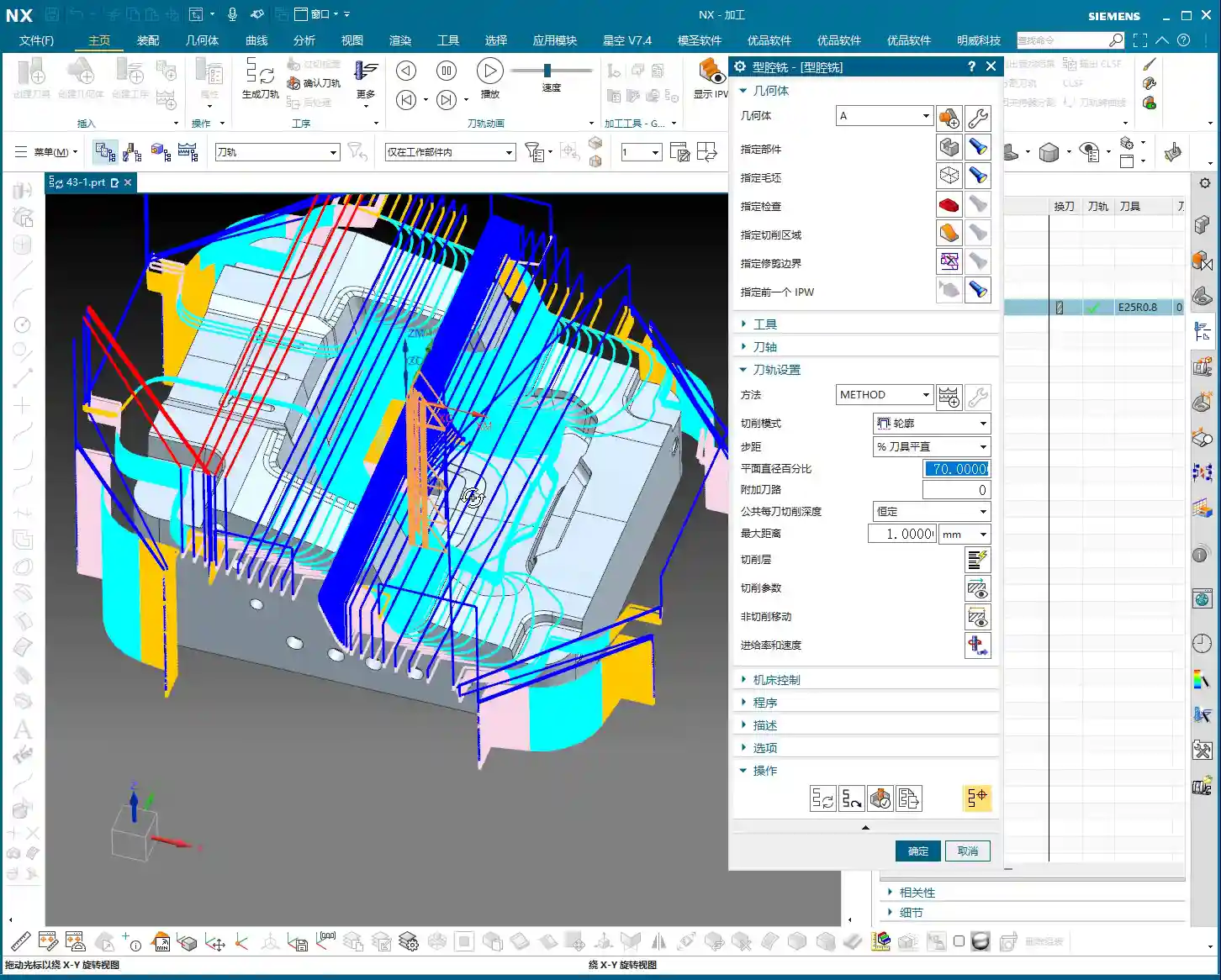
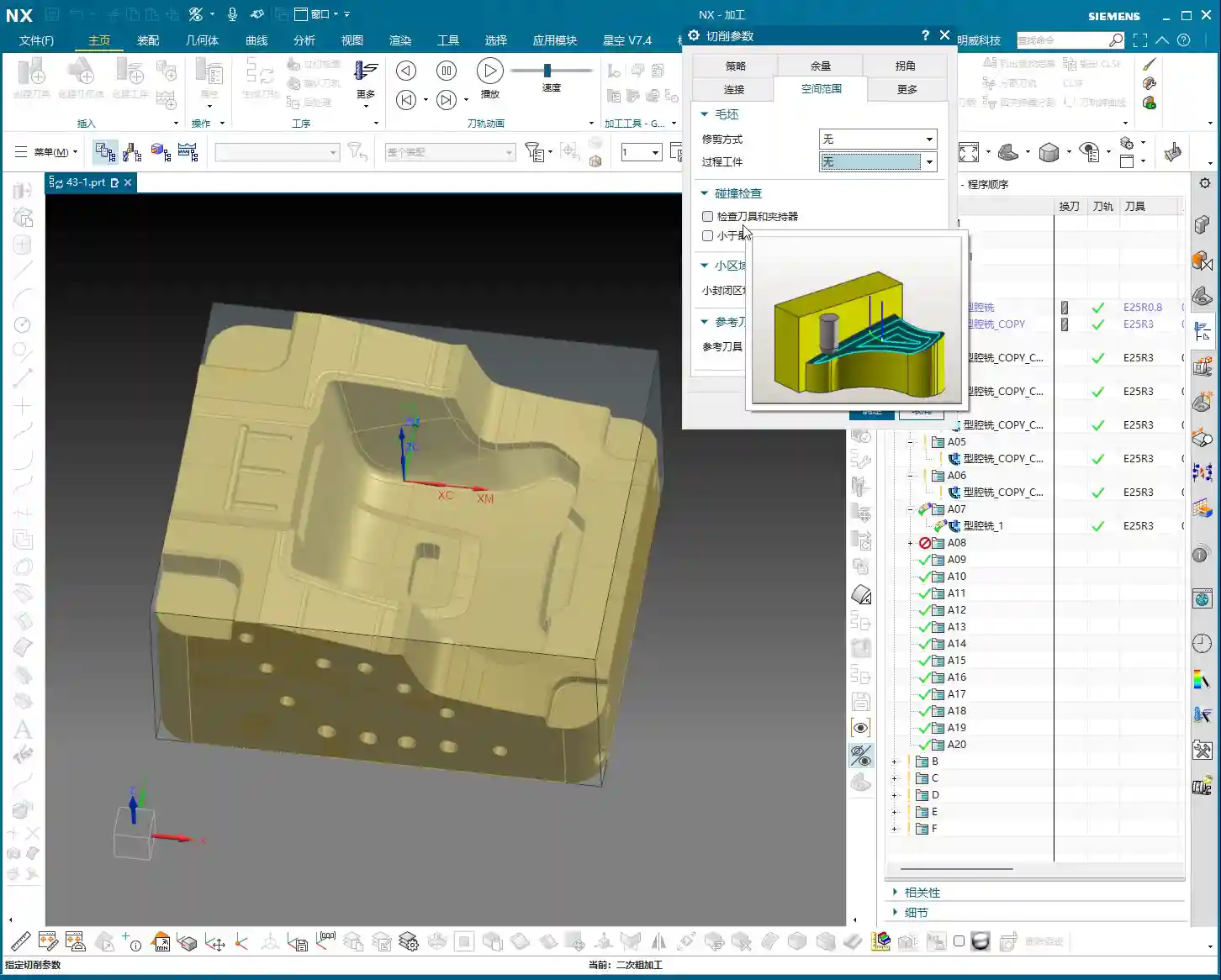
    • Core Setting: In the rest roughing parameter settings, find the “Geometry” tab, and set “In-Process Workpiece” to “5”! Remember, it’s the number “5”!
    • Principle: Setting it to “5” tells the system: “Hey, I’ve already machined this with a previous tool; now, show me where the unmachined residual material is, and only machine those areas!” If you don’t set it to “5”, the system won’t know what you did before; it will treat it as initial roughing, and naturally, it will get confused, either failing to calculate a toolpath or generating a bunch of useless ones.

    “Reference Tool”: The “Compass” of Rest Roughing

    Just setting “In-Process Workpiece” isn’t enough; you also need to point it in the right direction.

    • Function: The “Reference Tool” tells the system which tool was used previously and its size. Based on the shape and size of this reference tool, combined with the “In-Process Workpiece” instruction, the system can accurately calculate where residual material remains and needs to be cleared by the current smaller tool.
    • Selection Technique:

      • First Rest Roughing Pass: Select the large tool you used for the previous roughing pass. For instance, if you used a D25R3 for roughing, then for the first rest roughing pass, select D25R3 as the reference tool.
      • Multiple Rest Roughing Passes: If you need to perform multi-level rest roughing (e.g., D25R3 → D12R1 → D8R1), then each level of rest roughing must reference the machining tool from its preceding level. For example, when using a D8R1 for rest roughing, the reference tool should be D12R1.
      • Create New Tool: If the corresponding reference tool isn’t in your library, simply create a new one and ensure the parameters are set correctly. The important thing is that the parameters accurately reflect the dimensions of the previous tool.

    • Engagement Strategy: For parameters like “Plunge Engage”, I typically set it to 1mm to ensure stable engagement and prevent excessive cutting impact.

    Striving for Excellence: Toolpath Optimization and Practical Experience

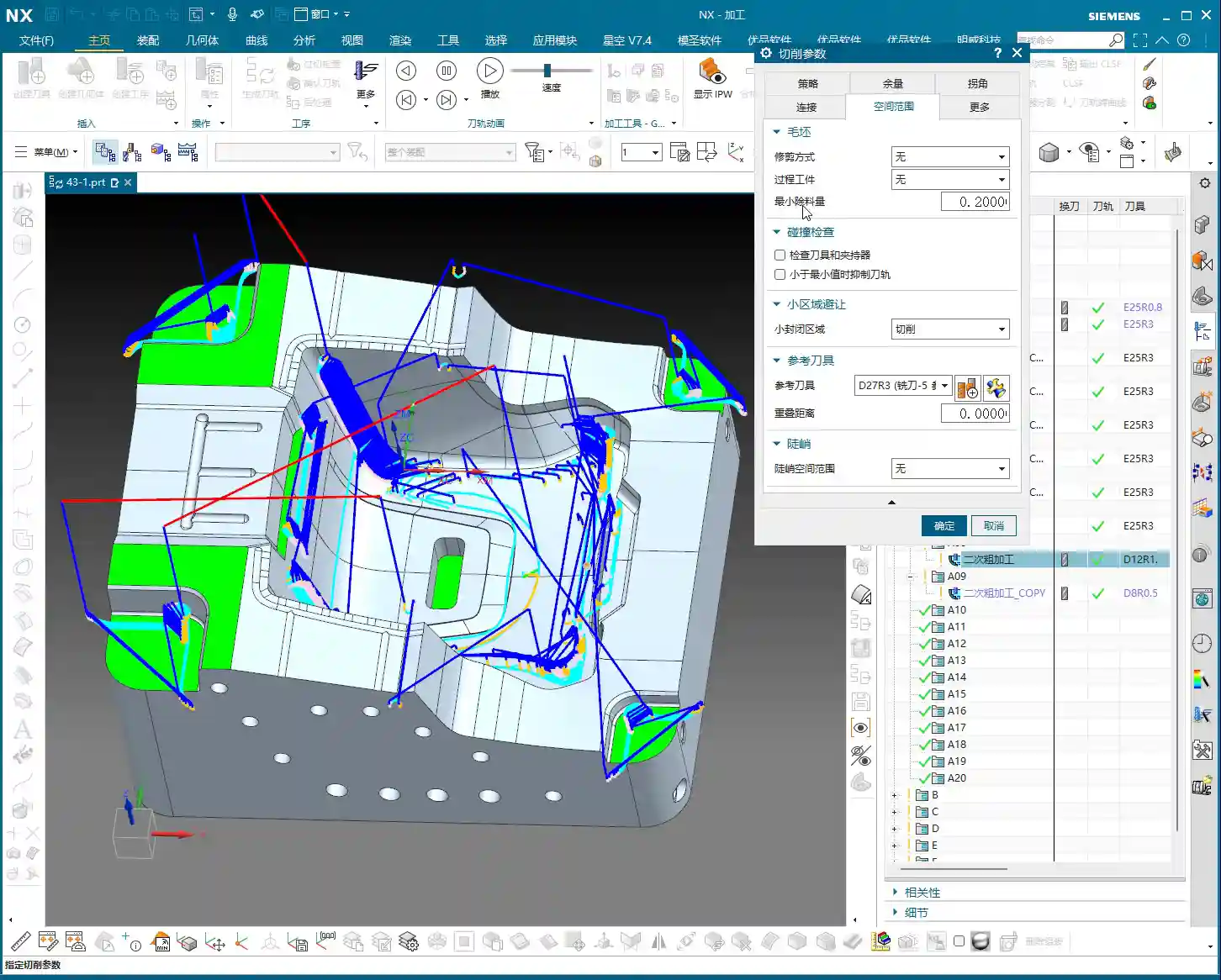
    The Secret of “Minimum Residual Material”

    This parameter is also a critical one; often, an unclean toolpath or mysterious small paths are related to it.

    • Definition: “Minimum Residual Material” means that if the thickness of the material remaining in a certain area after the previous machining is smaller than the value you set, then the current tool will not machine it.
    • Application: For example, if you set it to 0.2mm, then areas with only 0.1mm or less material remaining will be considered by the system as “not necessary to cut, leave it for finishing or the next smaller tool,” and thus ignored.
    • Master Wang’s Experience:

      • This value should typically be set to half of the previous tool’s “Depth of Cut” (DOC), or slightly less than the corner radius of your current machining tool.
      • For example, if the previous tool’s DOC was 1mm, then this value can be set to 0.5mm, or even slightly smaller like 0.4mm or 0.3mm.
      • Setting this value appropriately can effectively prevent the tool from cutting tiny scraps, which wastes time, causes tool wear, and reduces efficiency.

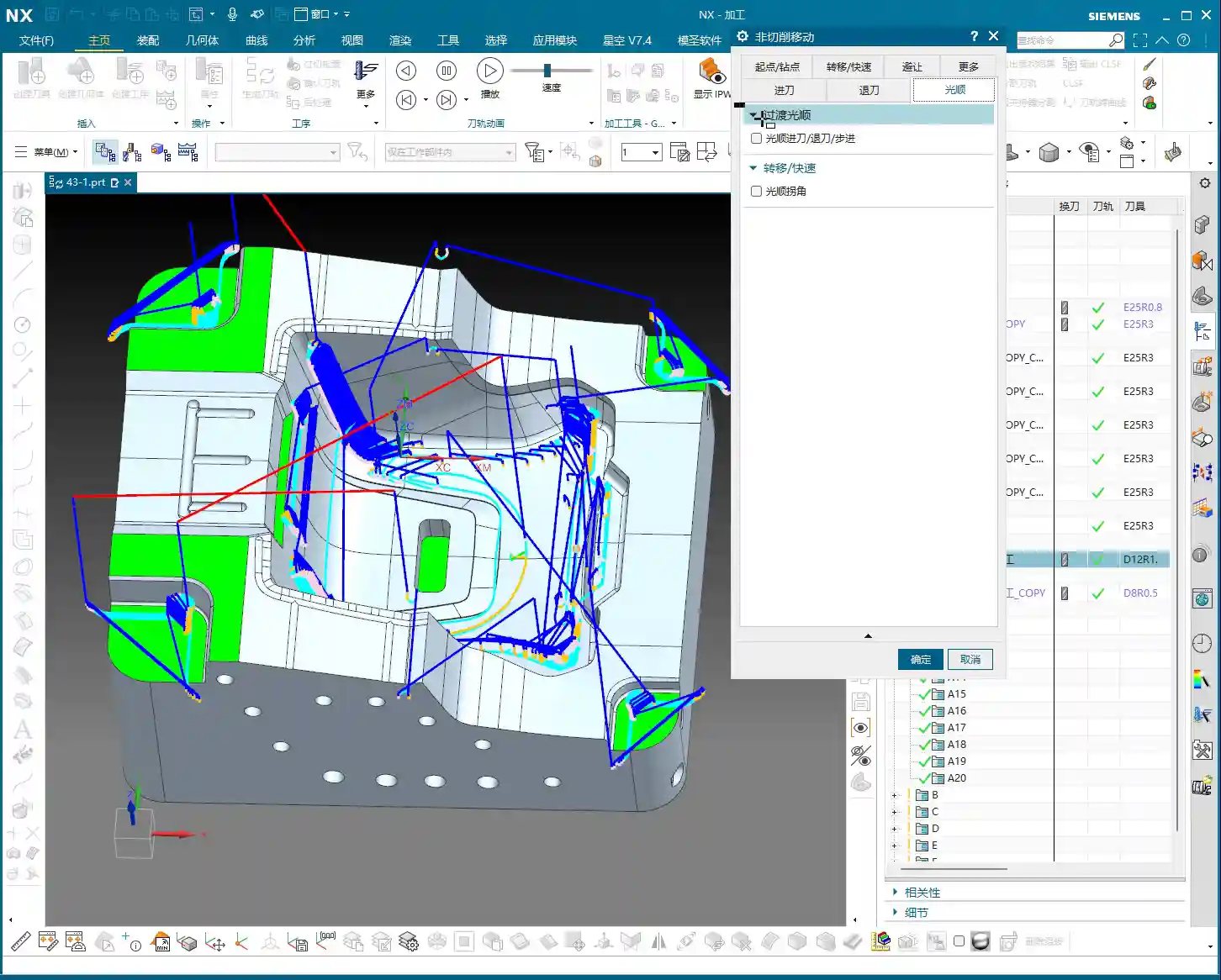
    “Trim Boundaries”: A Great Helper for Streamlining Toolpaths

    Rest roughing toolpaths can sometimes be a bit redundant, especially in less critical areas.

    • Function: Through “Trim Boundaries”, you can manually specify a point or area to make the tool avoid these places and stop generating toolpaths there.
    • Purpose: This helps you optimize the toolpath, making it more streamlined and efficient. Sometimes, the residual material in certain areas doesn’t need to be cleared again, or you want to handle it in another way, so you can trim it.

    Multi-Level Rest Roughing: Layer by Layer, Step by Step

    For complex cavities or high-precision requirements, a single rest roughing pass is often insufficient. We can proceed layer by layer, like peeling an onion, to go deeper.

    • Approach: You can duplicate the current rest roughing operation, then switch to a smaller tool, and simultaneously update the “Reference Tool” to the machining tool from the previous level.
    • Example:

      1. D25R3 roughing.
      2. D12R1 rest roughing, referencing D25R3.
      3. D8R1 rest roughing, referencing D12R1.

      This is called a “Corner Cleanup Sequence”, which ensures every corner is thoroughly cleared, laying a solid foundation for the final finishing pass.

    Allowance Control: Making Toolpaths Smoother

    Here’s another small detail that can make your rest roughing toolpaths “smarter.”

    • Master Wang’s Experience: During rest roughing, the allowance left should ideally be slightly smaller than during initial roughing. For example, if roughing leaves 0.35mm, rest roughing can leave 0.25mm or 0.2mm.
    • Benefit: Doing so prevents the tool from repeatedly cutting areas that have already been cleared, making the toolpath smoother, reducing air cutting, and improving efficiency.

    Machining Simulation and Verification

    NX’s simulation function is very powerful, but don’t just watch it run through once and call it a day.

    • Key Point: During simulation, pay special attention to the tool’s movement in complex areas like corners and deep cavities. Compare before and after rest roughing to see if the residual material in these areas has been effectively removed.
    • Details: Some subtle residual material might only be discovered by zooming in and carefully observing the simulation. Don’t rely solely on software simulation; during actual machining, you also need to observe cutting sparks and listen to cutting sounds—those are the most authentic feedback.

    Master Wang’s Summary: Pitfall Avoidance Guide

    In our line of work, theoretical knowledge alone isn’t enough; practical experience is key. For today’s rest roughing, just remember these points to ensure you take the shortest path to success:

    1. In-Process Workpiece: Always “5”! This is the soul of rest roughing; without it, everything else is moot.
    2. Reference Tool: Absolutely select the tool actually used in the preceding machining level. This is the eyes of rest roughing, telling the system where material still remains.
    3. Minimum Residual Material: Set it appropriately, usually smaller than the previous tool’s depth of cut and the current tool’s radius, to avoid meaningless small cuts, protect the tool, and improve efficiency.
    4. Decreasing Allowance: The allowance for rest roughing should be slightly smaller than the initial roughing pass, making the toolpath smoother and avoiding redundant machining.
    5. Toolpath Optimization: Use “Trim Boundaries” to remove redundant toolpaths, making the program more streamlined.
    6. Multi-Level Corner Cleanup: For complex parts or those requiring high precision, consider using multi-level rest roughing, progressing with tools of different diameters layer by layer to thoroughly remove all residual material.

    These are experiences I’ve accumulated over 15 years of hard work on the front lines; you might not find them in textbooks, but they’ll definitely be useful to you! Go back, digest this, practice more on the machine, and if you don’t understand, come ask me again.

    👤 About the Author:
    The author is a veteran CNC machining professional with 15 years of industry experience, specializing in UG NX programming. This article is an original work representing personal practical insights.

    ⚠️ Copyright Notice: Unauthorized reproduction or distribution without prior communication is strictly prohibited.

  • Siemens NX Cavity Milling in Practice: How Does Stepover Affect Toolpaths? Slope Analysis for Precis

    📝 Key Takeaways: Master Wang will guide you through the secrets of stepover settings in Siemens NX Cavity Milling, deeply analyzing the fundamental differences between ‘Constant Stepover’ and ‘Percentage of Tool Flat’ and their impact on toolpaths. We’ll also provide a practical demonstration of how to use slope analysis to accurately identify planar surfaces in parts, laying a solid foundation for developing efficient subsequent machining strategies. Master these techniques, and your toolpaths will become smarter, more efficient, and achieving higher precision will no longer be a challenge.

    Alright lads, Master Wang here! Today we’re diving into some tough stuff in Siemens NX cavity milling: stepover and how to pinpoint the ‘planar surfaces’ in your parts. Don’t underestimate these parameters; if you don’t grasp them, your toolpaths will always be ‘good enough,’ leading to wasted tooling, lost time, and potentially scrapped parts.

    Stepover: A Big Deal in How Your Tool Advances

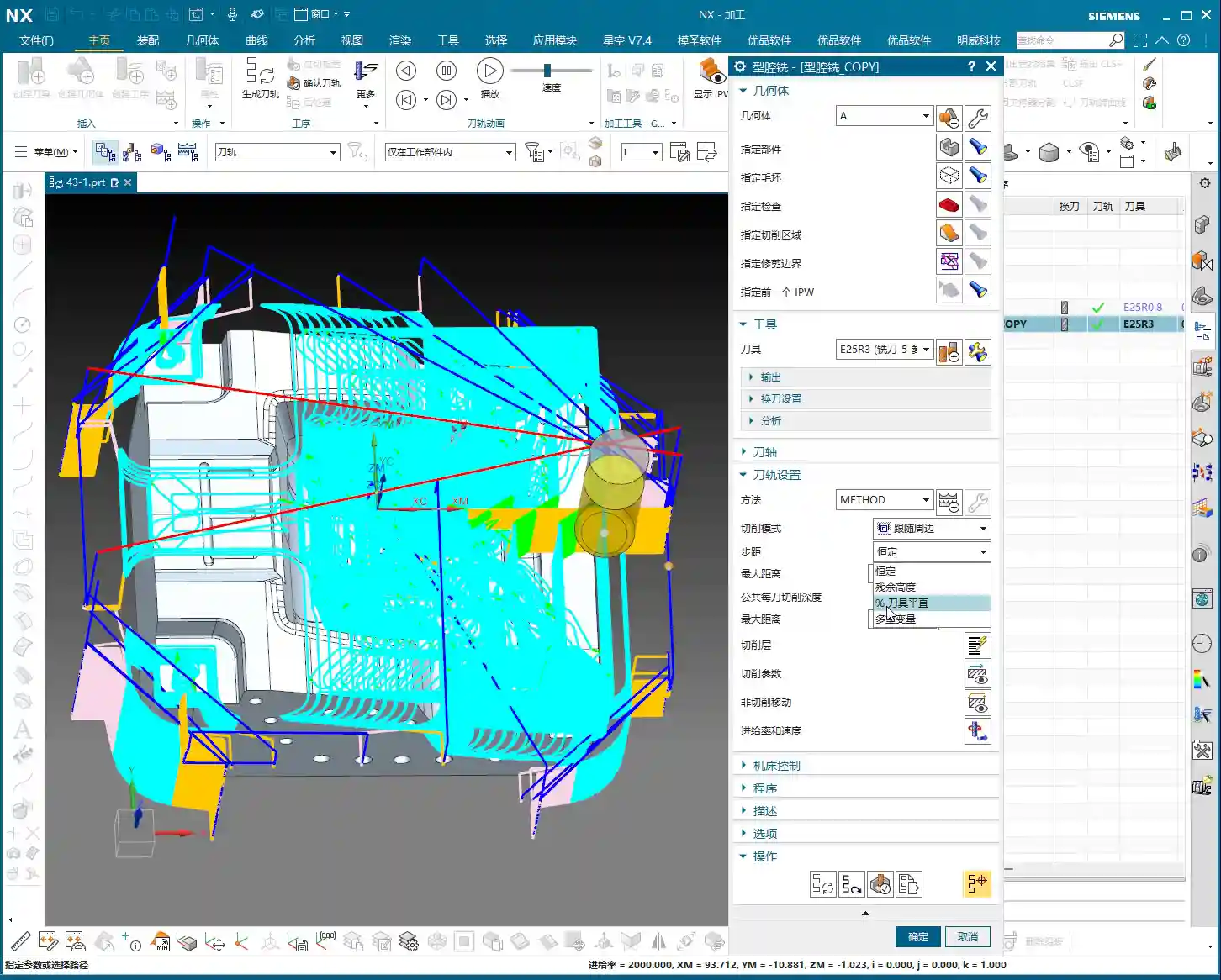
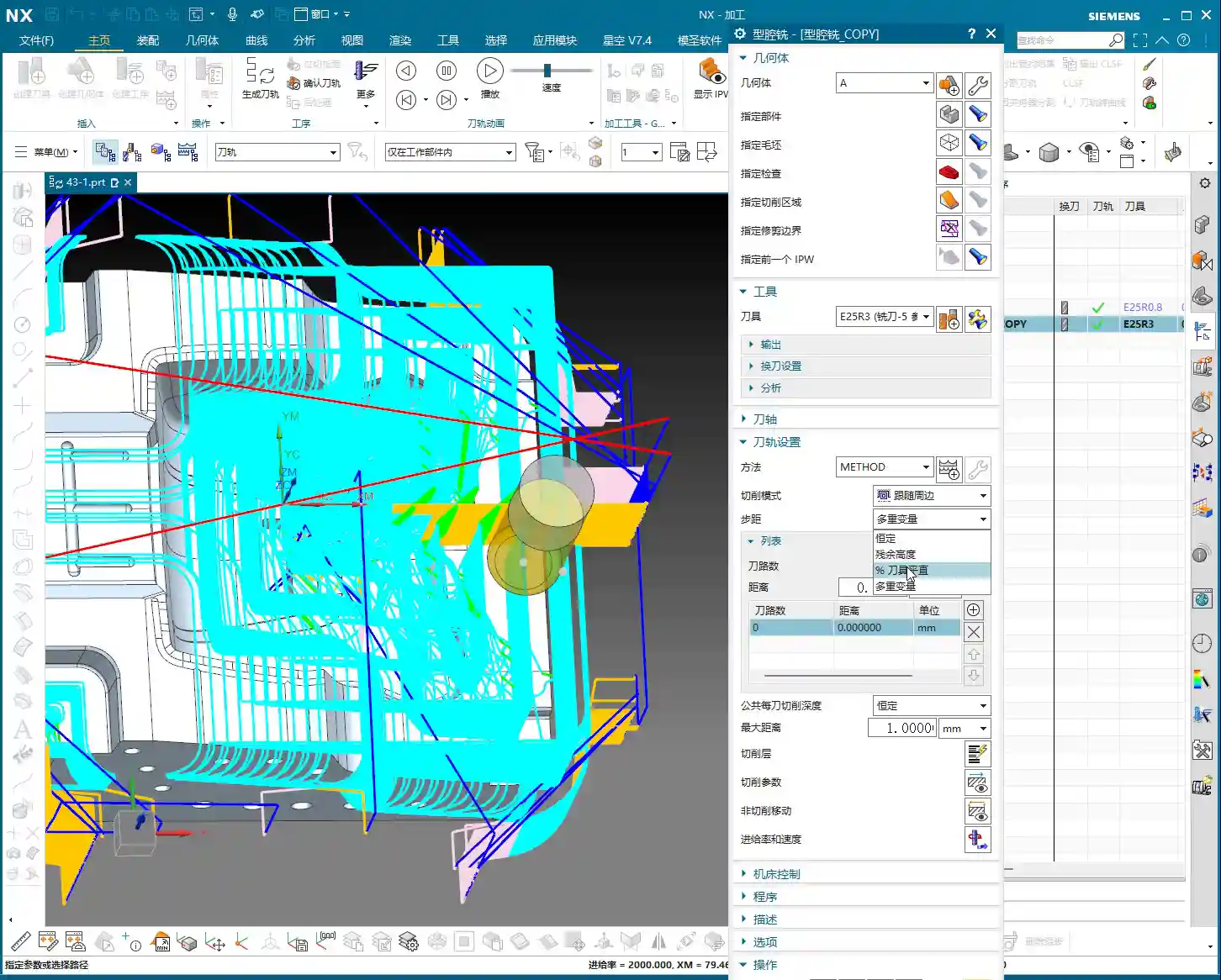
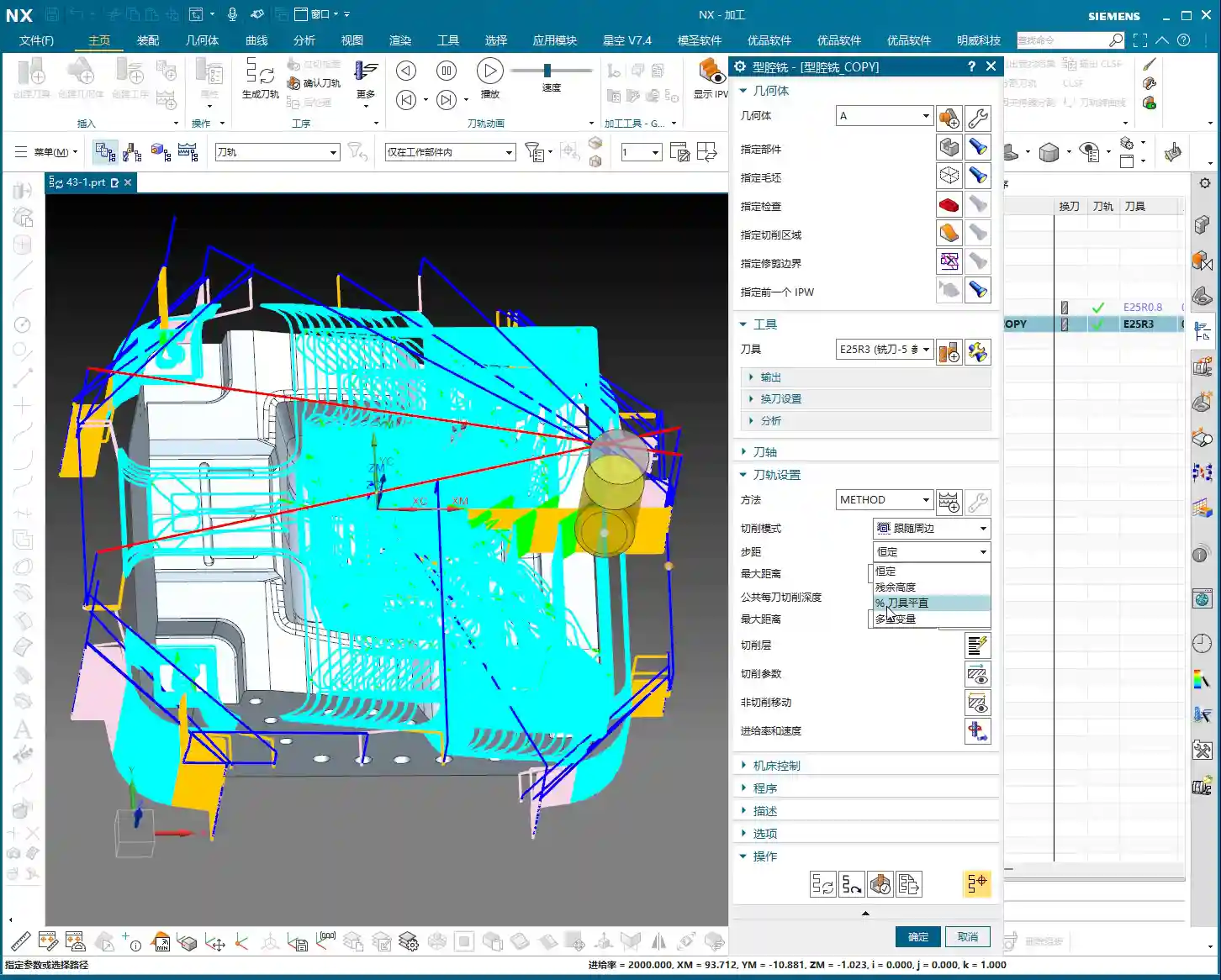
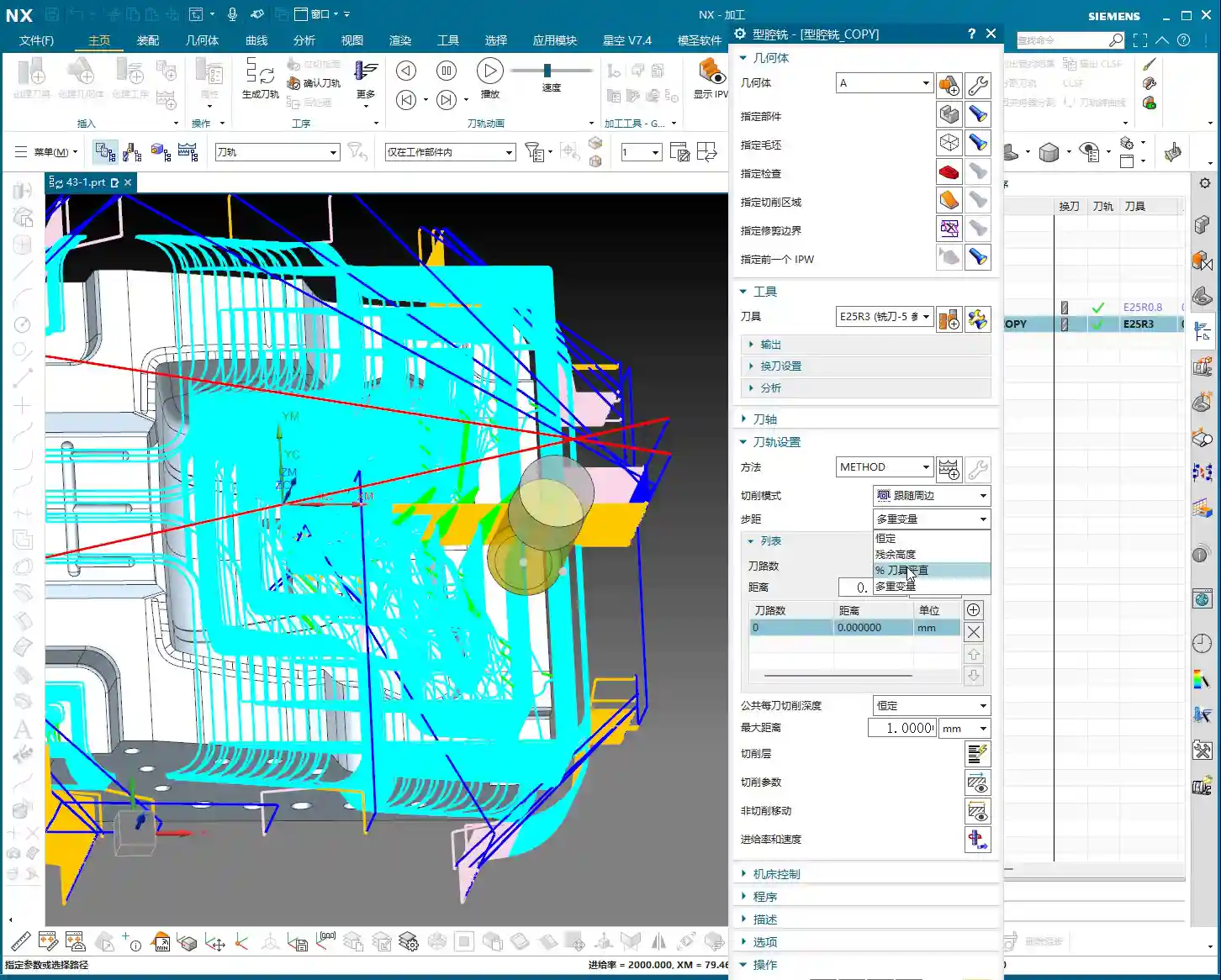
    Listen up. Simply put, ‘stepover’ is how much the tool shifts sideways after completing each pass. Don’t think it’s simple; there’s a lot to it. Siemens NX offers several stepover modes, but for us on the shop floor, you mainly need to understand these two common ones.

    Constant Stepover: Simple, Direct, Ideal for Roughing

    ‘Constant Stepover’ is straightforward. You set a percentage, say 75%, and it calculates based on the entire diameter of your tool. For example, if you’re using a 25mm diameter tool and set it to 75%, each step will advance 25 * 0.75 = 18.75mm. This method is simple and direct; the tool moves quickly, making it suitable for roughing operations where efficiency is paramount.

    Percentage of Tool Flat: For Precision Finishing and Surface Quality

    Now, ‘Percentage of Tool Flat’ is what we need to focus on for finishing passes. It’s different from ‘Constant Stepover,’ so don’t mix them up!

    Let me give you an example: Say you’re using a Φ25R3 bull nose end mill. The R3 here is the tool’s corner radius. So, how wide is the actual ‘flat portion’ of this tool? It’s the tool diameter minus the two corner radii, which is 25 – (2 * 3) = 19mm.

    If you set ‘Percentage of Tool Flat’ to 75%, then the calculated stepover will be 75% of that 19mm, meaning 19 * 0.75 = 14.25mm.

    See the difference? Both are 75%, but one calculates to 18.75mm, and the other to 14.25mm. The latter has a smaller stepover, meaning more passes, and thus a smaller scallop height (uncut material), resulting in a naturally better surface finish. This is why we prefer ‘Percentage of Tool Flat’ for finishing passes. However, the toolpath will be longer, and machining time will increase – it’s a trade-off between efficiency and quality.

    Normally, you can just default to ‘Percentage of Tool Flat’; it meets requirements in most situations.

    Constant Depth of Cut per Pass: Controlling the DOC

    This setting controls how deep the tool cuts with each downward pass. For instance, if you set it to 1 millimeter, the tool will descend 1 millimeter each time. If set to 5 millimeters, it will, of course, cut faster. But here’s a pitfall: when you encounter a planar surface, this ‘scallop height’ can change. Sometimes you’ll find that even if you set 1mm, it suddenly takes a 5mm or even deeper DOC. What’s going on? This brings us to our next major topic.

    Plane Recognition: Boosting Efficiency with Slope Analysis

    Why does the tool sometimes behave ‘well,’ following a sequential path, while other times it ‘jumps’ to complete a step? This relates to your part’s geometric characteristics – planar versus non-planar surfaces. Identifying planar surfaces in a part is crucial for us to develop efficient machining strategies.

    Why Identify Planar Surfaces? Machining Strategy is Key!

    Listen up! If an area is a planar surface, then we can directly use ‘Face Milling’ or other more efficient strategies. The tool can take large stepovers, or even a flat-end mill can be used for direct clearing. But if it’s a non-planar surface, especially a contoured surface, then you must consider the scallop height (also known as ‘cusp height’). You’ll need to use a ball end mill or the corner radius of a bull nose end mill for finishing, requiring a smaller stepover, and the toolpath will be more complex.

    Therefore, being able to instantly distinguish between planar and contoured surfaces directly impacts your programming approach and machining efficiency!

    Siemens NX Slope Analysis in Practice: No Hiding for Planar Surfaces

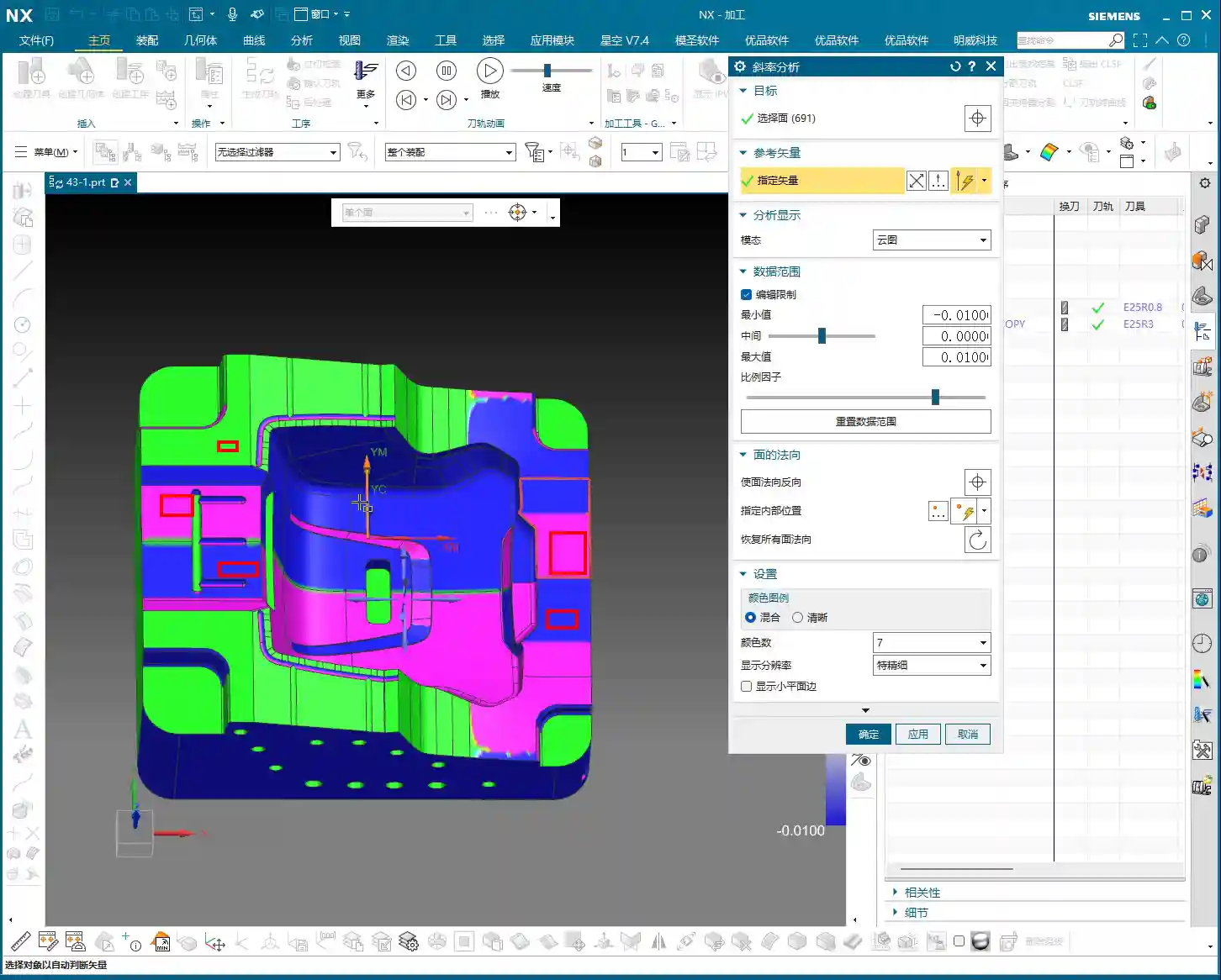
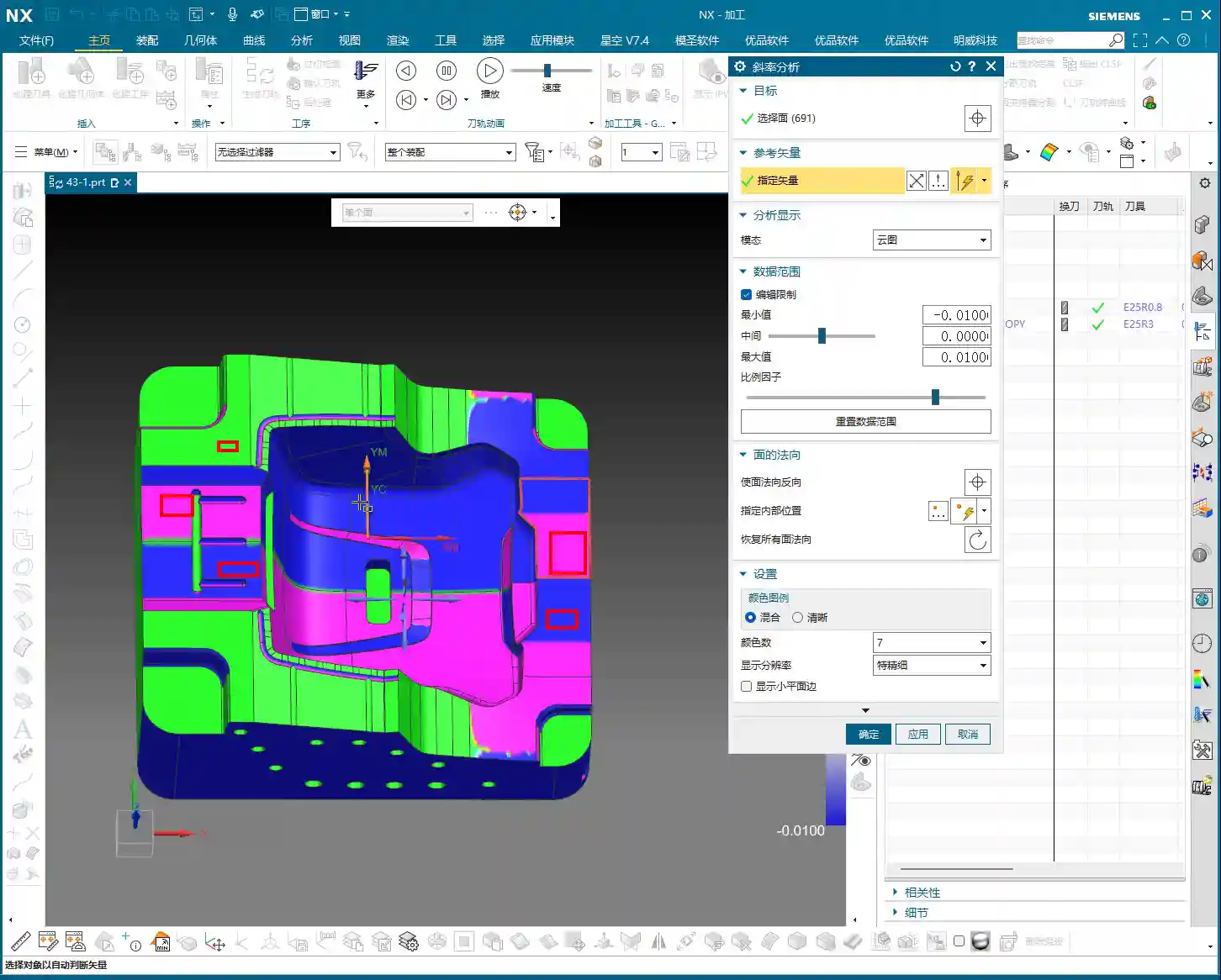
    In Siemens NX, we have a great tool called ‘Slope Analysis.’ This feature helps you quickly identify planar surfaces in your part model. It’s quite simple to use:

    1. Enter the analysis function and find the ‘Slope’ option.
    2. Select all the faces you want to analyze.
    3. Choose a ‘Reference Vector.’ Typically, we start by using the Z-axis direction (Z+ or Z-) as the reference.
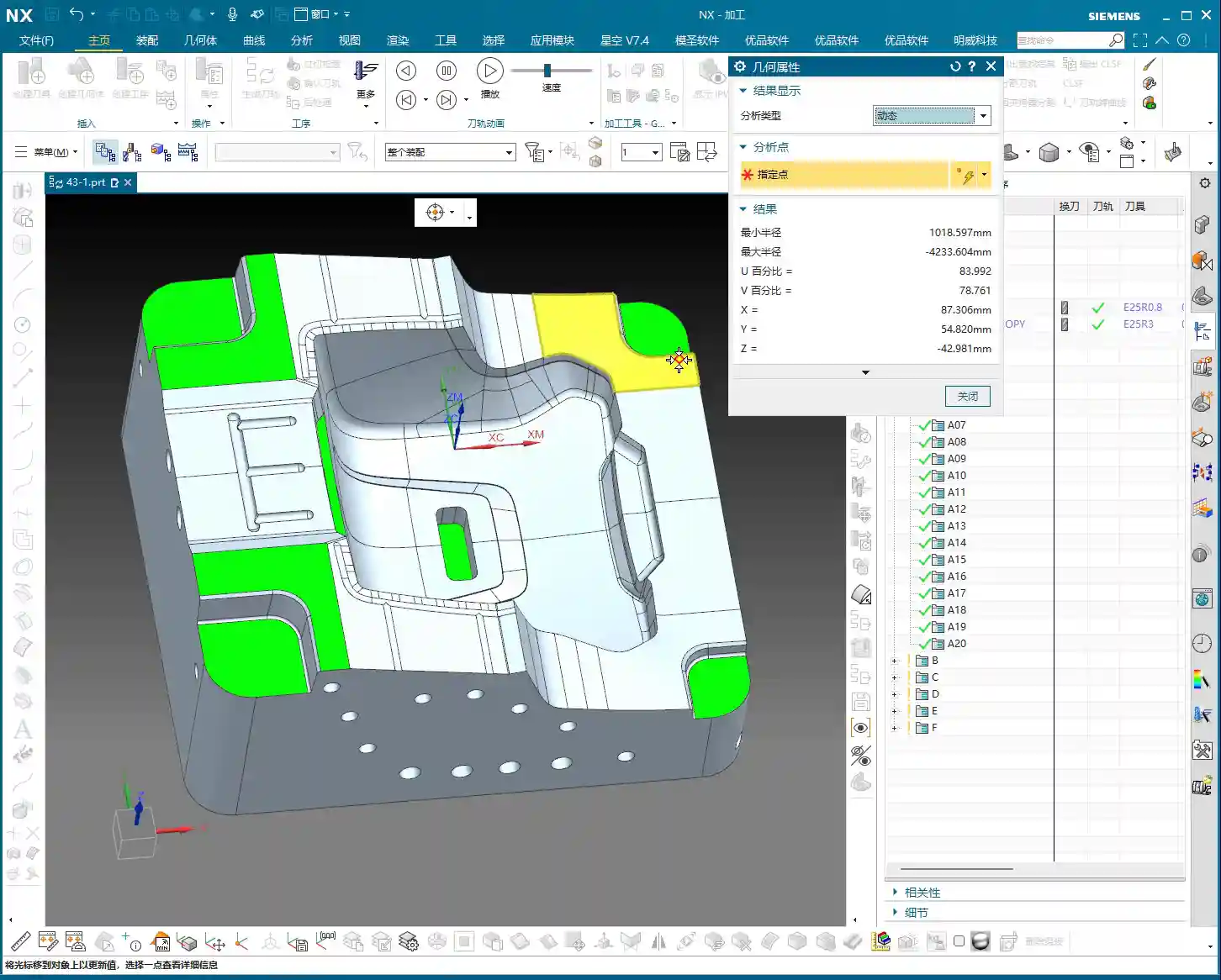
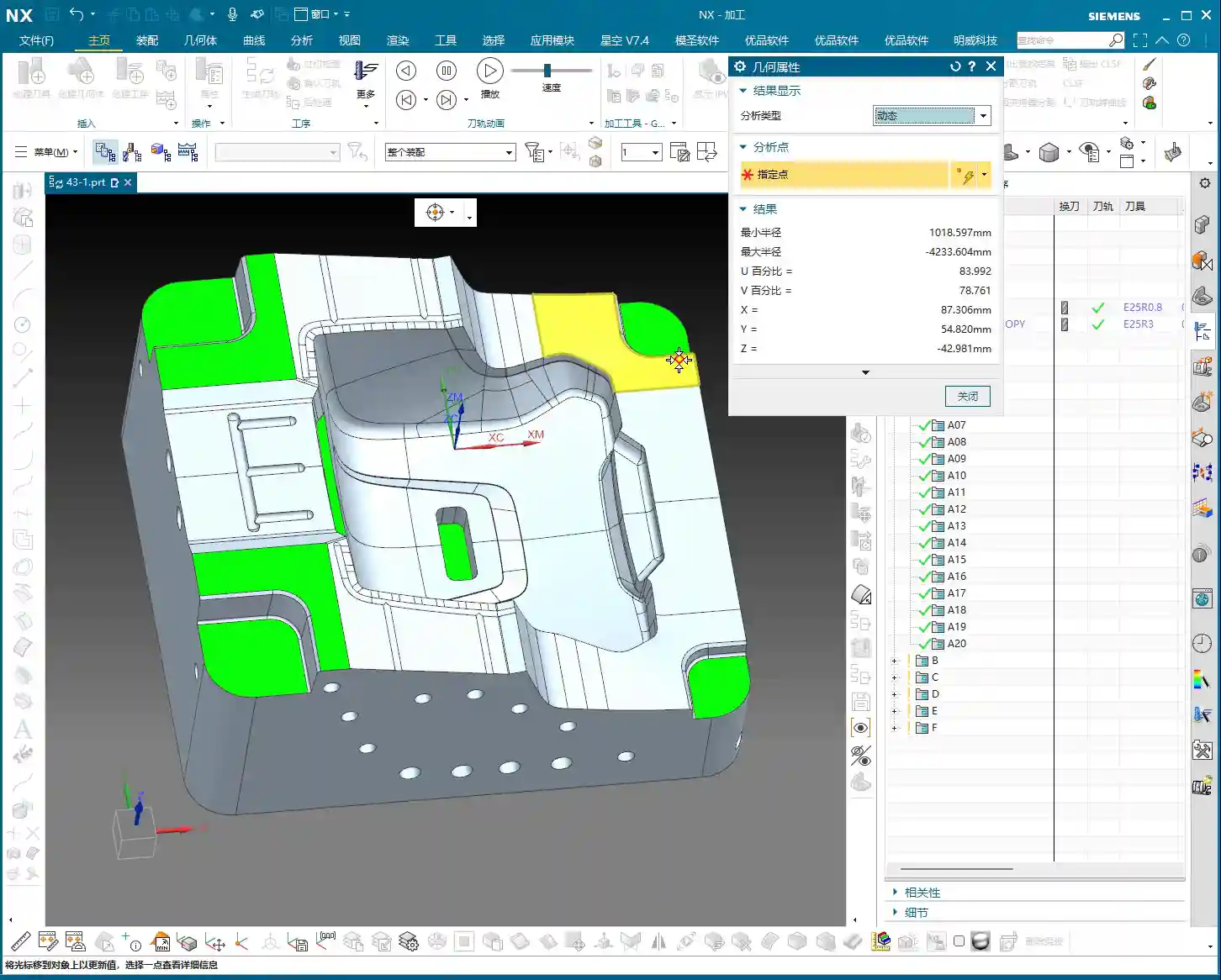
    4. Check the results! Siemens NX will highlight planar surfaces that are ‘parallel to the reference vector’ (or rather, perpendicular to the reference vector) in green. These are the planar surfaces we’re looking for!

    If some faces aren’t green, but you suspect they might be planar, then change the reference vector direction (e.g., Y-axis or X-axis) and analyze again. This way, you can find planar surfaces in all orientations.

    Property Verification: Constant Z-axis Value is Undeniable Proof

    Just looking at colors isn’t enough; as a master teaching apprentices, I’ll show you how to truly verify. In Siemens NX, select a face you believe to be planar and then check its ‘Properties.’ If all points on this face have a constant Z-coordinate value (for example, all 8.75mm), then congratulations, it’s a genuine planar surface! If the Z-value varies even slightly, say ±0.005mm, then it’s not a standard planar surface; it might be a subtle angled surface or a contoured surface, and your machining strategy will need to change accordingly.

    Through this method, we can not only identify planar surfaces but also determine their respective heights. Some planar surfaces might be at the same height, while others differ. This provides us with the basis for selecting appropriate tools and machining paths later on.

    Scallop Height: We’ll Delve Deeper Next Time

    Today, we’ve thoroughly covered stepover and plane recognition. As for ‘scallop height,’ which I mentioned earlier, that’s another extensive topic. Especially in non-planar areas, how to control tool marks and ensure surface finish – this parameter has many settings, and newcomers can easily get confused. We won’t expand on it in this lesson; in the next class, I’ll personally guide you through mastering ‘scallop height’!

    Now, you lads need to practice diligently. Use ‘Slope Analysis’ to thoroughly examine your part models, find all the planar surfaces for me, and confirm their Z-coordinates. This is fundamental; with a solid grasp of the basics, you’ll be able to learn and effectively apply advanced techniques later on.

    Summary: Pitfall Avoidance Guide

    • Stepover Selection is Crucial: For roughing, choose ‘Constant Stepover’ for efficiency. For finishing passes, always select ‘Percentage of Tool Flat’; it more effectively controls scallop height and improves surface quality. However, understand that its calculation is based on the tool’s flat portion, not its full diameter.
    • Slope Analysis, Your Planar Surface Identification Weapon: Stop relying on guesswork! Make good use of Siemens NX’s ‘Slope Analysis’ function. By combining it with different reference vectors, quickly and accurately identify all planar regions in your model. The green areas are your targets!
    • Z-axis Property, Undeniable Proof for Planar Surfaces: Doubting if a face is planar? Open its ‘Properties’ and check if its Z-coordinate remains constant. Even a tiny variation in the Z-value indicates it’s not a purely planar surface and requires a different machining approach.
    • Machining Strategy, Adapt to the Terrain: Clearly identifying planar versus non-planar surfaces allows you to select the most appropriate machining strategy during programming. This avoids using inefficient contour milling methods on planar surfaces, or aggressive face milling methods that could damage contoured details. It saves both time and tooling, while ensuring quality.
    • Don’t Blindly Trust Default Parameters: All parameter settings must be adjusted based on the actual workpiece, tool, and machining requirements. Don’t just rely on software simulations; pay close attention to actual cutting sparks and tool marks.

    👤 About the Author:
    The author is a veteran CNC machining professional with 15 years of industry experience, specializing in UG NX programming. This article is an original work representing personal practical insights.

    ⚠️ Copyright Notice: Unauthorized reproduction or distribution without prior communication is strictly prohibited.

  • Master Wang Reveals Siemens NX Cavity Milling: A Practical Guide to Cutting Patterns and Pitfalls to

    📝 Key Takeaways:

    Practical Guide to Siemens NX Cavity Milling Cutting Patterns

    Listen up, folks. I’m Old Wang, Master Wang. Today,…

    Listen up, folks. I’m Old Wang, Master Wang. Today, we’re not mincing words. I’m going to break down and clarify all those cutting patterns in Siemens NX Cavity Milling. You won’t learn this stuff from books; it’s all from getting your hands dirty at the machine, watching the chips fly, and figuring things out.

    Cavity Milling: The Foundation of Intelligent Roughing

    Cavity Milling is our workhorse for machining deep, complex cavities. It’s incredibly smart and can save you a lot of hassle, but only if you understand how it operates.

    Quick Generation and Initial Validation

    Typically, when I program, especially for roughing operations like this, I don’t overthink it at first. I just complete these three steps: Specify Part, Specify Blank, and Select Tool. Once those are done, the program is generated. After it’s generated, we can then take our time to fine-tune it.

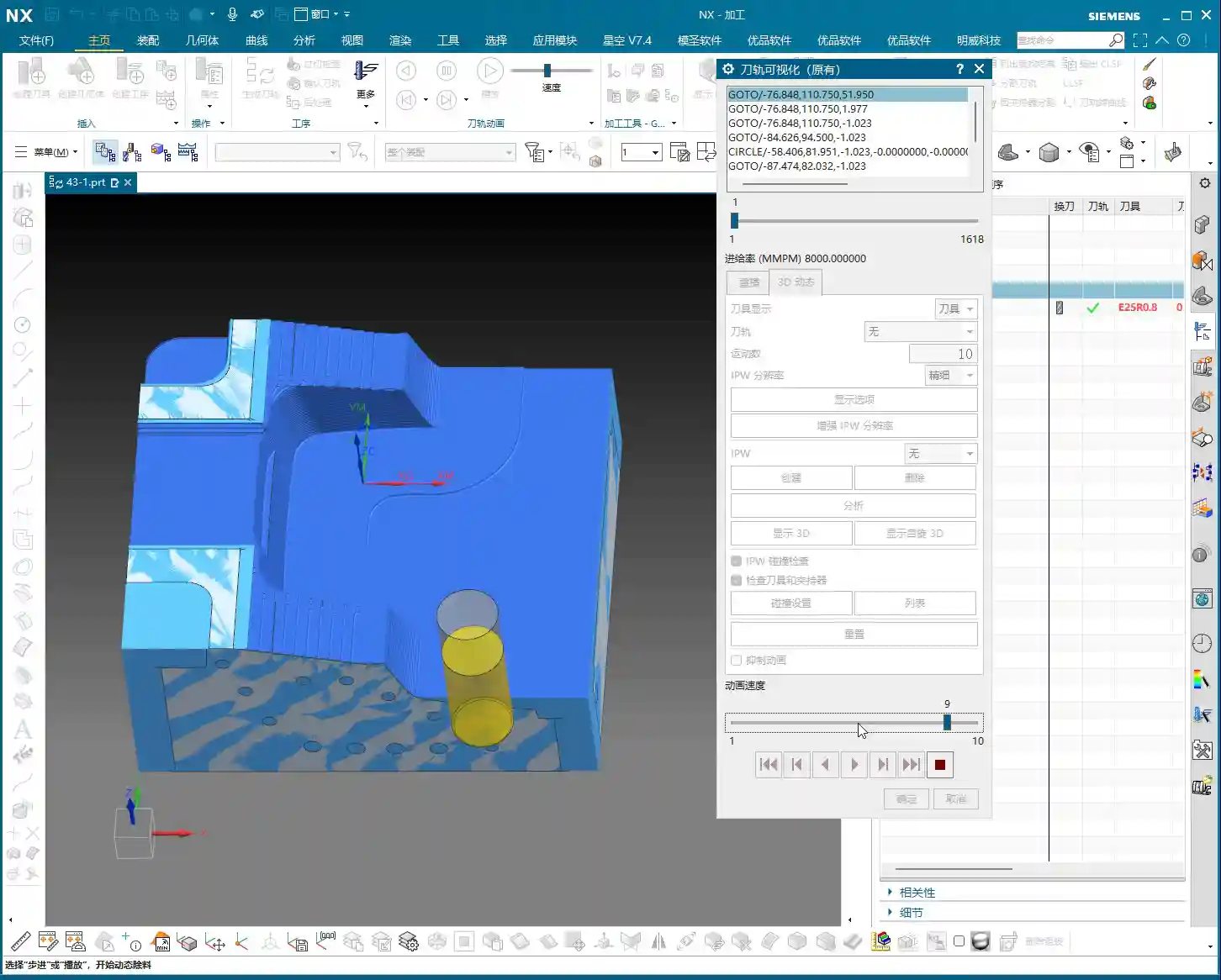
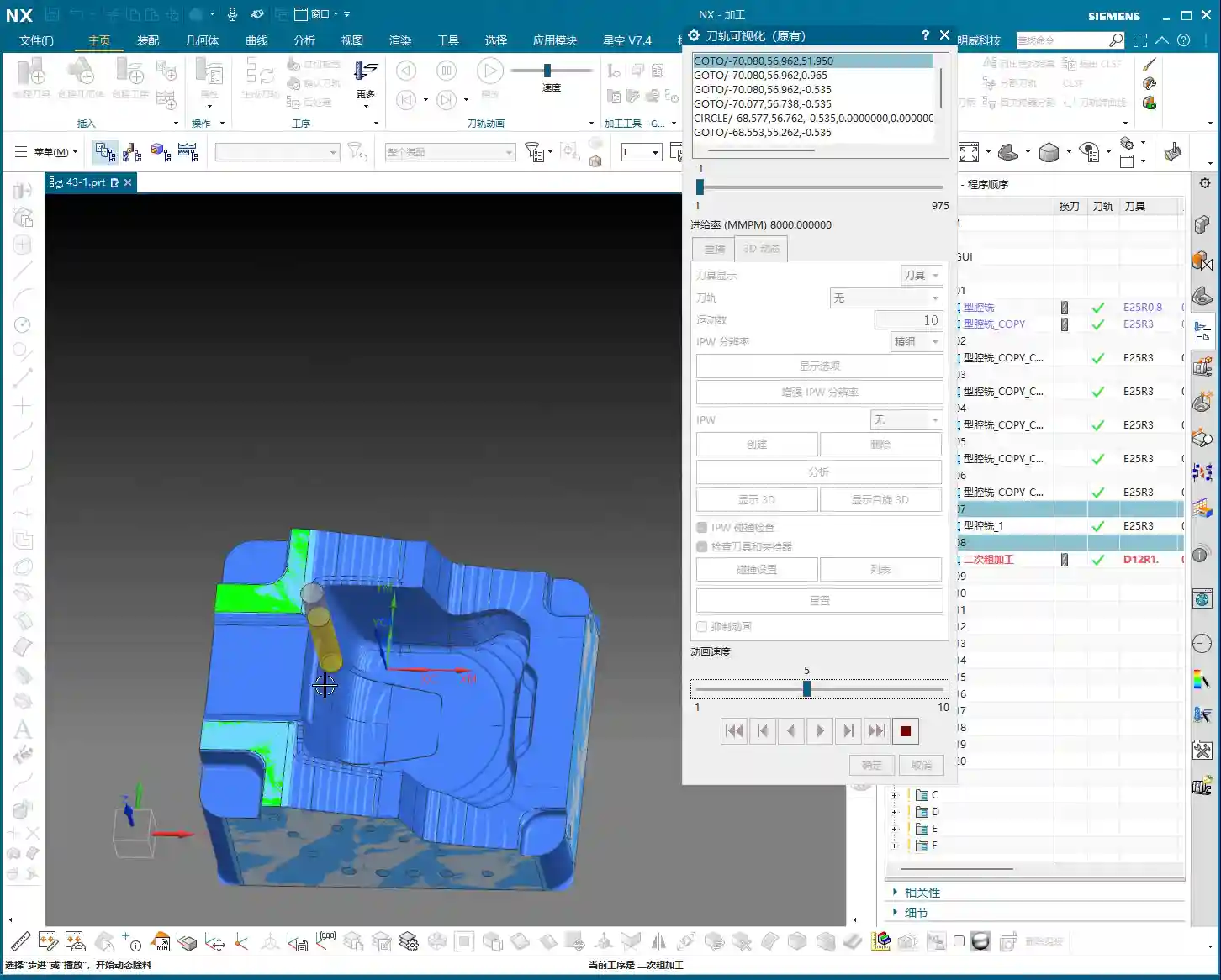
    You see, I usually generate the program within about three to five steps. For operations like “Cavity Milling,” “Floor and Wall Milling,” or “Planar Milling,” these three steps typically get the job done. Once the program is generated, we click “Verify Tool Path,” run it with “3D Dynamic,” and get a general idea of the tool path. Don’t rush; take your time. Don’t just look at the software simulation; visualize the chips flying and clearly understand how the machine will move.

    Siemens NX Cavity Milling’s Intelligent Recognition: Open vs. Closed Regions

    Many young guys ask me, “Master Wang, when we learned Planar Milling or Floor and Wall Milling, we needed a pre-machining step before simulation, right? Why isn’t that needed for Cavity Milling?” Listen up, that’s where Cavity Milling’s intelligence comes in!

    Because when you set it up, you’ve already specified your blank. It can automatically determine whether a region is “open” or “closed.”

    • If the tool enters from outside the blank, it’s an open region.
    • If the tool must plunge into the blank from within, it’s a closed region.

    NX automatically identifies this and generates the most suitable tool path based on the region’s characteristics. This isn’t just randomly generated; it’s what the software “considers reasonable.” So, don’t underestimate this software; often, it’s more thorough than you young newcomers might think.

    A Veteran’s Essential Advice: Tools and Rest Material

    No matter how smoothly your program runs, if you choose the wrong tool, it’s all for nothing! That’s a lesson learned the hard way.

    Tool Selection is Key: The Lesson of the Large Tool in a Small Slot

    We just finished the simulation, did you notice a problem? Look at that small slot—why wasn’t it machined? Logically, if the program was generated, it should have been machined!

    The problem is right here: you’re using a D25R0.8 tool. Now look at that slot, how wide is it? 10mm!

    Listen up: how can a 25mm tool possibly machine a 10mm wide slot? Isn’t that clearly a case of “large tool, small slot”? The tool is wider than the slot; it simply cannot enter, so naturally, it can’t machine it. If the tool can’t cut here, it won’t be able to machine further down. Otherwise, you’re just asking for an overcut or a crash!

    So, when you see an area that hasn’t been machined, don’t immediately blame the software. First, check if you’ve selected the wrong tool! That’s fundamental common sense.

    Secondary Roughing Strategy: The Secret Weapon for Detail Cleanup

    So, what about those areas where the large tool can’t reach? We can’t just leave rest material, can we?

    This is where our “secondary roughing” comes in. While Cavity Milling might leave some unmachined areas during the initial roughing due to large tool size, it supports secondary roughing (or rest roughing). After the main roughing operation is complete, we can switch to a smaller tool to specifically clean up those corners, small radii, or narrow slots. This is an essential procedure for machining high-precision parts.

    So, if there are areas left unmachined after the first roughing pass, don’t worry, it’s completely normal. This is to protect the large tool and allow it to efficiently handle the work it can do. Those intricate corners and tight spots, we leave for the secondary roughing to clean up.

    In-Depth Analysis of Cutting Patterns

    Cutting patterns are at the core of Cavity Milling. Choose correctly, and you’ll achieve twice the results with half the effort; choose incorrectly, and you might scrap the part or even crash the machine.

    Reject Dogma, Start with Practical Application

    In NX’s “Cutting Patterns” options, there are dozens of choices: “Follow Part,” “Follow Periphery,” “Profile,” “One-Way,” “Zig-Zag”… it’s dizzying. Some books explain them elaborately, but in practice, they might not work as advertised. We’ll focus on the most common and practical ones.

    Follow Part and Follow Periphery

    These are the two most common patterns for Cavity Milling, each with its own advantages.

    • Follow Part: The tool path closely follows the shape of your part. The advantage is a relatively intuitive tool path, but the disadvantage is also very clear: there will be more retractions (air cuts). Especially in areas with complex shapes, it frequently retracts to conform to the part contour, which inadvertently increases machining time and reduces efficiency.
    • Follow Periphery/Boundary: The tool path moves in concentric loops along the outer boundary of the machining area, either inward or outward. Its main characteristic is fewer air cuts (retractions) and better tool path continuity. For materials like aluminum or those with less stringent cutting force requirements, this pattern often leads to higher machining efficiency. It allows the tool to maintain continuous cutting as much as possible, reducing unnecessary engagements, disengagements, and retractions.

    From the recent demonstration, for our aluminum part, Follow Periphery is clearly much better than Follow Part. It has fewer retractions, and the tool path is more logical.

    The Clever Use of Profile Mode

    The “Profile” mode, as its name suggests, only machines the contour of the part. So, is it useless? Absolutely not!

    Of course, it’s not suitable for hollowing out a deep cavity from a large block of raw material; that would be too slow and prone to problems. However, if your part is a casting or forging that is already very close to its final shape, and only requires removing a small amount of material from a single side, or just a single roughing pass with a large tool, then the “Profile” mode is highly efficient. It can quickly trace the part’s exterior, removing excess material without generating air cuts. So, don’t generalize; you need to consider the state of your blank.

    Warning Against Inappropriate Patterns: One-Way, Zig-Zag

    NX also has “One-Way” and “Zig-Zag” patterns, but for cavity roughing, these two modes are generally unsuitable in most situations.

    • One-Way: This tool path pattern causes frequent retractions. After each cutting pass, the tool retracts back to the starting point to plunge again. This is extremely inefficient, it’s just “ridiculous”! Machining time will double with no real benefit.
    • Zig-Zag: While it has fewer retractions than One-Way, for complex cavities, it still generates many unnecessary air cuts and redundant paths, making it also unsuitable for efficient roughing.

    Therefore, we generally don’t consider these two patterns for Cavity Milling. They might have their uses in other machining methods, but for cavity roughing, they are a waste of time.

    How to Choose the Most Suitable Cutting Pattern?

    Part Features Determine the Machining Strategy

    Which cutting pattern is best? There’s no single answer. It mainly depends on your part’s features and the blank condition.

    • If your part is being machined entirely from solid material, requiring significant material removal, then Follow Periphery and Follow Part are the primary choices.
    • If your part is a near-net shape casting or forging, and only requires removing a small amount of material from one side or refining the exterior, the Profile mode might be more efficient.

    Efficiency First: Focus on Air Cuts and Machining Time

    If you’re really unsure, then I’ll teach you the most practical method: Generate both and compare!

    Go ahead and generate one program using “Follow Part,” then another using “Follow Periphery.” Then, run a simulation for both. See which program has fewer retractions (fewer air cuts), which has a shorter total machining time, and which looks like a smoother tool path, better suited for your part. That’s the one you should use. This is the most direct and reliable way to decide.

    Remember, NX is just a tool. Ultimately, it must serve your machining efficiency and cost control. Don’t be fooled by flashy theories; real-world testing and comparison are key.

    Summary: Pitfall Avoidance Guide

    • Tool and Size Mismatch: Always remember, a large tool cannot machine small features. If you see rest material, first check if the tool diameter and corner radius can enter the area.
    • Rest Material Management: It’s normal for initial roughing not to remove all rest material. Don’t force the first roughing pass to clean everything; use secondary roughing (with a smaller tool) to address it.
    • Cutting Pattern Selection:

      • For roughing from solid material: Follow Periphery and Follow Part are preferred. In practice, Follow Periphery often reduces air cuts and increases efficiency.
      • For near-net shape castings/forgings: Consider the Profile mode for single-side material removal.
      • Avoid One-Way and Zig-Zag patterns for cavity roughing; they are typically inefficient with excessive retractions.

    • Practical Experience is Key: When faced with an uncertain cutting pattern, don’t hesitate to generate and compare. Use the one that has fewer air cuts and higher machining efficiency. Don’t just memorize theories; make your decisions based on the actual part and machine performance.

    👤 About the Author:
    The author is a veteran CNC machining professional with 15 years of industry experience, specializing in UG NX programming. This article is an original work representing personal practical insights.

    ⚠️ Copyright Notice: Unauthorized reproduction or distribution without prior communication is strictly prohibited.
  • Siemens NX Cavity Milling: Master Wang’s Hands-On Guide to Precise Roughing and Efficient Blank Spec

    📝 Key Takeaways: Master Wang explains Siemens NX Cavity Mill operations and blank definition. He emphasizes the importance of 3D Roughing with Cavity Milling, especially for complex surface parts. Detailed guidance is provided on how to correctly specify the part and create the blank, with a focus on “net-size blanks” applications. Key analysis covers Roughing, Re-Roughing, and Corner Cleanup functions, along with practical tips for avoiding fixtures and effectively using check geometry. He advises beginners that specifying the blank usually eliminates the need for additional cut area definition, preventing unnecessary complexity. Understanding the blank logic is crucial for improving machining efficiency and preventing tool collisions.

    Hello everyone, I’m Master Wang. We’ve pretty much covered all the 2D operations by now. I’ll find an opportunity to go over some of the less commonly used commands later. Starting today, we’re getting serious and diving straight into 3D. 3D machining is a completely different beast from 2D; it’s several times more complex and requires much more attention to detail. Listen up: the first critical command in 3D machining that we’ll discuss today is Cavity Mill.

    Master’s Insights: Why Learn Cavity Milling?

    You need to know that Cavity Mill is a powerful roughing tool in 3D machining, especially when dealing with oddly shaped, complex surface parts. It’s perfectly suited for the initial machining of mold cavities, castings, and forgings. Why? Because it can efficiently and quickly remove excess material, laying a solid foundation for subsequent finishing passes.

    Think back to the 2D milling operations we discussed, like Floor Wall Mill and Planar Mill. What can they do? They handle simple tasks involving planar surfaces and straight walls just fine. But if your part has an angled surface, a radius, or even an irregular freeform surface, those two operations are useless; they can’t handle the roughing. So, when you encounter 3D irregular parts, Cavity Mill is your go-to choice.

    (Master Wang demonstrates by opening a complex part model in the NX interface while speaking.)

    Coordinate System and Part Confirmation: Laying a Solid Foundation

    First step in any job: lay a solid foundation. You need to set up the Work Coordinate System (WCS) correctly. I usually pick a few points to quickly check if it’s centered on the part and if the Z-axis direction is correct. Even if the Z-axis isn’t perfectly upward, it’s fine as long as the general direction is correct and the program can be generated. Don’t just focus on how perfectly drawn it is in CAD; real machines aren’t always that accommodating.
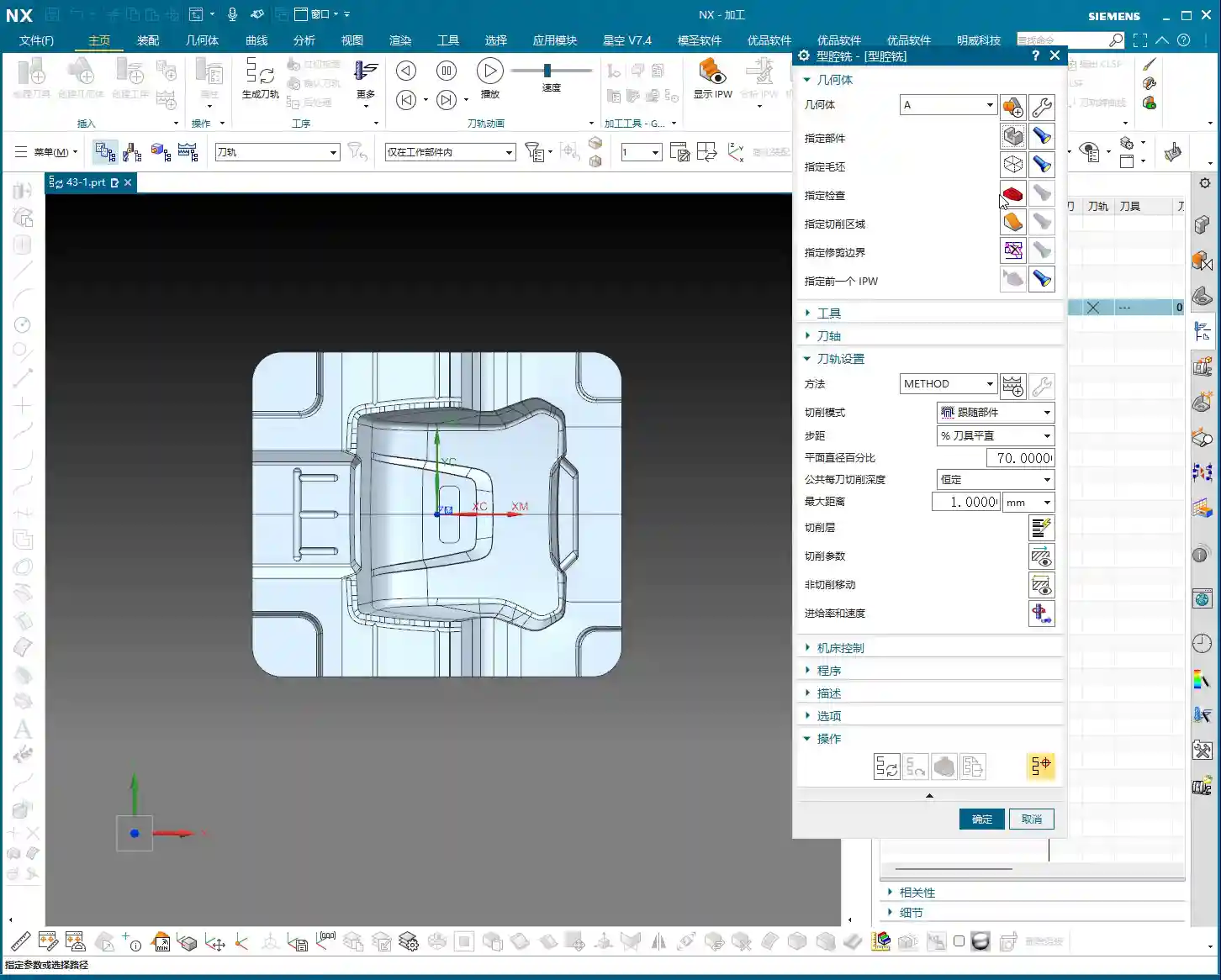
    Next, we need to tell NX which part you’re machining, which means Specifying the Part. It’s simple: just select your workpiece.(Master Wang demonstrates quickly checking the coordinate system using a “point-to-point” method and selecting the model as the part.)

    You rookies, when you’re analyzing a part, don’t just look at whether the model looks nice or not. I habitually use the measurement tools to roughly gauge the part’s length, width, and height, so I have a mental reference. You need to have a good sense of the job’s size to decide what tool size to use. For example, if this part is around 100-plus millimeters in length, width, and height, it’s not particularly large, so you have a good starting point.

    Cavity Mill Core Functions: Roughing, Re-Roughing, Corner Cleanup

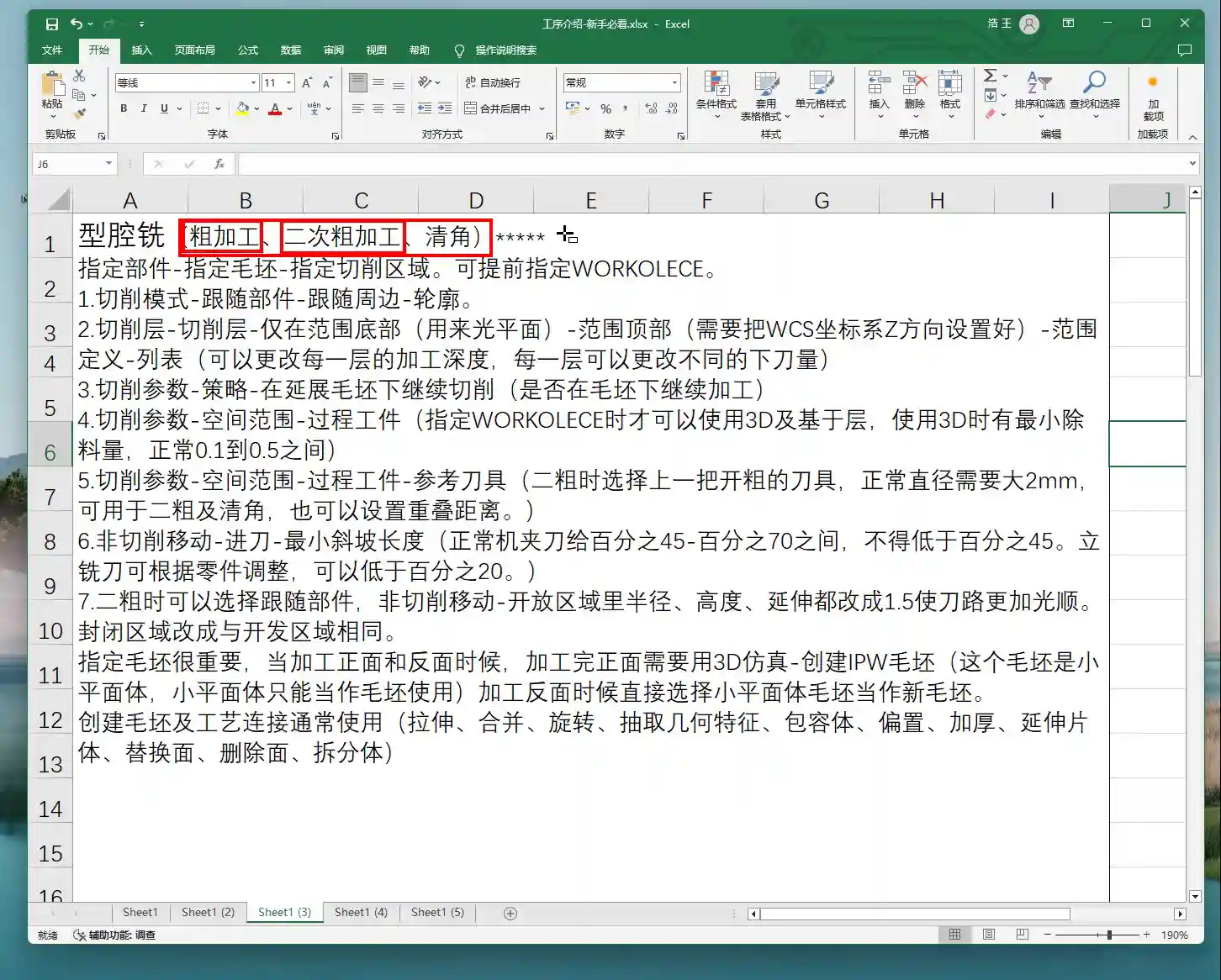
    This Cavity Mill command primarily handles three tasks: Roughing, Re-roughing, and Corner Cleanup.

    Roughing: The First Step to Remove the Bulk!

    This is the most basic step, what we call “roughing”. You use a large tool to quickly remove the majority of the material, milling out the part’s general shape. Don’t underestimate this step; if roughing isn’t done well, subsequent finishing passes will be a nightmare, and tool wear will be excessive.

    Re-roughing: Don’t Underestimate Its Importance!

    “Re-roughing” sounds like it only happens twice, but that’s not the case. It refers to using smaller tools than the first roughing tool to clean up areas that the larger tool couldn’t reach or couldn’t effectively cut. For example, after roughing with a Φ20 tool, if some small corners or radii still have uncleared material, you’ll need to switch to a Φ10 tool for re-roughing. If the Φ10 isn’t enough, then switch to a Φ6. This “re-” can be three, four, five, or even more passes. The key is to gradually reduce the tool diameter to clear the remaining material and leave a uniform stock for finishing. If this step is done well, finishing passes will be much easier.

    Corner Cleanup: Attention to Detail is Key

    This is even more detailed. As the name suggests, it’s specifically for cleaning up internal corners of the part. It ensures all internal corners meet the design requirements for surface finish and dimensional accuracy. Especially in mold machining, if internal corners aren’t properly cleaned, it can be a critical failure.

    The Utmost Importance: Correct Blank Specification and Underlying Logic

    Listen closely, here’s one of the most important aspects of Cavity Milling: you “must define the part and blank geometry.” Without a blank, where do you expect the software to start roughing? It has no idea how large the raw material you’re working with is. Therefore, blank definition is paramount!

    Specify Part: Your Target!

    As we discussed earlier, this is the final part model you intend to machine. It tells NX what your ultimate goal looks like.

    Specify Blank: Raw Material – Get It Right!

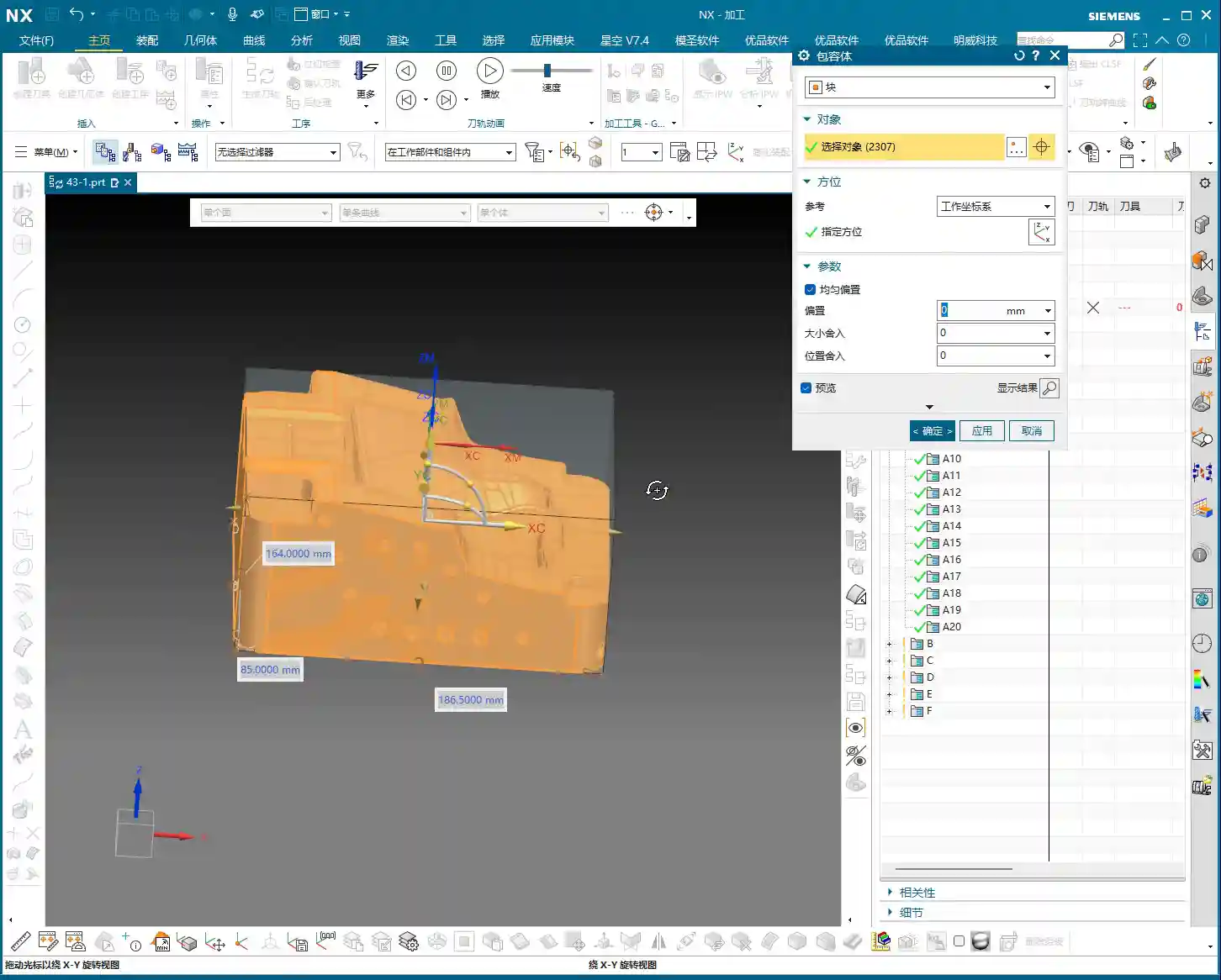
    The blank is the raw material you’re starting with. You need to tell NX what this raw material looks like and how large it is, so it knows where to begin cutting and how much to remove. In NX, blanks are typically created using a “Bounding Body,” such as a block or cylinder. I’ll directly select “Bounding Body,” choose “Block” as the type, and set the offset to 0.

    Why an offset of 0? Because the material I have on hand is a net-size blank. This means the material might already be a precision casting, a precision forging, or has undergone prior roughing operations, so its external dimensions are very close to the final part’s shape, or rather, it is the part’s actual size. Of course, if your raw material is oversized compared to the part, you’ll need to set the offset accordingly, for example, leaving a 1mm allowance all around. But for today’s example, we’ll treat it as a net-size blank.

    (Master Wang creates a bounding body blank in NX and selects it.)

    So, however large the material you actually have, that’s how large you should create and select your blank. This reflects the most realistic machining scenario; don’t just imagine it.

    Specify Check Geometry: Stay Clear of Collision Zones!

    Collision risk is high here! Think about it: when you machine a part, don’t you often use fixtures and clamps to hold the workpiece? You definitely don’t want the cutting tool to hit them, right? At this point, you need to model these fixtures and clamps, then specify them as Check Geometry. This way, when NX calculates the toolpath, it will automatically avoid these areas, ensuring your tool doesn’t collide with the fixtures. It saves you headaches and effort.

    You could also include the fixture models within “Specify Part” to make the tool avoid them, but using Check Geometry is clearer and more logical. Whichever method you use, the goal is clear: no tool collisions – that’s the absolute bottom line!

    Specify Cut Area: Unnecessary Complication or Valuable Addition?

    What does “Specify Cut Area” mean? It tells the software precisely where you want the tool to cut. But my apprentices, you must remember this: if you’ve already defined the blank, absolutely do not easily go and specify the cut area!

    Why? Because once you’ve specified the part and the blank, NX already clearly understands where there’s material to remove and what the finished part looks like. It figures out the cut area itself. If you manually specify it again, especially by selecting the entire part, how is that different from not specifying a blank at all? It can easily mess up your toolpaths and even cause issues.

    Typically, selecting either Specify Blank or Specify Cut Area is sufficient. Personally, when I’m working, in 90% of roughing scenarios, I only specify the blank. This is because the blank represents the actual incoming material, and it most accurately defines where excess material exists. Only in very specific situations, such as when you only need to machine a small region of the part, should you consider specifying a cut area. But that’s a topic for another time. For now, don’t overthink it, just remember my experience.

    Summary: Pitfall Avoidance Guide

    • Don’t just rely on software simulations; watch the cutting sparks! No matter how brilliant your programming is, the final result depends on the machine. Spend more time on the shop floor, observing actual cutting, listening to the sounds, and watching the sparks – that’s where true skill lies.
    • Blank definition is the cornerstone of Cavity Milling; understanding it will yield twice the results with half the effort. The blank is the raw material you start with; it dictates where the tool begins “eating away” material. Define it accurately, and your toolpaths will naturally be logical and efficient.
    • After specifying the blank, avoid unnecessarily specifying the cut area unless there’s a special circumstance; it only adds complexity. The software is smart; once you provide the blank, it knows where to cut and where not to cut. Don’t overcomplicate things.
    • Always avoid fixtures, either by using check geometry or by planning your process in advance. This is basic safety common sense. One tool collision can waste days of work, or even damage equipment and tooling.

    👤 About the Author:
    The author is a veteran CNC machining professional with 15 years of industry experience, specializing in UG NX programming. This article is an original work representing personal practical insights.

    ⚠️ Copyright Notice: Unauthorized reproduction or distribution without prior communication is strictly prohibited.