Tag: Deep Contour Milling

  • Deep Contour Milling in Siemens NX: Master Wang Shows You Hand-on Finishing, Avoiding Common Pitfall

    📝 Key Takeaways: Practical application of Deep Contour Milling in Siemens NX. Master Wang explains finishing sidewalls, holes, and corner cleanup, utilizing tools like D20 and 4R1. He deeply analyzes the “single pass to full depth” pitfall for multi-hole features and offers a “Tool End Point Tracking Upwards” solution. The emphasis is on precise fixturing, rational tool selection, and area-specific programming as key to boosting efficiency and mitigating risks. [META] Title: Deep Contour Milling in Siemens NX: Master Wang Shows You Hand-on Finishing, Avoiding Common Pitfalls! Tags: Siemens NX, Deep Contour Milling, Finishing pass, Toolpath Optimization, Helical Milling, Practical Experience, Master Wang, CNC Programming, Machining, Pitfall Avoidance Guide, NX CAM

    Hello everyone, I’m Master Wang! Today, no fluff, just straight to the practical stuff. Last time we talked about deep contour milling, helical milling, and corner cleanup—all tough nuts to crack in finishing. This time, I’m taking a real-world part and walking you through how to master these operations in Siemens NX, especially those ‘tricks’ and ‘major pitfalls’ you won’t find in textbooks. Listen up, this is 15 years of hard-earned experience!

    Core Process Analysis: Deep Contour Milling Finishing

    Workpiece Preparation and Initial Positioning

    Newcomers to Siemens NX programming might think you can just drop a part anywhere and start creating toolpaths. In a teaching demonstration, to save time, I might indeed ‘place it casually’. However, in actual machine operation, precise workpiece positioning is the first and most critical step! If your blank isn’t aligned or clamped properly, no matter how perfect your program is, it’s all useless once the machine starts running. Don’t just rely on software simulation; look at the cutting sparks and the actual results.

    Today, let’s start with one face, using deep contour milling for finishing the sidewalls.

    Sidewall Finishing Toolpath Programming (First Face)

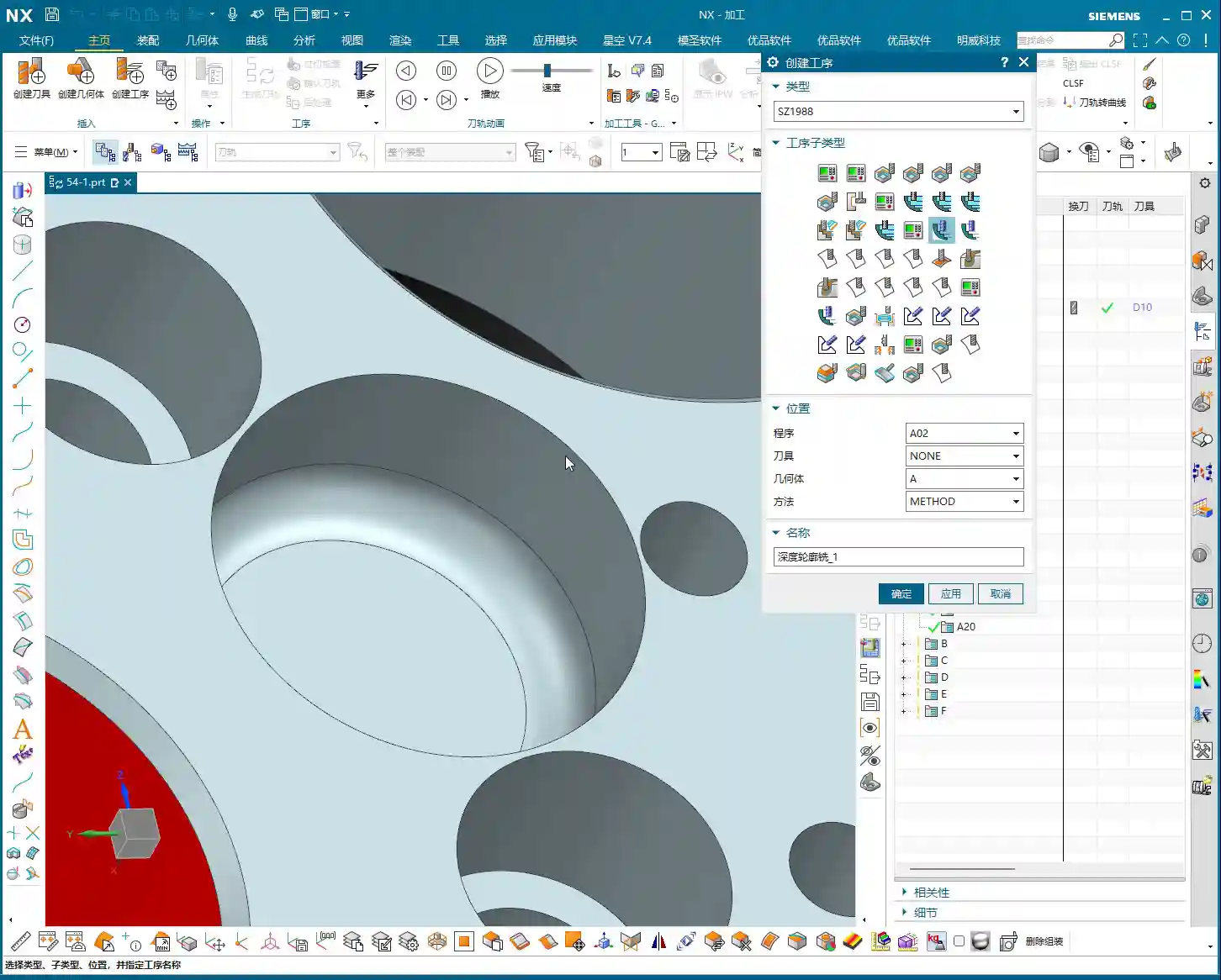
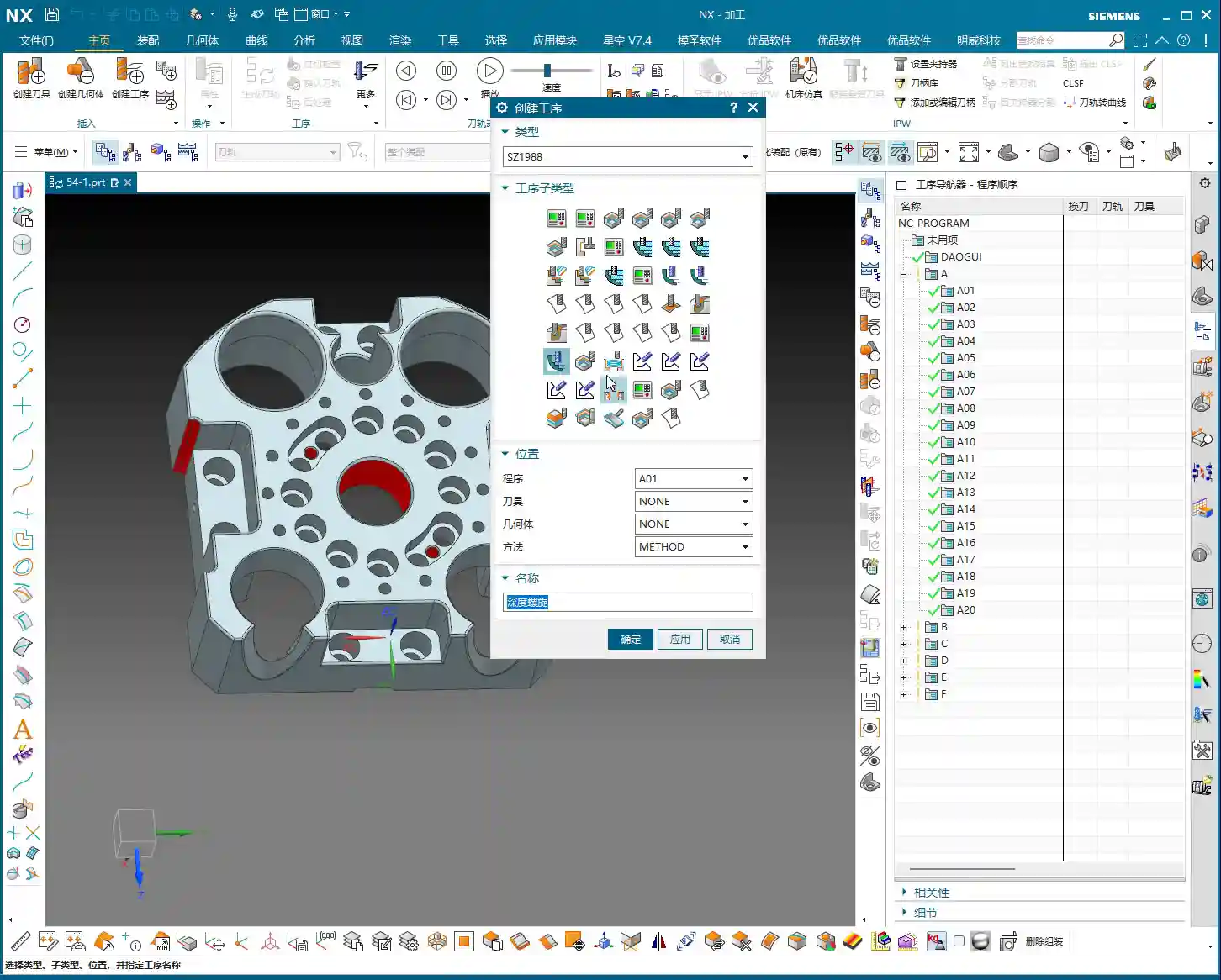
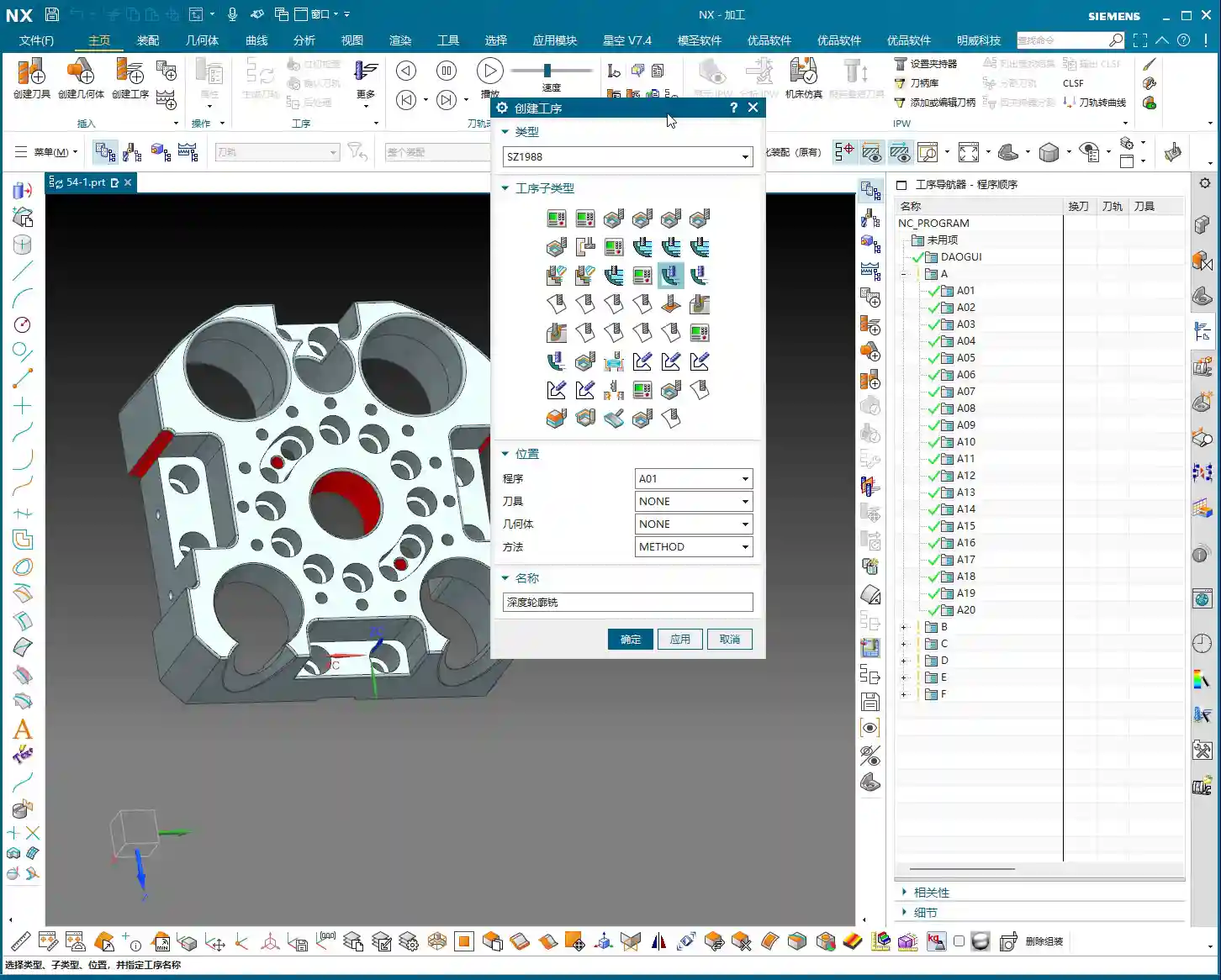
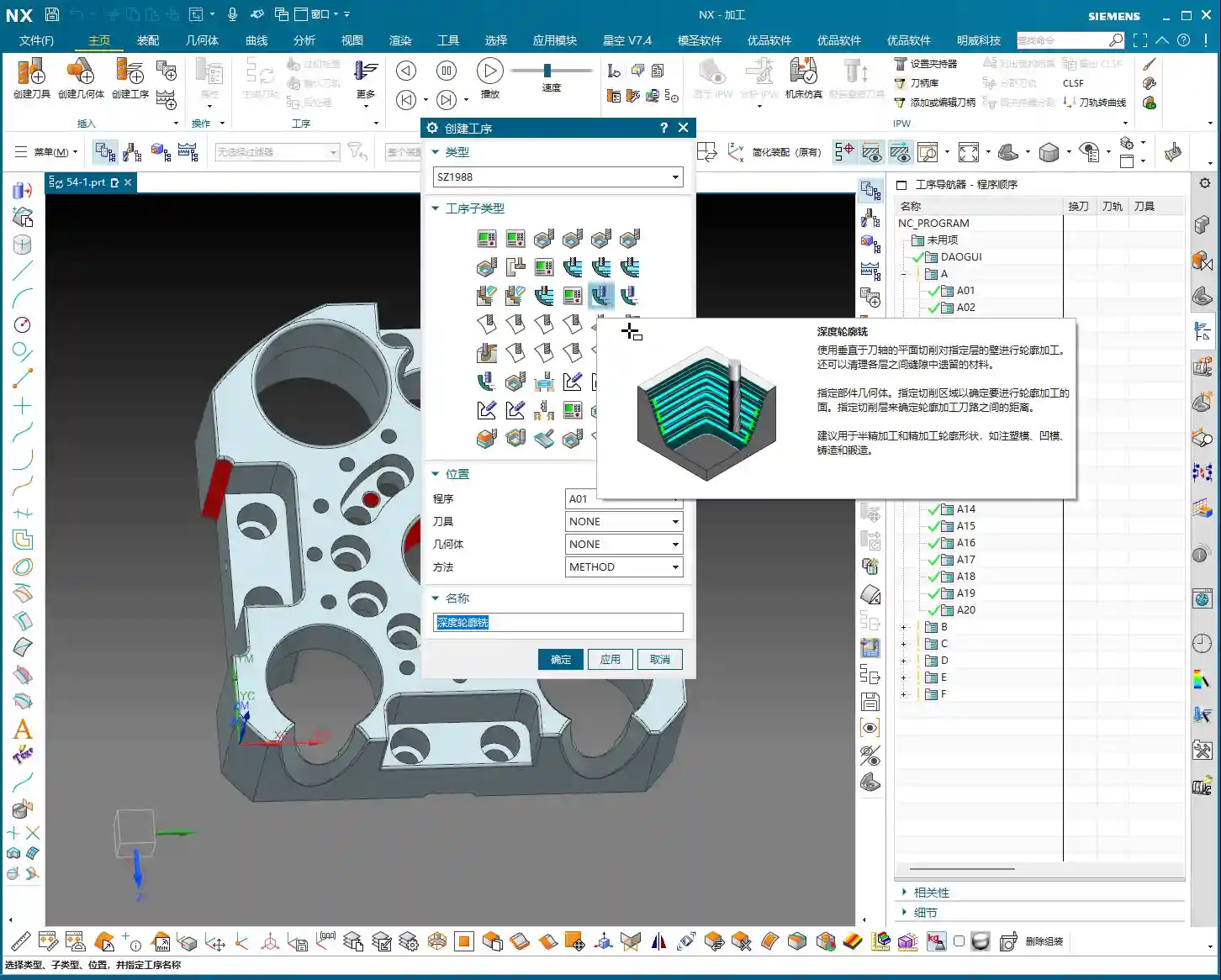
    Select the ‘Deep Contour Milling’ operation, then define the machining regions. Here, we’ll finish several internal sidewalls of the part, including those with corner radii. In Siemens NX, after you select a face, it sometimes automatically recognizes related sidewalls. But remember, the machine is rigid, but the operator is not; the final outcome depends on our experienced judgment.
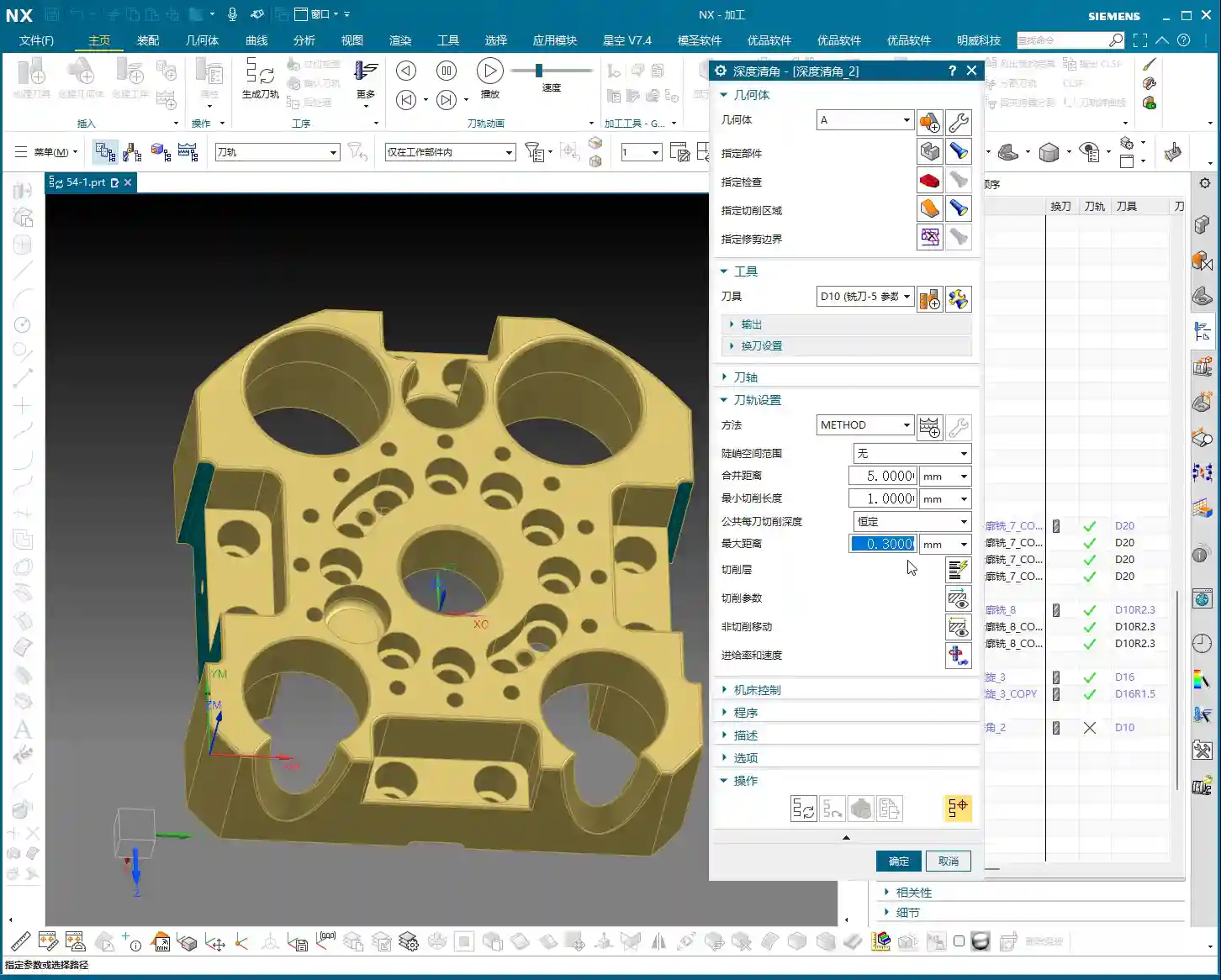
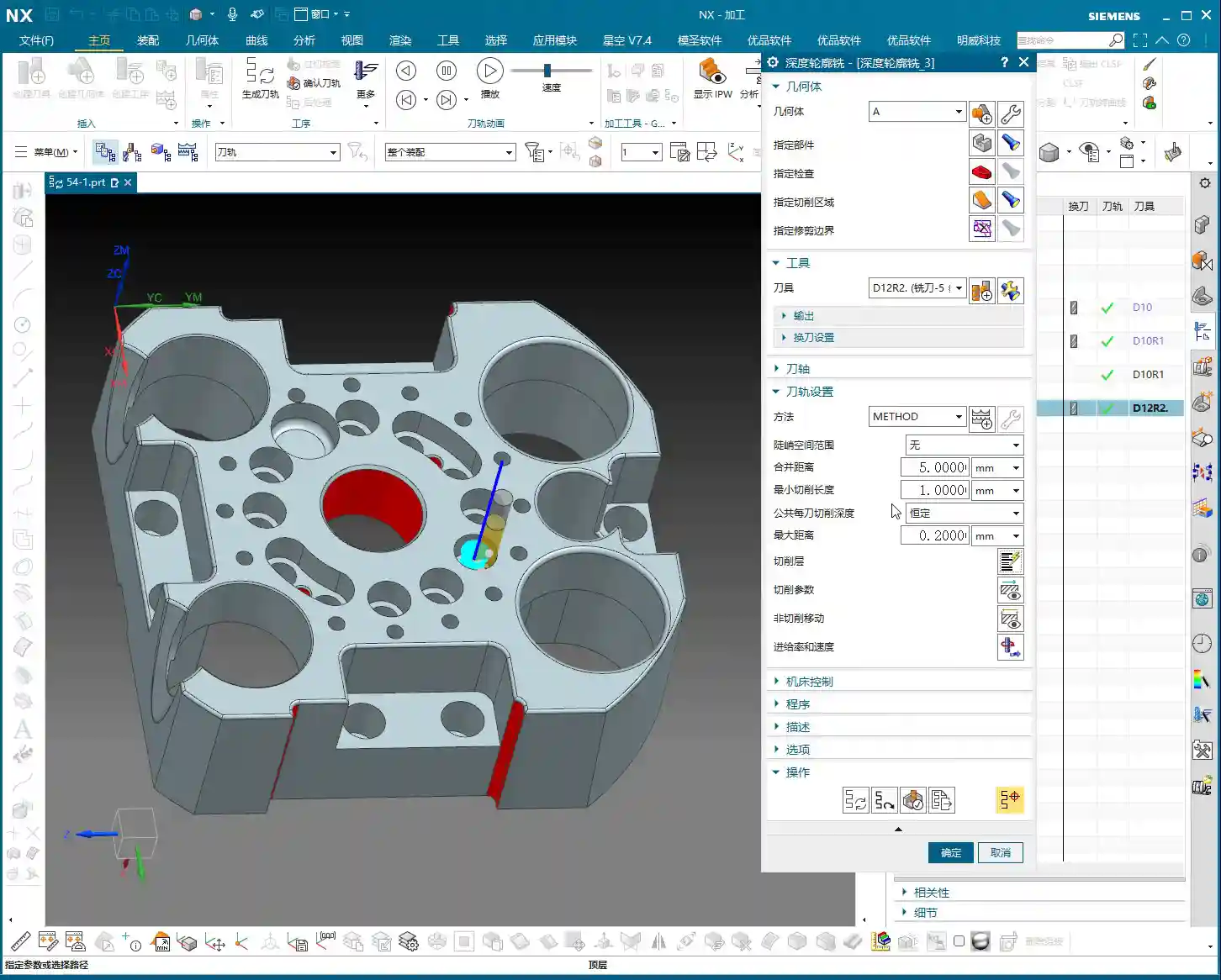
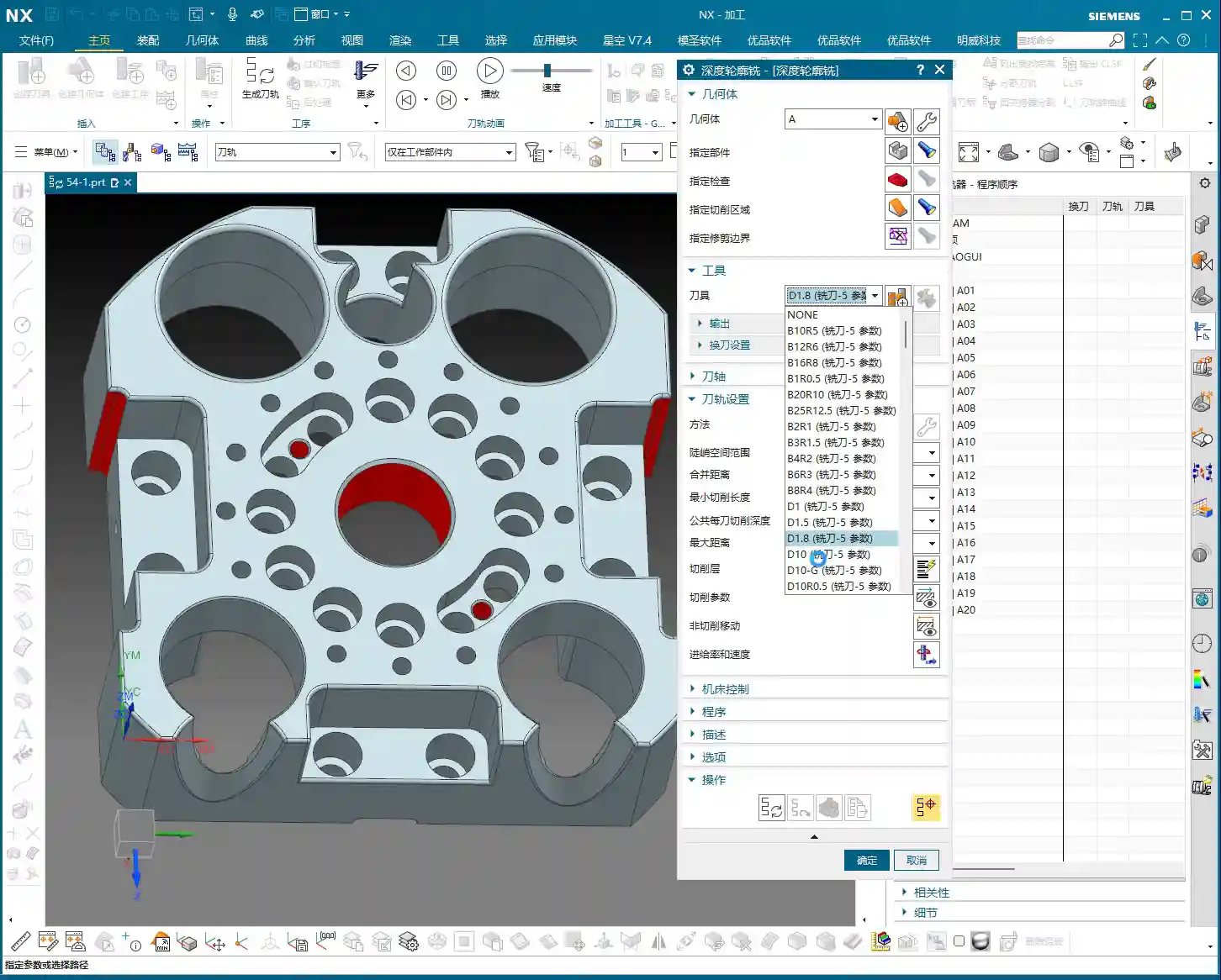
    For the tool, I’ve directly chosen a D20 tool here. Let’s set the Depth of Cut (DOC) for each pass to 5 mm initially. Leave other parameters as default for now, and generate the toolpath to see the effect. Siemens NX’s simulation capabilities are powerful, but they won’t tell you if the tool will chatter or if you’re taking too deep a cut. You need to rely on your ‘feel’ and ‘eyesight’ to judge these things.

    Key Optimization: Single Pass to Full Depth and Depth Compensation

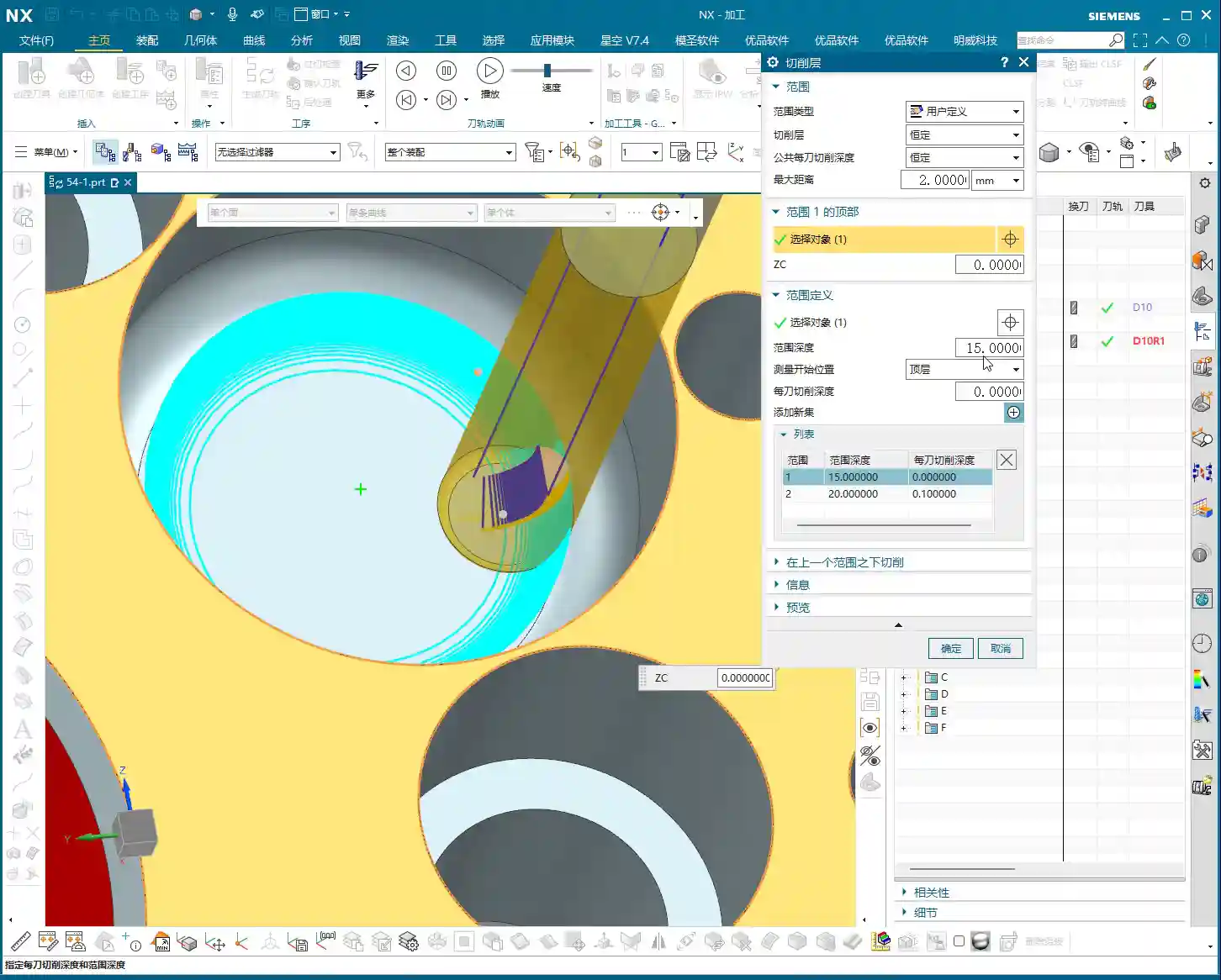
    After generating the program, you’ll notice that if the sidewalls are deep, the tool cuts in layers. For finishing passes, sometimes we want a single pass to full depth. This reduces blend lines and improves surface finish. The audio mentioning ‘5 mm is a bit excessive’ refers to this very point.

    At this point, we can directly change the Depth of Cut for each pass to 0 to achieve a ‘single pass to full depth’. Of course, this depends on your tool’s rigidity and the workpiece material’s hardness. For instance, try this with titanium, and your tool will be ruined! With aluminum, it might not be an issue. So, parameters are not set in stone; you must adjust them flexibly based on the actual situation. Here, our goal is to finish the sidewalls, and a single pass to full depth will yield better results, provided tool rigidity is maintained.

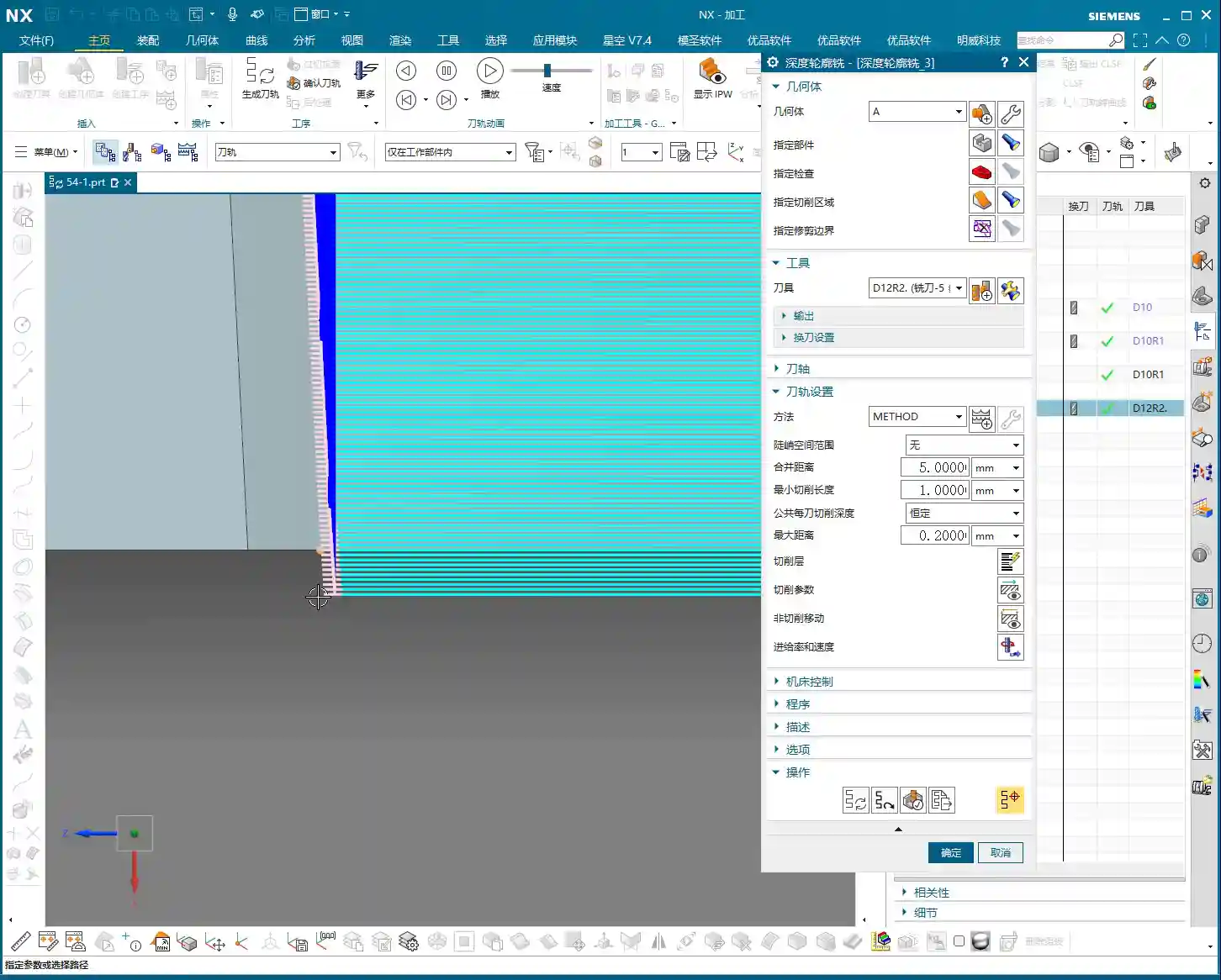
    Additionally, if you find the bottom surface isn’t fully machined, you can slightly extend the cut downwards by 2 mm to ensure thorough corner cleanup and no residual material. These are fine-tuning tips gained from practical experience, which textbooks might not detail this extensively.
    Multi-Face Switching and Work Coordinate System (WCS) Setup

    Switching Workpiece Orientation and Work Coordinate System (WCS)

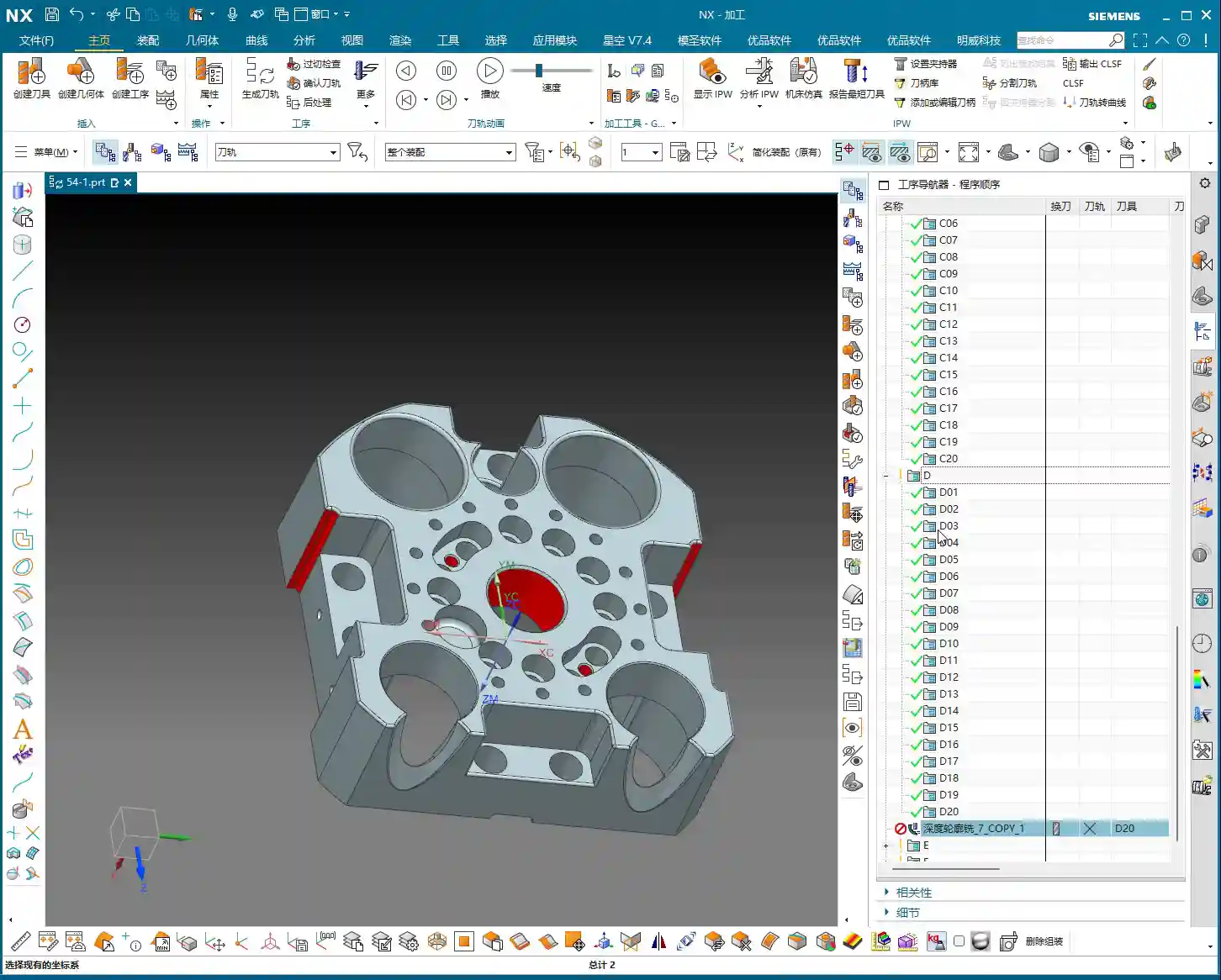
    Once one face is machined, we need to switch to another. In Siemens NX, this involves changing the Work Coordinate System (WCS). Select a new datum plane, adjust the Z-axis direction, and then copy-paste your previously programmed operations to significantly boost efficiency. This copy-paste trick is favored by seasoned machinists; it’s a real time and effort saver.

    Programming Reuse and Region Selection

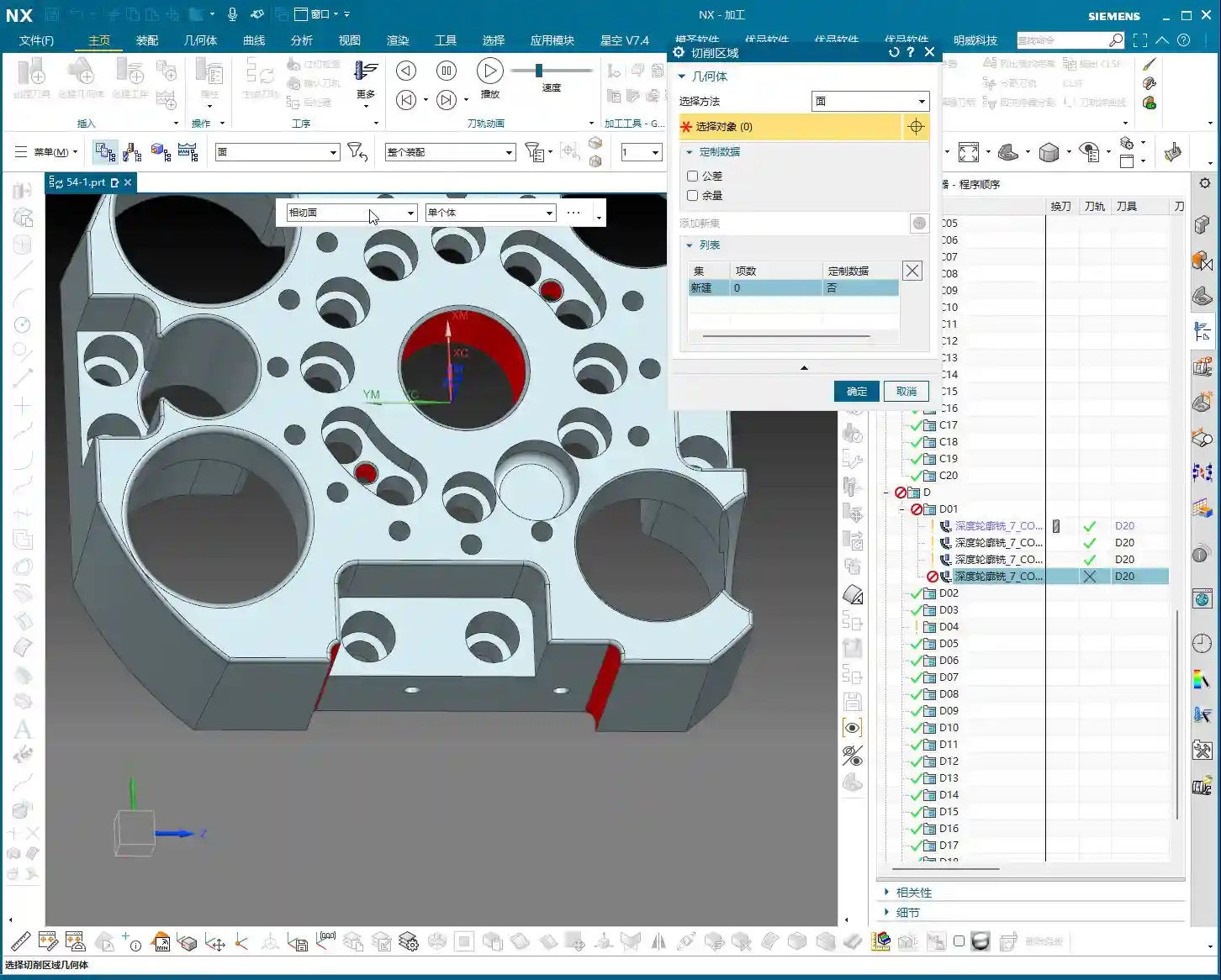
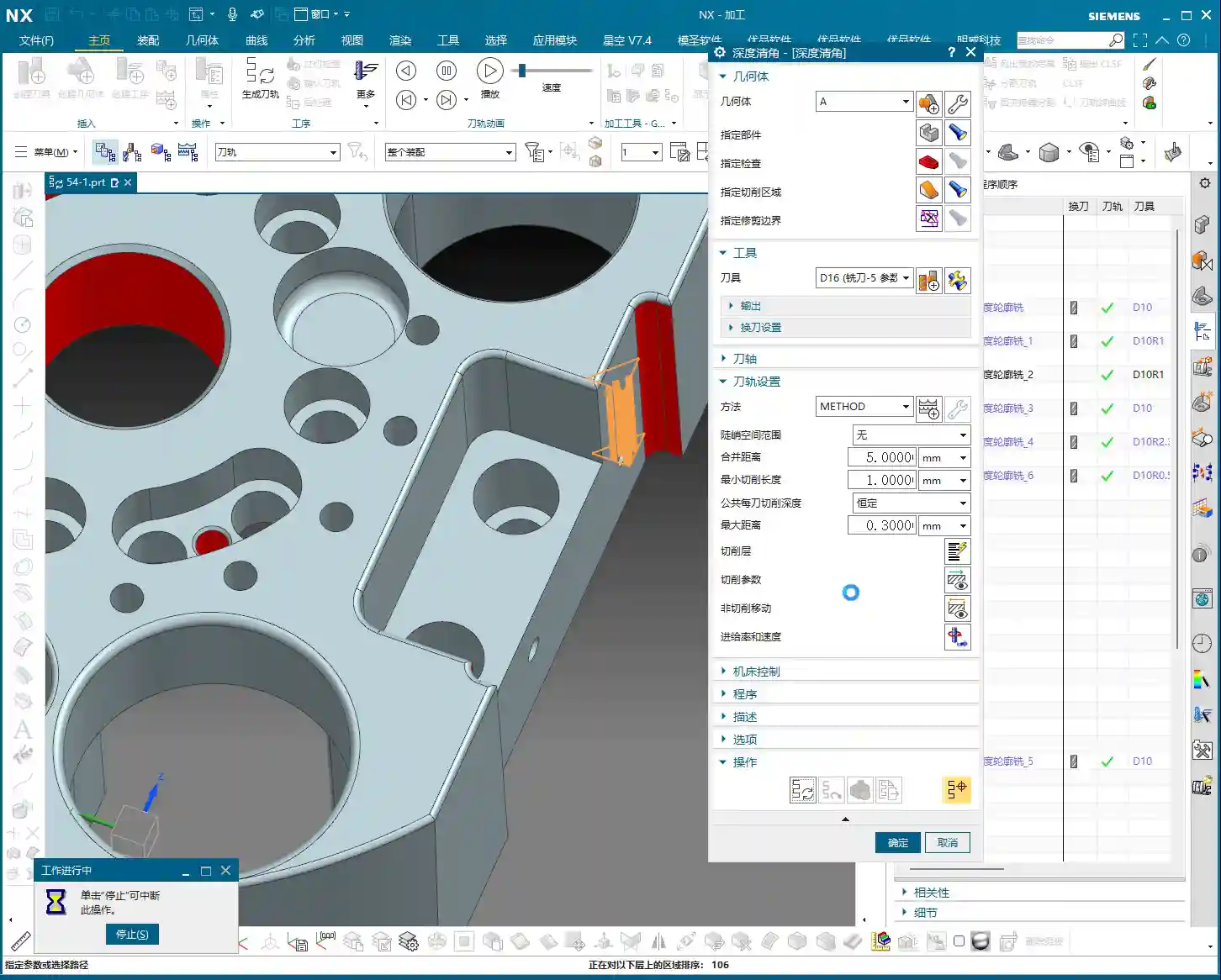
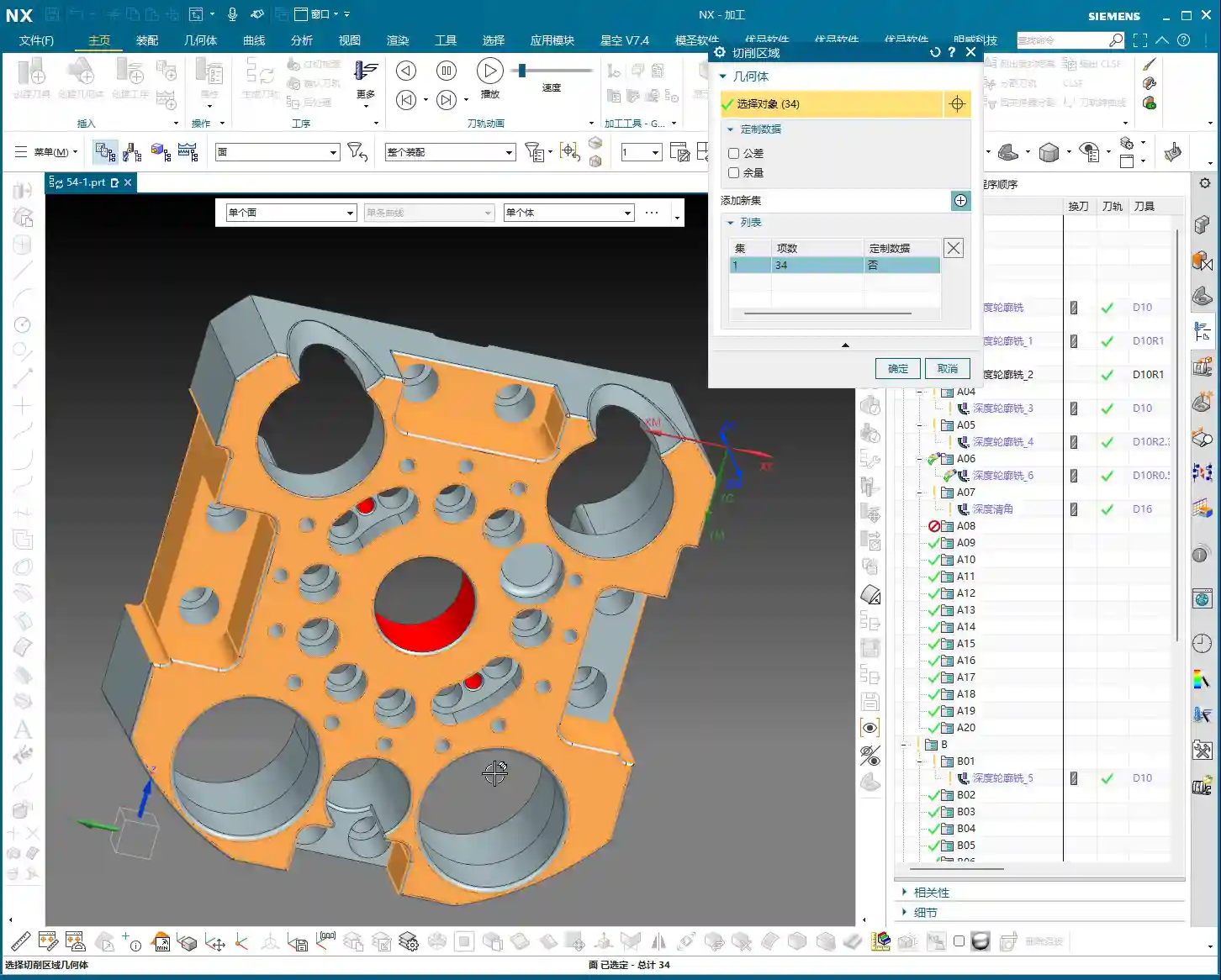
    After switching faces and copying the program, you’ll need to re-specify the machining regions. Here, we’ve selected several holes and sidewalls for machining. Pay attention: Siemens NX can sometimes help you automatically identify regions, but you must carefully check to ensure you haven’t selected incorrectly or missed any. Complex transition surfaces, especially, are easy to overlook.

    This time, we’ve chosen a 4R1 tool to machine these areas. We’ll set the Depth of Cut (DOC) for each pass to 0.1 mm; for a finishing pass, precision is key. Furthermore, to avoid excessive back-and-forth cutting, we’re using a helical milling strategy, which results in smoother toolpaths and a better surface finish.

    Handling Complex Features: Hole Machining and Extension Strategies

    Large Hole Finishing and the ‘Single Pass to Full Depth’ Pitfall

    Now let’s tackle a few large holes. I’ve selected all of them, ready to machine them together. However, in practice, newcomers often fall into a major pitfall: if these holes have varying depths, and you use a ‘single pass to full depth’ strategy, Siemens NX will, by default, machine all holes to the bottom of the deepest one! The result is shallow holes being cut through, or simply wasted machining time.
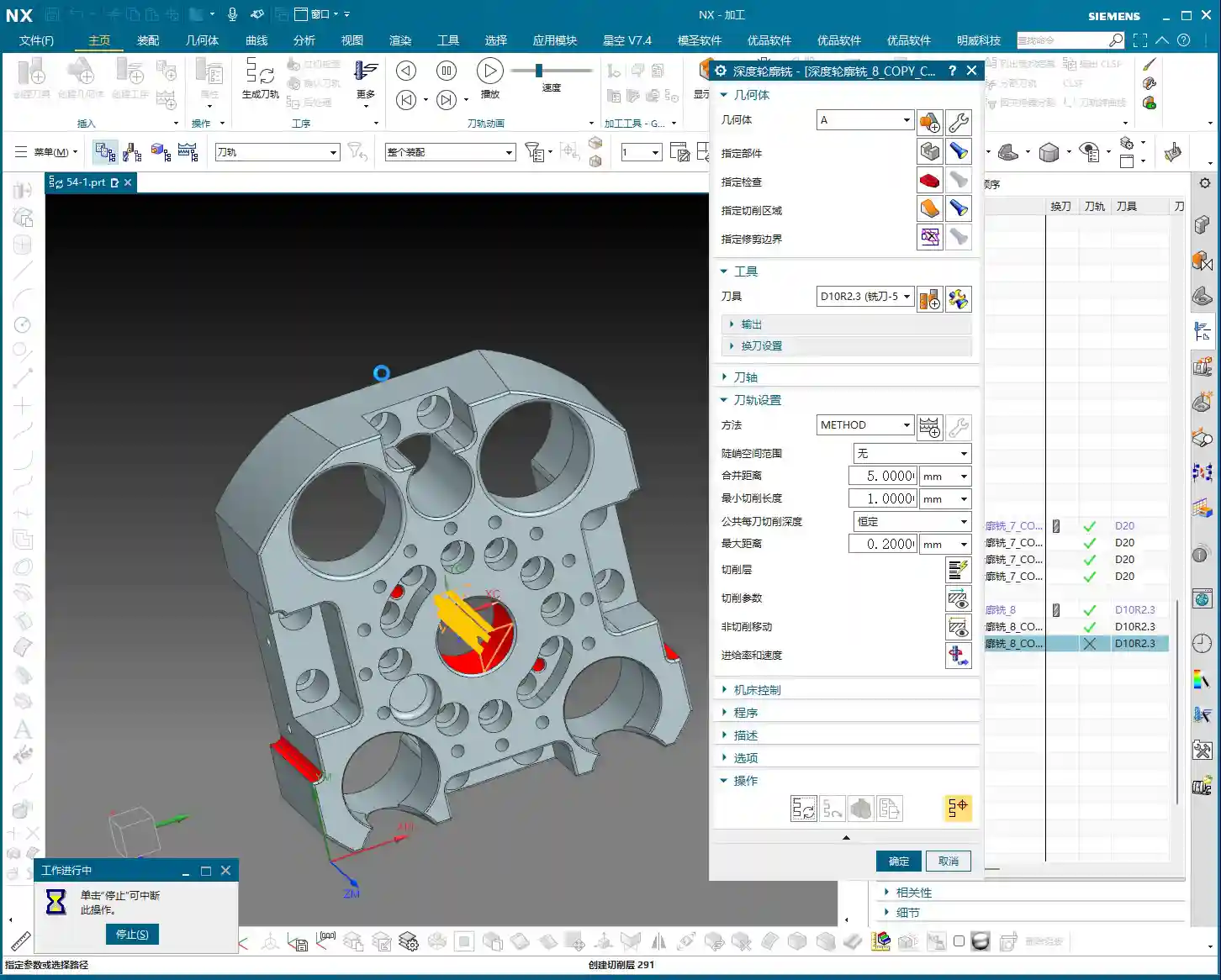
    Pitfall Avoidance Key: When facing this situation, don’t force it. You need to adjust the tool end point settings, choosing “Tool End Point Tracking Upwards”. This way, the tool will stop when it reaches the actual bottom of each respective hole, preventing over-machining. This is a critical lesson from my years of experience, saving countless scrapped parts and wasted time!

    Unfinished Bottom Surfaces and Extension Compensation

    Sometimes, even with a finishing pass, when the tool reaches the bottom of a hole or slot, due to tool geometry and residual material, a thin layer might remain, leaving the bottom surface not fully machined. In such cases, you need to compensate by using a ‘Downward Extension’ strategy. For example, extend the cut another 2 mm beyond the original depth to ensure the bottom surface is clean and flat. But extend moderately; don’t mill through the bottom.

    Best Practice: Area-Specific Machining and Time Considerations

    In teaching, for convenience and to save time, I might select holes of different depths or features to machine together. But listen up, Detail Refinement and Tool Selection

    Corner Cleanup Operations and Tool Matching

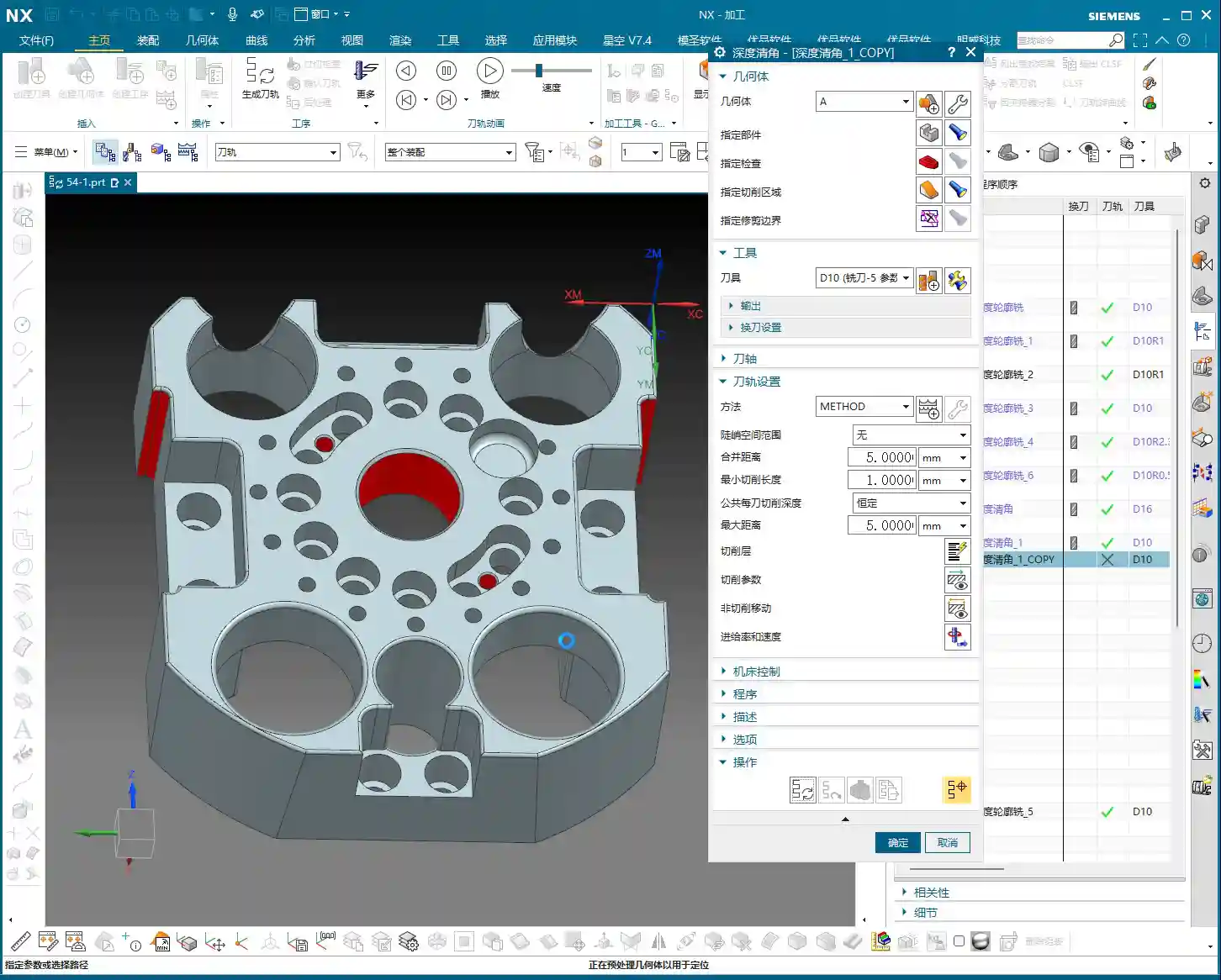
    Internal corners on a part, especially radii, are challenging for finishing. If you use a D10 tool to clean an R5 internal corner, it will leave a small radius. If you want a sharper corner, you’ll need a smaller tool or a specialized corner cleanup tool. Here, using a D10 tool for an R5 corner cleanup is a common practice that ensures a good surface finish on the radius without breaking the tool.

    In Siemens NX, select the corners to clean, then choose the appropriate tool. Always measure the radius size first so you know what you’re dealing with. This is fundamental; don’t get lazy!

    Final Inspection and Fine-Tuning

    Once all programs are compiled, always perform a simulation check. Look for any toolpath collisions, missed areas, or unnecessary cuts. If there’s slight under-machining, for instance, needing ‘just a bit more cut,’ then make a small adjustment in the parameters. Sometimes, these ‘tiny’ fine-tunes determine the final quality of the part. All programs should use climb milling for a better surface finish.

    Summary: Pitfall Avoidance Guide

    Listen up, youngsters! Beyond the Siemens NX operations in today’s tutorial, I hope you remember these practical experiences and pitfall avoidance keys:

    • Positioning is fundamental; don’t ‘just drop it anywhere’: Before any programming, precise positioning and secure fixturing of the actual workpiece are prerequisites. ‘Casual placement’ in software is just for demonstration; in reality, a slight error can lead to a huge deviation.
    • Tool selection must be ‘rational,’ not ‘random’: In my demonstrations, to speed things up, I might have picked tools somewhat arbitrarily. However, in actual machining, you must select the most suitable tool based on material, hardness, workpiece geometry, required surface finish, and machining efficiency. This isn’t a snap decision; it’s accumulated knowledge.
    • Varying hole depths: strictly guard against the ‘single pass to full depth’ pitfall: When machining multiple holes of different depths simultaneously, remember to use strategies like “Tool End Point Tracking Upwards” to prevent over-machining. Alternatively, Under-machined bottom surface? Reasonably ‘extend’ to compensate: If you find residual material on the bottom surface, appropriately extending the toolpath downwards is an effective method, but control the amount to avoid interference.
    • High surface finish requirements? Consider ‘helical milling’ and ‘single pass to full depth’: Provided rigidity and tool life are maintained, a ‘single pass to full depth’ finishing cut for sidewalls and hole walls, combined with helical milling, can significantly improve surface quality.
    • get hands-on and observe the actual cutting on the machine. Only then can you truly become a qualified machinist.

      👤 About the Author:
      The author is a veteran CNC machining professional with 15 years of industry experience, specializing in UG NX programming. This article is an original work representing personal practical insights.

      ⚠️ Copyright Notice: Unauthorized reproduction or distribution without prior communication is strictly prohibited.
  • Siemens NX Deep Contour Rest Milling, Spatial Range, and Smoothing Techniques: Master Wang’s Hands-o

    📝 Key Takeaways:

    NX Deep Contour Rest Milling in Practice

    Co…

    Core Essentials of Deep Contour Rest Milling

    The Essence of Rest Milling and Roughing Strategies

    Alright, listen up everyone. Today we’re going to talk about a “specialty” within NX Deep Contour Milling – Rest Milling. Simply put, this technique is for ensuring your finishing pass leaves no unmachined areas. Don’t let the name “Rest Milling” fool you; its real purpose is to thoroughly clean up those areas where larger tools couldn’t reach during roughing, leaving residual material.

    Typically, we start roughing our workpieces with a large tool. For instance, if you have an internal corner radius of R10, using a small tool directly to mill it would be incredibly inefficient. So, you’d usually begin by roughing with a larger tool, say a Ø32mm (approx. 1.26 inch) end mill. After roughing, those tight corners, like the R10 radius, will inevitably have a larger radius than R10, or rather, more residual material. This is where our Rest Milling program steps in.

    What tool should you use for Rest Milling? That depends on the size of the residual radius and your finishing requirements. For an R10 corner, you might opt for a Ø16mm (approx. 0.63 inch) end mill. Why? Because a Ø16mm tool can access an R8 corner, making it more than capable for an R10 corner, while also maintaining decent efficiency. Remember, tool selection is always a balance between efficiency and accuracy.

    NX Rest Milling Programming: Step One – Geometry and Tool Selection

    In NX, find the “Deep Contour Rest Milling” function. Once you’re in, the first step is to select the geometry.

    Pay attention here; this is a major pitfall that textbooks might not cover in detail! When selecting the rest milling region, NEVER select ONLY the fillet face! You must select all faces around the fillet that need to be machined, including the bottom face. Why? Think about it: the tool is smart, but it’s not psychic. If you only give it an isolated fillet face, how will it know what size tool you used for roughing previously? How will it know the exact distribution of residual material? It can’t reference previous toolpaths, so it won’t be able to generate a rational, complete rest milling path. The result will be incomplete cleaning, messy toolpaths, or even a collision.

    Therefore, when selecting geometry, you need to provide the tool with “complete environmental information” so it can accurately determine where residual material exists and where rest milling is needed. Don’t be lazy; every face that needs to be selected must be included!

    Regarding tool selection, as we discussed, if you used a Ø32mm (approx. 1.26 inch) tool for roughing, you’ll need a smaller one for rest milling, such as a Ø16mm (approx. 0.63 inch) end mill. The principle is simple: smaller tools can access areas larger tools couldn’t reach.

    Spatial Range: The Art of the Reference Tool

    The Core Secret of Rest Milling: The Reference Tool

    Alright, everyone, the core of Rest Milling, and its sole critical difference from standard Deep Contour Milling, lies in the “Reference Tool” setting within “Spatial Range.” This is knowledge I, Master Wang, have refined over years, and you must grasp it thoroughly.

    You need to tell NX which tool you used for roughing previously. For example, in “Spatial Range,” enable the “Reference Tool” option, then select the Ø32mm (approx. 1.26 inch) tool you used for roughing. NX will automatically calculate the areas that tool couldn’t mill based on its profile – these are the residual material areas your current smaller tool needs to clear. Without this “reference,” Rest Milling is a meaningless term; it won’t know where to clean.

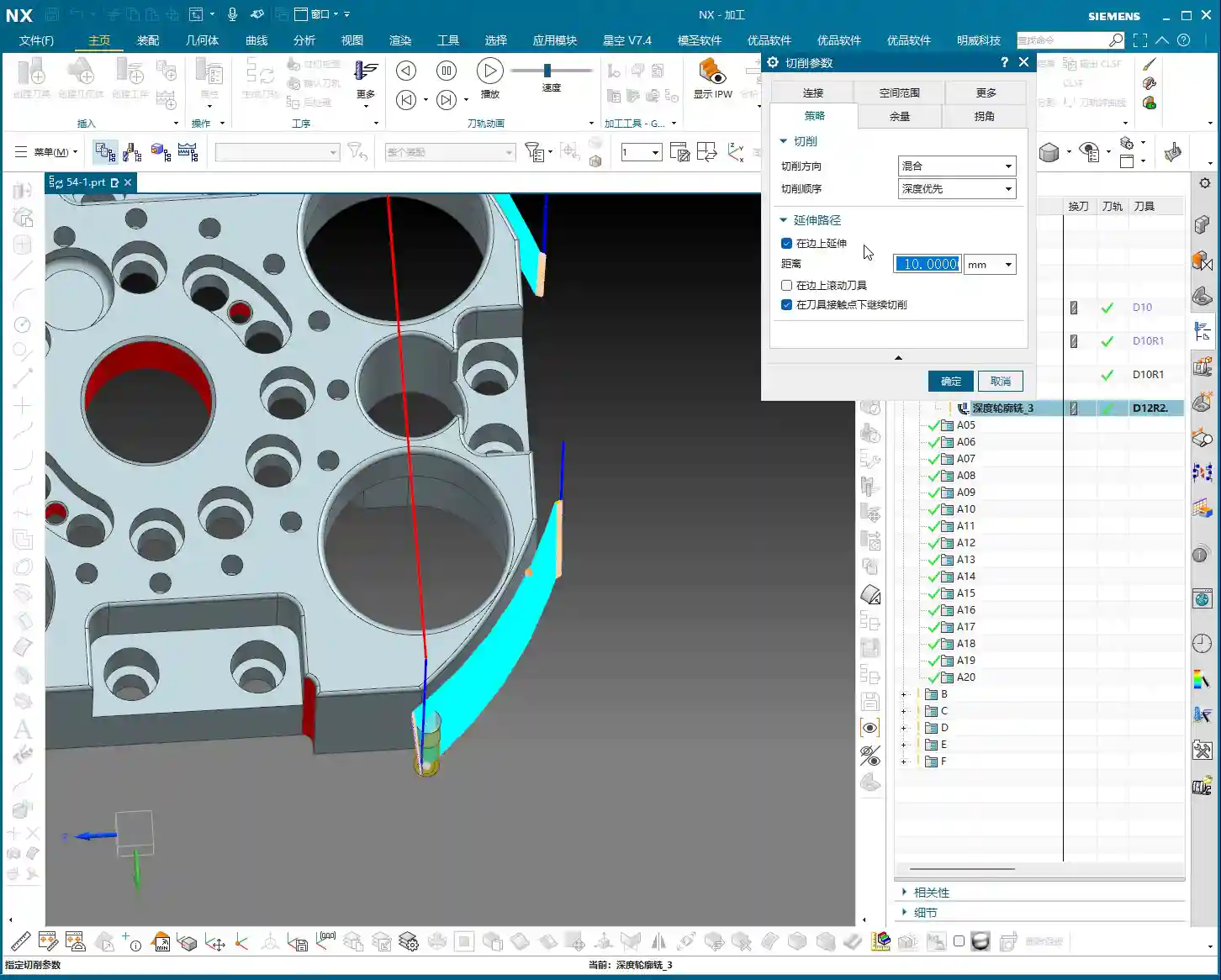
    Further down, there’s also “Cut Extension Distance” (or “Extension Distance”). This parameter allows your rest milling toolpath to extend slightly beyond the reference tool’s path. Why the need for extension? Because you might want the tool to cut a bit more to ensure all residual material is completely removed, preventing even the slightest “unmachined spots.” I usually set it to around 2mm (approx. 0.08 inch), but the exact value depends on the actual situation and material. You can also think of it as adding this distance to the reference tool’s diameter, simulating a slightly larger virtual tool (e.g., Ø34mm / approx. 1.34 inch), to calculate the range that needs to be cleared.

    Avoiding Pitfalls: Extended Application of Cutting Levels

    Many beginners ask why their rest milling program always starts cutting from the middle. Shouldn’t it start from the top? This happens when the “Extension Distance” in “Cutting Levels” isn’t set correctly.

    If your rest milling depth is 2mm (approx. 0.08 inch), and you want the tool to start with a helical ramp down from the top, you need to set the “Extension Distance” to 1mm (approx. 0.04 inch) in the “Cutting Levels” settings. This way, the tool will start milling from the top of the workpiece, not the middle of the fillet, ensuring the completeness of the entire rest milling process. Don’t underestimate this 1mm; sometimes it can determine whether you’ll have a collision or the quality of your surface finish.

    One more thing, practical experience tells me that Deep Contour Rest Milling programs can be quite slow to calculate. If you set the Stepover too small, you’ll be waiting a while – enough time to grab a cup of tea, or even catch up on the neighborhood gossip. So, the Stepover setting must also balance efficiency; don’t just blindly aim for the smallest value.

    Smoothing Strategy: Enhancing Machining Quality

    Understanding “Smoothing”: More Than Just Fillets

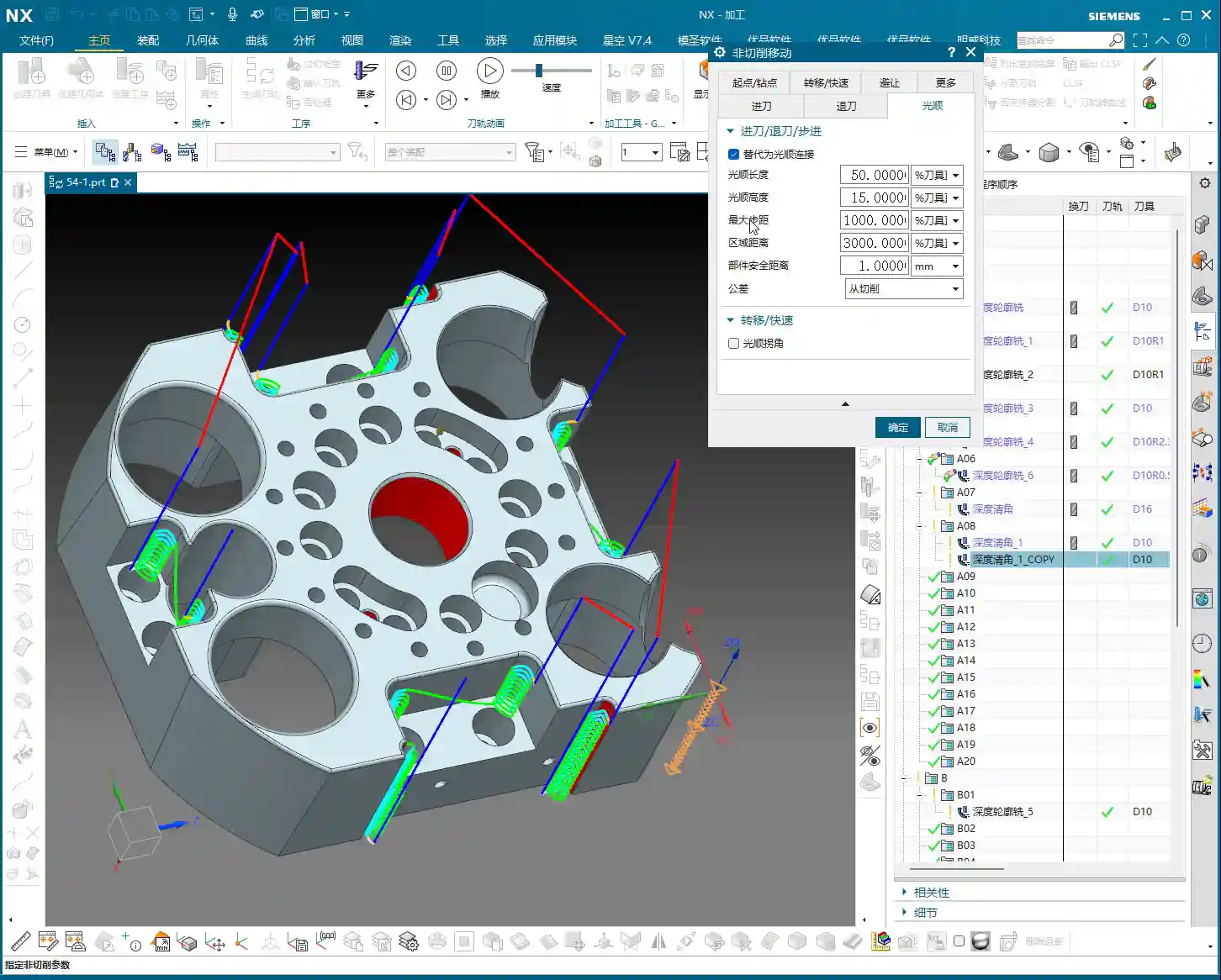
    In NX, this concept of “Smoothing” is a vast topic. It’s not a single idea. What we’re discussing today is “Smoothing” within “Non-Cutting Moves.” This “Smoothing” isn’t about the smoothness of a fillet or radius on your workpiece; it controls the stability of the tool during path connections, lead-in, lead-out, and the overall movement process.

    Think about it: if the tool suddenly accelerates, makes sharp turns, or has jerky lead-in/out moves during machining, it will leave tool marks on the workpiece surface, potentially cause machine chatter, and reduce tool life. Therefore, “Smoothing” in “Non-Cutting Moves” is designed to ensure the overall fluency of the toolpath, making the tool move as smoothly as silk, avoiding any “hesitation” or “jerking” feeling.

    Typically, I set this smoothing value to around 5mm (approx. 0.2 inch). This value both ensures a smooth toolpath and prevents the program from calculating too slowly. If this value is set too small, you’ll find that during simulation, the tool moves sluggishly, like a snail, and the tool motion will appear stiff and unnatural.

    Smoothing Parameters: The Secrets of Length and Height

    Within the smoothing parameters, there are two key components you need to understand:

    1. Smoothness Length: This refers to the horizontal extension distance of the tool from its current position to the next cutting point. It determines the degree of smoothness during transitions in the planar direction. In simple terms, it ensures that when the tool changes direction, it doesn’t turn abruptly but instead carves a smooth arc.
    2. Smoothness Height: This refers to the vertical transition height of the tool in the Z-axis direction. It ensures that when the tool performs Z-axis feed or retraction, there are no sudden axial changes, but rather a gentle transition.

    These two parameters are usually already optimized by experienced engineers in NX machining templates. For most situations, you can simply use the default template values; there’s no need to blindly modify them yourself. But as a qualified machinist, you must understand what each of them does. When issues arise, you’ll know where to start making adjustments.

    Summary: Your Pitfall Avoidance Guide

    As Master Wang, I’ve summarized these hard-hitting practical insights for you today. Every point is based on real-world experience, so commit them to memory!

    • Major Pitfall in Geometry Selection: When performing Deep Contour Rest Milling, CRITICAL: NEVER select ONLY the fillet face! You must select all machining faces around the fillet that need to be cleared, as well as the bottom face. This is to provide NX with “complete environmental information,” allowing it to understand where residual material is and what the previous tool’s machining range was. Otherwise, your rest milling toolpath will be messy, won’t clean properly, and may even cause a collision. Don’t be lazy; this is crucial!
    • Spatial Range Must Be Enabled: The core essence of the rest milling program lies in the “Reference Tool” setting within “Spatial Range.” This tells NX which tool you used for roughing previously, allowing it to intelligently calculate “uncut regions” that require rest milling. If this function isn’t enabled, rest milling is a meaningless term.
    • Fine-tuning Cut Extension Distance: The “Cut Extension Distance” parameter should be flexibly set based on the actual residual material left after roughing and the size of your rest milling tool. Experience dictates that it’s better to extend slightly more than necessary than to leave unmachined areas. However, don’t set it too large, or you’ll end up with air cuts.
    • Smoothing Settings Require Attention: “Smoothing” in “Non-Cutting Moves” is key to ensuring toolpath fluency and improving surface quality. It’s generally recommended to set it to around 5mm (approx. 0.2 inch). If set too small, you’ll find the program calculates like a snail, and simulations will be sluggish and choppy, affecting your ability to evaluate the toolpath.
    • Simplify Complexity: For fillets or holes of different sizes and depths on a workpiece, it’s best to create multiple separate rest milling programs. One program should only clear regions with similar features (e.g., one program for all R5 corners, another for all R10 corners). The advantage of this approach is easier management, more efficient optimization, and simpler localization and debugging of issues. Don’t try to use one program for everything; that often leads to errors and wastes time.
    • Prioritize Templates, Understand the Principles: Most smoothing parameters and other settings in NX machining templates have already been optimized by experienced engineers. If there are no special requirements, using templates directly can save a lot of trouble. However, as an excellent machinist, you must understand the principles behind these parameters; this is your fundamental skill and your confidence to solve complex problems.

    👤 About the Author:
    The author is a veteran CNC machining professional with 15 years of industry experience, specializing in UG NX programming. This article is an original work representing personal practical insights.

    ⚠️ Copyright Notice: Unauthorized reproduction or distribution without prior communication is strictly prohibited.
  • Siemens NX Deep Contour Milling Practical Guide: Optimized Cutting Layers & Boundary Extension, Unve

    📝 Key Takeaways:

    Deep Contour Milling: Practical Insights into Cutting Layers and Boundary Extension

    Alright, listen up, young…

    Alright, listen up, young machinists! Today, Master Wang is going to share some critical, practical knowledge about deep contour milling—the kind of stuff they don’t teach you in textbooks, but that you absolutely need on the shop floor. Specifically, we’ll talk about cutting layer control and the boundary extension function. Use them wisely, and you’ll boost efficiency; mess them up, and you’ll be scrapping parts, wasting time, and burning through tools. Don’t just rely on software simulations; look at the cutting sparks and the chip color—that’s where the real skill lies!

    I. Cutting Layer Control in Deep Contour Milling

    Deep contour milling, as the name suggests, is primarily used for finishing parts with sloped surfaces, deep cavities, and internal radii. Its main characteristic is the ability to follow the part geometry layer by layer. However, *how* these layers are machined is where the critical knowledge comes in.

    1. Understanding “Stepdown”: The Key to Machining Efficiency and Surface Quality

    Look, once we’ve selected “Deep Contour Milling” and specified the tool, the next step is to set the Stepdown (Depth of Cut per pass or Step Length). This isn’t just a number you can randomly input. For example, if you choose 0.2mm, the tool will machine down in 0.2mm increments. But here’s a pitfall: when machining slopes, if your Stepdown is too large, the surface finish will definitely suffer. You’ll get noticeable tool marks, and it could even lead to excessive Depth of Cut (DOC).

    • Small Stepdown: Better surface quality, but longer machining time. Tool wear is also more uniform.
    • Large Stepdown: Higher efficiency, but poorer surface roughness, especially on sloped surfaces, where it can easily create noticeable step lines, uneven tool loads, and even tool chipping.

    My usual practice is to use a larger Stepdown for roughing, leave some stock, and then switch to a smaller Stepdown for the finishing pass. It’s the same principle as sanding a part by hand.

    2. Finishing Pass Depth and Fillet Corner Cleanup Issues

    Listen up, this is a critical point! When you’re deep contour milling to the bottom of a feature, especially if there’s a fillet (radius) at the workpiece’s base, have you ever noticed that even when the tool clearly reaches the bottom, that fillet always seems to be unfinished? Or perhaps the bottom looks flat, but the dimension is slightly off?

    The problem lies here: the software typically defaults to letting the tool’s bottom just touch the selected bottom surface. However, the cutting edge of the tool has a radius; it cannot perfectly conform to that theoretical “point.” This is especially true for ball nose end mills or bull nose end mills, which have a radial bottom edge. If the tool’s bottom radius is the same size as the workpiece’s bottom fillet, the tool will stop as soon as its center reaches the endpoint. Naturally, the fillet at the bottom won’t be fully cleaned up.

    We need to make the tool go a bit deeper to thoroughly clean up that fillet. How do we do this?

    1. Open the Levels settings.
    2. Find the Bottom parameter. This typically displays the Z-coordinate of the workpiece bottom.
    3. Critical Step: After this value, manually add a negative value, for example, add -0.2 (or +0.2, depending on your NX version and preference, meaning to make the tool go an additional 0.2mm). For instance, if the bottom is -100mm, you’d change it to -100.2mm.
    4. NX’s Quirks: Sometimes, after you change a value, the interface might not react immediately, or it might still show the old value. Don’t panic! After entering the value in the box, click on another empty area or simply click “OK”, and it will take effect. This is a common quirk of NX; you’ll get used to it.

    This slight over-cut is essential to ensure that the tool’s effective cutting edge thoroughly machines the workpiece’s fillet. When manufacturing precision parts with ±0.005mm (approx. 0.0002 inch) accuracy requirements, these meticulous details are what make the difference.

    II. Toolpath Strategies: Climb, Conventional, and Mixed Milling

    Now that we’ve covered cutting layers, let’s talk about toolpath selection. In deep contour milling, there are several commonly used cutting strategies: climb milling, conventional milling, and mixed milling.

    1. Climb Milling

    Listen up, Climb Milling is when the tool’s rotation direction is the same as the feed direction. The tool begins cutting at the maximum chip thickness, and the cutting forces push the workpiece down into the workholding, resulting in a relatively stable cut.

    • Advantages: Good surface finish, relatively longer tool life, less prone to burr formation.
    • Disadvantages: Requires high machine rigidity and is particularly sensitive to backlash in the ball screws. If the machine has significant backlash, a ‘creeping’ effect can occur, impacting accuracy.
    • Typical Toolpath: Cut, retract, plunge, cut again. As demonstrated in the video, the tool repeatedly lifts and plunges. While not the most efficient, it’s often used when surface quality is a critical requirement.

    2. Conventional Milling

    Conventional Milling is when the tool’s rotation direction is opposite to the feed direction. The tool begins cutting at the minimum chip thickness, and the cutting forces tend to lift the workpiece.

    • Advantages: Relatively lower machine precision requirements, less prone to ‘creeping’ effects.
    • Disadvantages: Surface quality is typically inferior to climb milling, faster tool wear, and prone to burr formation.
    • Use Cases: Rarely used alone for finishing passes. Generally considered for roughing when chip evacuation is critical or when machining specific materials.

    3. Mixed Milling (Zig-zag)

    Mixed Milling, simply put, is “go forward, then come back, go forward, then come back.” It combines the characteristics of both climb and conventional milling; one direction is climb milling, and the reverse direction is conventional milling. If you see a toolpath in the video that doesn’t retract but moves back and forth directly, that’s mixed milling.

    • Advantages: Highest efficiency, shortest toolpath, eliminates numerous tool retracts.
    • Disadvantages: Inherits the drawbacks of both climb and conventional milling. When machining in the conventional milling direction, surface quality and tool wear may be affected.
    • Use Cases: A preferred choice, especially when surface quality requirements are not absolute top-tier, but high efficiency is crucial. For instance, mixed milling is an excellent option for most roughing and semi-finishing operations. Think about it: fewer retracts mean fewer air cuts, which saves time, and time is money!

    Typically, climb milling is frequently used for finishing vertical walls, and mixed milling is also common, but conventional milling is relatively rare. Why? Because finishing walls demands a good surface finish, where climb milling excels. Mixed milling offers high efficiency and a good balance. You need to select your strategy based on the workpiece material, accuracy requirements, surface finish requirements, and machine condition. There’s no one-size-fits-all solution, only the most suitable approach.

    III. Boundary Extension: Optimizing Toolpaths and Preventing Residual Material

    Now let’s discuss a very practical function: Extend along Boundary. This feature sounds simple, but when used correctly, it can significantly improve your machining quality and efficiency, preventing many costly rework issues.

    1. Why is Boundary Extension Necessary?

    Often, when machining a pocket or a contour, the tool’s center follows the boundary. This means that the tool’s radius portion will leave a small amount of residual material on the workpiece edge. This is especially true in corners or along pocket edges, as the tool cannot achieve a perfect 90-degree cut, always leaving a slight amount of material. Over time, you’ll find that the edges aren’t sharp enough, or dimensions have slight deviations.

    Therefore, by making the tool extend slightly beyond the boundary, you can completely remove this residual material, ensuring clean edges and precise dimensions. This is the core purpose of boundary extension.

    Consider this: an aerospace component or a precision mold with even a tiny bit of residual material on its edges—can you still call that “precision”? This directly impacts product assembly and performance, and could even lead to an entire batch being scrapped, resulting in significant losses.

    2. NX Operation: Extension Parameter Settings and Practical Effects

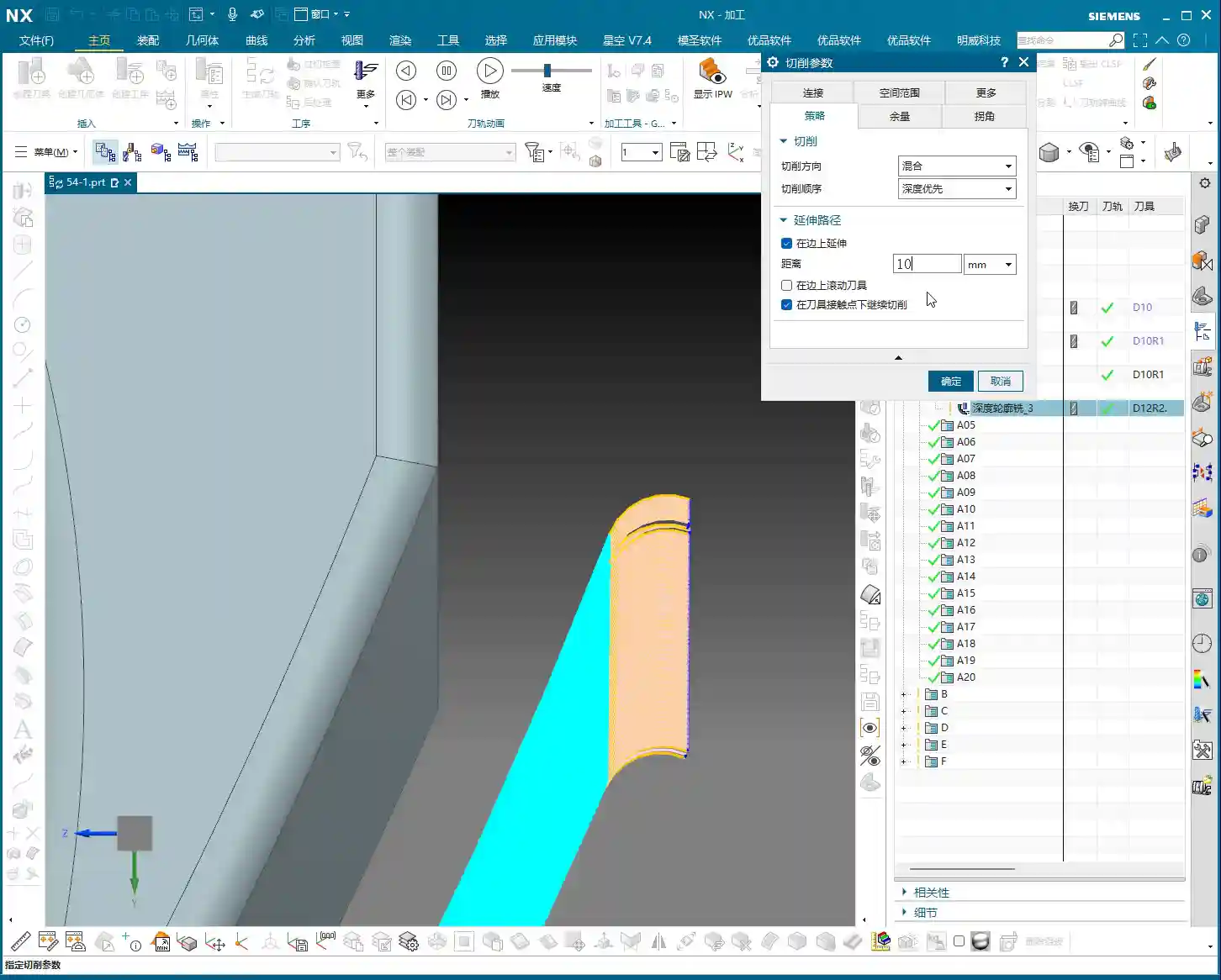
    This function in NX is typically found in options related to Non-Cutting Moves or Cutting Parameters. You can set a distance, such as 10mm, in the Extend section. Once this parameter is set, the toolpath will extend outwards from the boundary line by that specified distance.

    But! Here’s another pitfall! If you’re using the default “Automatic” setting, the tool will extend along all boundaries, including top, bottom, left, and right. This can lead to problems.

    • Unnecessary Extension: Some workpieces may not require extension at the top and bottom. Extending there could even cause collisions with fixtures or interfere with other machining operations.
    • Misconception: Many people assume “Extend along Boundary” only affects horizontal directions, but NX’s automatic mode is comprehensive.

    3. Combining with Cutting Layers: Precise Control of Extension Range

    This is the real “master technique” Master Wang is teaching you! When you only want the tool to extend sideways, and not upwards or downwards, you can’t rely solely on the “Extend along Boundary” parameter.

    You need to use the Levels settings, specifically the “Top” and “Bottom” options. Once you have explicitly selected the top and bottom surfaces to be machined here, then combine it with the “Extend along Boundary” function, and you’ll see the magic happen.

    Because you have already constrained the tool’s machining range in the Z-axis through “Top” and “Bottom,” the “Extend along Boundary” function will only extend along the edges of these defined surfaces. It will no longer blindly extend upwards or downwards.

    This is the combined use of “Levels” and “Extend along Boundary.” Listen closely, this isn’t something you’ll easily find in software tutorials; it’s hard-earned, real-world experience. When machining enclosed pockets, once you’ve selected the top and bottom surfaces, the tool can extend horizontally, but it’s “locked” in the vertical direction because there are no more “edges” for it to extend along vertically!

    4. Challenges with Complex Workpieces: Extension in Closed Regions

    As mentioned in the video, if you’re machining a completely enclosed pocket, like a box. If you’ve selected the side walls of the pocket as the machining area, how can the tool “extend along the boundary”? Where would it extend to?

    In this situation, NX will not allow you to extend, or rather, any generated extended toolpath will have no practical meaning. Because it’s a closed region, the tool is already inside, and there’s no “external” space for it to extend into. So, when faced with this, don’t blindly set an extension; it’s pointless.

    You need to understand that NX’s functions are static; it’s the operator who’s dynamic. You can’t rigidly apply every feature; you must flexibly adjust based on the workpiece’s geometry and machining requirements. That’s the true wisdom in mechanical machining.

    Summary: Pitfall Avoidance Guide

    1. Fillet Corner Cleanup: When deep contour milling a bottom fillet, it’s crucial to make the tool go a bit deeper (e.g., add a negative or positive value to sink the tool in the Z-axis direction) in the Bottom parameter within the Levels settings. This ensures the fillet is thoroughly machined to size. Don’t forget to click an empty area to refresh NX!
    2. Toolpath Strategy Selection: For roughing and semi-finishing, prioritize Mixed Milling for high efficiency and fewer air cuts, which effectively reduces costs. For finishing passes on side walls requiring high surface quality, consider Climb Milling. Conventional milling is rarely used.
    3. Boundary Extension Control: The default “Extend along Boundary” extends in all four directions. When you only want the tool to extend horizontally, you must combine it with selecting the Top and Bottom surfaces within the Levels settings to clearly define the tool’s machining range in the Z-axis. This makes the extension function behave as intended.
    4. Workpiece Geometry Limitations: When machining a completely enclosed pocket, it’s not advisable to set “Extend along Boundary” because the tool cannot extend outwards. Setting it would be futile and could even lead to errors.
    5. Real-World Verification: Any parameter modification must be verified after a machine dry run or a small-scale trial cut. Carefully observe the toolpath, chips, sparks, and even feel the workpiece to truly confirm the effect. Software simulation is just a reference; actual machine performance is paramount.

    Remember, these are insights Master Wang has painstakingly accumulated over fifteen years, honed through practical experience—you won’t just find them in any textbook. Practice more, observe more, and analyze more, and you’ll truly master NX and become a qualified expert!

    👤 About the Author:
    The author is a veteran CNC machining professional with 15 years of industry experience, specializing in UG NX programming. This article is an original work representing personal practical insights.

    ⚠️ Copyright Notice: Unauthorized reproduction or distribution without prior communication is strictly prohibited.

  • NX Deep Contour Milling Toolpath Optimization: Engineer Wang Explains Depth Layers, Merge Distance,

    📝 Key Takeaways: Engineer Wang provides expert insight into core parameters for NX Deep Contour Milling: Merge Distance to control tool lifts, Minimum Cut Length to prevent inefficient micro-cuts, and a multi-layered Depth Layer strategy for fine-tuned machining. This guide will help you optimize your toolpaths and boost machining efficiency.

    Hello everyone, this is Lao Wang, Engineer Wang. Today, let’s continue to discuss those seemingly minor parameters in Siemens NX that actually dictate your machining efficiency and part quality. Listen up, these are practical experiences you won’t find in textbooks.

    I. Merge Distance: Connecting Toolpaths, Reducing Idle Moves

    We’ve discussed “Merge Distance” before in other operations, like DB-type machining and Planar Profile Milling. Simply put, it controls whether the tool will lift and rapid traverse or remain engaged and connect between different cutting regions.

    Practical Example: Deciding Between Tool Lifts and Continuous Motion

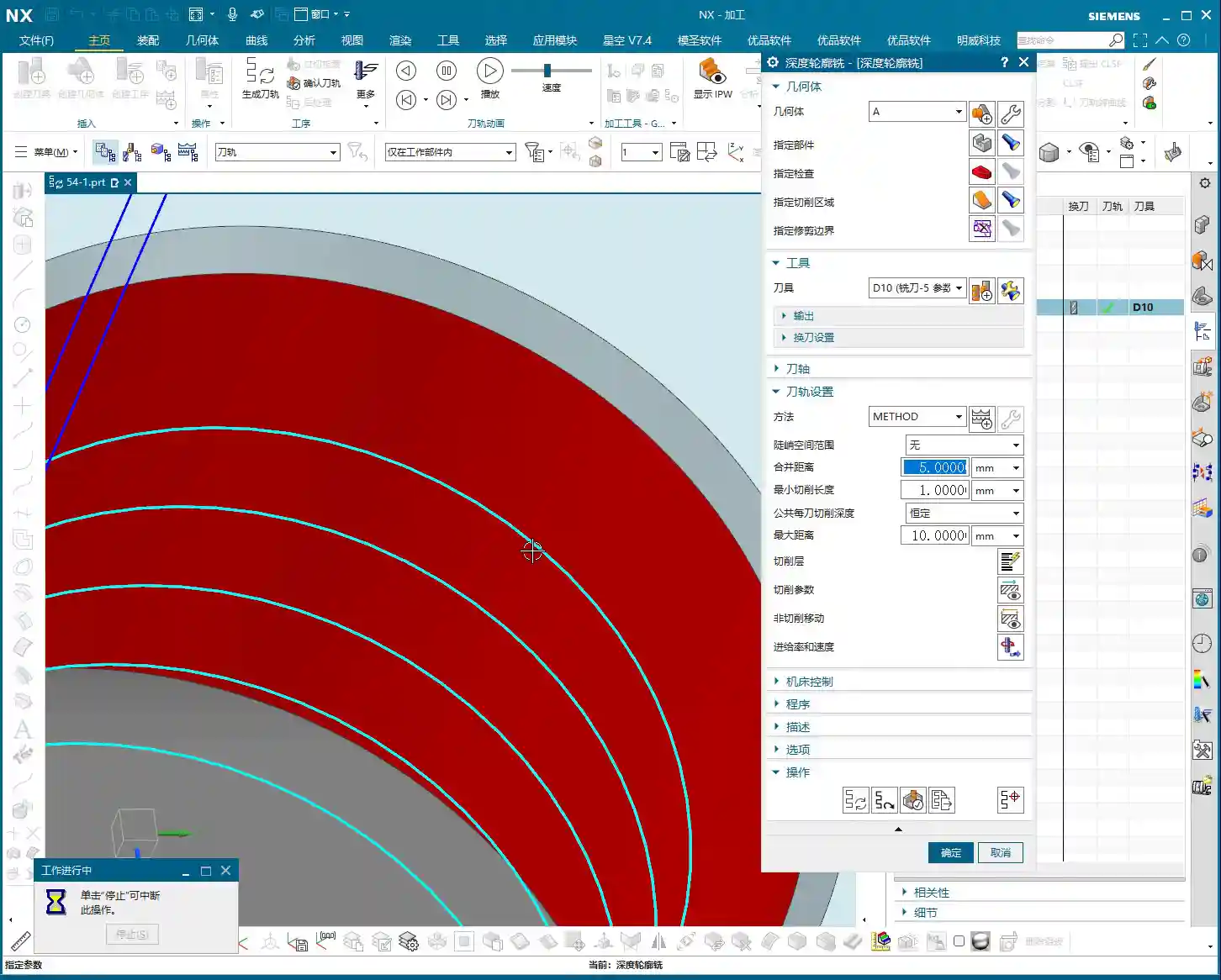
    For instance, imagine you’re machining a part with an empty space in the middle, or a 5 mm gap between two cutting regions. If you set the Merge Distance to 10 mm, Siemens NX will consider these two areas connected because 10 mm is greater than the 5 mm gap. The tool will then move directly across without lifting. The machining path will be continuous.

    However, if you set the Merge Distance to 1 mm, NX will recognize that 1 mm is much smaller than the 5 mm gap, indicating a definite need for a tool lift. In this scenario, you’ll see the tool rapidly lift, then move to the next cutting point before re-engaging. This is what we call a “tool lift” or “rapid traverse,” which is represented by blue rapid move lines (G00) in the program.

    So, this parameter gives you a choice: if you want the tool to maintain continuous motion to avoid unnecessary tool lift and plunge times, set it larger. If you prefer explicit tool lifts for clearer path segmentation, set it smaller. The specific value depends on your part’s features and your efficiency requirements. However, if your part is a fully continuous circle or any other closed, continuous shape, then “Merge Distance” becomes irrelevant, as there are no gaps to “merge.” You can simply ignore it.

    II. Minimum Cut Length: Avoiding Short, Inefficient Paths

    The “Minimum Cut Length” parameter, as its name suggests, controls the shortest distance the tool will machine. In complex contours, Siemens NX sometimes generates very short cutting paths, perhaps just a few tenths of a millimeter. These short paths are inefficient on a real machine, prone to chatter, and can accelerate tool wear.

    Practical Example: Eliminating Ineffective Micro-Cuts

    If your Minimum Cut Length defaults to 1 mm, Siemens NX will ignore all cutting paths shorter than 1 mm. This effectively eliminates those “junk” micro-cuts. The tool will only execute a cut when its length meets or exceeds your set value. This is beneficial for maintaining stable toolpaths, reducing unnecessary tool wear, and improving overall efficiency.

    Typically, the default 1 mm is sufficient. In my years of experience, I rarely change this parameter. It primarily addresses fragmented geometric features, helping to keep the toolpath “cleaner.” For these less common scenarios, it’s good to simply be aware that this function exists.

    III. Depth Layers: Fine-tuned Control for Deep Machining

    Alright, here’s the main event. These “Depth Layers” are one of the core elements in Deep Contour Milling, something I’ve emphasized repeatedly in Cavity Milling. Frankly, how well you program in Siemens NX and how optimized your toolpaths are largely depend on your understanding and application of “Depth Layers.”

    Depth Layers Basics: Why Only One Layer?

    When you open “Depth Layers,” do you find it defaults to “One Layer”? Don’t be surprised, it’s completely normal. This is because there might only be a single flat area requiring machining between the tool and the part, or the system automatically determines that only one depth layer is needed to achieve the goal. For example, if you’re simply side milling a straight wall, one depth layer is sufficient.

    Top Face and Bottom Face: Controlling the Start and End of the Cut

    The “Top Face” and “Bottom Face” options are used to precisely define the start and end positions of your cut. Whichever face you select, the tool will begin or end its deep machining operation from that face. For example, if you select the part’s top face as the “Top Face,” the tool will start its downward cutting motion from there.

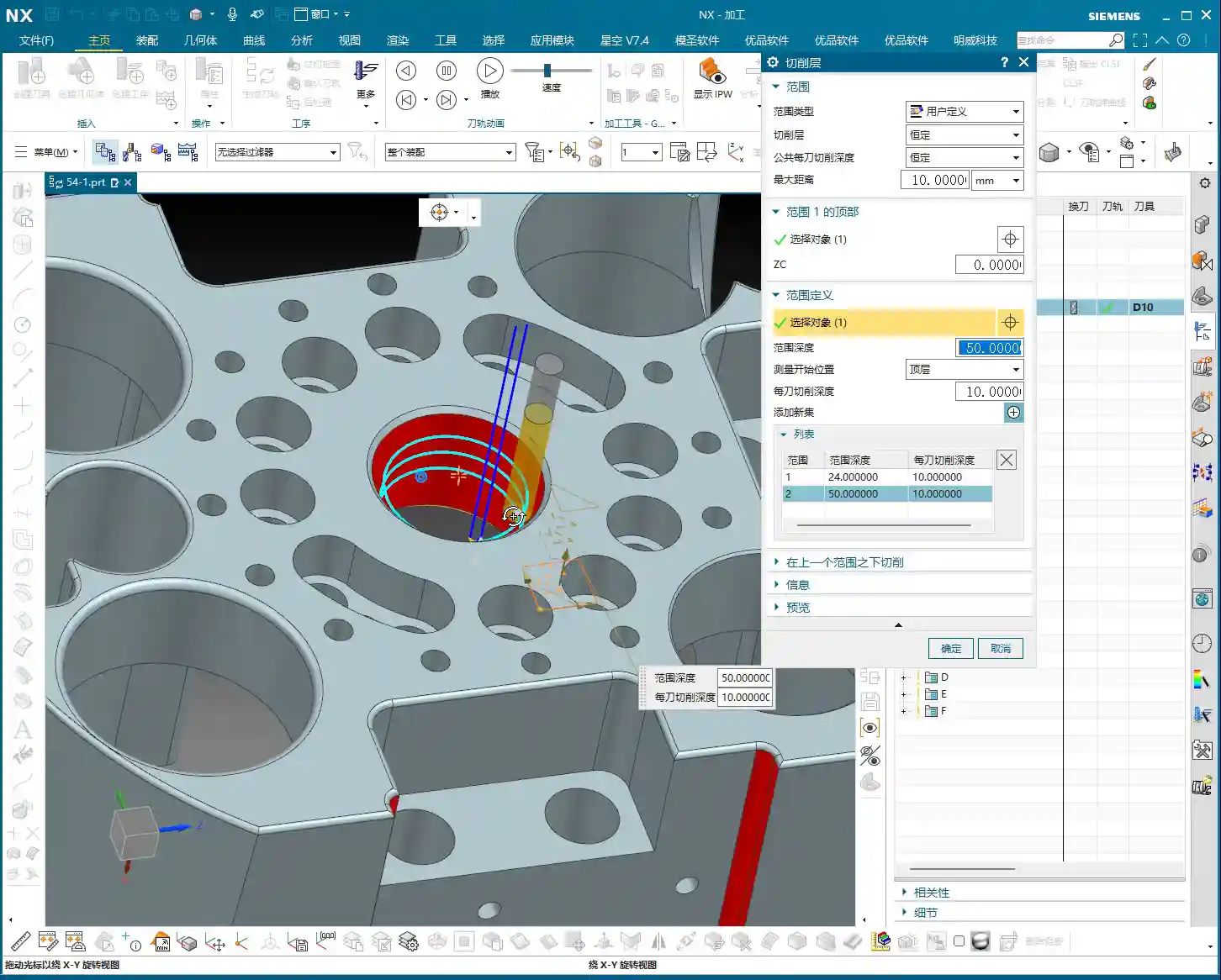
    Another example: for a 48 mm deep circular hole, if you set the “Bottom Face” to Z=-20 mm, the tool will only machine to that depth, effectively machining half the hole. This is extremely useful in practical machining, for instance, if you only want to machine a specific region or if you’re machining in stages.

    Multi-Layer Depth of Cut: Flexible for Complex Geometries

    The most powerful aspect of “Depth Layers” is the ability to add multiple layers and define a different “Depth of Cut (DOC) per pass” for each. For example, on a part where the first 20 mm is a straight wall and the subsequent 30 mm is a large fillet. For the straight wall section, you can take a deeper cut, say 5 mm DOC per pass. When you reach the fillet, to ensure surface finish, you might need to reduce the DOC per pass to 1 mm or even smaller. This allows for much finer control.

    The operation is straightforward: add a new layer, then specify a new Z-axis depth range for this layer, and finally, set an independent Depth of Cut (DOC) per pass for it. This way, the tool can machine with varying depths of cut in different Z-axis regions.

    This principle is similar to how we sand a panel: for rough grinding, you remove more material; for fine grinding, you go thinner; and for polishing, you need an even shallower Depth of Cut (DOC). The same logic applies in the software: the closer you get to finishing passes, especially in areas with demanding curved or angled surfaces, the smaller your Depth of Cut (DOC) needs to be, and your Stepover should be adjusted accordingly. Conversely, for straight walls or roughing stages, both Stepover and Depth of Cut (DOC) can be more aggressive, prioritizing efficiency.

    Optimization Options and Standard Practices

    There’s also an “Optimization” option within “Depth Layers,” which is quite complex and involves strategies for optimizing toolpath connections. We’ll skip that today. Later, when I program a more intricate part, I’ll dedicate a separate lesson to thoroughly explain what this “optimization” means and how to use it to truly boost efficiency.

    However, there’s one point I want to emphasize: in Deep Contour Milling, we have a standard practice. Regardless of whether you’re only machining one face, if the part has clear top and bottom faces, we tend to select both of them. Why? This ensures that Siemens NX, when calculating the depth layers, can more accurately capture the part’s overall depth information, leading to more logical toolpaths. While sometimes, if you’re only machining one face, selecting both might not make a difference, cultivating this good habit can prevent many subsequent issues.

    Practice, Practice, Practice!

    These “Depth Layers” are absolutely critical for us in Siemens NX programming. Not just in Deep Contour Milling, but in Cavity Milling as well. Their utility is immense. So, I highly recommend you all go back and practice. Sketch a few parts with varying depths and shapes, then try using “Depth Layers” to control the Depth of Cut (DOC) for each pass and observe the toolpath changes. Only by hands-on practice and critical thinking can you truly master these practical tips.

    Summary: Pitfall Avoidance Guide

    1. Merge Distance: Bigger Isn’t Always Better

    • Don’t blindly set the Merge Distance to a very large value. While it can reduce tool lifts, if there are obstacles or non-cutting regions in between, it could lead to tool collisions or inefficient cutting.
    • Select an appropriate value based on the actual gaps in the workpiece to ensure both efficiency and safety. If the gap contains features like bosses, even if a continuous cut is possible, you must consider whether the tool will interfere with these features.

    2. Minimum Cut Length: Be Careful Not to Delete Critical Paths

    • The default value of 1 mm is usually sufficient, but if you encounter tiny features that genuinely require machining, and your set Minimum Cut Length is too large, these features might be ignored, leading to incomplete machining.
    • For parts with extremely high precision requirements and very small feature sizes, this value might need to be set smaller, but you must balance tool life and machining stability.

    3. Depth Layers: Don’t Treat Theory as a Panacea

    • Multi-layer Depth of Cut (DOC) offers flexible control, but you must consider material, tooling, and machine rigidity holistically. Not all situations are suitable for large or small depths of cut.
    • Newcomers often focus solely on beautiful software simulations, neglecting real-world machining issues like chatter, chip evacuation, and cutting forces. Remember: Don’t just rely on software simulations; observe the cutting sparks, listen to the cutting sound, and feel the machined surface!
    • The Z-axis ranges and DOC per pass for multi-layer cutting must be precise, especially for the final finishing pass layers. The depth of cut should be small, and the Stepover should also be fine to ensure surface quality.
    • Make it a habit in Deep Contour Milling to always select the workpiece’s top face and bottom face as the boundaries for your depth layers. Even if the current operation doesn’t strictly require it, this provides the system with more comprehensive geometric information, facilitating subsequent adjustments and optimizations.

    👤 About the Author:
    The author is a veteran CNC machining professional with 15 years of industry experience, specializing in UG NX programming. This article is an original work representing personal practical insights.

    ⚠️ Copyright Notice: Unauthorized reproduction or distribution without prior communication is strictly prohibited.
  • Practical Siemens NX Deep Contour Milling: The Ultimate Tool for 3D Surface Machining – Master Wang’

    📝 Key Takeaways: NX Deep Contour Milling: A Practical Guide to 3D Surface Finishing

    Master Wang’s Talk: Deep Contour Milling – What Exactly Is It?

    Hello everyone, I’m Old Wang. Today, let’s skip the small talk and dive right into the main course – Deep Contour Milling. You might have read about this in textbooks, but understanding how and when to actually use it involves a lot of practical knowledge.

    Listen up, Deep Contour Milling, as the name suggests, is for machining “contours.” So, how is this different from the “Planar Profile Milling” we discussed before? The difference is significant! While both machine contours, Planar Profile Milling is rigid; it only deals with **straight, vertical 2D sidewalls**. Give it an inclined surface or an arc, and it’s completely lost.

    Our Deep Contour Milling, however, is a “versatile player.” Its greatest strength is its ability to handle **complex 3D surfaces**! Whether it’s inclined planes, fillets, radii, or various freeform surfaces – as long as it’s a sidewall, it can mill it precisely and smoothly. That’s why it’s our “go-to tool” for finishing, especially for precisely machining complex surface sidewalls.

    Machining Strategy: The Frontrunner for Finishing

    Before we dive into the NX operations, let’s get our strategy straight. Deep Contour Milling is specifically for **finishing, surfacing sidewalls, and Corner Cleanup**. Don’t even think about using it for Roughing; that’s like using a sledgehammer to crack a nut – it’s inefficient and puts unnecessary stress on the tool.

    • Roughing: Remember, there are dedicated operations for Roughing, such as Cavity Mill, Face Milling, etc. These are designed for aggressive material removal. First, use Roughing to remove most of the material and mill out the blank’s basic shape.
    • Finishing: By the time Deep Contour Milling comes into play, there should only be a thin layer of material remaining on the part. At this point, we use **small-diameter ball end mills or bull nose end mills**, combined with Deep Contour Milling, to finish the sidewalls, achieving the required accuracy and surface finish. Of course, for some tight corners or blind spots, you’ll need even smaller tools, or even custom-ground tools.

    Sometimes you’ll see the “Deep Spiral” option; that’s actually a specialized helical feed strategy within Deep Contour Milling. It’s also for finishing sidewalls, and the principle is similar. Let’s put that aside for now and focus on the main concept.

    Key NX Operations: Follow Master Wang and Avoid Years of Trial and Error

    Step One: Work Coordinate System (WCS) Setup

    This step is a common topic, but it still needs emphasizing. WCS setup is the foundation of all programming. This time, you don’t have to place it at the part’s center. You can place it at any corner, for example, a “pinch point” on the model, then rotate it 180 degrees so the X-axis aligns with your preferred machining direction. Remember, this is just a matter of preference and doesn’t affect your final programming logic or toolpath.

    Each time, we must first create a **Workpiece** geometry and then specify our **Part** and **Blank**. However, since Deep Contour Milling is mainly for finishing, the blank has usually been largely machined already. So sometimes, you can directly delete the blank and keep only the part, which speeds up software calculations.

    Step Two: Specifying the Machining Area – Avoiding the “Select All” Trap

    This is a crucial point! After entering the Deep Contour Milling operation, besides specifying the part, the most critical step is **”Specify Cut Area.”** Why emphasize this? Because new programmers often have a habit of blindly selecting the entire part. The tool then runs unnecessarily over areas that don’t need machining, which is a waste of time and increases wear.

    The essence of Deep Contour Milling lies in its ability to precisely machine your desired **local sidewalls**. For instance, if you only want to finish the sidewall of a specific hole or the inclined surface of a certain step, you must **explicitly specify these areas**. If you don’t, it won’t know where to machine.

    During the operation, open the “Specify Cut Area” option, then directly select the faces you want to machine on the model. This way, the toolpath will only be generated within this specific area, ensuring both efficiency and precision.

    Step Three: Tool Selection and Toolpath Generation

    Tool selection depends on the features you intend to machine. For example, to clean up an R5 fillet, you can’t possibly use a D10 tool, can you? Typically, flat end mills or bull nose end mills are used for finishing sidewalls, while ball end mills are commonly used for Corner Cleanup. Remember to choose the right tool, such as a D10 end mill for finishing a relatively large bore wall.

    Once all parameters are set, it’s time for the “stroll” phase – toolpath generation. You young folks, don’t just stare at the computer screen. After the toolpath is generated, you must **carefully simulate and inspect it**. Check if the tool’s trajectory is reasonable, if there are any air cuts, overcuts, or areas prone to heavy Depth of Cut (DOC). Software simulation alone won’t show you machining sparks, so experience and visual inspection are indispensable.

    Master Wang’s Pro Tips: Tricks to Boost Efficiency

    NX View Rotation Trick

    When rotating models in NX, do you often find the model flying off, not rotating to the position you want to see? That’s because you haven’t identified the correct center point for rotation.

    Listen up, here’s a little trick: When you need to observe the model around a specific point (like a hole or a fillet), **hold down the middle mouse button on that point, don’t release it**, then drag the mouse to rotate. You’ll then notice that the model rotates around the point you’re holding, making observation much easier! This trick isn’t something textbooks necessarily teach you; it’s something we’ve picked up through hard work and experience on the shop floor.

    Leverage NX Effectively to Avoid Repetitive Work

    Many operations in NX are interconnected, such as “Specify Part,” “Specify Blank,” and “Specify Cut Boundaries.” Once you’ve learned them, there’s not much more to say. Practice more, think more. Only by mastering these fundamentals can you free up your mind to explore more advanced techniques.

    In our next lesson, we’ll delve deeper and thoroughly review the other options within Deep Contour Milling. That’s all for today. See you next time!

    Summary: Guide to Avoiding Common Mistakes

    1. DO NOT use Deep Contour Milling for Roughing! It’s a powerful tool for Finishing, not a brute-force tool for Roughing. Using it for Roughing is not only inefficient but also prone to tool wear and part damage.
    2. Precisely Specify the Cut Area! Don’t be lazy, and don’t “select all.” Select the specific sidewall surfaces that require machining to ensure efficient and precise toolpaths.
    3. Inspect the Toolpath! After the toolpath is generated, always simulate it carefully. Observe the tool’s entry and exit moves, and its cutting path, to confirm there are no overcuts, collisions, or air cuts. This will save you a lot of trouble compared to rework later.
    4. Understand the Difference Between 2D and 3D! Planar Profile Milling only handles straight walls, while Deep Contour Milling can tackle all kinds of sidewall surfaces. However, neither is suitable for machining large flat surfaces. Choosing the right operation will make your work twice as effective with half the effort.

    👤 About the Author:
    The author is a veteran CNC machining professional with 15 years of industry experience, specializing in UG NX programming. This article is an original work representing personal practical insights.

    ⚠️ Copyright Notice: Unauthorized reproduction or distribution without prior communication is strictly prohibited.