Tag: Finishing Pass

  • Master Wang’s Exclusive: Five-Axis Part Front Surface Finishing Pass Programming Secrets – Avoid Com

    📝 Key Takeaways: Master Wang details five-axis part front surface finishing pass programming, covering variable guide lines, ball end mill selection, fixed Z-axis tool axis control, stepover, stock allowance, and clearance angle settings, then moving to corner cleanup and hole feature processing. This practical guide integrates real-world experience and pitfall avoidance tips, ensuring high efficiency and precision—a hardcore practical lesson in Siemens NX programming.

    Hello everyone, Master Wang here. Today, we’re diving deeper into the intricacies of five-axis machining to discuss a critical technical point: programming a finishing pass for the front surface of five-axis parts. Don’t be fooled by how smooth operations look on the software interface; in reality, running this on the machine reveals a wealth of practical knowledge. Listen up! Today, I’m passing on the “true skills” I’ve honed over years of hands-on experience.

    Chapter One: Front Surface Finishing Pass Strategies and Tool Selection

    As we all know, the front surface of a part typically demands the highest precision and critical surface quality. Therefore, for the finishing pass, strategy selection and tool pairing are paramount – no room for sloppiness here.

    1.1 Guide Line Cutting: The Clever Use of Variable Guide Lines

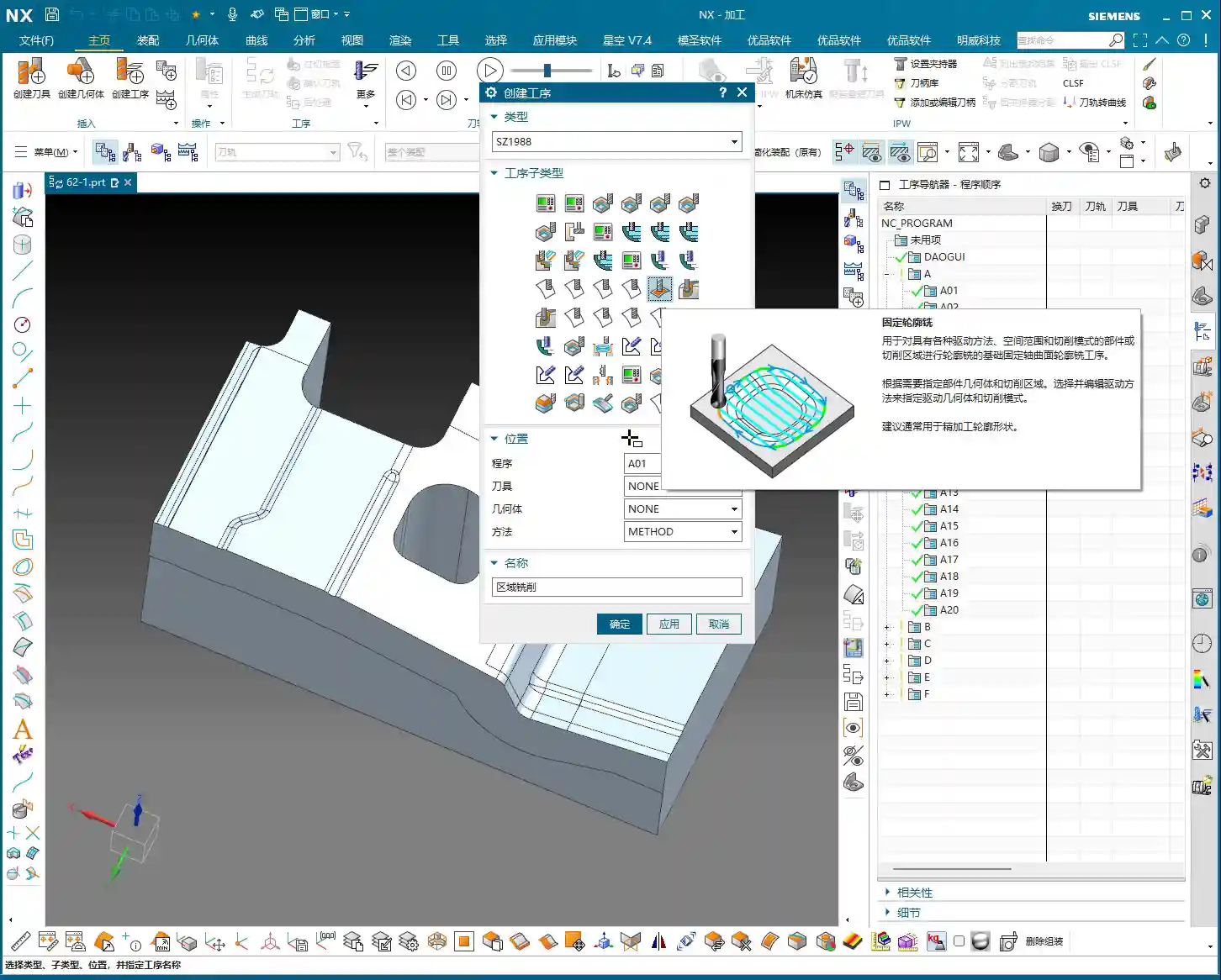
    For finishing passes, especially on complex surfaces, Siemens NX offers a valuable feature: Variable Guide Line Cutting. This function automatically adjusts the direction and density of guide lines based on the part’s geometry and cutting direction, resulting in a more uniform toolpath and superior surface quality.
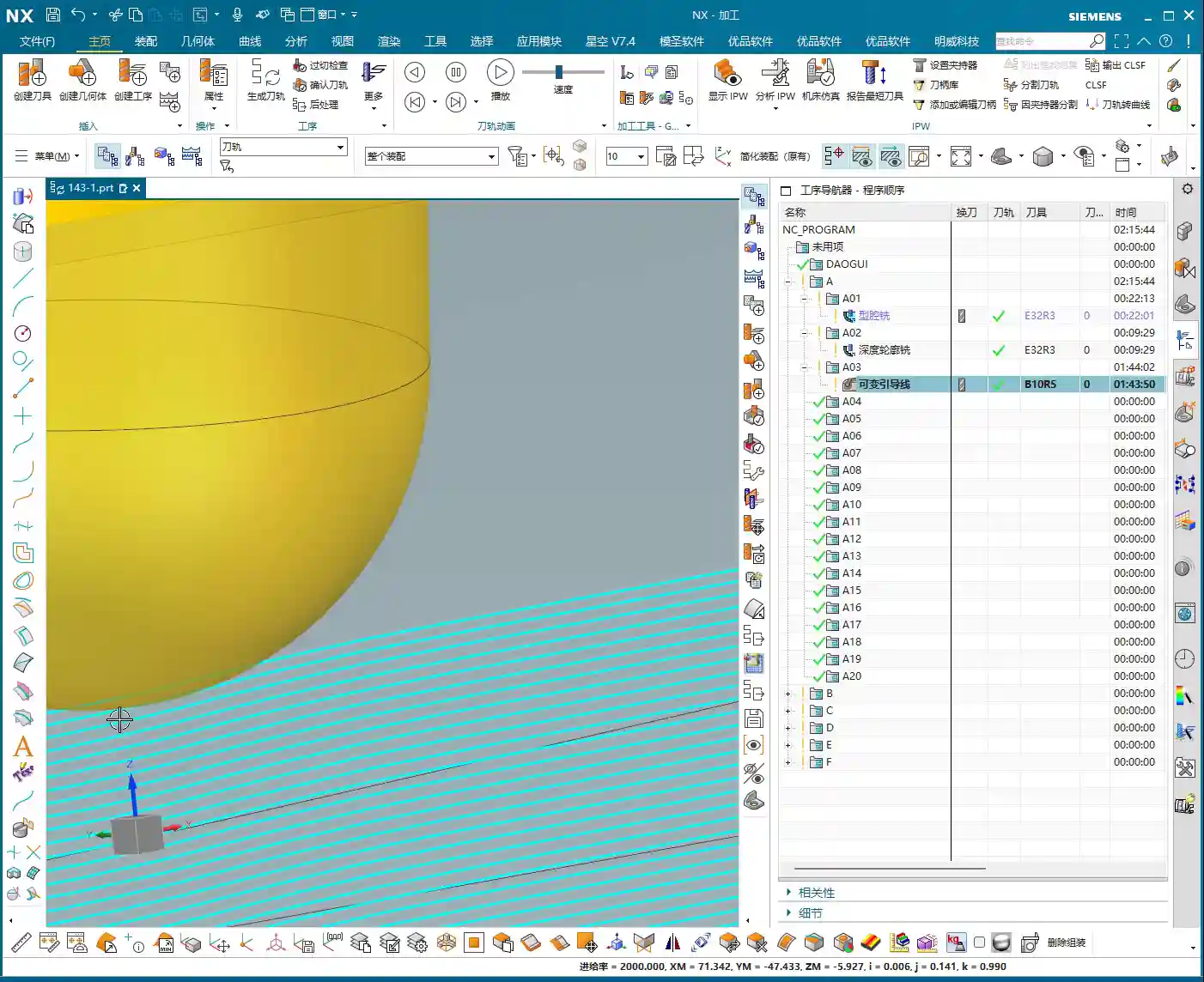
    • Key Operational Points: Select the “Variable Guide Line” strategy. We’ve discussed this before, but here I want to emphasize its extreme adaptability to complex surface shapes. Don’t just think about a single line going straight through; you need to let it “come alive” according to the surface contours.
    • Master Wang’s Tip: Don’t just look at the software simulation and assume everything’s perfect just because it looks smooth. During actual machining, you must observe the color and size of the cutting sparks. Uniform, normal-colored sparks indicate stable cutting load and good surface quality. If the sparks are inconsistent or dark, it’s likely due to an uneven toolpath or mismatched feed and speed; adjustments are needed immediately.

    1.2 Tool Selection: Ball End Mills are Key

    For front surface finishing passes, especially those with curves or complex surfaces, we typically opt for ball end mills.

    • Size Considerations: Selection is usually based on the curvature radius of the surface being machined. The audio mentions an “R10 ball end mill” as a common size. However, this isn’t a fixed rule; for smaller surface radii, we use smaller ball end mills; for larger surfaces, we can use slightly larger ones. The principle is to ensure the tool tip isn’t overloaded while balancing efficiency.
    • Material and Coating: For challenging materials like titanium alloys and high-temperature nickel-based alloys, standard carbide tools simply won’t cut it. You need to choose coated tools (e.g., TiAlN, AlCrN), which offer high-temperature resistance and wear resistance, thereby ensuring tool life and machining stability.

    Chapter Two: Toolpath Parameters and Tool Axis Control

    Parameter setting is the soul of five-axis programming, especially toolpath stepover, tool axis control, and clearance distance, which directly impact machining efficiency and precision.

    2.1 Stepover and Stock: Striving for Perfection

    For finishing passes, the stepover and stock allowance must be meticulously controlled. The audio mentions a “0.2mm stepover” and “reciprocal cutting.”
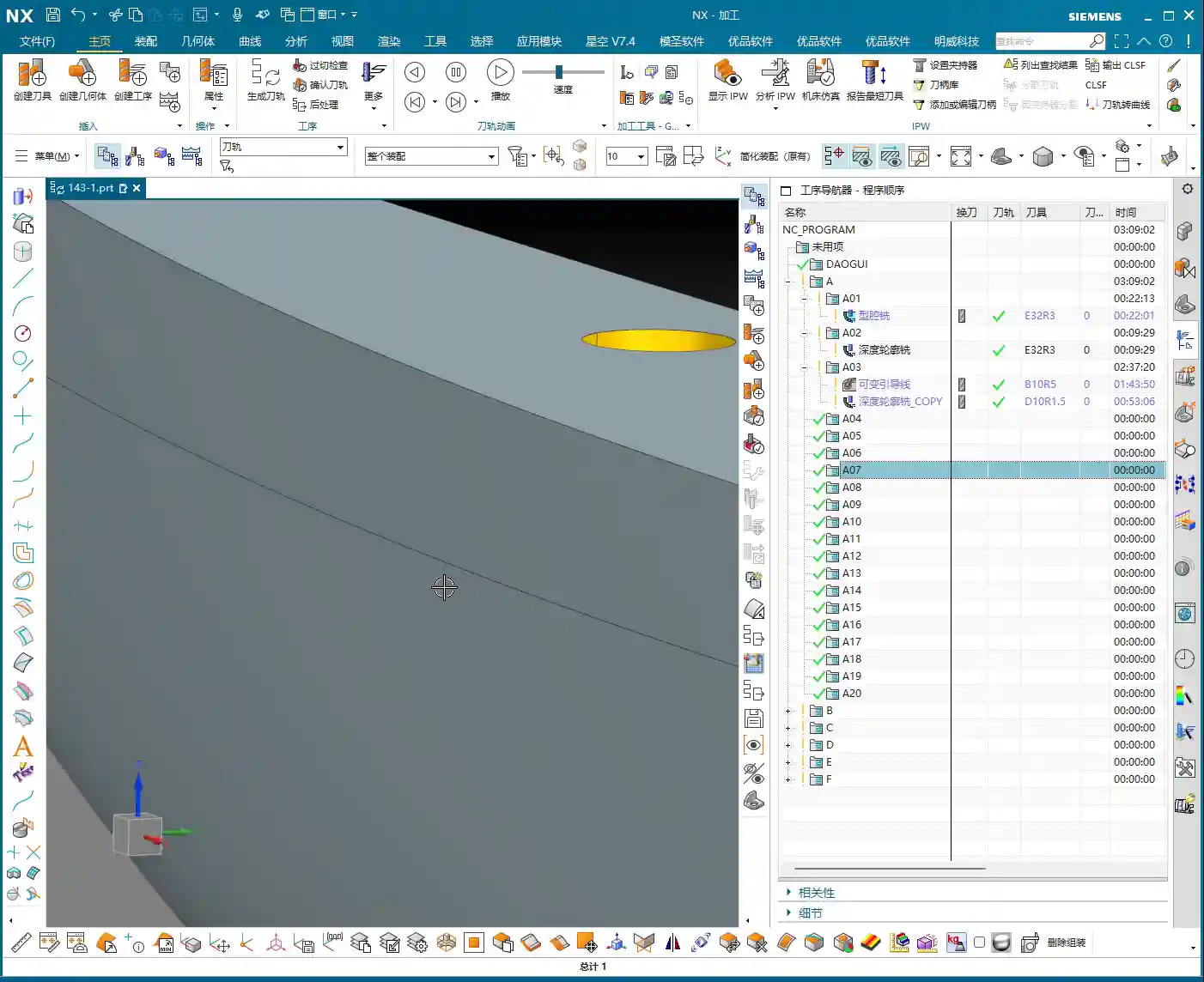
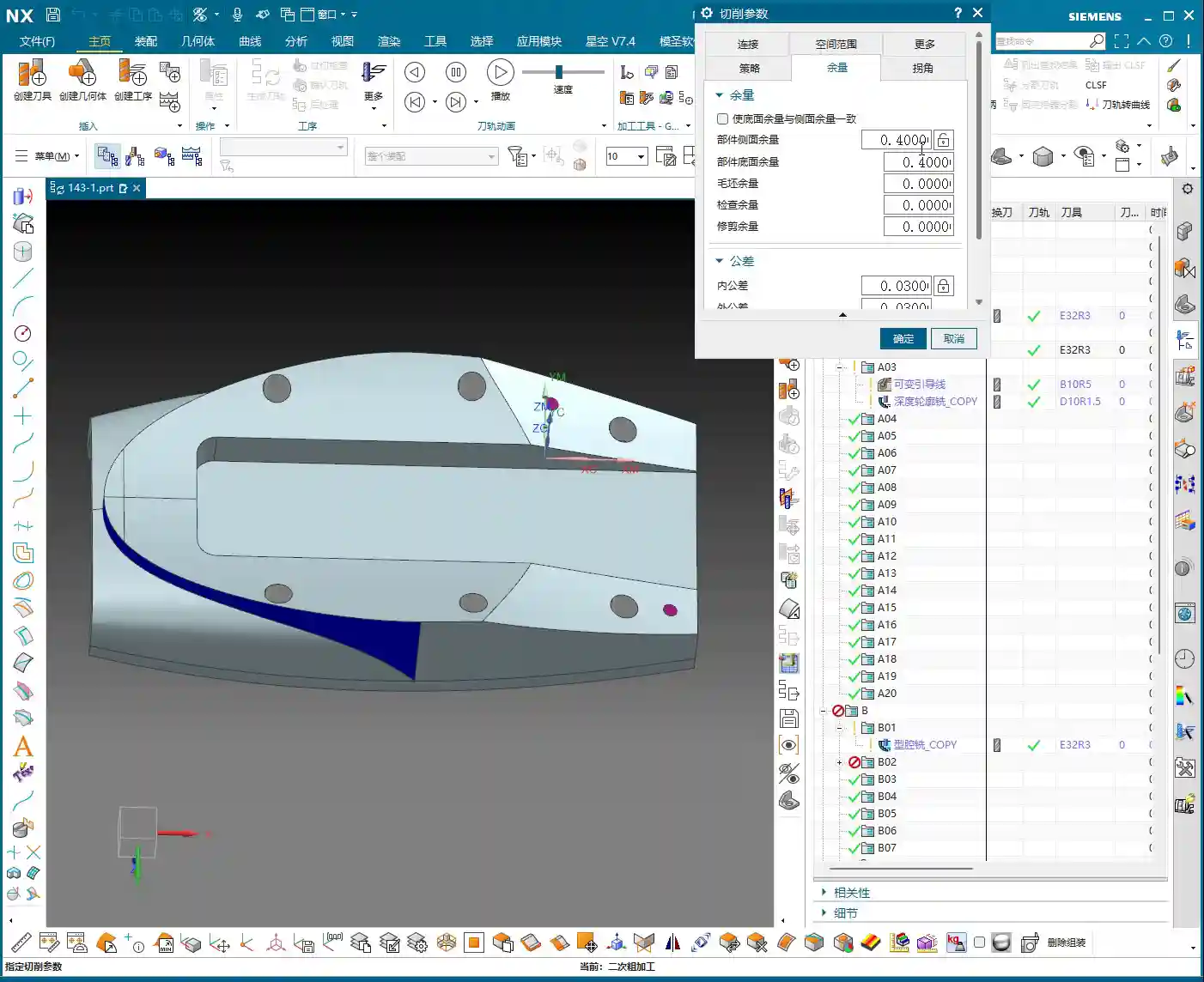
    • Stepover: For finishing passes like this, our lateral stepover (stepover) is typically set quite small, such as 0.2mm or even less. A smaller stepover results in better surface roughness but longer machining time. This requires balancing customer requirements and costs.
    • Stock: The stock allowance after roughing is generally 0.3-0.5mm, while for finishing passes, it’s even smaller, such as 0.05-0.15mm. If the stock is too large, the finishing tool’s Depth of Cut (DOC) will be too much, risking tool chipping. If the stock is too small, the finishing tool might prematurely contact uneven areas of the blank, affecting surface quality.
    • Reciprocal Cutting: This method reduces air cutting time and improves efficiency, especially in long and narrow machining areas.

    2.2 Tool Axis Control: Fixed Z-Axis Strategy

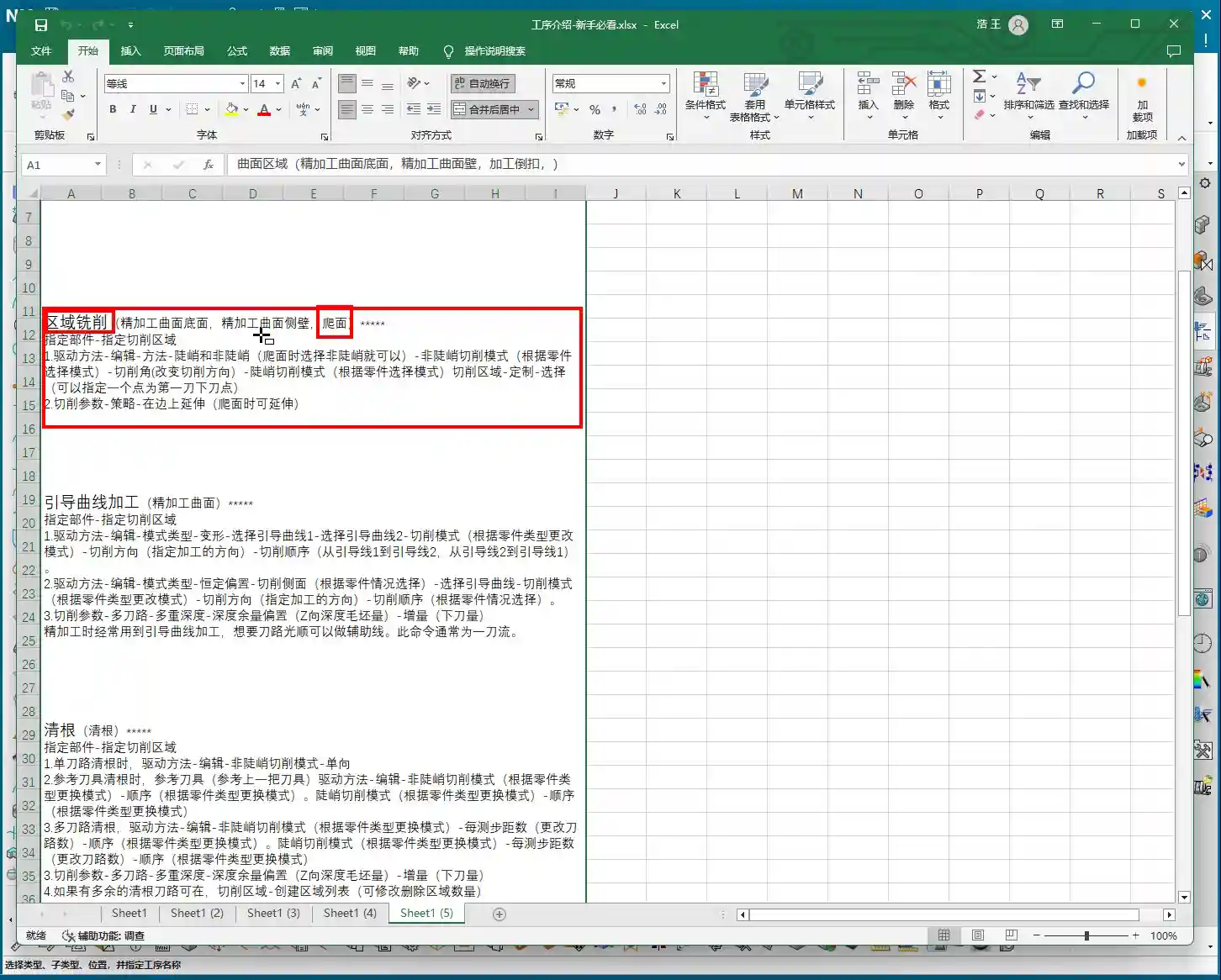
    The most crucial aspect of five-axis machining is tool axis control. For front surface machining, especially in relatively flat areas with slight curvature, we can adopt a “fixed Z-axis” strategy.

    • Fixed Z-Axis: This means the tool’s Z-axis direction remains aligned with the machine’s Z-axis direction, allowing only A/B axis rotation. While ensuring machining stability, this simplifies tool axis calculations and reduces the risk of collision. The audio explicitly states that a “fixed Z-axis” is a good option, especially for beginners, as it helps avoid unnecessary complications.
    • Dynamic Tool Axis: Naturally, when encountering areas like “undercuts” that require large angular articulation to reach, we can’t “foolishly” keep the Z-axis fixed. This is where five-axis simultaneous machining comes into play: the tool axis dynamically adjusts according to the surface geometry, cutting at the optimal angle to avoid interference and back-cutting.
    • Master Wang’s Tip: Don’t just rely on theory. Siemens NX provides tool axis vector display to clearly show how the tool axis changes. However, in practical operation, you must pay more attention to the tool’s posture when entering and exiting the workpiece, especially in corners and steep areas. The tool axis should not change abruptly or violently, as this can easily cause chatter and even damage the tool or workpiece.

    2.3 Clearance Angle and Collision Avoidance: Better Slow and Safe Than One Collision

    Clearance distance and collision avoidance settings are the last line of defense for machine and workpiece safety. The audio mentions setting the “clearance angle to 1 millimeter.”

    • Clearance: Ensure the tool maintains sufficient distance from the workpiece during non-cutting movements. This “1 millimeter” is an empirical value, but it needs to be adjusted based on the workpiece geometry and fixturing complexity.
    • Collision Detection: In Siemens NX, it is imperative to enable the collision detection function. It helps you identify potential interference between the tool holder, tool shank, and the workpiece or fixturing. Especially with five-axis simultaneous movements, where tool axis postures change complexly, manual checks can easily miss issues.
    • Master Wang’s Tip: Don’t assume everything is fine just because collision detection has run. For new parts being machined for the first time, always perform a dry run at the machine. Simulate the toolpath at a slow speed, observing all axis movements and tool postures to ensure absolute safety. I’ve seen too many instances where people thought the software simulation was problem-free, only to encounter “surprises” once on the machine.

    Chapter Three: Complex Area Processing and Program Optimization

    The challenges in five-axis machining often lie in irregular, difficult-to-reach areas, and how to improve overall efficiency through optimization.
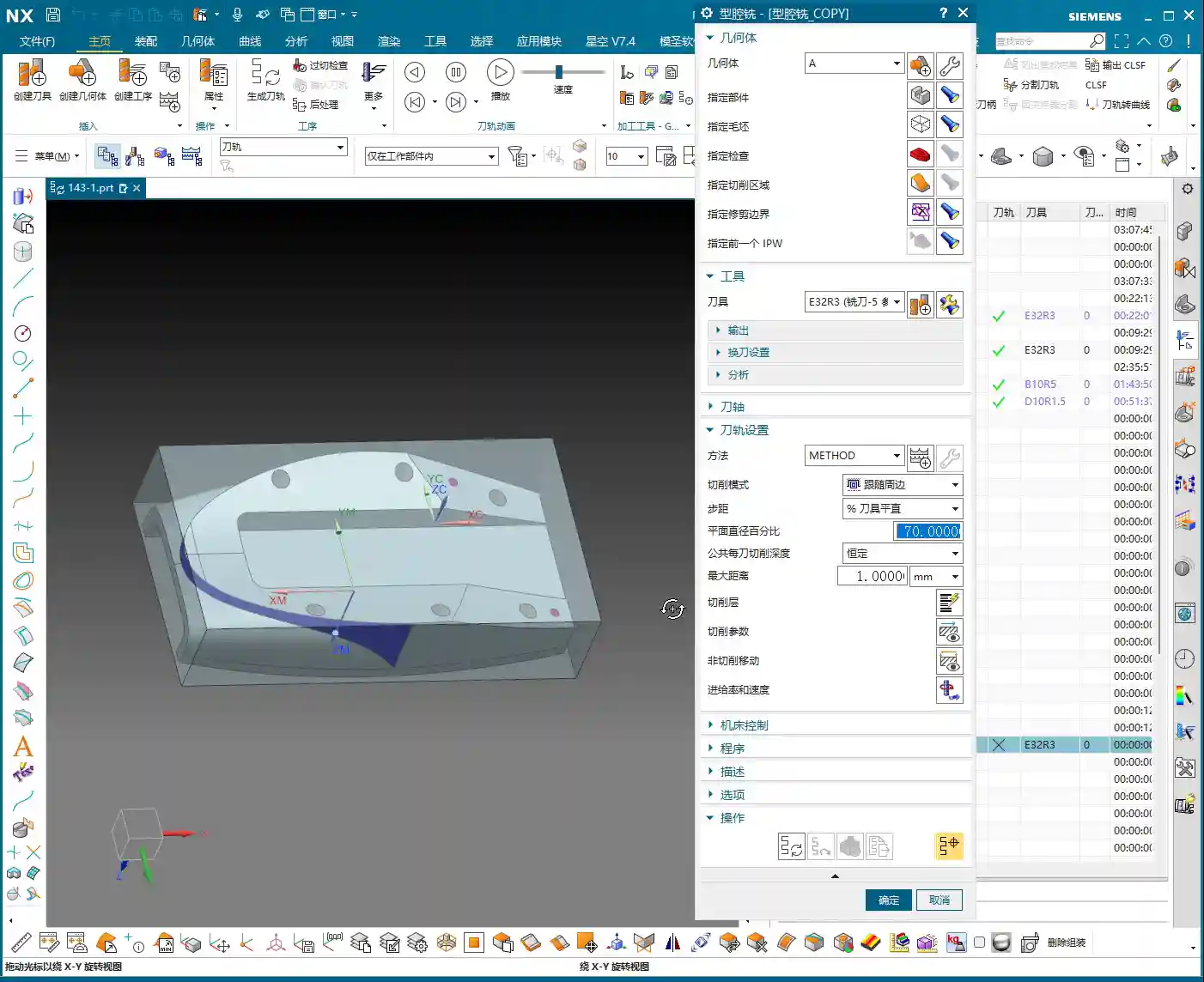
    3.1 Targeted Corner Cleanup and Hole Feature Processing

    The audio repeatedly mentions “corner cleanup” and “blocking off holes“—these are nuggets of wisdom from practical experience.

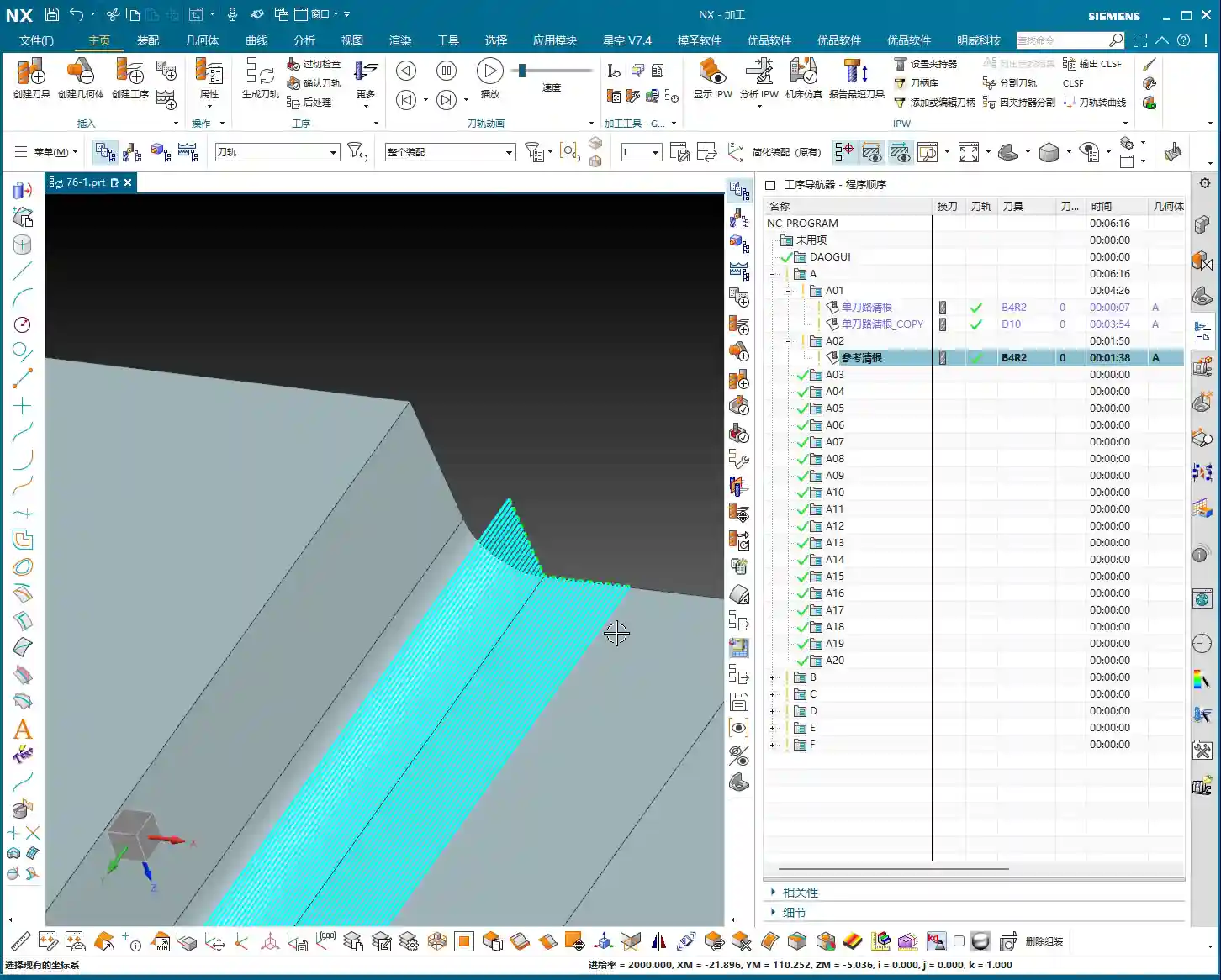
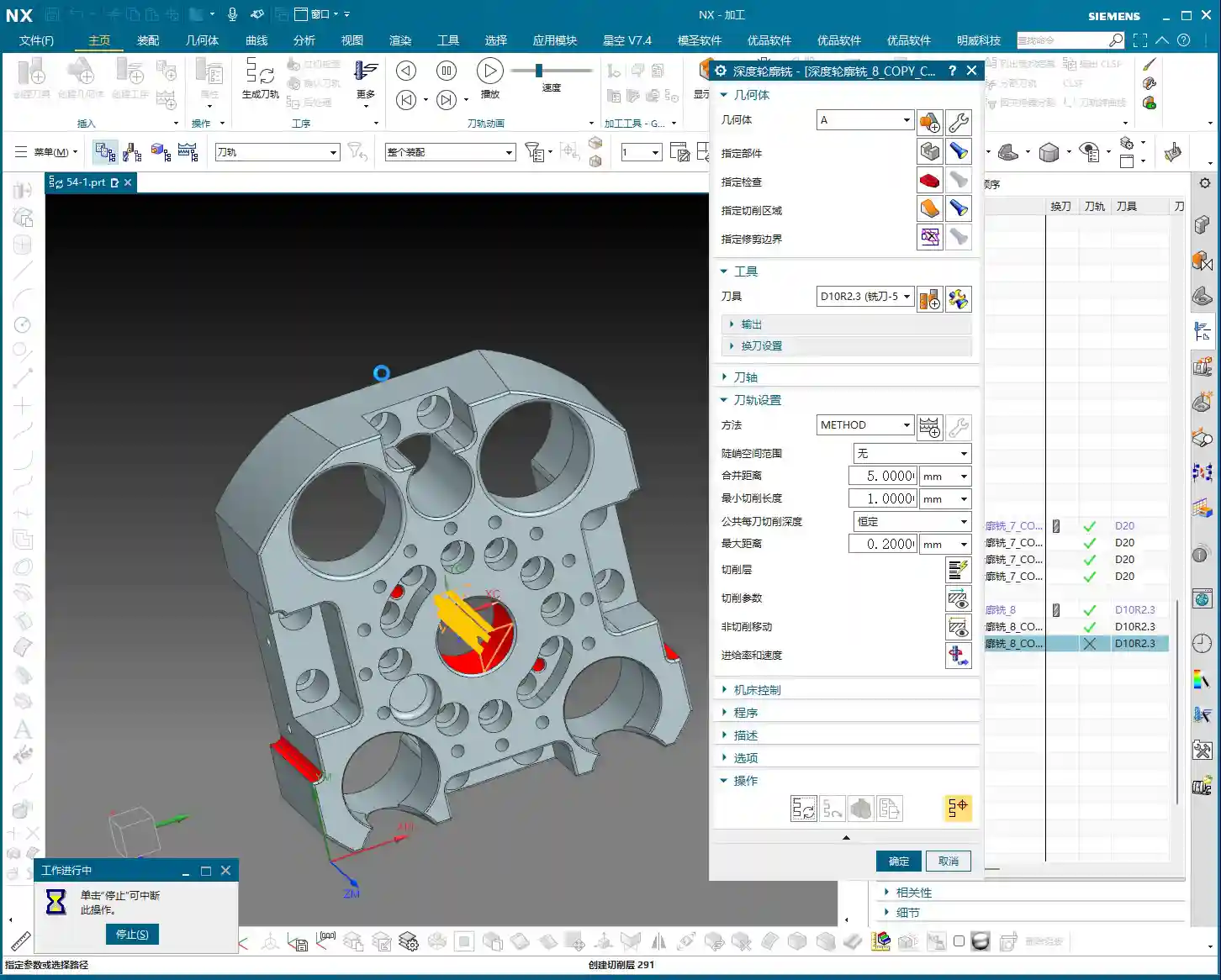
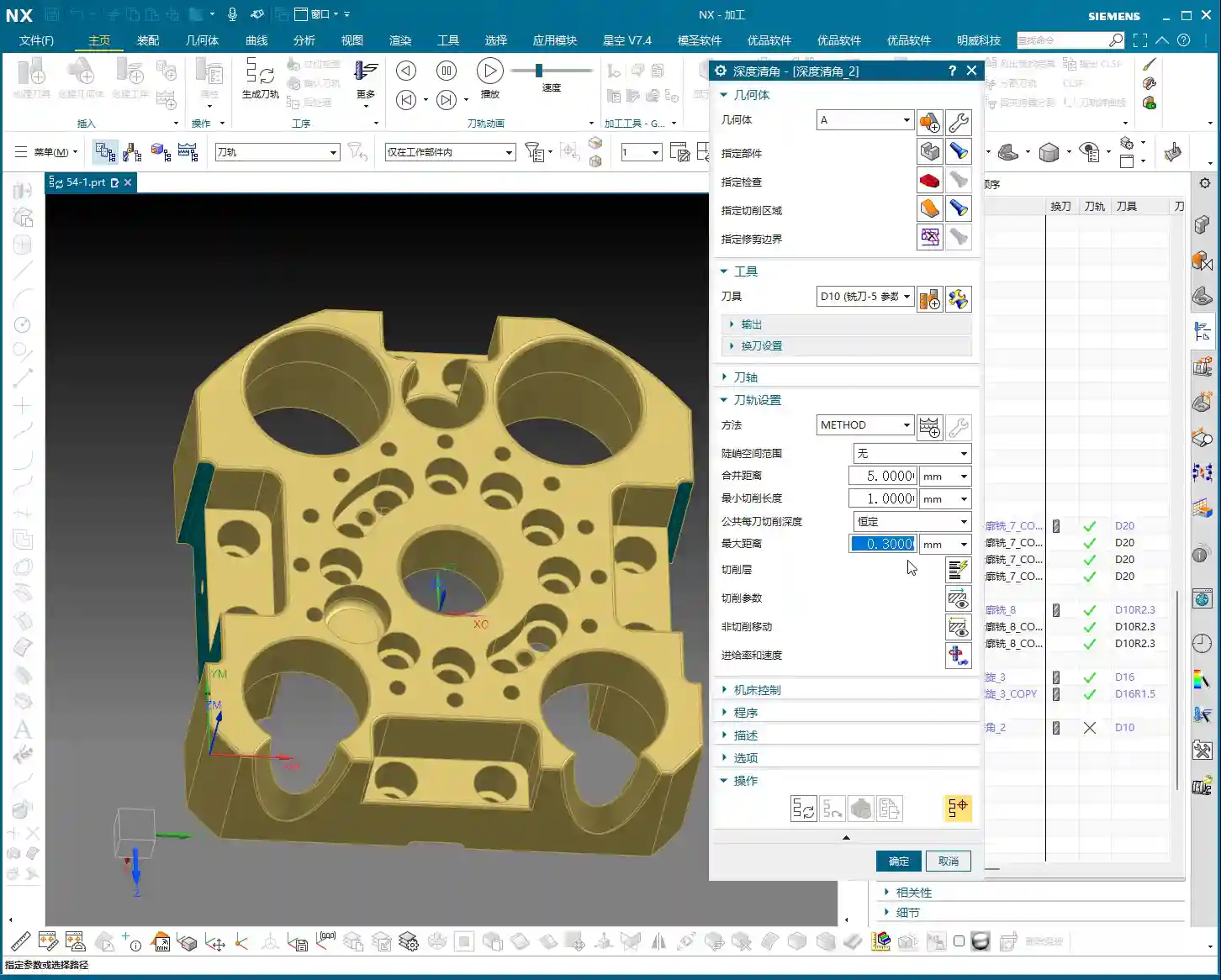
    • Corner Cleanup: In certain areas, such as deep cavities or locations with excessively small radii, a ball end mill might not be able to fully clean. In such cases, we need to create a separate corner cleanup toolpath, using a smaller diameter ball end mill or flat end mill, with a finer stepover and specific tool axis postures for the cleanup. When the audio says “use a B10 tool” or “clean it up,” this is what it refers to.
    • Hole Feature Processing: For holes on the part, especially if they are on the front surface, they should typically be addressed before the finishing pass. When the audio mentions “blocking off this hole,” in NX programming, this usually means excluding the hole faces when selecting the machining region, or using a virtual surface to “cap” it, to prevent the tool from entering the hole for unproductive cutting or to avoid toolpath disruption.
    • Master Wang’s Tip: For hole features, I recommend you “divide and conquer.” First, drill or rough mill the holes, then proceed with subsequent finishing passes. If high hole precision is required, consider boring or reaming. Breaking down a complex problem into several simpler ones is the core strategy for solving machining challenges.

    3.2 Stock Control and Automated Programming

    In multi-stage machining, controlling the stock is crucial. The audio mentions “selecting B” to control the stock, and the practice of “copying programs.”

    • Stock Definition: In Siemens NX, you can define an independent stock model for each operation. For example, the stock model after roughing can be used as the starting stock for the finishing pass. This allows for more precise calculation of the material removal and optimization of the toolpath.
    • Program Duplication and Modification: When the machining logic for different areas is similar, duplicating an existing program and then modifying it can greatly improve programming efficiency. For instance, “copying the program above” and then changing the machining region, tool, or cutting parameters is a common trick used by experienced programmers.
    • Master Wang’s Tip: Don’t think copying programs is lazy; it’s a sign of efficient programming. However, after duplicating, you must meticulously check every parameter, especially the tool, machining region, clearance distance, and tool axis limits, to ensure accuracy. I’ve seen many instances where people copied and pasted but forgot to change a specific parameter, leading directly to scrapped workpieces.

    Summary: Pitfall Avoidance Guide

    Master Wang’s Practical Insights: Don’t Fall Into These Traps Again!

    1. Safety First, Thorough Inspection: Always ensure sufficient clearance and collision detection. For the first setup on the machine, a dry run is mandatory! Don’t just stare at the program; observe the machine and the actual tool motion path.
    2. Parameter Settings, Double-Check Repeatedly: Especially stepover, stock allowance, feed rate, and spindle speed – these are direct determinants of machining quality and efficiency. After setting them in Siemens NX, don’t rush to generate; double-check them again. Don’t underestimate a few tenths of a millimeter; it can decide whether your workpiece is a good part or scrap.
    3. Tool Axis Control, Flexible But Not Blind: A fixed Z-axis is safe, but when encountering complex surfaces, articulate the tool axis as needed. However, ensure smooth tool axis transitions; avoid abrupt changes, as these are most likely to damage the tool or machine.
    4. Holes and Complex Areas, Process Separately: Don’t expect one large program to handle all the details. Break down tough problems into smaller, manageable ones: first clear the holes, then perform corner cleanup, and use smaller tools for finishing.
    5. Tool Wear, Timely Replacement: Don’t try to save a little money by using a tool until it’s completely ruined when it could have been replaced earlier. Observe the cutting conditions: sparks, sound, and chips, are all “indicator lights” of tool status. Replacing a tool proactively is always better than having it break and scrap the workpiece.
    6. Post-Processor Modification, The Mark of an Advanced User: Don’t think generating G-code in Siemens NX is the end of the story. Advanced work often requires manual optimization of post-processor files, such as inserting M-codes or adjusting G-code formatting, to make the program better suited for specific machines and run more stably and faster. This is the true combination of “hand-crafting parts” and “programming mastery!”

    Alright, that’s all for today. Remember, theory must be learned, but it’s even more crucial to combine it with practice. Get hands-on, observe more, think more, and you’ll eventually become independent master machinists yourselves!
    As an old colleague who also excels in industrial product online promotion, I must remind you that mastering these hardcore technical skills is essential to produce excellent products. And excellent products also need effective promotion. Take your machining advantages, precision control, and material processing experience, and optimize them into keywords for SEO. Embed them in your product descriptions and technical articles so customers can easily find you on search engines! This way, not only can you produce high-precision parts, but your expertise will also be seen by more people, and orders will come knocking at your door!

    [EXCERPT]
    Master Wang details five-axis part front surface finishing pass programming, covering variable guide lines, ball end mill selection, fixed Z-axis tool axis control, stepover, stock allowance, and clearance angle settings, then moving to corner cleanup and hole feature processing. This practical guide integrates real-world experience and pitfall avoidance tips, ensuring high efficiency and precision—a hardcore practical lesson in Siemens NX programming.

    👤 About the Author:
    The author is a veteran CNC machining professional with 15 years of industry experience, specializing in UG NX programming. This article is an original work representing personal practical insights.

    ⚠️ Copyright Notice: Unauthorized reproduction or distribution without prior communication is strictly prohibited.

  • Siemens NX Finishing Toolpath Optimization: Master Wang’s Practical Insights Unveiled for Steep Firs

    📝 Key Takeaways: In-Depth Analysis of Siemens NX Finishing Toolpath Strategies Hello everyone, this is Old Wang, or you can call me Master Wang. Today, we…

    Hello everyone, this is Old Wang, or you can call me Master Wang. Today, we’re cutting the fluff and getting straight to the practical insights. In Siemens NX, finishing toolpath strategies are countless, but which ones genuinely deliver results and which are just flashy but useless? Listen up! Today, I’m going to clarify the practical experience I’ve accumulated over the years, especially regarding the nuances of “Steep First,” “Shallow First,” and “Alternating” machining.

    Reciprocal Machining Mode: Efficiency First

    In NX programming, when clearing residual material or performing large-area finish cuts, we encounter “One-Way” and “Reciprocal” modes. Don’t hesitate, Reciprocal mode is the preferred choice in most cases. Why? Because it maximizes tool utilization, reduces rapid moves (idle time), and boosts efficiency.

    Why Reciprocal Mode is Commonly Used

    In NX machining operations, such as roughing for corner cleanup or large-area face milling and surface milling, if Reciprocal mode can be used, I almost always use it. The tool makes a pass, cutting material; on the return pass, it continues cutting. Unlike One-Way, where it cuts on one pass and the return is a rapid move, wasting precious time. In our line of work, every second counts. Saving one rapid move, multiplied over time, translates to profit. That’s why Reciprocal mode is used far more than One-Way for material removal and finishing. This should be self-evident.

    Steep Area Strategies: Steep First vs. Shallow First in Practice

    Next up are the “Steep First” and “Shallow First” strategies. These are settings in NX for the machining order of steep and shallow areas on a workpiece. Sounds simple, but if used incorrectly, it can severely reduce tool life, lead to tool breakage, or scrap parts. This is serious business!

    Steep First Strategy: Tackling Steep Surfaces

    The “Steep Area First” strategy, as the name implies, means prioritizing machining of areas with a significant slope (e.g., steep surfaces exceeding 30-45 degrees), and then addressing the shallower areas. In practical application, if your workpiece primarily features curved surfaces with noticeable slopes, especially those where steep faces make up a larger proportion, using the “Steep First” strategy is often more effective. It allows the tool to tackle the most challenging “hard spots” first under stable cutting conditions, reducing vibration and tool wear in subsequent operations.

    Remember, don’t just look at how nice the simulation in NX looks. Focus on the actual cutting sparks and sound from the machine. If the sparks are consistent and the sound is uniform, your toolpath is fine. If the sparks fluctuate wildly or the sound is occasionally harsh, chances are your strategy is wrong, or your parameters aren’t tuned correctly.

    Shallow First Strategy: Processing Shallow Surfaces

    The “Shallow Area First” strategy, also known as “Non-Steep Area First” or “Flat Area First,” processes the shallow areas of the workpiece first, then the steep areas. When is this strategy useful? Let me give you an example: if the workpiece is a cavity with straight, vertical walls or similar features, choosing “Shallow First” is generally better. Why? It starts machining from the bottom or shallow areas, ensuring the initial cut is stable, and then proceeds layer by layer upwards (or outwards). This is like a dynamic cutting process where material removal for each layer is quite uniform, preventing the tool from initially “plowing” into excessively thick material. This consistent chip load is especially critical for tool life when machining challenging materials like titanium alloys or high-temperature nickel-based alloys.

    Which one to use isn’t absolute; it depends on your part’s geometric features. There’s no single best strategy, only the most suitable one. This is practical experience; you won’t always find such detailed explanations in textbooks.

    Alternating Machining Strategies: The Nuances of Out-to-In vs. In-to-Out

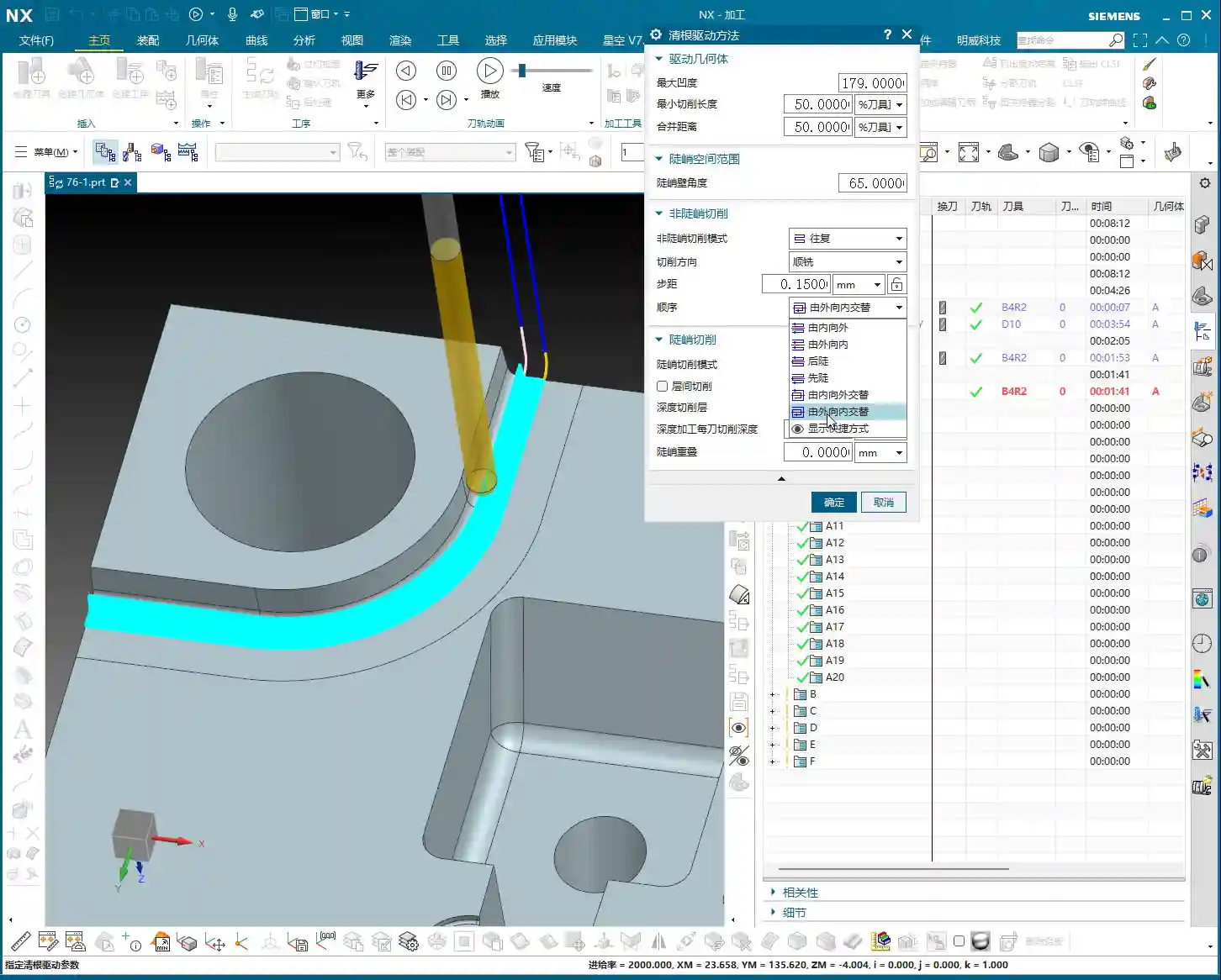
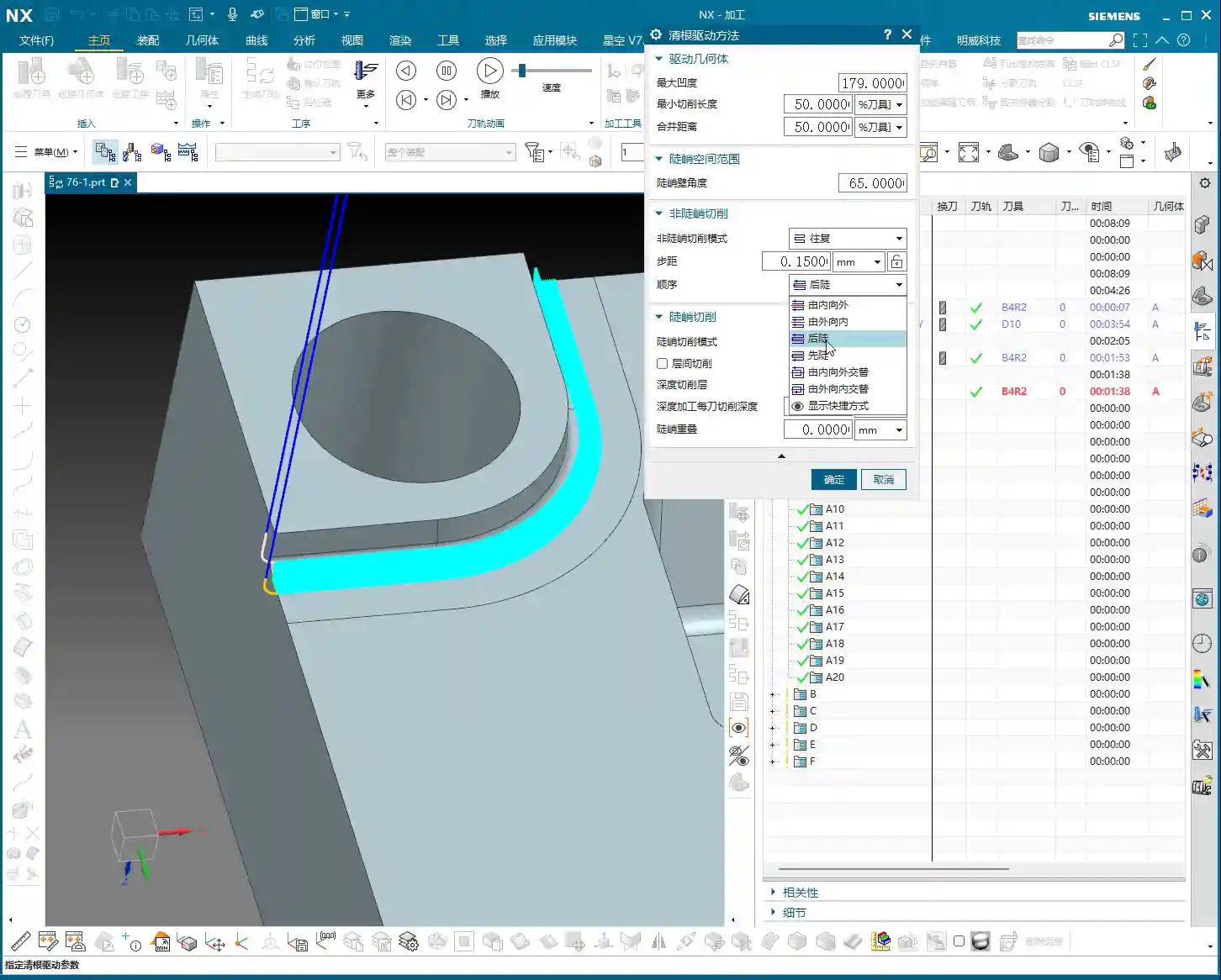
    The “Out-to-In Alternating” and “In-to-Out Alternating” strategies in NX play a crucial role in finishing, especially during Corner Cleanup. These two strategies primarily control the tool’s machining sequence within the cutting area: whether it starts from the periphery and “peels” inwards layer by layer, or starts from the interior and “expands” outwards layer by layer.

    Out-to-In Alternating: The Corner Cleanup Ace

    The “Out-to-In Alternating” strategy – I’ll say it – is absolutely one of the most commonly used and effective strategies for our corner cleanup operations! It initiates the cut from the outermost edge of the workpiece’s machining area, then progressively cuts inward, while alternating during the process. What does this mean? It makes one cut on the outermost path, then jumps to a slightly inner position for another cut, then jumps back, and so on, moving further inward. The benefits of this machining approach are:

    1. Uniform Chip Load: The tool removes a very consistent amount of material with each cut, avoiding sudden heavy or light loads. This is exceptionally beneficial for maintaining tool stability and extending tool life.
    2. Excellent Surface Quality: Due to the smooth cutting process and uniform material removal, the resulting surface quality is particularly good, less prone to tool marks or chatter marks.
    3. Thorough Corner Cleanup: It can gradually and completely remove residual material from the corners, leaving no hard spots.

    I use this “Out-to-In Alternating” strategy for about seventy to eighty percent of my finishing passes, especially for mold corner cleanup. Its uniform toolpath distribution and consistent material removal are the gold standard in our actual production.

    In-to-Out Alternating: Use with Caution

    The “In-to-Out Alternating” strategy, on the other hand, starts cutting from the interior of the machining area and gradually expands outwards. I use this strategy relatively rarely; in fact, I’d say it’s not recommended for most finishing corner cleanup scenarios.

    Imagine if there’s residual material at the bottom of a cavity, and your initial cut starts from the innermost point and expands outwards. That first cut could very likely engage a significant amount of material, leading to an instantaneous heavy chip load. As I said in my audio earlier, “the very first cut finishes the entire corner of our part”, which indicates the tool is subjected to immense impact, potentially causing tool breakage, chatter, or even scrapping the part. Of course, this doesn’t mean it’s entirely useless. In certain special part geometries or specific process requirements, it might occasionally come in handy. But in production, we prioritize stability and reliability. So, if you’re unsure about this strategy, try to avoid it if possible, or at least run multiple simulations to check if the chip load and toolpath are reasonable. Don’t just rely on software simulations; pay attention to cutting sparks and cutting forces!

    Summary: Pitfall Avoidance Guide

    Listen up, junior engineers, everything I’ve shared today is hard-earned experience. I hope it helps you avoid common pitfalls:

    1. Prioritize Reciprocal Mode: Whenever conditions allow, use reciprocal mode for finishing and large-area machining. Saving rapid moves means saving money.
    2. Steep First and Shallow First: Be Flexible: There’s no one-size-fits-all. For workpieces with overall significant slopes, consider “Steep First.” For workpieces with vertical walls or similar straight-up-and-down features, “Shallow First” is often more stable. You need to analyze how your tool will dynamically engage the material to ensure stable cutting.
    3. “Out-to-In Alternating” is the Ace for Finishing Corner Cleanup: It’s virtually applicable to all situations requiring precise corner cleanup. It ensures uniform cutting, improving surface quality and tool life. I personally highly recommend it, and it’s my most frequently used strategy.
    4. Use “In-to-Out Alternating” with Caution: Unless you have a very clear justification and thorough verification, this strategy can easily lead to excessive chip load on the initial cut in finishing, causing problems. Newcomers should especially avoid it.
    5. Don’t Blindly Trust Software Simulations: Software is static; machines and materials are dynamic. The ultimate judgment criteria are the actual machine’s cutting sound, sparks, tool wear, and the final part accuracy and surface quality. Listen more, watch more, feel more – these “unwritten” practical tips are your real assets.

    Our profession is all about experience. Practice more, think more, and summarize your findings. Ponder these toolpath strategies carefully, and they will help you navigate NX programming with fewer headaches and produce more high-quality parts.

    👤 About the Author:
    The author is a veteran CNC machining professional with 15 years of industry experience, specializing in UG NX programming. This article is an original work representing personal practical insights.

    ⚠️ Copyright Notice: Unauthorized reproduction or distribution without prior communication is strictly prohibited.

  • Siemens NX Machining: Master Wang’s Hands-on Guide to Rest Milling with Reference Tool – Eliminate R

    📝 Key Takeaways: Master Wang provides a hands-on tutorial on Siemens NX Rest Milling with a Reference Tool, addressing residual material removal and precision challenges for complex parts. From parameter setup to toolpath optimization, learn to prevent overcutting and ensure machining accuracy up to ±0.005mm. Practical experience sharing helps you move beyond theoretical knowledge and master efficient rest milling techniques.

    Master Wang Explains: The Ins and Outs of Rest Milling

    Hello everyone, I’m Master Wang. Today, we’ll continue our discussion on rest milling operations, diving deep into **Rest Milling with a Reference Tool**. Listen up, this is a crucial and highly common technique in rest milling! Many times, after machining a part, you’ll find some ‘leftovers’ in the corners and edges. This operation is what you use to finish those areas, leaving no blind spots and pulling your precision to within ±0.005mm!

    Last time, we talked about **Single Toolpath Corner Cleanup**. While it is a form of corner cleanup, it’s not widely used in actual production, so a basic understanding is sufficient. However, if you thoroughly grasp today’s topic, **Rest Milling with a Reference Tool**, then subsequent techniques like **Multi-Toolpath Rest Milling** will be ‘a piece of cake’ in principle. Mastering this will naturally lead to higher efficiency.

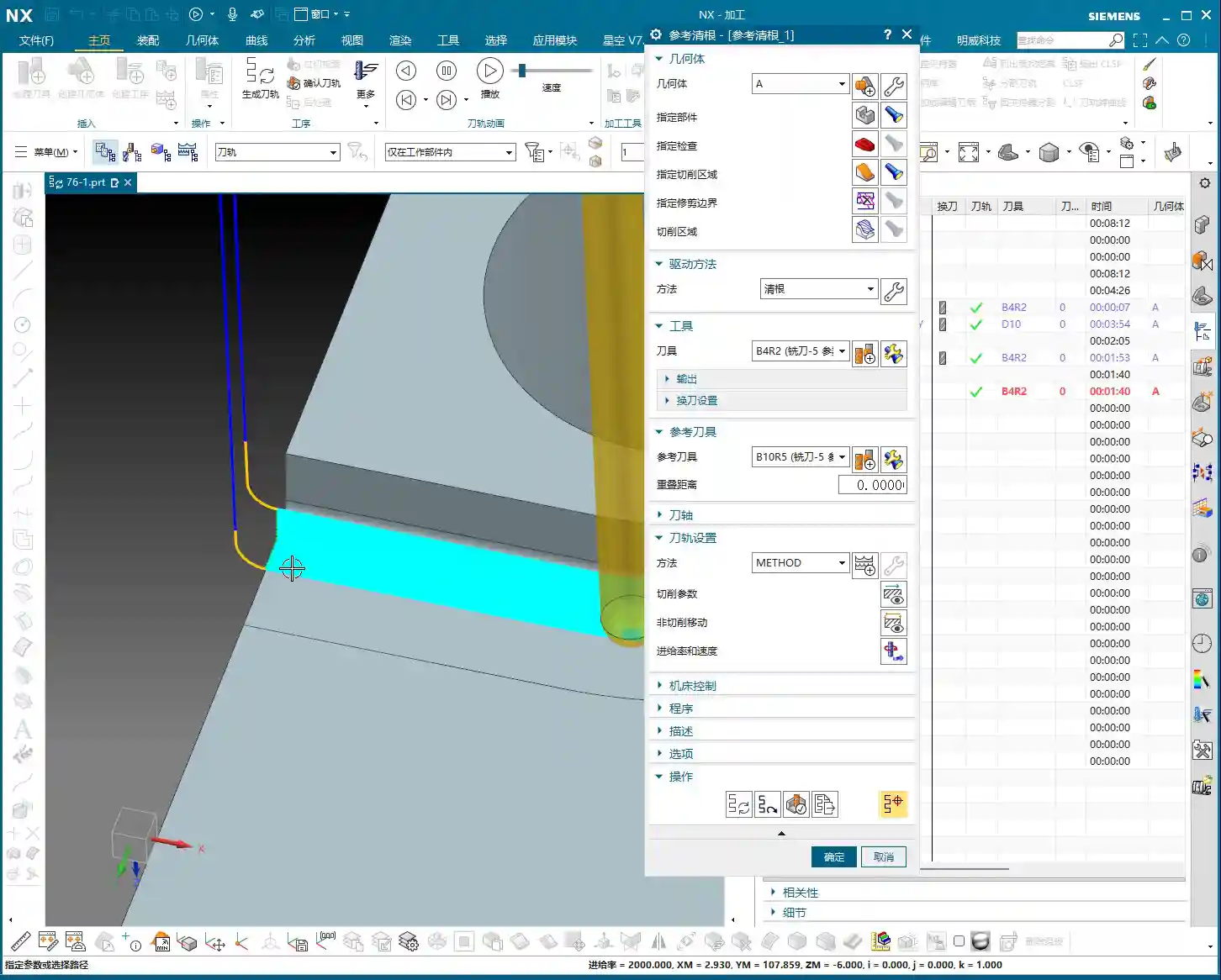
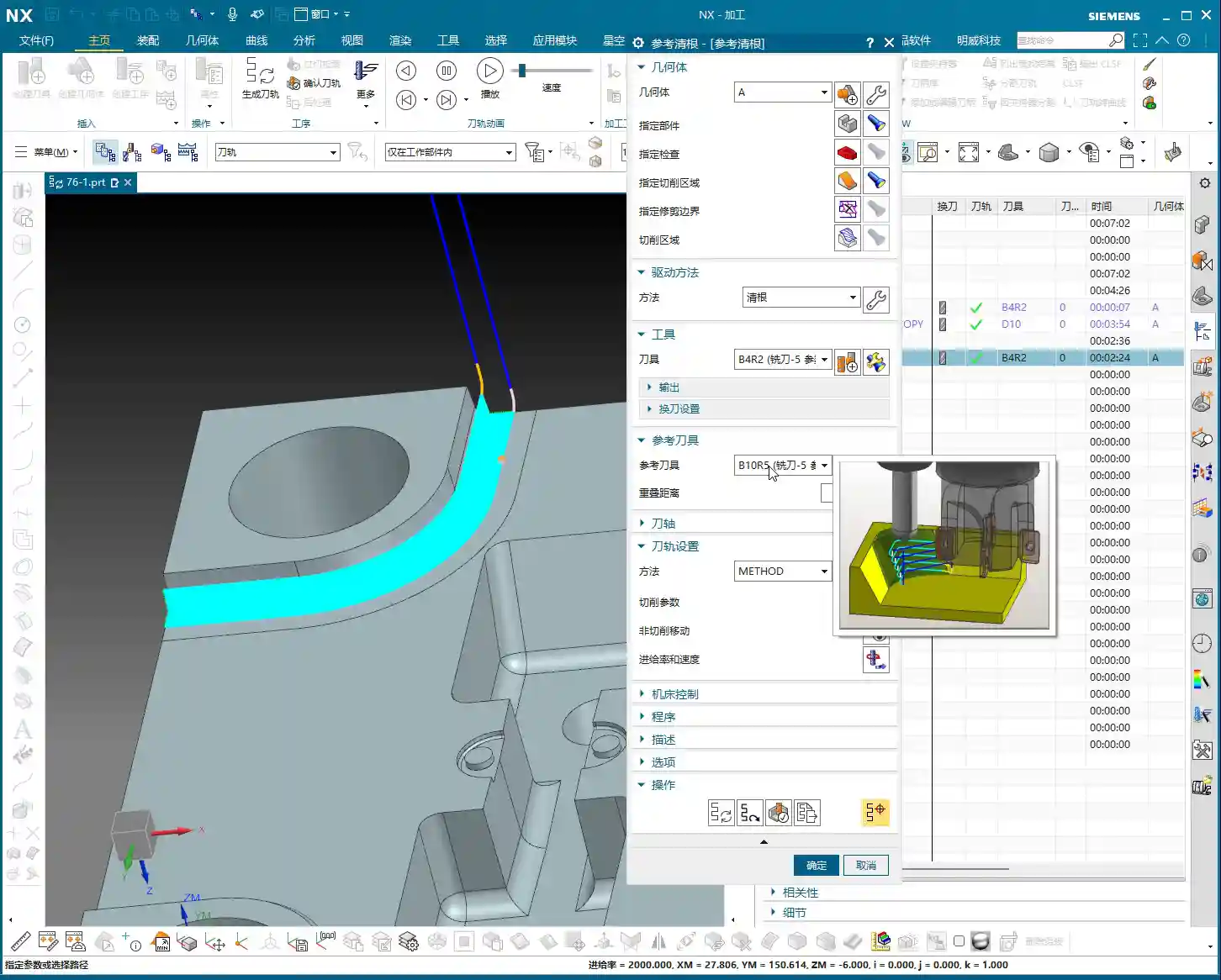
    Remember, in Siemens NX, the concept of ‘remaining tool’ is sometimes simplified, but it’s essentially the ‘Reference Tool’. Regardless of the name, it’s the same thing: it tells the system, “Where did the previous tool machine up to?”

    Rest Milling with a Reference Tool: No Blind Spots, More Precise Toolpaths

    Why Use a Reference Tool?

    You need to understand that machining a complex part, especially areas with deep cavities, narrow slots, or small radii, cannot be done with just one tool. For instance, after **roughing** with a larger ball end mill (e.g., a ⌀10mm ball end mill), it will inevitably leave residual material in corners, at the bottom, or in small radii. If this residual material isn’t properly removed, it can affect assembly or even scrap the part. Our goal is to use a smaller tool to clean up these blind spots that the larger tool couldn’t reach. In this process, you must inform the system where the previous large tool has already machined and what areas it couldn’t reach—this is the core function of the Reference Tool.

    This is the same principle as when we discussed selecting a reference tool in **Deep Contour Milling** or **Corner Cleanup** previously; the concept is identical. Textbooks might categorize these concepts distinctly, but in practical application, they are interconnected. It’s about your ability to apply knowledge broadly.

    Main Parameters: Fundamentally Unchanged

    Listen closely, whether it’s **Single Toolpath Corner Cleanup**, **Multi-Toolpath Rest Milling**, or today’s **Rest Milling with a Reference Tool**, their main page settings are largely similar, with no significant changes. So, when you open the rest milling interface, it will feel familiar. Where’s the key difference? It lies in what we’re discussing today: the ‘inner workings,’ specifically the definition of the Reference Tool. Don’t let the similar interface fool you; there’s a lot of nuance inside.

    Hands-on Demonstration: Parameter Setup and Toolpath Generation

    Selecting Machining Area and Rest Milling Tool

    Let’s select an area requiring **rest milling**, such as a cavity with a small fillet at the bottom. Assuming the previous **roughing** operation used a ⌀10mm ball end mill, we will now use a ⌀12mm ball end mill for rest milling. Why ⌀12mm? Because this size might be more suitable for cleaning that specific residual material. Of course, in practice, you might choose a smaller tool, such as a ⌀6mm or ⌀8mm tool. There’s no absolute rule for tool selection; it entirely depends on your workpiece’s actual geometry and the amount of residual material. Just select your target area and the **rest milling tool**, leave other parameters for now, and let’s go step-by-step.

    Crucial Step: Defining the Reference Tool

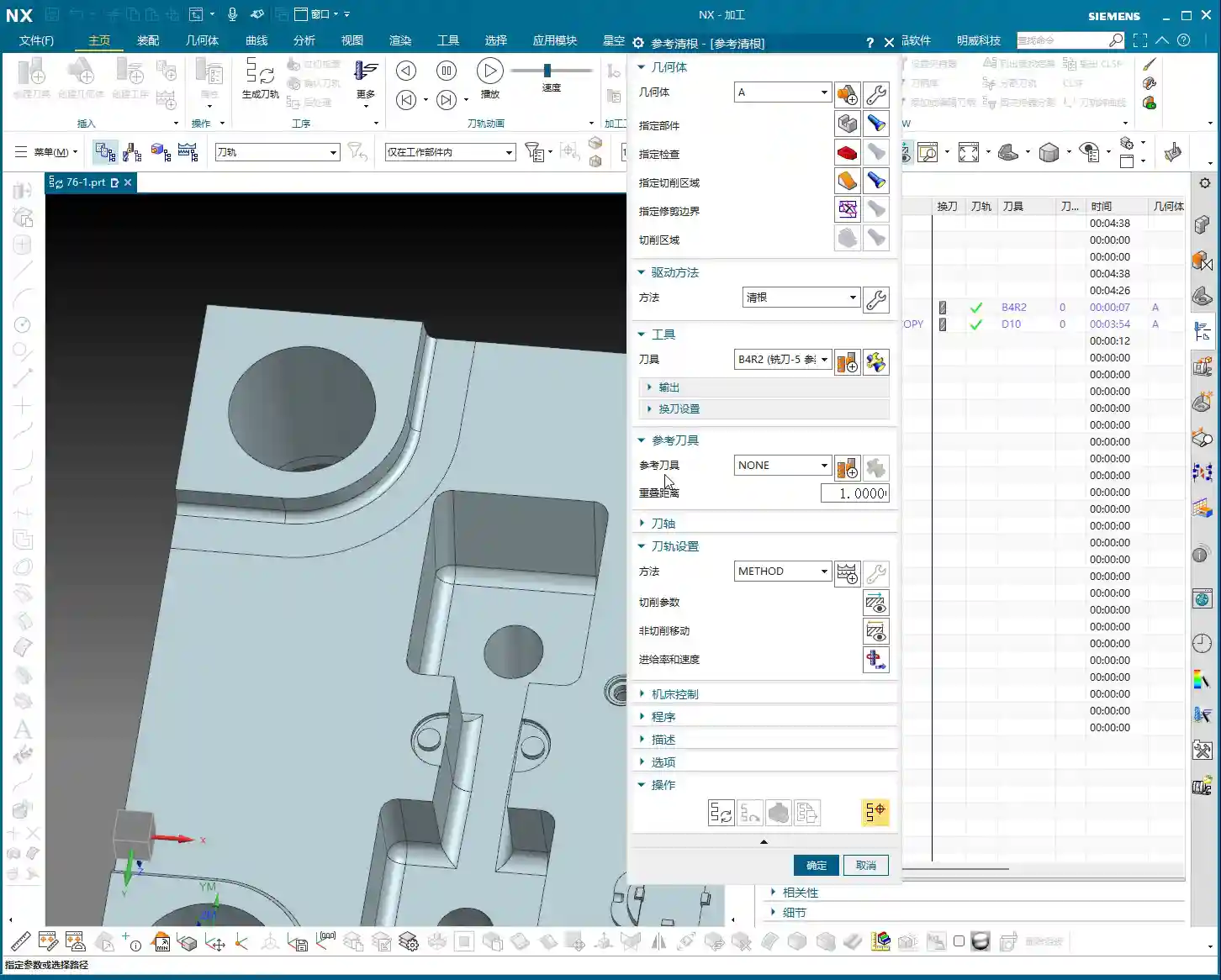
    When you first attempt to generate a toolpath, the system will ‘error out,’ prompting you: “A reference tool must be defined!” This is perfectly normal because it doesn’t know which tool you used previously, and therefore cannot determine where residual material might exist. Hence, this step is critically important.

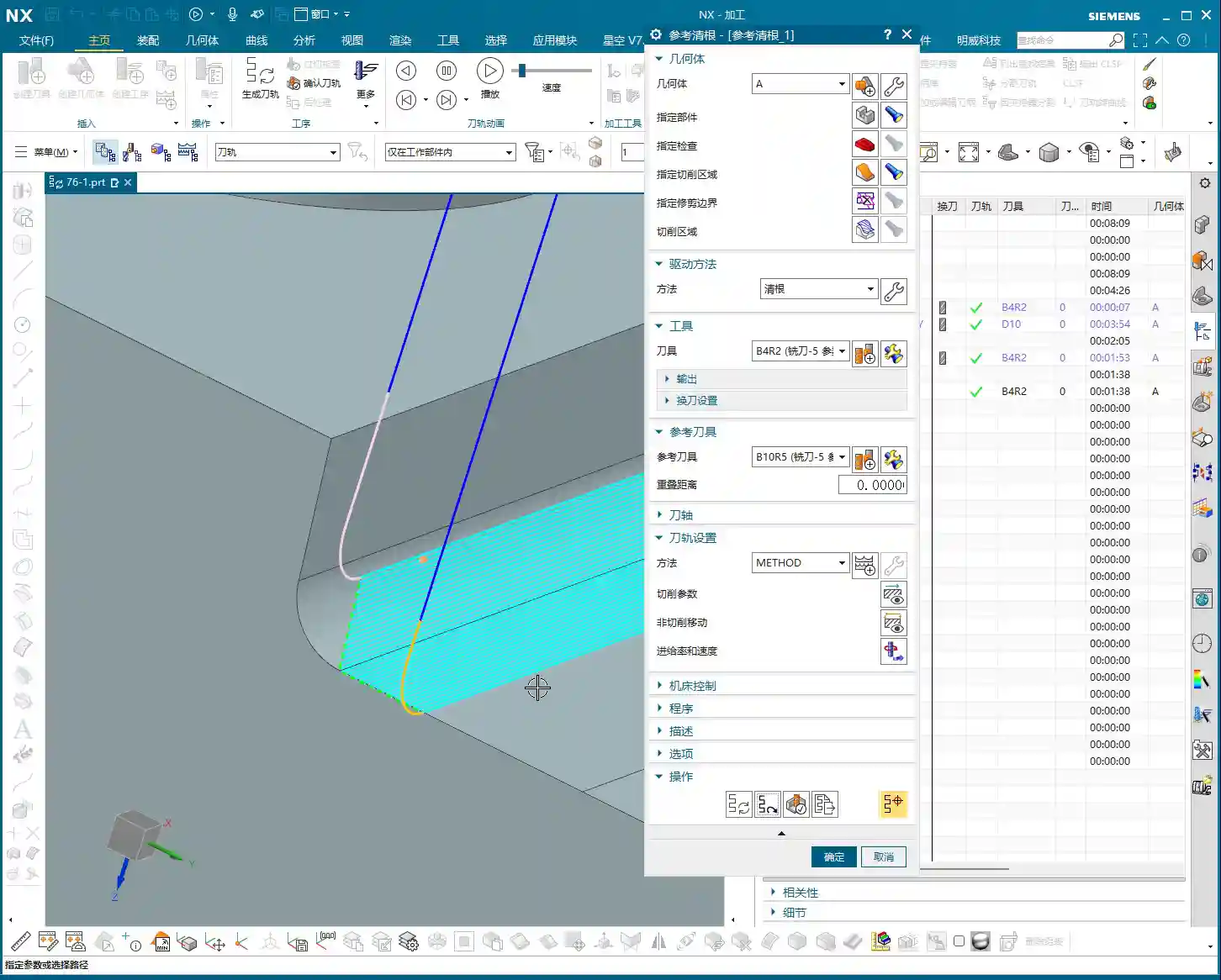
    • Understanding the Concept: The Reference Tool is the previously used tool that has already machined and will leave residual material. You need to tell Siemens NX where it has machined and where it couldn’t reach. The system then uses the shape and path of this reference tool to calculate the new **rest milling tool’s** paths to remove the residual material.

    • Setting Location: On the main page of the rest milling operation, there’s a direct option for “Reference Tool”. This differs from our previous experience in **Deep Contour Milling**, where you’d define the reference tool within ‘Space Constraints.’ Here in rest milling, it’s more direct and convenient.

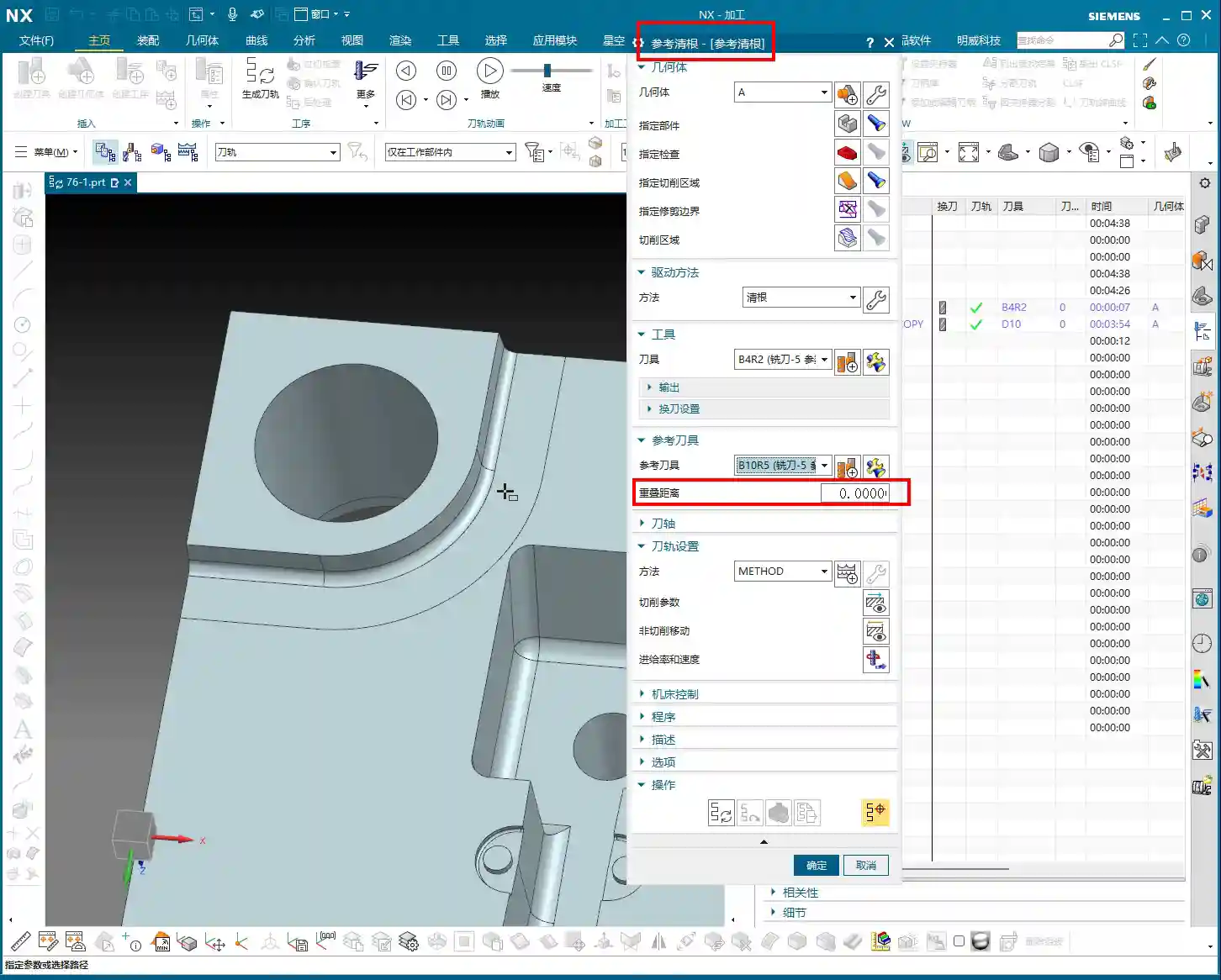
    • Practical Operation: We will select the ⌀10mm ball end mill as the Reference Tool. You can choose from an existing tool library or create a new one. I usually find it convenient to just rename and use a system-provided tool. For example, let’s use a B11 R5.5 (11mm diameter, 5.5mm radius ball end mill, or understood as R5.5) as the reference tool. The previous B10 (10mm diameter, 5mm radius ball end mill) **roughing** tool left some uncleaned areas, right? That’s our reference object. Then, click “OK” and try generating the toolpath again.

    The Mystery of Clearance Distance

    Many people don’t fully understand the Clearance Distance parameter. It refers to how far the tool extends beyond the machining area. Theoretically, it can help make rest milling more thorough, but in actual rest milling operations, I generally set it to 0. Why?

    • Characteristics of Rest Milling: Rest milling is typically performed to remove residual material from areas that were already machined in the previous operation. Since it’s about residual material, it should be strictly confined within the original machining boundaries. If you set a clearance distance, the tool might extend outwards, leading to the risk of toolpath confusion or overcutting.

    • Practical Experience: I’ve seen many novices set a large clearance distance, resulting in chaotic toolpaths and even ‘damaging’ the workpiece. Of course, this isn’t an absolute rule; sometimes, if you find the toolpath isn’t ideal, you can try adjusting this parameter slightly, but you must do so cautiously, testing it little by little. If the toolpath genuinely becomes messy, the safest approach is to set it back to 0 or directly select an appropriate reference tool to control the toolpath boundary, rather than trying to ‘force it’ with the clearance distance. From my perspective, if you can avoid using clearance distance, do so; it keeps things simple, clear, and minimizes risk.

    Toolpath Verification and Optimization: Don’t Just Look at the Screen, Observe the Cutting Sparks!

    Toolpath Simulation: Identifying Residual Material Areas

    With all parameters set, let’s click Generate Toolpath and then perform a Toolpath Simulation. Simulation is the first step in verifying a toolpath, and you must observe it carefully. In Siemens NX simulation, yellow or orange is typically used to highlight residual material areas—meaning the areas your previous tool couldn’t machine. After the rest milling toolpath is generated, it will machine along these residual material areas.

    Don’t just be satisfied with a perfectly clean software simulation; you need to envision the cutting sparks! While you can’t see sparks in a simulation, you should have a mental image. You must imagine how the tool moves on the workpiece: are there any air cuts? Is there a risk of overcutting? If the simulated toolpath can cleanly remove these yellow or orange areas, and the tool path is smooth, without unnecessary retracts or rapid moves, then the toolpath is largely acceptable.

    In-Depth Analysis: Why is Residual Material Left Behind?

    Let’s reconsider: why is residual material left behind? It’s simple. Take our earlier example of a ⌀10mm ball end mill (R5mm). The tip of a ball end mill is an arc, and its effective cutting point changes at different depths. When it reaches a sharp corner or acute angle, the spherical characteristic of the tool tip means it cannot fully ‘dig’ into the corner. For instance, in a deep internal fillet, if machined with an R5mm ball end mill, it can only machine up to the tangent point of the arc; further in, the tool’s radius obstructs it, naturally forming residual material.

    The rest milling tool, such as the ⌀12mm ball end mill we’re using now (though in practice, a smaller one or an end mill with a specific corner radius might be used), will utilize its smaller radius, or a more suitable geometry, to precisely clean up these large tools’ “blind spots”. This is how Siemens NX calculates it using the reference tool—it’s very intelligent.

    Considerations for Non-Cutting Moves

    Regarding non-cutting moves—meaning tool approaches, retracts, lifts, and so on—in rest milling operations, the setup philosophy is quite similar to other operations. It’s essentially about ensuring safe tool engagement, safe tool withdrawal, and avoiding collisions. Generally, keeping the defaults or slightly adjusting approach angles and distances usually works fine. Of course, for detailed optimization, we can save that for the next lesson, where we’ll specifically discuss the parameters found under that small wrench (edit) icon. There are many secrets hidden there for improving efficiency and safety!

    Today, our main goal was to clarify the core logic and common parameters of Rest Milling with a Reference Tool. Once you’ve digested these, you’ll know how to tackle residual material removal issues in practical applications.

    Summary: A Guide to Avoiding Pitfalls

    1. Reference Tool Must Be Precise: This is the ‘lifeline’ of the rest milling operation. You must select the tool actually used in the previous step, and which leaves residual material, as the reference. If chosen incorrectly, the system won’t know where the residual material is, toolpath calculation will be completely off, leading to overcutting or missed cuts.

    2. Use Clearance Distance with Caution: In rest milling operations, unless absolutely necessary, my personal experience recommends setting the Clearance Distance parameter to 0. This precisely limits the toolpath to the residual material area, preventing toolpath confusion or unnecessary overcutting. If you find the toolpath is messy, first try setting it to 0. If that doesn’t work, then consider adjusting the reference tool’s size.

    3. Residual Material Visualization: During toolpath simulation, carefully observe the residual material areas (typically yellow or orange) to ensure the rest milling toolpath covers them completely, leaving no blind spots. If you still see uncleaned yellow areas in the simulator, it indicates a problem with the toolpath, requiring parameter adjustment or selecting a more appropriate rest milling tool.

    4. Combine Theory with Practice: No matter how perfect software simulation appears, it’s still ‘theory on paper.’ On the actual machine, you must observe cutting sparks, listen to cutting noise, and check chip evacuation. Incorrect spark color, abnormal noise, or irregular chip shape can all signal issues with the toolpath or process parameters. You must be willing to adjust feed rates, spindle speeds, or even the toolpath based on actual conditions to truly machine the part well.

    5. Don’t Forget Material Properties: Different materials have vastly different cutting characteristics. From common aluminum to titanium alloys and high-temperature nickel-based alloys, cutting forces, heat dissipation, and tool wear vary significantly. Pay extra attention during rest milling; for example, when machining high-temperature alloys, tools wear easily, so cutting parameters should be conservative to prevent stress concentrations leading to deformation. Fixturing solutions must also consider material properties to prevent heat treatment deformation.

    👤 About the Author:
    The author is a veteran CNC machining professional with 15 years of industry experience, specializing in UG NX programming. This article is an original work representing personal practical insights.

    ⚠️ Copyright Notice: Unauthorized reproduction or distribution without prior communication is strictly prohibited.
  • Siemens NX Fixed Contour Milling: In-depth Analysis – Master Wang’s 15 Years of Practical Experience

    📝 Key Takeaways: ** Fixed Contour Milling: The Core of Finishing

    Master Wang Explains: What is Fixed Contour Milling?

    Alright, listen close, lads! Today, Master Wang is going to talk to you about a crucial feature in Siemens NX (UG) – Fixed Contour Milling. Don’t let its unassuming name fool you; this is our go-to method, our bread and butter, for achieving high-precision parts and finishing complex surfaces!

    You might have noticed several machining operations in the Siemens NX interface that look similar, with ‘Fixed Contour’ in their names. Today, Master Wang is going to clear things up for you: Fixed Contour Milling isn’t a single, specific machining method; it’s a general term, a whole family of operations! Just like when we discussed Face Milling and Cavity Milling, it has many sub-categories. It differs from typical operations like Face Milling, which handles planar surfaces, and Cavity Milling, which focuses on pocketing. But Fixed Contour Milling is specifically designed for surface features, especially complex, irregular freeform surfaces. If you need precision and surface finish, this is the one! Got it?

    The Core Function of Fixed Contour Milling: A Finishing Powerhouse

    Since it’s called “Fixed Contour Milling,” its primary strength is Finishing Pass. Mark my words, it’s almost never used for Roughing. The efficiency is too low; that’s simply not its job! Its forte is the final smoothing of surfaces, top faces, and sidewalls, ensuring the part’s dimensional accuracy and surface finish meet specifications. Think about it: aerospace blades, automotive mold cavities – how could they be produced without this technique? We typically pair it with a ball-nose end mill, meticulously ‘sculpting’ the surface, striving for that ±0.005mm (approx. 0.0002 inch) or even higher precision.

    The ‘Family Members’ of Fixed Contour Milling in Siemens NX (UG)

    Since it’s a large family, there are naturally different “members” for different tasks. While they all fall under “Fixed Contour Milling,” each branch excels in specific areas. The commands you see in Siemens NX under this category are essentially its “branches.” Today, we’ll start with an overview, and later, Master Wang will break them down one by one and teach you how to use them. The ones you see here are branches of Fixed Contour Milling; though their names may vary, at their core, they are all designed for high-precision Surface Milling:

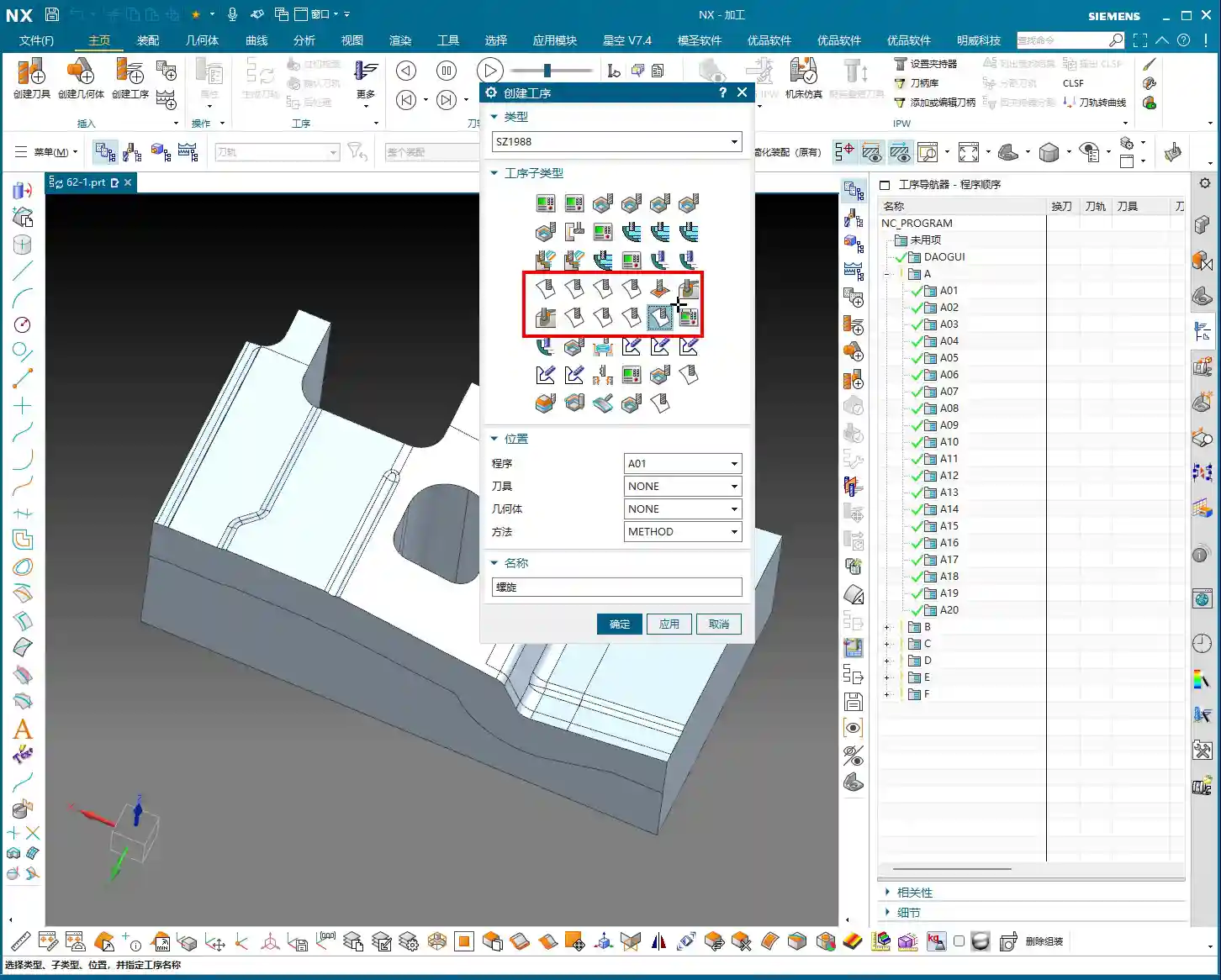
    • Fixed Contour – Curve/Point: This is the most straightforward; it generates toolpaths along the curves or points you specify. Ideal for situations requiring precise trajectory control.
    • Fixed Contour – Boundary: Primarily used to restrict the machining area. Sometimes, when we only need to machine a specific section of a surface, this allows us to confine the tool’s movement precisely.
    • Fixed Contour – Flow Line: This is excellent for managing surface texture and direction. It allows the toolpath to follow the natural contours of the surface, resulting in exceptional surface quality and often eliminating the need for subsequent polishing or grinding.
    • Fixed Contour – Surface Area: One of the most commonly used. You directly select the surface or surface area to be machined, and Siemens NX will automatically generate the toolpath based on the geometry. This is the most fundamental and versatile Finishing Pass method.
    • Fixed Contour – Single Pass Corner Cleanup: A sharp tool for tackling small radii and tight corners. Using a smaller tool for a single pass to clear areas that larger tools couldn’t reach.
    • Fixed Contour – Multi Pass Corner Cleanup: More refined than a single pass, typically used for more complex or deeper material removal in residual areas, ensuring every corner is pristine.
    • Fixed Contour – Reference Tool Corner Cleanup: This intelligent method tracks which tools you’ve used previously and where residual material was left, then automatically plans the cleanup paths for smaller tools based on this information.
    • Fixed Contour – Helical Machining: While used less frequently, in specific cases like concentric cylindrical surfaces or structures with helical features, employing a helical approach for Depth of Cut (DOC) can result in more stable machining and a more uniform surface.

    These are all Finishing Pass operations. Siemens NX also features Variable Contour Milling, which is used for 5-axis machining. It’s very similar to the Fixed Contour Milling family members, but it adds one or two rotational axes of motion freedom. Today, we’re focusing on Fixed Contour Milling, which is primarily for 3-axis or 3+2-axis applications.

    Veteran’s Practical Wisdom: Siemens NX Operations and Optimization

    Theory alone won’t get you anywhere. No matter how pretty the Siemens NX simulation looks, the real test is the actual outcome on the machine. Master Wang has a few hard-earned practical tips here, so you boys better take notes:

    • Toolpath Optimization: Don’t always rely on the software to do all the thinking; put effort into adjusting feed rates, Depth of Cut (DOC), and Stepover. Especially in areas with high curvature changes, use a smaller Stepover and a slower feed rate, and you’ll get a smoother surface. Optimize toolpaths to be as continuous, smooth, and minimize tool lifts as much as possible. More air cuts mean longer cycle times and higher costs.
    • Material Properties: Machining different materials requires adjusting parameters accordingly. Aluminum can handle fast feed rates and deep cuts, but tough materials like titanium alloys and high-temperature nickel-based alloys require small Stepdowns, slow feed rates, and careful attention to cooling. These materials are prone to heavy cutting forces, leading to rapid tool wear, or even worse, tool chipping and scrapped parts.
    • Clamping Strategy: Finishing passes are most susceptible to deformation. For complex surface parts, Clamping must be secure but not overtightened, to avoid stress-induced deformation from the fixture. Sometimes, it’s necessary to design custom support fixtures or employ a strategy of multiple clamping setups with progressive machining.
    • Tool Selection and Grinding: For ball-nose end mills used in Finishing Pass, the tool radius and flute length are crucial. For some special radii, you might not find suitable tools on the market, so grinding custom tools ourselves is a common occurrence. A skilled tool grinder directly influences machining quality and efficiency.
    • Error Compensation: Machines accumulate accuracy errors over time, or due to environmental temperature changes. The Siemens NX program output is a theoretical value; during actual machining, you must learn to observe sparks, listen to cutting sounds, and measure actual dimensions. If you encounter accuracy issues of ±0.005mm (approx. 0.0002 inch), don’t panic. You can fine-tune by adjusting tool radius compensation (G41/G42), machine geometric error compensation, or modifying the stock allowance in the program. Don’t make impulsive changes; proceed incrementally.

    Summary: Pitfall Avoidance Guide

    Master Wang has a few final words of advice; these are lessons learned through hard-earned money and countless scrapped parts:

    1. Never use Fixed Contour Milling for Roughing! It’s meant for Finishing Pass work. Forcing it to tackle large stock amounts will be inefficient and likely lead to worn or burnt tools.
    2. Thoroughly understand the characteristics of each branch! Even though they’re all called ‘Fixed Contour Milling,’ each branch has its most suitable application scenario. Blindly choosing will only lead to wasted effort and suboptimal results.
    3. Don’t just trust software simulations; watch the cutting sparks! What looks perfect in the software might result in chatter or surface marring during actual machining. On-site observation and timely adjustments to feed rates and spindle speeds are paramount.
    4. Pay close attention to post-processing and machine characteristics! Especially for 5-axis simultaneous machining, modifications to the post-processor file are critical, as they directly impact toolpath execution. Every machine has its own ‘personality’; you need to understand it inside and out.
    5. For high-precision parts, cost-efficiency is always paramount. Before each machining operation, consider various factors—tools, process, fixturing—to achieve the highest precision with the lowest cost and shortest time.

    Fixed Contour Milling is a hardcore skill. Master it, and you’ll have solid confidence on the shop floor. In upcoming lessons, Master Wang will guide you through each of these branches until you’ve thoroughly mastered them. Then you’ll really get it.

    👤 About the Author:
    The author is a veteran CNC machining professional with 15 years of industry experience, specializing in UG NX programming. This article is an original work representing personal practical insights.

    ⚠️ Copyright Notice: Unauthorized reproduction or distribution without prior communication is strictly prohibited.

  • Deep Contour Milling in Siemens NX: Master Wang Shows You Hand-on Finishing, Avoiding Common Pitfall

    📝 Key Takeaways: Practical application of Deep Contour Milling in Siemens NX. Master Wang explains finishing sidewalls, holes, and corner cleanup, utilizing tools like D20 and 4R1. He deeply analyzes the “single pass to full depth” pitfall for multi-hole features and offers a “Tool End Point Tracking Upwards” solution. The emphasis is on precise fixturing, rational tool selection, and area-specific programming as key to boosting efficiency and mitigating risks. [META] Title: Deep Contour Milling in Siemens NX: Master Wang Shows You Hand-on Finishing, Avoiding Common Pitfalls! Tags: Siemens NX, Deep Contour Milling, Finishing pass, Toolpath Optimization, Helical Milling, Practical Experience, Master Wang, CNC Programming, Machining, Pitfall Avoidance Guide, NX CAM

    Hello everyone, I’m Master Wang! Today, no fluff, just straight to the practical stuff. Last time we talked about deep contour milling, helical milling, and corner cleanup—all tough nuts to crack in finishing. This time, I’m taking a real-world part and walking you through how to master these operations in Siemens NX, especially those ‘tricks’ and ‘major pitfalls’ you won’t find in textbooks. Listen up, this is 15 years of hard-earned experience!

    Core Process Analysis: Deep Contour Milling Finishing

    Workpiece Preparation and Initial Positioning

    Newcomers to Siemens NX programming might think you can just drop a part anywhere and start creating toolpaths. In a teaching demonstration, to save time, I might indeed ‘place it casually’. However, in actual machine operation, precise workpiece positioning is the first and most critical step! If your blank isn’t aligned or clamped properly, no matter how perfect your program is, it’s all useless once the machine starts running. Don’t just rely on software simulation; look at the cutting sparks and the actual results.

    Today, let’s start with one face, using deep contour milling for finishing the sidewalls.

    Sidewall Finishing Toolpath Programming (First Face)

    Select the ‘Deep Contour Milling’ operation, then define the machining regions. Here, we’ll finish several internal sidewalls of the part, including those with corner radii. In Siemens NX, after you select a face, it sometimes automatically recognizes related sidewalls. But remember, the machine is rigid, but the operator is not; the final outcome depends on our experienced judgment.

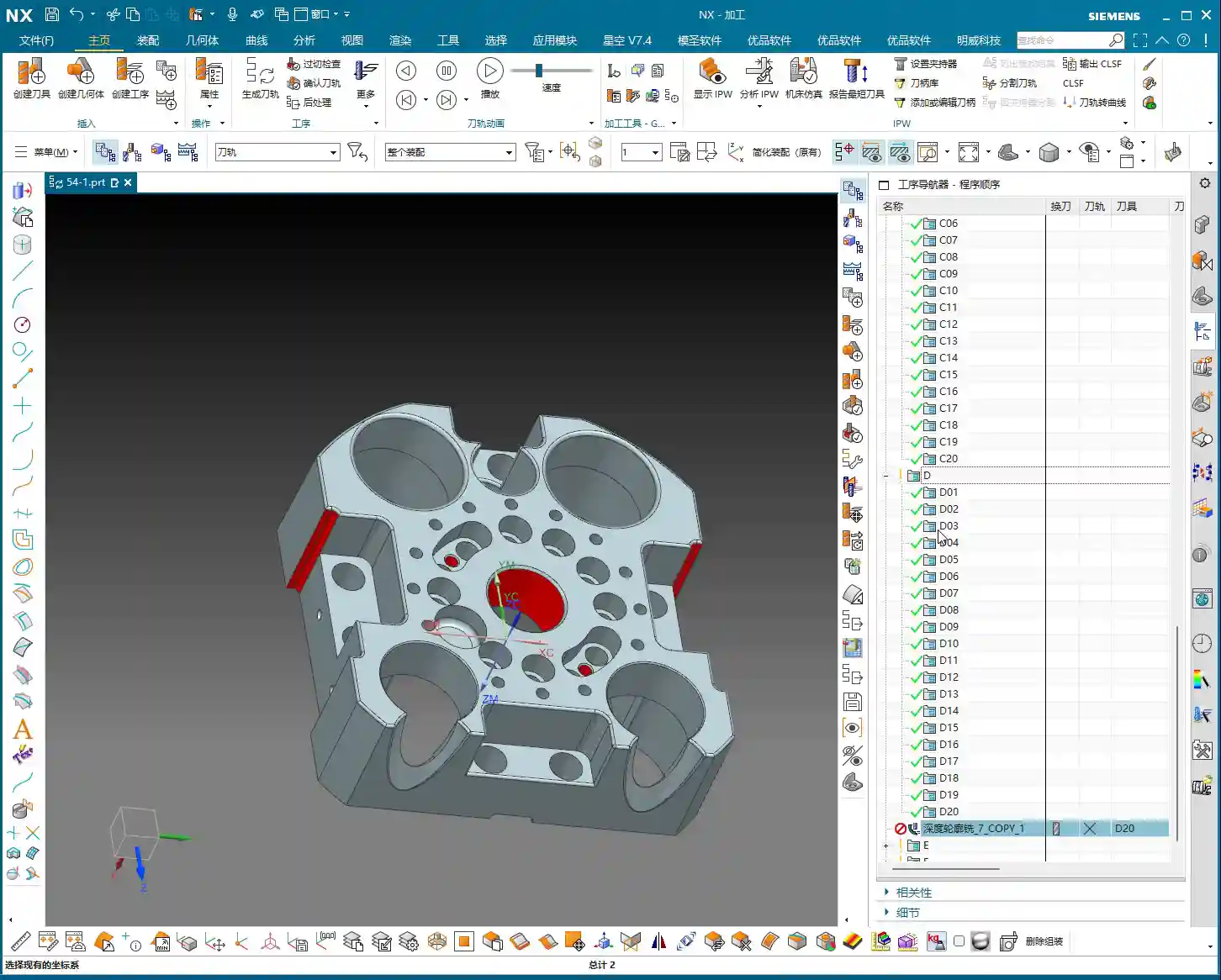
    For the tool, I’ve directly chosen a D20 tool here. Let’s set the Depth of Cut (DOC) for each pass to 5 mm initially. Leave other parameters as default for now, and generate the toolpath to see the effect. Siemens NX’s simulation capabilities are powerful, but they won’t tell you if the tool will chatter or if you’re taking too deep a cut. You need to rely on your ‘feel’ and ‘eyesight’ to judge these things.

    Key Optimization: Single Pass to Full Depth and Depth Compensation

    After generating the program, you’ll notice that if the sidewalls are deep, the tool cuts in layers. For finishing passes, sometimes we want a single pass to full depth. This reduces blend lines and improves surface finish. The audio mentioning ‘5 mm is a bit excessive’ refers to this very point.

    At this point, we can directly change the Depth of Cut for each pass to 0 to achieve a ‘single pass to full depth’. Of course, this depends on your tool’s rigidity and the workpiece material’s hardness. For instance, try this with titanium, and your tool will be ruined! With aluminum, it might not be an issue. So, parameters are not set in stone; you must adjust them flexibly based on the actual situation. Here, our goal is to finish the sidewalls, and a single pass to full depth will yield better results, provided tool rigidity is maintained.

    Additionally, if you find the bottom surface isn’t fully machined, you can slightly extend the cut downwards by 2 mm to ensure thorough corner cleanup and no residual material. These are fine-tuning tips gained from practical experience, which textbooks might not detail this extensively.

    Multi-Face Switching and Work Coordinate System (WCS) Setup

    Switching Workpiece Orientation and Work Coordinate System (WCS)

    Once one face is machined, we need to switch to another. In Siemens NX, this involves changing the Work Coordinate System (WCS). Select a new datum plane, adjust the Z-axis direction, and then copy-paste your previously programmed operations to significantly boost efficiency. This copy-paste trick is favored by seasoned machinists; it’s a real time and effort saver.

    Programming Reuse and Region Selection

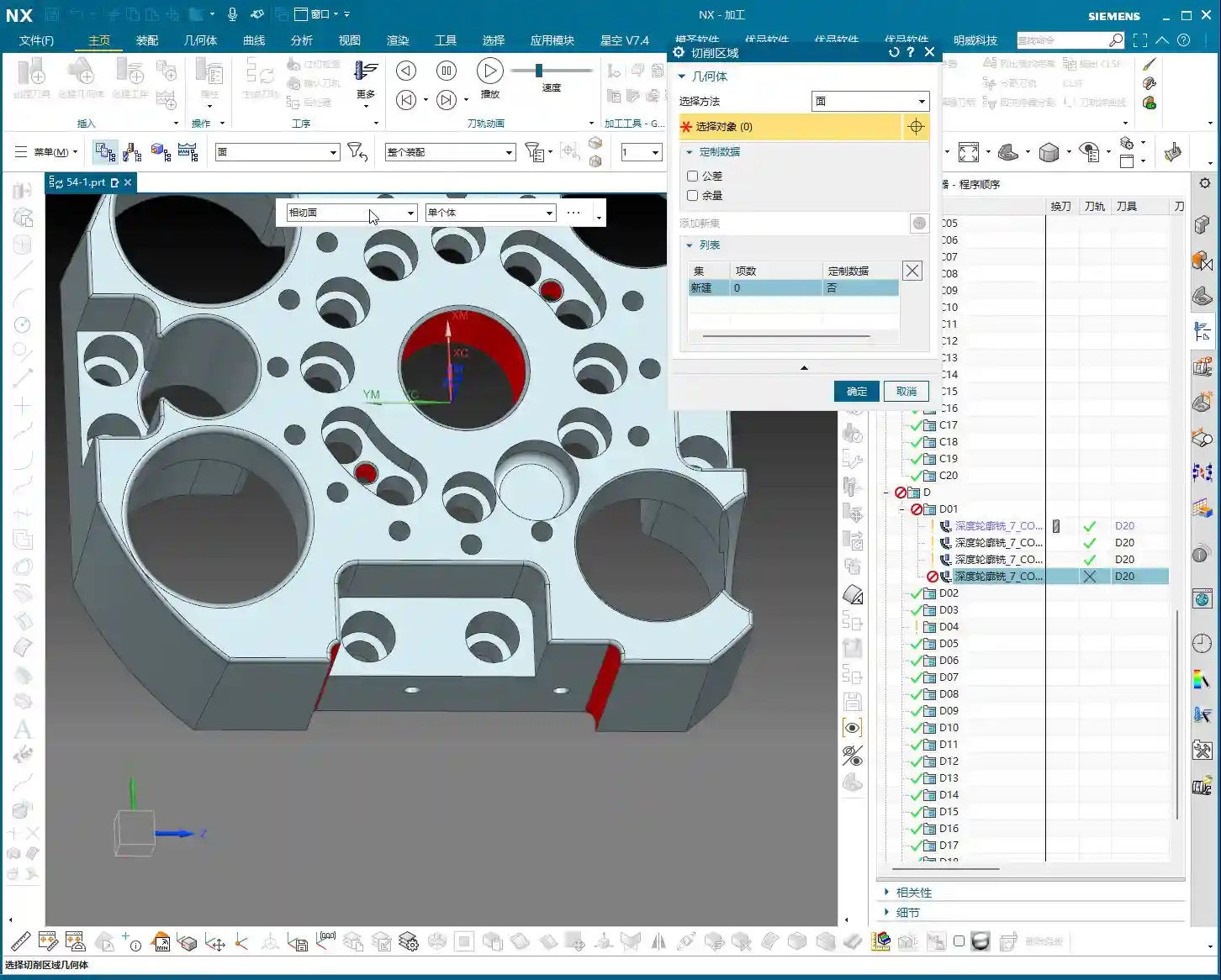
    After switching faces and copying the program, you’ll need to re-specify the machining regions. Here, we’ve selected several holes and sidewalls for machining. Pay attention: Siemens NX can sometimes help you automatically identify regions, but you must carefully check to ensure you haven’t selected incorrectly or missed any. Complex transition surfaces, especially, are easy to overlook.

    This time, we’ve chosen a 4R1 tool to machine these areas. We’ll set the Depth of Cut (DOC) for each pass to 0.1 mm; for a finishing pass, precision is key. Furthermore, to avoid excessive back-and-forth cutting, we’re using a helical milling strategy, which results in smoother toolpaths and a better surface finish.

    Handling Complex Features: Hole Machining and Extension Strategies

    Large Hole Finishing and the ‘Single Pass to Full Depth’ Pitfall

    Now let’s tackle a few large holes. I’ve selected all of them, ready to machine them together. However, in practice, newcomers often fall into a major pitfall: if these holes have varying depths, and you use a ‘single pass to full depth’ strategy, Siemens NX will, by default, machine all holes to the bottom of the deepest one! The result is shallow holes being cut through, or simply wasted machining time.

    Pitfall Avoidance Key: When facing this situation, don’t force it. You need to adjust the tool end point settings, choosing “Tool End Point Tracking Upwards”. This way, the tool will stop when it reaches the actual bottom of each respective hole, preventing over-machining. This is a critical lesson from my years of experience, saving countless scrapped parts and wasted time!

    Unfinished Bottom Surfaces and Extension Compensation

    Sometimes, even with a finishing pass, when the tool reaches the bottom of a hole or slot, due to tool geometry and residual material, a thin layer might remain, leaving the bottom surface not fully machined. In such cases, you need to compensate by using a ‘Downward Extension’ strategy. For example, extend the cut another 2 mm beyond the original depth to ensure the bottom surface is clean and flat. But extend moderately; don’t mill through the bottom.

    Best Practice: Area-Specific Machining and Time Considerations

    In teaching, for convenience and to save time, I might select holes of different depths or features to machine together. But listen up, Detail Refinement and Tool Selection

    Corner Cleanup Operations and Tool Matching

    Internal corners on a part, especially radii, are challenging for finishing. If you use a D10 tool to clean an R5 internal corner, it will leave a small radius. If you want a sharper corner, you’ll need a smaller tool or a specialized corner cleanup tool. Here, using a D10 tool for an R5 corner cleanup is a common practice that ensures a good surface finish on the radius without breaking the tool.

    In Siemens NX, select the corners to clean, then choose the appropriate tool. Always measure the radius size first so you know what you’re dealing with. This is fundamental; don’t get lazy!

    Final Inspection and Fine-Tuning

    Once all programs are compiled, always perform a simulation check. Look for any toolpath collisions, missed areas, or unnecessary cuts. If there’s slight under-machining, for instance, needing ‘just a bit more cut,’ then make a small adjustment in the parameters. Sometimes, these ‘tiny’ fine-tunes determine the final quality of the part. All programs should use climb milling for a better surface finish.

    Summary: Pitfall Avoidance Guide

    Listen up, youngsters! Beyond the Siemens NX operations in today’s tutorial, I hope you remember these practical experiences and pitfall avoidance keys:

    • Positioning is fundamental; don’t ‘just drop it anywhere’: Before any programming, precise positioning and secure fixturing of the actual workpiece are prerequisites. ‘Casual placement’ in software is just for demonstration; in reality, a slight error can lead to a huge deviation.
    • Tool selection must be ‘rational,’ not ‘random’: In my demonstrations, to speed things up, I might have picked tools somewhat arbitrarily. However, in actual machining, you must select the most suitable tool based on material, hardness, workpiece geometry, required surface finish, and machining efficiency. This isn’t a snap decision; it’s accumulated knowledge.
    • Varying hole depths: strictly guard against the ‘single pass to full depth’ pitfall: When machining multiple holes of different depths simultaneously, remember to use strategies like “Tool End Point Tracking Upwards” to prevent over-machining. Alternatively, Under-machined bottom surface? Reasonably ‘extend’ to compensate: If you find residual material on the bottom surface, appropriately extending the toolpath downwards is an effective method, but control the amount to avoid interference.
    • High surface finish requirements? Consider ‘helical milling’ and ‘single pass to full depth’: Provided rigidity and tool life are maintained, a ‘single pass to full depth’ finishing cut for sidewalls and hole walls, combined with helical milling, can significantly improve surface quality.
    • get hands-on and observe the actual cutting on the machine. Only then can you truly become a qualified machinist.

      👤 About the Author:
      The author is a veteran CNC machining professional with 15 years of industry experience, specializing in UG NX programming. This article is an original work representing personal practical insights.

      ⚠️ Copyright Notice: Unauthorized reproduction or distribution without prior communication is strictly prohibited.

  • Siemens NX CNC Programming in Practice: Master Wang Guides You Step-by-Step Through Finishing Pass f

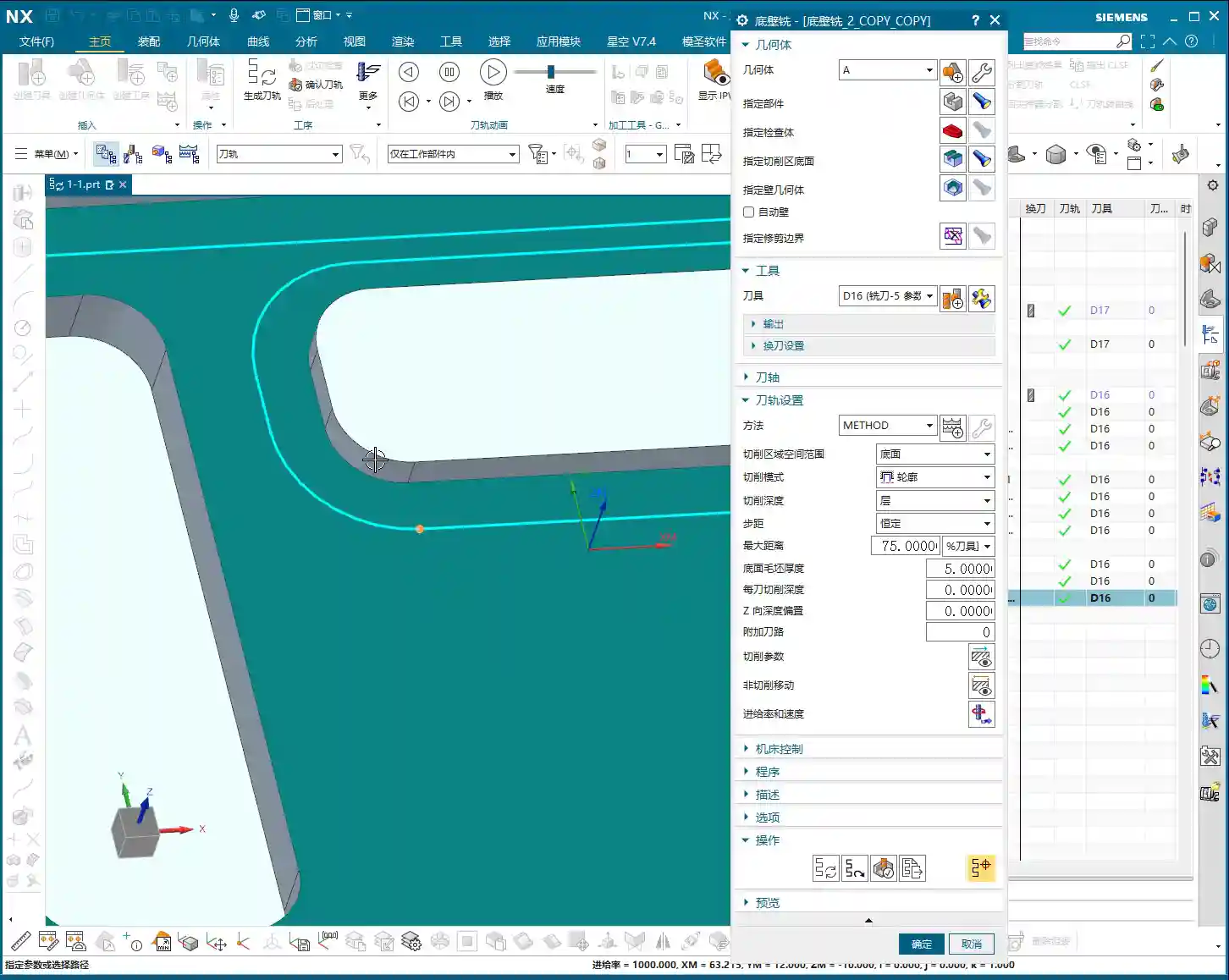
    📝 Key Takeaways: Master Wang provides an in-depth practical guide to Siemens NX Finishing Pass for bottom faces and sidewalls. He emphasizes setting stock allowance to zero for bottom face finishing and teaches how to resolve issues with high Z-approach in enclosed areas. For sidewall finishing, the “Contour” cutting pattern is key, with detailed instructions on optimizing lead-in/lead-out moves for smooth arc engagement, and practical settings for extension and overlap distances. Finally, he shares how to inspect machining quality by observing cutting “footprints” to ensure high-precision requirements are met.

    Hello everyone, I’m Master Wang. Last time, we discussed roughing operations. Now that the roughing programs are done and the parts are almost ready, today we’ll continue by explaining how to bring these rough parts to a precise finish, especially the finishing pass for bottom faces and sidewalls. This is where your true skill is tested; even a small mistake can lead to big problems. So listen up!

    Finishing Pass for Bottom Faces: One Pass, Zero Stock

    For bottom face finishing, our goal is a flat, smooth, and dimensionally accurate surface. Don’t expect to achieve perfection in one go; you need to start by tweaking your existing roughing programs.

    Quick Optimization by Copying Roughing Programs

    The easiest way is to simply copy your previously created roughing program. Once copied, we’ll modify the parameters.

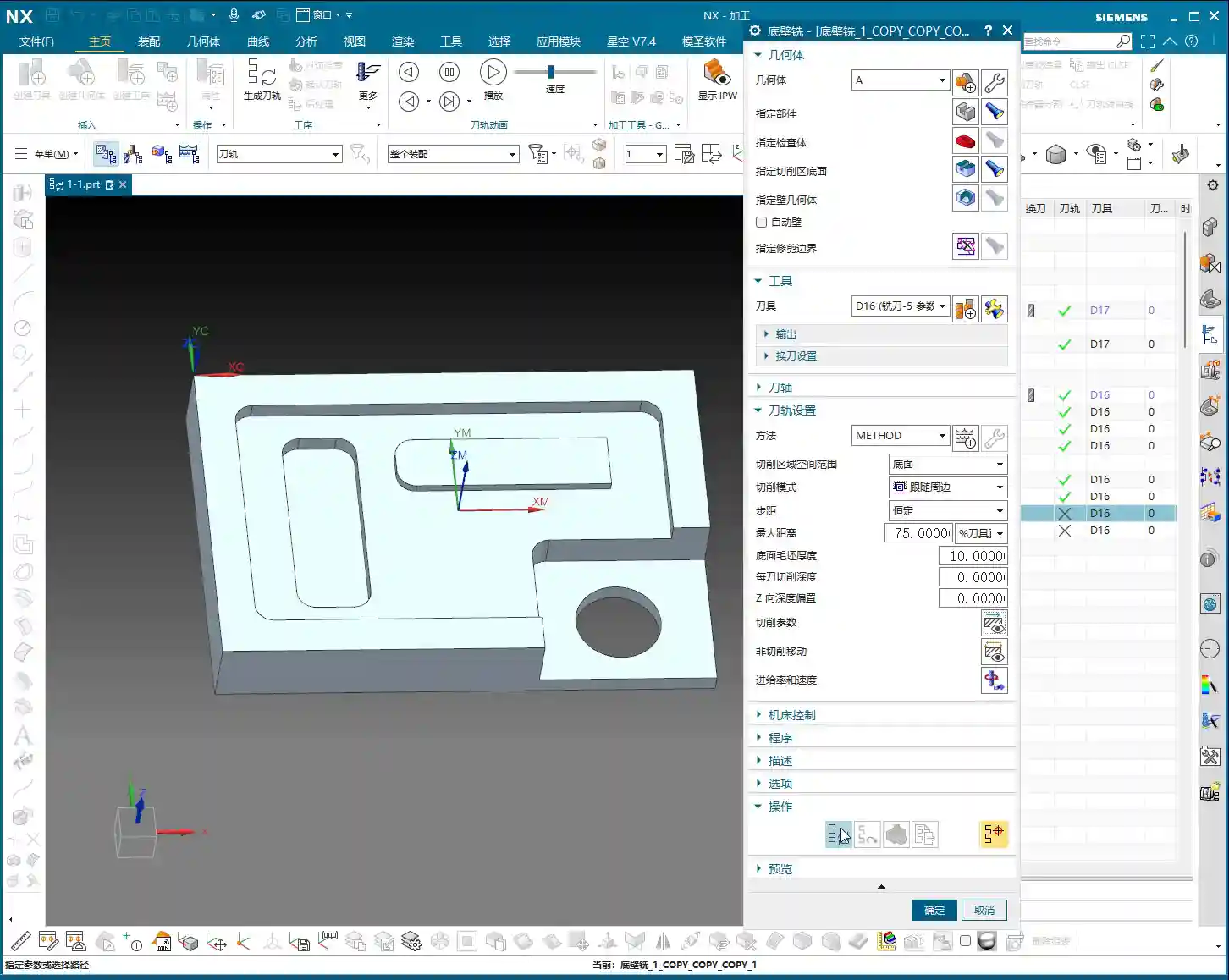
    • Step One: Zero out bottom face stock allowance. During roughing, you definitely left stock on the bottom face, say 0.2mm. For the finishing pass, you must change “Part Stock” or “Bottom Stock” directly to 0. This ensures the tool cuts precisely to your defined bottom face, making it a single, accurate pass with no remaining stock.
    • Step Two: Sidewall stock allowance. If you plan to finish the bottom face and sidewalls separately, when finishing the bottom face, you can leave a slightly larger sidewall stock allowance, for example, 0.3mm. This prevents the tool from grazing the sidewalls during the bottom face finishing pass, avoiding secondary tool marks. If the pocket is shallow, you can finish both the bottom and sidewalls together, setting all allowances to 0. But for now, we’ll discuss them separately, so follow my lead.
    Solving High Z-Approach in Enclosed Areas

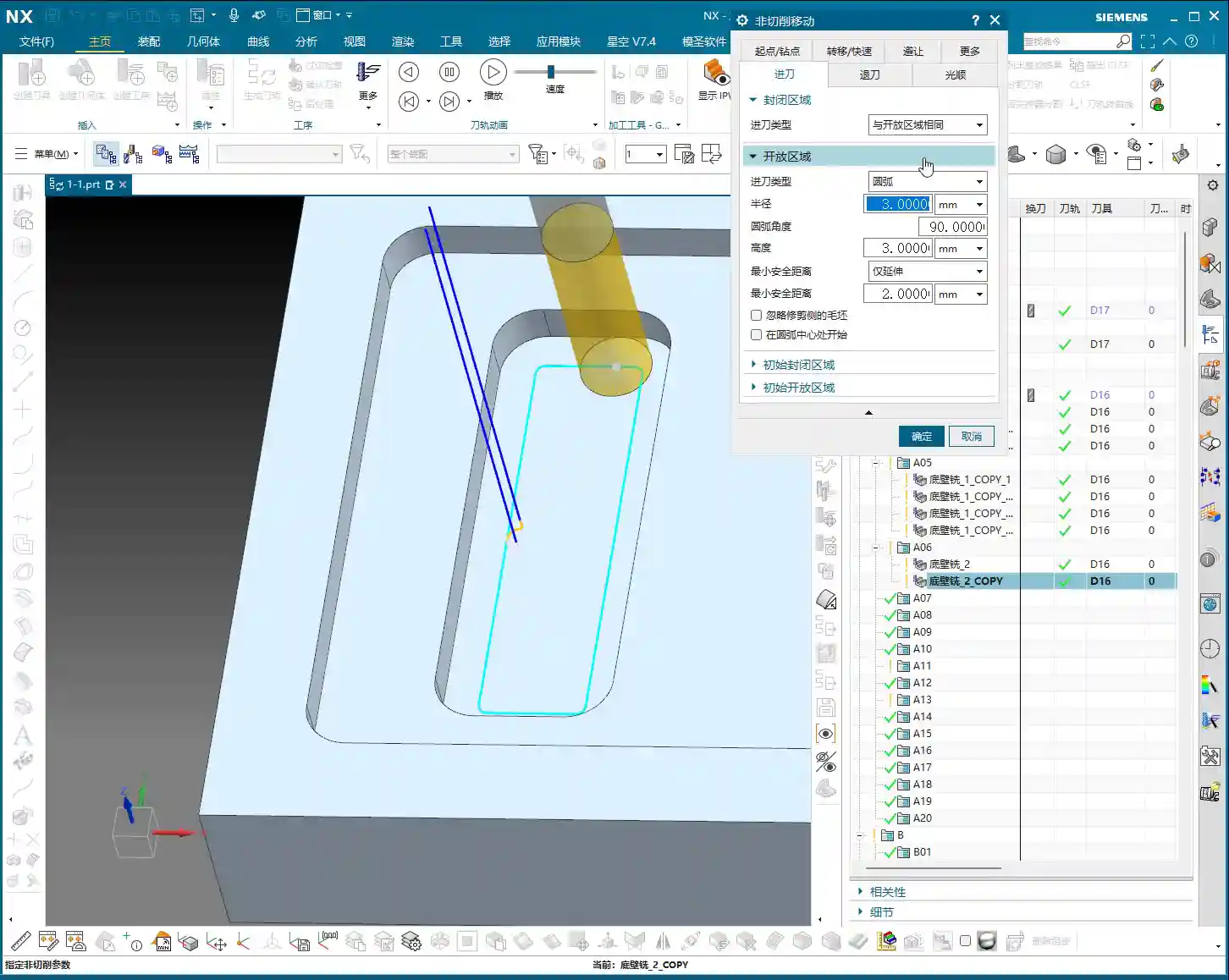
    This is a common mistake newcomers make, and it’s not always thoroughly explained in textbooks. You might notice that in some enclosed cavities, the tool starts its entry from a high position, plunging vertically, sometimes even dropping from over ten millimeters – it sounds painful and can easily chip the tool!

    • Root Cause: This happens because the “Part Stock” (sometimes called “Safety Height” or “Initial Cut Depth”) you set during roughing was too large. For example, if you set it to 10mm for roughing, the finishing pass will default to starting its cut from that same high position.
    • Master Wang’s Tip: Listen up. In your finishing program, locate the parameter that controls the tool’s starting Z-height for engagement. This is typically “Part Stock” or a similar setting like “Safe Entry Height”. Reduce it significantly, for example, to 1mm. This way, the tool will approach the workpiece surface much closer before engaging, which is safer, more efficient, and eliminates unnecessary air cutting time.
    • Exception for Open Areas: If it’s an open area where the tool enters from outside the part, this issue of high Z-approach is irrelevant, as the tool won’t be plunging from above in the same way.

    Finishing Pass for Sidewalls: Contour Cutting is Key

    With the bottom face taken care of, let’s move on to the sidewalls. Finishing sidewalls requires much more finesse than bottom faces, especially regarding smoothness and tool mark control.

    New Program: Finishing Sidewalls from Scratch

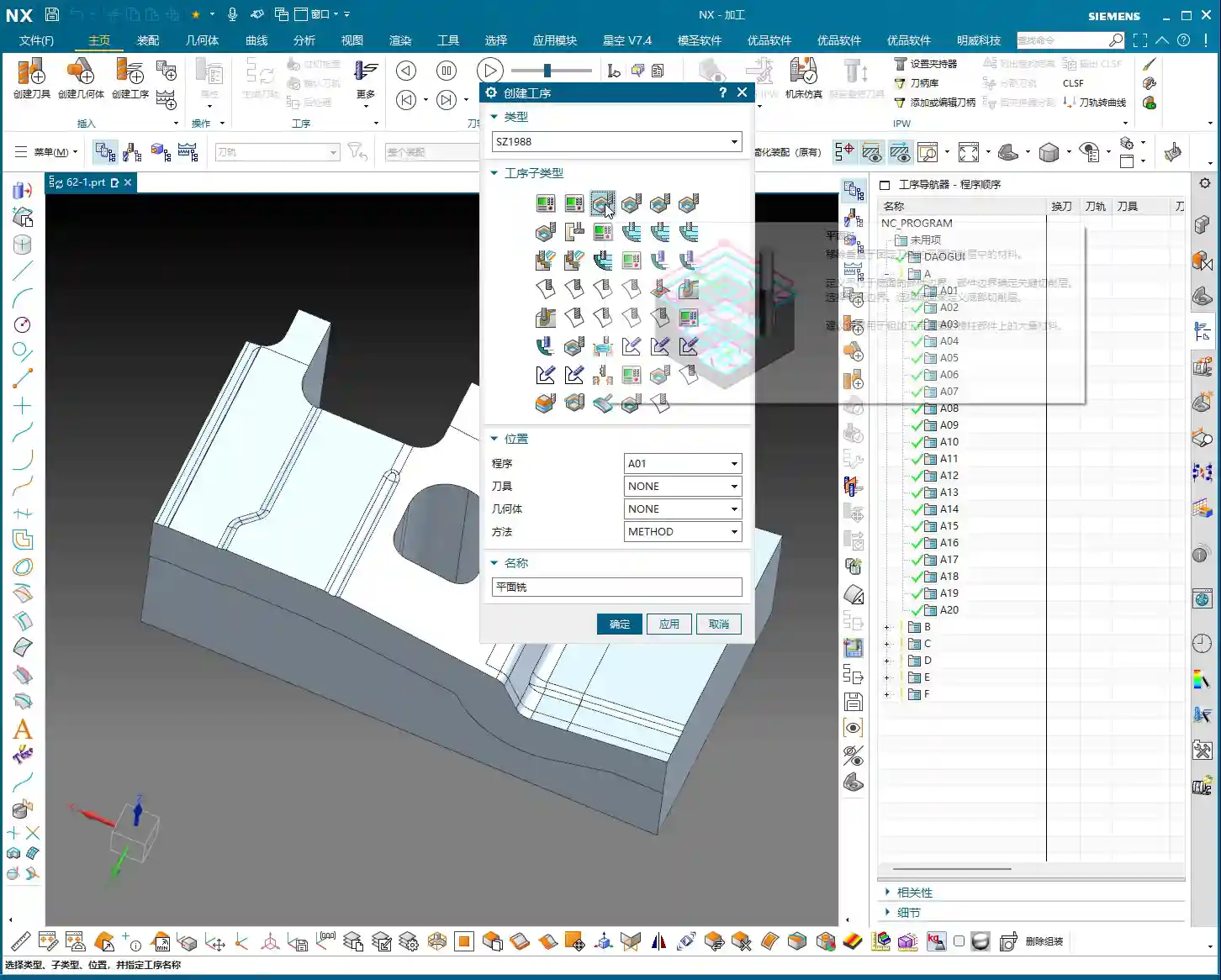
    While I, Master Wang, typically copy and modify programs, to ensure you fully understand, we’ll create a new sidewall finishing program from scratch. Select the “Planar Mill” operation type, and continue using our D16 end mill.

    • Select Machining Face: For instance, if we’re finishing this sidewall, select the bottom face it originates from – essentially, the “root” of the sidewall.
    • Problem Alert: If you generate the tool path directly, you’ll notice it’s still finishing the bottom face! Why? Because “Planar Mill” defaults to machining bottom faces.

    Core Setting: Switch Cutting Pattern to “Contour”

    Listen up, this is the most critical step for finishing sidewalls!

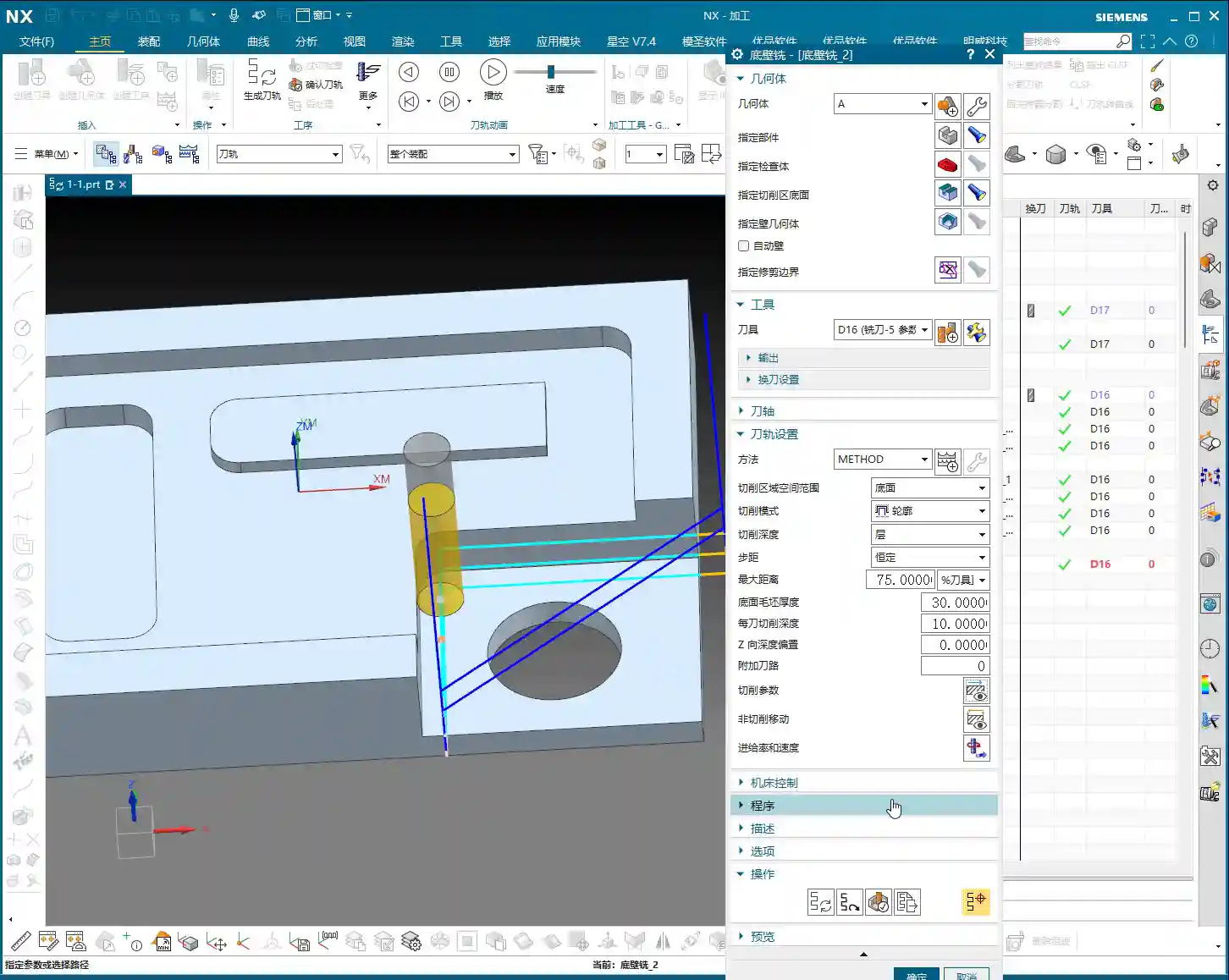
    • Key Operation: In your program parameters, find the “Cutting Pattern” option. Decisively switch it to “Contour” from the default “Follow Part,” “Zigzag,” or other options.
    • Explanation of Function: Once you switch to “Contour” mode, Siemens NX will intelligently identify all sidewalls perpendicular to your selected bottom face and machine along their profiles.
    • Zero Stock Allowance: Similarly, for sidewall finishing, set all stock allowances (including bottom and sidewall stock) to 0. We want that crisp, clean finish!

    Optimizing Lead-in/Lead-out: Ditch Angled Plunge, Embrace Smooth Arc Engagement

    Even after setting the “Contour” mode, you might find the tool engaging at an angle. While it can still cut, this isn’t very efficient and tends to leave marks at the entry point, affecting surface finish.

    • Step One: Address the “angled plunge” phenomenon.

      • The Pain Point: The tool plunges into the material at an angle instead of vertically descending to the cutting plane and then linearly engaging. This is especially noticeable in enclosed areas.
      • Master Wang’s Tip: Go to the “Non-Cutting Moves” settings. There’s a parameter related to the entry method, often called “First Point of Yellow Line” (or “Engage Method”). Typically, it defaults to calculating for “Enclosed Areas.” You need to change it to “Same as Open Area”. This way, the tool will first descend to the cutting plane and then linearly engage, which is much safer.

    • Step Two: Ensure smoother engagement and eliminate tool marks.

      • The Pain Point: Even after fixing the angled plunge, a straight-line entry after vertical descent can still cause impact, leading to subtle tool marks.
      • Master Wang’s Tip: In the “Engage Type” setting, change “Linear” to “Arc”. Then set an appropriate arc radius, for example, 3mm. This allows the tool to smoothly engage the workpiece along an arc trajectory, minimizing impact and naturally improving surface finish.
      • Arc Extension (“Arc End Extension”): When using arc engagement, there’s also an “Arc End Extension” parameter. You can think of this as the extended length of the arc during lead-in or lead-out. For example, if you set it to 10mm, the tool will travel an additional 10mm along the arc before entering or after exiting the cut. What’s its purpose? It ensures the tool fully enters the cut or completely exits the material, preventing tool marks or incomplete machining in critical areas. There’s no fixed value; just observe the machining effect and adjust as you see fit.
      • Overlap Distance: The “Overlap Distance” is also very useful. For example, if you set it to 5mm, the tool path will extend by 5mm at connections or where the path loops back on itself, creating an overlap region. This effectively eliminates tiny unmachined areas and ensures overall machining consistency. Of course, not overlapping is also fine; it depends on your actual working conditions and precision requirements.

    Master Teaches You: Finishing Complex Part Sidewalls in One Go

    You might be thinking, if a part has many sidewalls, do I have to select them one by one? That would be exhausting! Master Wang tells you, there’s no need for such hassle.

    One Trick for Many Uses: The Ingenious Application of Planar Mill with Contour Cutting

    Our previously created sidewall finishing program already has the “Contour” cutting pattern and optimized lead-in/lead-out methods set up. Now, if you need to finish a sidewall with a more complex structure, such as one with grooves or multiple edges, how do you do it?

    • Quick Copy: Simply copy your previously optimized sidewall finishing program.
    • Select New Bottom Face: Then, you just need to select the bottom face corresponding to the new sidewall. For example, for the sidewalls of a square boss, you’d select the top face of that boss as the machining bottom face.
    • Intelligent Recognition: A miracle happens! Because you selected the “Contour” cutting pattern, Siemens NX will automatically identify all sidewalls around this bottom face and generate tool paths for finishing them. One bottom face, and all surrounding sidewalls are taken care of – saving time and effort!

    Acceptance Criteria: How to Determine if a Part is “Finished Correctly”

    No matter how well your program is written, the final result depends on the machining effect. How do you determine if the bottom faces and sidewalls are truly “finished correctly”?

    Visual Verification: Look at the Simulation, But More Importantly, the Cutting “Footprints”

    Don’t just stare at the software simulation; that’s just theory. Us old masters have our own trick: observing the tool path simulation’s “footprints.”

    • For Bottom Faces: In the Siemens NX tool path simulation, slow down the simulation speed and carefully observe the marks left by the tool as it passes over the bottom face. If you see a layer of uniform, subtle “overlap footprints” on the bottom surface, it indicates that the tool has thoroughly machined the bottom face. The more uniform these “footprints,” the better the surface finish.
    • For Sidewalls: Using the same method, drag the tool path and look for those tiny tool marks or overlapping trajectories. If these marks are clear and continuous, it means the sidewall finishing pass has also covered the entire area. If you find any areas without “footprints,” or if the “footprints” are not continuous, you’ll need to go back and check your parameters – perhaps the stock wasn’t removed completely, or the tool path didn’t fully cover the area.

    That concludes our lesson for today. Next time, we’ll discuss how to handle hole machining. Remember, practice makes perfect; keep practicing and keep thinking!

    Summary: Pitfall Avoidance Guide

    1. Zero stock allowance is an ironclad rule: For finishing any surface, the corresponding machining stock allowance must be set to 0, or all your efforts will be in vain.
    2. Exercise caution with Z-approach in enclosed areas: Don’t let the tool plunge directly from a high position. Be sure to adjust “Part Stock” or “Safe Entry Height” to around 1mm to reduce impact.
    3. For sidewall finishing, “Contour” cutting pattern is mandatory: This is the core of Siemens NX’s “Planar Mill” for finishing sidewalls; get this wrong, and you won’t be finishing the sidewalls.
    4. Optimize lead-in/lead-out; smoothness is paramount: Set “First Point of Yellow Line” to “Same as Open Area,” select “Arc” for the engage type, and reasonably set the arc radius and extension to eliminate tool marks and ensure surface quality.
    5. Set overlap distance appropriately: Especially in critical, high-requirement sidewall areas, proper overlap can prevent missed cuts and improve overall surface finish.
    6. Learn to “read the footprints”: Don’t just rely on the simulation; learn to judge if the actual machining is complete by observing the subtle marks in the simulation. This is a true skill taught by experienced masters!

    “`

    👤 About the Author:
    The author is a veteran CNC machining professional with 15 years of industry experience, specializing in UG NX programming. This article is an original work representing personal practical insights.

    ⚠️ Copyright Notice: Unauthorized reproduction or distribution without prior communication is strictly prohibited.