Tag: Siemens NX

  • Siemens NX Angle Head High-Efficiency Roughing and Semi-Finishing Programming in Practice: Master Wa

    📝 Key Takeaways: ** Master Wang shares his practical expertise in Siemens NX Angle Head Roughing and Semi-Finishing programming. From clever use of program replication and tool axis definition, to the versatile application of 16mm, 6mm, and 10mm milling cutters, he meticulously explains high-efficiency machining strategies for side walls and bottom surfaces. The importance of optimizing non-cutting moves and precise stock definition is emphasized, and he shares how to address accuracy challenges and boost machining efficiency by adjusting parameters, avoiding real-world pitfalls not found in textbooks. **

    [VIDEO_HERE]

    Master Wang Speaks: The Practical Essence of Angle Head Programming

    Listen up, youngsters. Today, Master Wang here is going to give you the real lowdown on **Siemens NX Angle Head Roughing and Semi-Finishing** programming. Don’t think it’s just a matter of clicking a mouse in the software. There’s a lot more to it, all based on hard-earned, practical experience.

    Last time, we nailed down the face milling (planar) programs. Now, we’re moving on to side milling. To be frank, side milling has many similarities with face milling programming. Especially for these areas, the principles are much the same. Learn one, and you can apply it to others with minor parameter adjustments. But don’t underestimate those “minor adjustments”; there’s a world of knowledge in them.

    Smart Use of Replication: Batch High-Efficiency Programming

    For us programmers, efficiency comes first. For the same batch of parts, especially for symmetrical or structurally similar areas, the best method is to **replicate an existing program and then modify the key parameters**. This saves time and effort, and reduces the chance of errors. Then, with a transformation function, *whoosh*, the program is replicated to the other side. How convenient!

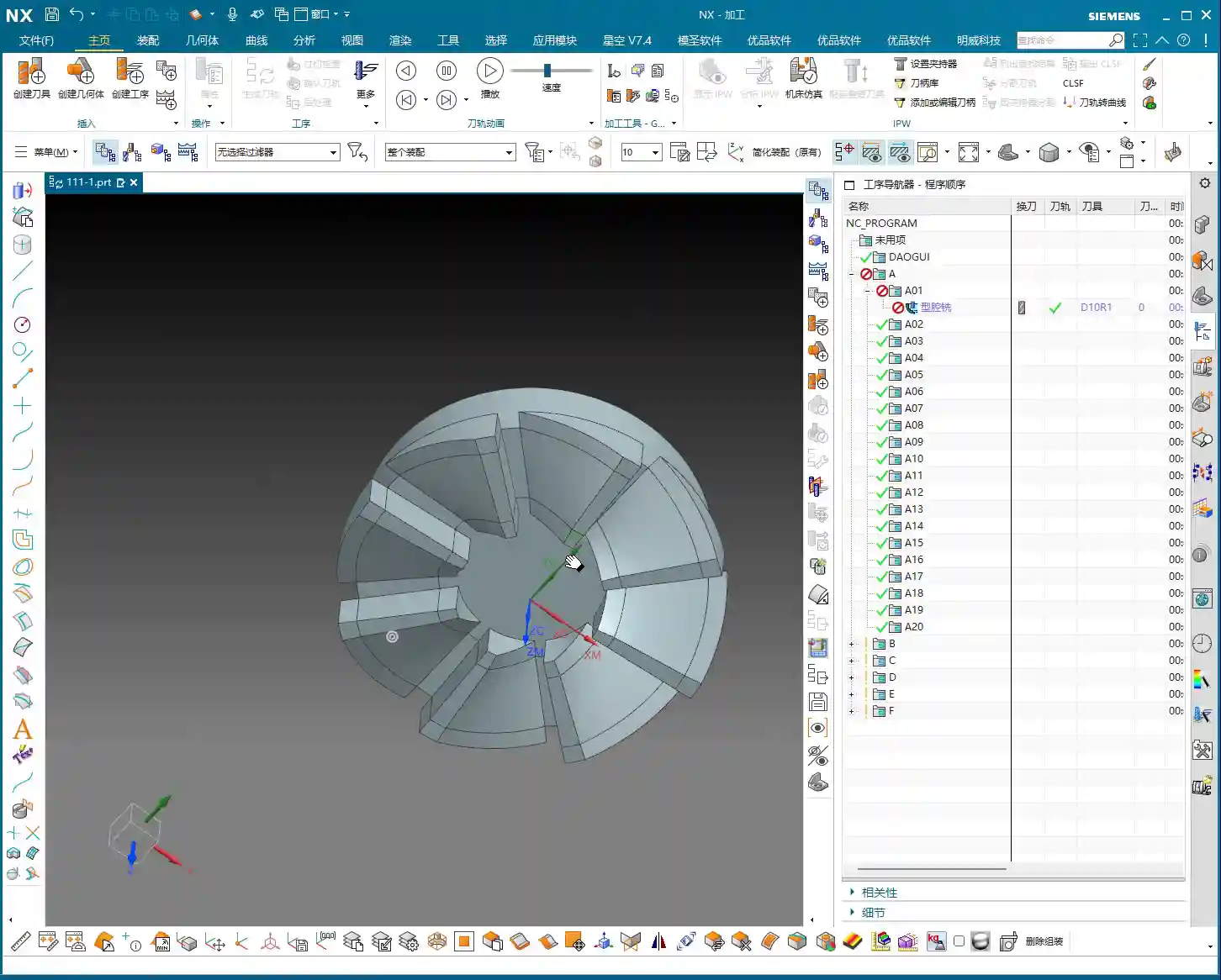
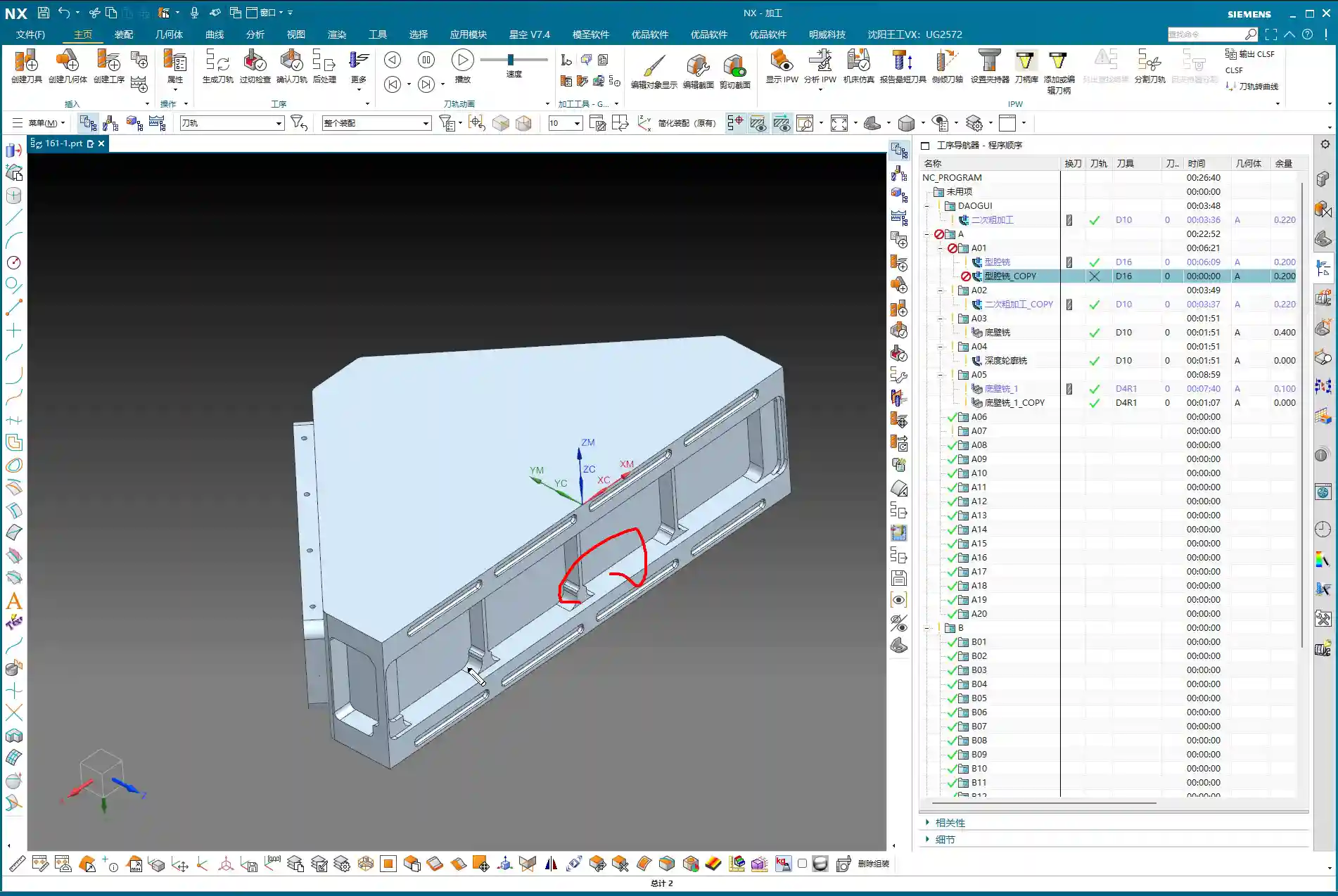
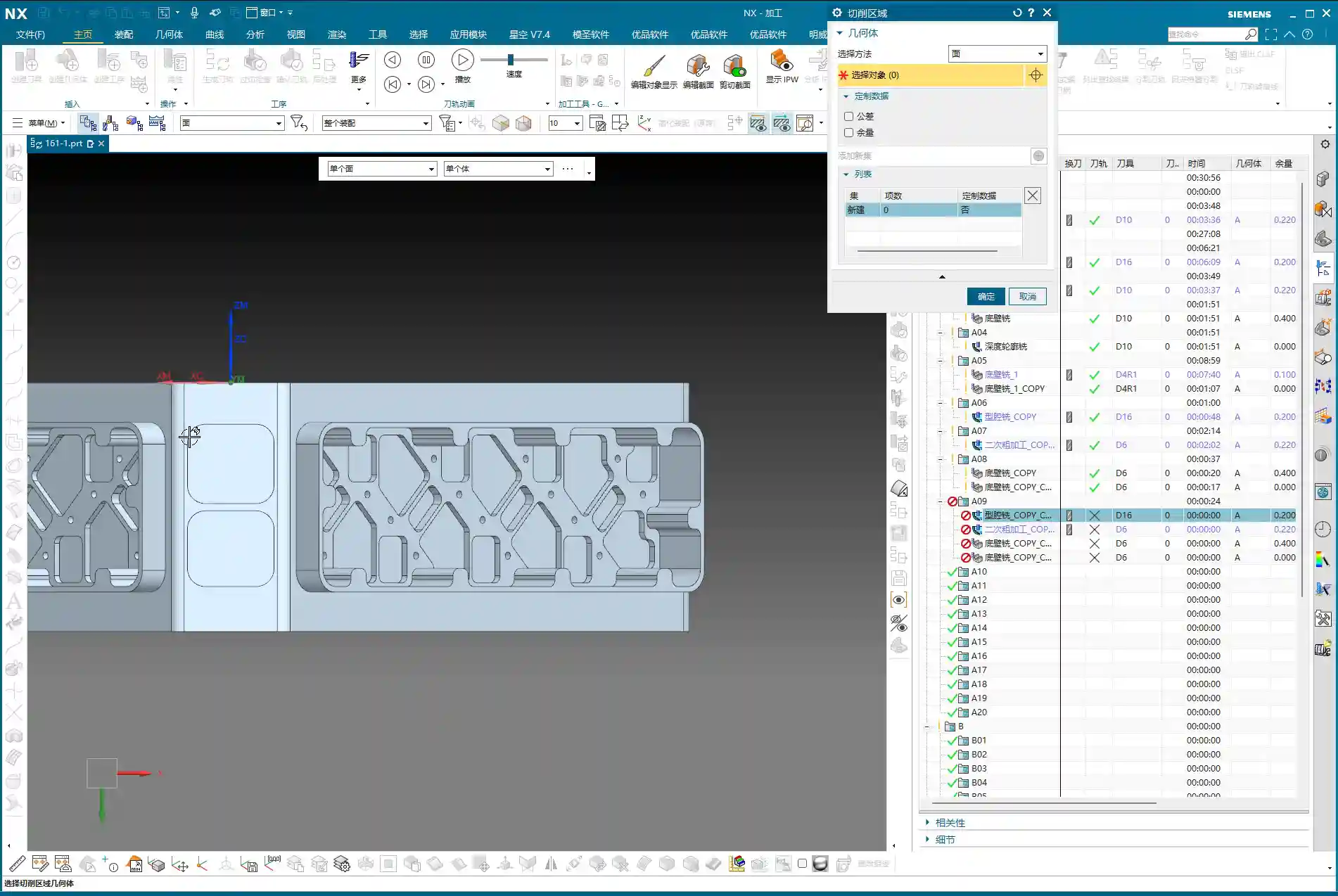
    Let’s start with one of the side surfaces. This program might seem simple on the surface, but to do it properly, you need to pay attention to the details. First, make a copy of our previous face milling roughing program, or directly copy it into a new operation set. Program by region to keep things organized.

    Angle Head Roughing: 16mm End Mill Leads the Charge

    For roughing this area, listen up. When we’re using a **HMC (Horizontal Machining Center)**, many programs are actually executed in a single setup. For instance, use a **16mm diameter end mill** to clear out the bulk of the material first.

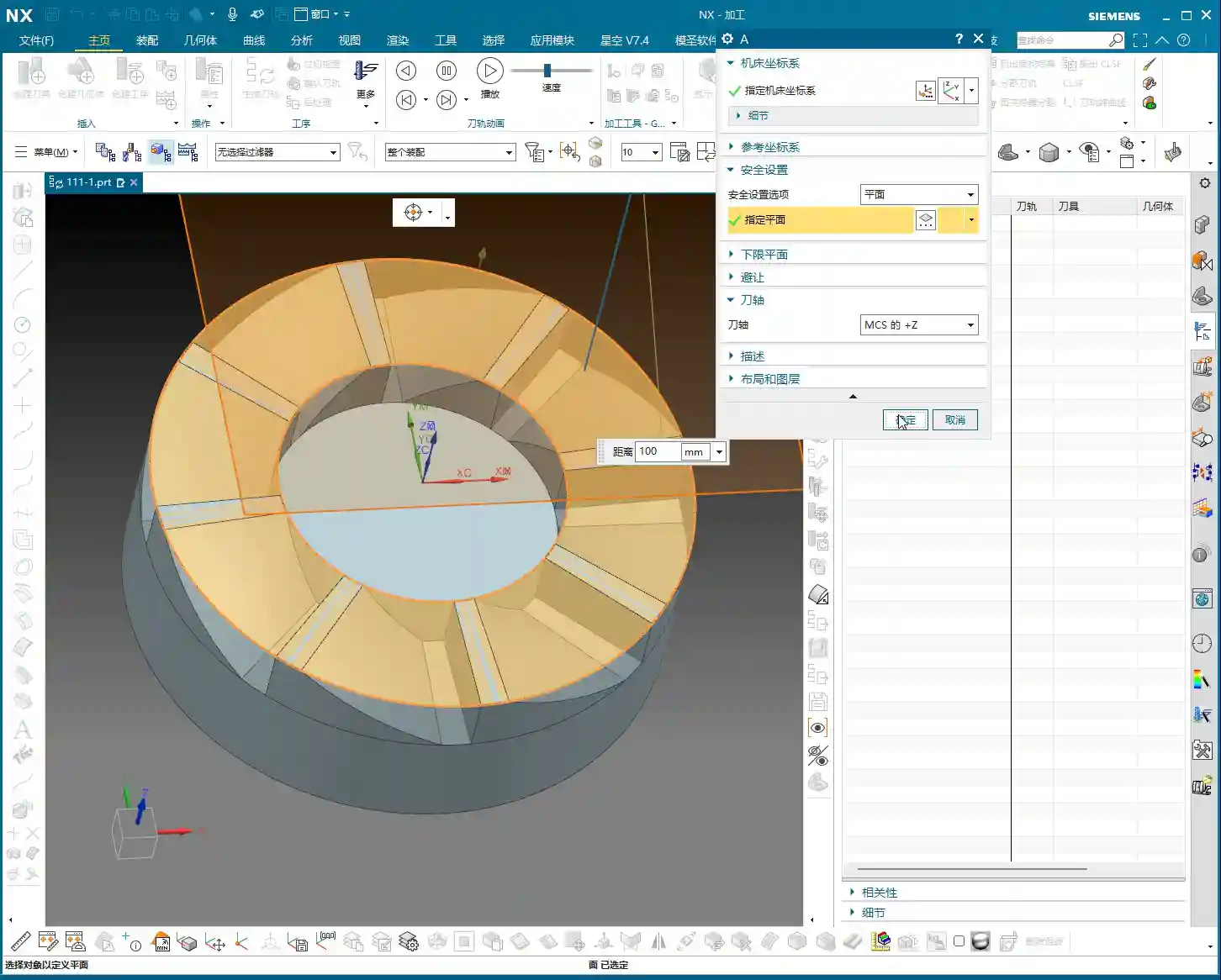
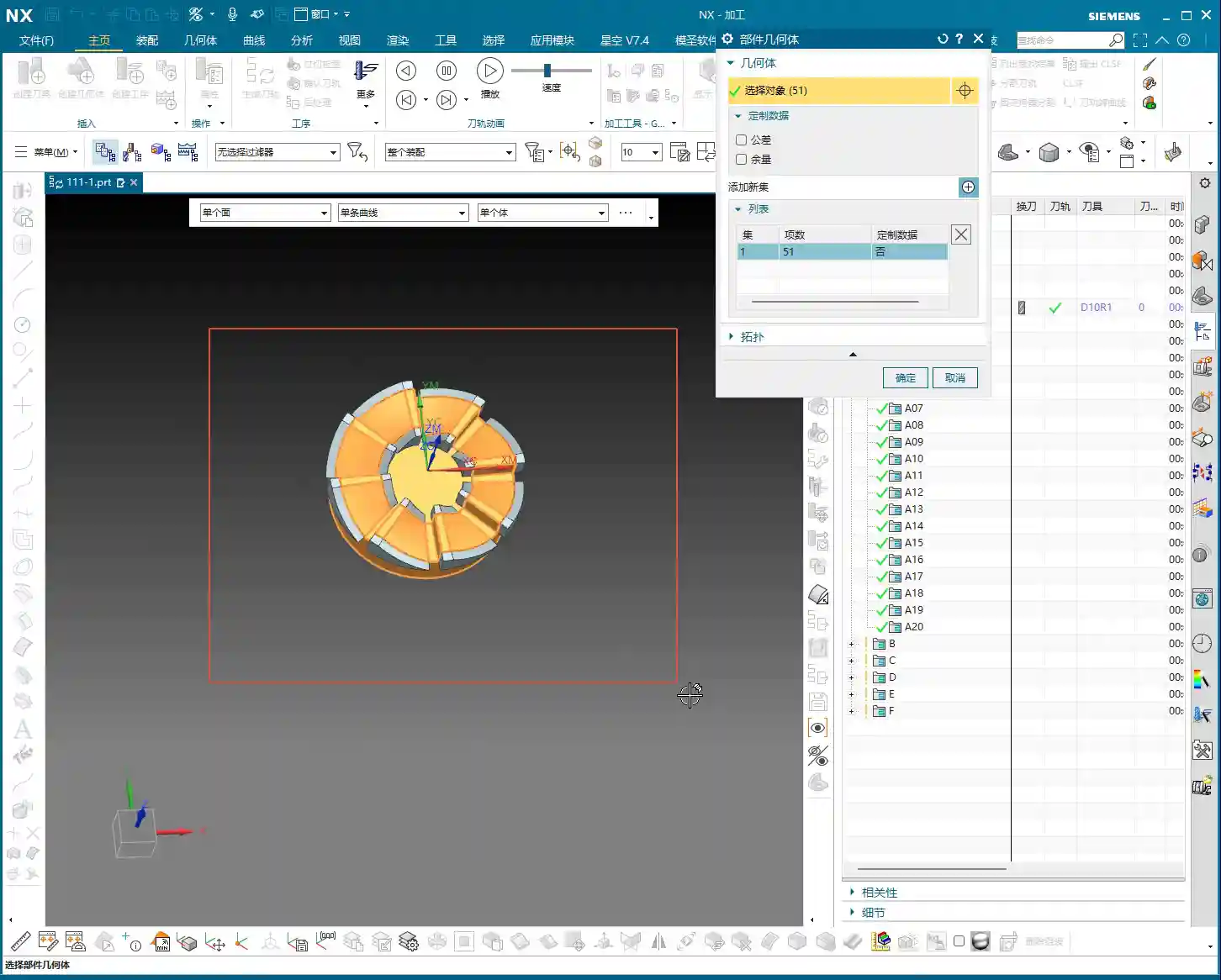
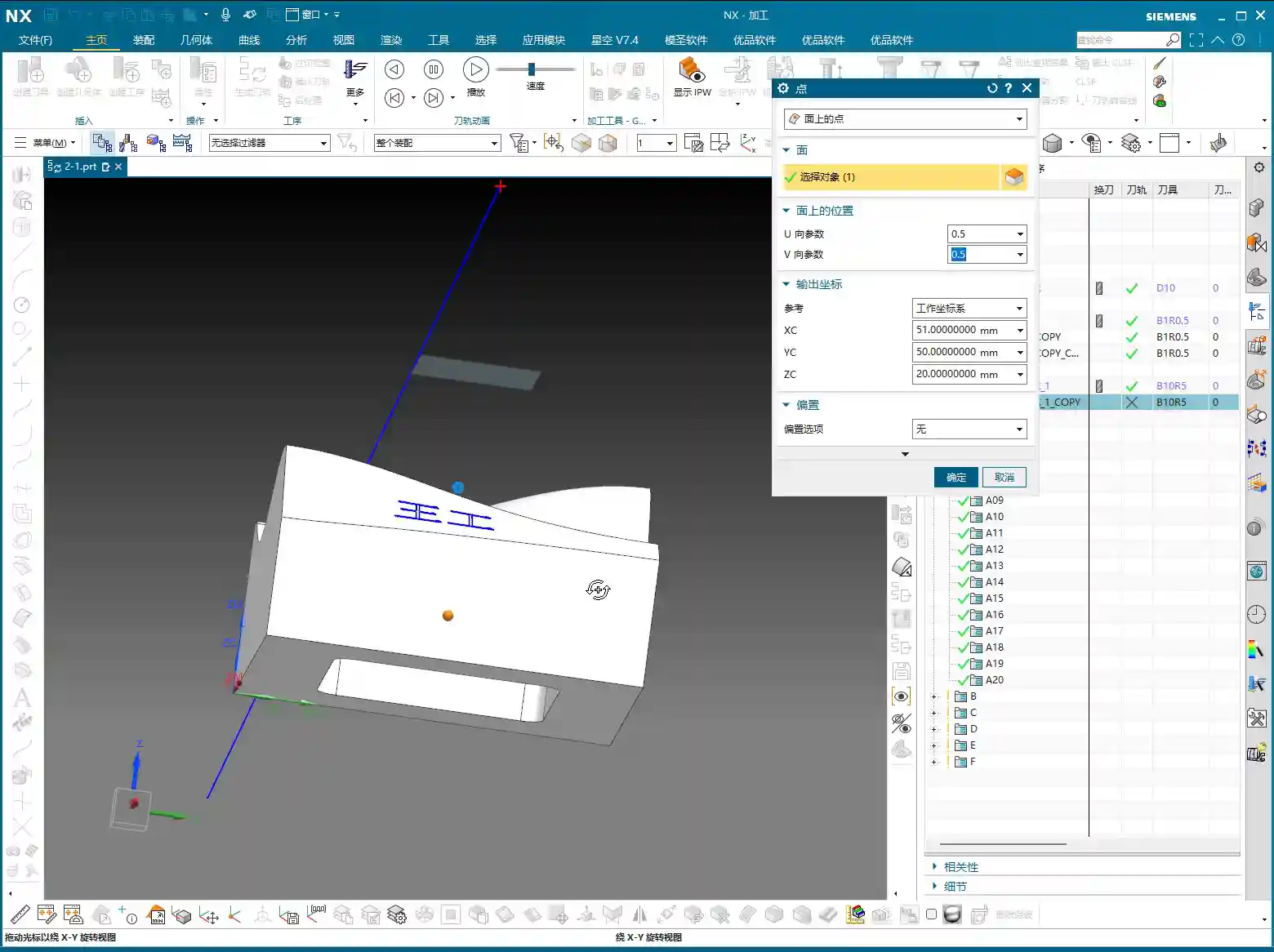
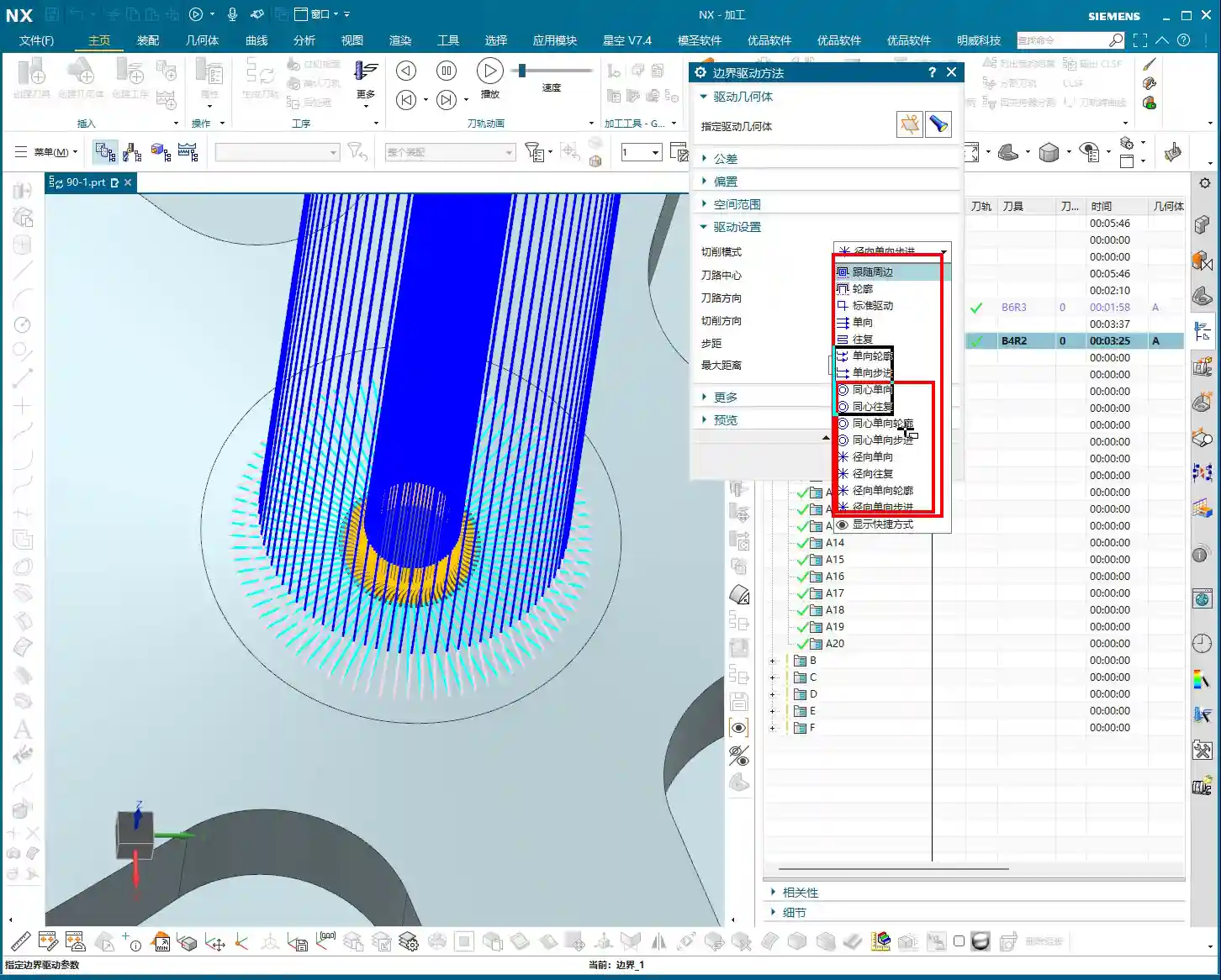
    Open the replicated program; don’t worry about other settings for now. The most critical step is to correctly specify the tool axis direction. For an angle head, the tool axis must be horizontal. Click on the surface you intend to machine, letting the software automatically determine the tool axis, or manually adjust it to the desired direction. Then, generate the toolpath directly and observe the result.

    This first step is about clearing the majority of the stock. Don’t expect to achieve a finished surface in one pass; that’s unrealistic and prone to chipping or breaking the tool. Roughing prioritizes efficiency and safety, leaving sufficient material for subsequent finishing passes.

    Angle Head Semi-Finishing and Bottom Surface Corner Cleanup: 6mm End Mill for Finer Work

    After the 16mm tool has cleared the main surfaces, there will always be areas it can’t reach, especially small radii or narrow gaps. At this point, you’ll need to switch to a smaller tool for semi-finishing or corner cleanup. We usually follow up with a **6mm diameter end mill**.

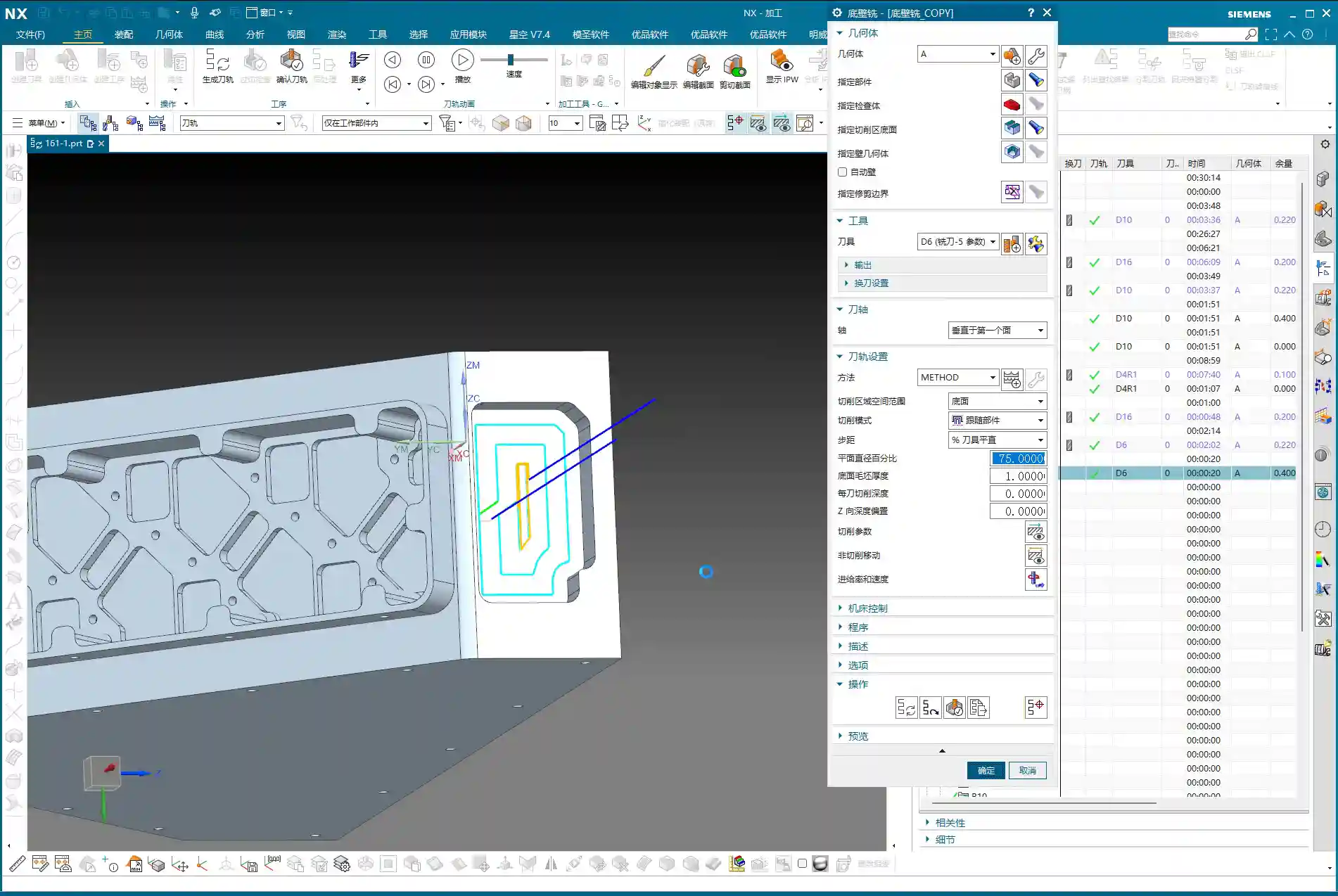
    Similarly, replicate the previous program again. Change the tool axis and the tool. Remember, switch to a **6mm tool**, and keep the tool axis direction consistent. Directly select the side or bottom surface you want to machine, and let it clear out the remaining stock in those areas. This program is very simple; as long as the tool axis and tool are correct, it should generate without issues.

    Next is the bottom surface. The 6mm tool just used can also be employed to clean up the bottom surface, bringing it to a semi-finished state. This ensures the flatness and accuracy of the bottom surface, preparing it for the subsequent finishing pass.

    Side Wall Corner Cleanup and Contour Finishing: Multi-Pass Machining and Non-Cutting Move Optimization

    Just having a clean bottom surface isn’t enough; side wall corner cleanup is also critical. If you want to go full depth in one pass and include the side walls with the bottom surface finishing program, that’s fine. However, if high accuracy is required or the cutting depth is significant, **multi-pass machining** is recommended.

    At this point, we can use the “Contour Milling” or “Cavity Milling” functions. First, measure the depth of this side wall, say it’s **10mm**. Then we can choose to machine in two layers, with a Depth of Cut (DOC) of **5mm** per layer. This ensures both cutting stability and effective corner cleanup.

    Here’s a little trick, especially when machining areas with open boundaries: the settings for non-cutting moves (retracts and approaches) are crucial. Change the closed type in non-cutting moves to **“Same as Open Area”**, and then set the arc radius for open areas to **1 or 2mm**. This way, the tool will follow an arc when entering and exiting cuts, avoiding direct retraction into walls. This protects the tool, ensures machining quality, and reduces the risk of scratching.

    Corner Cleanup for Complex Areas: 10mm End Mill Returns

    After the 6mm tool has semi-finished most of the side walls and bottom surfaces, some larger radii or deep hole edges might still require a slightly larger tool for further corner cleanup, to prevent steps or remaining stock. This is where a **10mm diameter end mill** comes into play.

    The procedure is the same as before: replicate the program, change the tool to 10mm, and re-select the machining area. While it’s all about corner cleanup, selecting the appropriate tool based on different geometries and tool radii is crucial. Use a larger tool for larger radii for higher efficiency; only use a smaller tool for smaller radii to avoid unproductive air cutting.

    Master Wang’s Expertise: Proper Stock Allowance and Toolpath Adjustment

    When performing corner cleanup and finishing passes on side walls, stock allowance (how much material to leave for the next tool or next pass) is a delicate matter. Sometimes, you’ll find that once a program is generated, the toolpath doesn’t look quite right, or certain areas aren’t cleanly machined. This is likely due to an improperly defined stock (or remaining stock from the previous operation), or toolpath parameters that haven’t been adequately tuned.

    For instance, sometimes to allow the tool to cut into corners more effectively, we need to adjust the tool tilt angle or the toolpath offset. I once encountered an area where I experimented with **78 degrees, 90 degrees, and even 85 degrees**, iterating until I found the optimal cutting angle that both cleaned the corner thoroughly and didn’t overstress the tool. These are all insights gained from experience. Don’t just rely on software simulations; observe the cutting sparks and listen to the machine’s sound!

    If one tool can complete the finishing pass for both the bottom surface and side walls simultaneously, that’s ideal. This reduces tool change time and improves efficiency. However, the prerequisite is that the tool geometry must match the part geometry. Don’t sacrifice accuracy for convenience.

    Summary: Pitfall Avoidance Guide

    1. **Tool axis direction is the lifeline of angle head programming**: Always ensure the tool axis is parallel to the side surface; otherwise, you’re wasting tools and material.
    2. **Proceed in stages, don’t rush**: First, use a large tool for roughing, then smaller to medium tools for semi-finishing and corner cleanup. Progress step-by-step to ensure safety and accuracy.
    3. **Clever use of replication and transformation**: For similar areas, directly replicate the program, modify parameters, and then use the transformation function for rapid generation, boosting efficiency.
    4. **Non-cutting moves are key for optimization**: Arc-shaped entry and exit moves in open areas effectively protect the tool and prevent workpiece scratches.
    5. **Stock definition must be accurate**: A clear stock definition is the foundation for generating appropriate toolpaths.
    6. **Observe, reflect, and don’t blindly follow software**: Software simulations are static; shop floor conditions are dynamic. Frequently observe cutting conditions and adjust parameters promptly. Sometimes you might feel a 16mm tool is too large, and a 10mm tool might be more suitable for roughing; this is called “adaptive application.”

    👤 About the Author:
    The author is a veteran CNC machining professional with 15 years of industry experience, specializing in UG NX programming. This article is an original work representing personal practical insights.

    ⚠️ Copyright Notice: Unauthorized reproduction or distribution without prior communication is strictly prohibited.
  • Siemens NX: Practical Bulk Post-Processing – Master Wang Helps You Ditch Manual NC Generation, Doubl

    📝 Key Takeaways: ** Master Wang provides a practical explanation of Siemens NX bulk post-processing, addressing the pain points of single-file processing. Using the “Youpin” module, you can select the appropriate post-processor definition for your machine, generate NC code for multiple workpieces with a single click, and analyze common G/M codes. He emphasizes the importance of output format compatibility with the machine control system and offers a guide to common pitfalls, helping you significantly boost machining efficiency. **

    Master Wang Begins: Bulk Post-Processing, The Era of Ditching Manual NC Generation!

    Hello everyone, I’m Master Wang. Last time, we discussed how to generate setup sheets. This time, we need to talk in detail about post-processing. Listen up, this is a critical step that directly impacts our machining efficiency and finished product quality.

    Back when I used NX 12, post-processing and setup sheets could sometimes be generated together, integrated with the controller system, which was convenient. But after system upgrades, for example, to NX 18.0 or 1980, many old practices changed. Especially when used with the controller system, simultaneously generating setup sheets and post-processed files became impossible. While downgrading the post-processor to version 8.0 could work as a temporary fix, it’s certainly not a long-term solution.

    Now, the core pain point we need to address is: if we can’t complete both post-processing and setup sheet generation in one go, or if we need to generate NC code for multiple workpieces in bulk, clicking them one by one, that would take forever! This kind of efficiency bottleneck, which you “won’t learn from textbooks,” must be solved with practical tips. Today, Master Wang will introduce you to aSiemens NX OP module, which is what we commonly refer to as the “Youpin” module, that we frequently use in our workshop. It will help you ditch manual NC generation and achieve bulk post-processing!

    Traditional Single-File Post-Processing: Where are the Efficiency Bottlenecks?

    Before discussing bulk processing, let’s quickly review conventional single-file post-processing and see where the problems lie.

    Hands-On Demonstration: Steps and Pain Points of Single-File Post-Processing

    Typically, you’d operate as follows:

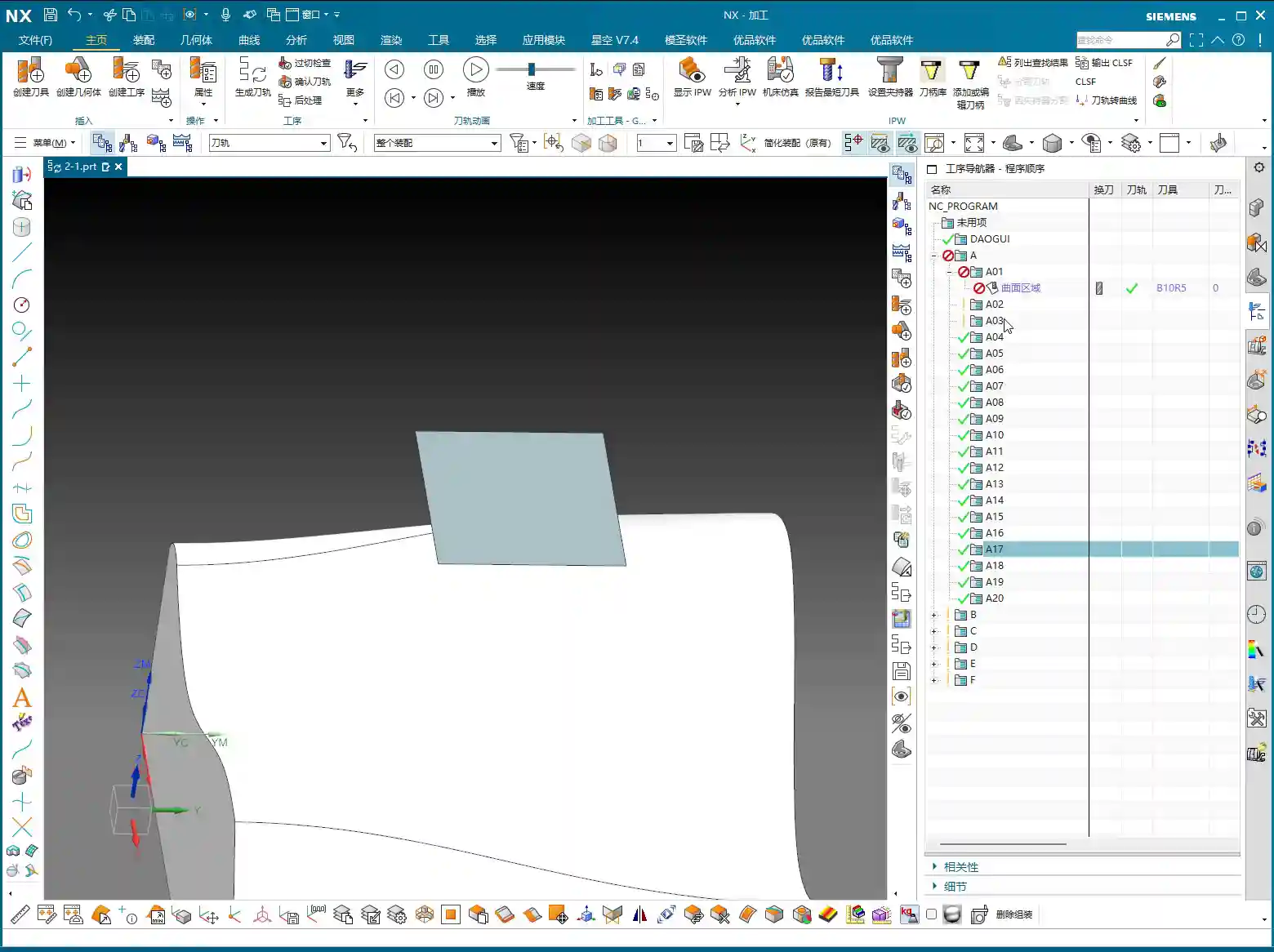
    1. In Siemens NX, select a program (e.g., “A01”).
    2. Click the “Post-Process” button.
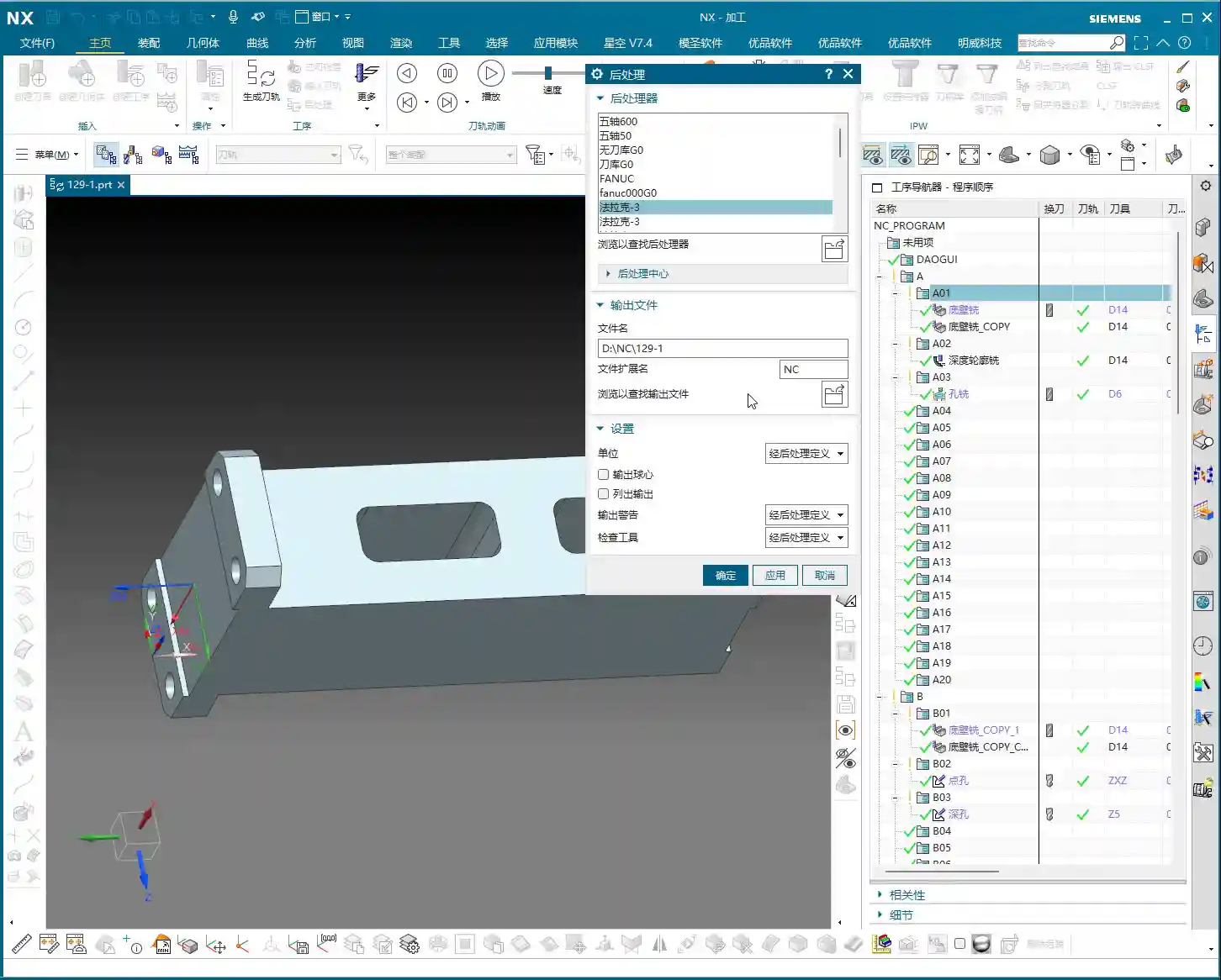
    3. The system will pop up a window asking you to choose the output path for the post-processed file. At this point, you’ll have to manually navigate to your desired folder, such as the “NC” folder on our desktop.
    4. Then click “OK” to complete.

    This seems straightforward, but what if you have ten, twenty, or even more workpiece programs to generate NC code for? You’d have to repeat the steps above ten, twenty, or even more times. This not only wastes time but also increases the likelihood of errors when selecting paths or naming files. Especially when deadlines are tight, such inefficient operation is practically a “fatal flaw.” Furthermore, the software’s built-in post-processors sometimes lack optimal compatibility, potentially requiring manual adjustments or specialized customization, all of which incur additional time costs.

    Just like I demonstrated earlier, sometimes if the path isn’t selected correctly, the NC file ends up in another folder, making it a hassle to find later. This one-by-one post-processing method is simply too inefficient; we can’t operate this way in our workshop!

    The Siemens NX OP Module: The Practical Essence of Bulk Post-Processing

    Now for the main event! We’ll use thebulk post-processing function within the “Youpin” module. This tool is incredibly convenient to use and will double your efficiency!

    The operation is simple, listen carefully:

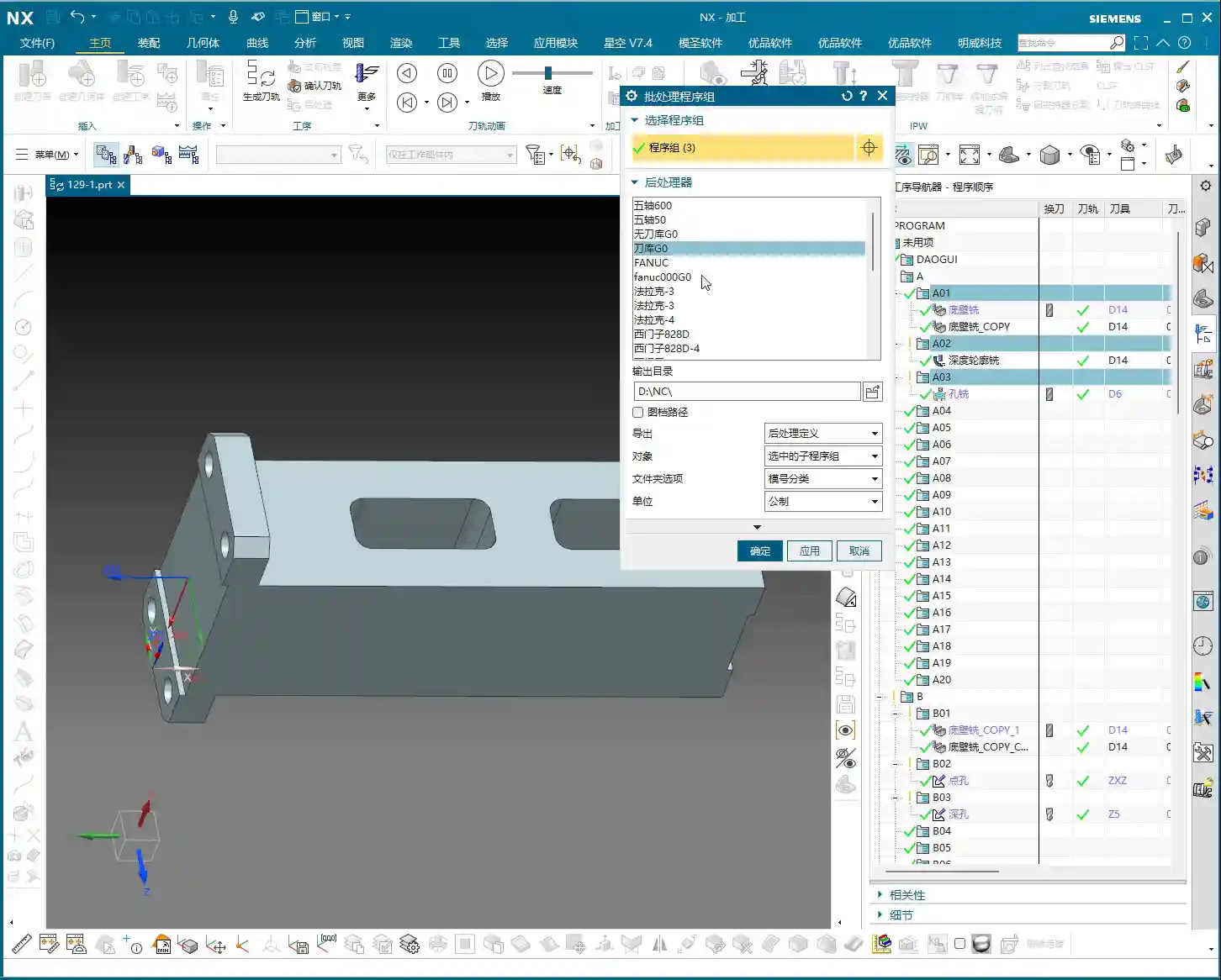
    1. Select Workpiece Programs: In the Siemens NX Operation Navigator, locate all your workpiece programs, such as A01, A02, A03, or even B01, B02, B03, etc. You can directly select an entire folder, or use the Ctrl key for multiple selections.
    2. Launch Bulk Post-Processing: After selecting, simply click our “Bulk Post-Process” button.

    See that? It automatically navigates to our preset output path. For instance, mine defaults to the NC folder on the D drive, saving you the trouble of manually selecting the path. This significantly boosts efficiency and prevents basic errors like incorrect paths.

    Core Settings: Post-Processor Definition and Machine Compatibility

    Here are a few crucial settings you must understand clearly to ensure your NC code runs smoothly:

    • Output Format: Should your NC file be output as .NC format? Or .MPF (commonly used by Siemens)? Or .TXT? This depends on your machine’s control system requirements.
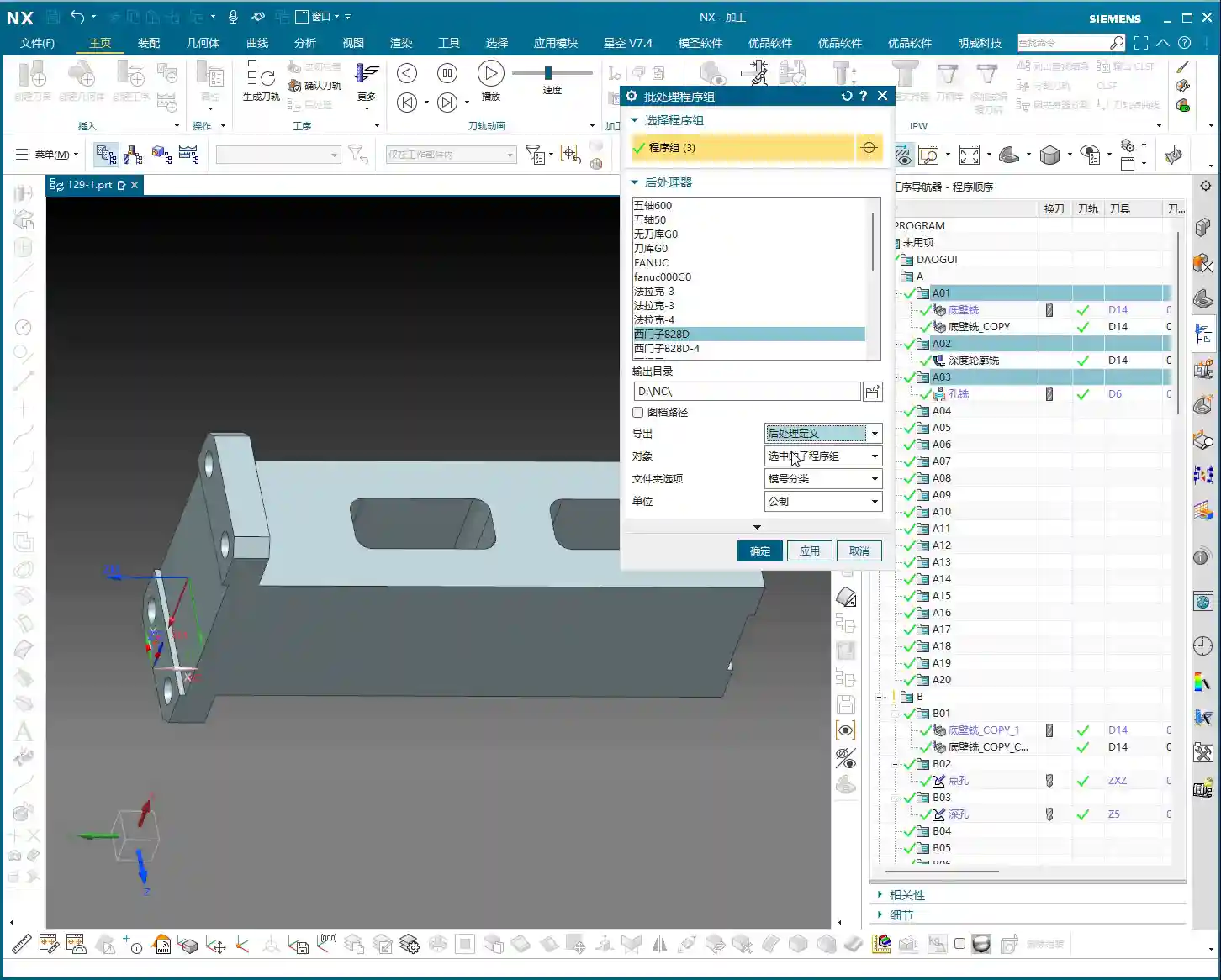
    • Post-Processor Definition: This is the most critical part! The post-processor you select here must perfectly match your machine’s control system, number of axes (3-axis, 4-axis, 5-axis), tool magazine type, etc. For example, if your machine has a Fanuc control, you cannot select a Siemens post-processor; if it’s a 5-axis machine, you cannot use a 3-axis post-processor. We previously covered a course with four dedicated lessons on how to place post-processor files into the Siemens NX template and enable the software to recognize and read them. If any of you junior engineers are unclear, go back and review those lessons thoroughly! Only with the correct post-processor definition will the machine “understand” the code you generate.

    Siemens NX has a vast array of built-in post-processors for Fanuc, Siemens, Haas, Sodick, Mazak, covering 3-axis, 4-axis, 5-axis, with or without tool magazines – all sorts of variations. For instance:

    • There are those specifically for 5-axis machines, such as my own named “5-axis 600” and “5-axis 50”.
    • There’s “5-Tool Magazine G0”, specifically adapted for 5-axis machines with a tool magazine.
    • Fanuc systems have many options, including “Fanuc System”, “9-Tool Magazine”, and “3-Tool Magazine”.
    • Siemens also has quite a few, like “Siemens 880D 4-Axis”, and some that are modified Siemens systems in Fanuc format, such as “291”.
    • Others include “Haas”, “Okuma”, “Makino”, and so on.

    These post-processors are all customized for different machines and control systems. When selecting, you must always choose based on your actual machine. For the purpose of this course, we mostly use 3-axis machining, so I typically select a 3-axis post-processor with a tool magazine. Once confirmed, simply click “OK.”

    NC File Analysis: Understanding the Process from the Code

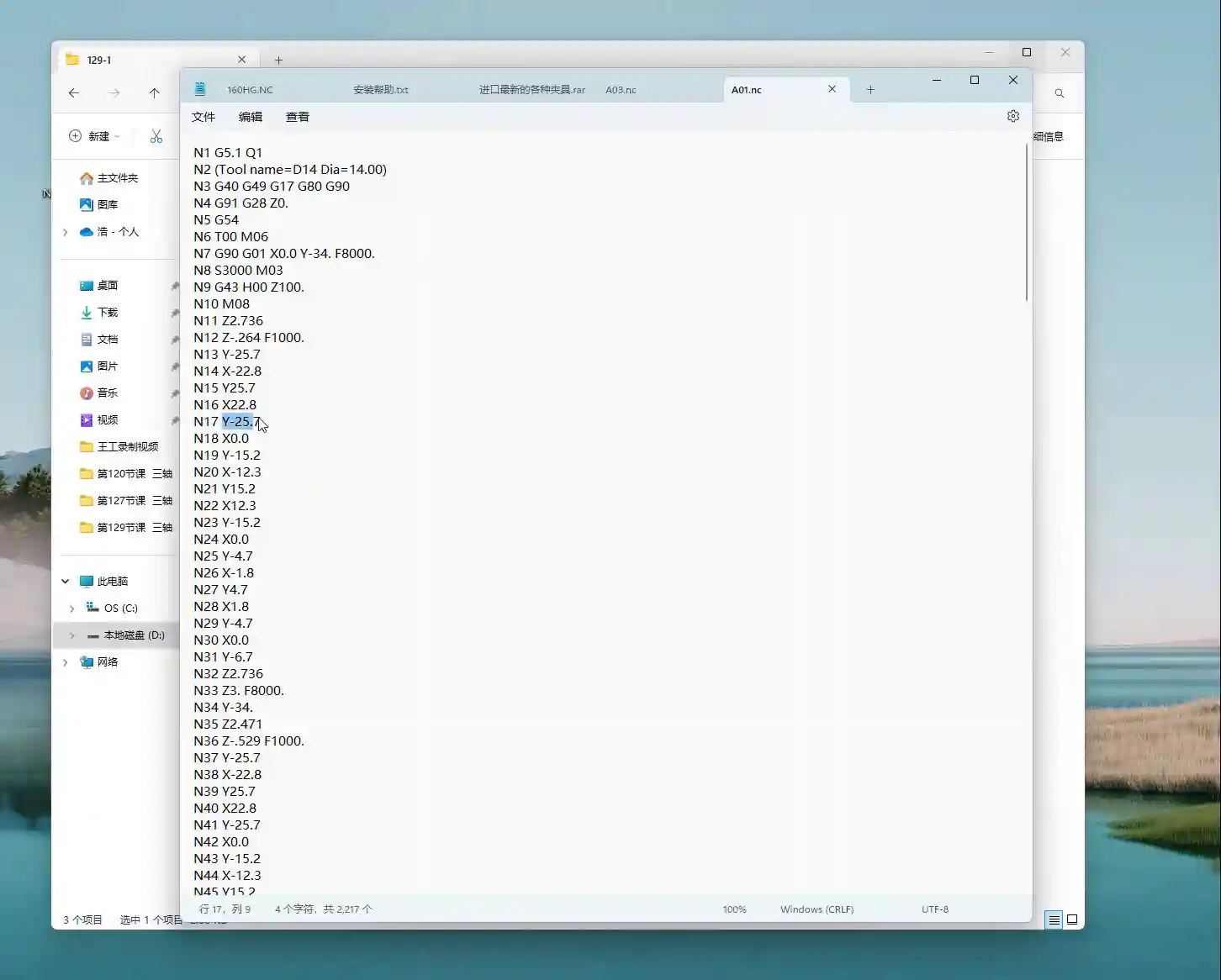
    Once post-processing is complete, the generated NC files will be uniformly placed in your specified folder. For example, the A01, A02, and A03 files I just bulk post-processed are now neatly located in the “129-1” subfolder within the NC folder on the D drive.

    Open one of the NC files using Notepad. Don’t just rely on software simulations; observe the cutting sparks, but more importantly, scrutinize this “royal decree”:

    • The beginning of the file will contain some basic program information.
    • Followed by common G-codes and M-codes, such as:

      • G5.1 Q1: High-speed, high-precision control command.
      • G54: Work Coordinate System selection.
      • G90: Absolute programming.
      • M03 S1000: Spindle forward rotation, 1000 RPM.
      • G43 H01 M08: Tool length compensation H01 active, M08 is for coolant on.
      • G0 Z100.0: Rapid move of the tool to Z-axis 100 mm.
      • G0 X50.0 Y50.0: Rapid move to specified XY coordinates.
      • F8000: Rapid feed rate (the value after F).
      • F1000: Cutting feed rate.

    These are our machine’s “language”; each command corresponds to a tool motion. If you’re using a 5-axis post-processor, it will definitely contain C-axis and A-axis rotation commands, such as A0 B0 C0, all of which will be present. If it’s a Siemens system, the program name might be in .MPF format. After opening, you might see Siemens-specific commands like J0, Z0. All of this indicates that the post-processor is correct.

    Bulk Post-Processing: Multiple Workpieces Handled in One Go

    See? I just quickly bulk post-processed these three programs, A01, A02, A03, in a flash – super fast! Let’s do it again; for example, I want to process these three workpieces: B01, B02, B03.

    The operation is still the same:

    1. Select the folder containing B01, B02, B03.
    2. Click “Bulk Post-Process.”
    3. Select the post-processor definition you need (e.g., a 3-axis with a tool magazine).
    4. Click “OK.”

    Once it’s finished, go check the NC folder, and you’ll find the NC files for B01, B02, and B03 neatly placed there. Isn’t this efficiency significantly higher than clicking them one by one manually?

    Summary: Pitfall Avoidance Guide

    Listen up, junior engineers, while bulk post-processing is simple, there are still some pitfalls to watch out for:

    1. Post-Processor Definition Must Match: This is paramount! Whatever machine you’re using, you must select the corresponding post-processor definition. A Fanuc machine cannot use a Siemens post-processor, and a 3-axis machine should not use a 5-axis post-processor. Otherwise, at best, you’ll get an alarm and the machine will stop; at worst, it could lead to tool deflection and a machine crash, resulting in significant losses.
    2. Output Format Must Be Correct: Understand whether your machine requires .NC, .MPF, or other formats; don’t just pick one arbitrarily. Generally, selecting the “Post-Processor Definition” will automatically handle the format issue, but you should still be aware.
    3. Path Check: Although bulk post-processing automatically selects a default path, when using it for the first time or if you’re unsure, manually confirm the path to ensure your NC files don’t get misplaced.
    4. Preliminary NC Code Check: After bulk processing, randomly pick one or two NC files, open them with Notepad, and quickly check critical parameters like spindle speed, feed rate, and tool compensation at the beginning to ensure everything is correct. This is especially important for new machines or new post-processors, requiring meticulous verification.
    5. Version Compatibility: As I mentioned earlier, Siemens NX software version upgrades can sometimes lead to changes in post-processing functionality, and even some plugins (like the Youpin module) might require updates. So, don’t panic if you encounter issues; first check for compatibility.

    Bulk post-processing is actually quite simple in principle and intuitive to operate. As long as you’ve established a solid foundation in post-processing, knowing how to properly configure post-processors and understanding the basic logic of NC code, then this function will be easy to master. It will save you a lot of time and boost our workshop’s overall efficiency – that’s the ultimate goal!

    Alright, that concludes today’s discussion on bulk post-processing. The next time I update course content, I’ll notify everyone promptly on platforms like Douyin, so remember to follow!

    Thank you for watching, and see you next time!

    👤 About the Author:
    The author is a veteran CNC machining professional with 15 years of industry experience, specializing in UG NX programming. This article is an original work representing personal practical insights.

    ⚠️ Copyright Notice: Unauthorized reproduction or distribution without prior communication is strictly prohibited.

  • Siemens NX Connecting Rib Modeling and Programming: In-depth Analysis of Efficient Clamping and Cutt

    📝 Key Takeaways: Master Wang will guide you step-by-step through NX connecting rib modeling and programming. From part analysis and auxiliary body construction to tool path optimization, this is a fully practical explanation. Learn how to leverage NX techniques to solve complex part clamping and cutting challenges, ensuring both precision and efficiency. Say goodbye to empty textbook theories and tackle real shop floor pain points!

    Listen up, fellas! Master Wang here. Today, we’re skipping the theory and diving straight into solid practical application. This part we’ve got here might look simple, but without a proper plan, you’re guaranteed to run into all sorts of headaches during machining. So today, let’s talk about how to tackle its connecting rib modeling and programming using NX, ensuring your work is both fast and stable.

    Part Geometry Analysis and Machining Challenges

    Quickly Identifying Machining Difficulties

    When you get a part, the first step isn’t to rush into the software. Instead, you need to look closely and analyze it thoroughly. As you’ll see, this part may appear simple, but we first need to understand its ‘characteristics’.

    • Connecting Rib Strategy: For parts like this, creating connecting ribs on the left and right sides is usually straightforward. However, pay attention: there’s an angled face at the front, which isn’t ideal for direct connection. So, we need to adapt flexibly: focus on connecting the left and right sides, while avoiding the angled face.
    • Surface Finish Issues (Flashing Surface): From a top view, some areas of this part show tool marks, which are what we often call ‘machined surfaces’ or ‘surfaces being cut’. But from a bottom view, these marks disappear. This tells us that during programming, we must pay close attention to the cutting direction and tool entry points in these areas to avoid leaving unsightly tool marks on critical surfaces.
    • Angled and Flat Surface Combination: The part’s sides have distinct angled faces, indicating that subsequent machining will definitely involve tilted machining or 5-axis simultaneous machining (if high precision is required). However, most other areas are flat, which simplifies roughing.

    Key Dimensions and Radius (R) Corner Confirmation

    After analyzing the shape, you need to examine the dimensions. Don’t just glance at the general outline; the detailed R corners and clearances will dictate which tool you select and how you program the tool path.

    • Uniform R Corners: We just checked, and all internal R corners are R3. This is excellent, as it means for the finishing pass, a single R3 ball end mill or bull nose end mill can handle most of the details, saving the hassle of frequent tool changes.
    • Connecting Rib Reserved Width: Ultimately, we need to cut off the connecting ribs, which requires reserving sufficient width for tool clearance. For example, measurements show the connecting locations are approximately 12.5mm (approx. 0.49 inch) apart. This gives us ample space to select an appropriate tool for cutting, such as a Ø10mm (approx. 0.39 inch) end mill. Even a Ø8mm (approx. 0.31 inch) tool could work, but you’d need to consider its rigidity and the cutting forces.

    Core Techniques for NX Auxiliary Body Modeling

    An auxiliary body isn’t just a random sketch; it’s crucial for securely clamping your part on the machine while enabling efficient machining. Listen up, this is the real expertise you won’t find in textbooks.

    Function and Preliminary Preparation of Auxiliary Bodies

    Why create an auxiliary body? It’s simple: it provides you with a secure clamping point, preventing the part from vibrating or deforming during machining. Concurrently, it defines your machining area, preventing the tool from cutting unintended regions.

    1. Copy the Part: First, copy the original part to different layers. This is good practice to avoid directly modifying the original model.
    2. Create Stock / Bounding Body: Typically, we start by creating a simple bounding body, such as a rectangular block, as the starting point for subsequent auxiliary body construction. Then, delete the original part, retaining only the bounding body for further operations.
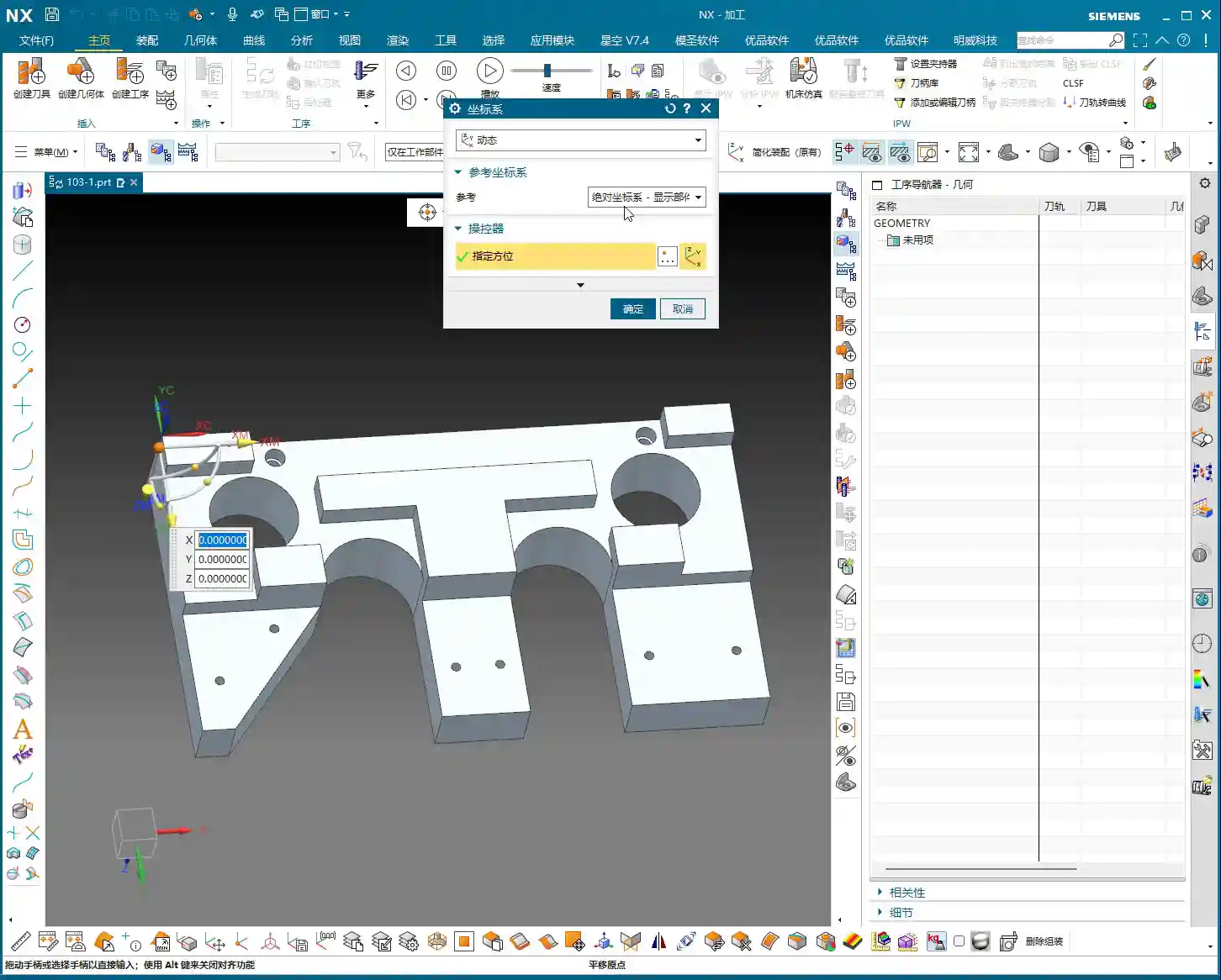
    3. Set WCS (Work Coordinate System): Ensure the coordinate system is set up correctly; this is the foundation for all programming.

    Generating Auxiliary Curves from Tool Path Trajectories

    Master Wang will teach you a trick: directly generate the tool path using the machining module, then extract the tool path boundary to create auxiliary lines. This method offers high efficiency and accurate precision!

    1. Select Machining Operation: We’ll use “Cavity Milling” or a similar roughing strategy, selecting the target face. Note: this isn’t for 5-axis “Contour Profile,” which is used for finishing passes.
    2. Tool Selection: Here, choose a larger tool, such as a Ø25mm (approx. 0.98 inch) end mill. The goal is to quickly generate a rough trajectory around the machining area. Keep only the final cutting layer to retain the bottom trajectory.
    3. Extract Boundary Curve: After generating the tool path, use the “Analysis Tool” and its “Extract Boundary” function to extract the outermost boundary of this tool path. This curve will be the initial shape of your connecting rib.
    4. Curve Extension: The extracted curve should be extended outwards appropriately (e.g., 20mm (approx. 0.79 inch)) so it extends beyond the part’s main body. This ensures that when performing the cut-off operation later, the tool can fully exit the material, preventing remnants.

    Auxiliary Body Thickening and Trimming

    Once you have the boundary, how do you turn it into a solid connecting rib? This requires using “Thicken” and “Boolean operations.”

    1. Create Sheet Body and Thicken:

      • Select the extracted boundary curve and use the “Extend Face” or “Extrude” command to extrude it into a sheet body, which will serve as the base face for the connecting rib. Pay attention to the extrusion direction and height to ensure it fully encompasses the part.
      • Then, perform a “Thicken” operation on this sheet body. For instance, if you’ve left a 1mm (approx. 0.04 inch) allowance, the sheet body’s thickness can be set to 19mm (approx. 0.75 inch), making the total height 20mm (approx. 0.79 inch). Check all faces to ensure a 1mm (approx. 0.04 inch) machining allowance is maintained everywhere.

    2. Boolean Operation Trimming:

      • Perform a “Subtract” Boolean operation between the thickened auxiliary body and the original part. Subtract the original part from the thickened auxiliary body. What remains will be the connecting ribs, conforming to the part’s outer shape and maintaining a clearance from the main part body.
      • Carefully inspect the trimmed auxiliary body to ensure there’s a clear clearance between it and the main part body, and that the connecting rib shape is robust and reliable. If certain areas don’t require extrusion or thickening, retain the original face and handle them flexibly.

    Process Planning and Tool Selection

    Roughing and Finishing Allowance Settings

    Setting allowances is an art, directly impacting tool life, machining efficiency, and final precision.

    • Uniform Allowance: When creating the auxiliary body, we ensured a 1mm (approx. 0.04 inch) allowance was left all around. This allowance is suitable for subsequent roughing and semi-finishing operations. It guarantees sufficient Depth of Cut (DOC) during roughing without being excessive, which could overburden the finishing pass.
    • Staged Machining: Roughing should be fast, aggressive, and accurate, removing the bulk of the material. Semi-finishing aims for a smooth transition, preparing for the finishing pass. The finishing pass is precision work, focused on achieving surface finish and accuracy, requiring a small allowance and sharp tools.

    Connecting Rib Width and Tool Diameter Matching

    The width of the connecting ribs directly dictates which tool you use for the cut-off operation. Selecting the wrong tool can lead to minor issues like tool breakage, or major problems like a scrapped workpiece.

    • Width Calculation: Our connecting ribs have a width of at least 12.5mm (approx. 0.49 inch) at their narrowest point. So, choosing a Ø10mm (approx. 0.39 inch) end mill for the cut-off is perfectly fine; the tool’s rigidity is good, and cutting will be stable. If you want to leave a small finishing allowance, you could even opt for a Ø8mm (approx. 0.31 inch) tool, but you must control the speed and feed rates carefully to avoid overloading the tool.
    • Safety Clearance: For cut-off tool paths, always ensure the tool can fully exit the material. Don’t restrict the cut inside the workpiece – that’s called “confined cutting,” which can easily lead to chatter, chipping, or even tool breakage. Therefore, when modeling, we intentionally extend the auxiliary body’s edges slightly beyond the cut-off path to allow the tool to enter and exit freely.

    Tool Path Optimization Principles

    A well-optimized tool path doubles efficiency and extends tool life.

    • Reduce Air Cuts: NX offers various tool path optimization features, such as “Rest Milling” and “Steep/Non-Steep Area Differentiation.” Strive to keep the tool working within the cutting area, minimizing tool retracts and idle movements.
    • Prioritize Climb Milling: In most cases, opt for climb milling; it provides more stable cutting and a better surface finish. Conventional milling can easily lead to tool slippage and chatter.
    • Appropriate Feed Rates: This relies on experience, don’t just go by software parameters. During actual machining, observe the cutting sparks, listen to the cutting sound, and feel the chip temperature, then gradually adjust to achieve optimal performance.

    Summary: Pitfall Avoidance Guide

    1. Analysis First: Always remember, analyze the part before you rush into anything. Understand its geometric features, R corner sizes, and which faces are critical, only then can you devise the correct machining strategy.
    2. Auxiliary Bodies Aren’t Random Sketches: An auxiliary body is the bridge connecting your design intent to machining reality. It must be sufficiently robust to withstand cutting forces; its shape should be rational to allow easy tool entry and exit; and its dimensions must be precise, matching the machining allowance.
    3. Tool Selection and Path Planning: Select the appropriate tool based on material properties, part R corners, and connecting rib width. Tool path planning must consider efficiency, tool life, and surface finish. Make good use of NX’s optimization features to reduce air cuts.
    4. Allowance is Key: Precisely controlling the allowances for roughing, semi-finishing, and finishing passes is fundamental to ensuring final precision and surface finish. Too little can result in an insufficient surface finish, while too much can cause chatter.
    5. Practical Experience is Paramount: No matter how good the software simulation looks, it doesn’t compare to real cutting with sparks flying on the shop floor. Observe more, think more, summarize more. Only by combining textbook knowledge with practical application can you truly become an expert. Don’t just watch software simulations; look at the cutting sparks!

    👤 About the Author:
    The author is a veteran CNC machining professional with 15 years of industry experience, specializing in UG NX programming. This article is an original work representing personal practical insights.

    ⚠️ Copyright Notice: Unauthorized reproduction or distribution without prior communication is strictly prohibited.
  • Master Wang’s Guide to Finishing Rotary Parts: Practical Side Wall, Bottom Surface, and Corner Clean

    📝 Key Takeaways: Hello everyone, this is Master Wang. Last time, we covered roughing. This time, the focus is on finishing rotary parts. From side walls to bottom surfaces, and then to root corner cleanup, I’ll walk you through programming efficient, high-quality toolpaths using Siemens NX. I’ll share practical tips you won’t find in textbooks, such as how to optimize tool retractions, prevent overcutting, and tackle various machining challenges. My goal is for you to not just program, but truly understand the machine and the process.

    Step One: Finishing Side Walls and Bottom Surfaces – Refined Application of Depth Profile Milling

    Listen up, last time we thoroughly covered roughing and semi-roughing. This time, we’re heading straight into finishing, focusing on the part’s side walls and bottom surfaces. Especially that bottom area – we might have left some stock last time, but this time it needs to be completely cleaned, leaving no blind spots.

    Practical Tool Selection and Machining Area Definition

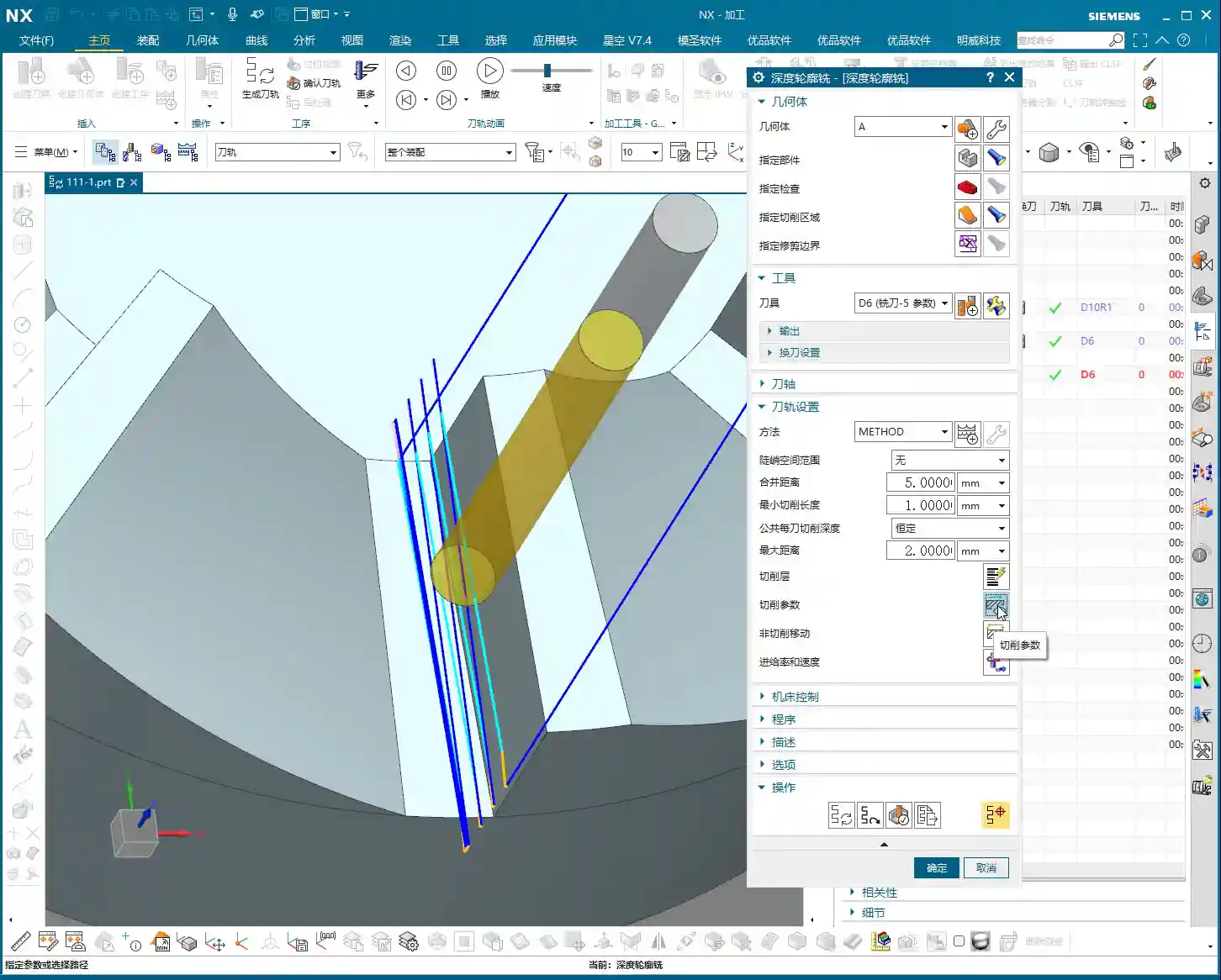
    First, open your NX software. We’ll select a “Depth Profile Milling” operation. For tooling, we’ll directly choose our commonly used D6 flat end mill; this tool will handle the corner cleanup and side walls. As for the machining area, you can initially box-select the entire part; that’s fine, we’ll precisely define it later.

    Hold on, what we need to do is specifically select these two areas: the side walls and the bottom surface. Remember, precision selection is better than broad selection. This avoids many unnecessary issues and computational load, improving program generation efficiency.

    Depth of Cut and Multi-Pass Strategy

    This program is primarily for finishing passes on the side walls. As I mentioned last time, the stepover for side walls should be tighter to achieve a smoother finish. For the bottom surface, we’ll machine down to a depth of -18mm. Of course, to be safe, you can adjust it slightly shallower, say -17mm, to leave a bit of stock for the final finishing pass.

    Here’s the critical point: that last 1 millimeter (approx. 0.04 inch) of stock on the bottom surface (for example, from -17mm to -18mm) – you absolutely cannot take it off in a single pass! Doing so risks chatter or tool breakage, and the resulting surface won’t be flat. We need to split it into multiple layers, for instance, taking 0.3mm (approx. 0.012 inch) per Depth of Cut (DOC). By cutting in two to three layers this way, the cut will be stable, and the finish will be superior. Don’t just rely on software simulation; pay attention to the cutting sparks and the actual forces on the tool!

    Additionally, the top 5 millimeters (approx. 0.2 inch) of the side wall should also receive extra finishing passes to improve its flatness. During the finishing pass stage, we won’t leave any stock; it’s a direct one-pass finish.

    Cutting Parameters and Safety Strategies

    For the cutting order, we’ll select Depth First. As for stepover, a linear cut at 55% or 60% is fine; this depends on your tool’s strength and material properties. However, I typically disable extension to avoid unnecessary toolpaths.

    The program has generated, and the cutting depth control is fine. But look at this rapid move – it plunges directly into the side wall! This is unacceptable! A machine tool isn’t a computer simulation; this kind of move risks a collision. At best, you’ll scrap the tool and workpiece; at worst, you’ll damage the machine!

    Therefore, we need to go into “Non-Cutting Moves” and modify the rapid transfer. For safety, retract to the stock surface; that 3-millimeter (approx. 0.12 inch) height is acceptable. This provides sufficient safe retraction space for the tool. This is a crucial safety procedure, remember that!

    Here’s another trick: if the toolpath keeps failing to generate or takes excessive detours, it’s likely because a previously selected face is restricting it. Just select the bottom surface and the two side walls; don’t select the upper faces, let the tool move freely! Simplifying your selections often resolves major issues.

    Finally, overcut checking is fundamental! Don’t assume everything is fine just because the program generated. One overcut can undo all your previous work, or even scrap the part.

    Step Two: Corner Cleanup and Angled Surface Finishing – Surface Drive and Guide Curve

    All right, the side walls and bottom surface are finished. Next, let’s address the root area of this part. After corner cleanup, we also need to perform contour milling on this angled surface. What command do you think is suitable?

    Corner Cleanup Toolpath: Surface Drive is the Correct Approach

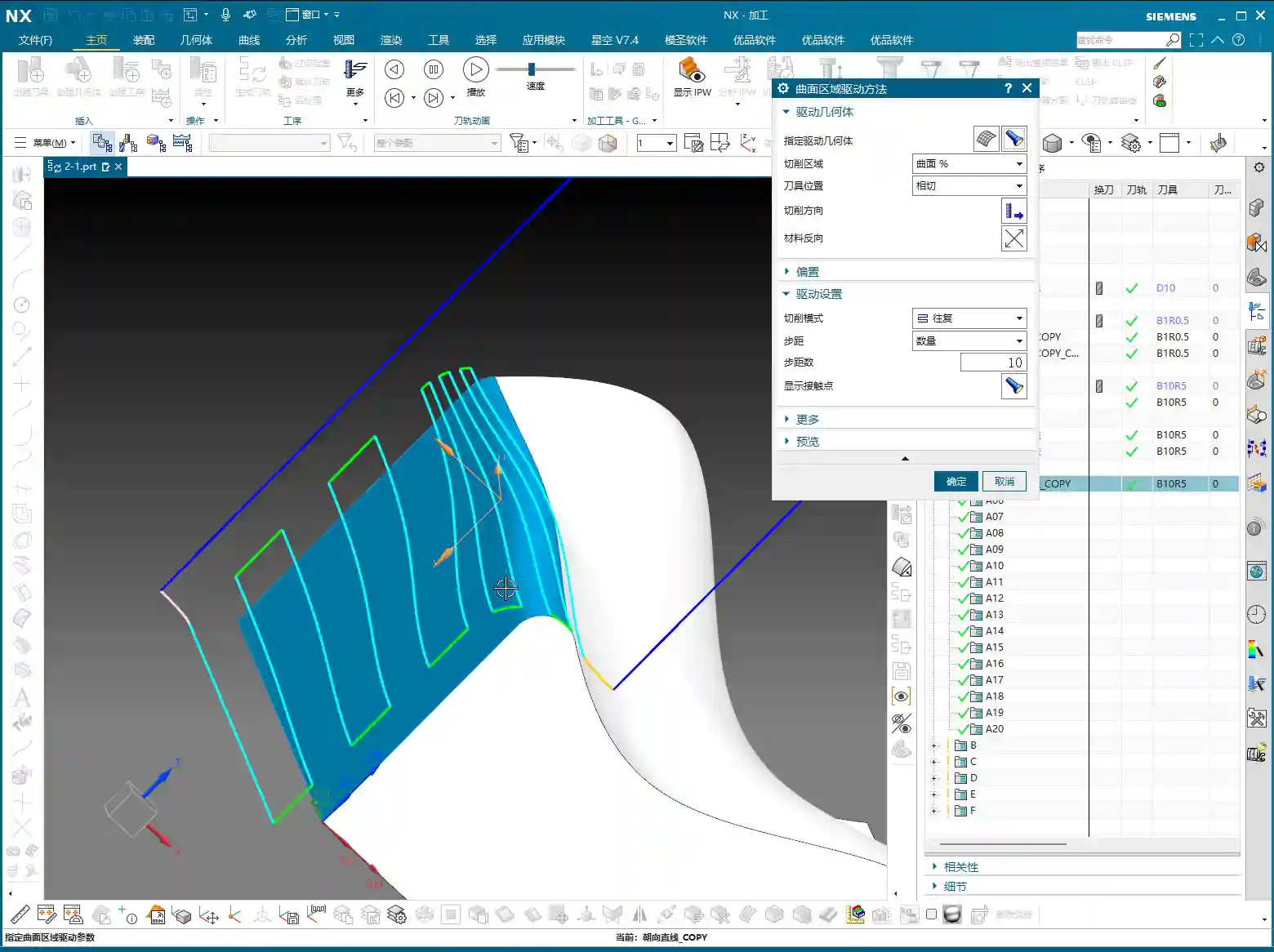
    Some might think of using a “Guide Curve” for corner cleanup. But listen up: Guide Curve only supports ball end mills. How can a ball end mill perform corner cleanup? It simply can’t clean effectively! If the root has a sharp corner or small radius, a ball end mill can’t reach the bottom. Others might suggest using “Streamline” offset lines, which can also work, but that’s too much hassle—offsetting lines, selecting them—it’s highly inefficient!

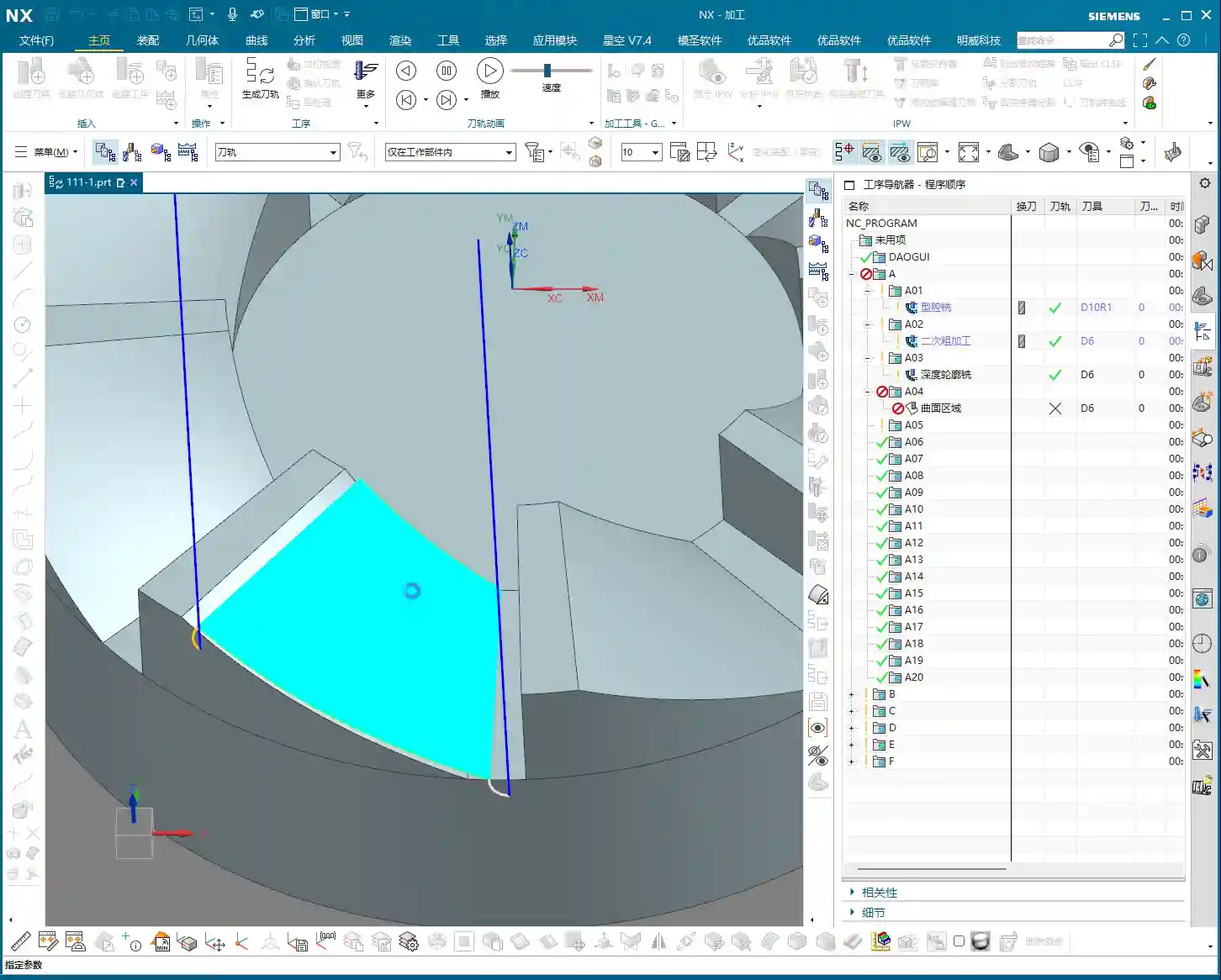
    So, the most direct and effective method is our Surface Drive. This command is specifically designed for this! We’ll still use our D6 flat end mill. This time, there’s no need to select a machining area; just select the “drive face.”

    Pay close attention to the cutting direction; we’ll set it to Material Reverse and use Zigzag machining for higher efficiency. For corner cleanup, a 0.1-millimeter (approx. 0.004 inch) stepover! When performing corner cleanup with a D6 flat end mill, a small stepover is crucial for a clean cut; otherwise, the finished surface won’t be flat, and all your effort will be wasted! Remember, finishing passes require attention to fine details; no need to change tolerances, just calculate the toolpath directly.

    Toolpath Trimming: Precise Control of Machining Area

    The program has generated, but it’s currently cutting from top to bottom, and we only need that small root area at the bottom. This is where the Trimming function comes in – listen up, this is key to boosting efficiency!

    Within “Cutting Area,” locate “Surface Percentage.” See, we initially clicked this arrow (pointing at the direction), so Start Trim calculates from the top, and End Trim goes to the bottom. We need to shorten it to only machine the root area, which means modifying Start Trim. For example, changing it to 97% will make it cut only the very last portion. You’ll need to experiment a few times to find the appropriate percentage until the toolpath precisely covers the root area. This all comes from experience; you have to get hands-on.

    Exploration: Applying Guide Curves and Optimizing Retract Moves

    While Surface Drive works well for corner cleanup, to broaden your understanding of different methods, we can also try using a Guide Curve to machine this angled surface. You might not have used it much before, so let’s get some hands-on practice. Honestly, for machining such surfaces, any command will do – Contour Milling or Surface Drive, both are viable. The key is to find what’s best for the current situation; don’t fret, nothing is too difficult!

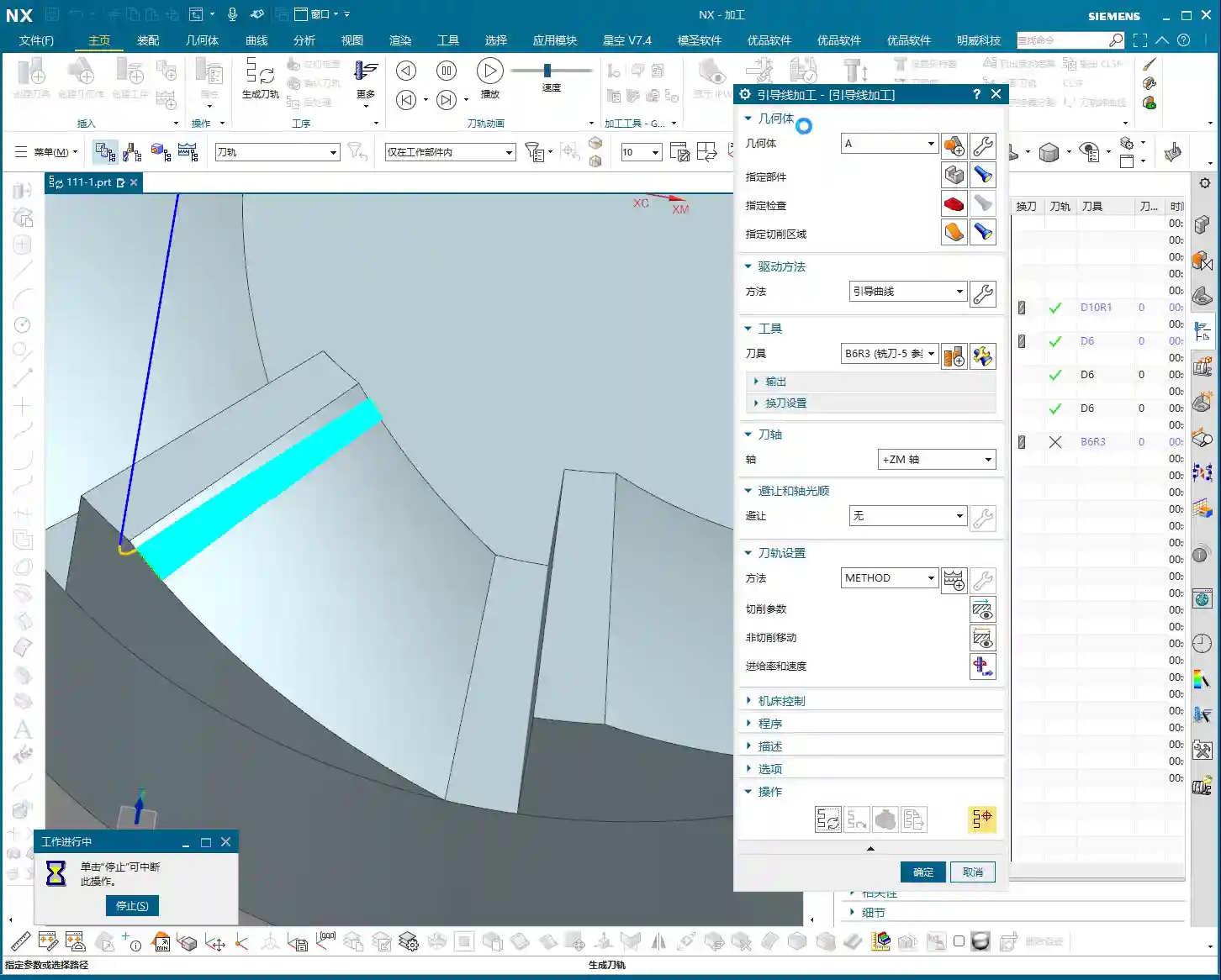
    For the Guide Curve operation, we’ll use a D6 ball end mill this time. First, select the first guide curve, then the second. It’s that simple; nothing complicated.

    After the program generates, you’ll notice a problem: this retract move (the pink rapid move lines in the program) is retracting excessively high, which is a huge waste of time! The machine running idle costs money! This needs to be fixed!

    The height of this retract move is directly related to the stock distance parameter. Let’s reduce it, for example, to 1mm (approx. 0.04 inch). Recalculate, and see? It’s much lower now, isn’t it? Idle cutting time is instantly saved – that’s efficiency! Don’t underestimate these one or two millimeters; over years, the accumulated cost savings are significant.

    Final Checks and Program Transformation

    All right, by now, all of our finishing pass programs are complete.

    Overcut Check: The Last Line of Defense Before Machining

    Next, overcut checking – this is absolutely mandatory every time. See, no alarms means no overcuts. If there were, the software would definitely throw an error. Never skip this step, or you’ll be devastated if the part is scrapped!

    Simulation and Saving: Preventing Software Crashes

    Then, save it! Remember, develop good habits. Sometimes, simulating directly can crash the software, leaving you with nothing. These are lessons learned the hard way. After saving, let’s simulate and check the results!

    The simulation might not look absolutely perfect, especially with a D6 flat end mill (meaning a sharp corner/R0 tool); some details might not display completely. However, the actual machined part will be fine. I’ve machined these types of parts before with excellent results. These examples I share with you are all from parts I’ve actually machined. With that, this part is now complete.

    Program Transformation (Mirroring)

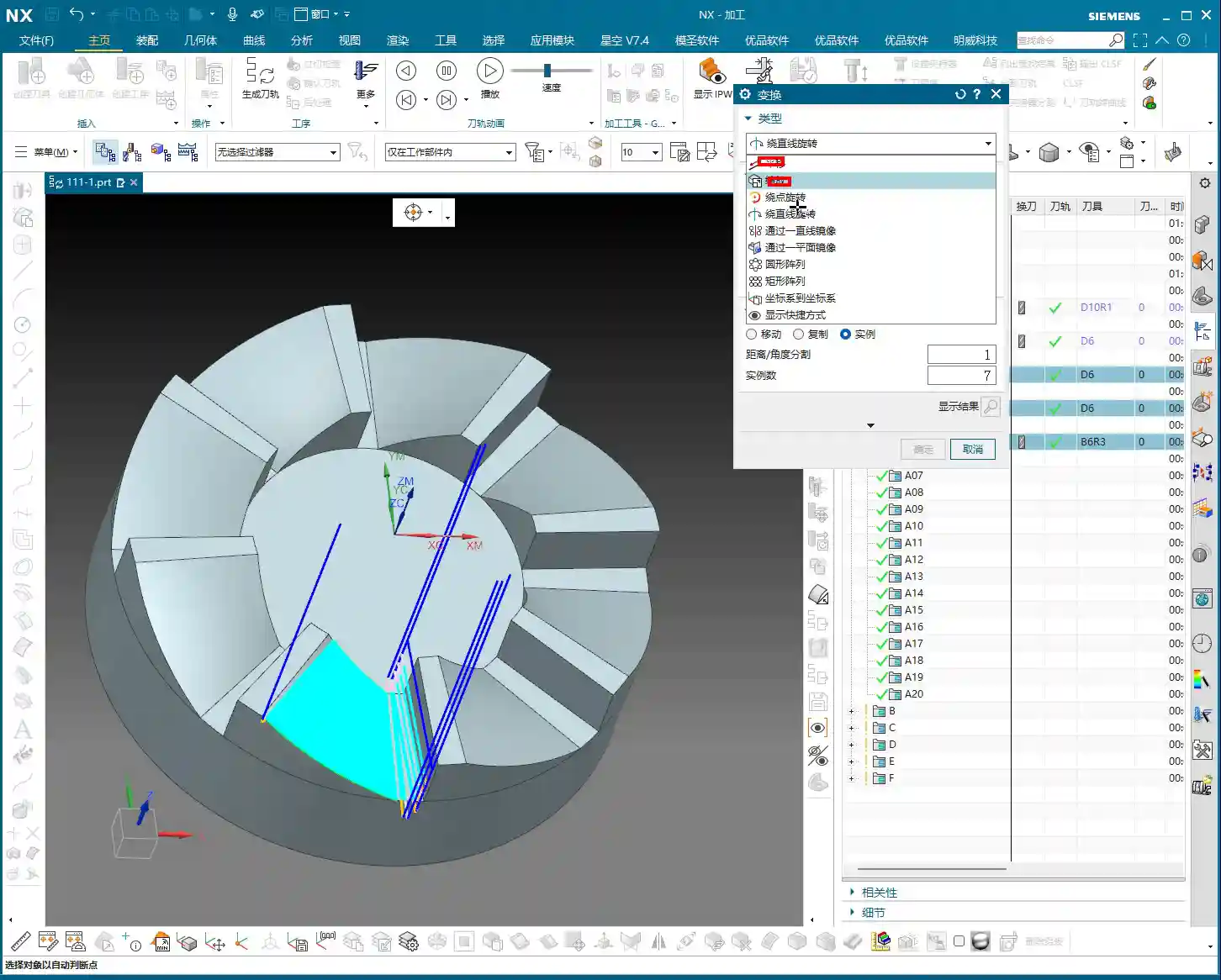
    Final step, don’t forget to transform your previous roughing programs, meaning mirror them. This part is symmetrical, so some programs won’t require transformation, such as the side wall and bottom surface finishing passes. However, the corner cleanup might. Select the transformation object – it’s a simple task. With that, a complete set of machining programs for this rotary part is all done!

    Summary: Pitfall Avoidance Guide

    • Depth of Cut (DOC) Control: Divide the final 1mm (approx. 0.04 inch) of stock into multiple cutting layers; never take it off in a single pass, as this risks chatter or tool breakage, affecting surface finish.
    • Rapid Move Optimization: Disable direct plunge-style rapid moves. Set a safe retract move height (retract to the stock surface) via “Non-Cutting Moves” to prevent collisions.
    • Machining Area Simplification: When toolpaths exhibit abnormal behavior (failing to generate or excessive detours), check and simplify the selection of “Machining Areas” to avoid unnecessary restrictions.
    • Corner Cleanup Tooling and Strategy: For corner cleanup, a flat end mill combined with Surface Drive is preferred; Guide Curve only supports ball end mills and is unsuitable for root corner cleanup.
    • Precise Toolpath Trimming: Make good use of “Surface Percentage” to precisely control the start and end points of the toolpath, avoiding idle cuts or machining unnecessary areas.
    • Retract Move Height Optimization: Adjust the “stock distance” parameter to reduce unnecessary retract move heights, saving idle cutting time and improving machining efficiency.
    • Overcut Checking: Always perform an overcut check after generating each program; this is the final line of defense for ensuring part quality.
    • Timely Saving: Before performing simulations or complex operations, cultivate the habit of saving frequently to prevent software crashes from causing data loss.

    [VIDEO_HERE]

    [EXCERPT] Hello everyone, this is Master Wang. Last time, we covered roughing. This time, the focus is on finishing rotary parts. From side walls to bottom surfaces, and then to root corner cleanup, I’ll walk you through programming efficient, high-quality toolpaths using Siemens NX. I’ll share practical tips you won’t find in textbooks, such as how to optimize tool retractions, prevent overcutting, and tackle various machining challenges. My goal is for you to not just program, but truly understand the machine and the process.

    Step One: Finishing Side Walls and Bottom Surfaces – Refined Application of Depth Profile Milling

    Listen up, last time we thoroughly covered roughing and semi-roughing. This time, we’re heading straight into finishing, focusing on the part’s side walls and bottom surfaces. Especially that bottom area – we might have left some stock last time, but this time it needs to be completely cleaned, leaving no blind spots.

    Practical Tool Selection and Machining Area Definition

    First, open your NX software. We’ll select a “Depth Profile Milling” operation. For tooling, we’ll directly choose our commonly used D6 flat end mill; this tool will handle the corner cleanup and side walls. As for the machining area, you can initially box-select the entire part; that’s fine, we’ll precisely define it later.

    Hold on, what we need to do is specifically select these two areas: the side walls and the bottom surface. Remember, precision selection is better than broad selection. This avoids many unnecessary issues and computational load, improving program generation efficiency.

    Depth of Cut and Multi-Pass Strategy

    This program is primarily for finishing passes on the side walls. As I mentioned last time, the stepover for side walls should be tighter to achieve a smoother finish. For the bottom surface, we’ll machine down to a depth of -18mm. Of course, to be safe, you can adjust it slightly shallower, say -17mm, to leave a bit of stock for the final finishing pass.

    Here’s the critical point: that last 1 millimeter (approx. 0.04 inch) of stock on the bottom surface (for example, from -17mm to -18mm) – you absolutely cannot take it off in a single pass! Doing so risks chatter or tool breakage, and the resulting surface won’t be flat. We need to split it into multiple layers, for instance, taking 0.3mm (approx. 0.012 inch) per Depth of Cut (DOC). By cutting in two to three layers this way, the cut will be stable, and the finish will be superior. Don’t just rely on software simulation; pay attention to the cutting sparks and the actual forces on the tool!

    Additionally, the top 5 millimeters (approx. 0.2 inch) of the side wall should also receive extra finishing passes to improve its flatness. During the finishing pass stage, we won’t leave any stock; it’s a direct one-pass finish.

    Cutting Parameters and Safety Strategies

    For the cutting order, we’ll select Depth First. As for stepover, a linear cut at 55% or 60% is fine; this depends on your tool’s strength and material properties. However, I typically disable extension to avoid unnecessary toolpaths.

    The program has generated, and the cutting depth control is fine. But look at this rapid move – it plunges directly into the side wall! This is unacceptable! A machine tool isn’t a computer simulation; this kind of move risks a collision. At best, you’ll scrap the tool and workpiece; at worst, you’ll damage the machine!

    Therefore, we need to go into “Non-Cutting Moves” and modify the rapid transfer. For safety, retract to the stock surface; that 3-millimeter (approx. 0.12 inch) height is acceptable. This provides sufficient safe retraction space for the tool. This is a crucial safety procedure, remember that!

    Here’s another trick: if the toolpath keeps failing to generate or takes excessive detours, it’s likely because a previously selected face is restricting it. Just select the bottom surface and the two side walls; don’t select the upper faces, let the tool move freely! Simplifying your selections often resolves major issues.

    Finally, overcut checking is fundamental! Don’t assume everything is fine just because the program generated. One overcut can undo all your previous work, or even scrap the part.

    Step Two: Corner Cleanup and Angled Surface Finishing – Surface Drive and Guide Curve

    All right, the side walls and bottom surface are finished. Next, let’s address the root area of this part. After corner cleanup, we also need to perform contour milling on this angled surface. What command do you think is suitable?

    Corner Cleanup Toolpath: Surface Drive is the Correct Approach

    Some might think of using a “Guide Curve” for corner cleanup. But listen up: Guide Curve only supports ball end mills. How can a ball end mill perform corner cleanup? It simply can’t clean effectively! If the root has a sharp corner or small radius, a ball end mill can’t reach the bottom. Others might suggest using “Streamline” offset lines, which can also work, but that’s too much hassle—offsetting lines, selecting them—it’s highly inefficient!

    So, the most direct and effective method is our Surface Drive. This command is specifically designed for this! We’ll still use our D6 flat end mill. This time, there’s no need to select a machining area; just select the “drive face.”

    Pay close attention to the cutting direction; we’ll set it to Material Reverse and use Zigzag machining for higher efficiency. For corner cleanup, a 0.1-millimeter (approx. 0.004 inch) stepover! When performing corner cleanup with a D6 flat end mill, a small stepover is crucial for a clean cut; otherwise, the finished surface won’t be flat, and all your effort will be wasted! Remember, finishing passes require attention to fine details; no need to change tolerances, just calculate the toolpath directly.

    Toolpath Trimming: Precise Control of Machining Area

    The program has generated, but it’s currently cutting from top to bottom, and we only need that small root area at the bottom. This is where the Trimming function comes in – listen up, this is key to boosting efficiency!

    Within “Cutting Area,” locate “Surface Percentage.” See, we initially clicked this arrow (pointing at the direction), so Start Trim calculates from the top, and End Trim goes to the bottom. We need to shorten it to only machine the root area, which means modifying Start Trim. For example, changing it to 97% will make it cut only the very last portion. You’ll need to experiment a few times to find the appropriate percentage until the toolpath precisely covers the root area. This all comes from experience; you have to get hands-on.

    Exploration: Applying Guide Curves and Optimizing Retract Moves

    While Surface Drive works well for corner cleanup, to broaden your understanding of different methods, we can also try using a Guide Curve to machine this angled surface. You might not have used it much before, so let’s get some hands-on practice. Honestly, for machining such surfaces, any command will do – Contour Milling or Surface Drive, both are viable. The key is to find what’s best for the current situation; don’t fret, nothing is too difficult!

    For the Guide Curve operation, we’ll use a D6 ball end mill this time. First, select the first guide curve, then the second. It’s that simple; nothing complicated.

    After the program generates, you’ll notice a problem: this retract move (the pink rapid move lines in the program) is retracting excessively high, which is a huge waste of time! The machine running idle costs money! This needs to be fixed!

    The height of this retract move is directly related to the stock distance parameter. Let’s reduce it, for example, to 1mm (approx. 0.04 inch). Recalculate, and see? It’s much lower now, isn’t it? Idle cutting time is instantly saved – that’s efficiency! Don’t underestimate these one or two millimeters; over years, the accumulated cost savings are significant.

    Final Checks and Program Transformation

    All right, by now, all of our finishing pass programs are complete.

    Overcut Check: The Last Line of Defense Before Machining

    Next, overcut checking – this is absolutely mandatory every time. See, no alarms means no overcuts. If there were, the software would definitely throw an error. Never skip this step, or you’ll be devastated if the part is scrapped!

    Simulation and Saving: Preventing Software Crashes

    Then, save it! Remember, develop good habits. Sometimes, simulating directly can crash the software, leaving you with nothing. These are lessons learned the hard way. After saving, let’s simulate and check the results!

    The simulation might not look absolutely perfect, especially with a D6 flat end mill (meaning a sharp corner/R0 tool); some details might not display completely. However, the actual machined part will be fine. I’ve machined these types of parts before with excellent results. These examples I share with you are all from parts I’ve actually machined. With that, this part is now complete.

    Program Transformation (Mirroring)

    Final step, don’t forget to transform your previous roughing programs, meaning mirror them. This part is symmetrical, so some programs won’t require transformation, such as the side wall and bottom surface finishing passes. However, the corner cleanup might. Select the transformation object – it’s a simple task. With that, a complete set of machining programs for this rotary part is all done!

    Summary: Pitfall Avoidance Guide

    • Depth of Cut (DOC) Control: Divide the final 1mm (approx. 0.04 inch) of stock into multiple cutting layers; never take it off in a single pass, as this risks chatter or tool breakage, affecting surface finish.
    • Rapid Move Optimization: Disable direct plunge-style rapid moves. Set a safe retract move height (retract to the stock surface) via “Non-Cutting Moves” to prevent collisions.
    • Machining Area Simplification: When toolpaths exhibit abnormal behavior (failing to generate or excessive detours), check and simplify the selection of “Machining Areas” to avoid unnecessary restrictions.
    • Corner Cleanup Tooling and Strategy: For corner cleanup, a flat end mill combined with Surface Drive is preferred; Guide Curve only supports ball end mills and is unsuitable for root corner cleanup.
    • Precise Toolpath Trimming: Make good use of “Surface Percentage” to precisely control the start and end points of the toolpath, avoiding idle cuts or machining unnecessary areas.
    • Retract Move Height Optimization: Adjust the “stock distance” parameter to reduce unnecessary retract move heights, saving idle cutting time and improving machining efficiency.
    • Overcut Checking: Always perform an overcut check after generating each program; this is the final line of defense for ensuring part quality.
    • Timely Saving: Before performing simulations or complex operations, cultivate the habit of saving frequently to prevent software crashes from causing data loss.

    👤 About the Author:
    The author is a veteran CNC machining professional with 15 years of industry experience, specializing in UG NX programming. This article is an original work representing personal practical insights.

    ⚠️ Copyright Notice: Unauthorized reproduction or distribution without prior communication is strictly prohibited.

  • Practical Roughing Strategies for Rotational Parts in Siemens NX: Master Wang’s Secrets for Stock Mo

    📝 Key Takeaways:

    Siemens NX Roughing Tutorial for Rotational Parts

    Hello everyone, I’m Master Wang. Today, let’s talk about the first roughing operation f…

    Hello everyone, I’m Master Wang. Today, let’s talk about the first roughing operation for a rotational part. Listen up, this job looks simple, but there are a lot of hidden tricks. Those fancy theories from textbooks, when you get them on our shop floor, you need to learn how to apply them flexibly to truly produce quality work and save costs.

    Step One: Stock Modeling – The Foundation of Everything

    As I mentioned, this part is a rotational component. The requirements are clear: the outer diameter and some internal areas have already been turned smooth by the lathe operator. What we need to machine are the remaining “material allowances.” Therefore, the creation of the stock model must accurately reflect the actual situation; don’t just rely on guesswork, or issues will arise as soon as the tool engages.

    Accurately Replicating the “As-Received” State

    When modeling, we first need to establish a general shape. Using the “Thicken” function in NX, slightly extend the area we need to machine outwards to form a “stock shell.” Then, based on the drawing requirements, use “Replace Face” or “Extrude Subtract” to incorporate the areas that have already been turned, such as the outer diameter and internal through-holes, into the stock model. Remember, the stock model must truthfully reflect the part’s state before entering our machining process; this is the basis for subsequent toolpath calculations.

    Take this part, for instance: there’s an 80mm diameter hole (40mm radius) internally that has already been turned through. So, we draw an 80mm diameter circle and then Extrude Subtract it. This way, our NX software understands which areas require material removal and which areas are already finished. Don’t underestimate this step; an inaccurate stock definition can lead to minor issues like wasted time from air cuts, or major issues like overcutting and scrapping parts.

    Coordinate System and Layer Management: As Crucial as 5S in the Workshop

    After creating the stock model, I habitually move it to Layer 100. This isn’t just a quirk; it’s to clearly distinguish between the part model, stock, fixtures, and toolpaths during subsequent programming. Good layer management ensures the entire project is organized, making it easy to find and modify. The Work Coordinate System (WCS) is typically set at the part’s center, top, or bottom, for convenient positioning. This is just like setting up a part and performing tool offsetting on the machine; if the datum isn’t accurately located, everything else is futile.

    Step Two: Part Geometry Analysis and Machining Strategy – Understand the Geometry, Master the Process

    With the part model and stock prepared, now comes the critical step: analyzing the part. This part isn’t large, with a diameter of 150mm and a thickness of 18mm. But size isn’t the only factor; we must examine its geometric features. Using NX’s “Slope Analysis” function, we can see that most of this part is planar, without complex undercuts or deep pockets. This indicates that our machining difficulty isn’t particularly high, at least in terms of tool selection, where we won’t need many specialty tools.

    Minimum Feature and Tool Selection

    After measuring, the narrowest area on the part, the “small root,” is only 6mm. This is an important signal! It directly determines the size of our finishing tools. Since the minimum feature is 6mm, our subsequent corner cleanup or finishing tools must be able to access this 6mm area. So, I have a clear idea: a 6mm flat end mill or ball end mill will definitely be needed.

    For roughing, based on the stock allowance and part dimensions, we cannot use too small of a tool. Here, we plan to use a 10mm bullnose end mill (e.g., D10R1) for the initial roughing, allowing for a large Depth of Cut (DOC) and high efficiency. Then, a 6mm tool will be used to clear the remaining material left by the 10mm bullnose, which is commonly referred to as “secondary roughing” or “rest milling.” Finally, if surface finish or smaller radii are required, a ball end mill can be considered for finishing passes.

    This combination strategy achieves both efficiency and accuracy. Don’t just think about using one tool for the entire process; that’s a “one-track mind.” Machining requires strategy.

    Step Three: Siemens NX Roughing Toolpath Execution and Optimization – From Part Modeling to Toolpath Execution

    Once the strategy is set, we proceed to create toolpaths in NX. For roughing, we’ll use the “Cavity Milling” operation, which is excellent for processing such shapes. Select a D10R1 tool (10mm diameter, 1mm corner radius), and set the Depth of Cut (DOC) based on the material and machine rigidity. Here, let’s start with a 0.3mm Stepover for generation.

    Initial Toolpath Issues: Air Cuts and Frequent Engagements/Retracts

    Once the toolpath is generated, don’t just look at the surface; we must simulate it and judge it based on experience. Look, this toolpath is “zigzagging back and forth,” with long lead-in/lead-out paths, and it tends to “wander around” in the air. What are these? These are unnecessary air cuts and frequent acceleration/deceleration cycles. The machine runs back and forth, the spindle speeds up and slows down repeatedly. This not only wastes time but also wears down the machine, and more importantly, affects machining quality. Such a toolpath, when brought to the shop floor, machinists would immediately spot issues, and it would never be put on a machine.

    Master Wang’s Advanced Technique: Cleverly Using Auxiliary Geometry to Tame Toolpaths

    So, how do we solve this problem? Textbooks might tell you to adjust cutting parameters, but that treats the symptoms, not the root cause. Our secret tip is to create auxiliary geometry. This isn’t some advanced function; it’s simply NX’s most basic “Thicken Surface” feature!

    1. Take the boundary surfaces that cause the toolpath to oscillate back and forth and “Thicken” them slightly outwards.
    2. Use these thickened surfaces as “Check Geometry” or “Trim Boundaries”. This ensures the tool avoids these auxiliary bodies during machining or is forced to move only within them.

    Through this method, we manually establish more logical “travel paths” for the toolpath. The tool can no longer wander arbitrarily; it will be “planned” to move more smoothly, lead-ins and lead-outs are no longer “unnecessarily protracted,” and air travel is significantly reduced. As you can see, after modification, the toolpath becomes noticeably cleaner and smoother, with crisp lead-ins and lead-outs. This is the kind of toolpath that can run efficiently on the machine.

    Details Determine Success: The “Extension” Parameter for Lead-in/Lead-out

    Even with auxiliary geometry, sometimes the lead-in/lead-out distance can still be a bit long. At this point, you need to fine-tune the “Extension” parameter. Slightly shorten the extension distance so the tool doesn’t need to travel excessive distances when leaving the workpiece. This is another accumulation of efficiency, bit by bit. Don’t underestimate this small detail; saving a few seconds per part adds up to hours a day, and over a year, the cost savings are substantial.

    Step Four: Preparing for Secondary Roughing – Striving for Perfection

    After completing the roughing program, don’t rush to remove the part from the machine; we still need to consider “secondary roughing.” Secondary roughing involves using a tool smaller than the roughing tool, or a flat end mill with a smaller Stepover, to remove the remaining material after roughing, preparing for finishing. We previously planned to use a 6mm tool for this task.

    Following the same principle as roughing, create a “secondary roughing” operation, select our 6mm tool, and then set a smaller cutting Stepover based on the material and requirements. The stock must also be accurately defined; this time, the stock is the remaining material left from the previous roughing step. This step ensures that subsequent finishing tools can cut with a stable and uniform Depth of Cut (DOC), which guarantees the final part’s accuracy and surface quality.

    Remember, no single operation is isolated. The quality of the preceding operation directly impacts the efficiency and effectiveness of the subsequent one. You need to have a “holistic view” when working; don’t just focus on the current cut.

    Summary: Pitfall Guide

    Let me, Master Wang, summarize a few common “pitfalls” for beginners when roughing rotational parts, as discussed today:

    1. Inaccurate Stock Definition: This is the primary cause of issues! If the stock doesn’t match the part model, toolpaths are prone to errors, leading to overcutting or air cuts. Always model the stock precisely based on the actual as-received material.
    2. Blindly Generating Toolpaths: Don’t assume that toolpaths calculated by the software are always optimal. NX is a tool, but human expertise is key. Observe toolpaths carefully, simulate cutting, and check for unreasonable lead-ins/lead-outs or air moves.
    3. Ignoring the Role of Auxiliary Geometry: Using “Thicken Surface” as auxiliary geometry, as we did today, is an advanced application in NX programming that can significantly optimize toolpaths and improve efficiency. These “unwritten rules” can help you avoid many detours.
    4. Neglecting Tool-to-Part Feature Matching: The minimum feature size determines the limits for corner cleanup or finishing tools. The selection of roughing and finishing tools should form a logical “sequence.”
    5. Disregarding Layer Management: A messy project file will make future maintenance and program modifications a nightmare. Develop good habits; categorize and organize geometry and toolpaths.
    6. Focusing only on programming, not on cost-efficiency: Our ultimate goal in manufacturing is to produce qualified parts while also considering cost and efficiency. Any toolpath optimization must ultimately translate into “saving money, saving time, and saving effort.”

    Alright, that’s all for today’s sharing. Go practice more, think more, and turn these practical experiences into your own expertise! If you have any questions, come ask me next time.

    👤 About the Author:
    The author is a veteran CNC machining professional with 15 years of industry experience, specializing in UG NX programming. This article is an original work representing personal practical insights.

    ⚠️ Copyright Notice: Unauthorized reproduction or distribution without prior communication is strictly prohibited.
  • Siemens NX Solid Profile 3D: Master Wang’s Hands-on Guide to Finishing Complex Bottom Profiles, Avoi

    📝 Key Takeaways: Master Wang provides a hands-on explanation of the Siemens NX Solid Profile 3D operation, focusing on finishing complex bottom profiles. Learn practical applications of core parameters like Z-axis depth offset and Stepover, avoiding common pitfalls and boosting efficiency. Discover hard-hitting tips not found in textbooks to elevate your Siemens NX programming skills!

    Master Wang Explains: The Ins and Outs of Solid Profile 3D

    Alright everyone, Master Wang here. Today we’re diving into a Siemens NX feature you might not use often: the “Solid Profile 3D” operation. To be honest, in all my years, I’ve only really needed it a couple of times, which is why I held off talking about it. But listen up: “Rarely used doesn’t mean useless; it can be a lifesaver when it counts!” It truly shines when dealing with specific geometries, especially complex bottom profiles. It has its unique advantages.

    Don’t let its simple operation fool you. Understanding the logic behind it will give you a powerful tool for tackling those “oddball” parts. We’re not wasting time on abstract theories; let’s get straight to the machine and see what it can actually do.

    Preparation: Setting Up Part and Blank, No Room for Error

    When it comes to machining, the first step is always to clearly define your part and blank. Last time I slipped up and modeled the part in the wrong location – that’s a mistake you can’t afford. This time, we’ll start fresh and ensure the foundation is solid.

    Creating the Part and Blank

    First off, let’s clear out any previously assembled geometries. Consider it a clean slate, so nothing unnecessary gets in our way.

    • Coordinate System Setup: The Machine Coordinate System (MCS) can be placed anywhere for now; you can always adjust it in NX. But remember, in actual machining, datum points like G54, G55 must be set precisely. Even a tiny error means a scrapped part!
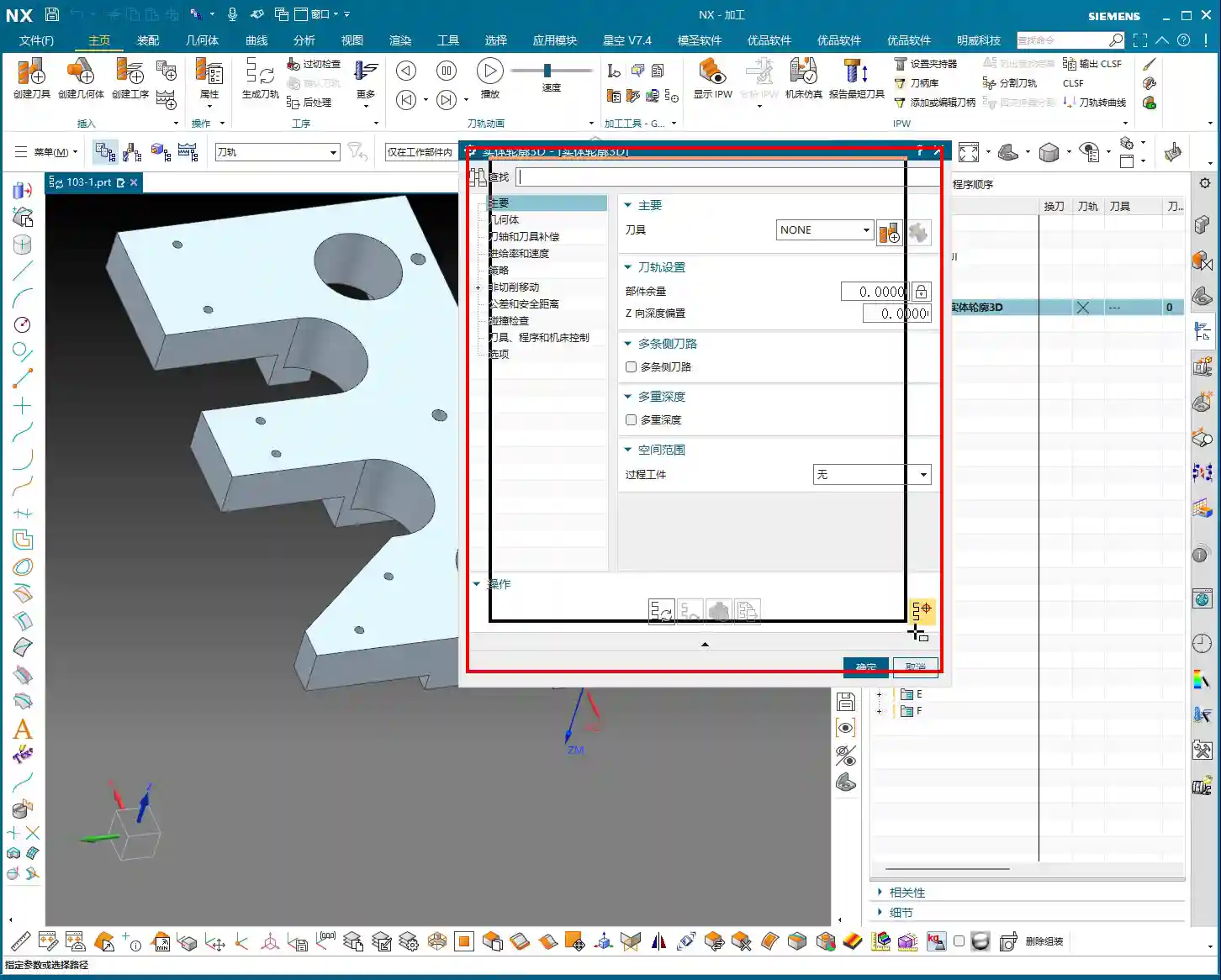
    • Specify Part: Select the solid body we intend to machine – in this case, the “B-surface” shaped part. This is what the toolpath will follow.
    • Specify Blank: Just use a simple block blank, or specify it based on actual conditions. I usually prefer to make it slightly oversized to leave some machining allowance.

    Selecting the “Solid Profile 3D” Operation

    In the “Insert” menu, find “Operation,” select “Mill Multi-Axis” as the machining type, and then locate our main event for today – “Solid Profile 3D.” The name itself tells you what it does: it primarily follows the solid’s profile, and it’s three-dimensional.

    Parameter Settings: Depth, Edge Following – Details Make or Break It

    Once you’re in the operation dialog, you’ll notice it’s a bit different from the usual planar or cavity milling operations. However, the core logic remains the same: tool, geometry, and method.

    Tool and Geometry

    • Tool Selection: Typically, you’ll choose a ball end mill or a corner radius end mill. Since the tool needs to follow the bottom profile, a ball end mill offers the best adaptability. Let’s use a D10 (10mm diameter) ball end mill as an example. The actual tool dimensions, material, and coating must be selected based on your workpiece material and precision requirements – this is serious business.
    • Part Stock: This is standard practice: leave 0.1mm stock for a finishing pass or subsequent polishing.
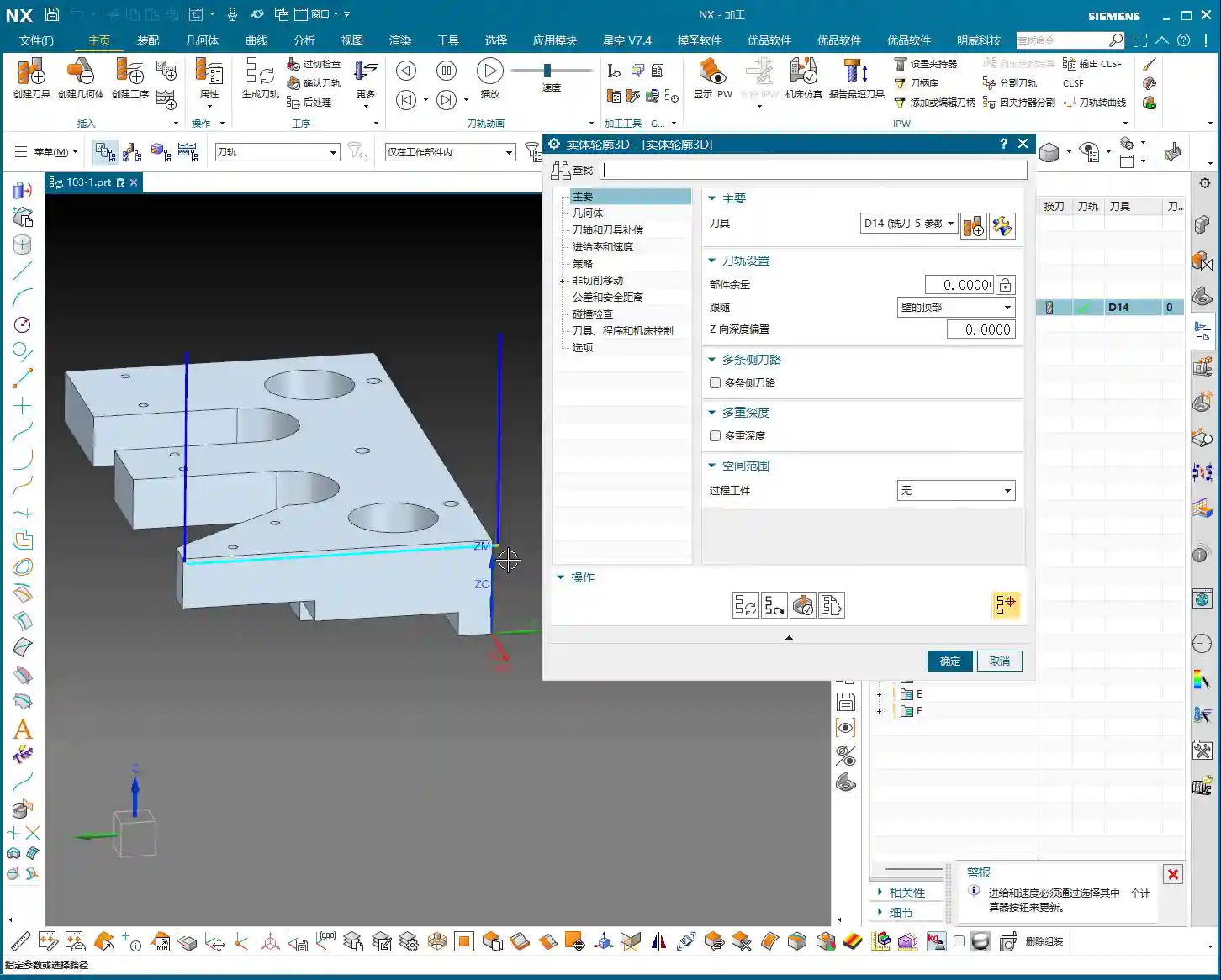
    • Bottom Follow: Listen closely, this is one of the key features of “Solid Profile 3D.” We need to select the “B-surface,” which is the bottom face of the part. The tool will tightly follow this bottom contour. If you select the top, it will only machine the top surface.

    Core Parameters: Z-Axis Depth Offset and Stepover

    These two parameters are what we need to really master today. They dictate how the tool “digs” downwards and “skims” sideways.

    • Z-Axis Depth Offset (Z-offset): This parameter controls how much the tool offsets downwards along the Z-axis relative to the bottom B-surface.

      • If you input a positive value, for example 10mm, the tool will try to offset 10mm downwards from the B-surface. However, if your part depth isn’t enough for 10mm, or the offset is too large, the toolpath might not generate, or you could even end up with “air cuts.”
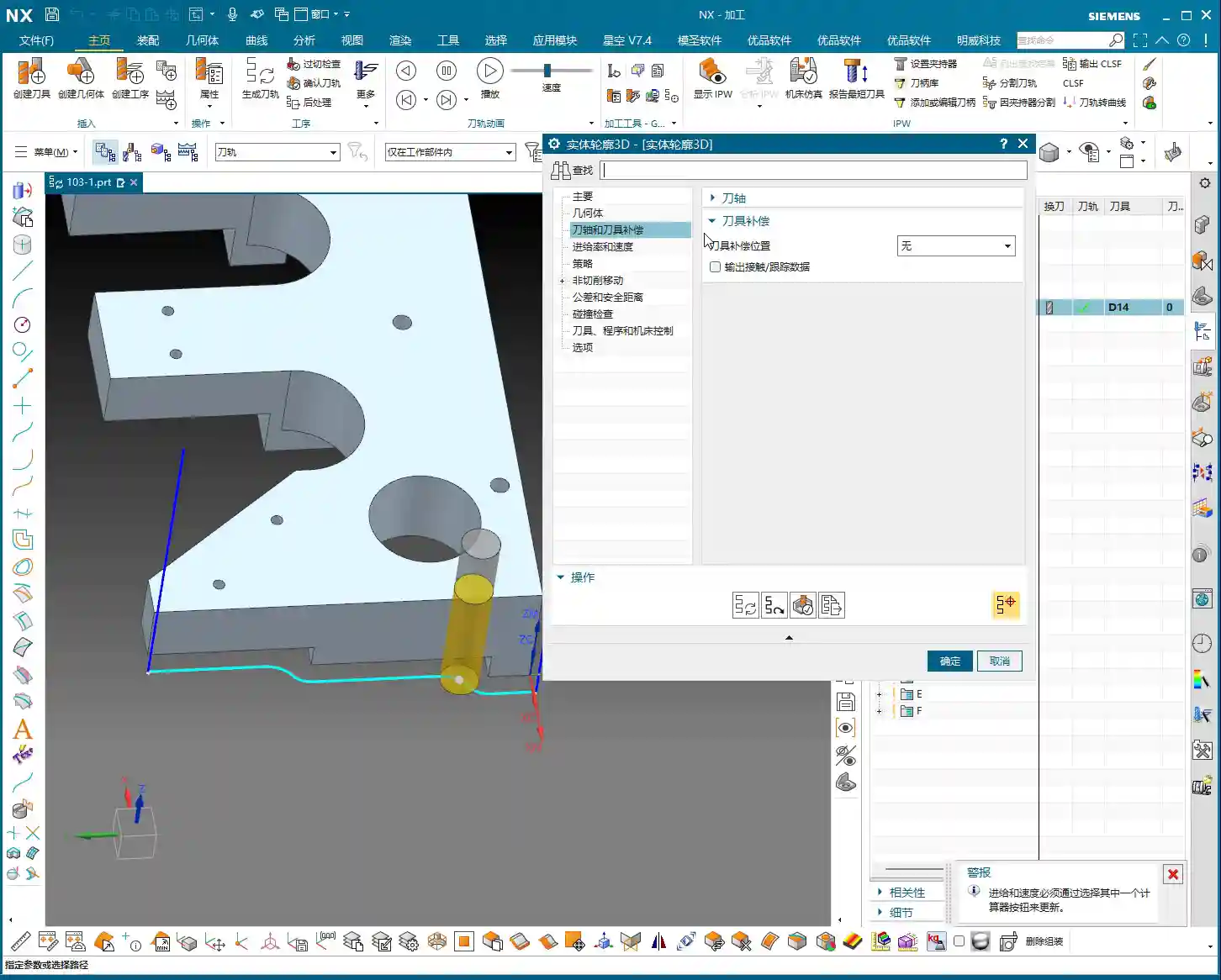
      • Practical Application: We usually input a small negative value, or simply 0, to make the tool start cutting from the B-surface. If you want to cut slightly deeper, for example, when machining a deep slot with a fillet where the bottom needs to be thoroughly cleaned, you can set it to -0.5mm or even -1mm. This makes the tool cut slightly below the B-surface to completely clear any residual material at the bottom. But don’t overdo it, or you risk tool collision or even tool breakage.

    • Multiple Depths: This is what we commonly refer to as “Depth of Cut (DOC)” or “Stepdown.” For example, cutting 1mm per layer. This is the vertical cutting amount.
    • Multi-Layer Side Passes / Stepover (Side Steps): This is crucial; it controls the tool’s cutting width in the horizontal direction.

      • Simply put, this is the “lateral version” of “Multiple Depths.” If you input a total offset of 10mm and set an incremental step of 1mm per layer, the tool will perform multi-layer cutting outwards (or inwards, depending on direction) from the selected profile, offsetting 1mm per layer for a total offset of 10mm.
      • Practical Application: We can use this for a finishing pass on sidewalls, or for progressively removing stock from sidewalls. For example, using a small-diameter tool and taking several passes along the sidewall contour can improve surface finish and achieve higher precision. Remember, the Stepover must not be too large, otherwise it can lead to heavy tool engagement, causing chatter, and ruining the surface texture.

    Tool Axis and Cutting Parameters

    For tool axis direction, usually, you’d select “None,” meaning the tool plunges perpendicular to the XY plane. If you have a 5-axis machine or the part has specific angled surfaces, you’ll need to adjust the tool axis accordingly. Cutting parameters, including spindle speed and feed rate, must be determined by comprehensively considering the tool, material, and machine rigidity. Don’t just rely on software simulations; the sparks and sounds during actual cutting provide the most authentic feedback!

    • Spindle Speed (RPM): S2000 (Example, adjust specifically based on material and tool)
    • Feed Rate: F800 (Example, adjust specifically based on material and tool)

    Toolpath Generation and Optimization: Seeing is Believing

    Once all parameters are set, click to generate the toolpath. You’ll see the tool follow your specified B-surface contour, progressing layer by layer according to the defined depth and Stepover.

    Optimization Options: Don’t underestimate these optimizations. They can help reduce air cuts, make toolpaths smoother, and ultimately boost machining efficiency. For example, in “Cutting Moves,” using smooth arc entry and exit motions is better than straight plunges, as it reduces impact.

    Summary: Pitfall Avoidance Guide

    • Z-Axis Depth Offset: This value requires extreme caution. Too large, and it can lead to air cuts or failure to generate a toolpath; too small, and it might not fully clear the bottom surface. Adjust flexibly based on actual needs; try a small negative value for a thorough bottom cleanup.
    • Stepover: Don’t get greedy for speed. Too large a Stepover can lead to uneven tool loading, causing chatter marks and compromising surface quality. Especially during a finishing pass, it’s better to take a few extra passes to ensure stability and precision.
    • Applicability of “Solid Profile 3D”: Primarily used for machining along the bottom contour of a part, especially suitable for parts with complex contoured bottoms. For simple planar surfaces or steps, standard cavity milling or planar milling will be more efficient.
    • Machine Precision: Even the best programming needs matching machine precision. A ±0.005mm accuracy requirement doesn’t just test your Siemens NX programming; it also tests machine maintenance and compensation. Regularly check machine precision, especially lead screw backlash – that’s invaluable real-world experience!
    • Tool Selection: Ball end mills or corner radius end mills are preferred, but the tool’s stick-out length, flute length, and diameter must all match the machining depth and cavity size. Long-reach tools will chatter significantly and are prone to chipping; don’t expect a high surface finish from them.
    • Collision Checking: While collision checking in Siemens NX is convenient, don’t rely on it completely. You must thoroughly review toolpath simulations, and even manually drag the tool, pausing to observe at critical points – that’s the safest approach.
    • Corner Handling: In “None” mode, the toolpath will have sharp corners; if you select “Overlap” mode, NX will generate a rounded transition for the toolpath. This is highly beneficial for smoother cutting and tool protection.

    Alright, that wraps up our discussion on “Solid Profile 3D.” Remember, software is just a tool. What truly makes a successful job is your process thinking and hands-on experience. Observe more, learn more, and get your hands dirty – only then can you evolve from a “programmer” into a true “master machinist”! We’ll cover something different next time.

    👤 About the Author:
    The author is a veteran CNC machining professional with 15 years of industry experience, specializing in UG NX programming. This article is an original work representing personal practical insights.

    ⚠️ Copyright Notice: Unauthorized reproduction or distribution without prior communication is strictly prohibited.

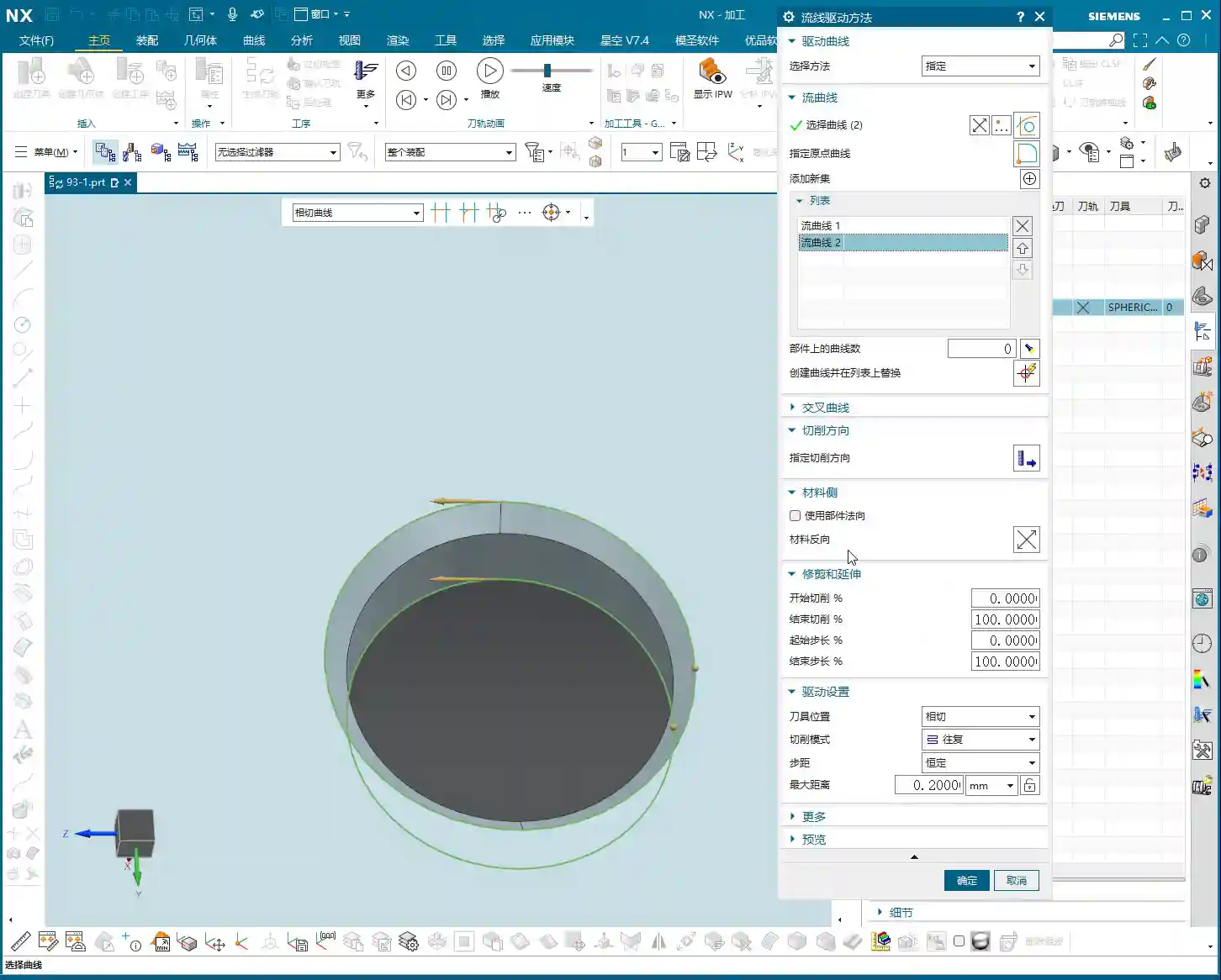
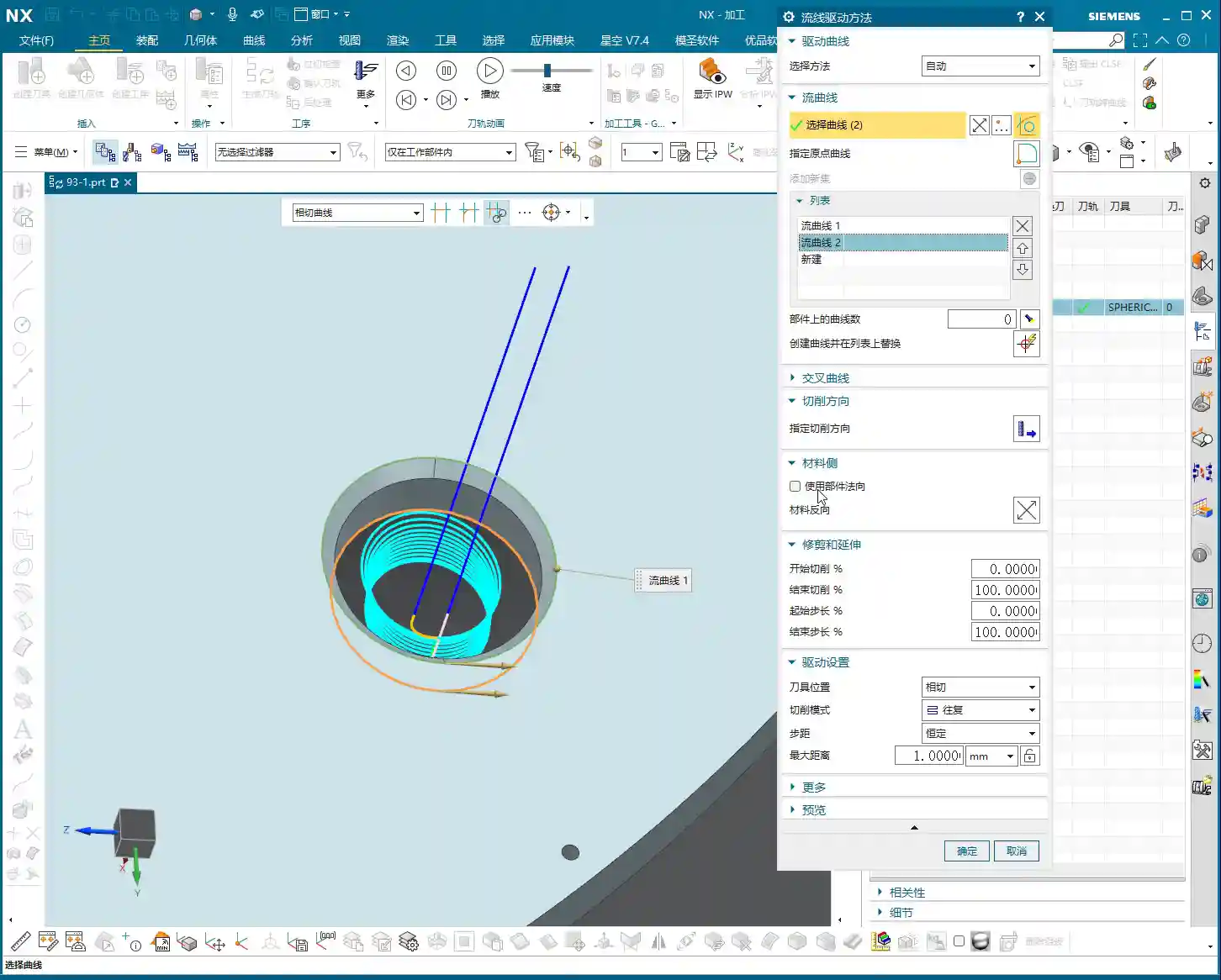
  • In-depth Analysis of Streamline Machining in Siemens NX: Master Wang’s Guide to Streamline Curve Sel

    📝 Key Takeaways: Master essential techniques for Streamline Machining in Siemens NX. Master Wang explains the “Specify” and “Automatic” selection methods for streamline curves, stressing the importance of consistent direction to prevent chaotic toolpaths. He reveals the practical insight that “Cross Curves” are optional in streamline operations. The discussion then deep dives into how cutting direction influences climb milling, conventional milling, upward/downward feed, and spiral toolpaths, alongside strategies for optimizing toolpath efficiency and quality through proper Stepover settings. Master Wang cautions against blindly trusting “Automatic” selection and advises adjusting parameters based on real-world observation of cutting sparks.

    Introduction

    Master Wang Speaks

    Hello everyone, I’m Master Wang. Today, we’re going to dive deeper into Streamline Machining in UG (NX). This area might seem straightforward, but it holds many intricacies, especially practical techniques not covered in textbooks that directly impact machining efficiency and part quality. Today, we’re going to thoroughly discuss the selection of streamline curves and the control of cutting direction. Pay close attention!

    Core of Streamline Operations: Streamline Curves and Cross Curves

    “Selection Method”: Specify vs. Automatic

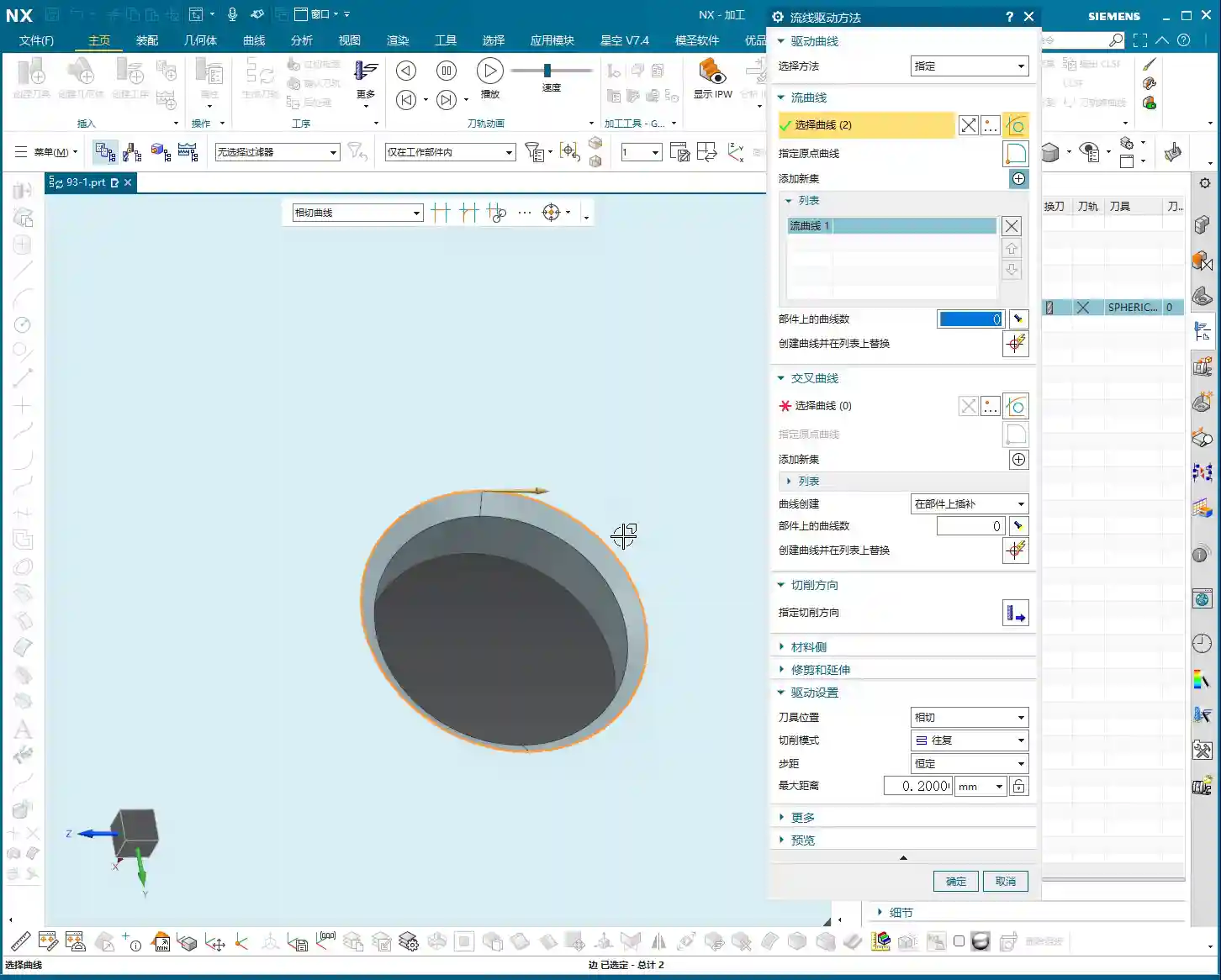
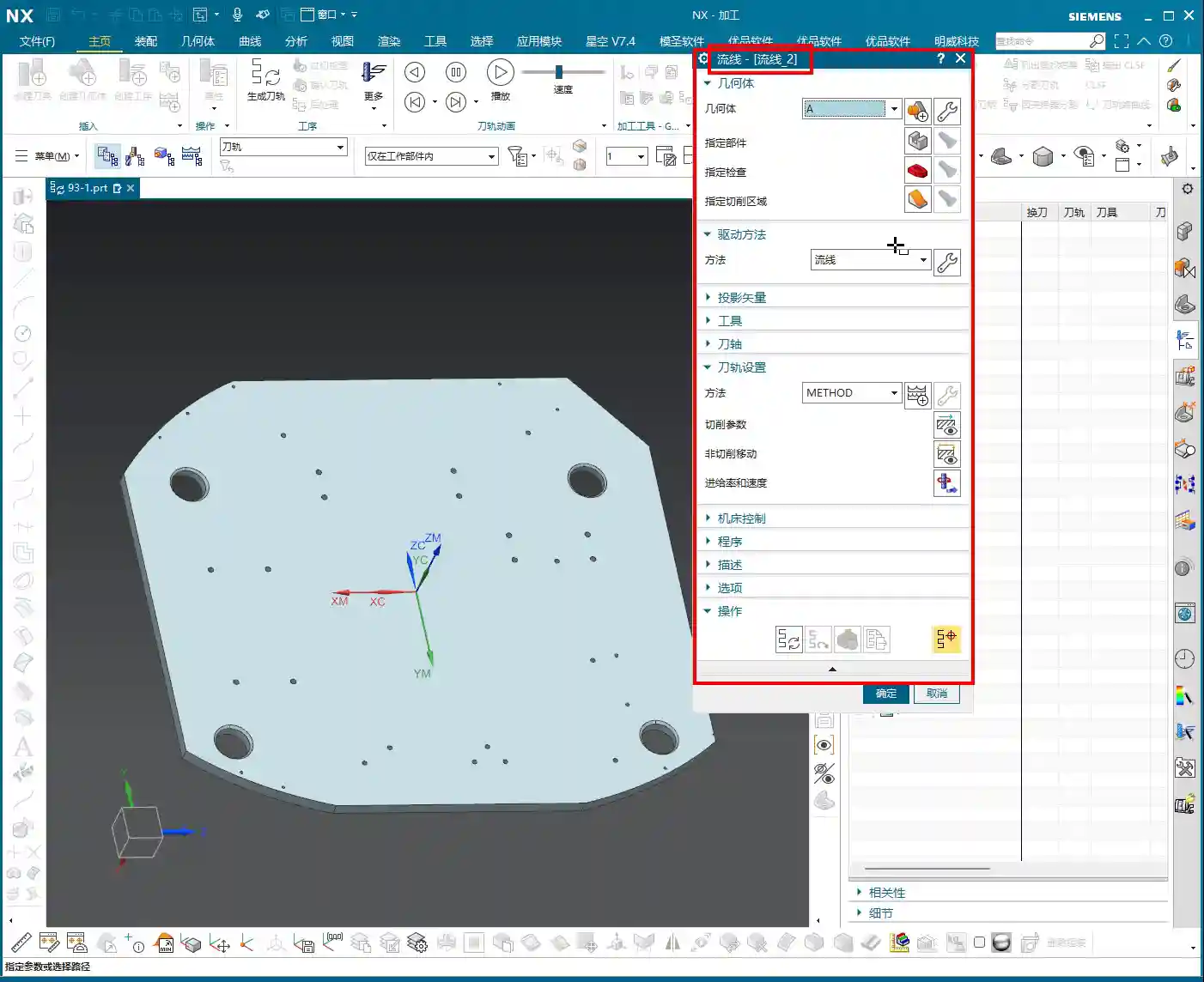
    In Streamline Machining, the first step is to define your “Selection Method.” You have two options: Specify and Automatic.
    Specify is straightforward: you manually select the curves, and the system only recognizes the lines you’ve picked. This is similar to how you select curves in “Cut Area.” If you’ve already selected “Isoparametric Vectors” in a “Surface Drive” operation previously, you might bypass this step because the logic is already fulfilled. However, for new projects or when precise control is needed, stick to the old rule: using “Specify” gives you peace of mind.
    Now, Automatic means the system identifies and selects the streamline curves itself based on your defined cut area. This can be convenient at times; just a click and it sets up the curves for you. But, listen up, “Automatic” doesn’t always select the curves you want! Sometimes, the lines it picks don’t match your intended toolpath direction or order, or they might not even be the specific curves you need. So, if your toolpath looks off after choosing “Automatic,” immediately go back and check, or simply switch to “Specify” and do it yourself—self-reliance is key.

    The Nuances of Streamline Curve Selection

    When selecting “Streamline Curves,” it’s the same concept as “Guide Curves” in “Guiding Curve” operations, typically Guide Curve 1 and Guide Curve 2. In practice, this corresponds to your Streamline Curve 1 and Streamline Curve 2. The key during selection is that the directions must be consistent! Otherwise, the program will become chaotic, leading to uneven toolpaths or even tool crashes.
    For example, if you select the first streamline curve and it has an arrow indicating its direction, then when you select the second curve, its arrow direction must also follow the first.

    • If both arrow directions proceed in the same manner (e.g., both left or both right), the generated toolpath will follow that trend.
    • If one goes left and the other goes right, your toolpath could become erratic or generate unexpected trajectories.

    This arrow direction directly determines whether you’ll be using Climb Milling or Conventional Milling, as well as the tool’s cutting order. Therefore, when selecting, always pay close attention to the arrows; double-clicking an arrow will reverse its direction, ensuring both streamline curves are aligned.

    Key Point: The Special Nature of Cross Curves

    Here’s a unique aspect that differs from other commands, so everyone take note! In a “Streamline” operation, Cross Curves are optional and do not need to be selected!
    Typically, with other commands, if an option isn’t checked, you absolutely have to select it or click on it; otherwise, the program might not generate or will produce an error. But here in Streamline, even if your “Cross Curve” option is unchecked, it’s perfectly fine; it won’t affect program generation or cause any errors. This feature can sometimes save a lot of trouble, as selecting cross curves can be cumbersome. So, if your machining doesn’t require it to constrain the toolpath, just skip it.

    Mastering Cutting Direction: Climb, Conventional Milling, and Toolpath Patterns

    Logic of Cutting Direction Selection

    The “Cutting Direction” parameter is a critically important aspect in real-world machining; it dictates how the tool engages the material and how it traverses.
    When you open the “Cutting Direction” options, several arrows will appear on the screen, allowing you to select the toolpath direction. Simply put, it controls two things:

    1. **Do you cut from top to bottom or bottom to top?**
    2. **Is it Climb Milling or Conventional Milling?**

    For instance, clicking the top arrow might correspond to “top-to-bottom” “Climb Milling”; clicking the bottom arrow might be “bottom-to-top” “Conventional Milling.” There’s no one-size-fits-all answer as to which is better; it entirely depends on your workpiece material, tooling, fixturing method, and final surface finish requirements.

    Climb Milling, Conventional Milling, and Feed Direction

    • Climb Milling: The tool’s rotation direction is consistent with the feed direction. Cutting begins where the material is thickest, and the chips exit from the thinner section. This typically results in better surface finish and longer tool life, suitable for most materials.
    • Conventional Milling: The tool’s rotation direction is opposite to the feed direction. Cutting begins where the material is thinnest, and the chips exit from the thicker section. This can lead to chatter and a relatively poorer surface finish, but for some materials with hard skins or for castings, conventional milling can sometimes yield unexpected positive results.

    In UG, selecting different arrows allows you to switch between these two cutting methods. When machining high-hardness materials like titanium alloys or high-temperature nickel-based alloys, the choice of cutting direction is critically important, directly impacting tool wear and machining stability. Don’t just rely on software simulations; observe the cutting sparks and listen to the machine’s sound – that’s where the real insights are!

    Toolpath Pattern and Cutting Direction Synergy

    The cutting direction also needs to work in harmony with your “Toolpath Pattern.” Common ones include:

    • Zig-zag: The tool moves back and forth, offering high efficiency, but the return pass might re-engage the material, potentially affecting surface finish.
    • Spiral / Planar Spiral: The toolpath follows a spiral pattern, typically used for pocket or circular feature machining, resulting in stable tool motion and good surface quality.

    For example, if you choose a spiral toolpath and also select a bottom-up cutting direction, the program will generate a toolpath that starts from the bottom and spirals upwards. If the chosen cutting direction conflicts with the logic of the spiral toolpath, the program might fail to generate, or it might produce an unusable toolpath.
    Master Wang reminds: When machining thin-walled or easily deformable parts, selecting the appropriate cutting direction and toolpath pattern, in conjunction with material properties and fixturing, can effectively reduce machining deformation and improve accuracy. Achieving ±0.005mm level precision often lies in these kinds of details.

    Stepover: The Secret to Optimizing Machining Trajectories

    Flexibly Adjusting Stepover to Enhance Observation Efficiency

    Stepover (or Step Distance), simply put, is the lateral or axial distance between each cut. If this value is set too small, the toolpath will be dense, leading to long machining times and low efficiency. If set too large, the machined surface will be rough, potentially showing noticeable tool marks.
    During the program optimization phase, I often do this: to quickly visualize the toolpath’s overall direction, I’ll first set the stepover to a larger value, for instance, changing it from the default 0.2mm to 1mm (approx. 0.04 inch). This speeds up program calculation, resulting in a sparser toolpath, allowing me to quickly see if the overall path meets expectations and if there are any unusual moves. Once the overall direction is confirmed, I’ll then change the stepover back to an appropriate value for a finishing pass, such as 0.1mm (approx. 0.004 inch) or even 0.05mm (approx. 0.002 inch).
    Remember, adjusting the stepover is a common method for optimizing efficiency. Whether it’s roughing or finishing, you must adjust it flexibly according to the actual situation.

    Impact of Stepover on Toolpath

    Stepover directly influences the tool’s cutting load and surface quality.

    • **Roughing:** Stepover can be larger, prioritizing efficiency, but always mind tool life and machine load.
    • **Finishing pass:** Stepover must be small to ensure surface finish. Especially when machining molds, aerospace components, or other parts requiring high surface quality, fine-tuning the stepover is crucial.

    If your toolpath moves “from top to bottom, circle by circle” – a spiral trajectory combined with a ball nose end mill – it will naturally machine the sidewalls of the workpiece. The stepover setting then determines the machining texture and accuracy of the sidewall. The overlap between passes ensures the tool fully covers the machining area. All these parameters are interdependent and must be considered holistically.

    Summary: Pitfall Avoidance Guide

    1. **Streamline Curve Direction Consistency:** Whether you choose “Specify” or “Automatic,” it is crucial to verify that the arrow directions of all streamline curves are unified. Inconsistent directions are a common cause of chaotic toolpaths and reduced efficiency.
    2. **”Automatic” Selection is Not a Panacea:** While convenient, be wary of whether “Automatic” selection truly aligns with your intended machining strategy. Switch to “Specify” for manual calibration when necessary.
    3. **Special Handling for Cross Curves:** In Streamline Machining, Cross Curves are not mandatory. Decide whether to select them based on actual requirements to avoid unnecessary operations.
    4. **Strategic Cutting Direction:** The choice between “top-down/bottom-up” and “Climb Milling/Conventional Milling” directly impacts machining results, tool life, and part accuracy. Combine material characteristics, fixturing, and surface finish requirements to select the optimal direction. Exercise particular caution when machining intricate parts, thin-walled components, and high-hardness materials.
    5. **Flexible Stepover Application:** When debugging toolpaths, first increase the stepover for a quick preview; once confirmed, adjust it back to the small stepover required for the finishing pass. This is a practical technique for balancing efficiency and quality.
    6. **Combine Theory with Practice:** Software simulations are only a reference; the actual cutting sparks, sounds, and chip conditions provide the most genuine feedback. Observe frequently, summarize lessons learned, and only then can you truly become a master.

    👤 About the Author:
    The author is a veteran CNC machining professional with 15 years of industry experience, specializing in UG NX programming. This article is an original work representing personal practical insights.

    ⚠️ Copyright Notice: Unauthorized reproduction or distribution without prior communication is strictly prohibited.
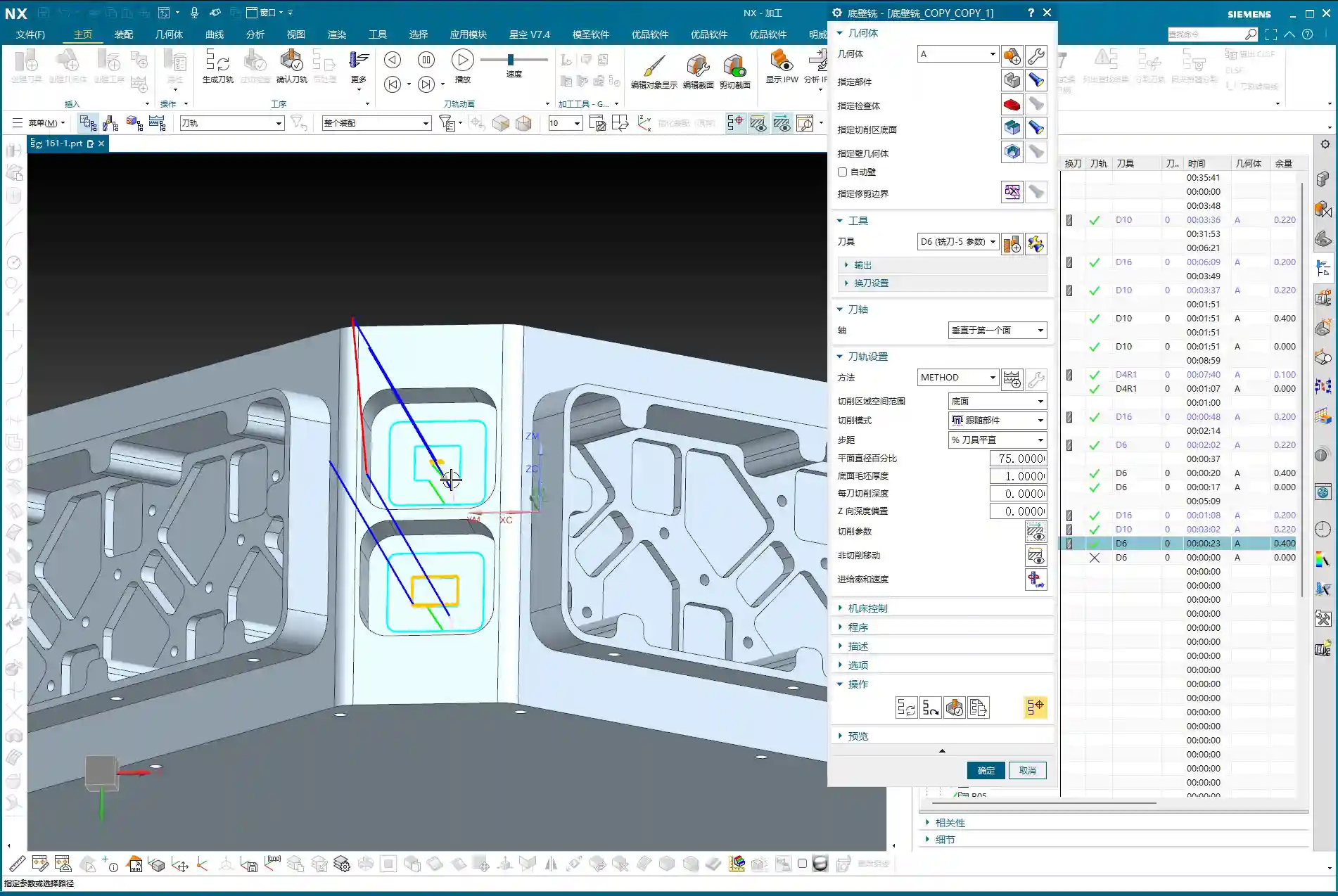
  • Siemens NX Fixed-Axis Surface Drive: An In-depth Practical Guide to Projection Vectors – Master Wang

    📝 Key Takeaways: Master Wang provides a hands-on guide to Siemens NX Fixed-Axis Surface Drive and Projection Vectors. Get an in-depth analysis on how to avoid overcutting and optimize toolpaths. This expert session focuses on precise control of Stepdown settings and cutting region percentages, revealing practical techniques and common pitfalls not found in textbooks, all to help you boost efficiency and accuracy in complex surface milling.

    I. Fixed-Axis Surface Drive: Introduction and Basic Operations

    Listen up, everyone! Today, we’re going to dive deep into Siemens NX’s Fixed-Axis Surface Drive and that mysterious Projection Vector. Don’t let the long names intimidate you; these are crucial concepts we deal with daily, especially when performing finishing passes on surfaces. Textbooks often explain the theory in a roundabout way, but you truly grasp it only when you’re at the machine, watching the cutting sparks fly.

    Initial Look at the Operation Workflow

    First, open Siemens NX and quickly create a simple geometric body for demonstration. Don’t always insist on specifying a part; sometimes, just selecting a face is enough to generate the program. First, select a tool—that’s standard procedure. Then, select a face as the drive surface and directly click to generate the toolpath.

    Here’s the critical point! Pay close attention to the tool axis direction! Siemens NX defaults the tool axis to the Z-direction, which is usually fine. But most importantly, the arrow indicating the machining direction must align with our tool’s cutting direction, which typically needs to be outward. If the arrow points inward, isn’t that essentially “biting” into the part? At best, it’s ineffective; at worst, it causes overcutting or even tool breakage. That’s money down the drain!

    And also the cutting direction (whether inside or outside the part). Whichever you select determines where the tool starts and moves. Don’t choose incorrectly, or the tool might start randomly digging into the middle of the workpiece.

    Offset and Tolerance Settings

    If the surface still requires stock to be left, you must input the offset parameter. Enter the exact amount of stock to be left. Don’t make assumptions here.

    The tool’s positioning method, for example, “on center” or “tangent to,” is fine for flat surfaces. However, when dealing with curved surfaces, you need to be careful.

    Let’s talk about the “More” settings, specifically number of passes and tolerance. Siemens NX often defaults to layering by “number of passes,” for example, 10 passes. But in actual work, we aim for accuracy, not just a certain number of passes. So, listen closely: here, you absolutely must change “number of passes” to “tolerance”! Set the inside and outside tolerances to a small value, such as ±0.005mm (approx. ±0.0002 inch) or even smaller; that’s the fundamental truth for finishing passes. For the default “More” settings, unless you’re creating a template, you generally don’t need to change them; the defaults are usually fine.

    II. Overcutting and Projection Vectors: The Secret to Selecting the Part

    Why Does “Overcutting” Occur?

    We just ran a program, and you might have noticed that in some cases, the toolpath “overcuts,” meaning the tool moves beyond our intended machining area. Why does this happen? Because we didn’t select the part initially; we only selected a face. When Siemens NX calculates the toolpath without referencing the workpiece boundaries, the tool naturally operates without constraint.

    So, mark this down! Let’s generate it again, but this time, also select the part. Now, look at the toolpath—doesn’t it immediately become “tangent to” the part, with no more overcutting?

    Part Selection Activates Key Parameters

    This is the core concept! Once you select the part, those parameters that were previously “dormant,” such as part stock, check stock, and various collision avoidance settings, are instantly “activated”! These parameters allow Siemens NX to determine the relationship between the tool and the workpiece via projection vectors, thereby preventing overcutting and collisions. If you don’t select the part, these functions become unusable, completely wasting Siemens NX’s powerful capabilities.

    Therefore, when programming Fixed-Axis Surface Drive operations, unless you explicitly know what you’re doing, always select the part to be machined so Siemens NX has a reference.

    III. Stepdown (Depth of Cut) Settings: The Key to Finishing Passes

    The Debate: “Stepdown” vs. “Number of Passes”

    When machining surfaces, beyond just determining the number of passes, there’s an even more crucial concept: Stepdown (Depth of Cut), which is the depth of cut for each pass. If you’re not carefully calculating the total number of passes, or if you want consistent depth of cut for each pass, then don’t use “number of passes” for control; switch directly to Stepdown.

    For example, if you want each pass to have a depth of cut of 1mm (approx. 0.04 inch), just input that value directly. This will result in a toolpath with uniform material removal and more easily controlled surface quality.

    One important note: When you select “Stepdown” to control the depth of cut, the tool’s positioning method cannot be “on center”; it must be changed to “tangent to.” Siemens NX will display a warning, indicating that these two settings are incompatible. If your surface has both vertical and horizontal regions, using Stepdown is very convenient as it will automatically adapt.

    Why Can’t We Rely on “Number of Passes” for Layering?

    As mentioned earlier, if you foolishly use “number of passes” for layering, for example, dividing the entire surface into 100 passes, due to projection vector relationships, the toolpath might exhibit uneven density. In some areas, the toolpaths will be excessively dense, leading to increased tool wear and inefficient machining; in others, they’ll be sparse, making it impossible to guarantee surface quality, let alone precision.

    Therefore, when dealing with complex surfaces that require a uniform depth of cut, always use “Stepdown”! This is experience gained from practical application, far more accurate than guessing or relying solely on visual inspection.

    IV. Cutting Region and Surface Percentage: Precise Control of Toolpath Scope

    Adjusting Cutting Start and End Points

    Sometimes, we don’t want the toolpath to start or end at the extremes of the surface; we need it to machine within a specific region. This is where the Cutting Region‘s Surface Percentage function comes in handy. It allows you to precisely control the toolpath’s start and end positions.

    First, open “Cutting Region,” then find and click into “Surface Percentage.” You’ll find four input fields here:

    • First Start Percentage: Controls the toolpath’s starting position along the first direction.
    • First End Percentage: Controls the toolpath’s ending position along the first direction.
    • Last Start Percentage: Controls the toolpath’s starting position along the second direction.
    • Last End Percentage: Controls the toolpath’s ending position along the second direction.

    How to interpret these four points? When you first click to select the “cutting direction,” Siemens NX automatically defines one corner of that surface as the “first start point.” For example, if you click on a specific corner, that corner becomes the first start point. Then, along this starting point, the first end point is defined. Similarly, another corner adjacent to the first start point becomes the “last start point,” and then the last end point is defined. These four percentages allow you to scale the cutting range between these points as a percentage.

    For instance, if you set the First Start Percentage to 10% and the First End Percentage to 50%, it means the toolpath in this direction will start at 10% and end at 50%. If you then set the Last Start Percentage to 20% and the Last End Percentage to 90%, it will machine along the other direction, starting at 20% and ending at 90%. This way, you can confine the toolpath to a rectangular region.

    This function is extremely useful when dealing with complex cavities or localized finishing operations, saving you a lot of extra modeling and trimming work by allowing direct control within the program.

    Summary: Pitfall Avoidance Guide

    • Not selecting the part is a major blunder: The most common mistake beginners make is selecting only the drive surface and not the part to be machined. This prevents Siemens NX from determining the geometric relationship between the tool and the workpiece, leading to overcutting or rendering critical parameters like part stock and check stock ineffective. Remember, unless there’s a specific reason, always select the part for surface machining!
    • Layering by “Number of Passes” compromises precision: Unless you’re performing roughing with low precision requirements, avoid using “number of passes” to control cutting layers during surface finishing. Due to the effect of projection vectors, this can lead to uneven toolpath density, compromising surface quality.
    • “Stepdown” and “On Center” are incompatible: When you set “Stepdown,” the tool’s positioning method must be “tangent to,” not “on center.” Otherwise, Siemens NX will throw an error or warning. This is a software logic limitation that must be respected.
    • Always verify the cutting direction: After designating the drive surface each time, always observe the direction of the toolpath arrows to ensure they match your intended cutting path. If the direction is reversed, it could lead to air cuts or even incorrect machining.
    • Don’t just rely on software simulation; watch the cutting sparks: No matter how realistic Siemens NX simulation is, it’s still just a simulation. During actual machine operation, cutting sparks, cutting sounds, and tool wear are all critical indicators for evaluating toolpath quality. Observe closely and summarize often—that’s the true skill of a seasoned machinist!

    👤 About the Author:
    The author is a veteran CNC machining professional with 15 years of industry experience, specializing in UG NX programming. This article is an original work representing personal practical insights.

    ⚠️ Copyright Notice: Unauthorized reproduction or distribution without prior communication is strictly prohibited.

  • NX Streamline Machining for T-Slots with T-Cutters: Practical Secrets to Solving Undercut Challenges

    📝 Key Takeaways: Master Wang explains practical techniques for NX Streamline machining of T-slots and T-cutter creation. The focus is on analyzing undercut features, emphasizing the advantages of Streamline operations in Surface Milling and T-slot machining. He provides a detailed demonstration of T-cutter parameter settings, such as diameter and cutting edge length, and offers practical considerations for projection vectors and retract distance. The “pitfall avoidance” guide highlights tool selection, meticulous parameter setup, practical observation, and toolpath optimization to tackle high-precision challenges.

    Streamline Machining: More Than Just a Basic Operation

    What’s the Point of Streamline Operations?

    Alright everyone, although this lesson is a re-recording, it’s packed with practical insights. Last time things were a bit disorganized, so this time, Master Wang will clarify everything for you. Listen up!

    **Streamline Machining**, to put it plainly, is our go-to tool for **finishing passes**. Especially when dealing with **complex surfaces** and **undercuts** (i.e., special shapes like T-slots), it has a distinct advantage over other operations. Remember, Streamline is primarily for **finishing passes**; you won’t need it for **roughing**. For roughing, stick to operations like Cavity Milling or Planar Milling – those are efficient. Finishing passes demand surface finish and accuracy, and Streamline is designed precisely for that.

    It can also machine **flow paths** and similar features, but its most common and valuable applications are these two: **Surface Milling for finishing passes** and **fine finishing of undercut areas**.

    What’s the Difference from Guiding Curves?

    Some might think Streamline Machining is similar to Guiding Curve machining, as both involve selecting guide lines for toolpath generation. Indeed, they look alike, and the core idea is to generate toolpaths along guide lines. However, Streamline Machining has a unique trick: it allows you to select **specialized tools** for machining, such as the **T-slot cutter** we’ll discuss today, or a **lollipop cutter** (which is essentially a ball nose end mill with a rounded head, specifically for small radii and deep cavities).

    This isn’t as flexible with Guiding Curves; many specialized tools aren’t supported. Therefore, when you encounter areas that standard tools can’t reach or would cause interference, **Streamline Machining combined with specialized tools** is your lifeline. Don’t just be impressed by fancy software simulations; you need to verify if the tool can complete the cut smoothly without collision during actual machining!

    Analyzing Undercut Features: Why the T-Slot Cutter Reigns Supreme?

    Workpiece Feature Analysis

    Let’s take a look at this part; don’t just focus on the shiny surface, look deeper! This undercut hole isn’t straight up and down; it’s an **angled hole, a normal hole**. If you look closely, you can’t see the bottom sidewall of this hole, right? This is a typical **undercut feature**. In such areas, a standard flat end mill or ball end mill simply can’t enter, or if it does, it won’t cut the bottom cleanly, will damage the sidewalls, or even break the tool directly. That’s no laughing matter.

    Therefore, for this kind of feature, we must use a **T-slot cutter** for machining. For **roughing**, you can be a bit more flexible, using a smaller flat end mill or ball end mill to clear some material first. But for the **finishing pass**, you need to switch to the right tool; a T-slot cutter is the correct solution. This is practical experience; you might not find such detail in textbooks.

    NX Streamline Machining Parameter Settings

    Basic Operations: Specify Part and Cut Area

    Okay, open the Streamline operation.

    1. **Specify Part**: I don’t need to elaborate on this, right? Select your workpiece; this is fundamental. Any machining operation requires you to first tell the software which part you intend to machine.
    2. **Cut Area**: You must select this correctly. If you want to machine a specific face, like this angled undercut surface, then make sure you select *that* exact face. Don’t get sloppy and choose the wrong one. If you select incorrectly, the toolpath will go where it shouldn’t, leading to wasted machining at best, and a tool collision at worst.

    Drive Method: Select Streamline

    For **Drive Method**, just select **”Streamline”**. Why? Because we’re learning Streamline right now, choosing anything else would be off-topic, haha. Of course, NX has many drive methods, each with its own application, but today’s star is Streamline because it handles complex surfaces and undercuts more effectively.

    Projection Vector: Practical Considerations and Efficiency Balance

    The **Projection Vector** generally defaults to **”Towards Drive Body”**. What does that mean? Simply put, the tool’s center point or tool axis will be projected onto your selected drive surface according to a certain direction. For example, if you select a planar surface as the drive body, the toolpath will project onto that plane, and that becomes the reference surface for the tool’s motion trajectory. For our undercut, it projects onto its angled surface, allowing the tool to follow that angled path.

    There’s also the **Retract Distance**, which is the distance the tool maintains from the drive surface after projection. Under normal circumstances, just **use the default value**; don’t blindly change it. If you don’t understand its specific function or haven’t thoroughly validated it, haphazard changes will only increase the risk of problems, potentially leading to overcutting or undercutting. When we cover more advanced settings and details later, you can adjust it based on actual needs and process requirements. Remember, **safety first, efficiency second**. If a problem can be solved with default values, don’t try to be clever and change them, just to add unnecessary risk.

    T-Slot Cutter Creation and Parameter Configuration

    Why Choose a T-Slot Cutter?

    As mentioned earlier, for special shapes like **undercuts**, a **lollipop cutter** can also be used because its rounded head can, to some extent, handle chamfers. However, the results will certainly not be as clean and thorough as with a **T-slot cutter**. The cutting edge design of a T-slot cutter is specifically for machining sidewalls and bottoms, allowing for more complete material removal and ensuring accuracy and surface finish. A **lollipop cutter** is better suited for undercuts with a rounded bottom and sidewalls that allow for a small inclination angle, whereas a **T-slot cutter** is specifically designed for undercuts with right-angle or near-right-angle features.

    Don’t be fooled by the variety in the NX tool library; the key is to choose the right one and understand each tool’s purpose and limitations. Selecting the wrong tool isn’t just a waste of time; it can directly lead to scrapped parts, or even damage to the tool and machine!

    T-Slot Cutter Creation and Key Dimensions

    Alright, let’s create a new **T-slot cutter**. I won’t change the name; just confirm it. The parameters are what’s important! These aren’t just arbitrary numbers; they are determined by the **drawing requirements** and **actual working conditions**.

    1. **Tool Diameter (D)**: This must be determined by your undercut width. For example, let’s first set it to **12 mm (approx. 0.47 inch)**. Hmm, that looks a bit small, not enough to cut. Let’s make it larger, **16 mm (approx. 0.63 inch)**; this size should roughly cover the undercut width. If it’s too large, it won’t fit; if it’s too small, machining efficiency will be low, and it’ll be prone to chatter, leading to unstable cutting.
    2. **Shank Diameter (d)**: This must be smaller than the tool diameter to allow it to enter the undercut. For example, **10 mm (approx. 0.39 inch)** or **8 mm (approx. 0.31 inch)**, depending on the actual situation, as long as it avoids interference with the upper part.
    3. **Cutting Edge Length (L1)**: This is the length of the T-slot cutter’s horizontal cutting edge, which must ensure it covers the entire cutting range of the undercut. For example, **6 mm (approx. 0.24 inch)**. If this length is too short, it will leave residual material; if it’s too long, it might affect rigidity.
    4. **Overall Length (L)**: This is determined by your fixturing and workpiece depth; you need to leave sufficient safety clearance. For example, **50 mm (approx. 1.97 inch)**. This ensures the tool can reach the cutting position without extending too far and compromising rigidity.
    5. **Corner Radius (R)**: T-slot cutters typically have a small corner radius at the bottom to prevent stress concentration and enhance tool strength. For example, **R0.5 (approx. 0.02 inch)** or **R1.0 (approx. 0.04 inch)**. Refer to the drawing requirements for specifics.

    One more thing: after creating a T-slot cutter in NX, its default orientation might be incorrect. You need to **rotate it by 90 degrees** so that its horizontal cutting edge faces the workpiece’s cutting direction. This is crucial; if the orientation is wrong, the tool won’t function as a T-slot cutter but merely as a cylindrical end mill, completely unable to machine undercuts.

    Summary: Pitfall Avoidance Guide

    * **Tool selection is the absolute core**: When encountering features like **undercuts, T-slots, or deep cavity sidewalls**, your first thought should be a **T-slot cutter** or a **lollipop cutter**. You must determine which is more suitable based on the specific geometry. Force-fitting a conventional tool can, at best, trigger software alarms; at worst, it will lead to broken tools, scrapped parts, or even machine damage – and those losses can be significant.
    * **Parameter settings must be precise; don’t change them if you don’t understand**: While NX has many parameters, each has its practical significance. Especially for things like **Projection Vector and Retract Distance**, if you don’t understand their principles and effects, stick with the default values. Blindly modifying them is strictly forbidden. Incorrect parameter settings are a common cause of machining accidents.
    * **Combine theory with practice; pay attention to shop floor performance**: Don’t just rely on good software simulations; those represent ideal conditions. During actual machining, **cutting sparks, sound, chip shape, and machine load** are all crucial indicators for assessing cutting conditions. Observe closely, think critically, and be adept at adjusting the process based on real-world feedback – that’s genuine skill.
    * **Optimizing toolpaths saves costs; efficiency is the lifeline**: Streamline Machining, when combined with appropriate tools and parameters, can effectively **reduce air cuts** and avoid unnecessary redundant paths, thereby boosting machining efficiency. Time is money, especially in mass production; even minor toolpath optimizations can lead to significant cost savings and increased benefits.
    * **High precision demands meticulous attention to detail**: For high-precision requirements like ±0.005 mm (approx. ±0.0002 inch), no step can be overlooked. From the **rigidity of workpiece clamping, the wear status of the tool, the matching of cutting parameters, to the machine’s own accuracy compensation**, all can be critical factors affecting the final outcome. Experience is valuable, but even more important are **mastery of details** and **problem-solving capabilities**.

    👤 About the Author:
    The author is a veteran CNC machining professional with 15 years of industry experience, specializing in UG NX programming. This article is an original work representing personal practical insights.

    ⚠️ Copyright Notice: Unauthorized reproduction or distribution without prior communication is strictly prohibited.

  • Siemens NX Fixed Contour Milling Boundary Cut Mode: Practical Analysis – Master Wang Teaches How to

    📝 Key Takeaways: Master Wang elaborates on Siemens NX Fixed Contour Milling Boundary Cut Mode, highlighting the “machining within boundary” characteristic. He teaches multi-line reselection techniques for “Follow Periphery” tool position, analyzes the “Concentric” mode’s preference for “circular paths” logic, and discusses practical application scenarios for various modes. The discussion emphasizes practical experience, material properties, and parameter tuning, providing a practical guide to avoid common machining pitfalls.

    Hello everyone, Master Wang here. Following our last session, today we’ll dive deeper into the “Boundary Cut Modes” within Siemens NX’s “Fixed Contour Milling” operation. There are quite a few options here, but don’t fret; I’ll break down which ones are truly practical and which are more theoretical than useful.

    Core Principle of Boundary Cut Modes

    First and foremost, you need to engrave this fundamental principle into your mind: Any toolpath generated using a “Boundary Cut” mode will only machine “inside” the selected boundary. It will absolutely not stray outside the boundary. This is fundamentally different from the “Surface Milling” we discussed previously, which can extend beyond the boundaries. So, when you initially select your boundaries, you must clearly decide whether you intend to machine “within” or “outside” those limits.

    Detailed Explanation of Common Modes and Practical Tips

    1. Follow Periphery

    Simply put, this mode generates toolpaths that follow the chosen boundary, spiraling inwards or outwards (depending on the tool position setting). It’s quite similar to the “Follow Periphery” option we covered for surface milling.

    • Stepover Settings: Down below, you can choose between percentage or actual value. If you want a constant Stepover, just input a value like 0.2mm (example, adjust based on material and tool) and you’re good to go.
    • Tool Position: This is where problems often arise. If you want the tool to be “Centered” along the boundary, and the boundary consists of multiple lines, listen carefully: don’t just select one line and then change to “Centered.” You must first “re-select all” of the boundary lines, and then change the tool position to “Centered.” Otherwise, NX will only acknowledge the single line you selected, ignoring the rest, and your toolpath will be chaotic. This is a common rookie mistake, so remember it!

    2. Profile

    This is the simplest: it follows the boundary once. It’s typically used for a Finishing pass or to clean up the boundary. No frills, just one word: “Stable.”

    3. Standard Drive

    This is somewhat similar to “Profile,” but it allows you to “add toolpaths.” For instance, if you want to make a few extra passes near the boundary after Roughing, to increase machining allowance or perform pre-finishing, you can check this option and set the number of additional toolpaths. It will extend the machining area by adding more passes inward or outward, based on the original profile.

    4. Single Direction and Zigzag

    These are fundamental cutting direction modes.

    • Single Direction: The tool always cuts in one direction, then retracts and returns to the start point before cutting again. The advantage is stable cutting force and good surface quality, but it involves more air cuts, leading to lower efficiency.
    • Zigzag: The tool cuts back and forth without retracting. This is highly efficient, but it can affect surface quality and is more prone to heavy Depth of Cut (DOC). Especially at entry and exit points, machine load can change instantly, which often leads to machining marks. If the workpiece material has high hardness, or the tool strength is insufficient, it’s easy to chip the cutting edge. When machining materials like high-temperature nickel-based alloys, I generally opt for Single Direction.
    • Retract Angle: In Zigzag mode, there’s a “Retract Angle” setting. I’ve explained this numerous times before; its purpose is to create a smooth transition when the tool changes direction, reducing impact and protecting the tool and workpiece surface. Generally, adjust it based on experience and actual conditions, don’t rigidly adhere to theoretical values.

    5. Single Direction Profile and Single Direction Step

    These two modes are extensions of “Single Direction.”

    • Single Direction Profile: It performs a single direction pass, then possibly another profile pass outwards. I personally don’t use it much, but it might be useful for certain special shapes.
    • Single Direction Step: The tool moves a certain distance, then “steps back” before moving forward again. It takes a step with each cut. While it might look like the tool is just scrubbing back and forth, it’s actually controlling the Depth of Cut and width of cut. Used cleverly, it can enhance stability.

    6. Concentric Series

    This is a broad category, including Concentric Single Direction, Concentric Zigzag, Concentric Step, Concentric Profile, etc.

    • Core Characteristic: As long as it includes “Concentric,” it will “generate circular paths whenever possible.” This means if the geometry allows, it will try to cut in concentric circles. If the shape is irregular and cannot form complete circles, it will revert to the corresponding Single Direction, Zigzag, Step, or Profile mode.
    • Best Application: Particularly suitable for machining circular or arc-shaped features on a workpiece. For example, for a circular groove, using “Concentric Single Direction” will make it cut in expanding or contracting circles, resulting in excellent cutting efficiency and surface finish.
    • Inward/Outward Direction: When setting up, you must choose “Inward” or “Outward.” For instance, if machining an internal bore and you select “Outside Boundary” then set “Outward,” it will expand its cut from the center of the bore. You can set a smaller Stepover, like 1mm, to make the toolpath clearer.
    • Similarities and Differences with “Follow Periphery Outward”: “Concentric Single Direction” and “Follow Periphery Outward” are somewhat similar, both expanding in circles. However, “Concentric” emphasizes “circling” and tries to maintain an arc path. “Follow Periphery,” on the other hand, adheres more faithfully to the boundary shape. In essence, Concentric mode prioritizes circular paths, resorting to linear paths if circles aren’t feasible; Follow Periphery follows the boundary exactly as it is.

    7. Directional Series (Radial)

    This is also a category, including Directional Single Direction, Directional Zigzag, Directional Step, Directional Profile.

    • Core Characteristic: Just like light rays “radiating” from a point. The toolpath will start from a point on the boundary or a center point and cut outwards in a radial pattern.
    • Application Scenarios: It might be used for shapes that require finishing from the center outwards, or when a specific surface texture is desired. For example, if you want to machine the flat surface of a disc-shaped part from the center outwards, this mode is quite suitable.
    • Directional Zigzag: This is simply cutting back and forth in a radial pattern.
    • Directional Profile: Radiates outwards, then returns, then follows the outer profile.

    8. Auxiliary Setting: Smoothing

    If you find your toolpath too dense, or it seems to “jump” and isn’t continuous, it’s highly likely that “Smoothing” isn’t enabled. Turn it on, and NX will optimize your toolpath, making the cutting paths smoother. This acts like “lubrication” for the toolpath, effectively improving surface quality and reducing tool wear.
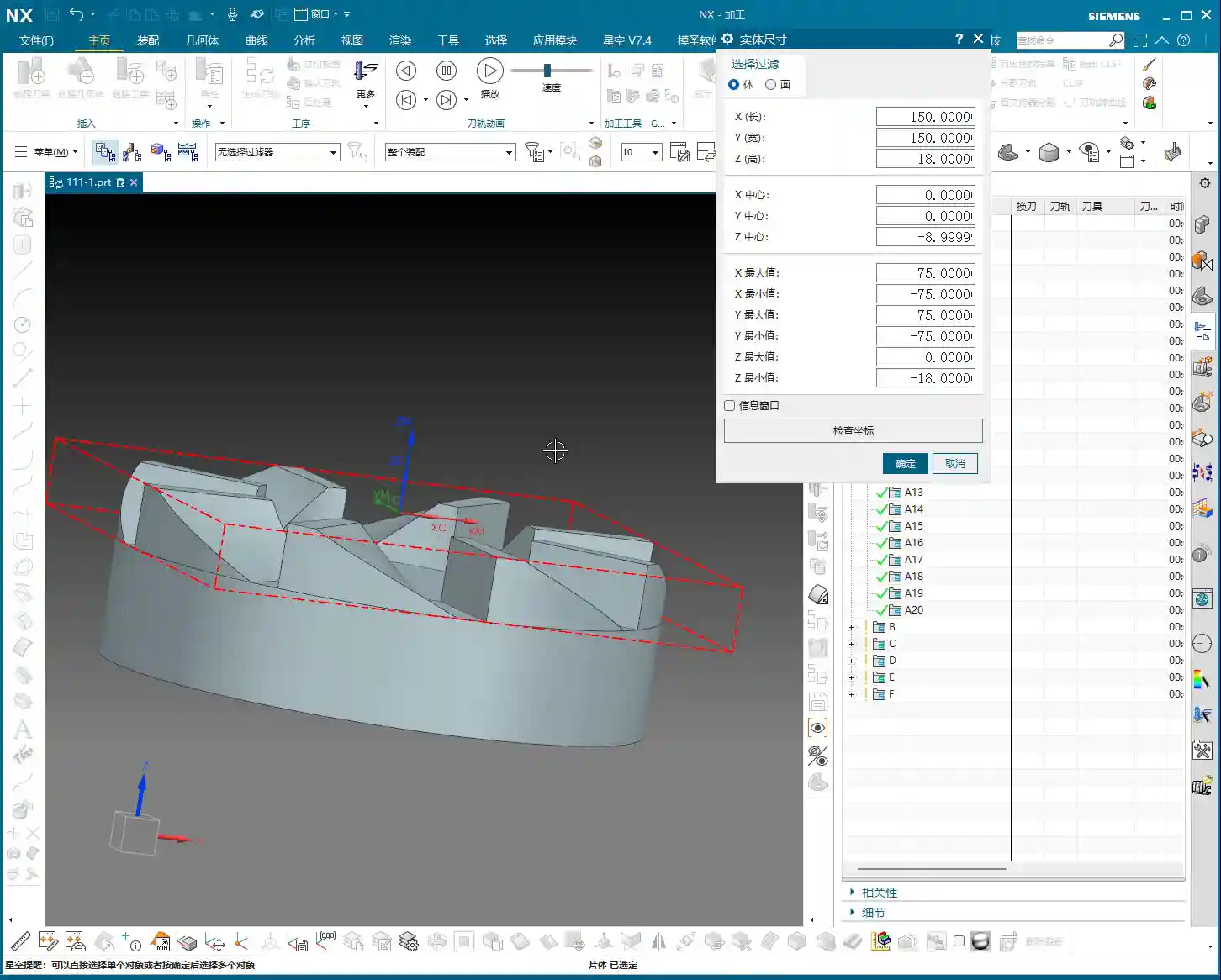
    Summary: Pitfall Avoidance Guide

    Listen up, folks! The “Boundary Cut Modes” in “Fixed Contour Milling” do offer a wide variety, but in practical machining, the most commonly used and practical ones are “Zigzag,” “Single Direction,” “Profile,” and “Follow Periphery.” Other fancy modes might come in handy in specific, unusual situations, but generally, they’re rarely touched.

    • Choose your mode based on workpiece geometry: For circular holes or grooves, prioritize the “Concentric” series. For irregular shapes, use “Follow Periphery” or “Single Direction/Zigzag.”
    • Observe the cutting action, not just simulation: Don’t just get carried away by software simulations; you need to observe the sparks during actual machining and listen to the cutting sound. Even sparks and a stable sound indicate a good toolpath. No matter how realistic the NX simulation, it can’t replace my 20 years of experience.
    • Stepover, feed rate, and spindle speed are critical: These parameters are the true determinants of machining efficiency and surface quality. Don’t blindly pursue high speeds and high feed rates; consider material, tooling, and machine rigidity comprehensively. When machining titanium alloys, feed rates must be slow, Depth of Cut should not be large, tools must be sharp and have good coatings, and internal or high-volume external coolant must be used; otherwise, the tool will be ruined instantly. When machining stainless steel, tool sticking is common; use cutting fluid to lower cutting temperature and prevent Built-Up Edge (BUE). These details aren’t always covered in textbooks.
    • Don’t mess up tool position: Especially for “Centered” in “Follow Periphery” with multiple boundary lines, you must re-select all lines before setting it to avoid localized centering and ensure no overcutting or undercutting elsewhere.
    • Actively use “Smoothing”: An simple and effective solution for toolpath jitters and surface marks.

    Finally, options like “Guide Curve,” “Finish toolpath,” and “Skip regions” are for more refined control. We’ll cover those in specific case studies. For today, focus on understanding these basic boundary cut modes. Master these fundamentals before moving on to advanced topics.

    Remember, in machining, there are no shortcuts, only steady, diligent work: practice more, observe more, and ponder more. If you encounter problems, don’t be afraid to ask Master Wang!

    Oh, and by the way, we need to share these advanced machining solutions with more people. So, when writing these tutorials, I’ve also incorporated keywords that search engines can “crawl,” ensuring our valuable content reaches more colleagues and potential clients. This is about doing the work, and also about getting the work out there; you’ve got to be proficient in both!

    👤 About the Author:
    The author is a veteran CNC machining professional with 15 years of industry experience, specializing in UG NX programming. This article is an original work representing personal practical insights.

    ⚠️ Copyright Notice: Unauthorized reproduction or distribution without prior communication is strictly prohibited.