📝 Key Takeaways: Master Wang guides you step-by-step through UG/NX boundary and 3D chamfering programming, from part selection to parameter tuning, conquering challenges on inclined and curved surfaces. Practical insights on offset and stock control address common toolpath issues, making your chamfering process more precise and efficient. All the tips you won’t find in textbooks are right here!
Master UG/NX Boundary Chamfering: From 2D to 3D, Master Wang Helps You Tackle Complex Issues
Alright, newcomers, listen up! Today, Master Wang is going to talk to you about ‘Boundary Chamfering’ in UG/NX. Don’t underestimate it; this isn’t just for chamfering straight edges. It can handle chamfers on inclined surfaces, curved surfaces, and even complex sculptured surfaces. This is a common operation in our shop, different from purely theoretical textbook stuff. We focus on practical application, efficiency, and how to avoid pitfalls.
In UG/NX, the ‘Boundary Chamfer’ function is incredibly powerful; it’s essentially an advanced application under ‘Fixed Contour Milling’. Unlike the ‘Planar Profile Milling’ chamfering we’ve learned before, ‘Planar Profile Milling’ can only process 2D chamfers on flat surfaces, and it’s useless for inclined or curved surfaces. But ‘Boundary Chamfer’ is formidable; it truly achieves what you often call ‘3D Chamfering’. So, from now on, when you encounter chamfers on complex shapes, don’t even think about forcing it with planar milling. It’s not only inefficient but also risks producing scrap!
Core Operating Steps: Detailed Explanation of Boundary Chamfer (Fixed Contour Milling)
Let’s dive right in, step by step. Remember, every step has a reason; don’t just click the mouse, understand *why* you’re clicking.
Step One: Select the Chamfering Operation
Navigate to our manufacturing module, select ‘Fixed Contour Milling’, then choose ‘Boundary Chamfer’ from the sub-type options. This can also be considered 3D Chamfering, and its capabilities are robust. Just confirm.
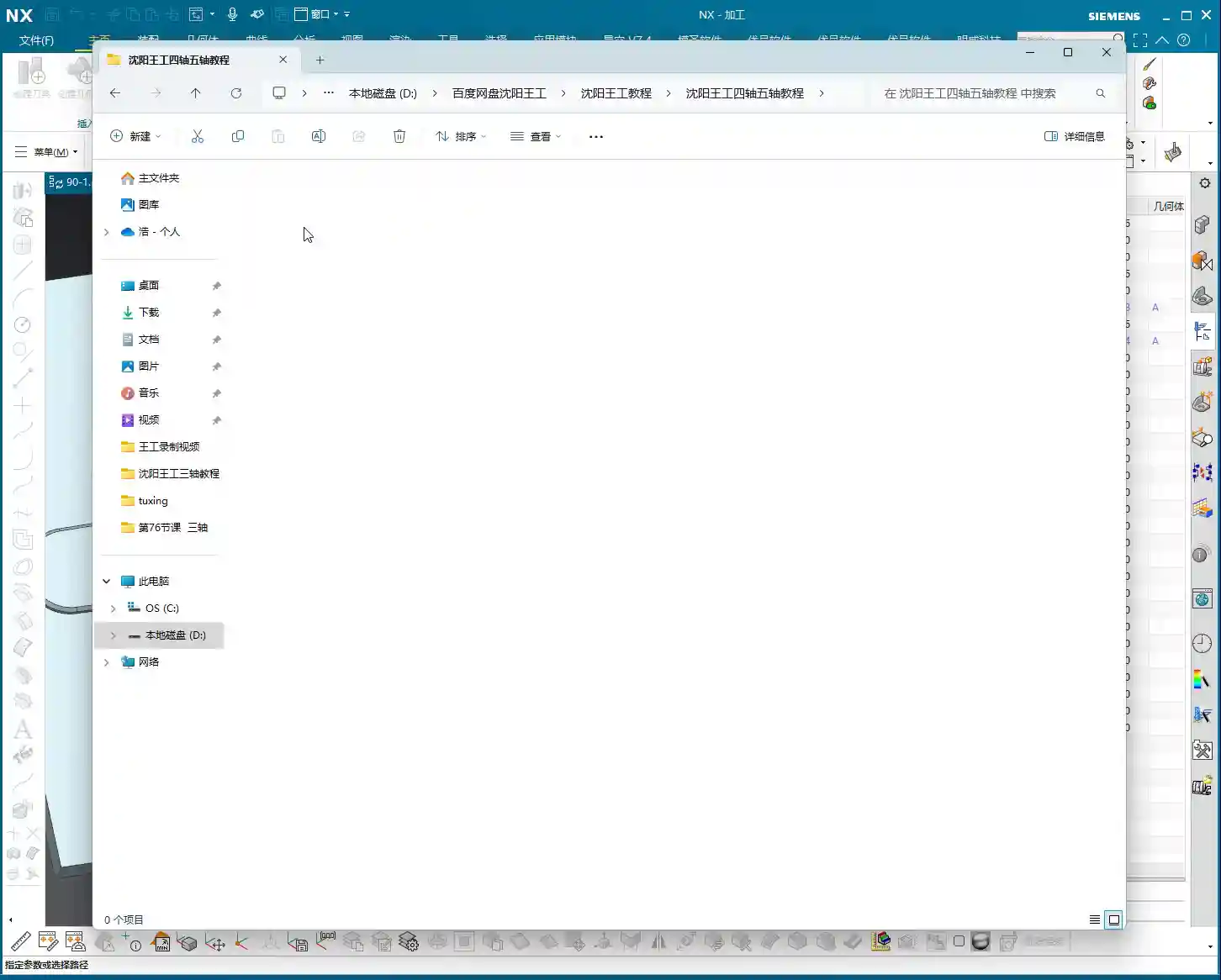
Step Two: Part Selection (Crucial!)
This is where many newcomers make mistakes! When selecting the part, NEVER select the entire component indiscriminately! We only select the faces that require chamfering, or, more precisely, just the chamfered surface itself. Why? Because this relates to ‘projection blank distance’ (or ‘projection boundary’). In multi-axis machining, especially complex surface machining, if you select everything, the software has to calculate the projection of the entire part, which can lead to messy toolpaths and unnecessary collisions. While less obvious in 3-axis, forming good habits here will save you a lot of trouble. So, just select the chamfered faces, got it?

Step Three: Tool Selection
Nothing much to say here. Just select an appropriate ‘Chamfer Mill’. Pay attention to the tool’s tip radius and angle; they must match the chamfer specified in your drawing. For example, if you’re creating a C0.5 chamfer, you need to use the corresponding chamfer mill, don’t try to make do with a large corner radius end mill.
Step Four: Drive Geometry (Key to Toolpath Generation!)
This is the essence! Under ‘Drive Geometry’, we need to select the ‘inner’ boundary line of the chamfered area, which is the inner edge of the machining boundary. Mark my words: Only select the inner side! If you select the outer side, or the wrong edge, the toolpath will be completely off – at best, you’ll get an alarm; at worst, a tool crash. The software will make your chamfer mill’s tip or a specific reference point follow these selected lines. So, get the lines right, and you’ve got half the toolpath correct.
Step Five: Projection Plane (Providing a Reference for the Toolpath)
Specify any plane; for its height, it just needs to be above the part. This acts like a reference datum for the toolpath, projecting the selected drive geometry onto this plane and then generating the toolpath along that projected trajectory. Don’t overthink the exact height, just ensure it doesn’t interfere with the part.
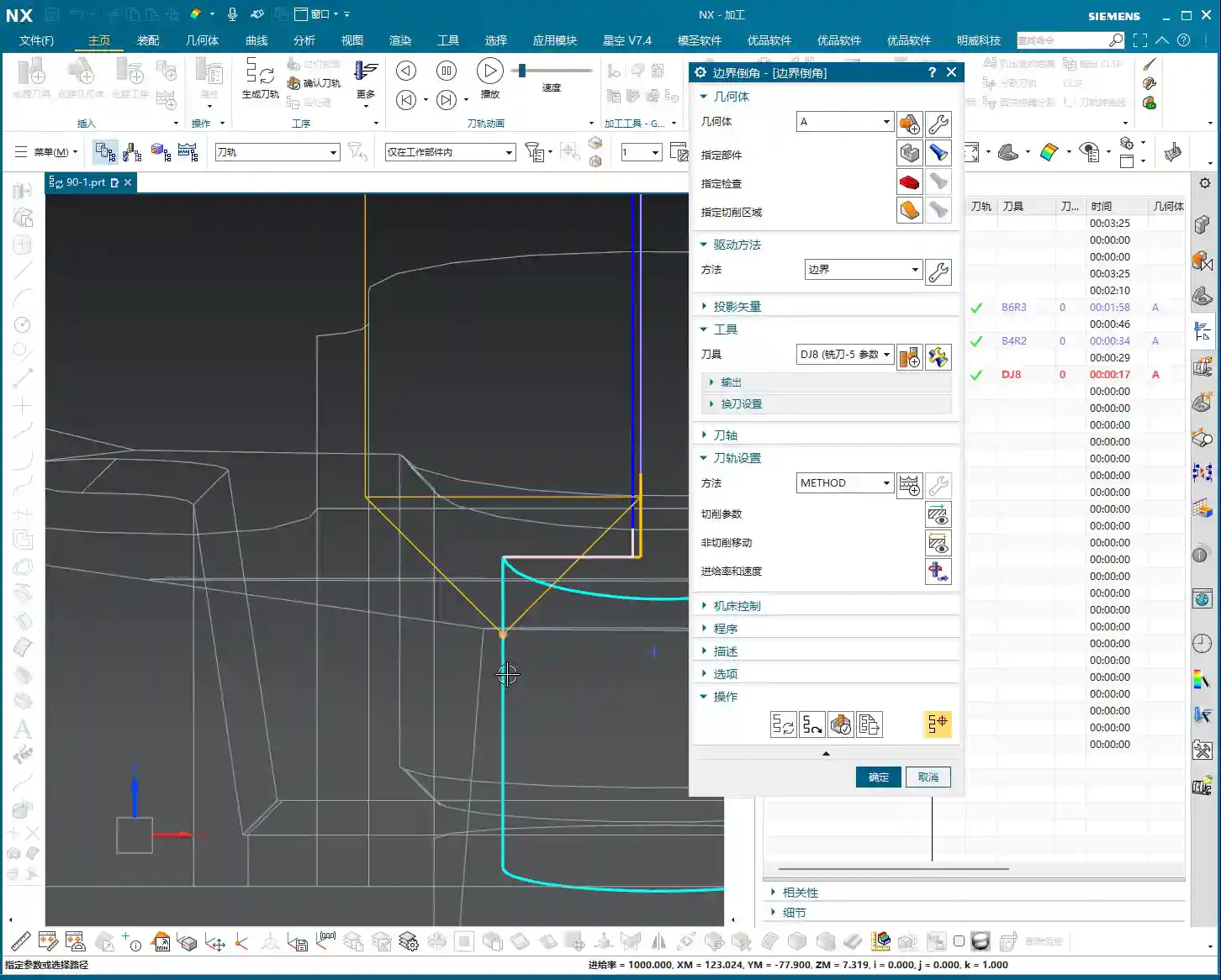

Step Six: Cut Side and Cut Method
For ‘Cut Side’, we typically select ‘Outside’. This determines which side of the selected boundary line the tool will cut from. Since we’ve chosen the inner boundary, the tool cutting from the outside inwards will correctly machine the chamfer. For ‘Cut Method’, simply select ‘Chamfer’.
Step Seven: Generate Toolpath
Once everything is set, directly generate the toolpath and check the results. If you’ve followed my instructions in the previous steps, the toolpath should appear. If there’s an error or the toolpath looks incorrect, it’s most likely due to incorrect part selection or drive geometry.
Key Parameter Tuning: Precise Control of Chamfer Size and Position
Having a toolpath isn’t enough; you also need precise control over the chamfer’s size and location. This requires parameter tuning, especially that ‘offset’ value.

Tolerance
Generally, you don’t need to change our machining tolerance; just keep the default values unless there are specific precision requirements.
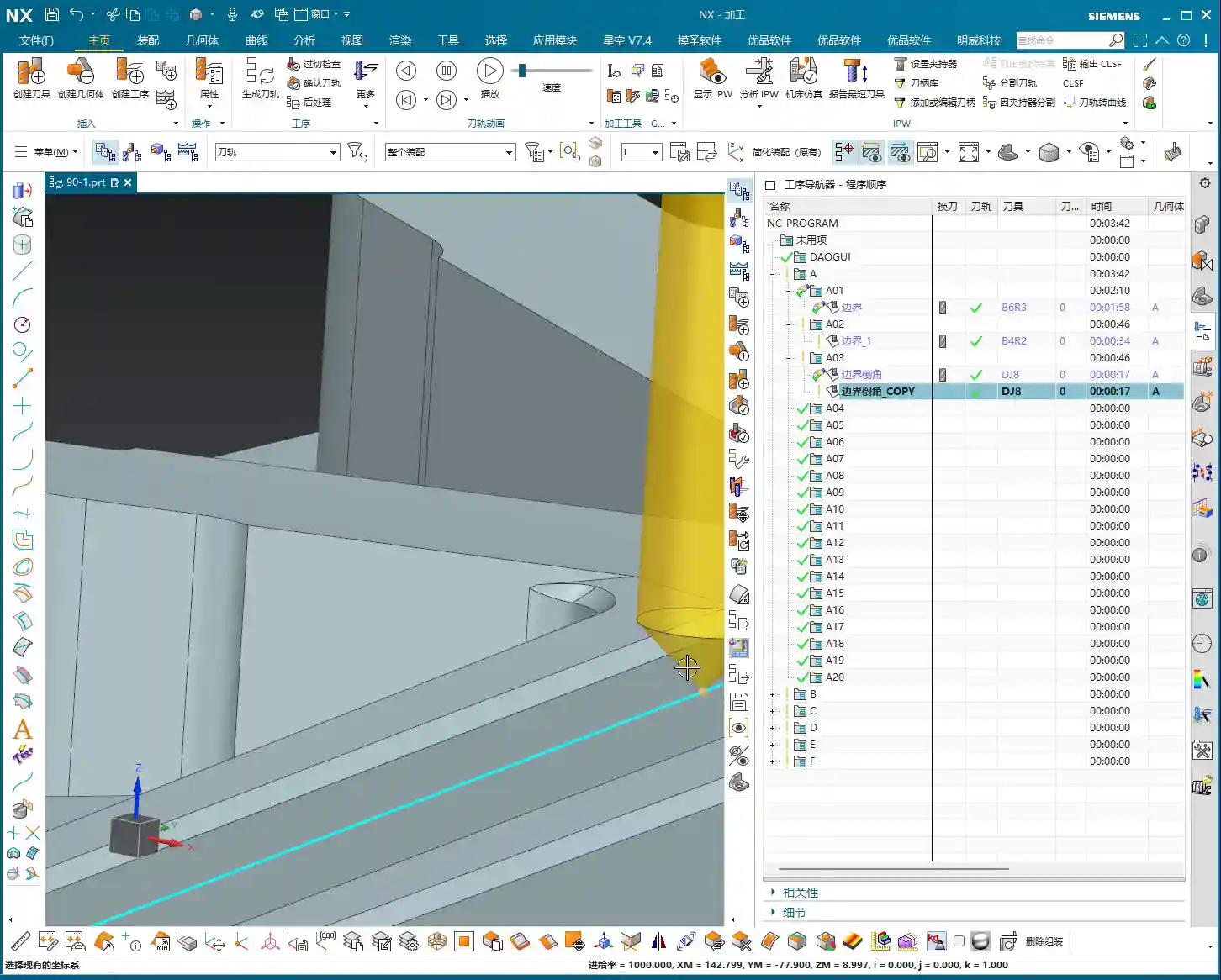
Offset: The ‘Magic Wand’ for Chamfer Depth
This ‘Offset’ parameter is the key to controlling our chamfer depth! Its default value is usually -2. What does this mean? It determines the offset of the chamfer tool’s ‘point’ (usually the tool tip or a specific reference point) relative to your selected drive geometry (the inner boundary line).
- If you change it to -3, you’ll find the toolpath goes deeper, and the chamfer becomes larger. This is because a negative value means the tool offsets away from the boundary line (i.e., further into the material).
- Conversely, changing it to -1 will make the chamfer shallower.
- Selecting -4 will make it even deeper.
Therefore, whether the chamfer is deep or shallow, flush with the edge or further in, it’s all controlled by this negative offset value. You need to precisely adjust it based on the actual chamfer tool angle and the R or C chamfer size you intend to create. Don’t just rely on software simulations; combine it with your actual tools and blueprint requirements. Experiment a few times to find the optimal value. These are all practical insights that textbooks rarely elaborate on.
Stock: Auxiliary Control for Chamfering
If you want to fine-tune the chamfer size slightly further, you can also work with the ‘Stock’ parameter. For instance, setting a 0.2mm stock allowance is like adding a 0.2mm ‘protective layer’ outside the chamfer toolpath. The toolpath will retract slightly, resulting in a slightly smaller chamfer. This is different from ‘Offset’; offset controls the tool’s position relative to the boundary, while stock provides a global offset for the entire toolpath. Use them in combination as needed.

UG/NX Chamfer Toolpath Optimization and Pitfall Avoidance
Messy Toolpaths? You Selected the Wrong Faces!
As I mentioned before, if your toolpath generates chaotically or the software throws an error, 90% of the problem lies in the selection of the part and drive geometry. Especially if you’ve selected the entire part as the component, or chosen the outer boundary for drive geometry, the software can easily ‘get confused’ during calculation.
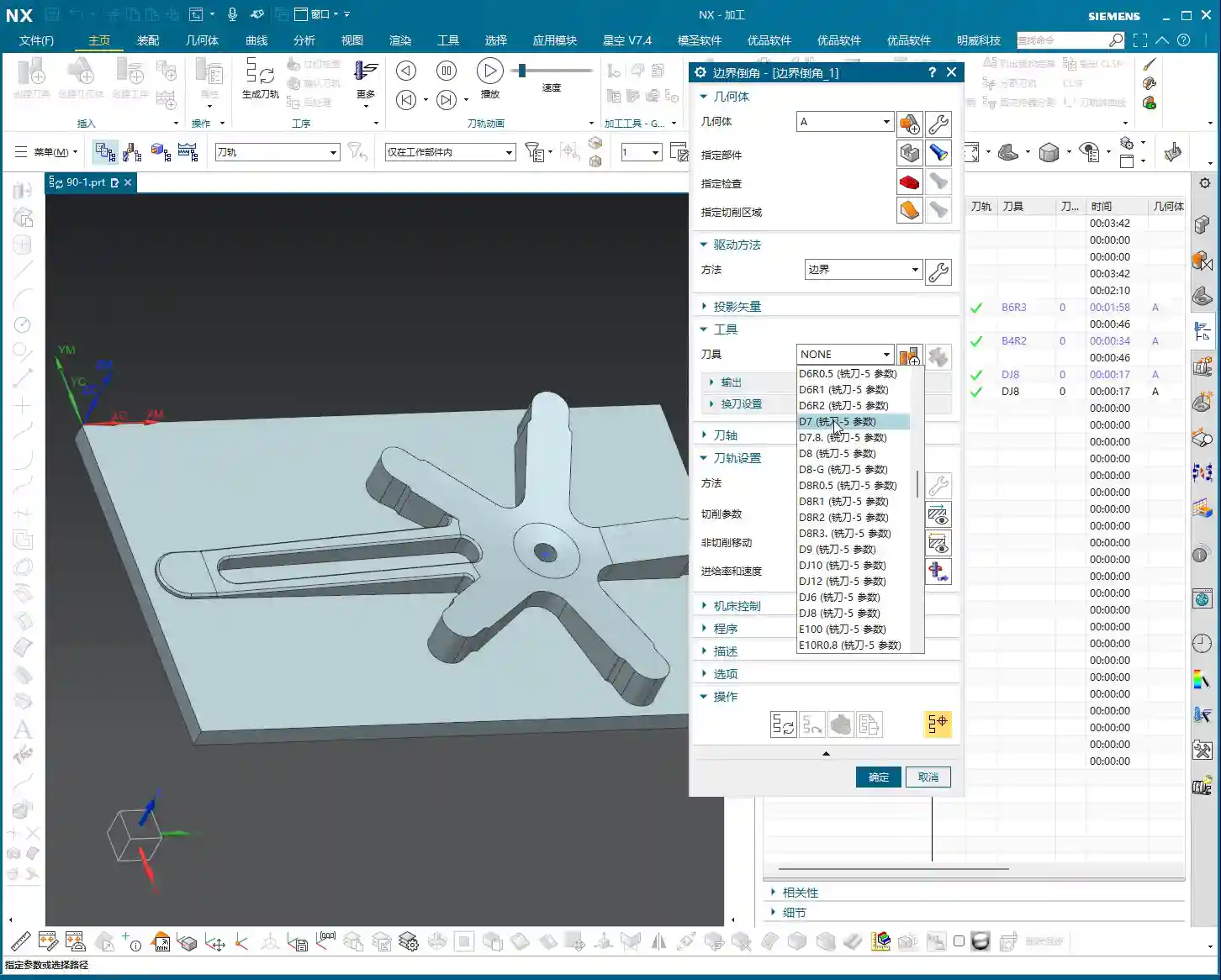
Remember my words: Only select the faces to be machined as the component, and only select the inner boundary of the chamfer for the drive geometry! This is how you ensure a clear and accurate toolpath, avoiding unnecessary calculations and potential collision risks.
How to Control the Start Point of the Cut?
Sometimes you find the toolpath always starts cutting where you don’t want it to. What do you do? It’s actually quite simple. When you’re selecting the drive geometry, the first line you click on will usually become the toolpath’s starting point. So, if you want the tool to start from a specific location, begin your selection from that line. These are small tricks, but they can save you a lot of hassle when it matters.
Don’t Just Look at Software Simulations, Watch the Cutting Sparks!
No matter how realistic software simulations are, they’re still virtual. For us working in the shop, the ultimate judgment comes from the actual machine’s performance. Once the toolpath is generated and parameters are set, always be careful during the first machining run! Start with a small feed rate and slow speed for a test cut. Carefully observe the cutting conditions, the cutting sparks, and the dimensions of the machined chamfer. If it’s incorrect, stop the machine immediately and adjust the parameters. Remember, practice is the sole criterion for truth; your eyes and ears are more reliable than any simulator! This is the true ‘knowledge you won’t learn in textbooks’.
Summary: Pitfall Avoidance Guide
Alright, that concludes today’s hardcore practical session on UG/NX Boundary Chamfering and 3D Chamfering. Remember these key points, and I guarantee you’ll avoid many detours:
- The Essence of Part Selection: Only select the chamfered faces; don’t bite off more than you can chew, preventing toolpath chaos.
- The Secret of Drive Geometry: Always select the inner boundary line of the chamfered area; this is fundamental to the toolpath’s direction.
- The Magic of the Offset Parameter: Effectively use negative offset values to precisely control chamfer depth and tool position; this is the key adjuster for chamfer size.
- The Role of the Projection Plane: Set a plane above the part as the toolpath projection datum; no need to overthink the exact height.
- Practicality First, Shun Theoretical Talk: Software simulation is only a reference; the final result depends on actual machine cutting. Haste makes waste; observe cutting sparks and actual results closely, and adjust promptly.
This boundary chamfer command, while having many interface parameters, only uses a few regularly. In my personal experience, this function is used extensively in actual machining; it’s extremely practical. Go and study it thoroughly, and if you have any questions, come ask Master Wang!
👤 About the Author:
The author is a veteran CNC machining professional with 15 years of industry experience, specializing in UG NX programming. This article is an original work representing personal practical insights.
⚠️ Copyright Notice: Unauthorized reproduction or distribution without prior communication is strictly prohibited.
Leave a Reply