📝 Key Takeaways:
NX Secondary Roughing: Master Wang’s Practical Techniques
Opening: Lingering Issues from the Last Program
Hello everyone, I’m Master Wang. In our last session, we finished programming the roughing operations for the first side. However, in some areas, the program ran slowly, and the computer lagged a bit. In the workshop, time is money, and a slow program means lost production! So today, we need to address these lingering issues, especially those “unmachined” areas, which are regions that weren’t fully cleaned up.
Checking and Addressing Residual Stock
Alright, let’s go back one step and quickly check which areas weren’t fully milled. Listen up: don’t just focus on the large flat surfaces. The real problem spots, where the tool is likely to engage heavily and cause issues, are often the small corners and grooves. I’ve noticed several areas that were “skipped” or “missed,” leaving behind a bit of residual stock. Some areas, especially on the side walls, still look like they have “remnants.”
- Problem Areas: Found several spots, particularly edges and corners, where small amounts of stock remained after the previous program, looking “unmachined.”
- Solution Approach: A “Corner Cleanup” operation is needed to remove this residual stock, preparing the part for subsequent finishing passes.
First Corner Cleanup: Addressing Residuals on the First Side
For this residual stock, we can simply copy an existing program and make a few parameter adjustments. This is the most efficient method and minimizes errors.
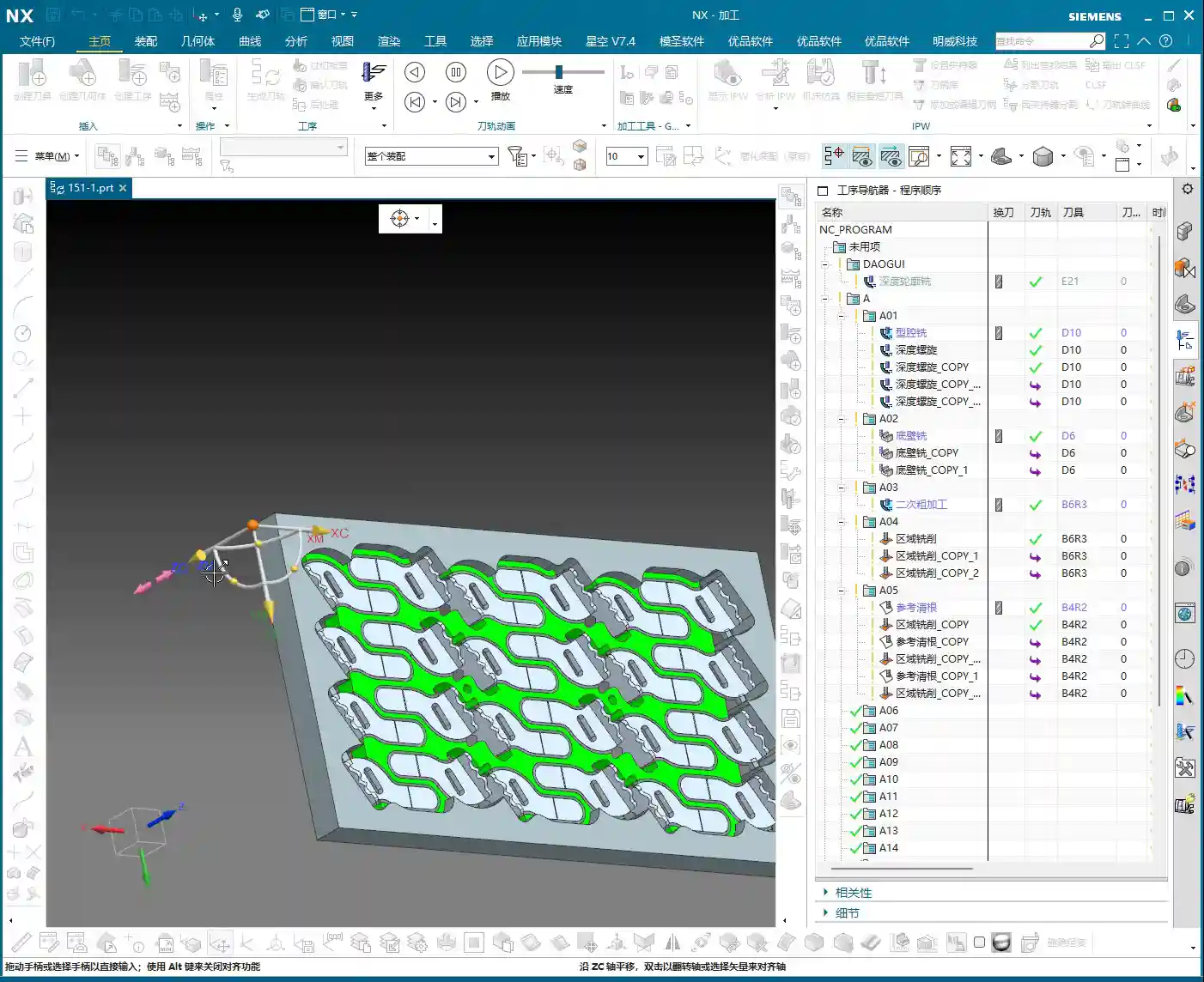
Program Duplication and Parameter Adjustment
I’ll directly copy one of our previous programs. Remember, after copying, the first thing you must do is check several key parameters:
- Connections: Change the connection type from default to “Move” to prevent unnecessary tool lifts and air cuts.
- Stock: For a corner cleanup operation, set the stock directly to 0. Our goal is to remove all the excess material.

Tool Entry/Exit Strategy: Avoiding Collision Risks
As soon as the program ran, I immediately spotted an issue: the tool entry/exit was problematic, preventing the tool from safely entering and retracting. This is one of the most common mistakes made by beginner programmers!
- Original Problem: The tool entry/exit path was unreasonable, prone to scratching the workpiece or making air cuts.
- Solution:
- Change the tool entry/exit method to “Same as Open Area”, allowing the tool to enter and retract in obstacle-free regions.
- Select “Arc Engage” for the tool entry method, with a radius of 1 millimeter. Arc engagement effectively prevents the tool from plunging directly into the material, reduces impact, protects the tool, and results in a better surface finish.
Tool Selection and Boundary Handling
For this corner cleanup, we’ll choose a 10mm flat end mill (Ø10mm). Its size is suitable, allowing it to reach into narrower areas while maintaining sufficient rigidity. A Ø6mm tool might be too weak.
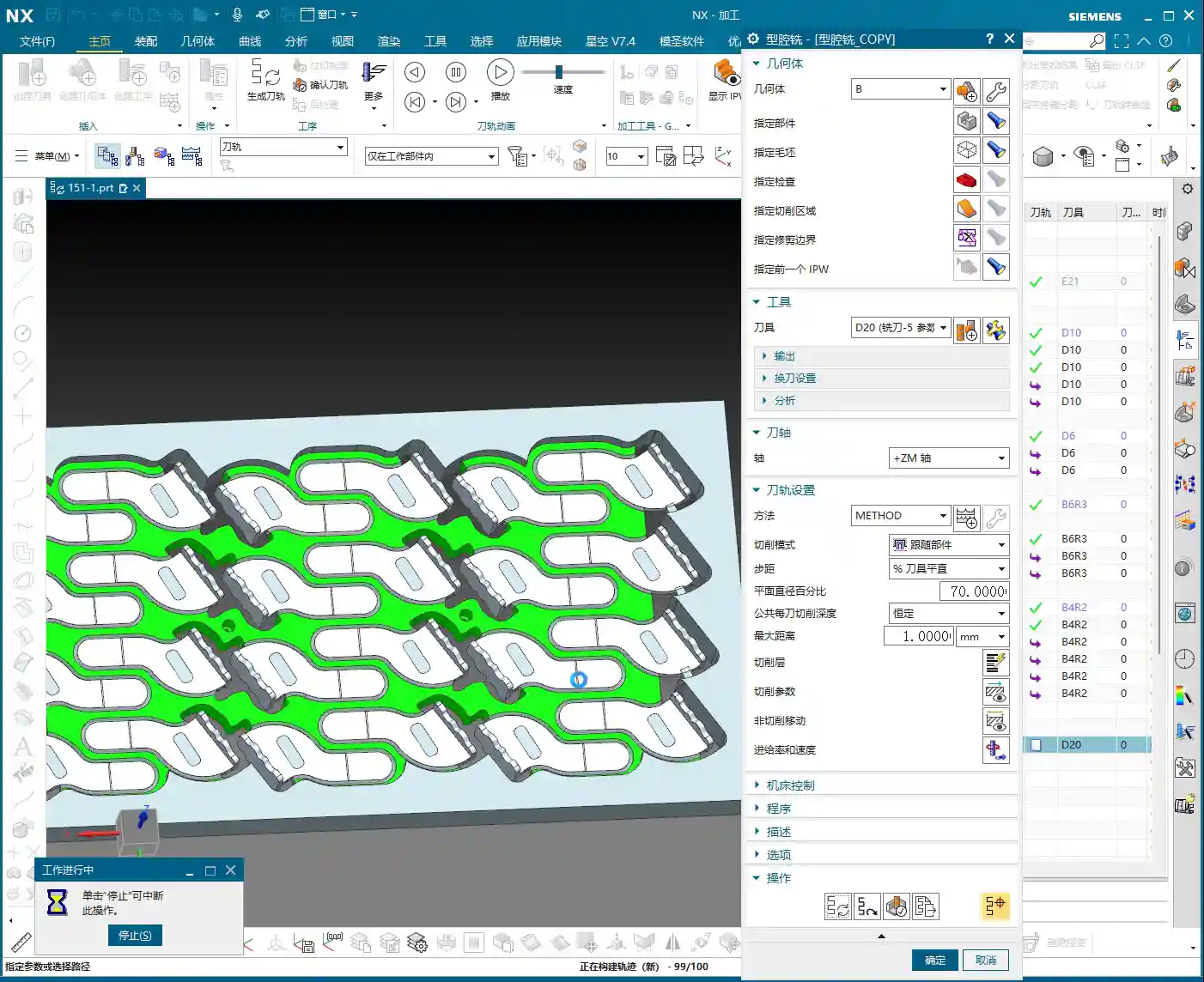
Next, I noticed that a certain spot might not have been thoroughly cleaned due to the toolpath, which is “not ideal.” However, it’s not a major issue. For the roughing stage, as long as it doesn’t affect subsequent finishing, occasional minor imperfections can be temporarily “overlooked.” We need to learn to prioritize and not get bogged down over-focusing on minute details during roughing; that’s not a good practice.

Second Side Machining: Efficiency and Strategy
With the first side done, we need to quickly flip the part and machine the other side. Remember, in the workshop, flipping the part and fixturing are among the biggest time costs, so programs must be correct the first time, minimizing rework.
Coordinate System Transformation and Program Reuse
The quickest method is to transform the coordinate system, then copy the existing program and make minor modifications. Most parameters are universal.
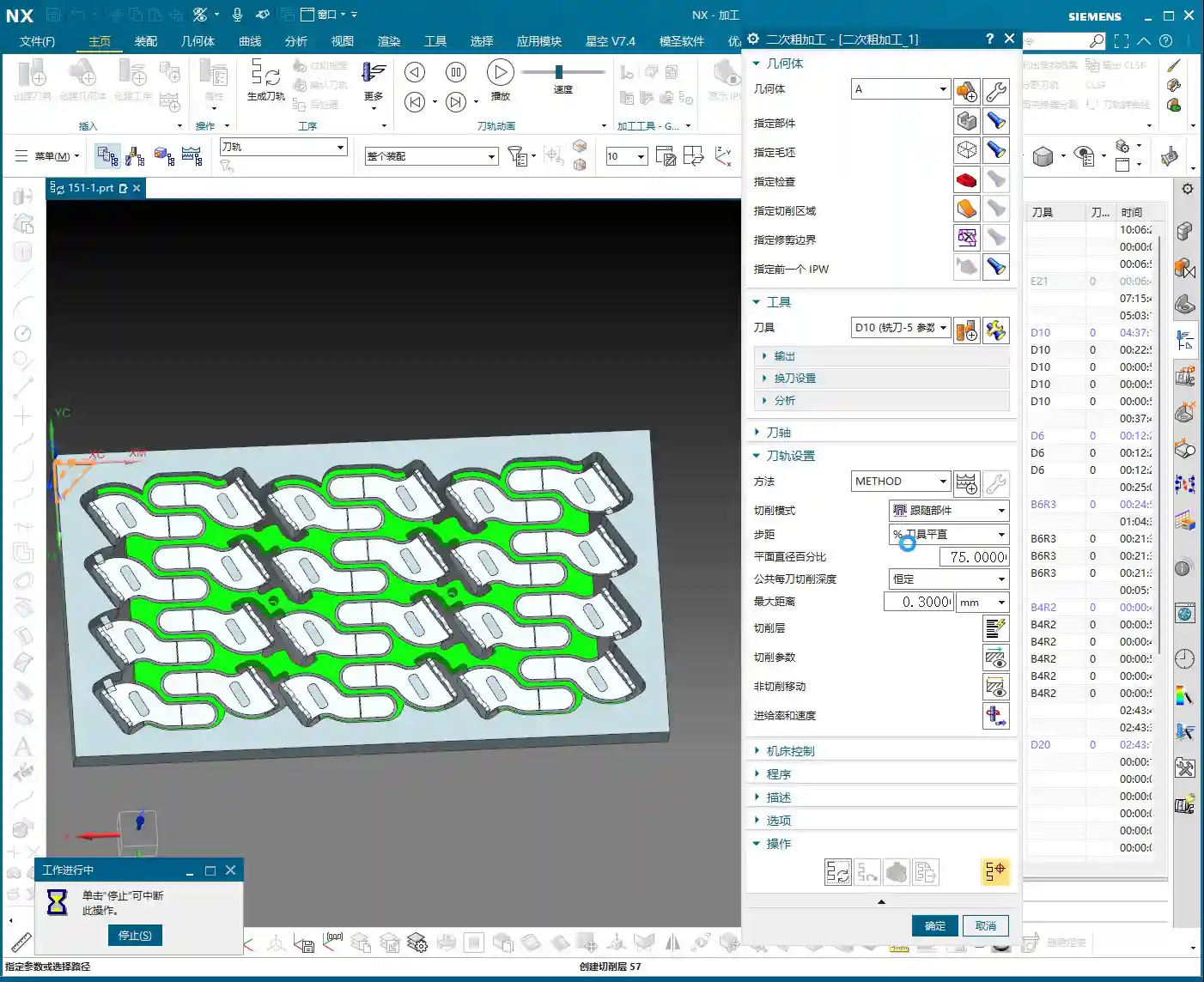
- Blank Geometry Selection: The key is to select the blank geometry as this “B-side” after flipping. We previously machined the A-side; now we’re machining the B-side, and this absolutely cannot be mistaken.
- Cutting Layers: For roughing, let the software automatically identify the cutting layers; it will find the last layer to mill.
- Stock Setting: To be safe, we can leave a small amount of stock after corner cleanup, for example, 0.05 millimeters. This provides a margin for error in case of deformation or undetectable residual material during finishing. Never aim to machine to zero stock in one go; that risk is too high.
“Surface Blocking” Technique: Handling Complex Regions
While observing the machining of the second side, I found that some internal regions might experience redundant machining or be difficult to clean effectively. In such cases, we need to employ the “surface blocking” technique.
- Purpose: To prevent the tool from entering areas that should not be machined, or to simplify toolpaths in complex regions.
- Operation:
- Select an “Offset Plane” to isolate the areas that need to be “blocked.”
- Use the “Trim” function to cut away excess geometry, essentially defining a clear machining boundary for the tool.
- Master Wang’s Tip: This trick is particularly useful when dealing with castings, forgings, or parts with complex internal structures. It effectively prevents “air cuts” and “heavy cuts.”

Secondary Roughing: Larger Tools for Enhanced Efficiency
With the initial roughing and corner cleanup complete, we now move to true “secondary roughing.” The strategy here is to use larger tools to quickly remove the bulk of the remaining stock.
Tool Selection and Cutting Parameters
Since this is secondary roughing, we need to “upsize” the tool to boost cutting efficiency.
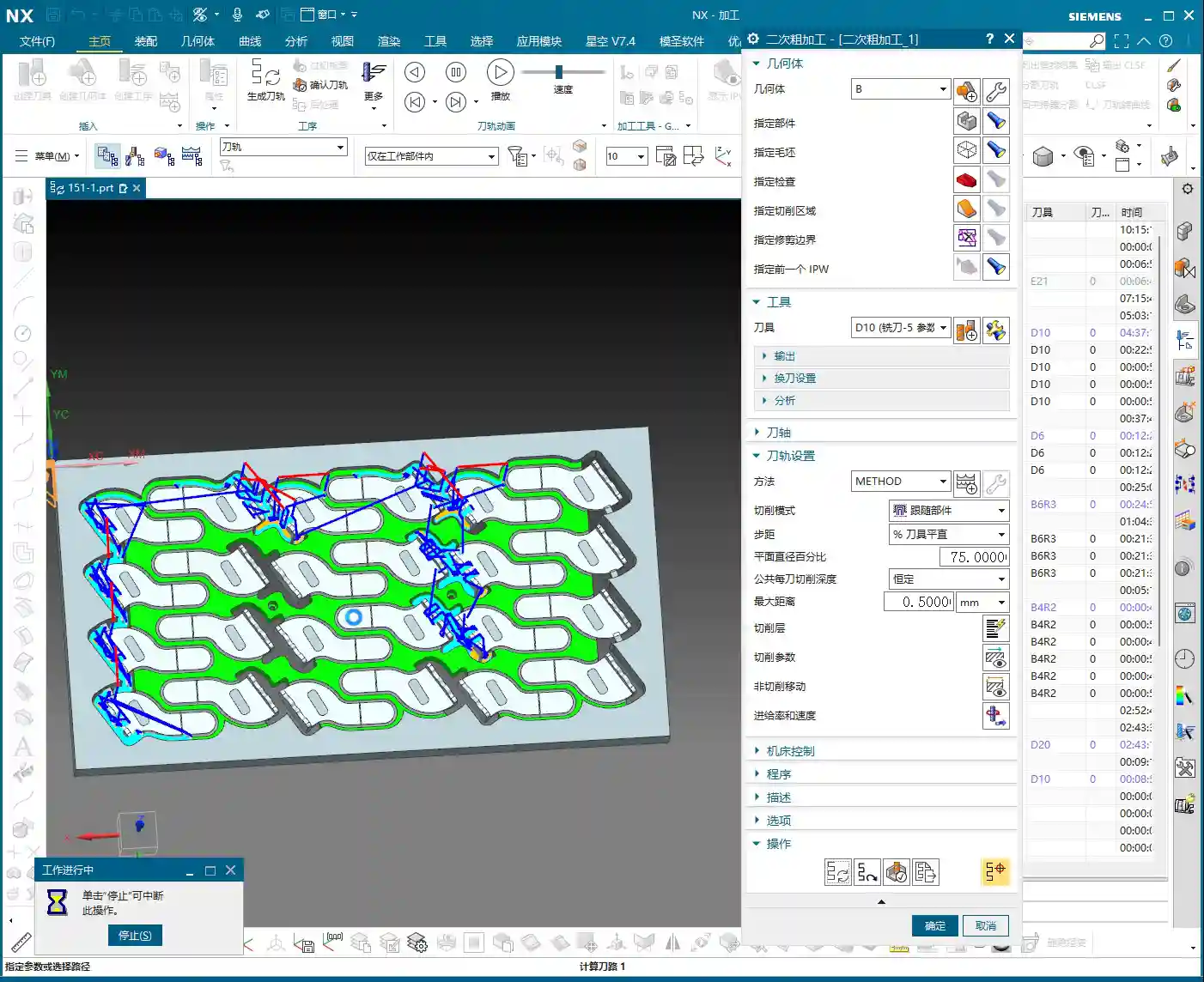
- Tool: Go straight for a 20mm flat end mill (Ø20mm), or choose a 16mm or 18mm one depending on the specific situation. A larger tool allows for a greater volume of material removal per pass and fewer toolpaths.
- Cutting Layers: With a larger tool, the previous fine “cutting layers” are no longer relevant; the software will determine them automatically.
- Stock: For secondary roughing, leaving 0.3 to 0.5 millimeters of stock is appropriate, providing ample allowance for finishing passes.
- Stepover: Based on the tool diameter and material, we’ll set it to 0.35 millimeters here. This needs to be adjusted according to actual conditions and machine rigidity.
- Tool Entry/Exit Distance: Set this to 1 millimeter to ensure safe tool entry and retraction.
Machining Simulation and Performance Evaluation
After generating the program, you must carefully review the machining simulation. No matter how perfect the simulation, it’s never as real as watching the cutting sparks at the machine! But simulation can help us identify most problems beforehand.
- Expected Outcome: Most areas should be cleaned up effectively by the Ø20mm tool.
- Limitations: However, a Ø20mm tool certainly cannot reach all small corners and deep cavities. These areas must be left for subsequent finishing passes or smaller tools. During the roughing stage, don’t expect perfection everywhere; that’s unrealistic and uneconomical.

Summary: Pitfall Avoidance Guide
Alright, that concludes today’s lesson on secondary roughing programming. Master Wang has compiled a few practical tips to avoid common pitfalls—these aren’t things you’ll learn from textbooks:
- Computer Performance is a Bottleneck for Efficiency: NX program calculation, especially for complex surfaces or multi-axis simultaneous machining, is very resource-intensive. If your computer lags, it’s better to pause, optimize settings, or upgrade hardware, rather than pushing through. That’s a waste of time.
- Roughing Prioritizes Efficiency, Finishing Prioritizes Precision: For roughing, be bold with large tools, fast feed rates, and aggressive material removal. Don’t chase 0.01mm precision during the roughing stage; that’s counterproductive. However, always leave sufficient stock to provide adequate allowance for finishing passes.
- Tool Entry/Exit is the First Line of Safety: Improperly set tool entry and exit methods can, at best, affect surface quality, and at worst, lead to tool breakage or machine collisions. Always select appropriate arc or open-area entry/retraction based on workpiece geometry and tool characteristics.
- Pitfalls After Program Duplication: Copying programs saves time and effort, but the most common mistake is forgetting to modify critical parameters like geometry, blank, stock, and machining direction. Always double-check these after every copy. Just like today, I almost copied the geometry from the A-side to the B-side and forgot to change the machining face—that would have been a “wasted effort.”
- “Surface Blocking” is a Lifesaver for Complex Parts: For parts with deep cavities, complex internal structures, or regions that shouldn’t be machined, effectively utilize “surface blocking” or “area restriction” functions. This significantly optimizes toolpaths, preventing air cuts or damage to the workpiece.
- Multi-axis Programming is a Challenge: In the future, we’ll cover 4-axis and 5-axis simultaneous machining. These involve even greater computation and are more prone to programming errors, requiring more patience and experience. Be prepared, so you don’t get “stuck” when NX calculates the program.
Alright, that’s it for today. Go practice more, commit these tips to memory, and we’ll pick up next time!
[/CONTENT]
👤 About the Author:
The author is a veteran CNC machining professional with 15 years of industry experience, specializing in UG NX programming. This article is an original work representing personal practical insights.
⚠️ Copyright Notice: Unauthorized reproduction or distribution without prior communication is strictly prohibited.
Leave a Reply