📝 Key Takeaways: Master Wang elaborates on Siemens NX Fixed Contour Milling Boundary Cut Mode, highlighting the “machining within boundary” characteristic. He teaches multi-line reselection techniques for “Follow Periphery” tool position, analyzes the “Concentric” mode’s preference for “circular paths” logic, and discusses practical application scenarios for various modes. The discussion emphasizes practical experience, material properties, and parameter tuning, providing a practical guide to avoid common machining pitfalls.
Hello everyone, Master Wang here. Following our last session, today we’ll dive deeper into the “Boundary Cut Modes” within Siemens NX’s “Fixed Contour Milling” operation. There are quite a few options here, but don’t fret; I’ll break down which ones are truly practical and which are more theoretical than useful.
Core Principle of Boundary Cut Modes
First and foremost, you need to engrave this fundamental principle into your mind: Any toolpath generated using a “Boundary Cut” mode will only machine “inside” the selected boundary. It will absolutely not stray outside the boundary. This is fundamentally different from the “Surface Milling” we discussed previously, which can extend beyond the boundaries. So, when you initially select your boundaries, you must clearly decide whether you intend to machine “within” or “outside” those limits.

Detailed Explanation of Common Modes and Practical Tips
1. Follow Periphery
Simply put, this mode generates toolpaths that follow the chosen boundary, spiraling inwards or outwards (depending on the tool position setting). It’s quite similar to the “Follow Periphery” option we covered for surface milling.
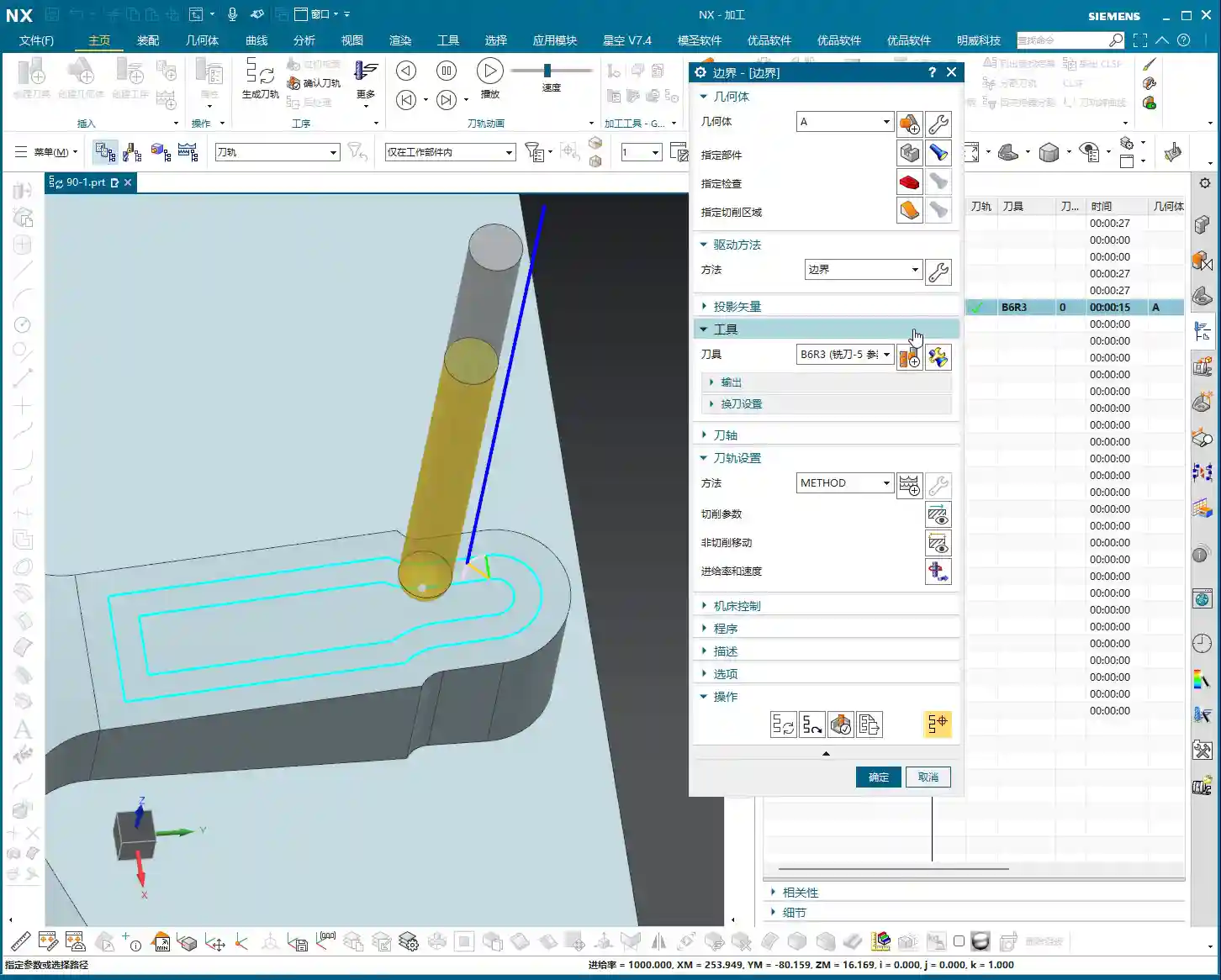
- Stepover Settings: Down below, you can choose between percentage or actual value. If you want a constant Stepover, just input a value like 0.2mm (example, adjust based on material and tool) and you’re good to go.
- Tool Position: This is where problems often arise. If you want the tool to be “Centered” along the boundary, and the boundary consists of multiple lines, listen carefully: don’t just select one line and then change to “Centered.” You must first “re-select all” of the boundary lines, and then change the tool position to “Centered.” Otherwise, NX will only acknowledge the single line you selected, ignoring the rest, and your toolpath will be chaotic. This is a common rookie mistake, so remember it!

2. Profile
This is the simplest: it follows the boundary once. It’s typically used for a Finishing pass or to clean up the boundary. No frills, just one word: “Stable.”
3. Standard Drive
This is somewhat similar to “Profile,” but it allows you to “add toolpaths.” For instance, if you want to make a few extra passes near the boundary after Roughing, to increase machining allowance or perform pre-finishing, you can check this option and set the number of additional toolpaths. It will extend the machining area by adding more passes inward or outward, based on the original profile.

4. Single Direction and Zigzag
These are fundamental cutting direction modes.
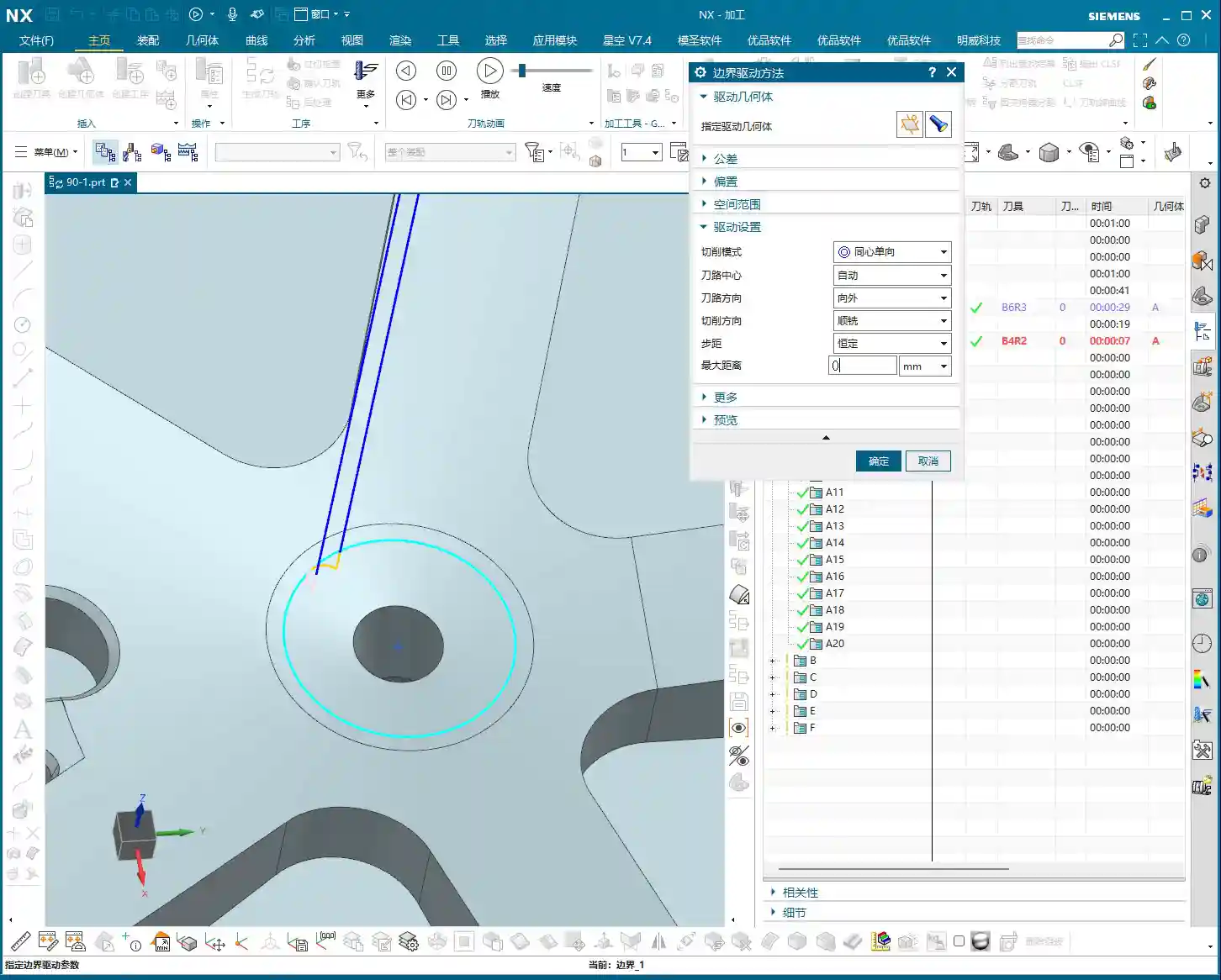
- Single Direction: The tool always cuts in one direction, then retracts and returns to the start point before cutting again. The advantage is stable cutting force and good surface quality, but it involves more air cuts, leading to lower efficiency.
- Zigzag: The tool cuts back and forth without retracting. This is highly efficient, but it can affect surface quality and is more prone to heavy Depth of Cut (DOC). Especially at entry and exit points, machine load can change instantly, which often leads to machining marks. If the workpiece material has high hardness, or the tool strength is insufficient, it’s easy to chip the cutting edge. When machining materials like high-temperature nickel-based alloys, I generally opt for Single Direction.
- Retract Angle: In Zigzag mode, there’s a “Retract Angle” setting. I’ve explained this numerous times before; its purpose is to create a smooth transition when the tool changes direction, reducing impact and protecting the tool and workpiece surface. Generally, adjust it based on experience and actual conditions, don’t rigidly adhere to theoretical values.
5. Single Direction Profile and Single Direction Step
These two modes are extensions of “Single Direction.”
- Single Direction Profile: It performs a single direction pass, then possibly another profile pass outwards. I personally don’t use it much, but it might be useful for certain special shapes.
- Single Direction Step: The tool moves a certain distance, then “steps back” before moving forward again. It takes a step with each cut. While it might look like the tool is just scrubbing back and forth, it’s actually controlling the Depth of Cut and width of cut. Used cleverly, it can enhance stability.

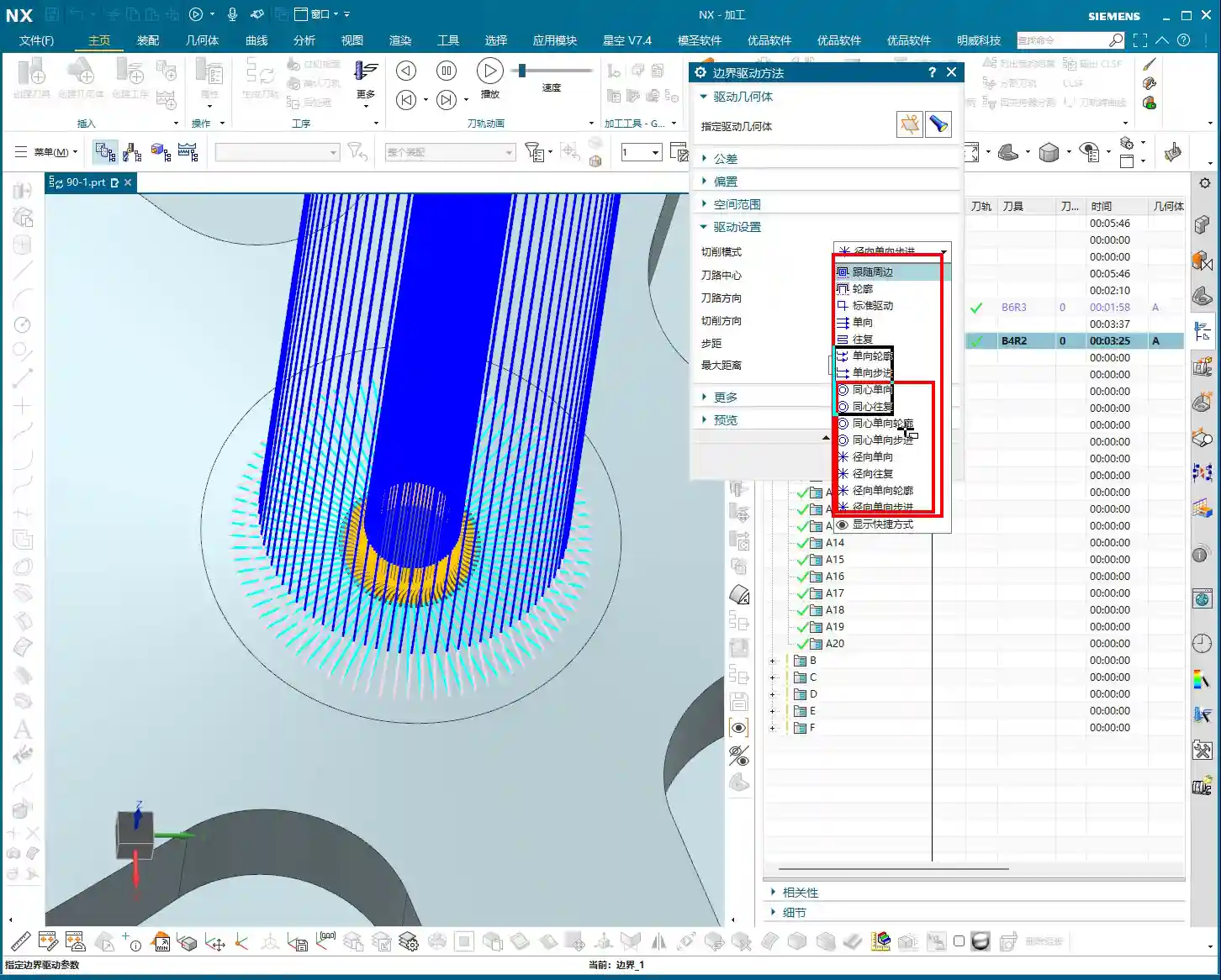
6. Concentric Series
This is a broad category, including Concentric Single Direction, Concentric Zigzag, Concentric Step, Concentric Profile, etc.
- Core Characteristic: As long as it includes “Concentric,” it will “generate circular paths whenever possible.” This means if the geometry allows, it will try to cut in concentric circles. If the shape is irregular and cannot form complete circles, it will revert to the corresponding Single Direction, Zigzag, Step, or Profile mode.
- Best Application: Particularly suitable for machining circular or arc-shaped features on a workpiece. For example, for a circular groove, using “Concentric Single Direction” will make it cut in expanding or contracting circles, resulting in excellent cutting efficiency and surface finish.
- Inward/Outward Direction: When setting up, you must choose “Inward” or “Outward.” For instance, if machining an internal bore and you select “Outside Boundary” then set “Outward,” it will expand its cut from the center of the bore. You can set a smaller Stepover, like 1mm, to make the toolpath clearer.
- Similarities and Differences with “Follow Periphery Outward”: “Concentric Single Direction” and “Follow Periphery Outward” are somewhat similar, both expanding in circles. However, “Concentric” emphasizes “circling” and tries to maintain an arc path. “Follow Periphery,” on the other hand, adheres more faithfully to the boundary shape. In essence, Concentric mode prioritizes circular paths, resorting to linear paths if circles aren’t feasible; Follow Periphery follows the boundary exactly as it is.
7. Directional Series (Radial)
This is also a category, including Directional Single Direction, Directional Zigzag, Directional Step, Directional Profile.
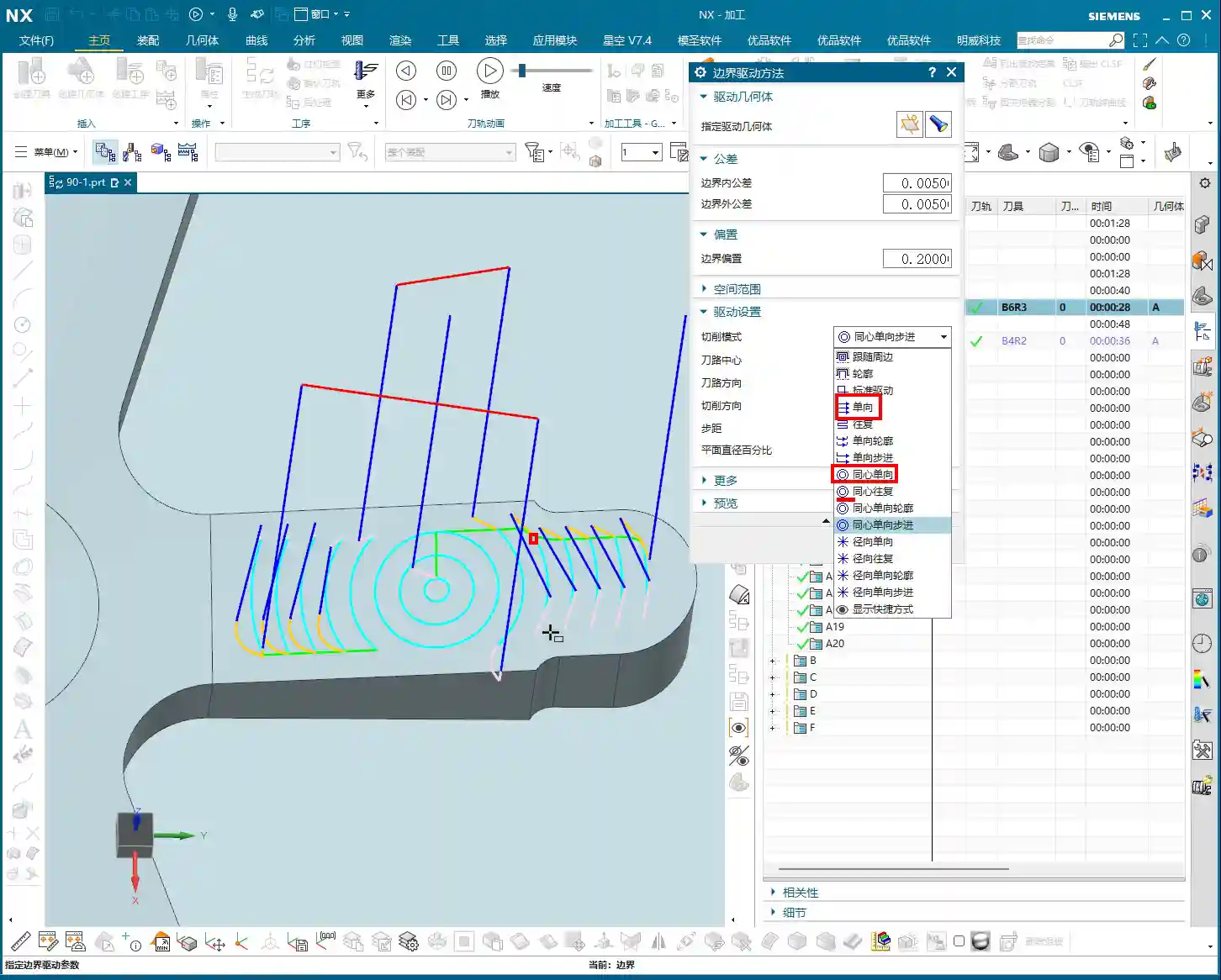
- Core Characteristic: Just like light rays “radiating” from a point. The toolpath will start from a point on the boundary or a center point and cut outwards in a radial pattern.
- Application Scenarios: It might be used for shapes that require finishing from the center outwards, or when a specific surface texture is desired. For example, if you want to machine the flat surface of a disc-shaped part from the center outwards, this mode is quite suitable.
- Directional Zigzag: This is simply cutting back and forth in a radial pattern.
- Directional Profile: Radiates outwards, then returns, then follows the outer profile.
8. Auxiliary Setting: Smoothing
If you find your toolpath too dense, or it seems to “jump” and isn’t continuous, it’s highly likely that “Smoothing” isn’t enabled. Turn it on, and NX will optimize your toolpath, making the cutting paths smoother. This acts like “lubrication” for the toolpath, effectively improving surface quality and reducing tool wear.
Summary: Pitfall Avoidance Guide
Listen up, folks! The “Boundary Cut Modes” in “Fixed Contour Milling” do offer a wide variety, but in practical machining, the most commonly used and practical ones are “Zigzag,” “Single Direction,” “Profile,” and “Follow Periphery.” Other fancy modes might come in handy in specific, unusual situations, but generally, they’re rarely touched.
- Choose your mode based on workpiece geometry: For circular holes or grooves, prioritize the “Concentric” series. For irregular shapes, use “Follow Periphery” or “Single Direction/Zigzag.”
- Observe the cutting action, not just simulation: Don’t just get carried away by software simulations; you need to observe the sparks during actual machining and listen to the cutting sound. Even sparks and a stable sound indicate a good toolpath. No matter how realistic the NX simulation, it can’t replace my 20 years of experience.
- Stepover, feed rate, and spindle speed are critical: These parameters are the true determinants of machining efficiency and surface quality. Don’t blindly pursue high speeds and high feed rates; consider material, tooling, and machine rigidity comprehensively. When machining titanium alloys, feed rates must be slow, Depth of Cut should not be large, tools must be sharp and have good coatings, and internal or high-volume external coolant must be used; otherwise, the tool will be ruined instantly. When machining stainless steel, tool sticking is common; use cutting fluid to lower cutting temperature and prevent Built-Up Edge (BUE). These details aren’t always covered in textbooks.
- Don’t mess up tool position: Especially for “Centered” in “Follow Periphery” with multiple boundary lines, you must re-select all lines before setting it to avoid localized centering and ensure no overcutting or undercutting elsewhere.
- Actively use “Smoothing”: An simple and effective solution for toolpath jitters and surface marks.
Finally, options like “Guide Curve,” “Finish toolpath,” and “Skip regions” are for more refined control. We’ll cover those in specific case studies. For today, focus on understanding these basic boundary cut modes. Master these fundamentals before moving on to advanced topics.
Remember, in machining, there are no shortcuts, only steady, diligent work: practice more, observe more, and ponder more. If you encounter problems, don’t be afraid to ask Master Wang!
Oh, and by the way, we need to share these advanced machining solutions with more people. So, when writing these tutorials, I’ve also incorporated keywords that search engines can “crawl,” ensuring our valuable content reaches more colleagues and potential clients. This is about doing the work, and also about getting the work out there; you’ve got to be proficient in both!
👤 About the Author:
The author is a veteran CNC machining professional with 15 years of industry experience, specializing in UG NX programming. This article is an original work representing personal practical insights.
⚠️ Copyright Notice: Unauthorized reproduction or distribution without prior communication is strictly prohibited.
Leave a Reply