📝 Key Takeaways: ** Master Wang provides a hands-on guide to Siemens NX cavity **roughing** strategies. Drawing from 15 years of practical experience, Master Wang meticulously explains the intricacies and pitfalls of each parameter, from cutting order and toolpath direction to stock settings and non-cutting moves. This helps you optimize toolpaths, enhance machining efficiency and precision, moving beyond textbook theory to address real-world production challenges. **
Hello everyone, I’m Master Wang. Today, we’ll continue discussing Siemens NX cavity milling operations. Last time, we covered some fundamental program creation. Today, we’re diving deep into the internals of cutting parameters to share practical tips you won’t find in textbooks. Listen closely, because a slight oversight in these areas can lead to **tool deflection** or significantly reduced efficiency.
Key Parameters for Cavity Roughing Strategy in Siemens NX
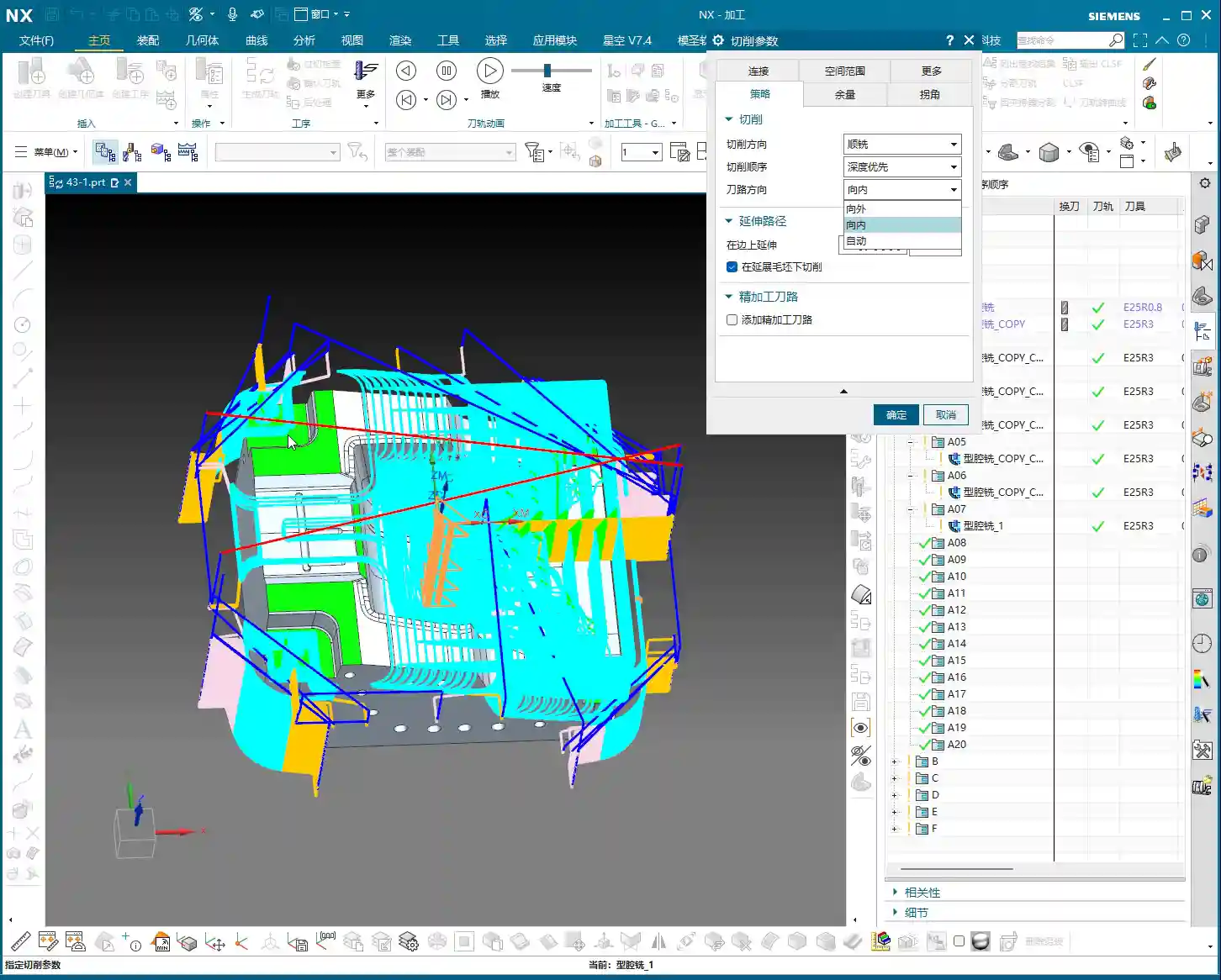
Cutting Order: The Wisdom of Depth First
As we’ve discussed before, Siemens NX provides options for Depth First and Level First. I always say that for cavity **roughing**, in most cases, we’ll opt for Depth First. Why?
- Improved Chip Evacuation: Depth First allows the tool to cut to a specified depth within one area first. This creates more space for chips to evacuate, preventing clogging and reducing re-cutting, naturally extending tool life.
- High Cutting Stability: With each **stepdown**, the cutting load remains relatively stable. Unlike Level First, which sweeps through the entire area layer by layer, switching back and forth, Depth First helps avoid vibrations that can affect machining accuracy and surface quality.
Of course, this isn’t an absolute rule; special situations require special handling. However, defaulting to Depth First is usually the right choice.

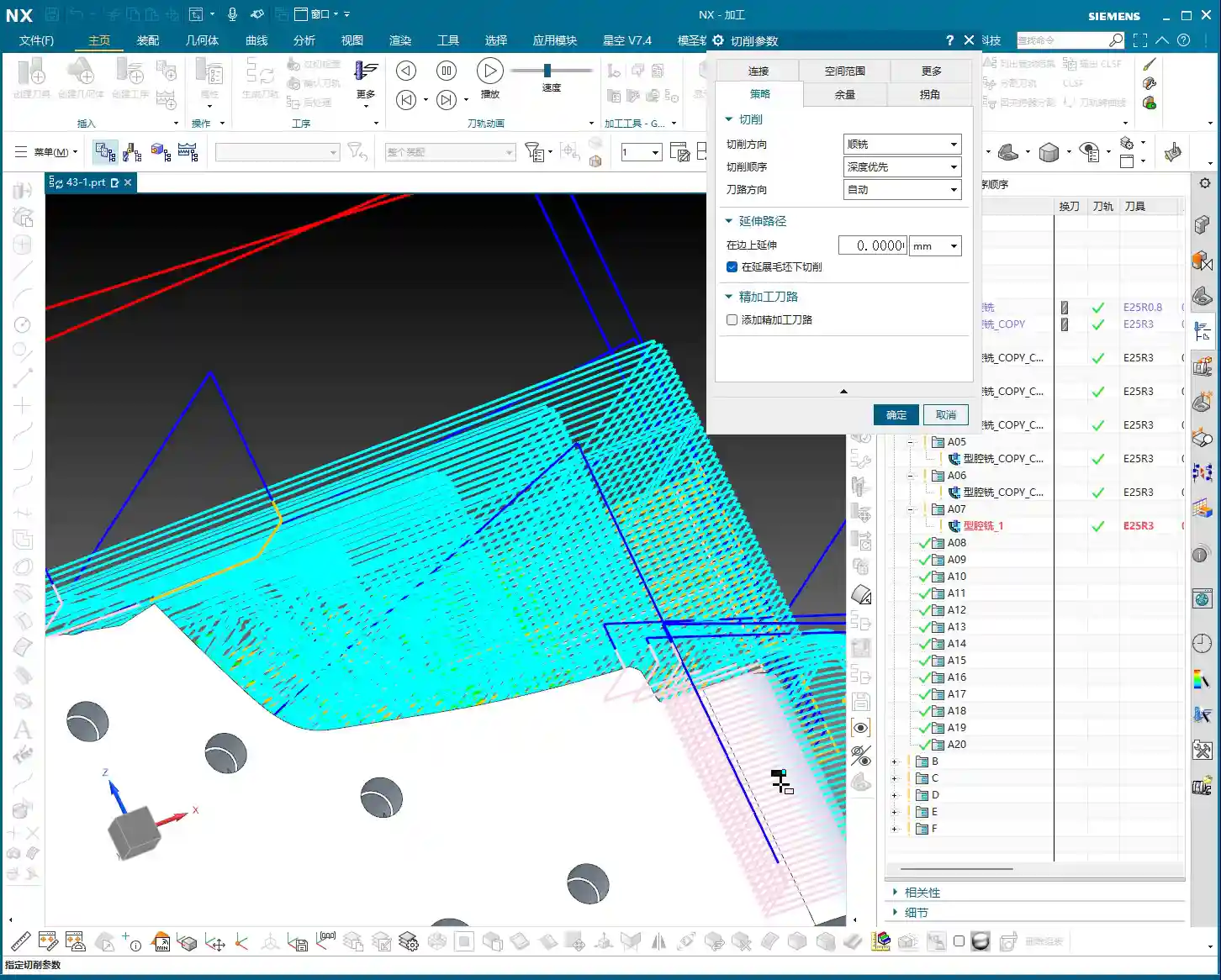
Toolpath Direction: The Secret of Smart “Automatic”
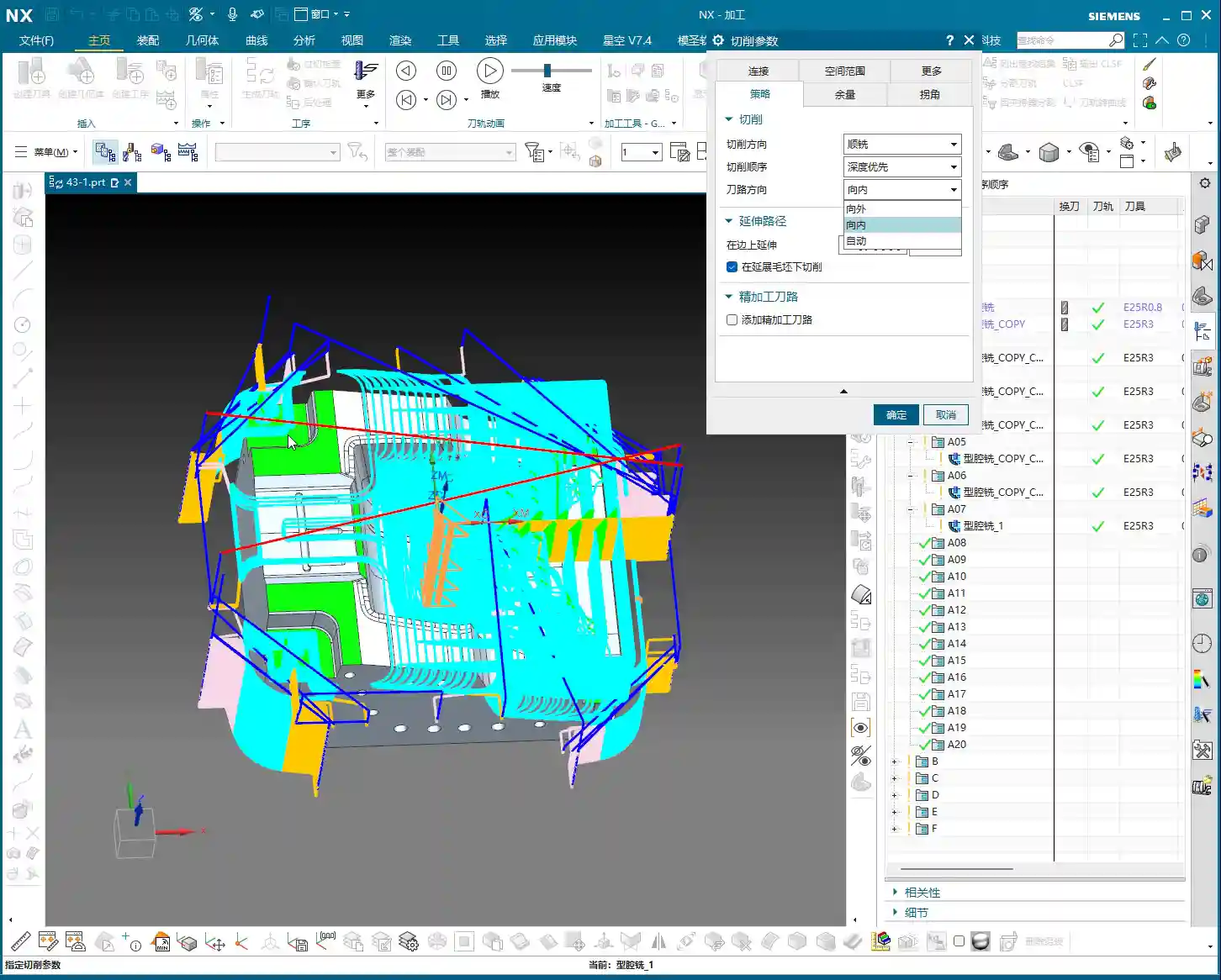
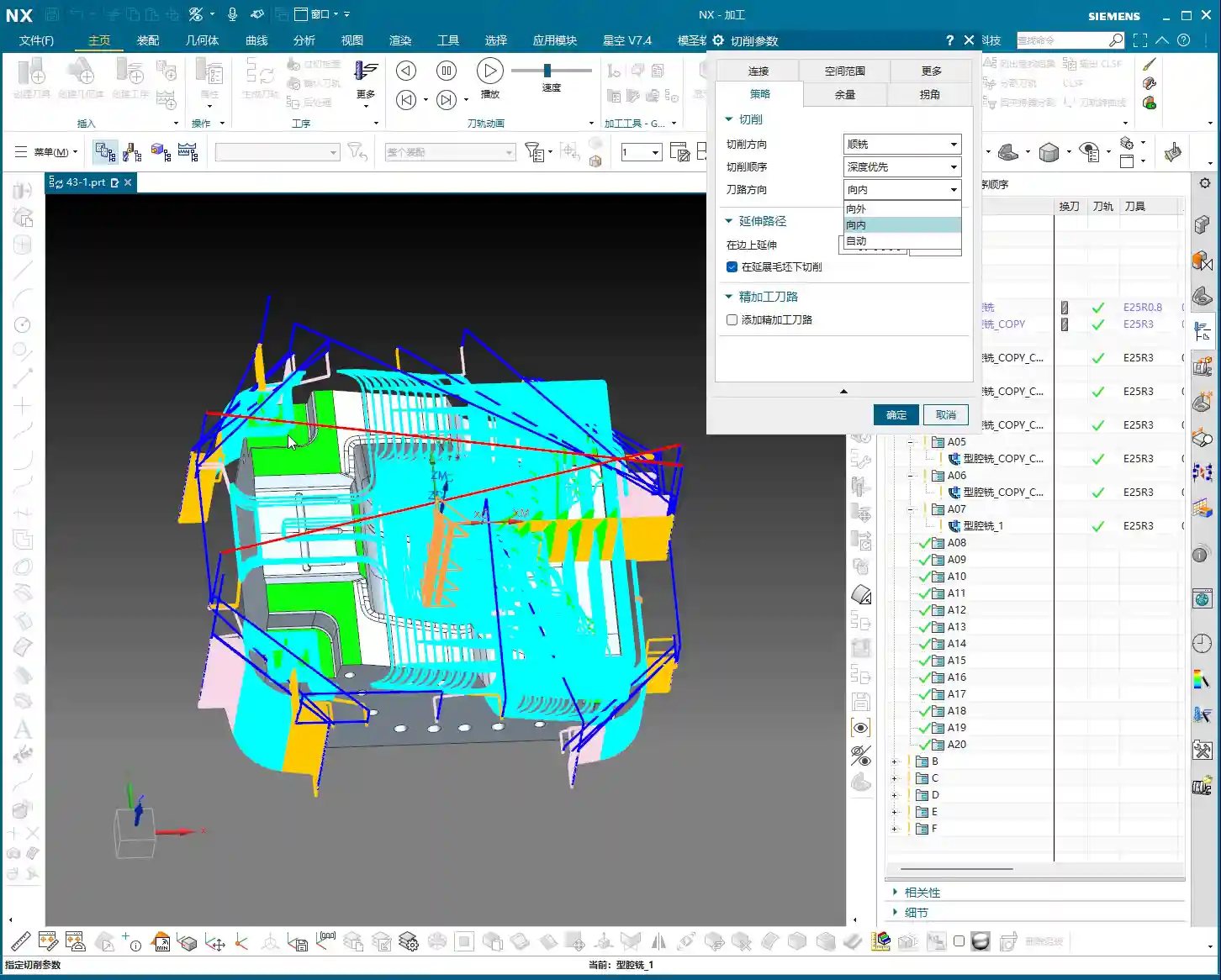
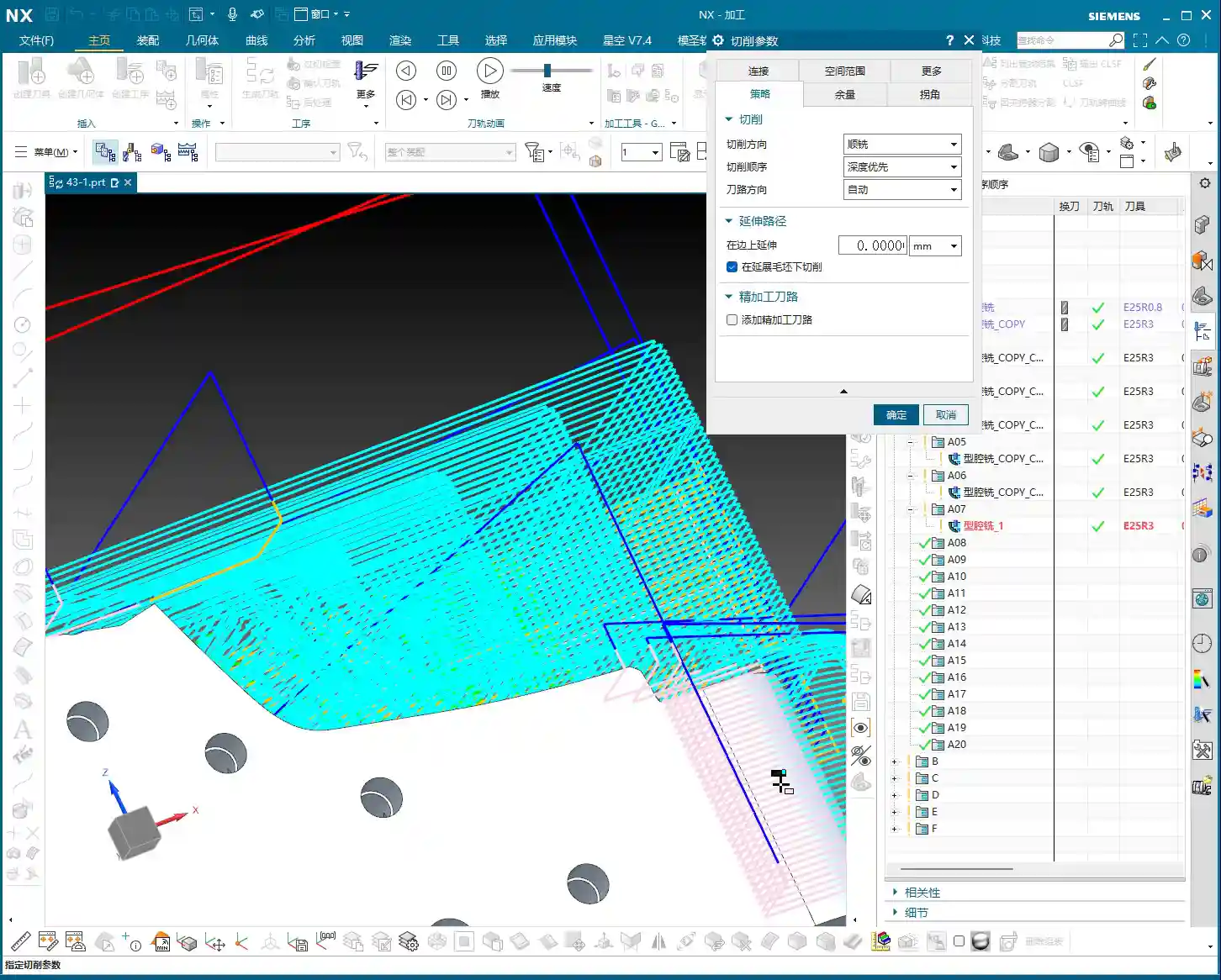
Toolpath direction used to only offer a few options: Inward and Outward. Inward means milling from the outside in, and Outward means milling from the inside out. For enclosed cavities, Inward might be better; for open cavities, Outward might be smoother. But did you know that Siemens NX now has a particularly useful option called Automatic!
- Automatic Detection, Doubled Efficiency: This “Automatic” function isn’t just a random choice. The software intelligently determines whether the current area should be cut “Inward” or “Outward” based on your part’s geometric features, such as whether it’s an enclosed cavity or has open boundaries. This significantly reduces idle cuts. For instance, in open areas, it will directly enter the material from the outside, avoiding plunging inside solid material before moving outward.
- Reduced Manual Intervention: Especially for complex parts with a mix of enclosed and open areas, manually distinguishing and setting these parameters would be time-consuming and prone to errors. Entrusting it to “Automatic” saves effort, reduces hassle, and results in more optimized toolpaths.
Therefore, under normal circumstances, simply use “Automatic” here. Don’t underestimate this small option; it can save you a lot of valuable machine time.
Cut Along Blank Underneath: The Choice for Multi-Sided Machining
This parameter, called Cut along Blank Underneath, determines whether the tool should continue cutting into the blank material below the currently defined cutting layers. Let me give you an example, and you’ll understand immediately.
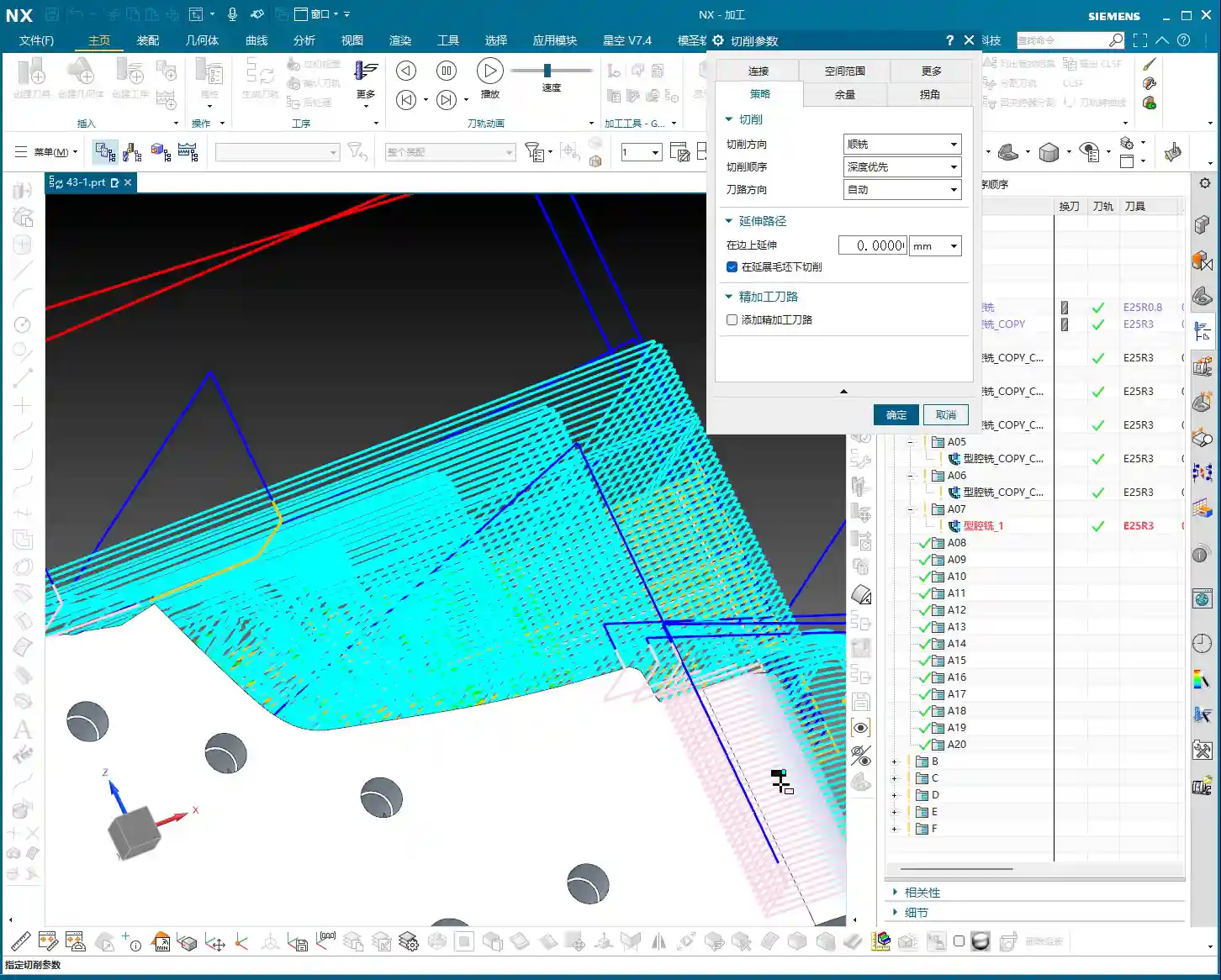
Imagine a part where you first machine Face A, then flip it over to machine Face B. Face A has already been **roughed** to a certain depth, but this depth might have cut past the part’s centerline, or even slightly into a portion of the blank material that will be machined for Face B. Now you’ve flipped it over and begun machining Face B.
- If checked (default is checked): Even if the defined machining range for Face B is sufficient up to a certain depth, if there’s still blank material below that depth, the tool will continue to cut downwards until all blank material is removed. This could lead to re-cutting areas already machined on Face A, or cutting into unintended areas. For multi-sided machining with part flips, this might result in over-cutting or idle moves.
- If unchecked: The tool will strictly adhere to the part boundaries defined for the current operation. It will only cut the blank material that is above or on the part’s surface for the current operation. Even if there’s a significant amount of material below the part surface, it won’t be touched. This is extremely useful in multi-sided machining or when pre-machining has occurred, ensuring the tool only removes the necessary stock for the current face, avoiding unnecessary deeper cuts, saving time, and enhancing safety.
So, when performing multi-sided machining or operations with pre-machined features, you must carefully consider this option. The default checked state may not be suitable for all situations; sometimes, unchecking it can lead to smarter and safer toolpaths.

Stock Settings: Crucial for Roughing and Finishing
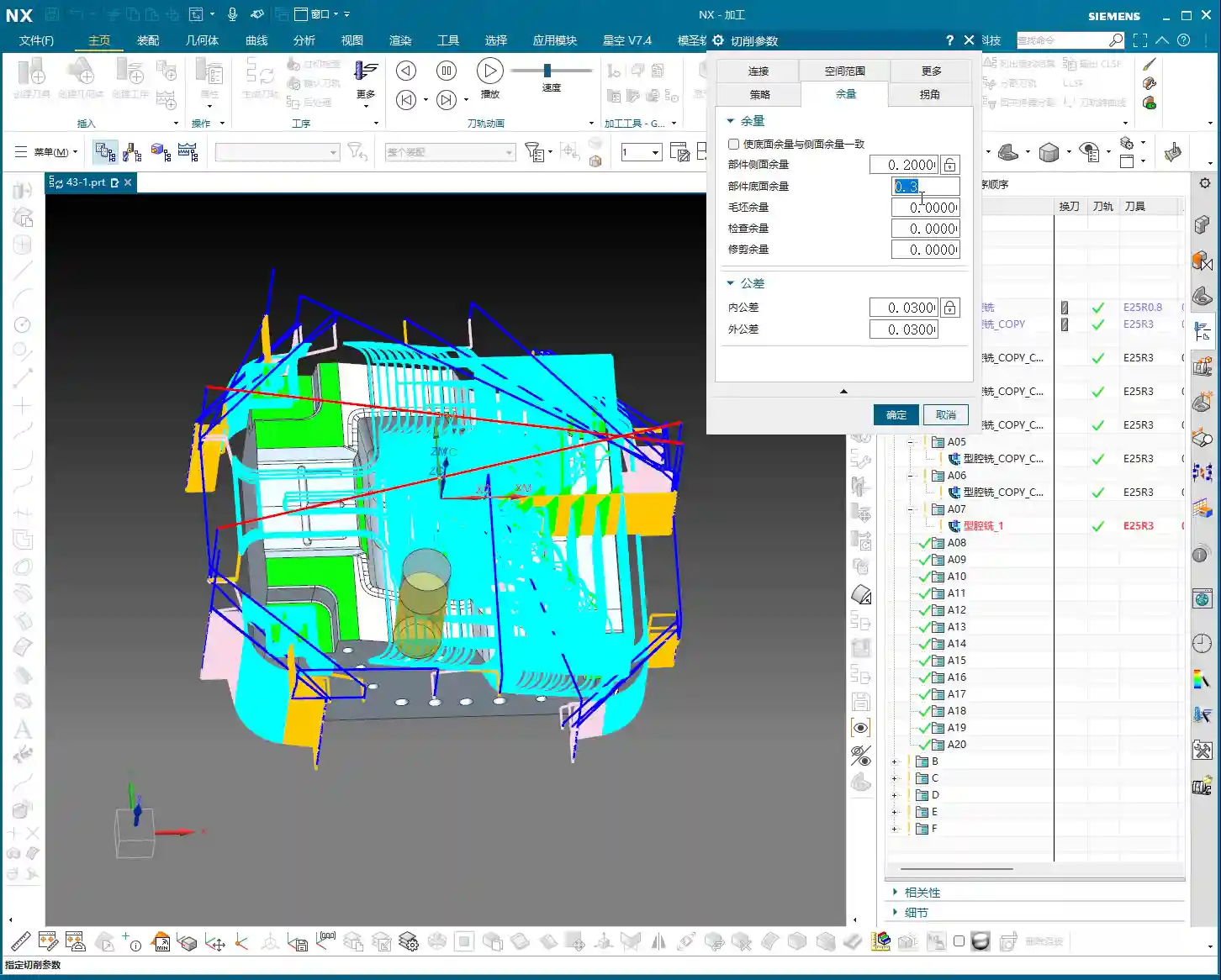
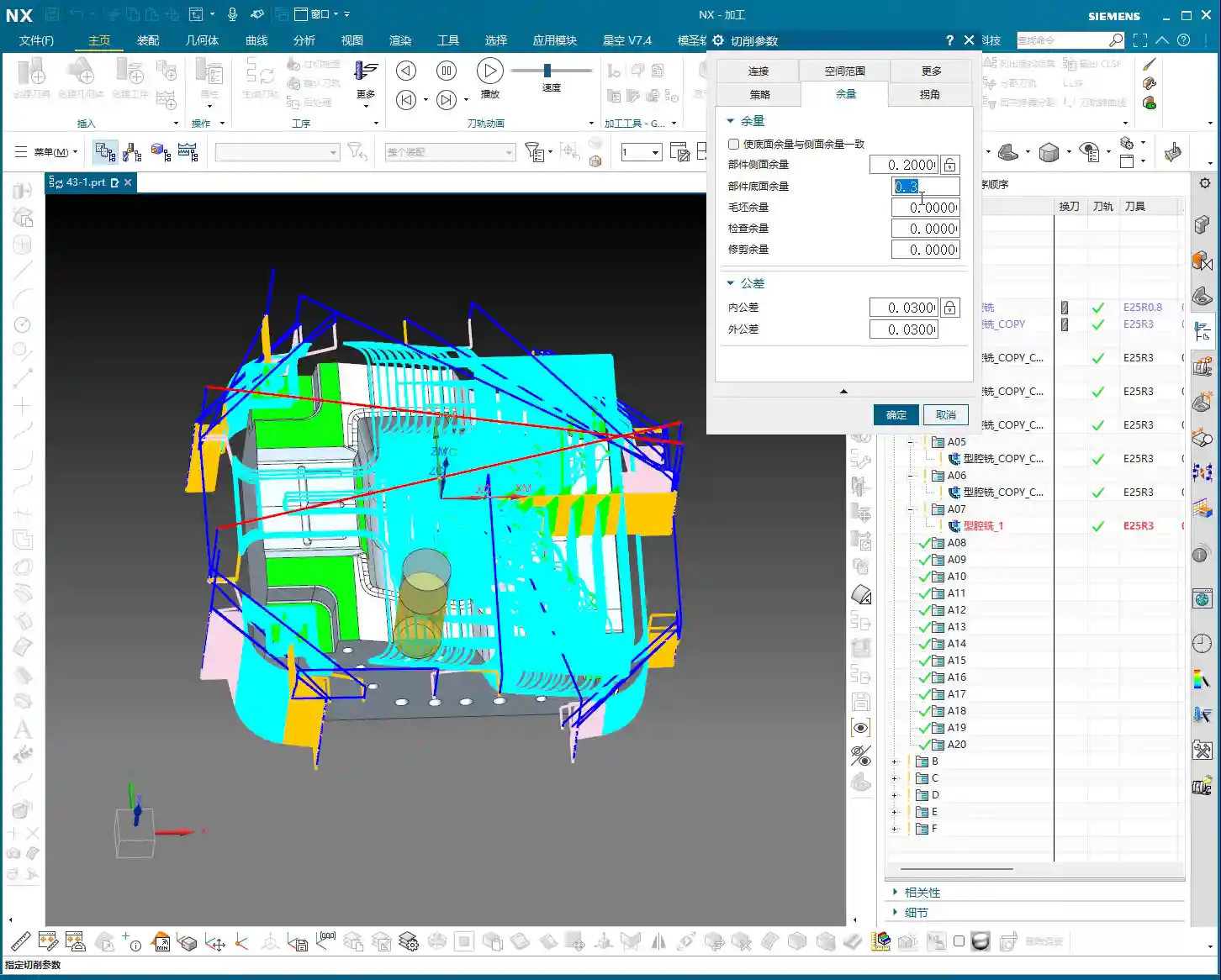
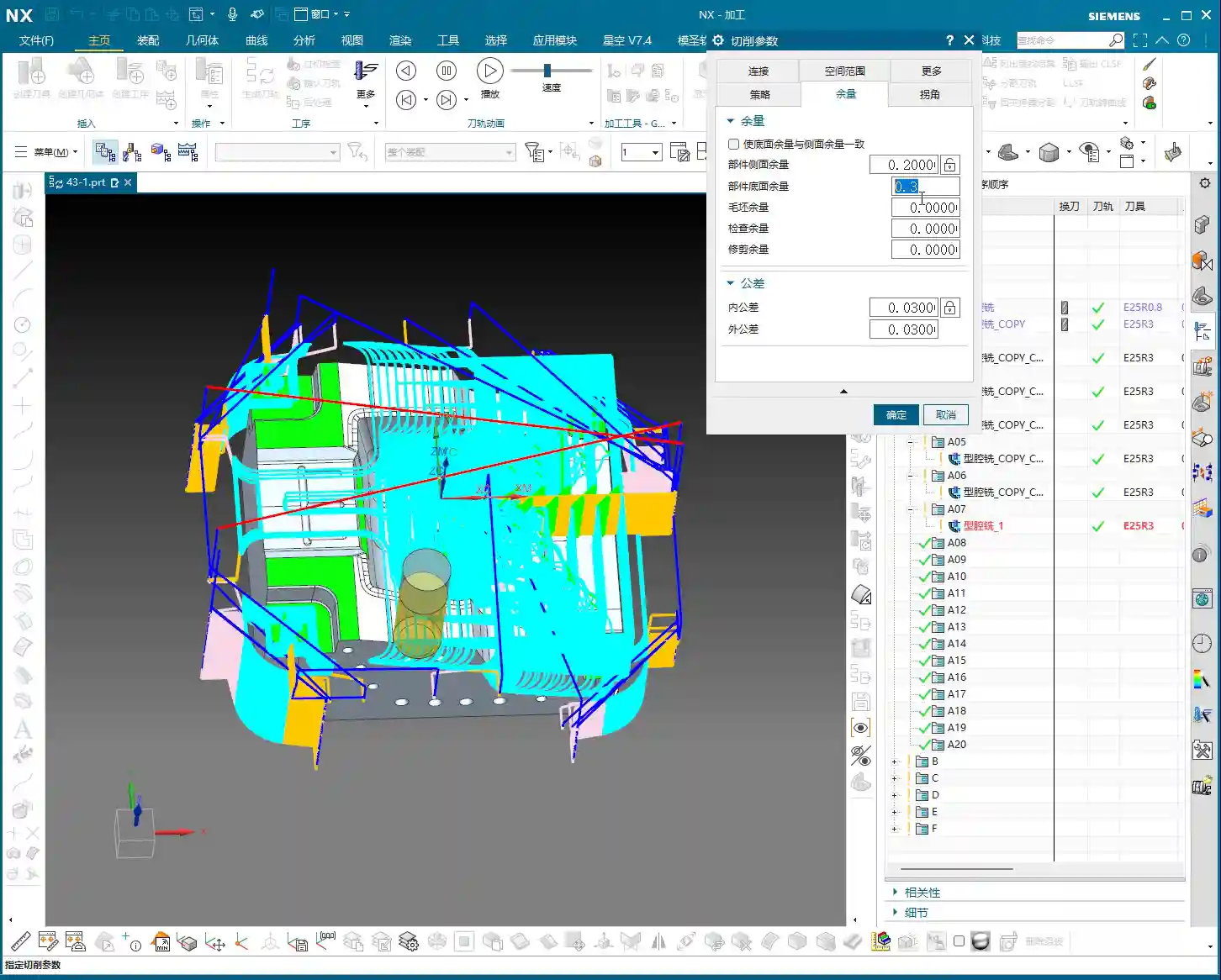
Stock is material left for **finishing passes**. During **roughing**, Side Stock and Bottom Stock are usually set to a positive value. For example, during **roughing**, we typically leave about 0.3 mm (approx. 0.012 inch). This value isn’t arbitrary; it must be determined by considering your machine’s precision, tool rigidity, material hardness, and the allowance for the **finishing pass**.
- Roughing Stock: If too little stock is left, the **finishing pass** tool will experience excessive load, leading to wear or even chipping. If too much stock is left, the **finishing pass** will involve too many cuts, wasting time. Therefore, finding this balance point, relies on experience and practical considerations.
- Finishing Stock: The stock for **finishing passes** is much smaller, typically 0.15 mm (approx. 0.006 inch) or even less, to ensure final dimensions and surface finish.
Individual Stock Control: Flexible or Unified?
Siemens NX features a small checkbox here. If you enable it, Side Stock and Bottom Stock will be linked. This means if you change one, the other will update automatically. For example, if you want both to be 0.2 mm (approx. 0.008 inch), just check the box and modify one. If you want 0.2 mm for the side and 0.3 mm for the bottom, then uncheck the box and set them separately.
My recommendation is, unless your stock requirements for side walls and bottom surfaces are absolutely identical, it’s best to set them separately. This provides greater flexibility and better adapts to the machining needs of different parts. For instance, the **finishing pass** at the bottom of some deep cavities might be challenging, potentially requiring more stock.

Blank Stock: The Art of Precise Positioning
The Blank Stock parameter essentially offsets the blank model we initially created outwards by a certain distance. For example, if you set it to 10 mm (approx. 0.39 inch), your existing blank model is expanded by 10 mm.
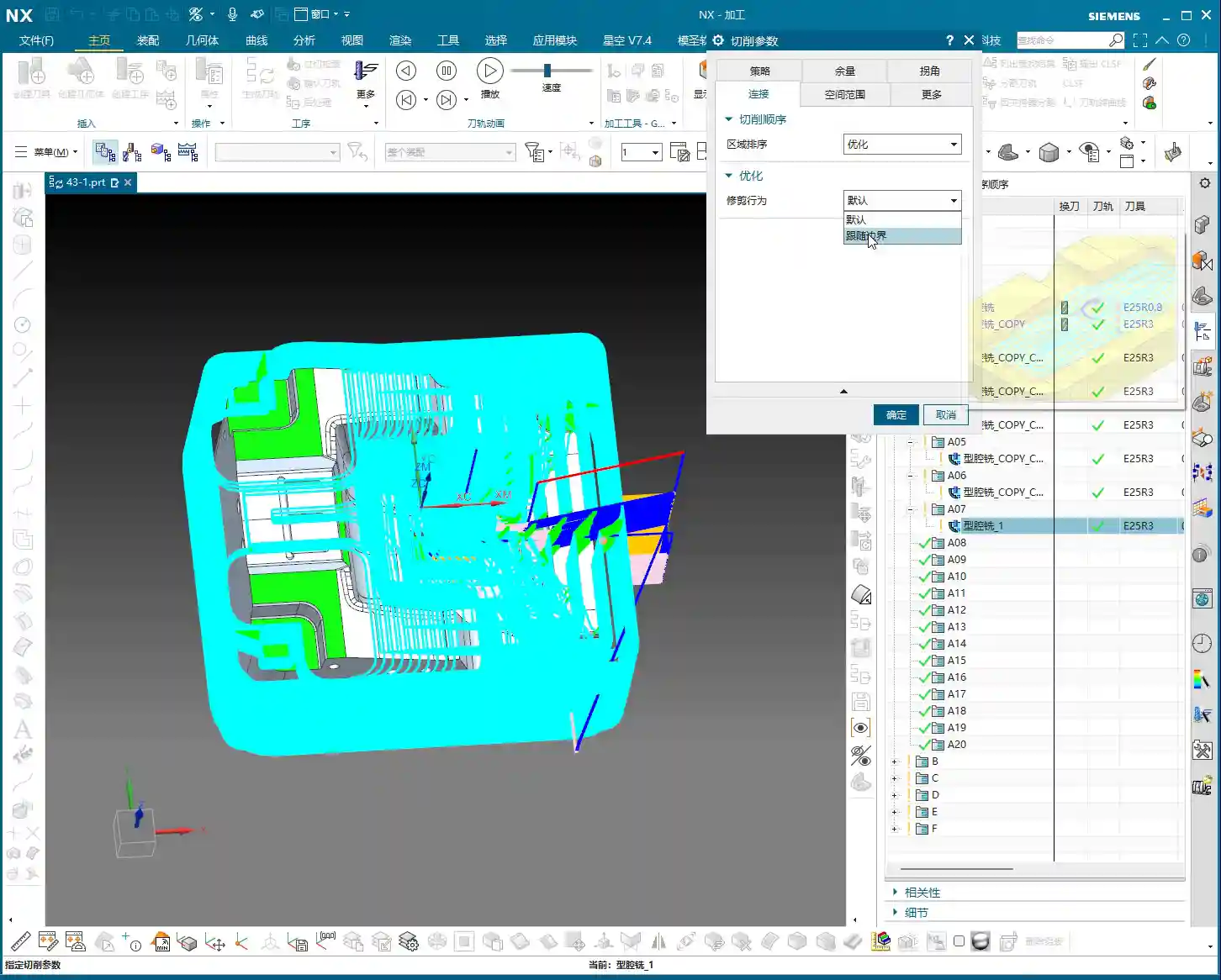
As Master Wang, I generally don’t use this function much. Why? Because we typically directly create a precise solid blank model or use offset geometry to define the blank. This is more intuitive, accurate, and better reflects the actual blank dimensions. Directly applying an offset value here can sometimes lead to confusion with the actual blank size, and accuracy can be compromised, especially with complex blank shapes. Unless absolutely necessary, don’t use this feature carelessly.
Check Stock and Trim Stock: Ensuring Safety and Efficiency
- Check Stock: This parameter is used to prevent collisions between the tool and **fixturing** components like clamps or pressure plates. You can model your **fixturing** in Siemens NX and then set a check stock for it, for example, 0.5 mm (approx. 0.02 inch). This way, the tool will automatically avoid the fixture, leaving a 0.5 mm gap, ensuring machining safety. This is a critical safety parameter, and you must be mindful of it, especially in complex **fixturing** setups or close-tolerance machining.
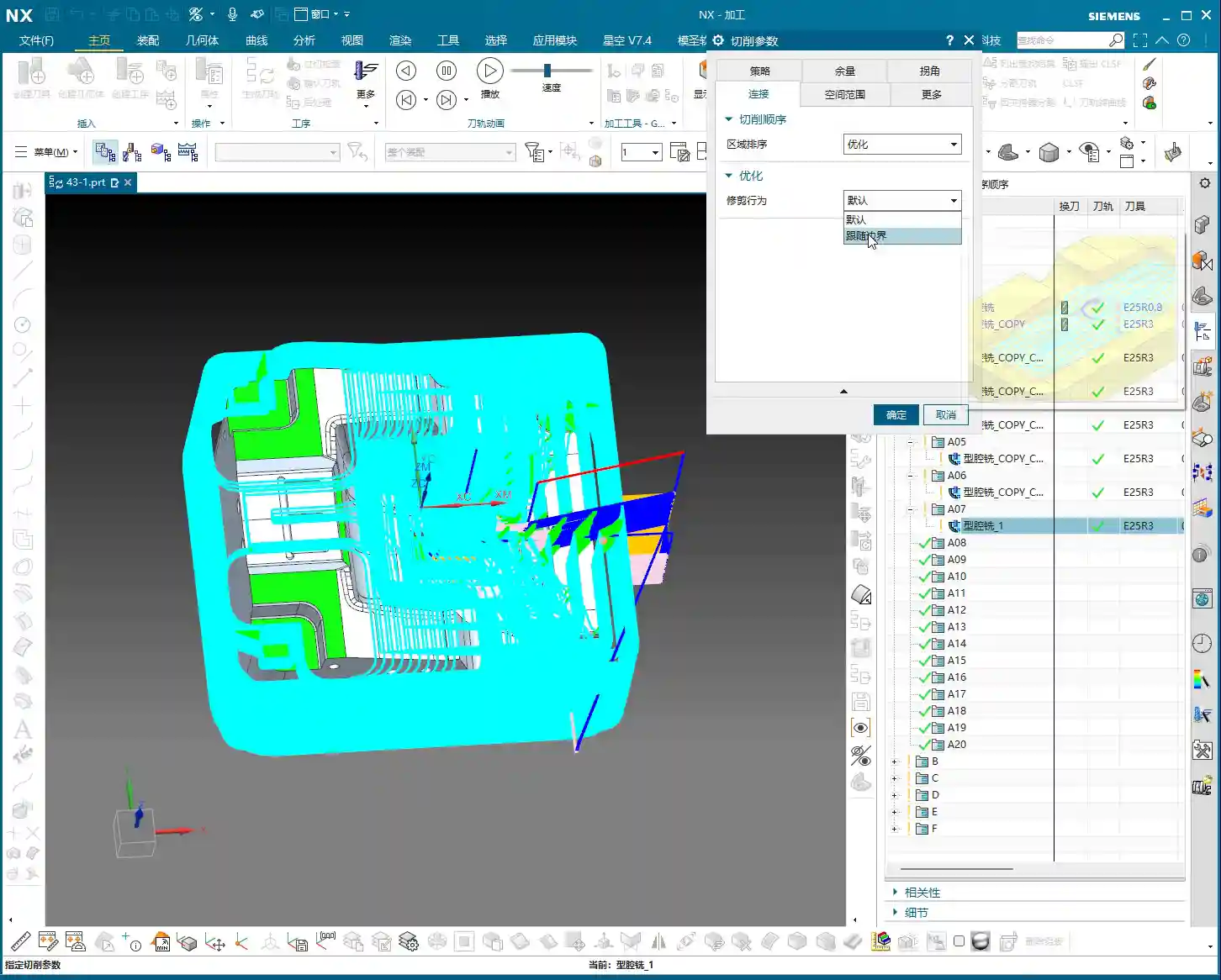
- Trim Stock: When you use trim boundaries to limit the toolpath range, this parameter defines the stock left relative to the trim boundary. It can be set to be Inward or Outward. For instance, if you’ve drawn a boundary and want the toolpath to retract slightly inward from that boundary, you can set a positive value. This is very useful for local **corner cleanup** or avoiding specific areas.

Inner/Outer Tolerance and Corner Handling: Details Determine Quality
- Inner/Outer Tolerance: These two control toolpath accuracy. During **roughing**, a larger tolerance can be applied, such as 0.1 to 0.3 mm (approx. 0.004 to 0.012 inch), as the primary goal of **roughing** is rapid material removal. However, for **finishing passes**, the tolerance must be very small, typically 0.01 mm (approx. 0.0004 inch) or even less, to ensure the final part dimensions and surface finish meet requirements.
- Corners: This parameter controls whether a transition radius is applied to the toolpath when entering or exiting corners. During **roughing**, we typically apply a small transition radius, such as 0.2 mm or 0.5 mm (approx. 0.008 or 0.02 inch). This offers several benefits:
- Tool Protection: Prevents the tool from sudden changes in direction at sharp corners, reducing impact, tool wear, and chipping.
- Smooth Cutting: Results in smoother toolpaths and more stable machine operation, reducing vibrations and helping maintain machining accuracy.
The specific size depends on the tool diameter, material hardness, and how much sharp corner material you aim to remove during the **roughing** stage.
“Cutting Flatness” in Non-Cutting Moves: Guardian of Tool Life and Machining Quality
This parameter, found under Non-Cutting Moves, is called Cutting Flatness. Don’t underestimate it; it significantly impacts tool life and machining quality, especially when using indexable insert tools or certain end mills without a center cutting edge.
Its purpose is to prevent the non-cutting parts of the tool (such as the tool center or the non-cutting body of an indexable insert) from scraping the bottom of the workpiece when encountering flat bottom regions, which could degrade surface quality or cause tool wear. It is typically defined as a percentage of the tool diameter.
- Practical Significance: If you set an excessively large value, for example, 10 mm (approx. 0.39 inch) (relative to a tool with a small diameter), and the tool’s effective cutting length or insert height is much smaller than this value, then in flat areas, the tool body will **”gouge”** or directly impact the workpiece, leading to tool damage or scrapped parts.
- Recommended Setting: We typically assign a percentage, such as 45% to 65%. This means that when the **depth of cut** or the dimension of a flat region encountered is less than this percentage, the tool will adopt strategies like lifting, arc transitions, etc., to prevent non-cutting portions from contacting the workpiece. This both protects the tool and ensures the flatness and finish of the bottom surface.
This parameter is especially crucial for expensive indexable insert tools; you must understand it thoroughly and never change it haphazardly!
Summary: Pitfall Avoidance Guide
In our line of work, simply relying on textbook theory isn’t enough; you must combine it with practical experience. The parameters discussed above are insights I’ve gathered from 15 years of hands-on experience in the field – every word is valuable. Finally, here are a few reminders, born from hard-learned lessons:
- Don’t Arbitrarily Choose Cutting Order: Unless you have specific requirements, “Depth First” is the primary choice for cavity roughing. Blindly using “Level First” can easily lead to poor chip evacuation, rapid tool wear, and even chip packing or tool breakage.
- Trust “Automatic” for Toolpath Direction: For complex cavities, manually selecting “Inward/Outward” can result in numerous idle cuts and low efficiency. Modern software is intelligent; make frequent use of “Automatic”. It will help you find the most logical path, saving you significant time in judgment and adjustment.
- Thoroughly Understand “Cut Along Blank Underneath”: Especially in multi-sided machining or when pre-machining has occurred, misunderstanding this option can lead to re-cutting already machined surfaces, or plunging the tool in unintended areas. At best, this wastes time; at worst, it causes tool crashes and scrapped parts. Before each multi-sided machining operation, always check or uncheck this option based on the actual situation and simulate carefully.
- Stock Settings Require Balance: If **roughing** stock is too small, the **finishing pass** tool won’t have a consistent cut, leading to **tool deflection** or chipping. If too large, it increases the **finishing pass** burden and wastes time. You must find the optimal sweet spot based on material, tool, and machine conditions.
- Blank Stock, Use with Caution: Unless the blank shape is extremely simple, do not solely rely on this parameter to define complex blanks. It’s best to use solid blank models or offset curves to minimize errors.
- “Cutting Flatness” is Key: For indexable insert tools or flat-bottom end mills, improper settings for this parameter can cause the tool center or non-cutting portions to scrape the bottom of the workpiece, affecting surface finish or even damaging the tool. Default values are often based on experience, but you should still understand the underlying principles based on the tool and workpiece characteristics.
Remember, these parameters are static; the machinist is dynamic. Observe cutting sparks, listen to machine sounds, and think critically—experience will naturally follow. All right, that concludes today’s lesson. We’ll discuss something else next time.
👤 About the Author:
The author is a veteran CNC machining professional with 15 years of industry experience, specializing in UG NX programming. This article is an original work representing personal practical insights.
⚠️ Copyright Notice: Unauthorized reproduction or distribution without prior communication is strictly prohibited.
Leave a Reply