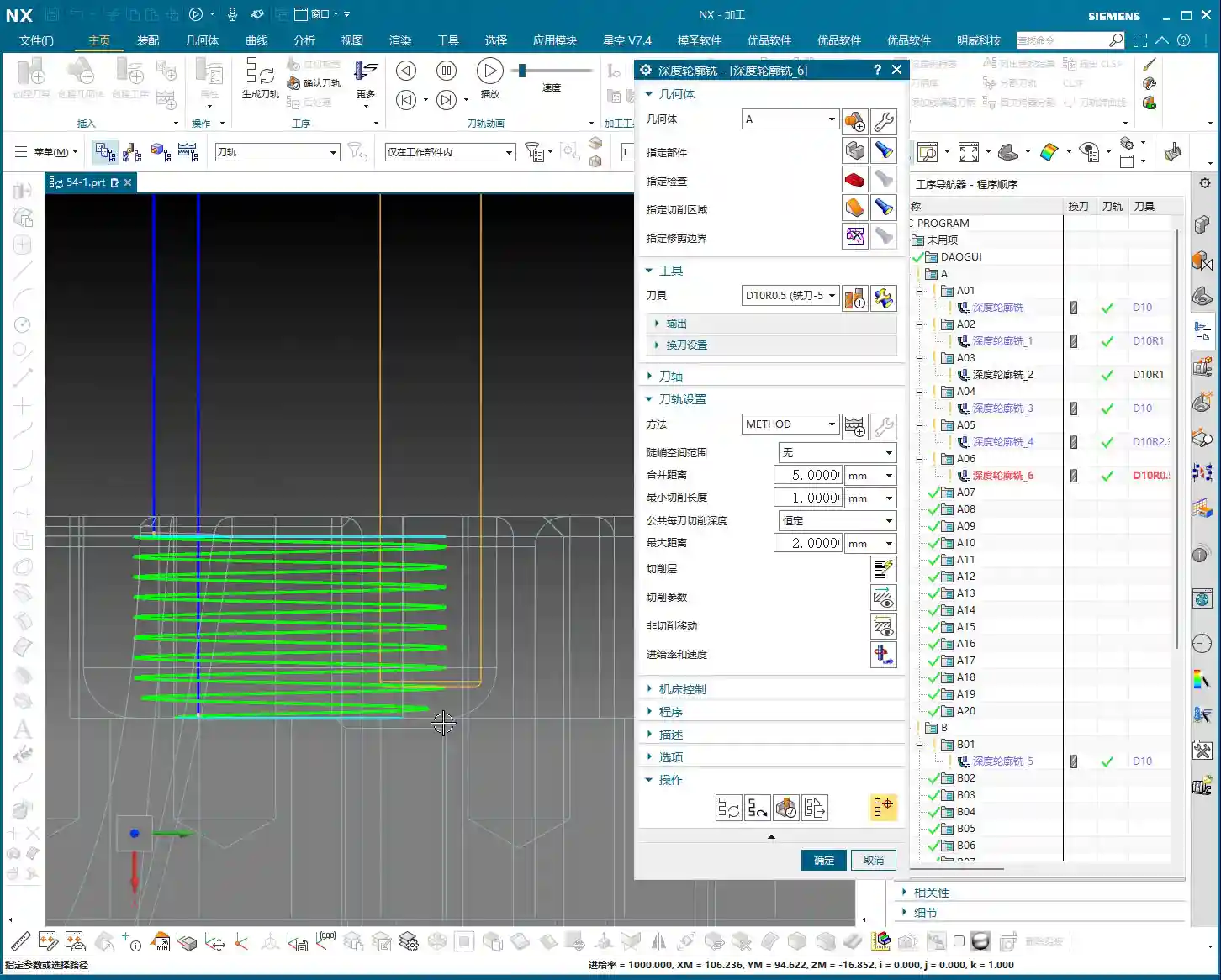
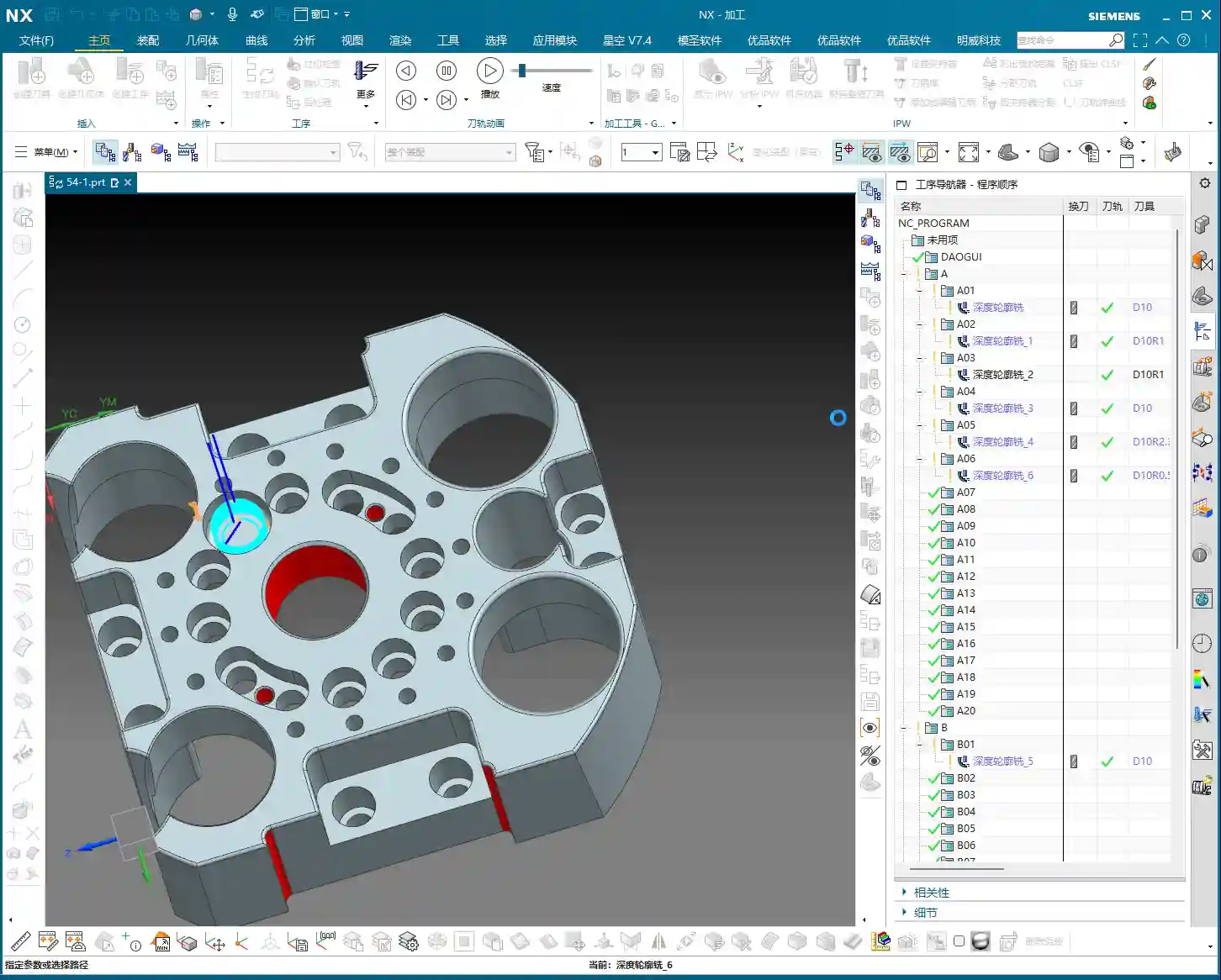
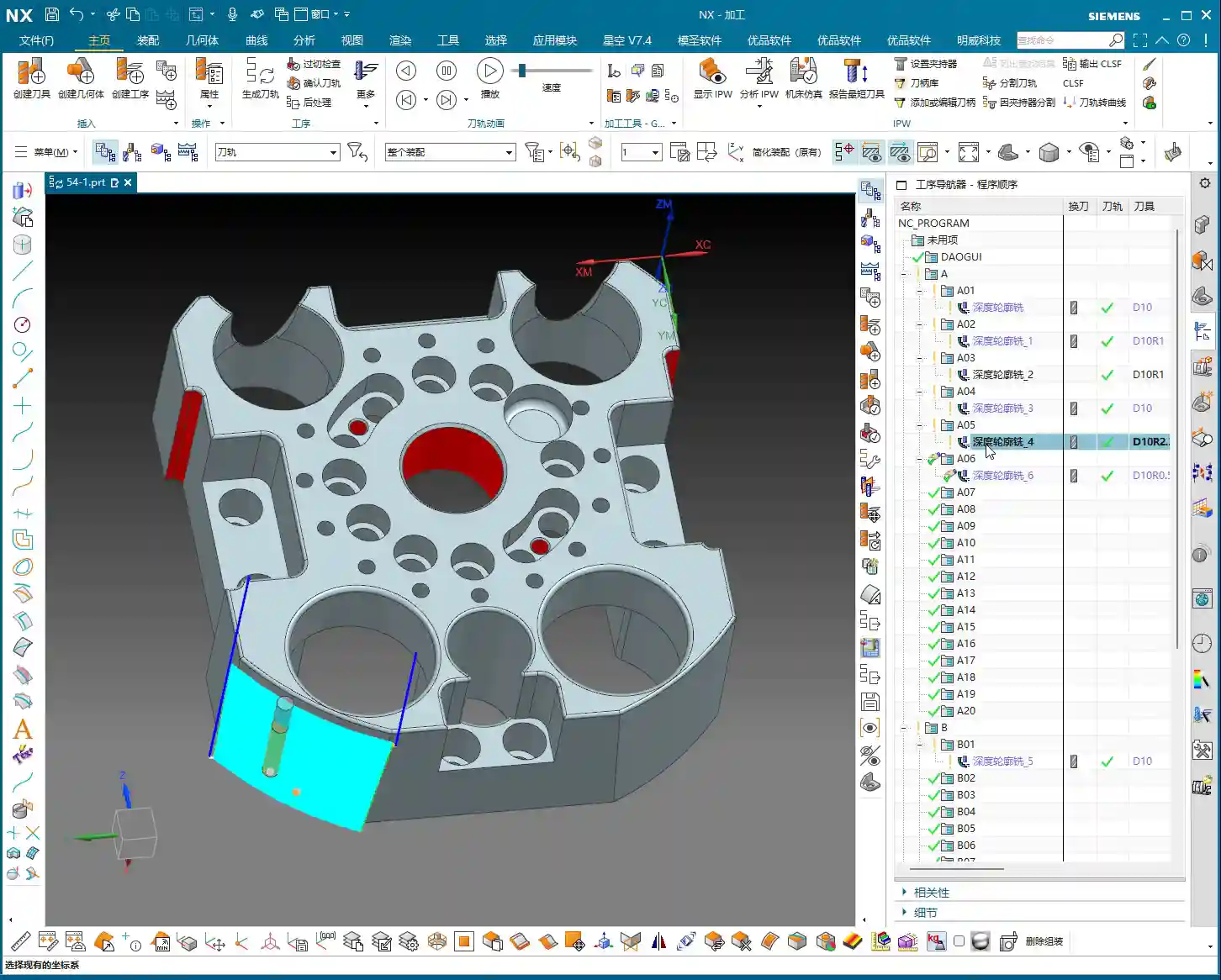
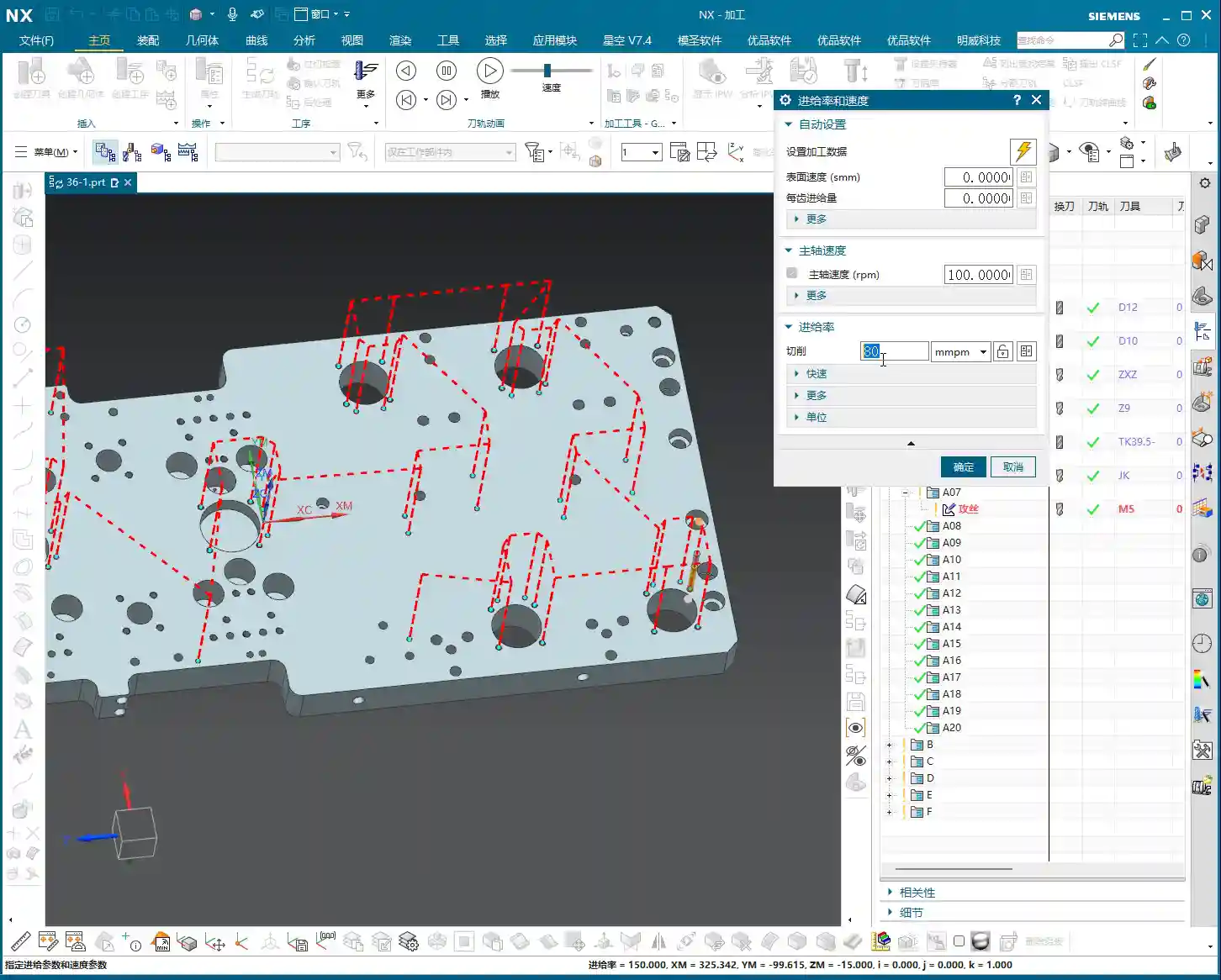
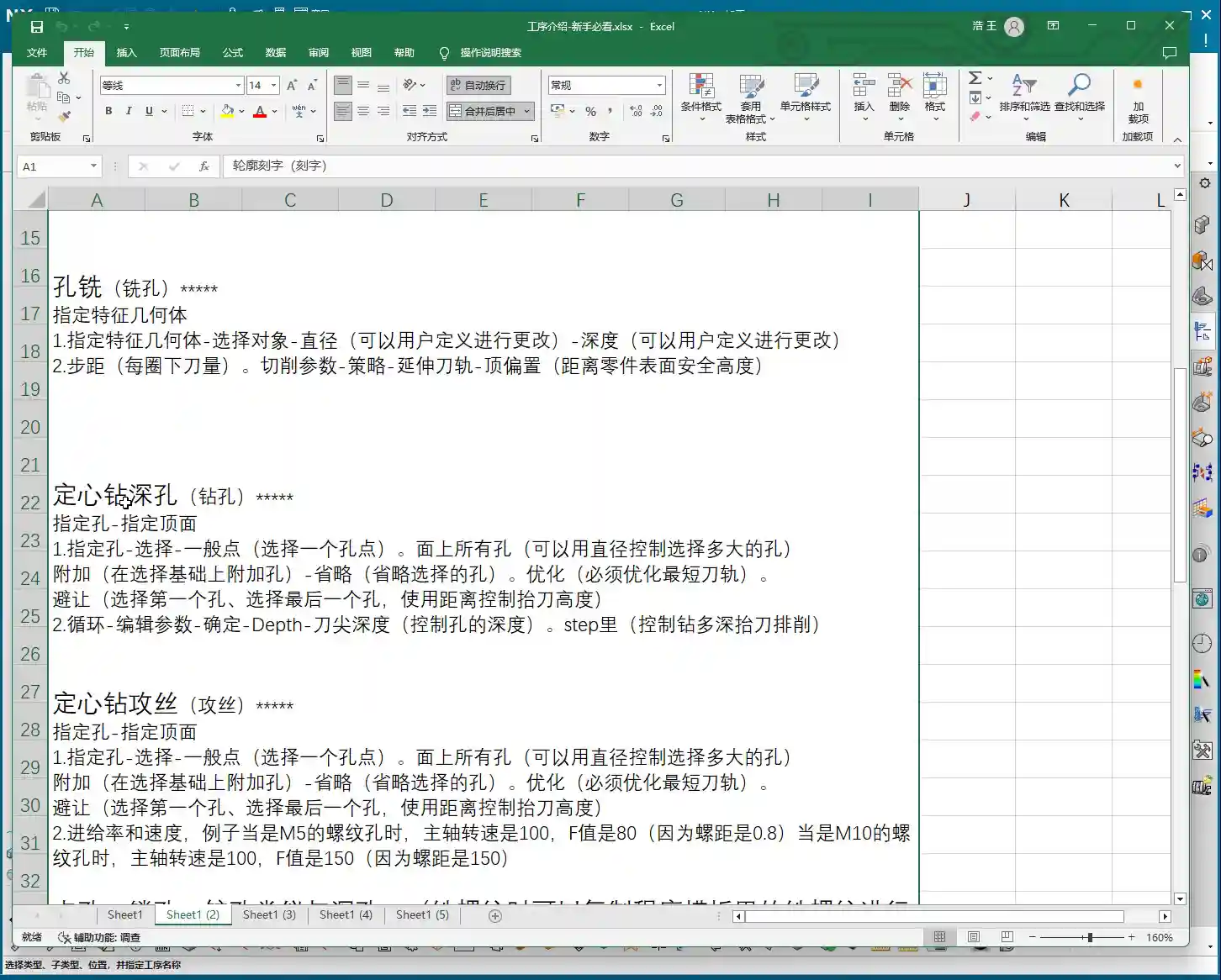
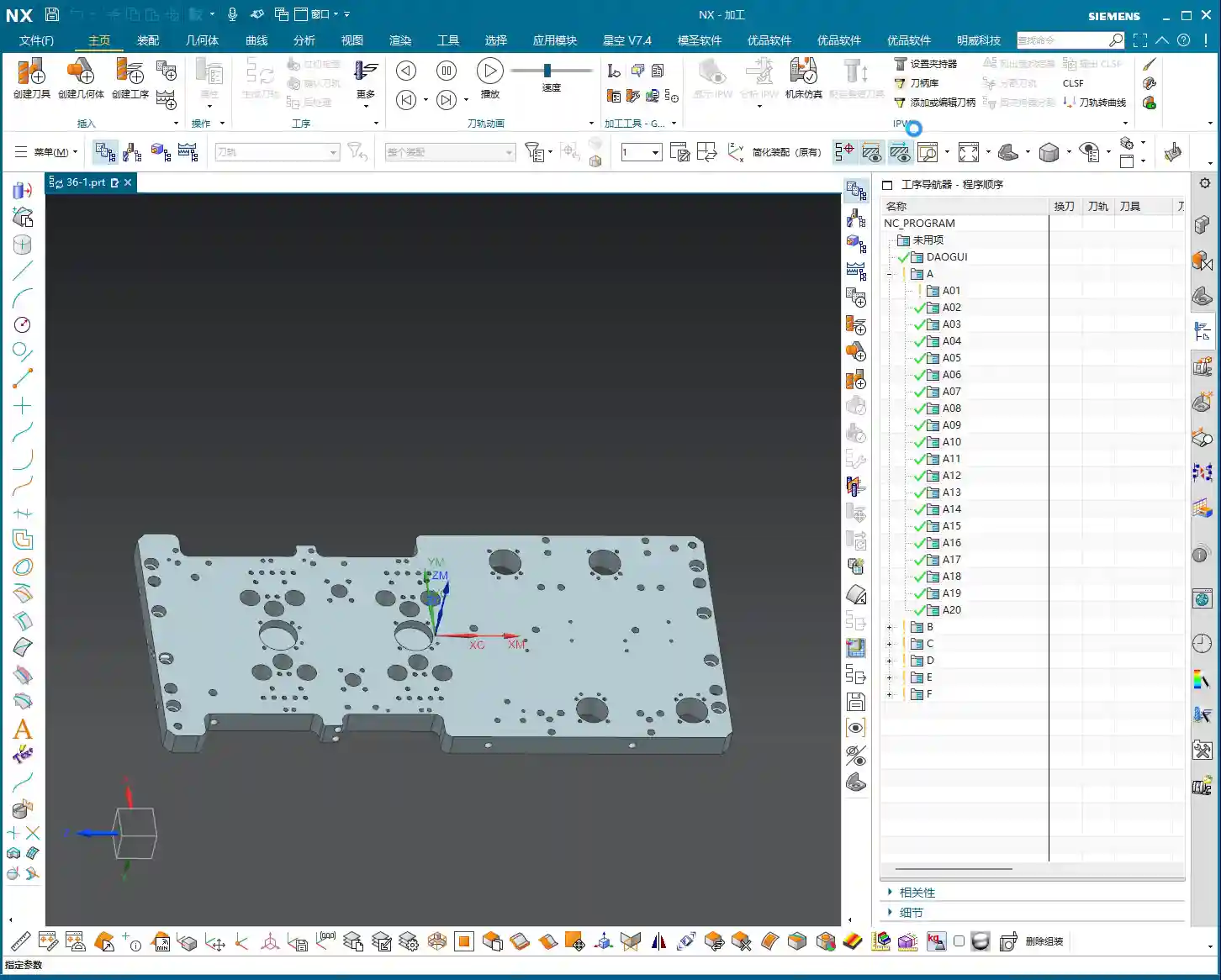
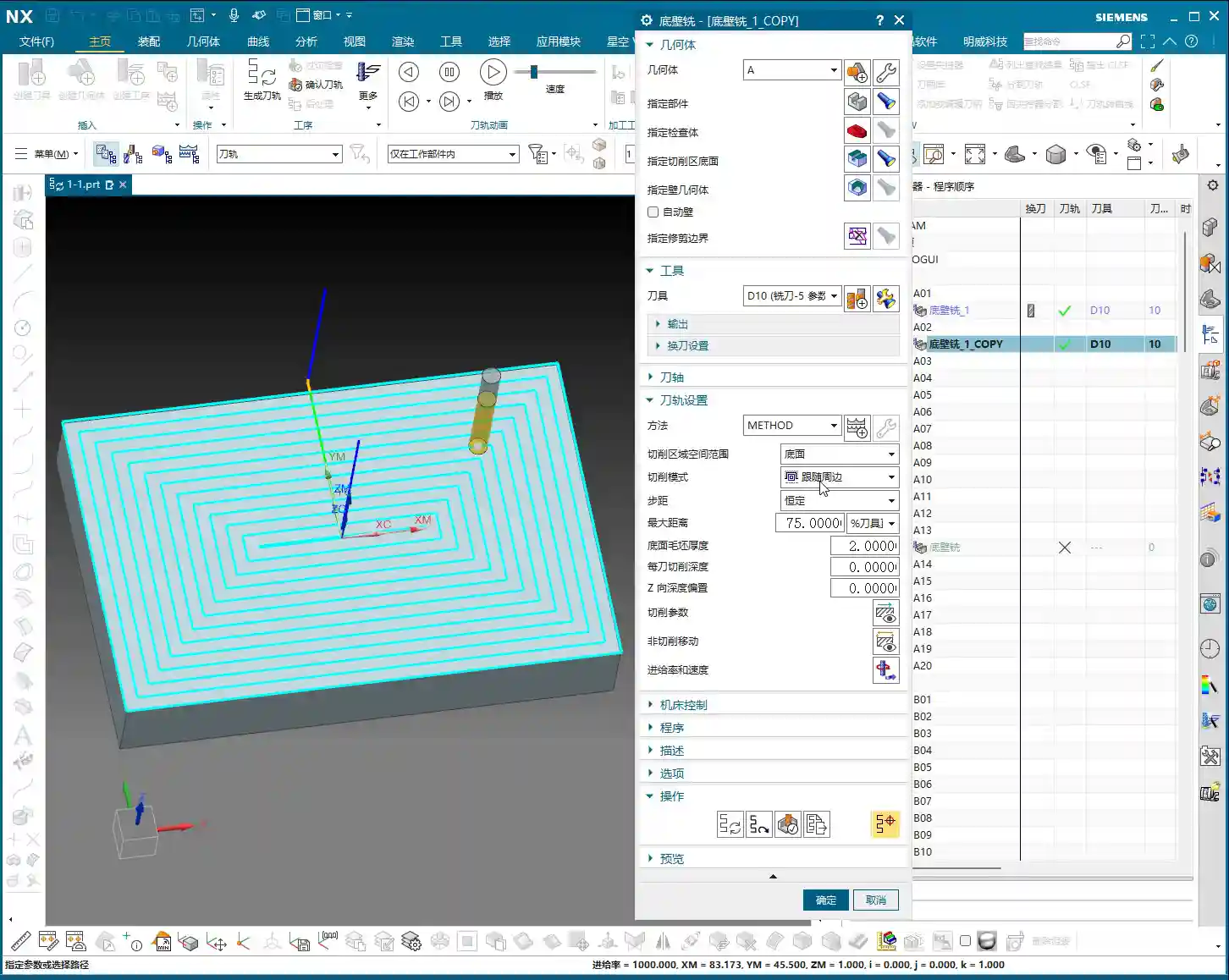
Tag: CNC Machining

  • Siemens NX CNC Programming Hands-on: “Diagnosis” and Process Pre-assessment Before Complex Part Mach

    📝 Key Takeaways: Master Wang introduces a new case study, emphasizing that in Siemens NX programming, one must first ensure the program runs correctly before optimizing the process. Before programming, it is crucial to establish the Work Coordinate System, define the blank, check dimensions, and use draft angle analysis to assess part features and fixturing strategies, especially avoiding machining through in a single pass when using vacuum chucks.

    New Case Study Unveiled: More Than Just a Part, It’s a Complete Process Mindset

    Hello everyone, I’m Master Wang. Starting today, we’re diving into real-world case studies. These aren’t just simple examples; they’re packed with valuable insights. Take this lesson, for instance—the first lesson (No. 155) of our case study. You might think the part is small, but what truly matters for us machining professionals is understanding the underlying principles.

    Don’t Just Stare at the Part – Understand the “Base” First!

    Listen up, this is where many make mistakes! Look here: it’s a small part, so why are there so many “plates” around it? These aren’t just drawn randomly. In our machining industry, even for a seemingly simple part, its “base” or auxiliary fixturing often requires meticulous design to ensure stable clamping and ease of machining.

    Take this case study I’m presenting here (like the one in Lesson 151), you see a complete part and its ‘environment.’ But in reality, we might only be machining a small section of it. Those complex, auxiliary elements fall under the ‘Process Design Course’ in Siemens NX—that’s where you learn how to design these support components. Our current ‘Programming Course’ focuses on how to generate toolpaths once these geometries are ready.

    So, if you see a complex large base plate here, don’t worry about how it’s drawn; that’s covered in the process design course. In this programming course, we assume this base plate is already in front of you, and your task is to plan the toolpaths for the part. Make sure you understand this sequence clearly; don’t get ahead of yourself!
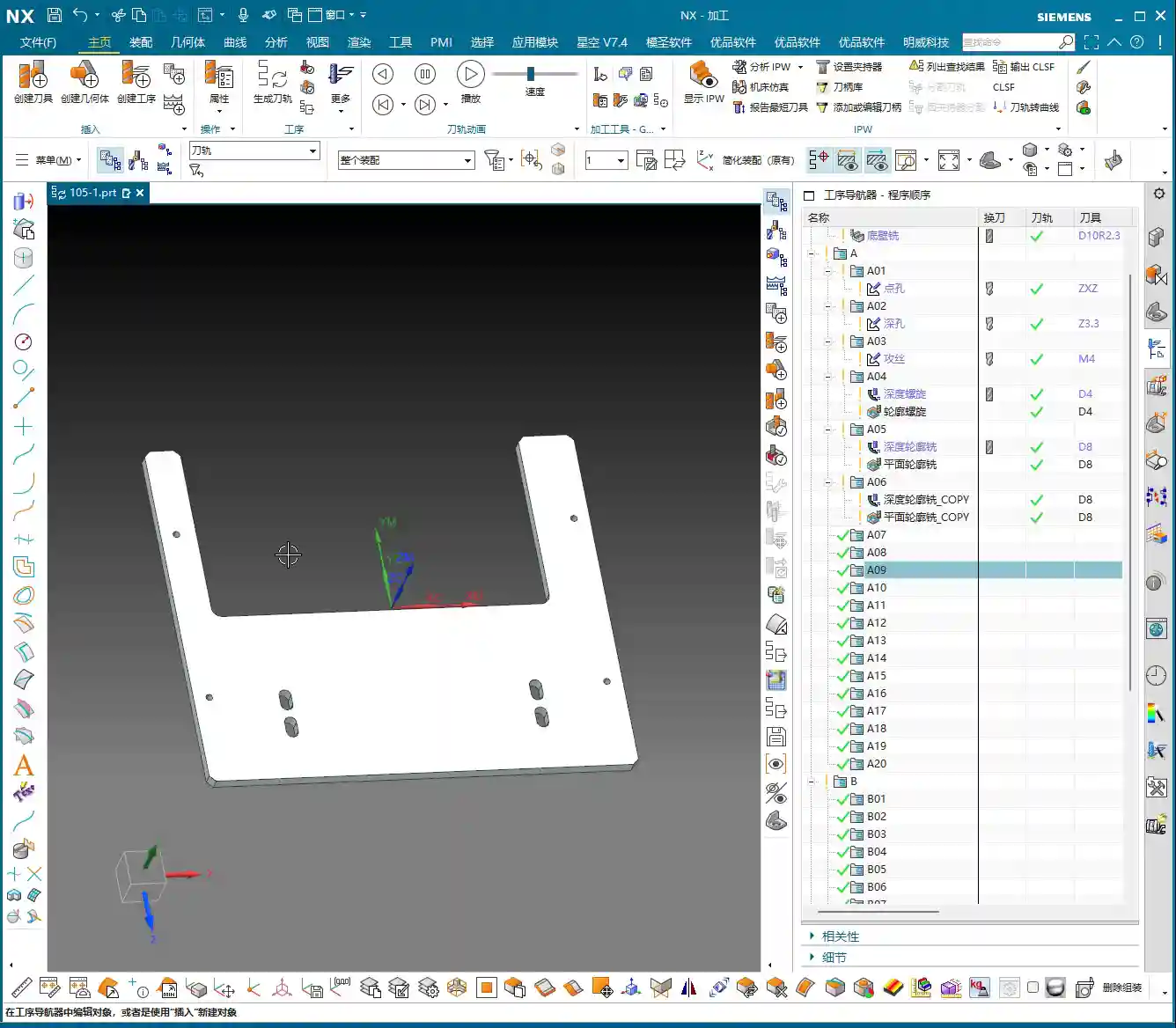
    Learning Siemens NX Programming: Get It Running First, Then Optimize!

    Learning programming is like learning to drive: you first need to get the car moving and navigate the route successfully before you can think about driving faster, smoother, or more fuel-efficiently. I’ve noticed many newcomers try to achieve perfection right from the start, fine-tuning process flows and parameters. That’s unrealistic and often gets them stuck.

    So, here’s our learning approach, listen closely:

    • Watch Video Tutorials: This is fundamental. Understand my thought process and operations.
    • Practice Hands-On: Don’t just watch; hands-on practice is key. Follow my examples and program it yourself.
    • Comparative Learning, Dare to Experiment: You’ll find that sometimes your program isn’t exactly like mine, and that’s perfectly normal. In Siemens NX, there are many ways to achieve the same result. As long as the outcome is correct and the toolpath is clean, it’s a good toolpath. You can even right-click “Insert Tool” to directly select the tool and commands I used, then program it yourself to see if you can achieve the same program.

    My experience tells me that in the initial learning phase, the focus should be on understanding the “program” and ensuring the toolpaths run reliably. As for “process” optimization—like how to select the most cost-effective tools or the most time-efficient cutting strategies—that’s something to consider only after you’re proficient in programming. Don’t try to get everything perfect from the start; that will only complicate things for you.

    Pre-Programming ‘Diagnosis’: Master Wang’s Preparation Sequence

    When you get any part, you can’t just dive in. You must first perform a thorough ‘diagnosis.’ These preliminary preparation steps are crucial for ensuring smooth subsequent programming and error-free machining.
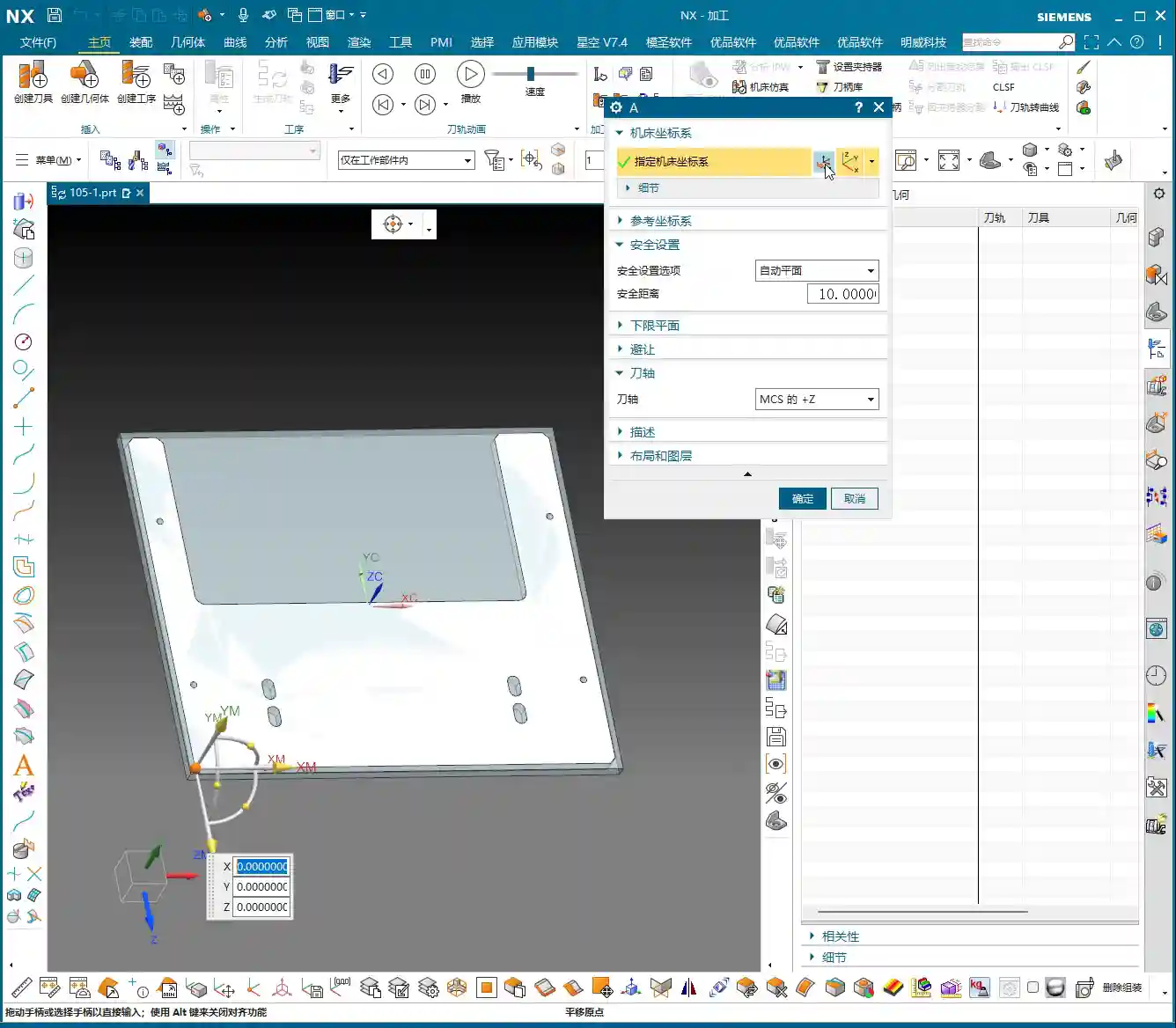
    1. Work Coordinate System (WCS) and Safety Plane Setup:

    This is the first and most critical step. If you don’t understand the coordinate system, everything you do afterward will be haphazard! We typically set the WCS on a datum face of the part or the top center of the blank. Of course, the exact placement depends on the part’s clamping method and machining requirements. The safety plane also needs to be properly set to prevent collisions during tool changes or rapid moves. In Siemens NX, first click on WCS, then select a datum face of the part for positioning, usually the top.

    2. Geometry and Blank Creation and Management:

    For machining, we first need to define the object to be machined (geometry) and the raw material (blank). My personal practice is to manage the blank and the part on separate layers.
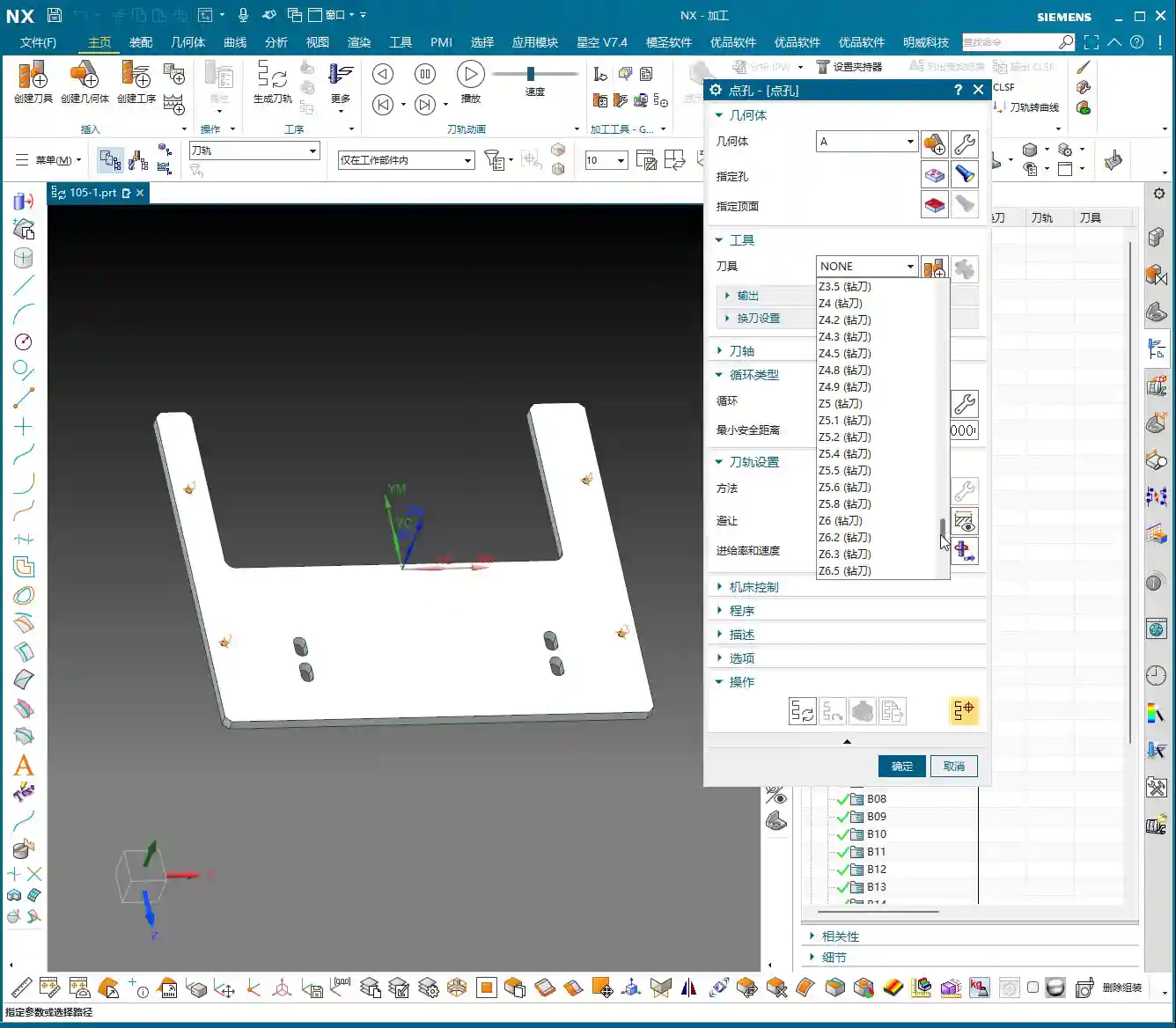
    • Blank: I prefer to put it on Layer 100, then use Ctrl+J to change its color, or Ctrl+B (Hide) to conceal it. This way, I can find it when needed and it’s out of sight when not.
    • Part: I usually copy the part to be machined to Layer 10, leaving the original part model (Layer 0) untouched. This prevents accidental modification of the original model.

    3. Part Dimension Check: Knowing the Part Ensures Success

    Don’t underestimate this step! In Siemens NX, you can use “Analysis” -> “Measure” -> “Body Dimensions” to quickly check the part’s overall length, width, and height. If you don’t clearly measure the dimensions, how will you know what size blank to use, how long a tool to use, or how much stock to leave? For example, for this part, you need to know its length, width, height, and that its thickness is 6 mm. You must have these figures clear in your mind.

    4. Draft Angle Analysis: Can This Plate Be Held with a Vacuum Chuck?

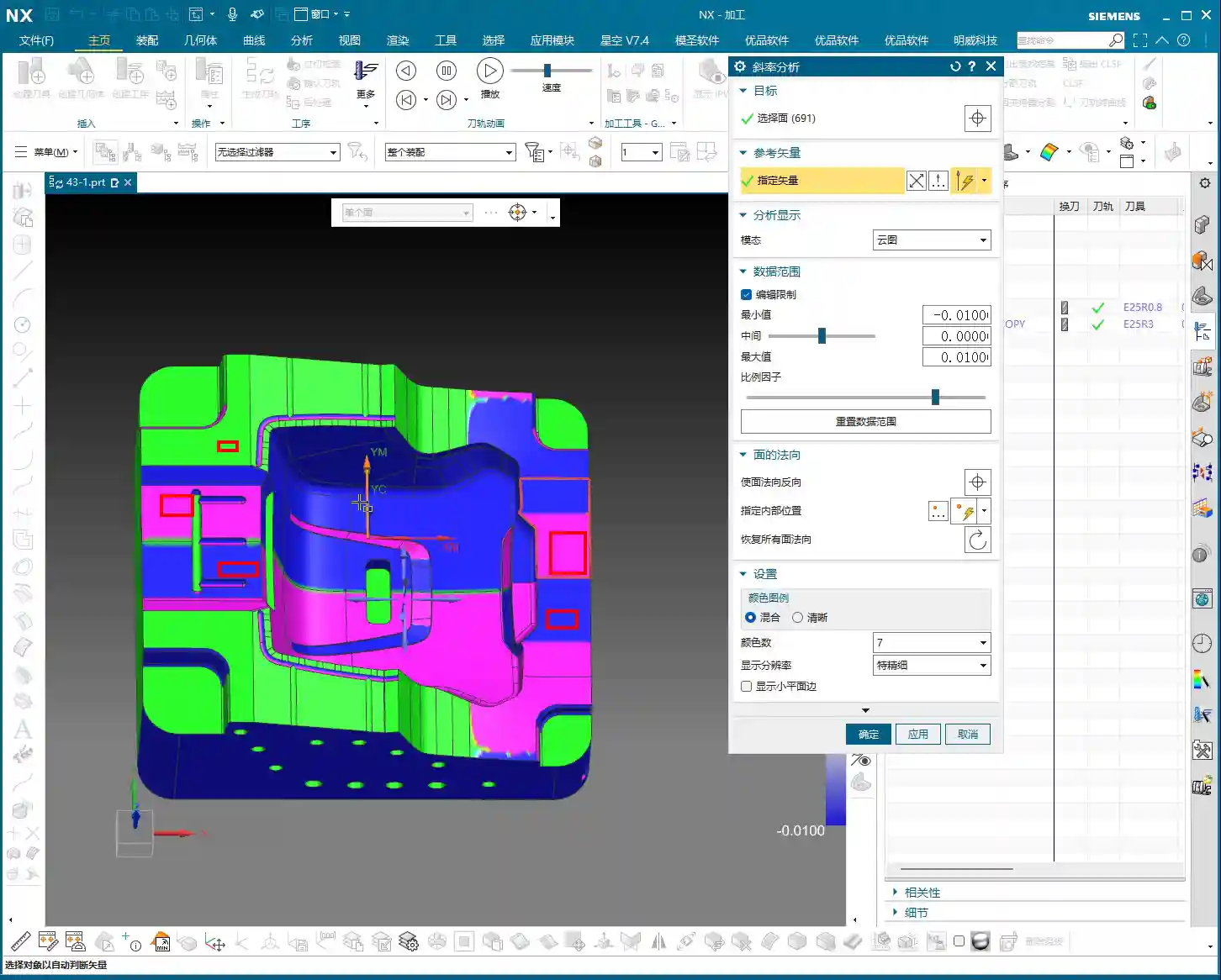
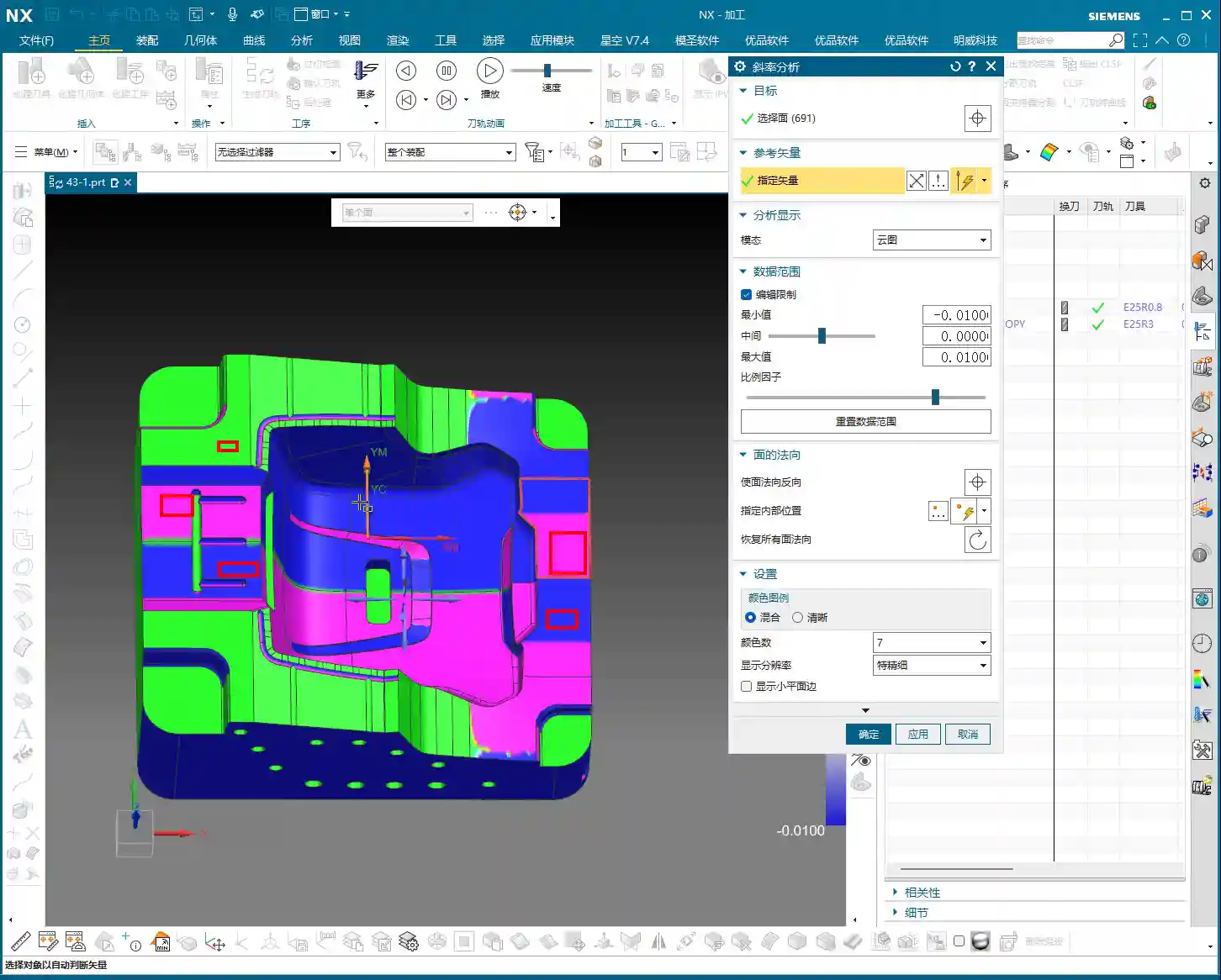
    Draft angle analysis isn’t just for show; it helps you understand the part’s ‘personality’ beforehand, especially if you plan to hold it with a vacuum chuck! In Siemens NX, using the “Analysis” -> “Surface” -> “Draft” function visually reveals if the part surfaces have negative draft angles (undercuts) or particularly steep areas. If it’s all ‘green,’ it indicates a well-behaved part—either straight up and down or with smooth slopes, no undercuts—making it suitable for vacuum chuck fixturing.
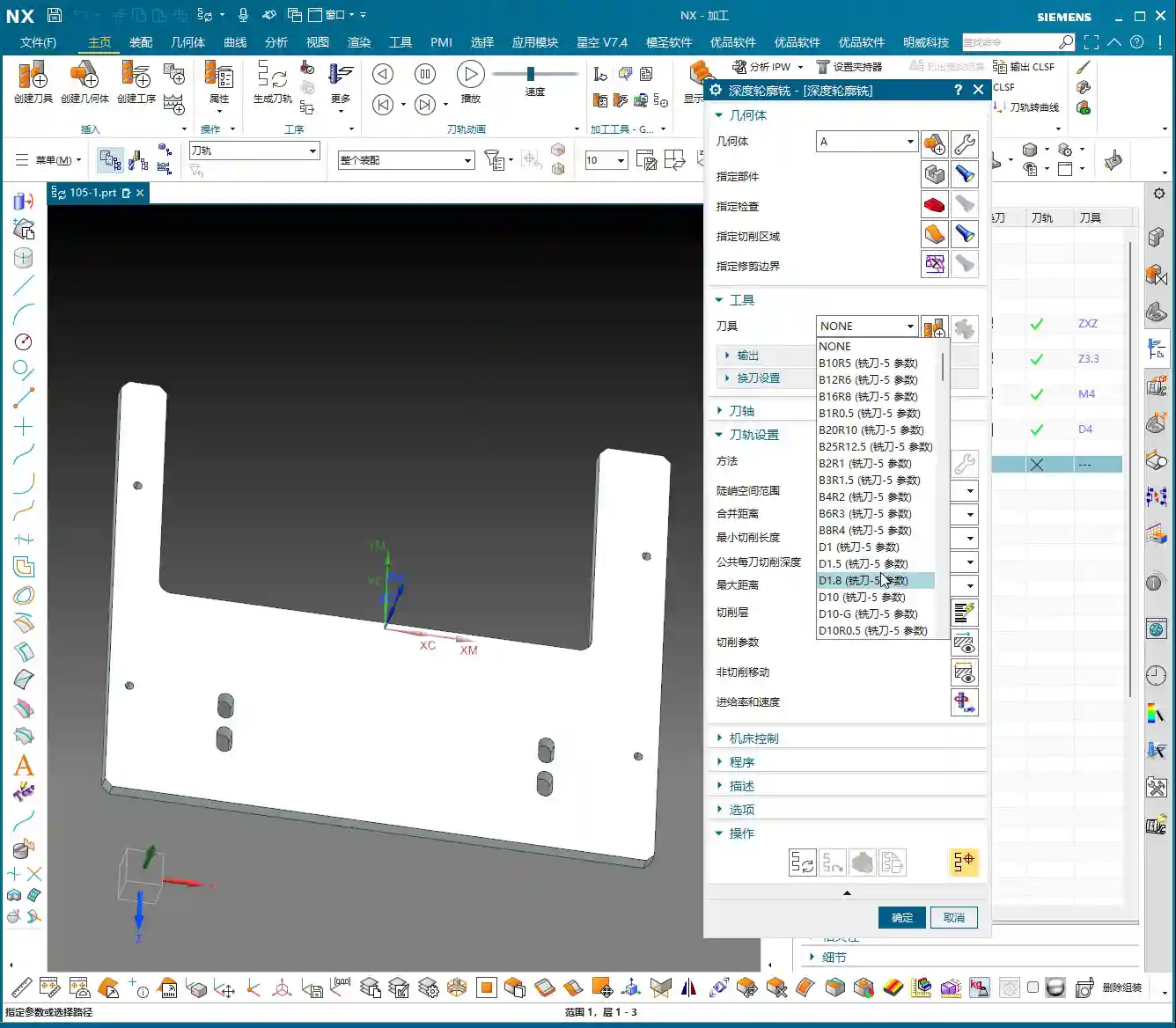
    For our current case study, the draft angle analysis shows all green, indicating a standard part with vertical faces, no reverse features or undercuts, which makes machining much simpler. Let me emphasize this again: if you intend to machine using a vacuum chuck, when drilling holes or milling slots, NEVER cut all the way through in one go! You must leave some material at the bottom. Otherwise, if the vacuum chuck loses suction mid-machining, the part will fly off, and you’ll be in for trouble! In such cases, you need to consider leaving a bottom layer to be machined after flipping the part.

    ‘Programming First, Process Optimization Second’: Master Wang’s Golden Rule

    Let me reiterate, and this is one of our main topics today: In the initial stages of learning Siemens NX programming, you must first ensure your program runs reliably! Don’t immediately get hung up on ‘how should I sequence this process?’ or ‘what’s the optimal way to execute this operation?’ First, get familiar with the fundamental programming logic and toolpath commands, and successfully run the entire machining process within the software. Only after you have a complete grasp of various commands and toolpaths should you then consider process optimization—how to increase efficiency and reduce costs.

    This sequence is a summary of many years of hard-earned experience and will help you avoid unnecessary detours.

    Summary: Pitfall Avoidance Guide

    Alright, what we’ve covered today comprises the essential groundwork to complete before starting any job. Remember these key points to avoid common pitfalls in your subsequent programming:

    1. Don’t Mix Up the Learning Order: Learn programming first to get comfortable with toolpaths; then learn process optimization.
    2. The Coordinate System is the Foundation: The WCS must be accurately established; it’s the starting point for all machining.
    3. Separate Blank and Geometry: Learn layered management: blank on Layer 100, part on Layer 10, for a clean and clear workspace.
    4. Dimension Check is Essential: Don’t rely on guesswork; use tools for precise measurement to ensure you have a clear understanding.
    5. Draft Angle Analysis to Predict Part Behavior: Especially for vacuum chuck clamping, preemptively determine if the part has undercuts to prevent vacuum leaks and flying parts. If using a vacuum chuck, when machining holes or slots, always leave a bottom thickness; do not cut through.

    By diligently taking each step, we can machine parts quickly and accurately. Don’t rush; proceed steadily. A solid foundation ensures a sturdy structure.

    👤 About the Author:
    The author is a veteran CNC machining professional with 15 years of industry experience, specializing in UG NX programming. This article is an original work representing personal practical insights.

    ⚠️ Copyright Notice: Unauthorized reproduction or distribution without prior communication is strictly prohibited.
  • Practical Siemens NX Programming: Master Wang’s Step-by-Step Guide to Surface Driven Machining, Spec

    📝 Key Takeaways: Master Wang introduces the Siemens NX Surface Driven operation, a powerful tool for complex surfaces and undercut machining. This is a summary of an experienced engineer’s expertise. Key topics cover command application scenarios, model preprocessing, tool selection, and parameter settings, with a special emphasis on cleaning up details like small holes and chamfers in the model. This troubleshooting guide helps you avoid common beginner mistakes, improving programming and machining efficiency from a practical perspective.

    The Expert’s Take: The Standing of Surface Driven Machining in the Industry

    Hello everyone, I’m Old Wang. Today, let’s talk about the “Surface Driven” operation in Siemens NX. Listen up, this operation is genuinely used quite often in our actual machining work. Especially for complex parts and jobs involving undercuts, it’s like your right-hand man.

    Why Is It So Important?

    You might think it’s not used much in daily work, right? That’s because you haven’t encountered any tough challenges yet! For us seasoned engineers, mastering this command can solve major problems. Unlike some other commands you might not touch for months or even a year, when you do use this one, it’s always at a critical moment. However, it’s true that this operation isn’t very beginner-friendly. When you first started programming, you probably felt confused, couldn’t figure it out, and weren’t familiar with it – that’s all normal.

    What Exactly Is It?

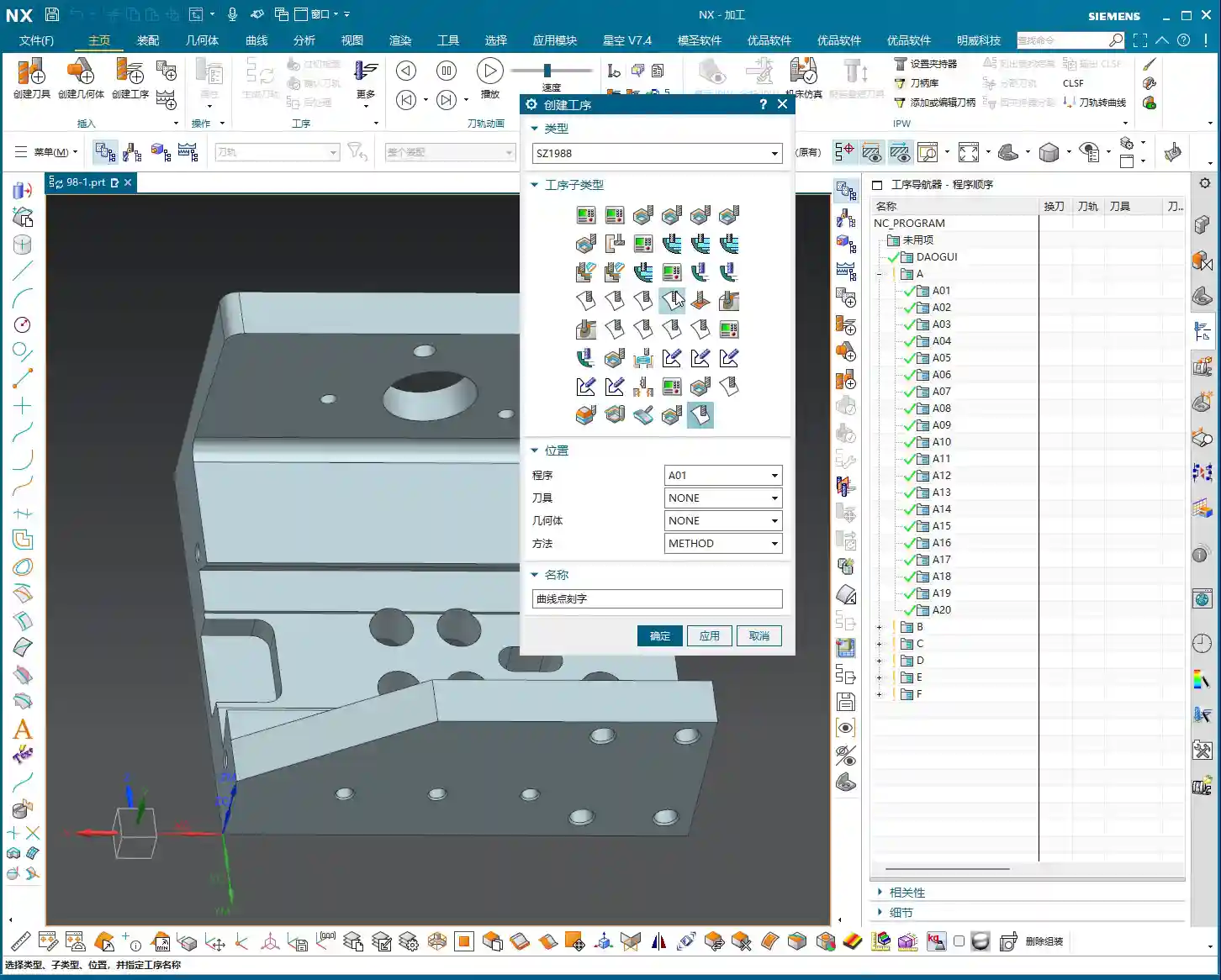
    Simply put, Surface Driven is a powerful tool in Siemens NX for machining complex surfaces or features with “undercuts”. It’s somewhat similar to “Curve Driven” and “Boundary Driven,” but the key difference is that Surface Driven directly selects a face to drive the toolpath. Furthermore, it can better handle special structures with R-angles on side walls and bottoms, especially facilitating undercut machining.

    Process Essentials: Practical Application Scenarios

    Specializing in Undercuts and Angled Surfaces

    Remember this: When do we typically use the Surface Driven command? Mainly for machining undercuts! With standard 3-axis machining, vertical and small angled surfaces might be manageable. However, when you encounter large angled surfaces or features with undercuts at the bottom, the tool is prone to tool deflection or interference. This is when you need to use Surface Driven. It allows you to use the side of the tool for machining, perfectly avoiding interference.

    Model Preprocessing: Proper Preparation Is Key

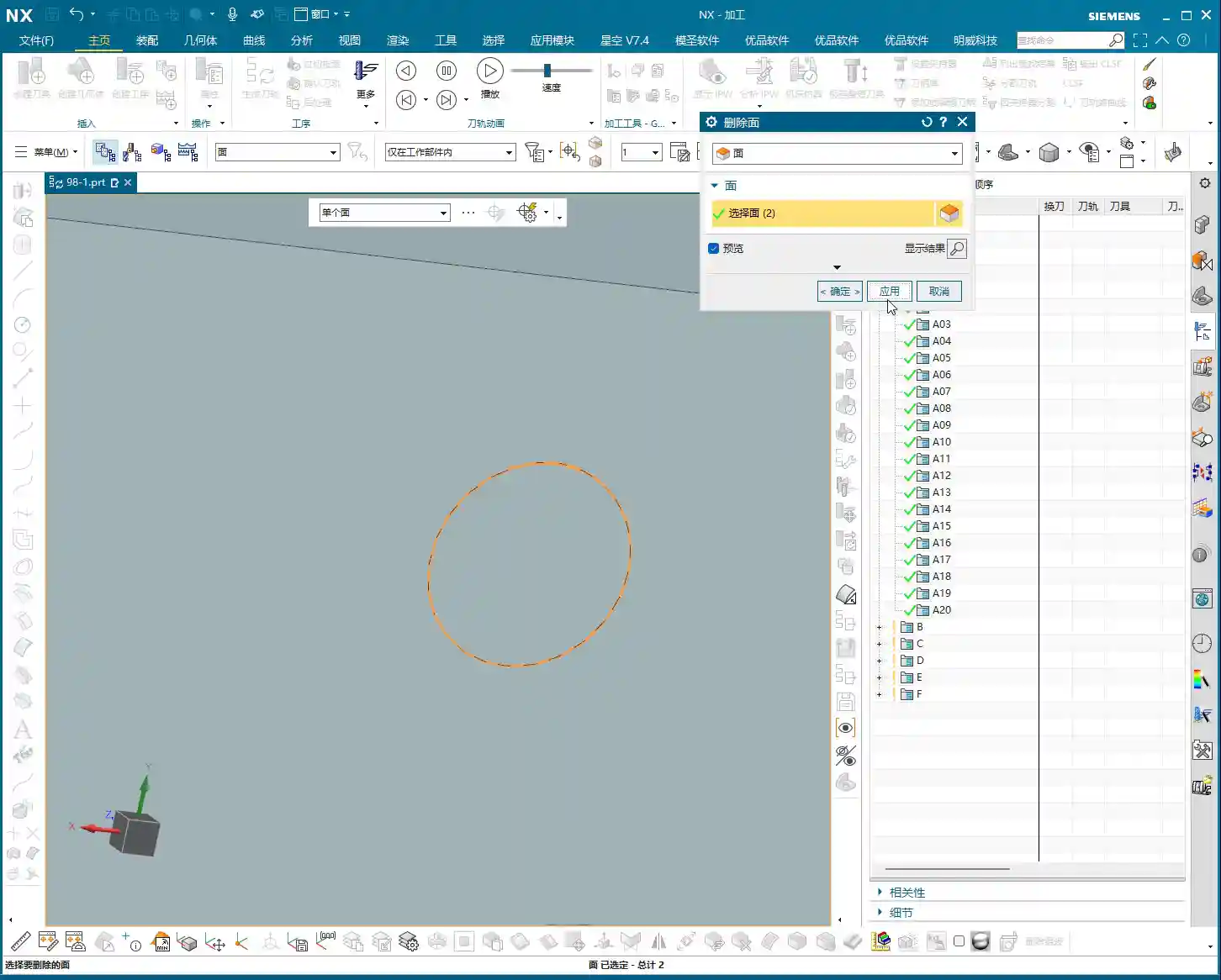
    Before you start machining, the model must be cleaned up first! I’ve said it countless times: Seal or delete all those small holes, chamfers, broken faces, and through holes on the surfaces you intend to machine! Don’t be lazy! These tiny, fragmented features will cause issues for your toolpath generation, potentially leading to unnecessary pauses or even errors. Just like I demonstrated earlier, if the model precision isn’t good, even deleting those small chamfers can be a hassle. It’s best to handle this during the CAD phase, or copy the part to another layer, keeping only the faces to be machined and ensuring they are clean. Otherwise, you might see no issues in the software simulation, but once it’s on the machine, the toolpath will be erratic, the cutting sparks will look wrong, and efficiency will be impossible!

    Tooling and Parameters: A Seasoned Engineer’s Choice

    T-Slot Cutter / Dovetail Cutter: The Ultimate Tool for Undercut Machining

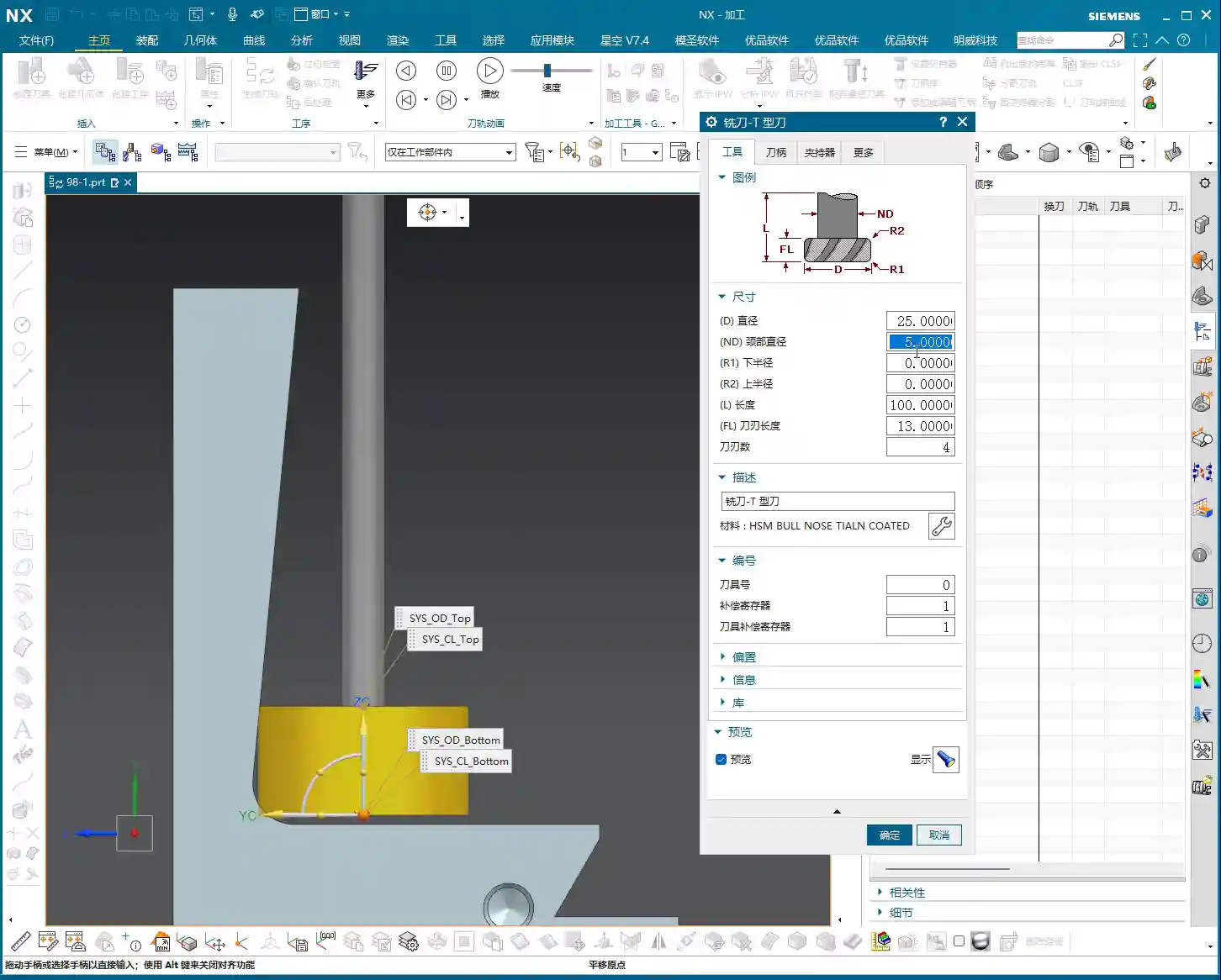
    For undercut machining, tool selection is paramount. Typically, we use a T-slot cutter (or similar dovetail cutter). The characteristic of such tools is a large head diameter with a slender neck, making it easy to reach into undercut areas. Parameter settings must be precise:

    • Tool Diameter (D): For example, 25mm. This is the diameter of the tool’s largest cutting portion.
    • Neck Diameter (d): For example, 10mm. The neck must be thinner than the head to fit into the undercut.
    • Bottom Radius (R): For example, 5mm. This is the radius of the tool’s bottom corner, directly affecting the resulting fillet radius after machining.
    • Bottom Length: This is also very important. For instance, here it is 10mm (composed of two 5mm radii). This length must ensure that the tool’s effective cutting portion can cover the machining area, while simultaneously preventing interference between the tool neck or shank and the workpiece.

    Remember, don’t just rely on software parameters. Always measure the actual tool before mounting it on the machine, especially the effective flute length and corner radius. Even a slight discrepancy could lead to tool deflection or improper machining, potentially scrapping the part!

    Coordinate System and Cutting Method

    I won’t elaborate on the coordinate system; it’s business as usual. Just create one anywhere near the machining area, as long as it’s valid and provides proper positioning. As for the cutting method, we generally default to selecting “Towards Cut Stock.” This is Siemens NX’s default option, the most commonly used, and suitable for most situations. If your part is exceptionally complex, you might need to consider other cutting methods, but we can discuss those later.

    Summary: Pitfall Avoidance Guide

    Listen closely; these are hardcore pitfall avoidance tips compiled from my 15 years of experience as Master Wang:

    • Model First, Clean Surfaces Are King: For any complex surface machining, model cleanliness is paramount! Small features and discontinuous faces are “cancerous” for toolpath generation; they will make your toolpaths uneven, and can even lead to chip re-cutting or tool alarms. Spending time cleaning the model upfront will save you several times that in debugging later.
    • Tool Matching, No Brute Force: Not just any tool can machine an undercut. T-slot cutters and dovetail cutters are your first choice. Parameters must be precisely calculated, with key focus on neck clearance and effective cutting length. Choosing the wrong tool is like running headfirst into a wall.
    • Be Observant, Pay Attention to All Cues: Don’t just stare at the computer simulation; that’s only theoretical. During actual cutting, observe the sparks, listen to the sound, and feel the vibration. Incorrect spark color, harsh sounds, or abnormal vibration are all the machine “talking” to you. Stop the machine immediately to inspect and prevent major accidents.
    • Precision Calibration, Adapt and Overcome: Machine accuracy will never be perfect. When encountering precision issues of ±0.005mm, don’t just complain. Try to compensate through process compensation, adjusting toolpath strategies, or even localized manual finishing. High precision is achieved through meticulous effort and fine-tuning.
    • Cost Efficiency, Ingrained in Your Core: All toolpath optimizations ultimately aim to improve efficiency and reduce costs. Every rapid move is burning money; every defective part is wasting time. When designing toolpaths, always think about how to reduce non-cutting moves, optimize feed rates, and extend tool life. This is not just about technique; it’s the crystallization of experience and wisdom.

    👤 About the Author:
    The author is a veteran CNC machining professional with 15 years of industry experience, specializing in UG NX programming. This article is an original work representing personal practical insights.

    ⚠️ Copyright Notice: Unauthorized reproduction or distribution without prior communication is strictly prohibited.
  • Master Wang’s Practical Guide to Siemens NX Fixed Area Milling: From Surface Analysis to Toolpath Op

    📝 Key Takeaways:

    Fixed Area Milling in Practice: Master Wang’s Guide t…

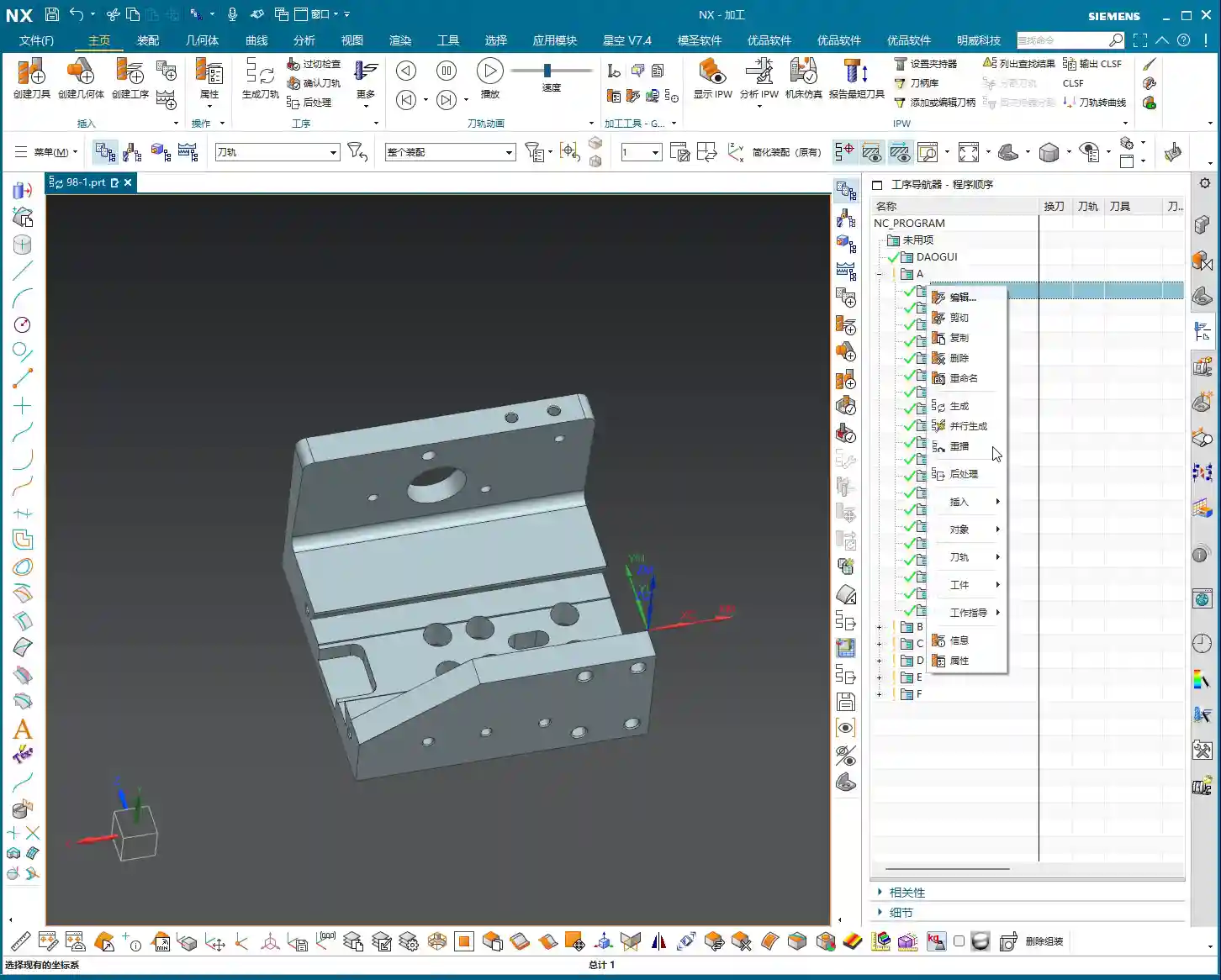
    Hello everyone, I’m Master Wang. Today, let’s continue our discussion on Siemens NX programming. In our previous sessions, we ironed out the basic concepts of Fixed Area Milling. Today, we’re getting down to business: we’re going hands-on to program a “Finishing pass” for a real-world part. Listen up – this job isn’t just about clicking a mouse; it’s packed with experience and critical insights!

    Step One: Eagle Eye Surface Analysis – Defining the Machining Area

    Alright folks, when you get a job, don’t rush straight into it. We need to start with “surface analysis” – that means meticulously examining the part’s geometric features. You need to know which areas are flat and which are curved. This directly influences your tool selection and machining strategy.

    Identifying Planar and Curved Surfaces

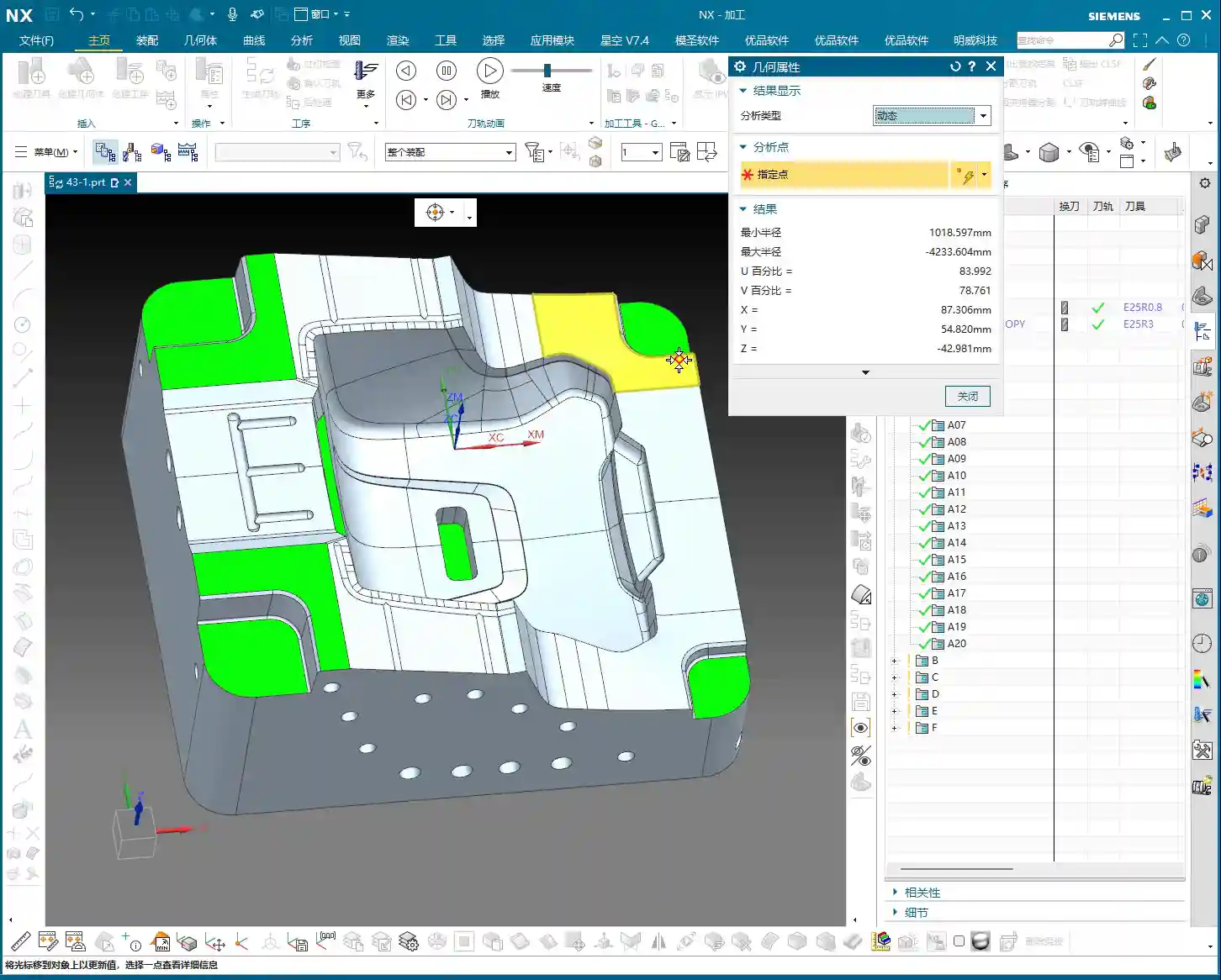
    Some areas on this part might look planar, but are they truly flat? In NX, don’t just eyeball it; you need to verify with geometric properties.
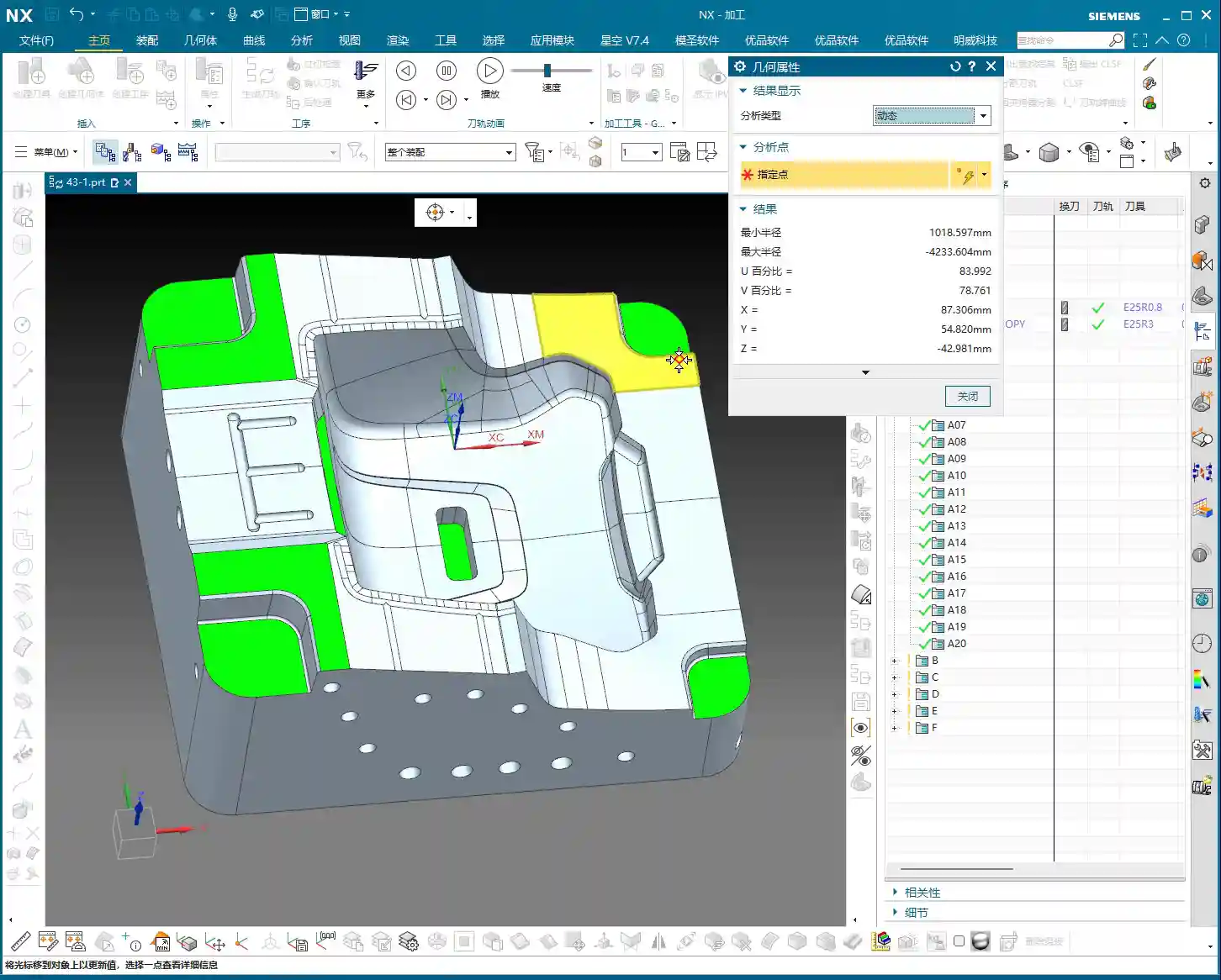
    In NX, simply select a face and use the “Geometric Properties” function to check. If its Z-axis coordinate value is consistent across different points, then it’s a true planar surface. If the Z-axis value keeps changing, even slightly, it’s a curved surface and must be treated as such.
    For this particular part, after my careful inspection, I found that most areas are curved surfaces, but there are a few genuinely flat spots, and these need to be handled differently.

    Identifying Critical Fillets and Narrow Areas

    Besides planar and curved surfaces, pay special attention to areas with fillets. The size of the fillet dictates the required tool diameter.
    After my initial survey, I noticed one area with a slightly smaller fillet, approximately R6. For this, we’ll need to consider a 6mm diameter ball-nose end mill (or smaller) for the Finishing pass. Further in, some fillets are larger, like R5, where a 5mm diameter ball-nose end mill will suffice, potentially even completing it in a single pass. Remember, tool selection must match the part’s features; otherwise, you’ll either fail to machine the area completely or suffer from poor efficiency.

    Step Two: Tool Selection and Strategy – Precision, Stability, and Aggression

    Once the machining area is defined, the next step is tool selection and strategy formulation. Siemens NX’s Fixed Area Milling offers great flexibility, but getting quality results hinges on your experience.

    Clever Use of Ball-Nose End Mills for Complex Surfaces

    For parts like ours, which feature various fillets and curved surfaces, the ball-nose end mill is our primary tool.
    Having identified the R5 and R6 fillets earlier, I have a clear plan:

    • For R5 areas, we’ll use a Ø5mm ball-nose end mill for Finishing pass.
    • For R6 areas, we can either add a Ø6mm ball-nose end mill or just use the 5mm tool with additional passes.

    Remember, the tool diameter should be slightly less than or equal to the smallest machining radius to ensure proper Corner Cleanup.

    Flexible Selection of Cut Direction and Start Point

    In Fixed Area Milling, the cut direction and start point are crucial.

    • Parallel to Tool Axis: This is the most commonly used method, especially suitable for flat or gently sloped surfaces.
    • Perpendicular to Tool Axis: Sometimes used, but depends on the specific surface geometry.
    • Helical/Spiral: For internal areas with circular or elliptical shapes, using this method to cut spirally from outside-in or inside-out creates a more continuous path, more stable cutting, and effectively reduces air cuts and “tool jumps” (unnecessary retractions).

    For certain internal cavities on this part, I employed a “Spiral Inward” approach. See how smoothly the toolpath runs? Efficiency naturally improves.
    Furthermore, setting the program’s “Start Point” is also very important. Sometimes, the default start point can lead to frequent tool retractions or engagements from unfavorable positions. We can manually specify a sensible start point, such as beginning the cut from the exterior of the workpiece or engaging from a more open area, to prevent damage to already machined surfaces.

    “Tool Jumps”? No Worries, We’ve Got Solutions!

    In NX, you sometimes encounter “tool jumps” in the toolpath, meaning the tool frequently retracts and re-engages. This can happen for several reasons:

    • Holes or Open Areas in Between: If there’s a hole in the middle of the machining area, the tool will naturally retract to avoid it – that’s normal. If you want a more continuous toolpath, you can “cap off” this hole with a surface during modeling, then remove it after machining.
    • Gaps or Elevation Differences in the Model Itself: If the model design itself has issues, such as the 4-micrometer (approx. 0.00016 inch) gap we just found, the tool might “hesitate” there. While the impact is minimal, ideally, the model should be clean.

    When programming, make good use of NX’s “Safe Region”, “Cut/Non-Cut Areas”, “Trim Boundary”, and other functions to control the toolpath more precisely and reduce unnecessary retractions.

    Step Three: Practical Case Study and Toolpath Generation

    Now, let’s combine this with actual operations and generate the toolpaths for these areas one by one.

    Finishing Pass for Planar Areas

    For the confirmed planar surfaces, simply select Fixed Area Milling, choose the faces, and generate the toolpath. Typically, NX will default to generating parallel linear toolpaths. If you find the toolpath moving from bottom-up and you prefer top-down, just change the “Cut Direction”. Don’t just rely on software simulation; during actual machining, cutting from top to bottom provides more stable cutting forces and better chip evacuation.

    Precision Finishing Pass for Small Fillet Areas

    For the small fillets like R5 and R6 we discussed earlier, we’ll first duplicate a program, then change the tool to a Ø5mm or Ø6mm ball-nose end mill.
    Select a cutting method like “Spiral Inward” or “Boundary Machining”, guiding the tool to move layer by layer inward or outward along the fillet area, ensuring uniform cutting everywhere. This area is prone to heavy cutting conditions, so feed rates and spindle speeds must be carefully controlled to avoid tool breakage.

    Addressing Minor Model Defects

    Earlier, we discovered a 4-micrometer (approx. 0.00016 inch) gap or a slight raised surface in the part model. Theoretically, a defect of this size is concerning for our Finishing pass. However, in actual production, if it doesn’t affect assembly or function, and the tolerance allows for it, we’ll simply “ignore it” during programming.
    Why? Because creating a toolpath to fix such a minor defect could incur time and cost far exceeding its impact. Of course, if tolerance requirements are stringent, then we must feedback to the design department to modify the model. I, Master Wang, always emphasize: Practicality first, cost-efficiency always!

    Future Outlook: “Guide Curve Machining” for Special Areas

    For some particularly complex surfaces, such as those with guide curves, if Fixed Area Milling feels insufficiently flexible, we can learn “Guide Curve Machining” later to handle them more effectively. This allows the tool to follow precisely specified curves, achieving much finer control. However, for today’s part, the current Fixed Area Milling strategy is sufficient.

    Summary: Pitfall Avoidance Guide

    Pitfall Avoidance Guide

    1. The Model is the Foundation, Cleanliness is Key: Even the best NX expert can run into trouble with a “wounded” model (e.g., with micro-gaps or warped surfaces). So, always check the model’s integrity and accuracy first – that’s your primary defense.
    2. Tool Selection Must Be “Context-Specific”: Don’t try to use one tool for every job. Select the appropriate tool type, diameter, and length based on the part material, hardness, geometry, and the size of the fillets in the machining area. Small fillets require small tools, deep cavities require long tools – this is common sense.
    3. Toolpath Strategies “Vary Widely, but the Core Remains Constant”: Fixed Area Milling offers many strategies, such as parallel cutting, helical cutting, and boundary following. Choose flexibly according to the actual situation, with one goal: ensure machining quality, reduce air cuts, and improve efficiency. Observe the cutting sparks carefully; don’t just rely on software simulation!
    4. Optimize “Non-Cutting Movements”: Though retractions, lead-in, and lead-out moves are auxiliary, their cumulative time can be significant. By adjusting parameters like start points, cut directions, and safe regions, strive to minimize unnecessary retractions and idle travel – these are your “invisible benefits” for efficiency.
    5. Learn to “Tolerate” Minor Defects: Perfectionism is good, but sometimes flexibility is necessary. For model defects that have minimal impact on part function and accuracy, if fixing them costs too much, let’s “give it a pass.” This is practical wisdom, a balance between efficiency and perfection.
    6. Experience is the Ultimate Teacher: NX programming, especially for complex surfaces and 5-axis machining, isn’t learned overnight. More hands-on practice, observation, and summarization are essential to transform textbook knowledge into practical skills. Every post-machining review is your best teacher.

    Alright, that’s all for today. Go back, digest this information thoroughly, and get some hands-on practice in NX. Remember, in the machining industry, true gold fears no fire; a good product speaks for itself. Every high-precision part we program is our best advertisement, naturally allowing us to establish a strong foothold in the market. Talk next time!


    — Master Wang

    👤 About the Author:
    The author is a veteran CNC machining professional with 15 years of industry experience, specializing in UG NX programming. This article is an original work representing personal practical insights.

    ⚠️ Copyright Notice: Unauthorized reproduction or distribution without prior communication is strictly prohibited.

  • Siemens NX Machining: Master Wang’s Essential Guide to Layer-to-Layer Transitions – Optimize Toolpat

    📝 Key Takeaways: Master Wang provides an in-depth analysis of Siemens NX’s four layer-to-layer transition methods. From the standard zigzag to high-risk direct plunge, and efficient ramp/helical entry to complex cross-ramp entry. He emphasizes practical priorities: Rapid Transfer (general purpose), Ramp/Helical (preferred for enclosed areas), and Direct Plunge (rarely used). Discover exclusive tips for optimizing toolpaths, extending tool life, and preventing thermal deformation, helping you boost accuracy and efficiency with essential CAM programming knowledge beyond textbooks! **

    Hello everyone, I’m Old Wang, but you can call me Master Wang. I’ve been grinding in the machining industry for fifteen years, smelled my share of cutting fluid and metal chips, and seen countless tricky problems. Today, we’re not going to talk about any abstract theories. Instead, let’s dive into some real-world stuff: layer-to-layer transition methods in Siemens NX. This is critical, directly impacting your tool life, machining efficiency, and part accuracy! Don’t underestimate these few options; there’s a lot more to them than meets the eye.

    What Are Layer-to-Layer Transitions?

    Listen up. “Layer-to-layer transition,” simply put, is how the tool moves to the next layer to continue machining after completing the current one. Does it plunge directly? Or does it helix down slowly? Siemens NX offers specific options for each method. When machining parts, especially deep pockets, cavities, or complex contoured parts, every new layer requires careful consideration of this transition move. Choose correctly, and you’ll boost efficiency; choose wrong, and you might face tool chipping, scrap parts, and wasted machine time.

    It’s like milling a hole – there are many ways to do it, but determining the safest and most efficient method relies on experience. Today, I’ll break down the four most commonly used methods in Siemens NX for you.

    Method One: Rapid Transfer (Standard Zigzag Move)

    Principle and Application

    In NX, this method is often referred to as “Use Transfer Method” or “Rapid Transfer.” The logic is straightforward: after the tool finishes machining the current layer, it will retract, move to the starting point of the next layer, and then plunge. This typically manifests as the tool making a “come over, go across, come over, lift, go across” motion, resembling a zigzag pattern.

    Master Wang’s Insights and Practical Tips

    • Pros: This is the most versatile and safest method. For most workpieces, especially those with irregular shapes or multiple islands, it effectively avoids obstacles, minimizes rubbing against previously machined surfaces, and reduces the risk of tool crashes. It features the shortest non-cutting distance, contributing to higher overall efficiency.
    • Applicable Scenarios: Almost all types of machining, particularly roughing and semi-finishing passes that require frequent tool retraction and repositioning. This is your go-to “fallback” option, suitable for both open and enclosed areas.
    • Master Wang’s Advice: Don’t just rely on software simulation—watch the cutting sparks! While it involves tool retraction, as long as the retraction height is set reasonably to clear obstacles, there’s no need to lift it excessively high and waste time. Always ensure sufficient safety clearance; better to have a bit more air cutting than a tool collision.

    Method Two: Direct Plunge into Part (Direct Plunge Style)

    Principle and Application

    This method is quite “aggressive.” It involves the tool plunging vertically directly from its current layer position to the starting point of the next layer. No retraction, no spiraling—just a straightforward plunge.

    Master Wang’s Insights and Practical Tips

    • Cons: Listen up, this is where you’re most likely to encounter heavy cutting loads! End mills are designed for peripheral cutting; their tip strength is weak. If you plunge directly, the axial force on the tool will be extremely high, easily leading to tool chipping, breakage, or even spindle damage. Furthermore, the tool tip’s cutting efficiency in the axial direction is very low, resulting in poor surface quality. Basically, this method should only be used as a last resort.
    • Applicable Scenarios: Theoretically, it can be used in open areas, but due to the immense impact on the tool, consider it only when machining very thin, very soft materials with excellent center-cutting tools, and when no other options are available. In enclosed areas, it is generally prohibited.
    • Master Wang’s Advice: When you see the words “direct plunge,” a red flag should go up in your head! As machinists, we must learn to treat our tools like gold. Avoid this method whenever possible. If you absolutely must use it, ensure the feed rate is very slow, the cutting load is minimal, and that the tool has ample through-tool or external coolant to prevent tool burning.

    Method Three: Ramp/Helical Entry into Part (Ramp/Helical Style)

    Principle and Application

    This method is far smarter than the second one. It allows the tool to enter the next layer gradually, following a defined ramp angle or helical path. In Siemens NX, there’s typically a parameter for the “Ramp Angle.”

    Master Wang’s Insights and Practical Tips

    • Pros: This method allows the tool to engage with its side flutes, distributing the cutting forces evenly, significantly reducing tool impact, and extending tool life. The resulting surface quality is also superior. Especially when the ramp angle is set to 0 degrees, it transforms into classic “Helical Milling,” where the tool rotates and descends like a drill from top to bottom, simultaneously performing side cutting. This achieves 3-axis simultaneous motion (X, Y, and Z axes moving concurrently).
    • Applicable Scenarios: Widely used for plunge cutting in enclosed areas, such as milling internal cavities or hole machining. Helical milling, in particular, is an excellent tool for roughing holes and an effective alternative to drilling, especially suitable for machining high-hardness materials like titanium alloys and high-temperature nickel-based alloys, as it significantly reduces tool wear and thermal deformation.
    • Master Wang’s Advice:

      • Choosing the Ramp Angle: A larger angle means faster plunging, but also higher cutting forces on the tool. Generally, based on material and tool conditions, 1-5 degrees is common. Small ramp angles, such as 1 or 2 degrees, result in minimal tool wear but a slightly longer entry time.
      • Helical Milling (Ramp Angle = 0): This is one of my most recommended plunging methods for enclosed areas. Ensure the helix radius is sufficient to prevent the tool center from rubbing against the hole wall, and also pay attention to the helical Z-axis feed rate, keeping it from being too aggressive.
      • Enclosed Area Restriction: Like the fourth method, this approach is only for enclosed areas. If your machining region is open, the software will either error out or generate an unsuitable toolpath.

    Method Four: Cross-Ramp into Part (Complex Ramp Style)

    Principle and Application

    This method also involves ramping into the part, but as it progresses, it performs a more complex “cross” or “S-shaped” plunging path, adapting to the part’s geometry. For certain specific geometries, it can achieve a smoother transition.

    Master Wang’s Insights and Practical Tips

    • Pros: In complex 3D surface machining, or when parts have unique sloped surfaces, this method can better adapt to the geometry, maintain stable cutting loads, and avoid sudden impacts.
    • Applicable Scenarios: Also suitable for finishing and semi-finishing passes in enclosed areas, especially where high demands are placed on surface quality and toolpath trajectory. For instance, in machining mold cavities, it might be used to minimize witness marks.
    • Master Wang’s Advice: This method is relatively less common, as its complexity can sometimes increase programming and calculation time. Typically, the ramp or helical entry of the third method will suffice. Only consider this method if you find that the third option doesn’t provide a satisfactory toolpath. And remember, it also only applies to enclosed areas.

      One crucial point: Whether using a ramp or helical entry, always check for collisions before plunging! Sometimes the simulated toolpath looks perfect, but when the machine runs, it might give you an unpleasant “surprise.”

    Summary: Collision Avoidance Guide

    Master Wang’s Practical Priorities and Pitfall Avoidance Experience

    Got it? These four layer-to-layer transition methods each have their specific uses, but they come with clear priorities and application conditions.

    1. First Choice: Rapid Transfer (Method One). Most versatile, applicable to both open and enclosed areas, high efficiency, low risk. This is your “all-rounder”.
    2. Second Choice: Ramp/Helical Entry into Part (Method Three, especially Helical Milling). For plunging in enclosed areas, this is the best option, as it maximizes tool protection and improves machining quality. Don’t forget, a ramp angle of 0 degrees means helical milling.
    3. Use with Caution: Cross-Ramp into Part (Method Four). Consider using it in specific situations; it also only applies to enclosed areas.
    4. Avoid or Use in Extreme Cases: Direct Plunge into Part (Method Two). Only if tool, material, and process conditions permit, and there are no other alternatives. Remember, direct plunging is the tool’s worst enemy!

    As machinists, we not only need to know how to use the software but also understand the process, know our tools, and comprehend the materials. Siemens NX’s features, no matter how powerful, are just tools. Ultimately, whether a part can be produced well, at a low cost, and with high efficiency still depends on the experience and judgment of us front-line experts.

    Don’t just stare at the toolpath trajectory on your computer screen; those are ideal conditions. At the machine, your eyes should watch the cutting sparks, your ears should listen to the cutting sound, and your nose should smell the cutting fumes. These “not-taught-in-textbooks” practical experiences are your true wealth.

    Let me emphasize again, Master Wang not only hand-machines high-precision parts but also knows how to make our industrial products stand out online. So, I’ll explain these core machining knowledge points in plain language, combining them with practical applications, so you can learn them and apply them effectively right away!

    Summary: Pitfall Avoidance Guide

    Finally, a few concluding remarks—all solid advice, remember them:

    • Prioritize smooth tool entry methods: Avoid tool impact and extend tool life.
    • For enclosed areas, frequently use ramp/helical entry: Good results, high efficiency.
    • For open areas, frequently use rapid transfer: Ensure safety and minimize air moves.
    • Material hardness and tool type dictate feed rate and spindle speed: Don’t generalize; apply flexibly.
    • Always verify programming: Ensure thorough simulation, and monitor the actual machining process throughout.
    • Don’t be afraid to make mistakes; be afraid not to try and learn from them: Every machining operation is a learning opportunity.

    Alright, that’s all for today. Next time, let’s talk about more hardcore knowledge!

    👤 About the Author:
    The author is a veteran CNC machining professional with 15 years of industry experience, specializing in UG NX programming. This article is an original work representing personal practical insights.

    ⚠️ Copyright Notice: Unauthorized reproduction or distribution without prior communication is strictly prohibited.

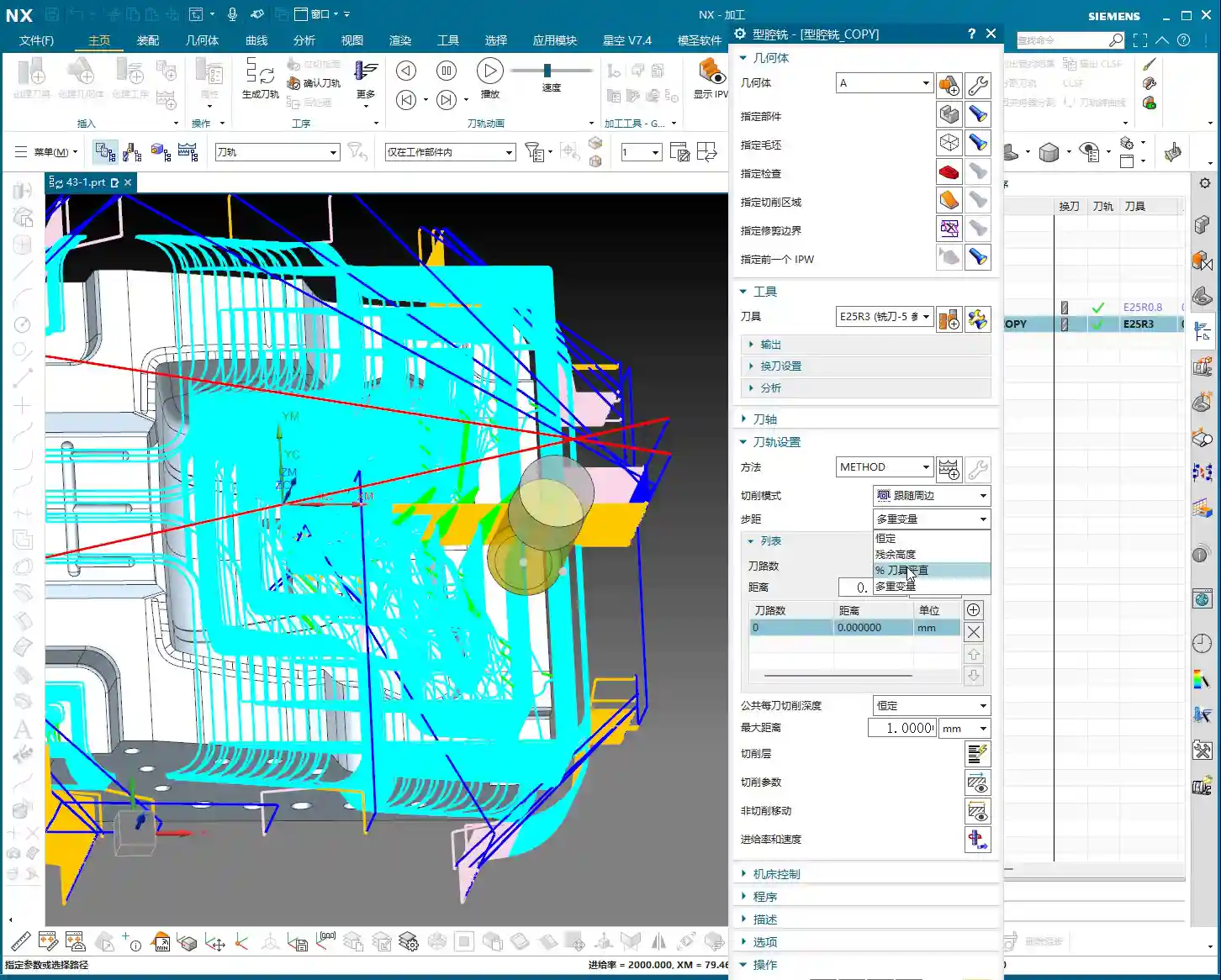
  • Siemens NX Cavity Milling in Practice: How Does Stepover Affect Toolpaths? Slope Analysis for Precis

    📝 Key Takeaways: Master Wang will guide you through the secrets of stepover settings in Siemens NX Cavity Milling, deeply analyzing the fundamental differences between ‘Constant Stepover’ and ‘Percentage of Tool Flat’ and their impact on toolpaths. We’ll also provide a practical demonstration of how to use slope analysis to accurately identify planar surfaces in parts, laying a solid foundation for developing efficient subsequent machining strategies. Master these techniques, and your toolpaths will become smarter, more efficient, and achieving higher precision will no longer be a challenge.

    Alright lads, Master Wang here! Today we’re diving into some tough stuff in Siemens NX cavity milling: stepover and how to pinpoint the ‘planar surfaces’ in your parts. Don’t underestimate these parameters; if you don’t grasp them, your toolpaths will always be ‘good enough,’ leading to wasted tooling, lost time, and potentially scrapped parts.

    Stepover: A Big Deal in How Your Tool Advances

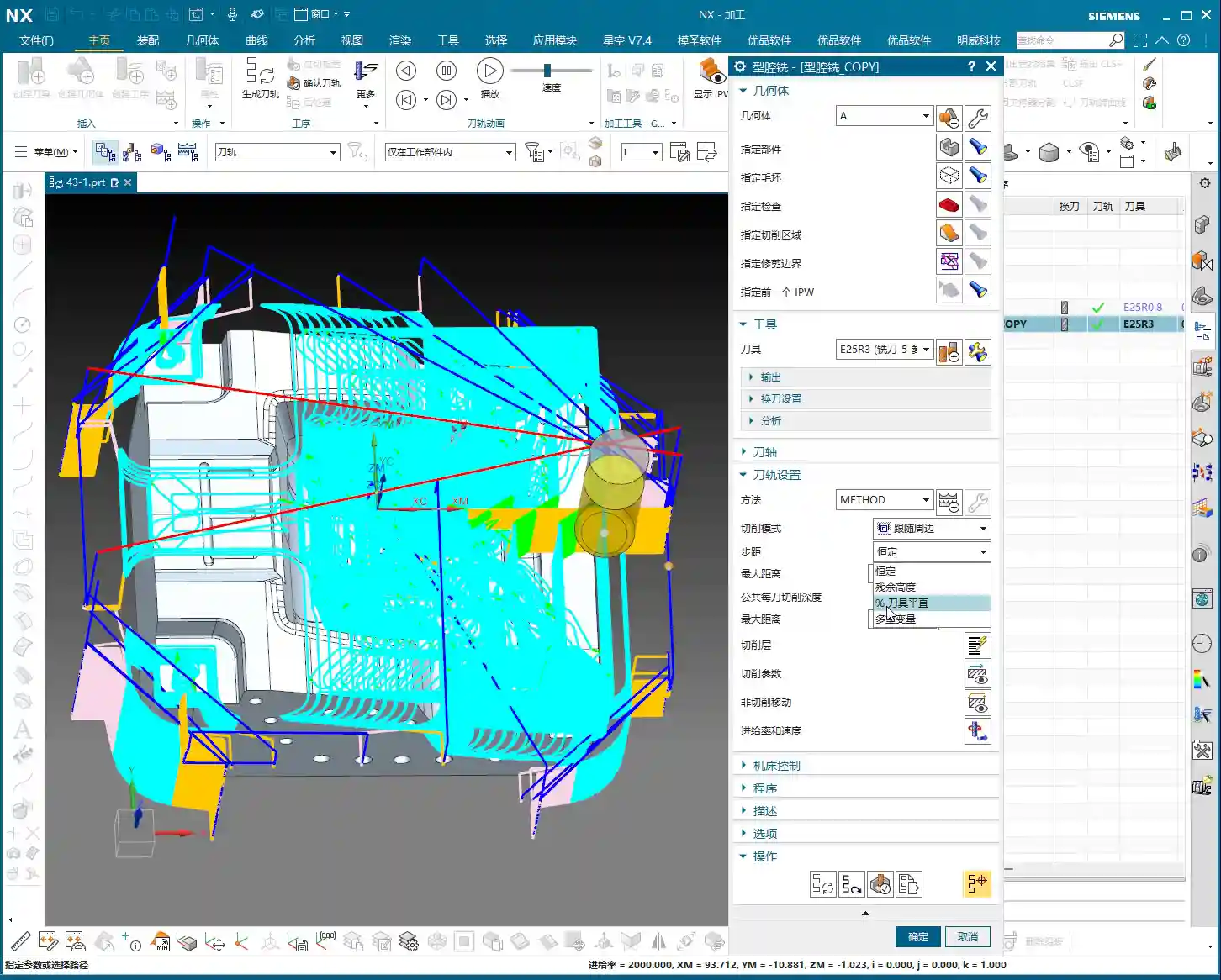
    Listen up. Simply put, ‘stepover’ is how much the tool shifts sideways after completing each pass. Don’t think it’s simple; there’s a lot to it. Siemens NX offers several stepover modes, but for us on the shop floor, you mainly need to understand these two common ones.

    Constant Stepover: Simple, Direct, Ideal for Roughing

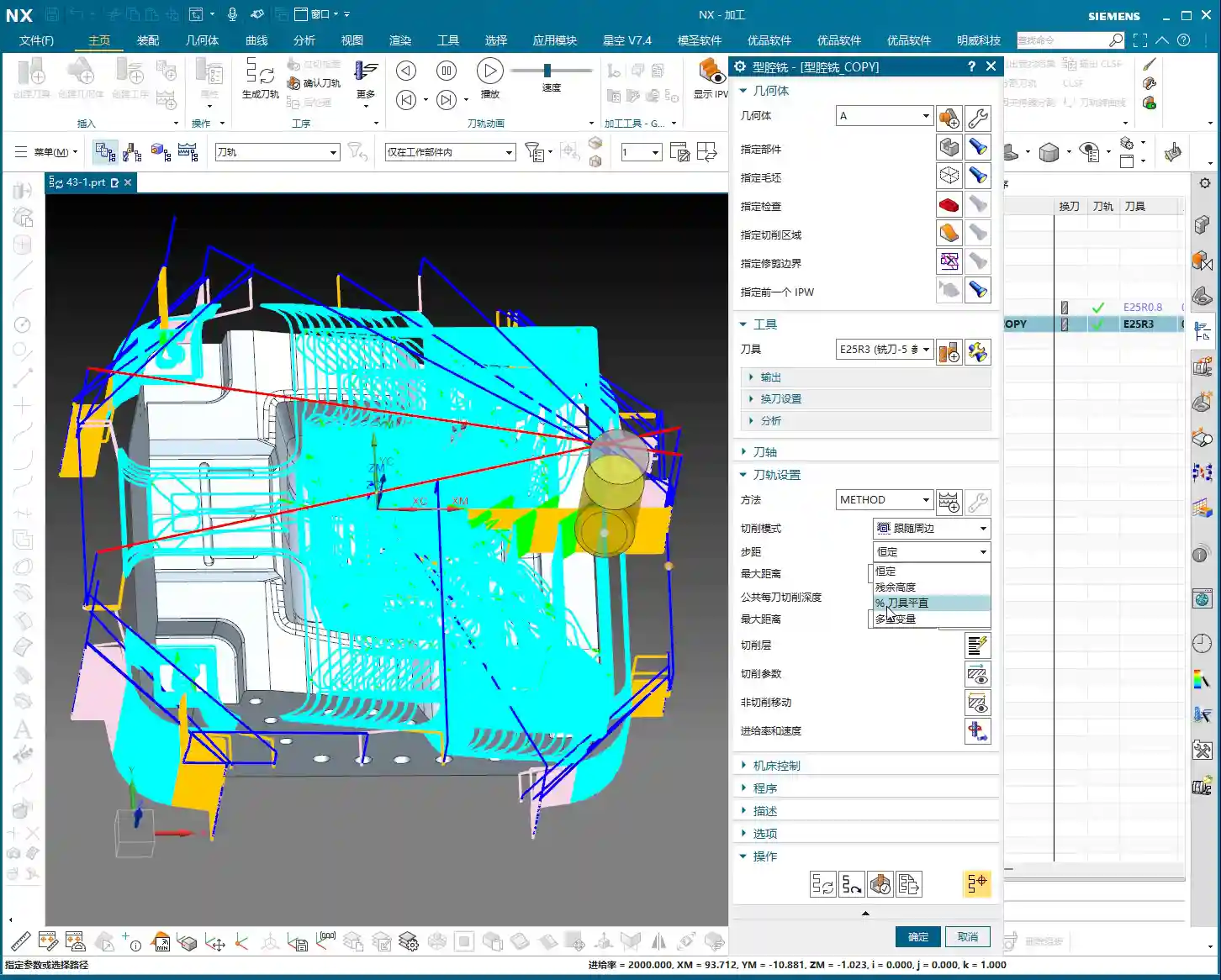
    ‘Constant Stepover’ is straightforward. You set a percentage, say 75%, and it calculates based on the entire diameter of your tool. For example, if you’re using a 25mm diameter tool and set it to 75%, each step will advance 25 * 0.75 = 18.75mm. This method is simple and direct; the tool moves quickly, making it suitable for roughing operations where efficiency is paramount.

    Percentage of Tool Flat: For Precision Finishing and Surface Quality

    Now, ‘Percentage of Tool Flat’ is what we need to focus on for finishing passes. It’s different from ‘Constant Stepover,’ so don’t mix them up!

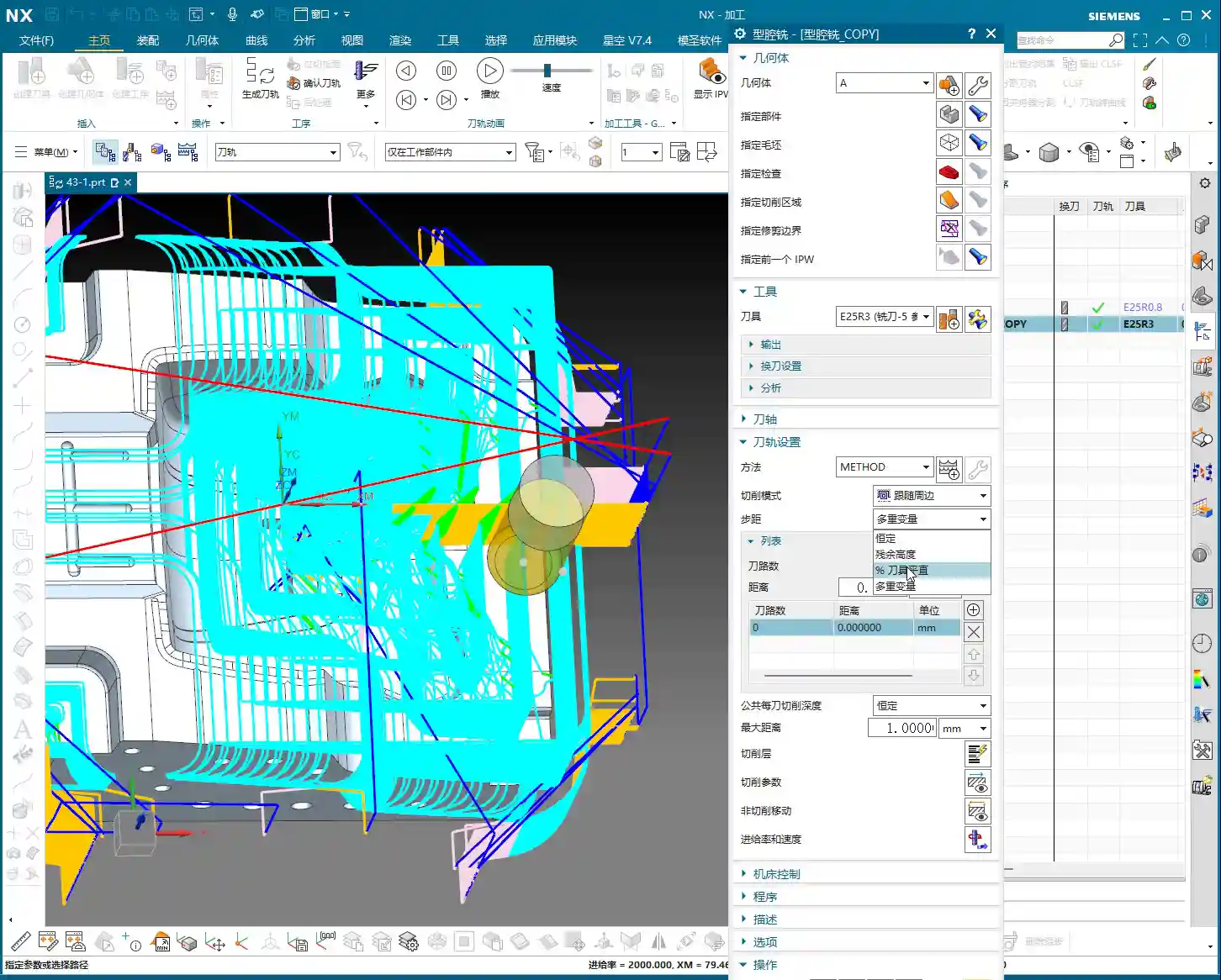
    Let me give you an example: Say you’re using a Φ25R3 bull nose end mill. The R3 here is the tool’s corner radius. So, how wide is the actual ‘flat portion’ of this tool? It’s the tool diameter minus the two corner radii, which is 25 – (2 * 3) = 19mm.

    If you set ‘Percentage of Tool Flat’ to 75%, then the calculated stepover will be 75% of that 19mm, meaning 19 * 0.75 = 14.25mm.

    See the difference? Both are 75%, but one calculates to 18.75mm, and the other to 14.25mm. The latter has a smaller stepover, meaning more passes, and thus a smaller scallop height (uncut material), resulting in a naturally better surface finish. This is why we prefer ‘Percentage of Tool Flat’ for finishing passes. However, the toolpath will be longer, and machining time will increase – it’s a trade-off between efficiency and quality.

    Normally, you can just default to ‘Percentage of Tool Flat’; it meets requirements in most situations.

    Constant Depth of Cut per Pass: Controlling the DOC

    This setting controls how deep the tool cuts with each downward pass. For instance, if you set it to 1 millimeter, the tool will descend 1 millimeter each time. If set to 5 millimeters, it will, of course, cut faster. But here’s a pitfall: when you encounter a planar surface, this ‘scallop height’ can change. Sometimes you’ll find that even if you set 1mm, it suddenly takes a 5mm or even deeper DOC. What’s going on? This brings us to our next major topic.

    Plane Recognition: Boosting Efficiency with Slope Analysis

    Why does the tool sometimes behave ‘well,’ following a sequential path, while other times it ‘jumps’ to complete a step? This relates to your part’s geometric characteristics – planar versus non-planar surfaces. Identifying planar surfaces in a part is crucial for us to develop efficient machining strategies.

    Why Identify Planar Surfaces? Machining Strategy is Key!

    Listen up! If an area is a planar surface, then we can directly use ‘Face Milling’ or other more efficient strategies. The tool can take large stepovers, or even a flat-end mill can be used for direct clearing. But if it’s a non-planar surface, especially a contoured surface, then you must consider the scallop height (also known as ‘cusp height’). You’ll need to use a ball end mill or the corner radius of a bull nose end mill for finishing, requiring a smaller stepover, and the toolpath will be more complex.

    Therefore, being able to instantly distinguish between planar and contoured surfaces directly impacts your programming approach and machining efficiency!

    Siemens NX Slope Analysis in Practice: No Hiding for Planar Surfaces

    In Siemens NX, we have a great tool called ‘Slope Analysis.’ This feature helps you quickly identify planar surfaces in your part model. It’s quite simple to use:

    1. Enter the analysis function and find the ‘Slope’ option.
    2. Select all the faces you want to analyze.
    3. Choose a ‘Reference Vector.’ Typically, we start by using the Z-axis direction (Z+ or Z-) as the reference.
    4. Check the results! Siemens NX will highlight planar surfaces that are ‘parallel to the reference vector’ (or rather, perpendicular to the reference vector) in green. These are the planar surfaces we’re looking for!

    If some faces aren’t green, but you suspect they might be planar, then change the reference vector direction (e.g., Y-axis or X-axis) and analyze again. This way, you can find planar surfaces in all orientations.

    Property Verification: Constant Z-axis Value is Undeniable Proof

    Just looking at colors isn’t enough; as a master teaching apprentices, I’ll show you how to truly verify. In Siemens NX, select a face you believe to be planar and then check its ‘Properties.’ If all points on this face have a constant Z-coordinate value (for example, all 8.75mm), then congratulations, it’s a genuine planar surface! If the Z-value varies even slightly, say ±0.005mm, then it’s not a standard planar surface; it might be a subtle angled surface or a contoured surface, and your machining strategy will need to change accordingly.

    Through this method, we can not only identify planar surfaces but also determine their respective heights. Some planar surfaces might be at the same height, while others differ. This provides us with the basis for selecting appropriate tools and machining paths later on.

    Scallop Height: We’ll Delve Deeper Next Time

    Today, we’ve thoroughly covered stepover and plane recognition. As for ‘scallop height,’ which I mentioned earlier, that’s another extensive topic. Especially in non-planar areas, how to control tool marks and ensure surface finish – this parameter has many settings, and newcomers can easily get confused. We won’t expand on it in this lesson; in the next class, I’ll personally guide you through mastering ‘scallop height’!

    Now, you lads need to practice diligently. Use ‘Slope Analysis’ to thoroughly examine your part models, find all the planar surfaces for me, and confirm their Z-coordinates. This is fundamental; with a solid grasp of the basics, you’ll be able to learn and effectively apply advanced techniques later on.

    Summary: Pitfall Avoidance Guide

    • Stepover Selection is Crucial: For roughing, choose ‘Constant Stepover’ for efficiency. For finishing passes, always select ‘Percentage of Tool Flat’; it more effectively controls scallop height and improves surface quality. However, understand that its calculation is based on the tool’s flat portion, not its full diameter.
    • Slope Analysis, Your Planar Surface Identification Weapon: Stop relying on guesswork! Make good use of Siemens NX’s ‘Slope Analysis’ function. By combining it with different reference vectors, quickly and accurately identify all planar regions in your model. The green areas are your targets!
    • Z-axis Property, Undeniable Proof for Planar Surfaces: Doubting if a face is planar? Open its ‘Properties’ and check if its Z-coordinate remains constant. Even a tiny variation in the Z-value indicates it’s not a purely planar surface and requires a different machining approach.
    • Machining Strategy, Adapt to the Terrain: Clearly identifying planar versus non-planar surfaces allows you to select the most appropriate machining strategy during programming. This avoids using inefficient contour milling methods on planar surfaces, or aggressive face milling methods that could damage contoured details. It saves both time and tooling, while ensuring quality.
    • Don’t Blindly Trust Default Parameters: All parameter settings must be adjusted based on the actual workpiece, tool, and machining requirements. Don’t just rely on software simulations; pay close attention to actual cutting sparks and tool marks.

    👤 About the Author:
    The author is a veteran CNC machining professional with 15 years of industry experience, specializing in UG NX programming. This article is an original work representing personal practical insights.

    ⚠️ Copyright Notice: Unauthorized reproduction or distribution without prior communication is strictly prohibited.
  • Master Wang’s Hands-On Guide: Siemens NX CNC Machining – Practical Essentials and Pitfall Avoidance

    📝 Key Takeaways: Master Wang personally shares the practical essentials of Siemens NX CNC drilling, boring, reaming, and tapping. He delves into the programming and operational keys for each hole machining process, from G-code and Q-value chip evacuation to feed rates, spindle speeds, and tool selection. He thoroughly analyzes the F=S*P calculation for M5 tapping, emphasizing the critical importance of pilot hole accuracy, tool rigidity, and chip evacuation. Rejecting theoretical talk, the focus is on practical machine operation and cost efficiency, helping you avoid common pitfalls like tool breakage and scrapped parts, thereby improving machining accuracy and efficiency.

    Hello everyone, I’m Master Wang. Today, we’re diving deeper into some core machining processes: drilling, boring, reaming, and tapping. Don’t underestimate these fundamental operations; each step holds significant intricacies. A misstep can lead to scrapped parts, or even broken tools. Listen closely. Today, I’ll break down the practical insights I’ve gathered over years of hands-on experience.

    Drilling: The First Step in Part Machining

    Drilling is the starting point for part machining. In Siemens NX, you’ll select Sense or Drill – the name isn’t as important as understanding its function. Setting the hole position and depth in NX is similar to spot drilling. However, drilling introduces a critical parameter: the Q-value, which is the pecking depth, used for chip evacuation. Especially for deep holes, an incorrectly set Q-value can lead to poor chip breaking, severe chip packing and tool breakage, or even damage to the hole wall!

    When setting the depth in NX, like the 40mm shown in the video, remember it’s just an example. In actual machining, the depth must account for the tool tip angle. For instance, if you’re drilling an M8 hole with an effective depth of 20mm, when setting the depth in NX, you need to add the length of the tool tip to ensure the full hole diameter is achieved at the required depth. Siemens NX’s G83 cycle (deep hole drilling) repeatedly pecks in and retracts to evacuate chips using the Q-value. With each retraction, make sure the chips are fully cleared. Don’t just rely on software simulations; observe the cutting sparks and the actual chip formation!

    Practical Tips

    • Tool Selection: High-speed steel (HSS) and carbide drills each have their characteristics. Carbide is suited for high-speed, high-efficiency operations but has slightly less rigidity and higher machine requirements. For tough materials like titanium alloys and high-temperature nickel-based alloys, specialized custom drills with specific coatings and geometries are essential.
    • Feed and Spindle Speed: Listen up, it’s better to go a bit slower than to rush too fast. Especially when drilling blind holes, decelerate as you approach the bottom to prevent chipping the cutting edge. Chip evacuation must be prompt, and coolant should be generously supplied, directed right into the cutting zone.
    • G-code: The Siemens NX post-processor will output G83 Z-Depth R-Retract Plane Q-Peck Depth F-Feed rate. Note that the Z-value must include both the safety distance and the tool tip length.

    Boring: The ‘Scalpel’ for Precise Hole Sizing

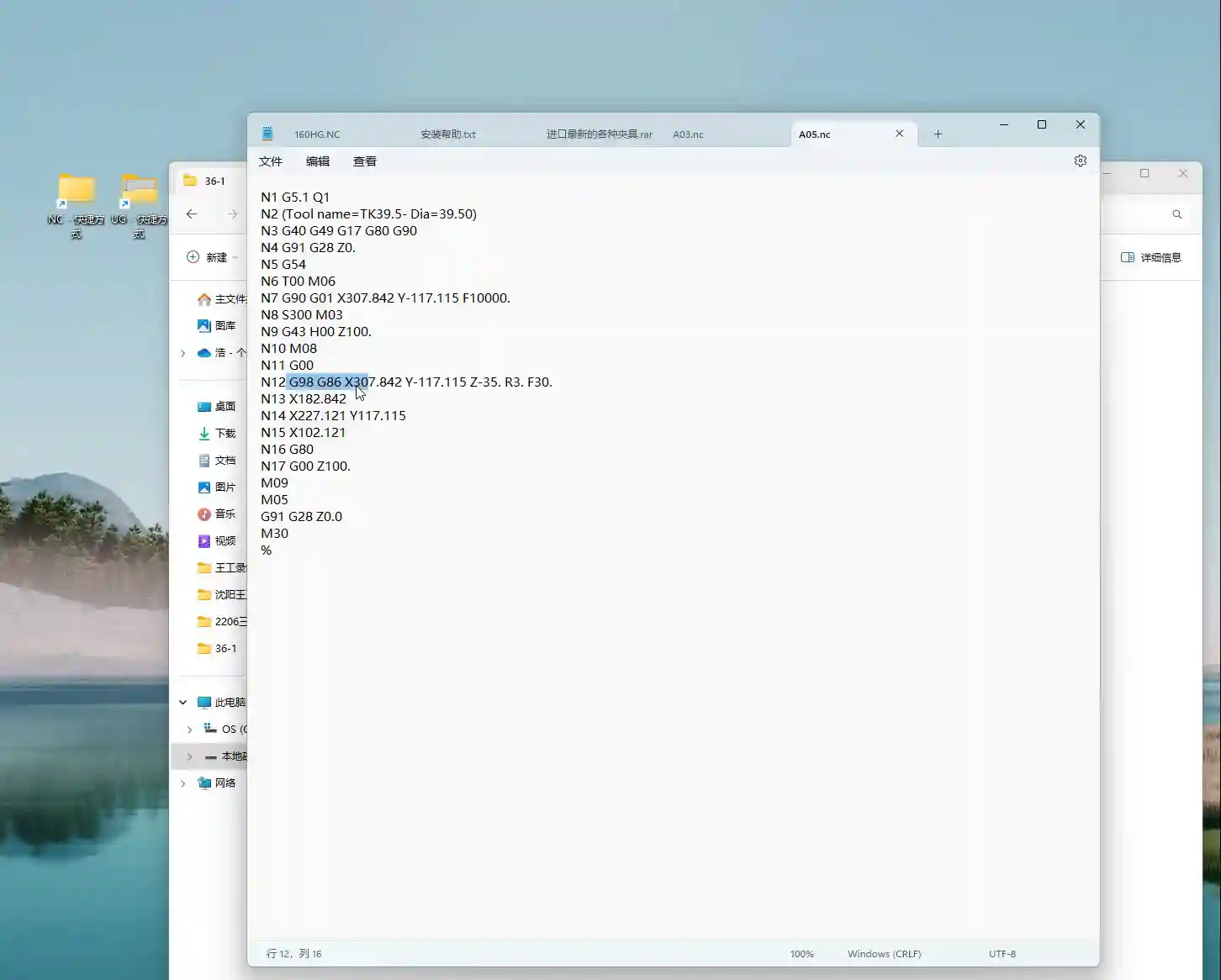
    Boring, simply put, is the secondary machining operation for drilled holes to achieve higher precision and surface finish. Drills are for roughing; boring tools are for finishing. In Siemens NX, you select Boring, and the resulting G-code is typically G86 (spindle stop and retract) or G85 (spindle forward and retract) – pay attention to their differences. Choosing the correct boring tool and cycle determines the final quality of the hole.

    The key to boring is tool rigidity and overhang length. Shorter, thicker boring bars offer better rigidity, resulting in higher hole precision and less susceptibility to chatter. For deep holes, where depth exceeds three times the diameter, specialized anti-vibration boring bars or even tungsten carbide boring bars are necessary. When setting up boring tools in Siemens NX, precision in dimensions is crucial. For instance, if the video shows a 39.5mm hole, I’d create a 39.5mm boring tool. However, in actual machining, especially for finish boring, Tool Offsetting is extremely important. If you need to bore to an H7 tolerance, adjusting the tool offset by ±0.005mm (approx. ±0.0002 inch) should be routine for you.

    Practical Tips

    • Multi-Stage Machining: Finish boring typically involves two steps: rough boring and finish boring. Rough boring uses larger stock removal and faster feeds; finish boring uses minimal stock removal, slower feeds, and higher spindle speeds, with the goal of achieving a superior surface finish.
    • Tool Naming: While you can select any tool type in Siemens NX, the post-processed program’s tool name must correspond to the actual physical tool. Otherwise, if the operator sees a D100 boring tool in the program but you’ve loaded a D10 tool, you’re asking for major trouble! This is a practical pitfall not taught in textbooks.
    • G-code: G86 Z-Depth R-Retract Plane F-Feed rate. Note that G86 stops and orientates the spindle at the bottom of the hole before rapid retract, preventing tool marks. G85, on the other hand, retracts with the spindle still rotating forward.

    Reaming: Ensuring Both Dimensional Accuracy and Surface Finish

    Many people confuse reaming with boring. Boring can correct hole diameters and eccentricity, offering broader applications. Reaming is primarily used for final finishing of pre-drilled or pre-bored holes, making the final push for dimensional accuracy and surface roughness. It cannot correct positional errors, but it improves the hole’s roundness, cylindricity, and surface quality.

    In Siemens NX, select Reaming, and the generated G-code is typically G85. Remember, the stock allowance for reaming must be small, typically 0.05-0.15mm (approx. 0.002-0.006 inch) per side. Too much allowance can lead to reamer wear, chipping, or even oversized holes. The feed rate should be slow, and the spindle speed high. This differs somewhat from drilling and boring. Too slow, and you risk chatter marks; too fast, and the reamer won’t properly cut the allowance, resulting in a poor surface. Coolant must be abundant to ensure chip evacuation and cooling.

    Practical Tips

    • Reamer Selection: Reamers come in hand reamer and machine reamer types, as well as straight flute and helical flute designs. Select the appropriate reamer based on the hole type and material. Pay special attention to the chamfer on the leading edge, as it directly impacts reamed hole quality.
    • Siemens NX Programming: Remember to properly set the reamer’s entry and exit paths to ensure smooth tool engagement and retraction, preventing secondary scratches on the hole wall.
    • G-code: G85 Z-Depth R-Retract Plane F-Feed rate. G85 maintains forward spindle rotation at the bottom of the hole and retracts with the spindle still rotating forward, which prevents tool marks on the hole wall, making it suitable for finishing operations.

    Tapping: Adding Threads to Your Part

    Tapping is the process of machining threads into a hole, preparing it for assembly. Here, two parameters are paramount: pilot hole size and pitch.

    In Siemens NX, select Tapping. The standard tapping cycles are G84 (right-hand thread) or G74 (left-hand thread). Most modern machines support Rigid Tapping, where the spindle and feed are synchronized, resulting in high accuracy and reduced tap breakage.

    Practical Tips

    • Calculating the Pilot Hole: Taking an M5 thread as an example, with a pitch of 0.8mm. The pilot hole diameter is generally the nominal diameter minus the pitch. For an M5 thread, this would be 5 – 0.8 = 4.2mm (approx. 0.165 inch). This pilot hole size is critical; get it wrong, and the part is scrap! Too small, and the tap will easily break; too large, and the thread depth will be insufficient, failing to meet strength requirements.
    • Setting the Feed Rate (F-value): F = Spindle Speed (S) × Pitch (P). If S is 100 RPM and the pitch is 0.8mm, then F would be 80 mm/min. Don’t just blindly input parameters in Siemens NX; this formula must be second nature! Otherwise, if the tool wears down and the F-value isn’t adjusted accordingly, you’re looking at tap breakage.
    • Siemens NX Programming: Ensure the correct tap tool is selected and verify the tapping depth. When tapping blind holes, always leave chip clearance; don’t drill to the absolute bottom. The tap should also slightly lift at the bottom to prevent chip accumulation leading to tap breakage.
    • Cooling and Lubrication: Tapping is a heavy cutting operation, especially for steel. Ensure ample coolant is supplied to significantly extend tap life and improve thread quality.
    • G-code: G84 Z-Depth R-Retract Plane F-Feed rate S-Spindle Speed. Remember, the F-value must match S and P, otherwise tap breakage is inevitable.

    Summary: Pitfall Avoidance Guide

    Listen closely, whether it’s drilling, boring, reaming, or tapping, always remember these Master Wang’s Ironclad Rules for Avoiding Pitfalls:

    • Material is Fundamental: Different materials require corresponding adjustments to tooling, spindle speed, feed rate, and coolant. For high-hardness, high-toughness materials, don’t just think about brute-force speed. First, ask yourself: Is this a specialized tool?
    • Fixturing is a Prerequisite: The workpiece must be securely clamped and fixtured with sufficient rigidity. Vibration is the enemy of both accuracy and tool life! No matter how perfect your Siemens NX model looks, if it’s not stable on the machine, it’s all for nothing.
    • Tooling is Core: Selecting the appropriate tool and sharpening it properly are fundamental skills. Grinding custom tools is an expertise for experienced machinists like us – learn and ask more! Don’t use one tool for every job; that’s working foolishly, not cleverly.
    • Parameters are the Soul: Feed rates, spindle speeds, depths, and Q-values in Siemens NX programming aren’t set arbitrarily. They must be adjusted based on experience, tool manufacturer recommendations, and actual machine conditions. Don’t just rely on software simulations; observe the cutting sparks, listen to the cutting sound, and even smell the cutting chips – that’s real expertise!
    • Precision is Lifeline: When facing ±0.005mm (approx. ±0.0002 inch) level precision issues, don’t immediately blame the machine. Check your fixturing, tool wear, coolant, and tool offset settings. Often, process adjustments can resolve the problem.

    Finally, remember that machining efficiency and cost are always critical considerations. While ensuring quality, you must continuously think about how to optimize tool paths, minimize air cuts, and extend tool life. Alright, that’s all for today. Go digest this information thoroughly, and next time we’ll discuss something even more in-depth!

    👤 About the Author:
    The author is a veteran CNC machining professional with 15 years of industry experience, specializing in UG NX programming. This article is an original work representing personal practical insights.

    ⚠️ Copyright Notice: Unauthorized reproduction or distribution without prior communication is strictly prohibited.
  • Siemens NX Hole Milling Operation: Master Wang’s Hands-on Guide to Feature Geometry Setup and Precis

    📝 Key Takeaways: Master Wang explains the Siemens NX Hole Milling operation and feature geometry. The tutorial emphasizes a 2D machining perspective, detailing common operations like Hole Milling and Drilling. It highlights WCS coordinate system establishment, hole dimension verification, and deeply analyzes the “Specify Feature Geometry” function. Master Wang teaches how to flexibly adjust parameters like diameter and depth from automatic to “User Defined,” and combines this with practical machine operation experience, emphasizing the importance of avoiding overcutting and recognizing cutting sparks. A practical pitfall avoidance guide is included to help you precisely control hole machining in Siemens NX.

    Master Wang’s Talk: The Ins and Outs of Hole Machining

    Alright apprentices, listen up! Today we’re diving deep into hole machining in Siemens NX. This operation might seem simple, but there’s a lot more to it than meets the eye, especially the practical tricks that textbooks don’t teach. You’ll want to pay close attention. We’ll start with the most common Hole Milling operation and its feature geometry. Remember, for now, we’re sticking to 2D machining. Forget about fancy 3D stuff for a moment; let’s build a solid foundation first!

    The Hole Machining Family: Common Operations at a Glance

    There are quite a few operations in NX that deal with ‘holes,’ so let me break them down for you. These are the ones we commonly use in the shop, mostly 2D operations. Understand these first, and then we’ll go deeper:

    • Hole Milling: This is today’s main topic, primarily used for milling holes. It’s highly efficient, especially suitable for machining larger diameter holes.
    • Spot Drilling: Used for creating a center dimple to accurately position the drill for subsequent drilling, ensuring the drill doesn’t wander.
    • Drilling: Directly drilling holes with a drill bit. This is the most fundamental hole machining method.
    • Tapping: For machining threaded holes. This requires extremely precise coordination between spindle speed and feed rate; one mistake and the part is scrap.
    • Centering: Another type of positioning, sometimes used with spot drilling, chosen based on the specific workpiece and precision requirements.
    • Boring: Using a boring bar to enlarge and correct hole diameters, improving accuracy and surface quality. This is key for achieving high-precision holes.
    • Reaming: Using a reamer to fine-tune hole diameters and surface roughness, further enhancing precision and finish.
    • Deep Hole Drilling: A specialized machining strategy for deep holes, requiring consideration of chip evacuation, cooling, and preventing drill runout.
    • Helical Milling: Also known as helical interpolation, using an end mill to machine holes with a helical plunge, resulting in stable cutting and good chip evacuation, suitable for hard materials or large holes.

    As for things like 3D solid contours, 3D chamfering, or 3-axis deburring, don’t rush into those yet. They’re advanced techniques and not used as frequently. We’ll cover them separately if the opportunity arises. For now, focus on mastering these fundamental, commonly used operations!

    Workpiece Preparation: Coordinate System and Hole Dimension Verification

    Before you even think about machining, get your workpiece and coordinate system sorted. This is the absolute first step on the shop floor, and it’s no different in NX.

    Establishing and Positioning the Coordinate System

    In Siemens NX, we first create the Work Coordinate System (WCS). Listen closely, this WCS is as critical as tool offsetting on the machine. It dictates the starting point and direction for all your toolpaths. Typically, we set the WCS origin at the center of the workpiece, or at a reference point that’s easy for tool offsetting. I personally prefer to have the Z-axis pointing upwards, in the direction of our tool feed. It looks right and reduces errors. Don’t underestimate this small habit; it can save your skin when it matters!

    Once the WCS is established, you need to verify it. Even though NX offers simulation, us veteran machinists live by ‘seeing is believing!’ It’s like how you always do a dry run after tool offsetting to confirm clearance. Make it a habit to ensure the WCS positioning is logical to prevent unexpected issues during machining.

    Hole Dimensions: Eye it, Measure it, Know it Cold

    Before machining, you need to be intimately familiar with the holes you’re going to work on. In NX, you can measure the hole diameter and depth. For example, as mentioned, holes might measure Ø32 or Ø20.5. Don’t just rely on the drawing; check the actual model. Are multiple holes symmetrical? Are all dimensions consistent? This is like when you get a new part; you first run a caliper over it to spot any obvious issues. Sometimes there can be ‘hidden traps’ between the design drawing and the actual model.

    Core: Hole Milling Operation and Feature Geometry Explained

    Alright, preparation is complete. Let’s get hands-on with the “Hole Milling” operation.

    Quick Start: Hole Milling

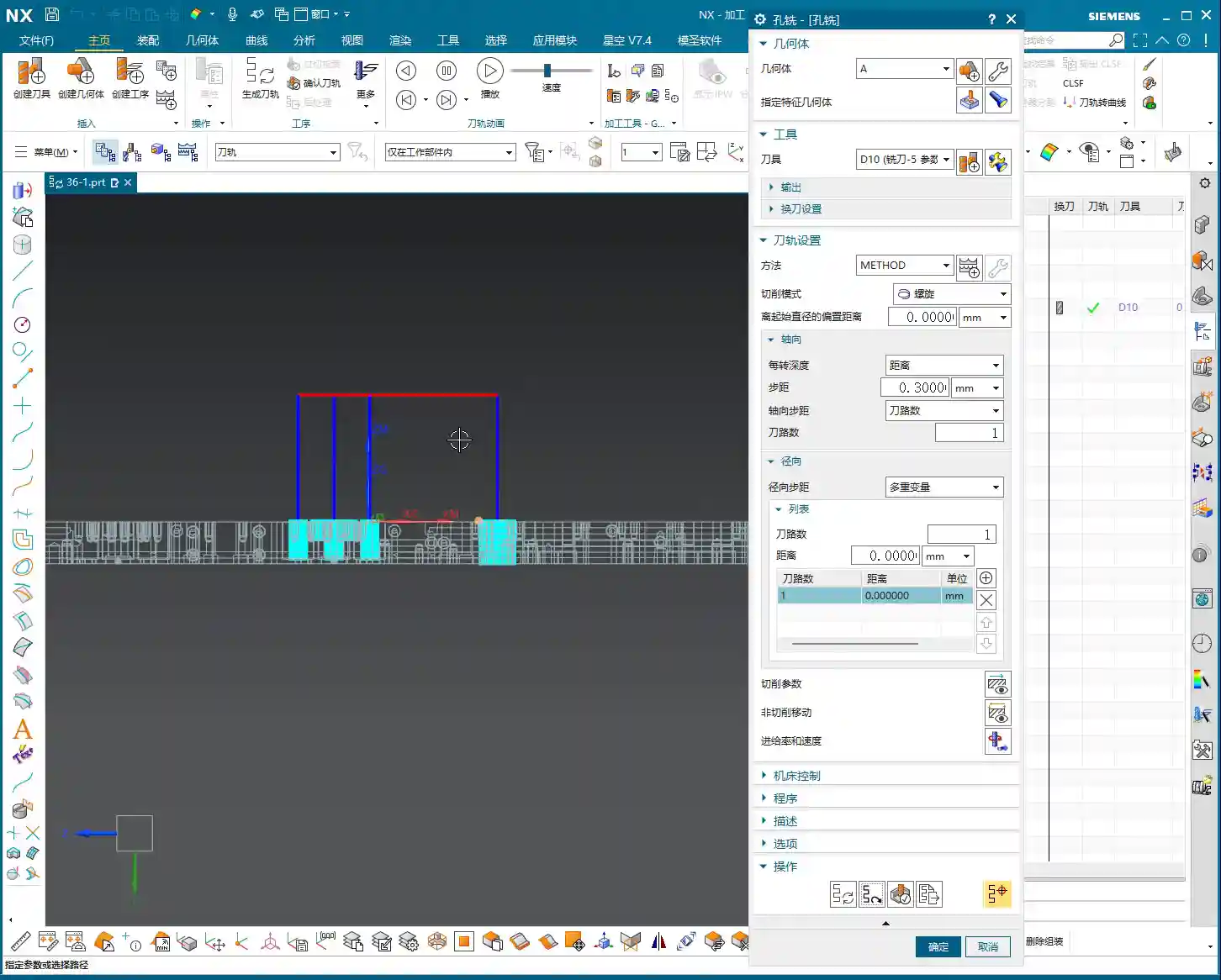
    To perform hole milling, simply double-click the “Hole Milling” operation in NX. Then, in the pop-up window, you need to create a geometry feature, such as selecting the default “A” or your custom geometry. This step tells NX which area you intend to machine. The operation itself is very straightforward, unlike some older operations with tedious steps.

    Specifying Feature Geometry: Selecting the Right “Target” is Key

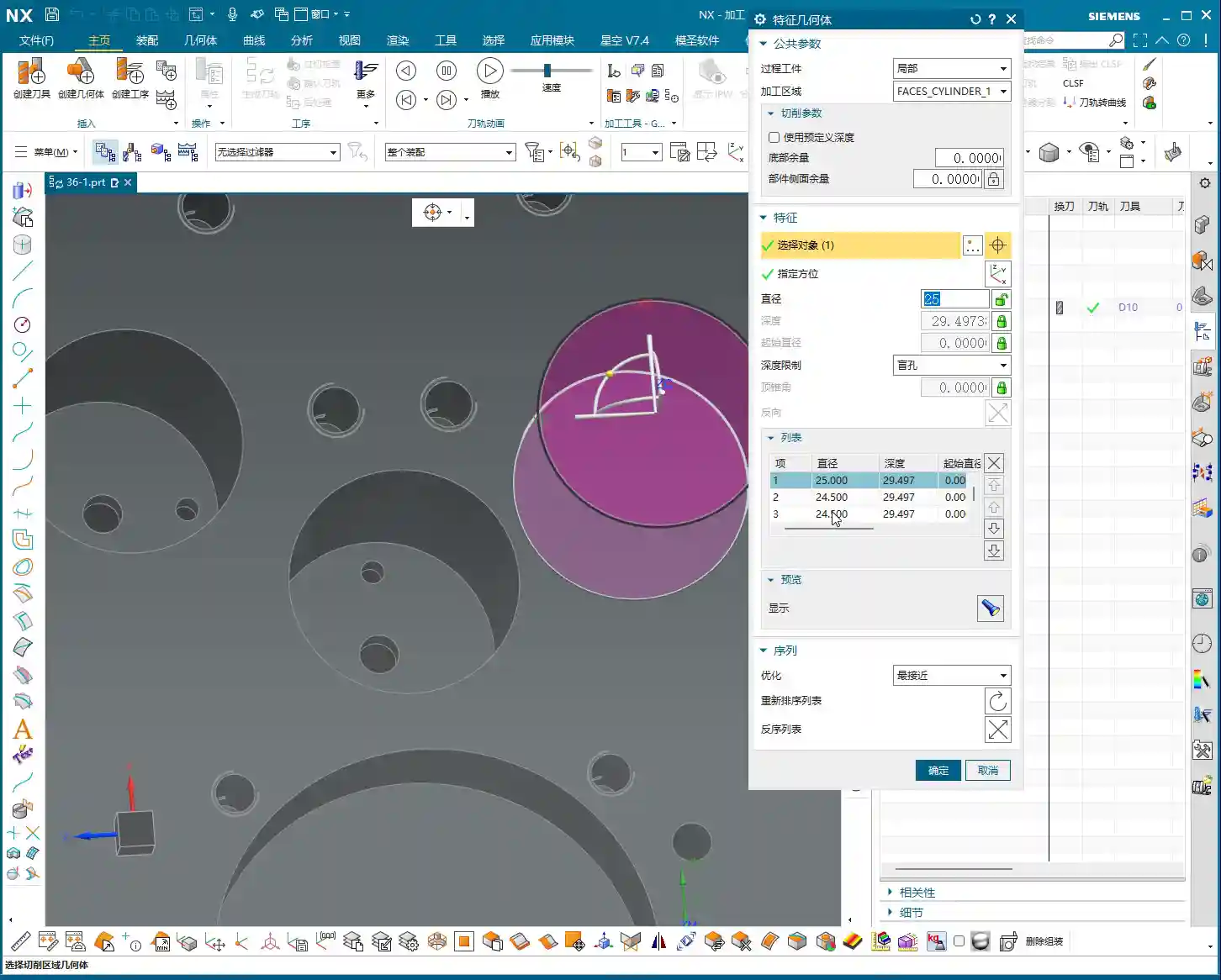
    Listen closely, this is critically important! After entering the Hole Milling operation, you’ll see an option called “Specify Feature Geometry.” Click on it, and NX will prompt you to select the holes you want to machine. This is like standing at the machine and clearly telling the machinist, “Drill this hole, bore that one.” Whichever hole you select, NX will machine that hole. You can select them individually or batch-select multiple holes. Once selected, NX will automatically identify the diameter and depth of these holes.

    • Stock Settings: For now, we can skip options like “Process Tolerance,” “Trim Stock,” or “No Stock.” Stock allowances can be uniformly adjusted in more advanced parameter settings, so there’s no need to fiddle with them here every time. “No Stock” here simply means we generally don’t apply additional stock settings in this particular dialog.
    • Key Information: Once you select the hole, NX will automatically display its diameter (e.g., Ø20.5mm) and depth (e.g., 29.4999mm). These two parameters are the most critical data for hole machining, and you must know them inside out!

    After selecting the holes and a suitable tool, simply generate the toolpath, and a basic hole milling program is ready. Isn’t that simpler than you thought? The key is to select the correct geometry, and NX automatically determines most of the parameters for you.

    Advanced: Flexible Adjustment of Hole Parameters and Precision Control

    While default parameters are convenient, as machinists, we must have the ability to adjust and control them. This is especially true when dealing with non-standard parts, special materials, or when precision issues arise.

    Modifying Hole Diameter: From “Automatic” to “User Defined”

    You might notice that, by default, NX’s automatically identified hole diameter and depth cannot be directly modified; they appear “grayed out,” preventing input. Listen up, this isn’t NX stopping you from making changes; it simply thinks it has already determined the correct values for you. But if we need to make an adjustment, we have to tell it, “We’re taking control.”

    To modify the hole diameter, you must change the corresponding “Parameter Definition Method” or similar option (referred to as “decimal” in the audio, but usually a dropdown menu in actual operation) from “Automatic” to “User Defined.” Once set to “User Defined,” you can freely input your desired diameter.

    • Practical Example: For instance, changing a Ø20.5mm hole to Ø25mm. NX won’t throw an error, but when you generate the toolpath, you’ll see obvious “overcutting.” At this point, don’t just rely on software simulation; you need to know that on a real machine, one cut like that, and the part is scrap! This scenario can easily lead to excessive Depth of Cut (DOC) or even scrap the part directly. Don’t assume there’s no problem just because the software doesn’t flag it; that’s deceptive!
    • Flexible Adjustment: You can decrease the diameter to Ø20mm or increase it to Ø50mm, and NX will generate the toolpath according to your input. This is particularly useful when dealing with non-standard holes, irregular holes, or when needing to leave stock for finishing passes. However, you must be absolutely clear in your mind whether the modified dimension matches your tool and meets your process requirements.

    Adjusting Hole Depth: Precise Control for Deep Hole Machining

    Similarly, hole depth can also be flexibly adjusted. For example, you can set the depth of the first hole to 10mm, the second to 20mm, the third to 50mm, or even a deeper 100mm. This is crucial for machining multi-step holes, blind holes, or holes with varying depth requirements. Depending on material properties and tool conditions, we sometimes employ strategies like layered machining or pecking for chip evacuation, and flexible depth control is fundamental to implementing these strategies.

    Batch Modification: Efficiency is King

    If you have multiple holes of the same size that need adjustment, there’s no need to change them one by one. In the “Specify Feature Geometry” interface, you can hold down the Ctrl key to select multiple holes, or drag-select multiple holes, then change their “Parameter Definition Method” to “User Defined” all at once, and finally input your desired diameter or depth. This is a powerful trick for boosting efficiency. In our machining world, time is money, so save every step you can!

    Master Wang’s Practical Secrets: Fine-Tuning Dimensions and Tolerances

    Sometimes, when you encounter precision issues at the ±0.005mm (approx. 0.0002 inch) level, software alone won’t cut it. That’s where experience comes in! For example, machining aluminum versus titanium alloys – their thermal expansion coefficients differ, so cutting parameters and stock allowances must be adjusted. If a hole’s diameter is slightly off, you can achieve the correction by modifying tool compensation, or by fine-tuning the diameter of this feature geometry within Siemens NX. But remember, such fine-tuning must be built upon a deep understanding of material characteristics, tool wear, and machine accuracy. Don’t just rely on software simulation; you need to observe the cutting sparks, listen to the cutting sound, and feel the part. Those are the true skills!

    Summary: Pitfall Avoidance Guide

    • Pitfall 1: Blindly trusting default parameters. NX’s automatically identified parameters are based on the model, but they may not always align with your actual machining requirements. Especially for hole diameter and depth, always verify against the print and process specifications, and modify manually when necessary.
    • Pitfall 2: Failing to verify after modifying parameters. After changing diameter or depth, always regenerate the toolpath and perform simulation verification. More importantly, you must be mentally prepared and understand whether this modification will lead to overcutting, tool breakage, or dimensional deviations on a real machine. Just because the software doesn’t throw an error doesn’t mean the machine won’t!
    • Pitfall 3: Neglecting precise positioning of the coordinate system and workpiece. The accuracy of all hole machining operations relies on an accurate WCS. If the WCS isn’t correctly set, all subsequent holes will be off, the part will be scrapped, wasting both time and material.
    • Pitfall 4: Disregarding material characteristics. Different materials (from common aluminum to titanium alloys, high-temperature nickel-based alloys) have vastly different cutting parameters, tool selections, and heat treatment distortion tendencies. These factors must be fully considered during machining, for instance, for materials sensitive to thermal deformation, layered feeds and cooling methods must be accounted for.
    • Pitfall 5: Only focusing on the toolpath and ignoring cutting sparks. No matter how realistic Siemens NX simulation is, it’s still virtual. To truly judge the machining status, you need to rely on your eyes and ears. Spark color, chip formation, and tool sound – these are the machine “speaking.” An experienced machinist can discern issues like excessive Depth of Cut (DOC) or chipping from these details.
    • Pitfall 6: Fearing user-defined parameters. Many beginners are afraid to change automatic parameters to user-defined, thinking it leads to errors. But to become a master, you must grasp this ability for flexible adjustment. While ensuring safety, try more, learn from your experiences, and only then can you truly master Siemens NX.

    Alright, that’s it for today’s lesson. Go home and digest all of this. Get hands-on and practice; you won’t learn just by listening!

    [EXCERPT]
    Master Wang explains the Siemens NX Hole Milling operation and feature geometry. The tutorial emphasizes a 2D machining perspective, detailing common operations like Hole Milling and Drilling. It highlights WCS coordinate system establishment, hole dimension verification, and deeply analyzes the “Specify Feature Geometry” function. Master Wang teaches how to flexibly adjust parameters like diameter and depth from automatic to “User Defined,” and combines this with practical machine operation experience, emphasizing the importance of avoiding overcutting and recognizing cutting sparks. A practical pitfall avoidance guide is included to help you precisely control hole machining in Siemens NX.

    👤 About the Author:
    The author is a veteran CNC machining professional with 15 years of industry experience, specializing in UG NX programming. This article is an original work representing personal practical insights.

    ⚠️ Copyright Notice: Unauthorized reproduction or distribution without prior communication is strictly prohibited.

  • Siemens NX CNC Machining: Practical Secrets for Entry Motion in Enclosed Regions and Helical Entry –

    📝 Key Takeaways:

    Siemens NX Enclosed Region Entry Motion: Master Wang’s Practical Tips

    Hello everyone, I’m Old Wang, Master Wang. I’ve been working at the…

    Hello everyone, I’m Old Wang, Master Wang. I’ve been working at the machine shop for fifteen years, and I’ve seen it all: turning, milling, planing, grinding, EDM. With Siemens NX, it’s not just about building models; the real skill is programming toolpaths that are both fast and stable.

    Today, let’s talk about entry motion and enclosed regions in Siemens NX machining. Don’t think it’s just a few clicks in the software; there’s a lot more to it, and you won’t learn these tricks from textbooks.

    Non-Cutting Moves Overview: Why is Entry Motion So Important?

    Listen up: in Siemens NX, when programming toolpaths, besides the actual cutting process, a critical aspect is non-cutting moves. This includes entry motion, retract motion, smoothing, and so on. Don’t underestimate these rapid moves; they directly impact your machining efficiency and tool life. Incorrect entry motion can lead to minor tool wear, or worse, chipped tools, tool breakage, or even a machine crash!

    Entry motion, in particular, is the tool’s first contact with the workpiece, determining the initial state of cutting forces on the tool. Especially when encountering enclosed regions, the tool cannot simply enter from the side; it must “drill” into the material. This requires careful consideration of how to “drill” in a stable and efficient manner.

    Region Type Analysis: Enclosed vs. Open, How Siemens NX Sees It?

    First, you need to understand whether the area you’re machining is enclosed or open. Siemens NX programming is much smarter than you might think.

    What is an Enclosed Region?

    Simply put, it’s an area where the tool cannot directly enter from the side. For example, a fully enclosed deep pocket, blind hole, internal groove, etc. The tool must either plunge vertically into the material or descend to the specified depth via helical or ramp entry before cutting can begin.

    Master Wang’s Insight: When encountering such areas, the tool is like a diver entering the water; it needs a safe and stable way to descend. Otherwise, plunging straight in will lead to severe Depth of Cut (DOC), causing problems!

    What is an Open Region?

    As the name suggests, this is an area where the tool can freely enter from the outside of the workpiece or from the side of an already machined area. For example, the outer contour of a part, an open slot, or an internal area that has already been opened up through roughing.

    Master Wang’s Insight: Open regions are much easier; the tool can directly plunge in, or gently “graze” in from the side, eliminating the need for helical entry and resulting in higher efficiency.

    Siemens NX’s Intelligent Judgment: Don’t Blindly Change Parameters!

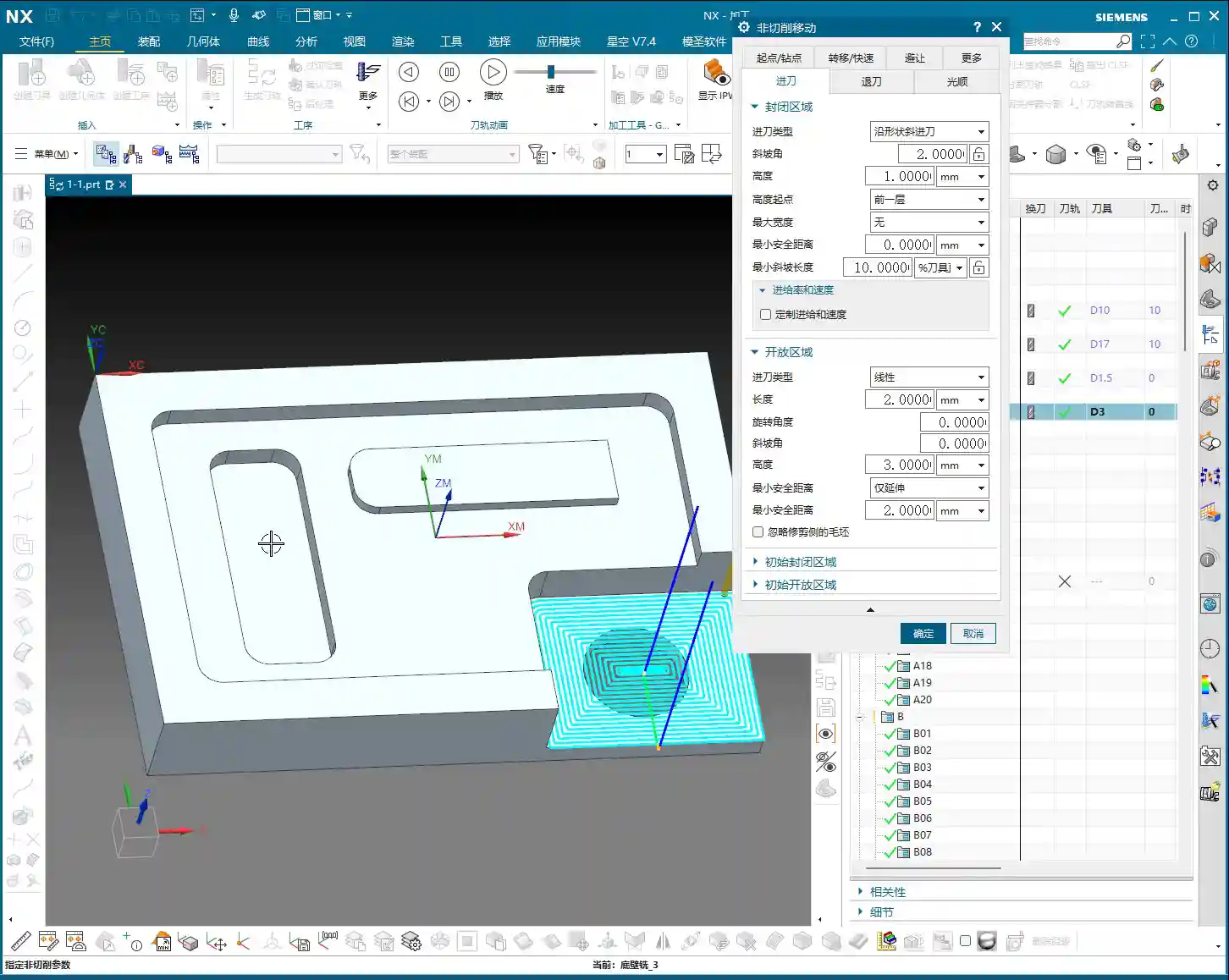
    I want to emphasize that Siemens NX is very intelligent! After you select a machining region, it will automatically determine whether it’s an enclosed or open region. Accordingly, it will only apply the entry motion parameters you’ve set for that specific region type.

    • If you’re machining an enclosed region, then changing “open region entry motion parameters” as much as you like will be useless! It will only look at the settings under “enclosed region entry motion.”
    • The inverse is true: when machining an open region, it will only acknowledge the “open region entry motion” parameters.

    Master Wang’s Reminder: Don’t waste time changing parameters that won’t take effect! You might think the software will obey you, but in reality, it has its own “judgment.” You need to clearly identify what type of region you’ve selected, then apply the appropriate settings. The yellow line in the software simulation is the entry path you really need to pay attention to!

    Entry Strategies for Enclosed Regions: Helical is King!

    For enclosed regions, the most common and safest entry method is Helical Entry. The tool slowly descends in a helical path, gradually engaging the material, which avoids the massive impact of vertical plunging and significantly extends tool life.

    Helical Entry Core Parameters

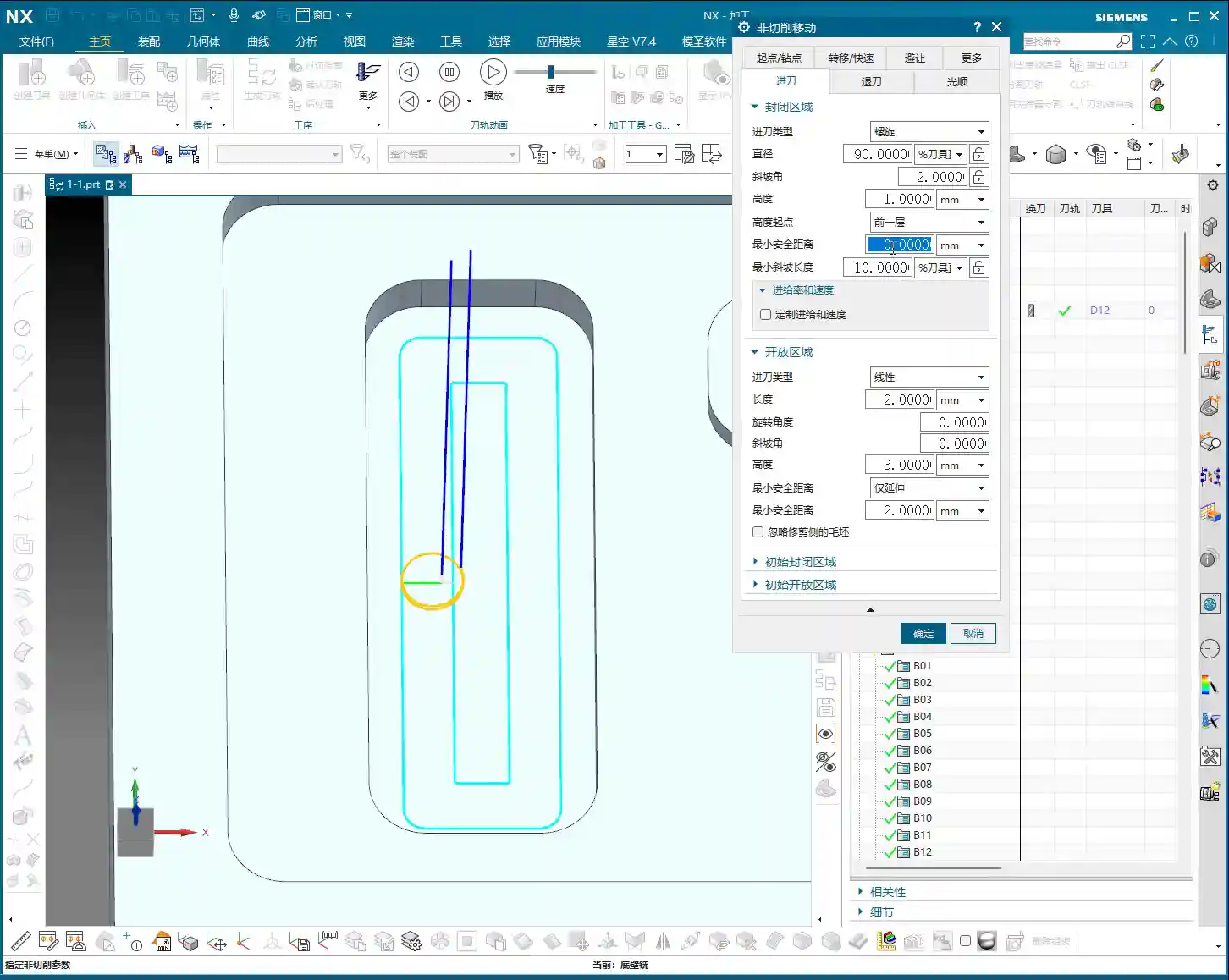
    In Siemens NX’s “Non-Cutting Moves” settings, find “Enclosed Region Entry Motion,” and pay close attention to these parameters:

    • Diameter: This parameter controls the diameter of the helical entry. It’s usually defaulted to 90% of the tool diameter.

      Master Wang’s Insight: Don’t arbitrarily reduce this value! If the diameter is too small, the tool’s center load becomes excessive, leading to wear and even tool breakage. Especially when machining hard materials like titanium alloys or high-temperature nickel-based alloys, ensuring sufficient diameter is crucial for tool survival.

    • Ramp Angle: This is the angle at which the tool descends helically. It’s usually defaulted to 2 degrees.

      Master Wang’s Insight: This angle is the balance point between efficiency and safety. A smaller angle means smoother entry, less force on the tool, but a longer entry time. A larger angle means faster entry, but also greater impact and load on the tool.

      • Soft materials (e.g., aluminum): The angle can be appropriately increased, for example, to 3-5 degrees, to improve efficiency.
      • Hard materials (e.g., mold steel, titanium alloys): Be conservative, maintain 1-2 degrees, or even smaller, to ensure tool safety.
      • Tool characteristics: Two-flute tools can tolerate larger entry angles than multi-flute tools because the cutting force is distributed among fewer flutes.

    • Start Height for Ramp: This parameter determines the Z-axis height from which the helical entry begins. In Siemens NX, options like “Incremental Depth,” “Current Length,” or “Top Surface” are common.

      Master Wang’s Insight: Generally, choosing “Incremental Depth” (or a similar setting relative to the previous cut) is safer, meaning the tool starts its helical path from the bottom of the previous toolpath or a safe height above it. You can also specify an absolute value, such as 1mm or 2mm (approx. 0.04-0.08 inch), allowing the tool to begin helical entry 1-2mm above the current cutting plane.

      Practical Point: This height should not be set too high, as it will result in too many rapid moves and waste time. Nor should it be set too low, as the tool might crash into the material before even starting the helical path.

    Minimum Safe Distance

    This parameter, during helical entry, controls the minimum distance between the helical path and the workpiece wall. When you set this value, for instance, 0.1mm (approx. 0.004 inch), the tool’s outermost edge will maintain at least 0.1mm clearance from the workpiece wall during helical descent.

    Master Wang’s Insight: This is about giving the tool “breathing room”! Especially with new tools, high-precision machining, or when slight machine wear causes accuracy deviations, setting a small safe distance can effectively prevent the tool from scraping the sidewall during helical entry, protecting the tool and ensuring the side wall’s surface finish. However, this value shouldn’t be too large, or it will leave stepped unmachined material, requiring subsequent cleanup, which creates more hassle. Typically, 0.05-0.1mm (approx. 0.002-0.004 inch) is sufficient.

    Minimum Ramp Length

    This is an easily overlooked, yet critically important parameter for certain tools! It refers to the minimum cutting width that needs to be maintained during helical entry to ensure that the tool’s effective cutting edges are fully engaged.

    Master Wang’s Secret: Tool Type and Ramp Length Percentage

    • Solid Carbide End Mill: These tools typically offer full-flute cutting, with no “blind spot” at the tool tip. Therefore, their helical entry diameter can be relatively small, such as 10% to 20% of the tool diameter, or even smaller.

    • Indexable Insert Tool: Pay attention! Tools like face mills and shell mills are assembled with inserts, and their centers often have a “blind spot” – an area without cutting edges. If your helical entry path diameter is too small, causing the tool’s central blind spot to contact the workpiece, you’re asking for trouble – increased tool wear, unstable cutting, poor surface finish, or even immediate tool breakage!

      For indexable insert tools, the helical diameter corresponding to this “Minimum Ramp Length” parameter typically needs to be set larger. Generally, it’s recommended to set it to 50% to 70% of the tool diameter to ensure all inserts effectively engage in cutting and avoid the blind spot. Remember, don’t just rely on software simulation; consider the actual tool geometry and cutting principles!

    Summary: Pitfall Avoidance Guide

    1. Clarify Region Type: Before machining, always clearly determine whether it’s an enclosed or open region to avoid setting ineffective parameters. Siemens NX will make its own judgment, but you should have a clear understanding as well.
    2. Fine-Tune Helical Entry Parameters:

      • Diameter: Generally keep the default 90%, unless you have special considerations, such as a small diameter tool machining a deep hole.
      • Ramp Angle: Adjust according to material hardness and tool type. Use a small angle for hard materials, and a slightly larger angle for soft materials. But always remember: safety first!
      • Start Height for Ramp: Select an appropriate Z-value to avoid excessive rapid moves and prevent collisions.

    3. Balancing “Minimum Safe Distance”: Don’t set it too large, or it will leave unmachined material; don’t set it too small, or there’s a risk of scraping. 0.05-0.1mm (approx. 0.002-0.004 inch) is the common range.
    4. “Minimum Ramp Length” is Key: For indexable insert tools, this is paramount! Ensure the helical diameter is large enough to prevent the tool’s blind spot from cutting into the workpiece. This is based on experience, not something the software can fully account for on its own.
    5. Optimization Means Savings: Every parameter adjustment directly impacts your machining time, tool consumption, and product quality. Don’t be afraid to experiment; adjust, simulate multiple times, and find the optimal process parameters for your needs.

    Alright, that’s all for today. Remember, software is just a tool. A true expert understands these parameters, making the machine work for them, instead of being led by the software!

    👤 About the Author:
    The author is a veteran CNC machining professional with 15 years of industry experience, specializing in UG NX programming. This article is an original work representing personal practical insights.

    ⚠️ Copyright Notice: Unauthorized reproduction or distribution without prior communication is strictly prohibited.
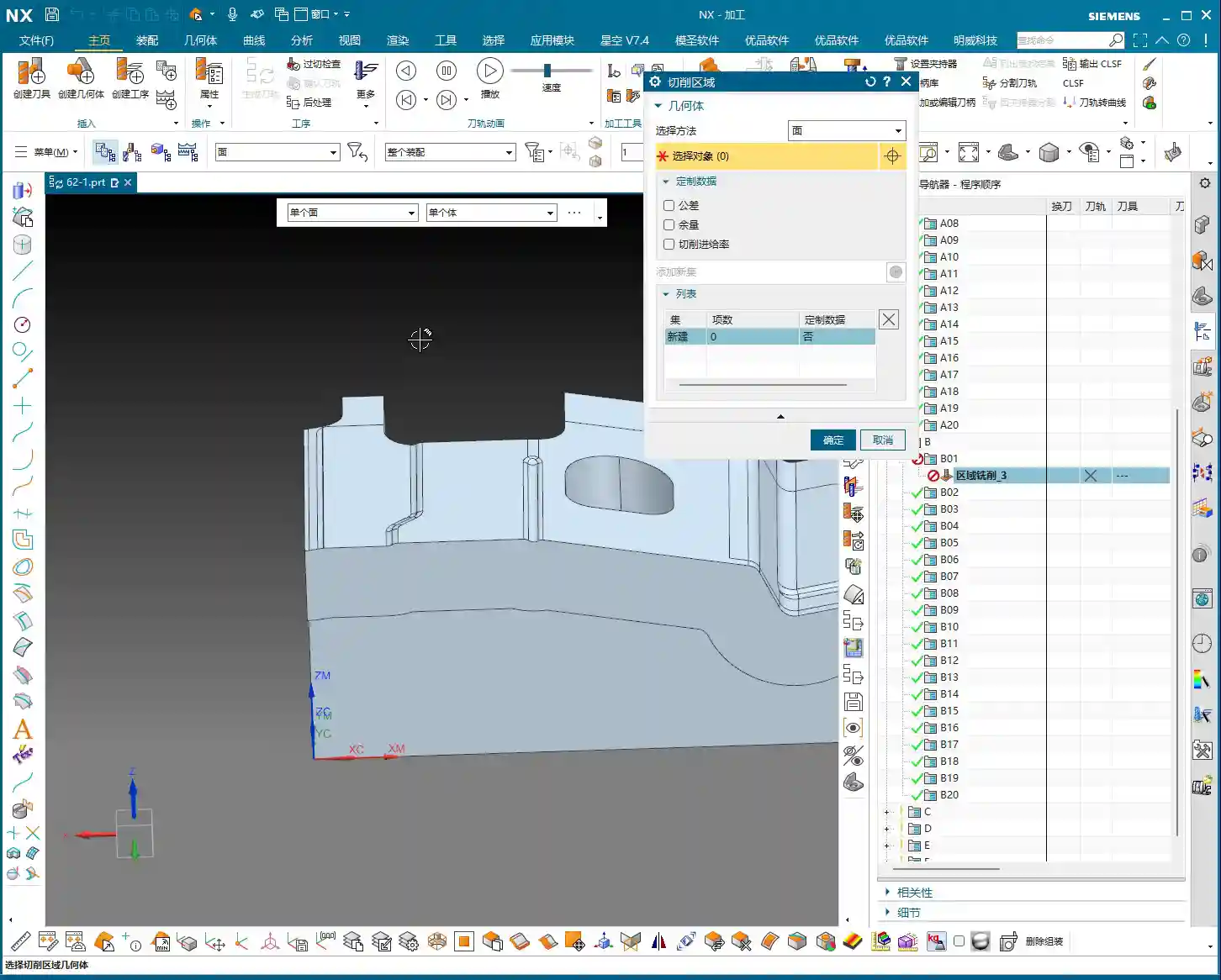
  • UG NX 1980 Cutting Parameter Strategy & Stock Management Tutorial

    📝 Key Takeaways: Master Wang provides a hands-on tutorial for setting cutting parameter strategies and stock in UG NX 1980. Learn how to select cutting directions, control undercut, and precisely manage various stock allowances to avoid common mistakes and improve efficiency and accuracy in real-world machining.

    Hello everyone, I’m Master Wang. Let’s pick up where we left off. Once we cover this section today, we’ll have basically wrapped up this page of work.

    Cutting Strategy: More Than Just Direction

    Let’s open up Cutting Parameters. There are quite a few commands in here, so we need to break them down one by one. First, let’s look at the ‘Strategy’ section.

    Cutting Direction: Climb vs. Conventional Milling, Different Jobs

    Initially, you’ll see a cutting direction, mainly referring to the Cutting Angle. When it’s moving in the negative direction, this cutting angle appears. It’s actually quite simple: it’s either climb milling (順銑) or conventional milling (逆銑).

    Typically, we mostly choose climb milling. We rarely opt for conventional milling. However, in special working conditions, conventional milling does have its place. Just remember these two methods; climb milling is generally sufficient.

    Automatic Cutting Angle: The Software’s ‘Cleverness’

    Have you ever noticed that at the beginning of a program, the tool always starts cutting from a specific direction, then follows a certain path? For instance, why does it always start cutting from this direction, and not the opposite? This is the result of automatic control of the cutting angle.

    Click it, and you’ll see a bunch of options like ‘Specify’, ‘Longest Edge’, ‘Fixed Vector’, ‘Receive Vector’. Don’t panic, we’ll start with the most commonly used ones.

    For example, choose Fixed Vector (Specify Vector). Click it, and you’ll see four directional arrows on the part. Click on any directional arrow, say this one, then ‘Specify’, and generate the toolpath. You’ll notice:

    • If you select a vertical arrow, the tool will perform vertical machining.
    • If you select a horizontal arrow, the tool will perform horizontal machining.

    In short, this command is used to change the machining direction, whether it’s milling horizontally or vertically, you decide. If you deselect the specified vector, it will revert to automatic determination.

    Specify Angle: Fine Control for Multi-Axis Machining

    Let’s look at ‘Angle’ within ‘Specify’. When the angle is 0 degrees, the toolpath is horizontal. If we change the angle to 90 degrees, and look at the arrow, it’s clearly pointing upwards, and the tool will machine vertically.

    This function simply allows you to change the tool’s machining direction. You can also try 45 degrees, which can also machine, but in actual work, we rarely use such diagonal machining methods; most of the time, it’s either horizontal or vertical.

    So, the meaning of ‘Cutting Angle’ is to let you control the tool’s path. Those parameters we didn’t cover are generally less used in face milling, and in most cases, automatic mode is sufficient.

    Add Finishing Pass: A ‘Redundant’ Feature for Face Milling

    The ‘Add Finishing Pass’ option below is generally not very useful for face milling. We can ignore it for now.

    Allow Undercut: A ‘Sharp Tool’ for Deep Cavities

    Here’s an important one! As soon as you turn on ‘Allow Undercut’, you’ll see the effect. Look at this small icon: the first pass is fine, but what about the second?

    Did you notice that it has overcut, milling away the entire side wall? This is the function of ‘Allow Undercut’; it enables the tool to machine into internal corners of a part, even cutting into areas smaller than the tool’s diameter.

    If you don’t allow undercut, it will only follow the largest outer contour, unable to reach deeper or narrower areas. Of course, if you’re using a special tool like a T-slot cutter, allowing undercut for machining side walls is perfectly fine.

    However, typically, to avoid unnecessary overcutting, we do not enable ‘Allow Undercut’ unless you have specific machining requirements, such as machining undercuts or reverse angle slots.

    Cutting Mode and Toolpath Direction: Choosing Your Strategy

    When we change the ‘Strategy’ to ‘Follow Part’, you’ll notice the Cutting Angle option disappears. Why? Because it doesn’t involve whether you’re machining horizontally or vertically, so naturally, this option isn’t there; only ‘Climb’ and ‘Conventional’ directions remain.

    This teaches us a principle: the ‘Strategy’ is determined by the ‘Cutting Mode’ we select. For example, if we change to ‘Follow Periphery’ and generate the toolpath again, you’ll find an additional option: ‘Inward’ or ‘Outward’.

    • Inward: The tool machines from outside to inside, gradually moving inwards.
    • Outward: The tool machines from inside to outside, clearly moving diagonally outwards.

    Therefore, when you choose ‘Follow Periphery’, you can flexibly select ‘Inward’ or ‘Outward’ toolpath directions.

    Option B: The Secret Weapon for Corner Cleanup

    In ‘Follow Periphery’ mode, an additional Option B will appear. What does this B mean? Typically, if you check it, you’ll find that the toolpath includes some ‘corner cleanup toolpaths’.

    Especially when machining certain corners, if your Corner Cleanup (Option B) is not enabled, you might find that some areas are not machined. In this case, enabling it can resolve the issue.

    However, if your machining is simply basic face milling and doesn’t require corner cleanup, there’s no need to enable Option B.

    Stock Settings: Key to Accuracy and Efficiency

    Now that we’ve covered strategy, let’s move on to ‘Stock’. This is crucial for part accuracy and machining efficiency!

    There’s ‘Part Stock’, ‘B Stock’, ‘Floor Stock’, ‘Blank Stock’, ‘Touch Point Stock’, ‘Inner Tolerance’, ‘Outer Tolerance’, and so on. Let’s go through them one by one.

    Part Stock: How Much to Leave on Side Walls?

    ‘Part Stock’ is simply how much stock we leave on the side walls of the specified part. Look at this image, the blue side wall. If we change the Part Stock to 0.2mm, it means we’ve left 0.2mm of stock on the side wall.

    This is crucial during roughing to leave some material for the finishing pass, preventing insufficient accuracy or excessive tool wear from trying to finish in one go.

    B Stock: Dedicated Stock for Special Features

    ‘B Stock’ refers to the stock left for the specified B entity. Since we haven’t selected a B entity yet, this B Stock is currently unused and remains 0. We typically don’t use B entities for machining, so we can skip this for now.

    Floor Stock: How Much to Leave on the Bottom?

    The stock for the ‘Specify Final Floor’, this one is quite easy to understand. For instance, set it to 0.2mm.

    Let’s replay the toolpath and then measure. See, the distance between the machined surface and our specified floor is clearly 0.2mm. This is the Floor Stock.

    In practical work, you don’t need to measure every time. Once you’ve set it correctly and you see that stock is clearly left, then it’s accurate. This relates to our Percentage of Tool parameters; if the percentage is not set reasonably, the toolpath will appear very dense.

    Summary: Strategy and Stock are Interconnected

    We’ve pretty much covered the ‘Strategy’ and ‘Stock’ pages in the cutting parameters. The remaining commands, like ‘Connect Mold Toolpath’, are less used in face milling, so we can skip them for now.

    Remember one thing: all these strategy and stock settings must be flexibly adjusted according to your actual workpiece, material, and machining requirements. There are no one-size-fits-all parameters, only the most suitable configuration for the current task.

    Summary: Pitfall Guide

    • Cutting Direction: Mostly climb milling, conventional milling for special cases, but be cautious to avoid chatter.
    • Cutting Angle: Adjust toolpath direction based on whether the machining surface is horizontal or vertical, to improve efficiency.
    • Allow Undercut: Only enable when machining deep cavities or undercuts; otherwise, use sparingly to prevent overcutting.
    • Strategy and Cutting Mode: Strategy options change with the cutting mode; understand their interrelationship.
    • Option B (Corner Cleanup): Only enable when corner cleanup is needed, to avoid unnecessary calculations and toolpaths.
    • Part/Floor Stock: Set precisely according to roughing and finishing requirements to ensure smooth subsequent operations and avoid undercutting or overcutting.
    • Coordinate System: MCS (Machine Coordinate System) is the datum; WCS (Work Coordinate System) can be placed anywhere without affecting machining.
    • Parameter Fine-tuning: In actual machining, parameters may need fine-tuning based on machine status, tool wear, etc. Don’t just rely on software simulation; watch the cutting sparks and observe the actual results!
  • UG NX 1980 Tool Axis and Cutting Method Explained

    📝 Key Takeaways: Master Wang gives you an in-depth look at the core functions of ‘Tool Axis’ and ‘Cutting Method’ in UG NX 1980. From basic concepts to practical applications, learn how to precisely set the tool axis direction, master different cutting methods, avoid common filter pitfalls, and ensure efficient, stable machining paths.

    Hello everyone, I’m Master Wang. Today, let’s continue discussing core operations in UG NX, especially the two key points: Tool Axis and Cutting Method.

    Program and Blank Preparation

    We’ve already covered tools, so today we’ll dive right into hands-on practice. First, we need a part to machine. Listen up, this is our actual component. The initial blank (raw material), I enclosed it directly with a block.

    Select this block, select all, set its position to zero, confirm. When we first cut the blank, it was exactly this size, with the part inside, right?

    First Operation: Face Milling

    For the first step, we need to face mill this surface, which means flattening the top surface. Let’s see how DPM (Direct Path Manufacturing) performs this face milling.

    Double-click to open the program. We can copy a program we’ve made before. For example, copy it into A02, right-click ‘Paste Inside’, and it’s there.

    Blank Selection and Transparency

    Double-click to open. If it prompts you to specify a component, just close it. Specifying only the blank is fine, or you can box-select both. Let’s just select this face of the blank, confirm.

    Some might not understand why the blank appears semi-transparent. That’s because after it’s created, its transparency isn’t very high. To adjust transparency, press Ctrl + J, or click ‘Edit Object Display’ nearby. Drag the slider, and you’ll see the solid blank.

    To better observe the face milling effect, we can hide the part first. Click ‘Hide’, then ‘Invert Display’, and the part will be hidden.

    Double-click to open again. When specifying the component, we’ll select the top face of this newly created block blank, confirm. Once the blank and tool are selected, the program should appear, right?

    Toolpath Display and Filter Application

    Pause the program. Now you can click anywhere on the toolpath, and it will jump to that position. Why can you click anywhere? Because our filter is set to ‘Toolpath’.

    If you’re on the current page and click the program, it will be displayed; if you click other folders, then this toolpath will be hidden. So, click the toolpath you want to see, or click upwards, any will select it.

    But pay attention: if your filter is set to another type, like ‘Drafting Filter’, you won’t be able to click on the toolpath. Only when the filter is ‘Toolpath’ or ‘No Selection Filter’ will you be able to click on it.

    Three Highlighted Key Points

    Also, these three areas, everyone must pay attention: they must be highlighted. If the middle one isn’t highlighted, you won’t be able to click the toolpath; if the two at the back aren’t highlighted, your rapid move lines or the entire toolpath will disappear, and you won’t see them at all. Usually, all three are highlighted, which ensures you can view and operate the toolpath normally.

    Tool Axis Explained

    Let’s double-click to open and look at the ‘Tool Axis’ below.

    Default Tool Axis: Perpendicular to First Face

    Currently, the tool axis here is ‘Axis perpendicular to first face’. Why? Because for operations like Floor Wall Milling, its default tool axis is perpendicular to the first face. Usually, we don’t need to change it.

    Common Tool Axis: +ZM Axis

    Generally, during normal machining, it’s mostly the +ZM Axis. Except for Floor Wall Milling, most other commands, ninety-nine percent, use the +ZM axis.

    The meaning of this is that our tool axis is upwards, meaning the Z-axis is upwards, machining from top to bottom. This is how +ZM axis machining works.

    When learning 3-axis machining, it’s basically all about the +ZM axis. Almost all programs are like this. However, for special cases like Floor Wall Milling, setting it perpendicular to the first face is also acceptable.

    When to Modify Tool Axis

    Everyone should now understand the meaning of the tool axis. We mainly need to change it when learning 4-axis or 5-axis simultaneous machining. For 3-axis machining, we generally don’t need to adjust it much.

    Cut Region Space Range: Bottom Face

    Let’s look further down at ‘Cut Region Space Range’ and ‘Bottom Face’.

    Looking at this diagram, there’s ‘Bottom Face’ and ‘B’. I personally think this ‘B’ method is used quite rarely. Because when we later learn 3D machining, we can directly machine sloped surfaces like this. This ‘B’ is specifically for machining sloped surfaces.

    Floor Wall Milling is typically for 2D machining. While it can occasionally machine 3D (sloped surfaces), I don’t think the results are particularly good. So, I don’t really recommend using this function. Everyone just needs to know that such a function exists.

    Typically, we will choose Bottom Face. This way, it directly machines up to this edge, and sloped areas are not machined.
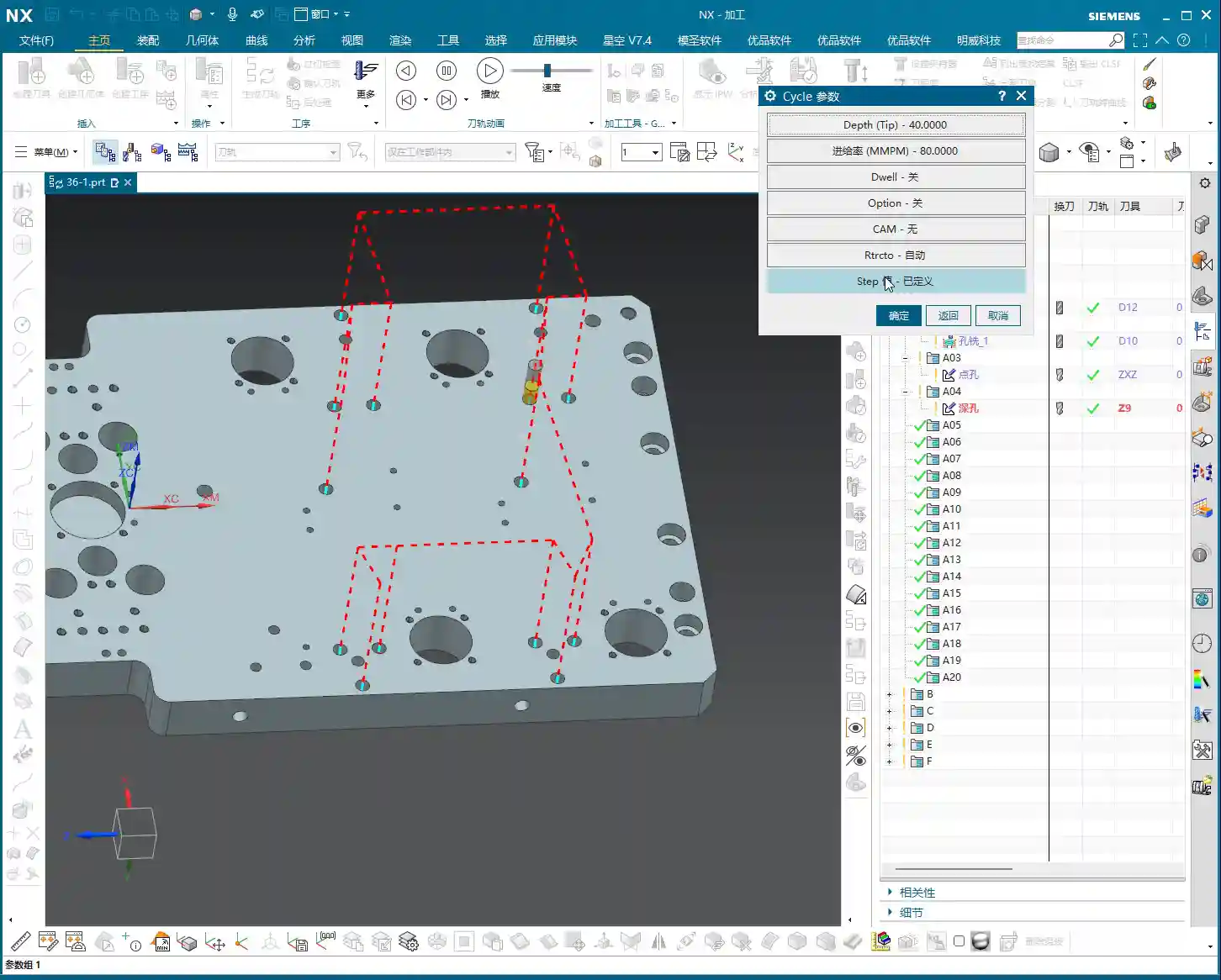
    Cutting Method Explained

    Moving on, let’s look at our ‘Cutting Method’. Currently, the default is ‘Follow Perimeter’.
    What does ‘Cutting Method’ mean? Simply put, it’s the way the toolpath moves. Let’s change it to ‘Follow Part’ and see if there’s any change. For our simple face milling, there’s actually no change.

    However, if we change it to Contour, then there will definitely be a change. ‘Contour’ mode only machines contours. Since we are currently face milling, it’s not applicable, and it will give an error: ‘This component cannot perform face cutting on a planar surface’. So, face milling definitely cannot use ‘Contour’ mode.

    One-Way Cutting

    Let’s try One-Way. One-way is definitely possible. See? It engages the tool from this side, moves to that side, then lifts the tool and returns, then engages the tool from that side and moves back. This is a one-way machining method: move across, lift tool and return, move across again, lift tool and return again.

    Zig-Zag Cutting

    Since you understand one-way, Zig-Zag is even easier to grasp. It just moves across, then directly down, then across again, then down again. That is: move across, go down, return, then move across again, go down, return. It just keeps milling like that.

    This, then, is our ‘Cutting Method’.

    Summary: Pitfall Guide

    Everyone must pay attention to the filter settings, especially when you’re first practicing; not being able to click toolpaths is often because the filter isn’t selected correctly. Furthermore, the tool axis usually doesn’t need to be changed in 3-axis machining, mainly focus on the +ZM axis. The choice of cutting method depends on the type of machining; for example, face milling usually selects ‘One-Way’ or ‘Zig-Zag’, while ‘Contour’ mode is not suitable for planar cutting. Understanding these will greatly improve your programming efficiency and machining stability.

    Alright, we’ll finish this lesson here. We’ll continue in the next lesson. Thank you all for watching, goodbye!