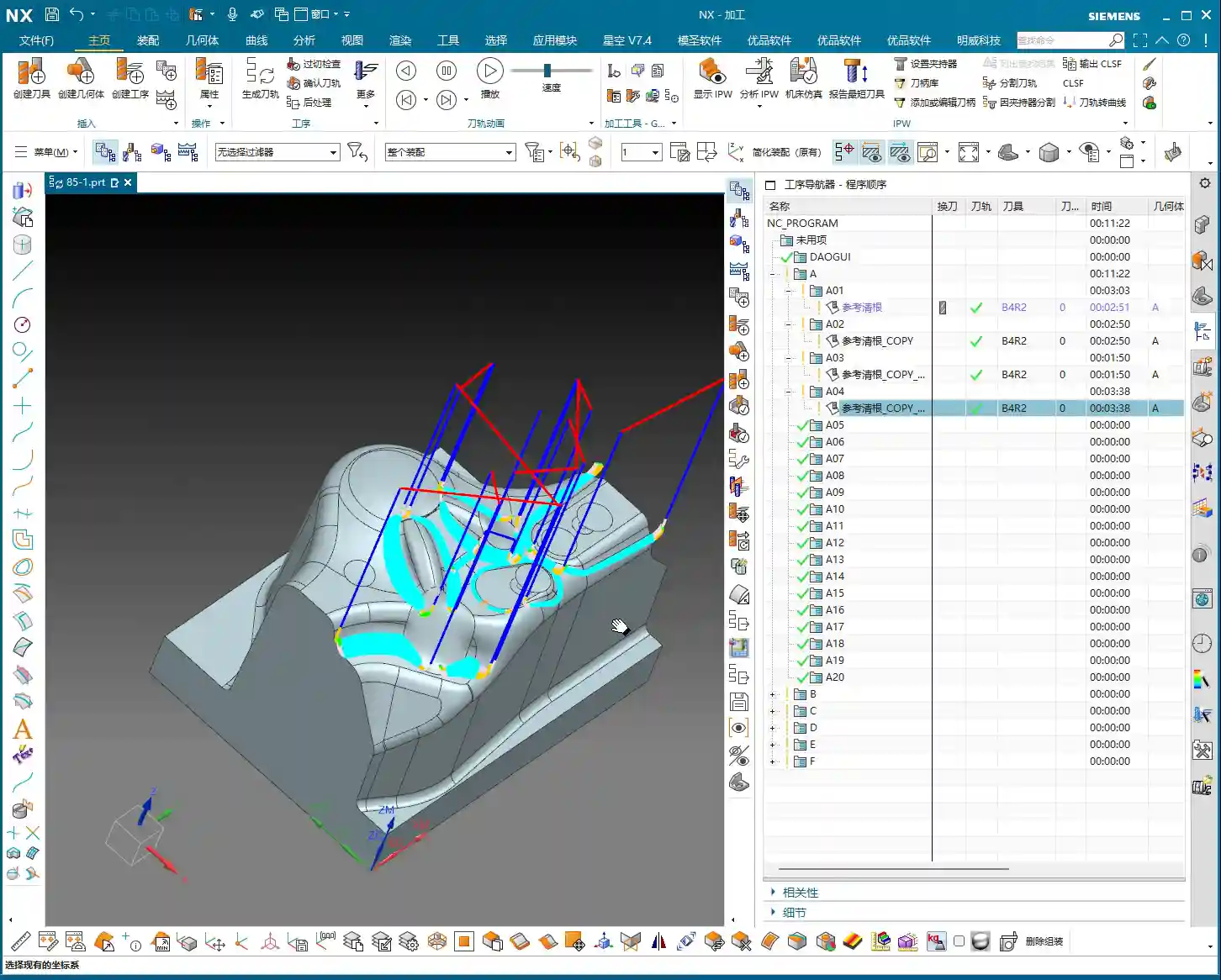
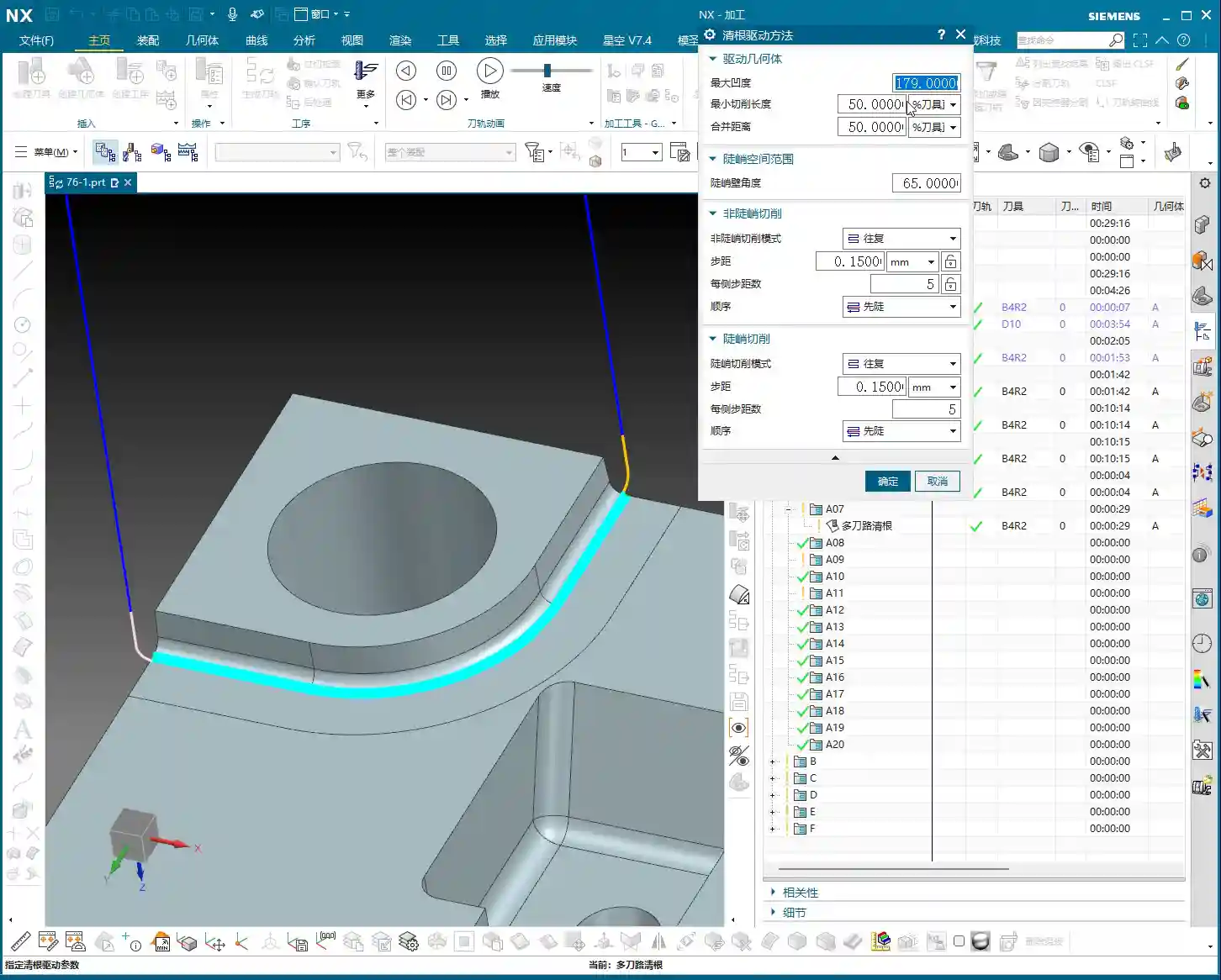
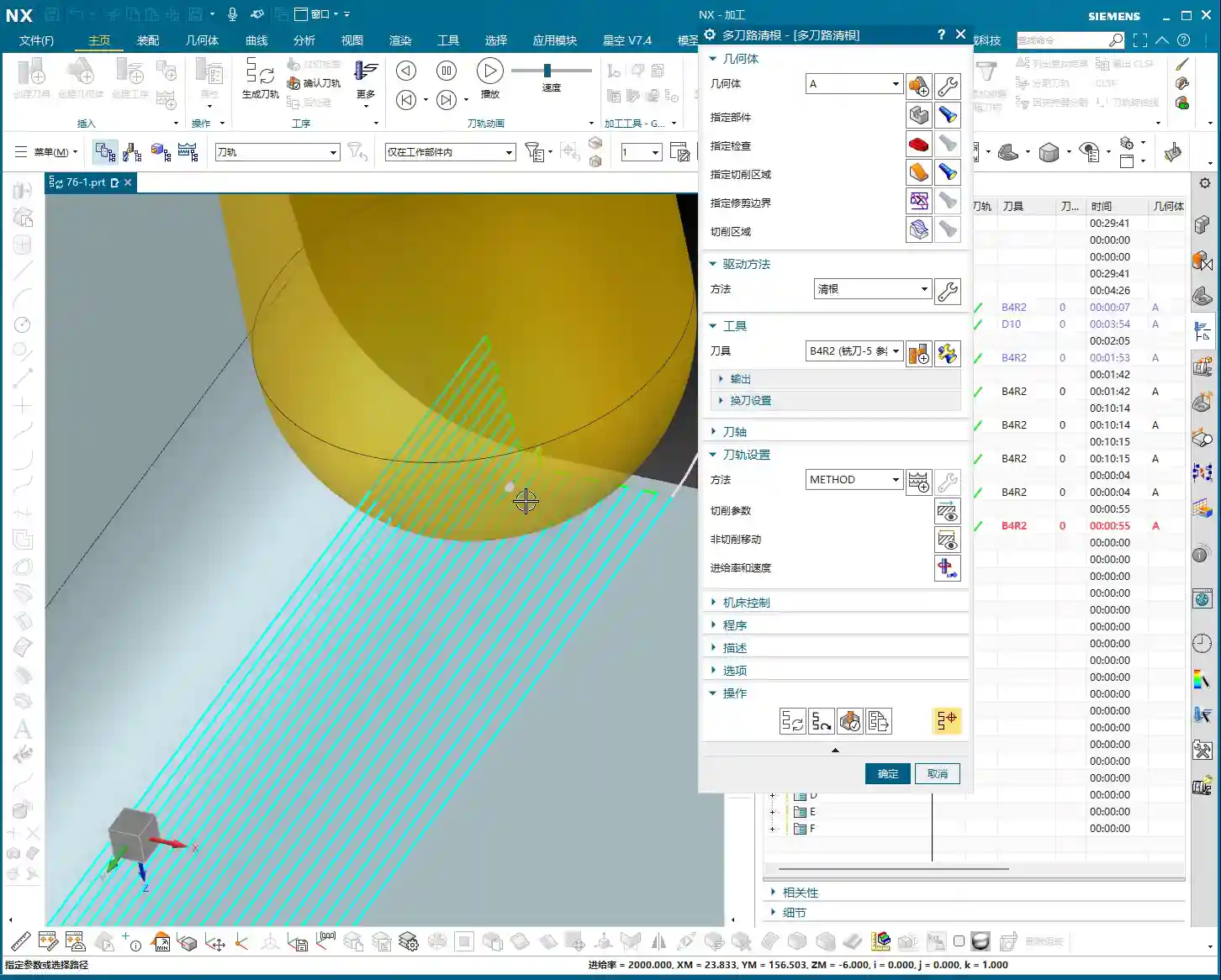
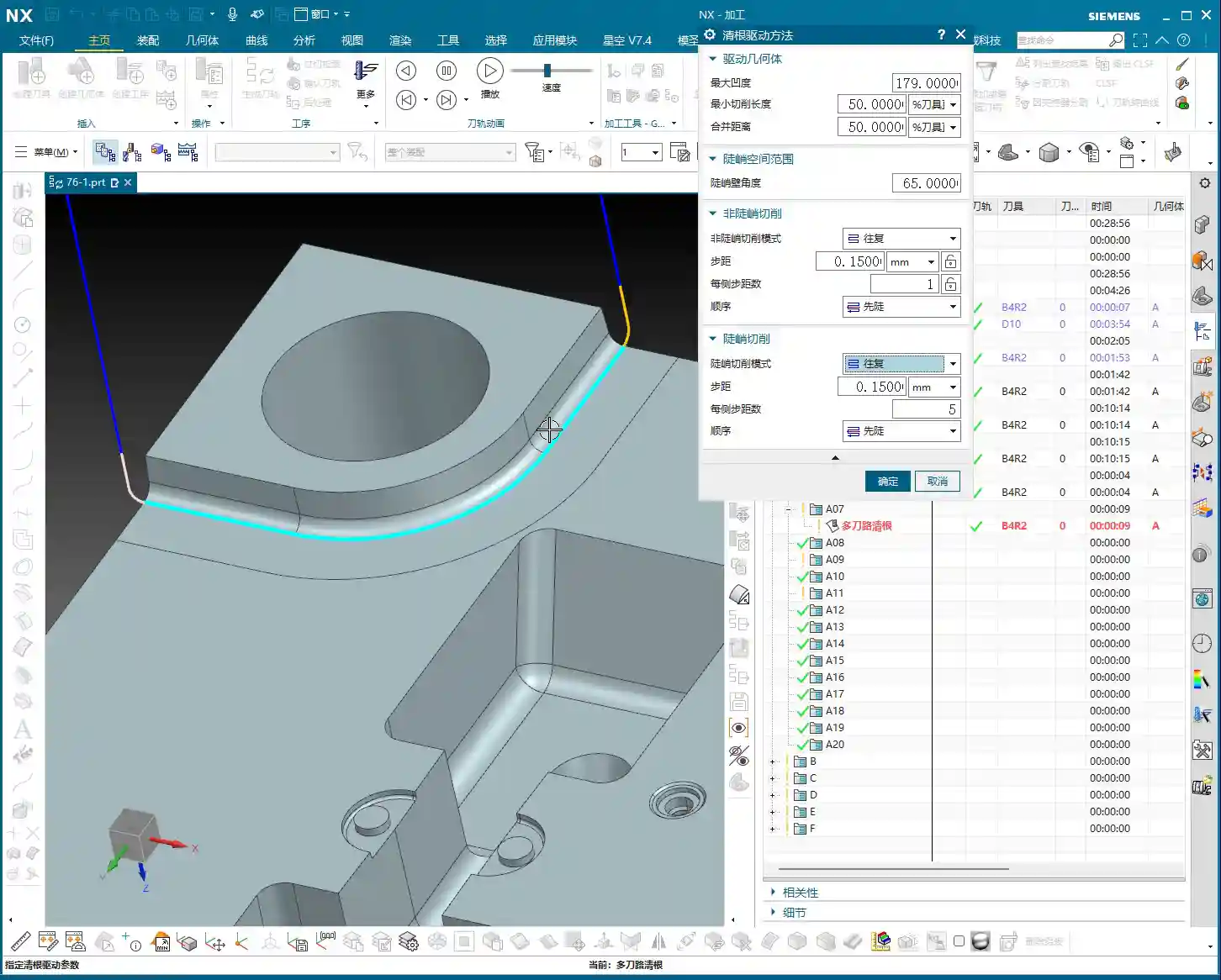
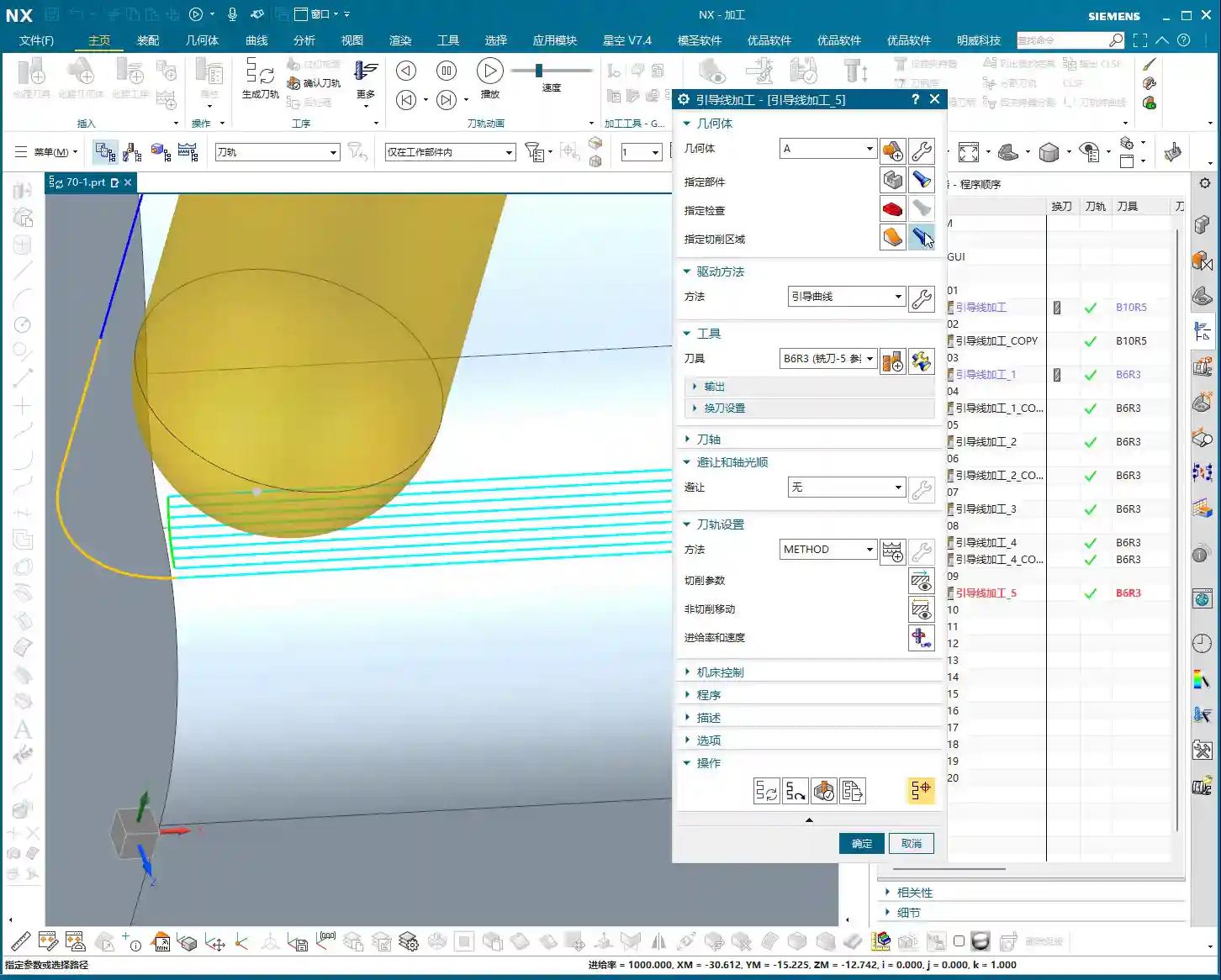
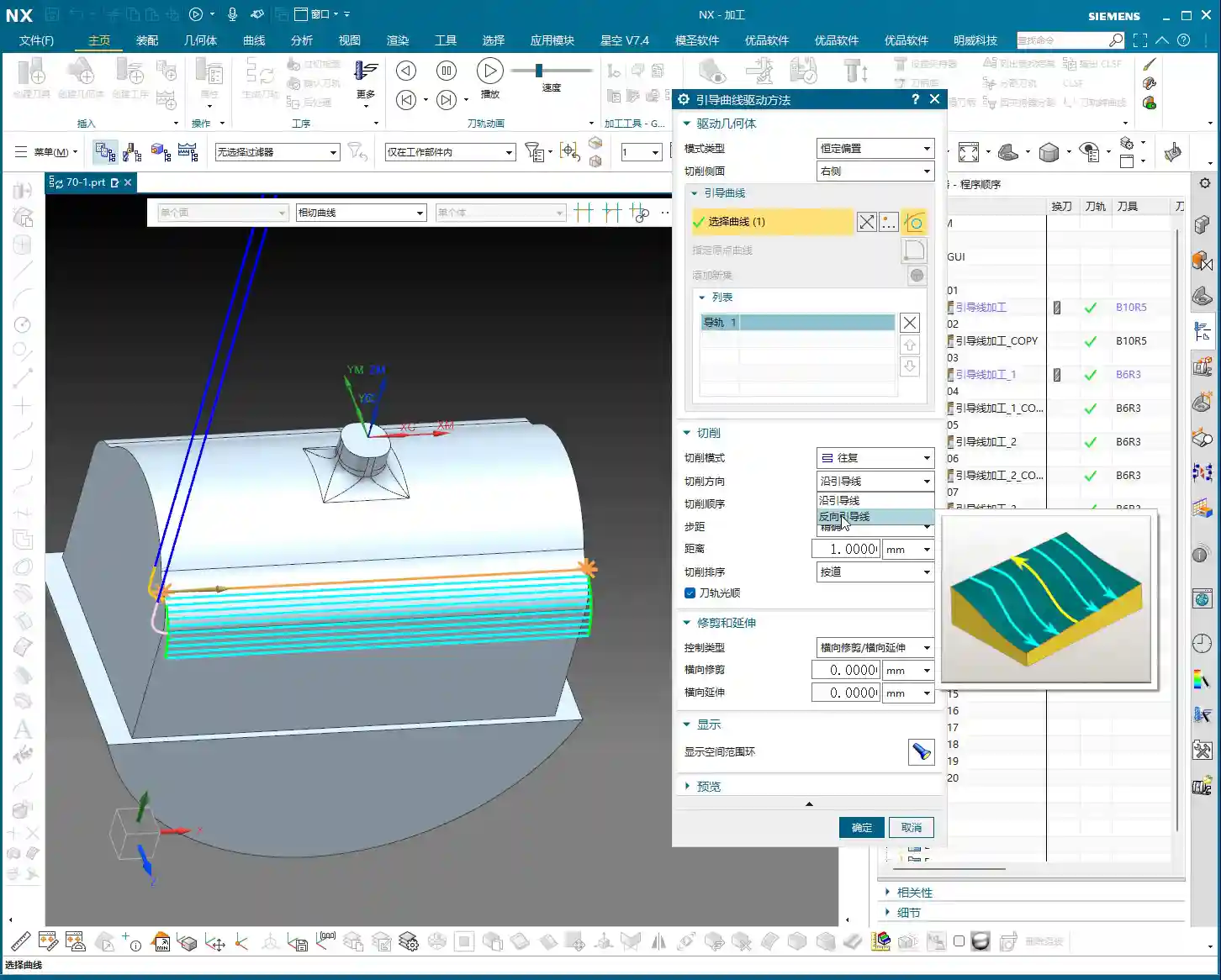
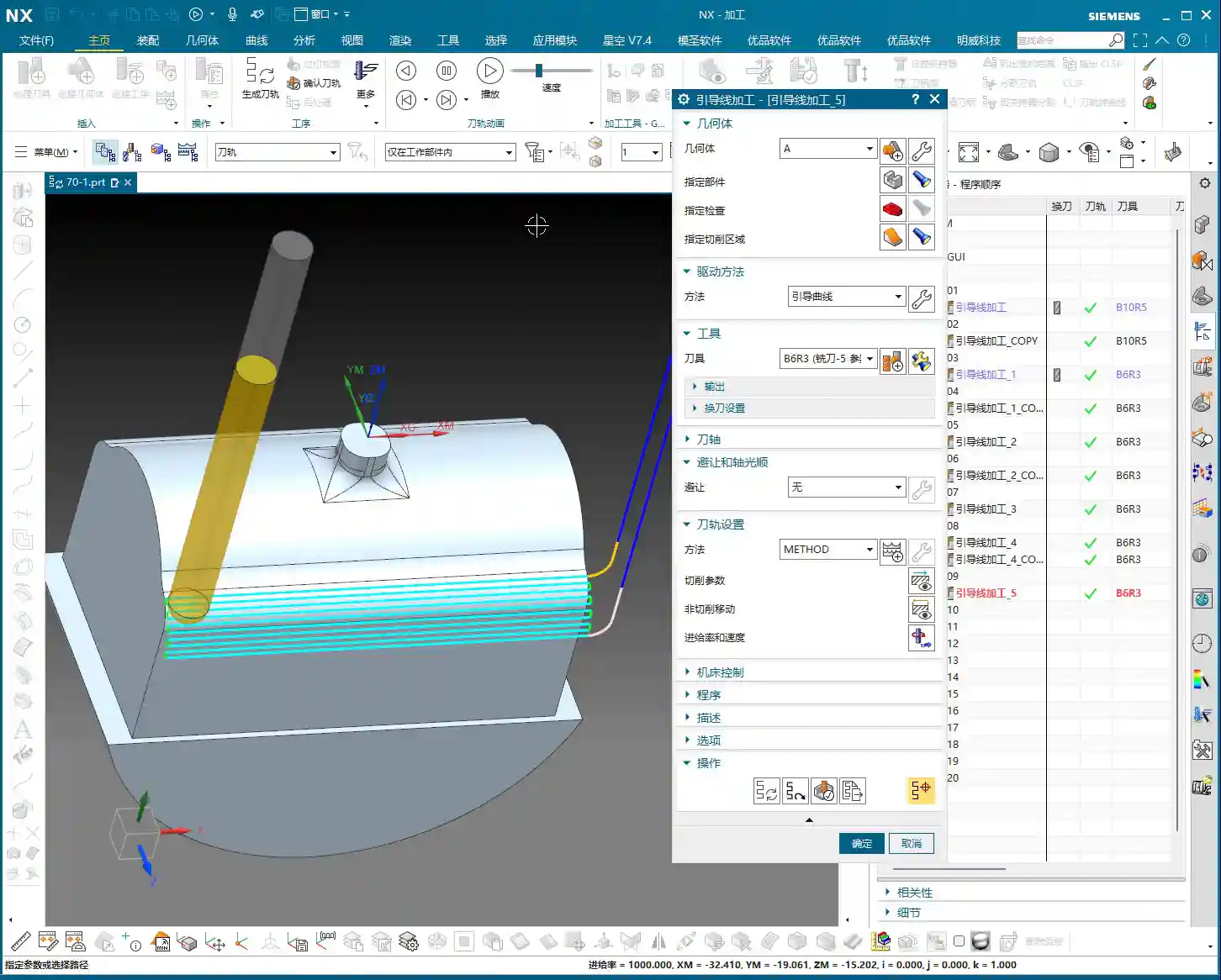
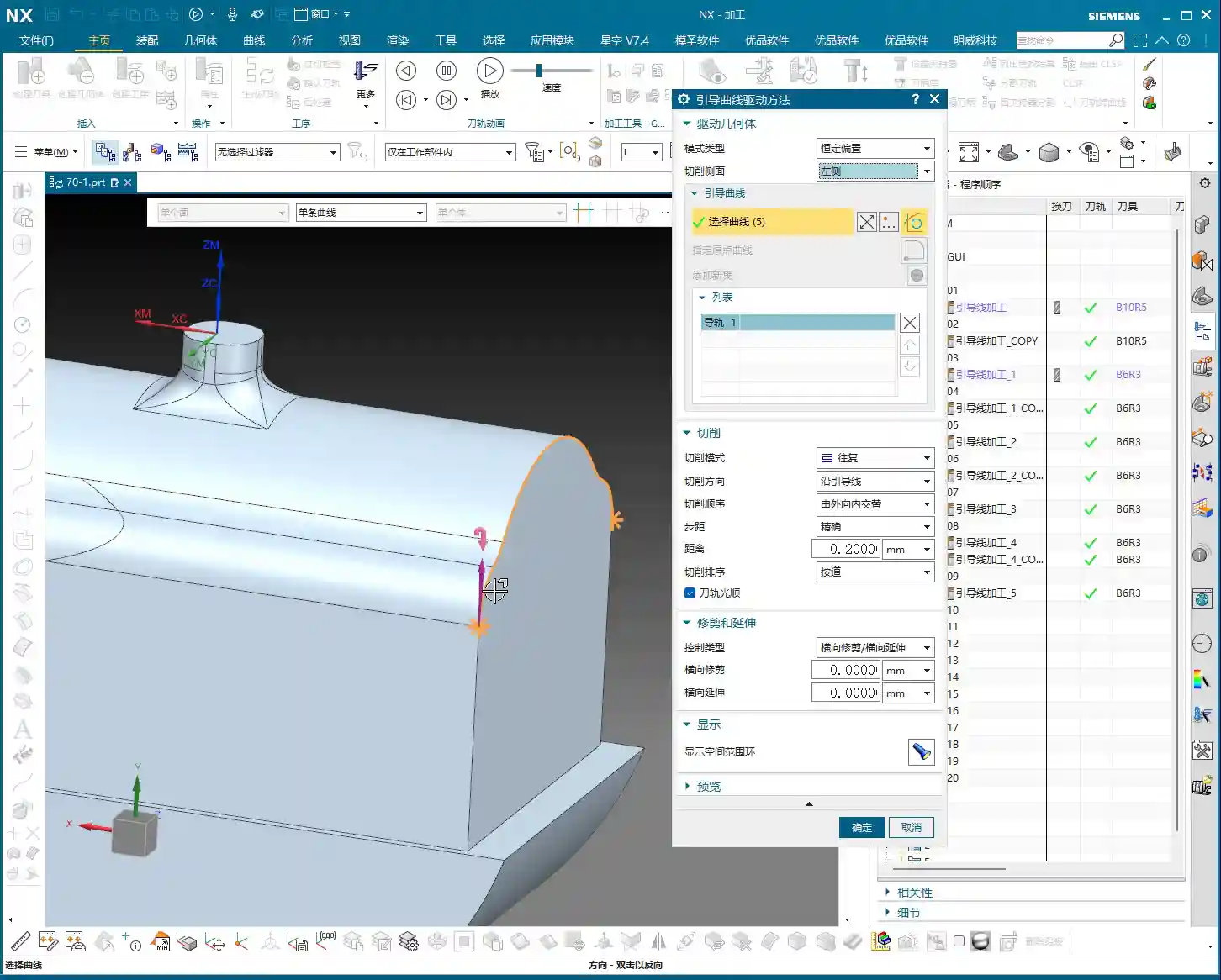
Tag: NX Machining

  • Siemens NX Streamline Toolpath Master Class: Master Wang on Trimming, Extension, and Cutting Directi

    📝 Key Takeaways:

    Practical Siemens NX Streamline Toolpaths: The Secrets of Cutting and Extension

    Hello everyone, I’m Master Wang. Today, let’s continue di…

    Hello everyone, I’m Master Wang. Today, let’s continue discussing the core technologies in Siemens NX, especially some critical settings for Streamline toolpaths. Listen closely: if you don’t grasp these points, simply failing to generate a program is minor. On the machine, you could face significant issues!

    I. Cutting Direction: The Soul of the Toolpath

    As we’ve mentioned before, the Cutting Direction parameter is critically important! It determines how the tool engages with the workpiece, directly impacting cutting forces, surface quality, and tool life. In Siemens NX, when you double-click to open a program and enter the method editing interface, this is the first thing you must pay attention to.

    1. Material Side vs. Tool Side: Mastering Internal and External

    What is the “Material Side”? Simply put, it determines which **Tool Side** you intend to machine. In Siemens NX, there’s a small arrow; clicking “Reverse Material” will toggle it. If the arrow points outwards, your tool will machine the outer side of the part. Conversely, if the arrow points inwards, the tool machines the inner side, which is what we commonly refer to as “machining an internal cavity.”

    Master Wang’s Tip: Don’t underestimate this arrow; it’s your tool’s eye! For external features, the arrow points outwards; for internal cavities, it points inwards. Especially when performing Streamline machining in **enclosed regions**, always confirm the arrow’s direction. If the direction is incorrect, your entire toolpath will be unusable and simply won’t generate.
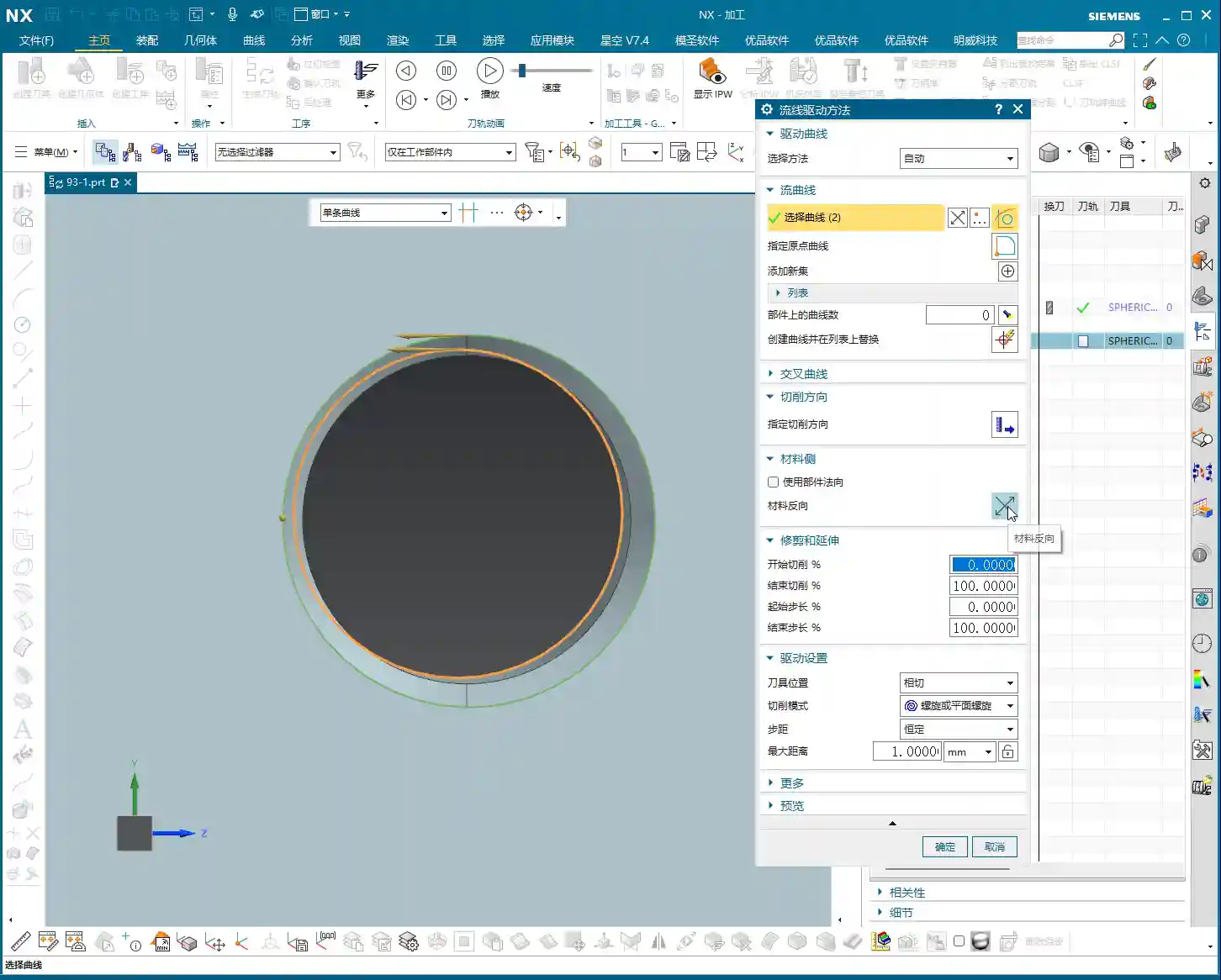
    2. The Culprit Behind Toolpath Calculation Errors

    Many new users encounter issues where the program fails to generate or produces “empty toolpaths” or “air cuts,” often due to an incorrect **Cutting Direction setting**. If the tool is supposed to machine inside the part but you’ve directed it outwards, the system will naturally give you a “blank canvas”—because there’s simply no material to cut! So, when a toolpath fails to generate, your first reaction should be to check this arrow. See if “Reverse Material” needs to be clicked; often, the program will then appear.

    II. Streamline Toolpath Trimming and Extension: Precision Refinement

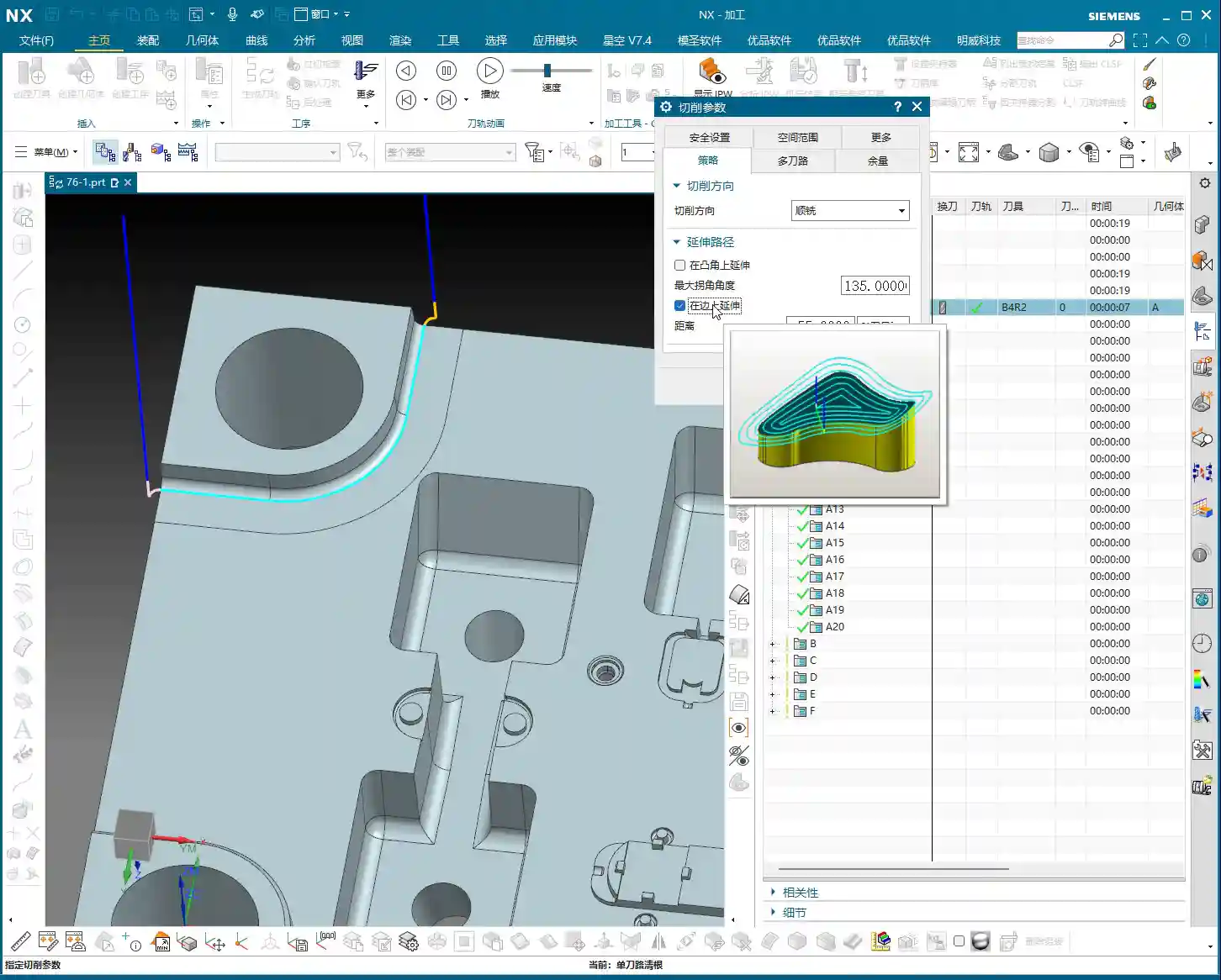
    One of the most flexible aspects of Streamline toolpaths is their **Start Extension** and **End Extension** capabilities. These settings allow you to precisely define where your toolpath begins and ends, avoiding entry/exit marks in critical areas and improving surface quality.

    1. The Mystery of 0-100%: Baseline Length

    In Siemens NX, the length of each drive curve used to generate a Streamline toolpath is defaulted by the system to **100%**. Once you understand this baseline, you can master trimming and extension.

    • Start Extension:

      • Entering a **positive value (e.g., 10)**: Trims 10% of the length “inward” from the drive curve’s start point. The tool will engage later, avoiding marks at the start position.
      • Entering a **negative value (e.g., -10)**: Extends 10% of the length “outward” from the drive curve’s start point. The tool will engage earlier, entering the cut outside the part to ensure stable cutting and prevent gouging.

    • End Extension:

      • Entering a **value less than 100% (e.g., 50)**: Trims 50% of the length “inward” from the drive curve’s end point. The tool will retract earlier, preventing overcutting or marring at the end position.
      • Entering a **value greater than 100% (e.g., 150)**: Extends 50% of the length “outward” from the drive curve’s end point (total length reaching 150%). The tool will retract later, exiting the cut outside the part to also ensure stable cutting.

    Master Wang’s Tip: Remember this logic: for the start point, a negative value extends, a positive value trims; for the end point, a value greater than 100% extends, and a value less than 100% trims. This is crucial when machining mold surfaces, especially at the transition between steep and shallow areas, or during finishing passes, as it effectively controls the tool’s entry and exit points, preventing witness marks and blend lines.
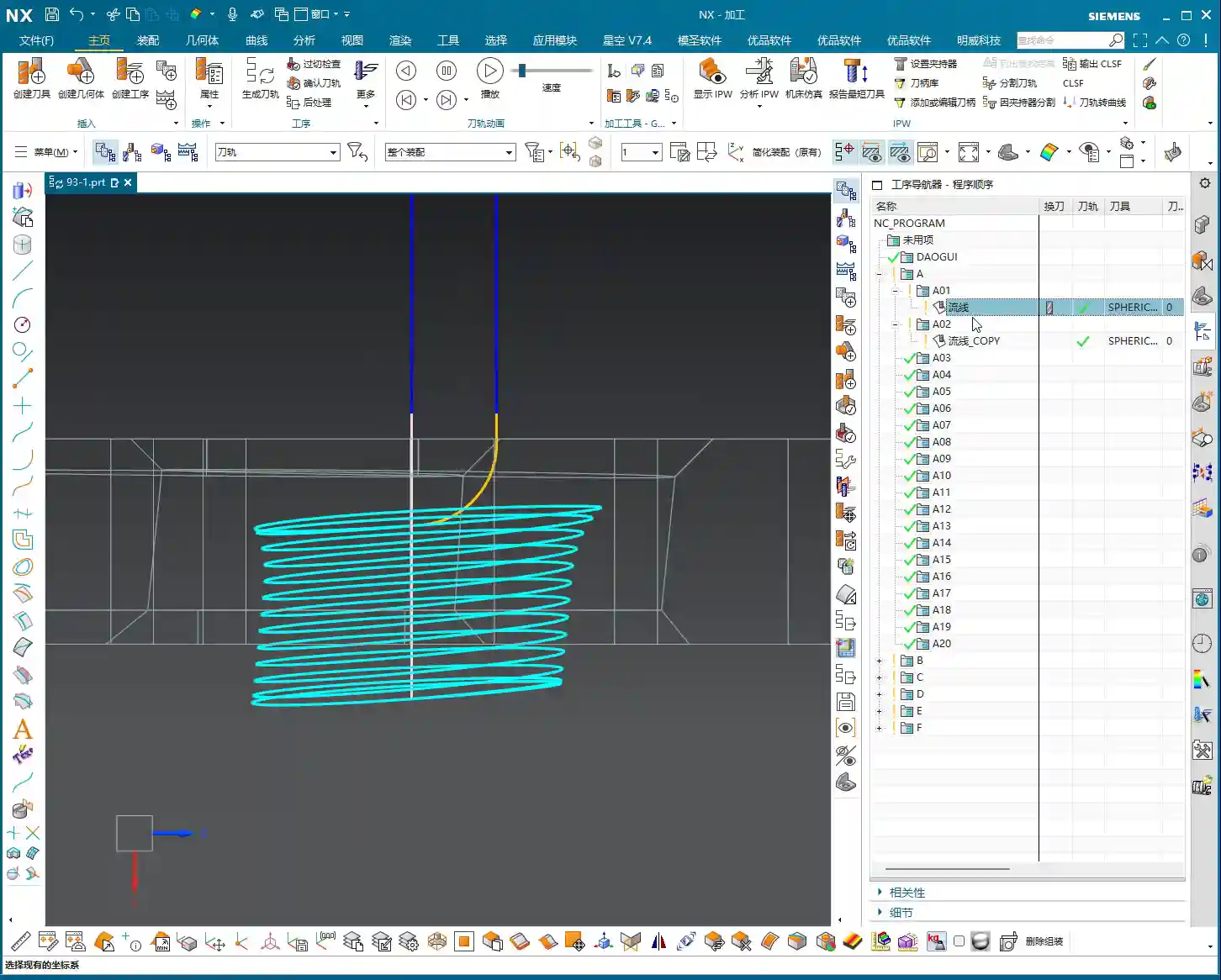
    III. Cutting Strategy: Tangent or Trace?

    In Streamline toolpaths, there are two important cutting strategies: **Tangent** and **Trace**. Their difference lies in the relationship between the tool and your selected surface.

    1. Tangent: The General Choice

    In “Tangent” mode, the tool’s **centerline** will follow your selected drive curve or surface edge. This typically means the tool’s radius will extend beyond the selected face. However, if “Part Protection” is enabled, the tool will not overcut. This is our most commonly used and safest strategy, suitable for most situations.

    2. Trace: Precise Control

    “Trace” mode is more intricate; it forces the tool’s **Tool Contact Point** (e.g., the center of a ball nose, or the intersection of a flat end mill’s edge with the face) to follow your selected drive curve or surface. In this scenario, if you directly select the original face, the tool’s centerline will run outside the face, causing overcutting!

    Master Wang’s Tip: To effectively use “Trace,” you need to learn to “cheat”! The best method is to first create a **Tool Radius Offset Body**. For example, offset the surface you want to machine outwards by the tool’s radius to create a new auxiliary surface. Then, in “Trace” mode, select this offset body. This way, while the tool’s contact point is on the offset body, its centerline will align perfectly with your actual machining surface, achieving precise cutting without overcutting. This technique is particularly effective when machining **special structures or thin-walled parts**, as it significantly reduces unnecessary retracts and improves machining stability.
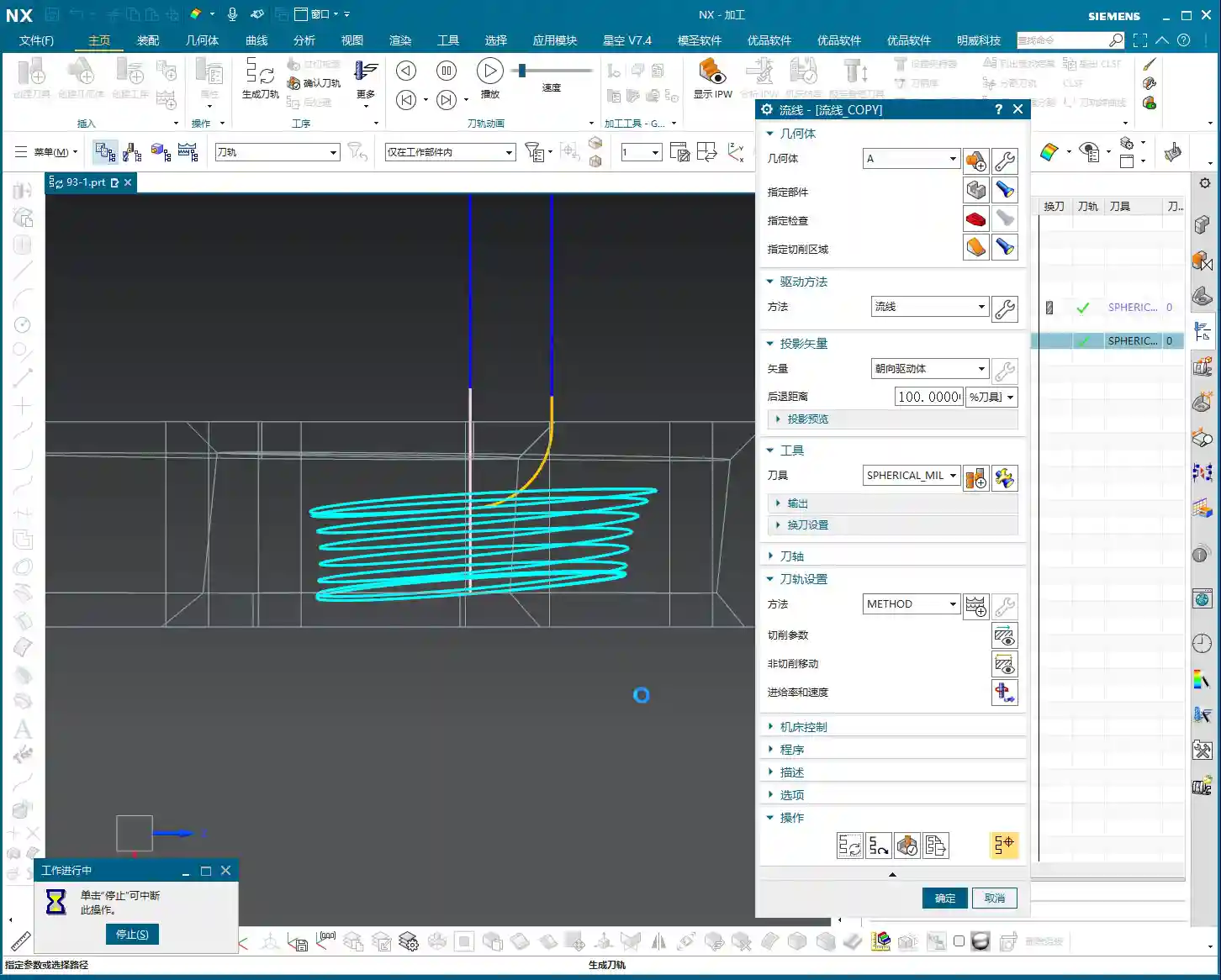
    Additionally, when you find unnecessary **Retracts** in the toolpath, besides checking the “Through Material” settings, you can sometimes consider creating a **Dummy Body** to block it off. This keeps the tool machining within the specified region, avoiding unnecessary lifts and air moves.

    IV. Tolerance and Other Settings: Details Determine Success

    As for **Tolerance**, I’ve covered it many times in previous tutorials. Generally, Siemens NX’s default tolerance is sufficient. When we create templates, we typically adjust these common parameters to their optimal settings. Unless there are specific precision requirements, do not easily alter it, as this directly affects toolpath calculation time and final surface accuracy.

    Cutting patterns such as Helical, Zig, One-Way, and Zig-Zag are fundamental, and I won’t elaborate on them here. What we need to learn is how to integrate these concepts and flexibly select the optimal cutting method for different workpieces, materials, and precision requirements.

    Summary: Pitfall Avoidance Guide

    Master Wang is highlighting the key takeaways for today:
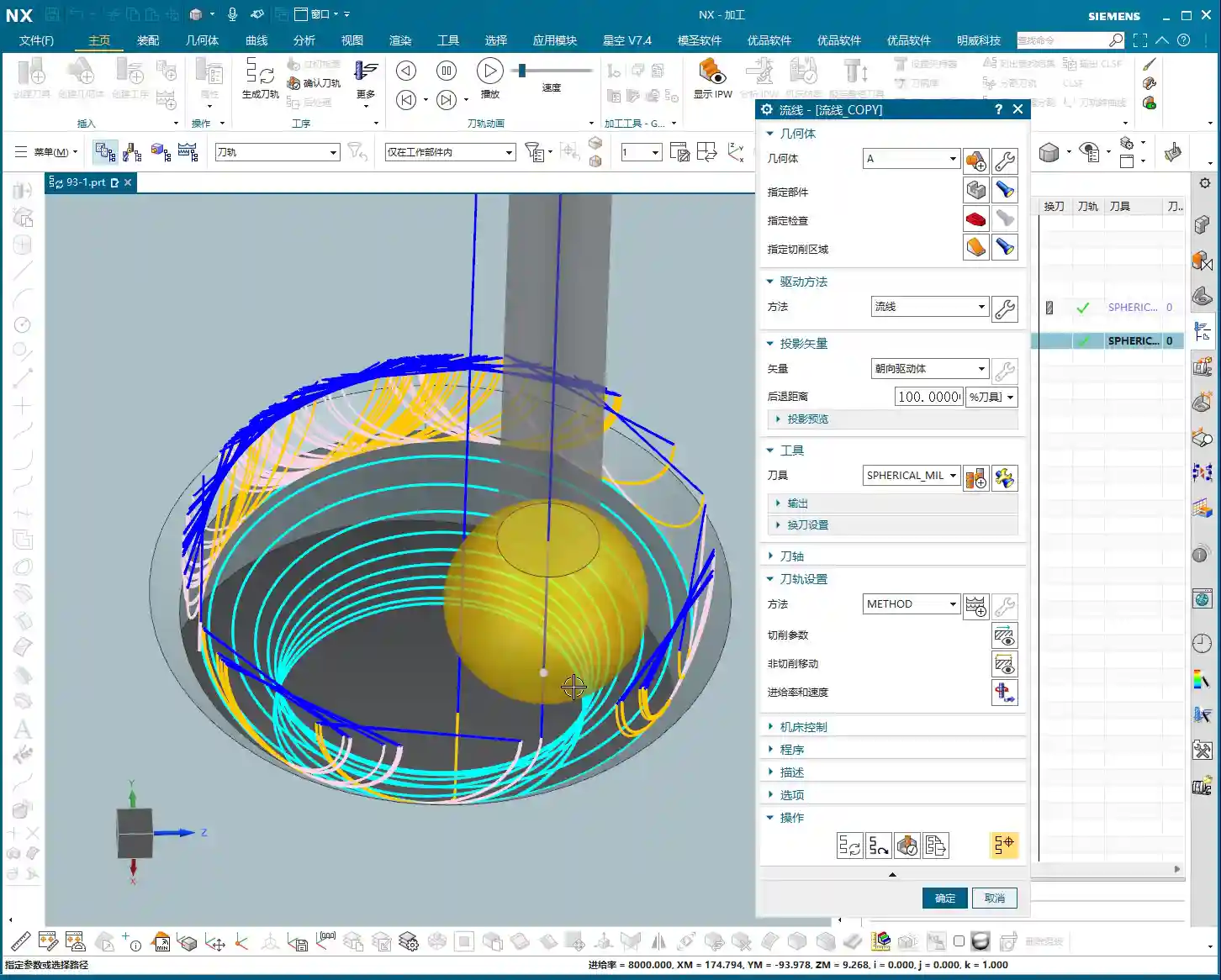
    1. Cutting Direction is key to toolpath generation: If you encounter “empty toolpaths,” first check the “Reverse Material” arrow to ensure it points to the area you want to machine. Inwards for internal features, outwards for external.
    2. Master the Trimming and Extension percentages: Remember the baseline is 100%. For the start point, a negative value extends, a positive value trims; for the end point, a value greater than 100% extends, and a value less than 100% trims. Flexible application significantly improves part surface quality and machining efficiency.
    3. Choose Tangent or Trace as needed: Use “Tangent” for most situations. When the tool’s contact point needs to precisely trace a surface, use “Trace,” but remember to create a **Tool Radius Offset Body** to complement it and avoid overcutting. If necessary, use a Dummy Body to control the tool’s machining range and reduce unnecessary air cuts.
    4. Default tolerance is usually fine: Unless there are specific requirements, maintain Siemens NX’s default tolerance settings.

    Remember these points, simulate frequently in the software, and even more importantly, observe the cutting sparks and listen to the cutting sounds on the machine. Only then can you truly grow from an NX operator into a qualified, process-savvy machinist! Alright, that’s all for today. We’ll pick this up next time.

    👤 About the Author:
    The author is a veteran CNC machining professional with 15 years of industry experience, specializing in UG NX programming. This article is an original work representing personal practical insights.

    ⚠️ Copyright Notice: Unauthorized reproduction or distribution without prior communication is strictly prohibited.

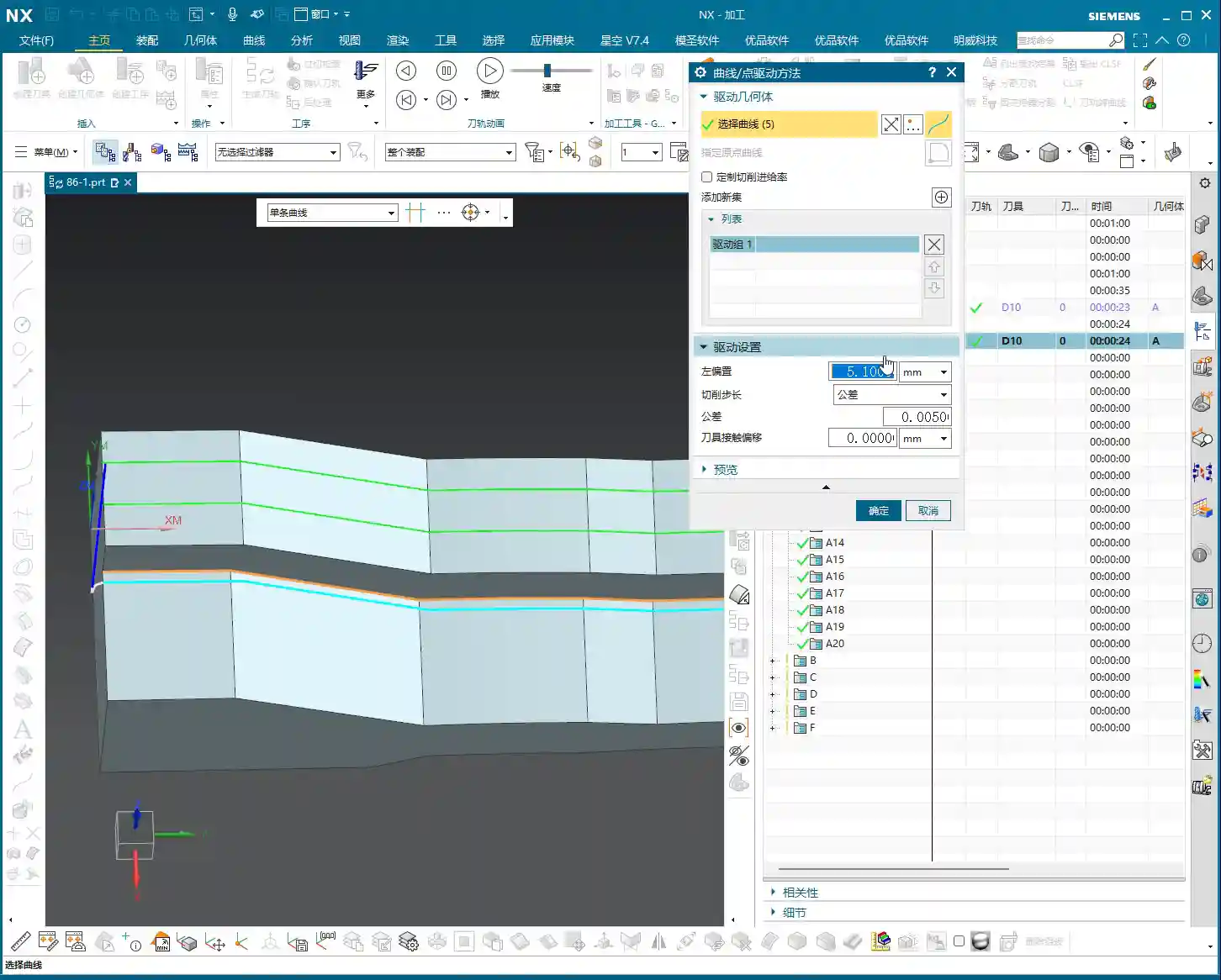
  • Siemens NX Fixed Contour Milling with Curve Point and Multi-pass Machining in Practice: Master Wang

    📝 Key Takeaways: Master Wang provides a hands-on guide to applying Fixed Contour Milling with Curve Point in Siemens NX. From single-pass curve-following machining to multi-pass sidewall milling, he details stock control for sidewalls and bottom surfaces. He also reveals how to use “Transform Object” for toolpath patterning, efficiently tackling complex surfaces. This practical experience and pitfall avoidance guide will help you optimize your NX programming, boost machining efficiency and precision, moving beyond theoretical knowledge to address real-world production challenges.

    Hello everyone, this is Master Wang. Today, we’re cutting straight to the chase – no fluff, just practical insights. In Siemens NX, there’s a “Fixed Contour Milling” operation, especially its “Curve Point” function. Many people think it’s simple, but those who truly master it can unlock its full potential, significantly boosting machining efficiency and precision. We’ll also cover “Multi-pass Toolpaths” and “Transform Object” together to clarify everything, ensuring you can immediately apply these techniques and avoid common missteps.

    Curve Point Machining: The Maestro of Lines and Surfaces

    Listen up. The “Curve Point” operation in Siemens NX, in a nutshell, means this: you select a curve or line, and the tool follows it to machine a surface. Whether that line is drawn, extracted from a model edge, or even an intersection curve between two faces, it will faithfully follow it. The biggest difference from other machining methods is that it doesn’t require you to select an entire region or boundary; it only recognizes the specific “line” you designate.

    What is “Curve Point”? Simply put, it’s “Curve-Following Machining”

    First, you need to select the part to be machined – that’s fundamental. Then, here’s the crucial part: you select the “curve” or “line” you want the tool to follow. Siemens NX will automatically calculate the toolpath, making the tool’s centerline or tool tip move along your chosen line while maintaining contact with the surface.

    I’ll just pick a random part here and select an edge. See? The toolpath faithfully follows that edge. This is what we call “Guiding by Line, Machining the Surface.”

    Stock Control: Sidewalls and Bottom Surfaces – Don’t Mix Them Up!

    This is where problems often arise; many people get confused here. When we’re machining, especially during finishing passes, stock control is critical. In “Curve Point,” the method for setting sidewall stock and bottom surface stock is different.

    • Sidewall Stock (Offset): When the tool follows your selected line, you can make it offset outward or inward. For example, if I set an offset of 5 mm, the tool center will be 5 mm away from your chosen line. This offset value is the stock you’re leaving on the sidewall. Remember, this offset is specifically applied to your selected “line.”
    • Bottom Surface Stock (Part Stock): If you want to leave stock on the entire bottom surface, you need to set it in the “Component” options. For example, I’ll set 0.1 mm (approx. 0.004 inch) of stock here. This means when the tool machines to its lowest point, it will leave 0.1 mm above the bottom surface. This is the overall stock for your selected “component.”

    The stock in these two areas is controlled independently, so absolutely do not confuse them! One manages the side, the other manages the bottom. In practice, you’ll adjust them flexibly based on the workpiece and machining stage.

    Single-Pass Toolpaths: A Powerful Tool for Specific Boundaries

    Many times, we need to run a single pass along a specific edge to clean it up or create a chamfer. Using “Curve Point” for this is incredibly convenient! You just need to select that edge, and a single toolpath is generated directly.

    Think about it: if you used “Depth Contour Milling” or “Corner Cleanup” operations, you’d have to select boundaries, regions, and sometimes even define the bottom surface – what a hassle! “Curve Point” is simple and direct: just select the line, and a single pass gets the job done. Especially for models with small sudden protrusions, or edges that need a specific cleanup pass, this function is highly efficient.

    Don’t underestimate this simple single pass; in actual production, it can save you significant time and improve local machining precision. Sometimes, simple is best.

    Multi-pass Strategy: A Winning Move for Complex Sidewalls

    A single pass is rarely enough. Often, we need to machine a sidewall or an inclined surface in multiple layers, with multiple passes. This is where “Curve Point” combined with “Multi-pass Toolpaths” becomes incredibly powerful. Especially for those complex, oddly shaped sidewalls that depth contour milling can’t handle, this combination can easily conquer them.

    Activating Multi-pass Toolpaths: From “Solo” to “Group Attack”

    In the parameter settings for “Fixed Contour Milling,” find and enable the “Multi-pass Toolpaths” option. Once activated, you can tell Siemens NX how many passes you want the tool to extend from your selected line in a specific direction, and what the stepover for each pass should be.

    For instance, I’ve selected a line at the bottom of a sidewall and activated multi-pass toolpaths. I want it to move upwards and machine the entire sidewall. At this point, I can set the “Number of Passes” and “Stepover”.

    Parameter Setting: The Art of Depth and Stepover

    Let’s say this sidewall is 10 mm high. I want to machine it in 10 passes, with a Depth of Cut of 1 mm per pass. Then I can set:

    • “Stepover” (or Depth of Cut/Stepdown in this context): I’ll set it to 1 mm (approx. 0.04 inch).
    • “Number of Passes”: I’ll set it to 10 passes.

    Siemens NX will then automatically offset the tool, pass by pass, along your selected line in the specified direction until all 10 passes are complete. This way, the entire 10 mm (approx. 0.4 inch) high sidewall can be machined in layers. This method is particularly effective for sidewalls with complex angles or freeform surface geometries. If you compare this with “Depth Contour Milling,” you’ll find that it often struggles to fully adapt to such irregular shapes. However, “Curve Point” combined with multi-pass toolpaths overcomes this issue because it follows your selected line, and that line can be any shape you desire.

    Of course, tool retracts are unavoidable; the tool can only complete one pass in a single direction, then retract, and re-engage at the starting point of the next layer. This is both a characteristic and a manifestation of its flexibility. Don’t just rely on software simulations; observing the cutting sparks and chips in real life will show you that this method also ensures a more uniform tool load, extending tool life.

    Transform Object: The Efficiency Secret for Batch Toolpath Duplication

    The “Transform Object” function treats your toolpath like a “part” itself, allowing you to perform operations such as translation, rotation, mirroring, patterning (array), and more. When you need to repeatedly machine many similar features, or when different tools are required to machine the same area, it can significantly boost your programming efficiency. This function is an absolute game-changer, especially in mold making or aerospace component machining.

    Exploring the Concept: Toolpath “Movement and Patterning”

    You can think of “Transform Object” as a toolpath “patterning” or “copying” function. For example, if you’ve already generated a perfect single “Curve Point” toolpath, but you need to duplicate it several times to machine a wider flat or sidewall surface, that’s when “Transform Object” comes into play.

    Within “Transform Object,” you can select various transformation types, such as “Translate,” “Rotate,” and so on. For what we just discussed—offsetting multiple toolpaths along a sidewall—”Translate” is typically used.

    Translation Parameters: Y-axis Negative Offset Example

    Suppose you already have a toolpath, and you want to translate it in the negative Y-axis direction, offsetting 8 mm (approx. 0.31 inch) each time, for 6 occurrences. You would set it up like this:

    • Transformation Type: Select “Translate.”
    • Direction: Select “Y-Axis.”
    • Distance: Enter -8 (the negative sign indicates the negative Y-axis direction).
    • Number: Enter 6.

    Then confirm. Siemens NX will automatically generate 6 new toolpaths based on your existing one, each offset by 8 mm (approx. 0.31 inch) in the negative Y-axis direction. This way, you effortlessly obtain 7 parallel toolpaths (the original + 6 copied toolpaths), which can cover a wider machining area.

    This method, combined with the flexible path generation of “Curve Point,” can double your efficiency when dealing with specialized surfaces (such as a wide inclined surface that isn’t a regular flat plane). You first use “Curve Point” to run a pass along an edge, then use “Transform Object” to duplicate that pass, covering the entire area. This is significantly faster than manually selecting lines and programming each pass individually!

    Practical Application: Flexible Combination of Roughing and Semi-Finishing

    In actual machining, you can even use “Transform Object” to combine roughing and semi-finishing. For example, you can perform a roughing pass with a large tool (D16), then use “Transform Object” to duplicate this toolpath. Afterward, modify the tool parameters to switch to a smaller tool (D10) for a semi-finishing pass. This approach results in a very clear process flow and extremely high programming efficiency.

    Don’t underestimate these small tricks; on a production line where time is money, they can save you significant setup and programming time. These are the practical insights you won’t find in textbooks.

    Summary: Pitfall Avoidance Guide

    • Don’t Confuse Stock Settings: Remember, the sidewall offset in “Curve Point” is applied to the “line,” while the bottom stock is for the “component.” Set these independently. Don’t set sidewall stock within the component settings; that will lead to major issues, from scrapped parts to tool crashes!
    • Optimize Retracts and Air Cuts: While “Curve Point” combined with “Multi-pass Toolpaths” is flexible, it can sometimes generate unnecessary tool retracts and air cuts. You need to adjust the lead-in/lead-out methods based on the actual situation, for example, switching to “linear” lead-in/lead-out can significantly reduce superfluous motion. Don’t just rely on software simulations; observe the toolpath trajectory closely for optimization opportunities.
    • Tool Selection Must Be Precise: For this “curve-following” machining method, tool selection is also critical. Especially when machining narrow areas, the tool radius must match the part’s fillets; otherwise, you risk incomplete cleanup or tool gouging. Grinding custom tools is also an art; when necessary, doing it yourself can be highly beneficial.
    • Don’t Forget Material Properties: For different materials (aluminum, titanium, superalloys), cutting parameters, feed rates, and spindle speeds must all be adjusted. Don’t use a one-size-fits-all approach; that’s a recipe for disaster! Especially with titanium alloys and high-temperature nickel-based alloys, incorrect cutting parameters will lead to immediate tool failure.
    • Fixturing is Fundamental: No matter how good your toolpath is, without stable clamping, it’s all for naught. Learn to design appropriate fixturing solutions and prevent heat treatment deformation; this is the first step to ensuring precision.
    • Be Aware of Machine Error: Achieving ±0.005 mm (approx. ±0.0002 inch) precision isn’t solely about programming; you need to understand your machine’s inherent accuracy errors. Only by adjusting process compensation can you absorb these tiny deviations and bring the part’s precision back into spec.

    Alright, that concludes today’s session. These are insights I’ve gained over many years, through hard work on the shop floor – not just theoretical stuff from textbooks. The more you ponder and practice, the more skilled you’ll become. Next time you encounter any tricky problems, we’ll talk!

    👤 About the Author:
    The author is a veteran CNC machining professional with 15 years of industry experience, specializing in UG NX programming. This article is an original work representing personal practical insights.

    ⚠️ Copyright Notice: Unauthorized reproduction or distribution without prior communication is strictly prohibited.

  • Siemens NX Fixed Contour Milling: Mastering Curve Point Operations for Complex Surfaces and Enhanced

    📝 Key Takeaways: Master Wang provides an in-depth explanation of Siemens NX Fixed Contour Milling’s “Curve Point” operation, emphasizing its core characteristic of “machining surfaces based on curves” as key to unlocking 3D and complex surface machining. He highlights the command’s critical importance for 4-axis/5-axis simultaneous programming, enabling refined toolpath control to meet high-precision machining demands. From a practical perspective, Master Wang guides users through an initial exploration of the Siemens NX interface and shares four “pitfall avoidance tips,” stressing the significance of real-world observation, material analysis, and fixturing design.

    Master Wang Kicks Off: The Vanguard of the Fixed Contour Milling Family

    Hello everyone, I’m Master Wang. Today, we’re going to discuss a highly crucial operation in Siemens NX CAM programming: Fixed Contour Milling’s “Curve Point” method. This is by no means a simple command; it’s the gateway to our Fixed Contour Milling series, which will later cover Boundary, Streamline, Surface Area, and ultimately, Multi-axis Simultaneous Machining.

    Listen up, from “Curve Point” onwards, these commands—especially for complex surface machining—are truly tough nuts to crack. But if you follow me and fully grasp these concepts, your work will no longer be confined to simple 2D and 3D surface tasks. Instead, you’ll genuinely master complex parts, elevating product accuracy and efficiency by several notches.

    “Curve Point”: Master Wang’s Own Definition – Machining Surfaces Based on Curves

    To summarize the “Curve Point” command in my own words, it comes down to one principle: Machining Surfaces Based on Curves. What does this mean? Unlike the planar contour milling we discussed before, which is limited to flat surfaces, or other commands with strict requirements for the machining object, from “Curve Point” onwards, all commands within Fixed Contour Milling can utilize any curve—whether 2D or 3D—as a basis to machine various surfaces, including both 2D and 3D geometries.

    This characteristic is extremely important because it grants us immense flexibility. Stop clinging to old notions that a certain command is limited to a single function. You need to learn to adapt and apply it flexibly, understanding its core logic. At its core, Siemens NX CAM programming is about precisely articulating the machine tool’s motion trajectory through software commands. The geometric information of the curves is our “steering wheel” for controlling the toolpath.

    Why is “Curve Point” So Special? A Deep Dive into Its Application Value

    You might find that “Curve Point” sounds a bit complex, or even somewhat different from previous commands. Indeed, it demands a deeper understanding of surface analysis and toolpath control. But its uniqueness lies precisely in its powerful application value:

    • Breaking 2D/3D Boundaries: As mentioned earlier, it can machine any surface based on curves. This provides a more unified and efficient solution when dealing with parts that feature both planar and complex sculptured surfaces.
    • Laying the Foundation for 4-Axis/5-Axis Machining: Listen up, this is the crucial part! In 5-axis simultaneous programming, commands like “Curve Point,” “Boundary,” “Streamline,” and “Surface Drive” are used exceptionally frequently. If your goal is high-precision machining of complex parts, for industries such as aerospace or medical devices, these commands are your fundamental skills. They enable you to precisely control the tool’s orientation and trajectory on more intricate geometries, achieving superior cutting results.
    • Refined Toolpath Control: With “Curve Point,” you can more flexibly specify the tool contact point, tool axis direction, and other parameters, which is critical for avoiding interference, optimizing cutting conditions, and improving surface finish. Especially for jobs demanding ±0.005mm level precision, even a slight fine-tuning of the toolpath design can determine success or failure.

    Hands-on: An Initial Exploration of the “Curve Point” Operation in Siemens NX

    Let’s get straight to it and see how this “Curve Point” operation works in Siemens NX. Remember, learning CAM programming isn’t just about theory; you need to get hands-on, observe the sparks during machining, and listen to the sound of the cutting tool!

    1. Preparation:

      • First, ensure you’ve already created the Machine Coordinate System (MCS) and Workpiece, including the Part, Blank, and Check geometry. This is standard procedure, nothing new here.
      • Prepare the “curve” you intend to use to drive the toolpath. This can be a sketch curve, a model edge, or even a spline curve you’ve created yourself. For example, I’ll “extract” an edge from the model to serve as our machining curve. Remember, the curve here can be straight or curved; the key is your machining requirement.

    2. Inserting the “Curve Point” Operation:

      • In the Operation Navigator, right-click and select “Insert” -> “Operation.”
      • In the dialog box that appears, select “Mill” for Type, “Multi-axis” for Method, then find the “Curve Point” command we’re learning today.
      • Select the Workpiece and Tool (for now, the default Tool A will suffice), then click “OK.”

    3. Initial Look at the Operation Parameters Interface:

      • Upon entering the “Curve Point” operation parameters interface, you’ll see many familiar options, such as Cut Part, Cut Area, Geometry, Tool, Tool Axis, and so on. Most of these are similar to operations we’ve covered previously, so don’t be concerned.
      • The core here is how to select the “Curve Point” and subsequently define the Tool Contact Point and Tool Axis Vector based on this curve. We won’t delve into these details just yet, but keep in mind that these parameters determine your toolpath morphology and cutting performance.

    4. A Little Tip for Surface Analysis: In actual practice, when you get a new part, don’t rush into programming. Use Siemens NX’s analysis tools to check whether its surfaces are planar or freeform, and how their curvature changes. This helps you select the appropriate machining strategy and tool. For example, in the model I just demonstrated, some surfaces look flat, but upon analysis, they are actually micro-surfaces. Don’t underestimate these details; they directly impact your toolpath design and ultimate precision!

    Summary: Pitfall Avoidance Guide

    After all these years in the field, I’ve seen many junior engineers stumble in these areas. Master Wang offers you some warnings:

    • Pitfall #1: Disregarding Fundamentals, Rushing for Quick Results. Commands like “Curve Point” are fundamental to Fixed Contour Milling, especially critical for multi-axis machining. Don’t treat earlier 2D and 3D tasks superficially just because they seem simple. A shaky foundation will cause everything to crumble; you’ll hit roadblocks everywhere as you progress. Even the lessons I covered previously, including those before lesson 86, must be mastered!
    • Pitfall #2: Relying Solely on Software Simulation, Neglecting Actual Machining. The toolpath might look flawless in the software simulation, but once it hits the machine, you encounter issues like excessive tool engagement, tool chipping, or even a machine collision. Why? Because software simulations represent ideal conditions; they can’t accurately simulate the actual machine’s rigidity, tool wear, or material stresses. After programming, you absolutely must go to the workshop to observe the cutting sparks, listen to the tool sound, and monitor chip evacuation. That’s where real-world experience comes from!
    • Pitfall #3: Neglecting Material Properties, Blindly Machining. Different materials (aluminum, titanium alloys, high-temperature nickel-based alloys) require vastly different cutting parameters, tool selection, and cooling methods. For instance, titanium alloys exhibit significant deformation after heat treatment and generate high cutting forces, demanding meticulous care during machining. Don’t expect one set of parameters to work for everything; that’s what an amateur would do.
    • Pitfall #4: Overlooking Fixturing, Compromising Accuracy. When machining complex parts, a poorly designed fixturing setup will render even the best toolpath useless. Carefully consider cutting force direction, deformation, and chip evacuation space, fabricating custom fixtures when necessary. Oftentimes, accuracy issues aren’t the fault of the tool or the machine; it’s simply a matter of improper fixturing.

    The Fixed Contour Milling command series in Siemens NX is the key to achieving high-precision, high-efficiency machining. Starting with “Curve Point,” subsequent lessons will become progressively more in-depth and engaging. Let’s work together to truly master these “hardcore techniques” that you won’t find in textbooks!

    [EXCERPT]
    Master Wang provides an in-depth explanation of Siemens NX Fixed Contour Milling’s “Curve Point” operation, emphasizing its core characteristic of “machining surfaces based on curves” as key to unlocking 3D and complex surface machining. He highlights the command’s critical importance for 4-axis/5-axis simultaneous programming, enabling refined toolpath control to meet high-precision machining demands. From a practical perspective, Master Wang guides users through an initial exploration of the Siemens NX interface and shares four “pitfall avoidance tips,” stressing the significance of real-world observation, material analysis, and fixturing design.

    👤 About the Author:
    The author is a veteran CNC machining professional with 15 years of industry experience, specializing in UG NX programming. This article is an original work representing personal practical insights.

    ⚠️ Copyright Notice: Unauthorized reproduction or distribution without prior communication is strictly prohibited.
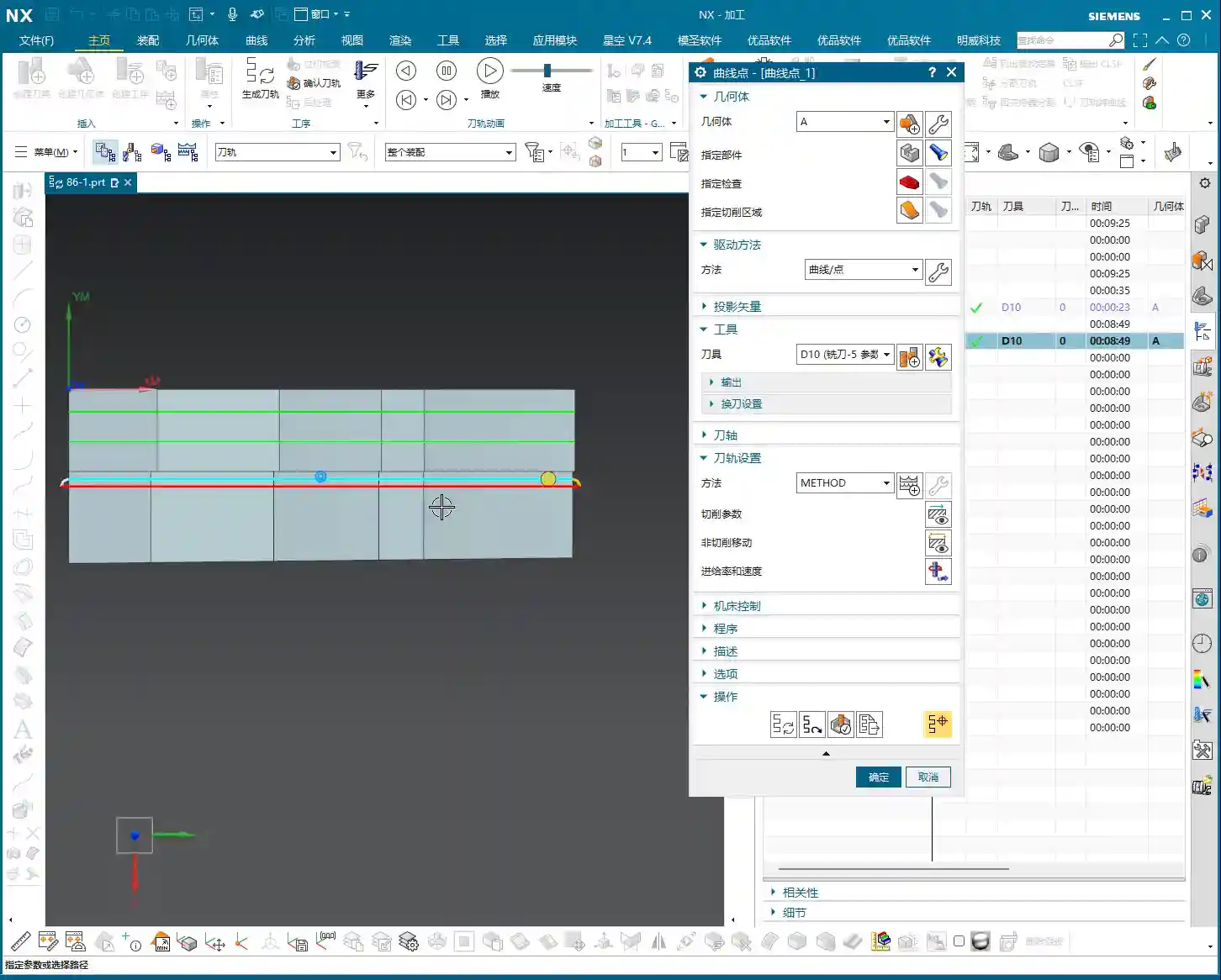
  • Siemens NX Corner Cleanup Combat Manual: Master Wang Unveils Toolpath Options & Parameter Optimizati

    📝 Key Takeaways: Master Wang shares practical NX Corner Cleanup techniques. From selecting a reference tool for corner cleanup to various cutting modes (Zigzag, Follow Part Outline, Zigzag-Up, Steep/Non-Steep), he thoroughly explains the characteristics and applicable scenarios for each toolpath. He specifically emphasizes combining “Alternate from Outside-In” with the “Smoothness” function to ensure excellent surface finish at part corner radii. Learn to identify yellow toolpath regions to avoid misjudgments and truly master the strategies not found in textbooks.

    The Core of Corner Cleanup — Understanding Reference Tool Corner Cleanup

    What is Reference Tool Corner Cleanup?

    Master Wang: Folks, it’s Master Wang here. Today, let’s talk about “Corner Cleanup” in NX. Don’t underestimate it; many quality issues in the workshop stem from these hard-to-reach corner radii. Our commonly used “Reference Tool Corner Cleanup,” as the name suggests, uses a “reference tool” larger than the current tool to identify areas that the previous tool couldn’t reach, and then a smaller tool is used for cleanup. This is a critical, core function in our NX programming, and you must master it thoroughly!

    Part Selection and Initial Setup

    Master Wang: Listen up! Step one in the operation is to first insert the “Operation,” then select “Reference Tool Corner Cleanup.” This is common knowledge, I’ve explained it countless times before. But there are two points you need to pay attention to:

    1. **Blank Definition**: Before starting any job, you **MUST define the blank clearly**. Otherwise, once the toolpath is calculated, you’ll either have an overcut or air cutting. Don’t make rookie mistakes!
    2. **Machining Area Selection**: When you encounter a part like ours, which has “sheet bodies,” don’t be foolish and select everything directly. You need to switch to “Only Select Faces” and then use “Box Selection” mode. This ensures you select the correct area, neither missing nor over-selecting. If you select too much, the program might calculate a bunch of yellow lines. Don’t panic, it’s not a program error, I’ll explain what’s happening later.
    3. **Tool Selection**: Which tool to choose? Youngster, for corner cleanup, just pick a common end mill that can reach into the corner radius. Here, the **specific tool model isn’t the main point; the key lies in the toolpath strategy and parameter settings**. That’s what determines the quality of your part!

    In-Depth Analysis of Corner Cleanup Strategies

    “Zigzag” Milling: The Foundation for Reliable Stock Removal

    Master Wang: The program we initially run often defaults to “Zigzag” milling. Simply put, this mode makes the tool move back and forth within the machining area, like plowing a field. It’s stable and removes material, but there’s a problem: the **”tool marks” can be quite noticeable**, especially on contoured surfaces. For parts requiring a high surface finish, you’ll need to look at other strategies. This is generally the entry-level method for corner cleanup; it gets the material out, but to achieve a smooth finish, you need to dig deeper.

    “Steep Up” Strategy: The Bottom-Up Finishing Approach

    Master Wang: “Steep Up” is the opposite of “Steep Down.” “Steep Down” cuts from top to bottom, using the tool’s bottom edge; “Steep Up,” on the other hand, **cuts from bottom to top, layer by layer upwards**. With this machining method, the tool first reaches the bottom, then lifts and cuts upwards from the bottom. This results in stable cutting forces and good chip evacuation. Let me tell you a trick: for areas with **small fillet radii** at the bottom, or where high surface finish is required on side walls, “Steep Up” can effectively reduce tool marks. This is because the final pass will lift from the bottom, allowing the tool to exit more smoothly, naturally leading to a better surface finish.

    “Follow Part Outline”: Flexible Approach for Sidewall Corner Cleanup

    Master Wang: Now, let’s talk about “Follow Part Outline.” As the name implies, this mode means the **tool’s side cutting edge follows the boundary, primarily addressing corner cleanup in sidewall regions**. With this method, the toolpath precisely conforms to the part’s boundaries, making it particularly effective for narrow, complex corner radii. For instance, if you need to clean up deep grooves or irregular slots, this method can thoroughly clean out dead spots. However, it also has a drawback: if the entire area is machined with this mode, efficiency might not be as high as “Zigzag.” So, you have to tailor your approach and not apply it indiscriminately.

    “Zigzag-Up”: An Efficient Strategy for Smooth Surface Corner Cleanup

    Master Wang: “Zigzag-Up” is a commonly used and highly effective strategy for processing contoured surfaces during corner cleanup. It combines the efficiency of “Zigzag” with the smoothness of “Up” cutting. Especially when combined with the **”Alternate from Outside-In”** cutting strategy, the results are even better! It starts from the periphery of the machining area and cuts inwards in a spiral, finally converging to the center, much like a snail shell. This approach **allows the cutting force to gradually decrease from outside to inside, which helps maintain tool life and machining stability**. Especially during finishing passes, it can produce perfectly round, smooth corner radii. For our contoured part today, this method is particularly suitable!

    Key Parameters and Practical Tips

    The ‘Wrench’ Icon in Fixed Axis Contour Milling Parameters

    Master Wang: In NX, everything related to “Fixed Axis Contour Milling” has critical settings under that “wrench icon.” Our corner cleanup also falls into this category. You need to thoroughly understand the parameters inside, such as “Non-Steep Cutting” and “Steep Cutting” – these two are real gems.

    • **Non-Steep Cutting**: Generally corresponds to **gentle areas with a slope less than a certain angle (e.g., 30 degrees or 45 degrees, which can be customized)**. The toolpath here is usually Zigzag or Follow Boundary.
    • **Steep Cutting**: Corresponds to **steep areas where the slope is greater than this angle**. Toolpaths in these areas are often Z-level milling or cut from bottom-up.

    The cutting methods and parameter settings for these two regions directly impact machining efficiency and surface quality. For our case today, which involves many contoured surfaces, the “Non-Steep Cutting” method will be used frequently. Remember, without special requirements, often you can just set it to **”Same as Non-Steep.”** This saves effort and ensures the same machining effect as in non-steep regions.

    “Smoothness” and “Stepover”: Secrets to Improving Surface Quality

    Master Wang: When it comes to surface finish, there are two parameters you absolutely must keep an eye on: **”Smoothness”** and **”Stepover.”**

    1. **Smoothness**: Especially when using “Zigzag-Up” for corner cleanup, if the toolpath doesn’t look “rounded” enough, with somewhat “sharp corners,” chances are your “Smoothness” isn’t activated. Go immediately to “Non-Cutting Moves” and check the “Smoothness” box! Activating this function makes the tool’s engage/retract moves and connection paths much smoother, naturally resulting in a shiny part surface. This is **critical for the final “aesthetic quality” of contoured corner radii**!
    2. **Stepover**: This controls the tool’s radial engagement. Generally, if you reduce the stepover, the surface becomes smoother. But on the flip side, machining time increases, and so does cost. So, it’s a balance point. However, in “Smoothness” mode, to make the toolpath connections look better, sometimes we can increase the “Maximum Stepover,” for example, to **2000% or even 5000%**. This gives the software greater freedom to optimize the path, making it look as if it were milled in a single pass – absolutely beautiful. This is a trade secret you won’t find in textbooks; it allows your program to ensure smoothness while maintaining a certain level of efficiency!

    Summary: Pitfall Avoidance Guide

    Master Wang: Alright, that’s all for today’s corner cleanup essentials. Remember my words, these are hard-earned lessons from the shop floor.

    1. **Always Define the Blank**: Don’t treat this as a minor detail. If the blank isn’t defined correctly, all subsequent toolpaths are useless, leading to overcuts and ruined parts, or air cutting that wastes time. This is fundamental, yet often overlooked.
    2. **The Truth About Yellow Toolpath Regions**: When NX calculates toolpaths, it sometimes displays **yellow toolpath regions**. Remember, this is not a program error, but rather NX telling you that this is the tool’s **”machining range” or “intersection area,”** typically used to mark the maximum range that the current tool can cut. You simply need to **”regenerate” the toolpath**, and these yellow regions will disappear, turning into normal blue toolpaths. Don’t hit cancel as soon as you see yellow lines – that’s a misjudgment and a waste of time!
    3. **Matching Strategies to Part Geometry**: Corner cleanup strategies are diverse; there’s no single “best” one, only the most suitable. For parts with many contoured surfaces and high precision requirements, consider “Zigzag-Up” combined with “Alternate from Outside-In”; for deep cavities and bottom corner radii, use “Steep Up”; for narrow sidewalls, use “Follow Part Outline.” You must flexibly choose based on the part’s shape, material characteristics, and precision requirements.
    4. **Balancing Smoothness and Efficiency**: Blindly pursuing smoothness by setting the stepover to the minimum will only extend your machining time indefinitely and increase costs. Learn to combine the “Smoothness” function with reasonable adjustments to “Maximum Stepover.” This way, you can improve efficiency while ensuring quality – that’s the wisdom of an experienced professional!
    5. **Don’t Just Rely on Software Simulation, Watch the Cutting Action!**: The best program still has to run on the machine. Cutting sparks, chip formation, and tool wear – these are the most authentic feedbacks from the shop floor. No matter how beautiful the software simulation, it cannot replace your keen eye and years of accumulated experience!

    Think these things over carefully and master them, and you’ll be well on your way to becoming a true master machinist!

    👤 About the Author:
    The author is a veteran CNC machining professional with 15 years of industry experience, specializing in UG NX programming. This article is an original work representing personal practical insights.

    ⚠️ Copyright Notice: Unauthorized reproduction or distribution without prior communication is strictly prohibited.

  • Multi-Pass Corner Cleanup in Siemens NX: In-Depth Analysis of Precise Stock Control and Efficiency S

    📝 Key Takeaways: Master Wang explains Multi-Pass Corner Cleanup in Siemens NX, emphasizing its interface similarity to Single-Pass and Reference Tool Corner Cleanup, but highlighting the core feature of “Number of Passes per Side” for precise stock control. He points out the necessity of manually calculating remaining stock, integrating material properties, optimizing toolpaths to achieve ±0.005mm precision, stressing the importance of observing cutting sparks and chips during actual operations, and advocating mastering Reference Tool Corner Cleanup to apply knowledge across different methods.

    Alright, guys, today Master Wang is going to show you this often-overlooked feature in Siemens NX: Multi-Pass Corner Cleanup. Don’t let its similar interface to the Single-Pass and Reference Tool Corner Cleanup operations we’ve discussed fool you; there’s a lot more to it. Especially when you’re working on parts with extremely high demands for precision and surface finish, or when tackling tough, hard materials, Multi-Pass Corner Cleanup becomes your ultimate weapon for boosting efficiency, controlling stock, and ensuring accuracy!

    Listen up: in this machining game, you can’t just rely on fancy software simulations. What truly matters are the cutting sparks and chips flying off the machine. Every parameter setting must revolve around actual machining results, tool life, and cost efficiency.

    Core Logic and Characteristics of Multi-Pass Corner Cleanup

    Similarities and Differences with Single-Pass and Reference Tool Corner Cleanup

    First, let’s get this straight: from an operational interface perspective, Multi-Pass Corner Cleanup is indeed very similar to Single-Pass and Reference Tool Corner Cleanup. You still select the part, choose the blank, define the cutting region, and select the tool – these basic steps are all the same. However, its key difference lies in its ability to provide you with more precise stock control, especially when you need to gradually clean up the remaining stock at the bottom of cavities and grooves with multiple passes and small Stepover.

    It’s in the ‘Edit’ option within ‘Method’ where you’ll find some distinct differences. This is where the essence of Multi-Pass Corner Cleanup lies.

    Key Parameters: “Stepover” and “Number of Passes per Side”

    Here, we need to focus on two parameters: one is the standard “Stepover”, and the other is the ‘Multi-Pass Corner Cleanup’-specific “Number of Passes per Side”.

    Everyone is familiar with “Stepover”; it’s the lateral distance the tool feeds for each pass. If you set it to 0.5mm, the tool cuts one pass, then shifts 0.5mm laterally for the next. Nothing new there.

    The crucial part is this “Number of Passes per Side”. For example, if your default toolpath makes a pass in the middle – let’s temporarily “not count” that middle pass. Then, if you set “Number of Passes per Side” to 5, it will generate an additional 5 passes on each side of the central toolpath, forming a total of 11 passes (5+1+5). If you change it to 10, it will offset 10 passes on each side, for a total of 21 passes.

    What’s the point of this? Think about it: when machining deep cavities, narrow grooves, or high-hardness materials, you can’t expect one tool to hog it all out in a single pass. That’ll lead to chipped tools, Chatter, and quickly wear out your cutters. By adjusting “Number of Passes per Side” and “Stepover”, we can use small Depth of Cut (DOC) and small Stepover to gradually remove the remaining stock at the root, layer by layer, in controlled increments. It’s like peeling an onion, layer by layer. This not only protects your tools but also ensures machining stability and accuracy.

    Listen up, this is where real-world experience comes into play. How do you determine this “Number of Passes per Side”? You have to estimate or measure the remaining stock on your workpiece yourself. For instance, if you’ve done your Roughing with a larger tool and there’s still 1.5mm of stock left at the bottom of the groove, and your current Corner Cleanup tool has a maximum safe Stepover of 0.2mm. Then 1.5mm / 0.2mm = 7.5. You’ll need to set “Number of Passes per Side” to at least 8, or even 9 or 10, to ensure the stock is completely removed and there’s enough overlap to guarantee surface quality. This calculation isn’t something you’ll learn from a textbook; it’s accumulated through experience and understanding of material properties.

    Cutting Patterns and Toolpath Optimization

    Available Cutting Patterns

    Multi-Pass Corner Cleanup offers fewer cutting patterns, mainly Zig, Zigzag, and Mixed. These are the same as what we’ve covered in other machining operations, so Master Wang won’t go into excessive detail. Generally, for efficiency, we often use Zigzag. However, for Finishing passes or when uniform tool load is critical, Zig might be more suitable, even if it results in more unproductive rapid moves.

    • Zig: The tool always cuts in one direction, with the return path being an idle move. Advantage: stable cutting, less prone to chatter marks. Disadvantage: more unproductive moves, lower efficiency.
    • Zigzag: The tool cuts in both directions. Advantage: high efficiency, fewer unproductive moves. Disadvantage: requires higher tool strength and machine rigidity, and may produce slight marks during reverse cutting.
    • Mixed: Combines the characteristics of Zig and Zigzag, typically used to optimize cutting in specific areas.

    Inward/Outward Direction and Cutting Sequence

    Within “Cutting Patterns”, you also have “Outside-In”, “Inside-Out”, and “Lead First” and “Trail First”. These control where the tool starts and where it moves.

    • Outside-In: Gradually cuts from the workpiece exterior towards the interior, which aids chip evacuation and reduces secondary cutting. This is suitable for complex cavities or softer materials.
    • Inside-Out: Cuts from the workpiece interior towards the exterior, suitable for structures with central holes or bosses. This helps prevent chips from being trapped internally during the initial stages of machining.
    • Lead First and Trail First: These two methods, combined with Alternate, control the tool’s entry and exit sequence along the path. They are widely used, especially during Corner Cleanup, where tool and workpiece interference must be considered.

    Most of the time, to ensure even tool load and smooth chip evacuation, combinations like Outside-In Alternate and Lead First/Trail First are commonly used. The specific choice depends on your workpiece geometry, material properties, and the required surface finish. For instance, when machining difficult-to-cut materials like titanium alloys, stable cutting conditions are critical to prevent built-up edge; in such cases, the selection of cutting pattern becomes even more meticulous.

    Practical Application and Precision Control

    Material Properties and Toolpath Strategies

    Different materials require vastly different machining strategies.

    • Standard Aluminum: Excellent machinability, allowing for increased feed rates and Depth of Cut (DOC). However, be mindful of burrs during Corner Cleanup.
    • Stainless Steel, Titanium Alloys: For these difficult-to-machine materials, Corner Cleanup requires extreme caution. Tools wear quickly and work hardening is common. Here, Multi-Pass Corner Cleanup’s small Stepover, multi-layer cutting approach becomes especially critical. Combine this with appropriate coolant and tool coatings to ensure tool life and machining quality.
    • High-Temperature Nickel-Based Alloys: These are truly the “tough nuts to crack” in machining. For Corner Cleanup, you must employ a strategy of constant cutting force and stable Depth of Cut (DOC). Multi-Pass Corner Cleanup helps you precisely control the Depth of Cut (DOC) for each pass, preventing overload and Chatter, which is also beneficial for preventing heat treatment deformation.

    Achieving ±0.005mm Level Precision Control

    If your job demands precision of ±0.005mm or even tighter, then “Multi-Pass Corner Cleanup” combined with your precise calculation of remaining stock becomes absolutely critical. You must know exactly how much stock each pass leaves and how much the next pass needs to remove. This isn’t just about setting software parameters; it’s a comprehensive consideration of machine performance, tool runout, and fixture rigidity.

    Master Wang’s got a practical tip for you: before machining critical dimensions, first use a dial indicator to measure the actual remaining stock. Then, based on your final Finishing pass tool’s cutting capability, work backward to determine your “Stepover” and “Number of Passes per Side”. If your machine has accuracy errors, like 0.01mm of backlash, you might even need to apply a negative compensation in Siemens NX using the “Part Stock” or “Check Geometry”‘s “Compensation” function to “eat up” that error. That’s the real error slayer!

    Toolpath Optimization from an NX Expert’s Perspective

    As an NX expert, I’m telling you, optimizing toolpaths isn’t just about minimizing unproductive moves or finding shortcuts. For Multi-Pass Corner Cleanup, it’s even more crucial to consider tool entry/exit methods, linking moves, and the number of retracts.

    • Avoid abrupt engagements and retracts: Especially in small-area machining like Corner Cleanup, sudden tool acceleration or deceleration can easily cause Chatter or degrade surface quality. Always use arc transitions.
    • Minimize retracts: More retracts mean lower efficiency, and each time the tool retracts and re-engages, it can leave marks on the surface. If you can avoid retracting, do it; if you can reduce them, do that.
    • Consider tool wear: For materials like titanium alloys, tool wear is constant. By wisely allocating “Number of Passes per Side” and “Stepover”, you can extend the effective machining time of a single tool and reduce tool change frequency.

    Summary: Pitfall Avoidance Guide

    Alright, after all that, the core idea behind Multi-Pass Corner Cleanup is to give you more precise control over the Depth of Cut (DOC) for each pass, instead of letting the software blindly guess for you. So, remember these “pitfall avoidance guidelines”:

    1. Don’t blindly trust default parameters: Especially for “Number of Passes per Side” and “Stepover”, you absolutely must manually calculate and adjust them based on the actual remaining stock, material, tool, and precision requirements of the workpiece. If you set them without knowing what you’re doing, the part will either lack precision or you’ll scrap your tool.
    2. Thoroughly understand material properties: The Depth of Cut (DOC) for soft materials is completely different from hard materials. If you don’t understand material characteristics, even the best toolpath strategy is useless.
    3. Pay attention to cutting sparks and chips: Software simulations are static; machine operations are dynamic. During cutting, observe the spark color, chip shape, and sound. Excessive sparks, blue chips, or abnormal noises all indicate issues with your parameters; stop and adjust.
    4. Prioritize mastering “Reference Tool Corner Cleanup”: Why? Because “Reference Tool Corner Cleanup” has the most comprehensive parameters; it’s the “big brother” of these three Corner Cleanup operations (Single-Pass, Multi-Pass, Reference Tool). If you master the big brother, many of its logics and parameter settings are universal and applicable to Multi-Pass and Single-Pass, which have fewer, simpler parameters. Master the big brother, and the younger siblings will be easy to handle.
    5. Practice more, think more, summarize more: No one is born a master craftsman; everyone gets there through continuous practice and hands-on experience. After every machining job, you must summarize your lessons learned. That’s how you truly turn these tricks into your own expertise!

    That’s all for today. Go on and think this through on your own. Remember, in machining, there are no shortcuts. Only by being grounded and knowing your stuff can you become a true expert! See you next time!

    👤 About the Author:
    The author is a veteran CNC machining professional with 15 years of industry experience, specializing in UG NX programming. This article is an original work representing personal practical insights.

    ⚠️ Copyright Notice: Unauthorized reproduction or distribution without prior communication is strictly prohibited.
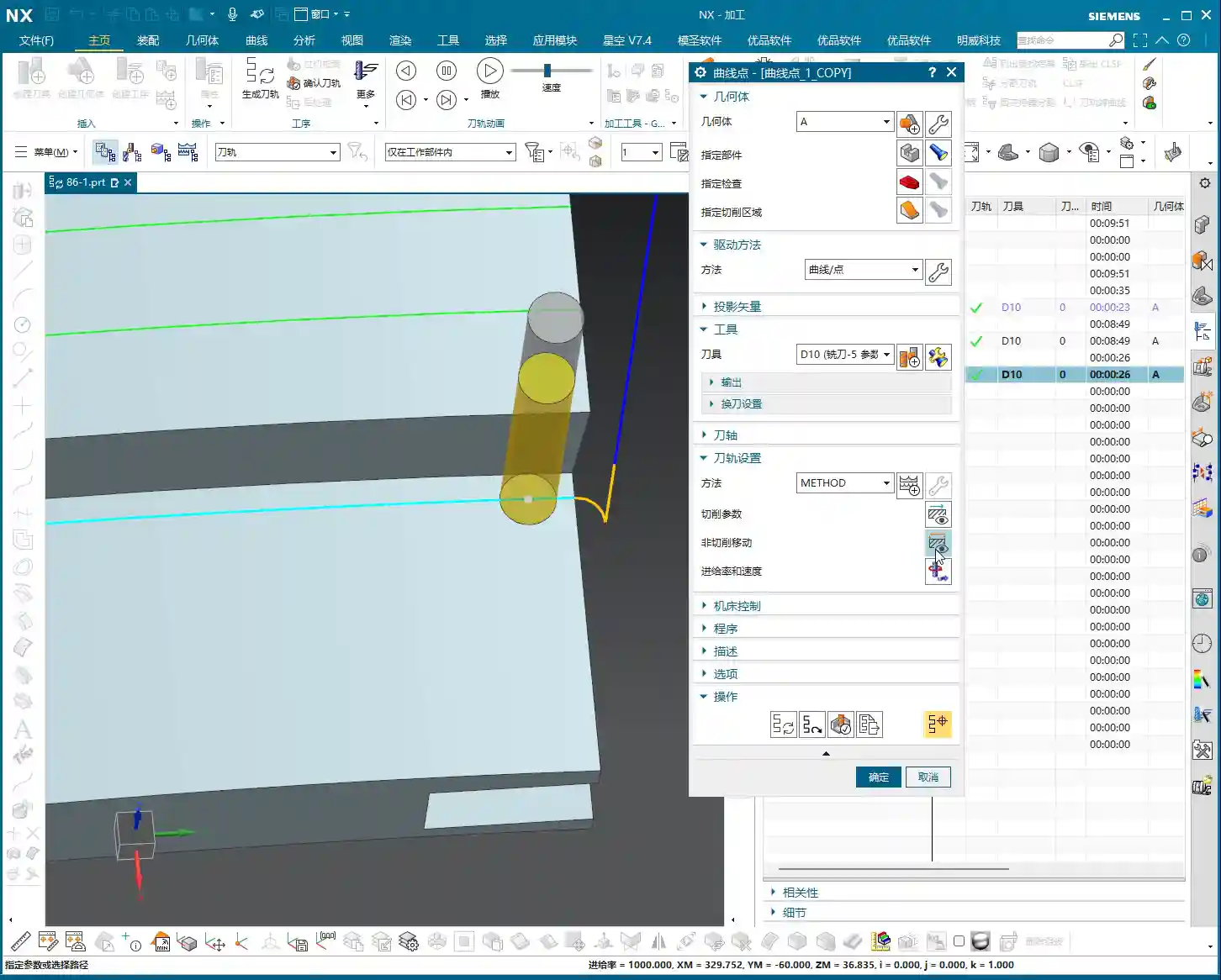
  • Siemens NX Corner Cleanup (Rest Milling): Master Wang’s 15 Years of Experience – Avoid Pitfalls, Dou

    📝 Key Takeaways: Master Wang provides practical guidance on Siemens NX Corner Cleanup (Rest Milling) modes. He highlights “Zig-zag Up + Outside-in Alternating + Smooth” as the most practical and efficient combination, capable of reducing air cuts and protecting tools. He thoroughly explains the advantages, disadvantages, and application scenarios for One-way/Zig-zag Horizontal, Depth Machining, and Follow Periphery modes. Furthermore, Master Wang discusses the strategic choice between “Plunge Milling” and “Area Milling” operations and concludes with a pitfall avoidance guide, emphasizing real-world experience and cost-efficiency.

    Hello everyone, I’m Master Wang. Today, let’s talk about choosing the right Corner Cleanup (Rest Milling) modes in Siemens NX. Don’t underestimate these modes; pick the right one, and your efficiency will skyrocket, and tool life will be extended. Choose incorrectly, and you’ll either have excessive air cuts, premature tool wear, or even scrap the part entirely! Listen up, because this is practical experience I’ve gathered over 15 years, getting my hands dirty on the shop floor – you won’t find this in any textbook.

    Master Wang’s Insights: The Essence of Corner Cleanup Modes

    Apprentices, you must understand that for Corner Cleanup (Rest Milling), especially in complex cavities and surfaces, the machining sequence and toolpath direction are paramount. I’ve personally put together a highly effective and efficient combination strategy that I use most often – it’s one of my core specialties.

    The Ultimate Combination: Zig-zag Up + Outside-in Alternating + Smooth

    The most effective toolpath pattern I use, and one that consistently delivers the best results, is “Zig-zag Up,” paired with an “Outside-in Alternating” cutting sequence. Crucially, always remember to enable the “Smooth” option. Why do I emphasize this?

    • Zig-zag Up: In this mode, the tool travels up from the bottom, then down from the top, in a reciprocating motion. Unlike simple one-way cutting, which requires the tool to retract and return after each pass, Zig-zag Up effectively reduces retractions and maintains continuous cutting, making it particularly suitable for cavities with a certain draft angle.
    • Outside-in Alternating: This cutting direction is the core principle! It ensures the tool starts from the periphery of the Corner Cleanup area and gradually moves inward. This guarantees sufficient space for engagement, preventing the tool from making a full-width cut at the beginning. It significantly reduces the risk of excessive Depth of Cut (DOC) and chipping. Especially for harder materials like titanium alloys and high-temperature nickel-based superalloys, this cutting method effectively protects the tool and extends its life.
    • Smooth: This option is extremely important, yet often overlooked. Enabling “Smooth” makes the toolpath very fluid, eliminating sharp turns and acute angles, which reduces machine shock and vibration. Sometimes, if you notice the tool “jumping” (the tool suddenly lifts and drops, which is very damaging), it’s likely because your Stepover setting for “Smooth” is too small. A smaller Stepover can be counterproductive due to frequent tool retractions. I typically adjust the Stepover based on tool diameter and material; for example, when performing corner cleanup with a ball end mill, a Stepover of 5%-10% of the tool diameter is usually sufficient, but always observe the cutting sparks and sound in real-time.

    This combination strategy ensures the tool maintains a relatively stable cutting load during Corner Cleanup (Rest Milling), resulting in smooth toolpaths, high machining efficiency, and improved part surface quality. Don’t just rely on software simulations; during actual cutting, you need to observe the sparks at the cutting edge and listen to the cutting sound – that’s where true skill lies.

    Detailed Explanation of Common Corner Cleanup Modes

    One-way Horizontal

    As the name suggests, this mode involves unidirectional, horizontal tool movement. After completing a pass, the tool retracts to the start point before beginning the next. This method might be suitable for simple flat areas or shallow groove Corner Cleanup, but it’s generally inefficient due to excessive time spent on air cuts and retractions. If you use this in complex cavities, your machining time will be simply wasted on tool retractions.

    Of course, if you enable the “Smooth” option, the toolpath can become spiral-like, cutting downwards in circles, which looks much cleaner and can achieve some Corner Cleanup effect. However, overall, it’s less efficient and flexible than the “Zig-zag Up” mode.

    Zig-zag Horizontal

    This is an upgraded version of One-way Horizontal, where the tool cuts back and forth with no tool retraction in the Z-axis direction, reducing idle travel. It steps down one layer, then cuts horizontally in a reciprocating motion. This can be considered for cleaning the root areas of square or rectangular features. However, for complex Corner Cleanup regions or those with draft angles, this mode is less adaptable than “Zig-zag Up.”

    Zig-zag Up Horizontal

    This mode is quite similar to “Zig-zag Up,” but it emphasizes horizontal reciprocating cuts followed by a Z-axis ascent. Compared to my “Zig-zag Up + Smooth” combination strategy, if “Smooth” is not enabled, it might produce a more noticeable stepped appearance in the Z-axis direction, and toolpath transitions won’t be as smooth. Therefore, even when using this mode, I usually enable “Smooth” to ensure more fluid tool movement.

    Considerations for Depth Machining Modes

    In Siemens NX, some modes have “Depth” in their names, which sounds impressive-sounding, but their practical application depends on your workpiece characteristics and machining requirements.

    One-way Depth Machining

    This mode involves unidirectional vertical plunging, with the tool retracting and returning after each cut. If you want to perform stepped deep cuts at a specific point or area, this could be considered. However, it’s rarely used alone for general Corner Cleanup due to its inefficiency. Personally, if I were to do something like this, I’d opt for helical plunge milling instead, which is more direct and ensures more uniform tool engagement.

    Zig-zag Depth Machining

    Similar to One-way Depth Machining, except the tool can perform reciprocating plunging. Again, these depth machining modes are typically not the first choice for Corner Cleanup, unless you are specifically cleaning the bottom of blind holes or deep, narrow slots. In most complex cavity Corner Cleanup scenarios, their efficiency and tool life protection are not ideal.

    Special Mode: Follow Periphery

    Follow Periphery

    This mode is also very useful. It enables the tool to follow the contour of the Corner Cleanup area, progressing inward or outward layer by layer. For regularly shaped Corner Cleanup regions, especially those with well-defined boundaries, it can generate very clean toolpaths. However, there’s a point to note: how does it determine “inward” versus “outward” cutting? This requires you to have a clear understanding of the model boundaries and desired toolpath. If it feels awkward to use, or you’re unsure if its cutting direction is what you want, then just stick to Zig-zag Up – it’s generally more reliable.

    The Philosophy of Mode Selection: “Plunge Milling” vs. “Area Milling”

    In Siemens NX, you might sometimes notice that the cutting mode options within “Area Mill/Contour Area” and “Plunge Mill/Contour Profile” operation types look similar. However, you must understand that their application scenarios are different.

    • “Area Mill/Contour Area”: This is typically used for machining an overall area or surface. It’s based on a plane or region, where the tool cuts horizontally and then steps down layer by layer. The modes we discussed earlier, such as Zig-zag Up, Zig-zag Horizontal, and Follow Periphery, are most commonly used here, primarily to cover the entire Corner Cleanup region.
    • “Plunge Mill/Contour Profile”: The name itself implies a focus on depth-oriented machining. For instance, if you need to mill a deep hole or clean the bottom of a deep, narrow slot, you would likely use modes within the “Plunge Mill” operation type, as it emphasizes the tool’s plunging strategy in the Z-axis direction.

    Therefore, when selecting a mode, you must first determine your primary objective: do you want to efficiently clear an area (select the appropriate mode under “Area Mill” operations), or do you want to more effectively handle depth-oriented cutting (select the appropriate mode under “Plunge Mill” operations)? Generally speaking, for Corner Cleanup, most of the time, we’re selecting within “Area Mill.” Remember what I said: Zig-zag Up, Outside-in Alternating, and with Smooth enabled – these three are your powerful tools within “Area Mill.”

    Summary: Pitfall Avoidance Guide

    1. Mode selection must align with the workpiece: There’s no one-size-fits-all mode. The shape, depth, and material hardness of the Corner Cleanup region all influence your choice. Don’t just blindly apply them.
    2. Effectively utilize the “Smooth” function: It makes toolpaths smoother, reduces machine shock, protects the tool, and improves surface quality. However, the Stepover setting must be reasonable; too small will lead to frequent retractions.
    3. Beware of “Tool Jump”: When the tool suddenly lifts and drops during machining, it’s often caused by unreasonable toolpath settings, too small a Stepover, or sudden changes in cutting angle. This can cause chipping and even damage the workpiece.
    4. Machining sequence is crucial: Outside-in cutting is generally safer and effectively prevents “excessive Depth of Cut (DOC).”
    5. Don’t solely trust software simulations: Simulations are just theoretical. In actual machining, tool wear, machine accuracy, and fixture rigidity all influence the outcome. Observe cutting sparks and listen to the sound – that’s the machine “talking” to you.
    6. Prioritize cost efficiency: Every programming task must consider tool costs and machining time. Avoiding unnecessary idle travel and optimizing toolpaths are fundamental skills for every good engineer.

    Alright, that’s all for today. Go back, practice more, think more, and next time we’ll discuss other practical tips. See you!

    [EXCERPT]
    Master Wang provides practical guidance on Siemens NX Corner Cleanup (Rest Milling) modes. He highlights “Zig-zag Up + Outside-in Alternating + Smooth” as the most practical and efficient combination, capable of reducing air cuts and protecting tools. He thoroughly explains the advantages, disadvantages, and application scenarios for One-way/Zig-zag Horizontal, Depth Machining, and Follow Periphery modes. Furthermore, Master Wang discusses the strategic choice between “Plunge Milling” and “Area Milling” operations and concludes with a pitfall avoidance guide, emphasizing real-world experience and cost-efficiency.

    👤 About the Author:
    The author is a veteran CNC machining professional with 15 years of industry experience, specializing in UG NX programming. This article is an original work representing personal practical insights.

    ⚠️ Copyright Notice: Unauthorized reproduction or distribution without prior communication is strictly prohibited.

  • Practical Analysis of Single-Pass Corner Cleanup in Siemens NX: Master Wang’s Guide to Precise and E

    📝 Key Takeaways: ** Master Wang provides a hands-on guide to practical techniques for single-pass Corner Cleanup in Siemens NX. This focuses on understanding the logic behind simplified parameters, distinguishing between highlighted regions and actual toolpaths, avoiding common pitfalls of relying solely on software simulations, and ensuring efficient and precise Corner Cleanup. **

    Hello everyone, I’m Master Wang. Today, let’s continue discussing practical applications. As far as the previous “Main Region” discussions go, I believe we’ve covered everything, mainly area management and some fundamental considerations. Now, let’s jump straight to the core topic: Single-Pass Corner Cleanup.

    Single-Pass Corner Cleanup in NX: Fundamental Concepts and Key Parameters

    Command Overview and Application Scenarios

    Listen up, this Single-Pass Corner Cleanup, as the name implies, is about using one tool for one pass to clean out the material left behind in corners that larger tools couldn’t reach. Often, after roughing with a large tool, there’s always some residual material in the corners. That’s when you need a smaller tool for Corner Cleanup. This command is specifically designed for that job.

    Parameters like ‘Angle,’ ‘Minimum Cut Length,’ and ‘Merge Distance’ have been thoroughly explained when I covered deep slot Contour Milling and Surface Milling. We won’t delve into them again here. If you don’t remember, go back and review your previous notes. These are fundamental skills you can’t afford to forget.

    Cutting Strategies for Steep and Non-Steep Regions

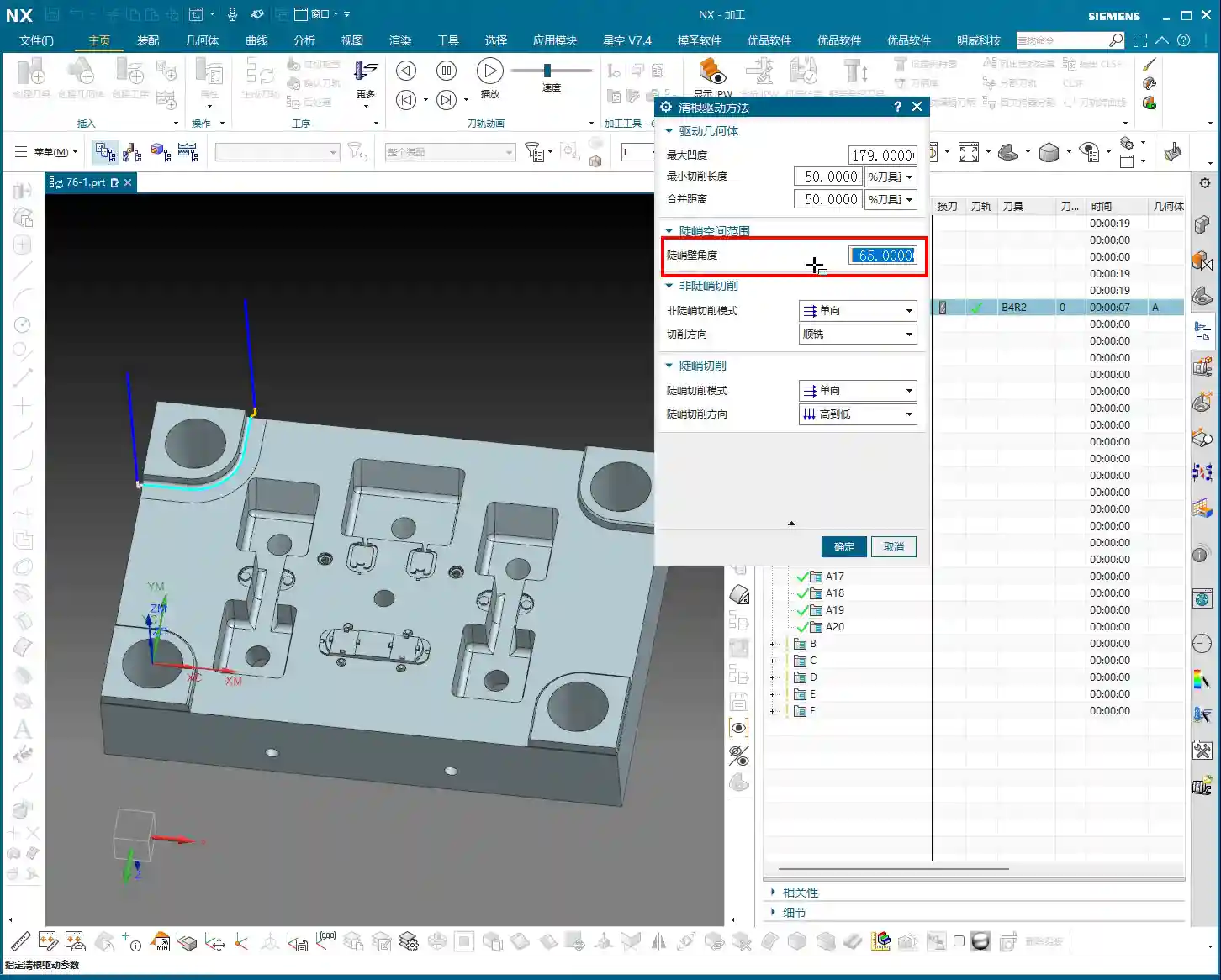
    Let’s go straight to the ‘Steep Area Angle’ parameter; this is crucial. For example, if it’s set to 65 degrees. What does this mean? It means that when the workpiece’s sloped surface angle is less than 65 degrees, it will not machine it; toolpaths will only be generated for Corner Cleanup in steep areas that are greater than or equal to 65 degrees. This follows the same logic as our previous discussion on defining ‘steep’ and ‘non-steep’ regions in Surface Milling.

    As for cutting methods in ‘non-steep regions,’ such as ‘One Way,’ ‘Climb,’ ‘Conventional,’ or ‘Mixed,’ you should all be clear on those by now, so I won’t belabor the point.

    Specificity of Single-Pass Corner Cleanup

    I need to emphasize something here: because it’s ‘Single-Pass’ Corner Cleanup, as the name suggests, it only makes one pass. Therefore, for many parameters, such as cutting direction, simply selecting ‘One Way’ is sufficient. It’s not like other complex milling strategies that present you with a plethora of options. In this operation, fewer options actually make it simpler; you don’t need to overthink it. Similarly, for steep region cutting strategies, ‘One Way’ or ‘Same as Non-Steep’ is often enough, or even ‘None’ will work, because it’s just one pass; there aren’t many fancy variations.

    Master Wang tells you, for this command, relatively few parameters need modification; most of the time, the defaults are fine. Because its core purpose is: one cleanup pass! To remove the residual material from those corners.

    In-depth Analysis: The Nuances of Multi-Pass Processing in Single-Pass Corner Cleanup

    Practical Interpretation of Multi-Pass Processing

    Although it’s called ‘Single-Pass Corner Cleanup,’ it also includes a ‘multi-pass’ option. You might ask, isn’t that contradictory? Listen closely, this is where some ‘book-smart’ knowledge won’t cut it.

    For example, if you’ve set up multi-passes with a total stock of 10 mm and a Depth of Cut (DOC) of 1 mm per pass. How will it proceed? It won’t simply cut layer by layer in the Z-axis direction like conventional machining. Instead, it will generate multiple passes that spread outward in an arc shape, based on the geometry of the corner you are cleaning up. This means if your corner has a radius, it will follow that radius, expanding outward with each successive pass, not just extending in the Z-direction. Don’t be fooled by the simulated toolpaths in the software and think it’s like regular Z-level machining; you’d be mistaken!

    This approach is designed to better clean irregular or filleted residual areas, allowing the tool to conform more closely to the workpiece shape during cleanup. So, don’t be surprised when you see the toolpath expand in concentric arcs; it’s precisely extending the Corner Cleanup outward according to your fillet geometry.

    Misconception Warning: Yellow Trajectory ≠ Actual Toolpath

    Select an area and generate the program, and you’ll see a bunch of yellow trajectory lines. Many new apprentices, seeing all this yellow on the screen, immediately assume it’s all toolpath. Big mistake! Listen up, this is a major pitfall.

    Those yellow lines are merely areas that the software has highlighted as ‘potential toolpath generation’ regions, or rather, the reachable range for the tool. However, the true toolpath is only counted where the tool actually engages and cuts material. If you replay the program, you’ll see that in some areas marked yellow, the tool never actually descended – that’s not a toolpath! It’s just telling you there might be material there, and theoretically, the tool could reach it, but in actual machining, due to unmet conditions or simply no remaining stock, it won’t generate a real cutting toolpath.

    So, don’t just look at the yellow lines from the software simulation; you need to see the cutting sparks, to confirm if the tool is truly engaging and doing work! This is practical experience; textbooks don’t always go into this much detail.

    Practical Demonstration: Tool Selection and Path Generation

    Impact of Tool Selection on Corner Cleanup Effectiveness

    Let’s try switching tools. For instance, if I use a D10 (10mm diameter) tool for Corner Cleanup. You’ll notice it also follows the contour of the selected area, making one pass. It will make a Finish cut around all qualified edges. Both the outer contour here and the small corner there will be machined. Of course, if that corner isn’t clean enough with a D10 tool, then you’ll need to switch to a smaller tool – D6, D4, or even D2, depending on the actual requirements.

    The core of this command is ‘Corner Cleanup,’ so it will try its best to clean along the contour lines. Sometimes, even if a corner has a fillet at the bottom, or no fillet at all, as long as it’s within the designated region, it will attempt to generate a toolpath. But whether it genuinely cuts material depends on the actual remaining stock and the tool size.

    Toolpath Generation and Effects of Full-Area Corner Cleanup

    If we select the entire workpiece as the Corner Cleanup region and then generate toolpaths. You’ll find that the program becomes very extensive and messy. This is because it will attempt to clean all internal contours, external contours, and every ‘corner’ it can find, using the single-pass method. The resulting toolpaths will look dense and highly complex.

    However, this also highlights its ‘Corner Cleanup’ characteristic: leaving no corner untouched. Some small grooves might appear ‘overcut,’ but that’s because the tool also makes a single pass through them. Therefore, when using this command, you must precisely select the areas requiring Corner Cleanup based on the actual situation, rather than selecting everything indiscriminately. Otherwise, efficiency will suffer, and the program will be disorganized.

    Summary: Pitfall Avoidance Guide

    1. Understand the Essence of ‘Single-Pass’: Its core principle is to make only one pass, so many complex parameters do not require extensive adjustment; prioritize simplified operation.
    2. Distinguish Between Highlighted Regions and Actual Toolpaths: The yellow paths generated in the software are merely regions where the tool is reachable or designated; they are not all actual cutting toolpaths. Always confirm through playback or simulation whether the tool is truly engaging material.
    3. Master the Multi-Pass Spreading Mechanism: When using the ‘multi-pass’ option, understand that it’s not simple Z-level layering. Instead, it cleans up by expanding outward in an arc shape based on the geometry of the Corner Cleanup region (e.g., fillets). This helps in more refined processing of complex corners.
    4. Precisely Select Corner Cleanup Regions: Avoid unnecessary full-area Corner Cleanup, as this generates a large number of redundant and disorganized toolpaths, severely impacting machining efficiency. Only select corners or residual areas that genuinely require cleanup.
    5. Combine Material and Tool Characteristics: During Corner Cleanup, thoroughly consider the material’s cutting performance and tool wear. Reasonably select feed rates and spindle speeds, and reserve appropriate machining stock. This prevents small tools from breaking or overcutting.

    Alright, that concludes our discussion on ‘Single-Pass Corner Cleanup.’ Remember, its purpose is to make one pass to clean corners; don’t overcomplicate it. Next, we’ll talk about ‘Reference Tool,’ which is much more important, and its parameters certainly warrant a more in-depth discussion.

    That’s all for today’s sharing. Thanks for watching, and I’ll see you next time!

    👤 About the Author:
    The author is a veteran CNC machining professional with 15 years of industry experience, specializing in UG NX programming. This article is an original work representing personal practical insights.

    ⚠️ Copyright Notice: Unauthorized reproduction or distribution without prior communication is strictly prohibited.
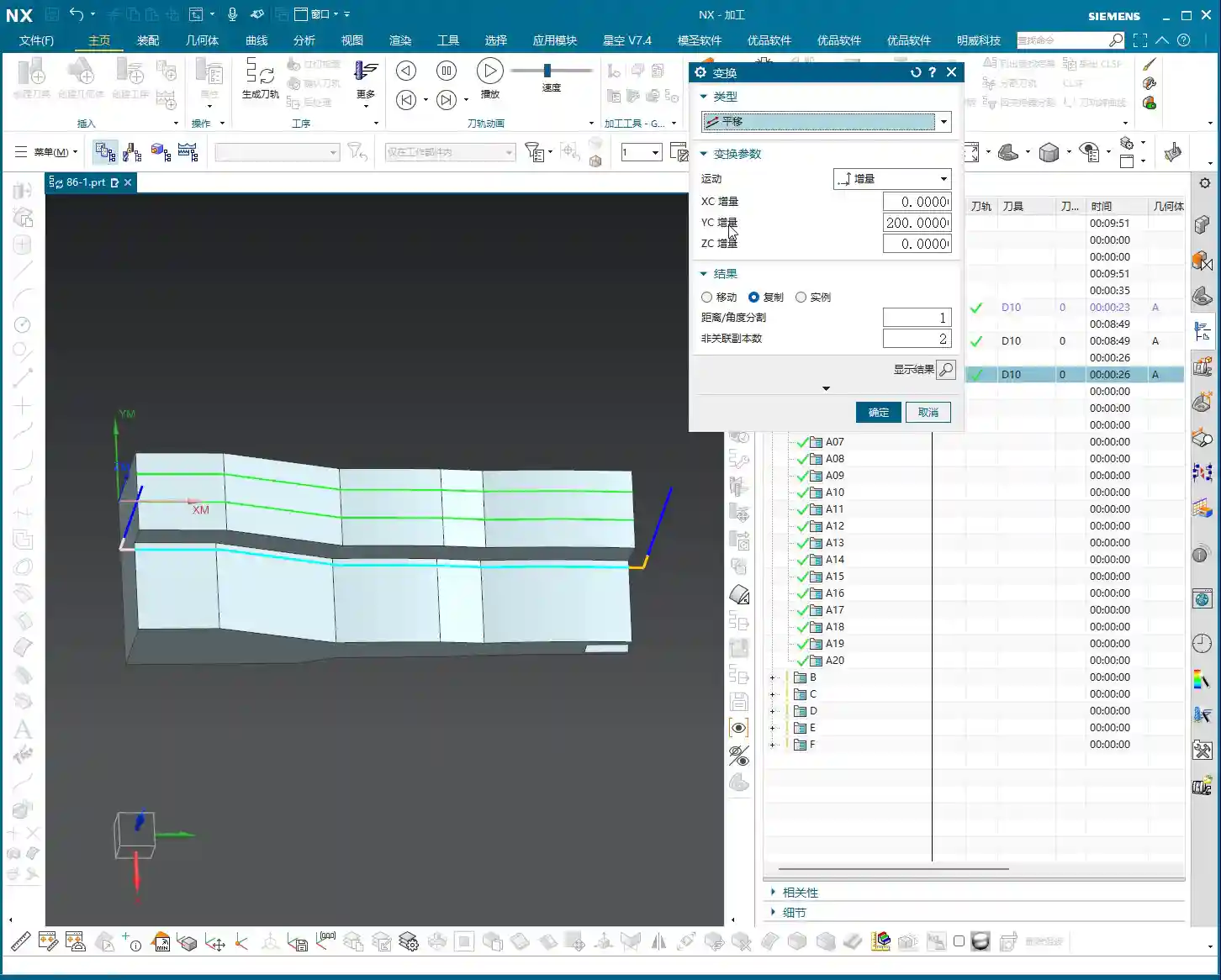
  • Siemens NX Guiding Curve Machining: Master Wang’s Hands-on Guide to Line Selection and Parameter Adj

    📝 Key Takeaways: Master Wang personally shares practical insights into Siemens NX Guiding Curve machining. A deep dive into “Deform” and “Constant Offset” strategies, teaching you how to select guide lines, adjust direction and offset, and resolve chatter and sharp corner issues. Emphasizing practicality and efficiency, comparing it with Surface Milling to help you flexibly switch based on workpiece conditions, improving machining accuracy and efficiency. No more theoretical talk.

    Hello everyone, I’m Master Wang. Today, we’re going to further explore the ins and outs of Siemens NX Guiding Curve machining. Last time, we covered some basics. This time, we’ll dive into practical examples to thoroughly explain how to use guiding lines, and how to use them smartly and effectively.

    Core Concepts and Comparison of Guiding Line Machining

    Listen up. In the machining business, rigidity is your worst enemy. Software offers countless functions, but not every one is suitable for all situations. Guiding Line machining is one of them; it has its advantages, but also its quirks. We need to understand it thoroughly.

    “Deform” vs. “Constant Offset”: Different Paths, Same Destination?

    As I’ve said before, the most common strategies in Guiding Line machining are “Deform” and “Constant Offset”. Many apprentices new to this often think they are completely different. However, for many simple planar or regular curved surfaces, the resulting toolpaths are actually quite similar.

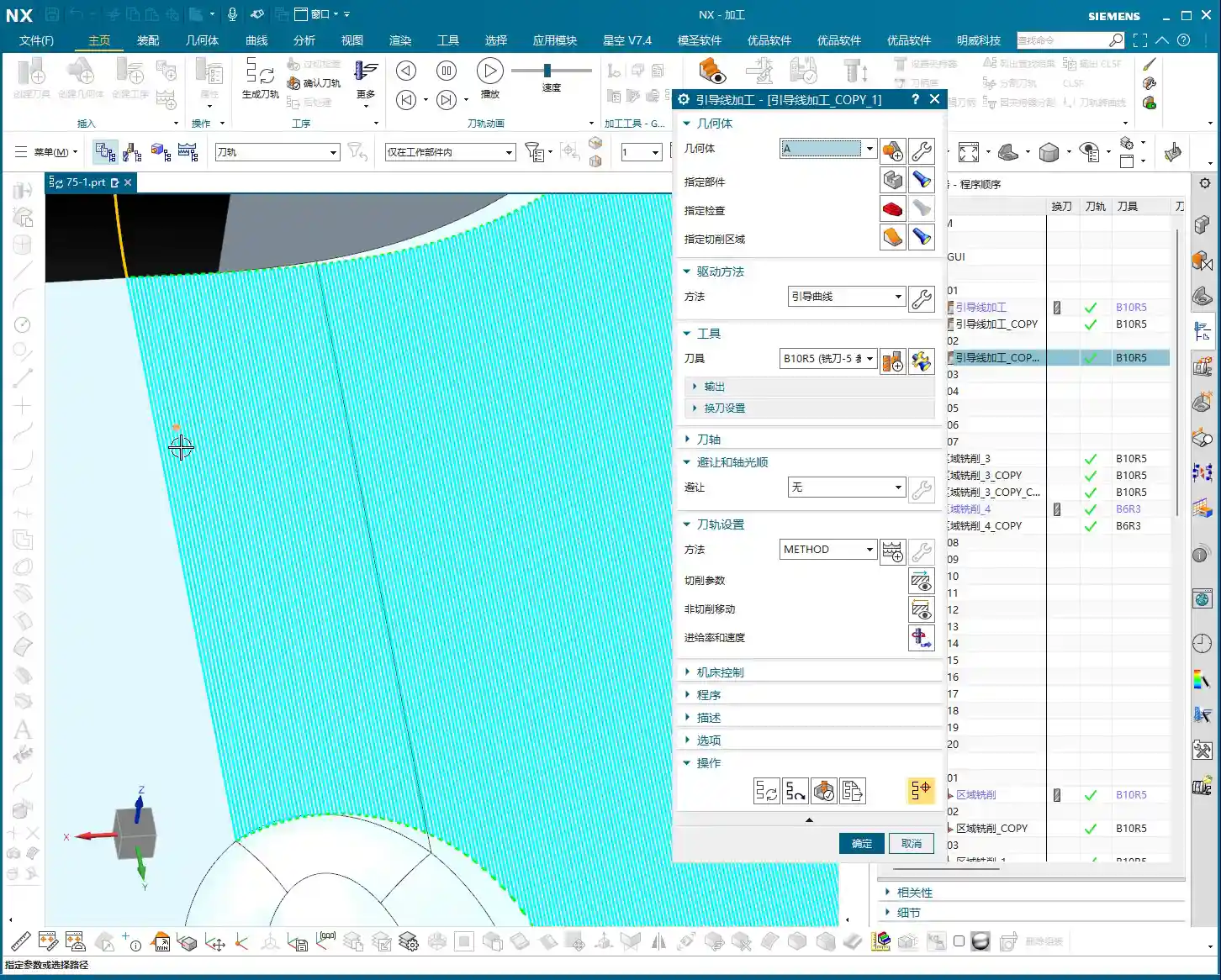
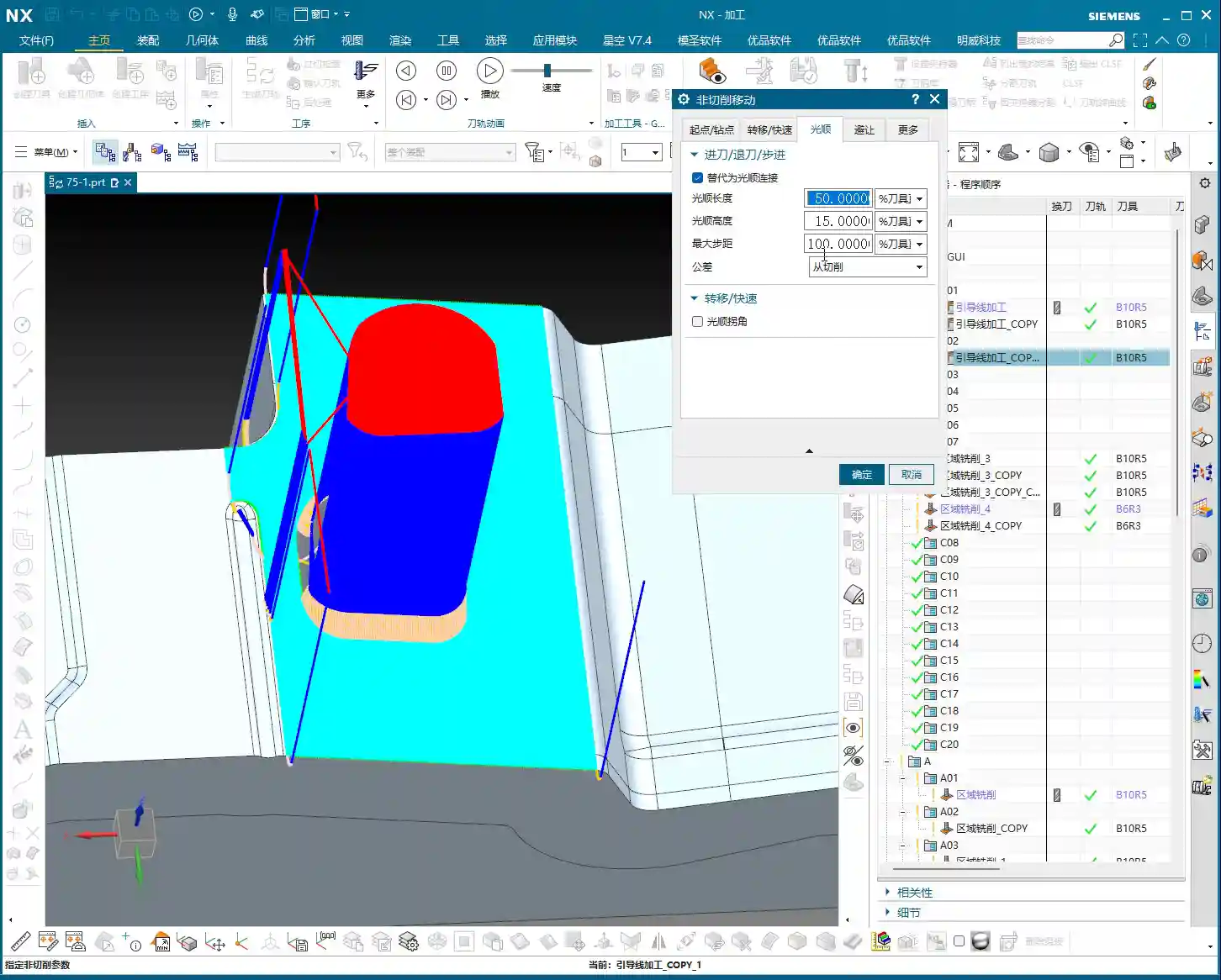
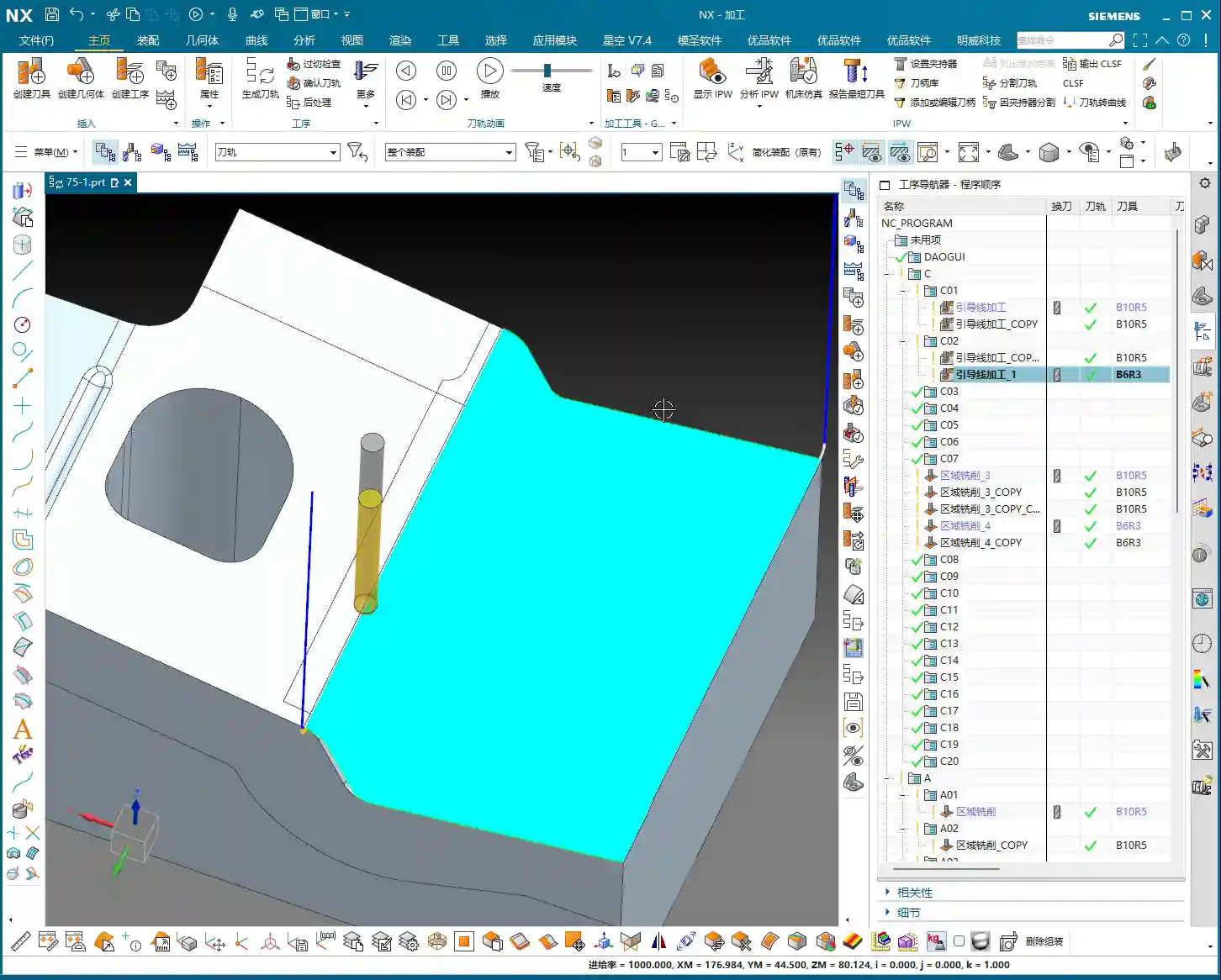
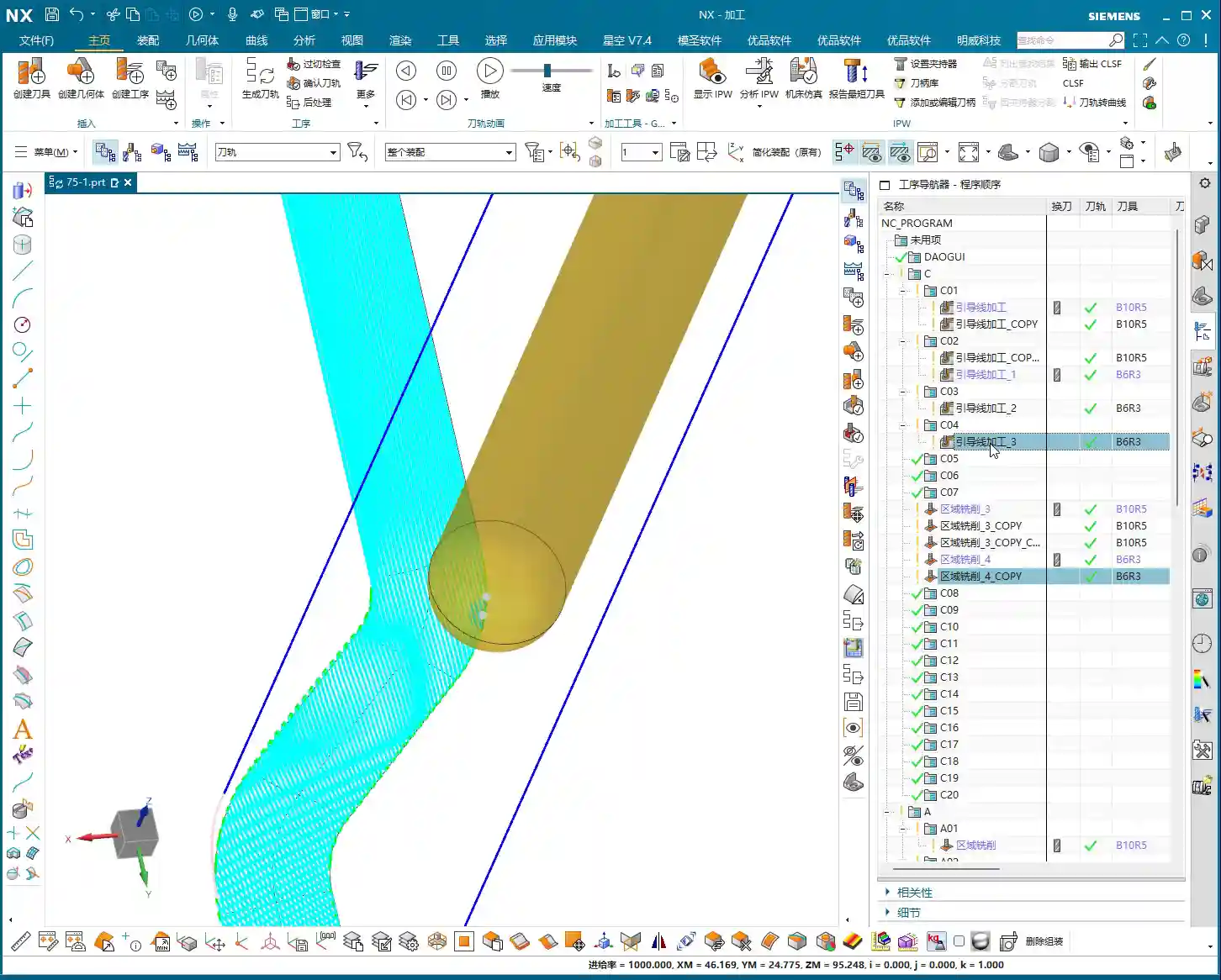
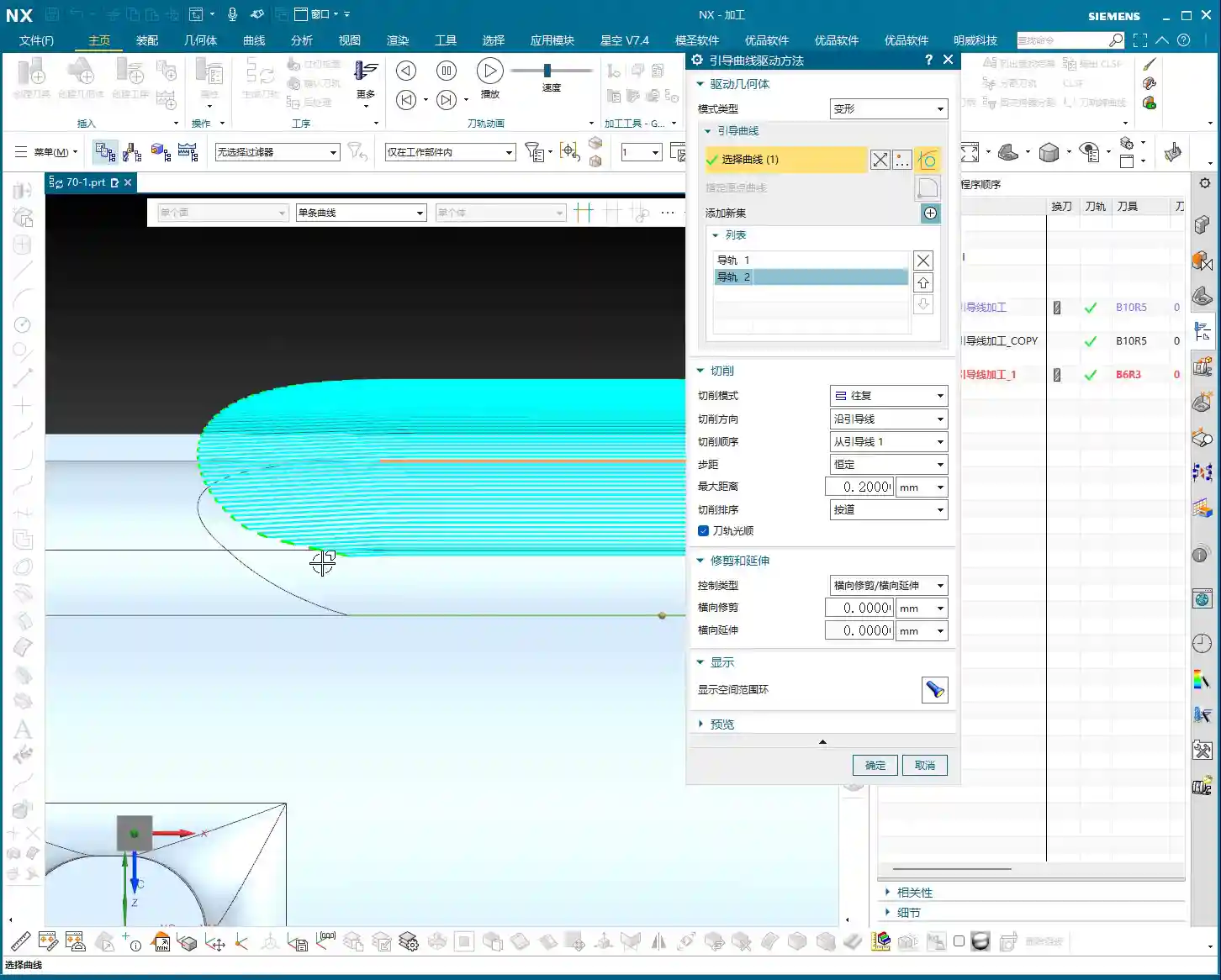
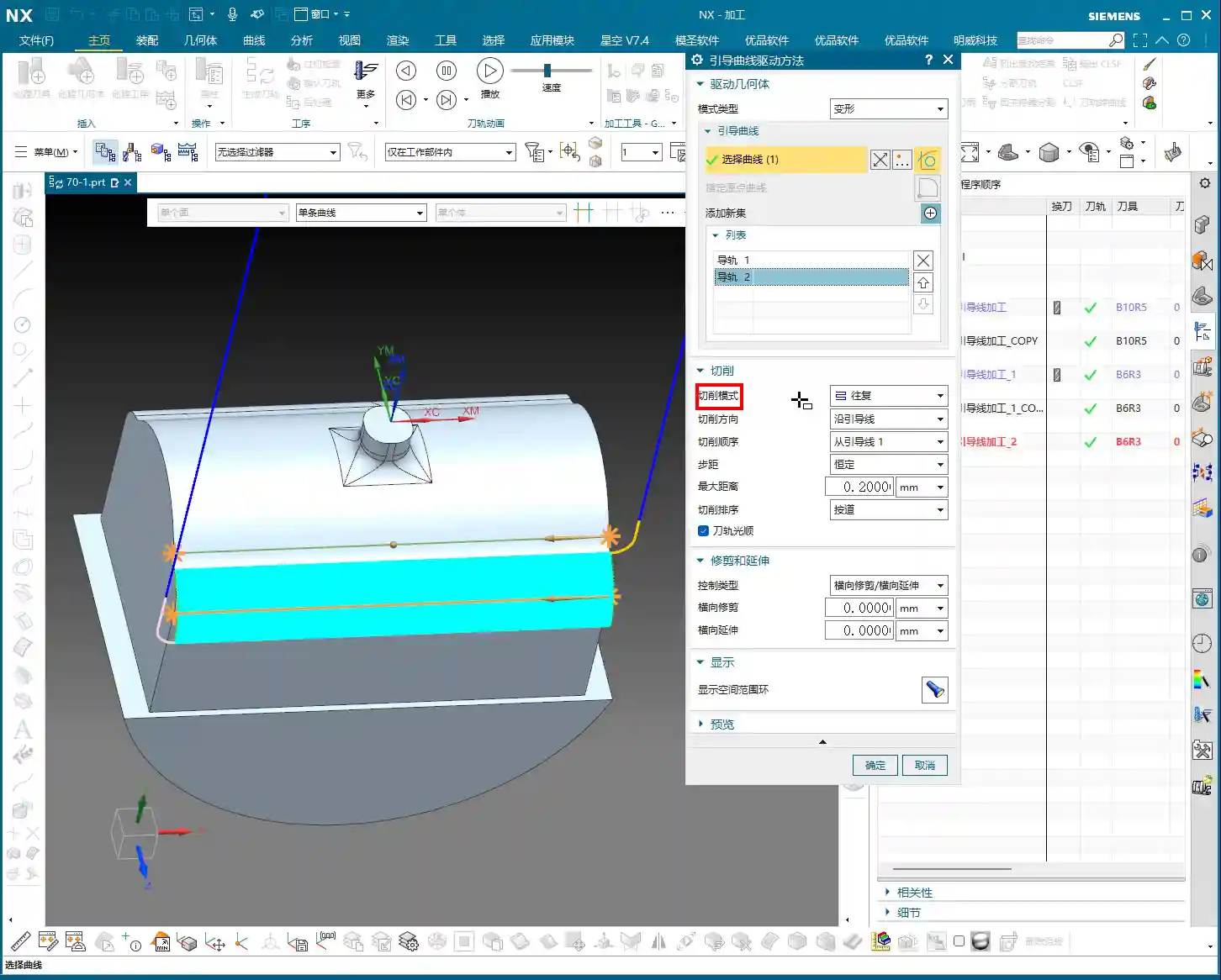
    Let’s take a face we previously machined using “Operation B” (Area Milling) and do a comparison. I’ll directly use “Guiding Line Machining”, define the part, blank, and cut area. Then, I’ll select two boundary lines as guide lines, choose the “Deform” method, and generate the toolpath. Lo and behold, it’s virtually identical to the toolpath generated by Area Milling. This is to set the stage for you; don’t get intimidated by the terminology right from the start.

    Practical Case Study 1: Guiding Line Application for Planar Regions

    Let’s machine the first face. Right-click, insert operation, and select “Guiding Line Machining”. Define the part and blank, then comes the critical step: defining the cut area. You can’t be sloppy here; the accuracy of your selection directly impacts the toolpath’s boundaries. This time, I’ll select the entire face to be machined.

    Since we’re using “Deform”, we need two guide lines. Select two edge lines of the machining area, ensure their directions are consistent, and confirm. Once generated, you’ll see the toolpath is quite smooth, just like the previous Area Milling program.

    Next, let’s copy the operation and change the method to “Constant Offset”. Constant Offset usually only requires one guide line. I’ll select the line on the left and set the direction to “Away from Guide Line”. Generate the toolpath, and the result is again not fundamentally different from the “Deform” method. So, for regular regions, these two methods are often interchangeable, depending on your personal preference and the convenience of available lines.

    Avoiding Pitfalls: The Wisdom of Guiding Line Selection

    Now, this next case needs some serious discussion. We’re looking at an area with corners, slightly more complex, and this is where many engineers start getting confused with Guiding Line machining.

    The Root Cause of Chatter: Short Guiding Lines and Improper Direction

    I copied an operation and changed the cut area to this cornered region. Still using the “Deform” method, I selected two shorter edge lines as guide lines. After generating the toolpath and running a simulation, “Oops, chatter!” What’s more, the toolpath at the corner turns sharply, even somewhat circling. Why is this happening?

    Look closely: the guide lines themselves are short. To cover the entire cut area, the toolpath is “forced” to bend and lift. Furthermore, if the guide line direction is chosen incorrectly – for example, if it should offset to the left but you selected right – the software will stubbornly try to calculate it, resulting in a series of useless tool lifts (chatter) and irrational movements.

    Therefore, there’s a crucial prerequisite here: guide lines should be as long and smooth as possible, and effectively represent your desired toolpath direction. If the line is too short, or inherently unsuitable as a guide, the resulting toolpath will undoubtedly be suboptimal.

    Direction and Offset: Don’t Blindly Fight the Arrows

    Next, I switched the method back to “Constant Offset”, selected a relatively shorter guide line, set it to “Away from Guide Line”, and initially chose “Right Side” for the offset direction. What happened? NX immediately gave me an error or warning, and the toolpath generated was a complete mess. Why?

    Because the arrow direction of the line I selected determines what is “Left” and “Right” relative to it. I initially misunderstood, thinking the arrow pointed one way, and the left side was inside the part. Only after changing the offset direction from “Right Side” to “Left Side” did the toolpath generate correctly. This is a reminder to everyone: clearly observe the arrow direction of the guide line before determining “Left Side,” “Right Side,” “Away,” or “Toward”. Don’t assume, or this single detail could cost you half a day!

    Guiding Line Length: Key to Smooth Toolpaths

    Even with the correct direction, because my chosen guide line was still relatively short, the generated toolpath at the corner still had unnecessary “flourishes” of bending. What does this tell us? Short guide lines, even with the correct direction, make it difficult to generate a truly smooth toolpath without superfluous movements.

    Therefore, I switched to another guide line that was longer and spanned the entire region. I again selected “Constant Offset” with a “Left Side” direction. This time, the generated toolpath was significantly better and much smoother. While there might still be a slight curve at the outermost corner, it’s now perfectly acceptable.

    So, here’s some practical advice from Master Wang: When selecting guide lines, choose long over short, and straight over curved. The better the guide line represents your desired machining direction, the smoother your toolpath will be, leading to higher efficiency and lower scrap rates.

    Applicable Scenarios and Limitations of Guiding Line Machining

    Through the examples above, you should now see that Guiding Line machining has its advantages, such as high flexibility in controlling toolpath direction using lines. However, it also has limitations.

    Not a Panacea: Surface Milling is Sometimes Superior

    For the type of machining surface with corners and irregular boundaries mentioned above, my final conclusion is that “Surface Milling” (our “Operation B” from before) might be better suited for machining such regions. Surface Milling offers more specialized parameters and algorithms for optimizing toolpaths when dealing with complex boundaries and Corner Cleanup, making it less prone to chatter and sharp turns that can occur due to line shape limitations in Guiding Line machining. Don’t just get dazzled by fancy software features; use whatever method can machine the part quickly, efficiently, and with high quality!

    Of course, Guiding Line machining isn’t incapable, but you might need to spend more time adjusting guide lines, experimenting with different offset methods, or even using “Smooth” toolpath parameters to reduce chatter and bending. Even then, in certain corners, it might still perform poorly because it lacks dedicated “Corner Cleanup” options like Surface Milling.

    Guiding Lines: A Surprising Fix for Chatter – A Special Case

    However, Guiding Line machining also has its “secret weapon” applications. For instance, I once had an operation machining from top to bottom where Surface Milling would produce chatter due to terrain changes. At that point, I tried Guiding Line machining, selecting appropriate guide lines. Even if my guide lines were somewhat “broken” or didn’t fully cover the entire region, as long as I correctly selected the cut area, the software could still generate a toolpath.

    After some experimentation, I found that by selecting shorter guide lines, I could better control the toolpath, avoiding the extensive chatter that occurred with Surface Milling. Once this program was generated and compared to the previous one, you’d find that the chatter was indeed greatly reduced, even eliminated. This demonstrates that for certain specific chatter issues, Guiding Line machining can be a simpler and more effective solution.

    This validates a point Master Wang has always emphasized: There’s no absolute good or bad, only what’s most suitable.

    The “Temperament” of Siemens NX Guiding Line Machining: Errors and Solutions

    Finally, let’s talk about a “quirk” of Guiding Line machining: it sometimes throws errors or warnings. This is common, so don’t panic! Most of the time, it’s because the guide line you’ve selected has the wrong direction, or the offset method is unsuitable. Just try changing the direction or switching the offset mode (e.g., from “Away” to “Toward,” or “Left Side” to “Right Side”), and you can usually resolve the issue.

    Summary: Pitfall Avoidance Guide

    1. Guide Line Selection: Prioritize selecting long, straight, and smooth lines as guide lines, as they better represent your desired toolpath direction. Avoid choosing lines that are too short or overly complex/curved.
    2. Direction and Offset: It is crucial to carefully observe the guide line’s arrow direction before accurately selecting “Left Side,” “Right Side,” “Away from Guide Line,” or “Toward Guide Line.” Incorrect direction selection is the most common mistake for beginners and a primary cause of errors and irrational toolpaths.
    3. Chatter Resolution: When chatter occurs, first check if the guide line selection is appropriate. If the Guiding Line method doesn’t resolve it, you can try switching to other machining methods (such as Surface Milling), or optimizing by adjusting “Smooth” parameters. In special cases, selecting shorter, more precise guide lines can actually resolve localized chatter.
    4. Applicable Scenarios: Guiding Line machining performs well on regular planar or curved surfaces and has distinct advantages for specific requirements (e.g., controlling toolpath direction, avoiding certain chatter issues). However, for complex Corner Cleanup and highly irregular regions, methods like Surface Milling may be more efficient and stable.
    5. Error Handling: Guiding Line machining occasionally throws errors, usually due to selection issues. Boldly try changing the guide line selection, direction, or offset mode, and it will likely resolve the problem.

    Remember, the core principle remains: the ultimate goal is to machine parts efficiently and with high quality, reducing costs. Don’t just rely on software simulation; the real test is when the tool meets the material!

    👤 About the Author:
    The author is a veteran CNC machining professional with 15 years of industry experience, specializing in UG NX programming. This article is an original work representing personal practical insights.

    ⚠️ Copyright Notice: Unauthorized reproduction or distribution without prior communication is strictly prohibited.
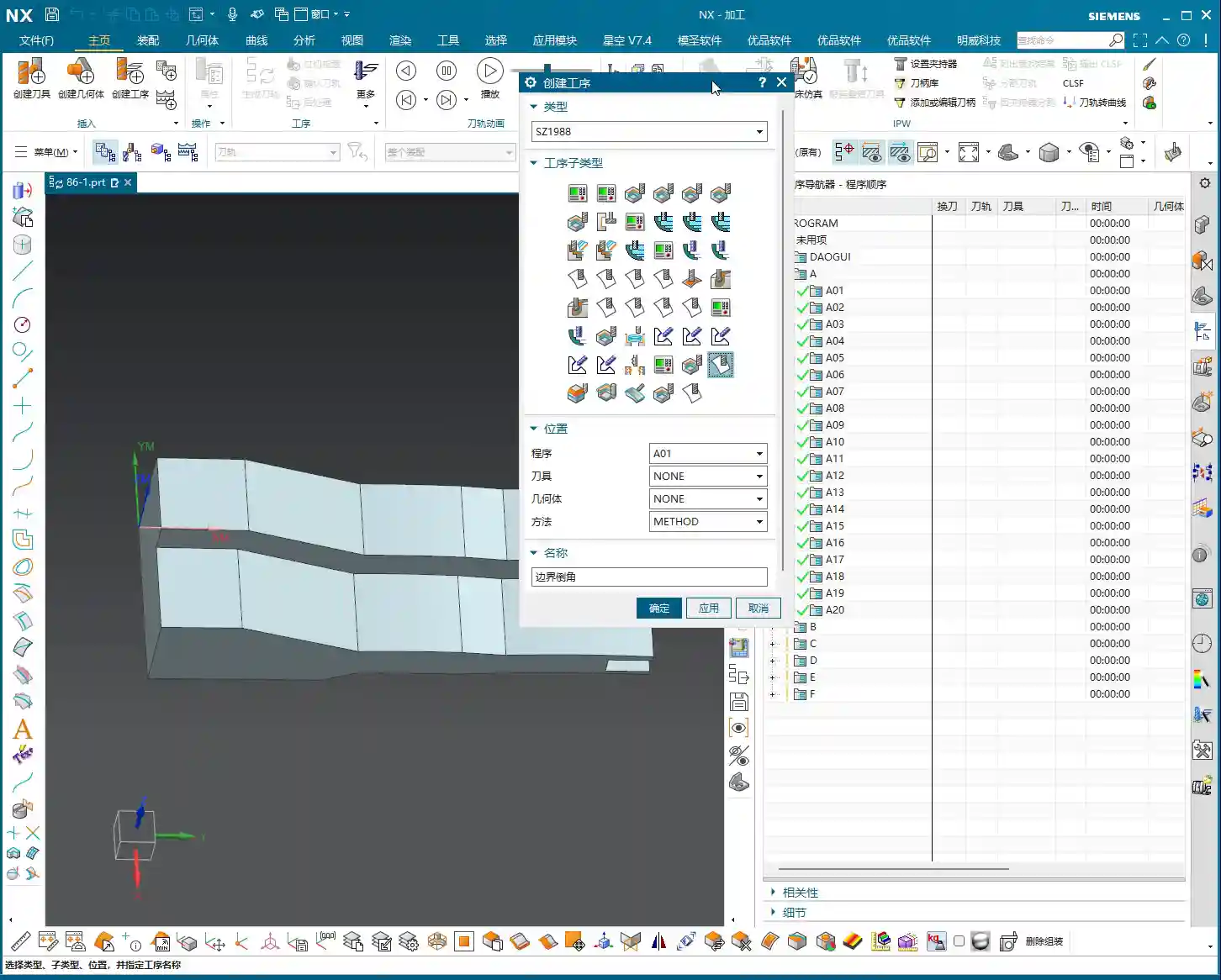
  • Master Wang’s Guide to Siemens NX Constant Offset Machining: Precisely Control Tool Path Direction a

    📝 Key Takeaways: Master Wang’s In-depth Explanation of Siemens NX Constant Offset Machining: A deep dive into “Left, Right, Both Sides” guide curve offsets and the practical application of “Towards” and “Away From” guide curves. This guide emphasizes how to distinguish left and right sides by the guide curve’s arrow direction and select appropriate tool path strategies for Roughing and Finishing pass scenarios. It avoids theoretical detachment, focuses on actual machine operation and cost efficiency, helping you overcome NX programming blind spots.

    Master Wang Speaks: Master Constant Offset to Double Your Machining Efficiency!

    Hello everyone, I’m Master Wang. Today, we’ll continue discussing machining programming in NX. Last time, we covered the “Morph” pattern; today, we’ll delve into another commonly used pattern that often confuses younger engineers—Fixed Guide Constant Offset. Listen up: master this, and you’ll eliminate countless unnecessary tool movements, boosting your efficiency significantly—it’s not just a small improvement! Don’t just get dazzled by fancy software simulations; when the machine is running, the cutting sparks tell the real story!

    Constant Offset: Precisely Controlling Machining Boundaries

    The “Constant Offset” pattern, as the name implies, makes the tool path follow your selected guide curve, maintaining a fixed offset during machining. This is particularly useful for machining cavities and surface contours. However, there’s a lot to this, with three offset directions: Left, Right, and Both Sides. It’s like cutting a slot on a milling machine—whether the tool runs on the left side, the right side, or in the middle of the slot, the principle is the same.

    • Left Offset: The tool machines on the “left side” of the guide curve. Which side exactly? Don’t worry, I’ll show you how to determine it later. Choosing “Left” typically means the guide curve acts as your right boundary, with the tool path expanding to the left of the guide curve.
    • Right Offset: Conversely, the tool machines on the “right side” of the guide curve. The guide curve becomes your left boundary, and the tool path extends to the right of the guide curve.
    • Both Sides Offset: As the name implies, the tool machines on both sides of the guide curve. This is commonly used to remove material from both sides of the guide curve or when the guide curve itself represents a centerline.

    Master Wang’s Tip: After selecting a guide curve, the software will display an arrow indicating its direction. Remember, when you face the guide curve with the arrow pointing forward, your left hand side is “Left,” and your right hand side is “Right.” This is the simplest and most practical way to determine it—a thousand times better than memorizing concepts!

    Towards Guide Curve: Convergent Finishing Pass

    Now let’s talk about “Towards Guide Curve.” Change this parameter, and the tool path changes significantly.

    Selecting “Towards Guide Curve” means your tool will gradually approach and cut from the outside of the machining area towards the guide curve. The guide curve serves as the final machining target.

    Practical Application:
    Imagine, for example, you need to perform a Finishing pass on a surface where the guide curve is the surface’s centerline or a feature line. Using “Towards Guide Curve,” the tool path will move like ripples, converging inward from the outside, eventually meeting the guide curve. This method is highly suitable for Finishing pass because it ensures superior surface quality, cleans up residual material more effectively, and minimizes issues with tool path overlap marks. Especially when Face Milling complex surfaces like mold cavities or blades, using this for the final trim delivers excellent results!

    Away From Guide Curve: Diffusive Roughing

    The opposite of “Towards Guide Curve” is “Away From Guide Curve.”

    When you select “Away From Guide Curve,” the tool starts from your selected guide curve and diffuses outwards into the machining area. It uses the guide curve as its starting point and gradually expands outwards.

    Practical Application:
    This method is more suitable for Roughing or machining open areas. For example, if you need to Face Mill a large flat area outwards starting from a pre-drilled hole, or clear the bottom of a deep slot where the guide curve defines the slot bottom’s contour. The tool starts cutting from the guide curve, expanding outwards layer by layer, which effectively avoids the risk of plunging directly into solid material and reduces cutting force impact. Especially when machining high-hardness materials like titanium alloys or high-temperature nickel-based superalloys, this method allows for better control of cutting load and extends tool life.

    Plunge Direction and Cutting Order: Inside-Out and Outside-In

    Beyond offset direction, we also need to pay attention to the plunge direction and cutting order, as these significantly impact machining quality and efficiency.

    • Outside-In (Alternate): This means starting from the outer perimeter of the machining area and moving inward in concentric passes. It’s suitable for most cavity machining operations, allowing for effective chip evacuation and preventing chip buildup.
    • Inside-Out (Alternate): The tool starts from the center or inner side of the machining area and gradually expands outwards. This method can be exceptionally effective in specific situations, such as when you need to prioritize the machining quality of the central area, or when the tool needs to start cutting within a deep hole.

    There are also “Along Guide” and “Reverse Guide” options, which determine whether your tool path follows the guide curve’s direction or goes against it. This impacts your conventional and climb milling strategies, subsequently affecting surface finish and tool wear.

    How to Distinguish Left from Right? Look Here!

    Many engineers get confused by “Left” and “Right” sides when they first start. In NX, when you select a guide curve, the software automatically displays a white arrow. This arrow is your guide!

    The Simple, Direct Method:

    1. Click on your guide curve with the mouse; the arrow will appear.
    2. Imagine yourself as the tool, moving along the direction of the arrow.
    3. Your left hand side is “Left,” and your right hand side is “Right.”

    It’s that simple! If you’re ever unsure, rotate the model to an angle where you are aligned with the arrow’s direction, and it will become immediately clear. This little trick will save you a lot of headaches and prevent scrapped parts!

    Master Wang’s Practical Secrets: Parameter Interplay and Pattern Selection

    Although “Constant Offset” and “Morph” patterns appear to have many similar parameters, their underlying logic and application scenarios are distinct. “Constant Offset” focuses more on the offset strategy from a single guide curve, whereas “Morph” performs surface interpolation between two or more guide curves. Therefore, when you intend to use functions like “Towards/Away From Guide Curve,” ensure you select the “Fixed Guide Constant Offset” pattern. In the “Morph” pattern, you won’t find these options, as it operates on its own “start guide to end guide” logic.

    Furthermore, layout options like “Exact” are similar to “by tool” or “by region” concepts, all controlling the distribution of the tool path within a specified area. Most of the time, these options will automatically match your machining objectives. But remember one thing: any software option must ultimately align with actual machining requirements. Don’t use a flashy feature just for the sake of it; evaluate whether it genuinely helps you improve efficiency, reduce costs, and ensure quality.

    Summary: Pitfall Avoidance Guide

    1. Differentiate Machining Patterns: “Constant Offset” and “Morph” are two entirely different machining patterns. When dealing with “Towards” or “Away From” guide curve functions, always select the “Fixed Guide Constant Offset” pattern. Don’t waste time searching for them in “Morph”; you won’t find them there, and you’ll just lose time.
    2. Determine Left/Right by Arrow: The left and right sides of a guide curve are not fixed but determined by the guide curve’s direction arrow. Imagine yourself as the tool, moving along the arrow’s direction; your left hand side is the “Left” side, and your right hand side is the “Right” side. This is fundamental knowledge that you must master.
    3. Choosing “Towards” vs. “Away From”:

      • “Towards Guide Curve”: Primarily used for Finishing pass, converging from outside-in to improve surface quality.
      • “Away From Guide Curve”: Primarily used for Roughing, diffusing from inside-out, which aids chip evacuation and reduces initial cutting impact.

      Choose flexibly based on your machining stage (Roughing, semi-Finishing pass, Finishing pass) and material properties.

    4. Tool Path Simulation Isn’t Everything: No matter how good software simulation looks, it’s just a theoretical representation. During actual machining, pay attention to cutting sparks, chip evacuation, tool sound, and workpiece surface quality; these are the true benchmarks for determining if a tool path is effective. Don’t just stare at the screen; learn to “read the sparks, listen to the sounds, and feel the remaining material.”
    5. Consider Material Properties: For instance, when machining sticky aluminum, pay attention to chip evacuation. When machining hard and brittle hardened steel, prevent chipping. When machining nickel-based alloys, cutting forces are high, so ensure sufficient rigidity and low cutting speeds. For different materials, your offset amount, feed rate, and spindle speed must be adjusted accordingly.

    Alright, that’s all for today. There are many intricacies to NX programming; what you learn from books is just a theoretical framework. What truly solves problems and boosts efficiency comes from hands-on experience gained at the machine, step by step. Next time, if we get the chance, we’ll discuss how to further optimize tool paths through post-processor modifications, turning your CNC machine into a real profit-making tool!

    [/CONTENT]
    [EXCERPT]
    Master Wang’s In-depth Explanation of Siemens NX Constant Offset Machining: A deep dive into “Left, Right, Both Sides” guide curve offsets and the practical application of “Towards” and “Away From” guide curves. This guide emphasizes how to distinguish left and right sides by the guide curve’s arrow direction and select appropriate tool path strategies for Roughing and Finishing pass scenarios. It avoids theoretical detachment, focuses on actual machine operation and cost efficiency, helping you overcome NX programming blind spots.

    👤 About the Author:
    The author is a veteran CNC machining professional with 15 years of industry experience, specializing in UG NX programming. This article is an original work representing personal practical insights.

    ⚠️ Copyright Notice: Unauthorized reproduction or distribution without prior communication is strictly prohibited.
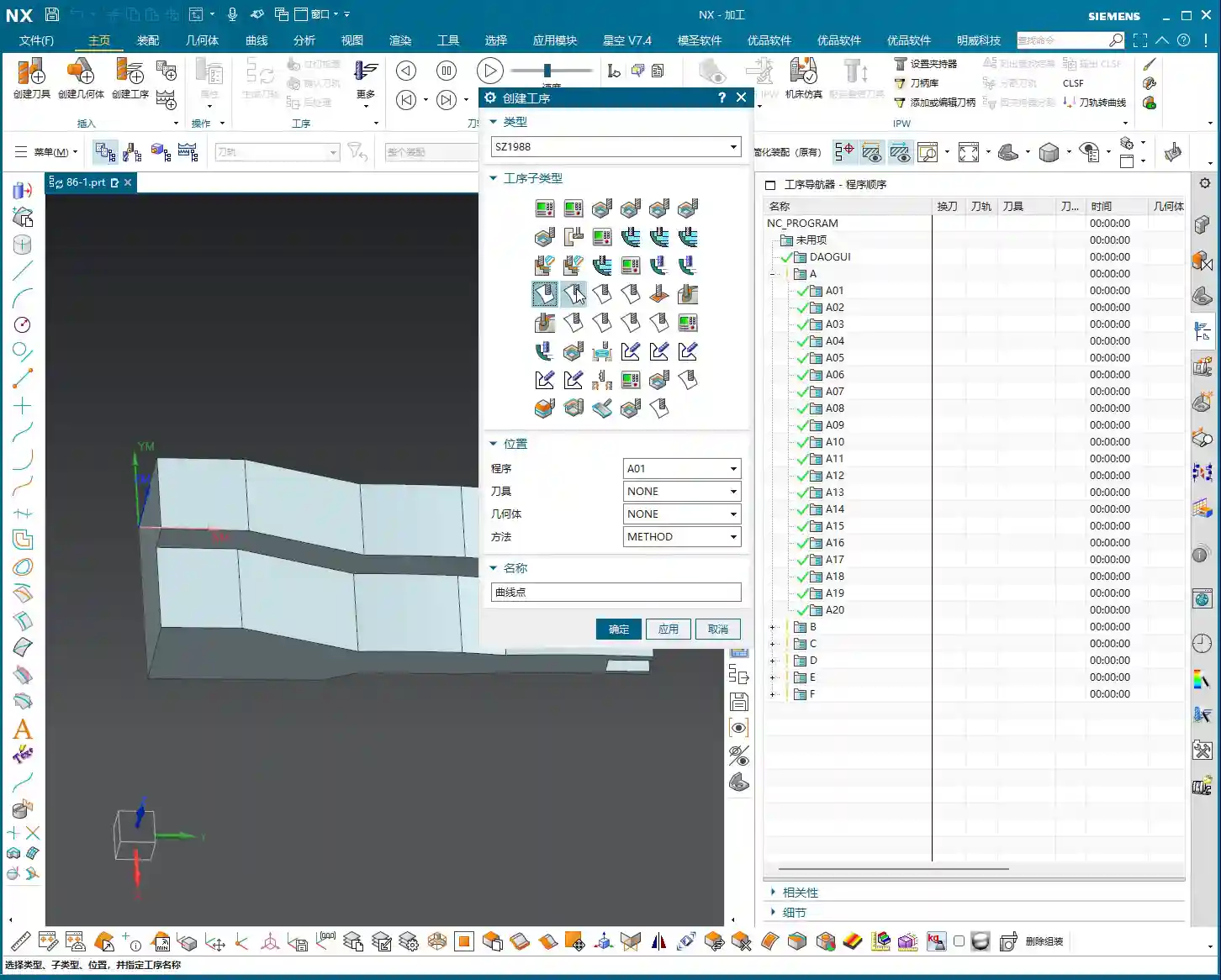
  • Mastering Guide Curve Cutting Direction in Siemens NX: Engineer Wang’s Expert Guide to Precise Tool

    📝 Key Takeaways: Engineer Wang personally shares hardcore tips for Guide Curve Cutting in Siemens NX! This tutorial will deeply analyze the decisive impact of guide curve selection on tool path direction, and demonstrate how to precisely control machining paths by adjusting guide curves or their direction parameters, avoiding air cuts and rework, thereby comprehensively improving machining efficiency and part accuracy.

    Hello everyone, I’m Old Wang, Engineer Wang. Today, let’s continue our discussion on Siemens NX machining, especially the intricacies of guide curve cutting direction. You know, no matter how fancy the textbooks make it sound, nothing beats the practical experience we gain by the machine, watching the chips fly and figuring things out. Listen closely, because this directly impacts whether your tool paths run smoothly and your part accuracy remains consistent.

    Guide Curve Selection: The ‘Conductor’ of Tool Path Direction

    When performing guide curve cutting in Siemens NX, you must first understand a golden rule: different guide curves will result in completely different tool cutting directions and shapes. This is not a trivial matter. Selecting the wrong curve can lead the tool astray; at best, it’s an air cut; at worst, it’s a direct Depth of Cut (DOC) that scraps the workpiece.

    Practical Demonstration: How to Select and Split Guide Curves

    Let me demonstrate. For instance, imagine we need to machine a specific surface. First, locate the surface to be machined, then select a curve on that surface to serve as a guide curve. Sometimes, existing curves aren’t suitable, so we might need to draw our own, or split a long curve into the segments we need. Splitting is straightforward: select the curve, then select the split point or surface. The key is to be precise; don’t be vague, as it will impact your subsequent tool paths.

    Core Concept: Two Guide Curves Define the Machining Area and Tool Path Shape

    Here’s the most crucial point, where many people get confused. When we select guide curve cutting in Siemens NX, we typically need to select two guide curves, not just one. Many assume that if they select a short segment, the tool will only follow that small segment. Absolutely wrong!
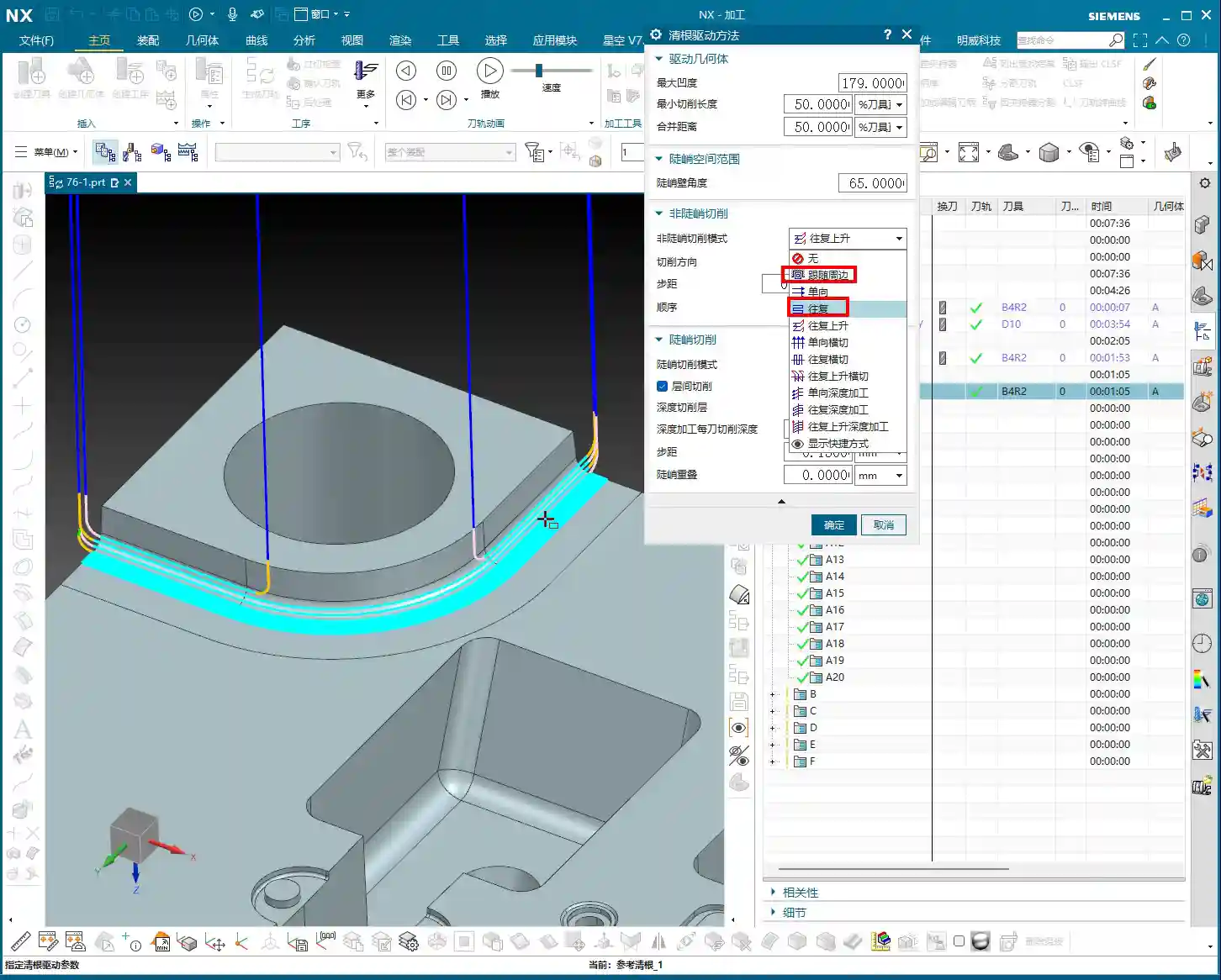
    Listen up: as long as you select two guide curves, the entire region between them will be defined as the cutting area. Even if your selected guide curves are just short arcs on the surface, as long as these two curves delimit a region on your machining surface, the tool will follow the shape defined by these two guide curves within that region. This is why sometimes you might select only a small segment, yet the tool ends up traversing the entire surface. Therefore, the shape and position of the selected guide curves entirely determine the shape and machining range of the tool path.

    For example, if your first guide curve is straight and the second is an arc, the tool path will transition from a straight line to an arc. If both guide curves inherently have curvature, the tool path will follow that curvature from the start. This is the essence of ‘guide curve machining’: the tool path is entirely a ‘geometric extension’ of these two guide curves.

    Cutting Mode and Direction: Fine-Tuning Tool Path Control

    Now that we understand how guide curves define tool path shape and range, let’s look at cutting modes and directions. These are all adjusted in the machining parameters. Don’t think it’s tedious; every step here could be key to improving your efficiency and reducing costs.

    Various Cutting Modes: Choose Based on Application

    • One-way: The simplest method. The tool moves across, retracts, then starts the next pass from the beginning. Suitable for simple planar or open areas; efficiency is moderate.
    • Zigzag: The tool moves back and forth without retracting. Efficiency is relatively high, but be mindful of the impact on the tool and workpiece when the cutting direction changes. This is commonly used in Siemens NX.
    • Zigzag Up/Down: A variation of Zigzag, specifying whether the tool lifts up or plunges down during reciprocating cuts, typically used for specific complex surface machining.
    • Spiral: I need to be clear about this mode. Spiral cutting is generally for closed regions, such as a circular hole or an enclosed cavity. If you apply it to an open guide curve, while the software might calculate a tool path, it often looks messy and impractical, offering little advantage over one-way cutting. So, do not blindly experiment; for open regions, stick to one-way or zigzag.

    Stepover: Determining Cutting Efficiency and Surface Finish

    Stepover is the lateral distance the tool moves for each pass. This parameter is easy to understand: a larger stepover leads to faster cutting but poorer surface quality; a smaller stepover yields better surface quality but increases machining time. For roughing, you can use a slightly larger stepover; for finishing passes, you’ll need a smaller one to ensure surface finish. Naturally, setting the stepover too large can also cause uneven tool loading, or even tool breakage – these are hard-learned lessons from practical experience!

    If calculations are slow, increase the stepover a bit. The software will process much faster. Once the direction and mode are confirmed, adjust back to the actual stepover. That’s a little trick for you.

    Cutting Direction: Along Guide Curve vs. Reverse Guide Curve

    This is the most critical part of today’s discussion!

    • Along Guide Curve: As the name suggests, the tool will start cutting along the direction you chose for the first guide curve. Siemens NX automatically identifies the start point and direction when you select the curve, displaying it with an arrow in the software. Use this option if you want the tool to engage from a specific direction and follow your chosen path.
    • Reverse Guide Curve: This option will reverse the direction you chose for the first guide curve. In other words, if ‘Along Guide Curve’ cuts from left to right, ‘Reverse Guide Curve’ will make it cut from right to left. The arrow direction will be completely opposite.

    Here’s a very important practical tip: Although the ‘Reverse Guide Curve’ option exists, we don’t commonly use it in actual machining. Why? Because often, if you want to change the direction, you can simply re-select your guide curve, starting from the end where you want the tool to begin cutting, and the direction will be naturally set. This is more intuitive and less prone to errors. Remember, when selecting a guide curve, the small arrow displayed represents the tool’s starting direction. Whichever end of the curve you select as your ‘starting point’, that’s where the tool will begin its first pass.

    Summary: Pitfall Avoidance Guide

    Core Pain Points and Solutions

    1. Misconception: Guide curves only define local paths.

    Reality: Two guide curves jointly define the entire machining area and tool path shape. Even if your selected curves are short, any area within the bounds of the two guide curves will be machined.

    To Avoid: When planning guide curves, consider the overall region between them, not just individual curve segments.

    2. Misconception: Spiral cutting is universally applicable.

    Reality: Spiral cutting is primarily suitable for closed regions. Using it in open areas often yields suboptimal results, or is even indistinguishable from one-way cutting.

    To Avoid: Choose the cutting mode based on the enclosure of the machining area. For open regions, prioritize one-way or zigzag to avoid wasting computational resources and time.

    3. Misconception: Relying on the “Reverse Guide Curve” button.

    Reality: Siemens NX’s “Reverse Guide Curve” can change direction, but in practice, it’s more recommended to control direction directly by re-selecting the starting end of the guide curve.

    To Avoid: Develop good habits. Determine the direction when first selecting the guide curve, pay attention to the small arrow, and avoid secondary modifications or unnecessary hassle. This is like giving instructions to a machinist: the clearer, the better.

    Alright, that’s it for today’s valuable insights. Practice more in the software, observe more at the machine, and communicate with experienced machinists. Only then can these ‘unwritten rules’ truly become your own expertise.

    Thank you for watching. We’ll continue our discussion next time.

    👤 About the Author:
    The author is a veteran CNC machining professional with 15 years of industry experience, specializing in UG NX programming. This article is an original work representing personal practical insights.

    ⚠️ Copyright Notice: Unauthorized reproduction or distribution without prior communication is strictly prohibited.