Blog

  • Master Wang’s Guide to Finishing Rotary Parts: Practical Side Wall, Bottom Surface, and Corner Clean

    📝 Key Takeaways: Hello everyone, this is Master Wang. Last time, we covered roughing. This time, the focus is on finishing rotary parts. From side walls to bottom surfaces, and then to root corner cleanup, I’ll walk you through programming efficient, high-quality toolpaths using Siemens NX. I’ll share practical tips you won’t find in textbooks, such as how to optimize tool retractions, prevent overcutting, and tackle various machining challenges. My goal is for you to not just program, but truly understand the machine and the process.

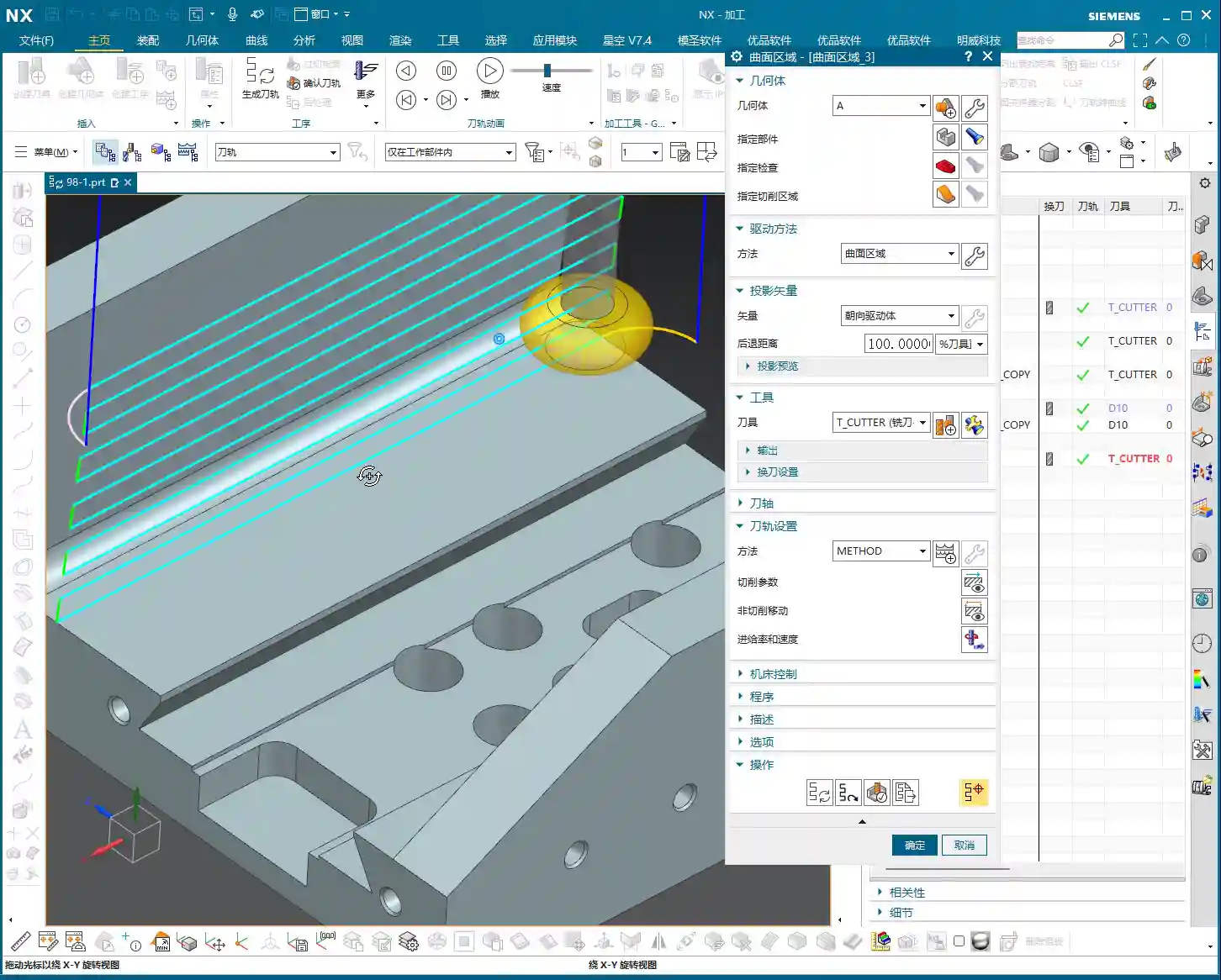
    Step One: Finishing Side Walls and Bottom Surfaces – Refined Application of Depth Profile Milling

    Listen up, last time we thoroughly covered roughing and semi-roughing. This time, we’re heading straight into finishing, focusing on the part’s side walls and bottom surfaces. Especially that bottom area – we might have left some stock last time, but this time it needs to be completely cleaned, leaving no blind spots.

    Practical Tool Selection and Machining Area Definition

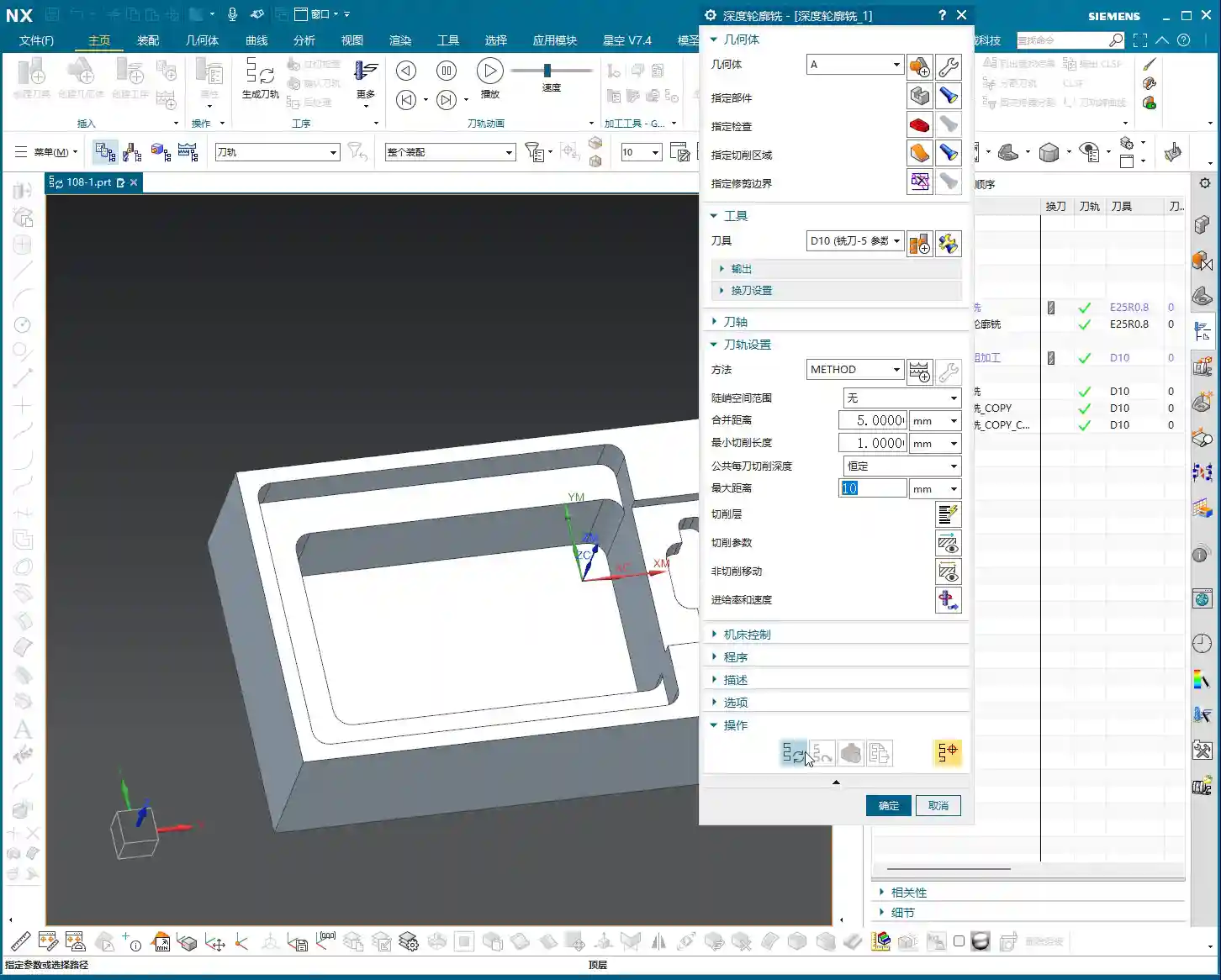
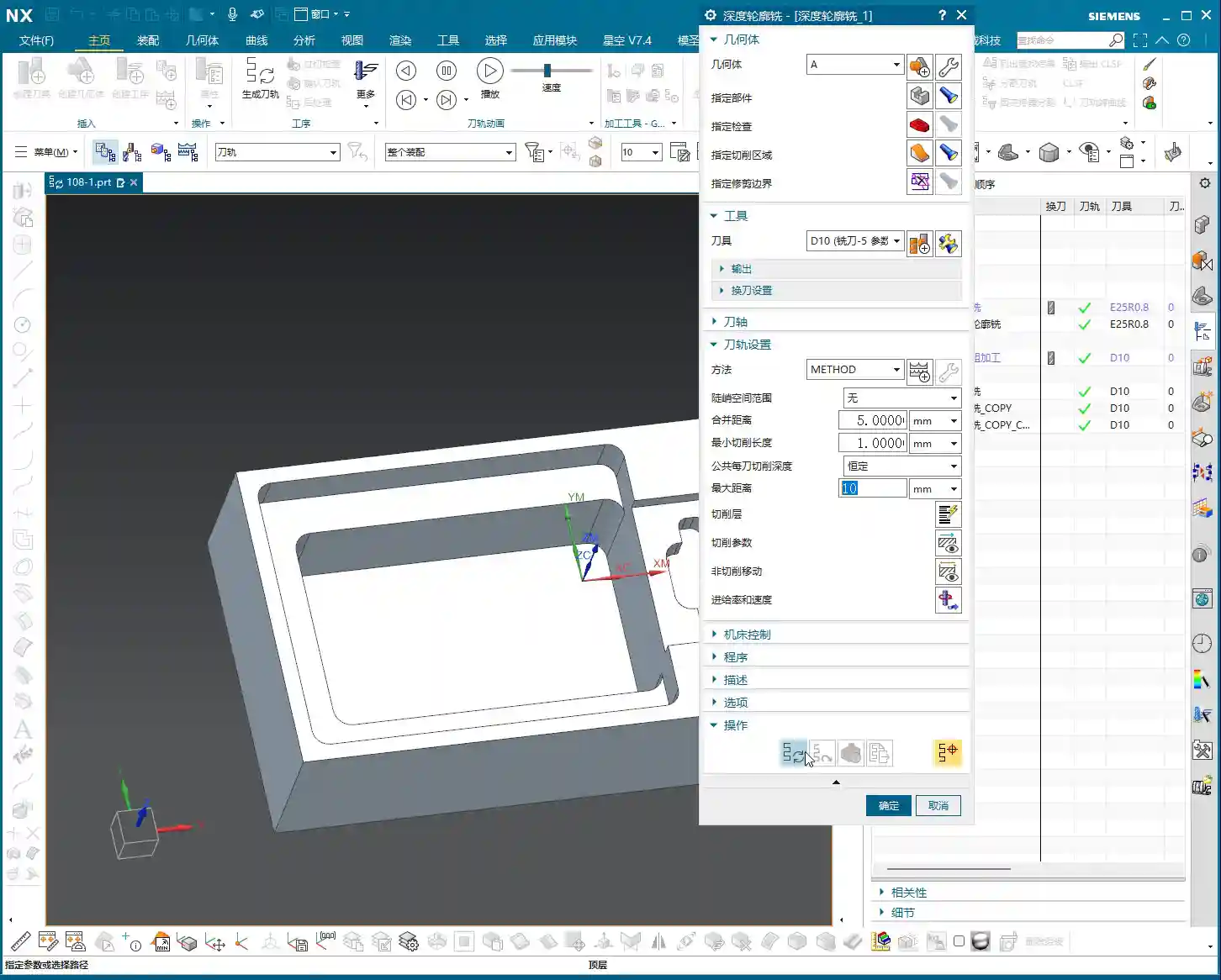
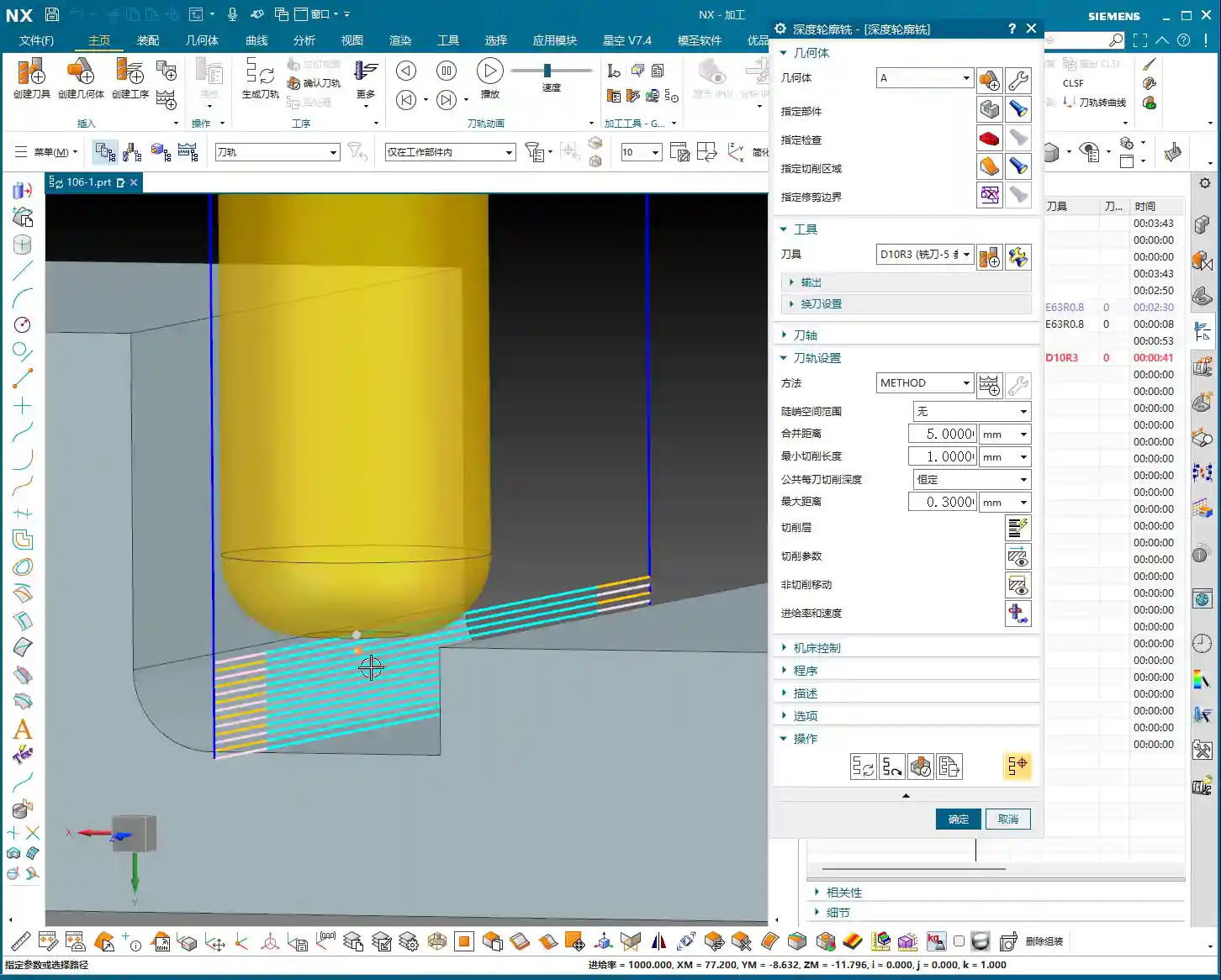
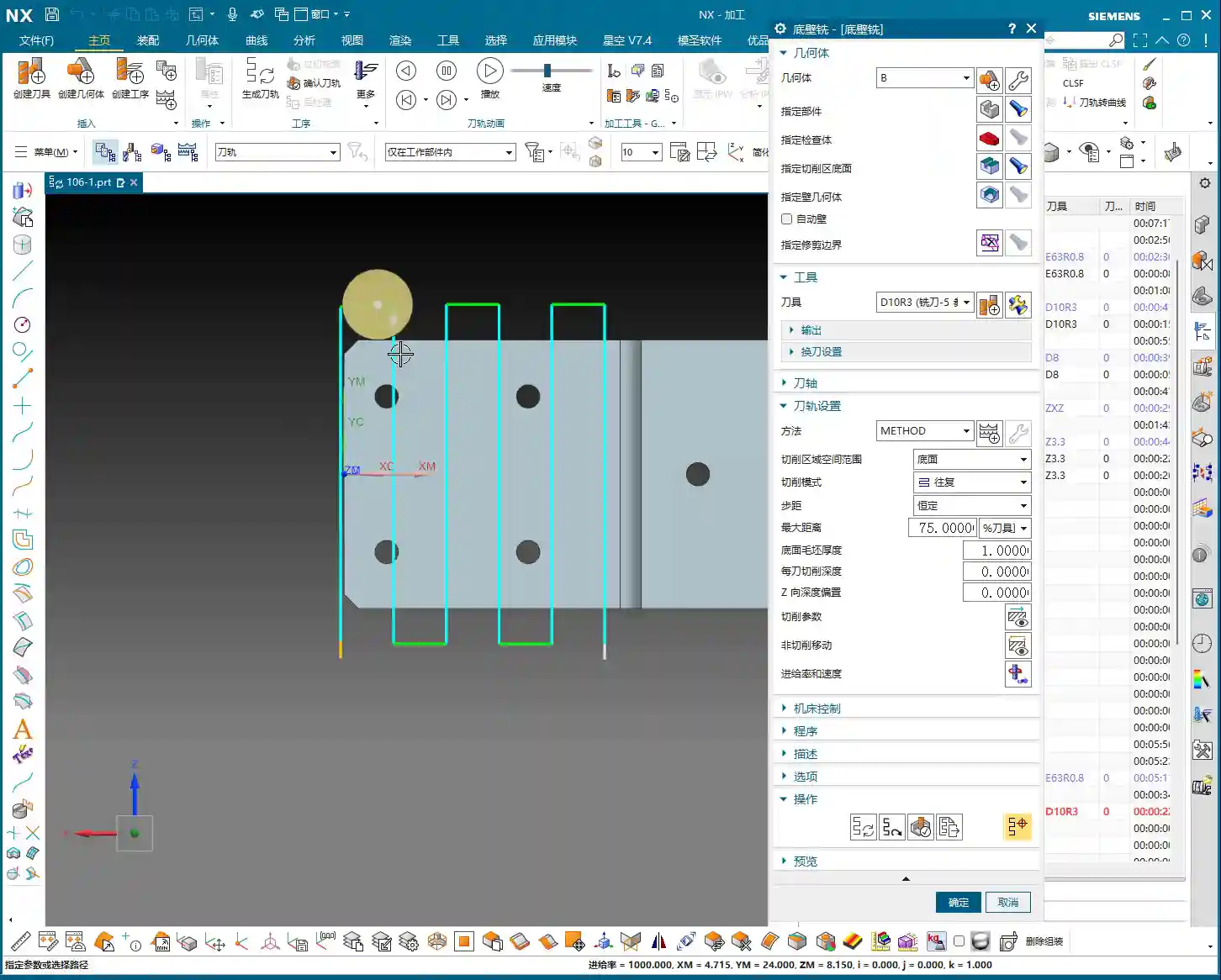
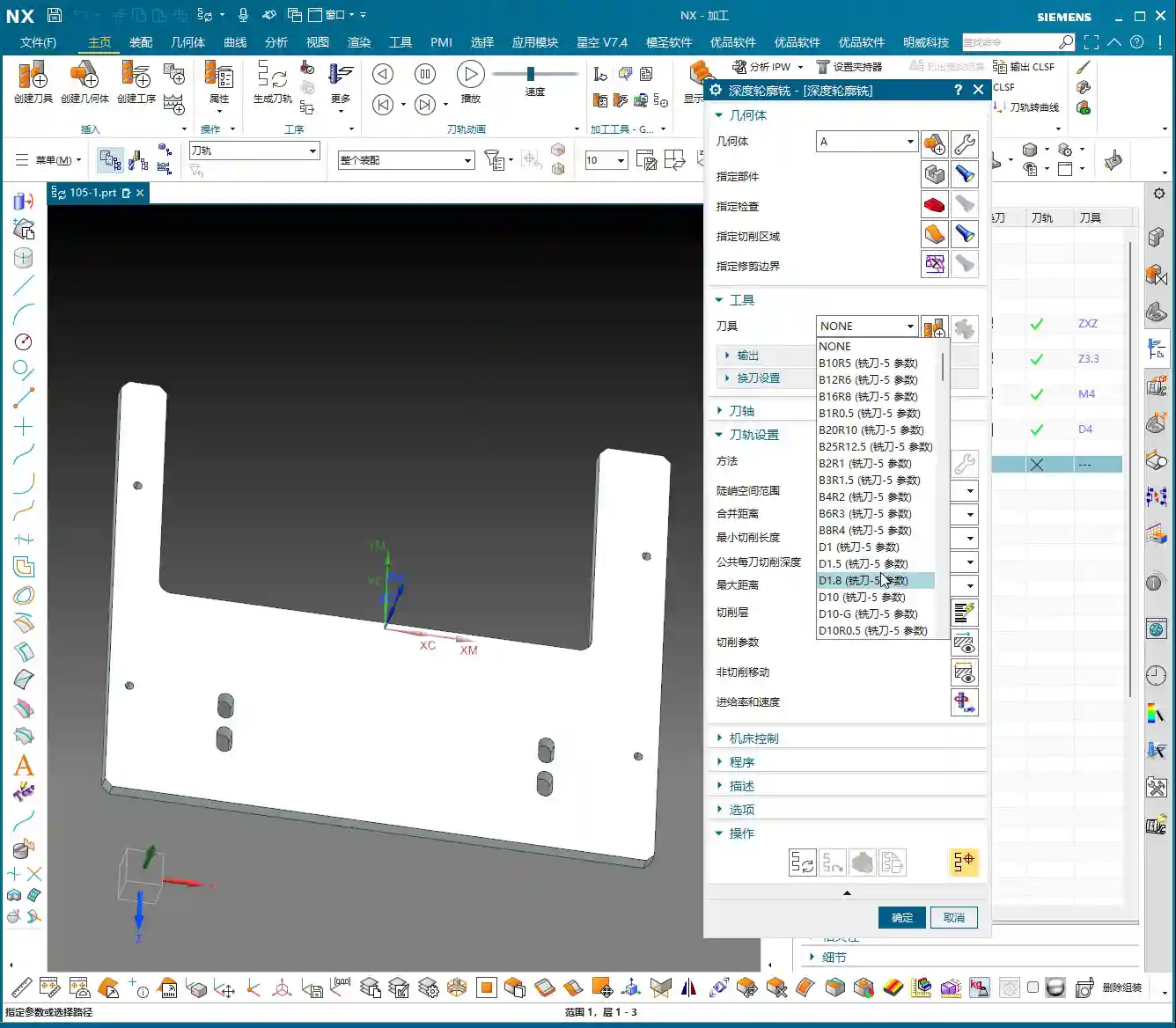
    First, open your NX software. We’ll select a “Depth Profile Milling” operation. For tooling, we’ll directly choose our commonly used D6 flat end mill; this tool will handle the corner cleanup and side walls. As for the machining area, you can initially box-select the entire part; that’s fine, we’ll precisely define it later.

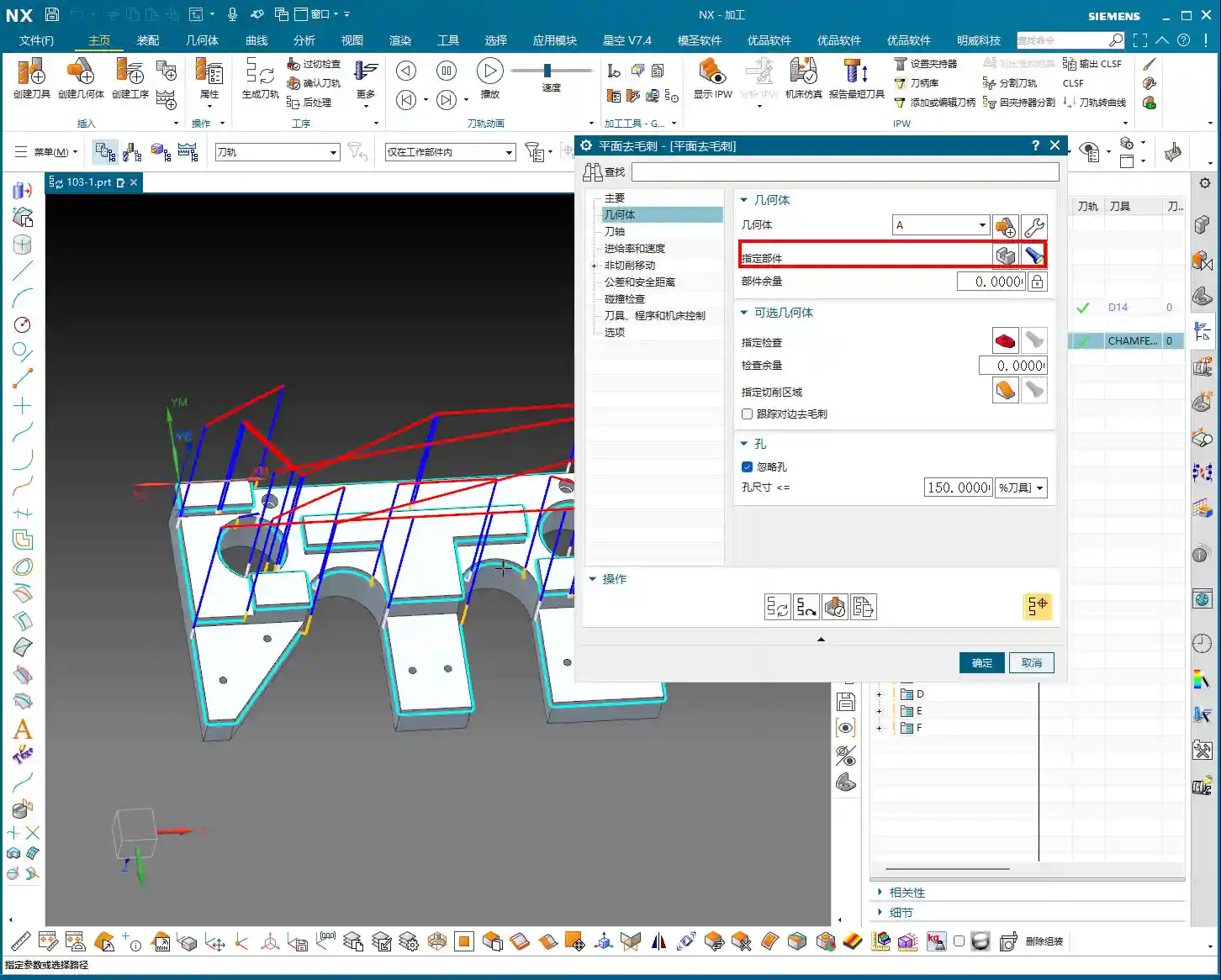
    Hold on, what we need to do is specifically select these two areas: the side walls and the bottom surface. Remember, precision selection is better than broad selection. This avoids many unnecessary issues and computational load, improving program generation efficiency.

    Depth of Cut and Multi-Pass Strategy

    This program is primarily for finishing passes on the side walls. As I mentioned last time, the stepover for side walls should be tighter to achieve a smoother finish. For the bottom surface, we’ll machine down to a depth of -18mm. Of course, to be safe, you can adjust it slightly shallower, say -17mm, to leave a bit of stock for the final finishing pass.

    Here’s the critical point: that last 1 millimeter (approx. 0.04 inch) of stock on the bottom surface (for example, from -17mm to -18mm) – you absolutely cannot take it off in a single pass! Doing so risks chatter or tool breakage, and the resulting surface won’t be flat. We need to split it into multiple layers, for instance, taking 0.3mm (approx. 0.012 inch) per Depth of Cut (DOC). By cutting in two to three layers this way, the cut will be stable, and the finish will be superior. Don’t just rely on software simulation; pay attention to the cutting sparks and the actual forces on the tool!
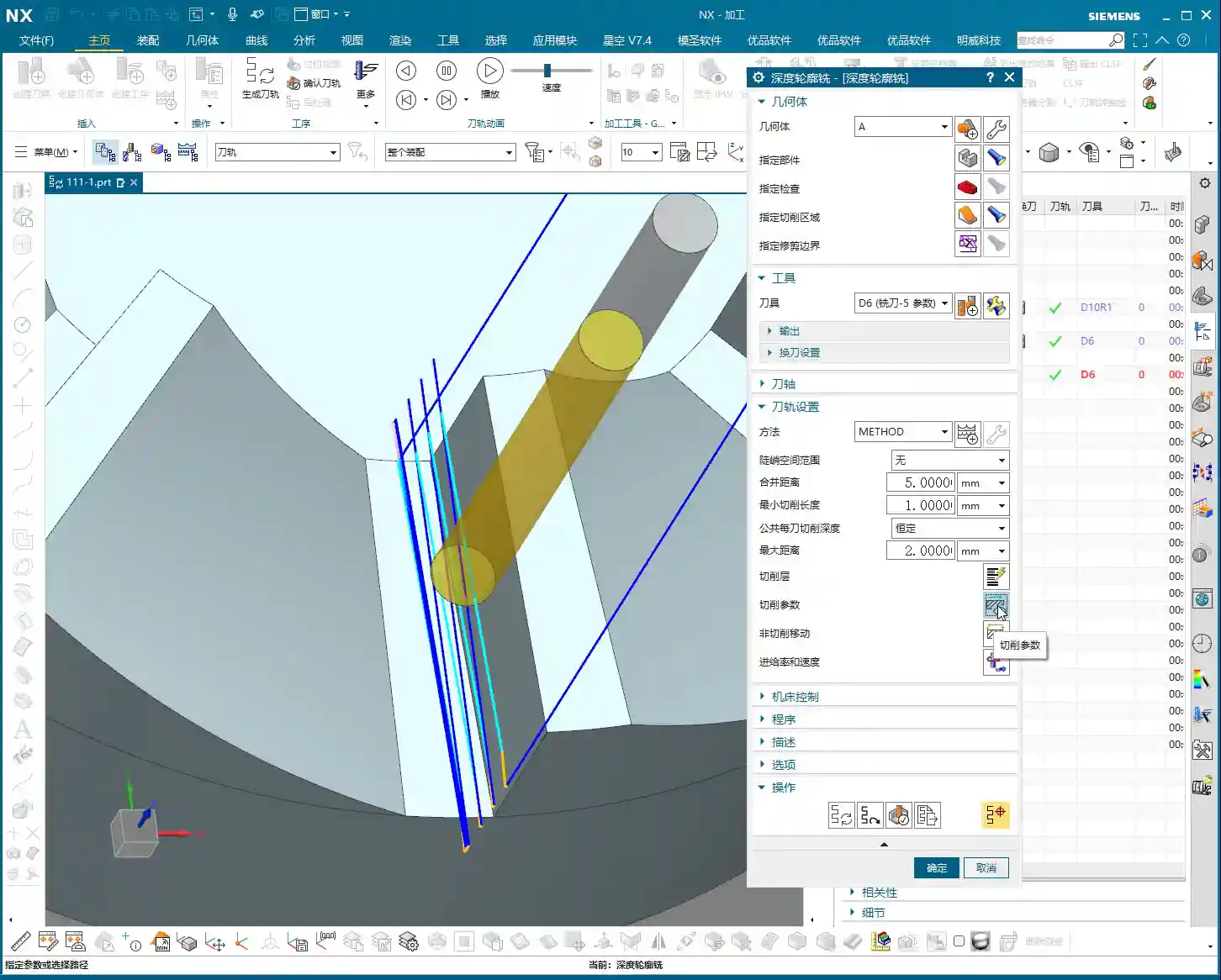
    Additionally, the top 5 millimeters (approx. 0.2 inch) of the side wall should also receive extra finishing passes to improve its flatness. During the finishing pass stage, we won’t leave any stock; it’s a direct one-pass finish.

    Cutting Parameters and Safety Strategies

    For the cutting order, we’ll select Depth First. As for stepover, a linear cut at 55% or 60% is fine; this depends on your tool’s strength and material properties. However, I typically disable extension to avoid unnecessary toolpaths.

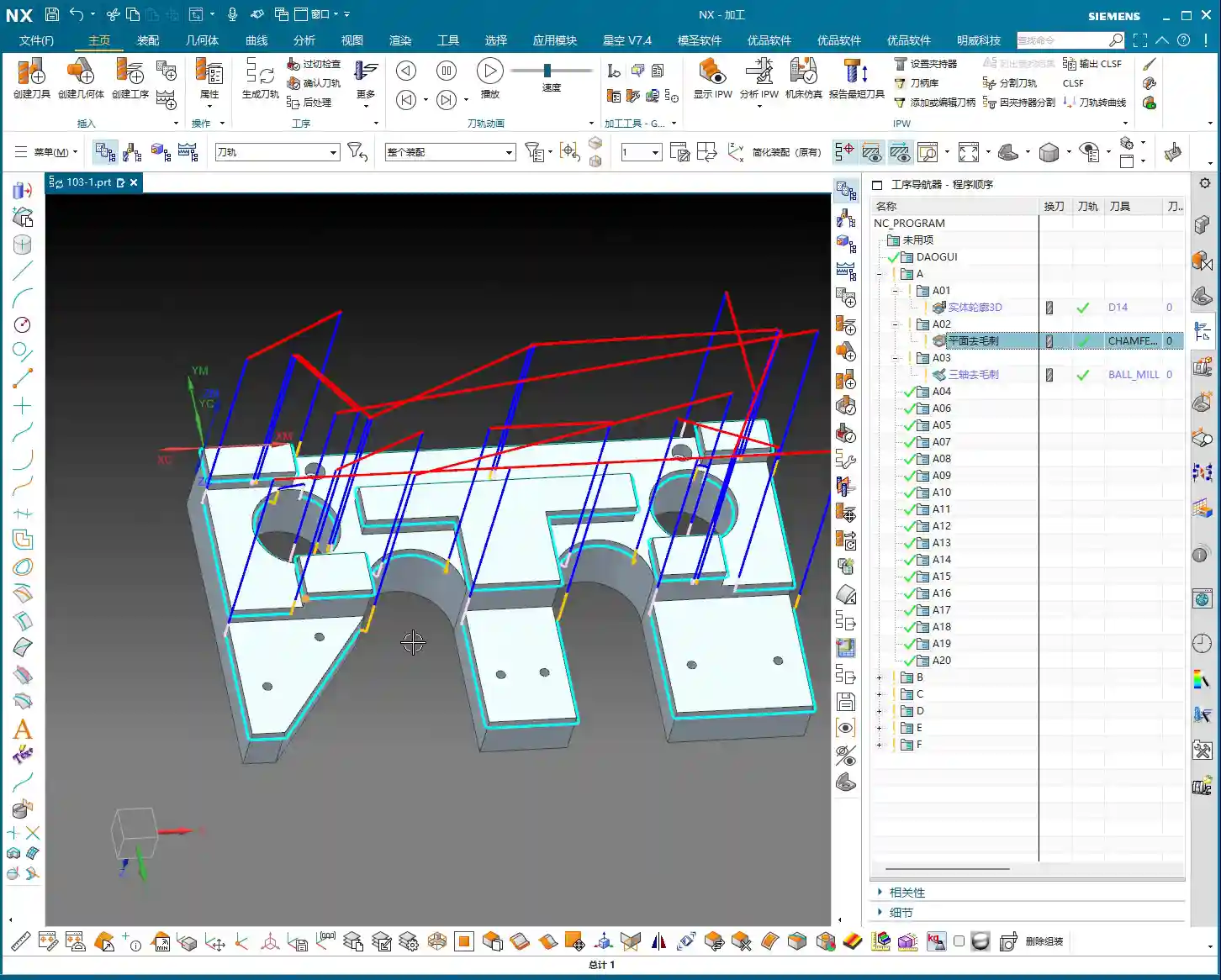
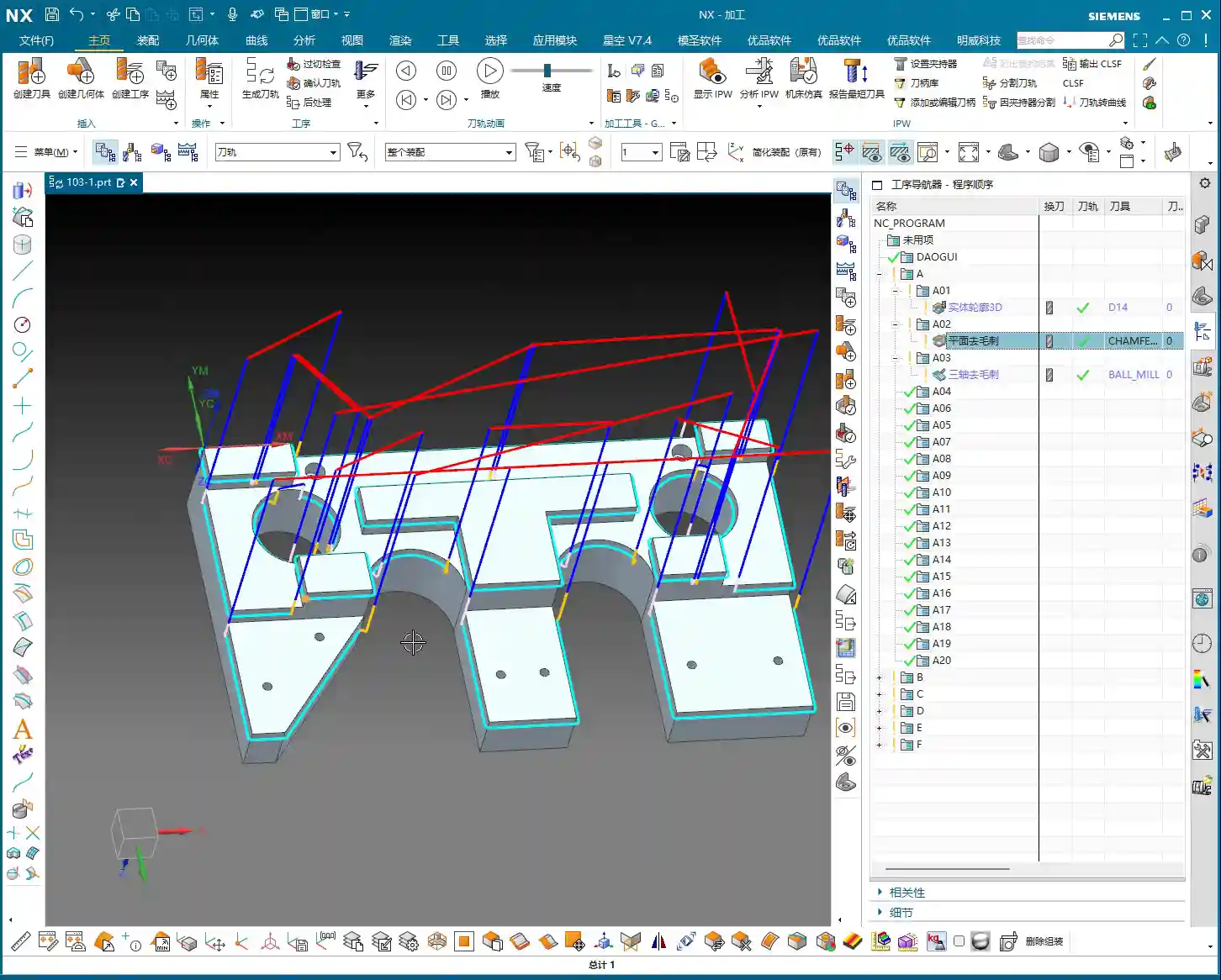
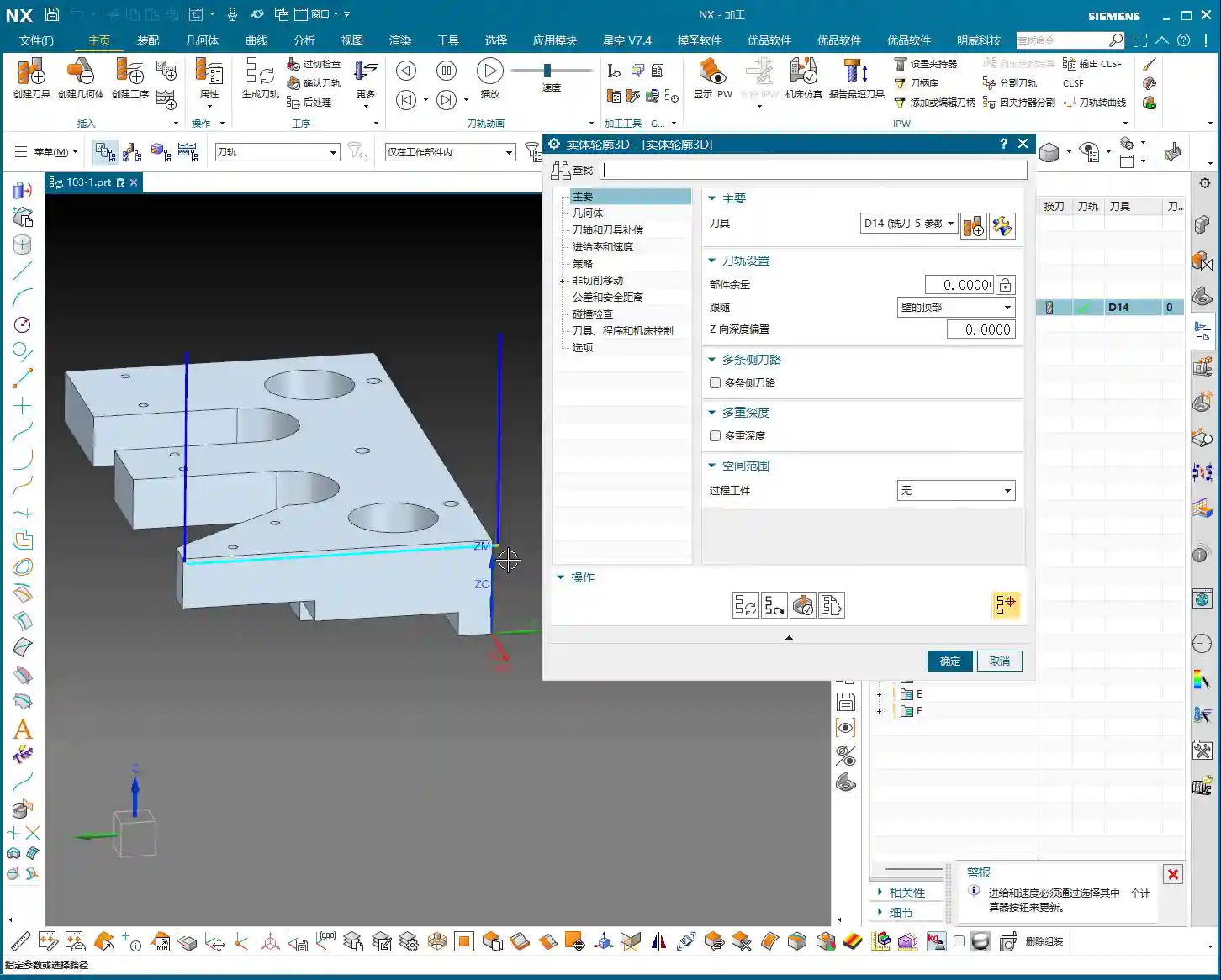
    The program has generated, and the cutting depth control is fine. But look at this rapid move – it plunges directly into the side wall! This is unacceptable! A machine tool isn’t a computer simulation; this kind of move risks a collision. At best, you’ll scrap the tool and workpiece; at worst, you’ll damage the machine!

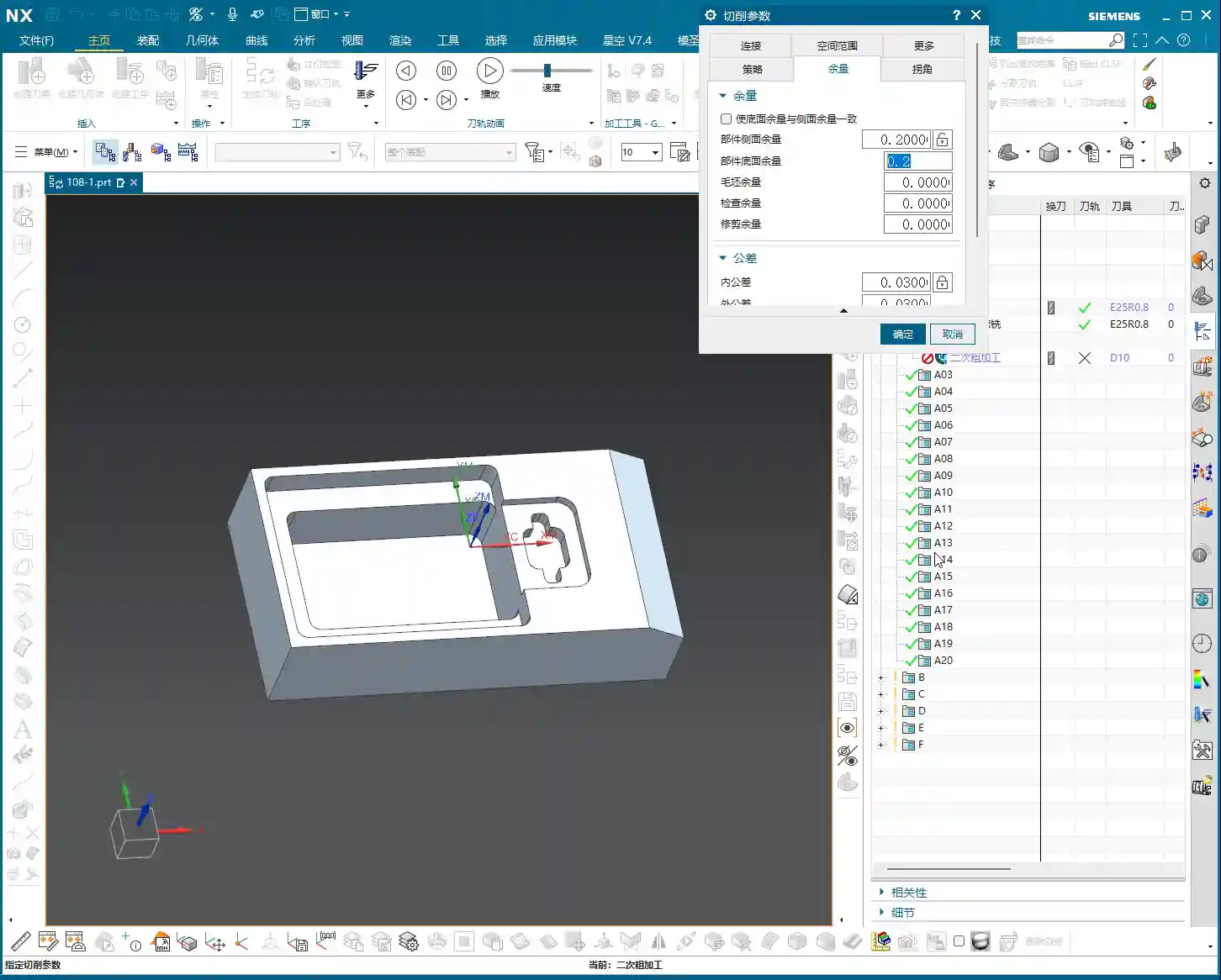
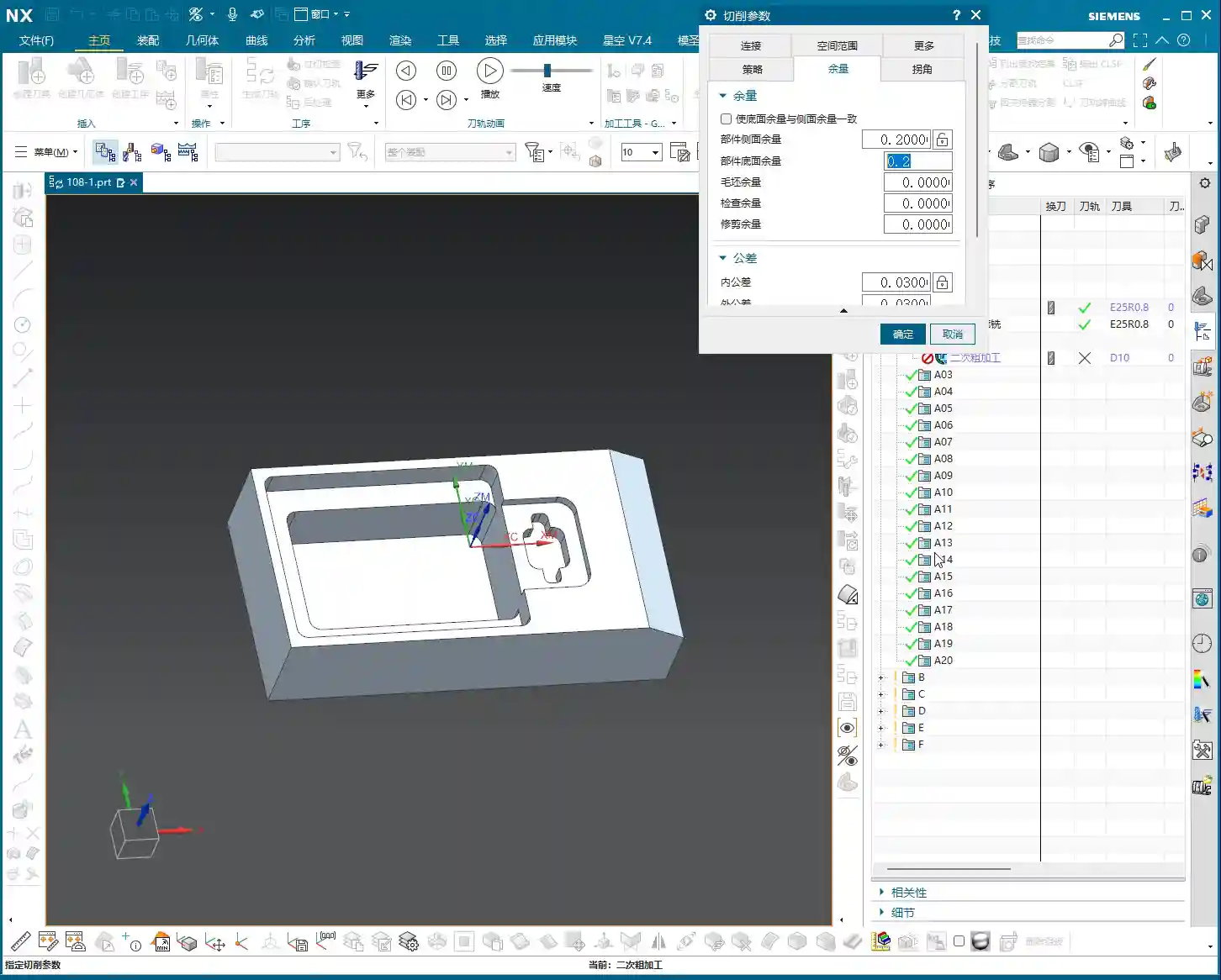
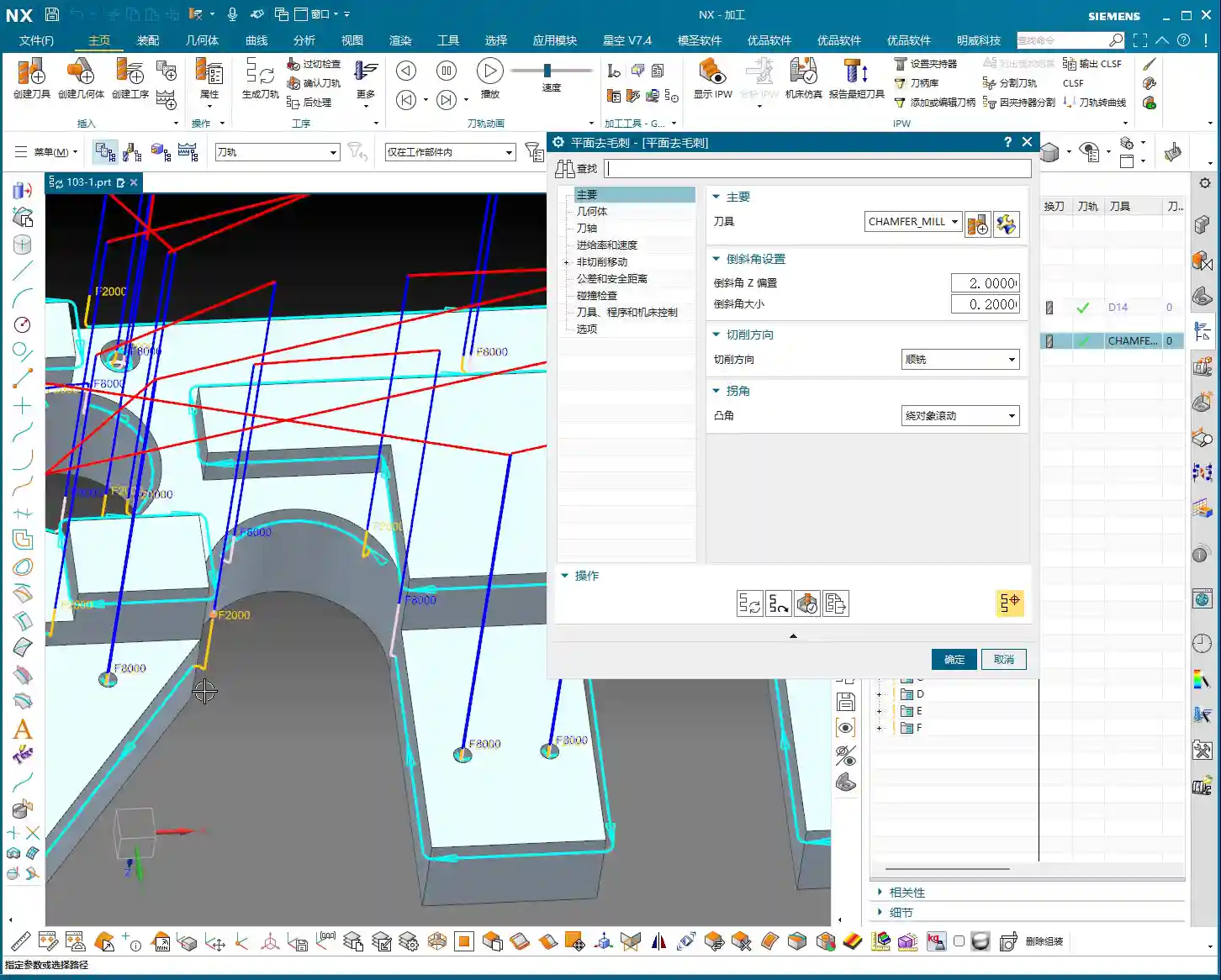
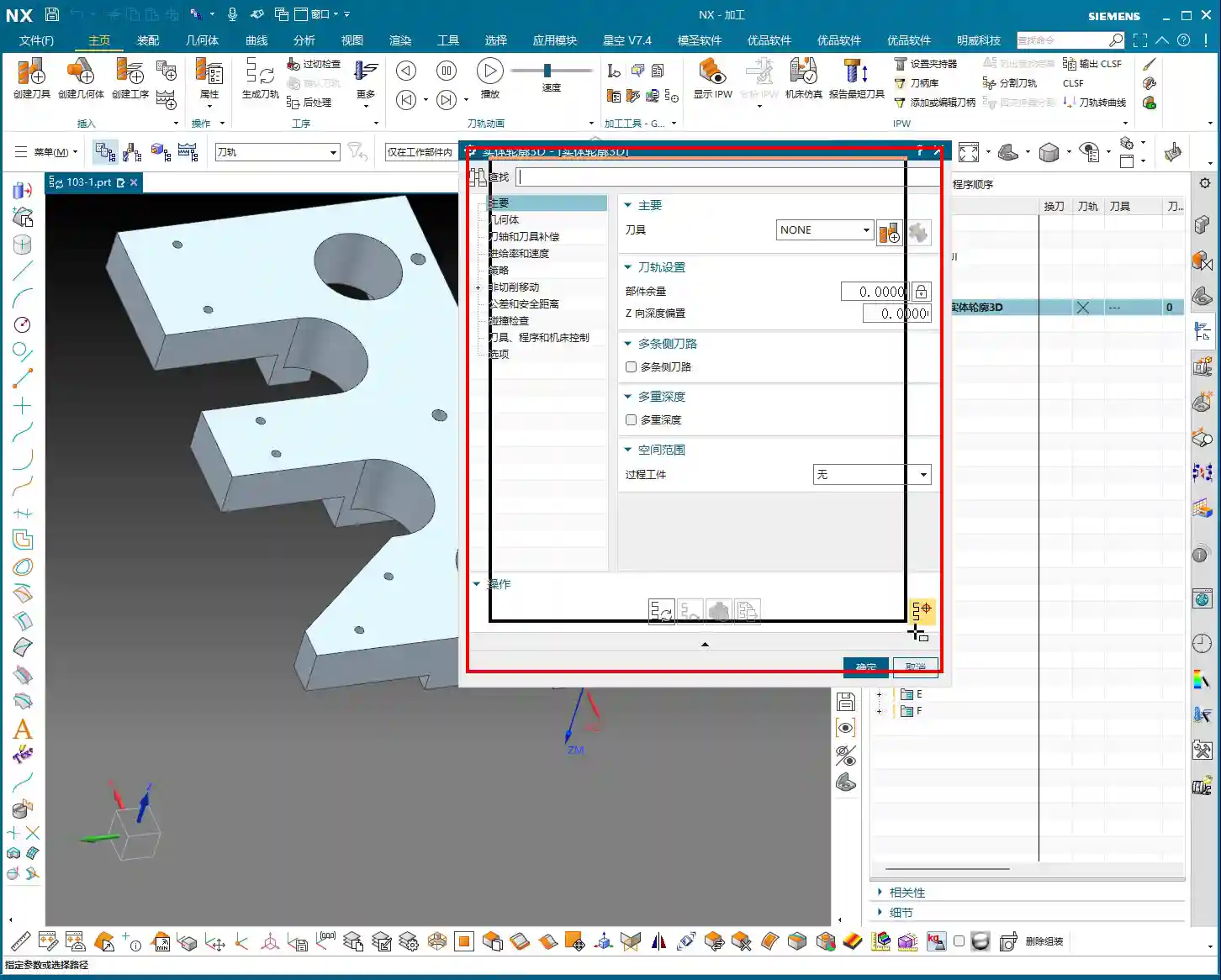
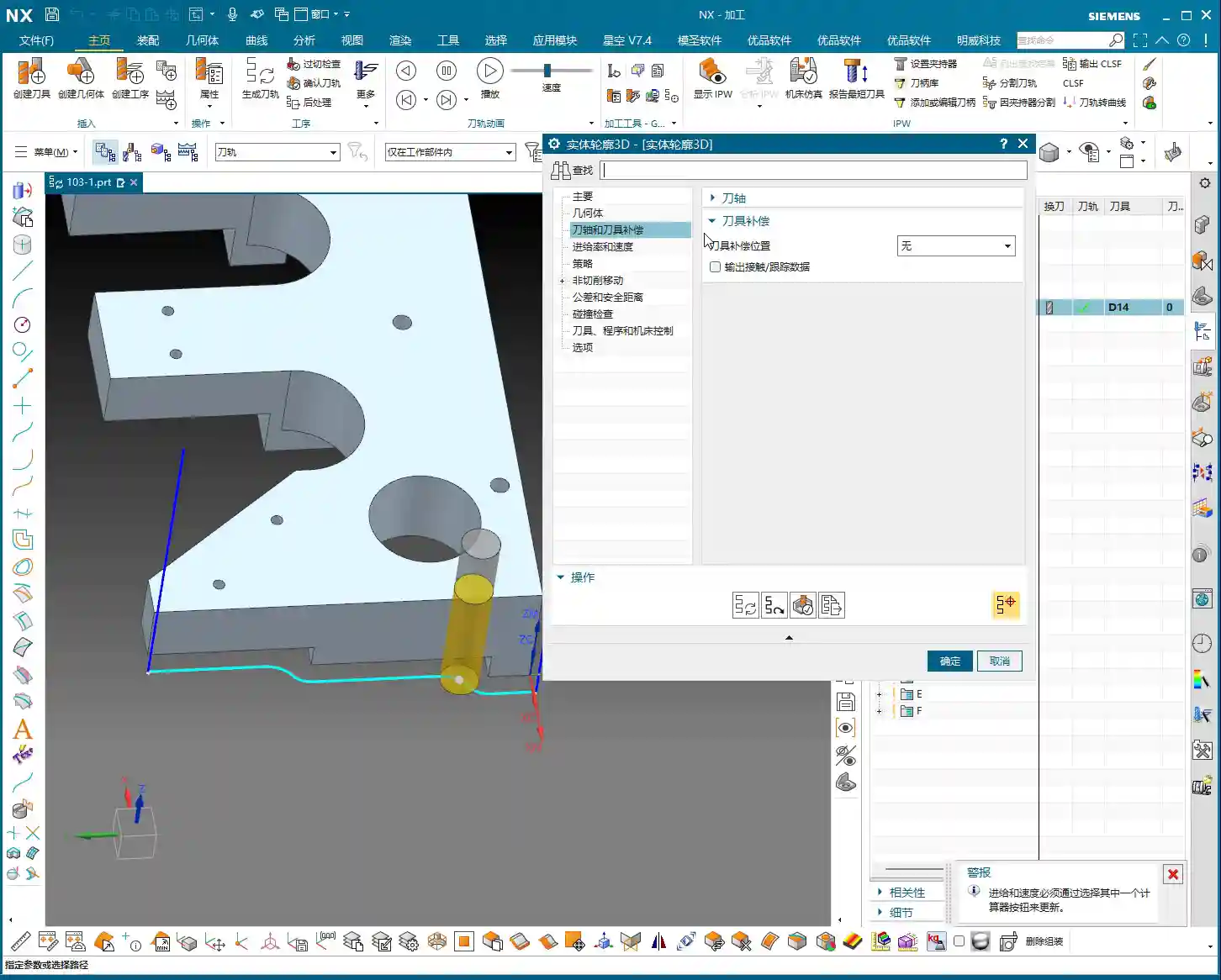
    Therefore, we need to go into “Non-Cutting Moves” and modify the rapid transfer. For safety, retract to the stock surface; that 3-millimeter (approx. 0.12 inch) height is acceptable. This provides sufficient safe retraction space for the tool. This is a crucial safety procedure, remember that!

    Here’s another trick: if the toolpath keeps failing to generate or takes excessive detours, it’s likely because a previously selected face is restricting it. Just select the bottom surface and the two side walls; don’t select the upper faces, let the tool move freely! Simplifying your selections often resolves major issues.

    Finally, overcut checking is fundamental! Don’t assume everything is fine just because the program generated. One overcut can undo all your previous work, or even scrap the part.
    Step Two: Corner Cleanup and Angled Surface Finishing – Surface Drive and Guide Curve

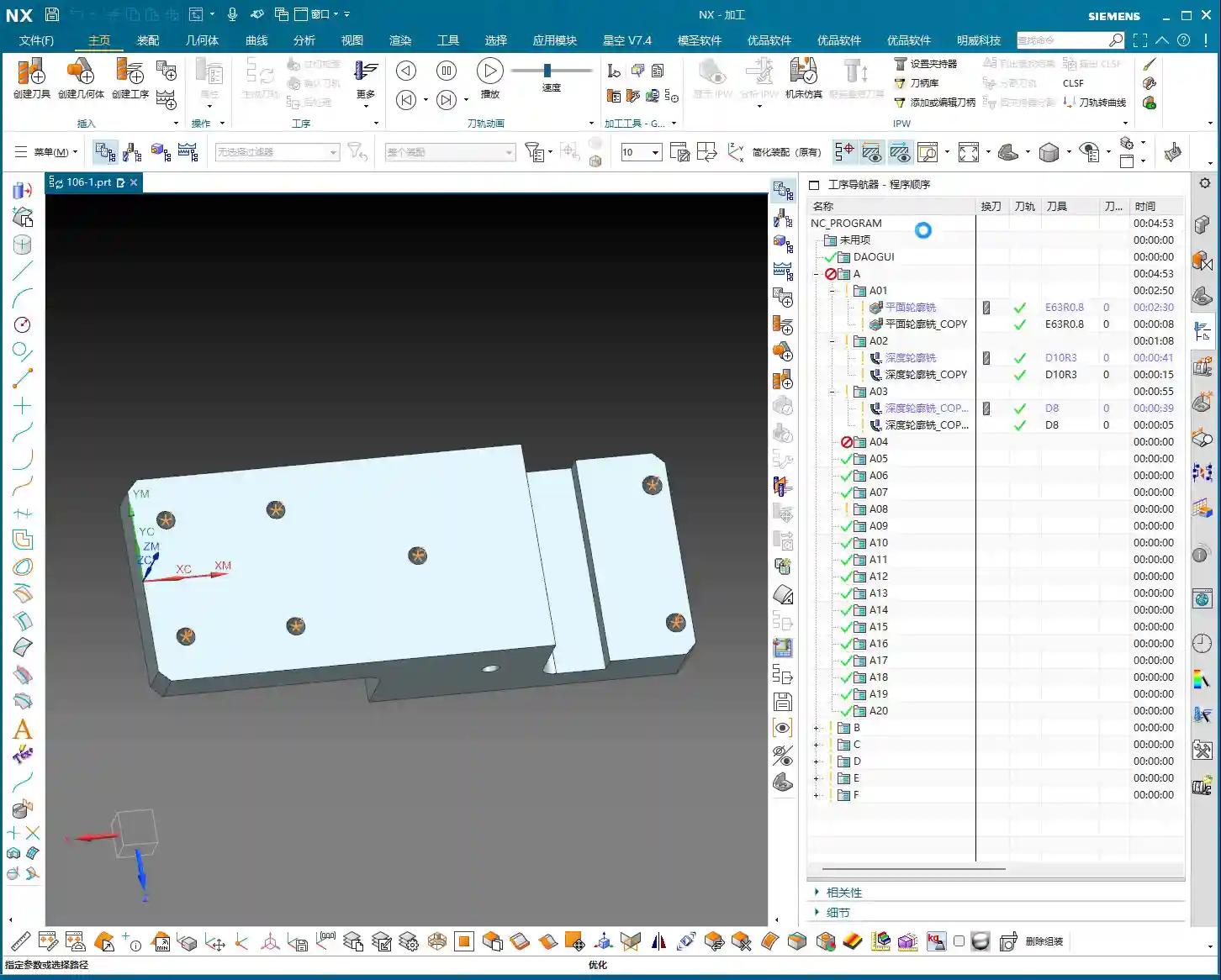
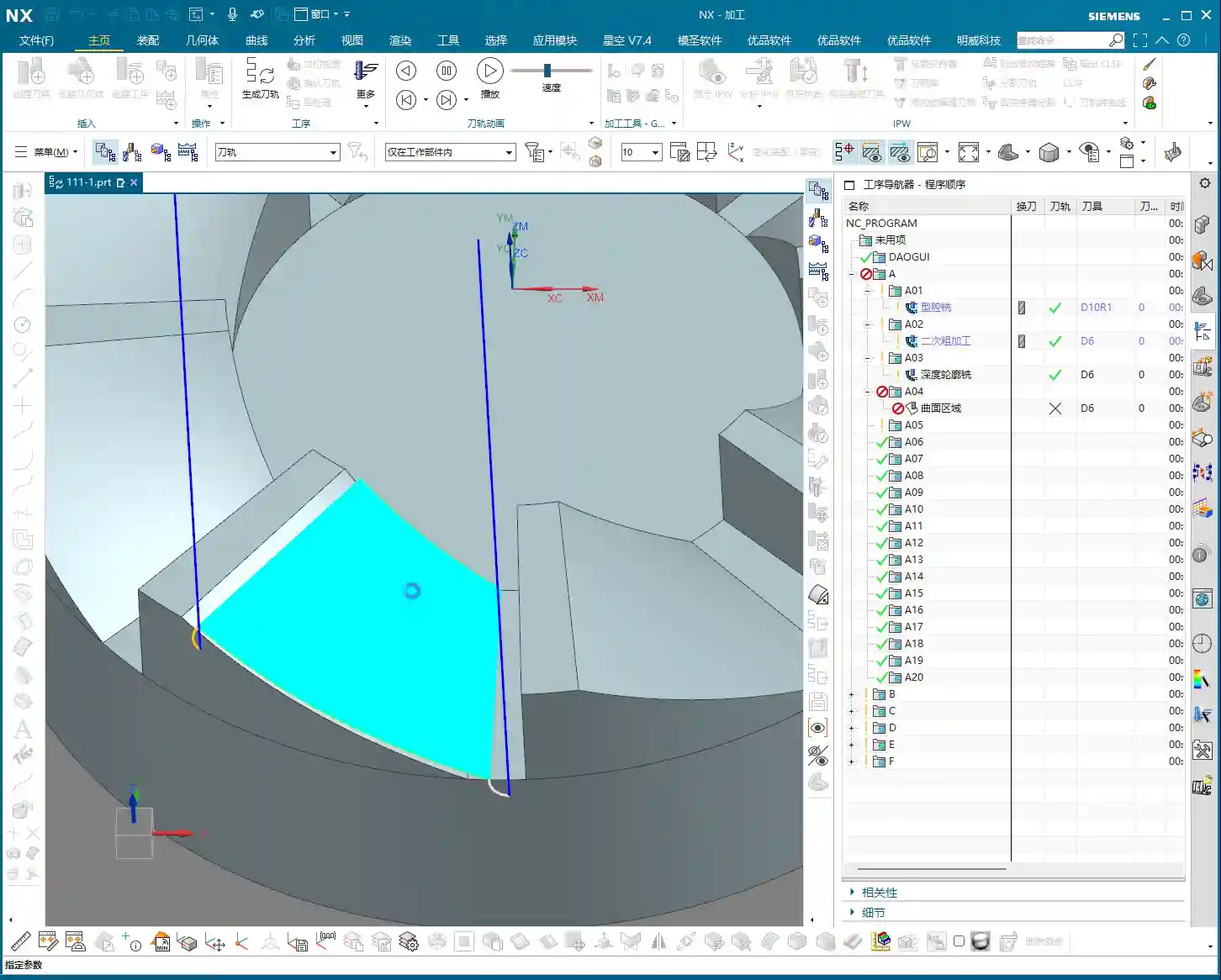
    All right, the side walls and bottom surface are finished. Next, let’s address the root area of this part. After corner cleanup, we also need to perform contour milling on this angled surface. What command do you think is suitable?

    Corner Cleanup Toolpath: Surface Drive is the Correct Approach

    Some might think of using a “Guide Curve” for corner cleanup. But listen up: Guide Curve only supports ball end mills. How can a ball end mill perform corner cleanup? It simply can’t clean effectively! If the root has a sharp corner or small radius, a ball end mill can’t reach the bottom. Others might suggest using “Streamline” offset lines, which can also work, but that’s too much hassle—offsetting lines, selecting them—it’s highly inefficient!

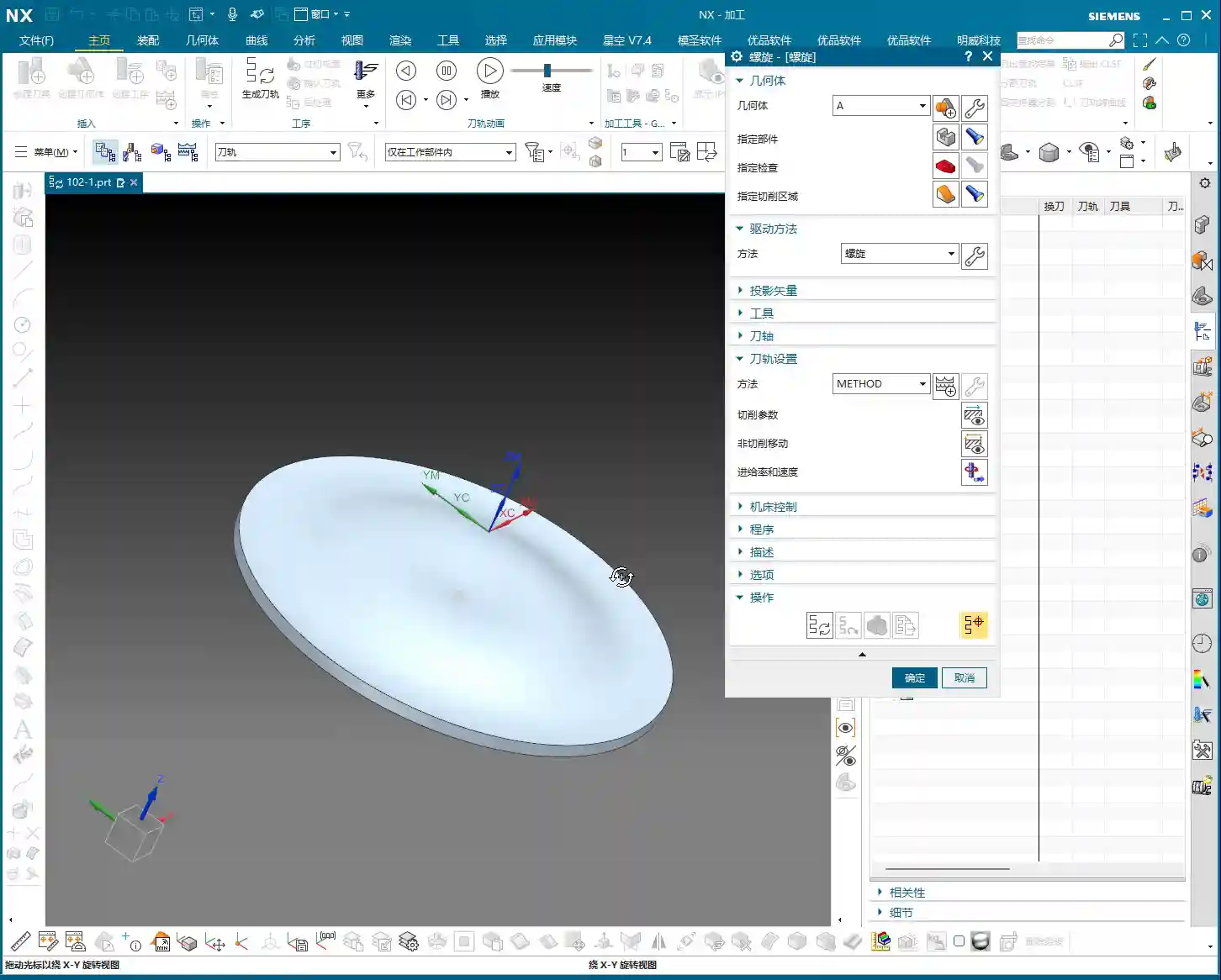
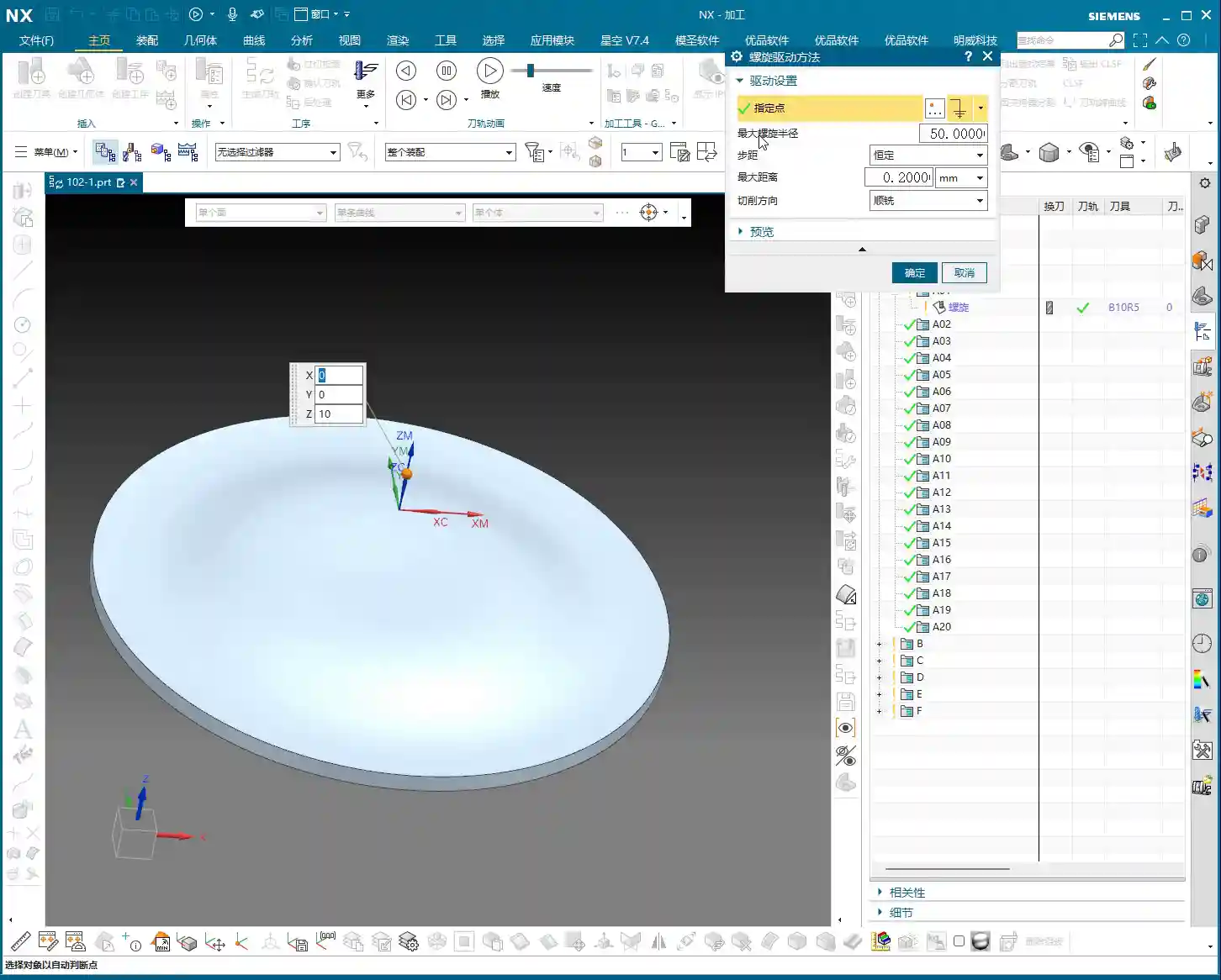
    So, the most direct and effective method is our Surface Drive. This command is specifically designed for this! We’ll still use our D6 flat end mill. This time, there’s no need to select a machining area; just select the “drive face.”

    Pay close attention to the cutting direction; we’ll set it to Material Reverse and use Zigzag machining for higher efficiency. For corner cleanup, a 0.1-millimeter (approx. 0.004 inch) stepover! When performing corner cleanup with a D6 flat end mill, a small stepover is crucial for a clean cut; otherwise, the finished surface won’t be flat, and all your effort will be wasted! Remember, finishing passes require attention to fine details; no need to change tolerances, just calculate the toolpath directly.

    Toolpath Trimming: Precise Control of Machining Area

    The program has generated, but it’s currently cutting from top to bottom, and we only need that small root area at the bottom. This is where the Trimming function comes in – listen up, this is key to boosting efficiency!

    Within “Cutting Area,” locate “Surface Percentage.” See, we initially clicked this arrow (pointing at the direction), so Start Trim calculates from the top, and End Trim goes to the bottom. We need to shorten it to only machine the root area, which means modifying Start Trim. For example, changing it to 97% will make it cut only the very last portion. You’ll need to experiment a few times to find the appropriate percentage until the toolpath precisely covers the root area. This all comes from experience; you have to get hands-on.
    Exploration: Applying Guide Curves and Optimizing Retract Moves

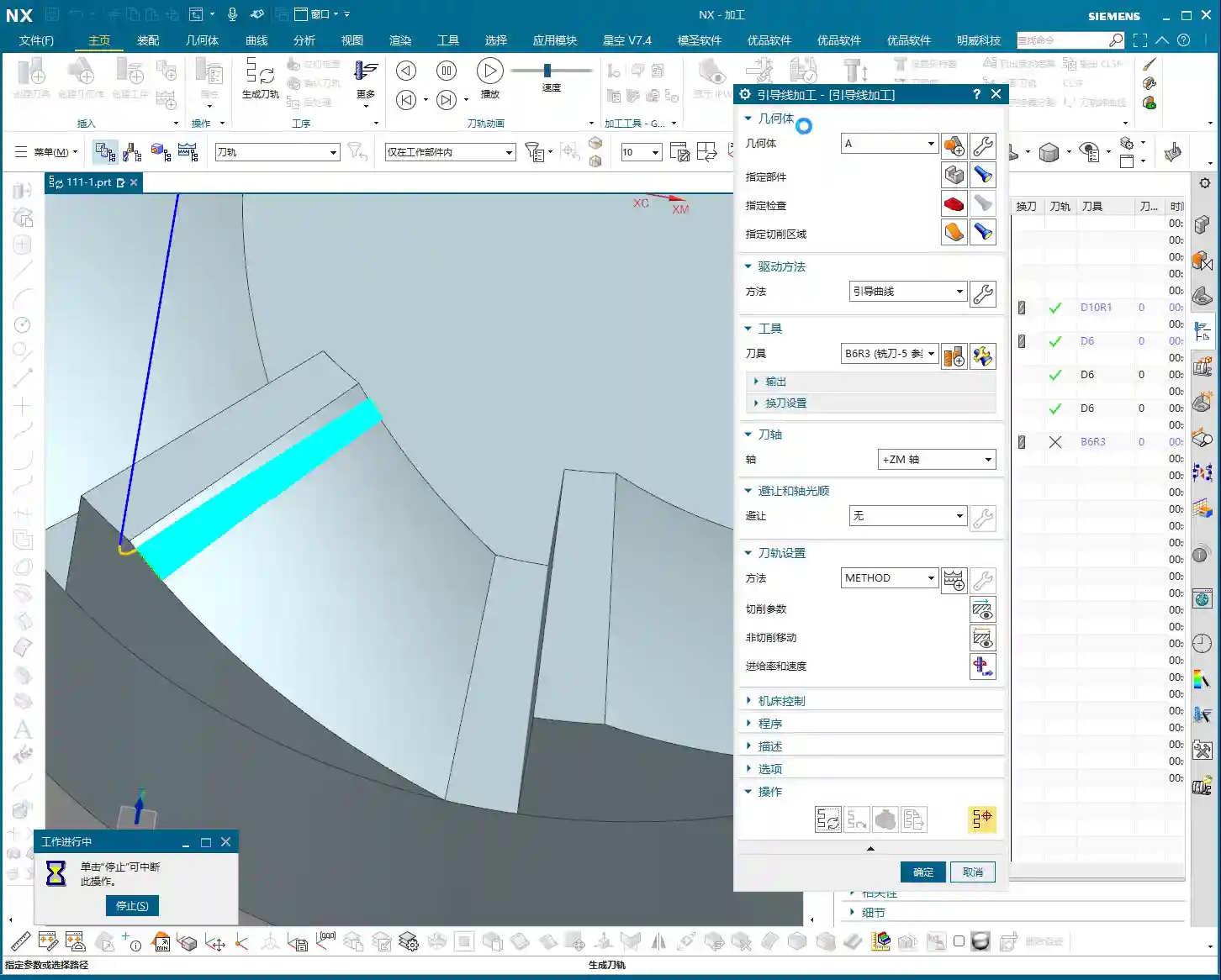
    While Surface Drive works well for corner cleanup, to broaden your understanding of different methods, we can also try using a Guide Curve to machine this angled surface. You might not have used it much before, so let’s get some hands-on practice. Honestly, for machining such surfaces, any command will do – Contour Milling or Surface Drive, both are viable. The key is to find what’s best for the current situation; don’t fret, nothing is too difficult!

    For the Guide Curve operation, we’ll use a D6 ball end mill this time. First, select the first guide curve, then the second. It’s that simple; nothing complicated.

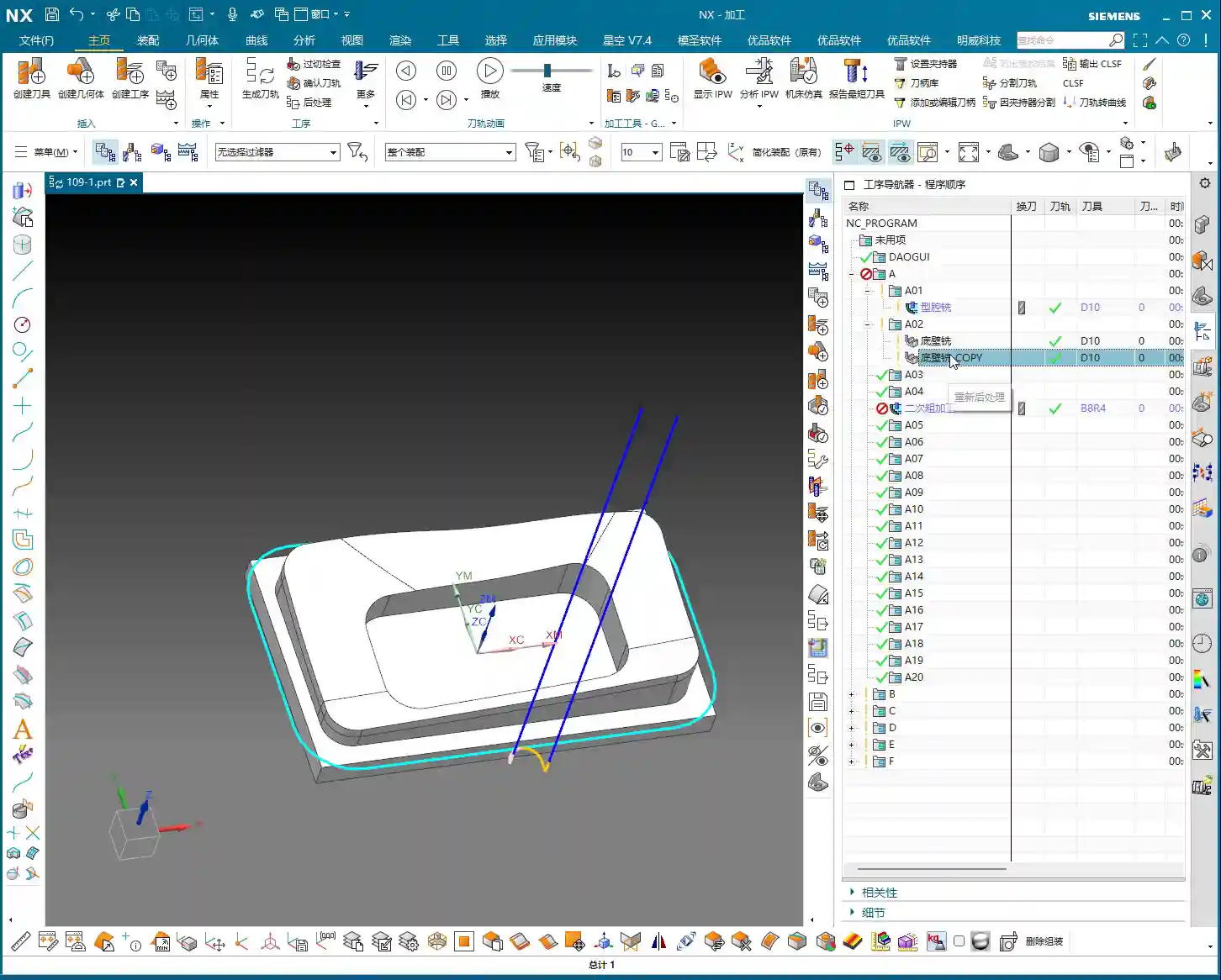
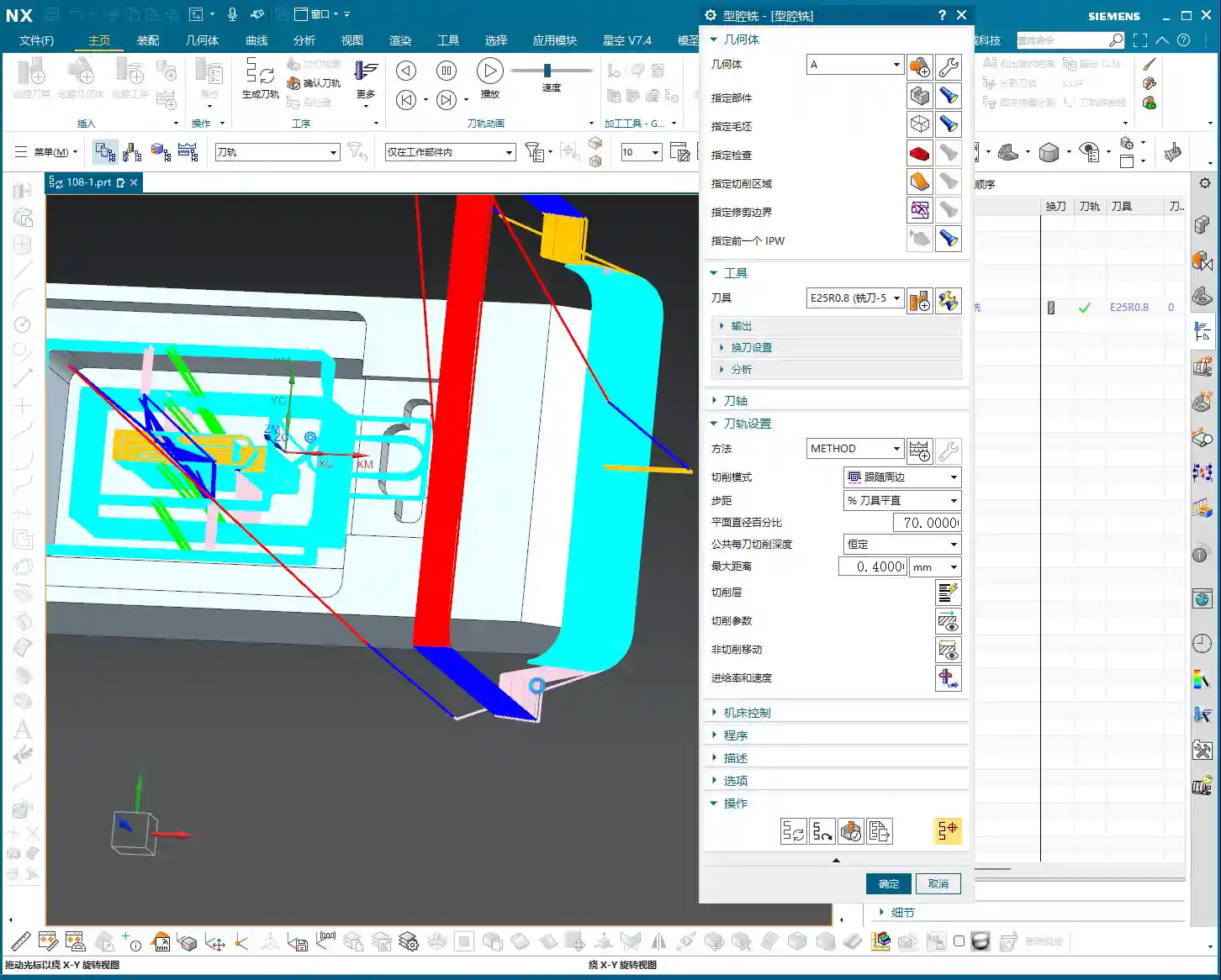
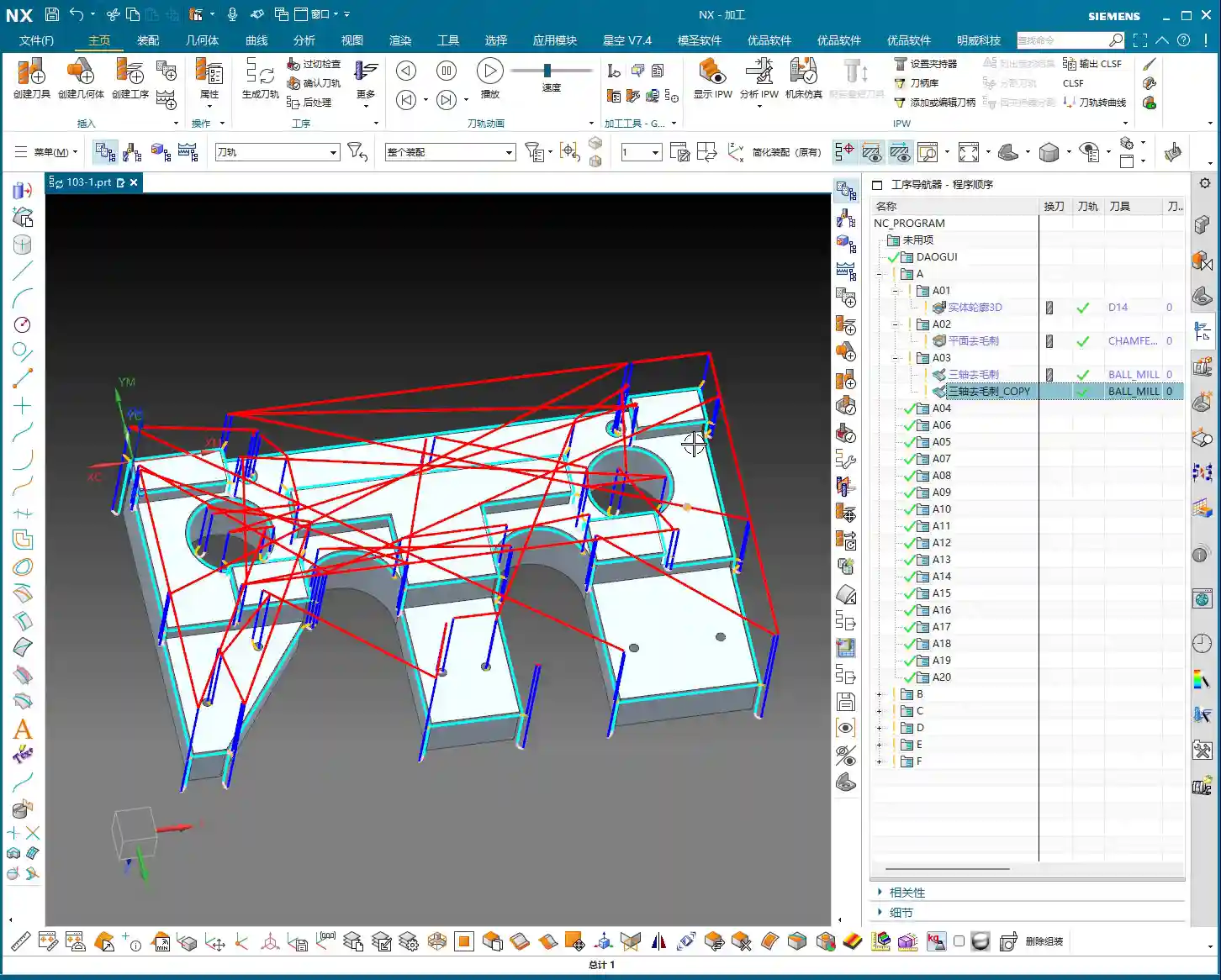
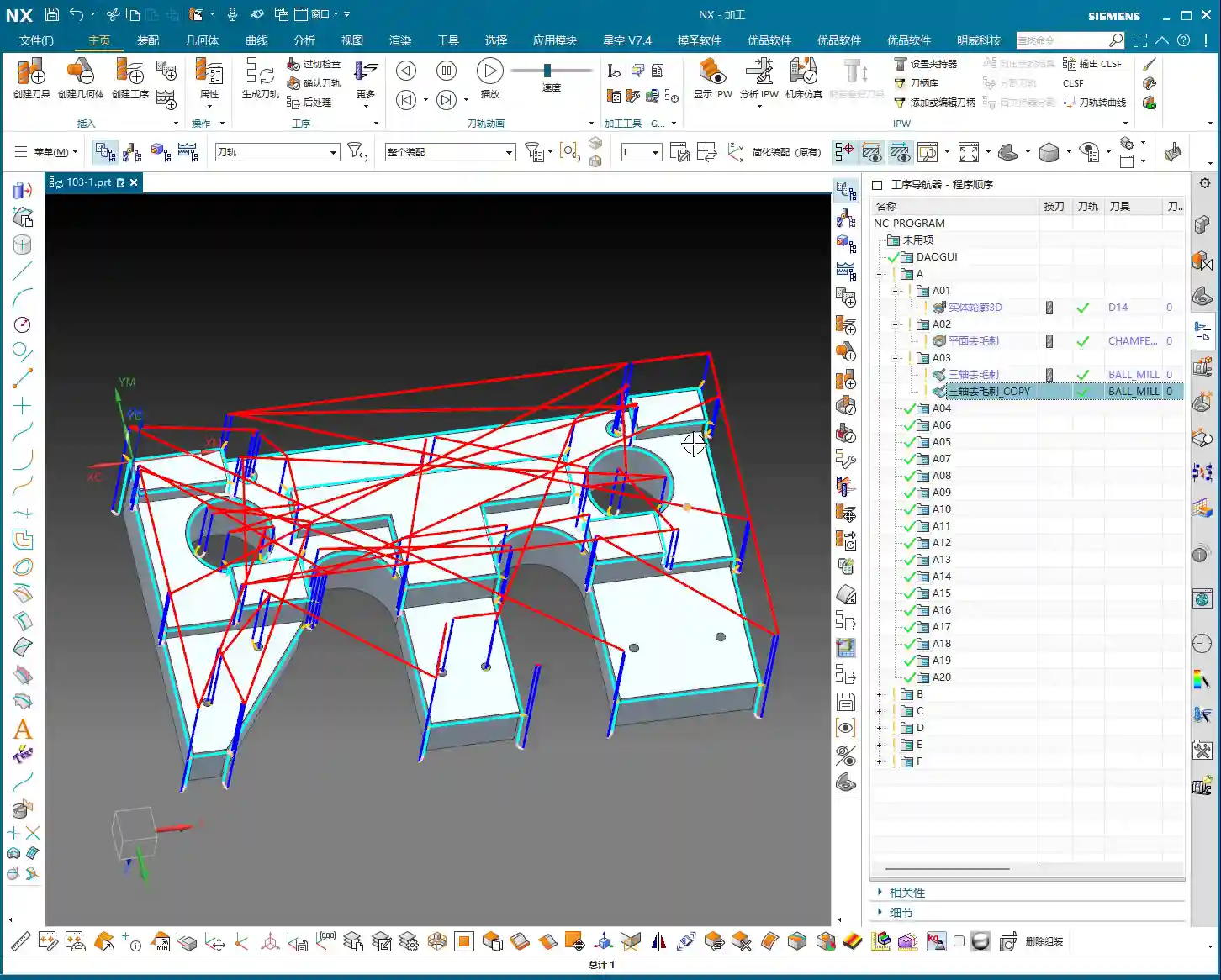
    After the program generates, you’ll notice a problem: this retract move (the pink rapid move lines in the program) is retracting excessively high, which is a huge waste of time! The machine running idle costs money! This needs to be fixed!

    The height of this retract move is directly related to the stock distance parameter. Let’s reduce it, for example, to 1mm (approx. 0.04 inch). Recalculate, and see? It’s much lower now, isn’t it? Idle cutting time is instantly saved – that’s efficiency! Don’t underestimate these one or two millimeters; over years, the accumulated cost savings are significant.

    Final Checks and Program Transformation

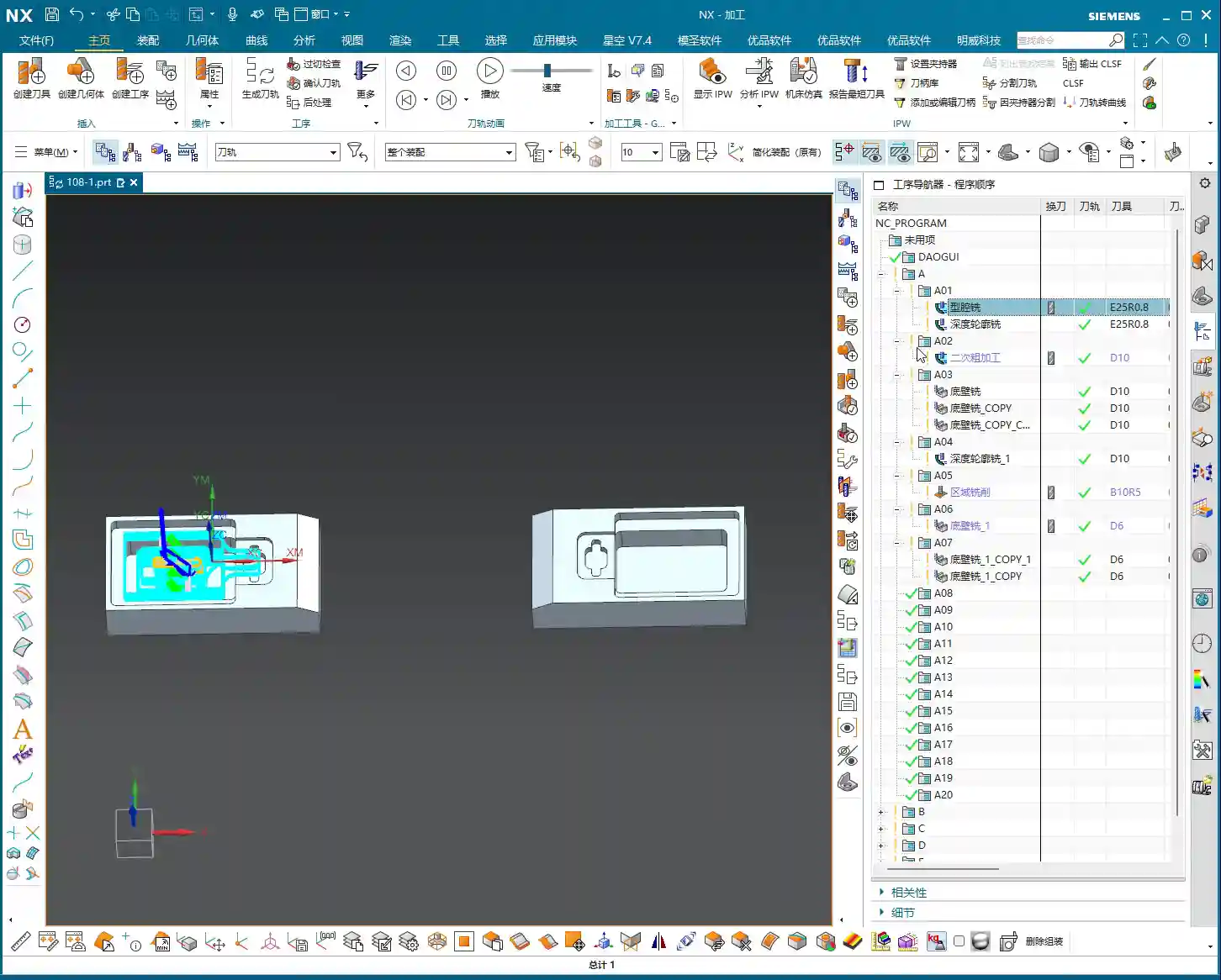
    All right, by now, all of our finishing pass programs are complete.

    Overcut Check: The Last Line of Defense Before Machining

    Next, overcut checking – this is absolutely mandatory every time. See, no alarms means no overcuts. If there were, the software would definitely throw an error. Never skip this step, or you’ll be devastated if the part is scrapped!
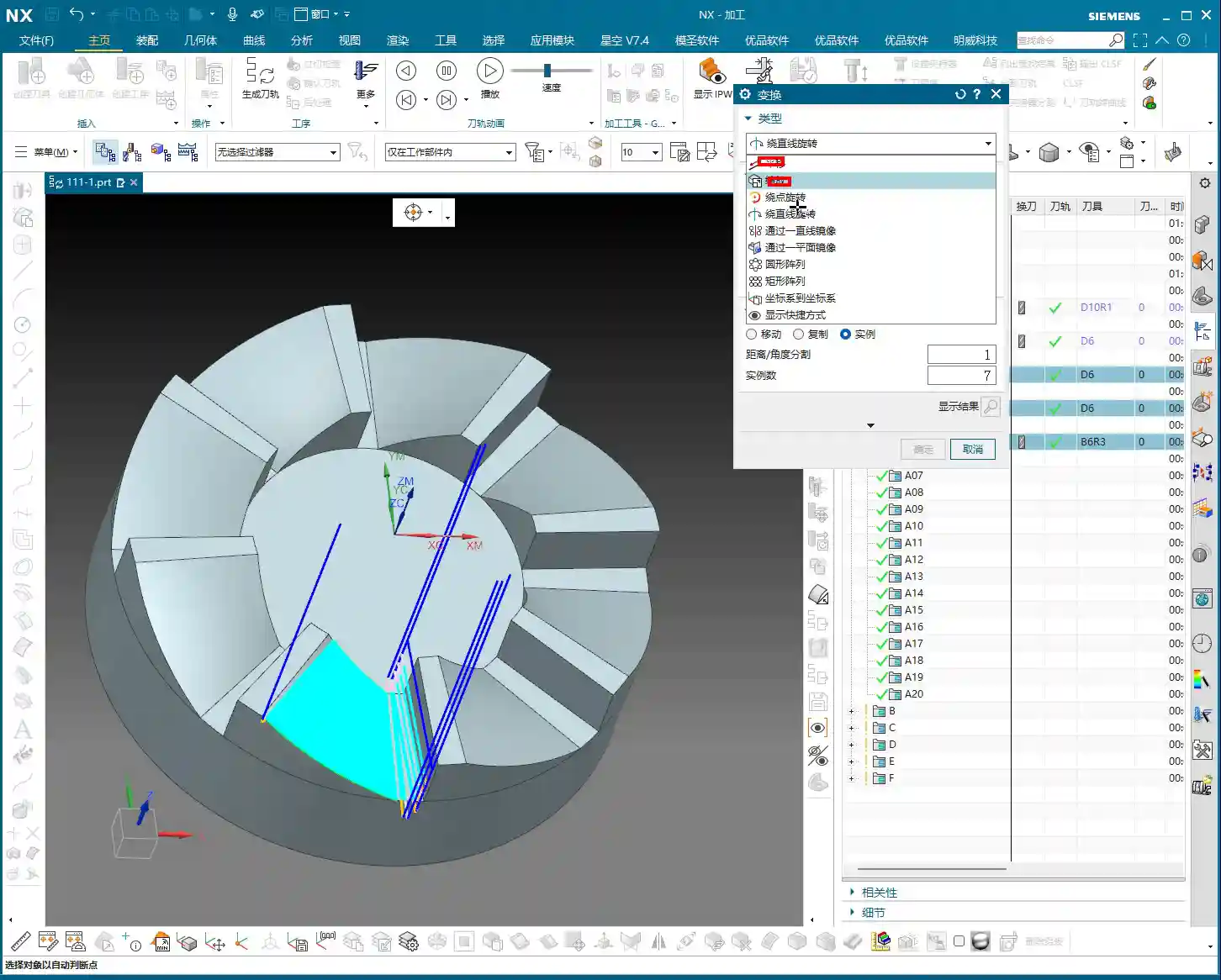
    Simulation and Saving: Preventing Software Crashes

    Then, save it! Remember, develop good habits. Sometimes, simulating directly can crash the software, leaving you with nothing. These are lessons learned the hard way. After saving, let’s simulate and check the results!

    The simulation might not look absolutely perfect, especially with a D6 flat end mill (meaning a sharp corner/R0 tool); some details might not display completely. However, the actual machined part will be fine. I’ve machined these types of parts before with excellent results. These examples I share with you are all from parts I’ve actually machined. With that, this part is now complete.

    Program Transformation (Mirroring)

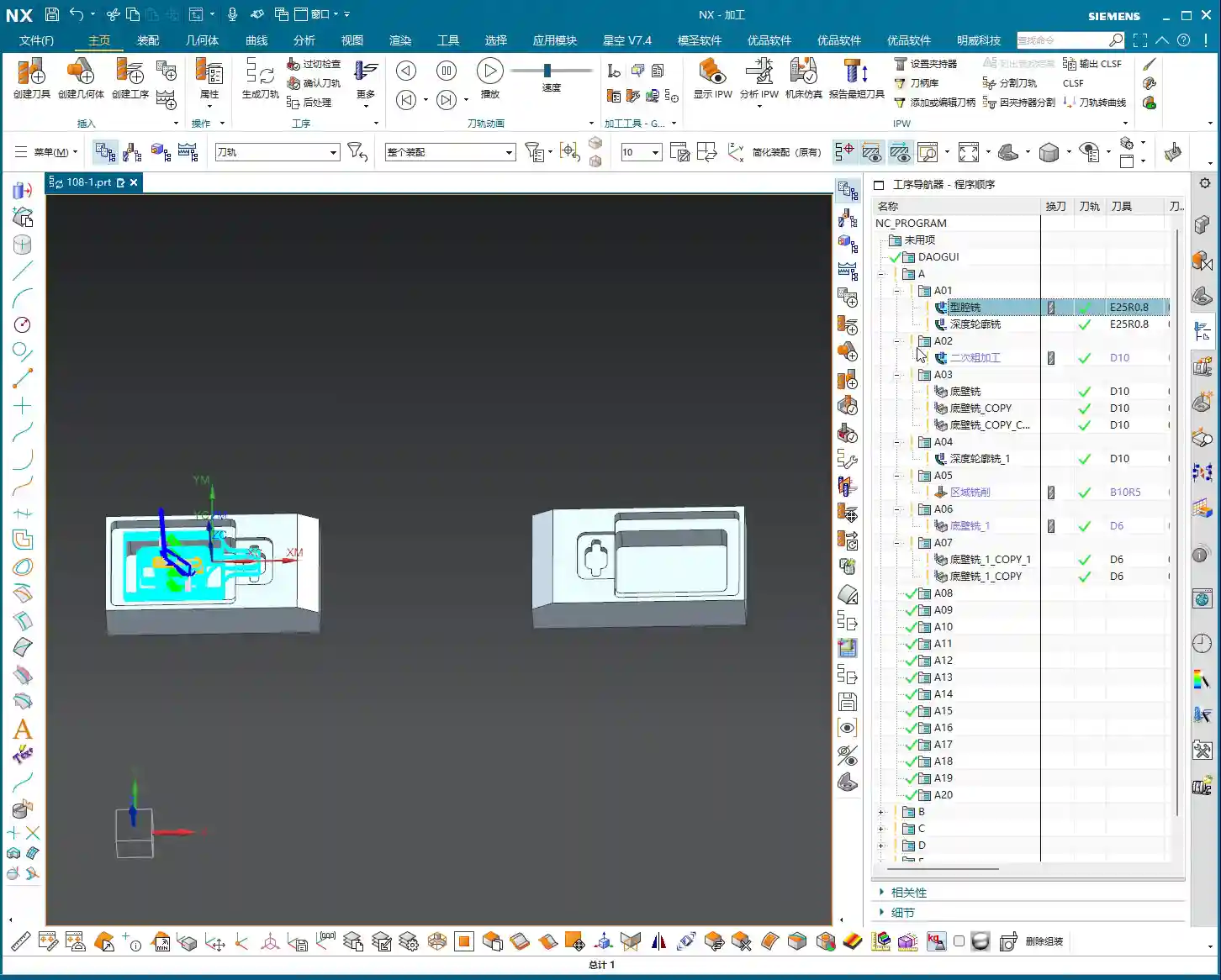
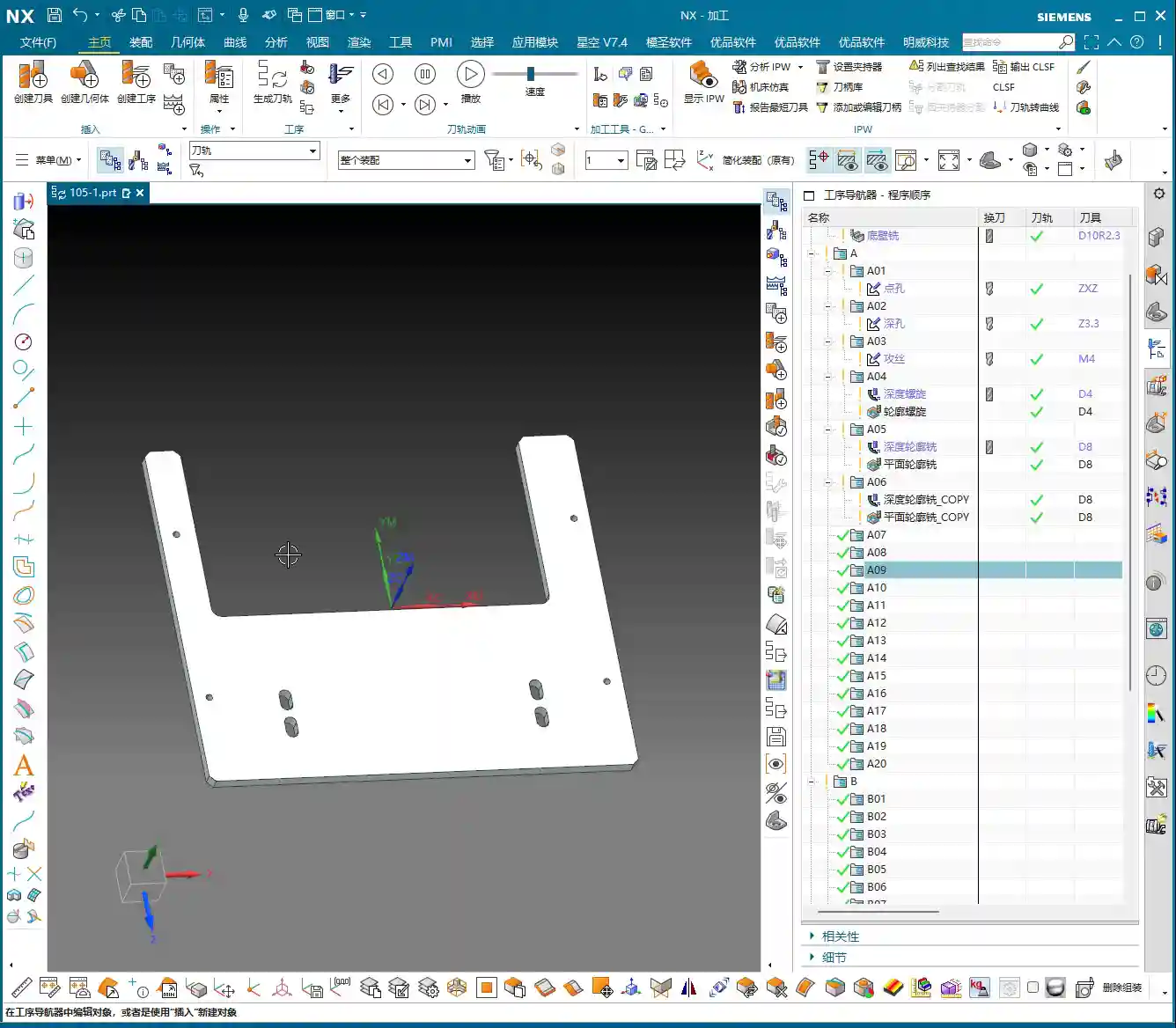
    Final step, don’t forget to transform your previous roughing programs, meaning mirror them. This part is symmetrical, so some programs won’t require transformation, such as the side wall and bottom surface finishing passes. However, the corner cleanup might. Select the transformation object – it’s a simple task. With that, a complete set of machining programs for this rotary part is all done!

    Summary: Pitfall Avoidance Guide

    • Depth of Cut (DOC) Control: Divide the final 1mm (approx. 0.04 inch) of stock into multiple cutting layers; never take it off in a single pass, as this risks chatter or tool breakage, affecting surface finish.
    • Rapid Move Optimization: Disable direct plunge-style rapid moves. Set a safe retract move height (retract to the stock surface) via “Non-Cutting Moves” to prevent collisions.
    • Machining Area Simplification: When toolpaths exhibit abnormal behavior (failing to generate or excessive detours), check and simplify the selection of “Machining Areas” to avoid unnecessary restrictions.
    • Corner Cleanup Tooling and Strategy: For corner cleanup, a flat end mill combined with Surface Drive is preferred; Guide Curve only supports ball end mills and is unsuitable for root corner cleanup.
    • Precise Toolpath Trimming: Make good use of “Surface Percentage” to precisely control the start and end points of the toolpath, avoiding idle cuts or machining unnecessary areas.
    • Retract Move Height Optimization: Adjust the “stock distance” parameter to reduce unnecessary retract move heights, saving idle cutting time and improving machining efficiency.
    • Overcut Checking: Always perform an overcut check after generating each program; this is the final line of defense for ensuring part quality.
    • Timely Saving: Before performing simulations or complex operations, cultivate the habit of saving frequently to prevent software crashes from causing data loss.

    [VIDEO_HERE]

    [EXCERPT] Hello everyone, this is Master Wang. Last time, we covered roughing. This time, the focus is on finishing rotary parts. From side walls to bottom surfaces, and then to root corner cleanup, I’ll walk you through programming efficient, high-quality toolpaths using Siemens NX. I’ll share practical tips you won’t find in textbooks, such as how to optimize tool retractions, prevent overcutting, and tackle various machining challenges. My goal is for you to not just program, but truly understand the machine and the process.

    Step One: Finishing Side Walls and Bottom Surfaces – Refined Application of Depth Profile Milling

    Listen up, last time we thoroughly covered roughing and semi-roughing. This time, we’re heading straight into finishing, focusing on the part’s side walls and bottom surfaces. Especially that bottom area – we might have left some stock last time, but this time it needs to be completely cleaned, leaving no blind spots.

    Practical Tool Selection and Machining Area Definition

    First, open your NX software. We’ll select a “Depth Profile Milling” operation. For tooling, we’ll directly choose our commonly used D6 flat end mill; this tool will handle the corner cleanup and side walls. As for the machining area, you can initially box-select the entire part; that’s fine, we’ll precisely define it later.

    Hold on, what we need to do is specifically select these two areas: the side walls and the bottom surface. Remember, precision selection is better than broad selection. This avoids many unnecessary issues and computational load, improving program generation efficiency.

    Depth of Cut and Multi-Pass Strategy

    This program is primarily for finishing passes on the side walls. As I mentioned last time, the stepover for side walls should be tighter to achieve a smoother finish. For the bottom surface, we’ll machine down to a depth of -18mm. Of course, to be safe, you can adjust it slightly shallower, say -17mm, to leave a bit of stock for the final finishing pass.

    Here’s the critical point: that last 1 millimeter (approx. 0.04 inch) of stock on the bottom surface (for example, from -17mm to -18mm) – you absolutely cannot take it off in a single pass! Doing so risks chatter or tool breakage, and the resulting surface won’t be flat. We need to split it into multiple layers, for instance, taking 0.3mm (approx. 0.012 inch) per Depth of Cut (DOC). By cutting in two to three layers this way, the cut will be stable, and the finish will be superior. Don’t just rely on software simulation; pay attention to the cutting sparks and the actual forces on the tool!

    Additionally, the top 5 millimeters (approx. 0.2 inch) of the side wall should also receive extra finishing passes to improve its flatness. During the finishing pass stage, we won’t leave any stock; it’s a direct one-pass finish.

    Cutting Parameters and Safety Strategies

    For the cutting order, we’ll select Depth First. As for stepover, a linear cut at 55% or 60% is fine; this depends on your tool’s strength and material properties. However, I typically disable extension to avoid unnecessary toolpaths.

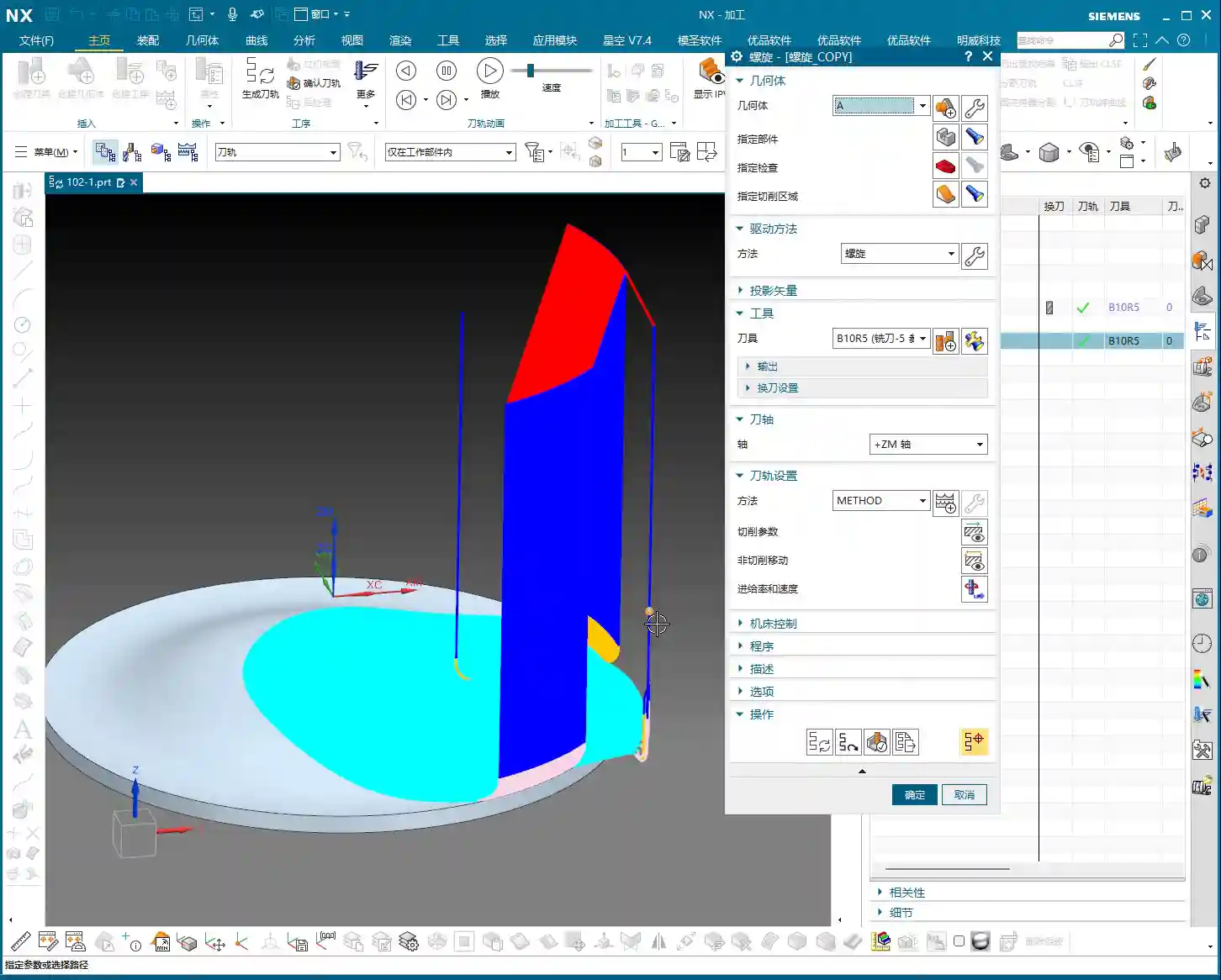
    The program has generated, and the cutting depth control is fine. But look at this rapid move – it plunges directly into the side wall! This is unacceptable! A machine tool isn’t a computer simulation; this kind of move risks a collision. At best, you’ll scrap the tool and workpiece; at worst, you’ll damage the machine!

    Therefore, we need to go into “Non-Cutting Moves” and modify the rapid transfer. For safety, retract to the stock surface; that 3-millimeter (approx. 0.12 inch) height is acceptable. This provides sufficient safe retraction space for the tool. This is a crucial safety procedure, remember that!

    Here’s another trick: if the toolpath keeps failing to generate or takes excessive detours, it’s likely because a previously selected face is restricting it. Just select the bottom surface and the two side walls; don’t select the upper faces, let the tool move freely! Simplifying your selections often resolves major issues.

    Finally, overcut checking is fundamental! Don’t assume everything is fine just because the program generated. One overcut can undo all your previous work, or even scrap the part.

    Step Two: Corner Cleanup and Angled Surface Finishing – Surface Drive and Guide Curve

    All right, the side walls and bottom surface are finished. Next, let’s address the root area of this part. After corner cleanup, we also need to perform contour milling on this angled surface. What command do you think is suitable?

    Corner Cleanup Toolpath: Surface Drive is the Correct Approach

    Some might think of using a “Guide Curve” for corner cleanup. But listen up: Guide Curve only supports ball end mills. How can a ball end mill perform corner cleanup? It simply can’t clean effectively! If the root has a sharp corner or small radius, a ball end mill can’t reach the bottom. Others might suggest using “Streamline” offset lines, which can also work, but that’s too much hassle—offsetting lines, selecting them—it’s highly inefficient!

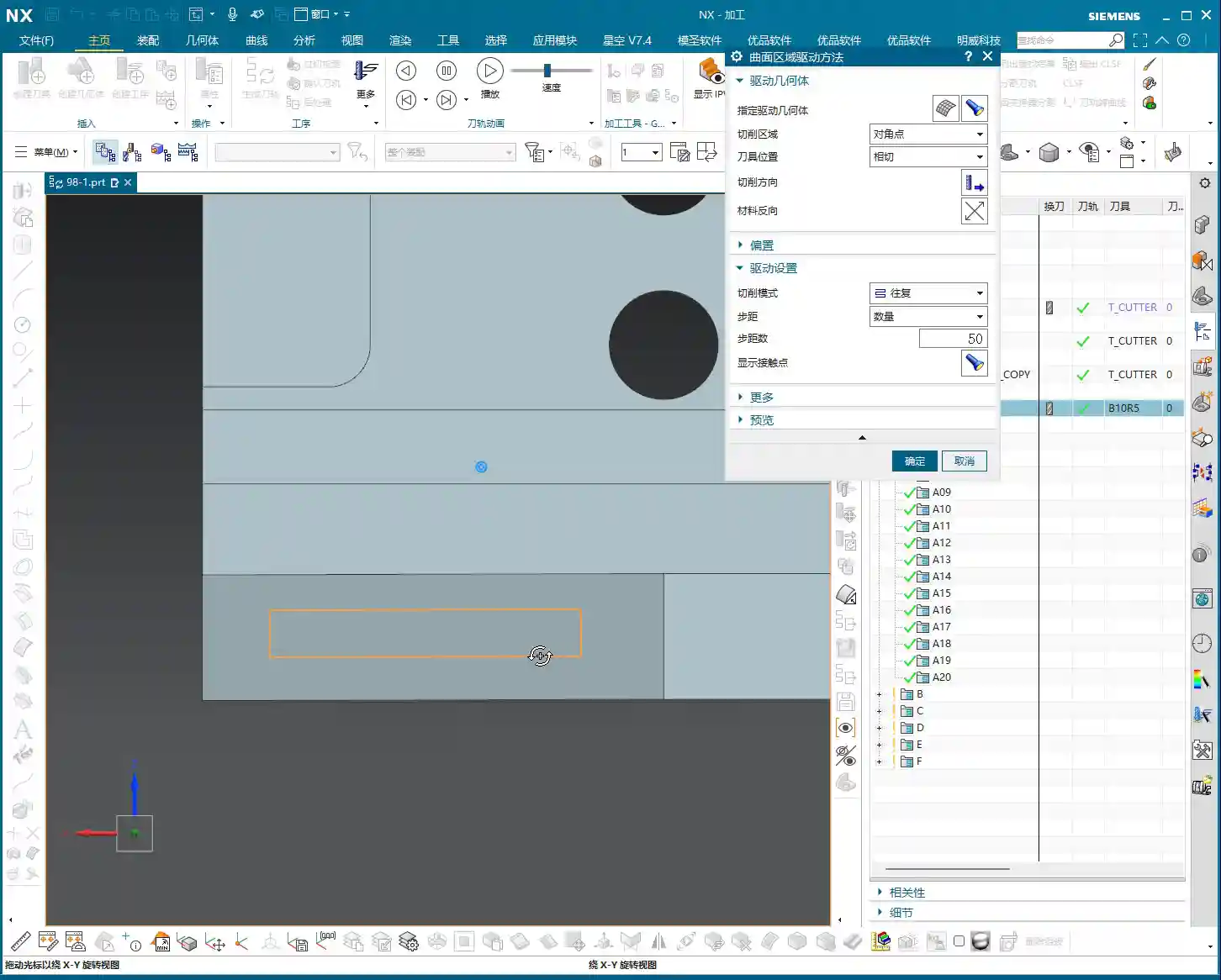
    So, the most direct and effective method is our Surface Drive. This command is specifically designed for this! We’ll still use our D6 flat end mill. This time, there’s no need to select a machining area; just select the “drive face.”

    Pay close attention to the cutting direction; we’ll set it to Material Reverse and use Zigzag machining for higher efficiency. For corner cleanup, a 0.1-millimeter (approx. 0.004 inch) stepover! When performing corner cleanup with a D6 flat end mill, a small stepover is crucial for a clean cut; otherwise, the finished surface won’t be flat, and all your effort will be wasted! Remember, finishing passes require attention to fine details; no need to change tolerances, just calculate the toolpath directly.

    Toolpath Trimming: Precise Control of Machining Area

    The program has generated, but it’s currently cutting from top to bottom, and we only need that small root area at the bottom. This is where the Trimming function comes in – listen up, this is key to boosting efficiency!

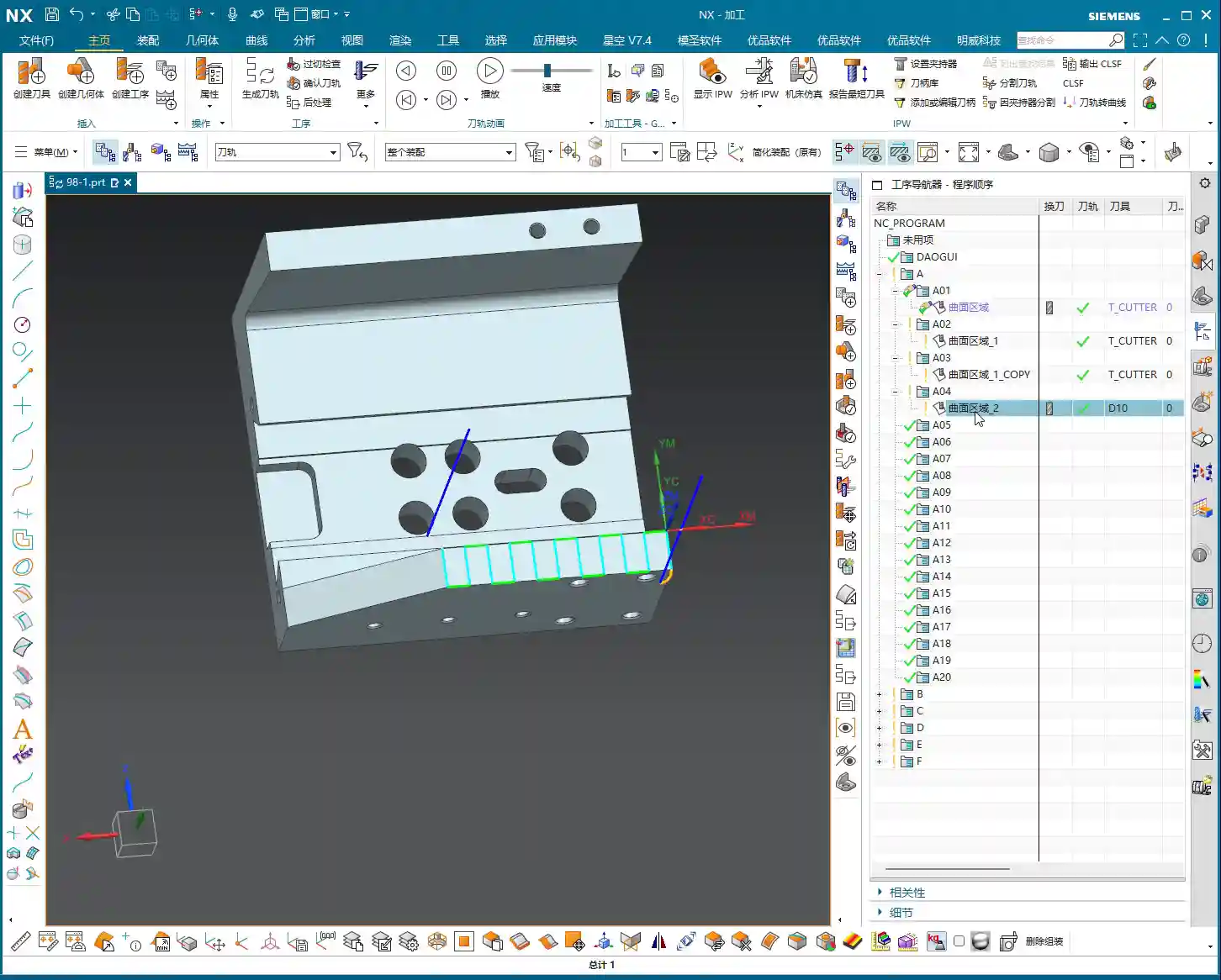
    Within “Cutting Area,” locate “Surface Percentage.” See, we initially clicked this arrow (pointing at the direction), so Start Trim calculates from the top, and End Trim goes to the bottom. We need to shorten it to only machine the root area, which means modifying Start Trim. For example, changing it to 97% will make it cut only the very last portion. You’ll need to experiment a few times to find the appropriate percentage until the toolpath precisely covers the root area. This all comes from experience; you have to get hands-on.

    Exploration: Applying Guide Curves and Optimizing Retract Moves

    While Surface Drive works well for corner cleanup, to broaden your understanding of different methods, we can also try using a Guide Curve to machine this angled surface. You might not have used it much before, so let’s get some hands-on practice. Honestly, for machining such surfaces, any command will do – Contour Milling or Surface Drive, both are viable. The key is to find what’s best for the current situation; don’t fret, nothing is too difficult!

    For the Guide Curve operation, we’ll use a D6 ball end mill this time. First, select the first guide curve, then the second. It’s that simple; nothing complicated.

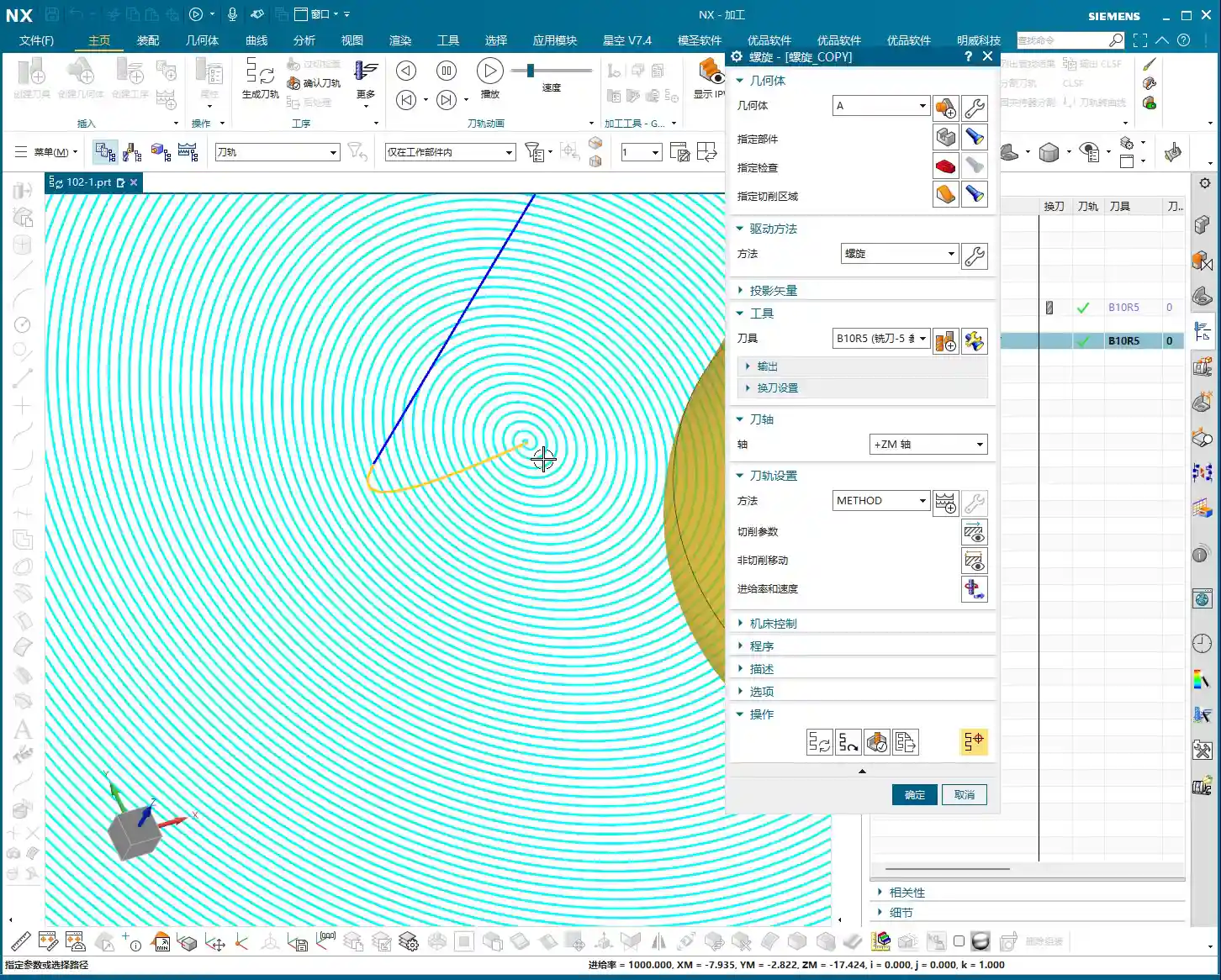
    After the program generates, you’ll notice a problem: this retract move (the pink rapid move lines in the program) is retracting excessively high, which is a huge waste of time! The machine running idle costs money! This needs to be fixed!

    The height of this retract move is directly related to the stock distance parameter. Let’s reduce it, for example, to 1mm (approx. 0.04 inch). Recalculate, and see? It’s much lower now, isn’t it? Idle cutting time is instantly saved – that’s efficiency! Don’t underestimate these one or two millimeters; over years, the accumulated cost savings are significant.

    Final Checks and Program Transformation

    All right, by now, all of our finishing pass programs are complete.

    Overcut Check: The Last Line of Defense Before Machining

    Next, overcut checking – this is absolutely mandatory every time. See, no alarms means no overcuts. If there were, the software would definitely throw an error. Never skip this step, or you’ll be devastated if the part is scrapped!

    Simulation and Saving: Preventing Software Crashes

    Then, save it! Remember, develop good habits. Sometimes, simulating directly can crash the software, leaving you with nothing. These are lessons learned the hard way. After saving, let’s simulate and check the results!

    The simulation might not look absolutely perfect, especially with a D6 flat end mill (meaning a sharp corner/R0 tool); some details might not display completely. However, the actual machined part will be fine. I’ve machined these types of parts before with excellent results. These examples I share with you are all from parts I’ve actually machined. With that, this part is now complete.

    Program Transformation (Mirroring)

    Final step, don’t forget to transform your previous roughing programs, meaning mirror them. This part is symmetrical, so some programs won’t require transformation, such as the side wall and bottom surface finishing passes. However, the corner cleanup might. Select the transformation object – it’s a simple task. With that, a complete set of machining programs for this rotary part is all done!

    Summary: Pitfall Avoidance Guide

    • Depth of Cut (DOC) Control: Divide the final 1mm (approx. 0.04 inch) of stock into multiple cutting layers; never take it off in a single pass, as this risks chatter or tool breakage, affecting surface finish.
    • Rapid Move Optimization: Disable direct plunge-style rapid moves. Set a safe retract move height (retract to the stock surface) via “Non-Cutting Moves” to prevent collisions.
    • Machining Area Simplification: When toolpaths exhibit abnormal behavior (failing to generate or excessive detours), check and simplify the selection of “Machining Areas” to avoid unnecessary restrictions.
    • Corner Cleanup Tooling and Strategy: For corner cleanup, a flat end mill combined with Surface Drive is preferred; Guide Curve only supports ball end mills and is unsuitable for root corner cleanup.
    • Precise Toolpath Trimming: Make good use of “Surface Percentage” to precisely control the start and end points of the toolpath, avoiding idle cuts or machining unnecessary areas.
    • Retract Move Height Optimization: Adjust the “stock distance” parameter to reduce unnecessary retract move heights, saving idle cutting time and improving machining efficiency.
    • Overcut Checking: Always perform an overcut check after generating each program; this is the final line of defense for ensuring part quality.
    • Timely Saving: Before performing simulations or complex operations, cultivate the habit of saving frequently to prevent software crashes from causing data loss.

    👤 About the Author:
    The author is a veteran CNC machining professional with 15 years of industry experience, specializing in UG NX programming. This article is an original work representing personal practical insights.

    ⚠️ Copyright Notice: Unauthorized reproduction or distribution without prior communication is strictly prohibited.

  • Practical Roughing Strategies for Rotational Parts in Siemens NX: Master Wang’s Secrets for Stock Mo

    📝 Key Takeaways:

    Siemens NX Roughing Tutorial for Rotational Parts

    Hello everyone, I’m Master Wang. Today, let’s talk about the first roughing operation f…

    Hello everyone, I’m Master Wang. Today, let’s talk about the first roughing operation for a rotational part. Listen up, this job looks simple, but there are a lot of hidden tricks. Those fancy theories from textbooks, when you get them on our shop floor, you need to learn how to apply them flexibly to truly produce quality work and save costs.

    Step One: Stock Modeling – The Foundation of Everything

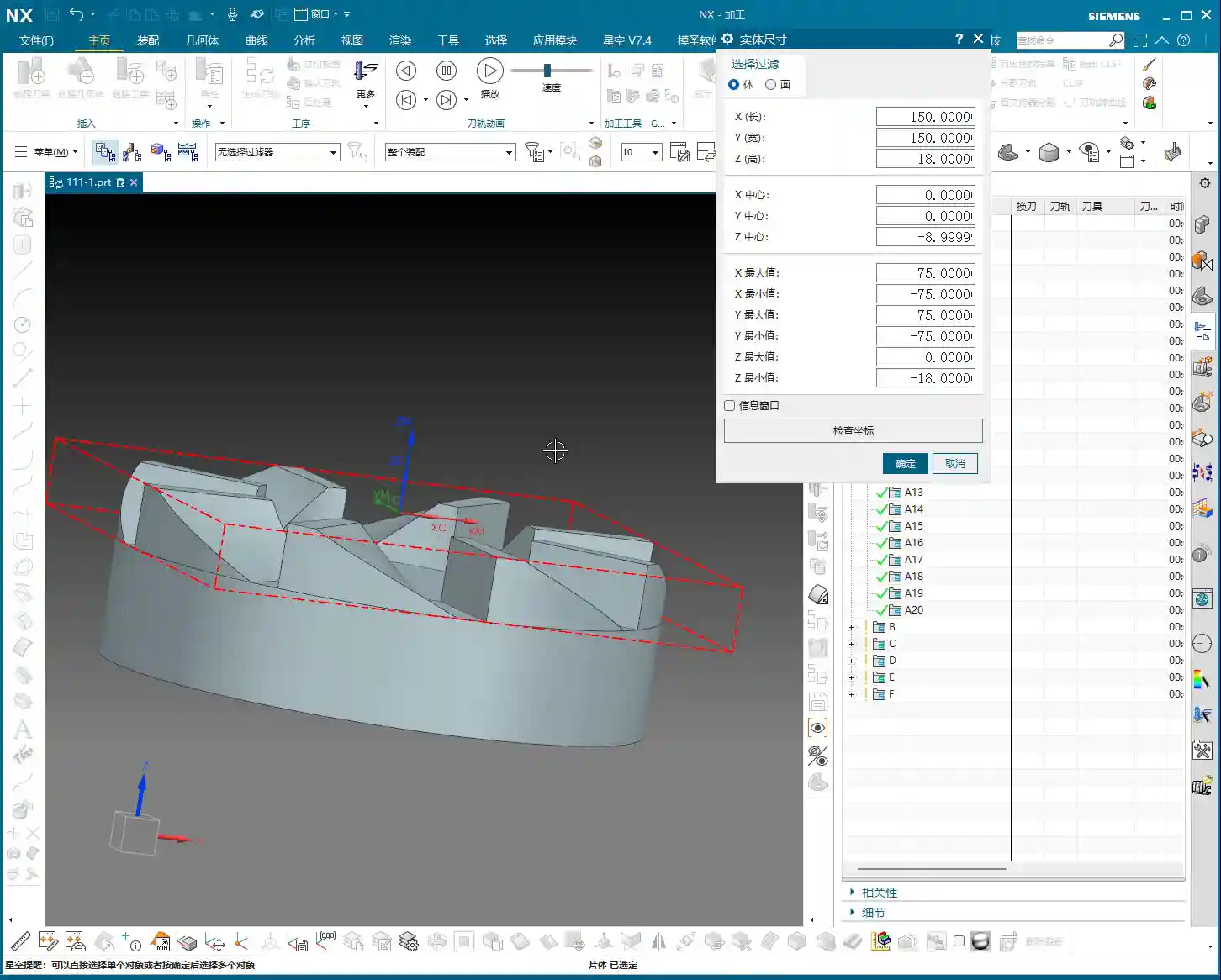
    As I mentioned, this part is a rotational component. The requirements are clear: the outer diameter and some internal areas have already been turned smooth by the lathe operator. What we need to machine are the remaining “material allowances.” Therefore, the creation of the stock model must accurately reflect the actual situation; don’t just rely on guesswork, or issues will arise as soon as the tool engages.

    Accurately Replicating the “As-Received” State

    When modeling, we first need to establish a general shape. Using the “Thicken” function in NX, slightly extend the area we need to machine outwards to form a “stock shell.” Then, based on the drawing requirements, use “Replace Face” or “Extrude Subtract” to incorporate the areas that have already been turned, such as the outer diameter and internal through-holes, into the stock model. Remember, the stock model must truthfully reflect the part’s state before entering our machining process; this is the basis for subsequent toolpath calculations.

    Take this part, for instance: there’s an 80mm diameter hole (40mm radius) internally that has already been turned through. So, we draw an 80mm diameter circle and then Extrude Subtract it. This way, our NX software understands which areas require material removal and which areas are already finished. Don’t underestimate this step; an inaccurate stock definition can lead to minor issues like wasted time from air cuts, or major issues like overcutting and scrapping parts.

    Coordinate System and Layer Management: As Crucial as 5S in the Workshop

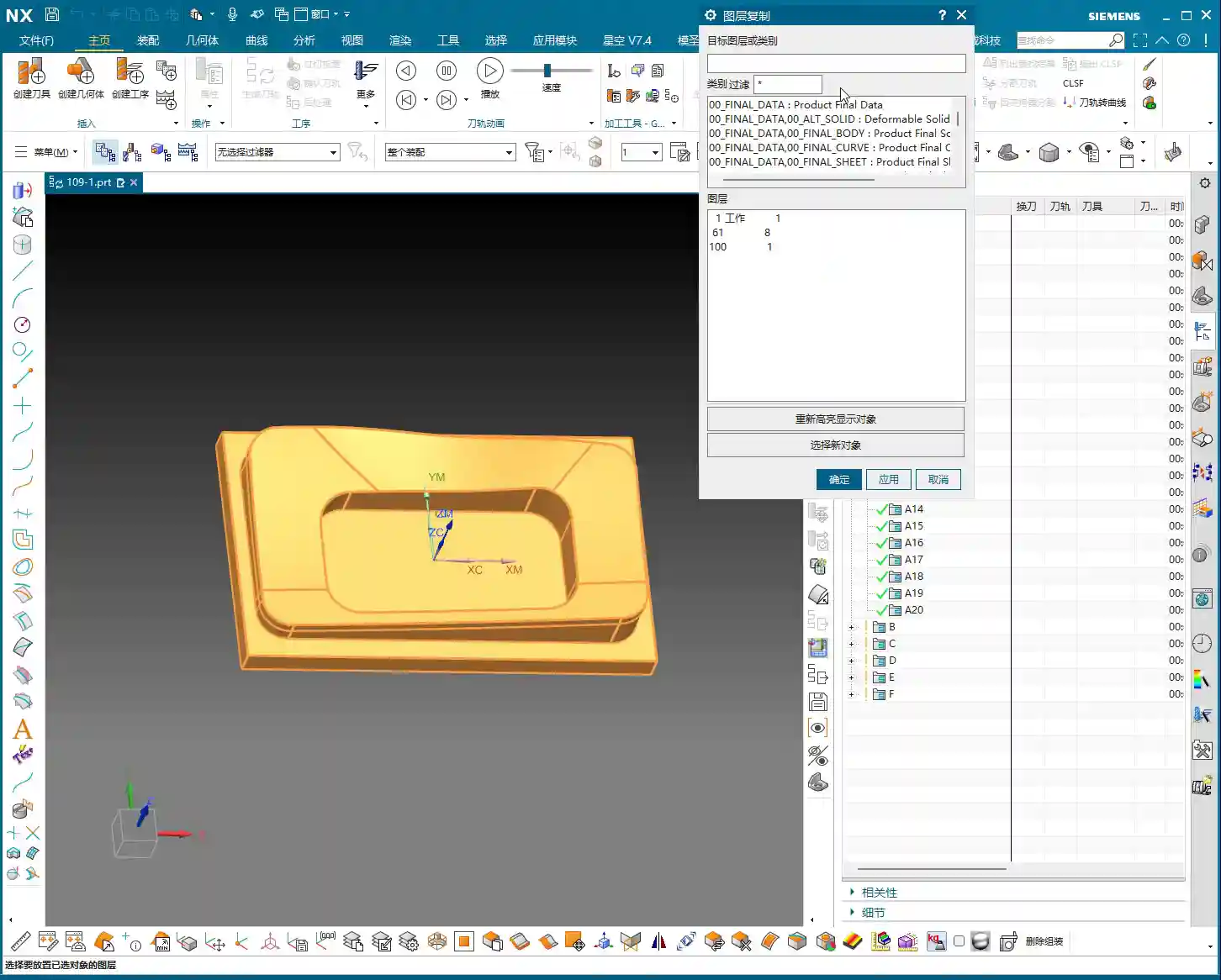
    After creating the stock model, I habitually move it to Layer 100. This isn’t just a quirk; it’s to clearly distinguish between the part model, stock, fixtures, and toolpaths during subsequent programming. Good layer management ensures the entire project is organized, making it easy to find and modify. The Work Coordinate System (WCS) is typically set at the part’s center, top, or bottom, for convenient positioning. This is just like setting up a part and performing tool offsetting on the machine; if the datum isn’t accurately located, everything else is futile.

    Step Two: Part Geometry Analysis and Machining Strategy – Understand the Geometry, Master the Process

    With the part model and stock prepared, now comes the critical step: analyzing the part. This part isn’t large, with a diameter of 150mm and a thickness of 18mm. But size isn’t the only factor; we must examine its geometric features. Using NX’s “Slope Analysis” function, we can see that most of this part is planar, without complex undercuts or deep pockets. This indicates that our machining difficulty isn’t particularly high, at least in terms of tool selection, where we won’t need many specialty tools.

    Minimum Feature and Tool Selection

    After measuring, the narrowest area on the part, the “small root,” is only 6mm. This is an important signal! It directly determines the size of our finishing tools. Since the minimum feature is 6mm, our subsequent corner cleanup or finishing tools must be able to access this 6mm area. So, I have a clear idea: a 6mm flat end mill or ball end mill will definitely be needed.

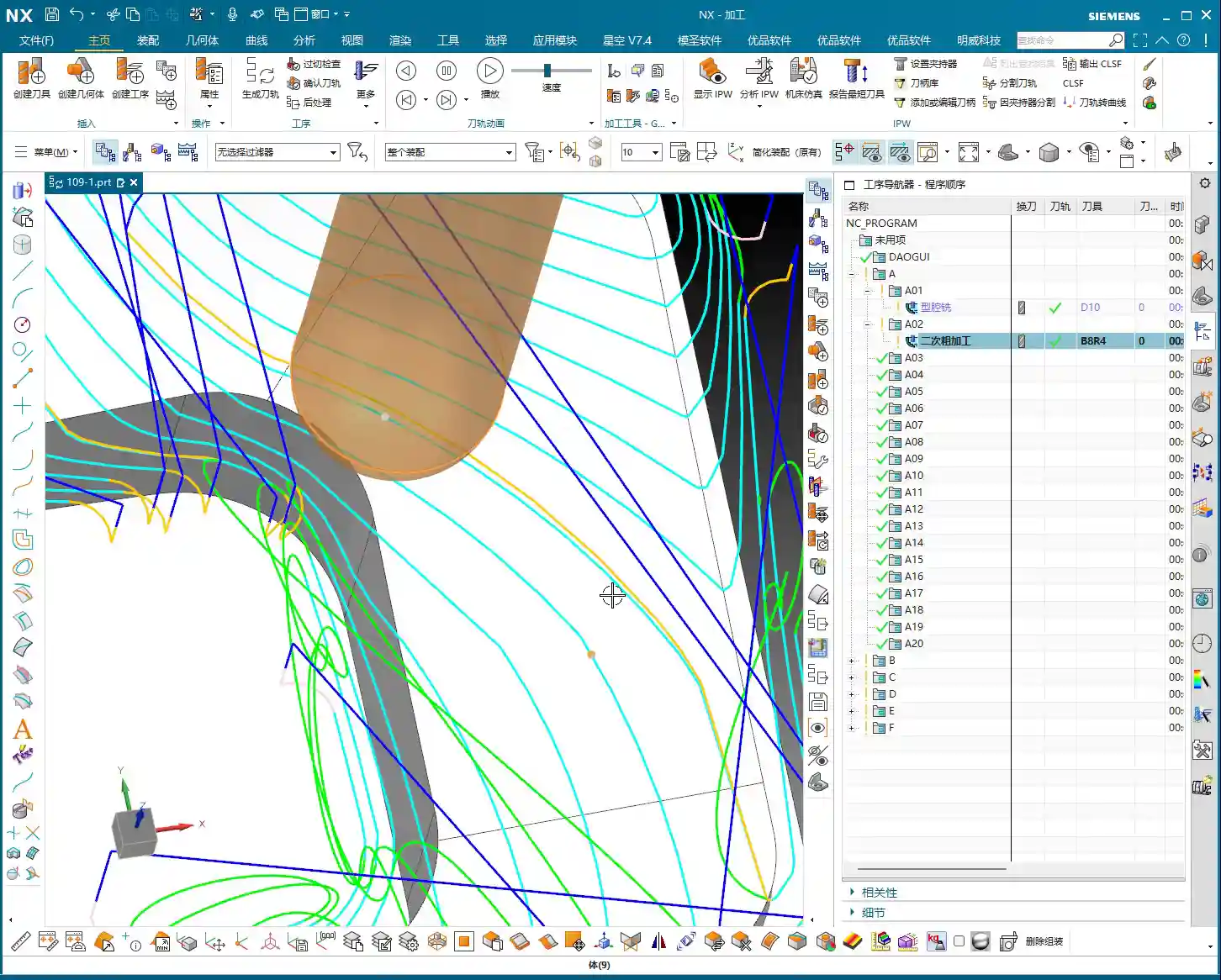
    For roughing, based on the stock allowance and part dimensions, we cannot use too small of a tool. Here, we plan to use a 10mm bullnose end mill (e.g., D10R1) for the initial roughing, allowing for a large Depth of Cut (DOC) and high efficiency. Then, a 6mm tool will be used to clear the remaining material left by the 10mm bullnose, which is commonly referred to as “secondary roughing” or “rest milling.” Finally, if surface finish or smaller radii are required, a ball end mill can be considered for finishing passes.

    This combination strategy achieves both efficiency and accuracy. Don’t just think about using one tool for the entire process; that’s a “one-track mind.” Machining requires strategy.

    Step Three: Siemens NX Roughing Toolpath Execution and Optimization – From Part Modeling to Toolpath Execution

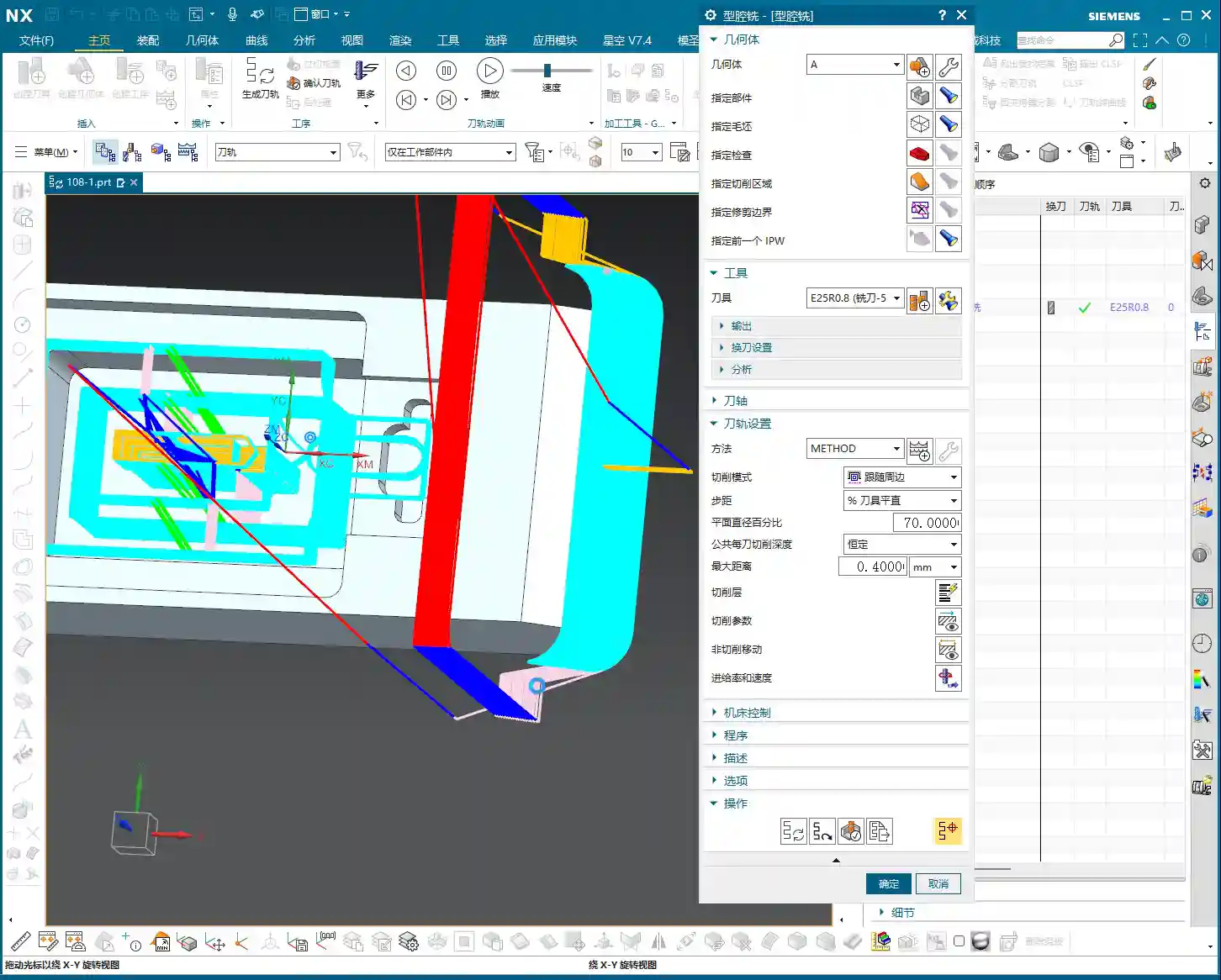
    Once the strategy is set, we proceed to create toolpaths in NX. For roughing, we’ll use the “Cavity Milling” operation, which is excellent for processing such shapes. Select a D10R1 tool (10mm diameter, 1mm corner radius), and set the Depth of Cut (DOC) based on the material and machine rigidity. Here, let’s start with a 0.3mm Stepover for generation.

    Initial Toolpath Issues: Air Cuts and Frequent Engagements/Retracts

    Once the toolpath is generated, don’t just look at the surface; we must simulate it and judge it based on experience. Look, this toolpath is “zigzagging back and forth,” with long lead-in/lead-out paths, and it tends to “wander around” in the air. What are these? These are unnecessary air cuts and frequent acceleration/deceleration cycles. The machine runs back and forth, the spindle speeds up and slows down repeatedly. This not only wastes time but also wears down the machine, and more importantly, affects machining quality. Such a toolpath, when brought to the shop floor, machinists would immediately spot issues, and it would never be put on a machine.

    Master Wang’s Advanced Technique: Cleverly Using Auxiliary Geometry to Tame Toolpaths

    So, how do we solve this problem? Textbooks might tell you to adjust cutting parameters, but that treats the symptoms, not the root cause. Our secret tip is to create auxiliary geometry. This isn’t some advanced function; it’s simply NX’s most basic “Thicken Surface” feature!

    1. Take the boundary surfaces that cause the toolpath to oscillate back and forth and “Thicken” them slightly outwards.
    2. Use these thickened surfaces as “Check Geometry” or “Trim Boundaries”. This ensures the tool avoids these auxiliary bodies during machining or is forced to move only within them.

    Through this method, we manually establish more logical “travel paths” for the toolpath. The tool can no longer wander arbitrarily; it will be “planned” to move more smoothly, lead-ins and lead-outs are no longer “unnecessarily protracted,” and air travel is significantly reduced. As you can see, after modification, the toolpath becomes noticeably cleaner and smoother, with crisp lead-ins and lead-outs. This is the kind of toolpath that can run efficiently on the machine.

    Details Determine Success: The “Extension” Parameter for Lead-in/Lead-out

    Even with auxiliary geometry, sometimes the lead-in/lead-out distance can still be a bit long. At this point, you need to fine-tune the “Extension” parameter. Slightly shorten the extension distance so the tool doesn’t need to travel excessive distances when leaving the workpiece. This is another accumulation of efficiency, bit by bit. Don’t underestimate this small detail; saving a few seconds per part adds up to hours a day, and over a year, the cost savings are substantial.

    Step Four: Preparing for Secondary Roughing – Striving for Perfection

    After completing the roughing program, don’t rush to remove the part from the machine; we still need to consider “secondary roughing.” Secondary roughing involves using a tool smaller than the roughing tool, or a flat end mill with a smaller Stepover, to remove the remaining material after roughing, preparing for finishing. We previously planned to use a 6mm tool for this task.

    Following the same principle as roughing, create a “secondary roughing” operation, select our 6mm tool, and then set a smaller cutting Stepover based on the material and requirements. The stock must also be accurately defined; this time, the stock is the remaining material left from the previous roughing step. This step ensures that subsequent finishing tools can cut with a stable and uniform Depth of Cut (DOC), which guarantees the final part’s accuracy and surface quality.

    Remember, no single operation is isolated. The quality of the preceding operation directly impacts the efficiency and effectiveness of the subsequent one. You need to have a “holistic view” when working; don’t just focus on the current cut.

    Summary: Pitfall Guide

    Let me, Master Wang, summarize a few common “pitfalls” for beginners when roughing rotational parts, as discussed today:

    1. Inaccurate Stock Definition: This is the primary cause of issues! If the stock doesn’t match the part model, toolpaths are prone to errors, leading to overcutting or air cuts. Always model the stock precisely based on the actual as-received material.
    2. Blindly Generating Toolpaths: Don’t assume that toolpaths calculated by the software are always optimal. NX is a tool, but human expertise is key. Observe toolpaths carefully, simulate cutting, and check for unreasonable lead-ins/lead-outs or air moves.
    3. Ignoring the Role of Auxiliary Geometry: Using “Thicken Surface” as auxiliary geometry, as we did today, is an advanced application in NX programming that can significantly optimize toolpaths and improve efficiency. These “unwritten rules” can help you avoid many detours.
    4. Neglecting Tool-to-Part Feature Matching: The minimum feature size determines the limits for corner cleanup or finishing tools. The selection of roughing and finishing tools should form a logical “sequence.”
    5. Disregarding Layer Management: A messy project file will make future maintenance and program modifications a nightmare. Develop good habits; categorize and organize geometry and toolpaths.
    6. Focusing only on programming, not on cost-efficiency: Our ultimate goal in manufacturing is to produce qualified parts while also considering cost and efficiency. Any toolpath optimization must ultimately translate into “saving money, saving time, and saving effort.”

    Alright, that’s all for today’s sharing. Go practice more, think more, and turn these practical experiences into your own expertise! If you have any questions, come ask me next time.

    👤 About the Author:
    The author is a veteran CNC machining professional with 15 years of industry experience, specializing in UG NX programming. This article is an original work representing personal practical insights.

    ⚠️ Copyright Notice: Unauthorized reproduction or distribution without prior communication is strictly prohibited.

  • Practical High-Efficiency Programming for Complex Sloped Parts in Siemens NX: Master Wang Guides You

    📝 Key Takeaways: Master Wang will guide you step-by-step through programming complex sloped parts in Siemens NX. From part geometry analysis, WORKPIECE setup, and precise tool selection to Roughing, Rest Machining, and Finishing pass toolpath optimization, we’ll reveal practical techniques not found in textbooks. Focus on tackling R-radius rest material challenges on sloped surfaces, meticulously explaining lead-in/lead-out strategies to boost your machining efficiency, cut costs, and move beyond arbitrary programming!

    Initial Part Exploration and Strategy Formulation: Avoiding the “Academic” Approach

    Part Geometry and Material Characteristics

    Alright, folks, listen up! When you get a new part, you can’t just glance at it and start working. First, you need to examine it thoroughly, inside and out, top to bottom, just like I do. This particular part is small, roughly 75x45mm, with a thickness of only 10 to 17mm. It’s a small component, so it requires extra care during machining.

    Let’s start by taking a look using Siemens NX’s Slope Analysis function. This feature is truly invaluable; it can pinpoint those sloped surfaces that might look like simple chamfers to the naked eye but are actually much more complex. See, looking from above, these blue faces are clearly sloped, not just simple chamfers! The bottom, however, is a flat green surface. If you treat these sloped faces as ordinary chamfers, you’re setting yourself up for trouble.

    Also, the R-radius on the part is an obvious R6 fillet. Such small R-radii are a key focus for subsequent Finishing passes; mishandling them will result in rest material.

    As for the material, although it’s not explicitly stated in the video, we need to consider it. If it were a difficult-to-machine material like titanium alloy or high-temperature nickel-based alloy, then cutting parameters, tool coatings, and cooling methods would all need to be re-evaluated. But for today, let’s assume it’s standard aluminum or common steel, ensuring our process flow is sound first.

    Roughing Process Route and Initial Tool Selection

    For a small part like this, with sloped surfaces and R-radii, our approach needs to be clear:
    1. **Roughing:** Prioritize using a flat end mill to remove the bulk of the material. The tool size must match the part’s dimensions; tools that are too large won’t fit into small areas, and small tools will be inefficient.
    2. **Rest Machining:** For the rest material left after Roughing, especially in R-radius and sloped areas, we need to use a ball end mill or a corner radius end mill for Corner Cleanup.
    3. **Finishing Pass:** Use a ball end mill or a suitable finishing end mill again, with a smaller Stepover and finer parameters, to achieve the required surface finish and accuracy.

    For initial tool selection, with an R6 fillet, some might initially think of using a Φ12 tool, but that won’t fit into an R6. We need to choose an appropriate size. A Φ10 flat end mill is fine for Roughing, but pay attention to the potential rest material left on sloped areas. Subsequent Rest Machining and Finishing will require switching to a ball end mill or a tool with a corner radius.

    Siemens NX WORKPIECE Module in Practice: A Weak Foundation Will Bring Down the Whole Structure!

    Blank and Part Definition: The Foundation of Your Program

    In Siemens NX, the WORKPIECE module is the first and most crucial step in programming. It defines the part’s final shape (Part), the initial raw material (Blank), and any fixtures (Check). If these three aren’t set up correctly, even the most beautiful program afterward is useless.

    1. **Part Definition:** Simply select your 3D model.
    2. **Blank Definition:** Here, we’ll choose “3D Model” to define the blank. For easier management, I personally prefer to put the blank on a separate layer, such as Layer 100. This way, when you need to hide or show the blank, you just operate the layer, without affecting the display of the part itself.

    As for the blank’s stock allowance, for this small part, some might initially consider leaving 2mm, but that’s excessive! For small parts, leaving 1mm of stock is sufficient. Too much will only increase Roughing time and could even lead to deformation or tool wear due to excessive cutting forces.

    Coordinate System Setup and Layer Management: Order and Precision

    The coordinate system is our “linchpin” for machining. Set it up wrong, and the entire part is scrapped.

    We need to set the Machine Coordinate System (MCS) at the bottom center of the part and ensure the Z-axis is set to 0. This way, all toolpaths reference this datum, ensuring accuracy.

    Additionally, Siemens NX’s layer management function is often overlooked by novices but mastered by experienced users. For example, place the part model on Layer 10 and the blank on Layer 100. This allows you to easily switch layers to view different models at various stages, improving efficiency and reducing errors.

    Roughing and Rest Machining (Stock Removal) Strategies: Aggressive, Precise, and No Lingering Issues

    Roughing Tool Selection and Feed Parameters

    The goal of Roughing is to quickly remove the majority of the material, leaving a uniform stock allowance for subsequent finishing.

    We’ll start by using a Φ10 flat end mill for Roughing. Cutting parameters must be determined by the material. Spindle speed (S), feed rate (F), along with Depth of Cut (Stepdown) and Stepover, are all critical. The Stepover shouldn’t be too large, or the tool will experience uneven forces, leading to chatter or even chipping.

    After generating the program, remember to thoroughly inspect it using the IPW (In-Process Workpiece) function. Check which areas of the part still have a lot of rest material after Roughing, especially those sloped and R-radius regions. Is the remaining stock uneven? If too much material is left, Rest Machining will require significant effort, and the program might even fail to calculate the toolpath.

    Challenges and Solutions for Sloped Surface Stock Removal

    The sloped surfaces on this part are one of the machining difficulties. If you only use a flat end mill for Roughing, because the tool’s bottom is flat, it’s very difficult for it to cut perfectly along the slope. This results in a large amount of rest material left above the sloped surface, forming “steps.”

    When you finish Roughing with a Φ10 flat end mill, and check the IPW, you’ll see “lumps” all over the sloped surfaces – that’s unacceptable. Especially when you try to use the Rest Machining function to clear this rest material, you might find that the program simply cannot calculate the toolpath! This is because the stock left by the previous operation is too complex and too large, exceeding the current tool’s cutting capability or the algorithm’s limits.

    **Master Wang’s Tip:** When you encounter this situation, don’t force it. Instead, either perform a separate Roughing operation specifically for the sloped surfaces, using a smaller ball end mill or corner radius end mill, or an angle milling cutter, with a smaller Stepover for rough cutting along the slope. Alternatively, during Rest Machining, select a smaller diameter ball end mill and adjust the Stepover and Depth of Cut, allowing it to “climb” these slopes and gradually clean up the rest material.

    Rest Machining Toolpath Optimization and Rest Material Management

    Any rest material not properly handled during Roughing must be remedied by Rest Machining.

    We’ll use a Φ8 ball end mill (or a corner radius end mill, like a Φ12.5R corner radius tool) for Rest Machining. Cutting parameters should be finer than for Roughing.

    * **Depth Per Cut (Stepdown):** Recommended setting is 0.2mm.
    * **Stock:** Leave 0.15mm of stock for the Finishing pass.
    * **Stepover:** This is critical! Compared to the previous Roughing Stepover, the Rest Machining Stepover is typically half or even smaller. For instance, if Roughing used 0.5mm, set Rest Machining to 0.25mm. This ensures effective rest material cleanup, laying a solid foundation for the Finishing pass.

    **Master Wang’s Tip:** Before running the program, always use the simulation function to carefully check the toolpath. Pay close attention to the tool motion in the R-radius and sloped areas, looking for any unmachined sections, overcutting, or collisions. Don’t just rely on the software simulation; visualize the cutting sparks! While you can’t see sparks on the screen, you need to have that concept in mind. In actual machining, cutting sparks are an important indicator of the cutting state.

    Finishing Pass and Toolpath Optimization: The Final Touch for Ultimate Precision

    Finishing Tool Selection and Smoothness Processing

    The Finishing pass is where your skill is truly tested. The goal is to achieve the dimensional accuracy and surface finish required by the part drawing.

    For this part, especially the sloped surfaces and R-radii, we still need to use a ball end mill. For example, a Φ8 ball end mill can effectively balance accuracy and efficiency.

    * **Stepover:** Must be set small enough, such as 0.15mm to 0.2mm, to ensure surface finish. A larger Stepover will result in more noticeable “tool marks.”
    * **Smoothness:** Increasing this parameter will make the toolpath smoother, reduce tool impact, and improve surface quality. You can try adjusting the smoothness to 400% and observe the effect.

    Lead-in/Lead-out Strategy Adjustment: Details Determine Success

    Lead-in and lead-out, seemingly minor details, have a huge impact. Unreasonable lead-in/lead-out can leave tool marks at best, or cause tool wear and even chipping at worst.

    As you can see, the initial toolpath might have an abrupt lead-in, moving straight in like the yellow line. This direct entry/exit method can easily leave “tool marks” on the part surface.

    **Master Wang’s Tip:** We need to change the lead-in method to “Arc Lead-in”. By smoothly cutting into the material with an arc, you can significantly reduce tool marks and improve surface quality. The same applies to lead-out; try to use an arc or a diagonal line for lead-out.

    Remember, every time you modify the toolpath, you must regenerate it and then carefully check with simulation.

    Summary: Pitfall Avoidance Guide

    1. **Don’t blindly trust your eyes:** For complex geometric features, especially sloped surfaces that look like chamfers, be sure to use professional tools like Slope Analysis for confirmation to avoid misjudgment and subsequent machining problems.
    2. **WORKPIECE setup is foundational:** Ensure that the Part, Blank, and Check definitions are accurate, and that the blank’s stock allowance is reasonably set according to the part’s size and material characteristics. For small parts, don’t leave too much stock.
    3. **Coordinate system and layer management:** Correctly set the Work Coordinate System (MCS) and effectively use layer functions to manage models, improving work efficiency and accuracy.
    4. **Roughing must consider subsequent operations:** During Roughing, aim to leave uniform stock, especially in sloped and R-radius areas. If a flat end mill cannot effectively clear the material, consider using a smaller diameter ball end mill or angle milling cutter for localized Roughing to avoid the embarrassment of the “program failing to calculate” during Rest Machining.
    5. **Rest Machining is the cleanup crew:** Select appropriate ball end mills or corner radius end mills, and set a reasonable Stepover (typically half or even smaller than Roughing’s) to ensure all rest material is cleaned, establishing a good foundation for Finishing.
    6. **Finishing demands attention to detail:** The Finishing pass’s Stepover must be small enough, and lead-in/lead-out methods should be smooth (Arc Lead-in recommended) to achieve the best surface quality and accuracy.
    7. **Simulation check is paramount:** After every program generation or modification, toolpath simulation must be performed to check for overcutting, undercutting, collisions, and other issues. This is far less costly than rework afterward!
    8. **Balance cost and efficiency:** All process choices and parameter settings must ultimately return to cost and efficiency. Appropriate tools and reasonable toolpaths must ensure quality while also considering machining time.

    Alright, that’s all for today. Remember, these are experiences we’ve gained from grinding it out in the shop, paid for with real money. Learn and practice more, and you’ll truly make these techniques your own!

    👤 About the Author:
    The author is a veteran CNC machining professional with 15 years of industry experience, specializing in UG NX programming. This article is an original work representing personal practical insights.

    ⚠️ Copyright Notice: Unauthorized reproduction or distribution without prior communication is strictly prohibited.
  • Practical Machining of Complex Parts in Siemens NX: From Model Analysis to Toolpath Optimization, an

    📝 Key Takeaways:

    Practical Machining of Complex Parts in Siemens NX

    Hello everyone, I’m Master Wang. Today, we’re going to discuss machining this particul…

    Hello everyone, I’m Master Wang. Today, we’re going to discuss machining this particular part in Siemens NX. Don’t let this model’s apparent simplicity fool you; there’s a lot more to it than meets the eye. Having mentored apprentices for many years, I’ve noticed that many people just know how to click buttons, but get lost when faced with real-world problems. Today, I’m going to personally teach you these practical tips and tricks—the “things you won’t learn from textbooks.”

    I. Part Analysis and Preparation: Sharpening the Axe Before Chopping Wood

    Listen up. When you get a new part, don’t rush into cutting. You need to “see through” the part first—that’s what we call “sharpening the axe before chopping wood.”

    1. Geometric Feature Inspection: Radii and Draft Angles

    First, use Siemens NX’s built-in analysis tools, such as “Draft Analysis” and “Geometric Properties.” Check the draft angles. If everything is green, it means there are no negative draft angles, and the tool can descend smoothly. If you see red, be cautious; you’ll need to find a way to avoid it or redesign the process.

    Next, inspect the radii (R-angles). For this part, I see R5, R8, and R3. You must remember these areas, as they directly determine the maximum tool size you can use and your Corner Cleanup strategy. This is like reconnoitering the terrain; understanding the complex areas beforehand saves you a lot of detours.

    Practical Tip: Around 01:30, we discover a critical location where the CAD model surprisingly lacks a radius! This is absolutely unacceptable in actual machining. Without a radius, the tool can easily “gouge” the material and won’t machine the area correctly, often leading to stress concentration or even a scrapped part. In such cases, we can’t just wait for the design department to revise the drawing. We must proactively add a radius, for example, R5.5. This demonstrates your ability to solve problems on the shop floor; don’t just follow the drawing, consider if the tool can actually cut smoothly.

    2. Stock Definition and Coordinate System Setup

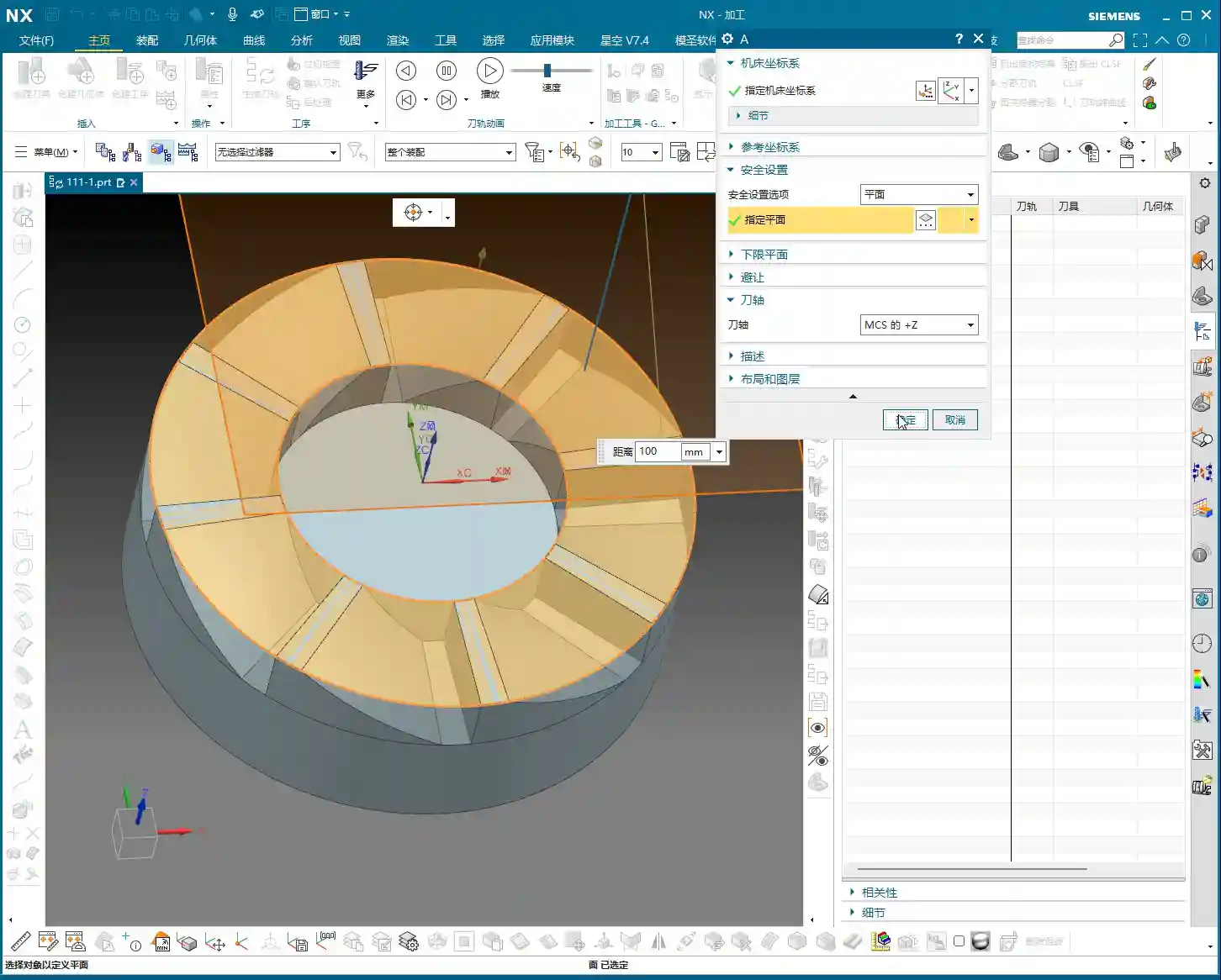
    For Stock definition, my personal habit is to set it to 100%. This ensures the tool has enough safe distance before engaging the workpiece, reducing the risk of accidents. You can also adjust it based on the actual raw material dimensions, but remember, safety first.

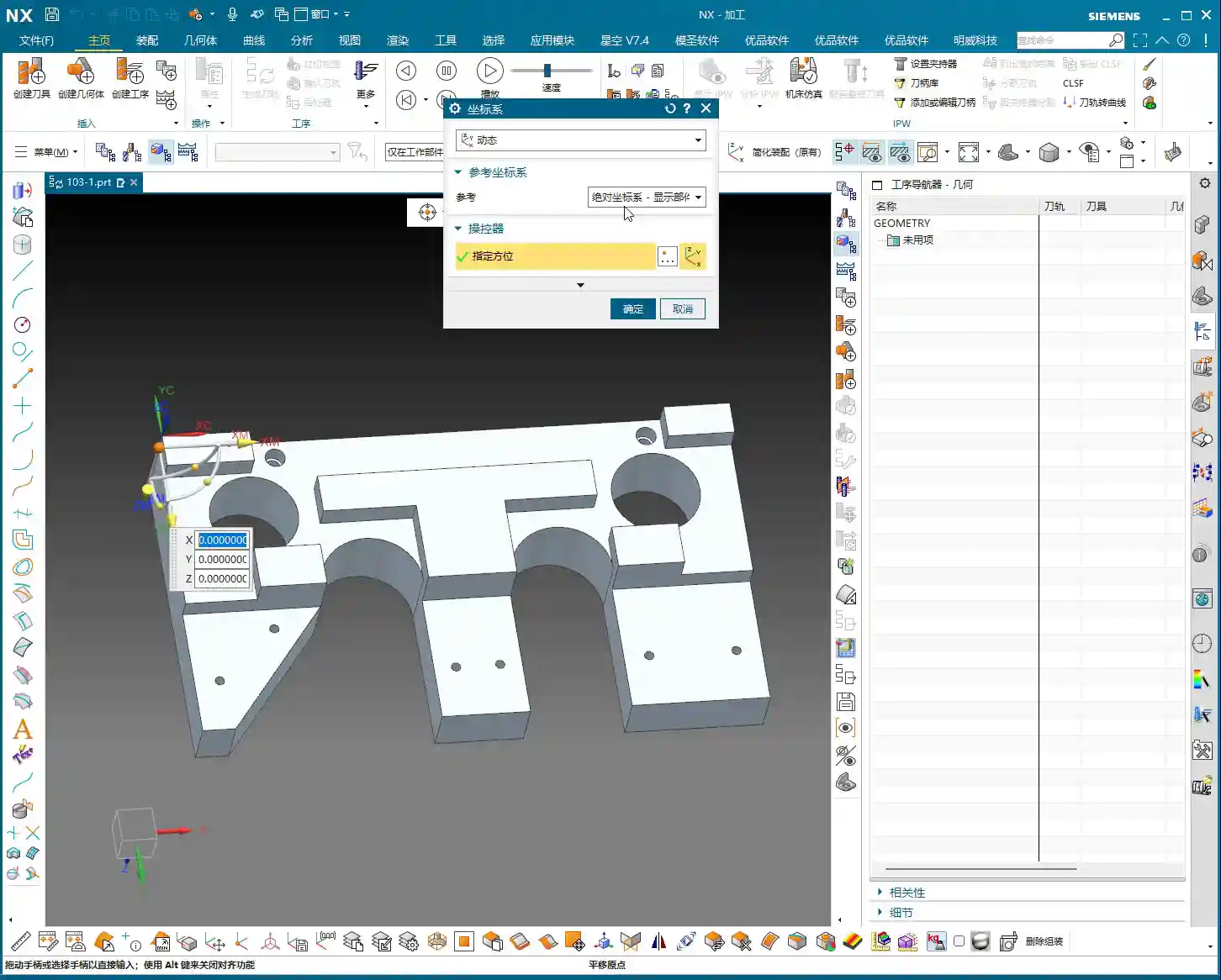
    Setting up the Work Coordinate System (WCS) is an old topic; it must be correctly oriented and aligned with the machine’s zero point. This is the absolute fundamental; if this step is wrong, everything else is moot.

    II. Roughing Strategy: Tool Selection and Path Optimization

    Roughing aims to quickly remove most of the material, leaving adequate stock for finishing. But fast doesn’t mean careless; tool selection and toolpath planning are crucial.

    1. Area Roughing: Cavity Milling and Toolpath Pitfalls

    For roughing the top and most other areas, we can use a “Cavity Milling” operation. Initially, we can use a Φ6 flat-end mill, followed by a Φ10 ball-end mill for Corner Cleanup; these are standard practices. However, this part has many areas of different widths, such as 60mm, 50mm, and 25mm sections. This means you’ll need to progressively switch to smaller tools—that’s common sense.

    But here’s a pitfall: the video initially uses “Delete Blanking” (DBT) for roughing, which requires you to repeatedly select regions, making it very cumbersome, and the toolpath might not be ideal. In such cases, it’s more advisable to use “Cavity Milling” with well-defined boundaries. Don’t just rely on the software’s simulation; observe the sparks during actual cutting! The color and shape of the sparks will tell you about the tool’s load condition.

    For the initial Roughing pass, we selected a Φ25R0.8 bull-nose end mill (or large corner radius end mill). The single Depth of Cut (DOC) was set to 0.2-0.4mm. Don’t think this amount is small; steady progress is key. When you’re first programming, parameters can be slightly conservative; safety first, don’t scrap a part for the sake of speed.

    2. Auxiliary Geometry and Path Control

    Around 04:22, you’ll notice a “cornering” issue in the generated toolpath: the tool went where it shouldn’t, even running outwards for a segment. This kind of toolpath is extremely dangerous; at best, it will lead to tool collision; at worst, a machine crash or irreparable part damage. This is what I often refer to as “practical experience you won’t learn from textbooks.”

    When you encounter this, the internal cavity might be fine, but the toolpath for the outer wall isn’t perfect. The solutions are:

    • Create Auxiliary Geometry: In Siemens NX, create a simple auxiliary body and place it in the area where you want to restrict the tool. Then use it as a boundary for the machining region, forcing the tool to follow your intent.
    • Delete and Regenerate: If the toolpath is too messy, it’s better to delete the program directly and regenerate it with a different strategy or tool. Don’t expect to “patch it up” and solve the root problem.

    Around 05:30, I directly deleted the problematic program. Because some toolpaths will only cause problems if forced, it’s better to be decisive and start from scratch; that’s the mark of an experienced professional.

    III. Finishing and Corner Cleanup: Balancing Precision and Efficiency

    Once roughing is complete, we move on to finishing and Corner Cleanup, focusing on part dimensional accuracy and surface quality.

    1. Deep Milling: Finishing Inner Cavity Walls

    For machining the inner cavity of the part, we can use “Deep Milling.” Again, use a Φ25R0.8 tool. When selecting machining faces, clearly distinguish between sidewalls and the bottom surface. We can temporarily avoid machining the bottom surface by setting a +1mm stock allowance, focusing on the sidewalls first.

    The Finishing allowance must be precisely set, typically 0.2mm or 0.15mm. Select a linear cutting method, and the Stepover (lateral feed per pass) can initially be set to 55%. For the final finish pass, change it directly to 0 to run a single pass all the way down, which ensures surface finish quality.

    2. Corner Cleanup Strategy and Reference Tool

    Corner Cleanup is a critical step in finishing, especially for internal corners that roughing tools couldn’t reach. This time, we’re using a Φ10 ball-end mill for Corner Cleanup, with a Depth of Cut (DOC) of 0.3mm and a stock allowance of 0.15mm. Here’s a very important trick: when setting up a Corner Cleanup operation, you absolutely must select the roughing tool you used previously (in this case, the Φ25 tool) as the “reference tool.” This tells Siemens NX where remaining stock needs to be cleaned up, allowing it to precisely generate Corner Cleanup toolpaths and avoid idle passes.

    However, at 09:12, the Corner Cleanup toolpath “misbehaves” again, running into areas it shouldn’t. Don’t panic; this is common. The solution is: precisely select the specific areas or points you want to machine to forcefully restrict the toolpath range. This is much more efficient than blindly changing parameters and is key to improving efficiency and avoiding idle passes. Finally, use a Φ6 tool for fine finishing of particularly small areas, then use a Φ10 tool to finish the sidewalls and bottom surface. This combination ensures the part’s accuracy and surface finish.

    IV. Mirroring Operations: The Secret to Efficiency for Symmetrical Parts

    For this part, the video only demonstrates one side. But if it’s a symmetrical component, for example, with similar features on both the left and right sides, do we really need to program both sides from scratch? That would be incredibly inefficient! What about efficiency? What about cost?

    1. Why Use Mirroring Operations?

    This is where our efficiency-boosting tool—Mirroring Operations—comes in. For most symmetrical parts, you only need to program one side, and then use the mirroring function to quickly generate the toolpaths for the other side. The benefits are obvious:

    • Significantly reduced programming time: Program one, get two, doubling efficiency.
    • Ensured toolpath consistency: Mirrored toolpaths have identical parameters, avoiding potential deviations from manual programming.
    • Reduced human error: Automated generation minimizes the chance of mistakes.

    2. How to Implement Mirroring in Siemens NX

    Implementing mirroring in Siemens NX is very convenient. In the “Operation Navigator,” you can select the operation or operation group you want to mirror, then right-click. You’ll usually find “Transform” -> “Mirror Geometry” or a direct “Mirror Feature” option. The key is to select the correct mirror plane. This plane is typically the part’s plane of symmetry.

    After mirroring, the system will automatically generate new operations for you. Don’t forget to regenerate the toolpaths and verify them. If your machine supports it, the post-processed G-code might contain mirroring commands such as G51.1 or G68, which require both your machine and post-processor file to support them for proper execution.

    3. Considerations for Mirroring Operations

    While mirroring operations are powerful, they’re not a panacea, and there are pitfalls to watch out for:

    • Tool type: If you’re using non-symmetrical, special-form tools, or if the tool’s mounting direction has specific requirements, you need to carefully check after mirroring. Sometimes, you might need to adjust the tool orientation or reselect the tool.
    • Fixturing method: For mirrored operations, the part’s fixturing method might also need to be mirrored or redesigned to ensure stability and avoid interference.
    • Machine accuracy: Even on the same machine, there might be subtle differences in machining accuracy between mirrored sides, especially with high-precision requirements like ±0.005mm (approx. ±0.0002 inch). In such cases, ensure sufficient finishing allowance and, if necessary, perform compensation machining.
    • Post-processing verification: The G-code generated from mirroring operations must undergo thorough simulation and verification to confirm that the machine can correctly recognize and execute the mirroring commands.

    Summary: Pitfalls to Avoid

    • Missing radii are common: CAD models are not always perfect; always check critical radii before machining. Add them if necessary, or compensate through process planning. Don’t expect design to solve all issues.
    • Sharp corners in toolpaths are a hidden danger: Relying solely on software simulations isn’t enough; you must use your cutting experience to judge the tool’s load condition. When toolpaths run wild or have “sharp corners,” auxiliary bodies and point-selected regions are powerful tools for controlling the toolpath.
    • Stock allowance settings must be precise: Roughing and finishing allowances need to be allocated appropriately. During Corner Cleanup operations, always remember to select the “reference tool” to allow the system to calculate the remaining stock and avoid idle passes.
    • Mirroring operations are powerful tools when used correctly: For symmetrical parts, mirroring can significantly boost efficiency. However, you must consider the impact of tooling, fixturing, and machine accuracy; it’s not a simple one-click solution.
    • Understand the implications of parameter modifications: Don’t just “randomly change” parameters. Every parameter has a physical meaning and an impact on the machining results. You need to know what you’re changing, why you’re changing it, and what the consequences will be.

    👤 About the Author:
    The author is a veteran CNC machining professional with 15 years of industry experience, specializing in UG NX programming. This article is an original work representing personal practical insights.

    ⚠️ Copyright Notice: Unauthorized reproduction or distribution without prior communication is strictly prohibited.

  • Siemens NX Part Programming: Master Wang’s Hands-On Guide to Efficient Toolpathing and Precision Ove

    📝 Key Takeaways: Master Wang meticulously breaks down the entire Siemens NX part machining process, from workpiece analysis and precise tool selection to roughing and finishing strategies. The focus is on efficiently programming toolpaths and avoiding overcutting. Combining practical experience with NX techniques, he reveals beyond-the-textbook tricks to ensure both precision and efficiency, saving you from common pitfalls!

    Hello everyone, Master Wang here. Today, let’s cut the fluff and dive straight into the practical insights. We’ll take this part and break down the real-world tricks in NX programming—those things that look simple but often lead to problems in practice.

    Part Analysis and Machining Strategy: A Solid Foundation is Key

    Listen up: When you get a new part, what’s the first thing you look at? Its overall structure. For this piece, both the front and back faces are primary machining areas. The side walls have a few holes, but we’ll get to those later. Don’t rush into it; let’s first figure out a general machining strategy.

    Stock Definition and Coordinate System Placement

    First, your workpiece needs stock, right? In NX, we need to define a Bounding Box for it. Simply input “0” to automatically generate a clean rectangular block. This serves as our starting point for machining; all toolpaths will revolve around it. Then, don’t place your Work Coordinate System (WCS) haphazardly; position it directly at the geometric center of the stock. This way, whether you flip the part or re-fixture, you’ll always have a reliable reference, ensuring peace of mind and stable operation.

    Overall Machining Strategy: Large Features First, Then Small; Roughing First, Then Finishing

    For this part, we’ll first machine the front face, face milling it flat and smooth, then flip it over to machine the back. As for the side holes and smaller features, we’ll tackle those separately once the major faces are done. Why this approach? Because the major faces serve as datums; if the datum is unstable, all subsequent finishing will be wasted. As we often say in the shop, “a weak foundation will crumble the whole structure,” and the same principle applies to machining.

    The Art of Tool Selection: Beyond Size, Focus on Functionality

    Tool selection is a science; you can’t just pick any tool. While NX offers various analysis tools, you still need to make judgments based on the actual material and machine conditions.

    Draft Analysis and Workpiece Characteristics

    NX has a “Draft Analysis” function that lets you quickly see if a part’s surfaces are flat and straight, or if there are any steep sloped faces. Looking at this part, most of it consists of straight and flat surfaces, with no complex slopes or curved surfaces. This tells us that a flat end mill or a corner radius end mill will handle most of the job; we won’t need any fancy ball end mills or tapered end mills.

    Carefully Selecting Tool Combinations Based on Features

    • Roughing Large Faces: For efficiency, we need a large tool. I’ve looked it over, and we can use a Ø63mm, R0.8 roughing end mill or a flat bottom end mill with a corner radius (bull nose). Why Ø63mm? Given the part’s dimensions, using it for roughing will save a lot of tool change time, and we can also use a larger Stepover.
    • Side Walls with R3 Fillets: Some side walls of the part have R3 fillets. For these areas, you’ll need the corresponding Ø12mm, R3 ball end mill or a bull nose end mill. NX will help you identify these, but you need to be aware—don’t try to force a flat end mill to machine an R-angle; that will damage the tool or workpiece!
    • Side Walls without Fillets and Corner Cleanup: The other side walls have no fillets, and some areas feature 9mm narrow slots or require Corner Cleanup. This is where a Ø8mm flat end mill comes in handy; it can clean up those corners that the R3 tool can’t reach. Note that even though there’s a 9mm feature here, using the Ø12mm R3 for roughing, with proper toolpath control, will prevent overcutting. Then, use the Ø8mm tool for finishing passes. This is what we call “Rough with a large tool, finish with a small one.”
    • Hole Machining: As for the 3.3mm holes, they look like pilot holes for tapping. Typically, we’d just drill them with the corresponding drill bit; they’re not the focus of milling, so we’ll set them aside for now.

    Roughing and Finishing: Practical Siemens NX Programming

    Now, let’s program the toolpaths step-by-step. I’ll explain, and you take notes; these are all insights gained directly from the shop floor.

    Step One: Roughing the Large Flat Face (Open Area Milling)

    First, select “Open Area Milling.” Since this face is open, it allows for more flexible toolpath planning.

    • Tool: We’ll use the Ø63mm, R0.8 tool we just discussed.
    • Stepdown: Set the Stepdown to 0.5mm. Don’t get greedy; keep the cutting load stable, especially for new parts—always start conservatively.
    • Stock: Leave a 0.2mm stock allowance on both the side walls and the bottom face. This is reserved for finishing, because “Leave enough stock, and finishing will be stress-free.”
    • Engage/Retract: Change the Engage/Retract method to “Linear”, and set the percentage to 55%. This ensures smoother entry and exit, reducing tool impact.
    • Retract Height: Since it’s an open area, set the retract height directly to 0. This saves non-cutting time.

    Generate the toolpath. See how smooth it looks? A large tool moving back and forth, highly efficient. But don’t just rely on software simulation; you need to envision what the sparks look like during cutting and if the sound is right.

    Step Two: Finishing the Large Flat Face (Stock Removal)

    Once roughing is complete, next is finishing. Simply copy and paste the roughing program you just created, then modify the parameters:

    • Stock: Change the stock allowance on both side walls and the bottom face to 0.
    • Cutting Method: Change “Mixed Milling” to “Climb Milling.” Pay close attention here: for finishing, using climb milling results in more stable cutting and a better surface finish. This is practical experience that textbooks might not emphasize as much.

    Generate it again, and this face will be smooth and shiny. “A mirror-like finish is the mark of true craftsmanship!”

    Step Three: Finishing R3 Fillets on Side Walls (Depth Profile Milling)

    For these R3 side walls, we need to use “Depth Profile Milling.”

    • Tool: Use the Ø12mm, R3 tool.
    • Stepdown: Set the Stepdown to 0.3mm. It’s a finishing pass, so go slow and steady.
    • Machining Depth: Control the machining depth carefully, going 4mm down from the top face.
    • Stock: Leave 0.2mm on the side walls and 0.15mm on the bottom face.

    【CRITICAL REMINDER! PITFALL AVOIDANCE GUIDE!】

    Listen up, this is an easy place to make a mistake! I clicked too fast earlier and accidentally selected “Shape Milling.” Remember, when you’re milling a side wall with a specific depth and contour, “Depth Profile Milling” is the correct choice! “Shape Milling” is often used for more complex surface modeling, and using it here will likely cause problems. Many function names in NX might look similar, but their actual application scenarios are vastly different. When you’re programming later, don’t make the same mistake I just did; if you click the wrong one, correct it immediately! Be meticulous and pay close attention.

    Overcut Checking and Toolpath Optimization: The Art of Avoiding Overcutting

    Programming isn’t just about generating toolpaths and being done; more importantly, it’s about “Overcut Checking.” This is a major issue that can lead to scrapped parts and damaged tools!

    Identifying Potential Overcuts: The Warning Sign of a ‘Turning’ Toolpath

    In NX, always review your generated toolpath simulations multiple times. Especially check the last few passes, or in corners and narrow areas. Does the toolpath “take a sharp turn” or move into an area it shouldn’t? This is a potential overcut risk. If the tool cuts there, at best it leaves tool marks, and at worst, it will directly “gouge out” a section of the side wall.

    Causes of Overcutting and Optimization Strategies

    So, where do these overcuts come from?

    • Unclear Boundary Definition: Your defined machining boundaries might not fully cover the intended machining area, or they might be defined too broadly.
    • Improper Retract and Feed Settings: If the tool’s retract height isn’t sufficient or the feed trajectory is unreasonable when entering or exiting the workpiece, it’s prone to colliding with the part.
    • Incorrect Cutting Method Selection: Sometimes, “Mixed Milling” can generate undesirable trajectories in certain complex areas.

    To address this “turning” issue, here’s how we need to adjust:

    • Change the Cutting Method: Change “Mixed Milling” to “Climb Milling.” While mixed milling is efficient for roughing, for finishing, to ensure precision and avoid overcutting, climb milling is generally safer.
    • Adjust the Retract Plane: To completely prevent the tool from colliding with the workpiece during non-cutting moves, we can set a “safe retract plane”, for example, 3mm above the top face of the stock. This ensures the tool retracts high enough.
    • Check Stock Settings: During finishing, ensure the stock allowance is set to 0, or your desired precise value. If roughing didn’t clear all the stock, and you attempt to cut uneven stock during finishing, it can also lead to issues.
    • Stock Plane Setting: For some open areas, if the stock is not well-defined, the tool might cut into the air, leading to unnecessary retracts or collisions. Consider setting the stock plane 3mm above the machining face, allowing the tool to start feeding from a relatively safe plane.

    Remember this: don’t just rely on software simulation; observe the cutting sparks and listen to the machine’s sound! That’s the real-world feedback. No matter how good the simulation, it’s just theory; actual conditions are complex and variable.

    Summary: Pitfall Avoidance Guide

    1. Thorough Workpiece Analysis: When you get a new part, first conduct an overall assessment; don’t rush into it. Understand the material and structure before deciding on a machining plan.
    2. Precise Tool Selection: Don’t just consider the diameter; also factor in the corner radius, coating, and material. Rough with large tools, perform Corner Cleanup with smaller ones; choose a sensible combination.
    3. Flexible Machining Strategy: Separate roughing and finishing, machine faces first then holes, large features first then small. Select the appropriate machining method (e.g., Open Area Milling, Depth Profile Milling) based on workpiece geometry and precision requirements.
    4. Meticulous Parameter Settings: Depth of Cut, feed rate, spindle speed, and stock allowance—these are critical parameters; one wrong step can ruin the whole job. Better to be conservative than to take risks.
    5. Overcut Checking is of Utmost Importance: Review toolpath simulations repeatedly, especially engage/retract moves, corners, and narrow areas. A “turning” toolpath is a warning sign that requires immediate adjustment.
    6. Practical Experience is Essential: Software is a tool; the human operator is the core. No matter how powerful Siemens NX is, it still relies on the experience of us veterans to master it. Observe the machine closely and analyze problems frequently to truly become a master.

    Alright, that concludes today’s sharing. I hope you can truly grasp these concepts and produce excellent work! If you have any questions, feel free to ask Master Wang anytime!

    👤 About the Author:
    The author is a veteran CNC machining professional with 15 years of industry experience, specializing in UG NX programming. This article is an original work representing personal practical insights.

    ⚠️ Copyright Notice: Unauthorized reproduction or distribution without prior communication is strictly prohibited.
  • Siemens NX CNC Programming Hands-on: “Diagnosis” and Process Pre-assessment Before Complex Part Mach

    📝 Key Takeaways: Master Wang introduces a new case study, emphasizing that in Siemens NX programming, one must first ensure the program runs correctly before optimizing the process. Before programming, it is crucial to establish the Work Coordinate System, define the blank, check dimensions, and use draft angle analysis to assess part features and fixturing strategies, especially avoiding machining through in a single pass when using vacuum chucks.

    New Case Study Unveiled: More Than Just a Part, It’s a Complete Process Mindset

    Hello everyone, I’m Master Wang. Starting today, we’re diving into real-world case studies. These aren’t just simple examples; they’re packed with valuable insights. Take this lesson, for instance—the first lesson (No. 155) of our case study. You might think the part is small, but what truly matters for us machining professionals is understanding the underlying principles.

    Don’t Just Stare at the Part – Understand the “Base” First!

    Listen up, this is where many make mistakes! Look here: it’s a small part, so why are there so many “plates” around it? These aren’t just drawn randomly. In our machining industry, even for a seemingly simple part, its “base” or auxiliary fixturing often requires meticulous design to ensure stable clamping and ease of machining.

    Take this case study I’m presenting here (like the one in Lesson 151), you see a complete part and its ‘environment.’ But in reality, we might only be machining a small section of it. Those complex, auxiliary elements fall under the ‘Process Design Course’ in Siemens NX—that’s where you learn how to design these support components. Our current ‘Programming Course’ focuses on how to generate toolpaths once these geometries are ready.

    So, if you see a complex large base plate here, don’t worry about how it’s drawn; that’s covered in the process design course. In this programming course, we assume this base plate is already in front of you, and your task is to plan the toolpaths for the part. Make sure you understand this sequence clearly; don’t get ahead of yourself!

    Learning Siemens NX Programming: Get It Running First, Then Optimize!

    Learning programming is like learning to drive: you first need to get the car moving and navigate the route successfully before you can think about driving faster, smoother, or more fuel-efficiently. I’ve noticed many newcomers try to achieve perfection right from the start, fine-tuning process flows and parameters. That’s unrealistic and often gets them stuck.

    So, here’s our learning approach, listen closely:

    • Watch Video Tutorials: This is fundamental. Understand my thought process and operations.
    • Practice Hands-On: Don’t just watch; hands-on practice is key. Follow my examples and program it yourself.
    • Comparative Learning, Dare to Experiment: You’ll find that sometimes your program isn’t exactly like mine, and that’s perfectly normal. In Siemens NX, there are many ways to achieve the same result. As long as the outcome is correct and the toolpath is clean, it’s a good toolpath. You can even right-click “Insert Tool” to directly select the tool and commands I used, then program it yourself to see if you can achieve the same program.

    My experience tells me that in the initial learning phase, the focus should be on understanding the “program” and ensuring the toolpaths run reliably. As for “process” optimization—like how to select the most cost-effective tools or the most time-efficient cutting strategies—that’s something to consider only after you’re proficient in programming. Don’t try to get everything perfect from the start; that will only complicate things for you.

    Pre-Programming ‘Diagnosis’: Master Wang’s Preparation Sequence

    When you get any part, you can’t just dive in. You must first perform a thorough ‘diagnosis.’ These preliminary preparation steps are crucial for ensuring smooth subsequent programming and error-free machining.

    1. Work Coordinate System (WCS) and Safety Plane Setup:

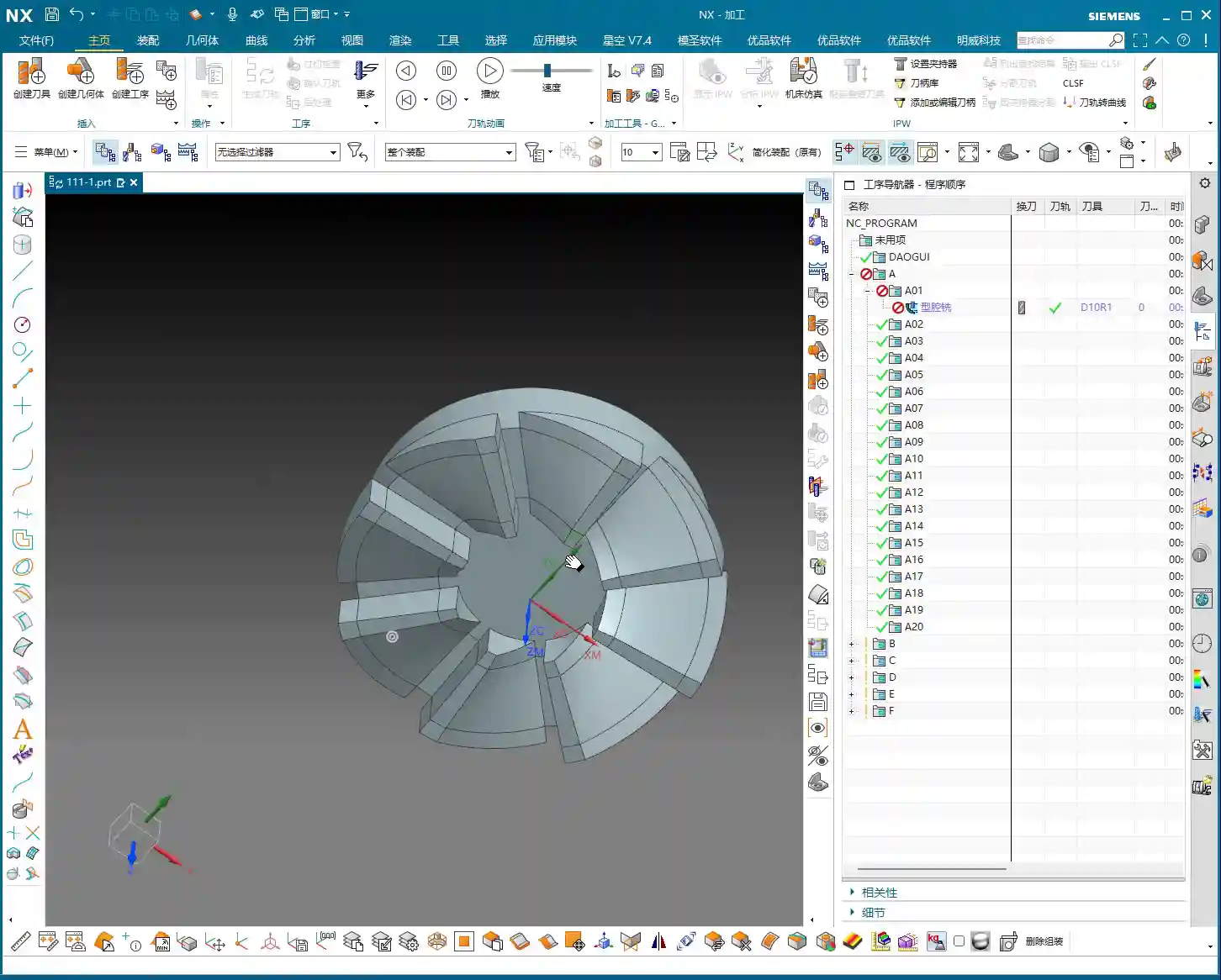
    This is the first and most critical step. If you don’t understand the coordinate system, everything you do afterward will be haphazard! We typically set the WCS on a datum face of the part or the top center of the blank. Of course, the exact placement depends on the part’s clamping method and machining requirements. The safety plane also needs to be properly set to prevent collisions during tool changes or rapid moves. In Siemens NX, first click on WCS, then select a datum face of the part for positioning, usually the top.

    2. Geometry and Blank Creation and Management:

    For machining, we first need to define the object to be machined (geometry) and the raw material (blank). My personal practice is to manage the blank and the part on separate layers.

    • Blank: I prefer to put it on Layer 100, then use Ctrl+J to change its color, or Ctrl+B (Hide) to conceal it. This way, I can find it when needed and it’s out of sight when not.
    • Part: I usually copy the part to be machined to Layer 10, leaving the original part model (Layer 0) untouched. This prevents accidental modification of the original model.

    3. Part Dimension Check: Knowing the Part Ensures Success

    Don’t underestimate this step! In Siemens NX, you can use “Analysis” -> “Measure” -> “Body Dimensions” to quickly check the part’s overall length, width, and height. If you don’t clearly measure the dimensions, how will you know what size blank to use, how long a tool to use, or how much stock to leave? For example, for this part, you need to know its length, width, height, and that its thickness is 6 mm. You must have these figures clear in your mind.

    4. Draft Angle Analysis: Can This Plate Be Held with a Vacuum Chuck?

    Draft angle analysis isn’t just for show; it helps you understand the part’s ‘personality’ beforehand, especially if you plan to hold it with a vacuum chuck! In Siemens NX, using the “Analysis” -> “Surface” -> “Draft” function visually reveals if the part surfaces have negative draft angles (undercuts) or particularly steep areas. If it’s all ‘green,’ it indicates a well-behaved part—either straight up and down or with smooth slopes, no undercuts—making it suitable for vacuum chuck fixturing.

    For our current case study, the draft angle analysis shows all green, indicating a standard part with vertical faces, no reverse features or undercuts, which makes machining much simpler. Let me emphasize this again: if you intend to machine using a vacuum chuck, when drilling holes or milling slots, NEVER cut all the way through in one go! You must leave some material at the bottom. Otherwise, if the vacuum chuck loses suction mid-machining, the part will fly off, and you’ll be in for trouble! In such cases, you need to consider leaving a bottom layer to be machined after flipping the part.

    ‘Programming First, Process Optimization Second’: Master Wang’s Golden Rule

    Let me reiterate, and this is one of our main topics today: In the initial stages of learning Siemens NX programming, you must first ensure your program runs reliably! Don’t immediately get hung up on ‘how should I sequence this process?’ or ‘what’s the optimal way to execute this operation?’ First, get familiar with the fundamental programming logic and toolpath commands, and successfully run the entire machining process within the software. Only after you have a complete grasp of various commands and toolpaths should you then consider process optimization—how to increase efficiency and reduce costs.

    This sequence is a summary of many years of hard-earned experience and will help you avoid unnecessary detours.

    Summary: Pitfall Avoidance Guide

    Alright, what we’ve covered today comprises the essential groundwork to complete before starting any job. Remember these key points to avoid common pitfalls in your subsequent programming:

    1. Don’t Mix Up the Learning Order: Learn programming first to get comfortable with toolpaths; then learn process optimization.
    2. The Coordinate System is the Foundation: The WCS must be accurately established; it’s the starting point for all machining.
    3. Separate Blank and Geometry: Learn layered management: blank on Layer 100, part on Layer 10, for a clean and clear workspace.
    4. Dimension Check is Essential: Don’t rely on guesswork; use tools for precise measurement to ensure you have a clear understanding.
    5. Draft Angle Analysis to Predict Part Behavior: Especially for vacuum chuck clamping, preemptively determine if the part has undercuts to prevent vacuum leaks and flying parts. If using a vacuum chuck, when machining holes or slots, always leave a bottom thickness; do not cut through.

    By diligently taking each step, we can machine parts quickly and accurately. Don’t rush; proceed steadily. A solid foundation ensures a sturdy structure.

    👤 About the Author:
    The author is a veteran CNC machining professional with 15 years of industry experience, specializing in UG NX programming. This article is an original work representing personal practical insights.

    ⚠️ Copyright Notice: Unauthorized reproduction or distribution without prior communication is strictly prohibited.

  • Siemens NX Rapid Deburring: Master Wang’s Practical Guide to Planar and Three-Axis Programming – Eli

    📝 Key Takeaways: Master Wang reveals practical deburring techniques in Siemens NX for planar and three-axis operations. Planar deburring efficiently handles 2D edges with quick chamfer program generation, but beware of overcutting internal corners. Three-axis deburring is more robust, using a ball end mill to tackle complex Z-axis burrs with flexible edge selection. This guide emphasizes tool selection, parameter settings, and common pitfalls to help you eliminate manual finishing and significantly boost machining efficiency and quality.

    Master Wang’s Session: Deburring – Where Details Make All the Difference

    Hello everyone, I’m Old Wang, Master Wang. Our Siemens NX practical tutorial is drawing to a close. We’ve covered the basics, from DB-HS and 2D machining to drilling, chamfering, deep cavities, and various fixed-axis operations – essentially all the key commands. For this final lesson, let’s talk about a pervasive and often frustrating issue in machining: “burrs.” Don’t underestimate them; if not handled properly, they can affect assembly or even scrap parts. So, listen up! Today, we’re going to thoroughly break down planar deburring and three-axis deburring in Siemens NX, so you’ll know exactly what to do when you encounter burrs in the future!

    Planar Deburring: Fast and Efficient 2D Edge Processing

    First, let’s discuss Planar Deburring. Simply put, it’s a quick tool in Siemens NX for handling burrs on 2D planar edges. Although it’s called “deburring,” it essentially automatically creates a small radius or chamfer on these edges, effectively “grinding” away the burr. What makes this command so useful? It saves effort! It’s several times more efficient than manually selecting edges and contour milling chamfers.

    Core Operation: Geometry and Tool Selection

    • Define Geometry: Listen up, to use this command, you must specify a “Geometry” (Part). Siemens NX needs to know which part you’re looking for burrs on, right? Just select your workpiece.
    • Select Tool: Planar deburring typically uses a chamfer mill. Create a new one yourself, for instance, a φ8 chamfer mill.

      Master Wang’s Trick (Avoiding Pitfalls): Many beginners get confused here. If you want to create a C4 chamfer (meaning the chamfering edge length of the tool is 4mm), then the chamfer mill you create cannot have a blunt tip. For example, if you use a φ8 chamfer mill, but the tip is made φ4, the chamfer will be a right angle. If you want to create a C10 chamfer, you’ll need to select a tool with a 5mm tip radius. In short, your tool’s chamfer length must match the actual chamfer amount you need, otherwise, it won’t be sharp enough! Here, we’ll use a φ10 chamfer mill, which is quite versatile.

    Program Generation and Parameter Adjustment

    Once the tool and geometry are selected, generate the program directly. You’ll notice the toolpath appears instantly – it’s incredibly fast!

    • Program Preview: If you see a dense display of F values (feed rates) on the toolpath, and find it distracting, click “Replay” or “OK” and then re-enter the command, and it will display normally.
    • Deburr Size (03:22): The default deburring amount for this command is 0.2mm, which creates a C0.2 chamfer. You can change this in the parameters, for example, to C0.5 or even C1.0, depending on the part requirements.
    • Tool Offset (03:26): Here’s the crucial part! This “offset” refers to how much the tool is offset downwards relative to the edge. The default is 2mm. This value determines the Depth of Cut (DOC) at the tool tip. You can adjust it based on the tool’s effective cutting length and your specific needs. For example, changing it to 2.5mm will make it offset further downwards.
    • Ignore Holes (05:08): If your part has holes and you don’t want to deburr them, Siemens NX also provides an “Ignore Holes” option. Check this box, and the program will skip all hole edges. This feature is very practical, saving you the trouble of manually excluding them.

    Master Wang’s Insights: Advantages and Limitations of Planar Deburring

    The greatest advantage of the planar deburring command is its high efficiency and simple operation. It automatically identifies all edges that require deburring, and in just a few clicks, the program is ready. Imagine if you had to manually select dozens or hundreds of edges – that would take forever!

    However, it also has limitations. Have you noticed that it cannot deburr certain internal corners or sharp angles? For example, if your part has right-angle internal cavities or sharp angles where two faces (A-surface and B-surface) meet, this command simply cannot handle it.

    • Why can’t it? The reason is simple: your chamfer mill has a physical size; it’s not infinitely sharp. When it reaches a constricted internal corner, if you force it, the tool will overcut, damaging the adjacent material. Therefore, Siemens NX simply won’t generate a toolpath to protect your part.
    • What to do? When you encounter such situations, don’t stubbornly insist on using CNC. These areas require the expertise of our seasoned machinists. They need manual deburring, using small files, sandpaper, or specialized finishing tools to meticulously refine the area and ensure quality. This is practical experience that textbooks don’t teach!

    Three-Axis Deburring: More Flexible, More Comprehensive Burr Removal

    After discussing planar deburring, let’s look at Three-axis Deburring. Although it’s called “three-axis,” in Siemens NX’s five-axis module, it might be referred to as “Multi-axis Deburring.” Essentially, it’s the same functionality under different template names, and its capabilities are significantly stronger than planar deburring because it can handle burrs in the Z-direction.

    Key Requirement: Ball End Mill is the Only Option

    • Tool Restriction: Listen up, this is crucial! For three-axis deburring, you must use a “ball end mill.” Don’t even think about using flat end mills or bull nose mills; it simply won’t recognize them. Siemens NX designed this function to calculate burrs based on the unique characteristics of a ball end mill.
    • Geometry and Tool: As usual, first select the geometry, then create a ball end mill, for example, a φ4 one.

    Edge Selection and Flexible Control

    The biggest highlight of three-axis deburring is its flexibility in edge selection.

    • Automatic Edges (07:24): By default, it will automatically identify all edges on the workpiece that it deems require deburring, just like planar deburring. After generating the program, you’ll find that it even processes the inner edges of holes and some Z-axis edges – something planar deburring cannot do!
    • Specified Edges (09:50): If you only want to process certain specific edges, select “Specified Edges.” This feature is particularly useful; for example, if you only need to deburr a specific hole or a few particular edges, you can simply select them directly. Unlike planar profile milling, you don’t need to consider direction or order; just select them, and Siemens NX will handle the rest.
    • Exclude Edges (08:24): Even more interesting is the “Exclude Edges” function. For instance, if many edges are automatically identified, but there are a few holes or specific edges you don’t want to deburr, you can select them under “Exclude Edges,” and the program will automatically avoid those areas. In actual production, this can significantly reduce rework and manual adjustment time.

    Deburring Parameters and Multi-axis Extension

    • Deburr Width (09:20): This parameter is similar to planar deburring, controlling the size of the deburr.
    • Internal Chamfer / External Chamfer (09:26): These control the type of deburring for hole and boss edges.
    • Multi-axis Integration (09:51): Although we are currently in a three-axis template, the underlying logic of this command is “multi-axis.” In the “Axis and Boundary” options, you can change the “View” to “Four-axis” or “Five-axis,” and it will perform the corresponding four-axis or five-axis deburring. This is why I often use it in the Siemens NX five-axis module; it adapts to deburring more complex curved surfaces.

    Summary: Pitfall Avoidance Guide

    • Planar Deburring:

      • Advantages: Simple to operate, fast program generation, suitable for deburring 2D planar edges. A powerful tool for boosting efficiency.
      • Pitfalls to Avoid:

        • Tool Selection: Always ensure that the chamfer mill’s tip radius matches your desired chamfer amount. For example, if you want a C0.5 chamfer, the tip radius cannot be greater than 0.5, otherwise, the resulting chamfer will be blunt, or it won’t chamfer at all.
        • Limitations: Cannot handle all internal corners or sharp angles, especially burrs in deep cavities or on complex curved surfaces. When encountering such situations, don’t force the CNC; hand it over to experienced machinists for manual deburring to ensure part quality.

    • Three-Axis Deburring (or Multi-Axis Deburring):

      • Advantages: More powerful functionality, capable of handling Z-axis burrs and complex geometries. Flexible edge selection, allowing for automatic, specified, or excluded edges, making it highly adaptable.
      • Pitfalls to Avoid:

        • Tool Restriction: Memorize this: you must use a “ball end mill.” Using the wrong tool will either prevent the program from generating or produce incorrect results.
        • Parameter Understanding: Understand the meaning of “deburr width” and “offset” and set them according to the actual workpiece and tool conditions to avoid overcutting or undercutting.
        • Multi-axis Extension: Although it’s called “three-axis” in a three-axis template, at its core, it’s a multi-axis command. If you need to perform four-axis or five-axis deburring in the future, remember this command; it’s still applicable, just switch the “View” in “Axis and Boundary.”

    • Cost Efficiency: Whether planar or three-axis deburring, the core objective is to improve efficiency and reduce labor costs. What can be automated by a program should never be done manually. However, where the program has limitations, don’t hesitate; do it by hand. Quality is always the top priority.

    Alright, that concludes today’s lesson. Deburring might seem like a small task, but there’s a lot of expertise involved. Remember these practical experiences, and you’ll never be stumped by small burrs when machining parts again!

    👤 About the Author:
    The author is a veteran CNC machining professional with 15 years of industry experience, specializing in UG NX programming. This article is an original work representing personal practical insights.

    ⚠️ Copyright Notice: Unauthorized reproduction or distribution without prior communication is strictly prohibited.
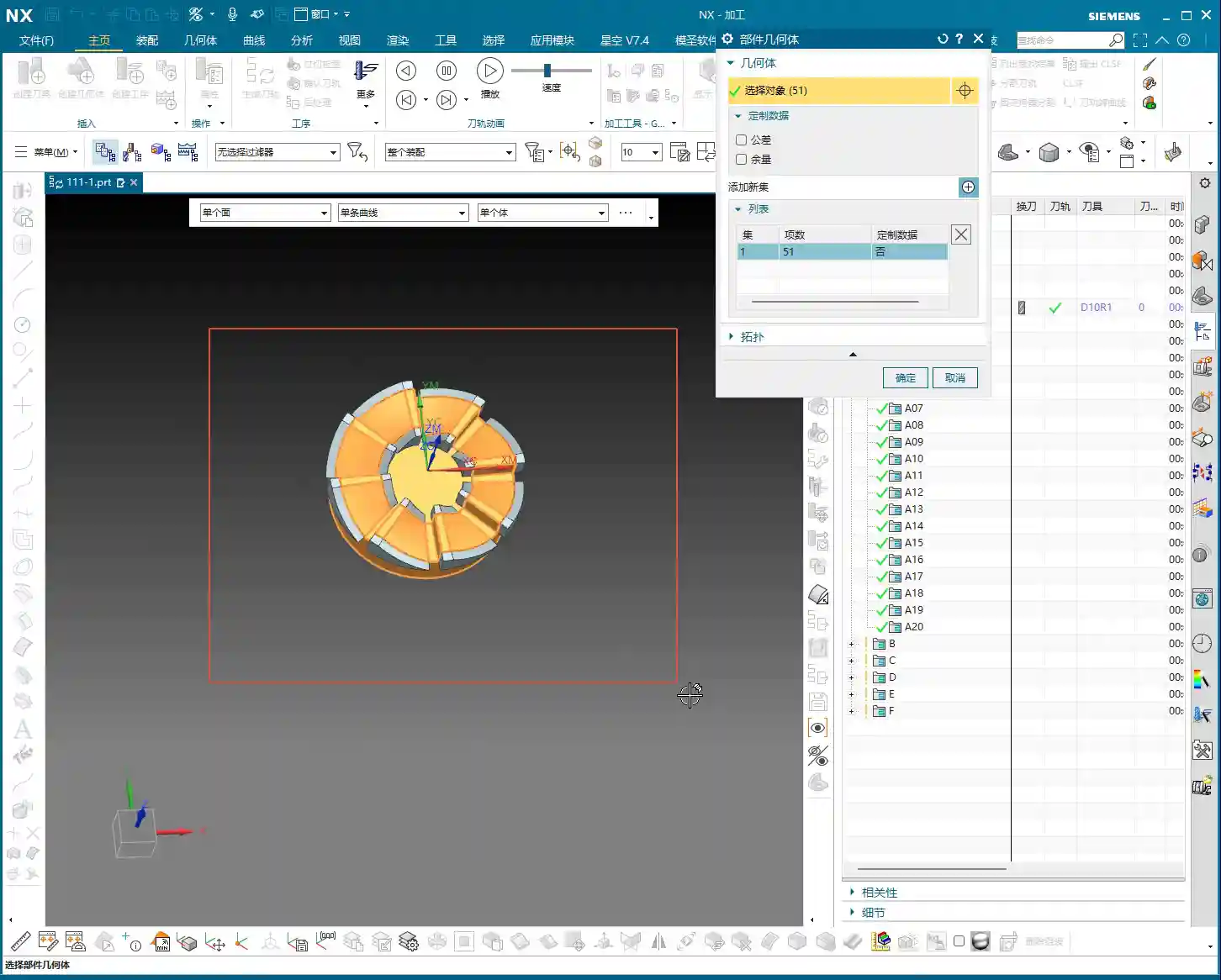
  • Siemens NX Solid Profile 3D: Master Wang’s Hands-on Guide to Finishing Complex Bottom Profiles, Avoi

    📝 Key Takeaways: Master Wang provides a hands-on explanation of the Siemens NX Solid Profile 3D operation, focusing on finishing complex bottom profiles. Learn practical applications of core parameters like Z-axis depth offset and Stepover, avoiding common pitfalls and boosting efficiency. Discover hard-hitting tips not found in textbooks to elevate your Siemens NX programming skills!

    Master Wang Explains: The Ins and Outs of Solid Profile 3D

    Alright everyone, Master Wang here. Today we’re diving into a Siemens NX feature you might not use often: the “Solid Profile 3D” operation. To be honest, in all my years, I’ve only really needed it a couple of times, which is why I held off talking about it. But listen up: “Rarely used doesn’t mean useless; it can be a lifesaver when it counts!” It truly shines when dealing with specific geometries, especially complex bottom profiles. It has its unique advantages.

    Don’t let its simple operation fool you. Understanding the logic behind it will give you a powerful tool for tackling those “oddball” parts. We’re not wasting time on abstract theories; let’s get straight to the machine and see what it can actually do.

    Preparation: Setting Up Part and Blank, No Room for Error

    When it comes to machining, the first step is always to clearly define your part and blank. Last time I slipped up and modeled the part in the wrong location – that’s a mistake you can’t afford. This time, we’ll start fresh and ensure the foundation is solid.

    Creating the Part and Blank

    First off, let’s clear out any previously assembled geometries. Consider it a clean slate, so nothing unnecessary gets in our way.

    • Coordinate System Setup: The Machine Coordinate System (MCS) can be placed anywhere for now; you can always adjust it in NX. But remember, in actual machining, datum points like G54, G55 must be set precisely. Even a tiny error means a scrapped part!
    • Specify Part: Select the solid body we intend to machine – in this case, the “B-surface” shaped part. This is what the toolpath will follow.
    • Specify Blank: Just use a simple block blank, or specify it based on actual conditions. I usually prefer to make it slightly oversized to leave some machining allowance.

    Selecting the “Solid Profile 3D” Operation

    In the “Insert” menu, find “Operation,” select “Mill Multi-Axis” as the machining type, and then locate our main event for today – “Solid Profile 3D.” The name itself tells you what it does: it primarily follows the solid’s profile, and it’s three-dimensional.

    Parameter Settings: Depth, Edge Following – Details Make or Break It

    Once you’re in the operation dialog, you’ll notice it’s a bit different from the usual planar or cavity milling operations. However, the core logic remains the same: tool, geometry, and method.

    Tool and Geometry

    • Tool Selection: Typically, you’ll choose a ball end mill or a corner radius end mill. Since the tool needs to follow the bottom profile, a ball end mill offers the best adaptability. Let’s use a D10 (10mm diameter) ball end mill as an example. The actual tool dimensions, material, and coating must be selected based on your workpiece material and precision requirements – this is serious business.
    • Part Stock: This is standard practice: leave 0.1mm stock for a finishing pass or subsequent polishing.
    • Bottom Follow: Listen closely, this is one of the key features of “Solid Profile 3D.” We need to select the “B-surface,” which is the bottom face of the part. The tool will tightly follow this bottom contour. If you select the top, it will only machine the top surface.

    Core Parameters: Z-Axis Depth Offset and Stepover

    These two parameters are what we need to really master today. They dictate how the tool “digs” downwards and “skims” sideways.

    • Z-Axis Depth Offset (Z-offset): This parameter controls how much the tool offsets downwards along the Z-axis relative to the bottom B-surface.

      • If you input a positive value, for example 10mm, the tool will try to offset 10mm downwards from the B-surface. However, if your part depth isn’t enough for 10mm, or the offset is too large, the toolpath might not generate, or you could even end up with “air cuts.”
      • Practical Application: We usually input a small negative value, or simply 0, to make the tool start cutting from the B-surface. If you want to cut slightly deeper, for example, when machining a deep slot with a fillet where the bottom needs to be thoroughly cleaned, you can set it to -0.5mm or even -1mm. This makes the tool cut slightly below the B-surface to completely clear any residual material at the bottom. But don’t overdo it, or you risk tool collision or even tool breakage.

    • Multiple Depths: This is what we commonly refer to as “Depth of Cut (DOC)” or “Stepdown.” For example, cutting 1mm per layer. This is the vertical cutting amount.
    • Multi-Layer Side Passes / Stepover (Side Steps): This is crucial; it controls the tool’s cutting width in the horizontal direction.

      • Simply put, this is the “lateral version” of “Multiple Depths.” If you input a total offset of 10mm and set an incremental step of 1mm per layer, the tool will perform multi-layer cutting outwards (or inwards, depending on direction) from the selected profile, offsetting 1mm per layer for a total offset of 10mm.
      • Practical Application: We can use this for a finishing pass on sidewalls, or for progressively removing stock from sidewalls. For example, using a small-diameter tool and taking several passes along the sidewall contour can improve surface finish and achieve higher precision. Remember, the Stepover must not be too large, otherwise it can lead to heavy tool engagement, causing chatter, and ruining the surface texture.

    Tool Axis and Cutting Parameters

    For tool axis direction, usually, you’d select “None,” meaning the tool plunges perpendicular to the XY plane. If you have a 5-axis machine or the part has specific angled surfaces, you’ll need to adjust the tool axis accordingly. Cutting parameters, including spindle speed and feed rate, must be determined by comprehensively considering the tool, material, and machine rigidity. Don’t just rely on software simulations; the sparks and sounds during actual cutting provide the most authentic feedback!

    • Spindle Speed (RPM): S2000 (Example, adjust specifically based on material and tool)
    • Feed Rate: F800 (Example, adjust specifically based on material and tool)

    Toolpath Generation and Optimization: Seeing is Believing

    Once all parameters are set, click to generate the toolpath. You’ll see the tool follow your specified B-surface contour, progressing layer by layer according to the defined depth and Stepover.

    Optimization Options: Don’t underestimate these optimizations. They can help reduce air cuts, make toolpaths smoother, and ultimately boost machining efficiency. For example, in “Cutting Moves,” using smooth arc entry and exit motions is better than straight plunges, as it reduces impact.

    Summary: Pitfall Avoidance Guide

    • Z-Axis Depth Offset: This value requires extreme caution. Too large, and it can lead to air cuts or failure to generate a toolpath; too small, and it might not fully clear the bottom surface. Adjust flexibly based on actual needs; try a small negative value for a thorough bottom cleanup.
    • Stepover: Don’t get greedy for speed. Too large a Stepover can lead to uneven tool loading, causing chatter marks and compromising surface quality. Especially during a finishing pass, it’s better to take a few extra passes to ensure stability and precision.
    • Applicability of “Solid Profile 3D”: Primarily used for machining along the bottom contour of a part, especially suitable for parts with complex contoured bottoms. For simple planar surfaces or steps, standard cavity milling or planar milling will be more efficient.
    • Machine Precision: Even the best programming needs matching machine precision. A ±0.005mm accuracy requirement doesn’t just test your Siemens NX programming; it also tests machine maintenance and compensation. Regularly check machine precision, especially lead screw backlash – that’s invaluable real-world experience!
    • Tool Selection: Ball end mills or corner radius end mills are preferred, but the tool’s stick-out length, flute length, and diameter must all match the machining depth and cavity size. Long-reach tools will chatter significantly and are prone to chipping; don’t expect a high surface finish from them.
    • Collision Checking: While collision checking in Siemens NX is convenient, don’t rely on it completely. You must thoroughly review toolpath simulations, and even manually drag the tool, pausing to observe at critical points – that’s the safest approach.
    • Corner Handling: In “None” mode, the toolpath will have sharp corners; if you select “Overlap” mode, NX will generate a rounded transition for the toolpath. This is highly beneficial for smoother cutting and tool protection.

    Alright, that wraps up our discussion on “Solid Profile 3D.” Remember, software is just a tool. What truly makes a successful job is your process thinking and hands-on experience. Observe more, learn more, and get your hands dirty – only then can you evolve from a “programmer” into a true “master machinist”! We’ll cover something different next time.

    👤 About the Author:
    The author is a veteran CNC machining professional with 15 years of industry experience, specializing in UG NX programming. This article is an original work representing personal practical insights.

    ⚠️ Copyright Notice: Unauthorized reproduction or distribution without prior communication is strictly prohibited.

  • Siemens NX Fixed Contour Milling – Spiral Machining: A Practical Deep Dive into an Underutilized Com

    📝 Key Takeaways: **

    Siemens NX Spiral Milling: Practical Principles for Precision and Efficiency

    Hello everyone, I’m Master Wang. Today, we’re going…

    Hello everyone, I’m Master Wang. Today, we’re going to talk about a relatively “underutilized” machining operation in Siemens NX—specifically, the “Spiral” command within Fixed Contour milling. Don’t let its humble appearance fool you; as a veteran who’s spent 15 years on the shop floor, I can tell you that every single command has its place. The key is knowing how to use it effectively and how to avoid common pitfalls. And naturally, I don’t just understand machine tools; I also know how to share valuable techniques. So, what we’re discussing today isn’t just about operations, but about efficiency and value.

    Spiral Machining: Why Is It Considered ‘Underutilized’?

    Listen up. This “Spiral” machining method is indeed used infrequently. Why? Because its functionality is quite singular and its limitations are significant. Often, other more versatile commands, such as Cavity Milling or Guiding Curve milling, can also generate spiral toolpaths, offering much finer control. However, since Siemens NX provides this command, it certainly has its inherent value. In specific scenarios, it can save you a considerable amount of trouble. Today, we’re going to unearth it, dissect it thoroughly, and understand its true characteristics.

    Getting Started: First Look at the Command and Basic Settings

    Let’s start with the basics. In Siemens NX, navigate to ‘Insert’ > ‘Operation’ > ‘Milling’ > ‘Fixed Contour’ > ‘Spiral’. To be honest, this command’s interface isn’t flashy at all; it has few parameters, clearly indicating it’s a straightforward, no-nonsense tool.

    • Specify Part/Cut Area: This is the most crucial step. It’s ideally suited for machining circular, cylindrical, or contoured surfaces. Simply select any circular face or a relatively flat curved surface, and it will handle the job. Note that the point you select will be taken as the default center point for the spiral, from which it will expand outwards. Even if your clicked position is off-center, the system will automatically project it onto your selected face and generate the spiral with that projected point as its center.
    • Specify Tool: Select an appropriate tool, just as you would for conventional milling.

    Once these are set, simply generate the toolpath, and you’ll see a basic circular spiral path. The toolpath typically looks like it’s spiraling outwards or inwards, turn by turn, much like a mosquito coil.

    Core Parameter Analysis: The Secret Behind Maximum Spiral Radius

    Since I mentioned the interface is simple, does it hide any ‘tricks’? It certainly does, and that’s the ‘Maximum Spiral Radius’ parameter.

    The ‘Reins’ for Controlling Machining Range

    This parameter, as the name suggests, controls how far your spiral toolpath can ‘extend’ outwards. The default value might only be a few millimeters, for example, 6.25mm. If you leave it as is, the toolpath will only mill within a small area around your selected center.

    Practical Tip: Listen up! If your workpiece is large and you want the spiral toolpath to cover the entire circular region, you must increase the Maximum Spiral Radius. For instance, if our input diameter is 100mm, your radius should be at least 50mm. Input 50, then check the toolpath—doesn’t it immediately ‘spread out’? This is the ‘rein’ that controls the machining range. If you don’t enlarge it, your toolpath won’t extend, and it will keep spinning around the center.

    As for other parameters, such as Stepover and Cut Direction (Climb Milling/Conventional Milling), they are similar to what we typically use, with no specific points of concern. Just adjust them according to your material and tool conditions.

    The ‘Characteristics’ and ‘Pitfalls’ of Spiral Machining: Boundaries and Retractions

    This command has a specific characteristic, and also a small ‘pitfall’ where newcomers can easily stumble.

    Automatic Spiraling and Boundary Management

    The “Spiral” command inherently tries to extend your toolpath outwards. If you only select a single plane as the cutting area, it will spiral downwards from your designated center point until it encounters the material’s boundary.

    • Scenario One: Top Face Only. If you only select the top face of the workpiece, the tool might spiral into the side walls or even cut outside the workpiece. During simulation, you might see the tool ‘drilling’ into the side or ‘air cutting’ unnecessarily. This area is particularly prone to excessive Depth of Cut (DOC), or creating unnecessary rapid moves, wasting machining time.
    • Scenario Two: Encountering Boundaries. Even if the spiral path reaches the edge of your selected face, it might still attempt to spiral further outwards, leading to tool retractions. While not inherently bad, if not properly planned, this can generate excessive engage/retract moves, impacting surface finish.

    Practical Pitfall Avoidance: How to Control Spiral Paths?

    Since it has these ‘characteristics,’ we need to tame it.

    1. Set Cutting Boundaries: This is the most direct and effective method. If you don’t want it to spiral out too much or cut where it shouldn’t, use the boundary settings within ‘Specify Cut Area’ to explicitly define the maximum range of the toolpath.
    2. Utilize Sheet Bodies or Extended Faces: As we’ve learned before, using a Sheet Body or slightly extending the face being cut provides the tool with a clear machining area, essentially ‘drawing a line’ that prevents it from crossing boundaries. This technique is particularly effective when dealing with complex boundaries.

    Efficient Alternative Solutions: Cavity Milling and Guiding Curve

    Returning to what I said at the beginning, the “Spiral” command is underutilized largely because better alternative solutions exist. As a proficient Siemens NX programmer, you must understand flexibility and adaptiveness, choosing the command most suitable for the current machining conditions.

    Spiral Mode in Cavity Milling

    Our most commonly used operation, Cavity Milling, actually has a built-in ‘Spiral’ cutting mode.

    Advantages:

    • More Flexible Path Control: Cavity Milling allows you to define cutting areas, drive methods, and even specify entry and exit points with greater precision. This is crucial for situations requiring exact control over the tool’s starting position.
    • Wide Applicability: It’s not limited to circular shapes; various complex cavity geometries can be machined using the spiral method.
    • Rich Parameters: Cavity Milling offers a wider array of parameters for adjustment, including feed rate, spindle speed, Depth of Cut (DOC), and stock allowance. This allows for better toolpath optimization, reduces rapid moves, and improves efficiency.

    Master Wang’s Take: For an identical spiral toolpath, implementing it with Cavity Milling allows you to specify the spiral’s center point; you position the point exactly where you want the spiral to begin. Compared to the Fixed Contour Spiral command, the level of control isn’t even in the same league. Don’t just rely on software simulations; look at the cutting sparks. Cavity Milling gives you much more ‘mastery’ over the process.

    Customized Spirals with Guiding Curve

    If Cavity Milling still doesn’t satisfy your ultimate requirements for spiral toolpaths, then Guiding Curve is absolutely your ultimate weapon. You can draw your own spiral line to serve as the guiding curve, and then have the tool machine along that specific line.

    Advantages:

    • Full Customization: The spiral’s shape, Stepover, start point, and end point are all completely within your control. Whether it’s a constant pitch, variable pitch, or even localized dense spirals, all can be achieved.
    • Adapts to Complex Surfaces: For exceptionally complex 3D surfaces that require spiral machining along a specific path, Guiding Curve milling is the optimal choice.

    Master Wang’s Take: Using a Guiding Curve to create a spiral—now that’s a move for true experts. You can precisely construct your desired spiral line in the modeling module beforehand, and then directly implement it. The flexibility and precision of this method are unmatched by other commands. Remember, design is machining, and modeling dictates the toolpath.

    Machining Smoothness: A Small Tip for Improving Surface Quality

    Regardless of the spiral machining method, don’t forget to adjust the ‘Smoothness’ parameter, especially when machining parts that demand high surface quality. Applying a slightly higher smoothness value will result in a more fluid toolpath and more uniform cutting marks, naturally leading to a better final surface finish. After all, the parts we produce not only need to meet dimensional requirements but also have to ‘look good’.

    Summary: Pitfall Avoidance Guide

    Alright, Master Wang has thoroughly clarified the ins and outs of this Siemens NX “Spiral” command for you today. In summary, this command is simple in function, highly dependent on circular or quasi-circular faces, and extremely sensitive to the setting of the ‘Maximum Spiral Radius’. Its biggest ‘pitfall’ is the potential to automatically expand outwards, even cutting into unintended areas, or causing unnecessary tool retractions.

    My recommendations are:

    1. Prioritize Cavity Milling or Guiding Curve: In most situations requiring spiral toolpaths, Cavity Milling’s spiral mode or Guiding Curve milling will offer superior control and flexibility, allowing you to define machining paths with greater precision.
    2. Refine the Cutting Area: If you absolutely must use the “Spiral” command, make sure to strictly limit the tool’s machining range by specifying cutting boundaries, or by utilizing auxiliary methods such as sheet bodies or extended faces, to prevent the tool from ‘straying off course’.
    3. Pay Attention to Maximum Spiral Radius: This is a core parameter that determines the toolpath’s coverage area, and it must be set appropriately according to the actual dimensions of the workpiece.
    4. Leverage Smoothness: Don’t underestimate this parameter; it has a direct impact on improving the surface quality of machined parts.

    Remember, machines are static, but people are dynamic. No single command is a panacea, but no command is useless either. The key lies in the depth of your understanding and your ability to apply them flexibly in real-world scenarios. It’s just like our approach to industrial product online promotion: every keyword, every detail, must be thoroughly understood to ensure our excellent products and genuine expertise are steadily placed on search engine homepages, reaching more people who need them!

    👤 About the Author:
    The author is a veteran CNC machining professional with 15 years of industry experience, specializing in UG NX programming. This article is an original work representing personal practical insights.

    ⚠️ Copyright Notice: Unauthorized reproduction or distribution without prior communication is strictly prohibited.

  • Siemens NX Surface Driven Machining Masterclass: Master Wang Helps You Conquer Diagonal Point and UV

    📝 Key Takeaways:

    Siemens NX Surface Driven Machining in Practice

    Surface Driven Machining: Practical Application to Prevent Issues

    Basic Operations: Face Selection and Direction

    Listen up, lads! Today we’re diving deeper into Siemens NX’s Surface Driven machining. This stuff looks simple, but there’s a lot more to it than what you’ll find in any textbook.

    First off, the most fundamental step is selecting the **drive geometry**. You pick the face, and that’s the face that gets machined – no surprises there. But you gotta watch the direction carefully. Sometimes, if the direction is wrong, the generated toolpath will be reversed, and you’ll scrap the part! You’ll have to manually “reverse” it. It’s the same principle as when we’re doing a “Finishing pass” on a flat surface, right?

    The Stepover also needs to be set correctly. Don’t just rely on default values; those are just for show. For actual machining, you need to determine it based on your tooling, material, and required surface finish. For example, if you’re doing a Finishing pass on aluminum, a larger Stepover might be fine. But for titanium alloys or nickel-based superalloys, you need to be extremely careful; even a slightly larger Depth of Cut (DOC) can chip the tool. And custom grinding a non-standard tool isn’t cheap!

    Core Technique: The Secrets of Diagonal Point Drive

    Next, let’s look at the “Diagonal Point” mode. This feature might not be something you use often, but it can be a lifesaver in critical situations. It lets you select two diagonal points to define the machining area. For instance, if you only want to machine a small rectangular section on a face, just box it in!

    In actual production, however, I, Old Wang, generally recommend using Surface Percentage more often. For the Diagonal Point mode, just understand its principle: it helps you define a machining range using two points. But don’t expect it to do too many fancy tricks. Most of what it can do, Surface Percentage can also achieve, and often with greater flexibility.

    Remember one thing: these modes are just tools. The key is in your head – knowing what needs to be machined and what the most efficient way to do it is.

    The Art of Boundary Constraints (Check Surfaces): Safety and Efficiency are Paramount

    Why Do Overcuts Occur? The Importance of Check Surfaces

    Alright, listen up, because this next point is absolutely critical! How many times have I told you guys: you MUST select your Machining Boundaries (what Siemens NX calls “Check Surfaces”) properly! Otherwise, the toolpath will run wild like a runaway horse, and “snap!” – you’ll overcut in corners or along edges! Every scrapped part in your shop is hard cash down the drain, far more expensive than a few extra mouse clicks!

    If you don’t select Check Surfaces, the toolpath will follow the maximum extent of the drive geometry. As soon as any area exceeds the predefined machining range, you’re asking for trouble. This is especially true for complex surfaces; one lapse in attention and you’ll “mill right through” the part. This is no joke.

    Select All? Absolutely Not!

    Some folks try to save time by selecting all faces as Check Surfaces, thinking it’s the safest approach. Wrong! Dead wrong! I’ve said this many times before: doing that can easily mess up your toolpath, resulting in a completely disorganized program! This happens because when the drive geometry is projected, it considers all Check Surfaces, which can sometimes conflict with each other, leading to chaotic path planning.

    So, be selective! For whichever area you’re machining, only select the boundaries for that specific region. Don’t be greedy. Striving for precision is our duty in machining.

    The Key to Undercut Machining: The Clever Use of Surface Percentage

    This Surface Percentage feature is truly a powerful tool when machining special geometries, such as undercut faces or sidewalls! It allows you to extend or shrink the boundary of your selected drive face by a percentage. Especially for undercuts, if you use traditional toolpaths, you’re very likely to experience tool collisions or poor results. But with Surface Percentage combined with the right parameters, the results are outstanding!

    Furthermore, it’s very much like what we often refer to as “Finishing pass on a flat surface” or “Finishing pass on a sidewall.” Many times, a single Surface Driven operation can replace several dedicated toolpath commands, instantly boosting your efficiency.

    Direction and Projection: The Physical Logic Behind NX Toolpaths

    Drive Geometry Projection: Precisely Locating the Machining Area

    With NX, much of the time you’re essentially dealing with “projection.” The drive face you select will be projected onto the machining area according to your set “direction.” This projection direction dictates the direction your tool will descend. If your direction is wrong, the projected machining area will be completely different from what you envisioned!

    Especially the option “Project to Drive Geometry”: it doesn’t just cut simply from top to bottom. Instead, the tool’s projection direction aligns with the drive geometry. When machining certain angled or curved surfaces, this ensures the tool cuts perpendicular or at an angle to the surface, leading to better cutting performance and extended tool life.
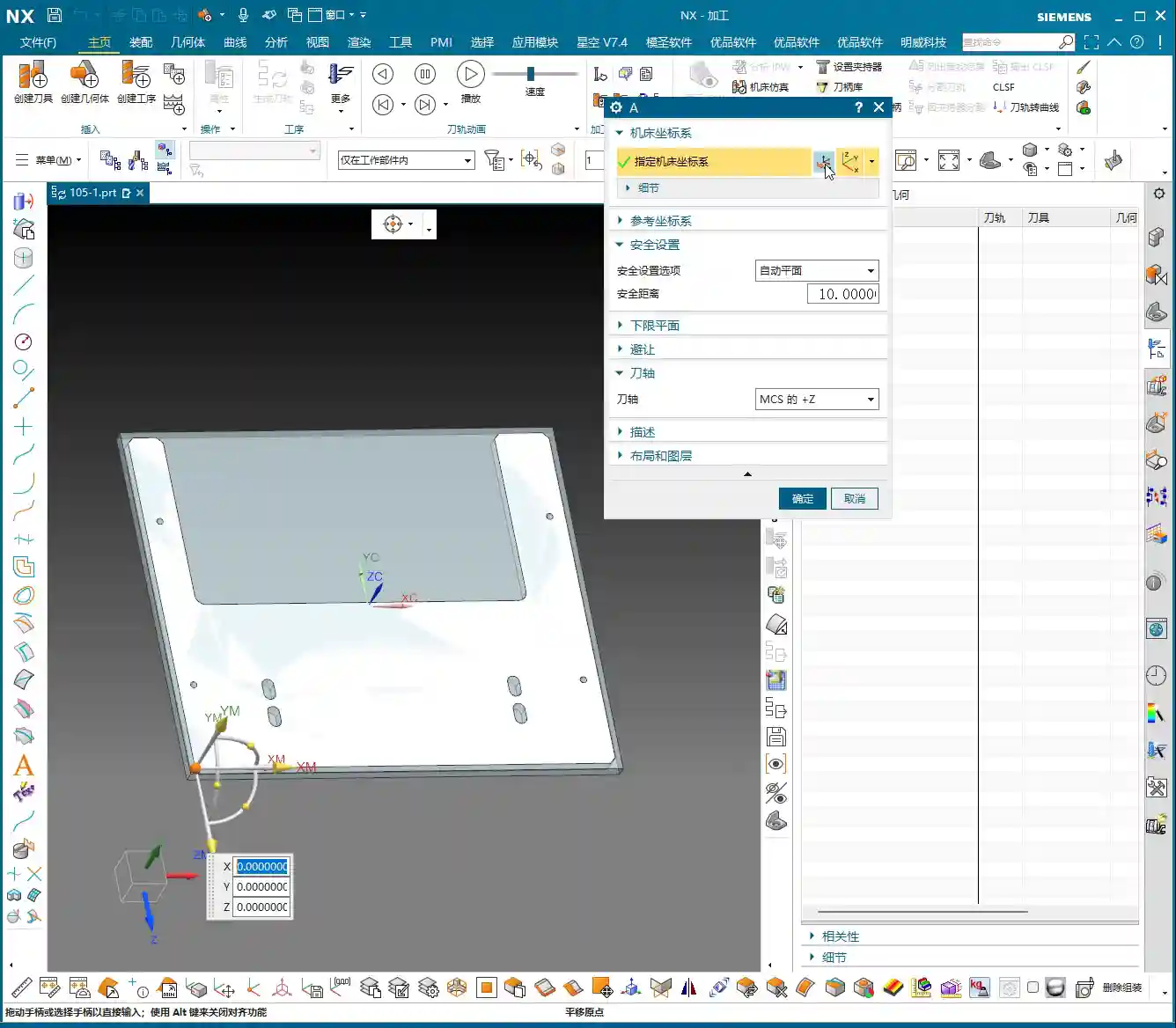
    “Retract Distance”: A Trap in Small Hole Machining

    Here’s another pitfall: the “Retract Distance”. This feature provides a safe clearance for the tool during drive face projection to prevent collisions. If you’re machining a relatively small hole and this Retract Distance is set too large, the tool might not even be able to enter the hole, making it impossible to machine!

    Therefore, when dealing with small holes or narrow areas, always check and adjust the Retract Distance according to the actual situation. Don’t just set it blindly! Attention to detail determines success or failure; these are lessons learned the hard way in the shop, paid for with sweat and blood!

    The Powerful Combination of Percentage and Boundaries: Precise Toolpath Control

    Flexible Use of Percentage: Extension and Limitation

    When you use Check Surfaces and Percentage together, that’s when things get powerful! For example, if you set a negative percentage (e.g., -20%), the toolpath will shrink inward. Set a positive percentage, and it will extend outward. But will this extension cause an overcut? That depends on how accurately you’ve selected your Check Surfaces.

    Once you’ve selected Check Surfaces, the toolpath will obediently stay within those boundaries and won’t extend further. It’s like drawing a cage for the toolpath; it can’t escape. So, by flexibly applying Check Surfaces and Percentage, you can precisely control the toolpath, directing it exactly where you want it to go and preventing it from going where you don’t.

    Summary: Pitfall Avoidance Guide

    Listen up, lads, everything I’ve taught you today is based on 15 years of hard-won experience. Siemens NX’s Surface Driven capabilities are powerful, but don’t operate blindly.

    First, ALWAYS check the drive direction! You absolutely must verify the toolpath’s orientation. If it’s reversed, correct it; don’t just assume it’s right.

    Second, Machining Boundaries (Check Surfaces) are your safety valve! Selecting them correctly prevents overcutting. Don’t select all, and don’t pick them randomly. If you’re unsure, it’s better not to select any, but then you absolutely must meticulously check the toolpath simulation afterward.

    Third, parameters are NOT fixed! Values like “Retract Distance” and “Percentage” must be applied dynamically based on your workpiece, tooling, and material. It’s not a one-size-fits-all solution; don’t just stick to whatever the textbook says.

    Finally, simulation is fundamental, but practical application is the real test! Don’t just rely on a perfect computer simulation. Before hitting the machine, mentally run through the process, observe the cutting sparks, and listen to the tool’s sound – that’s where true expertise lies!

    Remember, in this business, efficiency and cost-effectiveness are the absolute truths. Every part not scrapped, every extra minute of machining time, translates directly to profit! This isn’t just a technical skill; it’s also about business acumen.

    👤 About the Author:
    The author is a veteran CNC machining professional with 15 years of industry experience, specializing in UG NX programming. This article is an original work representing personal practical insights.

    ⚠️ Copyright Notice: Unauthorized reproduction or distribution without prior communication is strictly prohibited.