Blog

  • Siemens NX Spot Drilling, Drilling, and Tapping: Practical Strategies for Doubled Efficiency and Pre

    📝 Key Takeaways: **

    Siemens NX Spot Drilling and Hole Machining Optimization in Practice

    Master Wang’s Insights: The Intricacies of Hole Machining

    To all seasoned pros and aspiring apprentices, I’m Master Wang. Today, let’s cut the fluff and get straight to the practical tips, discussing the “Spot Drilling” operation in Siemens NX. Don’t let its simplicity fool you; there’s a lot more to it than meets the eye. Mastering this will save you significant machining time and ensure your part’s precision. Spot drilling, drilling, and tapping generally follow the same operational logic in Siemens NX. Today, we’ll start with Spot Drilling (G81) to thoroughly understand this logic, and then all other hole machining operations will come naturally!

    Hole Machining Cycle Overview (G-Code)

    The hole machining cycles in Siemens NX essentially generate the corresponding G-code in the background for you. It’s crucial to understand:

    • Spot Drilling: G81, typically used for locating counterbore holes, or for direct through-drilling of small holes.
    • Drilling: G83, for deep hole drilling with chip break.
    • Boring: G86, for finish boring, commonly used to improve hole accuracy and surface finish.
    • Reaming: G85, for finishing already drilled holes, improving dimensional accuracy and cylindricity.
    • Tapping: G84, for machining internal threads.

    These commands have similar interfaces, and their principles are all top-down. So, if we thoroughly understand spot drilling, the others will fall into place naturally.

    Spot Drilling Operation: Selection is Key

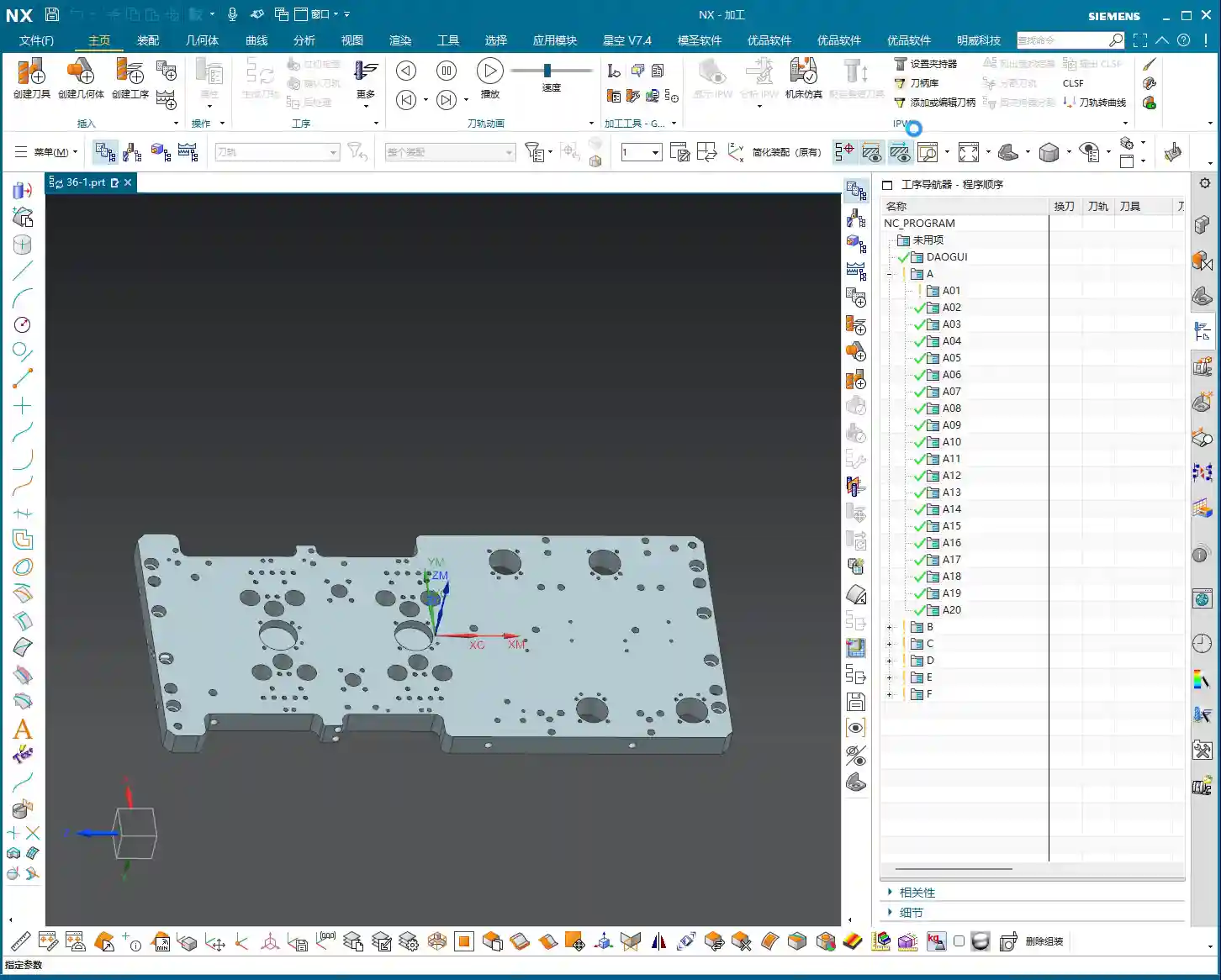
    Alright, open Siemens NX and locate the “Spot Drilling” operation. The first step is to select the holes you want to machine.

    Basic Selection: Specify Feature Group and Selection Modes

    After selecting “Specify Feature Group,” you’ll enter the hole selection interface. Here are a few options you need to understand:

    • Select: This is the most frequently used method. You can directly click on the edge of the hole to select it. Siemens NX will automatically identify and mark it.
    • The Trick to “Yes” or “No”: When you click the “Select” button again, the system will ask, “Delete existing selection?”

      • If you choose “Yes”: It will delete all previously selected holes and allow you to reselect. If you want to clear your current selection and start over, click “Yes.”
      • If you choose “No”: It will retain your previously selected holes and allow you to add new ones. This is the most common method; typically, you’ll click “No” to append to your selection.

    • Add: This function is essentially the same as choosing “No” with the “Select” option—both allow you to append to an existing selection. In my experience, just using “Select” and then clicking “No” is sufficient; there’s no need to specifically click “Add,” as it can sometimes be confusing.

    Advanced Selection: General Point and All Holes on Face

    Besides manual point selection, Siemens NX also offers more intelligent selection methods, especially when a part has many holes, which can significantly boost efficiency.

    • General Point:

      This option allows you to directly select any point in space as the machining location. Remember, Siemens NX will only register where you click; it won’t determine if your selected point is a “true” hole feature.
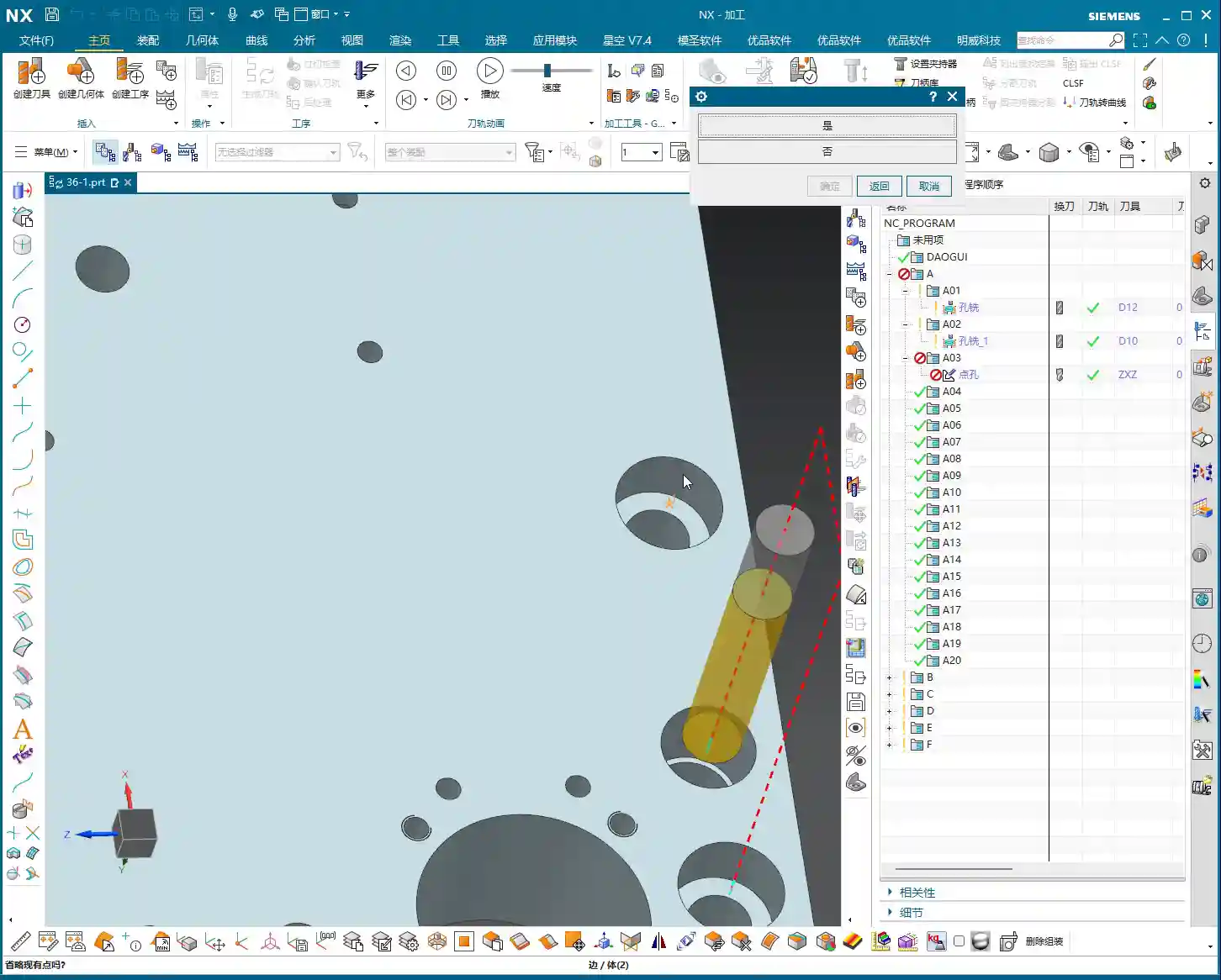
      Master Wang’s Warning: This is where problems can arise! If you click in the middle of a face or some odd location, it will still generate a spot drilling program. So, when using “General Point,” always ensure you’re precisely clicking on the intended machining point. Don’t just rely on the software simulation; visualize the chip formation and actual outcome.
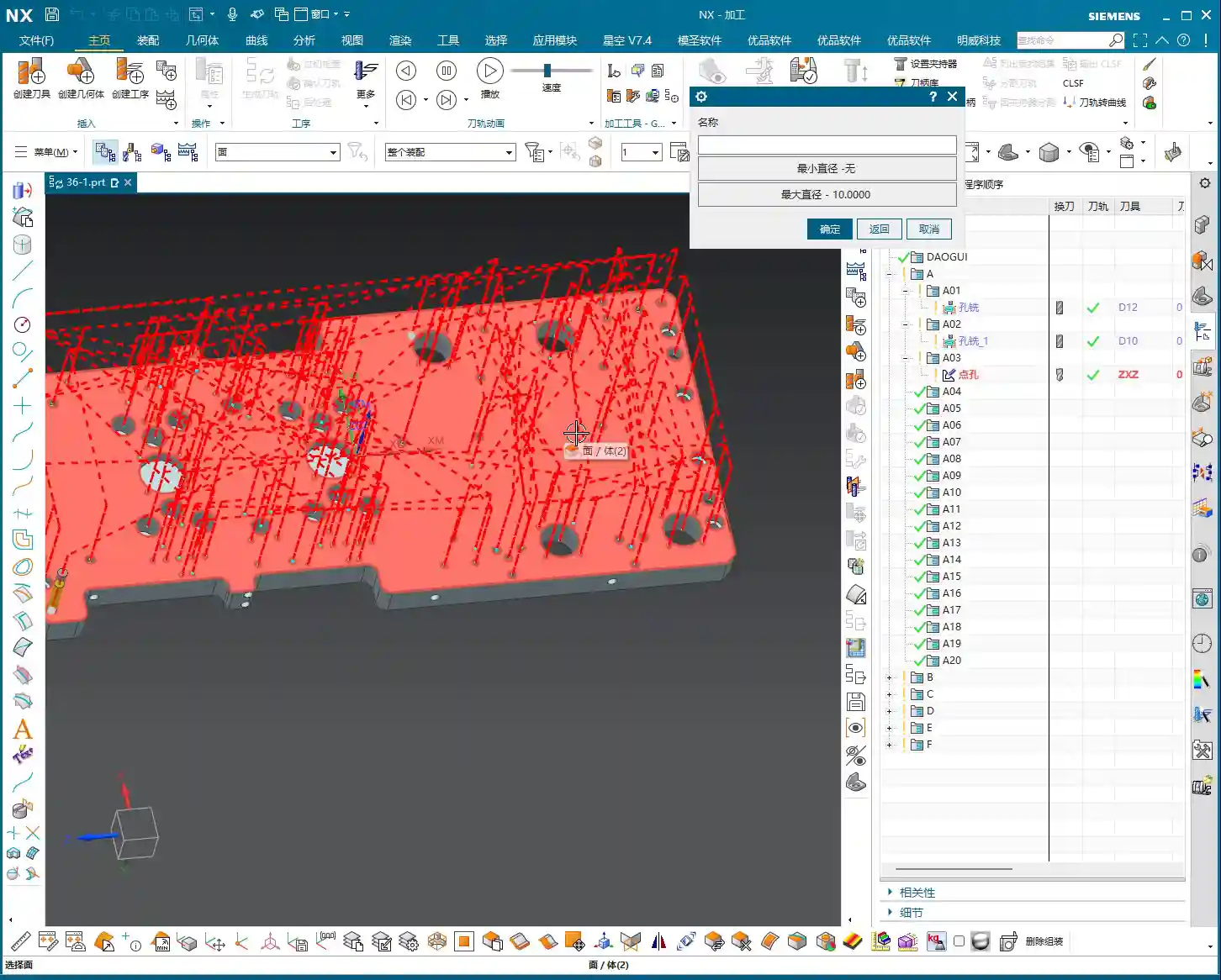
    • All Holes on Face:

      This is a powerful feature! When a face has numerous holes, you can directly select that face, and Siemens NX will automatically identify and select all holes on it.
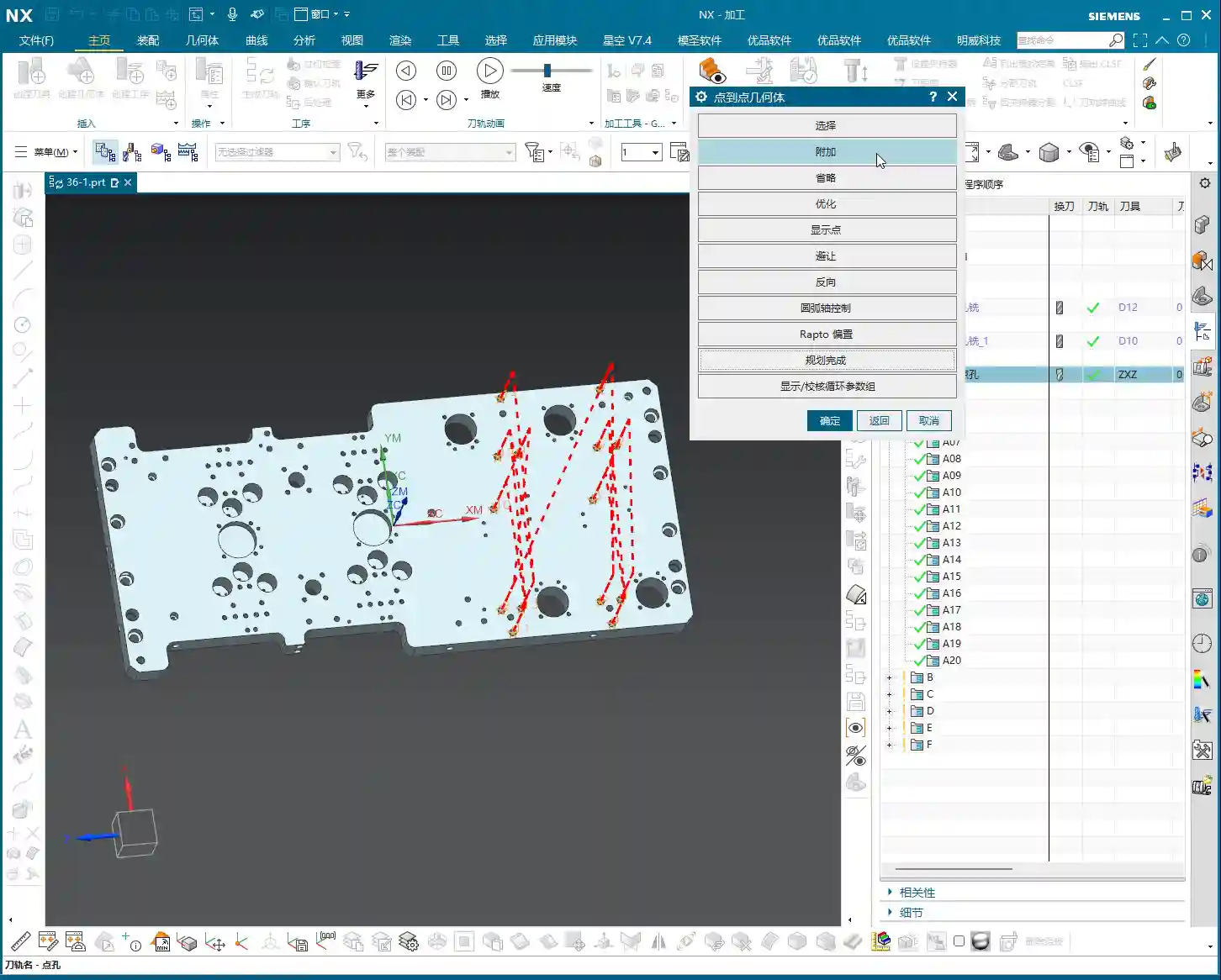
      What’s even better is that you can apply diameter filtering here. For instance, if you want to spot drill Ø5mm holes, you can set “Minimum Diameter” to 5 and “Maximum Diameter” also to 5. This way, it will only select the Ø5mm holes on that face.
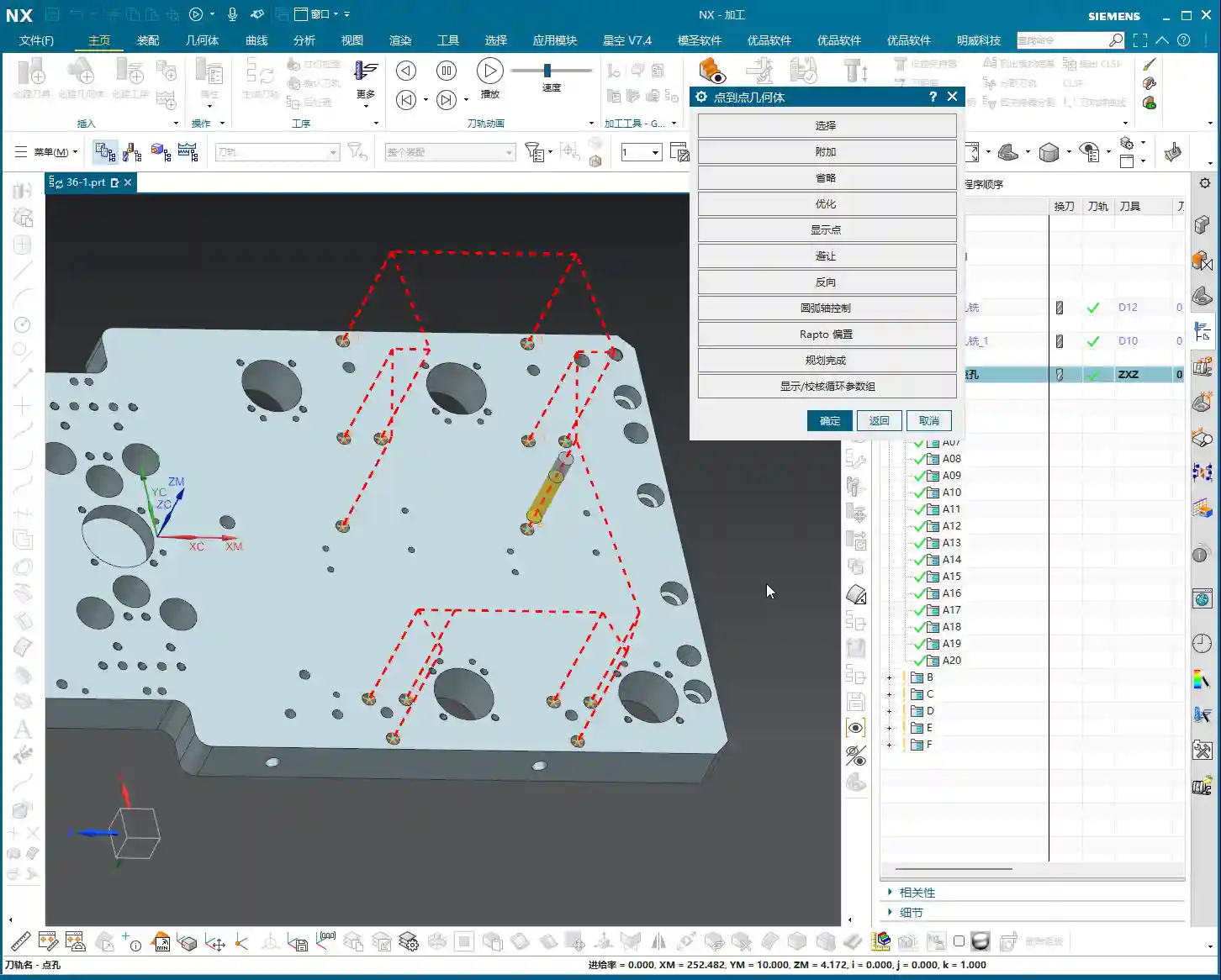
      Practical Tip: Often, blueprints specify a face with many holes of different diameters, but you only need to machine a specific type. In such cases, using “All Holes on Face” combined with precise “Minimum Diameter” and “Maximum Diameter” settings will help you quickly filter for your target holes, saving you the hassle of individual selections and instantly doubling your efficiency!

    Deletion: Removing Unwanted Holes

    What if you accidentally selected too many, or some holes you no longer wish to machine? Use the “Delete” function.

    • Delete/Exclude: After clicking this option, if you then click on already selected holes, those holes will be removed from the machining list.
    • Master Wang’s Reminder: After deleting holes, you absolutely *must* regenerate the toolpath! Otherwise, the program will still follow the old path, rendering your deletion useless. This will lead to rework, wasting both time and effort.

    Toolpath Optimization: The Art of Balancing Efficiency and Cost

    Once the holes are selected, the next step is optimization! This is of utmost importance, especially when you’re machining more than two holes. Without optimization, the tool will wander aimlessly across the part, making unnecessary rapid moves (air cuts). That’s time and money wasted!

    Siemens NX Optimization Steps and Logic

    Optimization aims to make the tool travel the shortest path, reduce non-cutting moves, and improve machining efficiency.

    1. Click Optimize.
    2. In the dialog box that appears, select Shortest Path. This is the most commonly used optimization strategy.
    3. Click the Optimize button again.
    4. Click Accept.
    5. Finally, regenerate the toolpath, and you’ll see a clear, logically sequenced machining order with the shortest path.

    Master Wang’s Take: With an optimized toolpath, the tool will move from the closest hole to the next closest, avoiding unnecessary long-distance rapid moves (air cuts). This step is *mandatory* every time you select holes, especially if there are more than a couple! This is a hard-earned truth not taught in textbooks, but one that will save you money on the shop floor! Don’t just assume everything is fine if the software simulation shows no errors; a few extra rapid moves can easily waste your entire day’s production.

    Clearance: Ensuring Safe Machining

    Although “Clearance” wasn’t extensively covered in the audio, as a master machinist, I have to bring it up. On complex parts, especially when there are fixtures or bosses, the tool’s entry/exit paths and tool change positions must all account for clearance.

    • Master Wang’s Reminder: Setting clearance parameters in Siemens NX directly impacts whether the tool will crash into the workpiece or fixture. It’s always better to use a slightly higher safe clearance than to risk crashing the tool for a little speed. In practice, clearance heights must consider fixture height, workpiece height, tool length, and machine travel limits. This area is prone to tool crashes; don’t just admire the pretty model—a real machine crash is a brutal and costly lesson!

    Summary: Pitfall Avoidance Guide

    1. Choose “No” to append, “Yes” to clear: Remember this logic when selecting multiple holes to avoid accidental deletions or duplications.
    2. Use “General Point” with caution: Only use it when you genuinely need to specify an arbitrary point for machining. Otherwise, accidental clicks can lead to useless toolpaths or even tool crashes.
    3. Cleverly use diameter filtering: When facing a plane with many holes, leverage “Minimum/Maximum Diameter” to quickly filter target holes, significantly boosting efficiency.
    4. Always regenerate after deletion: Any changes to your selection (e.g., deleting holes) require toolpath regeneration to take effect.
    5. Optimization is Productivity!: For more than two holes, toolpath optimization is mandatory! This is crucial for boosting efficiency and reducing the cost of non-cutting moves.
    6. Don’t skimp on clearance parameters: Safety first! Ensure the tool avoids all obstacles during movement, especially during tool changes and rapid moves. This directly impacts the lifespan of your machine and tools.

    Today’s practical insights from Master Wang are hard-won lessons I’ve accumulated over 15 years of hands-on experience on the shop floor. Theoretical knowledge is just the foundation; practical experience is true gold. I hope all of you can apply what you’ve learned, master Siemens NX, execute your jobs flawlessly, and become true experts on the shop floor!

    👤 About the Author:
    The author is a veteran CNC machining professional with 15 years of industry experience, specializing in UG NX programming. This article is an original work representing personal practical insights.

    ⚠️ Copyright Notice: Unauthorized reproduction or distribution without prior communication is strictly prohibited.
  • Mastering NX Hole Milling Strategies and Top Offset: Master Wang’s 15 Years of Practical Experience

    📝 Key Takeaways: Master Wang provides an in-depth analysis of practical Siemens NX hole milling techniques, focusing on helical cutting modes, axial/radial distance settings, and the critical role of top/bottom offset. He emphasizes practicality, teaching how to optimize toolpaths by adjusting parameters, protect tools, enhance machining efficiency, and avoid tool breakage and scrap. This guide is ideal for frontline machining personnel.

    Hello everyone, I’m Master Wang. Today, let’s talk about hole milling in NX. Don’t underestimate a small hole; there’s a lot of expertise involved. A slight oversight can lead to a broken tool or even a scrapped workpiece. Listen up, I’m going to break down my 15 years of experience and explain it thoroughly to you.

    Hole Milling Strategies: Helical First

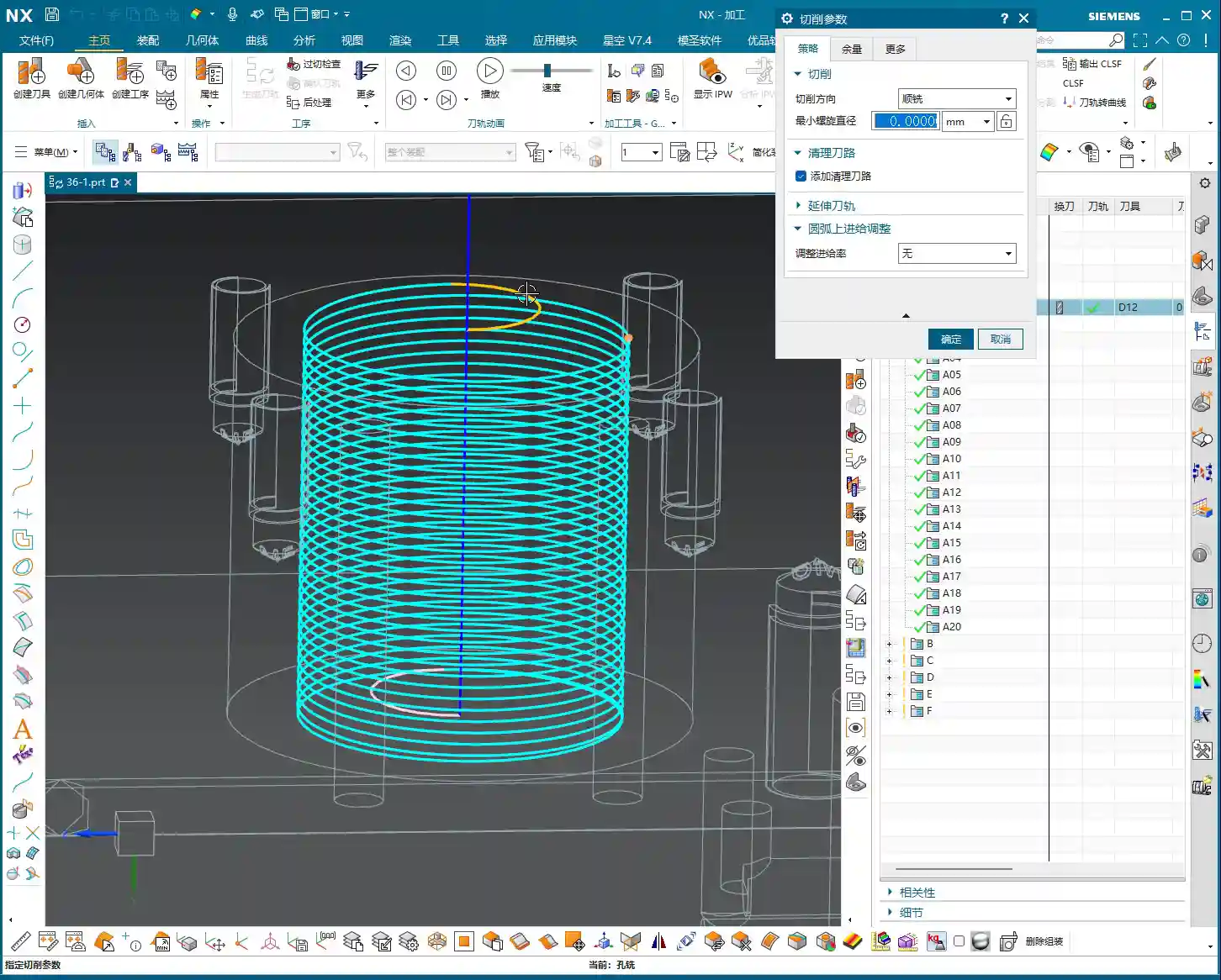
    We’ve pretty much covered the specialized hole features combined with the bottom surfaces we discussed previously. Select a hole, machine it, and you’re done. But have you noticed that it defaults to a single pass, spiraling down along the outer contour? If the hole is small, or if you’ve pre-drilled a pilot hole and left some stock, a single milling pass works fine.

    However, if you encounter a larger hole that cannot be covered in one pass, the default hole milling mode can be a bit awkward. In such cases, I often tell my apprentices: Don’t stubbornly stick to hole milling; if it’s not working, switch to Planar Milling! Treat the hole as a planar region and use the Roughing mode of Planar Milling; you can still achieve the desired result, and often with higher efficiency. Why? Because what is the Hole Milling command best at? It’s about spiraling from top to bottom in a single pass to clean out the hole. That’s its specialty!

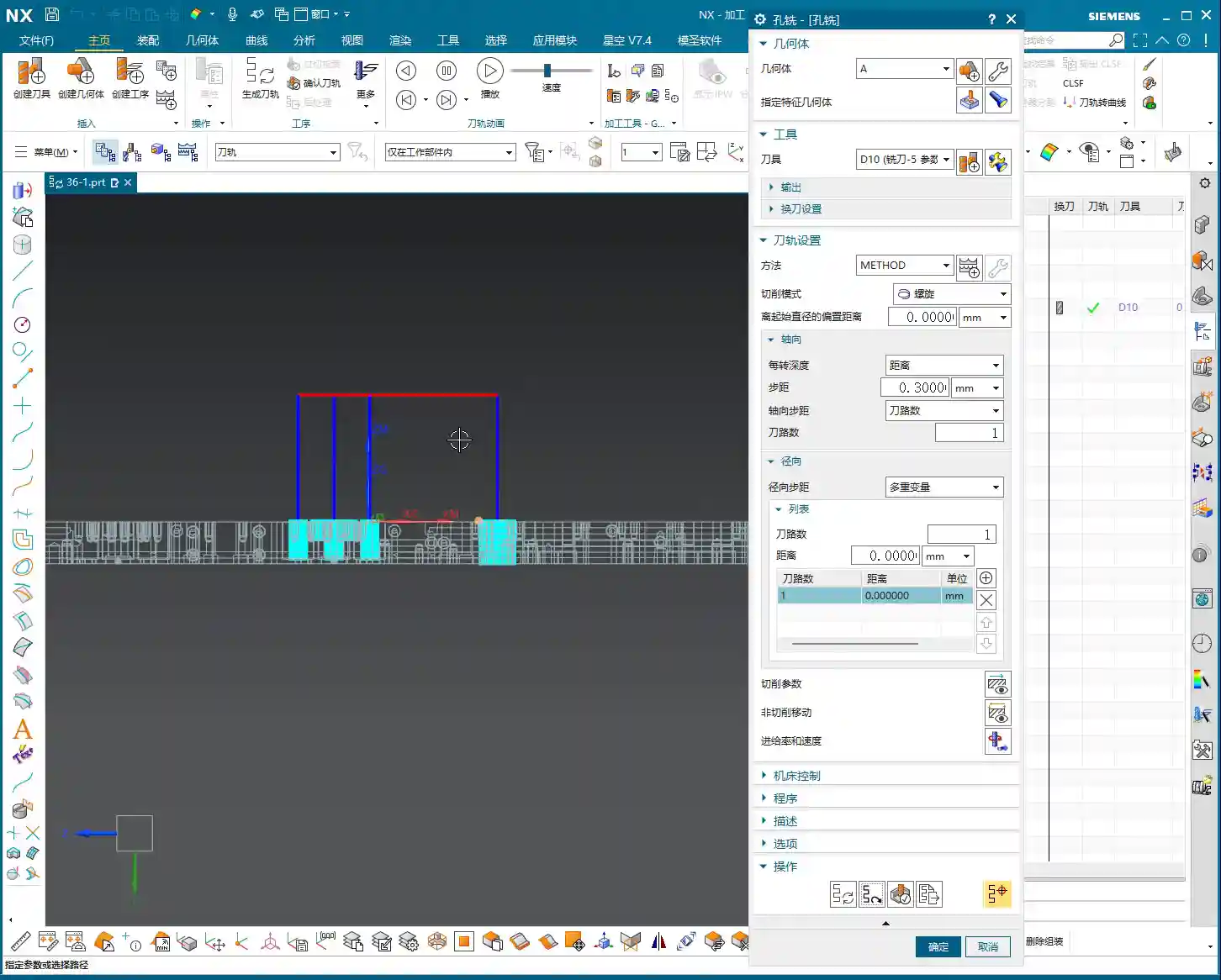
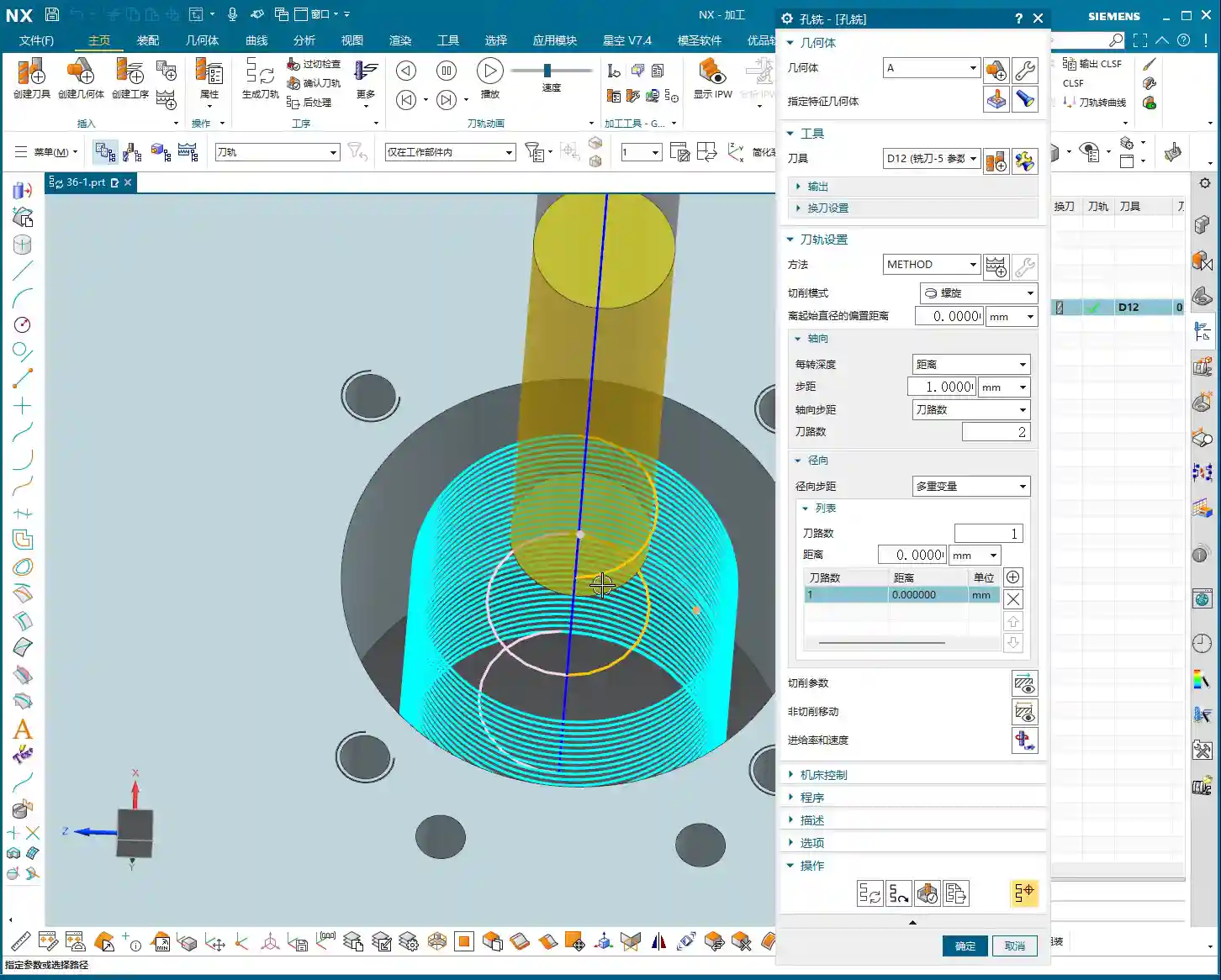
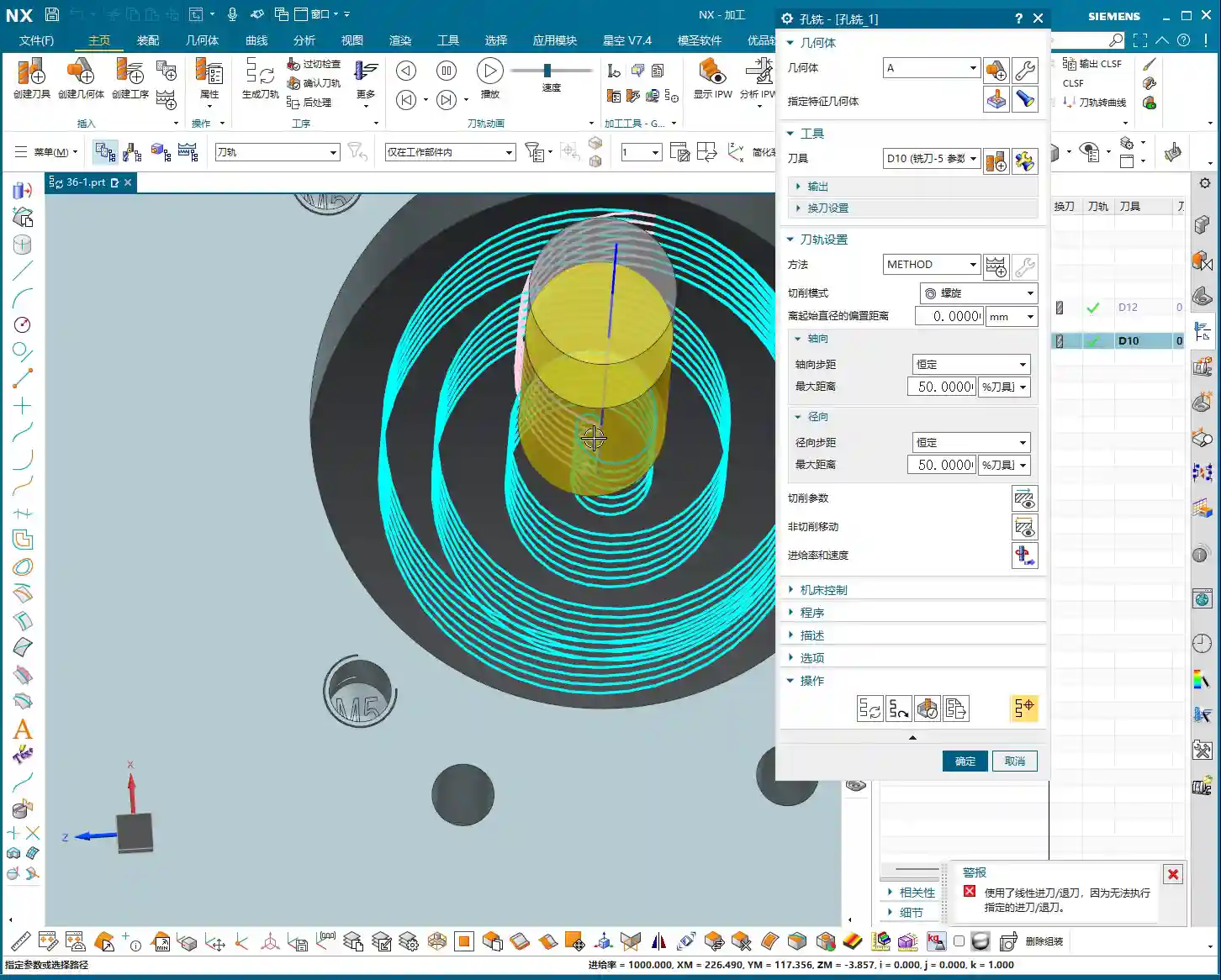
    But then again, it’s Siemens NX; it has many functions. Hole milling can actually achieve similar results to planar milling, but it depends on how you adjust the parameters. Let’s start with the most commonly used “Helical” mode.

    Detailed Explanation of Helical Cutting Mode

    This “Helical” mode is my preferred choice and one I often select in my NX templates. It’s efficient and provides stable cutting. It’s the default, so you can generally use it directly without overthinking. We’ll mainly look at the following parameters:

    Axial Distance (Step-down)

    This Axial Distance, simply put, is how much Depth of Cut (DOC) you take downwards with each helical turn. For example, if I set it to 0.3 mm, the toolpath will be dense, and the cutting force will be uniform. If you set it to 1 mm, the toolpath becomes sparse, and the Depth of Cut (DOC) suddenly increases. Especially with hard materials, uneven tool loading can easily lead to chipped edges or even direct tool breakage! Therefore, this parameter must be determined based on your tool material, workpiece material, and machine rigidity. Don’t just rely on software simulations; observe the actual cutting sparks and sounds!

    Number of Radial Passes (Helical Turns)

    Next is the Number of Passes. For this parameter, I advise you not to mess with it normally! Set it to 1. If you set it to 2, 10, etc., it will divide the milling into several layers. After milling one layer, it will retract the tool, then mill the next layer. This results in too many air cutting moves, significantly reducing efficiency, and the impacts from retracting and re-engaging the tool also increase tool wear. What are we aiming for? One continuous pass, clean and decisive!

    Radial Distance (Toolpath Offset)

    This Radial Distance parameter is quite interesting. The default is 0, meaning it completes one turn. If you set a value, say 10 mm, it will add another pass or several passes on the outer circumference, effectively milling the hole larger. This is precisely to address the issue mentioned earlier, where a tool cannot mill a large hole in a single pass. It will first helical mill the interior, then retract the tool, and then helical mill another circle, offset by 10 mm from the outside. Although this method involves one more tool retraction than a single continuous pass, for large holes that cannot be covered in one go, it’s more flexible than simple planar milling, especially when high verticality of the hole wall is required.

    Remember, these parameters are not rigid; they depend on the size of your chosen tool, the hole diameter, and your cutting strategy. If your set radial distance is greater than the stock remaining for the hole, there will be no room for additional passes, and the software will optimize it out.

    Key Parameters: Top and Bottom Offset

    Next, let’s discuss two very practical parameters that many newcomers overlook but are crucial for protecting tools and ensuring machining quality: Top Offset and Bottom Offset.

    Top Offset: The Tool’s “Soft Landing”

    I’m telling you, this Top Offset is extremely important! It means that the tool will perform an additional air cut for a certain distance above the actual machining top surface before formally starting to cut. For example, if you set it to 10 mm, the tool will start its helical motion 10 mm above the hole’s top surface and then gradually cut downwards. Why do we do this?

    1. Tool Protection: Especially when milling hard materials, if you let the tool “plunge” directly into the workpiece surface to start cutting, the impact force is very high, and the tool tip can easily chip. With Top Offset, the tool makes a “soft landing,” with cutting forces gradually increasing, significantly extending tool life.
    2. Avoid Surface Scratches: Some workpieces require high surface finish, and direct entry can leave scratches on the surface. An initial air cut allows the tool to enter a stable cutting state.
    3. Managing Stock: If your workpiece has remaining stock on the top surface, such as a cast blank, you can adjust this parameter to have the tool start cutting from above the stock.

    Don’t cut corners here, especially during Roughing. Setting a 5-10 mm offset here offers significant benefits.

    Bottom Offset: The “Refined Finish”

    If there’s a Top Offset, there’s naturally a Bottom Offset. This is also easy to understand: it means the tool will mill a little extra at the bottom of the hole. For example, if you set it to 5 mm, it will mill 5 mm deeper than the defined hole bottom. This parameter is mainly used to:

    1. Thoroughly Clear the Bottom: Ensure that burrs and residual stock at the bottom of the hole are cleaned, especially for blind holes or holes with chamfered or filleted bottoms.
    2. Avoid Tool Marks: Sometimes, when the tool cuts to the bottom, minor tool marks may appear due to changes in cutting force. Milling a little extra ensures a flat and smooth bottom.
    3. Address Positioning Errors: If there are minor positioning errors in your workpiece or Z-axis errors in the machine, extending downwards a bit can compensate for these errors, ensuring the actual machining depth meets specifications.

    You can even input a negative value, but that would mean not milling to the design depth, which is generally not recommended. Typically, a 0.5 to 2 mm bottom offset is sufficient.

    Stock and Non-Cutting Moves

    As for Side Allowance (side stock), that’s straightforward: the amount left for the Finishing pass. We control the top stock through Top Offset. These are standard operations and don’t require much elaboration.

    In Non-Cutting Moves, the main focus is on the entry and exit methods. The default Helical Ramp or Arc Lead-in are generally the most suitable, allowing for smooth entry and exit into and out of the cut. This prevents sudden tool impact and reduces Chatter. Unless there are special circumstances, such as an obstruction near the hole, you typically won’t need to consider changing to a Linear Lead-in or similar. If the program is set up correctly, these parameters usually don’t need modification.

    Other Hole Milling Modes and Entry Strategies

    NX has several other hole milling modes, such as helical out-cut, constant helical, and so on. These modes are actually similar to the Roughing strategies in Planar Milling, all designed to progressively enlarge the hole. In actual work, we use them less frequently, primarily relying on the combination of helical entry with Radial Distance.

    Comparison of Various Entry Methods

    Take tool entry, for example. “Linear Lead-in” means plunging straight in, which creates a high impact on the tool. Unless it’s a particularly soft material or the tool is a drill-mill, it’s not recommended. In contrast, “Helical Ramp” and “Arc Lead-in” allow the tool to maintain stability during cutting, reducing impact. Therefore, under normal circumstances, I always have my apprentices choose helical or arc entry; it’s a fundamental skill for tool protection.

    Helical Out-Cut Mode

    There’s also a “Helical Out-cut” mode, which processes the hole spiraling outwards from the center, similar to “inside-out” Roughing in Planar Milling. This mode can also be quite useful in certain situations, especially when the hole diameter is large, and the tool cannot machine the entire hole in one pass. Its advantage is a relatively uniform cutting load, but its drawback is a longer toolpath and potentially more air cutting moves.

    Summary: Pitfall Guide

    1. Mode Selection: For small holes or pre-drilled holes, use the “Helical” mode for a single, continuous pass. For large holes or those that cannot be milled in one pass, prioritize “Planar Milling” for Roughing, or use the “Helical” mode in Hole Milling combined with “Radial Distance.”
    2. Axial Distance (DOC): Set strictly according to material hardness, tool diameter, and machine rigidity; err on the side of smaller values to prevent tool chipping.
    3. Number of Passes: Keep at 1, aiming for a single, continuous pass to improve efficiency.
    4. Top Offset: Essential for Roughing, providing the tool with a “soft landing” and extending tool life. The value is usually set to 5-10 mm.
    5. Bottom Offset: Ensures a clean hole bottom and compensates for minor errors. The value is usually set to 0.5-2 mm.
    6. Entry Method: Prioritize “Helical Ramp” or “Arc Lead-in” for smooth tool entry, avoiding impact.
    7. Parameter Flexibility: Memorizing parameters is useless; the core is to understand the machining logic behind each parameter and its impact on actual cutting, then adjust flexibly according to practical conditions.

    Alright, that’s all for today. In NX Programming, practical experience is key! Watch more, learn more, and get hands-on experience, and you too can become a master!

    👤 About the Author:
    The author is a veteran CNC machining professional with 15 years of industry experience, specializing in UG NX programming. This article is an original work representing personal practical insights.

    ⚠️ Copyright Notice: Unauthorized reproduction or distribution without prior communication is strictly prohibited.

  • Siemens NX Hole Milling Operation: Master Wang’s Hands-on Guide to Feature Geometry Setup and Precis

    📝 Key Takeaways: Master Wang explains the Siemens NX Hole Milling operation and feature geometry. The tutorial emphasizes a 2D machining perspective, detailing common operations like Hole Milling and Drilling. It highlights WCS coordinate system establishment, hole dimension verification, and deeply analyzes the “Specify Feature Geometry” function. Master Wang teaches how to flexibly adjust parameters like diameter and depth from automatic to “User Defined,” and combines this with practical machine operation experience, emphasizing the importance of avoiding overcutting and recognizing cutting sparks. A practical pitfall avoidance guide is included to help you precisely control hole machining in Siemens NX.

    Master Wang’s Talk: The Ins and Outs of Hole Machining

    Alright apprentices, listen up! Today we’re diving deep into hole machining in Siemens NX. This operation might seem simple, but there’s a lot more to it than meets the eye, especially the practical tricks that textbooks don’t teach. You’ll want to pay close attention. We’ll start with the most common Hole Milling operation and its feature geometry. Remember, for now, we’re sticking to 2D machining. Forget about fancy 3D stuff for a moment; let’s build a solid foundation first!

    The Hole Machining Family: Common Operations at a Glance

    There are quite a few operations in NX that deal with ‘holes,’ so let me break them down for you. These are the ones we commonly use in the shop, mostly 2D operations. Understand these first, and then we’ll go deeper:

    • Hole Milling: This is today’s main topic, primarily used for milling holes. It’s highly efficient, especially suitable for machining larger diameter holes.
    • Spot Drilling: Used for creating a center dimple to accurately position the drill for subsequent drilling, ensuring the drill doesn’t wander.
    • Drilling: Directly drilling holes with a drill bit. This is the most fundamental hole machining method.
    • Tapping: For machining threaded holes. This requires extremely precise coordination between spindle speed and feed rate; one mistake and the part is scrap.
    • Centering: Another type of positioning, sometimes used with spot drilling, chosen based on the specific workpiece and precision requirements.
    • Boring: Using a boring bar to enlarge and correct hole diameters, improving accuracy and surface quality. This is key for achieving high-precision holes.
    • Reaming: Using a reamer to fine-tune hole diameters and surface roughness, further enhancing precision and finish.
    • Deep Hole Drilling: A specialized machining strategy for deep holes, requiring consideration of chip evacuation, cooling, and preventing drill runout.
    • Helical Milling: Also known as helical interpolation, using an end mill to machine holes with a helical plunge, resulting in stable cutting and good chip evacuation, suitable for hard materials or large holes.

    As for things like 3D solid contours, 3D chamfering, or 3-axis deburring, don’t rush into those yet. They’re advanced techniques and not used as frequently. We’ll cover them separately if the opportunity arises. For now, focus on mastering these fundamental, commonly used operations!

    Workpiece Preparation: Coordinate System and Hole Dimension Verification

    Before you even think about machining, get your workpiece and coordinate system sorted. This is the absolute first step on the shop floor, and it’s no different in NX.

    Establishing and Positioning the Coordinate System

    In Siemens NX, we first create the Work Coordinate System (WCS). Listen closely, this WCS is as critical as tool offsetting on the machine. It dictates the starting point and direction for all your toolpaths. Typically, we set the WCS origin at the center of the workpiece, or at a reference point that’s easy for tool offsetting. I personally prefer to have the Z-axis pointing upwards, in the direction of our tool feed. It looks right and reduces errors. Don’t underestimate this small habit; it can save your skin when it matters!

    Once the WCS is established, you need to verify it. Even though NX offers simulation, us veteran machinists live by ‘seeing is believing!’ It’s like how you always do a dry run after tool offsetting to confirm clearance. Make it a habit to ensure the WCS positioning is logical to prevent unexpected issues during machining.

    Hole Dimensions: Eye it, Measure it, Know it Cold

    Before machining, you need to be intimately familiar with the holes you’re going to work on. In NX, you can measure the hole diameter and depth. For example, as mentioned, holes might measure Ø32 or Ø20.5. Don’t just rely on the drawing; check the actual model. Are multiple holes symmetrical? Are all dimensions consistent? This is like when you get a new part; you first run a caliper over it to spot any obvious issues. Sometimes there can be ‘hidden traps’ between the design drawing and the actual model.

    Core: Hole Milling Operation and Feature Geometry Explained

    Alright, preparation is complete. Let’s get hands-on with the “Hole Milling” operation.

    Quick Start: Hole Milling

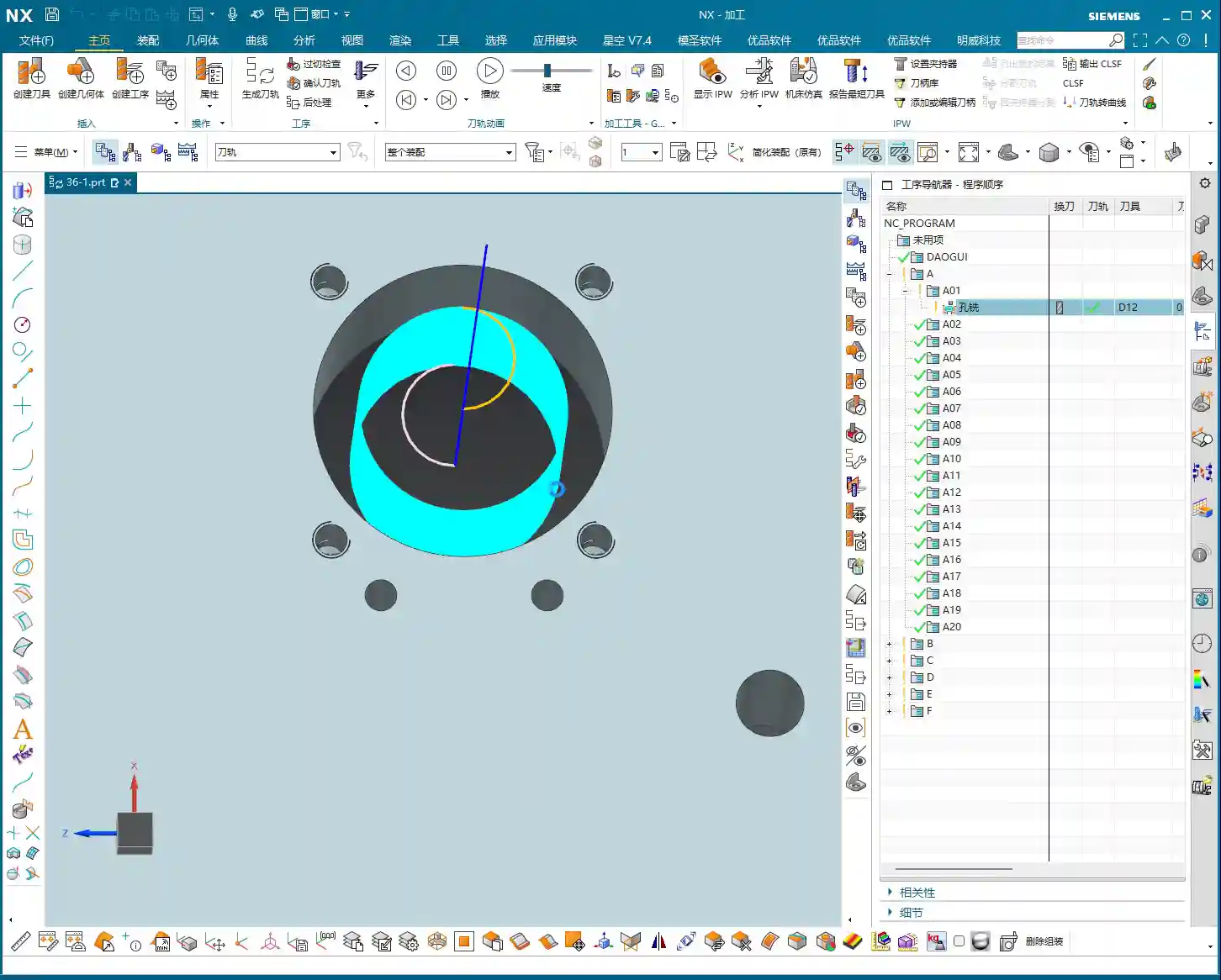
    To perform hole milling, simply double-click the “Hole Milling” operation in NX. Then, in the pop-up window, you need to create a geometry feature, such as selecting the default “A” or your custom geometry. This step tells NX which area you intend to machine. The operation itself is very straightforward, unlike some older operations with tedious steps.

    Specifying Feature Geometry: Selecting the Right “Target” is Key

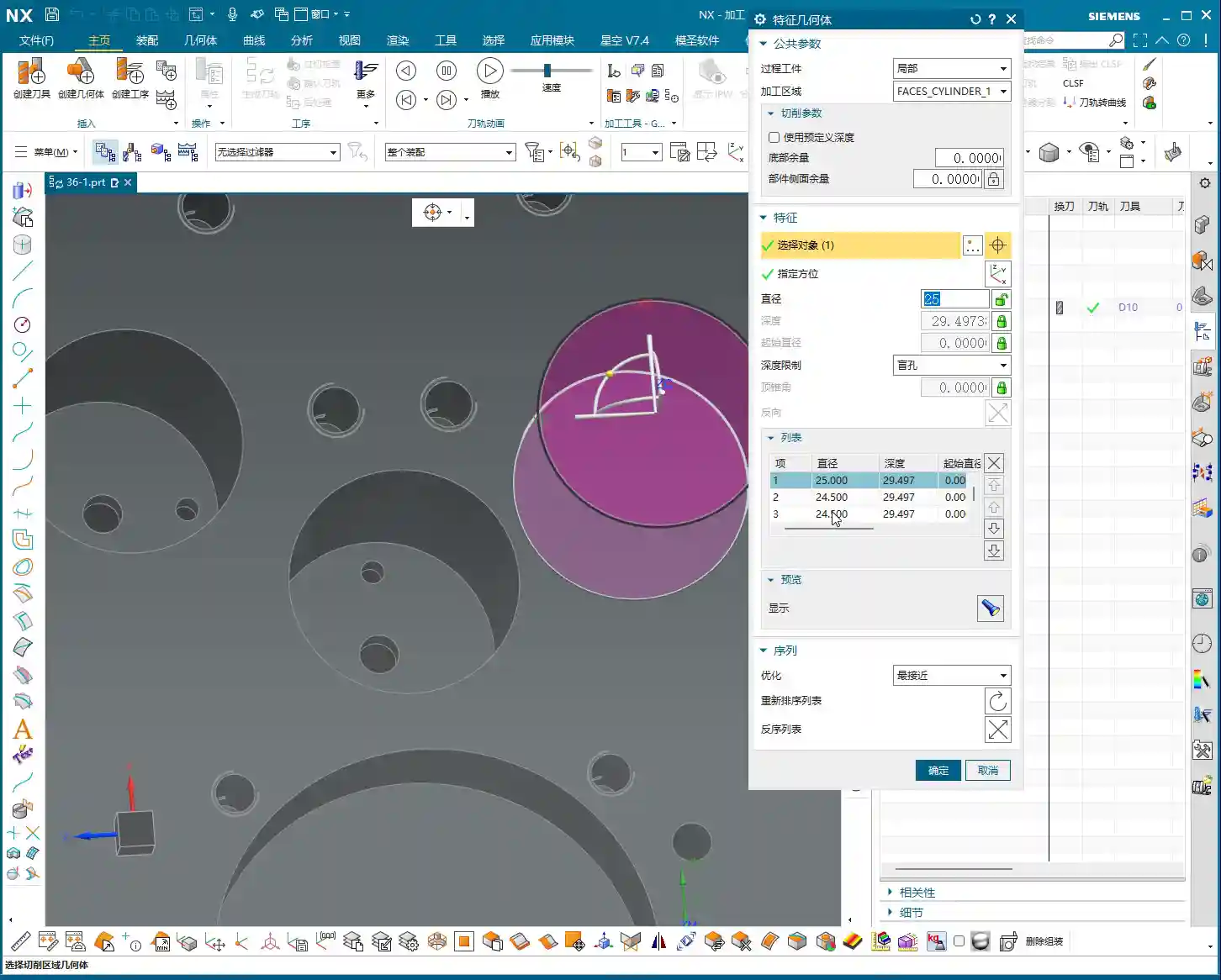
    Listen closely, this is critically important! After entering the Hole Milling operation, you’ll see an option called “Specify Feature Geometry.” Click on it, and NX will prompt you to select the holes you want to machine. This is like standing at the machine and clearly telling the machinist, “Drill this hole, bore that one.” Whichever hole you select, NX will machine that hole. You can select them individually or batch-select multiple holes. Once selected, NX will automatically identify the diameter and depth of these holes.

    • Stock Settings: For now, we can skip options like “Process Tolerance,” “Trim Stock,” or “No Stock.” Stock allowances can be uniformly adjusted in more advanced parameter settings, so there’s no need to fiddle with them here every time. “No Stock” here simply means we generally don’t apply additional stock settings in this particular dialog.
    • Key Information: Once you select the hole, NX will automatically display its diameter (e.g., Ø20.5mm) and depth (e.g., 29.4999mm). These two parameters are the most critical data for hole machining, and you must know them inside out!

    After selecting the holes and a suitable tool, simply generate the toolpath, and a basic hole milling program is ready. Isn’t that simpler than you thought? The key is to select the correct geometry, and NX automatically determines most of the parameters for you.

    Advanced: Flexible Adjustment of Hole Parameters and Precision Control

    While default parameters are convenient, as machinists, we must have the ability to adjust and control them. This is especially true when dealing with non-standard parts, special materials, or when precision issues arise.

    Modifying Hole Diameter: From “Automatic” to “User Defined”

    You might notice that, by default, NX’s automatically identified hole diameter and depth cannot be directly modified; they appear “grayed out,” preventing input. Listen up, this isn’t NX stopping you from making changes; it simply thinks it has already determined the correct values for you. But if we need to make an adjustment, we have to tell it, “We’re taking control.”

    To modify the hole diameter, you must change the corresponding “Parameter Definition Method” or similar option (referred to as “decimal” in the audio, but usually a dropdown menu in actual operation) from “Automatic” to “User Defined.” Once set to “User Defined,” you can freely input your desired diameter.

    • Practical Example: For instance, changing a Ø20.5mm hole to Ø25mm. NX won’t throw an error, but when you generate the toolpath, you’ll see obvious “overcutting.” At this point, don’t just rely on software simulation; you need to know that on a real machine, one cut like that, and the part is scrap! This scenario can easily lead to excessive Depth of Cut (DOC) or even scrap the part directly. Don’t assume there’s no problem just because the software doesn’t flag it; that’s deceptive!
    • Flexible Adjustment: You can decrease the diameter to Ø20mm or increase it to Ø50mm, and NX will generate the toolpath according to your input. This is particularly useful when dealing with non-standard holes, irregular holes, or when needing to leave stock for finishing passes. However, you must be absolutely clear in your mind whether the modified dimension matches your tool and meets your process requirements.

    Adjusting Hole Depth: Precise Control for Deep Hole Machining

    Similarly, hole depth can also be flexibly adjusted. For example, you can set the depth of the first hole to 10mm, the second to 20mm, the third to 50mm, or even a deeper 100mm. This is crucial for machining multi-step holes, blind holes, or holes with varying depth requirements. Depending on material properties and tool conditions, we sometimes employ strategies like layered machining or pecking for chip evacuation, and flexible depth control is fundamental to implementing these strategies.

    Batch Modification: Efficiency is King

    If you have multiple holes of the same size that need adjustment, there’s no need to change them one by one. In the “Specify Feature Geometry” interface, you can hold down the Ctrl key to select multiple holes, or drag-select multiple holes, then change their “Parameter Definition Method” to “User Defined” all at once, and finally input your desired diameter or depth. This is a powerful trick for boosting efficiency. In our machining world, time is money, so save every step you can!

    Master Wang’s Practical Secrets: Fine-Tuning Dimensions and Tolerances

    Sometimes, when you encounter precision issues at the ±0.005mm (approx. 0.0002 inch) level, software alone won’t cut it. That’s where experience comes in! For example, machining aluminum versus titanium alloys – their thermal expansion coefficients differ, so cutting parameters and stock allowances must be adjusted. If a hole’s diameter is slightly off, you can achieve the correction by modifying tool compensation, or by fine-tuning the diameter of this feature geometry within Siemens NX. But remember, such fine-tuning must be built upon a deep understanding of material characteristics, tool wear, and machine accuracy. Don’t just rely on software simulation; you need to observe the cutting sparks, listen to the cutting sound, and feel the part. Those are the true skills!

    Summary: Pitfall Avoidance Guide

    • Pitfall 1: Blindly trusting default parameters. NX’s automatically identified parameters are based on the model, but they may not always align with your actual machining requirements. Especially for hole diameter and depth, always verify against the print and process specifications, and modify manually when necessary.
    • Pitfall 2: Failing to verify after modifying parameters. After changing diameter or depth, always regenerate the toolpath and perform simulation verification. More importantly, you must be mentally prepared and understand whether this modification will lead to overcutting, tool breakage, or dimensional deviations on a real machine. Just because the software doesn’t throw an error doesn’t mean the machine won’t!
    • Pitfall 3: Neglecting precise positioning of the coordinate system and workpiece. The accuracy of all hole machining operations relies on an accurate WCS. If the WCS isn’t correctly set, all subsequent holes will be off, the part will be scrapped, wasting both time and material.
    • Pitfall 4: Disregarding material characteristics. Different materials (from common aluminum to titanium alloys, high-temperature nickel-based alloys) have vastly different cutting parameters, tool selections, and heat treatment distortion tendencies. These factors must be fully considered during machining, for instance, for materials sensitive to thermal deformation, layered feeds and cooling methods must be accounted for.
    • Pitfall 5: Only focusing on the toolpath and ignoring cutting sparks. No matter how realistic Siemens NX simulation is, it’s still virtual. To truly judge the machining status, you need to rely on your eyes and ears. Spark color, chip formation, and tool sound – these are the machine “speaking.” An experienced machinist can discern issues like excessive Depth of Cut (DOC) or chipping from these details.
    • Pitfall 6: Fearing user-defined parameters. Many beginners are afraid to change automatic parameters to user-defined, thinking it leads to errors. But to become a master, you must grasp this ability for flexible adjustment. While ensuring safety, try more, learn from your experiences, and only then can you truly master Siemens NX.

    Alright, that’s it for today’s lesson. Go home and digest all of this. Get hands-on and practice; you won’t learn just by listening!

    [EXCERPT]
    Master Wang explains the Siemens NX Hole Milling operation and feature geometry. The tutorial emphasizes a 2D machining perspective, detailing common operations like Hole Milling and Drilling. It highlights WCS coordinate system establishment, hole dimension verification, and deeply analyzes the “Specify Feature Geometry” function. Master Wang teaches how to flexibly adjust parameters like diameter and depth from automatic to “User Defined,” and combines this with practical machine operation experience, emphasizing the importance of avoiding overcutting and recognizing cutting sparks. A practical pitfall avoidance guide is included to help you precisely control hole machining in Siemens NX.

    👤 About the Author:
    The author is a veteran CNC machining professional with 15 years of industry experience, specializing in UG NX programming. This article is an original work representing personal practical insights.

    ⚠️ Copyright Notice: Unauthorized reproduction or distribution without prior communication is strictly prohibited.
  • Practical Analysis of Planar Milling in NX: Master Wang’s Step-by-Step Guide to Efficient **Roughing

    📝 Key Takeaways:

    Practical Planar Milling in NX

    Introduction…

    Introduction: Master Wang Reviews Planar Milling Fundamentals

    Hello everyone, I’m Master Wang! Last time, we thoroughly explained the intricacies of planar milling, covering both GSM and legacy planar milling operations. Today, let’s dive into a practical exercise. We’ll take this part on hand and program it from start to finish. Listen up, follow my thought process, and see how this job is done. I’ll share all the practical tricks you won’t find in textbooks, explaining them all to you today!

    Part Analysis and Tool Selection Strategy

    Part Feature Interpretation: Dimensions and Challenges

    First, let’s analyze this part’s characteristics. Looking at its edges, some areas have small R6 fillets. This means you can’t use a tool with a diameter greater than 12mm (approx. 0.47 inch) to cut them aggressively, or you definitely won’t achieve a clean finish, and might even cause a tool crash. Most other corners are larger and relatively easier to handle. As for the holes, we’ll be machining the two larger ones on top, and the central 14mm (approx. 0.55 inch) diameter hole. We can set aside the other smaller holes for now; they are not the main focus for planar milling.

    Roughing Tool Selection and Overall Approach

    Since efficiency is key, the first step is always **roughing**. My approach is to first remove most of the material with a larger tool, then use a smaller tool for detail **finishing passes** in the corners. Here, we can directly select a D32 R0.8 (approx. D1.26 inch, R0.031 inch) corn cutter. Why this one? Because it’s large enough, offers high cutting efficiency, and can quickly rough out the part’s general contour. Don’t worry about those small R6 fillets for now; we’ll address them later during **corner cleanup**.

    Practical NX Operations: Stock Definition and Roughing

    Stock Definition and **Work Coordinate System (WCS)** Setup

    Alright, listen up! In Siemens NX, the first thing we need to do is define the stock. The simplest method is to use a Bounding Block. First, select the part, then generate it with a single click, essentially creating an ‘outer shell’ for it. Next is the crucial WCS (Work Coordinate System). I typically set it on the bottom face of the part, which makes subsequent depth control more intuitive and accurate. Remember, the position and orientation of the coordinate system must match your machine’s **clamping** or **fixturing** method. This is the fundamental basis for avoiding errors!

    Operation Creation: Planar Milling Roughing

    Next, let’s create the operation. Select the Face Milling operation.
    Tool: The previously selected D32 R0.8 (approx. D1.26 inch, R0.031 inch).
    Machining Area: Select the entire bottom face of the part; we’ll mill it flat first.
    Now for the critical part: **Allowance Settings** (or “Stock to Leave”)! To ensure enough material for subsequent **finishing passes**, I’ll leave 0.1mm (approx. 0.004 inch) on the bottom face and 0.2mm (approx. 0.008 inch) on the side walls. These values are empirical; they can be adjusted based on material and accuracy requirements. Don’t underestimate this small amount of stock—it directly impacts tool life and surface finish during **finishing passes**. Finally, generate the tool path. First, review the results to ensure the tool path covers the entire machining area with no missed regions. This **roughing** program is essentially complete.

    Open Boundary and Internal Hole/Slot Machining Strategies

    Boundary Roughing: Planar Profile Milling

    Once the bottom face is roughed, next we’ll address the external contours. Here, we’ll use Planar Profile Milling. We’ll continue to use the same D32 R0.8 (approx. D1.26 inch, R0.031 inch) tool. For the geometry, select the part’s outer contour, which is an open area. Here’s the key: **Approach Method** (or “Entry Method”)! Many beginners prefer arc entry, thinking it looks cleaner, but in **roughing** scenarios like this, arc entry can leave marks at the starting point and even lead to excessive localized **depth of cut (DOC)**. I recommend switching directly to linear entry, with a percentage of 60%, no extension, and a height of 0. This creates a more stable entry path and avoids unnecessary interference. Regarding cutting parameters, the stepover can be adjusted to around 50%, allowing it to cut back and forth, efficiently clearing the peripheral material. Don’t just rely on software simulation; observe the cutting sparks and chip formation—that’s the true feedback of what’s happening!

    Internal Hole/Slot **Corner Cleanup** and Helical Milling

    With the external contour handled, now it’s time for the internal holes and corners. First, for the internal **corner cleanup**. During previous **roughing**, the D32 (approx. D1.26 inch) tool would certainly leave many corners untouched. Now we’ll use a D10 (approx. D0.39 inch) tool. Don’t ask why not a D16; my experience tells me that if you want to cleanly machine an R6 fillet, going straight to a smaller tool like a D10 is more efficient, saving you a tool change. Use Planar Profile Milling for **corner cleanup** in these internal enclosed areas. Select the corresponding boundaries, again leaving 0.2mm (approx. 0.008 inch) for side walls and 0.1mm (approx. 0.004 inch) for the bottom face.
    Next, for those larger holes, such as the 14mm (approx. 0.55 inch) diameter one. For holes like these, Helical Milling (Contour Profile – Helical) is most suitable. Using the same D10 tool, select the inner wall of the hole as the machining boundary. Allow the tool to feed in a helical manner; this results in more stable cutting and a better surface finish on the hole wall, avoiding the impact of a direct plunge. The default helical entry method here is perfectly fine.

    Master Wang’s Mini-Lesson: Tool Path Optimization and Practical Experience

    Listen up, programming isn’t just about generating tool paths; more importantly, it’s about optimization.
    Cutting Efficiency: As with the previous **roughing** operation, we used a large tool like the D32 (approx. D1.26 inch) to remove as much material as possible. **Stepover** and **depth of cut (DOC)** must be determined in conjunction with machine rigidity and material hardness. Don’t blindly aim for large values; if the tool starts to **chatter** or experience **tool deflection** as soon as it engages, that’s definitely not acceptable.
    Tool Life: The entry/exit methods and the setting of cutting parameters all influence tool life. For instance, changing from arc entry to linear entry earlier was specifically to prevent premature localized tool wear.
    Tolerance Control: Before the final **finishing pass**, ensure that the roughing stock allowance is uniform. If the roughing allowance is uneven, the tool will experience unbalanced cutting forces during **finishing**, making tolerance control difficult. For tolerances like ±0.005mm (approx. ±0.0002 inch), you must learn to use **machine compensation** or fine-tune feed rates and spindle speeds to control cutting forces and minimize deformation.
    Don’t just rely on software simulation; observe the cutting sparks and listen to the machine’s sound. The spark color and chip shape—these are all experience-based insights you won’t learn from textbooks!

    Summary: Pitfall Avoidance Guide

    Finally, Master Wang will give you some more practical tips. These are all pitfalls I’ve encountered, so you can avoid making the same mistakes.
    1. Tool Selection: From large to small, from rough to finish. This is a fundamental principle; don’t try to achieve everything in one step, especially with complex parts.
    2. Stock Definition: Must be accurate. If the stock definition is inaccurate, the tool path can easily lead to air cuts or tool crashes.
    3. Coordinate System Setup: Must align with fixturing. This is fundamental—a weak foundation will crumble.
    4. Approach/Retract Strategy: Smooth transitions. Especially during **roughing**, avoid sudden engagements or exits, which can cause excessive **depth of cut (DOC)** and affect both surface finish and tool integrity.
    5. Allowance Control: Leave sufficient material for finishing. Too little roughing allowance makes it difficult to achieve precision in **finishing**; too much burdens the **finishing pass**.
    6. Practical Observation: Be highly observant of your surroundings. The sound of the machine, the flow of coolant, the color of sparks, the shape of chips—these are all direct feedback on whether your programming parameters are reasonable. Don’t just stare at the screen watching NX simulations; that’s just theory. Actual machining is the only true test.
    7. Material Properties: Don’t forget to consider them. Cutting parameters and tool wear differ significantly for various materials, so keep this in mind when programming. For example, would you dare machine titanium alloys or superalloys the same way you mill aluminum? That’s just burning up your tools!

    👤 About the Author:
    The author is a veteran CNC machining professional with 15 years of industry experience, specializing in UG NX programming. This article is an original work representing personal practical insights.

    ⚠️ Copyright Notice: Unauthorized reproduction or distribution without prior communication is strictly prohibited.

  • Siemens NX Engraving Challenges? Master Wang’s Hands-on Guide to Planar Profile Milling for Engravin

    📝 Key Takeaways: Master Wang provides a step-by-step explanation of the complete process for planar profile milling engraving in Siemens NX: from text creation and tool selection to depth layering and retraction optimization. Combining practical experience with Siemens NX programming techniques, he teaches you to avoid common pitfalls, improve engraving accuracy and efficiency, eliminate burrs, and make your parts more exquisite!

    Hello everyone, Master Wang here. Today, we’re cutting straight to the chase: planar profile milling for engraving in Siemens NX. Don’t let this “small job” fool you; there’s a lot more to it than meets the eye. Many think engraving is simple, but they quickly run into issues like burrs, inaccurate cuts, or excessive tool retraction, wasting valuable machining time. Don’t worry. Today, I’m pulling out all my hard-earned, real-world experience—the kind of practical know-how you won’t find in any textbook.

    Step One: Engraving Preparation – Standardized Text Creation

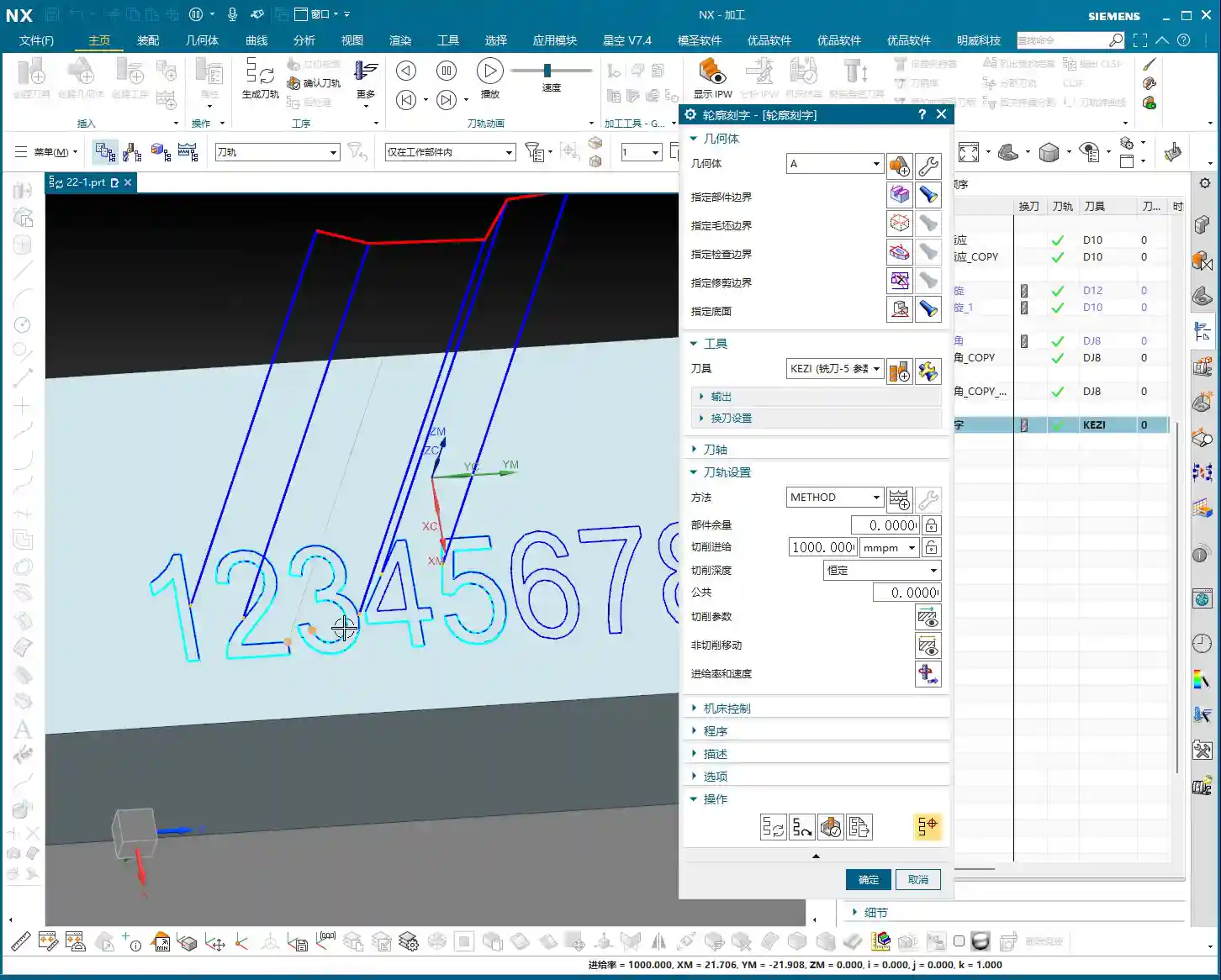
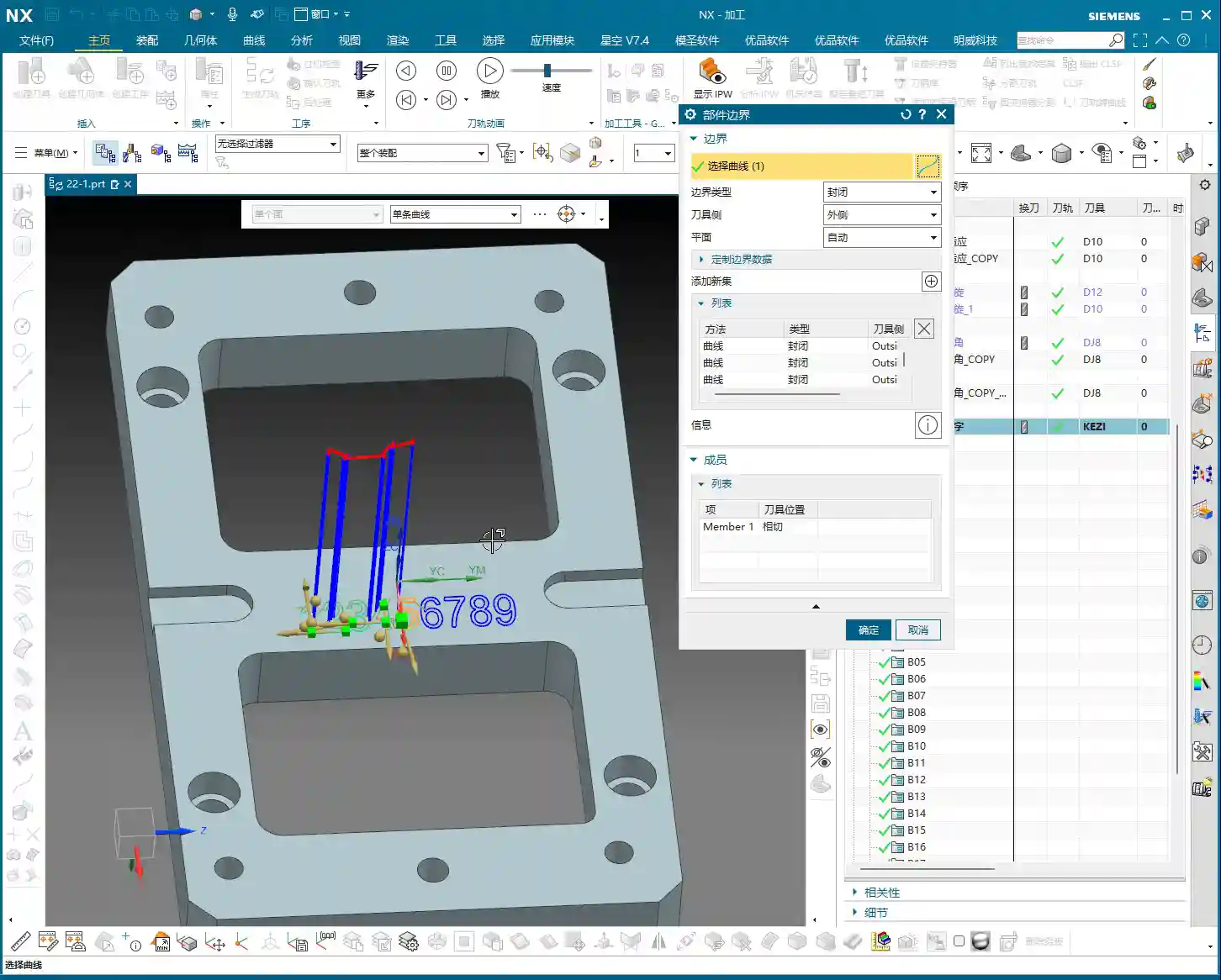
    Listen up. This first step, text creation, is crucial—don’t skimp on it. Well-defined text is the foundation for your engraving; get it right here, and CAM programming becomes much smoother. Head over to the Modeling module and find the “Text” function.

    Selecting the Datum Plane and Text Content

    Where do you want your text engraved? Select that specific face or curve as your datum. Typically, we engrave on flat surfaces of the workpiece, so just selecting a face will do. Then, input the text you want to engrave—it can be numbers, letters, or even Chinese characters; Siemens NX handles them all. Here’s a pro tip: Text size and font style should be planned upfront to match your desired final engraving. Don’t wait until the toolpaths are generated to realize the text is too small or the font is wrong; rework is a headache.

    Step Two: Siemens NX Planar Profile Milling Operations – The Core of Engraving

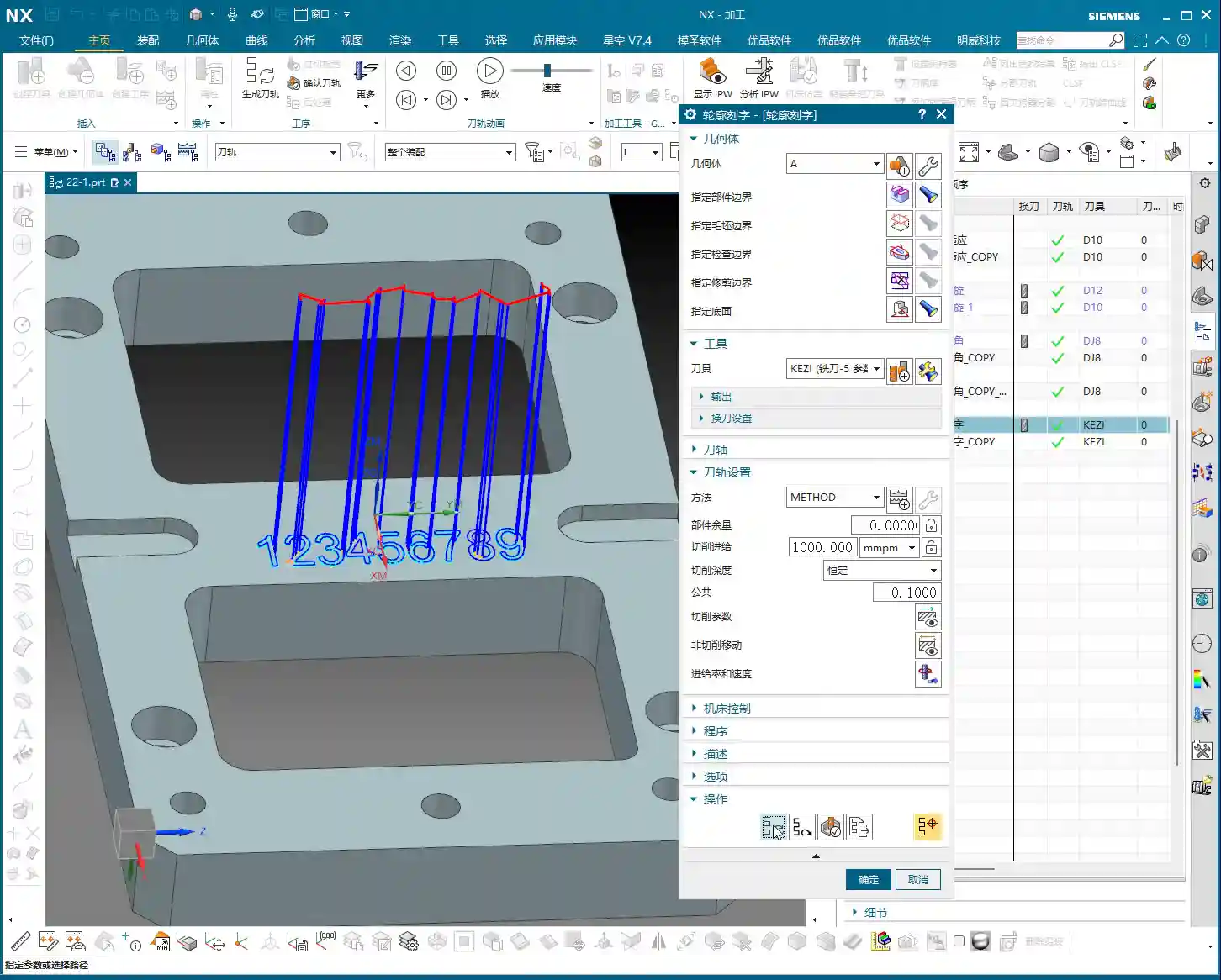
    Once your text is created, we move into the Manufacturing module. In the Operation Type, select “Mill Planar”. Then, for Program Type, choose “Planar Profile”. And the Subtype, which is our focus today, will be “Engraving”. These two are the golden combination; you can’t have one without the other.

    Defining Machining Geometry: Correct Contour Selection is Key

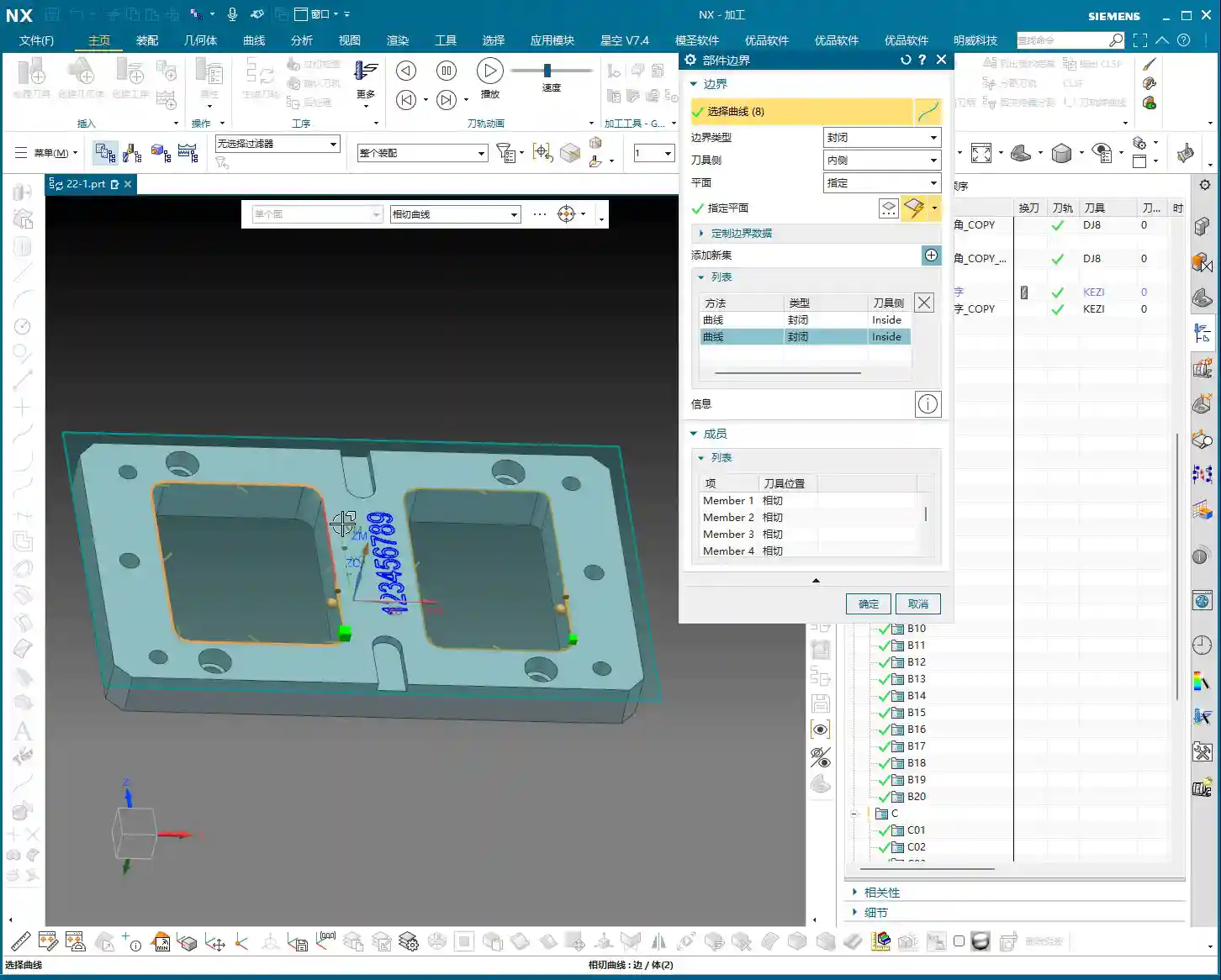
    This step is critical, and where new users often make mistakes. Our goal is engraving, so for Part Geometry, you must select the text curves you just created. Click carefully, ensuring no letters are missed or extra entities selected. Verify that all desired text is highlighted.

    Next is to specify the bottom face. This bottom face serves as the “zero point” for your engraving, relative to which the tool will reach your programmed depth. This face *must* be the same plane where your text was created. Choose incorrectly, and your toolpath might shoot into thin air, or worse, plunge right through your workpiece—a disaster you want to avoid.

    Tool Selection: The Science and Art of Engraving Tool Grinding

    Engraving demands precision. That’s why we need engraving tools, often referred to as engraving cutters or pointed end mills, which have a very small, or even sharp, tip radius. I typically opt for carbide tools with a diameter of 0.5mm or even finer. The smaller the tool, the clearer the engraved text, especially for complex Chinese characters with many strokes. Remember, the cutting edge must be sharp—this is critical for preventing burrs. Sometimes, standard tools just don’t cut it, and we have to grind our own, custom-making a tool with a specific angle and custom tip radius. That’s real craftsmanship, not something you learn just by watching Siemens NX tutorials. When grinding, be patient and ensure a high-quality finish on the cutting edge.

    Cutting Parameter Setup: The Art of Depth and Layering

    Cutting parameters are core to determining engraving quality and efficiency. In this area, we need to adjust based on the actual material and tool.

    • Depth of Cut (DOC): How deep do you want to engrave? Simply enter a negative value in “Floor Stock”. For instance, if you want to engrave 0.5mm deep, set it to -0.5mm. This negative value indicates the tool will cut below your specified bottom face.

    • Multiple Passes (Layered Cutting): If the engraving is relatively deep, say over 0.5mm, or if you’re working with hard materials (like titanium alloys or high-temperature nickel-based alloys), you cannot cut it in a single pass. You absolutely must use multiple passes (layering). In “Depth of Cut” or “Maximum Roughing Stepdown” (depending on your Siemens NX version and operation type), set a small stepdown, for example, 0.1mm. By taking layers, the tool won’t chip, and the workpiece won’t deform due to excessive force. Especially for hard materials, layering is the infallible way to protect both your tool and your part.

    • Cutting Direction: Engraving typically follows the contour line, so the choice between “Inside” or “Outside” is crucial. Usually, when engraving, we want to hollow out the text, so you should select “Inside”. If you select incorrectly, you might end up cutting away the area *around* the text, leaving raised letters—which is the opposite of what we’re trying to achieve with engraving.

    Retraction and Lead-in/Lead-out Optimization: Minimizing Air Cuts and Boosting Efficiency

    Tool retraction is an art. Don’t just watch the software simulate high retractions; on a real machine, that’s pure wasted time. Especially for small, dense machining like engraving, frequent high retractions severely drag down efficiency.

    • Transfer Method: In “Non Cutting Moves”, set “Transfer between Regions” to “Previous Plane” or “Clearance Plane”. And try to keep the clearance distance as small as possible. The ideal scenario is “Surface Tracking Rapid”; as long as you ensure no interference, the tool can rapidly move along the workpiece surface to the next machining position, drastically reducing air cutting time.

    • Lead-in/Lead-out Methods: For fine paths like engraving, “Ramp-in” is an excellent choice. The tool smoothly enters the material, reducing impact and minimizing tool wear. Directly “Plunging” isn’t strictly forbidden, but it creates greater impact on both the tool and material, often leading to chipping or degraded workpiece surface quality. So, if you can ramp-in, do it—that’s a piece of wisdom from experience.

    Step Three: Simulation and Real-world Verification – Cutting Sparks Don’t Lie

    No matter how realistic Siemens NX toolpath simulation is, it’s still theoretical. When you’re actually on the machine, you need to observe the cutting sparks and listen to the cutting sound—those are your truest forms of feedback.

    Observing Cutting Conditions and Adjusting Machining Parameters

    If the sparks are uniform and the sound is stable, it indicates the tool’s Depth of Cut (DOC) is appropriate and machining is stable. If the sparks are erratic or the sound is sharp and grating, it could mean the feed rate is too high, the spindle speed is incorrect, or the tool is worn. In such cases, you must immediately stop the machine, inspect, and adjust your parameters. Don’t just rely on simulation; trust your eyes and ears—they are your most direct sensors.

    Considering Accuracy Errors: The Challenge of ±0.005mm

    If your engraving demands exceptionally high precision, like ±0.005mm (approx. ±0.0002 inch), you must account for machine geometric errors and thermal deformation. I’ve seen too many new apprentices whose toolpath programs are flawless, yet they can’t achieve the required accuracy. In such cases, we need to implement process compensations, such as adjusting tool offsetting, altering the cutting path (e.g., switching from conventional to climb milling, or vice versa), or even anticipating deformation during clamping/fixturing. These are the practical skills you won’t learn from textbooks; they require experience and a deep understanding of the machine.

    Step Four: SEO Mini-Lesson – Get Your Precision Engraving Noticed

    Doing great work isn’t enough; you also need to promote it effectively. No matter how technically advanced your precision engraved parts are, they’re useless if clients can’t find you. As Master Wang, I don’t just machine high-precision parts by hand; I also know how to get these products discovered by clients online.

    Practical Strategies for Industrial Product Promotion

    So, how do you get potential clients to find your Siemens NX engraving services? It’s simple. Describe your work in professional language, write more technical articles, and share your experience with Siemens NX toolpath optimization, layered cutting techniques, and solutions for engraving special materials (e.g., titanium alloys, stainless steel). Complement this with high-definition images and videos to showcase your machining capabilities and finished part quality. And don’t forget: keyword placement is the golden rule of search engines:

    • Exact Match Keywords: “Siemens NX Engraving Programming”, “NX Engraving Machining”, “CNC Precision Engraving Services”, “Metal Surface Engraving”.
    • Long-Tail Keywords: “Siemens NX Planar Profile Milling Engraving Tutorial”, “High-Speed Engraving Solutions”, “Micro Tool Engraving”.

    Publish more original content that addresses customer pain points. For example, questions like “How to eliminate burrs in engraving?” or “What tool to use for titanium engraving?” are what clients search for. Your professional answers will be your best calling card.

    Summary: Pitfall Avoidance Guide

    Alright, today we’ve thoroughly covered the ins and outs of planar profile milling for engraving in Siemens NX. To summarize, if you want to produce exceptional engraving work, remember these key points to save yourself a lot of trial and error:

    1. Precise Boundary Selection: The text curves must be selected correctly. Pay special attention not to confuse “Inside” with “Outside”; engraving typically means cutting inwards.
    2. Sharp and Appropriately Sized Tools: Lean towards smaller rather than larger. The cutting edge is paramount. If necessary, grinding your own tools is a true skill.
    3. Depth Control with Negative Stock: Enter a negative value in “Floor Stock”. For deeper engravings, always use multiple passes (layered cutting). Set a small stepdown to protect the tool and improve surface quality.
    4. Optimize Retraction Paths: Don’t let the tool constantly retract to high clearances. Set “Transfer between Regions” to “Previous Plane” or “Clearance Plane”, and reduce the safety distance to minimize air cutting time. Prioritize “Ramp-in” for lead-in moves.
    5. Observe Real-Time Machine Status: Don’t solely rely on software simulation. Cutting sparks and sound provide the most accurate feedback. Adjust parameters promptly if issues arise; this is crucial to avoid batch scrap.
    6. Don’t Forget to Promote Your Skills: Even excellent products require marketing. Utilize SEO and original content to ensure your precision engraving services are discovered by more clients!

    Practice often, observe closely, and summarize thoroughly. Master these insights, and your machining skills will undoubtedly reach the next level!

    👤 About the Author:
    The author is a veteran CNC machining professional with 15 years of industry experience, specializing in UG NX programming. This article is an original work representing personal practical insights.

    ⚠️ Copyright Notice: Unauthorized reproduction or distribution without prior communication is strictly prohibited.
  • Master Wang’s Practical Guide to Siemens NX Planar Profile Chamfering: From Beginner to Expert, with

    📝 Key Takeaways: Master Wang walks you through Siemens NX planar profile chamfering. From parameter settings to tool selection, this guide provides an in-depth analysis of the practical secrets behind “Allowance” and “Final Bottom Allowance,” teaching you how to precisely control chamfer size and tool cutting point to prevent tool chipping and improve machining efficiency.

    Hello everyone, Master Wang here. Today we’re continuing our discussion on NX machining, focusing on the chamfering function within Planar Profile Milling. This might seem straightforward, but there are a lot of hidden intricacies, especially with the parameter settings. One wrong step, and you’ll scrap your tool and ruin the job. Listen up – today, I’m going to share all the practical tricks you won’t find in textbooks.

    I. Core Chamfering Operation Workflow

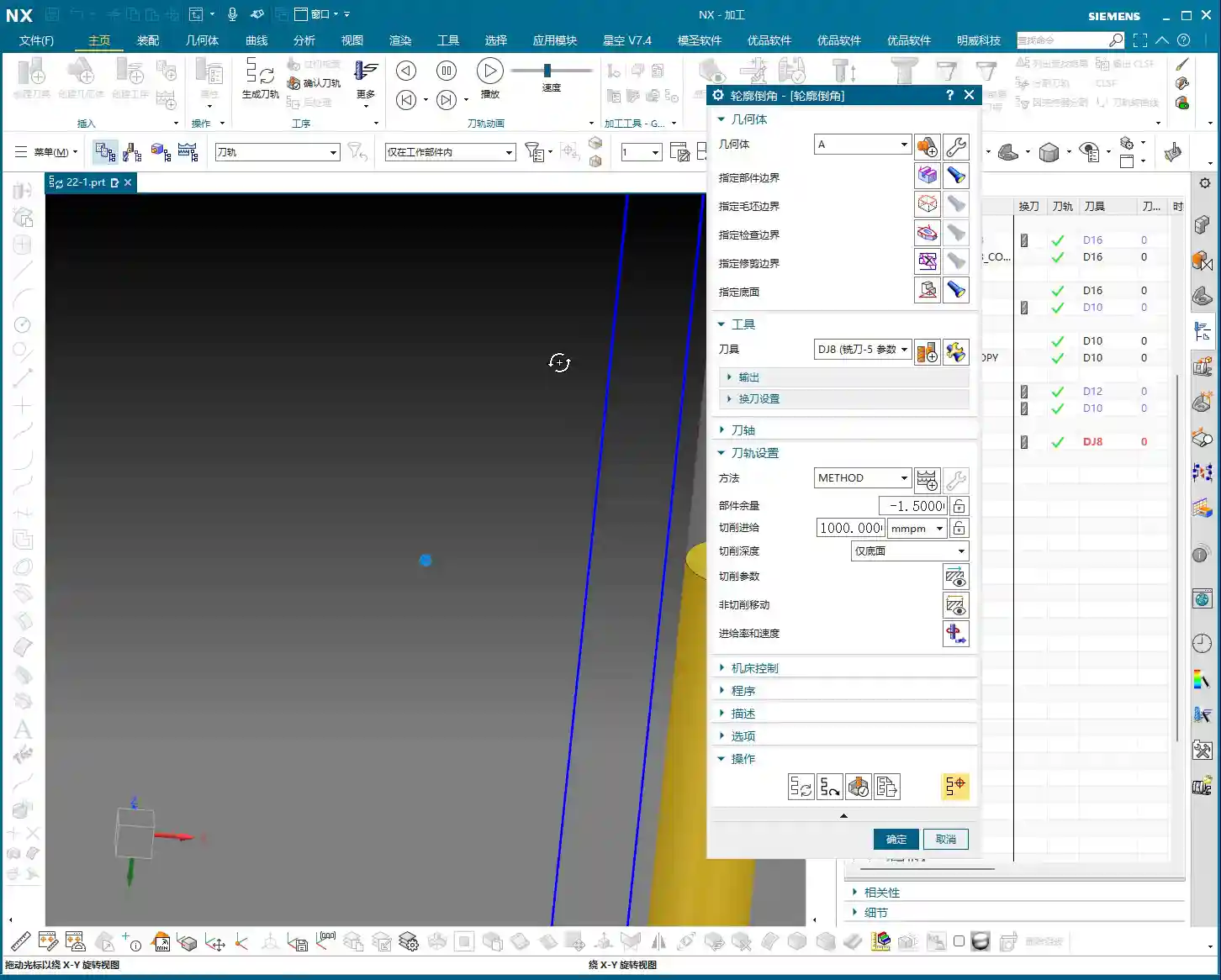
    When doing any machining operation in NX, we generally follow a “three-step” strategy: Select Geometry, Select Tool, Generate Toolpath. Chamfering is no different, but success lies in the details.

    1.1 Geometry Selection: The Mystery of Top and Bottom Faces

    Let’s open the “Profile Chamfer” function. First, you need to tell the software which edge to chamfer. Typically, we select the edge or curve that requires chamfering.

    There’s a common, oft-repeated question here, but it’s especially crucial for chamfering: the software will ask you to select “Top Face” and “Bottom Face”. Listen up: when performing planar profile chamfering, “Top Face” and “Bottom Face” actually refer to the same face – the plane where your chamfer feature is located. For instance, if you’re chamfering a hole on a flat plate, just select the top face of the plate for both the top and bottom faces. Don’t overthink it; unlike deep cavity milling which requires an actual bottom face, chamfering is primarily based on a single edge.

    • Select Edge: For example, the edge of a round hole, or the outer boundary of a planar profile.
    • Specify Plane: Select the plane containing the edge you want to chamfer. For profile chamfering, both the upper and lower planes can typically be the same.

    1.2 Chamfer Tool Selection and Custom Creation

    Naturally, you’ll need to select a Chamfer Mill. The NX tool library usually includes common chamfer mill sizes like D6, D8, D10, D12 (all in mm). Choose the appropriate tool based on your workpiece size, chamfer dimension, and machine spindle taper.

    If your tool library doesn’t have the specific size you need—for example, if you want a D14 (mm) chamfer mill, or if the tip radius or angle doesn’t meet your requirements—then create one yourself! Don’t be afraid of the hassle; doing it yourself ensures you have what you need and deepens your understanding of tool geometry. When creating it, pay attention to these parameters: tool diameter, tip radius, chamfer angle, flute length, and overall length. Not a single one of these parameters can be wrong, or your generated toolpath will be useless.

    II. Key Parameter Analysis: Controlling Chamfer Depth and Position

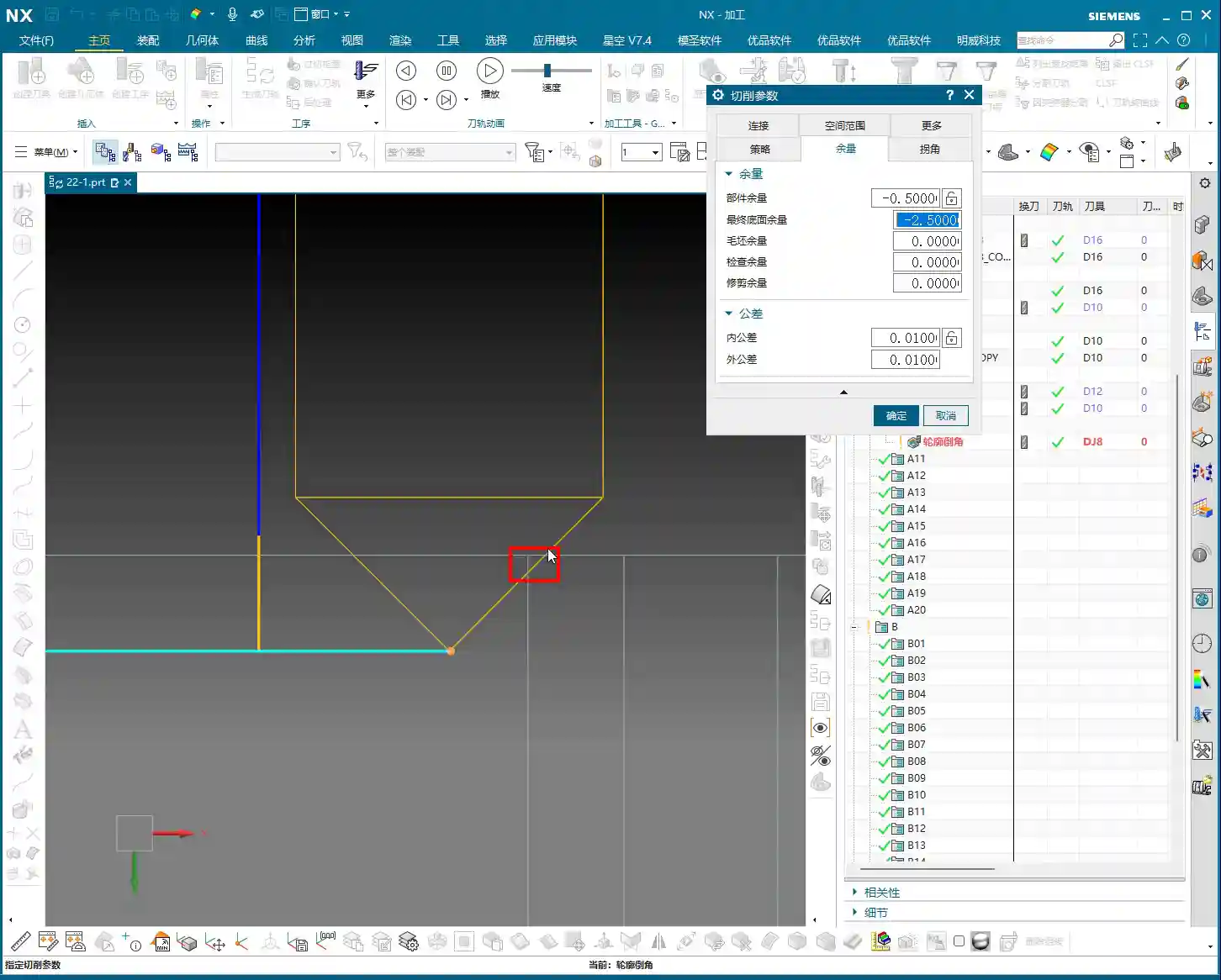
    Parameter settings are the soul of chamfering. Other parameters like Depth of Cut (DOC) and Stepover have been discussed extensively before, so I won’t repeat them here. Today, we’ll focus on two critical parameters that determine chamfer quality: Allowance and Final Bottom Allowance.

    2.1 Allowance: The Determinant of Chamfer Size

    Within the “Cut Parameters,” there’s a setting called Allowance. Listen up: this is the key to controlling the final chamfer size!

    • Core Rule: To get a chamfer of a certain size, enter that value as a negative number!
    • Must be a negative value: For example, if you want a 0.5mm chamfer, set the Allowance to -0.5mm. If you want a very small chamfer just for deburring, say 0.1mm, then set it to -0.1mm.

    The meaning of this “negative value” can be understood as the offset of the tool’s centerline relative to the profile edge. A negative value means the tool will cut into the material. Therefore, this Allowance value directly determines the size of your chamfer. For instance, if you input -0.1mm, you’ll get a small chamfer, mainly for deburring; input -2.5mm, and the chamfer will be significantly larger.

    Master Wang’s Tip: Often, especially when machining high-volume parts, you only need to deburr slightly to save time and reduce costs. In such cases, setting the Allowance to -0.1mm or -0.2mm is perfectly suitable. Chamfer all holes and edges with this value to both ensure surface quality and boost efficiency.

    2.2 Final Bottom Allowance: The Secret to Tool Cutting Point Position

    This parameter is found under “Adjust Parameters.” It determines which part of the chamfer tool’s cutting edge will engage the material. This is a critical “pitfall” to avoid!

    As we all know, the tip of a chamfer tool is typically quite fragile. If it directly engages in heavy cutting, it’s very prone to chipping, which impacts tool life and machining quality. Therefore, we generally want the chamfer tool to cut with its side edge or a more robust part of the tool.

    • Parameter Meaning: Setting it to a negative value indicates the depth of the chamfer tool’s tip relative to the machined edge.
    • For example:

      • Assume you’re using a D8 (mm) 45-degree chamfer mill with a tip radius of 0. Theoretically, its cutting edge from the tip to the outer diameter is 4mm.
      • If you set the Final Bottom Allowance to -2.5mm (this is a common default value in my templates), it means the tool tip will be 2.5mm below the edge being chamfered. This allows the tool to cut with its side edge, significantly reducing the risk of tip chipping and leading to more stable machining.
      • If you set it to -1mm, the tool tip is closer, and the cutting point is nearer to the tip, which can cause problems.
      • If you want the chamfer to engage the “middle” of the tool’s cutting edge, for example, to create a 0.5mm chamfer, you might need to set it to -2.25mm. This value requires fine-tuning based on the actual geometry of your chamfer tool (e.g., effective cutting length).

    Master Wang’s Tip: The more negative this parameter is set (e.g., from -2.5mm to -3.5mm), the further the cutting point moves towards the more “robust” part of the tool, away from the tip. Conversely, the less negative (e.g., from -2.5mm to -1mm), the closer it gets to the tool tip. Unless you have specific requirements, it’s generally recommended to set a relatively deep negative value (such as -2.5mm or -3.5mm). This keeps the tool tip “out of the way,” allowing the tool’s side edge to perform the chamfering, which results in more stable machining and longer tool life. Don’t just rely on software simulations; observe the cutting sparks and listen to the cutting sound. Those are the real-world feedbacks!

    III. Practical Tips and Pitfall Guidance

    3.1 Handling Discontinuous or Multi-Segment Chamfers

    If the profile you’re chamfering consists of multiple discontinuous segments, or if you only want to chamfer specific segments, you’ll need to use the “Add New Set” function. When selecting geometry, after selecting each curve that needs chamfering, click Add New Set, and then select the next curve. This way, the software can combine these independent curves to generate a unified chamfer toolpath.

    3.2 Pitfalls of Chamfering Small Holes

    Chamfering small holes is particularly prone to problems. The core issue is matching the tool size to the hole diameter. If your chamfer tool is too large, or if the chamfer dimension is set too large, the tool might not be able to enter the hole, or it might collide inside the hole. A simple rule: the chamfer tool’s radius (R_tool) plus the chamfer dimension (C) must be less than or equal to the hole’s radius (R_hole), i.e., R_hole ≥ R_tool + C. Otherwise, you’ll either fail to create the chamfer, make the hole too large, or even cause a tool crash! In such cases, you either need to switch to a smaller chamfer tool or reduce the chamfer dimension.

    3.3 Minor Display Bugs in NX Interface

    Many beginners encounter this situation: you’ve copied a chamfer operation, modified the geometry, and generated a toolpath, but the screen still shows the toolpath from the original operation. You might think the change didn’t take effect, but it actually did; the software’s display is just a bit “sluggish.”

    The solution is simple: simply click the mouse anywhere in an empty space within the NX graphics window, or switch to another view and then switch back. The old “ghost” toolpath will disappear, and the new one will display correctly. These are just minor quirks of the software; get used to them, and don’t let them make you tear your hair out.

    3.4 Impact of Material Properties on Chamfering

    Different materials present different chamfering effects and difficulties:

    • Aluminum: Easy to cut, but prone to burr formation. Cutting parameters must be optimized to avoid excessive material removal leading to burrs.
    • Stainless Steel, Titanium Alloys, High-Temperature Nickel-Based Alloys: These materials have high hardness and toughness, generating significant cutting forces, which can lead to accelerated tool wear. When chamfering, use a high-rigidity machine, reduce cutting speed, appropriately increase feed rate, select coated carbide chamfer mills, and ensure ample coolant. Don’t force it; tools cost money!

    Summary: Pitfall Guide

    1. Geometry Selection: The top and bottom faces are usually the same plane—the one containing the edge you’re chamfering. Don’t overcomplicate it.
    2. Chamfer Size Control: The “Allowance” parameter must be a negative value; its absolute value is the chamfer dimension. For example, -0.5mm means a 0.5mm chamfer.
    3. Tool Cutting Point: “Final Bottom Allowance” controls the tool’s cutting position on its edge. Aim for a deeper negative value (e.g., -2.5mm, -3.5mm) to prevent the tool tip from direct cutting, thus protecting the tool.
    4. Small Hole Chamfering: The tool must “fit” into the hole! Ensure Hole Radius ≥ Chamfer Tool Radius + Chamfer Dimension. Otherwise, change the tool or adjust the chamfer size.
    5. NX Display Bug: Toolpath not refreshing? Just click the mouse in an empty space to refresh the interface.
    6. Practical Experience is King: Don’t just rely on theory. In actual machining, observe cutting sparks and listen to cutting sounds. Adjust parameters based on real-world conditions. Machining parameters are dynamic, not static!

    Alright, that’s all for today’s planar profile chamfering discussion. These are all insights gained from my fifteen years in the trenches, and I hope they prove useful to you. Work diligently, think critically, and you’ll avoid many detours!

    👤 About the Author:
    The author is a veteran CNC machining professional with 15 years of industry experience, specializing in UG NX programming. This article is an original work representing personal practical insights.

    ⚠️ Copyright Notice: Unauthorized reproduction or distribution without prior communication is strictly prohibited.

  • Siemens NX Contour Spiral Milling In-Depth Analysis: From Closed Paths to Collision-Free Retraction,

    📝 Key Takeaways: **

    Siemens NX Contour Spiral Milling: A Practical Guide

    Listen up, fellas! I’m Master Wang. Today, we’re diving into contour spiral milling…

    Listen up, fellas! I’m Master Wang. Today, we’re diving into contour spiral milling in Siemens NX. This feature gets a lot of use on the shop floor. Don’t let its similar interface to standard plane contour milling fool you; the real intricacies aren’t always clear in textbooks. With 15 years of hands-on experience, I can tell you: use spiral milling right, and you’ll double your efficiency; mess it up, and you’ll be dealing with **tool rubbing**, scrapped parts, and more!

    Contour Spiral Milling: Practical Fundamentals

    Within plane contour milling, there’s a function called “Contour Spiral.” Simply put, it’s for **spiral milling**. While it looks quite similar to conventional plane contour milling, its core requirements and application scenarios are distinctly different.

    Core Concept: Spiral Machining and Closed Contours

    First, remember this: the core requirement for spiral machining is that the machining contour must be closed! Just like drilling or pocket milling, you need to define a complete boundary. If you select only a single line, an open corner, or even an unclosed contour, spiral machining will fail. The program might generate toolpaths, but running it on the machine will certainly lead to issues because the tool won’t know where to **stepdown** spirally and might wander erratically. External contours, as long as they are fully closed, can also be processed with spiral milling.

    Siemens NX Operation Path and Interface

    Head directly to “Insert” -> “Operation” to find “Contour Spiral.” Once you click in, you’ll notice its main interface is almost identical to plane contour milling, with mostly similar parameter options. But don’t be fooled by appearances; subtle adjustments here determine machining quality and efficiency.

    Workpiece Measurement and Tool Selection

    Let’s say we need to machine a 20mm diameter hole (10mm radius). Tool selection here requires careful consideration. If you use a D12 end mill, it can efficiently mill out the hole within a single spiral path. This isn’t random tool selection; it must be based on the hole diameter and stock allowance to ensure the tool can cut effectively, not just picking a small tool for easier path generation.

    The Secret of “Yellow Line Spiral”

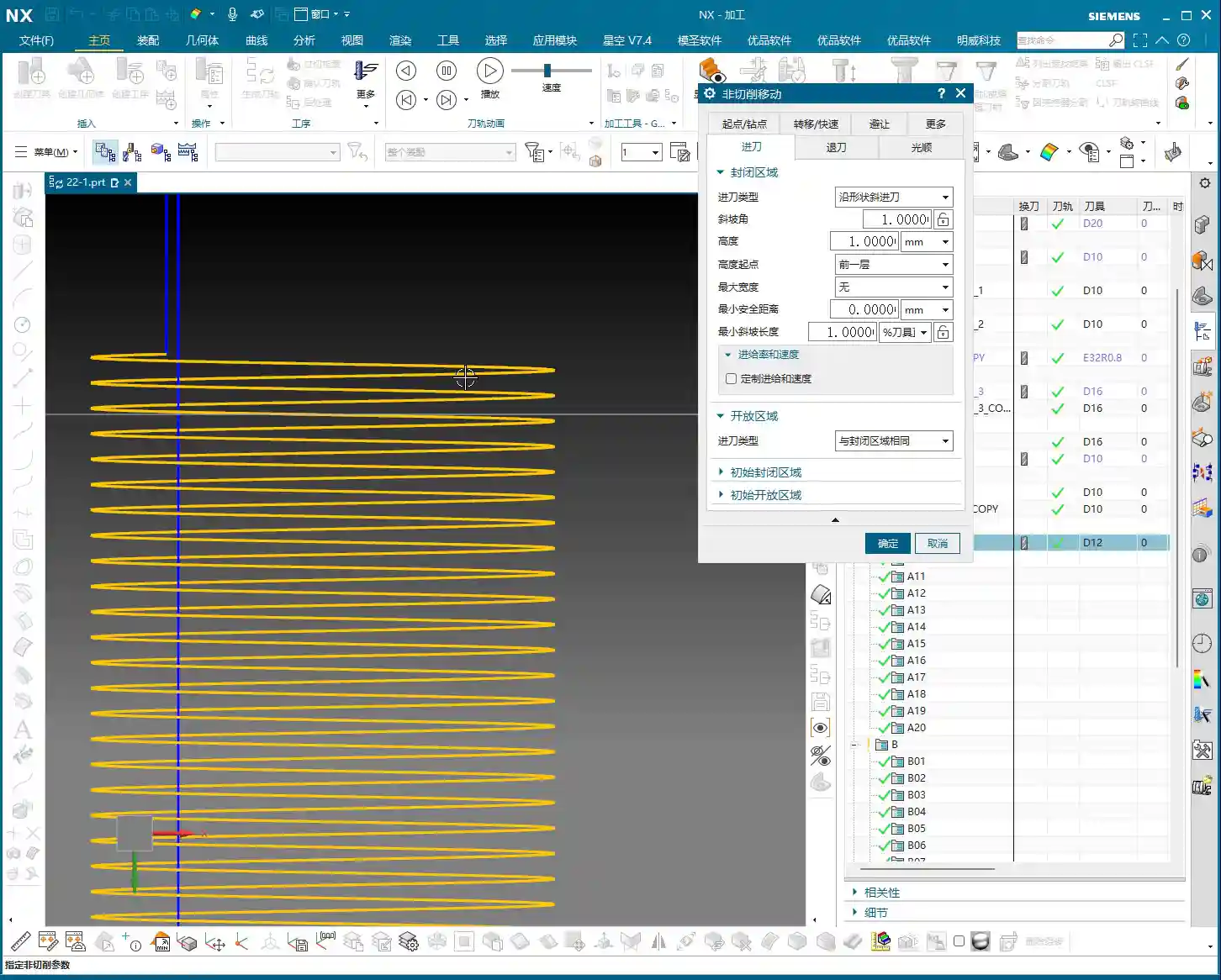
    After program generation, you’ll see the toolpath simulation in Siemens NX, primarily composed of “yellow lines.” In Siemens NX, these yellow lines represent engaged cutting paths, meaning the tool is continuously cutting, moving spirally downwards, inwards, or outwards until it reaches the set **depth of cut**. This is somewhat similar to dynamic milling, both aiming to ensure continuous tool engagement, reduce air cuts, and boost efficiency.

    Key Parameter Tuning and Optimization

    The essence of spiral milling lies in the precise tuning of several key parameters. If these aren’t set correctly, you’ll face low efficiency at best, and scrap your workpiece at worst.

    The Art of the Ramp Angle

    In the “Non-Cutting Moves” options, there’s a crucial parameter called “Ramp Angle”. This angle dictates the aggressiveness of the tool’s spiral **stepdown**.
    * A larger Ramp Angle means greater axial material removal per pass (higher effective **Depth of Cut**). Theoretically, machining speed is faster, but cutting load is also higher, leading to quicker tool wear or even chipping.
    * A smaller Ramp Angle means less axial material removal per pass, resulting in a denser machining path, smoother cutting, and better surface quality, but it also takes longer.
    In practice, you need to adjust this flexibly based on material hardness, tool type, and workpiece precision requirements. For example, for contours with long perimeters, you should set a smaller **Ramp Angle**, such as 0.1 degrees, to ensure reasonable axial material removal per pass and stable cutting.

    Ramp Length and Tool Matching

    Another easily overlooked detail is “Ramp Length.”
    * If you’re using a solid carbide end mill (without inserts), setting a small ramp length, even 1%, is usually fine because its entire cutting edge can engage.
    * However, if you’re using an indexable insert tool, pay close attention! The bottom of the insert is non-cutting. If the ramp length is too small, the insert bottom can easily rub against the workpiece, causing friction and **chatter**. At best, this damages the tool; at worst, it causes chipping or even scraps the workpiece. In such cases, I usually recommend setting the ramp length to 50% of the tool diameter. If Siemens NX prompts that the program cannot be generated, it means your parameters are unreasonable, and the tool is highly likely to **rub** or **gouge** the material.

    Efficiency Secret for Multi-Hole Machining

    If you encounter multiple identical holes requiring spiral machining, don’t be foolish and create a program for each one individually. Siemens NX has a solution:
    1. Go into the “Part Boundaries” option.
    2. Select “Add New Geometries.”
    3. Change the selection type from “Face” to “Curve”.
    4. Then, sequentially select the inner contour curves of all holes that need machining.
    5. Click the middle mouse button to confirm, then click “OK” to generate the toolpath.
    This way, one program handles all holes, saving time and effort—that’s how we achieve efficiency!

    Scope of Application: More Than Just Round Holes

    Don’t assume spiral machining is only for milling round holes. As long as it’s a closed geometric shape, whether square, triangular, or even an irregular contour, you can use contour spiral machining. The key is:
    * It must be closed! If your contour is originally open but you want to use spiral machining, you’ll need to manually “extend” it to form a closed path. This prevents the tool from “air cutting” and ensures it quickly completes the extended portion.

    Summary: Pitfall Avoidance Guide

    Alright, here are the crucial points, learned through hard lessons:

    1. The contour must be closed! This is the foundation of spiral machining; misunderstand this, and you’re asking for trouble.
    2. Beware of spiral retract collision! This is the most common and dangerous pitfall. Especially when machining through holes, as the tool reaches the final **Depth of Cut**, the central slug (waste material) might drop. If the tool retracts along an arc (default setting), it will swing sideways. If the falling slug hasn’t fully detached, it could collide with the retracting tool! The result: tool chipping, scrapped workpiece, or even machine damage.
    * **Solution:** Always check the retract type in “Non-Cutting Moves.” Change the default “Arc Retract” to “Lift” (vertical retract). This way, after completing the cut, the tool will lift straight up vertically, avoiding potential falling slugs. Safety first! I usually set a 3mm lift; that’s generally sufficient.
    3. Ramp length must match the tool type! For indexable insert tools, provide sufficient ramp length (e.g., 50%); for solid carbide or custom-ground tools, it can be smaller.
    4. Adjust ramp angle according to contour perimeter! The longer the contour, the smaller the ramp angle should be to ensure stable cutting.
    5. Be flexible with stock allowance settings! While spiral machining is typically for **roughing**, if you aim for high precision or need to leave stock for a subsequent **finishing pass**, you must precisely set the stock allowance parameters. Don’t assume it’s **roughing** and completely omit stock, unless you’re sure a single pass is sufficient and meets precision requirements. This depends on your actual workpiece requirements and subsequent operations.

    Remember these points, and spend time observing the cutting sparks at the machine, not just relying on software simulations—practice makes perfect!

    👤 About the Author:
    The author is a veteran CNC machining professional with 15 years of industry experience, specializing in UG NX programming. This article is an original work representing personal practical insights.

    ⚠️ Copyright Notice: Unauthorized reproduction or distribution without prior communication is strictly prohibited.
  • NX Planar Profile Milling: Master Wang’s Practical Playbook – Eliminate Overcutting and Tool Breakag

    📝 Key Takeaways:

    Planar Profile Milling: Practical Parameters and Pitfalls

    Hello everyone, I’m Master Wang. Last lesson, we covered Planar Milling. T…

    Hello everyone, I’m Master Wang. Last lesson, we covered Planar Milling. This time, we’ll continue our discussion and dive into “Planar Profile Milling.” Don’t let the similar name fool you; there’s a lot more to it, especially some practical tricks you won’t find in textbooks. Today, I’ll break it down and explain everything clearly for you.

    Command Overview: What Exactly is Planar Profile Milling?

    Don’t Get Confused: It’s All About the “Edges and Sides”

    Listen up: Planar Profile Milling, as the name suggests, is primarily used for machining the “profiles” or “side walls” of a workpiece. Unlike the broad, aggressive roughing of standard Planar Milling, Planar Profile Milling is more like a precision edge-finishing specialist. It can only follow the contour lines you select, such as the side wall of a slot or the outer edge of a boss.

    For example, if you have a small slot, 18 mm wide, and you use a ∅10 tool to mill it, Planar Profile Milling will only follow the two side walls of the slot, finishing them or roughing the side wall stock. It won’t clear out the entire interior of the slot like Planar Milling would. You absolutely *must* distinguish this, otherwise, you’ll make mistakes!

    It Can Handle Roughing and Finishing, But Your Approach Must Be Correct

    This command isn’t picky; it can be used for roughing the stock on side walls, for a finishing pass on side walls, and even for chamfering. The key is to have the right “approach.” When you want to machine the side of a particular contour, this command comes into play. But remember, its core function is to follow the contour, not for planar Corner Cleanup or floor clearing.

    You can think of it as a specialized function within the larger framework of Planar Milling in NX, specifically for machining “boundary walls.” Use it flexibly, and you’ll save a lot of trouble; but use it incorrectly, and you’ll run into big problems.

    Core Settings: Part Boundaries and Toolpath Direction

    Curve Selection: Order is Key, Never Skip Around

    Let’s go straight into the NX interface and select “Planar Profile Milling.” The first step is to “Specify Part Boundaries.” Here, select the “Curve” method, which is the most commonly used.

    Listen closely, this is critical! When selecting the curves that form the profile, you must select them sequentially and continuously. For a closed contour, for example, you need to click each segment in order along one direction (clockwise or counter-clockwise). For an open contour, also select them sequentially along the tool’s travel direction.

    Remember, never skip around! For instance, if you select one line here, then jump to another line over there, NX will assume you want to connect these two lines for machining, leading to a chaotic toolpath or even an error. This is something textbooks don’t teach, and it’s a common rookie mistake in actual operation!

    Toolpath Direction: The Small Circle Dictates Inside or Outside!

    After selecting the curves, let’s look at the “Tool Side” option. Here you’ll see a small circle, which indicates on which side of the selected curve the tool center will be.

    • If the small circle is on the outside, it means the tool will move to the outside of the contour, which will almost certainly cause “overcutting” and scrap your workpiece!
    • If the small circle is on the inside, the tool will move to the inside of the contour, which is typically what we want.

    Therefore, if you ever notice something off with the toolpath, the first thing to check is whether the “Tool Side” is set to “Left” or “Right.” Based on the geometry you’re actually machining, select the correct direction to ensure the tool is cutting on the inside of the contour.

    Then, for “Specify Bottom Face,” this is the same as Planar Milling; just select the bottom plane you want to machine, no need to elaborate.

    Pitfall Alert: No Software Error Doesn’t Mean No “Scrap”

    Let me tell you a plain truth: when generating these contour toolpaths, if you select the wrong “Tool Side,” NX (and many other CAM software packages) won’t necessarily throw an error immediately! It will dutifully generate a toolpath that “runs outwards.” The moment that hits the machine, it’s not “cutting,” it’s “scrapping” the part! At best, you’ll ruin the part; at worst, you’ll damage the tool or even the machine.

    So, don’t just rely on software simulation; review the toolpath multiple times, paying close attention to the position of that small circle. “Simulate” with your eyes. Developing this habit can save you significant machining costs and time.

    Lead-in/Lead-out Optimization: Say Goodbye to “Plunge-in” and “Air Cutting”

    Linear Lead-in/Lead-out: Smooth Engagement, Protect the Tool

    With the initial generated toolpath, you might find the tool “plunging” directly into the material, or after finishing one area, it lifts instantly and “jumps” to a distant spot before plunging in again. Such “plunging” and “air cutting” are not only inefficient but also prone to damaging the tool and reducing surface quality.

    The solution lies within “Non-Cutting Moves,” specifically under the “Lead-in/Lead-out” options.

    • Change the default “Arc” lead-in/lead-out to “Linear,” so the tool enters and exits the cut at a smooth, gradual angle.
    • Set the angle typically to around 5 degrees, and the length to 75% of the tool diameter (or adjust according to actual conditions). This way, the tool “slides” in rather than “plunging” in, which benefits both tool life and machining stability.

    If multiple cutting layers are needed, this is usually set under “Cutting Depth,” which follows a similar logic to Planar Milling, so I won’t elaborate further here. By adjusting the stepover, for example, by making the tool machine the side wall in three passes, this ensures the proper Depth of Cut (DOC) and reduces the load on each individual pass.

    Multi-Region Machining: One Region, One Boundary

    Crucial! Add New Boundary or Press Middle Mouse Button

    Often, our workpieces have multiple independent contours that need machining. For instance, after milling the inner side wall of one slot, you might want to mill the outer side wall of another boss.

    Here’s another common mistake beginners make! If you simply continue selecting new curves, NX will assume you want to “connect” the previously selected boundaries with the newly selected ones. The result will be erratic toolpaths, or they might not generate at all.

    The correct procedure is: after you complete the curve selection for one contour region, you must click the “Add New Boundary” button, or, more quickly, press the “middle mouse button” once. This is equivalent to telling the software: “I’ve finished selecting the boundaries for this region; now I want to define a new, independent machining area.”

    After adding a new boundary, proceed as described earlier: sequentially select the curves for the new region and check the “Tool Side” direction. This way, different contour regions will generate correct toolpaths independently, without interference. This is much faster and more reliable than having to rework and modify the program afterward.

    Summary: Pitfall Avoidance Guide

    • Clarify Purpose: Planar Profile Milling is *only* for machining “side walls” or “profiles”; don’t use it to clear out an entire planar area.
    • Consecutive Curve Selection: When “Specifying Part Boundaries,” curves within the same region must be selected sequentially and continuously; do not skip selections.
    • Check Tool Side: Always observe the position of the small circle to ensure the tool is cutting on the inside (or your desired side) of the contour, preventing overcutting. No software error does *not* mean the toolpath is correct!
    • Separate Multi-Regions: When machining multiple unconnected contour regions, after completing the selection for one region, you must click “Add New Boundary” or press the “middle mouse button” to define the boundaries of different regions separately.
    • Optimize Lead-in/Lead-out: In “Non-Cutting Moves,” under “Lead-in/Lead-out” settings, change the default arc to linear and adjust the angle and length to achieve smooth tool engagement and reduce tool impact.
    • Develop a Checking Habit: After every toolpath generation, simulate and observe repeatedly. Use the experience of a seasoned machinist to judge if the toolpath is reasonable, instead of blindly trusting the software.

    Alright, that concludes today’s practical essentials for Planar Profile Milling. These are all experiences I, Master Wang, have distilled from fifteen years in the trenches. Remember them, and you’ll navigate machining with far fewer detours and mistakes. Go ahead, digest this information thoroughly, because practice is where true knowledge is gained!

    👤 About the Author:
    The author is a veteran CNC machining professional with 15 years of industry experience, specializing in UG NX programming. This article is an original work representing personal practical insights.

    ⚠️ Copyright Notice: Unauthorized reproduction or distribution without prior communication is strictly prohibited.
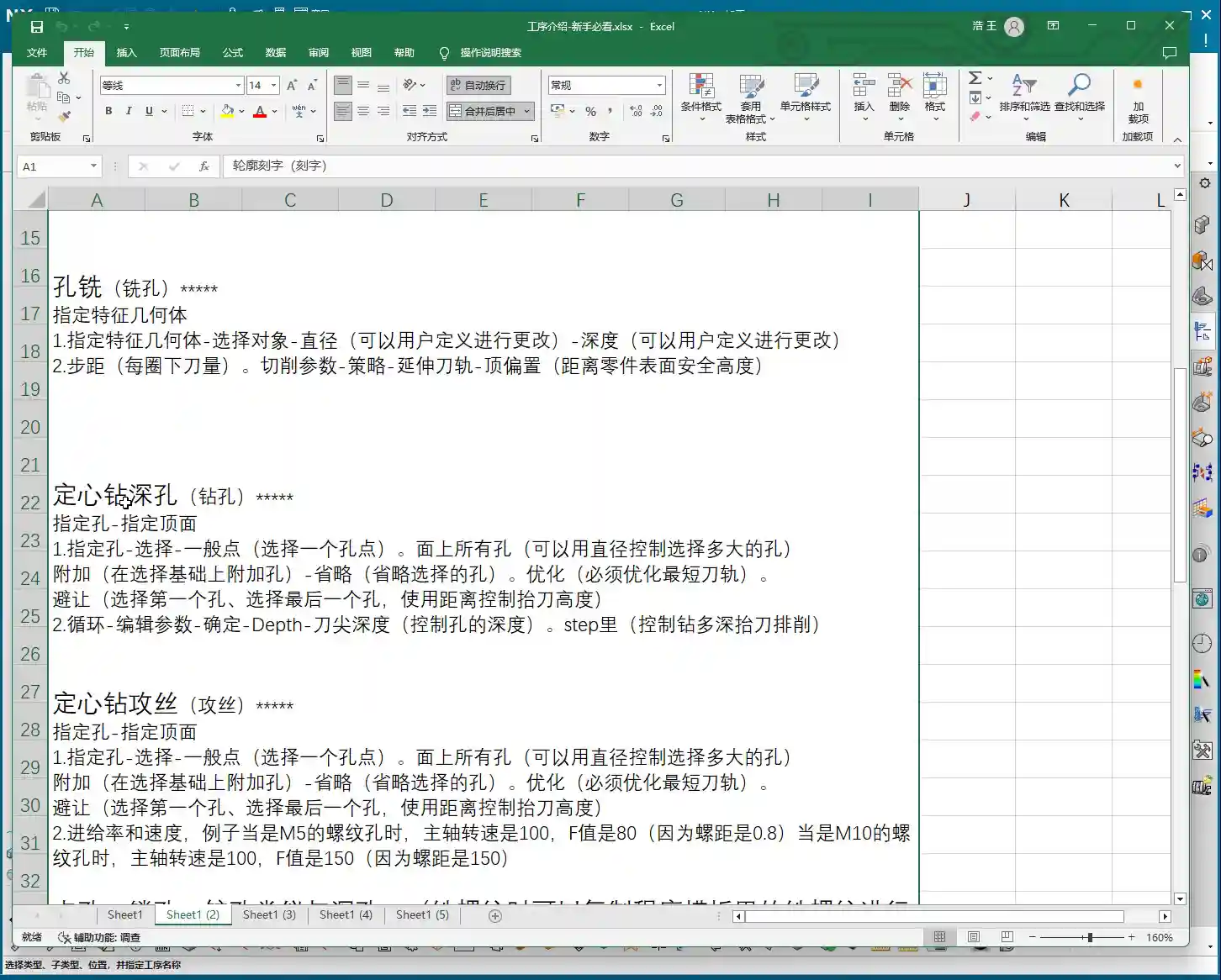
  • Siemens NX 2D Dynamic Milling Practical Masterclass: Eliminate Inefficient Retractions, Master Wang

    📝 Key Takeaways: Master Wang shares core Siemens NX 2D Dynamic Milling techniques. Learn how to boost Roughing efficiency with “Adaptive Milling” and overcome 3D simulation challenges for 2D programs using “Floor Wall Milling”. In-depth analysis of Stepover, Layers, and critical Retraction parameters to optimize your toolpaths, reduce costs, eliminate inefficiency, and become a machining expert.

    Master Wang’s Insight: The Practical Essence of 2D Dynamic Milling

    Hello everyone, I’m Master Wang. Today, no fluff, just practical insights! Many ask me, ‘Master Wang, what’s the real difference between ‘Planar Milling’ and ‘2D Dynamic Milling’ in NX, and how can we use them efficiently?’ Listen up! Today, I’m going to break it down for you, revealing practical tips you won’t find in textbooks!

    There’s a command in NX called “Solid Profile 3D”—we’ll set that aside for now, it’s a bit complex. Today, let’s dive straight into 2D Dynamic Milling, also known as 2D Adaptive Milling in NX. Different names, but the principle and objective are the same: during Roughing, it aims to create smoother toolpaths, minimize sudden changes in cutting force, and improve both efficiency and tool life.

    Key Change: From “Follow Periphery” to “Adaptive Milling”

    Previously, with Planar Milling, toolpaths were typically parallel, and the cutting pattern was often “Follow Periphery”. When encountering corners, the tool would suddenly engage with a full Depth of Cut, leading to chipping. 2D Dynamic Milling is different; its biggest and most crucial change lies in its cutting pattern.

    Select 2D Dynamic Milling (or 2D Adaptive Milling), and you’ll find its interface is almost identical to Planar Milling. That’s right, it evolved from Planar Milling. But, if you click in and change the cutting pattern from “Follow Periphery” to “Adaptive Milling”, this feature completely transforms!

    Changing just this one parameter alters the tool’s cutting method. It strives to maintain a constant cutting width, using small Stepover and high feed rates to create a “peeling” type of toolpath. This effectively prevents the tool from engaging with a full Depth of Cut, making it particularly suitable for deep pocket Roughing and hard material machining.

    Toolpath Boundaries and Floor Definition

    Defining the toolpath range is similar to Planar Milling.

    • Part Boundaries: Specify the boundary curves of the area you want to machine. Make sure to select them precisely; don’t over-mill or under-mill.
    • Floor: Select the bottom face for machining. This face defines your machining depth. Beginners often make mistakes here; selecting the wrong one can lead to over-machining (milling through) or not reaching the desired depth. Remember, choose the face you ultimately intend to machine to.

    For the tool, just pick a common one for now, like a D10 end mill (10mm diameter). Generate the program first, and then we’ll fine-tune it step-by-step.

    Simulation: Avoiding the “No Stock” Pitfall

    Alright, the program is generated. Let’s run a simulation to check the results. Click “Tool Path Verification” and then select 3D Simulation. You might find it throws an error! It’ll say “No Stock” or fail to simulate. This is a common pitfall for many beginners, and textbooks often don’t tell you about it.

    NX 2D Program Simulation Pain Point: Doesn’t Recognize Solids, Only Wires

    Why the error? Because 2D programs, like Planar Milling, only recognize wires, not solids. They don’t know what your stock looks like, so they can’t perform a 3D solid cutting simulation. If you click ‘Simulate’ directly at this point, the system gets “confused”.

    Master Wang’s Secret: Add a “Floor Wall Milling” Operation as Stock

    The secret to solving this is simple: before your 2D Dynamic Milling program, add a “Floor Wall Milling” operation to serve as your stock reference!

    1. Create a new “Floor Wall Milling” operation, define the part and floor arbitrarily, and select any tool.
    2. Generate this “Floor Wall Milling” program.
    3. Drag your 2D Dynamic Milling program underneath this “Floor Wall Milling” program.

    Now, select your 2D Dynamic Milling program again and run a 3D simulation. You’ll see a miracle happen! The simulation works normally! This is because 2D Dynamic Milling “inherits” the stock state after the “Floor Wall Milling” operation, so it now knows where to start cutting. This little trick will save you a lot of debugging time!

    Through simulation, you’ll observe the tool descending in a helical motion, then expanding outwards within the cavity like a snail shell, with a very stable cutting process. That’s the beauty of dynamic milling! It equalizes the tool’s cutting load, which allows for higher cutting parameters and boosts machining efficiency.

    Core Parameter Analysis: Stepover, Layers, and Retraction Control

    NX has parameters galore, but only a few core ones truly impact machining quality and efficiency. Today, we’ll focus on dynamic milling’s key parameters.

    1. Stepover: Cutting Width and Efficiency

    Stepover is the distance the tool moves sideways with each pass.

    • Percentage: The default is usually around 10% of the tool diameter. For example, for a D10 tool (10mm diameter), 10% is 1mm. This value determines your cutting width and toolpath density. A small Stepover results in dense toolpaths and a better surface finish but takes longer; a large Stepover increases efficiency but might leave uneven stock after Roughing.
    • Constant: You can also set it to a fixed value, such as 0.5mm. Whether to use a percentage or a fixed value depends on your tool and material. For Roughing, generally choose a larger Stepover to improve efficiency, but don’t exceed 30-40% of the tool’s effective cutting edge width, or it could lead to Chatter or tool breakage.

    2. Layers: Roughing Depth Strategy

    Layers, also referred to as Depth per Cut, controls the tool’s multi-level cutting in the Z-axis direction.

    • If you set a specific value, such as “20”, it will divide the total machining depth into 20 layers for processing.
    • However, in Roughing, for maximum efficiency, we usually set this value to 0. Setting it to 0 means one continuous cut to depth (or “finish to floor”). The tool will helix down from the top and then machine directly to the defined floor depth, reducing retractions and layering. This is crucial for boosting efficiency in dynamic milling!

    3. Minimum Corner Radius: Corner Smoothness

    This parameter is found on the “Strategy” page. It defines the minimum corner radius the tool can follow when turning.

    • The default is typically 5% of the tool diameter. For a D10 tool (10mm diameter), this means a 0.5mm corner radius.
    • A larger value results in smoother corners and less force on the tool; a smaller value creates sharper corners, but the tool might experience higher forces in those areas. Typically, keeping the default is fine; consider adjusting only for specific Corner Cleanup requirements.

    4. Retraction Control (Height & XY Transfer): Efficiency Killer or Safety Net?

    Tool retraction is a critical aspect of machining, directly impacting idle travel time and overall efficiency.

    • Height: This controls the tool’s retraction height when moving from one cutting area to another within the same layer. The default is 1mm, meaning it retracts 1 millimeter each time. Setting this value too high increases idle travel time; setting it too low risks collision with the workpiece, which is unsafe. The default 1mm is generally sufficient.
    • XY Transfer / Global Retraction: This parameter typically appears as a very large percentage, such as 5500%. It controls the retraction strategy between different cutting regions or between different layers.
      • Larger Value: The tool is more inclined to avoid retracting, opting for “smooth connection” paths, moving quickly across the workpiece surface as much as possible, reducing the number of retractions. This is KEY to boosting efficiency! I usually set it to a very high value, like 10000, or even higher, to ensure more continuous tool motion.
      • Smaller Value: The tool will retract very frequently, even for short movements. This causes idle travel time to increase exponentially, resulting in extremely low efficiency and machining times that will drive you crazy!

      Therefore, for this parameter, NEVER set it too low! Try to give it a large value, allowing the tool to move quickly and continuously in the XY plane, which will significantly improve your machining efficiency.

    Side Wall Corner Cleanup: Another Advantage of Dynamic Milling

    Dynamic milling not only efficiently performs Roughing on planar surfaces but also offers unique advantages in side wall Corner Cleanup. Due to its “adaptive milling” characteristics, the cutting load on the tool in corners is well-controlled, minimizing the risk of chatter marks and ensuring uniform stock for subsequent Finishing passes.

    If you notice during simulation that the side walls don’t show a “highlighted” sheen, it indicates that there is still stock remaining on the side walls. This is normal; Roughing aims to quickly remove most of the material, preparing for the Finishing pass. We’ll cover Finishing toolpaths in detail next time.

    Summary: Pitfall Avoidance Guide

    • Essential Parameter Change: The core of 2D Dynamic Milling is to change the cutting pattern to “Adaptive Milling”.
    • Simulation Trick: Before running a 3D simulation for a 2D program, always add a “Floor Wall Milling” operation beforehand as a stock reference; otherwise, it will error out.
    • Efficiency Boost: During Roughing, set Layers to 0 (one continuous cut to depth), and adjust the Stepover appropriately based on the material and tool.
    • Reduce Retractions: Maximize the percentage value for “XY Transfer” (or “Global Retraction”), for example, 10000, to ensure more continuous tool motion and reduce idle travel time.
    • Stock Check: After simulation, observe if the part surface has a “highlighted” sheen. Areas without sheen indicate remaining stock, requiring a subsequent Finishing pass.

    These are experiences I, Master Wang, have accumulated over more than a decade in the trenches. I hope they are helpful to you, the next generation! Practice makes perfect; get your hands dirty, observe closely, and you’ll become a true machining expert!

    👤 About the Author:
    The author is a veteran CNC machining professional with 15 years of industry experience, specializing in UG NX programming. This article is an original work representing personal practical insights.

    ⚠️ Copyright Notice: Unauthorized reproduction or distribution without prior communication is strictly prohibited.

  • Siemens NX Machine Control & Tool Compensation Mastery: Master Wang’s 15 Years of Practical Experien

    📝 Key Takeaways: Master Wang personally teaches Siemens NX machine control and tool compensation secrets! Detailed explanation of G41 D1 setup and how to precisely control side wall finishing pass dimensions. From practical planar profile milling to G-code verification, master key tool compensation essentials and troubleshooting tips in one article to boost your part precision! Plus, Master Wang, a marketing expert, shares industrial SEO insights to help you promote both your skills and products!

    Master Wang Explains: Tool Compensation, The Soul of Precision!

    Alright, everyone, listen up! Today, we’re cutting the fluff and getting straight to the point – how to master **machine control** in Siemens NX, especially tool compensation! Textbooks teach the theory, but in the shop, we talk real-world application. This directly impacts your part precision and efficiency. Don’t just get caught up in fancy software simulations; whether the tool is cutting accurately on the workpiece ultimately depends on how you set up tool compensation. Specifically, for high-precision operations like **finishing side walls**, how to correctly implement G41 D1 (or G42) is our main topic today.

    Finishing Side Walls: From Roughing to Finishing

    Planar Profile Milling: The Go-To for Finishing Side Walls

    Let’s set the stage. Take a simple **planar profile milling** operation, for instance; it’s most commonly used for finishing side walls. Why? Because these types of jobs are most prone to tolerance issues and require tool compensation the most. You’ll need to select your machining geometry first, such as a boundary curve or a surface.

    Here’s the critical point: If you’re finishing side walls, especially for a **Finishing pass**, you need to set the **Depth of Cut (DOC)** (or the stepdown per pass) to 0. This means the tool will only move laterally, completing the entire cut in a single pass. If your tool and machine rigidity allow, a single **finishing pass** ensures high efficiency and stable precision. Don’t take multiple small **Stepdowns**; that’s for **Roughing**. For **Finishing**, the goal is a “one-and-done” approach. For example, when only finishing side walls, if machining quality can be maintained, you can absolutely increase the **Depth of Cut** from 2mm to 10mm or even more, thereby eliminating several passes and immediately boosting efficiency.

    When is Tool Compensation Necessary? Tolerance is Key!

    When do you absolutely need to add tool compensation? Remember this one thing: **when the machined dimension has a tolerance requirement.** For example, if a slot width needs to be ±0.005mm, then you absolutely must use tool compensation. If there’s no tolerance, or a very loose one, and a roughly machined size is acceptable, then it’s unnecessary. Tool compensation is used to precisely control dimensions, specifically to prevent **overcutting** or **undercutting**, ensuring the final dimensions meet blueprint specifications. In machining, precision is paramount, and tool compensation is the critical tool to achieve that precision.

    Siemens NX Tool Compensation Setup: Step-by-Step Precision

    Alright, now I’ll show you how to implement tool compensation in Siemens NX to generate G41 D1.

    1. In the Operation Navigator, find your program, right-click, and select “Machine Control”.
    2. In the pop-up window, locate “Start Path Events”, click it, then click the “Edit” button next to it.
    3. A large dialog box will appear with many options. We’re looking for the most commonly used one, typically the **fifth** option (the “Tool Compensation” option). Double-click to open it.
    4. In the Tool Compensation settings, pay close attention to these points – don’t miss a single one:

      • Status: Change to “Active”. This tells the machine that tool compensation is about to begin.
      • Mode: Typically, when finishing side walls, the tool travels to the left of the contour, so select “Left”. This corresponds to G41 in the G-code. If you’re traveling to the right of the contour, select “Right,” which corresponds to G42.
      • On: Set to “Before Each Engagement”. This means the machine will start calculating tool compensation before each engagement.
      • Off: Set to “After Each Retract”. This means tool compensation will stop after each retract.
      • Tool Compensation T: This “T” isn’t just any arbitrary value. It corresponds to the tool radius compensation register number on the machine, which is the D value in the G-code. We typically set it to “1”, corresponding to D1. You can also set it to D2, D3, but it *must* match the compensation value set in the machine’s control; don’t just guess.

    5. Once these settings are configured, click “OK”.
    6. Return to the “Start Path Events” window, and you’ll see a **small checkmark** next to the “Edit” button. This checkmark indicates that the tool compensation event has been successfully inserted.
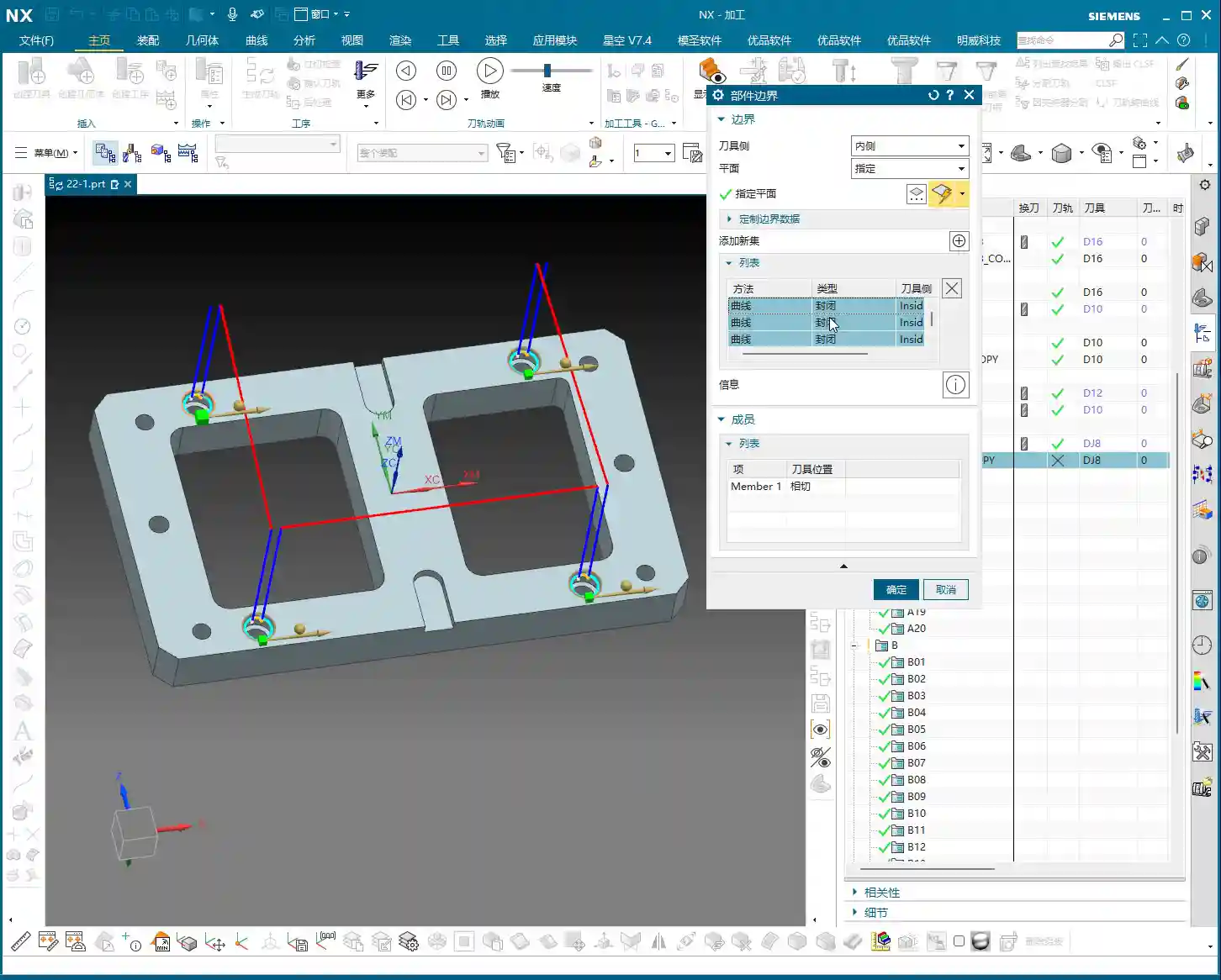
    7. Finally, **regenerate the tool path**.

    Master Wang’s Tip: These settings are absolutely crucial. I recommend you **take a screenshot or a photo right now and save it on your phone**. Don’t expect to remember everything; once things get busy, it’s easy to forget a critical detail. This comes from years of experience – countless apprentices have stumbled at this exact point!

    Post-Processing Verification: Secrets in the G-code

    Once tool compensation is set up, it might not look different in the software, but it’s already embedded in your program. The key is that the post-processed G-code will be different. Let’s verify it:

    1. Right-click on the program and select “Post Process”.
    2. Select your usual post-processor to generate the .NC or .TAP file.
    3. Open this file with a text editor or a CNC code viewer.

    You’ll find that at the beginning of the cutting path, G41 D1 (or whatever other compensation number you set) prominently appears in the G-code. This confirms that your tool compensation has been successfully loaded! If it’s missing, or if you still see G40 (cancel compensation), then you need to go back and check your settings. This is no laughing matter; always review your G-code before sending it to the machine – it’s a fundamental skill for experienced machinists.

    Master Wang’s Marketing Secrets: Boost Your Industrial Product SEO!

    As machinists, good products also need good promotion! The keywords we discussed today – NX Tool Compensation, G41 G-code, CNC Machining Precision – are all terms your potential customers commonly search for online. If you have your own website or product platform, write articles about these technical insights, incorporating these keywords. Your content will then be more easily indexed by search engines, significantly increasing the chances of customers finding you! This is called **Content Marketing** and **Search Engine Optimization (SEO)**. Don’t underestimate these; just like machining precision, they’re critical capabilities! Transforming Master Wang’s experience into valuable online content means converting technical prowess into market competitiveness!

    Summary: Pitfall Avoidance Guide

    • Most Important Point: In “Start Path Events,” ensure the **small checkmark** next to the “Edit” button is present! This checkmark signifies whether the tool compensation event is actually enabled. No checkmark, and all your efforts are wasted! You can set it perfectly, but if the program doesn’t call it, it’s useless.
    • Tool Compensation Isn’t a Cure-All: Tool compensation is only necessary when parts have strict **dimensional tolerance requirements**. This applies especially to operations like finishing side walls or finishing internal bores. Randomly adding tool compensation to jobs without tolerances is just asking for trouble.
    • Distinguish G41/G42: Set the compensation direction according to the tool’s travel relative to the contour (left compensation G41, right compensation G42). Don’t get them reversed. The wrong direction will result in either overcutting or undercutting.
    • D-value Must Match: The set D1 must match the corresponding D-number compensation value in the machine controller; otherwise, the dimensions will be off. This is fundamental machine operation – don’t tell me you don’t know this!
    • Depth of Cut Optimization: When finishing side walls, if the tool and machine allow, try to complete the **finishing pass** in one cut. Set the Depth of Cut to 0 (or remove all remaining stock in a single pass) to significantly improve efficiency. This is practical experience, not just textbook theory.

    Alright, that wraps up today’s practical tips. Go back, practice more, ponder more, and combine theory with practice. Only then can you truly become a master, a good machinist who can solve real-world problems!

    👤 About the Author:
    The author is a veteran CNC machining professional with 15 years of industry experience, specializing in UG NX programming. This article is an original work representing personal practical insights.

    ⚠️ Copyright Notice: Unauthorized reproduction or distribution without prior communication is strictly prohibited.