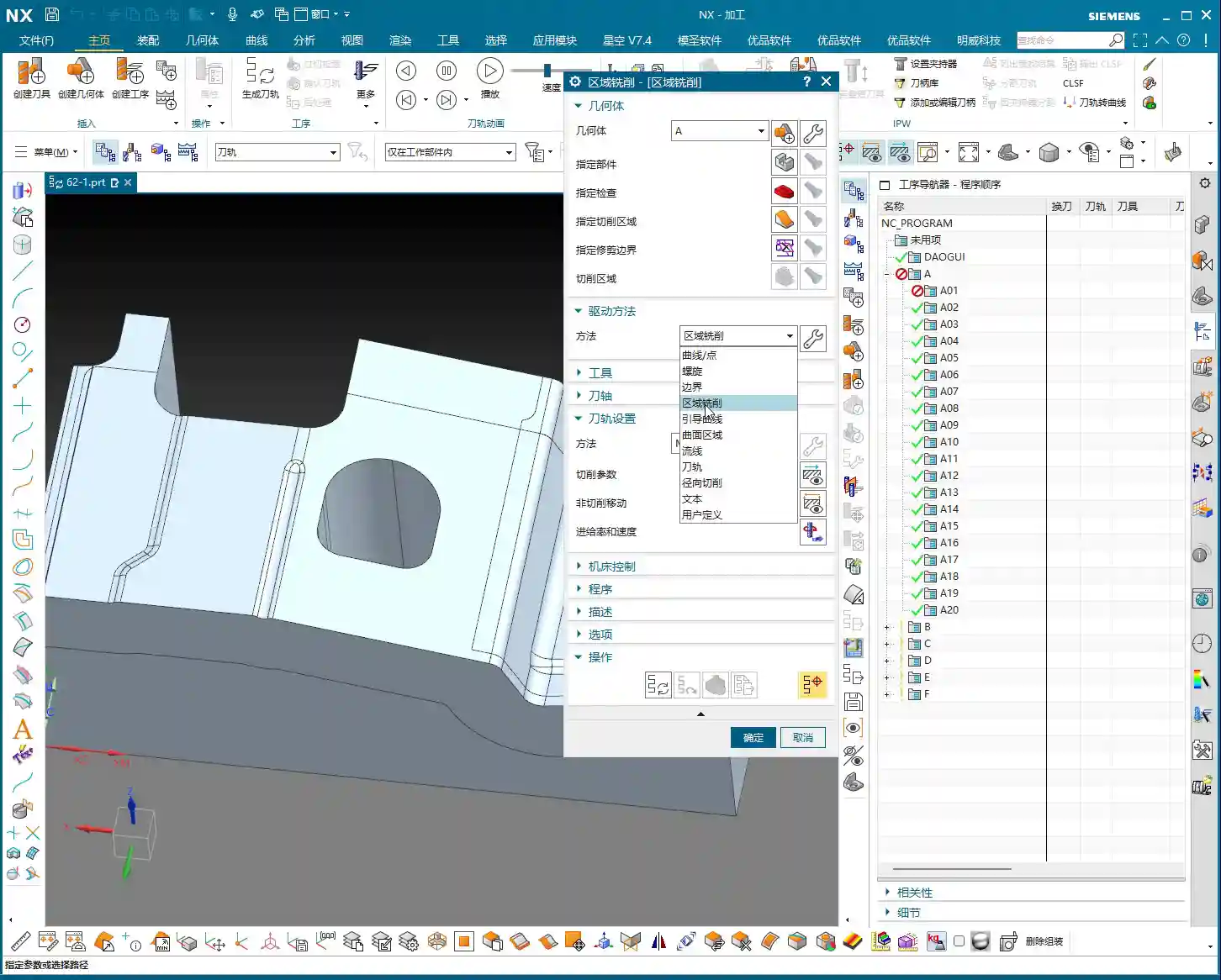
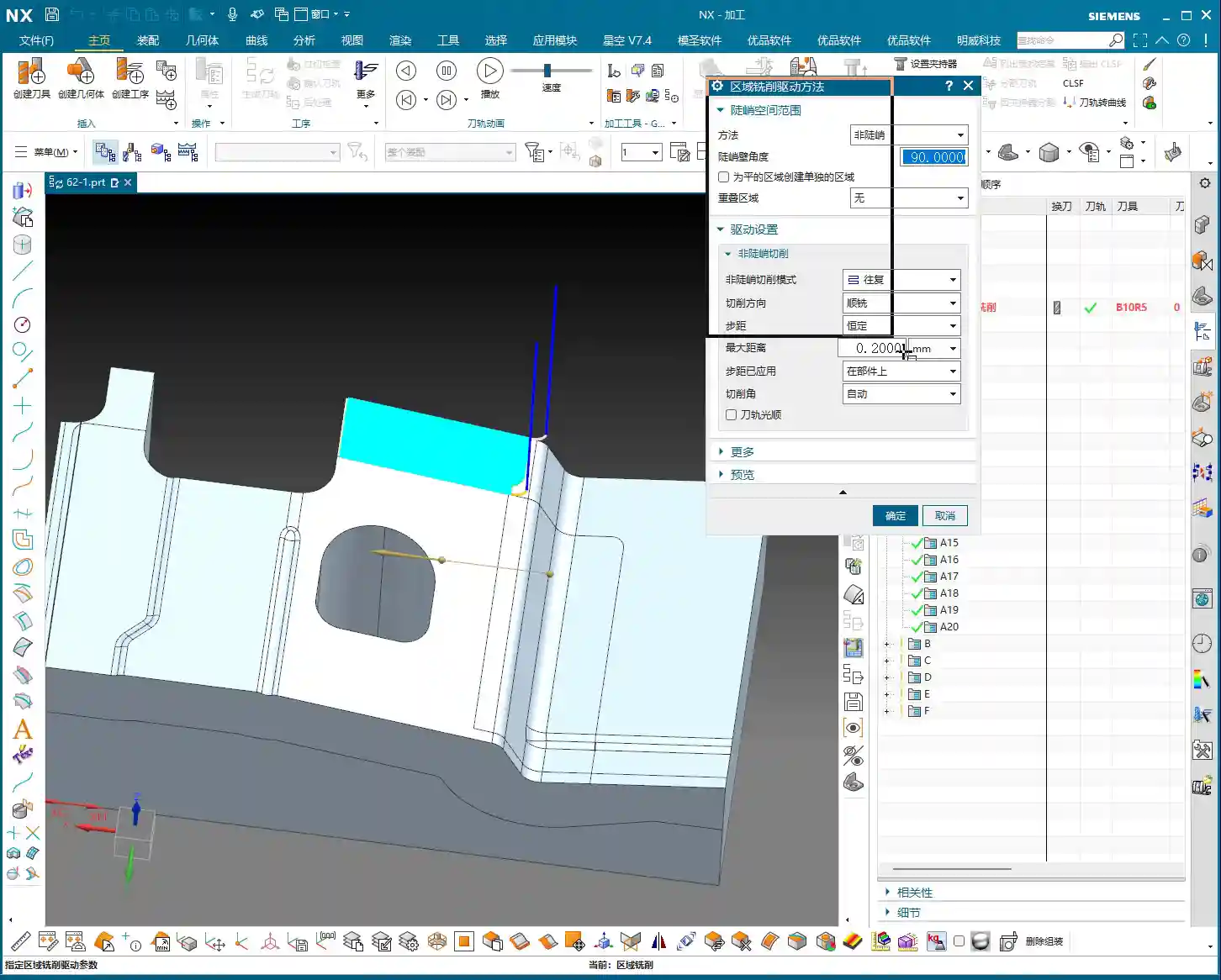
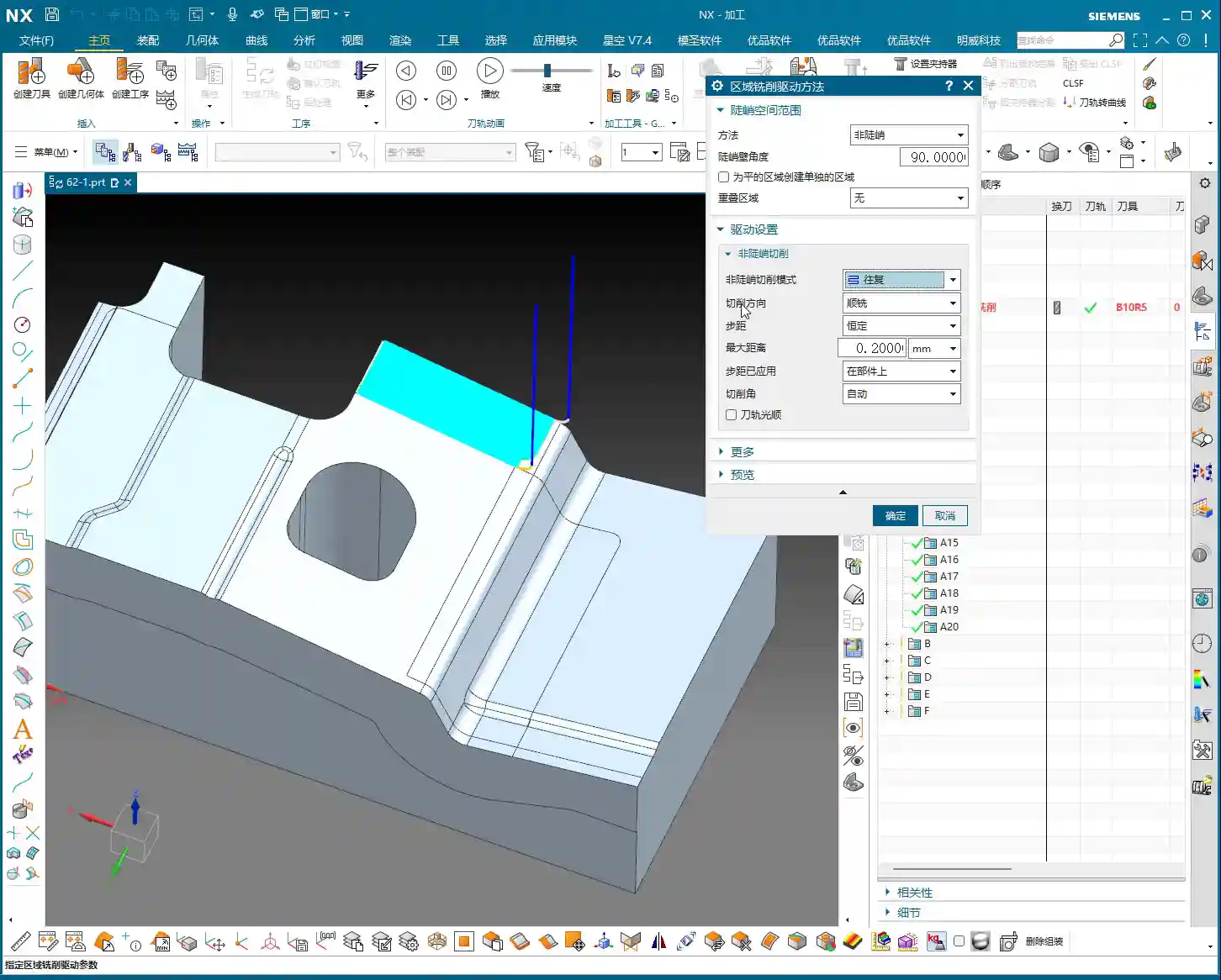
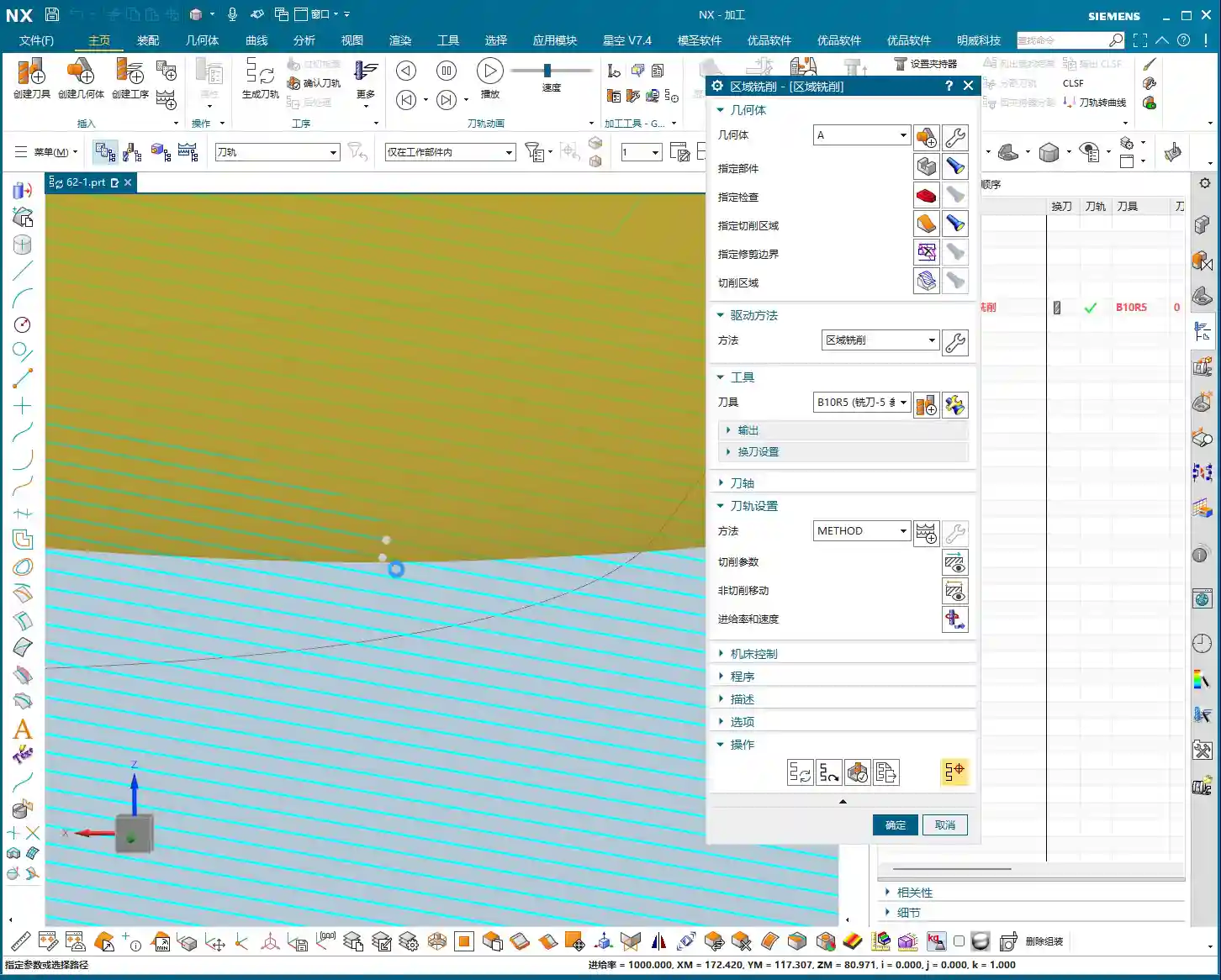
Blog

  • Master Wang’s Practical Guide to Siemens NX Fixed Area Milling: From Surface Analysis to Toolpath Op

    📝 Key Takeaways:

    Fixed Area Milling in Practice: Master Wang’s Guide t…

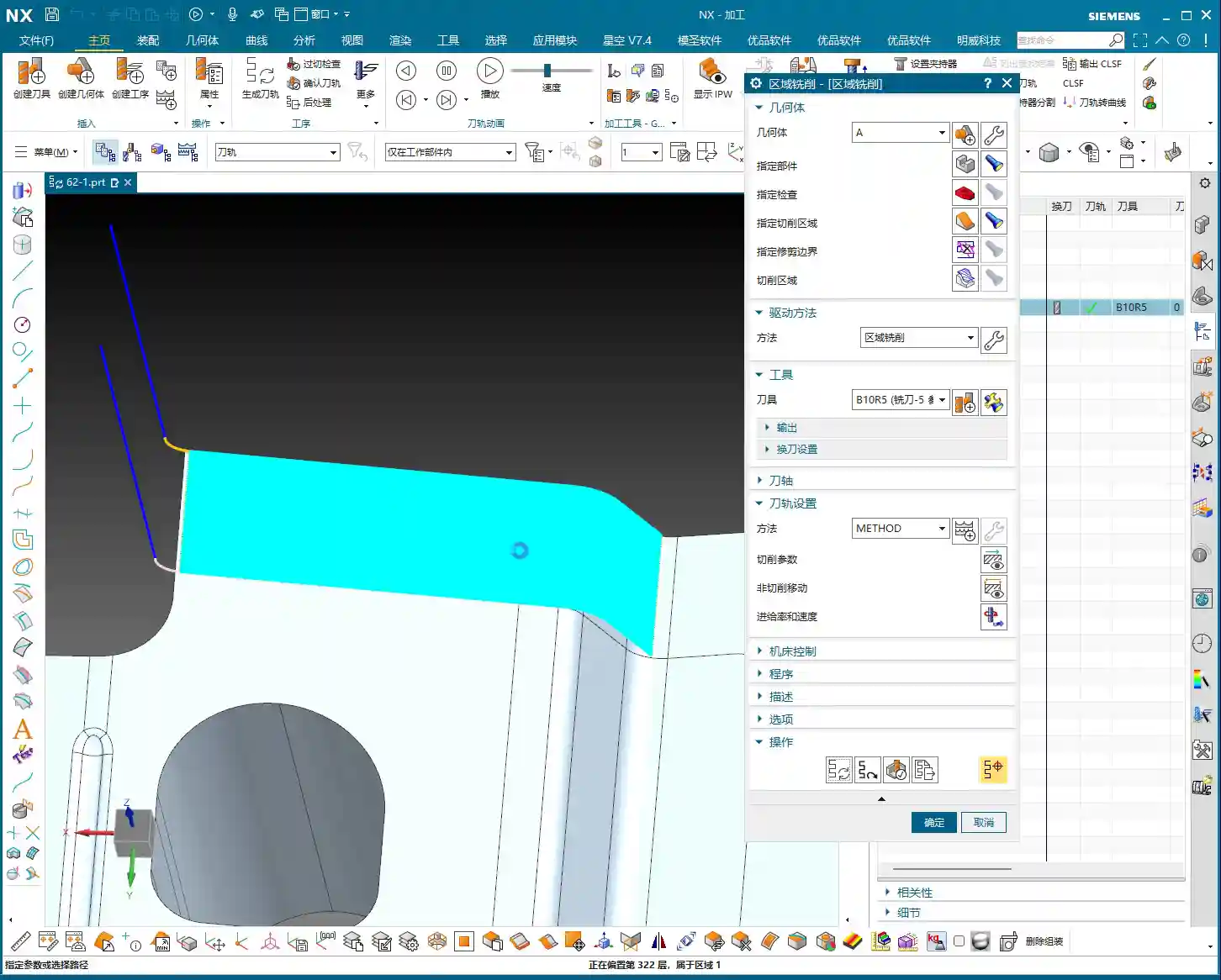
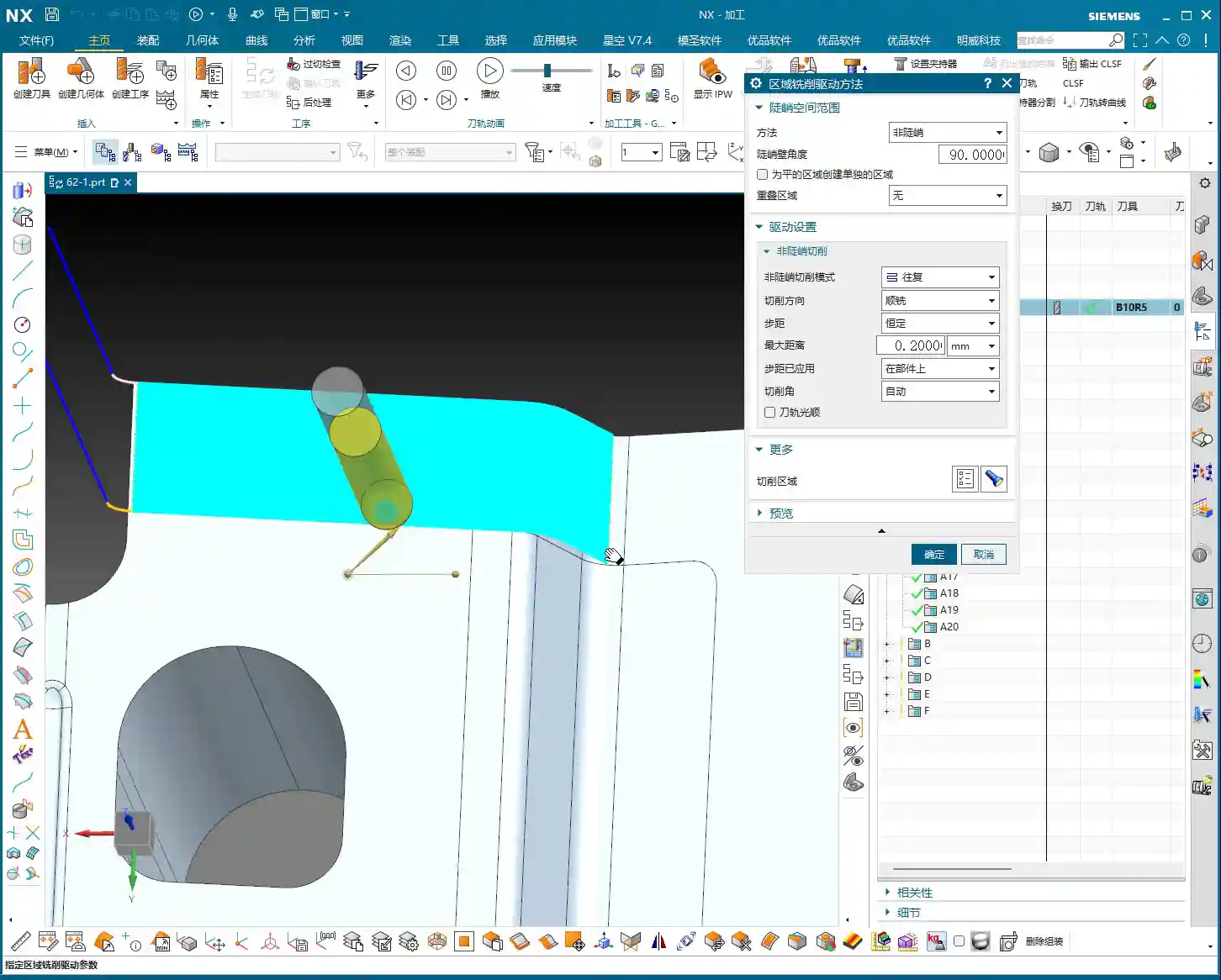
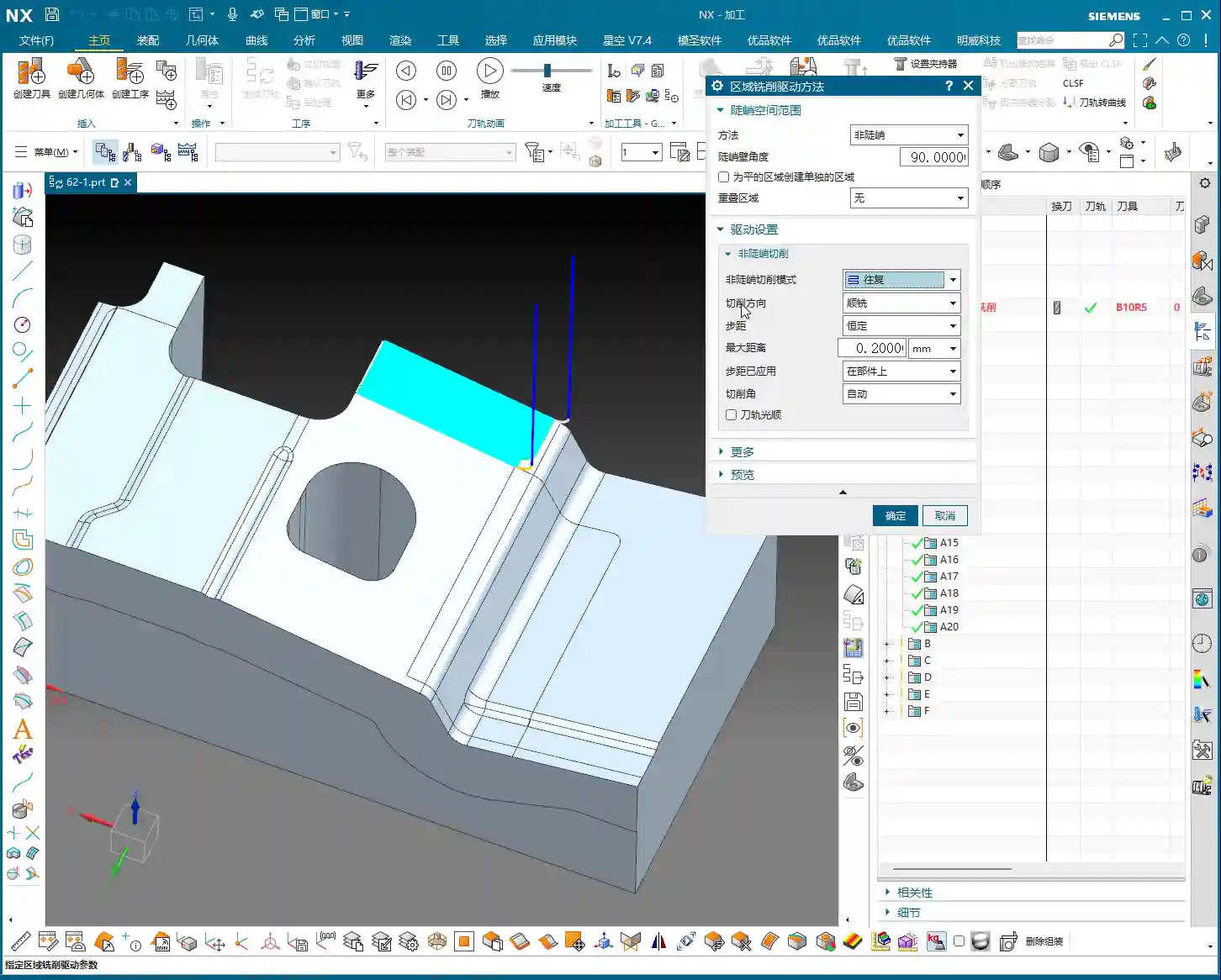
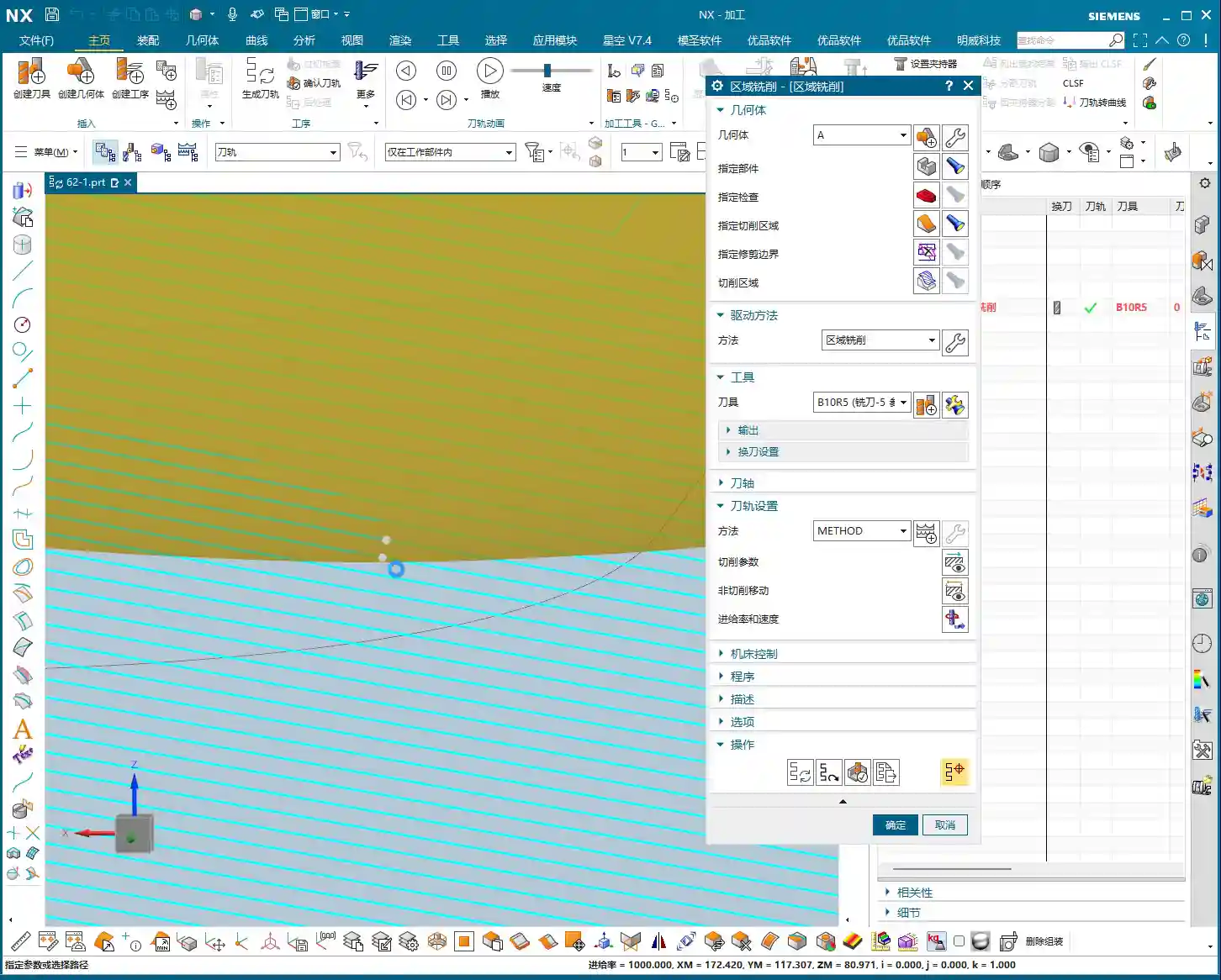
    Hello everyone, I’m Master Wang. Today, let’s continue our discussion on Siemens NX programming. In our previous sessions, we ironed out the basic concepts of Fixed Area Milling. Today, we’re getting down to business: we’re going hands-on to program a “Finishing pass” for a real-world part. Listen up – this job isn’t just about clicking a mouse; it’s packed with experience and critical insights!

    Step One: Eagle Eye Surface Analysis – Defining the Machining Area

    Alright folks, when you get a job, don’t rush straight into it. We need to start with “surface analysis” – that means meticulously examining the part’s geometric features. You need to know which areas are flat and which are curved. This directly influences your tool selection and machining strategy.

    Identifying Planar and Curved Surfaces

    Some areas on this part might look planar, but are they truly flat? In NX, don’t just eyeball it; you need to verify with geometric properties.
    In NX, simply select a face and use the “Geometric Properties” function to check. If its Z-axis coordinate value is consistent across different points, then it’s a true planar surface. If the Z-axis value keeps changing, even slightly, it’s a curved surface and must be treated as such.
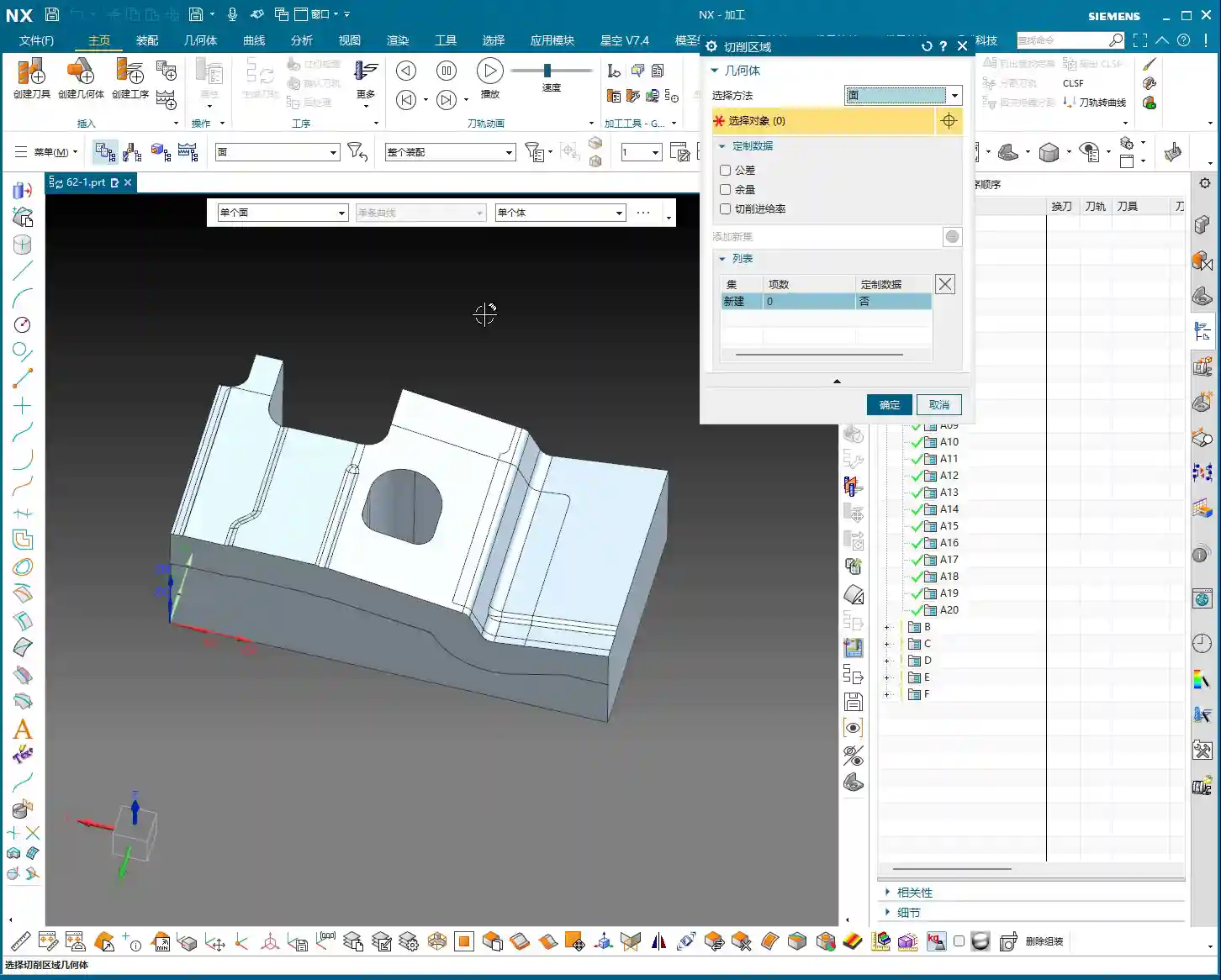
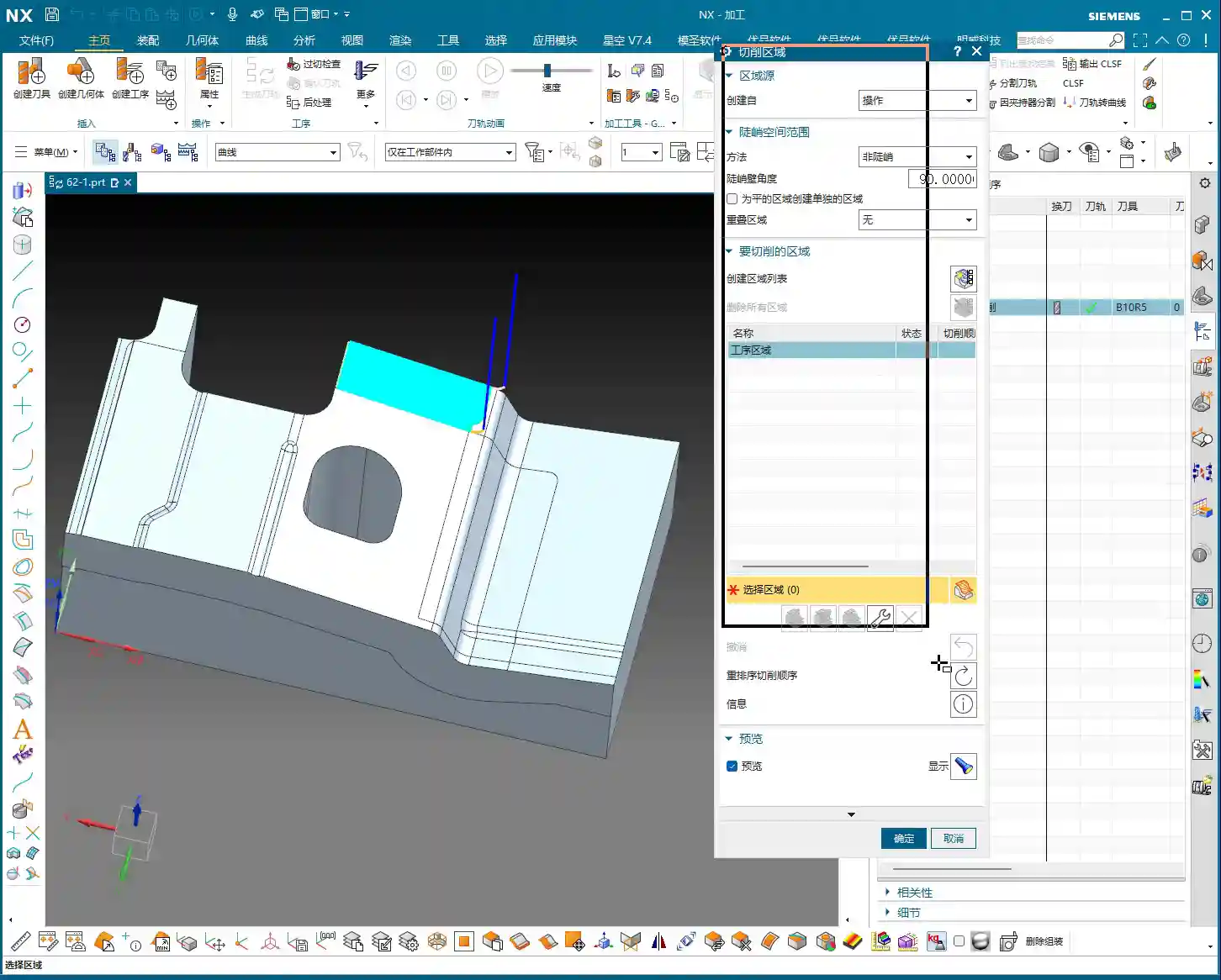
    For this particular part, after my careful inspection, I found that most areas are curved surfaces, but there are a few genuinely flat spots, and these need to be handled differently.
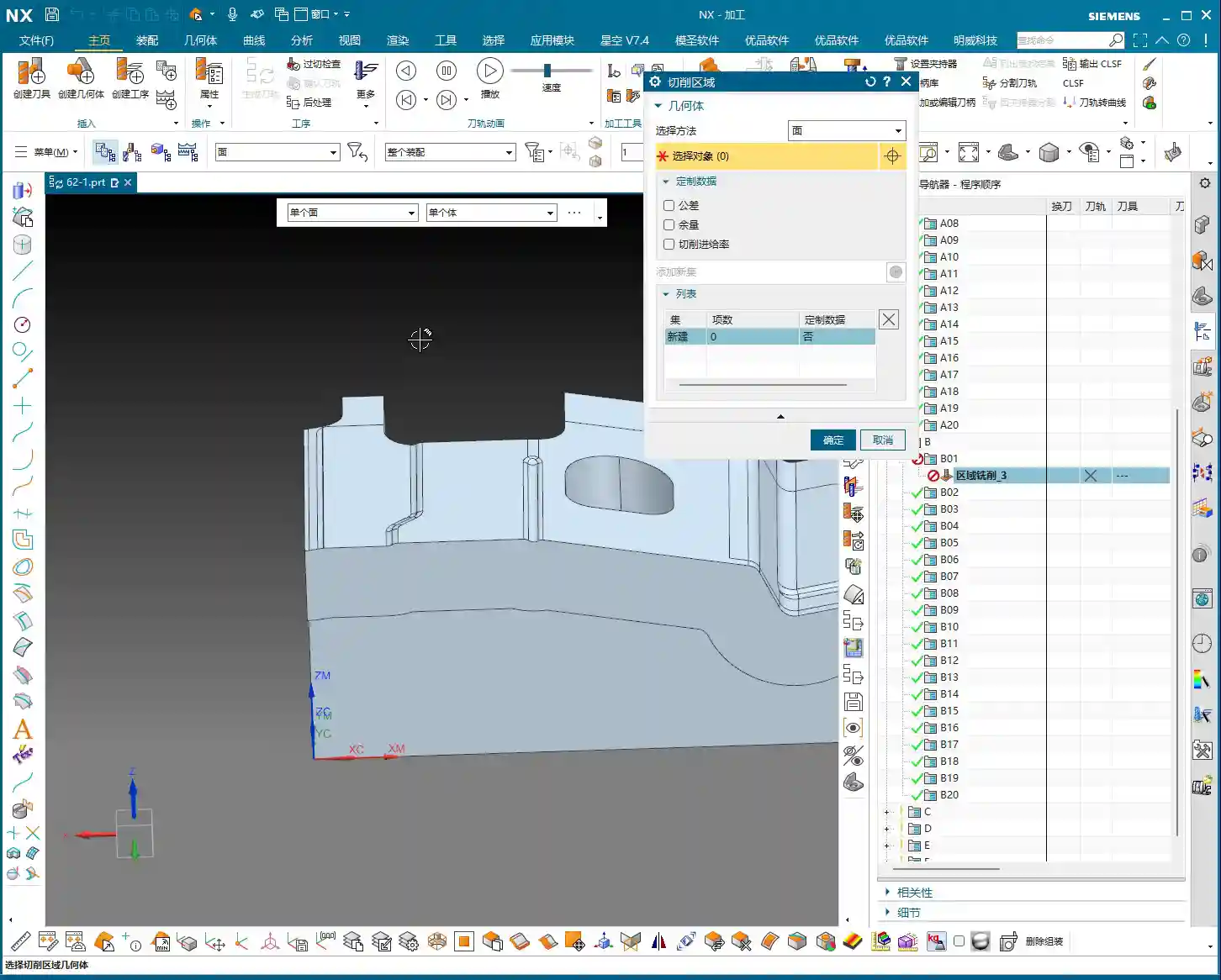
    Identifying Critical Fillets and Narrow Areas

    Besides planar and curved surfaces, pay special attention to areas with fillets. The size of the fillet dictates the required tool diameter.
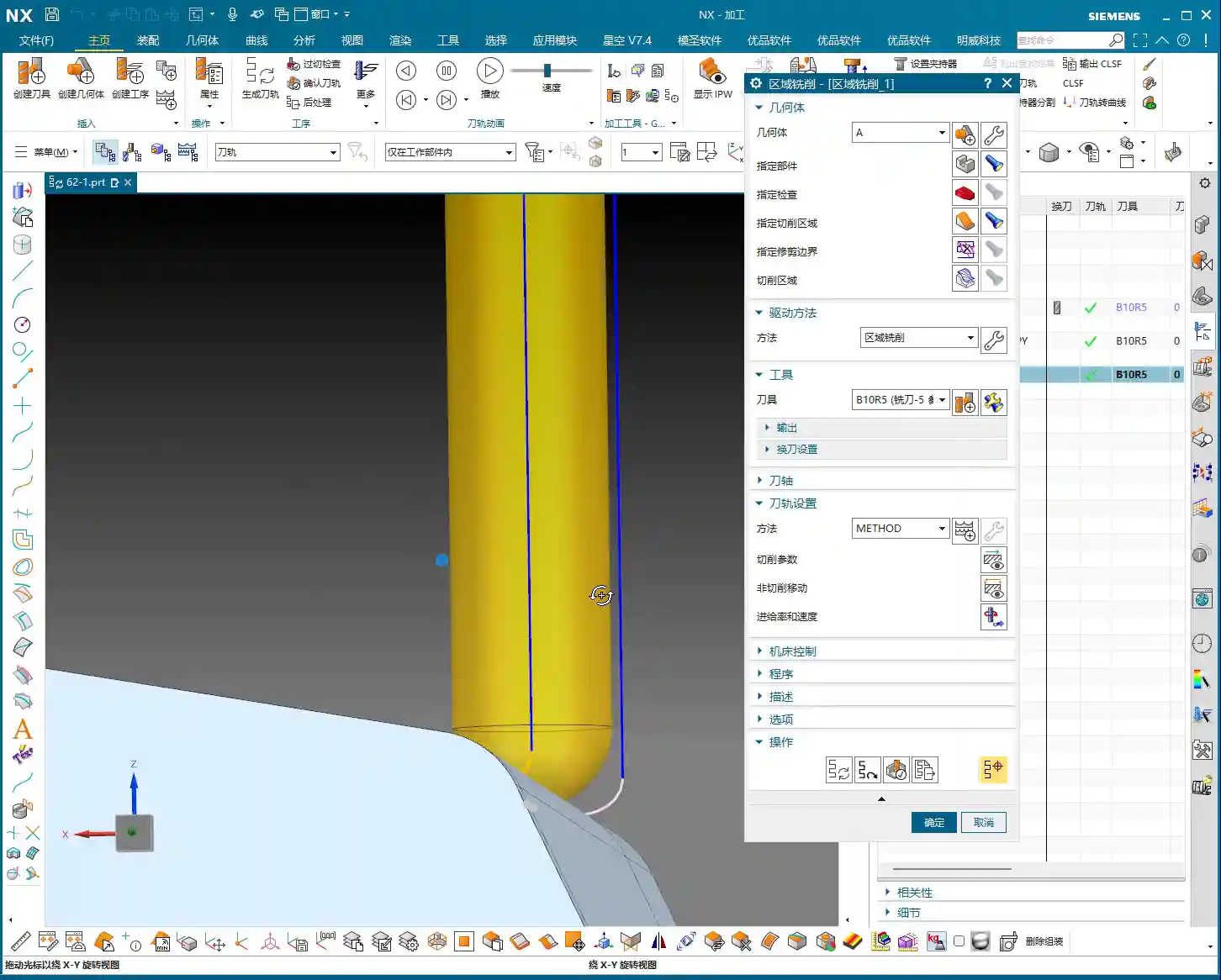
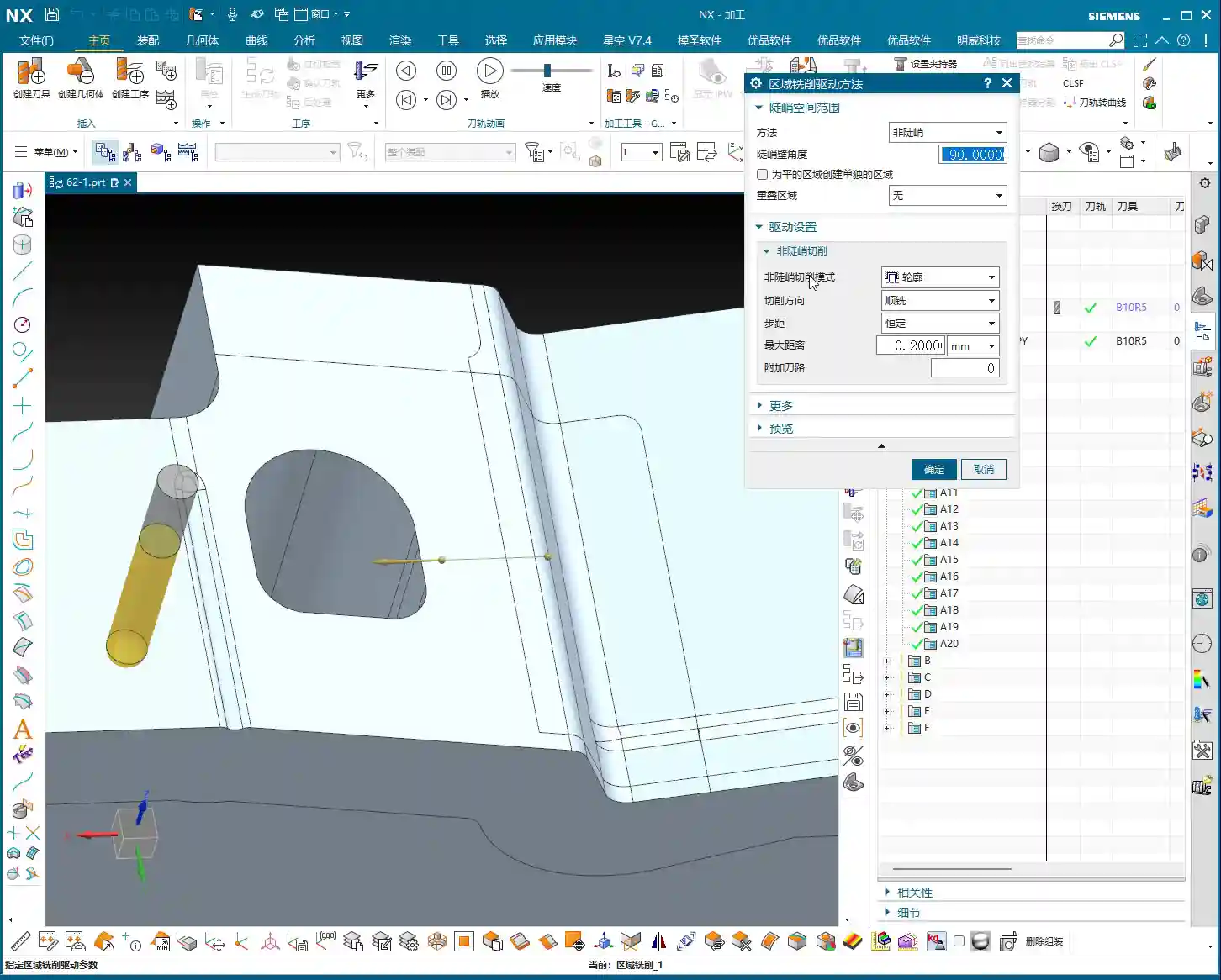
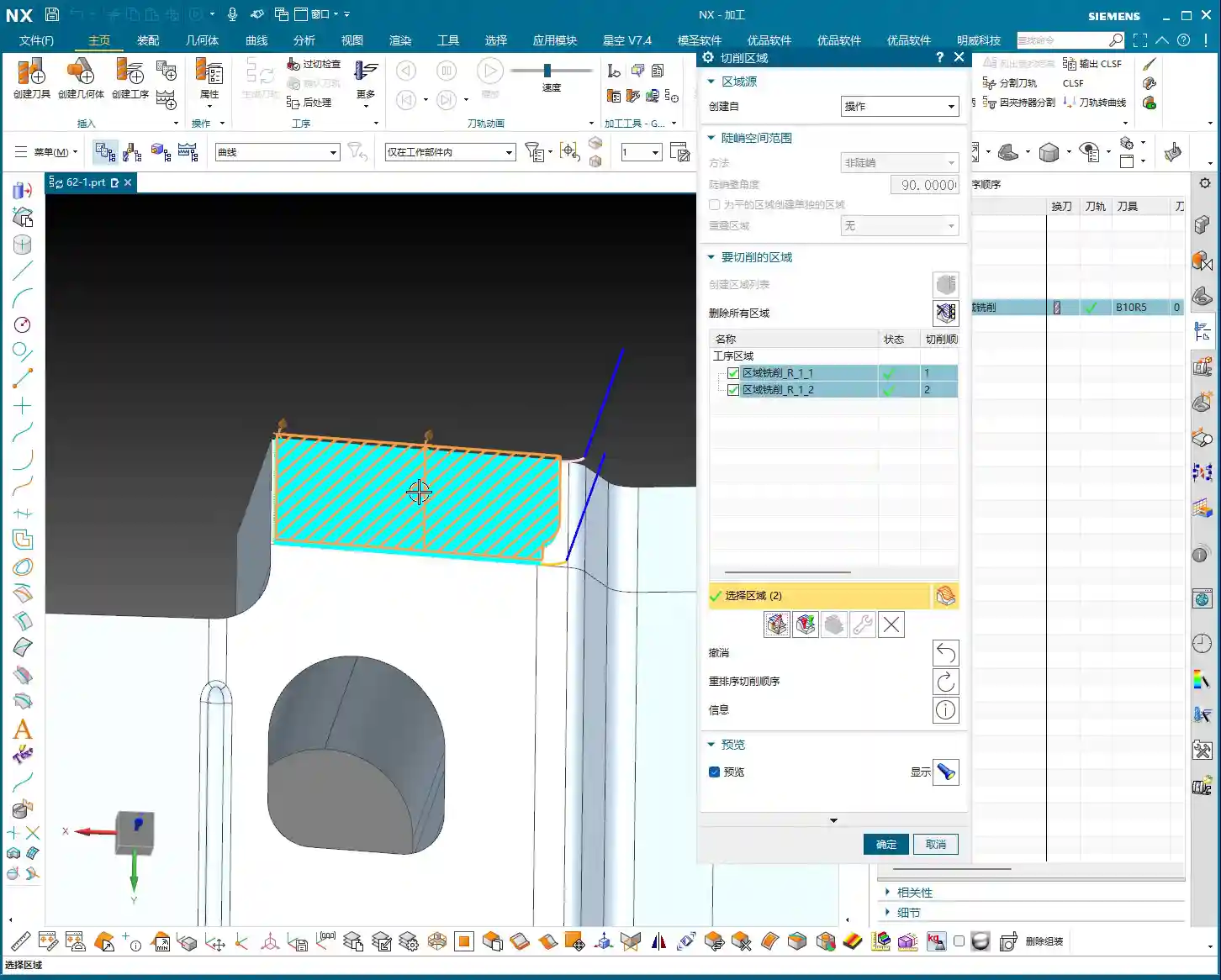
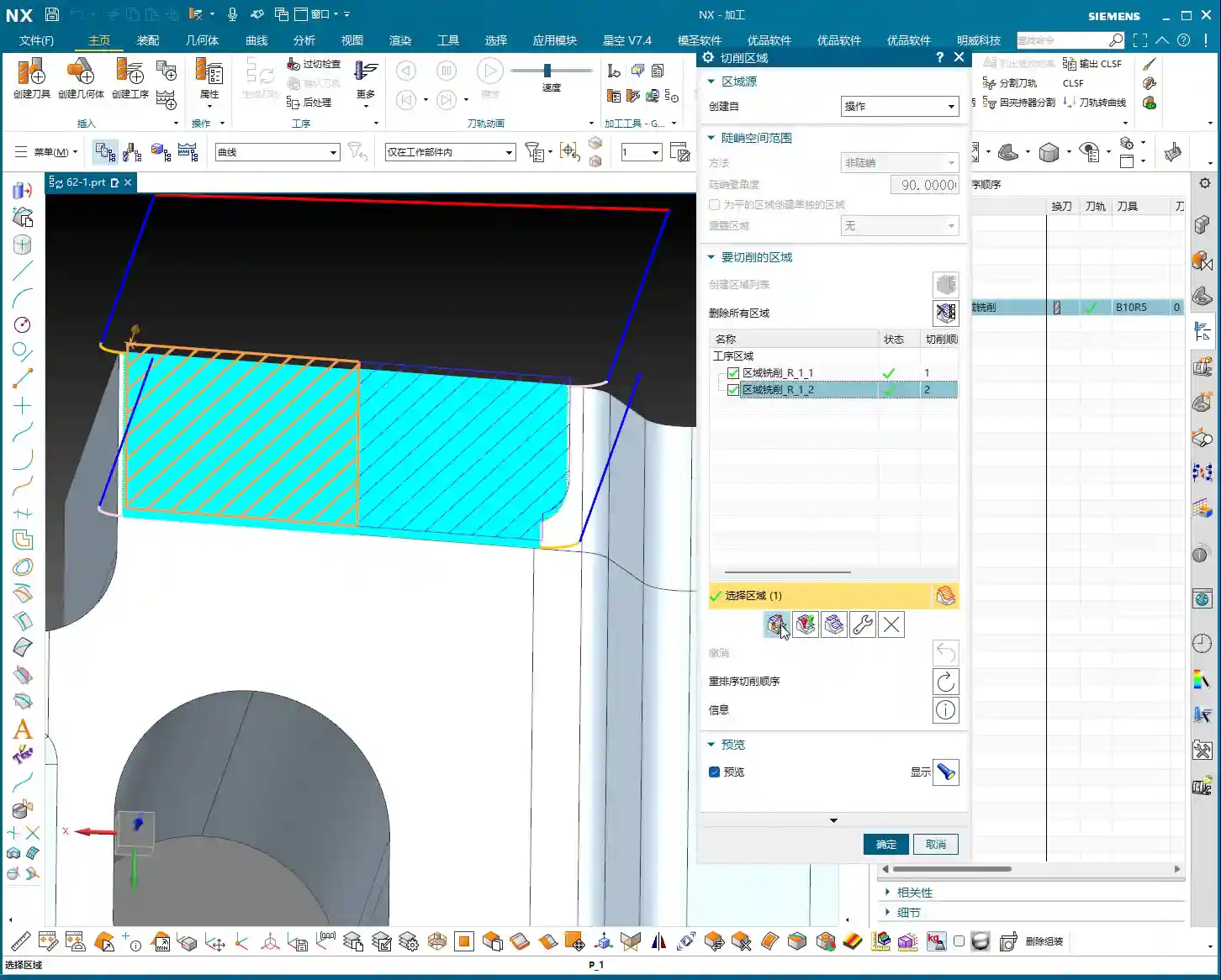
    After my initial survey, I noticed one area with a slightly smaller fillet, approximately R6. For this, we’ll need to consider a 6mm diameter ball-nose end mill (or smaller) for the Finishing pass. Further in, some fillets are larger, like R5, where a 5mm diameter ball-nose end mill will suffice, potentially even completing it in a single pass. Remember, tool selection must match the part’s features; otherwise, you’ll either fail to machine the area completely or suffer from poor efficiency.

    Step Two: Tool Selection and Strategy – Precision, Stability, and Aggression

    Once the machining area is defined, the next step is tool selection and strategy formulation. Siemens NX’s Fixed Area Milling offers great flexibility, but getting quality results hinges on your experience.

    Clever Use of Ball-Nose End Mills for Complex Surfaces

    For parts like ours, which feature various fillets and curved surfaces, the ball-nose end mill is our primary tool.
    Having identified the R5 and R6 fillets earlier, I have a clear plan:

    • For R5 areas, we’ll use a Ø5mm ball-nose end mill for Finishing pass.
    • For R6 areas, we can either add a Ø6mm ball-nose end mill or just use the 5mm tool with additional passes.

    Remember, the tool diameter should be slightly less than or equal to the smallest machining radius to ensure proper Corner Cleanup.
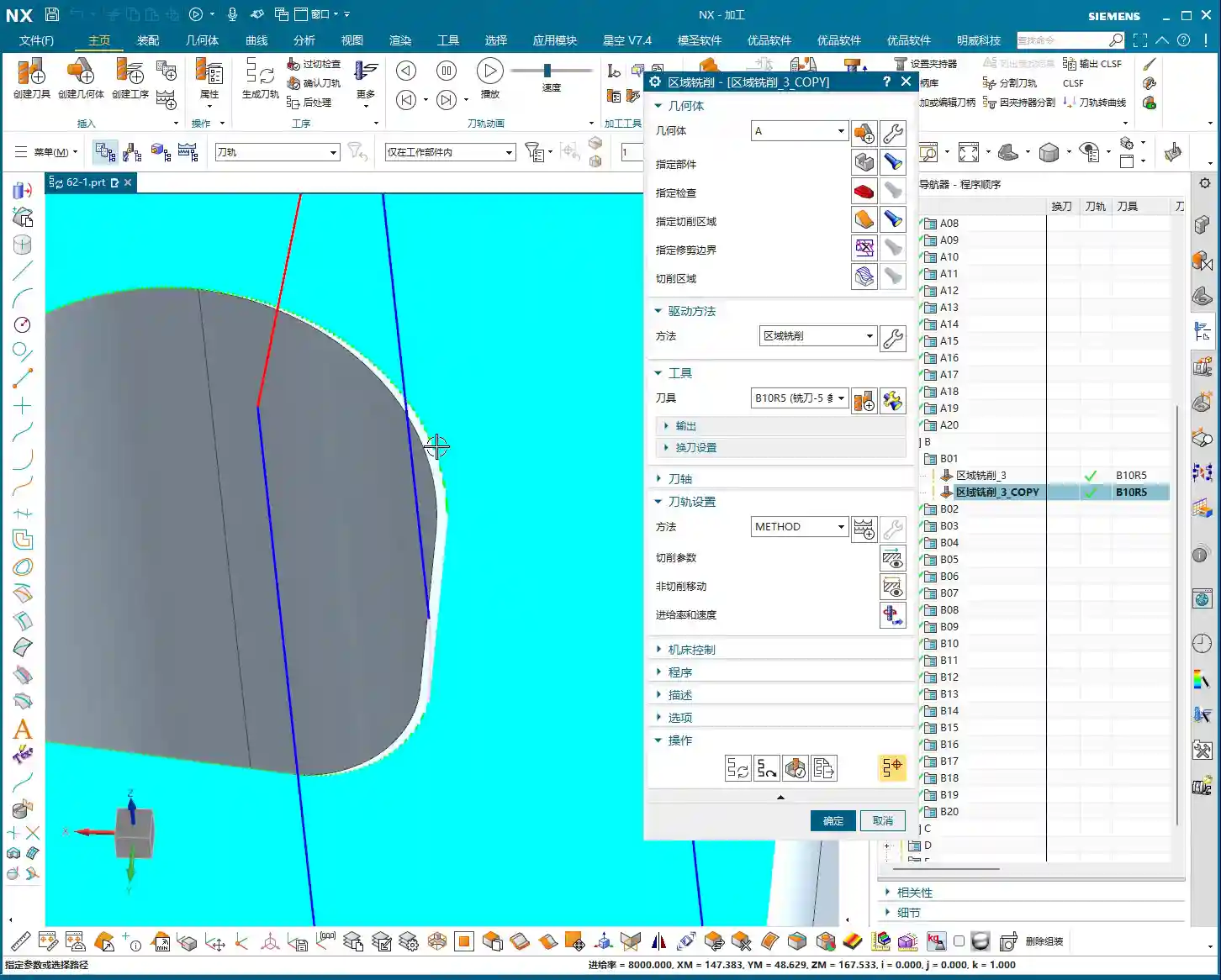
    Flexible Selection of Cut Direction and Start Point

    In Fixed Area Milling, the cut direction and start point are crucial.

    • Parallel to Tool Axis: This is the most commonly used method, especially suitable for flat or gently sloped surfaces.
    • Perpendicular to Tool Axis: Sometimes used, but depends on the specific surface geometry.
    • Helical/Spiral: For internal areas with circular or elliptical shapes, using this method to cut spirally from outside-in or inside-out creates a more continuous path, more stable cutting, and effectively reduces air cuts and “tool jumps” (unnecessary retractions).

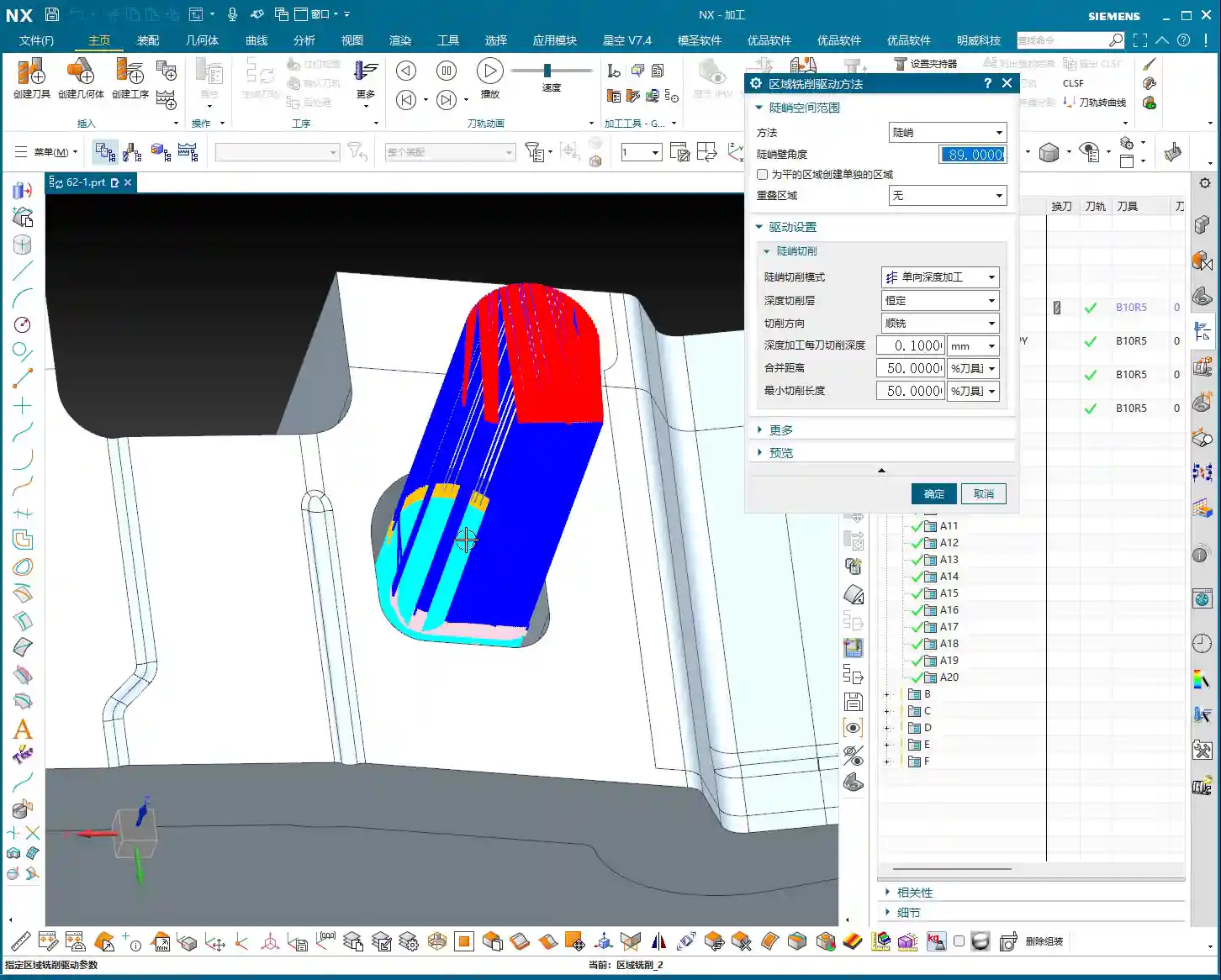
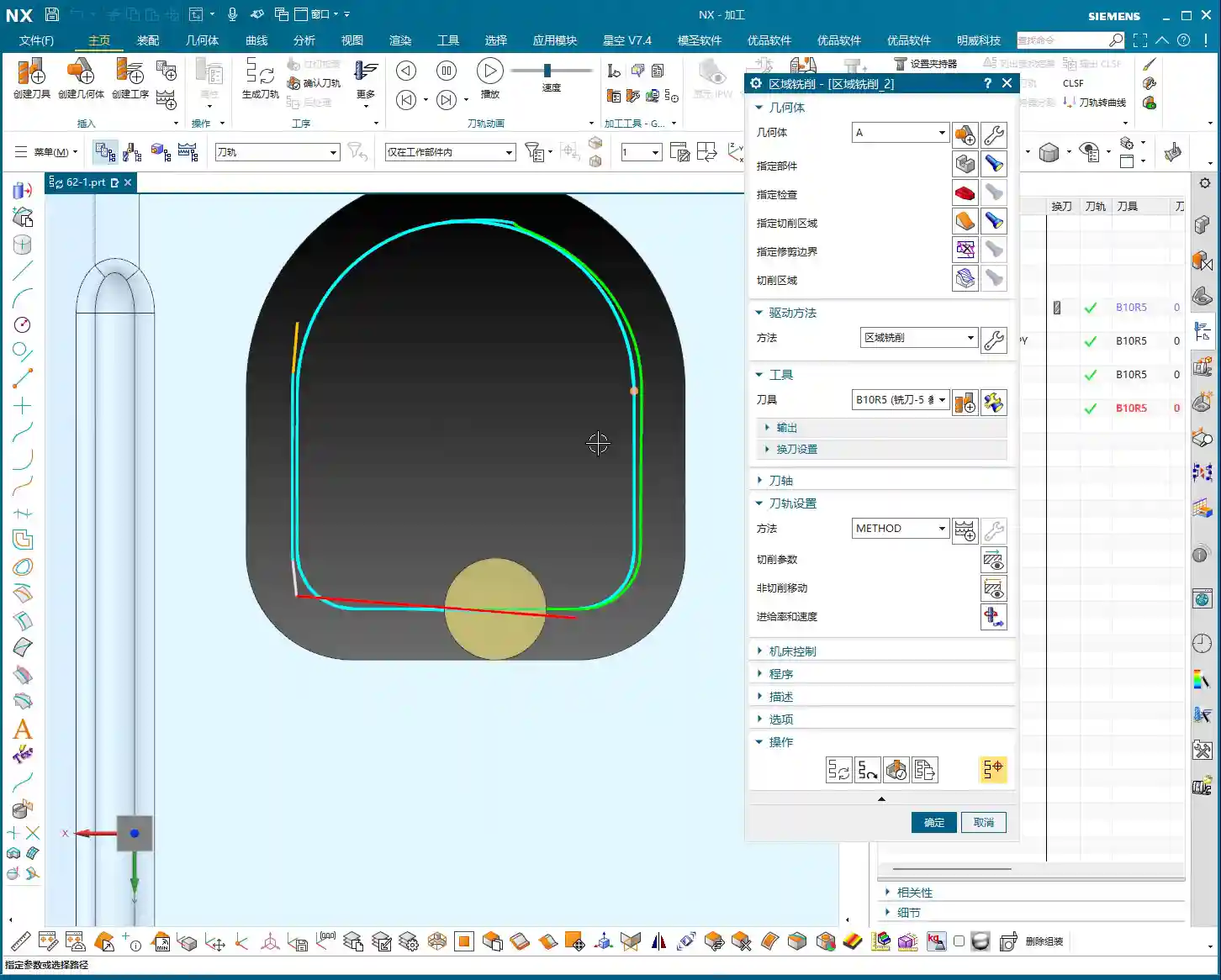
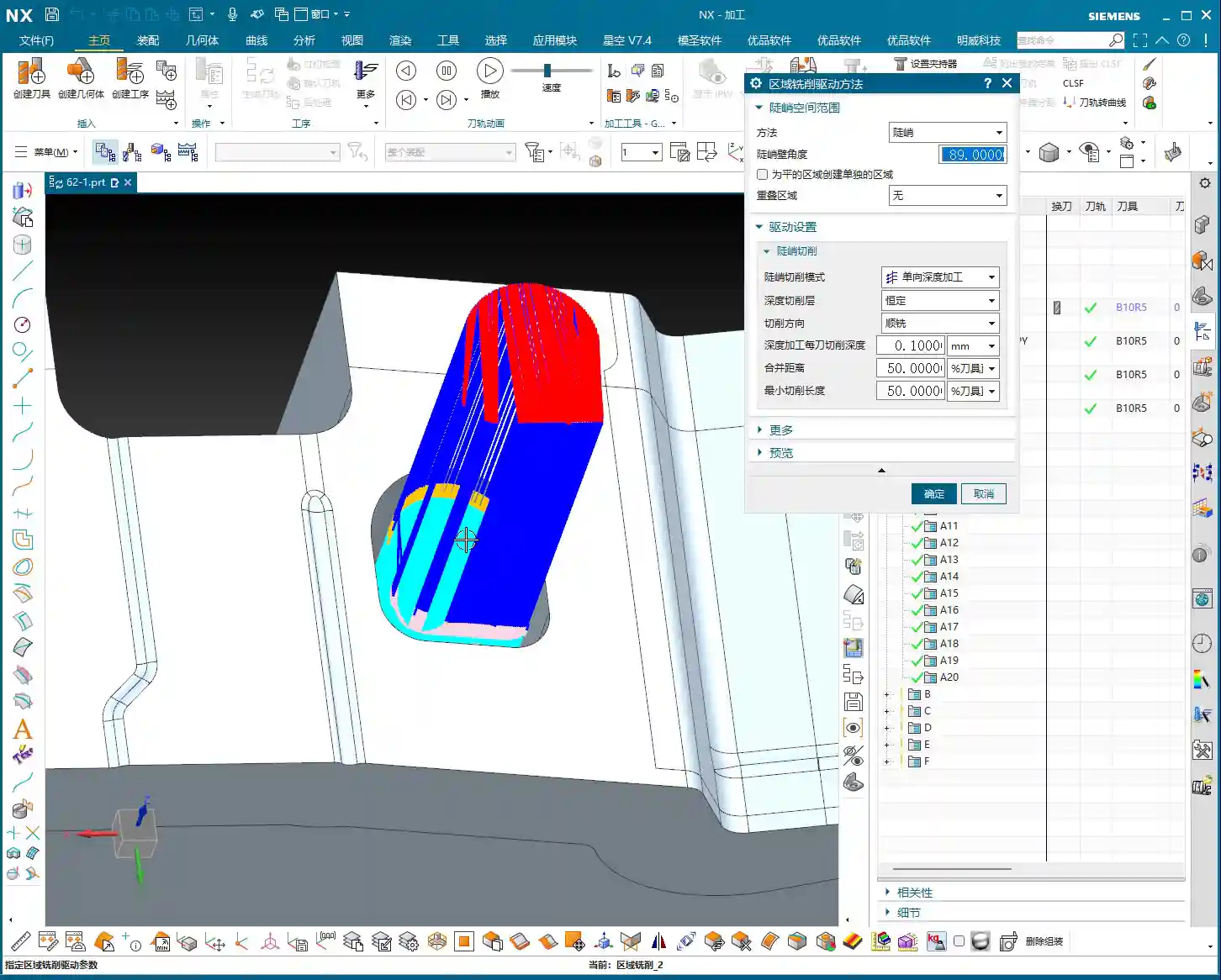
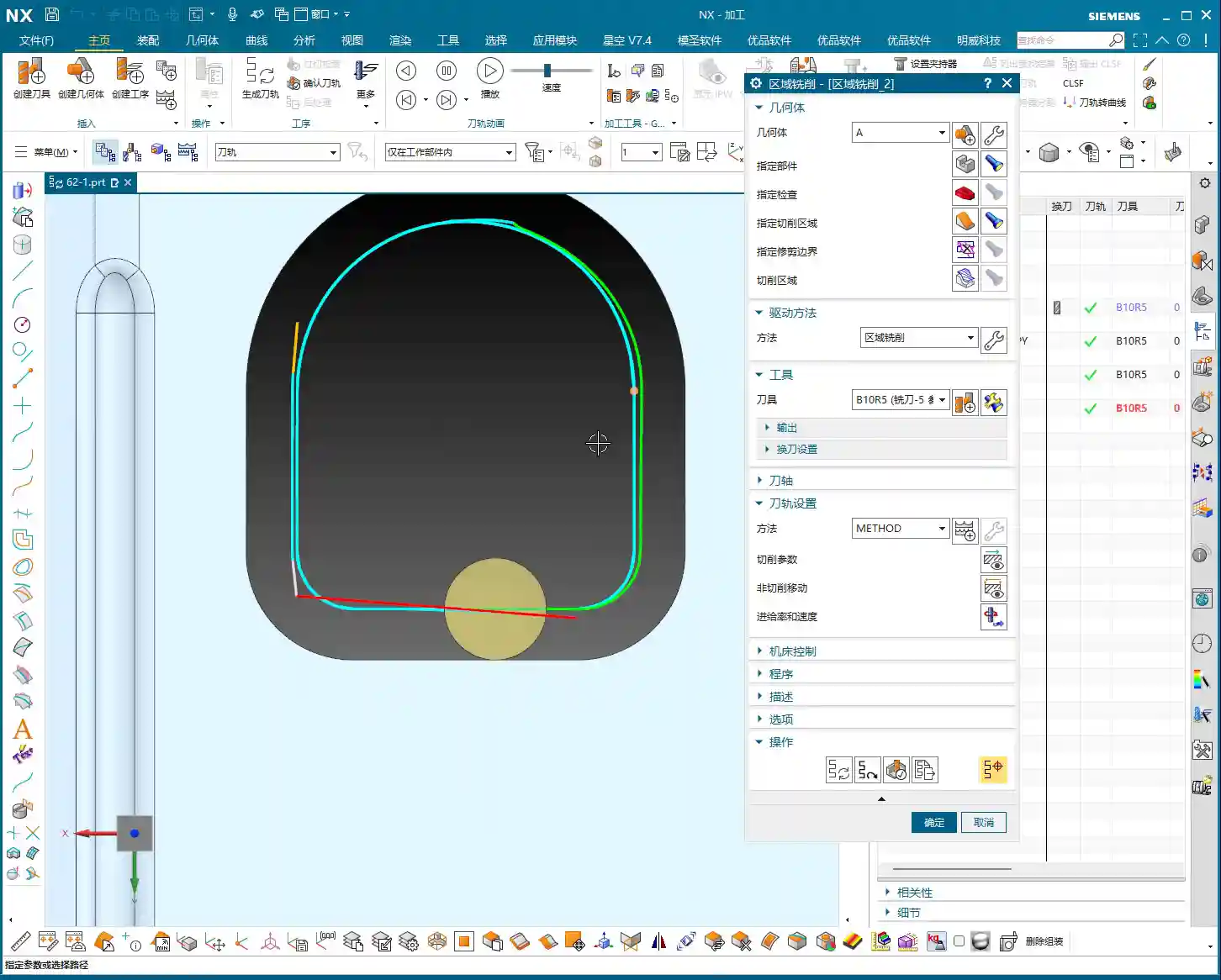
    For certain internal cavities on this part, I employed a “Spiral Inward” approach. See how smoothly the toolpath runs? Efficiency naturally improves.
    Furthermore, setting the program’s “Start Point” is also very important. Sometimes, the default start point can lead to frequent tool retractions or engagements from unfavorable positions. We can manually specify a sensible start point, such as beginning the cut from the exterior of the workpiece or engaging from a more open area, to prevent damage to already machined surfaces.

    “Tool Jumps”? No Worries, We’ve Got Solutions!

    In NX, you sometimes encounter “tool jumps” in the toolpath, meaning the tool frequently retracts and re-engages. This can happen for several reasons:

    • Holes or Open Areas in Between: If there’s a hole in the middle of the machining area, the tool will naturally retract to avoid it – that’s normal. If you want a more continuous toolpath, you can “cap off” this hole with a surface during modeling, then remove it after machining.
    • Gaps or Elevation Differences in the Model Itself: If the model design itself has issues, such as the 4-micrometer (approx. 0.00016 inch) gap we just found, the tool might “hesitate” there. While the impact is minimal, ideally, the model should be clean.

    When programming, make good use of NX’s “Safe Region”, “Cut/Non-Cut Areas”, “Trim Boundary”, and other functions to control the toolpath more precisely and reduce unnecessary retractions.

    Step Three: Practical Case Study and Toolpath Generation

    Now, let’s combine this with actual operations and generate the toolpaths for these areas one by one.
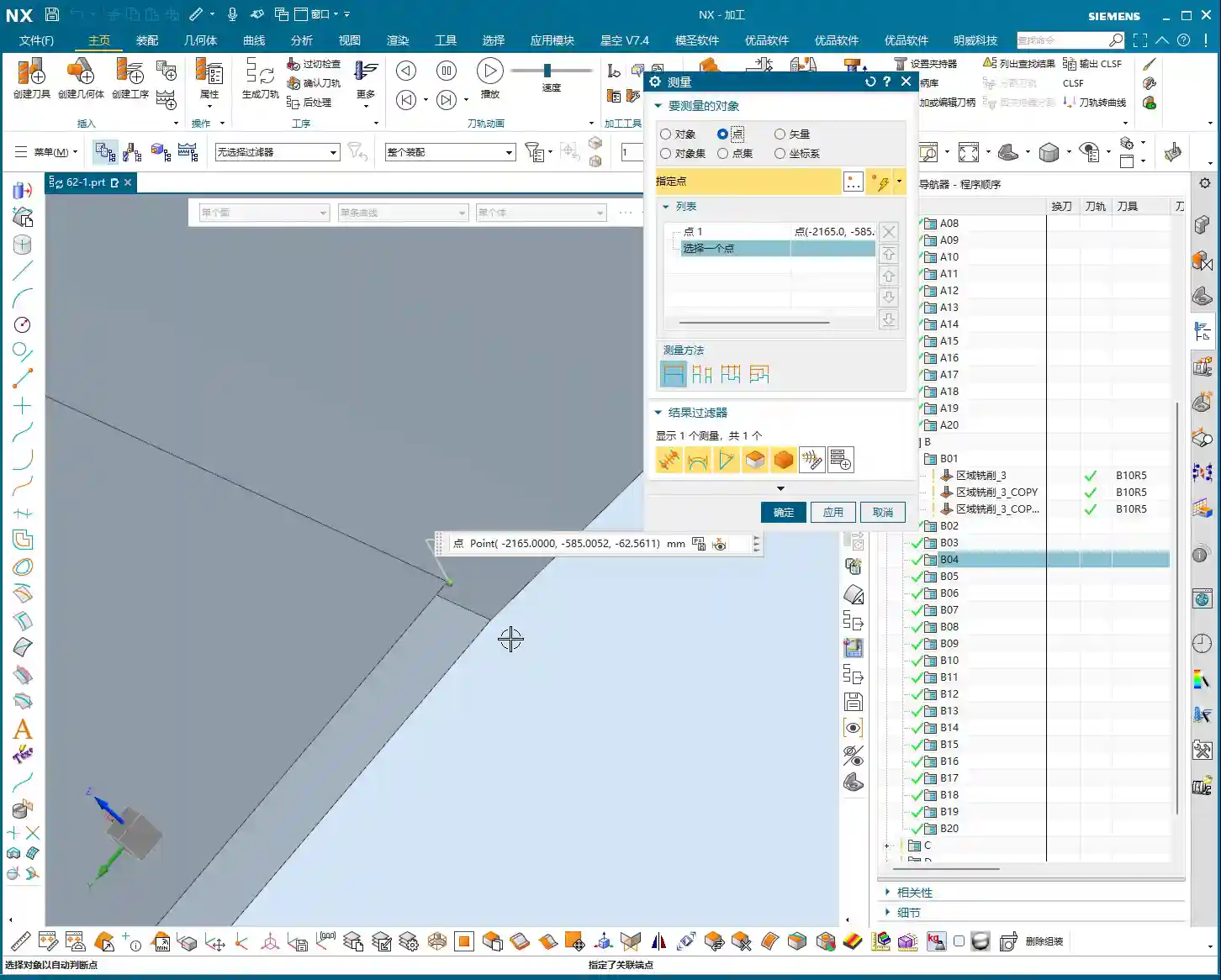
    Finishing Pass for Planar Areas

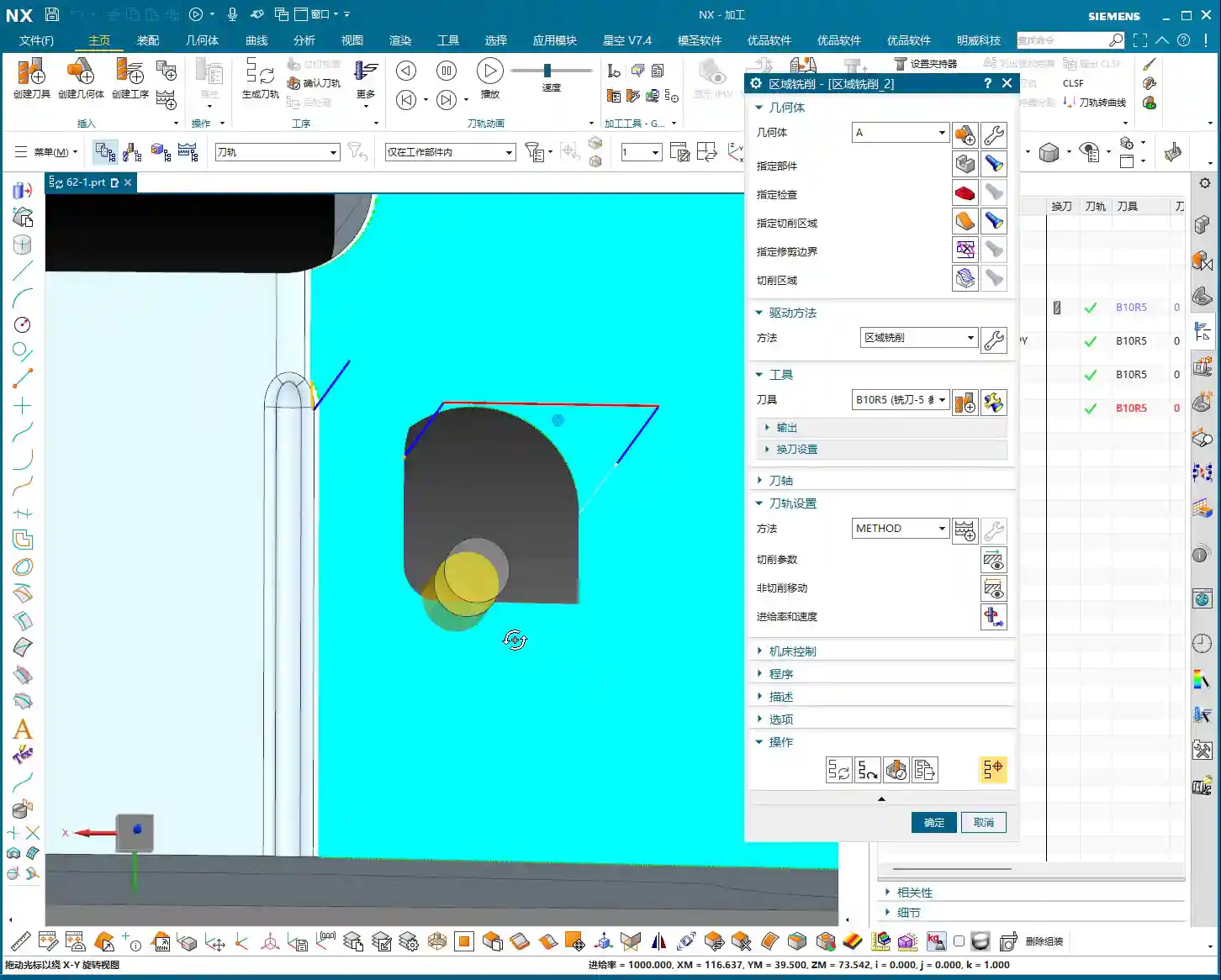
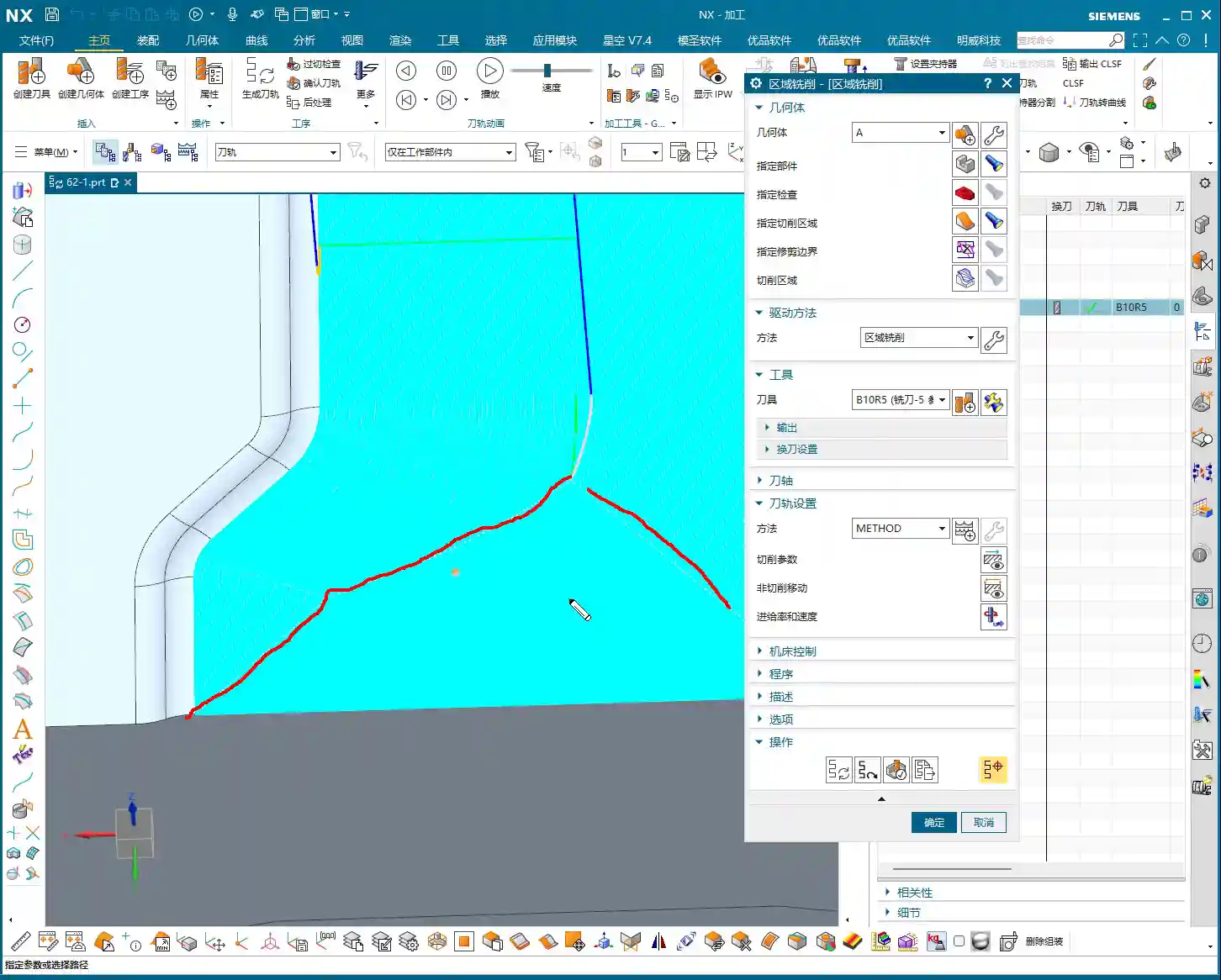
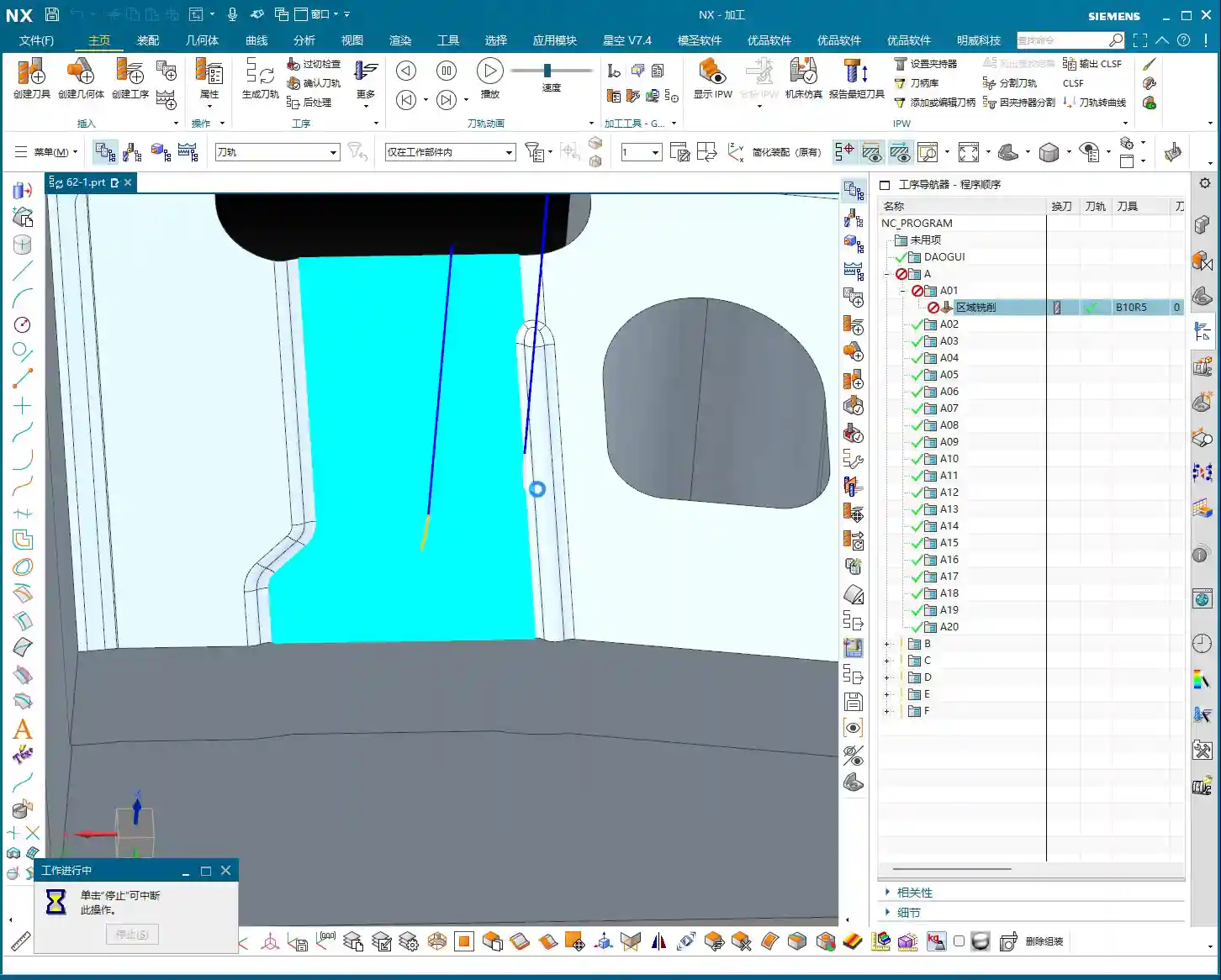
    For the confirmed planar surfaces, simply select Fixed Area Milling, choose the faces, and generate the toolpath. Typically, NX will default to generating parallel linear toolpaths. If you find the toolpath moving from bottom-up and you prefer top-down, just change the “Cut Direction”. Don’t just rely on software simulation; during actual machining, cutting from top to bottom provides more stable cutting forces and better chip evacuation.

    Precision Finishing Pass for Small Fillet Areas

    For the small fillets like R5 and R6 we discussed earlier, we’ll first duplicate a program, then change the tool to a Ø5mm or Ø6mm ball-nose end mill.
    Select a cutting method like “Spiral Inward” or “Boundary Machining”, guiding the tool to move layer by layer inward or outward along the fillet area, ensuring uniform cutting everywhere. This area is prone to heavy cutting conditions, so feed rates and spindle speeds must be carefully controlled to avoid tool breakage.

    Addressing Minor Model Defects

    Earlier, we discovered a 4-micrometer (approx. 0.00016 inch) gap or a slight raised surface in the part model. Theoretically, a defect of this size is concerning for our Finishing pass. However, in actual production, if it doesn’t affect assembly or function, and the tolerance allows for it, we’ll simply “ignore it” during programming.
    Why? Because creating a toolpath to fix such a minor defect could incur time and cost far exceeding its impact. Of course, if tolerance requirements are stringent, then we must feedback to the design department to modify the model. I, Master Wang, always emphasize: Practicality first, cost-efficiency always!
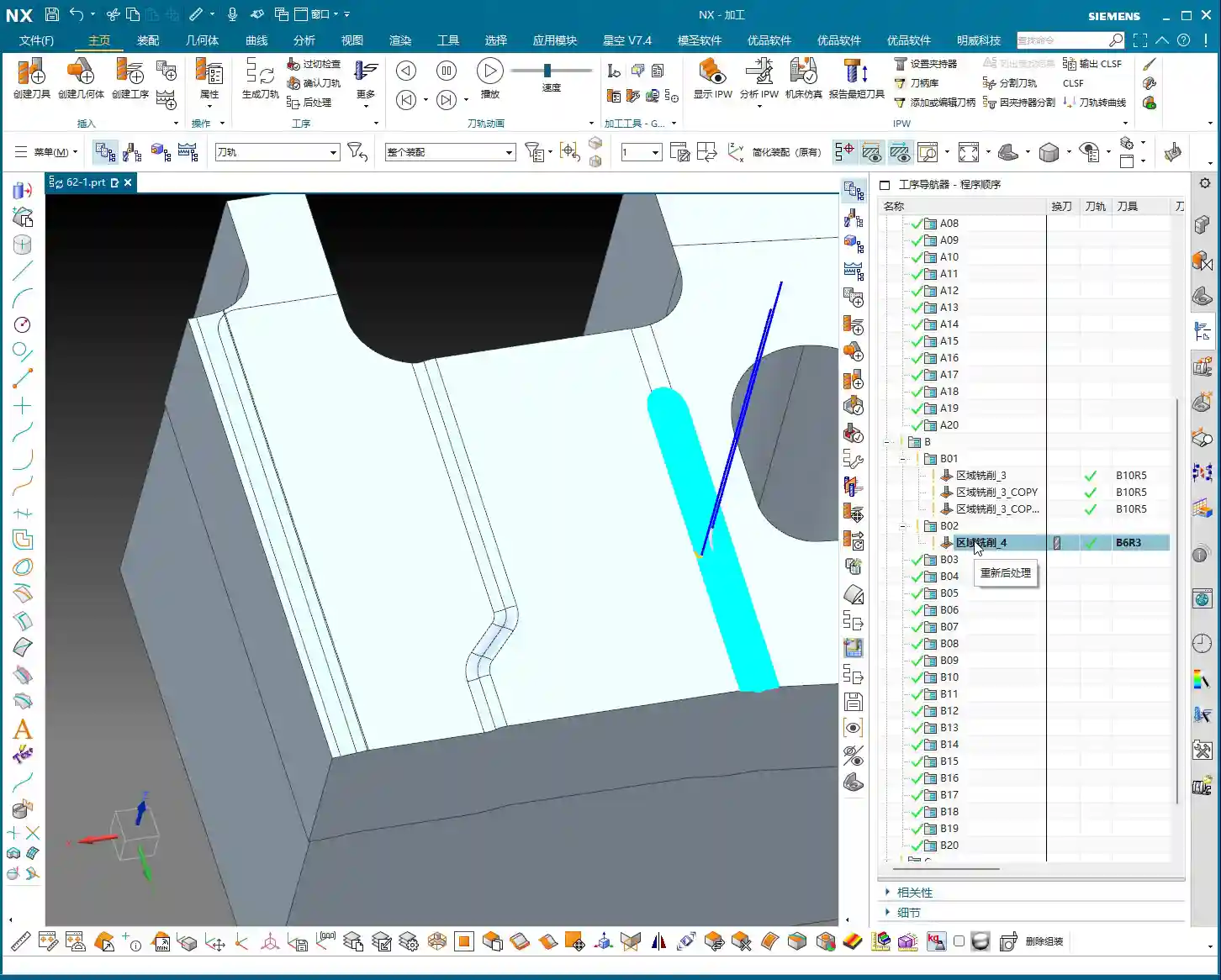
    Future Outlook: “Guide Curve Machining” for Special Areas

    For some particularly complex surfaces, such as those with guide curves, if Fixed Area Milling feels insufficiently flexible, we can learn “Guide Curve Machining” later to handle them more effectively. This allows the tool to follow precisely specified curves, achieving much finer control. However, for today’s part, the current Fixed Area Milling strategy is sufficient.

    Summary: Pitfall Avoidance Guide

    Pitfall Avoidance Guide

    1. The Model is the Foundation, Cleanliness is Key: Even the best NX expert can run into trouble with a “wounded” model (e.g., with micro-gaps or warped surfaces). So, always check the model’s integrity and accuracy first – that’s your primary defense.
    2. Tool Selection Must Be “Context-Specific”: Don’t try to use one tool for every job. Select the appropriate tool type, diameter, and length based on the part material, hardness, geometry, and the size of the fillets in the machining area. Small fillets require small tools, deep cavities require long tools – this is common sense.
    3. Toolpath Strategies “Vary Widely, but the Core Remains Constant”: Fixed Area Milling offers many strategies, such as parallel cutting, helical cutting, and boundary following. Choose flexibly according to the actual situation, with one goal: ensure machining quality, reduce air cuts, and improve efficiency. Observe the cutting sparks carefully; don’t just rely on software simulation!
    4. Optimize “Non-Cutting Movements”: Though retractions, lead-in, and lead-out moves are auxiliary, their cumulative time can be significant. By adjusting parameters like start points, cut directions, and safe regions, strive to minimize unnecessary retractions and idle travel – these are your “invisible benefits” for efficiency.
    5. Learn to “Tolerate” Minor Defects: Perfectionism is good, but sometimes flexibility is necessary. For model defects that have minimal impact on part function and accuracy, if fixing them costs too much, let’s “give it a pass.” This is practical wisdom, a balance between efficiency and perfection.
    6. Experience is the Ultimate Teacher: NX programming, especially for complex surfaces and 5-axis machining, isn’t learned overnight. More hands-on practice, observation, and summarization are essential to transform textbook knowledge into practical skills. Every post-machining review is your best teacher.

    Alright, that’s all for today. Go back, digest this information thoroughly, and get some hands-on practice in NX. Remember, in the machining industry, true gold fears no fire; a good product speaks for itself. Every high-precision part we program is our best advertisement, naturally allowing us to establish a strong foothold in the market. Talk next time!


    — Master Wang

    👤 About the Author:
    The author is a veteran CNC machining professional with 15 years of industry experience, specializing in UG NX programming. This article is an original work representing personal practical insights.

    ⚠️ Copyright Notice: Unauthorized reproduction or distribution without prior communication is strictly prohibited.
  • Master Wang Guides You Through NX Area Milling: Cutting Parameters, Boundary Extension, and Check Ge

    📝 Key Takeaways: Master Wang provides a hands-on guide to the core parameter settings for NX Area Milling. From cutting strategies for steep/non-steep regions, to boundary extension techniques for improved surface quality, and check geometry settings to prevent machine collisions – these are the distilled insights from 15 years of a veteran engineer’s practical experience. Mastering these will revolutionize your machining efficiency and part accuracy, allowing you to easily avoid machining pitfalls.

    Hello everyone, I’m Master Wang. Today, let’s continue our discussion on NX machining, especially focusing on critical points rarely detailed in textbooks, but which significantly impact efficiency and accuracy on the shop floor. Listen up, this is practical knowledge gained from my 15 years of hands-on experience and countless lessons learned the hard way!

    Area Milling Cutting Parameters: The Secrets of Steep vs. Non-Steep Regions

    When it comes to Area Milling, especially for complex surface machining, the cutting strategies for “steep areas” and “non-steep areas” in NX are crucial. Grasping these concepts will ensure your toolpaths are both fast and stable.

    What are Steep and Non-Steep Regions?

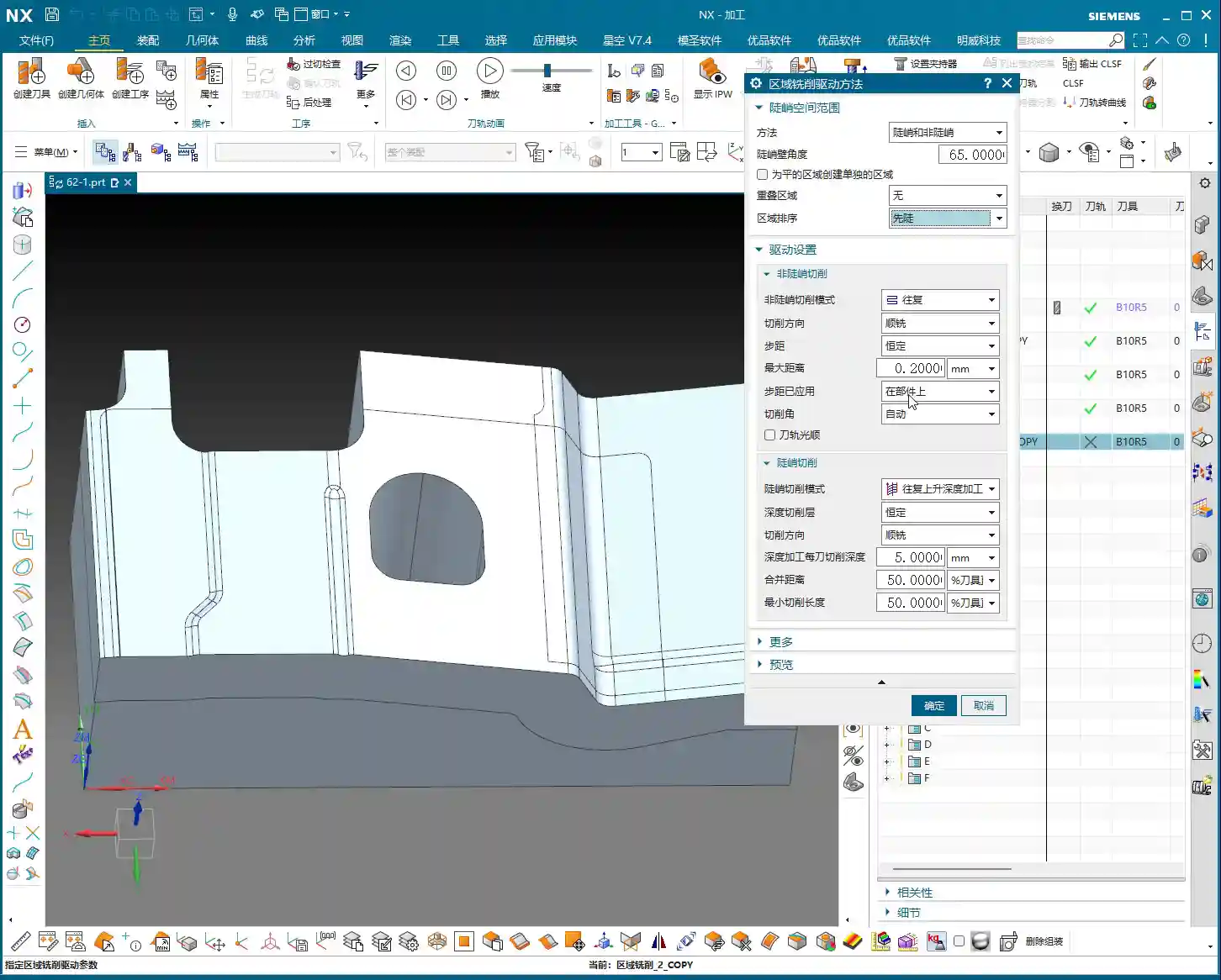
    Simply put, steep regions are areas with a significant incline, where a more vertical tool approach provides greater cutting stability. Conversely, non-steep regions are flatter areas, where horizontal toolpaths offer higher efficiency and better surface finish control.

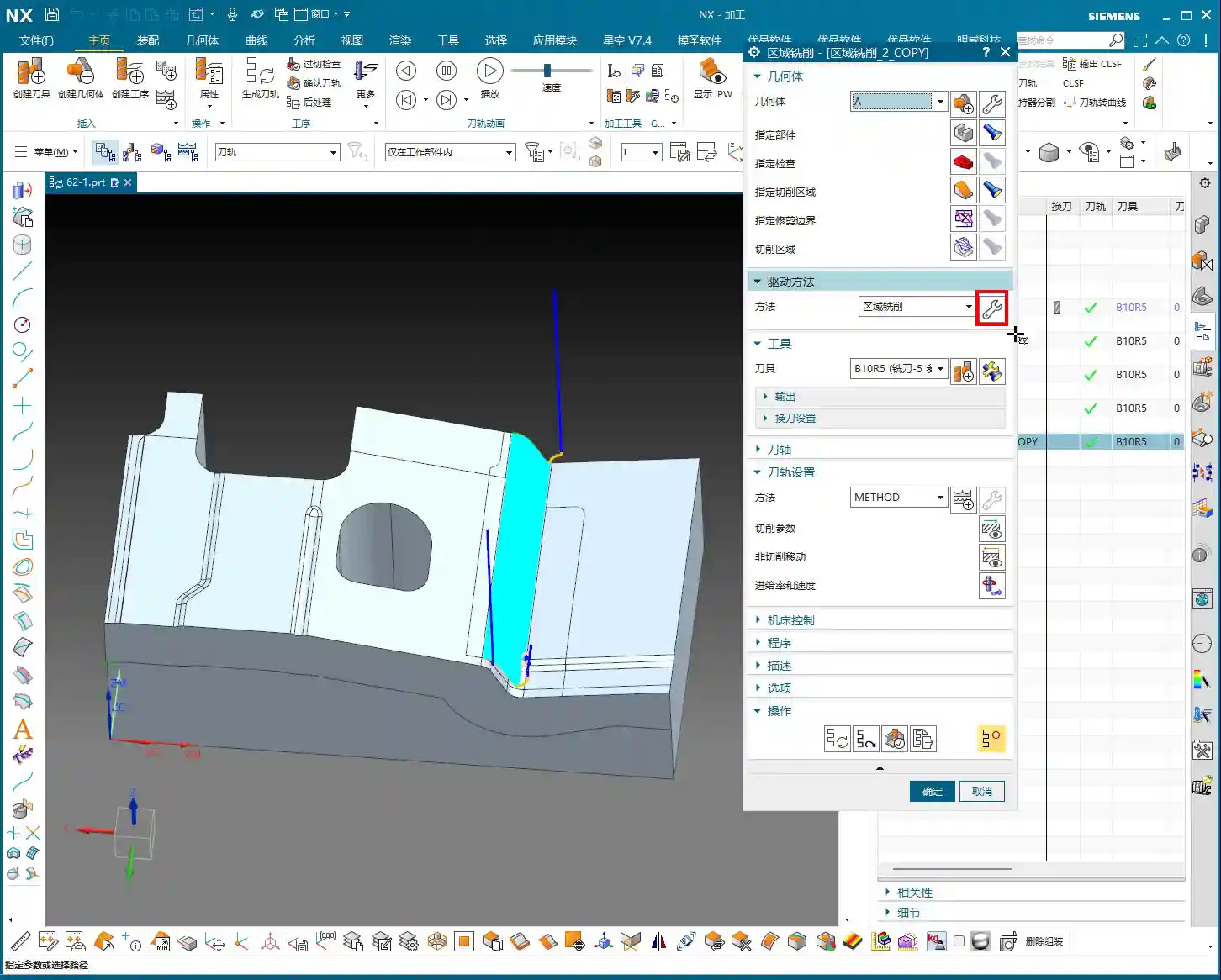
    In NX, this distinction is based on an angle parameter. The system automatically determines which areas are steep and which are non-steep based on your set angle, and then applies the corresponding toolpath strategy. What’s this called? It’s like “teaching according to aptitude”—using the most suitable method to tackle different regions.

    Angle Setting and Practical Application

    In NX, the default angle for distinguishing steep/non-steep regions is typically 65 degrees. Most of the time, just use this default value; don’t change it arbitrarily. Why? It’s an empirically proven value, verified through extensive practical application, that suits most materials and workpiece conditions.

    • Above 65 degrees: Toolpaths typically employ the “steep” strategy, with tool motion oriented more vertically, suitable for machining deep cavities, side walls, etc.
    • Below 65 degrees: Toolpaths typically employ the “non-steep” strategy, with tool motion oriented more horizontally, suitable for machining flat or slightly inclined surfaces.

    Of course, in some special cases, for instance, if your workpiece sidewall has a slight angle but isn’t steep enough (e.g., a small incline like 5 degrees), theoretically, you could still use the steep region strategy. But let me be frank, don’t overcomplicate things in such situations. Changing too many parameters might not even give you the desired toolpath. For such small angles, if you want a better finish, using “Depth Contour Milling” to skim the surface might be better, even if it’s a bit more involved to set up. In most cases, simply using non-steep area milling (planar machining) works just fine, and it will cover the adjacent surfaces.

    So, in daily operations, when you encounter such areas, simply enable both “steep” and “non-steep” strategies simultaneously, letting the system automatically determine and switch, which is the most hassle-free and reliable approach.

    The Importance of Ordering

    When selecting both steep and non-steep area milling strategies, NX will also prompt you to choose a machining order. Should steep regions be machined first, or non-steep regions? Or from top-down, or bottom-up?

    In my experience, I generally opt to machine steep regions first. Why? Steep regions often involve deep cavities and side walls of the workpiece. By addressing them first, you leave a clear machining space for the subsequent non-steep (flat) areas. Of course, this isn’t an absolute rule; it depends on your workpiece geometry and machining requirements. But defaulting to steep regions first is a good choice.

    Toolpath Optimization Tool: Extend at Boundary

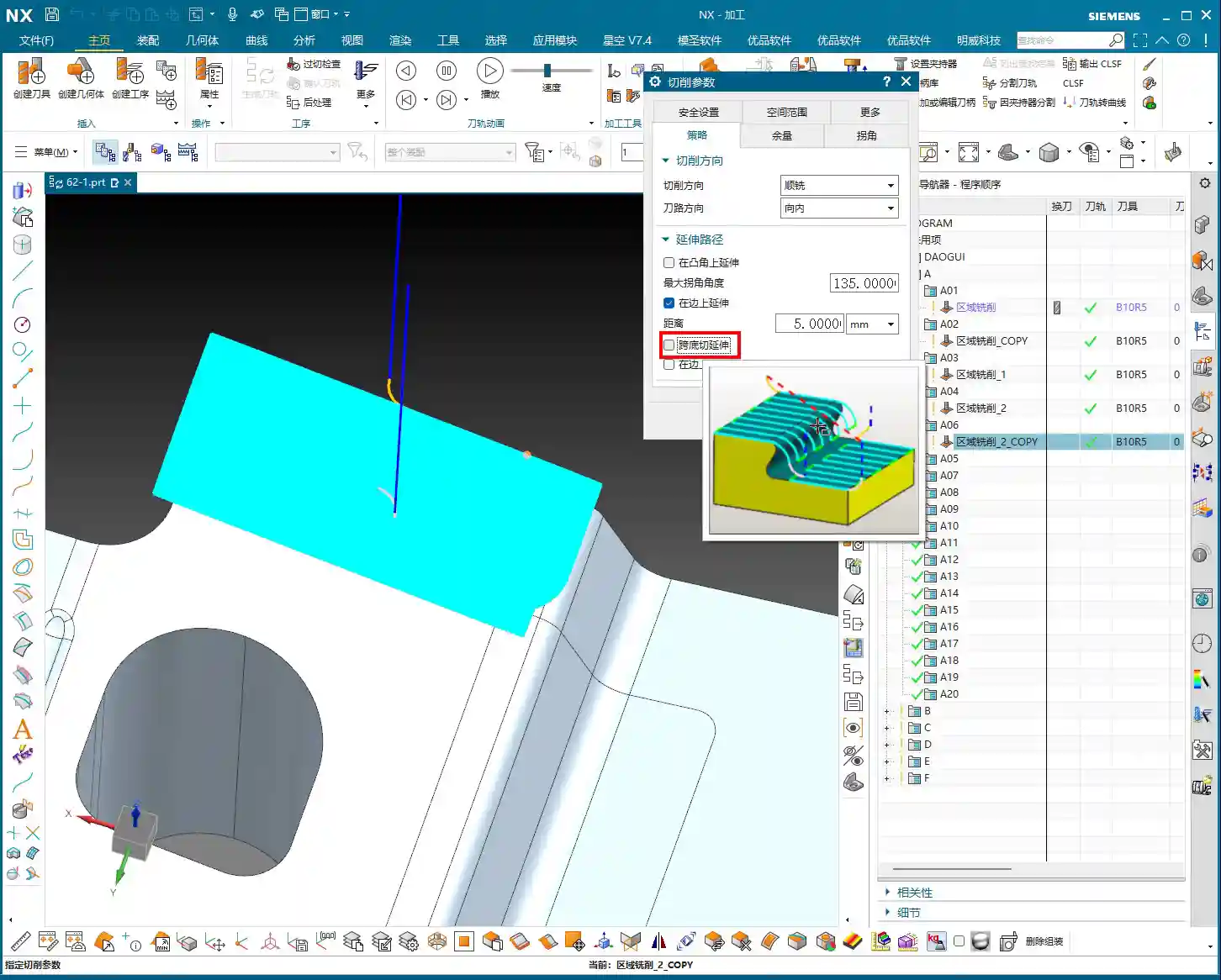
    “Extend at Boundary” might seem insignificant, but it’s critically important, especially when striving for high surface finish in a Finishing pass. It helps you thoroughly eliminate “tool marks” at the cutting boundaries.

    Why Extend?

    Have you ever encountered a situation where: the tool path looked perfect in the software simulation when cutting to the workpiece edge, but the actual machined edge always had a faint mark or some burrs? This is because the tool didn’t “fully exit the cut.”

    When you enable and set “Extend at Boundary,” the toolpath won’t stop exactly at the model’s edge; instead, it will extend a small distance beyond. This allows the tool to completely exit the workpiece, leaving the edge cleanly machined, preventing the tool from “compressing” or “dragging” material at the boundary. It’s like cutting paper with scissors – you always cut a little beyond the line to ensure a clean edge.

    What is the Appropriate Extension Amount?

    The extension distance is generally recommended to be set between 0.5 to 2 mm (approx. 0.02-0.08 inch). The specific value depends on your tool diameter and material. For small diameter tools, such as a Φ6 mm (approx. 0.236 inch) ball end mill, an extension of 0.5-1 mm (approx. 0.02-0.04 inch) is usually sufficient. For larger tools or stickier materials, 1-2 mm (approx. 0.04-0.08 inch) extension will be more reliable. When I adjust this parameter to 1 mm or 2 mm, you can clearly see the toolpath extend, and the surface quality immediately improves. Unlike the four-sided extension in “Depth Contour Milling”, this “Extend at Boundary” is primarily for managing tool entry and exit at workpiece boundaries, aiming for perfect edges. Remember, sometimes details determine success. Get these small things right, and your customer will be satisfied.

    Avoiding Obstacles, Efficient Machining: Check Geometry (Skip and Retract)

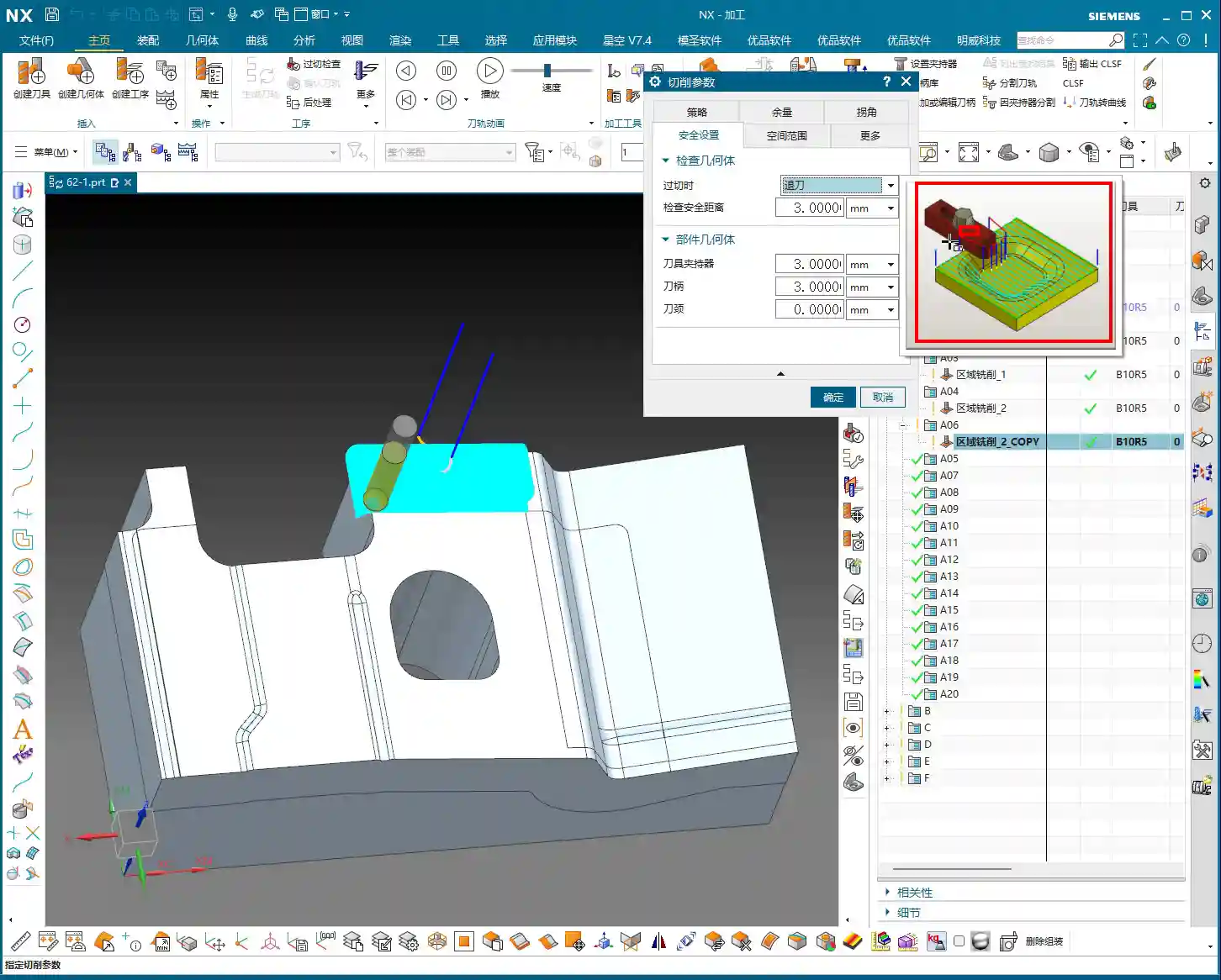
    This section is of paramount importance! In actual machining, the biggest fear is the tool colliding with fixtures, clamps, or protrusions on the workpiece. NX’s “Check Geometry” function, particularly the “Skip” and “Retract” options, directly impacts your machine and tool safety, as well as machining efficiency.

    What to do when a clamp appears? Retract vs. Skip

    Imagine your tool happily cutting, then suddenly a clamping plate blocks its path. How should the system handle this?

    • Retract: This is NX’s default setting and the safest strategy. When the tool encounters an obstacle, it will automatically lift, bypass the obstacle, and then re-engage to continue machining. The entire process is: Lift → Traverse → Re-engage. While safe, the drawback is increased retraction cycles, extending machining time, and potentially leaving slight marks where the tool lifts and re-engages, though often not prominent.
    • Skip: If you select “Skip,” the system assumes the obstacle poses no threat (e.g., it’s very low, or the tool can pass over it without issue). The tool will directly traverse over the obstacle without retracting. The entire process is: Traverse. This method is highly efficient, saving retraction and re-engagement time, and resulting in a smoother toolpath.

    Here’s the key point: NX’s “Skip” function typically has a “safety distance” or “skip clearance,” for example, a default of 3 mm (approx. 0.118 inch). This means if the obstacle’s height is within 3 mm above the tool’s current position, it will opt to skip. Beyond this range, it will default back to retract. Of course, this value can be adjusted.

    Master Wang’s Advice: The default “Retract” strategy is the safest. Especially for beginners, absolutely do not change it arbitrarily. Only consider using “Skip” to improve efficiency when you are 100% certain that the clamp or obstacle is low enough and the tool will absolutely not make contact. Don’t just rely on software simulations; no matter how good they look, a tool crash on the actual machine is no joke – it can range from scrapping the workpiece to damaging the machine. I often say, “Don’t just look at the software simulation; look at the cutting sparks,” and that’s exactly what I mean. Practical operational experience and thorough inspection are paramount.

    Risks and Benefits of Skipping

    Risks: If you misjudge the obstacle’s height, or if the fixture isn’t precisely modeled, the tool will collide when “skipping,” leading to tool breakage or even machine damage. Such losses far outweigh the small amount of machining time you might save.

    Benefits: In certain specific situations, such as using very short tools, or when obstacles (like a pre-machined boss on the workpiece) are genuinely low, or if you’re using a 5-axis machine that can cleverly avoid obstacles, then “Skip” can significantly boost machining efficiency and reduce air cutting time. Especially in high-volume production, these small efficiency gains accumulate into a substantial cost advantage. Therefore, understanding when to use “Skip” and when to use “Retract” is a crucial skill for any qualified NX programmer.

    Roll Tool on Boundary? Mostly Unnecessary

    Additionally, NX has an option called “Roll Tool on Boundary.” In essence, this function makes the tool “roll” an extra pass when it encounters an edge. But in my experience, this feature is largely useless. It just causes your tool to make an extra cut, increasing unnecessary machining time with minimal improvement to surface quality. Therefore, I recommend you keep it unchecked by default, unless you have a very specific requirement.

    Summary: Pitfall Avoidance Guide

    1. Steep/Non-Steep Region Division: Most of the time, the default 65-degree division angle is sufficient. It’s best to enable both strategies simultaneously, allowing the system to switch automatically.
    2. Toolpath Ordering: Prioritize machining steep regions first, then process flatter surfaces to maintain a smooth machining flow.
    3. Extend at Boundary: This is a powerful tool for improving surface finish. Always enable it and set a reasonable extension amount (0.5-2 mm). It effectively prevents edge marks and burrs.
    4. Check Geometry (Skip/Retract): The default “Retract” is the safest. Only consider using “Skip” to increase efficiency when you are 100% certain of safety (e.g., obstacles are very low and have been cleared). Otherwise, it’s better to go slower and ensure foolproof operation. Remember, safety first, efficiency second.
    5. Other Infrequently Used Functions: For instance, “Roll Tool on Boundary” should generally be left unchecked by default, unless there’s a special circumstance.

    Practice and review these parameters frequently. Especially after generating toolpaths, always simulate extensively and critically analyze. Behind every parameter lies a connection to the actual cutting process and potential issues. By constantly asking “why,” you can truly grow from a programmer into a skilled “Machining Master”!

    👤 About the Author:
    The author is a veteran CNC machining professional with 15 years of industry experience, specializing in UG NX programming. This article is an original work representing personal practical insights.

    ⚠️ Copyright Notice: Unauthorized reproduction or distribution without prior communication is strictly prohibited.
  • Siemens NX Area Milling: In-depth Analysis of Non-Steep and Steep Machining Strategies – Master Wang

    📝 Key Takeaways:

    Siemens NX Area Milling: Practical Deep Dive into Non-Steep and Steep Machining

    Hello everyone, I’m Master Wang. Today, we’ll pick up whe…

    Hello everyone, I’m Master Wang. Today, we’ll pick up where we left off with area milling, focusing on machining strategies for “non-steep” and “steep” areas. The textbooks make this sound complicated, but in actual practice, there are plenty of pitfalls!

    I. Review of Machining Modes: One-Way and Zig-zag

    Last time, we touched on one-way machining. Let’s quickly review it again today. One-way machining, as the name suggests, means the tool only cuts in one direction. After each pass, the tool lifts, rapids back, and then re-engages to cut again. If you think about it, how efficient can that really be?

    One-Way Machining: Low Efficiency, Best Used Sparingly

    “Listen up. This kind of one-way machining might occasionally be used in our shop for certain linear, narrow areas with specific surface finish requirements. But for general sidewall milling, I’m telling you, the time it spends lifting and retracting is longer than its actual cutting time. You’re wasting machine time, and that’s real money! So, unless it’s a special case, use it sparingly, or even avoid it entirely.”

    Zig-zag Machining: The Foundation of Area Milling

    In contrast, “Zig-zag” machining is the workhorse of area milling. The tool sweeps back and forth like a broom, progressively stepping down in the Z-axis while cutting back and forth in the X or Y direction. It’s highly efficient and versatile. It’s the default in Siemens NX. As we’ve covered before, the parameter settings here are the same, so I won’t elaborate further.

    II. Zig-zag with Ascent: A Small Trick to Improve Surface Quality

    “Within ‘Zig-zag machining,’ there’s a less commonly used option called ‘Zig-zag with Ascent.’ At first glance, you might think this feature is redundant—just a simple tool lift, right? But when used correctly, it’s a ‘hidden helper’ for improving surface quality!”

    What is Zig-zag with Ascent?

    In zig-zag machining, when the tool reaches the end of a path and needs to turn to machine the next line, it doesn’t just move horizontally. Instead, it will first perform a slight upward Rapid move, then move horizontally, and finally Linear interpolation to cut. It’s like a person lifting their leg to change direction instead of dragging their feet.

    Master Wang’s Practical Tip: Combine with ‘Smoothing’ for Enhanced Finishing Pass Quality

    “This ‘Zig-zag with Ascent’ feature, especially during a finishing pass, delivers exceptional results when combined with the ‘Smoothing’ parameter. I used to have some junior guys constantly complain about ‘drag marks’ or ‘rubbing’ on finished surfaces, and premature tool wear. One look at their toolpaths, and it was just standard zig-zag, with messy, dragging movements in the corners.

    At that point, you’d enable the ‘Smoothing’ function within ‘Non-cutting Moves,’ and adjust parameters like ‘Maximum Stepover’ for smoothing (e.g., I’m setting it to 5000 here – this is just a demo value; adjust based on actual conditions). You’ll notice the tool performs a subtle lift when transitioning between toolpaths. This lift isn’t about how high the tool jumps; it’s about momentarily disengaging the cutting edge from the material before retracting, preventing secondary friction and drag marks during the return traverse. For mirror finishes or parts with extremely high surface quality demands, this small adjustment can save you a lot of polishing and buffing work, elevating the product’s quality!”

    III. Core Distinction: Machining Logic for Non-Steep vs. Steep Areas

    Now, let’s talk about today’s main event – “Steep” and “Non-Steep” areas. These two concepts are the most easily confused and problematic aspects of area milling.

    ‘Non-Steep’ Areas: The Preferred Choice for Shallow Slopes

    “Non-Steep” area machining, as the name implies, is used for machining areas with relatively shallow slopes. Its toolpaths typically run along the part’s contours or parallel to the XY plane, progressively stepping down. This is the first choice for most flat surface milling and shallow pocket milling. The logic here is: the tool’s bottom cutting edge is primarily engaged, with the side cutting edge playing a secondary role.

    ‘Steep’ Areas: The Go-To for Sidewalls and Deep Cavities

    Conversely, “Steep” area machining is specifically designed for tackling very steep slopes, near-vertical sidewalls, or deep cavities. Its toolpaths typically run along the steep surface parallel to the Z-axis, or step down perpendicular to the tool axis. In this scenario, the tool’s side cutting edge is primarily engaged, with the bottom cutting edge playing a secondary role. This method better utilizes the cutting efficiency of the tool’s side edge, ensuring sidewall perpendicularity and surface quality.

    Master Wang’s Hard-Learned Lesson: The ‘Angle Limit’ Pitfall!

    “Listen up, the most common problem area is the ‘Angle Limit’! In Siemens NX, whether for ‘Non-Steep’ or ‘Steep,’ there’s an angle range setting. For example, you set a threshold angle of, say, 65 degrees.

    • If you select ‘Non-Steep Area’ machining, it will only machine areas with a slope less than 65 degrees.
    • If you select ‘Steep Area’ machining, it will only machine areas with a slope greater than 65 degrees.

    The angle value might be the same, but the machining range they represent is completely opposite! I’ve seen countless newcomers try to machine a near-90-degree vertical wall using ‘Non-Steep’ and then set the angle limit to 89 degrees. The software sees, ‘only angles below 89 degrees are considered non-steep,’ so your 90-degree face won’t be machined. What’s worse, even if you loosen the limits and force it to machine, what kind of machining is it to use the bottom of a flat end mill to scrape a vertical wall? That’s destroying tools and ruining parts! High chatter, poor surface quality, short tool life – your costs will skyrocket!

    IV. Practical Drill: How to Select and Set Up Correctly

    Let’s dive straight into practical operation.

    Pitfalls of Non-Steep Area Machining

    “As you just saw, I selected a cavity that looked quite steep, but the software defaulted to ‘Non-Steep’ machining. The resulting toolpath looked like ‘climbing a ladder’ on a vertical surface, going down and up, using the tool’s bottom edge to rub against the sidewall. I’m telling you, this kind of toolpath is absolutely unacceptable in production! Especially on complex surfaces, the tool often floats in the air or only uses its tip to cut. Not only is efficiency low, but the surface can also be scarred.

    So, when you encounter such steep areas, you can’t just stubbornly force a non-steep approach. In these situations, we typically use helical milling (cutting down gradually with the side edge), or even more advanced smooth contour milling, paired with specialized tooling, to achieve high efficiency and quality.”

    The Correct Approach for Steep Area Machining

    “When you switch the machining method to ‘Steep Area,’ you’ll immediately see the toolpath change. It will obediently follow the steep wall, gradually stepping down with a small ‘Depth of Cut (DOC)’ per pass. For instance, we set the ‘Depth of Cut (DOC)’ here to 0.1mm or 1mm (actual value depends on material and accuracy requirements) – this is the golden rule for machining sidewalls.

    In this mode, the tool’s side edge is fully utilized, cutting forces are even, machining is stable, and both surface quality and tool life are ensured. Remember, for steep areas, you must use a steep strategy! Don’t try to find a ’roundabout solution’; you’ll only be digging yourself a hole.”

    Non-Cutting Moves: Optimizing Entry and Exit for Open Areas

    In the “Non-cutting Moves” settings, in addition to the “Smoothing” we discussed earlier, there are also entry methods for “Open Areas.” Here are a couple of options:

    • Parallel to Tool Axis: The tool enters or exits the cut with a smooth arc or line, parallel to the tool axis. This method provides stable trajectories, is suitable for finishing passes, and reduces impact.
    • Perpendicular to Tool Axis: The tool enters or exits the cut perpendicular to the tool axis, usually appearing as a straight upward and downward lift (i.e., “ascent” behavior). This is particularly effective in situations requiring rapid disengagement from the cutting zone or to avoid sidewall friction.

    “These two, ‘Parallel to Tool Axis’ and ‘Perpendicular to Tool Axis,’ are the most commonly used entry methods when dealing with open areas. Switching flexibly based on part geometry, material, and surface requirements can significantly boost machining efficiency and surface quality. Don’t underestimate these details; this is what separates you from those ‘programmers’ who just click buttons!

    Prioritizing Machining Modes

    To summarize, there are four most commonly used machining modes in area milling:

    1. Zig-zag: Most common, highly efficient, suitable for roughing and semi-finishing of most non-steep areas.
    2. Follow Periphery: Suitable for specific contours, where the toolpath follows the boundary.
    3. Helical: Often used for deep cavity machining; smooth entry, less chip accumulation.
    4. Zig-zag with Ascent: Suitable for finishing passes, reduces drag marks, and improves surface quality.

    “Among these four, ‘Zig-zag’ is used the most and is practically the default option for area milling. ‘Zig-zag with Ascent,’ as I mentioned, is a great aid for finishing passes. As for other modes like one-way, they can largely be shelved; production efficiency dictates everything!”

    Summary: Pitfall Avoidance Guide

    1. Steep vs. Non-Steep: The core lies in angle range and cutting edge engagement. Non-steep machining uses the tool’s bottom edge for flat surfaces; steep machining uses the tool’s side edge for sidewalls. The logic for their angle limits is opposite, so be sure to distinguish them!
    2. Don’t try to force a “Non-Steep” strategy on “Steep” areas. Attempting to machine steep regions by loosening non-steep angle limits typically leads to uneven tool loading, poor surface quality, and drastically reduced tool life. When a “Steep Area” strategy is required, use it diligently.
    3. “Zig-zag with Ascent” is a powerful tool for finishing passes. Combined with the “Smoothing” function, it effectively reduces drag marks and improves the finishing quality of complex surfaces.
    4. Understand the logic of non-cutting moves. “Parallel to Tool Axis” is primarily for smooth tool entry, while “Perpendicular to Tool Axis” is for rapid lift-off and disengagement in specific scenarios. Flexible selection based on actual conditions optimizes toolpaths and reduces risks.
    5. Combine theory with practice. No matter how good a software simulation looks, ultimately you need to observe the cutting sparks on the machine, listen to the cutting sound, and examine the actual part’s results. More contemplation and hands-on experience are what truly make you skilled!

    👤 About the Author:
    The author is a veteran CNC machining professional with 15 years of industry experience, specializing in UG NX programming. This article is an original work representing personal practical insights.

    ⚠️ Copyright Notice: Unauthorized reproduction or distribution without prior communication is strictly prohibited.

  • Practical Guide to NX Area Milling’s Three Modes: Follow Periphery, Spiral, and Profile Tool Path Op

    📝 Key Takeaways: ** Master Wang provides a practical explanation of the three core modes in NX Area Milling: Follow Periphery, Spiral, and Profile tool paths. He emphasizes critical points for avoiding pitfalls, such as component cleanup with Follow Periphery, finishing passes in Spiral mode, and proper Stepover application in Profile mode. Drawing from his rigorous and down-to-earth experience, Master Wang imparts hardcore NX programming tips—lessons you won’t find in textbooks—on how to optimize tool paths, prevent errors, and enhance machining efficiency and part accuracy. **

    Listen up, lads! It’s your old buddy, Master Wang. Today, we’re diving deeper into the ‘tools’ within NX Area Milling. Don’t let the simple names of these modes fool you; there’s a lot more to them than meets the eye, and textbooks won’t necessarily teach you these nuances. These are all lessons I’ve ground out, one tool at a time, right by the machine!

    Mode One: Follow Periphery – The Corner Cleanup Ace, Circling Around

    First, let’s talk about ‘Follow Periphery’. This is one of the most commonly used modes in our area milling operations. How does it work? Simply put, the tool starts from outside your selected machining region and circles inwards, or from inside outwards, like navigating a maze, machining the entire area.

    Region Selection and Default Tool Paths: The Core Principle Remains Constant

    You must first select your machining region. Remember, the tool path will be generated within the region you select. This is a fundamental logic in NX. The default tool paths are usually quite reasonable; NX has some real chops when it comes to automatic planning, so usually, major modifications aren’t needed.

    Follow Periphery: The Finishing Philosophy of Out-to-In Circling

    The characteristic of the ‘Follow Periphery’ mode is that the tool path follows the contour of your workpiece, layer by layer. Circling ‘from outside in,’ the tool continuously adjusts its path according to the shape. In this mode, you’ll observe the tool’s entry and traverse movements. Its advantage is that it handles material excess at the region’s edges exceptionally well, especially for irregular shapes, ensuring a very clean finish.

    Core Logic: This mode is particularly suitable for machining operations that require cleanup starting from the edges, or where edge surface finish is critical, such as leaving a uniform stock allowance during semi-finishing for a subsequent finishing pass, or clearing out corner material.

    Component Cleanup and Non-Cutting Moves: The Critical ‘Final Pass’

    In ‘Follow Periphery,’ there’s an option called ‘Component Cleanup.’ If you check it, NX will perform an additional pass along the workpiece contour at the very end of the machining operation. Don’t underestimate this pass; it thoroughly cleans up any tiny burrs or minute residual material left over from your previous machining. It’s like a machinist’s final scrape, all for that touch of perfection.

    Pitfall to Avoid: Remember, ‘Component Cleanup’ is primarily designed for the ‘Follow Periphery’ mode, and it adds an extra cleanup path *after* the main tool path has finished. In other modes, such as ‘Zigzag,’ this function isn’t available.

    Additionally, with the ‘Smooth’ option, when you enable smoothing for ‘Follow Periphery,’ the tool path becomes smoother, leading to better cutting performance. Also, ‘Tool Path Direction’ can be set to ‘Inward’ or ‘Outward,’ and ‘Climb Milling’ or ‘Conventional Milling.’ These choices depend on your machining requirements and material characteristics. Generally, we use ‘Climb Milling’ to reduce tool wear and achieve a better surface finish.

    Mode Two: Spiral Milling – Continuous ‘Spinning and Traversing’

    Having covered ‘Follow Periphery,’ let’s now look at ‘Spiral.’ This mode bears some resemblance to ‘Follow Periphery,’ but fundamentally, they’re entirely different. The ‘Spiral’ mode strives for one thing: continuity!

    Spiral Mode: The Efficiency Advantage of Continuous Cutting

    ‘Spiral’ means the tool continuously cuts in circles downwards or outwards. The tool path is continuous, with virtually no retracts or rapid moves in between. It’s unlike ‘Follow Periphery,’ which sometimes requires the tool to retract and re-engage due to changes in shape.

    Core Logic: This characteristic of continuous cutting makes ‘Spiral’ mode extremely efficient when machining flats, circular, or nearly circular pockets, significantly reducing idle tool time. Time is money, and that truth hits even harder on the shop floor!

    You can also choose ‘Inward’ or ‘Outward’ spiral, depending on your machining strategy. For instance, expanding from the center outwards, or contracting from the outside inwards.

    Include Finishing Pass: Control Over Start and End Details

    In ‘Spiral’ mode, there’s a crucial option called ‘Include Finishing Pass’. Below it, you’ll find two sub-options: ‘Start’ and ‘End.’ What do these mean?

    If you check ‘Start,’ NX will add an extra pass around the periphery of your machining region *before* the spiral operation begins, serving as an initial cleanup. If you check ‘End,’ then *after* the spiral machining concludes, it will also add another pass along the region boundary for final trimming.

    Practical Tip: Why add these two passes? Because while spiral tool paths are continuous, at the actual start and end points, the tool’s cutting conditions might subtly change, or there might be minute residual material at the starting position. These two passes ensure that both the start and end boundaries of the entire region are thoroughly cleaned, resulting in better part surface finish and guaranteed accuracy.

    Especially during finishing passes, these two passes are crucial; they effectively compensate for any ‘imperfections’ that spiral machining might leave at the beginning or end.

    Mode Three: Profile Milling – The Boundary Line ‘Patrolman’

    Lastly, let’s talk about ‘Profile’ mode. This mode isn’t as ‘all-encompassing’ as the first two; it’s a ‘point-to-point’ precision strike.

    Profile Mode: The Faithful Follower of Boundary Lines

    As the name suggests, ‘Profile’ mode guides the tool along the selected geometric contour lines; it only follows lines, it doesn’t machine surfaces. For example, if you select a curve, it will make a single pass along that curve; if you select the outer edge of a face, it will circle along that outer edge.

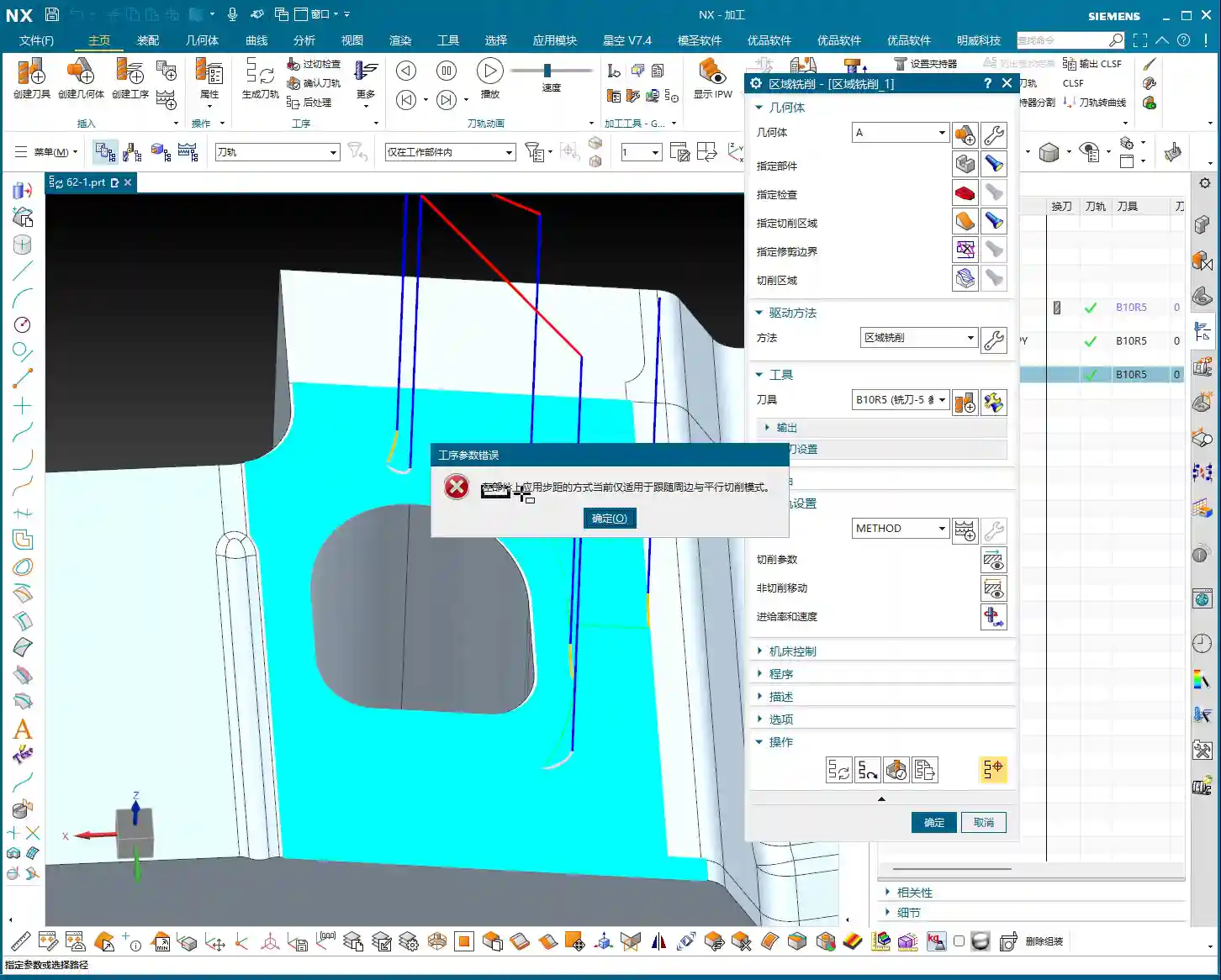
    Pitfall to Avoid: Here’s a common point of trouble, which was also the mystery behind that error in the previous video. When you’re in ‘Profile’ mode, and you select an entire face as the machining region, *and* the ‘Stepover Application Method’ is set to ‘On Part,’ NX will throw an error. That’s because it thinks: you’ve selected a face, but you only want it to follow the profile, and you also want the Stepover to be based on the part – that logic is conflicting!

    Solution: If you encounter this error, either diligently select the ‘profile curves’ you want to machine, rather than the entire face. Or, change the ‘Stepover Application Method’ to ‘On Plane’ or simply set it to ‘None,’ allowing it to merely follow the face’s boundary. Remember, an error isn’t a bug; it’s NX telling you its ‘thoughts’!

    Offset Application: Flexible Extension of Profile Machining

    Although ‘Profile’ mode only follows lines, it’s not entirely ‘rigid’. You can make it more dynamic using the ‘Offset’ function. For instance, if you set an ‘Offset Value,’ the tool will use your selected contour line as a reference and offset inwards or outwards by a certain distance, then perform one or even multiple passes.

    Practical Tip: This ‘Offset’ function is particularly useful for finishing side walls, clearing narrow grooves, or chamfering specific boss shapes. For example, if you want to offset an outer contour inwards by 0.5mm, simply set the offset distance. You can even offset the line first to generate a new curve, then have ‘Profile’ mode machine this new curve. Using it flexibly can save you a lot of trouble!

    Summary: Pitfall Avoidance Guide

    Lads, take my advice: no matter how much theory you know, you still have to figure things out through practice. None of these NX modes are ‘one-size-fits-all’; there’s only the ‘most suitable’ one.

    • Follow Periphery: Suitable for cleaning regions from outside-in or inside-out, with advantages for boundary cleanup. Don’t forget to use it with ‘Component Cleanup’—that’s a critical pass for improving surface finish.
    • Spiral: Aims for continuous cutting, high efficiency, and reduced idle tool time. It’s the preferred choice for large flat areas or pockets. But remember to check the ‘Start’ and ‘End’ sub-options under ‘Include Finishing Pass’ to ensure the quality of the machined edges.
    • Profile: Strictly machines along lines, offering high precision. The biggest pitfall is that when you select a face as the machining region, the ‘Stepover Application Method’ cannot be set to ‘On Part’; you must select ‘On Plane’ or directly choose the boundary curves. If you absolutely need to extend the cutting region, make good use of its ‘Offset’ function.

    These little details in NX are crucial in actual machining, determining your efficiency and accuracy. Don’t just stare at the generated tool path; think more about why it moves that way, why it throws an error, and then try to solve it. That’s real skill! Alright, that’s it for today. Next time, we’ll talk about something else.

    👤 About the Author:
    The author is a veteran CNC machining professional with 15 years of industry experience, specializing in UG NX programming. This article is an original work representing personal practical insights.

    ⚠️ Copyright Notice: Unauthorized reproduction or distribution without prior communication is strictly prohibited.
  • Siemens NX Contour Milling Angle and Entry Point: Master Wang Teaches Precise Finishing for Complex

    📝 Key Takeaways: Master Wang’s hands-on training on NX Contour Milling Angle: How to control tool trajectory in real-world applications, avoiding excessive Depth of Cut and tool chipping. We’ll also cover Entry Points, teaching you to customize plunge locations to reduce air cuts, significantly boosting machining efficiency and tool life. These are practical skills you won’t find in textbooks!

    Hello everyone, I’m Old Wang, Master Wang. In our last session, we discussed the cutting angle for face milling. This time, we’ll delve deeper into **cutting angles** in contour milling, and more critically, how to define the **entry point**. Listen up, these are practical tips you won’t find in textbooks; they determine whether your machined parts are masterpieces or scrap, and more importantly, impact your tool life and machining efficiency.

    I. Contour Milling Angle: Mastering the Tool’s “Climbing” Posture

    Remember when we first discussed multi-surface machining? I mentioned that the direction the tool travels—whether it’s “with the material” (climb milling) or “against the material” (conventional milling)—is a huge consideration. The cutting angle in contour milling is similar, operating on the same principle, just extended from flat surfaces to contoured ones.

    1. Understanding the Essence of “Cutting Angle”

    Simply put, the **cutting angle defines the direction your tool travels on a contoured surface**. It dictates whether the tool “climbs” along the surface’s slope, “cuts” across it, or “nips” at it diagonally. Don’t underestimate this direction; it directly impacts cutting forces, surface finish, chip evacuation, and even whether your workpiece deforms.

    2. Automatic vs. Manual Assignment: Which is Better?

    In Siemens NX, the default setting is usually **Automatic**, where the software determines the direction based on its algorithms. But listen up, the software’s “Automatic” setting isn’t always the “best” choice for your shop floor. Especially when machining complex surfaces, special materials (such as titanium alloys, high-temperature nickel-based alloys), or parts requiring extremely high surface finish, you need to manually specify the direction.

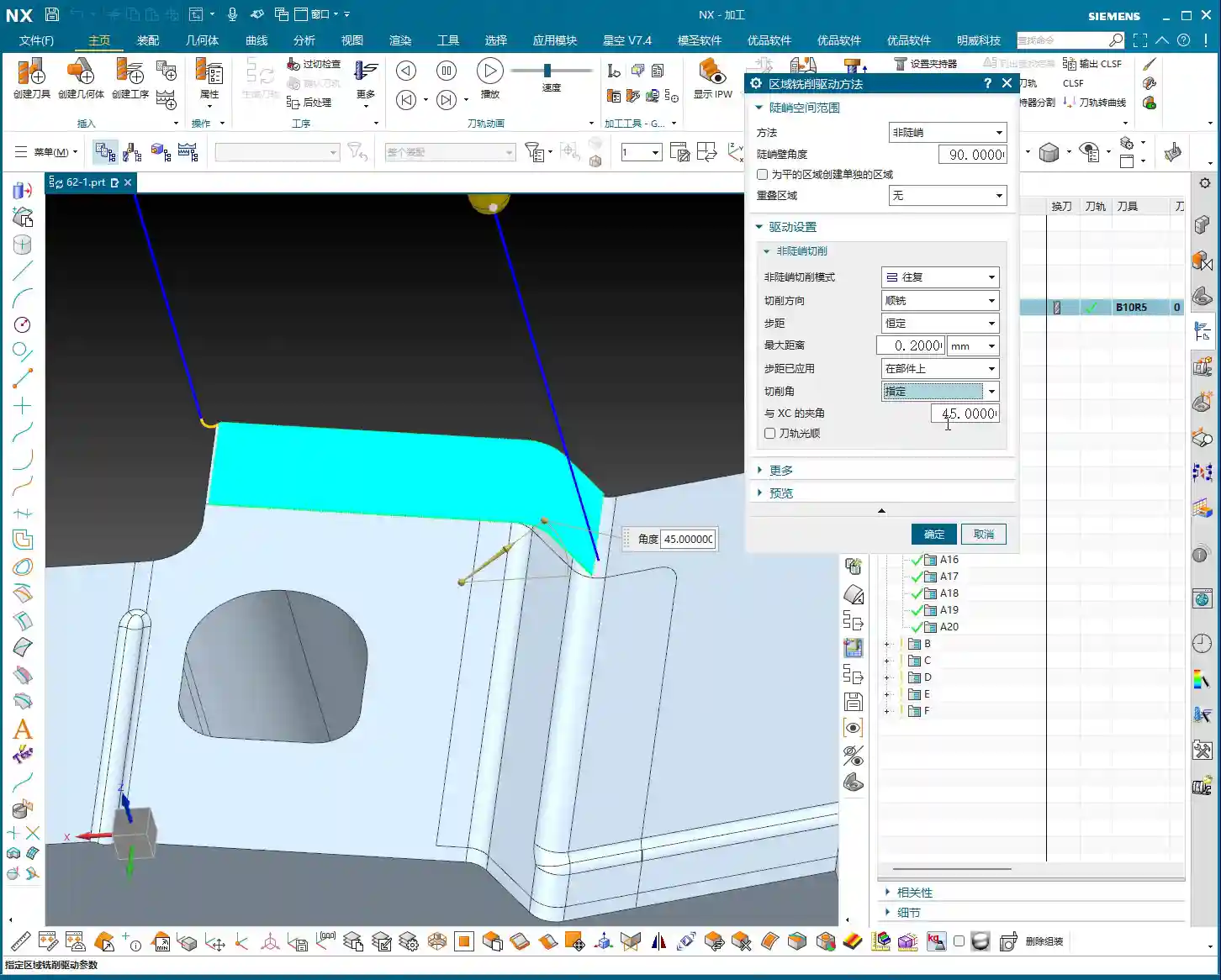
    • 0 Degrees (Default): The tool typically moves along a primary axis (e.g., X or Y axis). On some gentle or regular surfaces, it might follow the longest edge. This method is often viable.

    • 90 Degrees: This rotates the tool direction by 90 degrees. If you were originally moving along the X-axis, you now move along the Y-axis. This is particularly effective when dealing with **steep regions**. For instance, if you encounter a slope and try to traverse it (0 or 180 degrees), excessive cutting forces might lead to vibration, and even cause the tool to “dig in” (Depth of Cut issues), ruining the surface finish. In such cases, adjusting the angle to 90 degrees allows the tool to “climb” along the slope, resulting in more stable cutting, smoother chip evacuation, and significantly better results.

    • 180 Degrees: The direction is opposite to 0 degrees, essentially moving along the opposite axis. This option can help achieve better climb or conventional milling effects in certain specific geometries.

    • 45 Degrees: Moving diagonally. On transitional surfaces that are neither entirely gentle nor entirely steep, 45 degrees can sometimes find a balance, allowing for more even tool loading and reducing machining marks. Especially when the surface has variations in multiple directions, trying 45 degrees is a good option.

    Master Wang’s Insight: Don’t just rely on software simulations; observe the cutting sparks, listen to the cutting sound, and feel the machined surface. If the sparks are excessive, the sound is harsh, or the surface is rough, chances are the cutting angle isn’t right. We’re aiming for smooth cutting, even sparks, and a stable, quiet sound. For different materials, like aluminum, you can be a bit more aggressive. But when machining tough materials like titanium alloys and high-temperature nickel-based alloys, the cutting angle requires meticulous calculation. If the angle is wrong, your tool life will be directly halved—you’re essentially burning money!

    3. “Longest Edge” and “Specify Feature”

    Besides directly specifying angles, Siemens NX also offers options like “Longest Edge” and “Specify Feature.”

    • Longest Edge: The system automatically identifies the longest edge in the current machining area and guides the tool along that direction. This can be convenient for regular, elongated contoured surfaces, but unexpected paths may occur on complex surfaces.

    • Specify Feature: This option is even more flexible, allowing you to directly select an edge or curve that you want the tool to follow. This is particularly useful in 5-axis machining, enabling precise control over tool axis and toolpath, preventing collisions.

    Practical Tip: For a specific part, if one direction has a relatively gentle and long slope, prioritize “climbing” along that direction to achieve better surface quality and machining efficiency. However, if you encounter locally steep areas, undercuts, or sudden changes in shape, you’ll need to flexibly adjust the cutting angle, and may even need to use multi-segment cutting, with different angles for each segment.

    II. Specifying the Entry Point: The Tool’s “Admission Ticket”

    The entry point is where your tool first makes contact with the workpiece. Don’t think this is unimportant; a well-chosen entry point can significantly reduce air cutting time, protect the tool, and prevent unsightly “entry marks” on critical surfaces.

    1. Why Customize the Entry Point?

    Automatic Entry: The software selects an entry point it deems “safe” based on its algorithms. However, this “safe” often means conservative, which can lead to:

    • Excessive Air Cuts: The tool approaches the workpiece from a distant position, wasting time.
    • High Impact: The tool plunges vertically into solid material, especially at corners, which can cause significant cutting impact, even leading to tool chipping. This is fatal, especially for hard materials and brittle tools.
    • Entry Marks: Leaving initial cutting marks on the part surface, affecting surface finish.

    Customized Entry Point: Listen up, when us veteran machinists train apprentices, it’s all about “precision.” Customizing the entry point allows you to precisely place the tool’s “admission ticket” at the most suitable location. This way:

    • Reduced Air Cuts: The tool can enter directly from the workpiece edge or an already machined area, significantly saving idle travel.
    • Avoid Impact: We can choose to plunge the tool at the workpiece’s **open edges, chamfers, or areas with thinner material**, allowing the tool to gradually engage the material, reducing impact. For example, using “Ramping” or “Helical Entry” strategies for a gentle external entry is much smoother than a vertical plunge.
    • Protect Tool: Reducing impact forces naturally extends tool life and saves costs.
    • Improve Surface Quality: Avoid unsightly entry marks on critical machined surfaces, ensuring high quality for the final product.

    2. Operation Path in Siemens NX

    In Siemens NX, navigate to your toolpath operation’s parameter settings. Typically, under the “Cutting Region” category, you’ll find an “Start Point” option. Click it, and you’ll see “Automatic” and “Custom (or Specify)” options. Select “Custom,” and then you can choose your desired entry point in the graphics area, such as a corner of the workpiece or any point on an edge.

    Master Wang’s Advice: When selecting an entry point, generally prioritize:

    • Away from critical feature surfaces: Avoid leaving entry marks on critical dimensioned or aesthetic surfaces.
    • Areas with thinner material or easy entry: For example, the gate edge of a casting, the raw edge of a forging, or an already milled step surface.
    • Sufficient clearance: Ensure the tool has enough space to clear fixtures or other obstructions before engaging the material.
    • Avoid blind or sharp corners: Stress concentrates in these areas, and direct tool entry can easily lead to tool chipping.

    Cost and Efficiency: In CNC machining, the ultimate goal is to reduce costs and improve efficiency. Every air cut, every prematurely scrapped tool, is a cost. Learning to flexibly apply cutting angles and entry points is a critical step from being a regular operator to an advanced technician. Especially when machining high-value, high-precision parts, these details determine success or failure.

    Summary: Pitfall Avoidance Guide

    1. Cutting Angle is Not a Panacea: There’s no one-size-fits-all cutting angle. You must adjust flexibly based on different workpiece geometries, material characteristics, and machining requirements. Don’t stick to a single angle; experiment and observe more.
    2. Blindly Trusting “Automatic” is a Taboo: Siemens NX’s automatic functions are for convenience, but they are not always the optimal solution. Especially in finishing passes and high-difficulty machining, you must manually optimize the cutting angle and entry point.
    3. Entry Point Isn’t Always Closer-is-Better: While reducing air cuts is important, the entry point must also have sufficient safety clearance to avoid interference with fixtures or other obstacles.
    4. Consider Tool Characteristics: Different tools (e.g., ball end mills, flat end mills, bull nose end mills) have varying sensitivities to cutting angles and entry points. Carbide tools are more susceptible to impact, while high-speed steel tools are relatively impact-resistant but have shorter lifespans.
    5. Practice Makes Perfect: All theoretical knowledge must ultimately be verified through machine shop practice. Observe machine operating status, tool wear, record data, and build your own experience database. This is the true hard skill that will establish your credibility on the shop floor.
    6. Promote Your “Secrets”: Once you’ve accumulated this practical experience, organize it into standardized machining solutions. This itself is a valuable asset for your company. When promoting your services externally, highlight advantages such as “providing optimized 5-axis toolpaths for complex surfaces” and “effectively controlling tool wear for high-hardness materials” to effectively attract clients who demand high precision and efficiency.

    👤 About the Author:
    The author is a veteran CNC machining professional with 15 years of industry experience, specializing in UG NX programming. This article is an original work representing personal practical insights.

    ⚠️ Copyright Notice: Unauthorized reproduction or distribution without prior communication is strictly prohibited.

  • NX Fixed Contour Milling In-depth: Non-steep Region Machining and Stepover Optimization – Master Wan

    📝 Key Takeaways: Master Wang teaches you NX Fixed Contour Milling for non-steep regions, deeply analyzing the “Edit button” parameters. Learn stepover optimization, master the secrets of “On Component” and “First Plane” to avoid toolpath pitfalls, and improve machining efficiency and part accuracy.

    Hello everyone, I’m Master Wang. Picking up where we left off, once the program is generated, it’s time for fine-tuning and optimization. Listen closely: in this machining industry, textbook theory is fundamental, but what truly allows you to make a living and produce quality work is the practical know-how and deep understanding of parameters that you won’t find in books.

    Choosing Drive Methods and Avoiding Template Traps

    As we’ve discussed before, after generating a machining program, some areas will require modification. Generally, we rarely touch the main program itself, as it’s often a very simple framework. So, what exactly do we modify? It’s nothing more than cutting parameters and non-cutting parameters. These two elements are crucial in determining the toolpath and the resulting machining quality.

    Fixed Contour Milling: The Essence of Drive Methods

    Today, we’ll focus on drive methods. The “Surface Milling” method we’re currently using is actually a type of “Fixed Contour Milling” in NX. Don’t underestimate it; Fixed Contour Milling has many intricacies. Things like “Curve Point,” “Boundary,” “Guide Curves,” and so on—these are all its “sub-methods.”

    Template Rules: Do Not Alter Casually

    Here’s a major pitfall you need to engrave in your mind: if you’re using the template I set up for you to generate programs, the drive method was already locked in during its creation—for example, it was specifically designed for “Surface Milling.” So, even if you see options in the parameter interface to change to other methods, such as “Curve Point” or “Guide Curves,” never change them arbitrarily!

    Why? Because when I created the template, all parameters and logic within it were set up specifically for the “Surface Milling” method. If you change it, it might appear different on the surface, but all the underlying associated parameters will go haywire! At best, the toolpath will look messy; at worst, it will lead to a tool crash and scrap the part, leaving you with nothing but regret. Just remember: during the initial learning phase, if you want to use a specific method, directly select the corresponding operation for that method; don’t mess around with parameters in the dialogue box. Once you gain enough experience, become a master, and fully understand the internal logic of NX, then you can start experimenting on your own. Sharpening the axe doesn’t delay chopping wood; a solid foundation is essential for long-term success.

    The ‘Edit’ Button: Your Parameter Adjustment Command Center

    Now, let’s focus on the most important button—that “little white hand” (which is the “Edit” button). In all Fixed Contour Milling operations, whether “Surface Milling” or anything else, ninety percent of the critical parameters we need to change or adjust are located within this ‘Edit’ button. Consider it the “central brain” for machining this program; its every action directly impacts the final part quality and machining efficiency. As for other parameters, either the defaults are fine, or we’ve covered them previously, so I won’t elaborate further here.

    The Machining Essence of Non-steep and Steep Regions

    Clicking the ‘Edit’ button, the first thing you’ll see is ‘Method’. Currently, our template defaults to ‘Non-steep’. So, what exactly do ‘Non-steep’ and ‘Steep’ mean?

    • Non-steep: Simply put, these are areas with gentle slopes, relatively flat regions. Imagine climbing a mountain where the incline isn’t too severe. In NX, if a surface has a small inclination angle, it’s considered a “Non-steep” region.
    • Steep: Conversely, these are areas with very steep slopes, even nearly vertical regions. Like climbing a mountain’s sheer cliff face. In NX, if a surface has a large inclination angle, it falls into the “Steep” region category.

    Since we’ve selected the “Non-steep” method, you can temporarily ignore the “Steep Angle” settings, as they are not relevant to our current chosen method. Later, we’ll delve into “Steep and Non-steep” machining and “Steep Machining.” Those are different modes; don’t get them confused for now.

    Non-steep Machining Mode and Cutting Direction

    Within “Non-steep Machining Mode,” you’ll find several options: “Zigzag,” “One-way,” “Profile,” “Along Periphery,” and so on. While there seem to be many, only a few are commonly used. These modes determine the tool’s cutting path. We won’t go into detail on each today; let’s primarily discuss cutting direction.

    Cutting direction offers two types: “Climb Milling” and “Conventional Milling.” In our “Contour Milling” scenario, truthfully, the difference in results between Climb Milling and Conventional Milling is minimal, unlike in Face Milling where the distinction is much clearer. Therefore, in general, just stick to the default; there’s no need to specifically change it. You won’t see much change if you do, so don’t waste time looking for trouble.

    Practical Optimization of Stepover Parameters

    Next up is the main event—Stepover. Stepover is the lateral distance the tool moves with each pass; it directly impacts your part’s surface roughness and machining efficiency. Our commonly used stepover type is “Constant” (i.e., fixed stepover).

    So, what’s the appropriate setting for “Constant Stepover”? There’s no absolute value; it depends on your material, tooling, part accuracy, and surface finish requirements. However, based on my 15 years of experience, I can give you a practical range:

    • For finishing passes, the stepover is generally set between 0.15mm and 0.3mm.
    • If extremely high surface finish is required, it might need to be even smaller, for example, 0.1mm or less.
    • If you’re roughing or the surface requirements aren’t strict and you just want to quickly remove material, then the stepover can be increased, for example, to 0.4mm or 0.5mm.

    Remember this principle: The smaller the stepover, the smoother the machined surface, but the longer the machining time; the larger the stepover, the higher the machining efficiency, but the rougher the surface. You must learn to balance these factors based on the actual situation to find the optimal sweet spot. This is the true skill in machining!

    Stepover Application: On Component vs. First Plane

    Finally, let’s talk about the two options in “Stepover Application”: “On Component” and “First Plane”. At first glance, these two options might seem similar, but in practice, especially when machining complex surfaces, their impact can be significant!

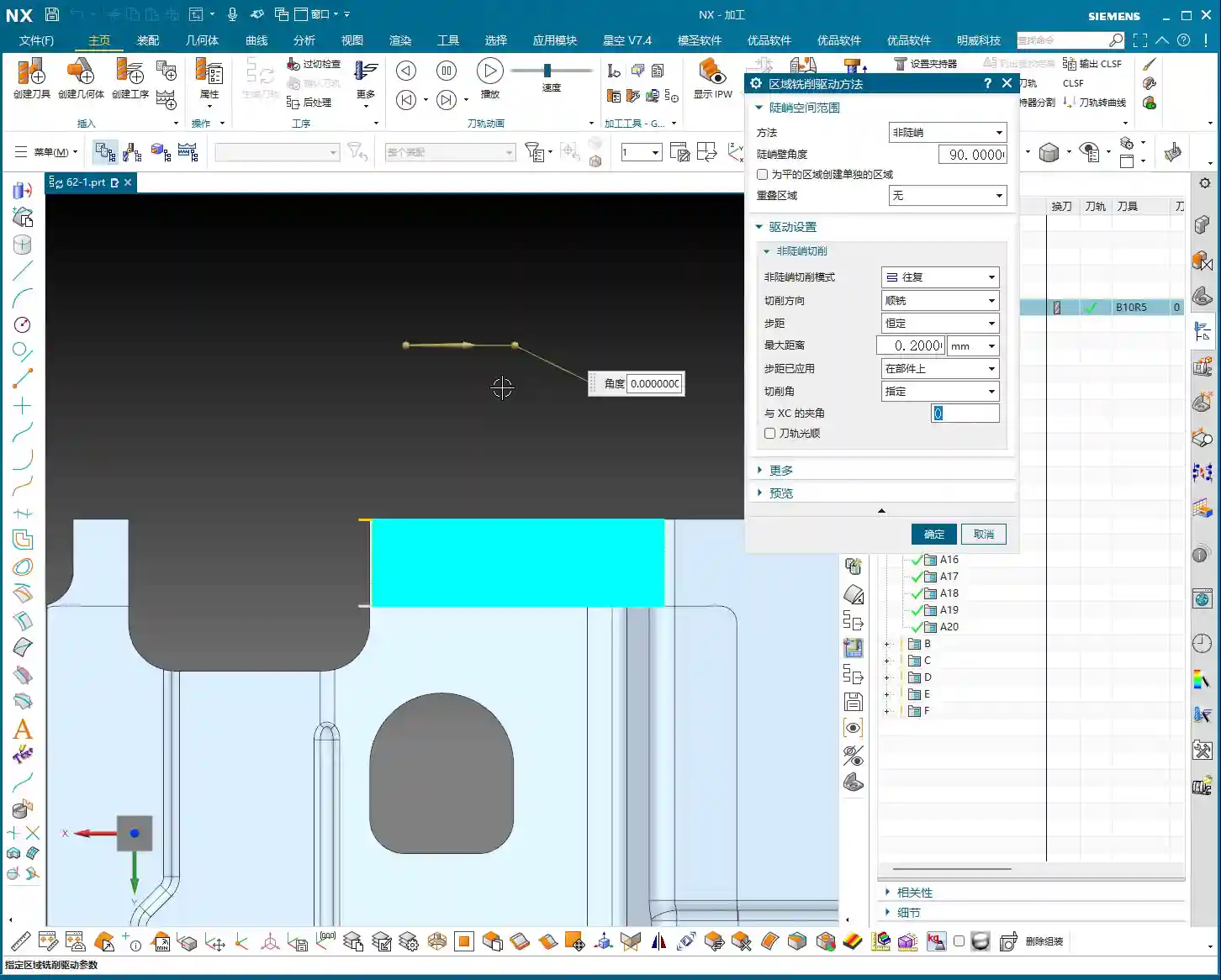
    • On Component: This is the default setting in NX and the one we use most frequently. It means the tool’s stepover is measured and applied directly on the actual surface of the part. The tool will follow the part’s surface as closely as possible, ensuring consistent stepover within the actual cutting area. In this mode, the toolpath adjusts according to the surface’s geometry, striving for uniform machining across the entire part surface.
    • First Plane: This option is quite interesting. When you select “First Plane,” NX will prompt you to choose a plane, and then it will project the tool’s stepover onto this plane for calculation, rather than calculating it directly on the part’s surface. This can lead to a problem: on inclined or undulating surfaces, the actual stepover during cutting might deviate from your set value, potentially resulting in uneven toolpaths.

    For instance: imagine you’re machining a wavy surface. If you use “On Component,” the tool will follow the undulations of the wave uniformly. But if you use “First Plane” and select a horizontal plane, the tool’s stepover will be uniform in the horizontal direction, but at the crests and troughs of the wave, the actual cutting distance might increase or decrease. While sometimes the toolpath differences aren’t obvious to the naked eye, these discrepancies will become apparent at the part’s edges, corners, or specific geometric features, affecting the final surface quality and potentially causing tool marks.

    Therefore, my recommendation is that unless there are specific requirements, generally use “On Component”. If you absolutely must use “First Plane,” then you must very carefully inspect the toolpath, and even verify it through test cuts. Don’t just rely on the software’s flawless simulation; you need to observe the cutting sparks and feel the part’s surface—those are the real-world tests!

    Summary: Pitfall Avoidance Guide

    1. Templates are paramount, do not alter methods: When using preset templates, do not arbitrarily change the drive method within the parameter dialogue box. During initial learning, directly select the operation corresponding to your desired method to prevent internal parameter conflicts.
    2. The ‘Edit’ button is key: All detailed parameters for Fixed Contour Milling are located within the “Edit” button. Mastering it means mastering the key to toolpath optimization.
    3. Non-steep is fundamental: Understand the characteristics of “Non-steep” regions. It is our default method for processing most part surfaces.
    4. Stepover requires fine-tuning: Based on part accuracy and surface roughness requirements, set the stepover appropriately (recommended 0.15mm-0.3mm), balancing machining efficiency and quality.
    5. ‘On Component’ vs. ‘First Plane’: The devil is in the details: Prioritize “On Component” to ensure the toolpath closely follows the actual surface. If using “First Plane,” thoroughly inspect the toolpath’s actual effect in complex geometric areas to avoid machining defects.
    6. Practical experience is paramount: Theoretical knowledge is foundational, but hands-on operation, observing cutting sparks, and inspecting part surface quality are the keys to improving your skills and solving real-world problems.

    👤 About the Author:
    The author is a veteran CNC machining professional with 15 years of industry experience, specializing in UG NX programming. This article is an original work representing personal practical insights.

    ⚠️ Copyright Notice: Unauthorized reproduction or distribution without prior communication is strictly prohibited.
  • Siemens NX Fixed Contour Milling Cutting Area Deep Dive: An Experienced Pro’s Practical Secrets and

    📝 Key Takeaways: Master Wang explains the Cutting Area function in Siemens NX Fixed Contour Milling. He focuses on the practical application of toolpath “splitting” and “merging,” emphasizing the importance of upfront CAD modeling to avoid blind CAM operations. He shares real-world experience not found in textbooks, helping the next generation improve machining efficiency and precision.

    Introduction: Straight Talk from the Shop Floor

    Hello everyone, I’m Old Wang. Starting today, we’re diving deep into a crucial module in Siemens NX: Fixed Contour Milling. This feature is used extensively in real-world machining, especially for complex surfaces – you can’t get away from it. Today, we’ll begin with one of its fundamental and core commands: Cutting Area. Listen up, lads, this isn’t something you’ll truly grasp just from reading books. You need to run it on an actual machine, watch the cutting sparks fly, to truly understand it!

    Let me clarify the learning order: first, we’ll master the “Cutting Area,” then gradually move on to others. We’ll set aside those relatively complex and harder-to-understand commands for now. Once we’ve built a solid foundation, we’ll tackle the tough stuff. But don’t underestimate these basic commands; they’re more than sufficient for everyday 3-axis machining. For those special commands, we’ll discuss their “unique tricks” when we get to them.

    Cutting Area: First Look – From Toolpath Generation to Problem Identification

    Let’s get straight to it. In NX, select the “Fixed Contour Milling” operation, then click “Cutting Area.” When the interface opens, it might look familiar, as many parts are similar to the machining operations we’ve covered before. But there are new features too, such as “Drive Method” and the direct “Specify Cutting Area” option. Previously, we mostly used “Specify Part” (or “Specify Body”), but now we can define the machining area with much greater precision.

    Step One: Select Part, Define Area, Select Tool

    First, Step One, as per usual, select the part you intend to machine. If you don’t select the part, you can’t do anything – that’s fundamental!

    Next, Step Two, which is today’s main focus – Specify Cutting Area. The meaning is simple: you’re telling the software: “Of this entire part, which specific section do I want to machine? Don’t get it wrong!” Just click on any face you want to machine; for example, if I click this face, it will define that face as the Cutting Area.

    Then, Step Three, select the tool. For “Fixed Contour Milling,” especially for Contour Milling operations like this, we typically use a ball end mill. For example, a B4R5 tool (4mm diameter, 5mm ball radius) is one we commonly use. Once the tool is selected, let’s generate the program!

    Initial Toolpath Evaluation: Limitations of Default Settings

    Once the program is generated, play it back and see if it’s machining along the selected face using a Contour Milling approach. You’ll see it plunges from one side and then contours its way across to machine the other. Clearly, this is a Contour Milling program. The default toolpath might look fine and capable of machining, but everything needs optimization. For instance, consider the entry point. Wouldn’t it be much more sensible to start the cut from the edge of the workpiece rather than plunging directly onto the surface? This reduces impact and extends tool life. Don’t just rely on software simulations; you need to observe the cutting sparks and the actual machining conditions!

    Advanced Cutting Area: The “Secrets” of Splitting and Merging

    Alright, now we’re going to delve into the “Cutting Area” parameters. Open up the operation parameters; the “Specify Part” stuff, you already know that. Let’s jump straight into how this Cutting Area really works.

    Click inside, and you’ll see a bunch of options, like “Tool Path Direction Range” and so on. Don’t worry about those for now; some of them are adjusted elsewhere. But the most crucial part is the “Create Region List” at the bottom. What’s this list for? Simply put, it allows you to perform fine-tuned adjustments, or even “surgical operations”, on your currently generated toolpath.

    Toolpath “Splitting”: It’s Not as Simple as You Think

    Once you’ve created the region list, you’ll see several new functions: “Split,” “Merge,” “Edit,” and “Delete.” Let’s talk about “Split” first.

    Click “Split,” and it will prompt you to define a cutting line or plane. For example, if I just drag a plane, once confirmed, you’ll see that what was originally a single, complete machining area has been distinctly divided into two sections. Generate the toolpath again, and it will machine one section first, then perform a retract, and then jump to machine the other. Seems like a powerful feature, right? But listen closely, here’s a practical tip that textbooks won’t tell you:

    • In actual practice, we rarely use this “Split” function directly within the CAM environment. Why? Because splitting toolpaths directly in CAM is less effective than clearly defining the distinct areas during the CAD modeling stage.
    • My experience tells me that if you truly want to divide a large surface into several smaller areas for machining, the best approach is to pre-process it in your CAD software. Use functions like “Curve on Surface” or “Divide Face” to split the original geometry. For instance, you could draw an auxiliary line on the surface, then use that line to divide the face into two. This way, when you select the “Cutting Area” in CAM, you can directly choose your pre-divided sub-faces instead of trying to split the toolpath.
    • The advantage of this front-loaded processing is: clearer logic, more precise control, and fewer errors. When you’re modeling, you can clearly define the boundaries of each machining area, avoiding unexpected issues caused by on-the-fly splitting in CAM, such as poor toolpath transitions or unnecessary retracts. Taking this extra step upfront can save you ten steps of rework later!

    Toolpath “Merging”: The Reverse of Splitting

    Once you understand “Split,” then “Merge” is straightforward; it’s simply the reverse operation of “Split.” If you’ve separated an area and want to restore it as a single entity, use “Merge.” Click “Merge,” and it will prompt you to select a target region, and then select the region to merge. Once confirmed, these two regions will reconnect into one. The toolpath will also regenerate accordingly, reverting to its state before you performed the split.

    So, “Split” and “Merge” essentially let you either break down a generated toolpath for individual processing or combine separated ones back together. The functions themselves are direct, but knowing where and how to use them effectively requires careful consideration.

    Application in Special Cases: Emergency and Fine-Tuning

    Of course, that’s not to say these in-CAM “Split” and “Merge” functions are entirely useless. In certain special circumstances, such as when you only want to fine-tune a very small local area, or in emergencies where quick segmentation is needed and you don’t want to go back and modify the model, they can certainly be helpful. However, generally speaking, they are emergency measures, not standard operating procedure.

    Summary: Pitfall Avoidance Guide

    Alright, you should now understand the purpose of the “Split” and “Merge” functions within the “Cutting Area” that we discussed today. But remember what I, Old Wang, always say:

    1. Prioritize Processing in the CAD Environment: Unless absolutely necessary, do not perform complex toolpath splitting directly within the CAM operation. Your model geometry is the foundation; properly defining areas within the model is the correct approach. This ensures toolpath quality, reduces retracts, and improves efficiency.
    2. Proficiency in CAD Modeling is the Foundation for CAM: Whether it’s turning, milling, planing, grinding, or NX programming, everything is ultimately based on geometry. Solidify your fundamental CAD modeling skills, and you’ll find many advanced CAM functions intuitive to use, even allowing you to bypass a lot of unnecessary hassle.
    3. Focus on Actual Cutting Performance: No matter how perfect a software simulation is, it cannot replace the cutting sparks and real-world results on the machine. When making any adjustments in CAM, always visualize the tool’s actual cutting state, consider material properties, and machine accuracy – that’s the mark of a true master machinist!

    There are many methods; choose the one that best suits your current working conditions and cost efficiency. Personally, most of the time, I handle it by drawing lines and splitting faces, because it gives me greater control and is less prone to errors.

    Alright, that’s all for today. In the next lesson, we’ll continue with other topics. Thanks for watching, and see you next time!

    👤 About the Author:
    The author is a veteran CNC machining professional with 15 years of industry experience, specializing in UG NX programming. This article is an original work representing personal practical insights.

    ⚠️ Copyright Notice: Unauthorized reproduction or distribution without prior communication is strictly prohibited.

  • Siemens NX Fixed Contour Milling: In-depth Analysis – Master Wang’s 15 Years of Practical Experience

    📝 Key Takeaways: ** Fixed Contour Milling: The Core of Finishing

    Master Wang Explains: What is Fixed Contour Milling?

    Alright, listen close, lads! Today, Master Wang is going to talk to you about a crucial feature in Siemens NX (UG) – Fixed Contour Milling. Don’t let its unassuming name fool you; this is our go-to method, our bread and butter, for achieving high-precision parts and finishing complex surfaces!

    You might have noticed several machining operations in the Siemens NX interface that look similar, with ‘Fixed Contour’ in their names. Today, Master Wang is going to clear things up for you: Fixed Contour Milling isn’t a single, specific machining method; it’s a general term, a whole family of operations! Just like when we discussed Face Milling and Cavity Milling, it has many sub-categories. It differs from typical operations like Face Milling, which handles planar surfaces, and Cavity Milling, which focuses on pocketing. But Fixed Contour Milling is specifically designed for surface features, especially complex, irregular freeform surfaces. If you need precision and surface finish, this is the one! Got it?

    The Core Function of Fixed Contour Milling: A Finishing Powerhouse

    Since it’s called “Fixed Contour Milling,” its primary strength is Finishing Pass. Mark my words, it’s almost never used for Roughing. The efficiency is too low; that’s simply not its job! Its forte is the final smoothing of surfaces, top faces, and sidewalls, ensuring the part’s dimensional accuracy and surface finish meet specifications. Think about it: aerospace blades, automotive mold cavities – how could they be produced without this technique? We typically pair it with a ball-nose end mill, meticulously ‘sculpting’ the surface, striving for that ±0.005mm (approx. 0.0002 inch) or even higher precision.

    The ‘Family Members’ of Fixed Contour Milling in Siemens NX (UG)

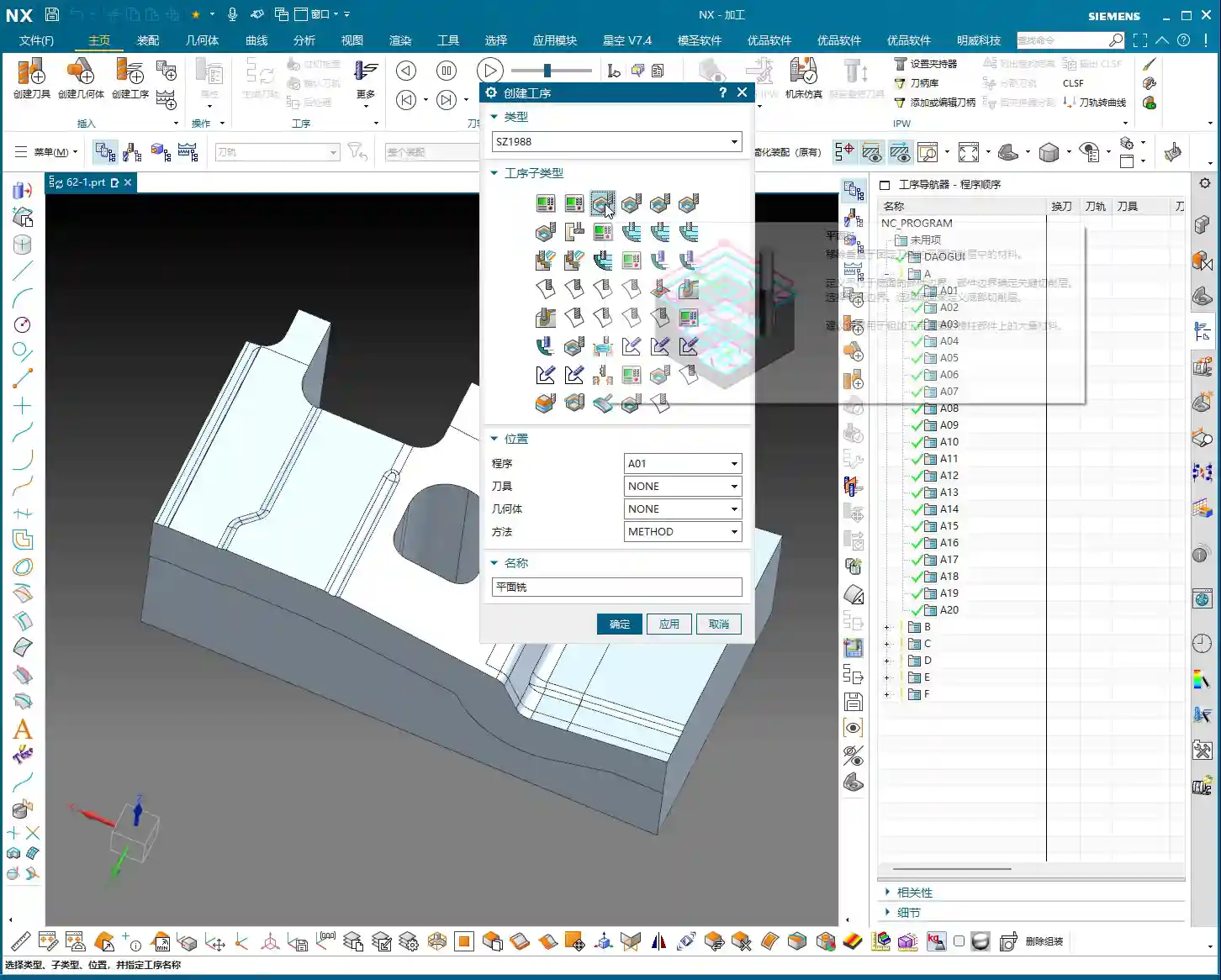
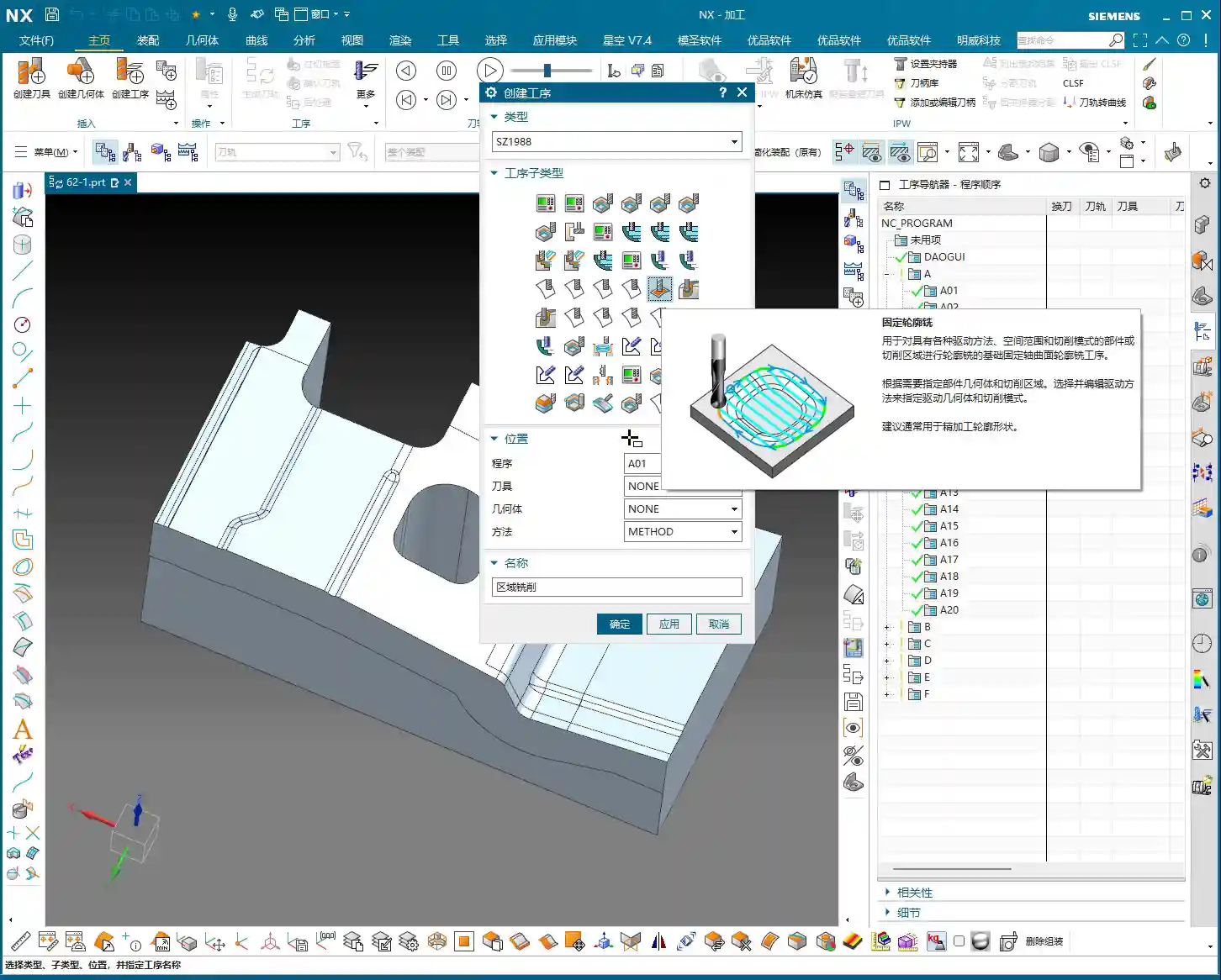
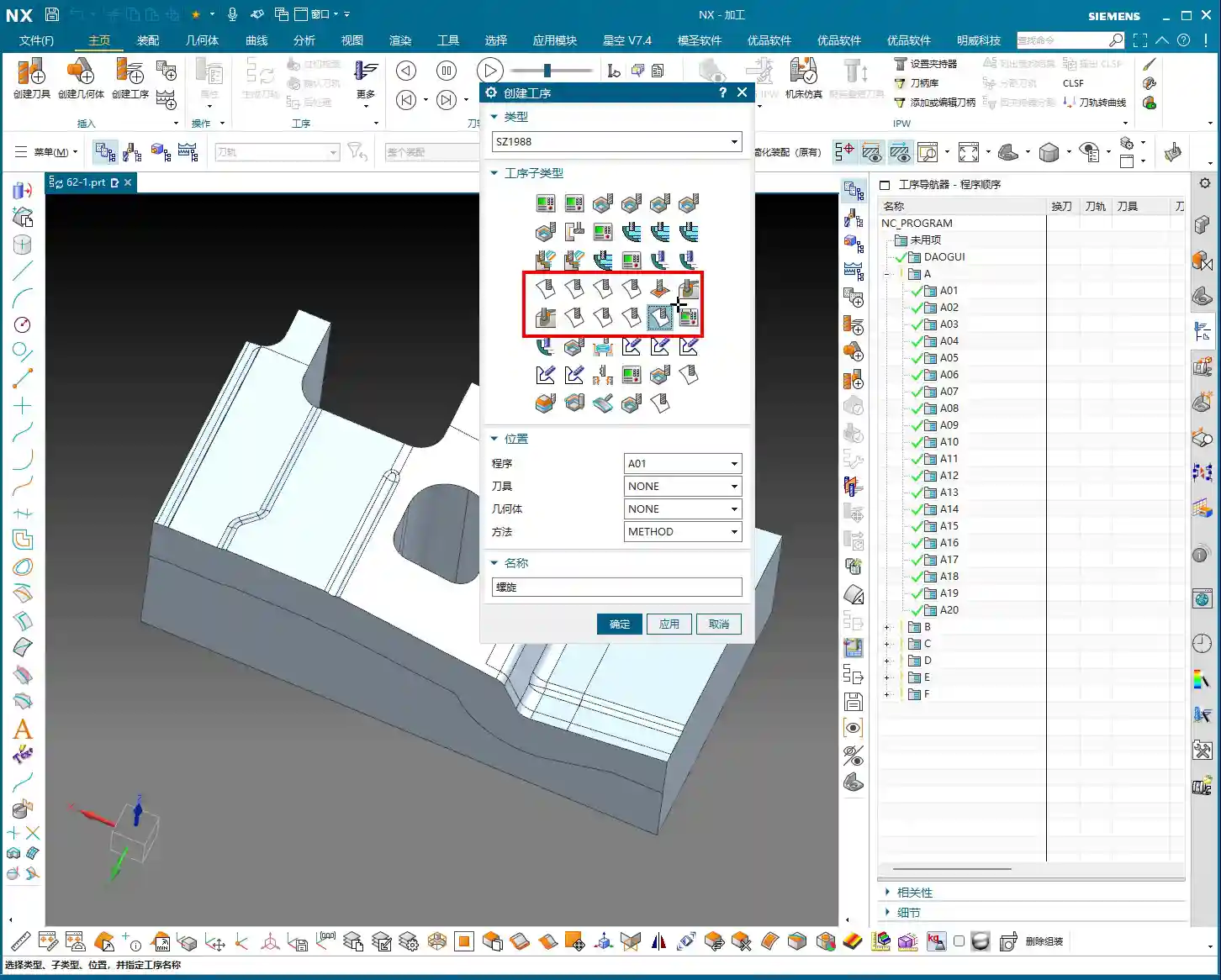
    Since it’s a large family, there are naturally different “members” for different tasks. While they all fall under “Fixed Contour Milling,” each branch excels in specific areas. The commands you see in Siemens NX under this category are essentially its “branches.” Today, we’ll start with an overview, and later, Master Wang will break them down one by one and teach you how to use them. The ones you see here are branches of Fixed Contour Milling; though their names may vary, at their core, they are all designed for high-precision Surface Milling:

    • Fixed Contour – Curve/Point: This is the most straightforward; it generates toolpaths along the curves or points you specify. Ideal for situations requiring precise trajectory control.
    • Fixed Contour – Boundary: Primarily used to restrict the machining area. Sometimes, when we only need to machine a specific section of a surface, this allows us to confine the tool’s movement precisely.
    • Fixed Contour – Flow Line: This is excellent for managing surface texture and direction. It allows the toolpath to follow the natural contours of the surface, resulting in exceptional surface quality and often eliminating the need for subsequent polishing or grinding.
    • Fixed Contour – Surface Area: One of the most commonly used. You directly select the surface or surface area to be machined, and Siemens NX will automatically generate the toolpath based on the geometry. This is the most fundamental and versatile Finishing Pass method.
    • Fixed Contour – Single Pass Corner Cleanup: A sharp tool for tackling small radii and tight corners. Using a smaller tool for a single pass to clear areas that larger tools couldn’t reach.
    • Fixed Contour – Multi Pass Corner Cleanup: More refined than a single pass, typically used for more complex or deeper material removal in residual areas, ensuring every corner is pristine.
    • Fixed Contour – Reference Tool Corner Cleanup: This intelligent method tracks which tools you’ve used previously and where residual material was left, then automatically plans the cleanup paths for smaller tools based on this information.
    • Fixed Contour – Helical Machining: While used less frequently, in specific cases like concentric cylindrical surfaces or structures with helical features, employing a helical approach for Depth of Cut (DOC) can result in more stable machining and a more uniform surface.

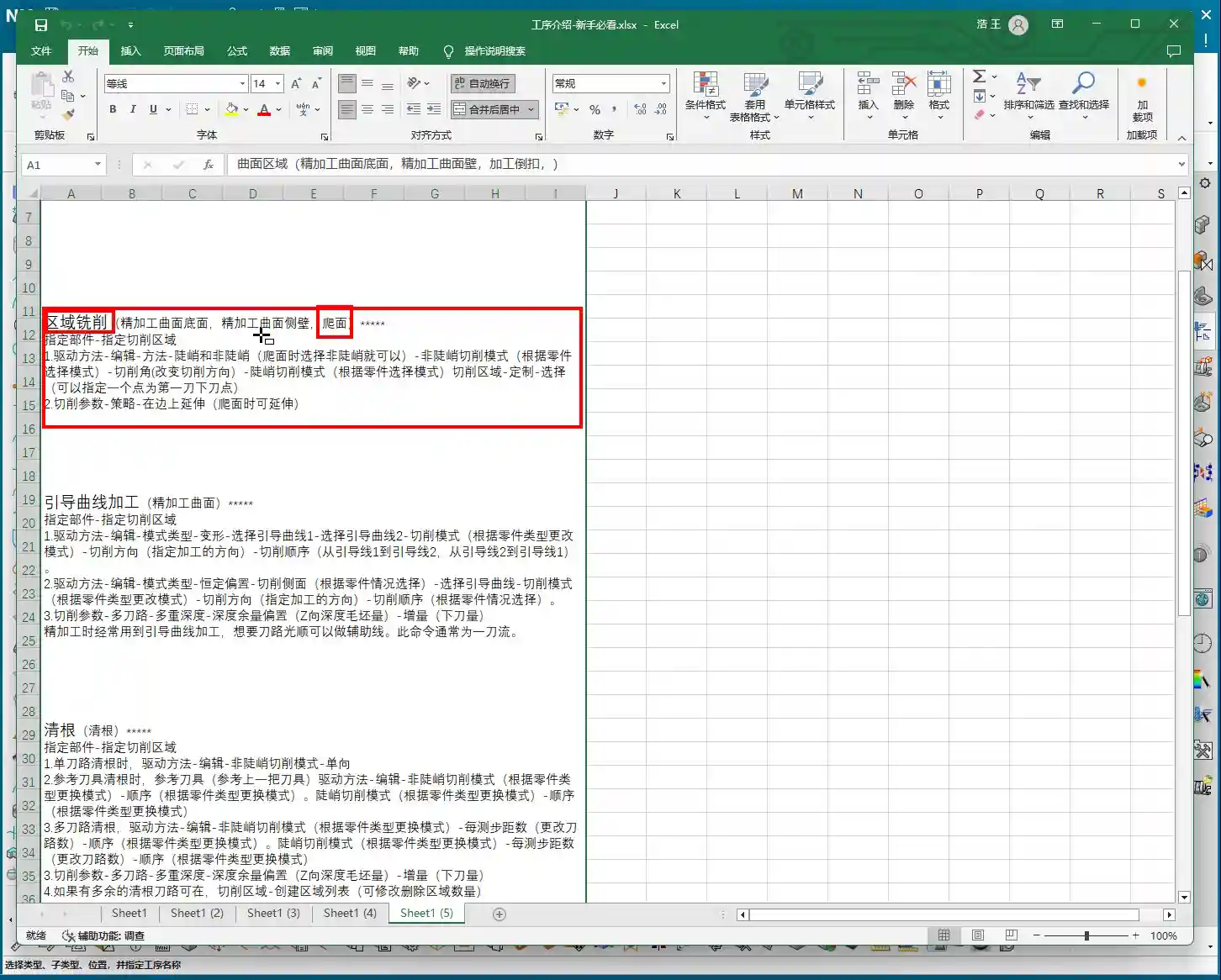
    These are all Finishing Pass operations. Siemens NX also features Variable Contour Milling, which is used for 5-axis machining. It’s very similar to the Fixed Contour Milling family members, but it adds one or two rotational axes of motion freedom. Today, we’re focusing on Fixed Contour Milling, which is primarily for 3-axis or 3+2-axis applications.

    Veteran’s Practical Wisdom: Siemens NX Operations and Optimization

    Theory alone won’t get you anywhere. No matter how pretty the Siemens NX simulation looks, the real test is the actual outcome on the machine. Master Wang has a few hard-earned practical tips here, so you boys better take notes:

    • Toolpath Optimization: Don’t always rely on the software to do all the thinking; put effort into adjusting feed rates, Depth of Cut (DOC), and Stepover. Especially in areas with high curvature changes, use a smaller Stepover and a slower feed rate, and you’ll get a smoother surface. Optimize toolpaths to be as continuous, smooth, and minimize tool lifts as much as possible. More air cuts mean longer cycle times and higher costs.
    • Material Properties: Machining different materials requires adjusting parameters accordingly. Aluminum can handle fast feed rates and deep cuts, but tough materials like titanium alloys and high-temperature nickel-based alloys require small Stepdowns, slow feed rates, and careful attention to cooling. These materials are prone to heavy cutting forces, leading to rapid tool wear, or even worse, tool chipping and scrapped parts.
    • Clamping Strategy: Finishing passes are most susceptible to deformation. For complex surface parts, Clamping must be secure but not overtightened, to avoid stress-induced deformation from the fixture. Sometimes, it’s necessary to design custom support fixtures or employ a strategy of multiple clamping setups with progressive machining.
    • Tool Selection and Grinding: For ball-nose end mills used in Finishing Pass, the tool radius and flute length are crucial. For some special radii, you might not find suitable tools on the market, so grinding custom tools ourselves is a common occurrence. A skilled tool grinder directly influences machining quality and efficiency.
    • Error Compensation: Machines accumulate accuracy errors over time, or due to environmental temperature changes. The Siemens NX program output is a theoretical value; during actual machining, you must learn to observe sparks, listen to cutting sounds, and measure actual dimensions. If you encounter accuracy issues of ±0.005mm (approx. 0.0002 inch), don’t panic. You can fine-tune by adjusting tool radius compensation (G41/G42), machine geometric error compensation, or modifying the stock allowance in the program. Don’t make impulsive changes; proceed incrementally.

    Summary: Pitfall Avoidance Guide

    Master Wang has a few final words of advice; these are lessons learned through hard-earned money and countless scrapped parts:

    1. Never use Fixed Contour Milling for Roughing! It’s meant for Finishing Pass work. Forcing it to tackle large stock amounts will be inefficient and likely lead to worn or burnt tools.
    2. Thoroughly understand the characteristics of each branch! Even though they’re all called ‘Fixed Contour Milling,’ each branch has its most suitable application scenario. Blindly choosing will only lead to wasted effort and suboptimal results.
    3. Don’t just trust software simulations; watch the cutting sparks! What looks perfect in the software might result in chatter or surface marring during actual machining. On-site observation and timely adjustments to feed rates and spindle speeds are paramount.
    4. Pay close attention to post-processing and machine characteristics! Especially for 5-axis simultaneous machining, modifications to the post-processor file are critical, as they directly impact toolpath execution. Every machine has its own ‘personality’; you need to understand it inside and out.
    5. For high-precision parts, cost-efficiency is always paramount. Before each machining operation, consider various factors—tools, process, fixturing—to achieve the highest precision with the lowest cost and shortest time.

    Fixed Contour Milling is a hardcore skill. Master it, and you’ll have solid confidence on the shop floor. In upcoming lessons, Master Wang will guide you through each of these branches until you’ve thoroughly mastered them. Then you’ll really get it.

    👤 About the Author:
    The author is a veteran CNC machining professional with 15 years of industry experience, specializing in UG NX programming. This article is an original work representing personal practical insights.

    ⚠️ Copyright Notice: Unauthorized reproduction or distribution without prior communication is strictly prohibited.
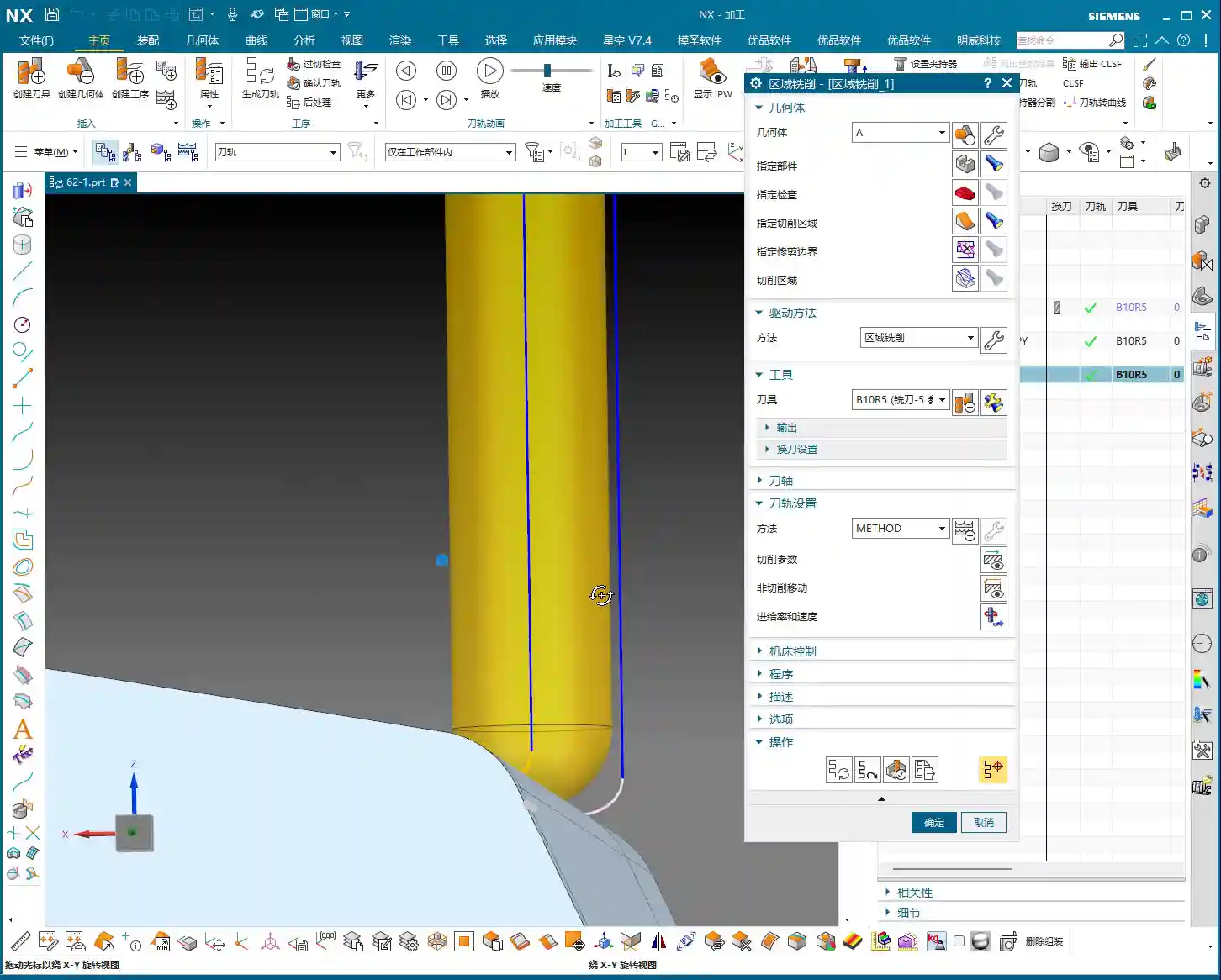
  • Deep Contour Milling in Siemens NX: Master Wang Shows You Hand-on Finishing, Avoiding Common Pitfall

    📝 Key Takeaways: Practical application of Deep Contour Milling in Siemens NX. Master Wang explains finishing sidewalls, holes, and corner cleanup, utilizing tools like D20 and 4R1. He deeply analyzes the “single pass to full depth” pitfall for multi-hole features and offers a “Tool End Point Tracking Upwards” solution. The emphasis is on precise fixturing, rational tool selection, and area-specific programming as key to boosting efficiency and mitigating risks. [META] Title: Deep Contour Milling in Siemens NX: Master Wang Shows You Hand-on Finishing, Avoiding Common Pitfalls! Tags: Siemens NX, Deep Contour Milling, Finishing pass, Toolpath Optimization, Helical Milling, Practical Experience, Master Wang, CNC Programming, Machining, Pitfall Avoidance Guide, NX CAM

    Hello everyone, I’m Master Wang! Today, no fluff, just straight to the practical stuff. Last time we talked about deep contour milling, helical milling, and corner cleanup—all tough nuts to crack in finishing. This time, I’m taking a real-world part and walking you through how to master these operations in Siemens NX, especially those ‘tricks’ and ‘major pitfalls’ you won’t find in textbooks. Listen up, this is 15 years of hard-earned experience!

    Core Process Analysis: Deep Contour Milling Finishing

    Workpiece Preparation and Initial Positioning

    Newcomers to Siemens NX programming might think you can just drop a part anywhere and start creating toolpaths. In a teaching demonstration, to save time, I might indeed ‘place it casually’. However, in actual machine operation, precise workpiece positioning is the first and most critical step! If your blank isn’t aligned or clamped properly, no matter how perfect your program is, it’s all useless once the machine starts running. Don’t just rely on software simulation; look at the cutting sparks and the actual results.

    Today, let’s start with one face, using deep contour milling for finishing the sidewalls.

    Sidewall Finishing Toolpath Programming (First Face)

    Select the ‘Deep Contour Milling’ operation, then define the machining regions. Here, we’ll finish several internal sidewalls of the part, including those with corner radii. In Siemens NX, after you select a face, it sometimes automatically recognizes related sidewalls. But remember, the machine is rigid, but the operator is not; the final outcome depends on our experienced judgment.

    For the tool, I’ve directly chosen a D20 tool here. Let’s set the Depth of Cut (DOC) for each pass to 5 mm initially. Leave other parameters as default for now, and generate the toolpath to see the effect. Siemens NX’s simulation capabilities are powerful, but they won’t tell you if the tool will chatter or if you’re taking too deep a cut. You need to rely on your ‘feel’ and ‘eyesight’ to judge these things.

    Key Optimization: Single Pass to Full Depth and Depth Compensation

    After generating the program, you’ll notice that if the sidewalls are deep, the tool cuts in layers. For finishing passes, sometimes we want a single pass to full depth. This reduces blend lines and improves surface finish. The audio mentioning ‘5 mm is a bit excessive’ refers to this very point.

    At this point, we can directly change the Depth of Cut for each pass to 0 to achieve a ‘single pass to full depth’. Of course, this depends on your tool’s rigidity and the workpiece material’s hardness. For instance, try this with titanium, and your tool will be ruined! With aluminum, it might not be an issue. So, parameters are not set in stone; you must adjust them flexibly based on the actual situation. Here, our goal is to finish the sidewalls, and a single pass to full depth will yield better results, provided tool rigidity is maintained.

    Additionally, if you find the bottom surface isn’t fully machined, you can slightly extend the cut downwards by 2 mm to ensure thorough corner cleanup and no residual material. These are fine-tuning tips gained from practical experience, which textbooks might not detail this extensively.

    Multi-Face Switching and Work Coordinate System (WCS) Setup

    Switching Workpiece Orientation and Work Coordinate System (WCS)

    Once one face is machined, we need to switch to another. In Siemens NX, this involves changing the Work Coordinate System (WCS). Select a new datum plane, adjust the Z-axis direction, and then copy-paste your previously programmed operations to significantly boost efficiency. This copy-paste trick is favored by seasoned machinists; it’s a real time and effort saver.

    Programming Reuse and Region Selection

    After switching faces and copying the program, you’ll need to re-specify the machining regions. Here, we’ve selected several holes and sidewalls for machining. Pay attention: Siemens NX can sometimes help you automatically identify regions, but you must carefully check to ensure you haven’t selected incorrectly or missed any. Complex transition surfaces, especially, are easy to overlook.

    This time, we’ve chosen a 4R1 tool to machine these areas. We’ll set the Depth of Cut (DOC) for each pass to 0.1 mm; for a finishing pass, precision is key. Furthermore, to avoid excessive back-and-forth cutting, we’re using a helical milling strategy, which results in smoother toolpaths and a better surface finish.

    Handling Complex Features: Hole Machining and Extension Strategies

    Large Hole Finishing and the ‘Single Pass to Full Depth’ Pitfall

    Now let’s tackle a few large holes. I’ve selected all of them, ready to machine them together. However, in practice, newcomers often fall into a major pitfall: if these holes have varying depths, and you use a ‘single pass to full depth’ strategy, Siemens NX will, by default, machine all holes to the bottom of the deepest one! The result is shallow holes being cut through, or simply wasted machining time.

    Pitfall Avoidance Key: When facing this situation, don’t force it. You need to adjust the tool end point settings, choosing “Tool End Point Tracking Upwards”. This way, the tool will stop when it reaches the actual bottom of each respective hole, preventing over-machining. This is a critical lesson from my years of experience, saving countless scrapped parts and wasted time!

    Unfinished Bottom Surfaces and Extension Compensation

    Sometimes, even with a finishing pass, when the tool reaches the bottom of a hole or slot, due to tool geometry and residual material, a thin layer might remain, leaving the bottom surface not fully machined. In such cases, you need to compensate by using a ‘Downward Extension’ strategy. For example, extend the cut another 2 mm beyond the original depth to ensure the bottom surface is clean and flat. But extend moderately; don’t mill through the bottom.

    Best Practice: Area-Specific Machining and Time Considerations

    In teaching, for convenience and to save time, I might select holes of different depths or features to machine together. But listen up, Detail Refinement and Tool Selection

    Corner Cleanup Operations and Tool Matching

    Internal corners on a part, especially radii, are challenging for finishing. If you use a D10 tool to clean an R5 internal corner, it will leave a small radius. If you want a sharper corner, you’ll need a smaller tool or a specialized corner cleanup tool. Here, using a D10 tool for an R5 corner cleanup is a common practice that ensures a good surface finish on the radius without breaking the tool.

    In Siemens NX, select the corners to clean, then choose the appropriate tool. Always measure the radius size first so you know what you’re dealing with. This is fundamental; don’t get lazy!

    Final Inspection and Fine-Tuning

    Once all programs are compiled, always perform a simulation check. Look for any toolpath collisions, missed areas, or unnecessary cuts. If there’s slight under-machining, for instance, needing ‘just a bit more cut,’ then make a small adjustment in the parameters. Sometimes, these ‘tiny’ fine-tunes determine the final quality of the part. All programs should use climb milling for a better surface finish.

    Summary: Pitfall Avoidance Guide

    Listen up, youngsters! Beyond the Siemens NX operations in today’s tutorial, I hope you remember these practical experiences and pitfall avoidance keys:

    • Positioning is fundamental; don’t ‘just drop it anywhere’: Before any programming, precise positioning and secure fixturing of the actual workpiece are prerequisites. ‘Casual placement’ in software is just for demonstration; in reality, a slight error can lead to a huge deviation.
    • Tool selection must be ‘rational,’ not ‘random’: In my demonstrations, to speed things up, I might have picked tools somewhat arbitrarily. However, in actual machining, you must select the most suitable tool based on material, hardness, workpiece geometry, required surface finish, and machining efficiency. This isn’t a snap decision; it’s accumulated knowledge.
    • Varying hole depths: strictly guard against the ‘single pass to full depth’ pitfall: When machining multiple holes of different depths simultaneously, remember to use strategies like “Tool End Point Tracking Upwards” to prevent over-machining. Alternatively, Under-machined bottom surface? Reasonably ‘extend’ to compensate: If you find residual material on the bottom surface, appropriately extending the toolpath downwards is an effective method, but control the amount to avoid interference.
    • High surface finish requirements? Consider ‘helical milling’ and ‘single pass to full depth’: Provided rigidity and tool life are maintained, a ‘single pass to full depth’ finishing cut for sidewalls and hole walls, combined with helical milling, can significantly improve surface quality.
    • get hands-on and observe the actual cutting on the machine. Only then can you truly become a qualified machinist.

      👤 About the Author:
      The author is a veteran CNC machining professional with 15 years of industry experience, specializing in UG NX programming. This article is an original work representing personal practical insights.

      ⚠️ Copyright Notice: Unauthorized reproduction or distribution without prior communication is strictly prohibited.
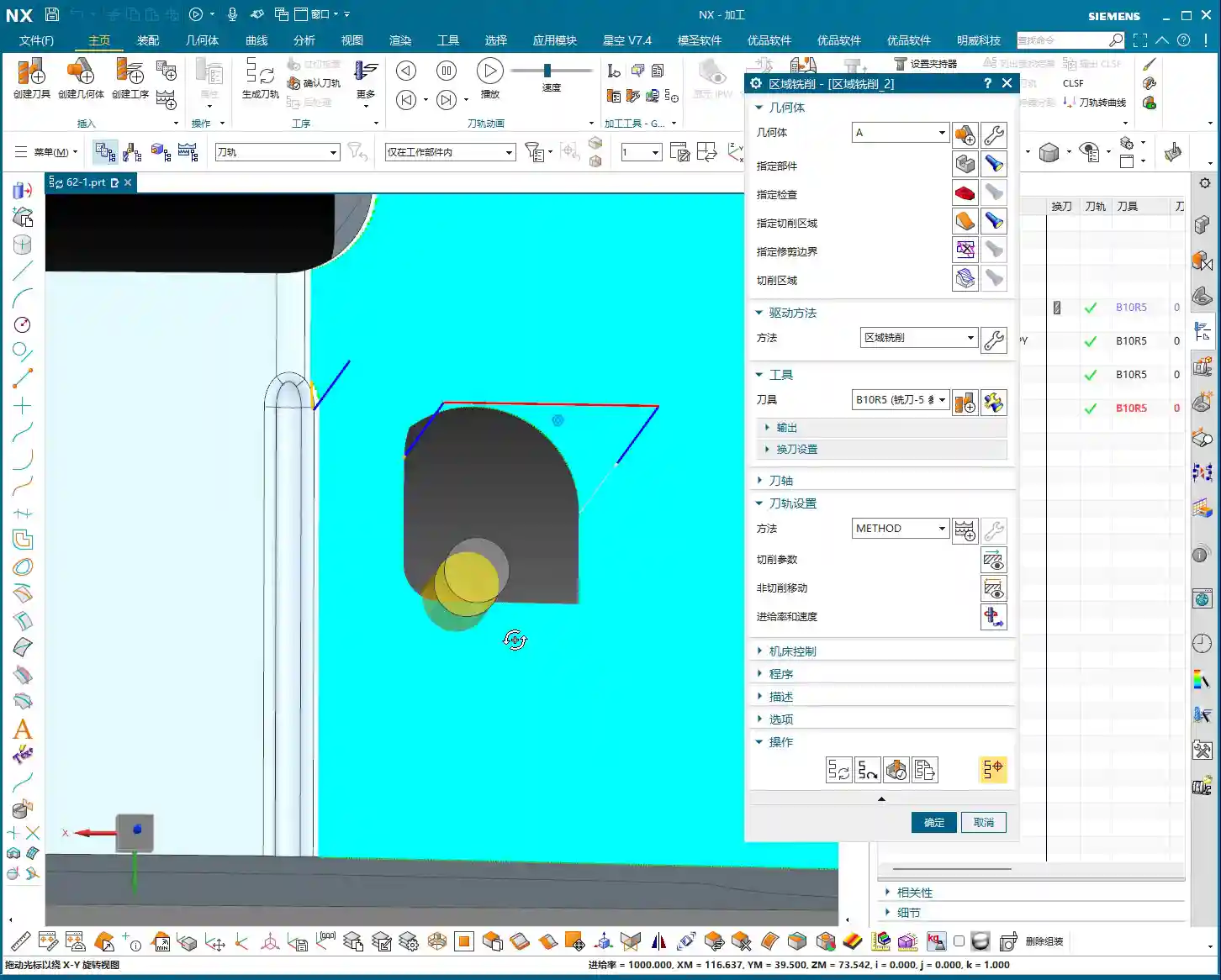
  • Siemens NX Deep Profile Helical Milling Practical: Master Wang’s Hands-on Guide to Efficient Corner

    📝 Key Takeaways: ** Master Wang personally reveals real-world secrets of Siemens NX Deep Profile Helical Milling! From face selection to helical plunging, discover how to achieve efficient Corner Cleanup, eliminate residual material at the bottom, optimize Stepdown and residual material, effortlessly tackling complex Contour Milling challenges like fillets and chamfers. Practical tips you won’t find in textbooks will help you boost machining efficiency, avoid common machining pitfalls, and master 0.005mm-level precision control. **

    Hello everyone, I’m Master Wang. Today, we’ll continue discussing the machining module in NX (Siemens NX), especially this **Deep Profile Helical Milling** operation. Listen up, this isn’t just about clicking a few buttons in the software interface; there’s a lot more to it!

    What is Deep Profile Helical Milling? Listen to me explain!

    You guys have probably used “Profile Helical Milling” before, right? With that, you select an edge or a profile curve, and it plunges along that curve, drawing a yellow helical line downwards. It’s fine for open shapes or simple holes. But this **”Deep Profile Helical Milling”** we’re talking about today, it’s different.

    Simply put, it focuses more on **selecting “faces” to define the machining area**, especially for enclosed areas with vertical walls. It can recognize the solid faces you select and then perform helical plunging. This approach is much more effective and hassle-free for machining deep cavities or when precise control of side walls is required during Roughing, compared to simple Profile Helical Milling.

    Face Selection Secret: Bid Farewell to the “Sketching Lines” Era

    Listen up, this is the first key point! In “Deep Profile Helical Milling,” you don’t select lines; you select **vertical “wall faces”** (that is, faces perpendicular to the bottom surface). See, when you choose this function, it prompts you to select faces, and you should select the side wall faces that need to be machined. Don’t foolishly select a line; that would be no different from regular Profile Helical Milling and would limit your toolpath flexibility.
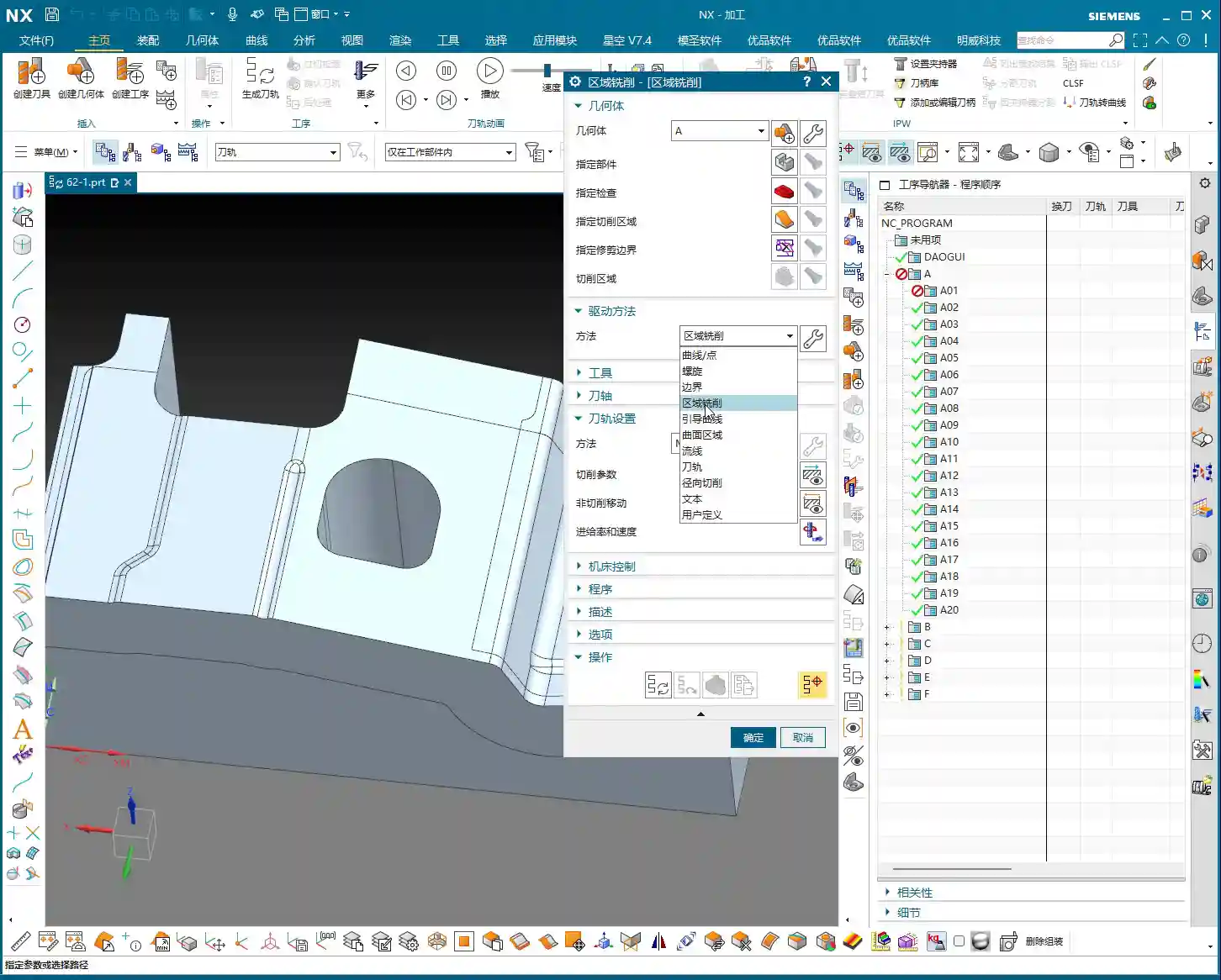
    Once you select the faces, the software understands that the area is enclosed. It will automatically plan a top-to-bottom, spiraling toolpath based on your set parameters to clear the entire region. This efficiency is much higher than tracing lines one face at a time, especially for irregularly shaped deep cavities, saving you a lot of manual line selection hassle.
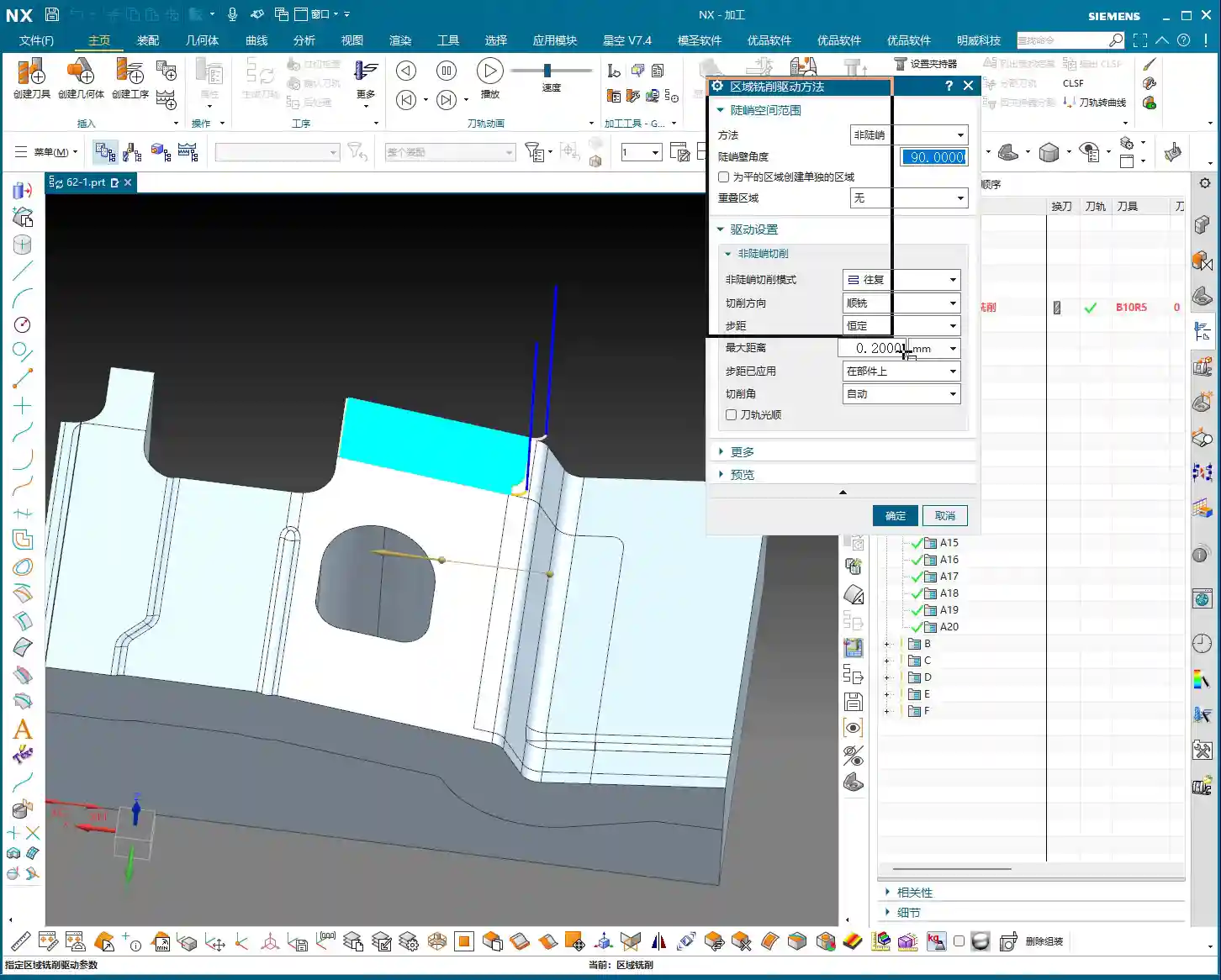
    The Secret to Helical Plunging: The Key is “Ramp Angle”

    Want the tool to truly “helix” down instead of plunging in “stair-step” segments? There’s a crucial setting here: in the “Connect” tab, find **“Ramp Along Part”**. You need to check this! Then, set the **“Ramp Angle”** below it to 0 degrees. Yes, you heard that right, 0 degrees!

    Why 0 degrees? Because we want it to smoothly helix down along the specified face, like a drill, rather than having an angled plunge. Setting it to 0 degrees allows the tool to completely follow the side wall downwards, avoiding impact and reducing the risk of Chatter and Tool deflection. This benefits both tool life and surface quality. This is a practical tip that textbooks might not emphasize!

    Efficiency and Precision: The Balance of Stepdown and Residual Material

    Stepdown Settings: Balancing Calculation Speed and Machining Quality

    When setting the **Stepdown** (which is the depth of cut for each pass), there’s a little trick. If you’re just quickly verifying the toolpath or running a simulation on your computer, you can set a larger Stepdown, for example, 5 mm. This speeds up program calculation, and you’ll see the results quickly. But listen up, this is just for “getting a general idea”!

    However, when it comes to actual machine tool machining, especially during Roughing, the Stepdown can’t be set so casually. You need to determine it based on material hardness, tool diameter, and machine rigidity. For instance, machining titanium alloy and common aluminum will definitely require different Stepdown values. For typical Roughing, we might set it between 0.2 mm and 1 mm. A Stepdown that’s too large can lead to Tool deflection, while one that’s too small is too time-consuming. **Don’t just rely on software simulation; observe the cutting sparks!** Stable, normally colored sparks indicate that your parameters are set correctly.

    Residual Material Control: A Critical Step for Finishing

    **Residual Material** (also known as “stock to leave for the next operation”). During the Roughing phase, a certain amount of residual material is typically left, for example, 0.3 to 0.5 mm, to be removed during the Finishing pass. However, if the current operation is the final Finishing pass, then remember to set the residual material to 0. Setting it to 0 allows the tool to mill away all excess material, achieving the dimensions required by your drawing.

    Especially when pursuing high precision like ±0.005mm, residual material control is crucial. Not an iota can be overlooked. If you find that the machined dimensions consistently deviate, the first thing to check is your residual material settings, as well as the machine tool’s accuracy compensation.

    Deep Profile Helical Milling vs. Other Machining Strategies

    Comparing with Profile Helical Milling: Where’s the Advantage?

    As mentioned before, “Profile Helical Milling” primarily involves selecting lines; it only knows to follow the lines you’ve chosen. But “Deep Profile Helical Milling” involves selecting faces, allowing it to recognize the entire enclosed area. So, if you have multiple holes or several similarly shaped deep cavities to machine, by directly selecting multiple faces with “Deep Profile Helical Milling,” it can automatically plan the toolpaths for you, **saving you the hassle of selecting lines and stitching them together one by one**. Moreover, it performs more stably and generates more continuous toolpaths when dealing with complex surfaces and varying cross-sections.

    Comparing with Hole Milling: A Victory for Flexibility

    Surely some apprentices will ask: “Master Wang, isn’t this just drilling holes? Can’t we just use ‘Hole Milling’?” Well, for simple circular holes, “Hole Milling” is indeed more direct and efficient. However, if this “hole” isn’t a regular circular hole, or if it features chamfers, fillets, or even an irregular shape, then “Hole Milling” won’t be sufficient.

    This is where the advantage of “Deep Profile Helical Milling” shines. It can perform helical machining along your selected irregular faces, **perfectly adapting to various complex hole and cavity shapes**. It’s like having two tools in your hand: a standard kitchen knife and a Swiss Army knife. When encountering complex situations, the Swiss Army knife is clearly more flexible and effective. For us in machining, it’s about learning to choose the most suitable machining strategy based on the part’s characteristics—that’s how you get the job done, and done well!

    Troubleshooting: Chamfers, Fillets, and Bottom Residual Material

    Chamfer and Fillet Machining: One Tool Does It All!

    Many times, parts not only have holes but also require chamfers (C-angles) or fillets (R-angles). For example, if the drawing calls for a C1 chamfer or an R0.5 fillet, with “Deep Profile Helical Milling,” you simply select the corresponding chamfer face or fillet face. Then, choose an appropriate tool—such as an R0.5 ball nose end mill or a chamfer tool—and it will machine these intricate features for you along a helical path. This is much more time and effort-efficient than using several different operations to handle these details, and the toolpaths are smoother.

    Bottom Corner Cleanup: How to Avoid “Leftovers”

    This is an old problem, and many novices often make this mistake. When you use a bull nose end mill or a ball nose end mill to machine the bottom of a deep cavity, due to the tool’s radius, it often cannot completely clear the residual material in the bottom corners, always leaving a little “root,” or a small triangular remnant. Don’t be fooled by software simulations; once you machine it on the machine, you’ll find there’s residual material.

    The solution is simple: in your program, find the **“Part Stock”** or **“Extension”** option and extend the toolpath downwards a bit. For example, extend it by 2.5 mm, or directly by **50% of the tool diameter**. This way, the tool’s radius can reach the very bottom, thoroughly clearing away those pesky residual materials. This is about “knowing not just what to do, but why to do it”—don’t just look at the surface; pay attention to the details.

    Summary: Pitfall Avoidance Guide

    • Select Faces, Not Lines: When using “Deep Profile Helical Milling,” always select the correct vertical wall faces, not contour lines; this greatly simplifies programming.
    • Core Helical Plunging Setting: In “Connect,” check “Ramp Along Part” and set the “Ramp Angle” to 0 degrees to ensure smooth helical plunging and avoid Tool deflection.
    • Set Stepdown Appropriately: For simulation, you can set it larger to speed up calculation. For actual machining, adjust it to 0.2mm~1mm based on material, tool, and machine rigidity to ensure stable cutting and normal sparks.
    • Zero Residual Material for Finishing: If the current operation is a Finishing pass, ensure “Residual Material” is set to 0 to meet precise dimensional requirements.
    • Extend for Bottom Corner Cleanup: When machining deep cavity bottoms with an R-radius tool, extend the toolpath downwards by 2.5mm or **50% of the tool diameter** in the toolpath settings to thoroughly remove bottom residual material.
    • Match Tool to Feature: When machining chamfers or fillets, select a matching tool (e.g., R-radius tool, chamfer tool) to achieve a single-pass formation.
    • Don’t Blindly Trust Software Simulation: Simulation is only a reference; ultimately, you must observe the actual cutting effect, sparks, and chips, and adjust based on experience.

    Remember these points, and you’ll avoid many detours in Siemens NX Deep Profile Helical Milling. Your programs will be not only efficient but also produce high-precision parts. In today’s fiercely competitive industrial product market, the ability to manually produce high-precision, high-quality parts is your greatest competitive advantage!

    👤 About the Author:
    The author is a veteran CNC machining professional with 15 years of industry experience, specializing in UG NX programming. This article is an original work representing personal practical insights.

    ⚠️ Copyright Notice: Unauthorized reproduction or distribution without prior communication is strictly prohibited.